

As a team of design and content professionals, we know how much effort goes into every single post. You have the perfect idea, you shoot a great tiktok video, and you are ready to share it.
But then, right after posting, you spot a typo in your tiktok caption. It is a common problem that frustrates many content creators.
You immediately wonder, can you edit captions on TikTok? This is one of the most asked questions for users of the popular social media app.
At Designers Choice, our goal is to give creators the tools and knowledge to succeed. We are here to provide clear answers and helpful solutions.
In this guide, we will walk you through everything you need to know about editing a tiktok caption.
We will show you the steps to fix a mistake and give you tips to prevent them in the future, helping you make your content shine.
What Are TikTok Captions?

A TikTok caption is the short text you add to your tiktok video before you share it. This caption shows up on the bottom of the screen when people watch your video. It is your space to describe your video, tell a story, ask a question, or add important context.
This is also where you put your hashtags.
Hashtags are words or phrases that start with the # symbol. They help categorize your video so more people can find it. A good caption and the right hashtags are key parts of a successful TikTok post. They work together to grab attention and explain what your content is about.
Why TikTok Captions Are Essential?

Boost Your TikTok Presence
Your TikTok caption is much more than just a few words; it is a powerful tool.
A well-written caption helps TikTok’s algorithm know what your video is about. When the algorithm knows your content, it can show it to the right target audience—the people who are most likely to enjoy it.
This is how you reach a wider audience and grow your account.
Using accurate captions and relevant hashtags tells TikTok who to show your video to. This means more views, more likes, and more followers.
For all content creators, making sure your caption is perfect is a big step toward success on the social media platform.
Save Time and Cut Costs With AI
Creating great content takes time. For busy creators, every minute counts.
One of the best ways to make the caption-writing process faster and better is by using modern tools. Artificial intelligence, or AI, can help you write captions quickly. An AI tool can suggest ideas, check for mistakes, and even help you find trending hashtags.
Many popular AI-powered video editing apps, such as CapCut, which is owned by the same parent company as TikTok, offer these kinds of smart features. If you’ve ever wondered about the connection between these apps, we have a detailed look at does TikTok owns CapCut.
Using AI can feel like having a helpful assistant. It helps you avoid small mistakes that would later require you to make a change.
By getting the caption right the first time, you save yourself the headache of having to delete and upload your video again.
This is a smart way for content creators to be more efficient.
Can You Edit Captions on TikTok After Posting?
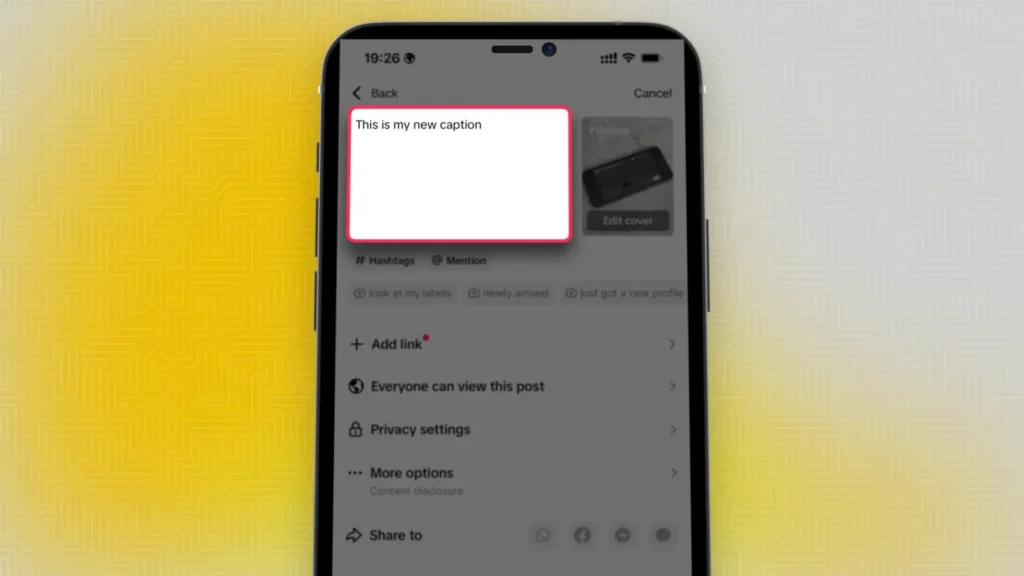
Here is the direct answer: no, you cannot directly edit a TikTok caption after you have posted it.
As of 2025, TikTok does not have an edit post button for the caption of a live tiktok video. Once your video is public, the caption is locked in.
This is different from other social media platforms like Instagram or Facebook, where an edit post feature is standard.
On TikTok, a mistake in the caption or hashtags is permanent for that specific post. This lack of an editing function is a major point of frustration for many creators. But do not worry, there is a workaround that many people use to make the necessary changes.
How to “Edit” Your TikTok Caption: The Re-Upload Method

Since there is no edit post button, the only way to fix a caption on a video that is already live is to re-upload it.
This method involves saving your video, deleting the original post, and then uploading it again with the corrected caption.
It is a simple process, but it has some important downsides to consider.
Step 1: Save Your Video to Your Device
First, you need to save the tiktok video with the wrong caption to your phone.
If you do not have the original video file saved separately, this step is very important.
- Open the TikTok app and go to your profile.
- Find the tiktok video you want to fix.
- Tap the “Share” icon (it looks like an arrow) on the right side of the screen.
- In the menu that appears, find and tap the save video button.
This will download a copy of the video, including any edits, stickers, and the original audio, to your phone’s photo gallery. You now have a clean copy of the saved video ready for uploading.
Step 2: Delete the Original TikTok Post
Before you upload the new version, you must delete the old one. Having two copies of the same video can confuse TikTok’s algorithm.
- Go to the same TikTok video on your profile.
- Tap the three dots (…) icon on the right side to open more options.
- Swipe through the bottom menu until you see the “Delete” option (it looks like a trash can).
- Tap “Delete” and confirm your choice.
Remember, when you delete a post, it is gone for good. There is no way to get it back.
Step 3: Re-Upload the Video With A New Caption
Now you are ready for a fresh start. You will upload the saved video as a new post.
- On the TikTok app, tap the plus (+) icon at the bottom of the screen to create a new post.
- Instead of recording a new video, tap the “Upload” button to choose a video from your device.
- Select the saved video you just downloaded.
- Go through the editing screens. Since the video is already edited, you can likely just tap “Next.”
- You will land on the posting screen. This is your chance to write the new, corrected tiktok caption. Double-check it for spelling and make sure you have the right hashtags.
- Once you are happy with the new caption, tap “Post.”
Important: What You Lose When You Re-Upload
This method lets you fix your caption, but it comes at a cost. When you delete the original tiktok video, you lose all the engagement it had.
This includes:
- All the likes.
- All the comments.
- All the shares.
- All the views.
You are starting over from zero. If the video was only live for a few minutes, this might not be a big deal.
But if it already has a lot of views and comments, you must decide if fixing the caption is worth losing that progress.
This is the main reason why editing TikTok captions affects views, a key question: the old views are lost completely.
How to Edit the Caption On A TikTok Draft?

The best way to fix a caption is to catch the mistake before posting. TikTok’s drafts feature is the perfect tool for this.
Drafts are videos you have started but have not yet posted. You can freely edit everything in a draft, including the caption.
Finding and Editing Your TikTok Drafts
When you save a video as a draft instead of posting it, it goes into a special folder on your profile.
- Open the TikTok app and go to your profile page.
- You will see a “Drafts” folder right next to your public videos. Tap on it.
- Select the draft you want to work on.
- This will open the TikTok video editor screen. Tap “Back” to get to the posting screen where the caption is.
- Now you can make any necessary changes to your TikTok caption and hashtags.
- When you are sure everything is perfect, you can go ahead and post it.
Why Using Drafts Is A Smart Habit?
Getting into the habit of saving your videos to drafts first is one of the best ways to avoid mistakes. It gives you a chance to step away and come back with fresh eyes. You can review your caption, check your hashtags, and make sure the audio is right without any pressure.
For serious content creators, drafts are a key part of the workflow. They allow for planning content and ensuring every upload is high quality. Using drafts means you will rarely have to use the risky re-upload method.
Tips to Avoid TikTok Caption Mistakes in the Future
Prevention is always better than a cure. Here are a few simple tips to help you write accurate captions every time.
Proofread Your Caption Before Hitting “Post”
This seems simple, but it is easy to forget when you are excited to share a new tiktok video. Before you hit the “Post” button, take a moment to read your caption one more time.
Read it out loud to catch awkward phrasing. Check for simple spelling mistakes or typos. A quick review can save you a lot of trouble later.
Use A Notes App to Write and Review
The TikTok app is great for editing video, but its caption box is small. Try writing your tiktok caption in a separate notes app on your phone first.
This gives you more space to see what you are writing. You can easily edit it, check the spelling, and plan your hashtags.
When you are happy with it, just copy and paste it into the TikTok caption field before posting.
Ask A Friend to Check It For You
Sometimes, you can read something over and over and still miss a mistake. A fresh pair of eyes can help.
If you have a friend or team member, ask them to quickly read your caption before you upload the video.
They might spot something you missed. This is a great habit for all creators who want their posts to look professional.
FAQ’s:
Can You Edit the On-Screen Text On A TikTok Video?
No, just like the caption, you cannot edit text that you have placed directly on the video after it has been posted.
That text becomes a permanent part of the video file. To change it, you would need to use a video editor to make a new version or use the same re-upload method: delete the old post and upload a corrected version.
Why Can’t I Edit My TikTok Caption After Posting?
TikTok designed its platform for fast, in-the-moment content.
The lack of an edit post feature encourages users to be authentic. While this is frustrating for professional creators, the platform has not yet added advanced features for editing a live caption.
The only way to make a change remains the re-upload process.
What Happens to My Comments and Likes If I Re-Upload?
They are permanently deleted along with the original video.
When you delete a TikTok post, all the data and engagement associated with it are gone forever. The new upload starts completely fresh with zero likes, comments, or views.
Does Re-Uploading the Same Video Hurt My Account?
TikTok sometimes marks repeat videos. You can lower this risk if you remove the old video before posting the new one.
This makes it less likely that TikTok will mark your video as a copy. The real problem is not with TikTok’s system.
It is that you will lose likes and comments from the first video. You may also lose viewers and interest from your first post if you delete it.
Are There Any Workarounds For Changing Captions On Old TikTok Videos?
Many people ask this question, mostly for videos shared some time back. Some want to change TikTok captions after a week.
Others want to do it after months. The answer does not change for older videos. You can only change the caption by re-uploading the video.
This way works for all videos, no matter when you posted them.
Will Updating My Video’s Caption Affect Its Views Or Algorithm Ranking?
Yes, it will. This is the main point of the question about changing TikTok captions and views. When you remove your video and post it again, the view count goes back to zero. But a new caption and better tags can help your new post do well. If you use good words in your caption, TikTok’s system may show your video to more people. This can help you get more views on the new video than you did before.
What Should I Do If My Caption Edits Aren’t Saving?
This problem mostly occurs when you are changing a draft in the TikTok app. Sometimes your changes do not save.
If this happens, try some easy steps. First, make sure your internet is working. You can also close the app and open it again.
Another way is to clear the app’s saved files in your phone’s settings. Most of the time, these steps will fix the issue.
Conclusion
So, can you edit captions on TikTok?
The simple answer is no, not with a direct edit post button. The only way to fix a mistake in a live tiktok caption is to save video, delete the post, and start the uploading process again with a corrected caption.
While this method works, it means losing all your likes and comments.
As creators, try to get your caption right the first time. Use drafts and check your words before posting. You can also write your caption using other apps to help avoid mistakes.
At Designers Choice, we think everyone can learn to use TikTok well with the right tips. Keep making great videos, and do not let a small mistake stop you from being creative.
