
Canva AI has changed the way people design. What used to take hours – generating images, writing copy, resizing layouts, animating slides – can now be done in minutes using Canva’s built-in AI tools.
In 2026, Canva’s AI features are more powerful than ever. Whether you are a small business owner making social media posts, a student putting together a presentation, or a professional designer looking to speed up your workflow, these tools are built to help you work faster and smarter.
In this guide, we will walk you through everything inside Canva’s Magic Studio – from generating images with Magic Media, to writing copy with Magic Write, to resizing designs instantly with Magic Switch. Step by step, no experience needed.
What is Canva AI?
So, what is this exactly? Canva AI is a set of smart tools inside the Canva editor. Think of it like a very fast assistant.
It can read what you type and create a picture from it. It can fix your writing. It can even resize your designs for different websites in seconds.
It uses the power of AI to look at millions of images and designs to understand what looks good.
It is not just one tool; it is a whole box of design tools meant to make your design process faster. It helps you get to a final product that looks professional without spending hours pushing pixels around.
What Is Magic Studio, and How to Use Canva AI Tools?
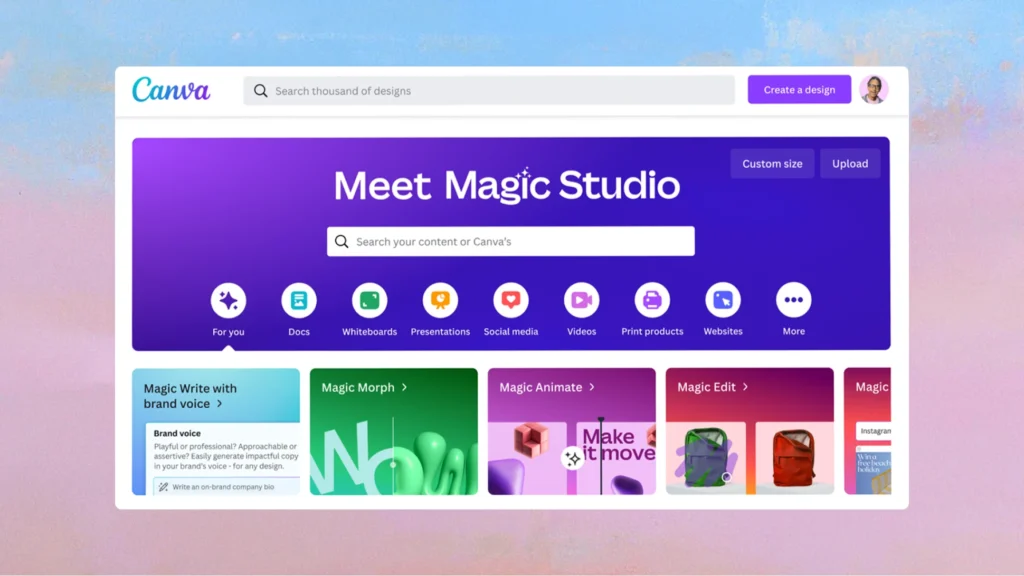
Canva put all its AI features into one special place called Magic Studio. This is your main hub. It is where all the “magic” happens.
Accessing the Magic Studio Dashboard
To find it, log in to your Canva account. On the home page, look at the menu on the left side. You will see a button that says Magic Studio.
Click on that. You will see a colorful page full of different options. You can also find these tools inside the editor when you are working on a design.
Just look for the sparkles icon or the search bar at the top left. If you type “magic,” you will see a list of tools pop up. It is very easy to find.
Free Vs. Pro: Which AI Features Are Available?
This is a common question. Can you use this for free? Yes and no. The free plan gives you access to some tools, but they might have limits.
For example, you might only get to generate a few images a day. If you want to use everything without limits, you might need Canva Pro.
The paid plan unlocks advanced AI features and gives you better quality. However, if you are just starting, the free trial is a great way to test the waters. You can try out the Magic Media tool and see if it helps your workflow before you pay anything.
How to Use Canva AI For Generating and Editing Images?
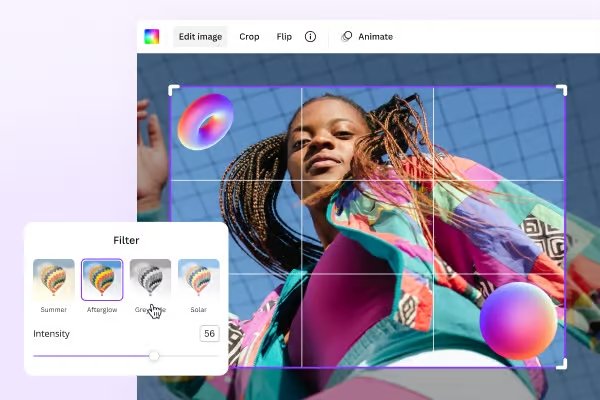
Making images is one of the coolest parts of Canva’s AI. You can make things that don’t even exist yet.
Creating Visuals From Scratch With Magic Media (Text-to-Image)
Let’s say you need a picture of a “futuristic chair made of glass” for a project. You don’t have to build it or buy it. You can use Magic Media.
- Open a design.
- Go to the apps section on the left and find Magic Media.
- Click on the image generator.
- Type a text prompt. Be specific. Type “A modern chair made of glass, blue lighting, photorealistic.”
- Click “Generate.”
In a few seconds, Canva AI will show you four options. If you like one, drag it onto your canvas. This creates realistic images that are unique to your project.
Transforming Objects With Magic Edit
Sometimes, a photo is almost perfect, but one thing is wrong. Maybe a model is holding a coffee cup, but you want them holding a flower. Magic Edit fixes this. Click on your photo. Select Magic Edit. Use the brush to paint over the coffee cup. Then, in the text box, type “flower.”
Click generate. The AI will swap the cup for a flower, and it usually looks very real. It matches the lighting and shadows of the original photo.
Removing Unwanted Elements With Magic Eraser
We have all had a great photo ruined by a trash can in the background or a stranger walking by. In the past, removing this took a long time.
Now, use Magic Eraser. Select your image and click “Edit Photo.” Choose Magic Eraser. Adjust your brush size and paint over the thing you want to leave. Let go of the mouse, and poof! It is gone. The AI fills in the space behind it so it looks like the object was never there.
Extending Backgrounds Using Magic Expand
Have you ever had a photo that was too small for your layout? Maybe it is a square, but you need a wide banner. Magic Expand solves this.
Put your photo on the canvas. Click “Edit Photo” and choose Magic Expand. You can pick a size, like “Whole Page.” The AI will look at the edges of your photo and paint new parts to fill the rest of the space.
It adds more sky, more floor, or more background scenery. It is great for fixing social media posts that need to fit specific sizes.
How to Use Canva AI For Instant Design and Layouts?
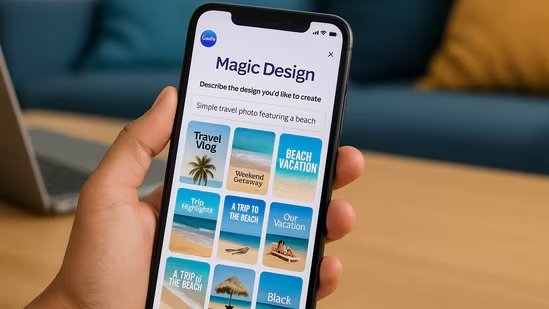
As a designer, setting up layouts takes a lot of brain power. Canva Magic Design can give you a starting point.
Generating Presentations Instantly With Magic Design
This is where we answer how to use AI in Canva to create a presentation. It is a game-changer.
- Open Canva and click on “Presentation.”
- Type your topic in the search bar. For example: “Marketing strategy for a coffee shop.”
- Click on Magic Design.
The AI presentation maker will write an outline, pick fonts, choose colors, and place images for you.
It creates a full set of slides. It includes cover slides, content slides, and closing slides. You get a comprehensive guide for your talk in seconds.
You can still change everything, but the hard work is done. It is a fantastic presentation maker for when you are in a rush.
Resizing and Repurposing Content With Magic Switch
If you make a great presentation, you might want to share it on Instagram.
In the past, you had to remake the whole thing. Magic Switch changes that. Click the Magic Switch button at the top.
Choose the format you want, like “Instagram Story.” Canva will move everything around to fit the new shape.
It is perfect for social media managers who need to post on many platforms. It keeps your text and images but changes the layout.
Animating Your Designs With Magic Animate
Motion grabs attention. Magic Animate analyzes your design and determines how it should move.
You do not need to be a video editor to use it.
Click on your design (not an element, but the whole page). Click Magic Animate. It will suggest styles like “Professional,” “Fun,” or “Elegant.” It automatically moves your text and images.
It makes your social media posts stand out in the feed.
Writing Better Copy: How to Use Canva AI For Text Generation?
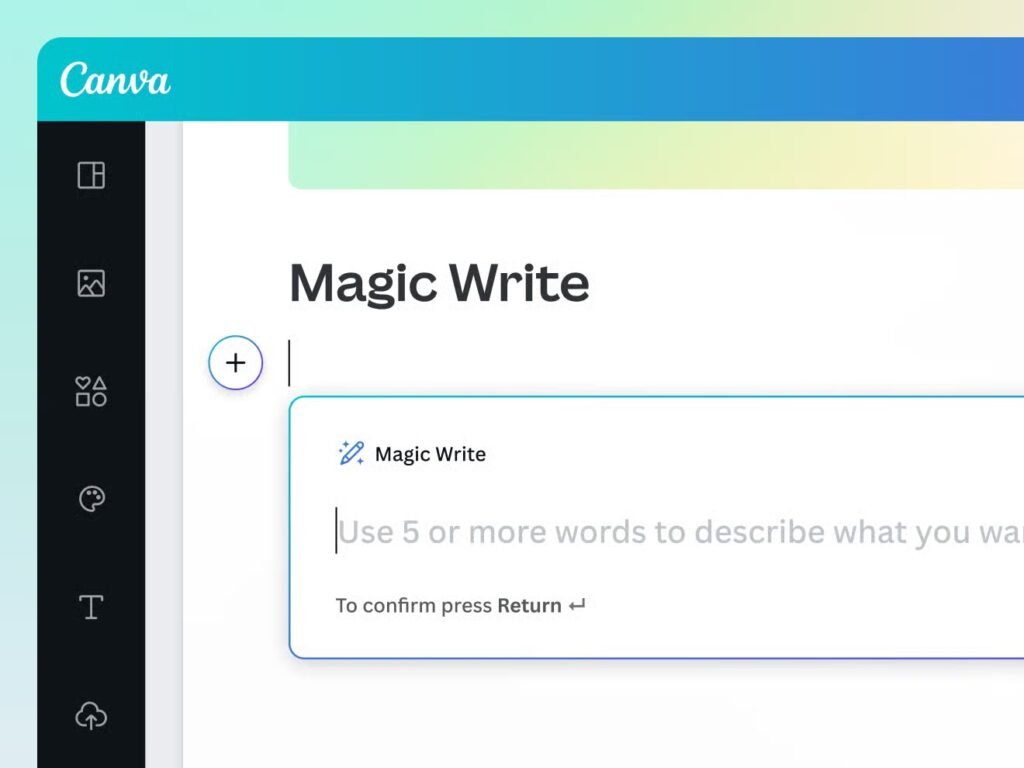
Design is not just pictures; it is words too. Magic Write is your writing helper.
Brainstorming and Drafting With Magic Write
Staring at a blinking cursor is hard. Magic Write helps you start. You can use it in Canva Docs or in a design.
Click the sparkle icon and select Magic Write. Type a short text description of what you need. For example: “Five tips for designing a logo.”
It will spit out a list for you. You can use this generated text as a base and add your own voice to it.
Summarizing and Rewriting Existing Text
If you have a long report but need a short summary for a slide, this tool helps. Highlight the text and ask Magic Write to “Summarize.”
It will shrink a paragraph into one sentence. This is great for an ai presentation where you want less text on the screen.
Changing Tone of Voice With One Click
Maybe you wrote something that sounds too serious, but your brand is fun. You can highlight your text and choose “More Fun” from the menu.
Or, if you need to sound professional, choose “More Formal.” You can even translate text into different languages to reach more people.
Best Practices and Tips on How to Use Canva AI Effectively
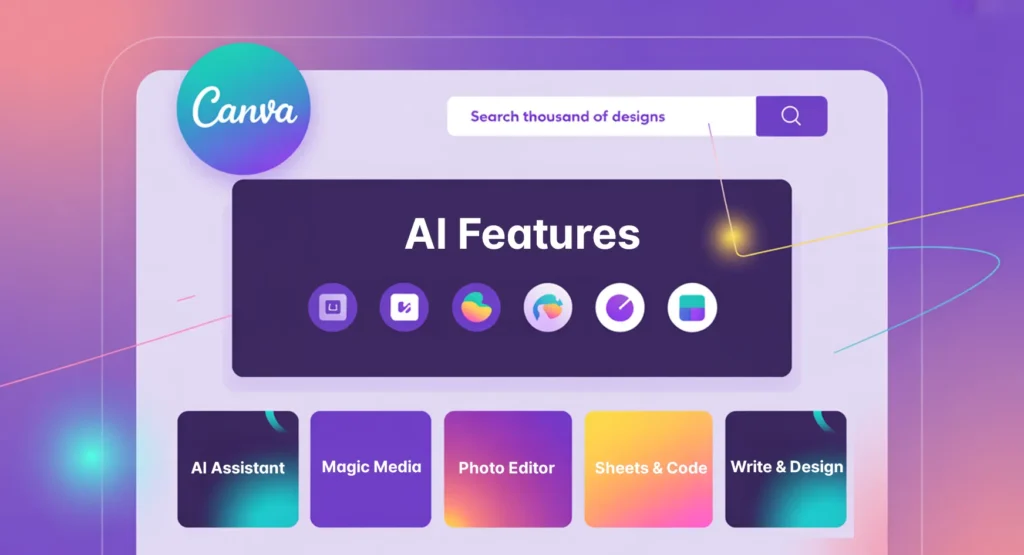
To get the best results from Canva’s AI, you need to know a few tricks.
Writing Effective Prompts For Better Results
The AI is smart, but it cannot read your mind.
The more details you give, the better. Instead of saying “dog,” say “a happy golden retriever running in a park, sunny day, cartoon style.”
This is called a text prompt. Good prompts lead to great visual content. Treat it like you are describing a dream to a friend.
Understanding Copyright and AI Usage Rights
This is serious business.
Generally, Canva AI designs are safe for commercial use, but you should always read the fine print. Since the AI learns from training programs, the laws are still being written. Be careful if you are making a logo for a big company. For social media and flyers, it is usually fine.
Combining Multiple AI Tools For Complex Designs
The real power comes when you use tools together. Start with a text prompt to make an image. Then use Magic Expand to make it bigger.
Use Magic Grab to pull an object out of the photo so you can move it. Then use Magic Morph to change the texture of your text to match the image. Mixing these advanced features allows for complex and unique designs.
Alternatives to Canva AI Presentation Maker

While I love Canva, I know it is good to have options. Here are some other ai presentation tools you might look at.
Slidesgo

Slidesgo is very famous for having lots of free templates that work perfectly with Google Slides.
Now, they have added a smart AI tool that helps you start your project very fast. You just tell it what you want, and it gives you a great starting point with pictures and text already on the slides.
It is very easy to use if you already know how to use Google’s tools. It is a good choice if you want many colorful styles to pick from for your school or work projects.
Tome

Tome is a very modern tool that focuses on telling a good story rather than just making slides.
It creates visual content that looks super clean and professional, almost like a website on a screen.
You type your idea, and it creates the whole thing with generated text and matching images automatically.
It is great if you want presentation quality that looks different from standard slides. It feels very new and high-tech compared to older tools.
Sendsteps

Sendsteps is special because it helps you talk to your audience, not just at them.
It uses AI to handle the presentation creation, but it adds fun quizzes and voting options.
These interactive elements let people use their phones to answer questions right on the screen. It also supports different languages, which is helpful if your class or team speaks more than one language. It makes boring meetings much more fun for everyone.
Presentations AI
This tool calls itself the “ChatGPT for presentations” because it is so fast and smart.
As an AI presentation maker, it focuses on speed so you do not waste time fixing colors or moving boxes. It handles the messy parts of the design process for you automatically. It is a strong presentation maker alternative if you want to type a topic and get a result instantly.
It tries to make sure your slides never look boring or plain.
Penji

Penji is a bit different because it connects you with real humans who do graphic design. While it is not a robot that works in seconds, it ensures your final product is perfect and unique to you.
They can make customizable templates for you that you can use over and over again for your brand. It is a good choice if you need expert help and do not want to do any of the hard work yourself.
FAQ’s:
Can I Use Canva AI designs For Commercial Use?
Yes, mostly.
You can use the designs for your business, like on Instagram posts or ads. But you cannot claim you own the raw AI image if you didn’t change it.
Does Canva Use AI?
Yes! Canva uses AI in many ways. From the search bar to the Magic Studio, AI is woven into the whole platform.
Can Canva Generate AI Presentations?
Yes. The Magic Design feature acts as an AI presentation maker. It builds slides, text, and images from a simple topic.
Does Canva Have an AI Image Generator?
Yes. It is called Magic Media. You type a description, and it creates a picture for you.
Does Canva Have an AI Voiceover?
Currently, Canva connects with apps that do voiceovers, like HeyGen or Murf AI, which you can find in the Apps section.
Canva itself focuses more on graphic design software features.
Can Canva’s AI Tools Be Used For Free?
Many tools, like Magic Edit and the image generator, have free versions. However, limits apply. For unlimited use, you need a paid plan.
Can I Use AI For Complex Image Edits in Canva?
Yes. With Magic Grab, Magic Eraser, and Magic Edit, you can do very complex edits that used to require expensive software.
Conclusion
Canva AI is one of the most useful tools available to designers right now. It does not replace your creativity – it just takes care of the time-consuming parts so you can focus on the fun stuff.
Use Magic Design to build a full presentation in seconds. Use Magic Write to fix your copy. Use Magic Eraser to clean up photos. Use Magic Switch to resize your designs for different platforms. Each tool is easy to use and together they can save you hours of work.
In 2026, knowing how to use these AI tools gives you a real advantage – whether you are designing for a brand, a client, or just yourself.
Start with the free plan, open Magic Studio and explore. The more you use these tools, the faster and better your designs will get. Check out our other Canva guides on Designers Choice for more tips and tricks.
