
Quick Answer: Yes — Microsoft Designer is one of the best free AI design tools available in 2026.
It is powered by DALL-E for image generation, completely free to use, and requires no design experience. The AI image quality is better than most free alternatives.
Best for beginners who want powerful AI design without paying anything.
Introduction
Most people overlook Microsoft Designer. They hear “Microsoft” and assume it is corporate, clunky, or a pale imitation of something better. After spending real time testing it, I can tell you that assumption is wrong.
Microsoft Designer is one of the best-kept secrets in free design tools right now. It is powered by DALL-E, produces genuinely impressive AI images, has zero watermarks on downloads, and costs absolutely nothing. If you are a beginner looking for the best free alternative to Canva, this review will show you why Microsoft Designer deserves a serious look. Check out our guide to the best free graphic design tools for beginners to see how it compares across the full landscape of free options.
What is Microsoft Designer?
Microsoft Designer is a free AI-powered design tool launched by Microsoft in 2022 and significantly improved since. It lives at designer.microsoft.com and runs entirely in your browser — no download, no installation, and no paid subscription required.
The tool is built around AI from the ground up. Unlike Canva, which started as a template editor and added AI later, Microsoft Designer was designed with AI at its core. The primary way you interact with it is by describing what you want — and the AI builds it. The image generation is powered by DALL-E, the same AI behind ChatGPT’s image capabilities, which explains why the output quality stands out compared to other free tools.
Who is Microsoft Designer Best For?
Complete beginners — If you have never designed anything and do not want to spend hours learning a tool, Microsoft Designer gets you to a finished result faster than almost anything else. You describe what you want and it builds it.
Microsoft 365 users — If you already live in Word, PowerPoint, Teams, and Outlook, Microsoft Designer fits naturally into that ecosystem. Designs move between apps without friction.
People who want free AI images — The DALL-E image generation is the strongest free AI image tool available right now. If image quality matters and your budget is zero, this is the tool to use.
Social media creators on a zero budget — Templates are pre-sized for every major platform and the AI generates custom visuals without needing a stock photo subscription.
Microsoft Designer Key Features
AI Image Generation (DALL-E Powered)
This is where Microsoft Designer genuinely pulls ahead of the free competition.
The image generation is powered by DALL-E, which produces photorealistic and illustrated outputs that are noticeably more detailed and accurate than what Canva’s free AI generates. The prompt interpretation is strong — Microsoft Designer understands nuanced descriptions and produces results that match the intent well.
For social media visuals, marketing graphics, background images, and concept visuals, the quality is high enough to use directly in designs without significant post-processing. The images are generated without watermarks and can be downloaded and used freely.
The best prompts are specific and descriptive. “A minimalist flat-lay photograph of a wooden desk with a coffee mug, notebook, and succulent plant, warm morning light, top-down view” produces a far better result than “desk with coffee.” A little time spent on the prompt pays off immediately in output quality.
Design Templates
Microsoft Designer has a solid template library for social media posts, invitations, announcements, posters, and presentations. The templates are clean and modern — they do not feel dated or generic in the way some free tool templates do.
The AI adjusts templates based on your content. Add your own text or images and the AI recommends layout modifications that fit your specific content rather than forcing you to manually rearrange everything. This makes the templates feel more flexible than static starting points.
The library is not as large as Canva’s — that is the honest truth. If you need a template for a very specific format or niche, Canva has more options. But for everyday social media and marketing needs, Microsoft Designer’s library covers the common cases well.
AI Design Suggestions
As you work on a design, Microsoft Designer’s AI actively suggests alternative layouts, color schemes, font pairings, and element arrangements. These are not intrusive pop-ups — they appear as optional variations you can browse through and apply with one click.
The suggestions are useful for breaking out of default choices. When you have been staring at the same layout for too long, seeing four or five AI-generated alternatives often surfaces an approach that is clearly better. It is a low-effort way to explore design directions without starting over.
Microsoft 365 Integration
If you use Microsoft 365 tools regularly, the integration is genuinely convenient. You can pull content from Word documents, export designs directly into PowerPoint, and share work through Teams without jumping between apps. For business users who are already in the Microsoft ecosystem, this reduces the friction of incorporating design work into everyday business communication.
Microsoft Designer Pricing
| Plan | Price | What You Get |
| Free | $0 | Full access, DALL-E image generation, no watermarks |
| Microsoft 365 Personal | From $6/month | Extra features + full Office suite |
Verify current pricing at microsoft.com/microsoft-365 before subscribing.
Microsoft Designer Pros and Cons
| Pros | Cons |
| Completely free — no hidden costs | Fewer templates than Canva |
| Best free AI image generation available (DALL-E) | Less design flexibility for complex layouts |
| No watermarks on any downloads | Newer tool — smaller community and fewer tutorials |
| Very easy for beginners with no design experience | Limited export format options (PNG and JPEG only) |
| No watermarks on free downloads | Not ideal for print or complex professional work |
Microsoft Designer vs Canva Free
| Feature | Microsoft Designer | Canva Free |
| Price | Free | Free |
| AI image quality | ⭐⭐⭐⭐⭐ | ⭐⭐⭐ |
| Template variety | ⭐⭐⭐ | ⭐⭐⭐⭐⭐ |
| Watermarks | ❌ None | ⚠️ Some files |
| Ease of use | ⭐⭐⭐⭐⭐ | ⭐⭐⭐⭐⭐ |
| Mobile app | ✅ Yes | ✅ Yes |
Getting Started with Microsoft Designer
Step 1 — Visit designer.microsoft.com
Open any browser and go to designer.microsoft.com. You do not need to download anything. The tool runs entirely in your browser on any device Windows, Mac, Chromebook, or tablet.
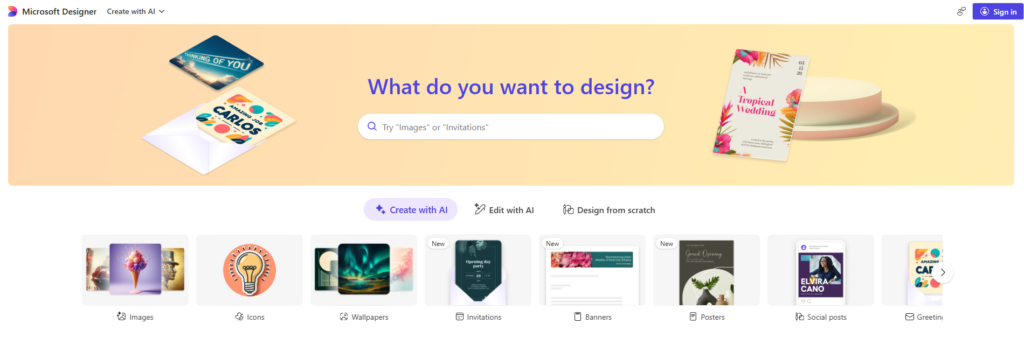
The homepage shows a prompt bar at the top and a grid of design examples below it. This is your starting point for everything.
Step 2 — Sign In With Your Free Microsoft Account
Click Sign in in the top right corner. Use your existing Microsoft account the same email you use for Outlook, Teams, or any other Microsoft product. If you do not have one, click Create one and set up a free account in about two minutes. No credit card is ever required.
Once signed in, your account saves your designs automatically so you can come back and edit them anytime.
Step 3 — Explore the Dashboard
After signing in, the dashboard shows:
- A prompt bar at the top this is where you describe what you want to create
- A row of design type buttons Social post, Invitation, Flyer, Presentation, and more
- A template gallery below pre-made designs you can customise immediately
Spend a minute clicking around before starting. The interface is intentionally simple Microsoft built this for people who have never used a design tool before.
How to Create Your First AI Design
This is the core workflow in Microsoft Designer describe what you want, and the AI builds it for you.
Step 1 — Type a Description of What You Want
Click the prompt bar at the top of the dashboard and type a description of your design. Be specific about the type, purpose, and style. For example: “A birthday party invitation with colorful balloons, confetti, and a fun modern font” or “A professional LinkedIn banner for a marketing consultant with a dark blue background.”
The more detail you include colors, mood, style, purpose the better the AI results will be. Vague prompts like “make a flyer” will give you generic output.
Step 2 — Review AI Generated Options
After typing your description and pressing Enter, Microsoft Designer generates several complete design options within a few seconds. These are full layouts with colors, fonts, images, and text already placed not just templates.
Scroll through the options. You will usually see four to six variations that interpret your prompt in different ways.
Step 3 — Select and Customise Your Favorite
Click any design you like to open it in the editor. From here you can change every element text, colors, fonts, background, and images. The design is fully editable and you are never locked into what the AI generated.
How to Generate AI Images with DALL-E
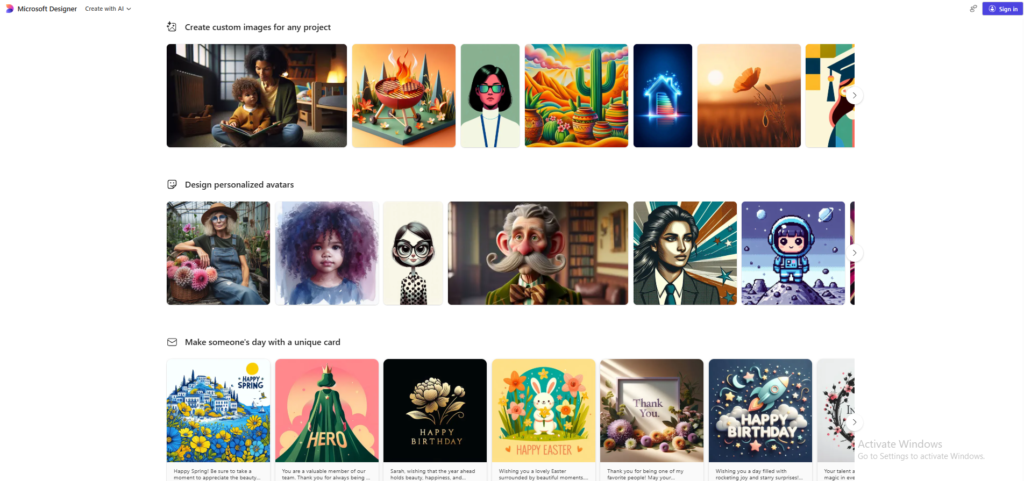
Microsoft Designer uses DALL-E the same image generation model behind ChatGPT’s image features to create original images from text descriptions. This is completely free and produces genuinely impressive results.
Step 1 — Open the Image Creator Tool
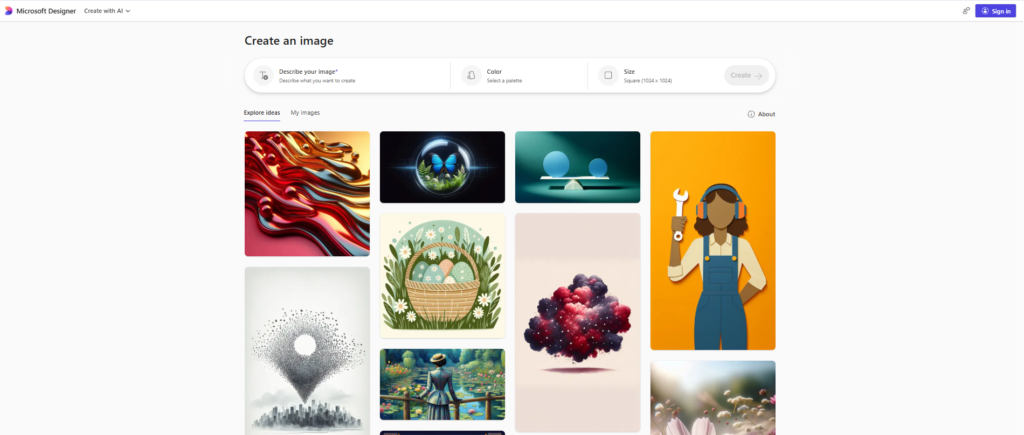
From the dashboard, click Image Creator in the left sidebar or look for the image generation option within the editor. A dedicated prompt bar and style options appear.
Step 2 — Write Your Image Prompt
Type a detailed description of the image you want. Include the subject, setting, lighting, style, and mood. For example: “A flat lay photo of a coffee cup, notebook, and succulent plant on a white marble surface, soft natural light, lifestyle photography style.”
The more visual detail you include, the more useful the result. Think about what a photographer would need to know to recreate your image.
Step 3 — Choose Your Preferred Style
Below the prompt bar, Designer offers style options including Photorealistic, Digital Art, Watercolor, Sketch, and more. Select the style that fits your project before generating. This single setting changes the output dramatically.
Step 4 — Download Your Generated Image
DALL-E generates four image options. Click your favorite to select it. Use it directly inside your current design by clicking Insert, or hover and click Download to save it to your device as a PNG file. No watermarks. No credits to worry about.
How to Use Microsoft Designer Templates
If you would rather start from a template than generate from scratch, Designer has a solid library of ready-made designs organised by category.
Step 1 — Browse the Template Library
From the dashboard, click any design category Social post, Flyer, Invitation, Card, and so on. A grid of templates appears. Scroll through and click any one to preview it full size.
Step 2 — Apply AI Suggestions to a Template
Once a template is open in the editor, look for the Inspire me or AI suggestion button. Designer can automatically restyle the template based on a short description changing the color palette, font pairing, or layout to match a mood you describe. This is a faster way to personalise a template without manually changing every element.
Step 3 — Export Your Final Design
When your design is ready, click Download in the top right corner. Choose your file format PNG works for most uses, JPEG for photos, and PDF for print. Your file downloads immediately with no watermark.
Tips for Better Results in Microsoft Designer
Be descriptive in your prompts. “A social media post” gives generic results. “A bold Instagram post announcing a summer sale for a women’s clothing brand, coral and white color scheme, clean modern font” gives Designer the context to produce something actually useful.
Try multiple variations before settling. Designer generates several options from every prompt. Do not just pick the first one scroll through all of them. The fourth or fifth option is often the strongest.
Use templates as a faster starting point. If you are in a hurry, browse templates first and use the AI suggestion feature to personalise them rather than generating from a blank prompt. It is faster and the results are more polished.
Combine with Microsoft 365 for extra features. If you have a Microsoft 365 subscription, Designer integrates with Word, PowerPoint, and Teams letting you apply AI design suggestions directly inside those apps without switching tools.
Common Problems and Solutions
| Problem | Solution |
| AI image does not match your prompt | Add more specific style details include lighting, color, and photographic style |
| Cannot find the export or download option | Look for the Download button in the top right corner of the editor |
| Design looks too simple or generic | Layer additional AI generated elements or try a more detailed prompt |
| Slow generation speed | Try during off-peak hours early morning or late evening typically faster |
My Honest Opinion After Using Microsoft Designer
I expected to test Microsoft Designer and find something adequate but unremarkable. What I actually found was a tool that is better than it has any right to be for free.
The DALL-E image generation is the headline feature and it earns that position. The images it produces — particularly for lifestyle photography, abstract visuals, and product-style mockups — are genuinely impressive. I have used them in design mockups where the client had no idea they were AI-generated. That says something about the quality.
The template library and editing flexibility are where it lags behind Canva. If you are trying to do something outside the templates — complex layering, custom illustrations, precise typography — you will hit limits. And the smaller community means that when you get stuck, there are fewer tutorials and forum answers to help you.
But here is the thing: for its core use case — helping a beginner or budget-conscious creator produce good-looking social content quickly, for free — Microsoft Designer is outstanding. The zero-watermark policy is a bigger deal than it sounds. It is one less obstacle between you and a usable result.
My recommendation: use both Microsoft Designer and Canva free together. Use Microsoft Designer when you need strong AI-generated images. Use Canva when you need a specific template or more layout control. They complement each other well.
Final Verdict
Complete beginners — Yes. It is one of the easiest design tools to pick up and the AI does enough of the work that your lack of experience is not a barrier.
Social media creators on zero budget — Yes. The DALL-E image quality and zero-watermark policy make it the best free option for social content.
Microsoft 365 users — Yes. The integration saves real friction if you already live in the Microsoft ecosystem.
Canva users wondering if they should switch — Do not switch, add it. Microsoft Designer and Canva work well together as complementary tools.
Professional designers — Not as a primary tool. For professional work, see our full Canva AI review or look at Adobe Firefly for higher-capability AI image generation.
Want to see the full picture of what is available for free? Check out our guide to the best AI design tools for a complete rundown.
For beginners just getting started, also check out our best graphic design tools for beginners guide.
Frequently Asked Questions
Q: Is Microsoft Designer completely free?
Yes, Microsoft Designer is completely free to use at designer.microsoft.com. You do not need a Microsoft 365 subscription to access the main design features including AI image generation powered by DALL-E. Some additional features are available to Microsoft 365 subscribers but the free version is fully functional for most design tasks.
Q: How does Microsoft Designer compare to Canva?
Microsoft Designer and Canva are both free and easy to use but they differ in key ways. Canva has a much larger template library and stronger community. Microsoft Designer has better AI image generation powered by DALL-E and no watermarks on its free plan. For most beginners Canva is the better starting point but Microsoft Designer is worth using alongside it for its superior free AI image generation.
Q: Does Microsoft Designer use AI?
Yes, Microsoft Designer is built around AI. It uses DALL-E for image generation, AI for design suggestions, and AI to automatically adjust layouts based on your content. The AI image generation is one of its strongest features and produces notably better results than Canva’s free AI image generation.
Q: Can I use Microsoft Designer without a Microsoft account?
You need a free Microsoft account to use Microsoft Designer but you do not need a paid Microsoft 365 subscription. Creating a free Microsoft account takes less than two minutes and gives you full access to Microsoft Designer including the AI image generation features.
Q: Is Microsoft Designer good for social media?
Yes, Microsoft Designer is well suited for social media content. It has templates sized for Instagram, Facebook, LinkedIn, and other platforms. The AI design suggestions help create eye-catching social media posts quickly and the AI image generation lets you create custom visuals without needing stock photos or paid image subscriptions.
Q: What file formats can I export from Microsoft Designer?
Microsoft Designer allows you to download designs as PNG and JPEG files. For most social media and digital use cases these formats are sufficient. If you need PDF export or other formats Canva or Adobe Express may be better alternatives as they offer more export options on their free plans.
Q: Is Microsoft Designer available on mobile?
Yes, Microsoft Designer has a mobile app available for both iOS and Android. The mobile app includes most of the AI features available on the web version including AI image generation and design suggestions. It is particularly useful for creating social media content directly on your phone.
Q: Will Microsoft Designer replace Canva?
Microsoft Designer is a strong competitor to Canva but it has not replaced it. Canva has a much larger template library, stronger brand kit features, and a bigger community of designers sharing resources. Microsoft Designer is better for free AI image generation but Canva remains the more versatile tool for most design needs. Both tools are worth having for different purposes.
