Canva For Work Vs Free: Which Canva Plan Is Best For You?

Canva has become the go-to design platform for individuals, small businesses, and large organizations alike. But with both a robust free version and a feature-packed paid plan often called the Canva Pro plan or Canva for Work, the question arises: which is right for you?

In this comprehensive guide at Designers Choice, we’ll break down every aspect of Canva for Work vs Free, helping you make an informed decision for your design needs in 2025.

What is Canva For Work? (Canva Pro) – Features and Overview

Canva Pro

Canva for Work, now widely known as Canva Pro, is the paid version upgrade designed for professionals, businesses, and power users who may consider using credit cards for a Canva Pro subscription. It unlocks a suite of advanced features that streamline workflows, enhance branding, and unleash creative potential.

Key features exclusive to Canva for Work include:

  • Access to over 100 million premium photos, videos, graphics, and graphic elements, and audio tracks files.
  • 4.5+ million templates, including unlimited premium templates.
  • Advanced AI tools: Magic Write, Magic Animate, Magic Eraser, Magic Expand, Magic Morph, and more.
  • Brand Kit management – create up to 1,000 brand kits with custom fonts, colors, and logos, and schedule social media content effectively.
  • 1TB of cloud storage for visual assets and designs.
  • Background remover, Magic Resize, and other time-saving design tools.
  • Social media graphics scheduling and content planner.
  • Priority customer support (24-hour response).

What Do You Get With Canva Free? Features and Limitations

Features and Limitations of Canva Free

Free version of canva is impressively generous as a graphic design tool, making it ideal for casual users, students, and small businesses just starting out, as it provides free access to a wide range of features & marketing materials.

Features of Canva Free:

  • Over 2 million free templates and 3 million+ stock photos, videos, and graphics.
  • 100+ design types (social media, presentations, posters, and more).
  • 5GB of cloud storage.
  • Unlimited folders for organizing your designs.
  • Basic AI features (limited usage of Magic Write and text-to-image tools).
  • Export in various file formats.
  • Team Members collaboration and commenting.

Limitations of Canva Free:

  • Only 1 brand kit and no option to upload custom fonts.
  • Limited access to premium templates and stock content.
  • No background remover, Magic Resize, or advanced AI tools.
  • 5GB storage cap may be restrictive for heavy users.
  • Slower customer support (up to 1 week for response).
  • No social media scheduling or advanced content planner.

Canva For Work Vs Free: Side-By-Side Feature Comparison

Feature Canva Free Canva for Work (Pro)
Cost Free $12–$15/month
Templates 2M+ 4.5M+ (unlimited premium)
Stock Content & Design Elements 3M+ 100M+
Brand Kits 1 1,000
Cloud Storage 5GB 1TB
Background Remover No Yes
Magic Resize No Yes
Advanced AI Tools Limited Full access
Custom Fonts No Yes
Social Scheduling No Yes
Customer Support 1 week response 24-hour response
Export Options Basic Advanced
Team Collaboration Basic Enhanced

Canva For Work Vs Free: Templates, Images, and Design Resources

Canva For Work Vs Free

One of the biggest differences between Canva Free and Canva for Work is access to a huge range of additional stock photos and creative assets.

  • Canva Free: Over 2 million templates and 3 million+ stock photos, graphics, and videos. Enough for basic projects, but you’ll often encounter “Pro” assets locked behind a paywall.
  • Canva for Work: Unlocks 4.5 million+ templates and 100 million+ premium stock images, graphics, videos, and audio. This vast library means you’ll rarely run into creative roadblocks.

Advanced Tools in Canva For Work: AI, Magic Studio, and More

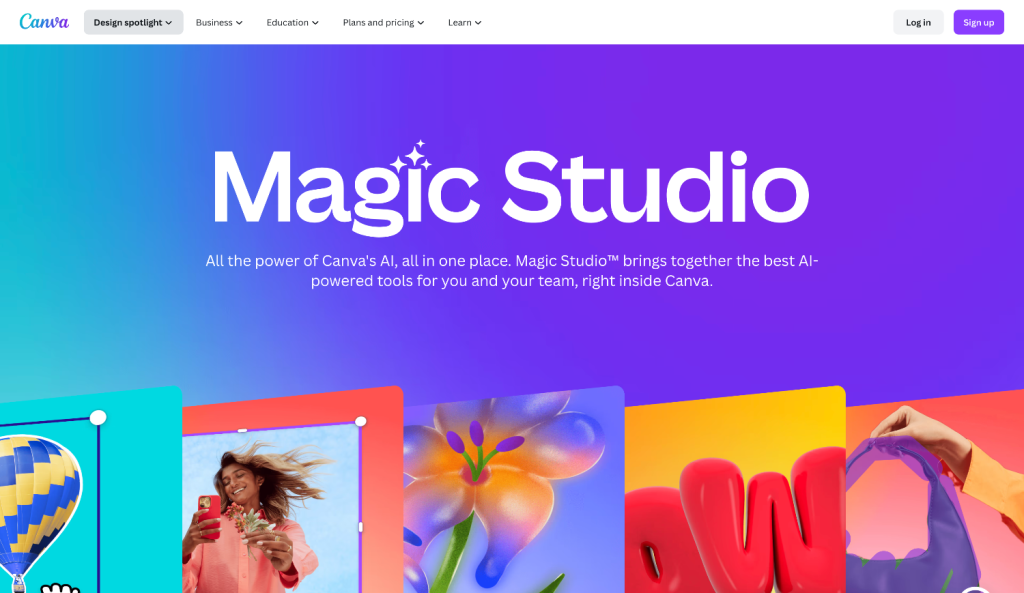
Advanced Tools in Canva For Work

Canva for Work is packed with advanced, AI-powered tools designed to save time and supercharge creativity:

  • Magic Write: AI copywriting assistant (500 uses/month on Pro vs. 50 total on Free).
  • Magic Animate, Magic Eraser, Magic Expand, Magic Morph: Instantly animate, edit, or enhance your designs for different platforms, allowing you to repurpose existing designs with a click.
  • Background Remover: Remove backgrounds from images in seconds.
  • Magic Resize tool: Instantly adapt designs to different formats or social platforms using the Magic Resize tool.
  • Social Content Planner: Schedule posts directly from Canva to multiple platforms.
  • Brand Kit Management: Store logos, fonts, and color palettes for consistent branding.

These tools are either unavailable or extremely limited in the free plan.

Branding and Collaboration: Canva For Work Vs Free

Branding and Collaboration: Canva For Work Vs Free

Branding:

  • Canva Free allows for just one brand kit (logo, colors, brand color palettes, fonts), which is restrictive for businesses managing multiple brands or campaigns.
  • Canva for Work supports up to 1,000 brand kits, custom fonts, and advanced brand controls, making it ideal for agencies and businesses.

Collaboration:

  • Both plans allow basic team collaboration, commenting, and sharing.
  • Canva for Work adds advanced team management, approval workflows, and centralized asset management, essential for larger teams and agencies.

Canva For Work Vs Free: Storage Limits and Export Options

Canva For Work Vs Free: Storage Limits and Export Options

  • Canva Free: 5GB cloud storage, suitable for light users.
  • Canva for Work: 1TB storage, accommodating heavy users and teams.
  • Export Options: Pro users enjoy more export formats, higher quality downloads, and advanced options like transparent backgrounds and animated exports.

Canva For Work Vs Free: Pricing and Value

Canva For Work Vs Free: Pricing and Value

  • Canva Free: Always free, with no hidden costs.
  • Canva for Work (Pro): $12–$15/month for individuals, or $110–$120/year (annual plan saves a bunch of money).
  • Free Trial: Canva Pro offers a 30-day free trial for new users.
  • Special Plans: Canva for Education and Canva for Nonprofits offer Pro features for free to eligible users.

Canva For Work Vs Free: Real-World Use Cases

Canva For Work Vs Free: Real-World Use Cases

Who should use Canva Free?

  • Students, hobbyists, and individuals with basic design needs.
  • Small businesses are starting out with limited budgets.
  • Anyone who needs occasional, simple graphics for social media or presentations.

Who should upgrade to Canva for Work?

  • Businesses and professionals who need premium content, branding, and advanced tools.
  • Agencies managing multiple brands or clients.
  • Teams are collaborating on large volumes of design work.
  • Social media managers need content scheduling and automation.

FAQ’s:

Is Canva For Work Worth it For Small Businesses?

Yes, if you need consistent branding, premium content, and workflow automation, the Pro plan pays for itself quickly.

Can I Try Canva For Work Before Paying?

Absolutely – there’s a 30-day free trial for Canva Pro.

What Happens If I Cancel Canva For Work?

You’ll retain access to Pro features until the end of your billing cycle, after which your account reverts to the Free plan.

Does Canva Free Include AI Tools?

Some basic AI features are included, but usage is heavily limited compared to Pro.

Can I Collaborate With A Team On Canva Free?

Yes, but advanced team management and approval features are only in Pro and higher plans.

Canva For Work Vs Free: Which Plan Should You Choose?

Canva For Work Vs Free: Which Plan Should You Choose?

Choosing between Canva for Work and Canva Free comes down to your needs:

  • Choose Canva Free if you’re an individual or small business with basic graphic design needs, and you don’t require advanced branding or premium assets.
  • Choose Canva for Work if you want access to the full suite of templates, stock content, AI tools, and branding features, or if you collaborate with a team or manage multiple brands.

Final Verdict: Is Canva For Work Worth The Upgrade Over Free?

Is Canva For Work Worth The Upgrade Over Free?

For most individuals and small teams, Canva Free is a powerful tool that covers the basics of design with surprising depth.

However, as your needs grow—especially for branding, advanced features, premium features, content, and team management—Canva Teams for Work (Pro) delivers exceptional value for its price, making it the right choice for those seeking more comprehensive design solutions.

If you’re serious about design, marketing, or content creation in 2025, upgrading to Canva for Work is a smart investment that can save an embarrassing amount of time, elevate your brand, and, as a huge financial nerd, unlock your creative potential.

Ready to decide? Try Canva for Work free for 30 days and see the difference for yourself. Make sure to comeback to designers-choice.net for more such blogs.

Canva Vs Illustrator: Which One Is Better In 2025?

Choosing the right design software can transform your graphic design projects, whether you’re a beginner or a pro.

Canva and Adobe Illustrator are two popular tools, each with distinct features for different users.

Canva is user-friendly, ideal for business owners and social media managers who need to create graphics quickly. Its drag-and-drop interface, free version, and extensive template library allow users to make impressive designs without advanced skills.

In contrast, Adobe Illustrator is the industry standard for professional designers needing robust tools for vector graphics and high-quality illustrations. Its advanced features and integration with Adobe Creative Cloud make it perfect for precise, scalable projects but require more experience and training.

Understanding the strengths of each tool will help you choose the best one for your creative needs.

Key Differences Between Canva and Illustrator

Key Differences Between Canva and Illustrator

There are some key differences between these two design tools.

Vector Vs Raster Graphics

One fundamental difference between these design programs lies in how they handle graphics.

Adobe Illustrator specializes in vector graphics, which use mathematical paths rather than pixels. Vector images maintain quality at any size, making them perfect for logo design and illustrations that might appear on anything from business cards to billboards.

Canva primarily works with raster images, which consist of pixels and can lose quality when enlarged beyond their original dimensions. This distinction makes Adobe Illustrator the preferred choice for projects requiring scalable graphics and precision.

User Interface and Learning Curve

Canva’s interface prioritizes simplicity. Its drag-and-drop functionality makes it accessible even to those with minimal design skills. You can create professional-looking designs within minutes of signing up.

Adobe Illustrator presents a higher learning curve. Its interface contains numerous tools that can initially overwhelm beginners. Mastering Illustrator requires time and dedication, but this investment pays off with the level of control and creative freedom it provides.

Design Capabilities and Limitations

While Canva excels at quick, template-based designs, it has limitations for custom illustrations and complex projects. You can adjust templates and use pre-made elements, but creating truly original artwork can be challenging within Canva’s constraints.

Adobe Illustrator, as part of the Adobe Creative Cloud suite of products, offers vastly more tools and features than Canva.

From complex illustrations to precise typography manipulation, Illustrator provides the tools needed for professional-grade design work. The pen tool alone opens possibilities that Canva simply cannot match.

Comparing Features

comparing features of canva vs illustrator

Templates and Pre-made Elements

Canva is good for quick designs using templates. However, it isn’t great for custom drawings or complex work. You can change templates and use ready-made pieces. But making original art can be hard. On the other hand, Adobe Illustrator has many more tools. It offers features for professional design work. This includes advanced drawing tools and control over text design that Canva can’t provide.

Customization Options

Adobe Illustrator gives users great freedom to change designs. You can adjust every part of your design. This includes vector anchor points and letter spacing. This control is important for pro designers.

They must follow brand rules closely. On the other hand, Canva offers easier tools for making designs. You can change colors and sizes or move around elements. However, it does not allow for very unique designs.

Typography and Font Selection

Both platforms offer extensive font selections, but they handle typography differently. Canva includes a wide range of fonts and basic text manipulation options. You can adjust size, color, and alignment, but advanced typography features are limited.

Adobe Illustrator treats text as a design element with extensive possibilities. You can create text on paths, convert text to outlines, adjust spacing with precision, and apply effects that transform simple text into artwork.

For projects where typography plays a central role, Illustrator is the superior choice.

File Formats and Export Options

Adobe Illustrator supports numerous file formats, including AI, PDF, EPS, SVG, and more.

This versatility is important for professional workflows where files need to be shared with clients or other designers. Importantly, Illustrator allows you to save vector files that maintain their scalability and editability.

Canva’s export options include formats like PDF, PNG, and JPG. While this is sufficient for many use cases, it may not meet the requirements of professional print projects or collaborative design workflows.

Pricing Comparison

Pricing Comparison of canva vs illustrator

The cost difference between these design tools is substantial. Canva offers a free version with access to many basic features, making it an attractive option for beginners and casual users. Canva Pro, the premium version, is available at a relatively affordable monthly subscription.

However, it’s worth noting that Canva is increasing its Teams prices by 300% in 2025, which may impact business users.

Adobe Illustrator is available only through a paid subscription to Adobe Creative Cloud. You can subscribe to Illustrator individually or as part of the entire Creative Cloud suite of products. While more expensive than Canva, many professional graphic designers consider it an essential investment. Educational discounts and business packages are available at a discounted rate.

Online Vs Offline Usage

Canva operates primarily as an online design program. This offers the advantage of accessibility from any device with an internet connection, but it also means you cannot work without internet access.

Canva does have mobile apps that allow for some offline functionality, but the full experience requires connectivity.

Adobe Illustrator is a desktop application that works offline once installed. This makes it more reliable for those who need to work without internet access. However, certain Creative Cloud features do require online connectivity for licensing verification and updates.

Target Audience

Target Audience of canva vs illustrator

Who Should Use Canva?

Canva is ideal for:

  • Small business owners who need to create social media graphics quickly
  • Marketing teams that need simple design tools for day-to-day content
  • Beginners with minimal design skills who need professional-looking results
  • Anyone who prioritizes ease of use and speed over complex capabilities
  • Content creators who focus primarily on digital outputs like social media posts

Who Should Use Illustrator?

Adobe Illustrator is better suited for:

  • Professional graphic designers who need precision and control
  • Logo designers creating scalable brand identities
  • Illustrators and artists creating detailed custom artwork
  • Print designers who need to work with industry-standard file formats
  • Anyone whose work requires vector graphics and advanced typography
  • Design agencies handling complex projects with specific technical requirements

Best Use Cases

Best Use Cases

Projects Perfect For Canva

Canva excels at certain types of design projects, including:

  • Social media graphics for platforms like Instagram and Facebook
  • Simple marketing materials like flyers and posters
  • Presentations and slide decks
  • Digital ads with standard dimensions
  • Quick edits to photos and raster images
  • Content that follows established templates and formats

For these projects, Canva’s template-based approach and intuitive interface make it possible to produce professional-looking results quickly, even without extensive design skills.

Projects Perfect For Illustrator

Adobe Illustrator shines when used for:

  • Logo design and brand identity development
  • Custom illustrations and artwork
  • Technical diagrams and infographics
  • Print materials requiring precise color management
  • Projects that need to scale from tiny to enormous without quality loss
  • Designs requiring complex paths, shapes, and typography

These projects benefit from Illustrator’s precision, vector capabilities, and professional-grade tools.

Which One Is Better Based On Design Skills?

Which One Is Better Based On Design Skills?

Your existing design skills should heavily influence your choice between these design programs.

For beginners with minimal experience, Canva removes many barriers to entry. Its intuitive interface and template-based approach mean you can create decent-looking designs within minutes. The learning curve is gentle, and you can gradually expand your capabilities.

For those with intermediate design skills who understand basic principles like composition and color theory, either platform could work depending on your specific needs. Canva might still offer the speed you want, while Illustrator would give you room to grow.

For professionals with advanced design skills, Adobe Illustrator is almost always the better choice. Its higher learning curve is offset by the creative control it provides.

Professional graphic designers typically find Canva too limiting for their needs, though they might still use it for quick projects.

Canva Vs. Illustrator: Which To Choose?

Canva Vs. Illustrator: Which To Choose?

The decision ultimately comes down to balancing several factors:

  1. Your design skills and willingness to learn
  2. The type of work you’ll be doing
  3. Your budget constraints
  4. Time requirements and deadlines
  5. Technical needs (print vs. digital, file formats, etc.)

If you need to create simple designs quickly, have minimal design skills, or work primarily on social media content, Canva likely offers everything you need. Its free plan provides enough functionality for many users.

If you’re serious about design as a profession, need to create original artwork, or require precise control over every aspect of your creations, Adobe Illustrator is worth the investment. It remains the industry standard for a reason, offering capabilities that Canva cannot match.

Many designers actually use both tools, turning to Canva for quick projects and Illustrator for more complex work. This hybrid approach uses the strengths of each platform.

FAQ’s:

Is Adobe Illustrator Only For Professional Designers?

While Adobe Illustrator is used by professional graphic designers worldwide, it’s not exclusively for professionals. Anyone can learn to use Illustrator, though it does have a higher learning curve than Canva. Beginners willing to invest time in learning will benefit from Illustrator’s powerful tools. Many design schools teach Illustrator basics to help newcomers get started.

Can I Switch Between Canva Pro and Adobe Illustrator?

Yes, you can use both platforms for different projects. Many designers maintain subscriptions to both services, using Canva for quick social media graphics and Illustrator for more complex design work.

However, moving designs between the two platforms has limitations due to their different file formats.

Can I Create Logos In Both Canva and Illustrator?

Yes, but with important differences. While you can create simple logos in Canva using its elements and text tools, professional logo design typically requires Illustrator. Logos created in Illustrator are vector files that can be scaled to any size without losing quality, which is essential for professional branding. Canva logos may not have high enough resolution for all applications, particularly print.

Which Has Better Templates, Canva Or Illustrator?

Canva offers more ready-to-use templates across a wider range of categories. Its template library is a core feature, with thousands of options for everything from social media posts to resumes. Illustrator has fewer templates, focusing instead on providing the tools to create custom designs from scratch. For template quantity and variety, Canva is the clear winner.

Can I Import Designs From Canva Pro Into Adobe Illustrator?

You can export designs from Canva as PDF files and then open them in Illustrator, but you’ll likely lose some editability in the process. Elements created in Canva may not separate cleanly in Illustrator, and text typically becomes less editable.

For best results, designs meant for detailed editing in Illustrator should be created in Illustrator from the start.

Can I Collaborate With Others In Canva and Illustrator?

Canva has built-in collaboration features that allow team members to work on designs simultaneously. Its sharing and commenting tools make it great for collaborative projects.

Adobe Illustrator has improved its collaboration capabilities through Creative Cloud, but real-time collaboration isn’t as seamless as in Canva. For team projects requiring multiple contributors, Canva often provides a smoother experience.

Conclusion

Both Canva and Adobe Illustrator have earned their places in the graphic design landscape for good reasons.

Canva has made design accessible to people without formal training or significant experience. Its template-based approach and intuitive interface have opened up graphic design to a much wider audience, particularly small business owners and social media marketers.

Adobe Illustrator continues to set the standard for professional vector design software. Its powerful tools and precise controls make it indispensable for serious design work, especially projects requiring scalability, print production, or complex custom artwork.

Your choice between these design programs should align with your specific needs, skills, and goals. There’s no wrong answer-only the tool that works best for your particular situation.

Many designers find value in using both, selecting the right tool for each project based on its requirements.

Whichever you choose, remember that the software is just a tool. Your creativity and ability to solve visual problems are ultimately more important than the platform you use.

The best design software is the one that helps you bring your creative vision to life effectively and efficiently.

Canva Pro Vs Free: Why Should You Upgrade To Paid In 2025?

Designers face a critical decision when selecting tools that align with their creative and professional needs.

Canva, a leading graphic design platform, offers both free and paid plans, each catering to different stages of a designer’s journey. While the free version provides essential tools for basic projects, Canva Pro unlocks advanced features like brand kits, premium stock media, and collaborative workflows.

This blog post explores the nuances between both plans, focusing on storage capacity, design flexibility, and cost efficiency to help professionals make informed choices.

Introduction To Canva

Canva

What is Canva?

Designers face a critical decision when selecting tools that align with their creative and professional needs.

Canva, a leading graphic design platform, offers both free and paid plans, each catering to different stages of a designer’s journey. While the free version provides essential tools for basic projects, Canva Pro unlocks advanced features like brand kits, premium stock media, and collaborative workflows.

This analysis explores the nuances between both plans, focusing on storage capacity, design flexibility, and cost efficiency to help professionals make informed choices.

The Evolution of Canva

Since its inception, Canva has expanded from basic design functionalities to a comprehensive visual suite. The introduction of Pro features like background remover tools, magic resize, and brand controls transformed it into a staple for teams and enterprises.

Recent updates, such as AI-powered magic studio and video editing capabilities, further cement its position as a versatile graphic design tool.

Canva Free Overview

Canva Free Overview

Key Features of Canva Free

The free plan includes access to core design elements: 100+ design types, basic templates, and limited cloud storage (5GB).

Users can collaborate in real-time, share projects via links, and utilize Magic Write for AI-generated text.

However, advanced features like transparent backgrounds or unlimited folders remain exclusive to paid tiers.

Design Capabilities

Free users create social media posts, infographics, and simple videos using a library of 1 million free photos and graphics.

While adequate for casual projects, the absence of premium templates and brand kits limits consistency across professional deliverables.

Storage Limitations

With only 5GB of cloud storage, free accounts face constraints when managing high-resolution images or video content.

Frequent users often hit capacity, requiring constant file deletions or upgrades to Pro for 1TB of space.

Canva Pro Advantages

Canva Pro Advantages
  1. Brand Kit Functionality: Pro’s brand kit centralizes logos, color palettes, and fonts, ensuring visual consistency. Designers manage up to 100 brands, apply guidelines directly in the editor, and update assets globally-a necessity for agencies handling multiple clients.
  2. Extended Template Library: Over 420,000 premium templates cater to niche industries and complex projects. Pro users bypass generic designs, accessing industry-specific layouts for annual reports, merchandise, and interactive presentations.
  3. Premium Stock Media Access: A catalog of 100 million premium stock photos, videos, and graphics eliminates reliance on overused free assets. This library, combined with transparent PNG downloads, elevates the polish of marketing materials and social media content.
  4. Magic Resize Tool: Repurposing designs across platforms becomes instantaneous with one-click resizing. A LinkedIn banner adapts to Instagram Stories or print brochures without manual adjustments, saving hours in the design workflow.
  5. Background Removal Feature: The background remover tool isolates subjects in images and videos with a single click. Professionals create clean product photos or composite visuals without outsourcing photo editing.
  6. Advanced Export Options: Pro supports PDF exports with customizable compression, password protection, and print-ready settings. Designers export in CMYK for physical materials or RGB for digital displays, maintaining color accuracy across mediums.
  7. Collaboration Features: Teams co-edit designs with real-time cursor tracking, comments, and task assignments. Pro plans include 1TB storage per member, version history, and approval workflows-critical for large-scale campaigns.

Pricing Structure

Canva Pricing Structure
  1. Canva Free Plan: Free forever, this tier suits hobbyists or startups testing the platform. It includes 5GB storage, basic templates, and limited brand controls.
  2. Canva Pro Subscription Options: At $9.95/month (annually) or $12.95/month (monthly), Pro offers full access to magic studio tools, premium stock images, and 1TB storage. Solo designers and freelancers benefit most from this tier.
  3. Enterprise Solutions: Canva Teams starts at $12.99/month for five users, scaling with advanced admin controls and single-sign-on (SSO). Enterprises leverage custom templates, centralized brand kits, and dedicated support.
  4. Free Trial Information: New users explore Pro features risk-free for 30 days. Trials include all premium features, allowing teams to assess Magic Resize or brand kits before committing.

What Is The Difference Between Canva Free and Paid?

What Is The Difference Between Canva Free and Paid?

The free version suffices for occasional projects, but Pro unlocks efficiency through automation and customization.

Key differentiators include:

  • Brand Controls: Pro offers unlimited brand kits; Free limits users to color palettes.
  • Storage: 1TB vs. 5 GB.
  • Export Options: Pro enables transparent backgrounds and print-ready PDFs.
  • Collaboration: Real-time editing and task assignments require Teams or Pro.

Use Cases and Applications

  1. Social Media Content Creation: Pro’s video tools and scheduled posting streamline content calendars. Designers animate posts with beatsync, align videos to audio tracks, and publish directly to eight platforms.
  2. Marketing Materials: High-resolution stock images and brand-aligned templates ensure brochures, flyers, and email headers maintain professional consistency. Magic Eraser removes unwanted elements from product photos.
  3. Business Presentations: Teams collaborate on pitch decks with live feedback and version control. Pro’s premium templates include data visualizations and interactive elements absent in the free plan.
  4. Educational Resources: Educators design worksheets and certificates using Pro’s expanded font library and animated graphics. Cloud storage accommodates large video lectures or portfolio submissions.

Making The Decision

Making The Decision

When to Stick With Canva Free?

Choose Free if:

  • Projects are infrequent or personal.
  • Basic templates and 5GB storage suffice.
  • Branding needs are minimal

When to Upgrade to Canva Pro?

Upgrade if:

  • Projects require brand consistency across 100+ assets.
  • Teams need collaborative workflows.
  • Clients demand premium stock photos or videos.

Return On Investment Considerations

At $120/year, Pro pays for itself through time saved on resizing, background removal, and asset organization. Agencies bill these hours, while in-house teams meet tighter deadlines.

Final Verdict On Canva Pro Vs Free

Final Verdict On Canva Pro Vs Free

Final Verdict: If you’re just starting or design occasionally, the free version of Canva works fine- it gives you basic templates and 5GB storage for social media posts or simple projects.

But for pros, Canva Pro is worth every penny. With tools like the background remover, Magic Resize, and brand kits, you save hours tweaking designs. Plus, 1TB cloud storage and access to premium stock photos make it easier to keep projects polished and consistent.

Teams will love the collaboration features, while solo designers get priority support and advanced export options. If you’re serious about graphic design, upgrading unlocks the full potential of this tool without breaking the bank.

FAQ’s:

Is the Free Version of Canva Worth It?

Yes, if you’re making casual social media posts or simple designs with basic templates. It’s great for personal projects, but professionals hit walls with limited cloud storage (5GB) and no access to premium features like brand kits or magic resize.

What is the Key Downside of Using Free Canva?

The 5GB storage cap fills up fast with high-res images or videos. Plus, you can’t use advanced tools like transparent backgrounds or custom branding-dealbreakers for polished marketing materials or team collaboration.

How Much Storage Do I Get With Each Plan?

Free users get 5GB of cloud storage, enough for occasional projects. Upgrade to Canva Pro for 1TB space- ideal for storing unlimited folders, premium stock photos, and video content without constant cleanup.

Can I Remove Image Backgrounds in the Free Version?

You get one free try with the background remover tool. For unlimited use (or video backgrounds), you’ll need Canva Pro. The paid plan lets you erase cluttered backgrounds in seconds for pro-level product shots or social media graphics.

What Support Options Are Available For Each Plan?

Free users rely on community forums for help. With Canva Pro, you get 24/7 priority support-perfect for urgent fixes during crunch times or troubleshooting advanced features like Magic Studio or team collaboration tools.

Conclusion

If you’re making fun social media posts or school projects, Canva Free is perfect- it has free templates and 5GB storage. But if you want to level up (like creating logos or team projects), Canva Pro is better.

With Pro, you get cool tools like the background remover to delete messy backgrounds, Magic Resize to fit designs on different platforms, and brand kits to keep colors/logo consistent. Plus, 1TB cloud storage means no more “storage full” errors!

Pro also lets teams work together smoothly. If you design a lot or need things to look super professional, Pro’s worth the upgrade.

Stick with Free for basics, go Pro for pro!