

At Designers Choice, we know how hard it can be to turn a good idea into a real design. We have spent years working on projects, and we know that finding the right materials is a big part of the job. You want your work to look professional, but you also want the process to be easy.
That is why we are here to help. Our goal is to give you the best advice and tools so you can create things that you are proud of.
One tool that has changed the way many people work is Canva.
It is a popular graphic design tool that helps both beginners and professionals. A huge part of what makes it so useful is the library of Canva stock images. These photos can help you make a website, a poster, or social media posts look amazing without needing a camera.
In this article, we will talk about everything you need to know about these images. We will answer the big question: can i use canva stock images on my website? We will also explain how to find the best photos, how to edit them, and what the rules are for using them.
We want to give you the knowledge you need to build your own creative projects with confidence.
What Are Canva Stock Images and Where Do They Come From?
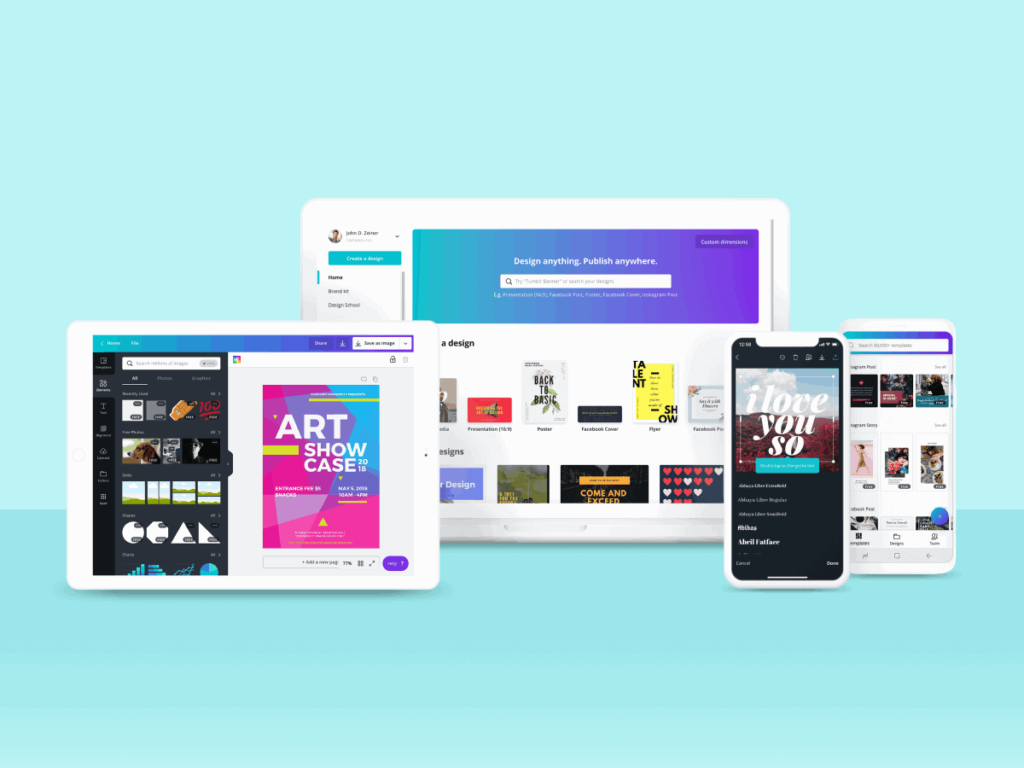
Canva stock images are a large collection of photos that you can use in your designs.
When you open Canva, you can see a tab called “Photos” or “Elements” on the side. This is where the magic happens.
You do not need to go to different websites to find pictures. They are all right there inside the tool. These images come from many different places.
Some are taken by photographers who work directly with Canva.
These people are often called Canva contributors. They take high-quality photos and upload them to the platform so that users can use them.
Other images come from partners that Canva works with. This mix of sources means you have millions of options to choose from.
The Difference Between Canva Free and Canva Pro Libraries
When you use Canva, you will notice that some photos are free and others have a crown icon on them.
This is the main difference between the free version and the paid version.
Canva Free gives you access to thousands of photos that cost nothing to use.
You can put them in your designs, save them, and share them. These are great for people who are just starting or for small businesses with a tight budget. You do not need to pay any money to use these Canva images. However, there is also Canva Pro. This is a paid subscription.
If you become a paid subscriber, you get unlimited access to the full library. This includes millions of premium stock photos that free users cannot use without paying a fee. Canva Pro users often find that these paid images look more unique and professional. If you see an image with a crown, it is a Canva Pro element. If you are on the free plan, you can still use it, but there will be watermarks on it until you pay for it.
Integrations With Pexels and Pixabay
You might not know this, but Canva works with other big stock photo sites too. Two of the most famous ones are Pexels and Pixabay.
These sites offer free content that is high quality. Canva has integrated these libraries directly into its system.
This means you can search for stock photography from Pexels and Pixabay without leaving your design tab. It is very convenient.
You do not have to open a new tab, search for a photo, download it, and then upload it back to Canva.
You just search, click, and the photo appears on your canvas. This saves a lot of time in the design process. It gives you even more choices for free content to use in your marketing materials or personal projects.
How to Find High-Quality Canva Stock Images For Your Designs?

Finding the right picture is not always easy because there are so many options. Sometimes, you might feel lost in the millions of photos. But do not worry. We at Designers Choice have some tricks to help you find the perfect image quickly.
Using Search Keywords and Filters Effectively
The first step is to use the right words in the search bar. This is called a keyword. If you just type “dog,” you will get thousands of results.
But if you type “happy dog running in park,” you will get results that are much closer to what you want. Be specific with your words.
You should also use the filter tool. This is a button that looks like sliders at the top of the search bar. When you click it, you can sort the images by color, orientation (square, horizontal, or vertical), and price (Free or Pro). For example, if your brand uses the color blue, you can select the blue color filter. Then, Canva will only show you images that have blue in them. This helps you find images that fit your style perfectly.
How to Find “Secret” Brand Codes For Specific Aesthetics?
There is a cool trick that many designers use to find images that look similar. It involves using brand codes. Every photographer or company that puts images on Canva has a specific code. If you find a photo you really like, you can find more photos by the same person.
To do this, click on the three dots (…) on top of the image. A menu will pop up. You will see the name of the creator.
If you click on their name or the code that starts with “brand:“, Canva will show you all the other graphics and photos they have made.
You can save this code for later. You can also search for these codes in the search bar to go straight to that collection. This is a great way to keep your look consistent across all your social media posts.
Browsing Trending and Seasonal Collections
Another way to find great Canva stock images is to look at the collections. Canva groups photos together based on themes. For example, during Christmas, they will have a collection of holiday photos.
In the summer, they will feature beach and sun photos. You can find these collections on the main photo page.
Browsing these folders is a good way to get inspiration if you are not sure what you are looking for. It helps you stay up to date with visual trends.
This is very useful for creating marketing materials that feel fresh and relevant to your audience.
Understanding the Licensing of Canva Stock Images

This is a very important part. Many people ask, “can i use canva stock images on my website?” The short answer is yes, but you need to know the rules. This is called the licensing agreement.
Commercial Use Vs. Editorial Use
Most of the time, you are using images for commercial purposes. This means you are using the image to help sell something, promote a business, or on a business website. Canva content allows this. You can use the photos in your ads, on your website, and in your brochures.
This applies to both free content and Pro content, as long as you follow the rules. However, there is something called “Editorial Use.” These are images that can only be used for news or educational stories. They usually feature famous people or recognizable brands.
You cannot use these images to sell a product. For example, you cannot take a photo of a famous actor marked for “Editorial Use” and put it on a t-shirt to sell. You need to check the information on the photo to see if it has any restrictions.
Usage Rights For Print on Demand (POD)
If you want to sell products like t-shirts, mugs, or posters (this is called Print on Demand), the rules are strict. You cannot just take a single stock photo, put it on a shirt, and sell it. That is not allowed.
To sell a design with stock images, you must make a “unique design.”
This means you have to combine the photo with other elements like text, illustrations, or other graphics. The final design must be your own creation. You cannot just resell the stock photo as it is. This protects the original photographers and creators who own the rights to the image.
Copyright Rules For Social Media Posts
For social media, the rules are very friendly. You can use Canva stock images in your posts for Instagram, Facebook, Pinterest, and more. You do not need to pay extra royalties every time people see your post.
Once you create a design in Canva and export it (save it as a file), you have a license to use that specific design. This gives you peace of mind knowing that your business page is safe. Just remember, you cannot sell the image file itself to others.
You are sharing your design, not selling the raw photo.
How to Edit and Customize Canva Stock Images?

One of the best things about Canva is that it is not just a place to find photos; it is a place to edit them too. You can change a stock photo to make it look unique for your brand.
Removing Backgrounds With One Click
This is one of the most popular features for Canva Pro users. It is called the Background Remover.
Sometimes you find a perfect picture of a person or a product, but you do not like the background. With a Canva Pro account, you can click on the image, select “Edit Photo,” and then click “Background Remover.”
The tool uses AI (Artificial Intelligence) to erase the background instantly. You are left with a clear subject on a transparent background. You can then put this subject on top of any color or pattern you want.
This is perfect for making logos or clean product images.
Applying SmartMockups and Filters
SmartMockups are a great way to show off your designs.
Let’s say you created a nice image and you want to see what it looks like on a computer screen or a t-shirt. You can use the SmartMockups feature.
You just select your image and choose a mockup. Canva will wrap your image onto the object automatically. It looks very realistic.
You can also use filters to change the mood of a photo. If your brand uses warm colors, you can add a “Summer” or “Solar” filter to all your canva stock images. This makes them look like they belong together.
Using Magic Edit and AI Tools on Stock Photos
Canva has added new tools that use AI. One of them is called Magic Edit. This tool lets you change a specific part of a photo.
For example, if you have a picture of a man holding a red rose, but you want him to hold a blue flower, you can use Magic Edit. You just brush over the rose and type “blue flower” in the text box. The AI will change the rose to a blue flower while keeping the rest of the photo the same.
This allows you to customize stock photos in ways that were impossible before, without expensive software like Photoshop.
Why You Should Choose Canva Stock Images Over Traditional Stock Sites?
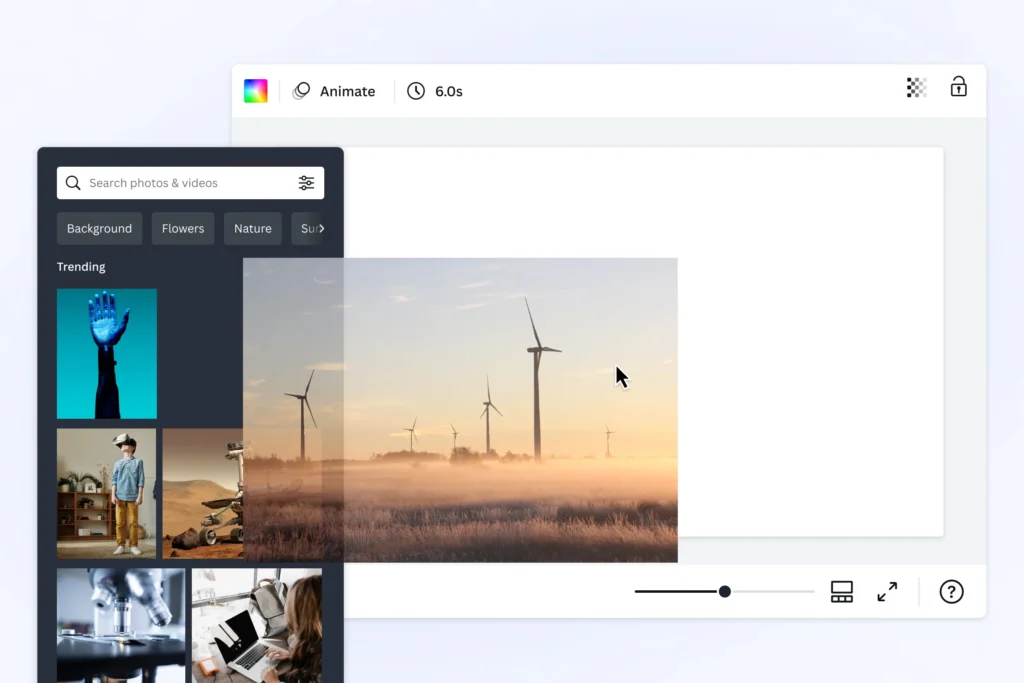
There are many websites where you can buy photos. So, why should you use Canva? We at Designers Choice believe there are two main reasons: cost and convenience.
Cost Comparison: Canva Pro Vs. Stock Subscriptions
Traditional stock photo sites can be very expensive.
Some charge you a lot of money for just one photo. Others ask for a very high monthly fee, and you only get a few images.
Compared to that, a Canva Pro license offers great value. When you pay the monthly fee for Canva Pro, you get unlimited access to millions of photos, videos, and fonts. You do not have to pay extra for each picture.
For small businesses and freelancers, this saves a huge amount of money. You get high-quality premium stock photos for a fraction of the cost of other sites.
The Convenience of the Integrated Design Workflow
The biggest benefit is how easy it is. In the past, you had to go to a website, search for a photo, pay for it, download it, and then upload it to your design tool. This took a lot of time.
With Canva, everything is in one place. You search, drag, and drop. You can try ten different photos in seconds to see which one looks best.
This speeds up your design process significantly. You can move from an idea to a finished PDF or social post very quickly.
Tips For Customizing Canva Stock Images to Fit Your Brand

You do not want your website to look exactly like everyone else’s.
Since many people use Canva, it is important to change the images a little bit to fit your style.
Using Filters and Adjustments
Never use a stock photo exactly as it is. Always make small changes. You can adjust the brightness, contrast, and saturation. If your brand is bright and colorful, increase the saturation. If your brand is calm and minimal, lower the saturation.
You can also use the “Blur” tool. If you want to put text over an image, you can blur the photo slightly. This helps the text stand out and makes the image look more like a background texture than a distracting photo.
Removing Backgrounds and Layering Elements
We mentioned the background remover before, but it is also a great design trick. You can take a person out of a stock photo and place them behind some text, but in front of a shape. This layering effect makes your design look 3D and professional.
You can also mix different elements. Take a stock photo of a desk, remove the background, and place it on top of a different colored background. Then add some illustrations or design elements around it. This creates a custom scene that no one else has.
Adding Brand Colors and Typography
The best way to make Canva stock images yours is to add your brand’s colors and fonts. You can place a colored shape over the photo and lower the transparency. This gives the photo a tint of your brand color.
Also, always use your specific fonts. When you add text to a stock photo, use the font that you use on your website. This connects the image to your brand identity. You can save these preferences in your Canva Pro account under the “Brand Kit” section.
This makes it easy to apply your style to any new Canva templates you start.
FAQ’s:
Are Canva Sock Images Free to Use For Commercial Projects?
Yes, you can use both free and Pro images for commercial purposes. This includes marketing, websites, and social media. However, you cannot sell the image file itself.
Why Do Some of my Canva Stock Images Have Watermarks?
If you see a crisscross pattern or the Canva logo on an image, it means it is a Canva Pro image and you are using a free account. To remove the watermark, you need to purchase the image or upgrade to a paid subscriber plan.
Is It Legal to Use Canva Pro Images If I Cancel My Subscription?
If you cancel your subscription, you can continue to use the designs you created and exported (downloaded) while you were a member. However, you cannot edit those designs or create new designs with Pro content after your subscription ends.
Can I Trademark A Logo That Uses Canva Stock Images?
No, generally you cannot. Because stock images and design elements are used by many people, you cannot claim exclusive rights to them. If you want a trademarked logo, you should use your own graphics or hire a designer to draw something from scratch.
Where Does Canva Get Its Stock Images From?
Canva gets images from its own community of Canva contributors and from partners like Pexels and Pixabay. They have a huge network of photographers and creators.
Can I Use Canva Stock Images For Logos?
You can use them in a logo for personal use or for a small business, but you cannot trademark that logo. Also, be aware that other people might use the same image in their logo too.
Do I Need to Give Credit to the Photographer When Using Canva Stock Images?
No, the content license agreement says you do not need to give credit. However, it is always nice to do so if you can, but it is not a legal requirement.
How Do I Find the Same Style of Images Again in Canva?
You can use the brand codes we talked about earlier. Or, you can click the “i” info button or the three dots on an image and select “See more like this.” This will show you similar photos.
What is the Difference Between “Free” and “Pro” Canva Stock Images?
Free content is available to everyone at no cost. Pro content is available only to those with a Canva Pro license or those who pay for the individual image. Pro images are often higher resolution and more unique.
Conclusion
Canva has made design easy for everyone. Their huge library of Canva stock images is a powerful resource for any designer, business owner, or student. Whether you are using the free version or you are a Canva Pro member, there are millions of photos waiting for you.
At Designers Choice, we believe that with the right tools, you can create anything. By using keywords, filters, and editing tools, you can find high-quality images and make them match your brand. Just remember to check the licensing rules, especially for logos and trademarks.
We hope this guide helps you feel more comfortable using stock photos.
Now, it is time to open Canva, browse the library, and start creating your next masterpiece. If you have questions, you can always check the disclaimer on their site or contact their support via email. Happy designing!
