

Have you ever taken a perfect picture, only to find out later that it is not clear? We know that feeling at Designers Choice. You look at your screen, and the image is fuzzy. It can be very sad, especially if it was a special moment with friends or a great shot for social media.
Blurry photos can happen to anyone, even if you have a great camera. But do not worry! We are here to help you fix this problem.
At Designers Choice, we want to help you make your creative ideas real. We know how hard it can be to get everything right. That is why we picked the best tips and online tools to help you fix blurry photos. We want to share our knowledge so you can have clear photos every time.
Whether you are taking product shots or family photos, image quality is very important.
In this guide, we will show you how to unblur image files and improve picture quality. We will talk about AI technology, photo editing software, and mobile apps. You do not need to be a pro to get crisp details. We will explain everything so you can learn the easy way to get great results.
Let us help you turn those blurry pictures into high-quality images that you will be proud to share.
Why Do Your Pictures Look Blurry?

Before we learn how to fix blurry photos, it is good to know why they happen. There are a few reasons why an image might look soft or fuzzy.
Knowing these reasons can help you take better photos in the future.
Understanding Motion Blur Vs. Out-of-Focus Blur
There are two main types of blur.
The first one is called motion blur. This happens when the subject moves, or your camera moves while you are taking the photo.
If a car drives by fast and you take a picture, it might look like a streak of color. That is motion blur. It can make social media posts look messy.
The second type is out-of-focus blur. This happens when the camera lens does not focus on the right spot.
If you want to take a photo of a flower, but the background is sharp and the flower is soft, that is poor focus. This can lead to a blurry image that hides the fine details you wanted to show. Both types ruin image clarity, but you can fix them with the right photo editor.
The Role of Low Light and ISO Noise
Low light is a big enemy of clear photos.
When there is not enough light, your camera has to work harder. It might raise something called ISO to see better. But high ISO creates “noise” or grain. This makes the photo look sandy and less sharp. Also, in low light, the camera might keep the shutter open longer to let in light.
If you move even a tiny bit, you get blurry photos. This is common in vintage photos or pictures taken at night parties.
The image resolution stays the same, but the quality of your image drops because of the noise and blur.
Camera Shake and Stabilization Issues
Camera shake is when your hands shake a little bit while holding the phone or camera. You might not feel it, but the lens sees it. This slight movement spreads the light out and causes a blurry image. This is why many people use a tripod or hold their breath when they click the button.
If you do not hold the device steady, you will lose crisp details. Even the best photo quality camera cannot fix a big shake without help.
But do not worry, we have advanced features in software that can help unblur photos caused by this shake.
Top Tools to Fix Blurry Photos on Desktop
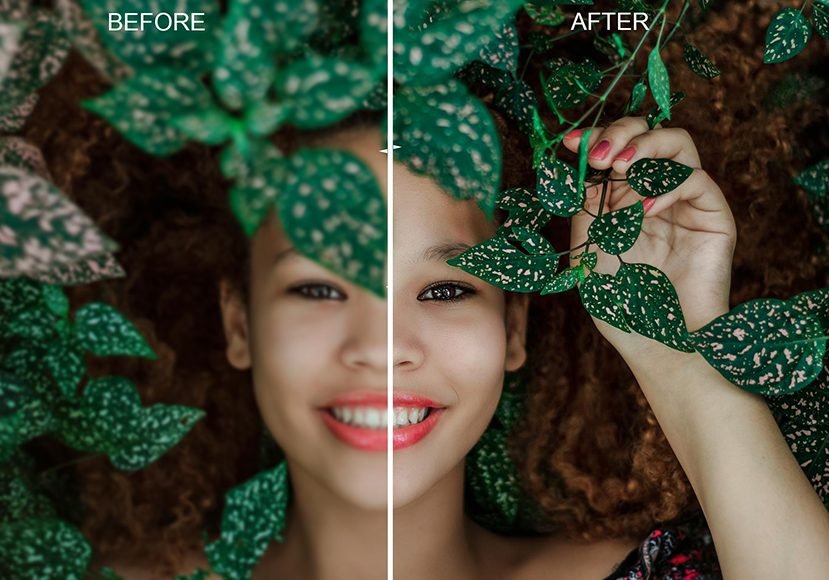
If you work on a computer, you have powerful choices.
Desktop software gives you the best control to fix blurry photos. You can use professional editing skills to bring life back to your images.
How to Use Adobe Photoshop to Sharpen Images (Smart Sharpen)
Adobe Lightroom and Photoshop are famous for a reason.
In Photoshop, there is a tool called “Smart Sharpen.” It is a powerful tool that helps you control how much you want to clean up the image.
First, open your original image in Photoshop. Go to the Filter menu, choose Sharpen, and then Smart Sharpen. You will see sliders. Move them to see the changes. This tool looks for edges in your photo and makes them stand out. It helps restore fine details that were lost.
It is great for product photos where you need everything to look perfect. It takes a little practice, but it gives you a very professional photo look.
Using Lightroom to Enhance Detail and Reduce Noise
Adobe Lightroom is amazing for color correction and detail. It is very good if your photo is blurry because of low light noise.
In the Develop module, look for the “Detail” panel.
Here, you can use the Sharpening slider to make edges crisp. You can also use the Noise Reduction slider to smooth out the grain.
This balance helps you get a high-quality image. Adobe Lightroom is great because it does not change your original image forever.
You can always go back. It is a favorite for improving image quality with minimal effort.
Top AI Desktop Software to Deblur Images Automatically
If you do not want to adjust sliders, you can use AI technology. There is software that uses artificial intelligence to fix blurry photos ai style.
Programs like Topaz Sharpen AI use the power of ai to understand what the photo should look like. You just put your blurry pictures in, and the software does the work. It can unblur image files, remove motion blur, and even fix poor focus. This is the next level of editing.
It uses advanced features to upscale images and add back texture. It is like magic for old photo restoration or fixing a quick snap.
How to Fix Blurry Photos Online For Free?
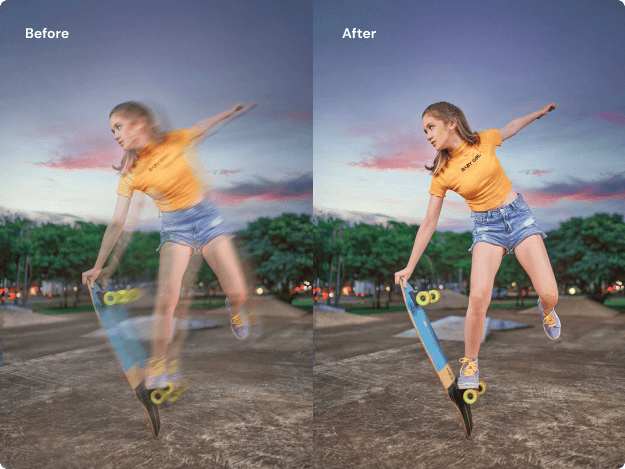
Not everyone has big software on their computer.
Sometimes you need to fix blurry pictures online free. There are many websites that let you do this quickly.
Best Browser-Based Tools For Quick Fixes
If you search for “fix blurry photos free“, you will find many online tools. Websites like Fotor, Canva, or specialized ai photo enhancer sites are very popular. They are easy to use. You do not need to download anything. These sites often have an unblur tool that works with a single click.
You upload your photo, click a button, and the AI image enhancer does the rest. It is perfect for social media posts or when you are in a hurry. You can find a free plan on many of these sites, though some might ask you to pay for the best features.
Pros and Cons of Using Free Online Sharpeners
Using a free plan online is great, but there are things to think about. The good thing is that it is fast.
You can unblur photos without learning hard software. It saves much time. The bad thing is that sometimes the image resolution is lower when you save it for free. Also, you have to upload your family photos to the internet, so you must trust the site.
Sometimes, a free online photo editor will leave a watermark on your image. But for a quick fix for social media, they are often good enough.
Step-by-Step: Uploading and Enhancing Your Image
Here is the easy way to use these tools.
- Go to an online photo editor website.
- Look for the button that says “Upload Image” or “Open Image.”
- Select your blurry image from your computer.
- Find the tool called “Sharpen,” “Unblur image tool,” or “AI photo enhancer.”
- Click it. The AI technology will analyze the photo.
- Wait a few seconds. You will see the unblurred image.
- If you like it, download it. This process takes very little effort. It is great for fixing face blur or making blurry text readable again.
Best Mobile Apps to Fix Blurry Photos (Android & iOS)
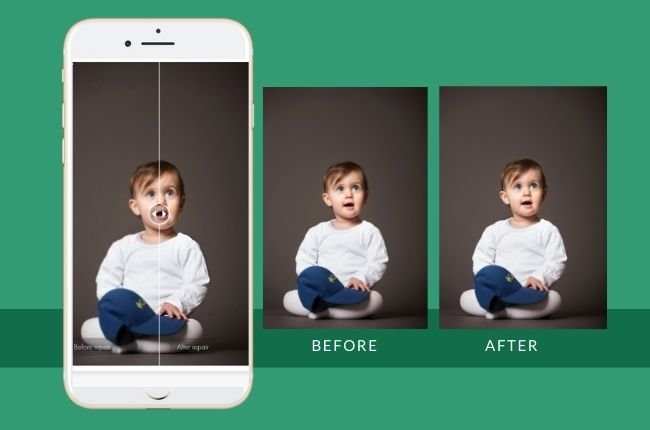
We use our phones for everything.
So, it makes sense to use a photo enhancer app on your phone, too. There are amazing apps in the App Store and Google Play Store.
Using Remini and AI Enhancers on Your Phone
One of the most famous apps is Remini. It is known for its AI photo enhancer power. It is very good at face blur.
If you have old photos or vintage photos where faces are not clear, Remini can draw the face again. It uses artificial intelligence to guess what the face looks like and makes it sharp. It can turn a low-quality memory into a high-quality portrait. You just upload the photo, watch a short ad (if you use the free version), and get a clear photo result.
It is a powerful tool that fits in your pocket.
How to Use Snapseed’s Structure and Sharpening Tools
Snapseed is a free app from Google. It gives you more control than just a single click fix. In the Tools menu, go to “Details.”
Here you will see “Structure” and “Sharpening.” Structure brings out the texture in the photo, which is great for product shots or buildings.
Sharpening fixes the edges. By moving these sliders, you can improve image clarity significantly. It takes a bit more editing skills than an auto-fixer, but the quality of your final image will be very natural.
It helps fix fuzzy photos without making them look fake.
Adobe Lightroom Mobile For On-the-Go Edits
If you like the desktop version, you will like Adobe Lightroom mobile. It has many of the same advanced features.
You can use it to fix blurry pictures on your phone. The app allows you to adjust sharpening and noise masking. It is very good for fixing white photos that are too bright or dark photos that are grainy. It helps you get better quality images before you post them.
It is a professional photo tool made for mobile screens. You can start with a free trial or use the free features to improve your picture quality.
Tips to Prevent Blurry Photos Before You Shoot
The best way to fix a blurry photo is to not take one in the first place! At Designers Choice, we believe in learning.
Here are some tips to help you get clear photos from the start.
Mastering Shutter Speed and Focus Modes
Shutter speed is how fast the camera takes the picture. If the shutter is open for a long time, any movement will cause motion blur.
To freeze action, use a fast shutter speed. This is key for clear photos of moving things.
Also, check your focus. Tap the screen on your phone to tell the camera where to look. If you leave it to the camera, it might focus on the wrong thing, giving you poor focus on your subject.
Getting the focus right ensures fine details are sharp.
Using Tripods and Burst Mode For Sharpness
To stop camera shake, use a tripod. It keeps the camera perfectly still. This is very important for low-light shots or product photos.
If you do not have a tripod, try “Burst Mode.” This takes many photos very fast. Usually, one of them will be sharp because your hands were steady for a split second.
This is a simple trick to get better quality images without extra gear.
Proper Lighting Techniques
Light is your friend. The more light you have, the better your image quality will be. Good light lets the camera use a fast shutter speed and low ISO.
If you are inside, go near a window. If it is dark, turn on more lights. Better lighting helps you avoid grainy, fuzzy photos.
It brings out the image details naturally. You will spend less time using a photo editor if you have good light.
FAQ’s:
Can AI Really Make A Blurry Photo Clear?
Yes, AI technology has changed how we edit. An ai photo editor can guess what the missing details look like. It can unblur image files very well, especially faces in old photos. It is not always perfect, but it is very powerful.
Can You Completely Fix an Extremely Blurry Photo?
If a photo is totally grey or just a big blur, it is hard to fix completely. AI image enhancer tools can do a lot, but they cannot create magic from nothing. They work best on photos that are just a little bit soft or have slight motion blur.
Does Increasing Sharpness Affect Image Quality?
Yes, if you sharpen too much, the photo can look grainy or fake. It can add “halos” around objects. The goal is to improve image clarity without making it look edited. Use minimal effort on the sliders to keep it natural.
Is There A Totally Free Way to Fix Blurry Photos Online?
Yes, there are sites to fix blurry photos online free. Many offer a free plan where you can edit a few photos a day. Just search for “fix blurry photos free” to find them.
How Do I Fix Blurry Photos On My Windows PC Or Mac?
You can use the built-in Photos app on Windows or Mac for basic fixes. For better results, use Adobe Lightroom, Photoshop, or desktop AI photo enhancer software. These give you the best image resolution and control.
What is the Best Free App to Fix Blurry Photos on iPhone?
Snapseed is a great free choice. For AI power, you can try the free version of Remini or other photo enhancer app options in the App Store. They are easy to use for social media pictures.
Conclusion
We hope this guide helps you solve the problem of blurry photos.
At Designers Choice, we want you to have the best image quality for your projects and memories. Whether you use AI technology, a simple online photo editor, or professional editing skills, you have the power to fix your images.
Don’t let camera shake or low light ruin your shots. With these tips and tools, you can unblur photos and reveal the fine details hidden inside. Try an unblur tool today or practice with your camera settings. You will be amazed at how clear photos can change the look of your work.
Remember, great design starts with great visuals. Keep creating and capturing the world in high quality!
