

At Designers Choice, we know exactly how it feels. You have taken a great photo, but the messy room behind the main subject ruins the whole picture. We have all been there.
As a team of passionate designers, we understand that turning a creative idea into a real project takes work. We want to be the helpful friend you always wished you had. Our goal is to share trusted insights and top-quality products to help you make your work look professional.
One of the most common tasks in graphic design and photo editing is to get rid of background elements.
Whether you are selling items on an online store or making cool social media posts, a clear background makes a huge difference. In the past, this took much time and technical skills. You had to sit at a computer for hours. Today, things are different.
With the power of AI and advanced algorithms, you can remove background details in a single click. This guide will show you how to do it. We will look at the best background remover tools, mobile app options, and professional software. We want to empower you to bring your boldest visions to life. Let’s start learning how to fix your product images and create a transparent background easily.
Top Online Tools to Get Rid of Background Instantly

If you need to get rid of background clutter fast, online tools are your best friends. These tools use artificial intelligence to look at your photo, find the person or object, and erase everything else. You usually do not need to download a heavy desktop application.
Most of these work right in your web browser.
Adobe Express

Adobe Express is a fantastic online background remover. It comes from the same family as Photoshop, so you know it is good. It is made for people who need quick results without learning hard software.
To use it, you just upload image files to their website. The ai background remover works automatically.
Within seconds, you will see your main subject on a transparent backdrop. You can then save it as a png file.
This is great for making marketing materials or social media graphics. It keeps the edges smooth and handles colors well.
Canva

Canva is very popular for design projects. It is not just a background remover tool; it is a whole design studio. If you have the Pro version, you can remove background layers with one click.
When you are making a post for Instagram or a flyer, you simply click “Edit Image” and select the background remover.
The automatic background removal happens almost instantly.
After the background is gone, you can add a new background or a solid background color. It is very easy to use for beginners and gives best results for simple photos.
Remove.bg

If you want a dedicated background removal tool, Remove.bg is one of the most famous choices. Its name says exactly what it does.
It focuses entirely on helping you get rid of background pixels. You do not need to click anything extra. Just drag and drop your photo. The ai background generator detects the background of a photo and wipes it away. It is excellent for handwritten signature scans or product photos.
Even if you have intricate details like hair, it does a pretty good job. You can download a preview for free or pay for a high-quality PNG image.
Picsart

Picsart is a great creative platform that works well on a mobile device and a computer. Their BG remover is powerful. It uses advanced algorithms to separate the foreground from the background.
After you get rid of the background, Picsart lets you do more photo editing. You can add stickers, text, or even an AI background. This means the tool can create a new image scene for you using AI. It is perfect for making fun and catchy social media posts directly from your phone.
Photoroom
Photoroom is a favorite for people who sell things online. It is designed to make product listings look professional.
If you take a picture of a shoe or a bag, Photoroom will get rid of background distractions and let you add a white background instantly.
It is very fast and precise. The AI background eraser is smart enough to fix lighting, too. It saves you much time because you can batch edit, which means you can clean up many product images at once.
It is a highly rated mobile app for sellers.
Clipping Magic
Clipping Magic gives you more control. While it has automatic background removal, it also offers smart editor tools. If the AI misses a spot, you can use a specific tool to mark what to keep and what to remove.
This is helpful for photos with tricky colors. It allows for a specific editing process where you can refine the edges.
It helps you get a truly transparent image without losing important parts of your subject. It is a strong online tool for those who want perfection.
PhotoScissors

PhotoScissors is another simple tool to remove the background. It is very user-friendly.
It works well if you need to cut out an object to put it on a different background. It handles semi-transparent objects like glass or hair decently.
It creates a clear PNG background. While it might not be as famous as Adobe, it is a solid free background remover option for basic tasks.
It helps you swap the background of an image quickly.
How to Get Rid of Background Using Professional Software?
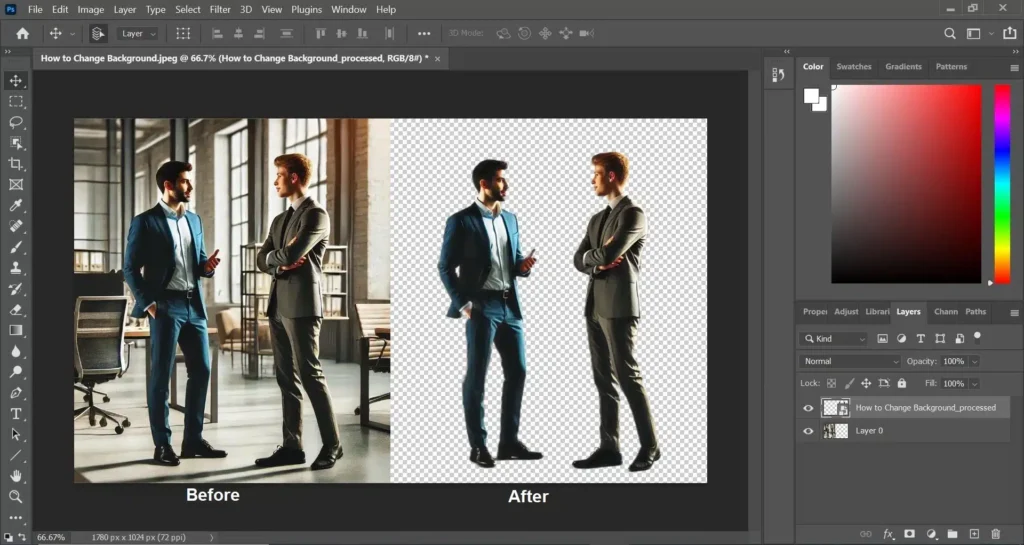
Sometimes, online tools are not enough.
If you have a very complex image, you might need professional software. This requires a bit more manual editing, but the results are unmatched.
At Designers Choice, we value craftsmanship, and knowing these tools helps you achieve excellence.
The “Select Subject” Method in Adobe Photoshop
Photoshop is the king of photo editing. For a long time, you had to trace things by hand. Now, Photoshop has a feature called “Select Subject.”
- Open your photo in Photoshop.
- Go to the “Select” menu at the top.
- Click “Select Subject.”
The software uses artificial intelligence to find the main subject. It draws a line of “marching ants” around it. Then, you can click the layer mask button to get rid of background pixels. This creates a transparent backdrop. You can then save it in PNG format to keep it see-through.
This method gives the best results for high-quality design projects.
Using the Magic Wand Tool For Simple Backgrounds
If you have a photo with a solid color background, like a logo on white paper, the Magic Wand is great.
- Select the Magic Wand tool from the toolbar.
- Click on the background color you want to remove.
- It will select all that color.
- Press “Delete” on your keyboard.
This is a classic way to remove background areas. However, be careful.
If your subject has the same color as the background, the wand might erase parts of your subject too. You might need to adjust the “Tolerance” setting to make it work better. This is where basic technical skills come in handy.
How to Use GIMP (Free Alternative) For Background Removal?
Not everyone can afford Photoshop. GIMP is a free software that can also get rid of background elements. It is a powerful desktop application.
To use GIMP:
- Open your image.
- Right-click the layer and choose “Add Alpha Channel.” This ensures you get a transparent background instead of white.
- Use the “Fuzzy Select Tool” (similar to Magic Wand).
- Click the background image area.
- Press Delete.
For harder edges, you might need to use the “Free Select Tool” to draw around the item manually. It takes more editing process steps, but it is free and effective for graphic design on a budget.
Why You Should Get Rid of Background For Product Photography?
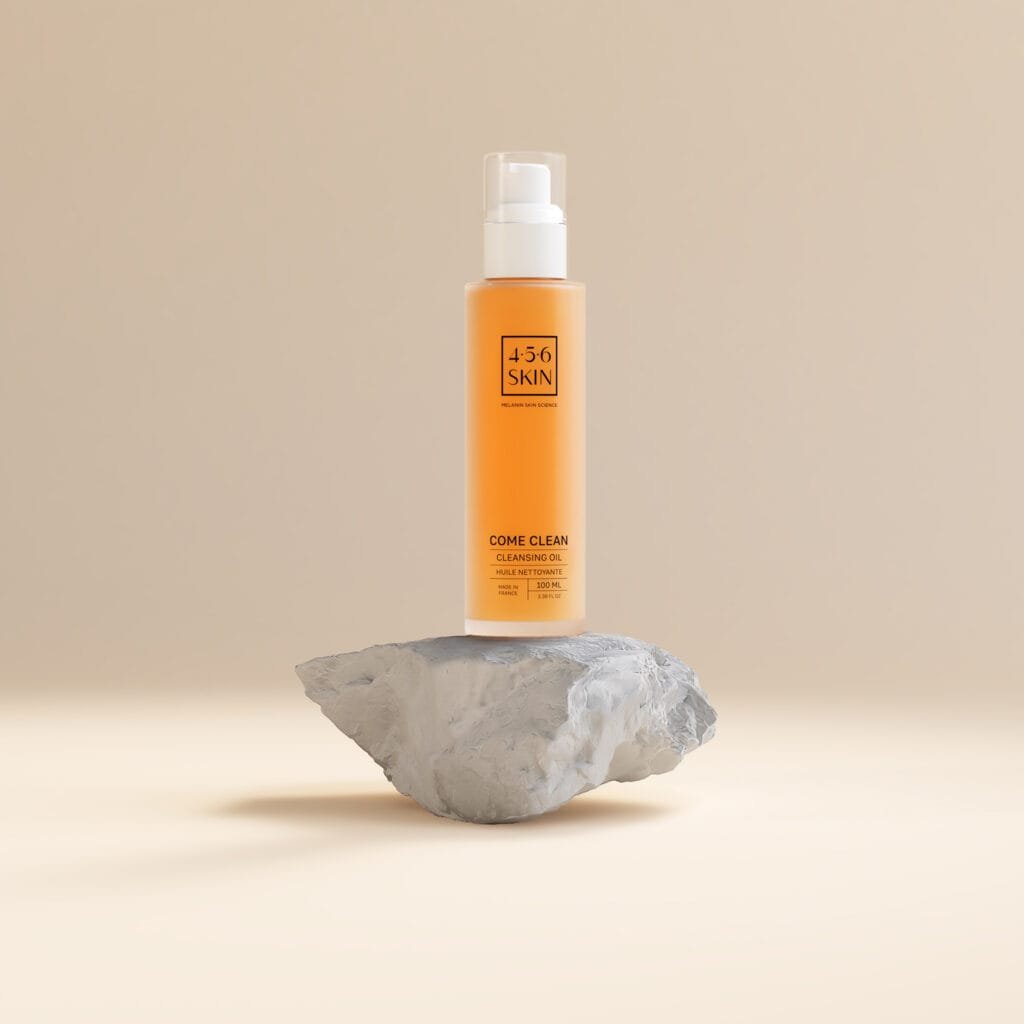
You might wonder, “Why does this matter?” In the world of online sales, the image background can make or break a sale. Clean images look trustworthy.
Increasing Sales with Clean White Backgrounds
When a customer looks at an online store, they want to see the product clearly. A busy background distracts them. By using a background remover, you place the focus 100% on what you are selling.
Studies show that product photos with a pure white background sell better. It looks cleaner and more professional. It shows that you care about quality. Whether you use an AI background remover or do it manually, cleaning up your product listings is a smart move to boost your business.
Meeting Amazon and eBay Image Requirements
Big sites like Amazon and eBay have strict rules.
For your main photo, they usually require a pure white background. They do not want to see your table or your garden.
To sell on these platforms, you must get rid of background distractions. Using a photo background remover ensures your images meet these standards. If you upload photos with messy backgrounds, these sites might hide your listings.
So, learning background removal is essential for meeting requirements.
Common Mistakes When You Try to Get Rid of Background

Even with an ai background generator, things can go wrong. Here are mistakes to avoid so your new image looks perfect.
Leaving Jagged Edges (Halos)
Sometimes, after you remove background pixels, you see a thin, ugly line around your object. This is called a “halo.” It happens when the cutout is not precise. It looks like a jagged sticker.
To fix this, you might need to “feather” the edges by 1 or 2 pixels. This softens the cut.
Many background remover apps have a “smooth” feature to help with this. We want your marketing materials to look smooth, not chopped up.
Losing Fine Details Like Hair Or Fur
This is the hardest part.
When you try to get rid of background behind a person with frizzy hair or a fluffy dog, the tool might cut off the hair. It looks unnatural.
To keep these intricate details, do not use a simple eraser. In Photoshop, use the “Select and Mask” feature. In online tools, look for “hair refinement” settings. Preserving these details makes the photo look real.
If you lose the hair strands, the photo looks like a bad fake.
Saving in the Wrong File Format (JPG vs. PNG)
This is a very common mistake. You spend time to get rid of background, and then you save the photo as a JPG.
JPG files cannot have a transparent background. If you save as JPG, the empty space will turn white or black automatically. You must save your work as a PNG file (or TIFF/GIF). The PNG format supports transparency. So, always remember: for a clear background, choose PNG.
FAQ’s:
Can I Get Rid of the Background From an Image For Free?
Yes, absolutely! There are many free background remover options available.
Tools like Adobe Express (free version), Remove.bg (free preview), and GIMP are great choices. You can get rid of background clutter without spending any money. These are perfect for personal projects or quick social media posts.
What File Format Should I Use to Keep the Transparent Background?
You should always use the PNG format. A PNG image allows the background to stay transparent. This means you can drop that image on top of any other picture or color later. Do not use JPG if you want a transparent image.
Is It Possible to Get Rid of the Background in Microsoft Word Or PowerPoint?
Yes, you can. Microsoft Office has a built-in tool.
- Click on the image.
- Go to the “Picture Format” tab.
- Click “Remove Background.”
It works okay for simple images. However, for intricate details or professional marketing materials, a dedicated ai background eraser or photo software gives the best results.
How Do I Handle Difficult Edges Like Hair When Removing A Background?
Handling hair requires patience. If using a tool like Photoshop, use “Refine Edge” or specific brushes with a small brush size to paint over the hair area. If using an online background remover, choose one that specializes in people or animals.
Some AI background tools are trained specifically to recognize hair strands and keep them while they remove background noise.
Can I Get Rid of the Background From Multiple Images At Once?
Yes. This is called “batch processing.”
Tools like Photoroom and some desktop software allow you to upload image batches. The automatic background removal runs on all of them at the same time. This saves much time if you have hundreds of product images to clean up for an online store.
Conclusion
Learning to get rid of background elements is a skill that opens up many doors.
It helps you create better design projects, cleaner product listings, and more exciting social media content. Whether you use a simple mobile app, a free background remover, or professional software like Photoshop, the goal is the same: to make your main subject shine.
At Designers Choice, we believe in providing the resources you need to succeed. We hope this guide helps you feel more confident in your editing process. Don’t be afraid to try a new background or experiment with transparent background layers.
With the power of AI and these helpful tools, you can turn a messy photo into a masterpiece in a single click. Remember to save as a PNG file, watch out for jagged edges, and have fun creating!
Start using a background remover tool today and see how it transforms your work. Check out the rest of our site for more tips on bringing your creative visions to reality.
