
At Designers Choice, we know how exciting it is to start a twitch channel. It feels like opening a door to a whole new group of friends.
We have spent years helping content creators build their personal brand. We know that getting your graphics right is a big part of that journey.
One of the most important things you will need is a set of custom twitch emotes. These little images are huge for the twitch community.
They let your viewers share feelings, jokes, and hype during your live stream. But we also know that making them can be tricky. There are so many rules about file size, image sizes, and formats. It can feel confusing when you just want to create something cool.
That is why we wrote this guide. We want to help you make twitch emotes that look sharp and clear. We will explain exactly what size of twitch emotes you need. We will also talk about the Twitch profile picture, Twitch offline banner size, and more.
We want to make sure you have all the right custom graphics to make your channel stand out.
We believe that with the right help, anyone can make a great channel. Let’s look at how to get your own emotes ready for the world.
What is the Standard Size of Twitch Emotes?
When you act as a creator in the world of Twitch, you need to know about pixels.
A pixel is a tiny square of color on a screen. Twitch emote size is measured in these pixels. If you get the numbers wrong, Twitch might not let you upload your art. Or worse, the image might look blurry and bad.
For a long time, you had to make every emote in three different sizes. This was a lot of work. Now, Twitch’s guidelines have changed to help you.
You have two main ways to handle the size of Twitch emotes. You can let Twitch do the work for you, or you can do it yourself to be safe.
Using Twitch’s Auto-Resize Mode (Single File)
This is the easiest method. Twitch now has a great way to handle uploads called Auto-Resize.
With this, you only need to upload one single file. Twitch will then shrink it down for you.
For this to work, your image must be a square. This means the width and height are the same. This is called a square aspect ratio.
The file you upload should be big and clear. Twitch recommends a size of Twitch emotes between 112 x 112 pixels and 4096 x 4096 pixels.
We suggest using a larger size, like 500 x 500 pixels. This helps your art look crisp before it gets resized.
However, there is a file size rule. The file cannot be heavier than 1MB. If your PNG file is too heavy, the creator dashboard will reject it.
This mode is perfect if you want to save time. But some artists prefer the manual way to ensure small sizes still look good.
Manual Upload Mode (Three Separate Sizes)
Some designers at Designers Choice prefer this method. Why? Because when a computer shrinks an image, it can lose detail.
If you resize it yourself, you can fix little pixel errors. This makes sure your custom emotes look perfect on any screen.
If you choose this path, you must upload three specific files.
- 28 x 28 pixels: This is the smallest size. It is very tiny. This is the version people see in the chat room on a web browser. Because it is so small, you cannot use too much detail. Simple lines and bright colors work best here. If you try to fit a whole reference photo into 28 pixels, it will look like a blob. You have to zoom in and check your work carefully.
- 56 x 56 pixels: This is the medium size. Twitch uses this for the Retina display or high-definition screens. It is twice as big as the chat version. You can show a bit more detail here. It is also used in some parts of the Twitch overlay size setups or extension panels.
- 112 x 112 pixels: This is the largest standard size for the manual upload. When someone hovers their mouse over an emote in chat, this is the big version they see. It needs to look very sharp. This is often the output size artists start with before shrinking down to the smaller ones. Even at this size, you must respect the maximum file size limits.
Dimensions For Animated Twitch Emotes
Animated emotes are very popular. They move, dance, or flash. They grab attention in the chat much better than still images. But because they move, they take up more memory. This means the rules for file size are strict.
Frame Rate and Animation Length
The animation cannot go on forever. Twitch allows a maximum animation length of 60 frames.
If your animation is too long, it will be rejected. You also need to watch the frame rate. This is how many pictures flash per second to move.
Twitch generally supports up to 60 frames per second (fps).
However, most animated emotes run at a lower speed to keep the file small. A smooth animation is a great way to hype up your chat.
But remember, the dimensions are the same as standard emotes. You still need that square shape.
File Size Limitations For Animations
This is where many people get stuck. An animated GIF is much heavier than a PNG-format image.
The maximum file size for an animated emote is usually 1MB. This might sound like a lot, but it fills up fast with animation.
If your file is too big, you might need to remove some frames.
Or you might need to use fewer colors. There are free tool websites online that can help you compress your GIF.
We always check the file weight before we try to upload it to the Twitch account. It saves a lot of frustration during the approval process.
Twitch Sub Badges and Bit Badge Sizes
Sub badges and bit badges are different from emotes. A twitch profile has emotes for everyone to see.
But badges are special. They sit next to a user’s name to show they support the channel. They show loyalty to the twitch community.
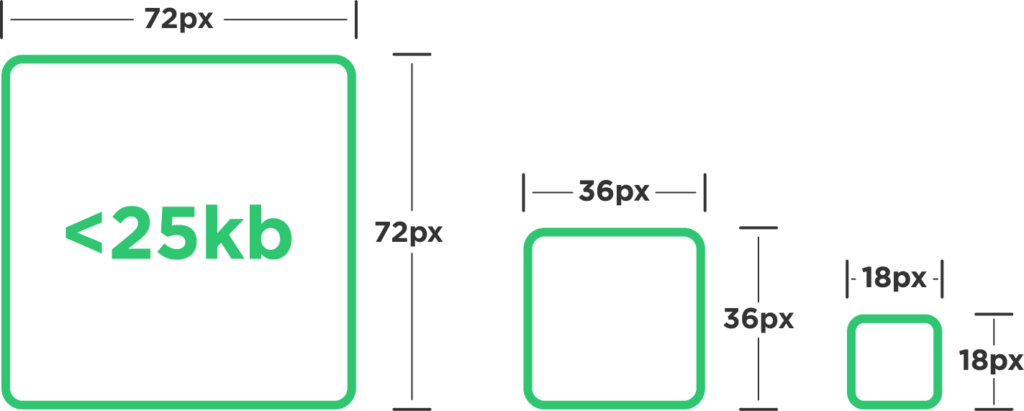
Subscriber Badge Dimensions (18×18, 36×36, 72×72)
These badges are even smaller than emotes. The standard sizes are:
- 18 x 18 pixels
- 36 x 36 pixels
- 72 x 72 pixels
Notice that the smallest one is only 18 pixels wide! That is tiny. You cannot put text on a badge this small.
It will not be readable. You must use simple shapes like a star, a heart, or a simple character face.
If you use a reference photo of a person, it might just look like a dot. These badges also need to have transparent backgrounds.
Bit Tier Badge Dimensions
Bit badges show how much money a viewer has cheered.
These use the same sizes as subscriber badges. As a viewer gives more, the badge changes. You can create custom graphics for each level.
Just like the sub badges, the file type is usually PNG. You must stick to the size limit, or they will not upload.
Important File Requirements Beyond the Size of Twitch Emotes
Getting the pixel count right is only step one. There are other rules you must follow.
If you ignore these, the creator dashboard will give you an error.
Acceptable File Formats (PNG Vs GIF)
For standard emotes, you must use the PNG format. A PNG file is the best because it keeps the image sharp without making the file too heavy.
It also supports transparency, which is vital.
For animated emotes, you must use the GIF format. GIFs allow for movement. You cannot use JPG or JPEG files for emotes. Those formats do not allow for transparent backgrounds, so your emote would have a big white box around it. That looks bad in “dark mode” on Twitch.
File Size Limits (1MB Vs 25 KB)
We mentioned the 1MB limit for auto-resize and animated emotes.
But if you use the manual mode for tiny emotes (like the 28×28 size), the max file size used to be very small, around 25kb.
Today, Twitch is a bit more flexible, but you should still aim for a light file. A heavy file takes longer to load for your viewers.
If a viewer has slow internet, your emotes might not show up if the file size is huge. Keeping your output size efficient is a sign of a professional.
Background Transparency Rules
We cannot stress this enough.
Your emotes must have transparent backgrounds. This means the empty space around your drawing should be see-through. If you save your art with a white background, it will show up as a white square in the chat.
Imagine sticking a square piece of paper on a wall. That is what it looks like without transparency.
You want it to look like a sticker that is cut out perfectly. Most design software has a checkerboard pattern to show where the image is transparent. Make sure you see that checkerboard before you save your PNG file.
Best Practices For Creating Visible and Sharp Emotes
At Designers Choice, we want your art to pop. Since emotes are viewed at very small sizes, you need to use some tricks. A lot of information gets lost when you shrink an image. Here is how to keep it looking good.
Testing Readability At 100% Zoom
When you design, you are often zoomed in very close. You might be looking at your art at 500% zoom to draw the eyes. But viewers will never see it that big. You need to zoom out to 100% size frequently.
Ask yourself: Can I still see the expression? Is the text readable? If you can’t read it, your viewers can’t either. The recommended size for working is large, but the final check must be small. If it looks muddy, simplify the lines. Use fewer colors. High contrast helps a lot.
Utilizing the Full Canvas Space
You have a square space to work with. Use all of it. Do not leave empty space around your drawing.
Stretch your character to touch the edges of the box. This maximizes the visible area.
For example, if you have a twitch emote size of 112×112, but your drawing is only in the middle 50 pixels, it will look tiny in chat. Make it fill the whole 112 pixels. This makes your emote appear larger than others in the chat, which is a great way to get noticed.
FAQ’s:
What is the Best File Format For Twitch Emotes?
The best format for non-moving images is the png format. It supports high quality and transparent backgrounds. For moving images, you must use GIF. Do not use JPG.
Do I Still Need to Upload Three Different Sizes For My Emotes?
No, you do not have to. You can use the Auto-Resize mode. This lets you upload one big square image. However, some professionals still upload different sizes manually to ensure every pixel is perfect.
Why Does My Emote Look Blurry On Twitch?
This often happens if you upload a small image and Twitch tries to stretch it, or if you resize it poorly. It can also happen if your aspect ratio is wrong. Always start with a large canvas and scale down carefully.
What is the Maximum File Size (MB) Allowed For an Emote Upload?
The maximum file size is usually 1MB for auto-resize and animated emotes. Always check the creator dashboard for the newest updates on the size limit.
Can I Use the Same Size For Sub Badges and Emotes?
No. Twitch emote size and badge sizes are different. Emotes are 28, 56, and 112 pixels. Badges are 18, 36, and 72 pixels. They are separate image sizes and serve different purposes on your twitch profile.
How Do I Make Sure My Emotes Stay Sharp At Small Sizes?
Use thick lines and flat colors. Avoid soft shading or tiny details. Check your work at the actual 28×28 size often. If it looks good there, it will look good everywhere on the social media platform.
Can I Use Free Online Tools to Create Twitch Emotes?
Yes! There is usually a free tool available online that can resize images or remove backgrounds. You do not always need expensive software. Just make sure the tool exports a clean PNG file.
What Happens If My Twitch Emote File is Too Large?
If your file size is over the limit, Twitch will reject the upload. You will see an error message. You will need to compress the file or reduce the quality slightly to fit the maximum file size rules.
Conclusion
Creating custom Twitch emotes is a fun journey. It allows you to express your style and build a stronger connection with your viewers. At Designers Choice, we believe that understanding the technical side, like the size of twitch emotes, gives you more freedom to be creative.
Remember to keep your files within the maximum size limits. Use the PNG format for clear, sharp images. Check your work at small sizes to ensure readability. And don’t forget about your other graphics like the Twitch profile picture, Twitch offline banner, and Twitch panel images.
All of these custom graphics work together to create a professional look for your Twitch channel.
We hope this guide helps you navigate the creator dashboard with confidence.
Whether you are making animated emotes or a simple profile banner, taking the time to get the dimensions right is worth it. Your twitch community will appreciate the effort. Now, go create something amazing! We are cheering for you.
