

At Designers Choice, we know that looking good on camera matters a lot.
When you are doing a live stream or talking to friends online, a simple camera feed can look a bit plain and boring. That is where a good webcam border comes in to save the day. A webcam border frames your camera feed, making your entire setup look neat and very professional.
We are here to help you find the best options for your channel.
Whether you want a webcam border free download or a brand new custom design, we have the tips you need. If you need a webcam overlay, animated, free, or just a plain webcam border PNG, you will find it here.
Let’s look at how to pick, make, and add a great frame to your camera.
A good overlay can change how people see your videos. We want to give you the best advice for your Twitch stream.
Our goal is to make things easy for every creator. Read on to learn all about these cool frames and how you can use them on social media, too.
What Exactly Is A Webcam Border and Why Do You Need One?
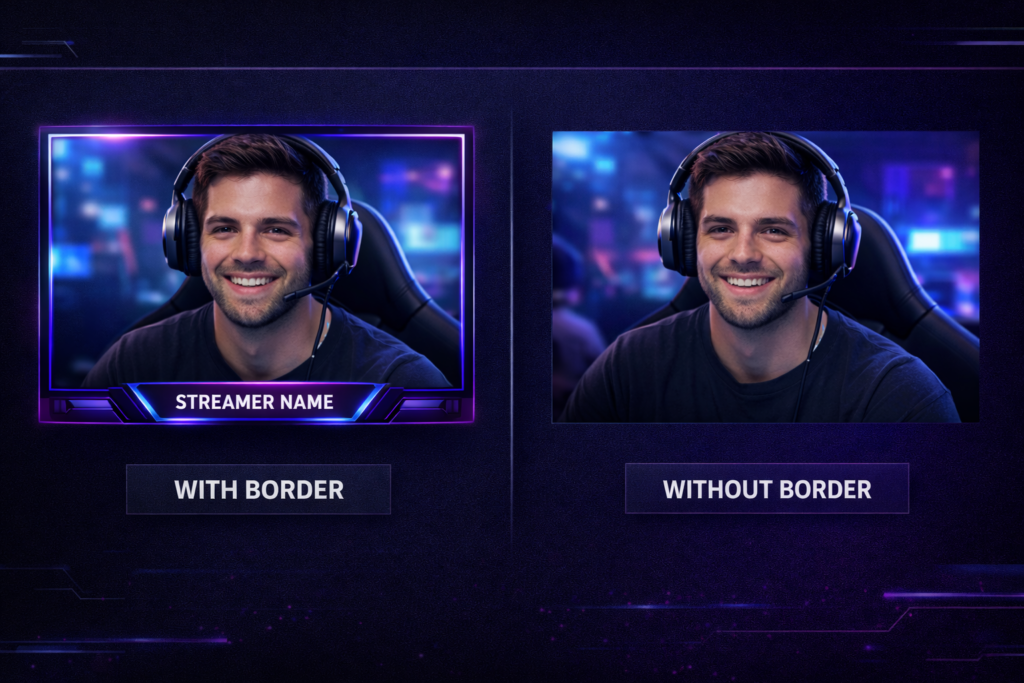
A webcam border overlay is a digital frame that sits right on top of your camera feed. Think of it like a nice picture frame for your live stream video. It makes your video feed look much better and much more fun to watch. You might see these frames often on a popular Twitch stream or on a big YouTube channel. They are very helpful for any creator who wants their video to stand out from the crowd.
A simple webcam overlay can do a lot of heavy lifting for your channel. When you have a nice frame, your viewers will know that you care about your gaming footage. You can use a static webcam overlay pack or an animated one. Let’s look at why you need one.
Elevating Your Stream’s Visual Identity
Making your live stream look nice gives you a strong visual identity.
When you have a good layout, people remember your channel better. A matching twitch overlay and webcam overlay show that you care about your content. It adds polish to your brand, much like a good logo does. A cool stream overlay package makes everything match perfectly.
If you have a neat interface, your viewers will like it more. It helps you look like a top creator. You can share your screen on social media and look great. Your Facebook and Instagram fans will love the new look. A clear visual identity helps you grow fast.
Hiding Messy Backgrounds and Cropping Edges
Sometimes, your room might be messy. A good frame helps hide the rough edges of your camera shot. You can crop your camera source in OBS Studio and put a webcam border overlay right on top of it. This makes everything look clean.
You do not have to worry about people seeing the messy corners of your room. A solid transparent overlay will cover the bad spots and only show your face. This makes your setup look much better. You can focus on your Twitch stream instead of cleaning your room.
Hiding the bad edges makes your gaming footage look sharp and clear.
Adding Important Stream Labels (Recent Subscriber, Follower, etc.)
A webcam border is not just for looks. Many stream overlays have blank spaces for stream labels.
You can show the name of your last subscriber, latest follower, or top donor. These cool widgets fit right into the interface of your frame.
It helps you say thank you to your fans while you play your gaming footage.
A good layout will have room for alerts and other text. You can put your Discord link right on the frame, too. Adding alerts to your overlay makes your viewers feel special. Every big creator uses labels to say thank you.
Top Design Styles For Your Next Webcam Border
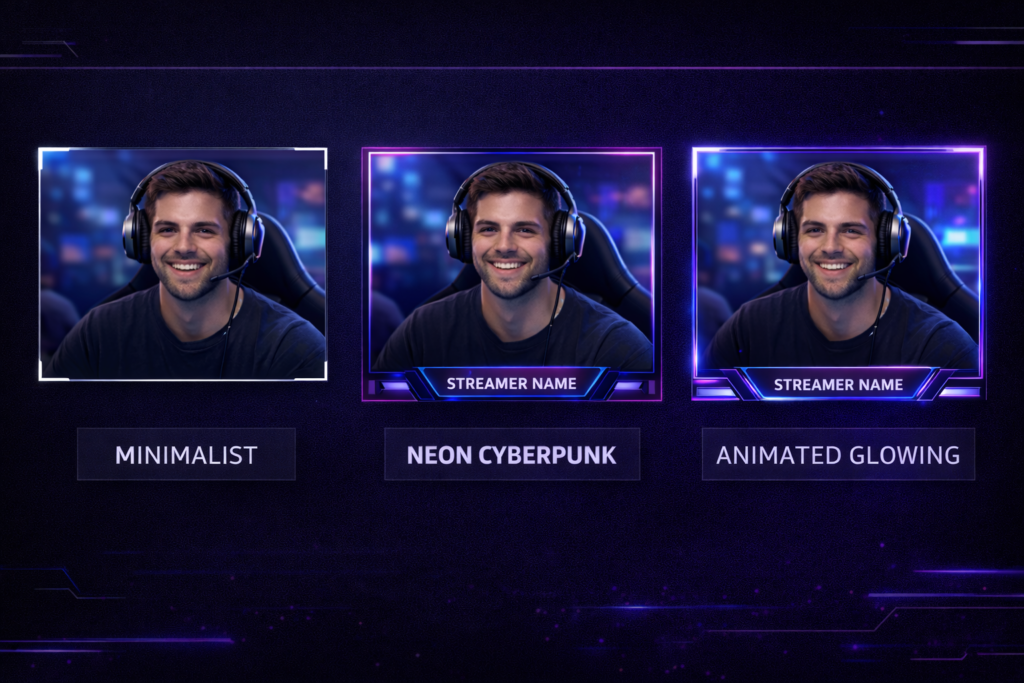
When you want to download a new frame, you have many fun styles to pick from. Every person likes something different for their twitch stream. Here are some top styles you can choose for your setup. We will look at minimal styles, bright styles, and moving styles.
Minimalist and Clean Borders
A clean design is very popular right now. These static webcam overlays just use simple lines and basic colors. They do not distract from your face or your gaming footage. If you want a nice transparent overlay that looks simple and neat, a clean webcam border PNG is a great pick.
It adds just enough polish to look good. Clean stream overlays are great for any creator. You can find many free webcam overlays that use this simple style. A clean frame works well for Facebook gaming and YouTube videos.
Neon and Cyberpunk Overlays
If you play fast action games, you might really like a neon style. These frames have bright, glowing colors that pop out on the screen. A neon frame fits perfectly with a dark twitch layout. You can also find grungy or grunge styles if you want a rough, cool look.
A grunge style looks a bit messy on purpose, which fits some games. A grungy style is very fun to look at. A bright neon overlay catches the eye very fast. Many streamers use neon lights to make their live stream look cool.
Animated Vs. Static Borders: Which is Better?
You have to choose between moving frames and still frames. An animated frame has moving lights or shifting colors.
A webcam overlay animated free can look very flashy and fun. Still frames are just pictures, like a simple PNG or SVGs file.
Still frames use much less computer power. Animated ones look cooler but might slow down an older computer. A static webcam overlays pack is safe for slow computers. You must pick the one that fits your computer setup. If you want a fast game, a plain PNG frame is the best choice.
How to Create A Custom Webcam Border For Free?
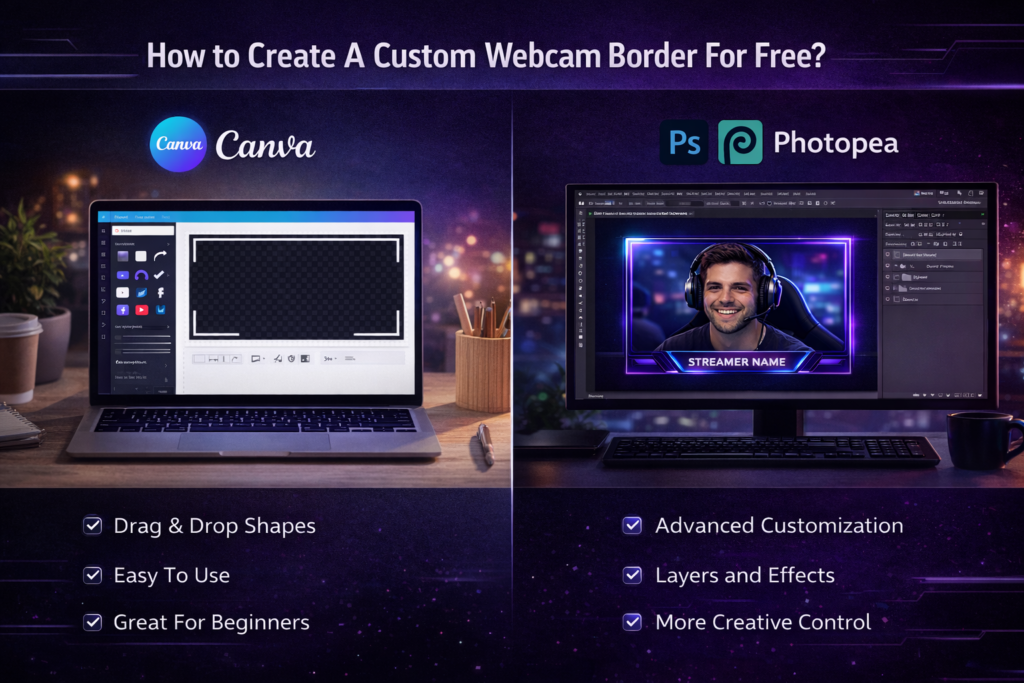
You do not always have to buy one. You can make free webcam overlays yourself. Here is how you can build your own frame without spending any money at all. You can use basic tools on your computer.
Using Canva For Easy Static Designs
Canva is a great browser tool for beginners. You can start with a blank page and add shapes. They even have some free twitch template designs. Just make sure the middle is clear so your camera can show through.
You can add your social media names like Facebook or Instagram right on the frame. You can also type out your discord link. Canva lets you download your work very fast. It is very easy to make a static webcam overlays pack in just a few minutes.
Designing in Photoshop Or Photopea
If you know how to use more tools, try Photoshop.
Photopea is a free tool on the internet that works just like it in your browser. You can draw your frame, add cool effects, and make a custom transparent overlay. You can even bring in an ai image to trace. It is a good way to make sure your frame looks exactly how you want it to look.
You get to control every logo and pixel. You can make a neon frame or a grunge frame yourself.
Exporting With A Transparent Background (PNG & WebM)
When you save your design, you must save it the right way. For a still picture, save it as a PNG file. This keeps the background see-through.
If you made an animated frame, you should save it as a WebM file. This format works great for video and keeps the file size small so your live stream stays fast. You can also save some parts as SVGs if you need them. Remember that a transparent overlay needs a clear middle.
A solid middle will block your webcam feed. Always check your export settings.
Best Places to Download A High-Quality Webcam Border
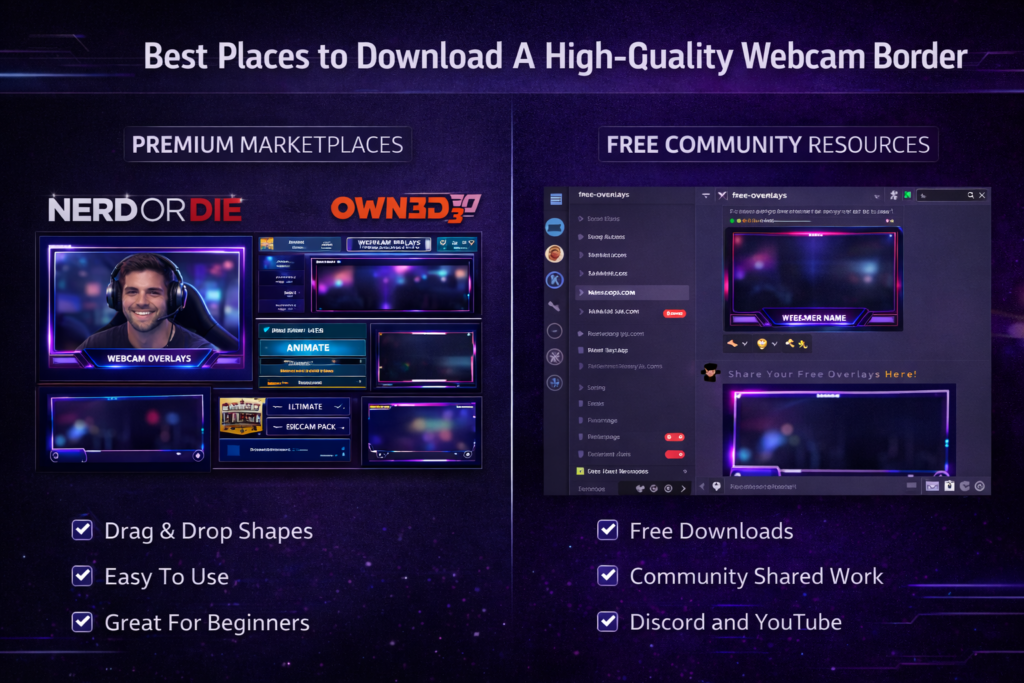
If you do not want to make your own, you can find a webcam border free download on the internet. There are many places to get a great HD frame. Let’s look at where you can download them for your channel.
Premium Marketplaces (Nerd Or Die, OWN3D)
Some websites sell very high-quality designs. Sites like Nerd Or Die or OWN3D have big packs. These packs come with alerts, a webcam overlay, and a full twitch stream layout.
They give your channel a lot of polish. You do have to pay for these, but they look very professional. They are perfect if you want a complete Twitch overlay setup. You will get a lot of widgets and a nice interface. The cost is worth it for a top creator.
Hiring Custom Designers on Fiverr Or Upwork
You can also pay someone to make a frame just for you.
Websites like Fiverr have many artists. You can tell them what you want, like a specific logo or a certain color. They will build a custom interface for your stream. This way, no one else will have the same frame as you. They might even make a cool AI video intro for you.
A custom layout makes your setup very special. You can ask the artist to make the frame animated or grungy.
Finding Free Community Resources
If you want free webcam overlays, check out community sites. Many people share their work in a Discord community or on YouTube. You can find a webcam overlay animated for free or a simple webcam border PNG if you look hard enough.
Just make sure the art is royalty-free before you use it on your channel. Sometimes you can even find a cool AI image frame made by fans. A good Discord community shares many free Twitch items. Streamers love to help each other out.
You can download a great free Twitch template today.
How to Add Your New Webcam Border in OBS Studio?
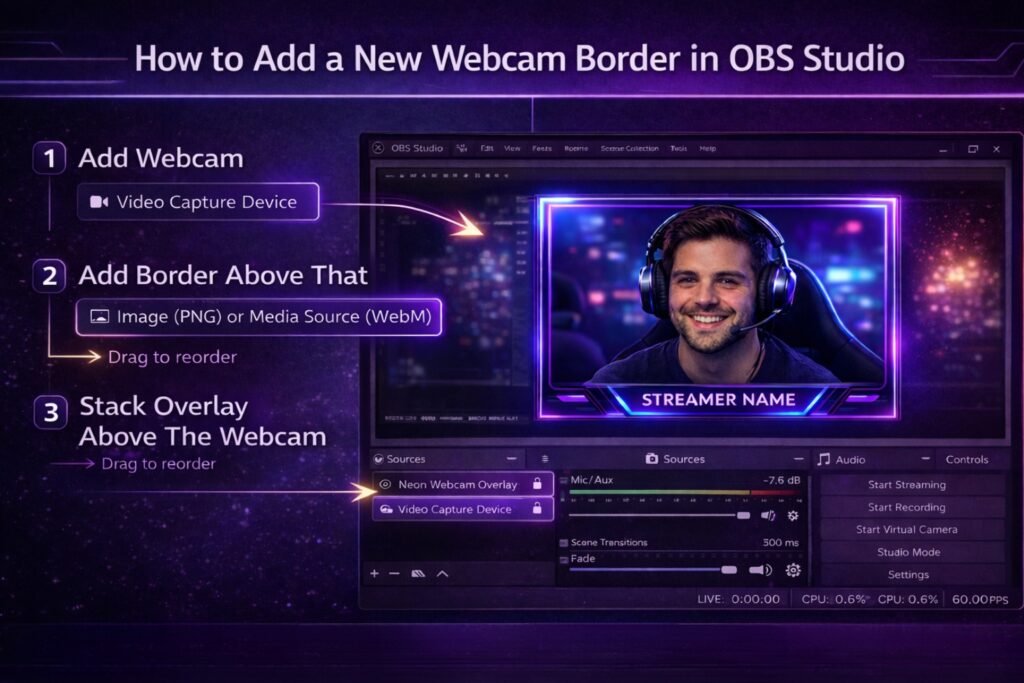
Once you have your frame, you need to put it on your video. OBS studio is the best program for this. Here is how to set it up perfectly. It is very simple to do.
Adding the Image or Media Source
First, open OBS Studio. If your frame is a picture, add an “Image” source.
If it is moving, add a “Media Source.” Then, select your download file. Make sure the transparent overlay sits on top of your camera source. You want your face to show in the middle. The overlay must cover the edges of the webcam. The PNG file must be the top layer.
Aligning and Grouping Your Camera and Border
Next, click and drag the edges of your frame so it fits around your camera source. Once it looks perfect, you can group them. Select both the webcam and the frame, right-click, and choose “Group.”
Now, when you move your camera around the screen, the frame will move with it! This keeps your setup nice and neat. You can resize them together without messing up your layout. This makes managing your stream overlays much easier.
FAQ’s:
What File Formats Are Best For Webcam Border Overlays?
For still frames, a PNG file is best because it keeps the background clear. For moving frames, WebM is the top choice because it is a small file size but keeps the HD video quality. Both are very easy to download. You can also use SVGs for some very simple flat designs.
What Dimensions Should My Webcam Border Be?
Most cameras are in a 16:9 ratio. A common size is 1920×1080 pixels. Your frame should match this size so it fits perfectly around your video feed without looking stretched. A matching size means your HD gaming footage will look perfect inside the frame.
How Do I Make Sure the Middle of my Webcam Border is Transparent?
When you make your frame, you must delete the background layer in the middle. When you save it as a PNG or WebM, the middle will stay empty so your face can show through the hole. A good transparent overlay has a completely clear center.
Do I Need an Animated Webcam Border?
No, you do not need one. A moving frame looks very cool, but a simple, still webcam border PNG also works great. It is up to what you like best for your channel. A static webcam overlay pack is fine for most streamers. Many top channels use plain frames.
Can I Use A webcam Border on Zoom Or Microsoft Teams?
Yes! You can use a program like OBS Virtual Camera to send your framed video straight to Zoom or Teams. This makes your work calls look very professional. You can even use a nice logo in your frame for business calls.
How Do I Add A Webcam Border Overlay to My Webcam Feed Using OBS?
Just add your camera as a source first. Then, add an Image or Media Source for your frame. Put the frame layer above the camera layer so it sits on top. It is very simple to do in OBS studio. You just drag the overlay layer above the camera source layer.
Can Webcam Borders Be Used For Both Gaming and Non-Gaming Streams?
Yes, they work for any kind of video. Whether you are showing gaming footage, chatting with viewers, or doing a podcast, a nice frame makes your video look better. Social media loves clean frames. An ai video podcast can look great with a custom layout.
Why Doesn’t My Webcam Fit Perfectly Inside the Border I Downloaded?
Sometimes the size is wrong. You might have to crop the sides of your camera feed in OBS studio to make it fit. You can do this by holding the Alt key and dragging the edges of your camera. This will crop your video to fit the twitch overlay frame perfectly.
Conclusion
Getting a good webcam border is a very smart move for any creator. It frames your face nicely and hides any messy spots in your room. Whether you pick a free twitch template, a cool neon design, or a simple webcam border PNG, it makes your live stream look much better.
You can easily find free webcam overlays online or make your own using simple tools in your browser. Then, just add it to your camera source in OBS studio, and you are ready to go. A nice twitch overlay or stream overlays package will make your channel look great.
Go ahead and download a new frame today to make your next video shine! Remember to share your new look on social media like facebook and instagram. Your fans will love the new interface and alerts. Have fun making your stream look amazing!
