
We know how hard it is to make your creative ideas come to life. You want your channel to look amazing, and we want to help you do that.
At Designers Choice, our goal is to give you the tools and help you need to succeed. We care about good design just like you do. When you start a YouTube channel, the first thing people see is your channel art. It is like the big sign on the front of a store.
If it looks good, people will want to come inside and watch your YouTube videos. But there is a tricky part. YouTube banners show up differently on different devices like phones, computers, and TVs. This is where a YouTube banner safe area template becomes very helpful.
Many new creators struggle with this. You make a beautiful banner design, but when you upload it, half of your text is missing on a phone screen. That is frustrating! We want to stop that from happening.
This guide will teach you everything about the YouTube banner safe area template. We will show you how to use it so your channel banner looks perfect everywhere. We will talk about banner size, file size, and the best ways to design your channel brand.
Let’s make your YouTube profile look professional together.
What is a YouTube Banner Template?
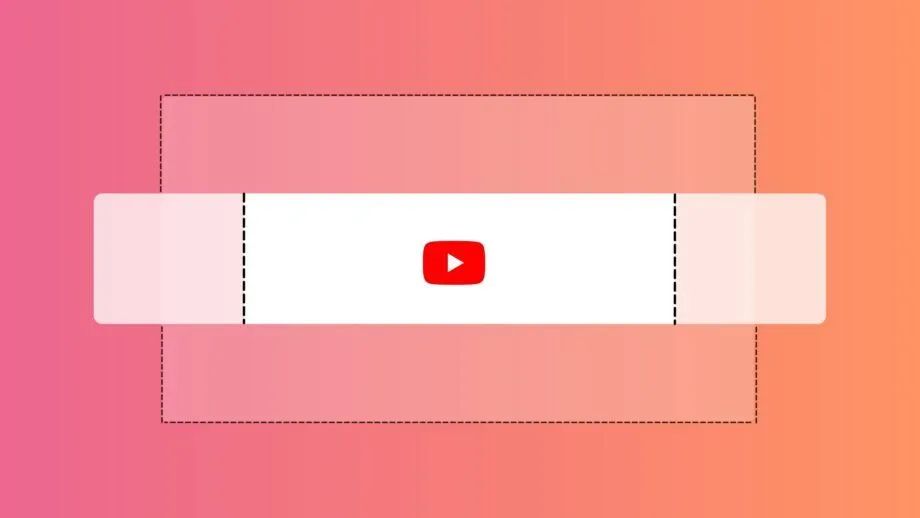
A youtube banner template is a guide you can put on your computer screen while you design. Think of it like a map. It shows you exactly where to put your pictures and words so they do not get cut off.
When you create channel art, you work on a big canvas.
But not everyone sees the whole picture. Someone watching on a huge TV sees the whole thing. Someone on a phone sees a much smaller strip. The template has lines or boxes drawn on it. These lines tell you, “Stop! Do not put your logo here, or mobile users won’t see it.”
Using a banner template saves you time. You do not have to guess where the center is. You do not have to upload your image, check it, fix it, and upload it again. It helps you get the ideal youtube banner right on the first try. It is a simple tool, but it is one of the most important things for good graphic design on YouTube. It ensures your brand identity is safe and visible to all your viewers.
Why You Need A YouTube Banner Safe Area Template For Your Channel?
You might ask, “Can I just guess?” You can, but it is risky.
A YouTube banner safe area template is the best way to protect your hard work. You want your channel name and social media handles to be seen by everyone. If you do not use a template, you might lose important parts of your image.
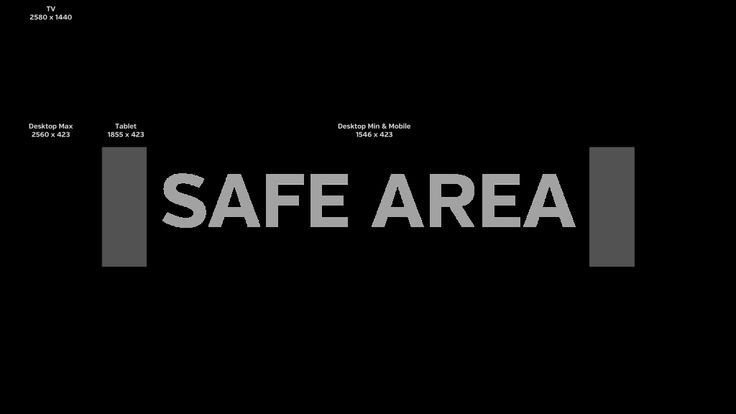
Understanding the “Text and Logo Safe” Zone (1546 x 423 px)
The most important part of the template is the safe area or safe zone.
This is a box in the middle of the image. The size of this box is 1546 pixels wide and 423 pixels tall. Why is this zone so special?
Because everything inside this box will show up on every single device. It does not matter if a person uses an old phone, a tablet, or a laptop.
If you put your text and logo in this safe spot, they will see it. This is where your channel icon, brand colors, and big messages must go.
If you put your channel name outside this box, a person on a phone might only see half of it. That does not look professional.
How Channel Art Displays Differently on TV, Desktop, and Mobile?
YouTube is on many screens. This is what makes banner design hard.
- TV Displays: TVs show the whole big picture. They show the full YouTube banner dimensions of 2560 x 1440 pixels. It looks like a big poster.
- Desktop: Computers show a long, thin strip. They cut off the top and bottom of the TV image.
- Mobile Devices: Phones cut off the sides, too. They show the smallest area.
Because of these screen sizes, your image changes shape.
It is like looking through different-sized windows. The YouTube banner safe area template helps you design for the smallest window (the phone) while still making the big window (the TV) look good.
You need to think about all these different devices at the same time.
Preventing Critical Info From Getting Cropped
Cropped means cut off. Nothing is worse than seeing a banner that says “New Vid… every Fri…” because the rest was chopped off.
You want your viewers to know your upload schedule and what your channel is about. Using the template prevents this. It acts like a guard rail.
It keeps your text inside the safe limits.
This ensures your value proposition—the main reason people should watch—is always clear. Whether you share new videos about cooking or gaming, the info must be visible. This attention to detail shows you care about your channel page and your audience.
Official YouTube Channel Art Dimensions Breakdown
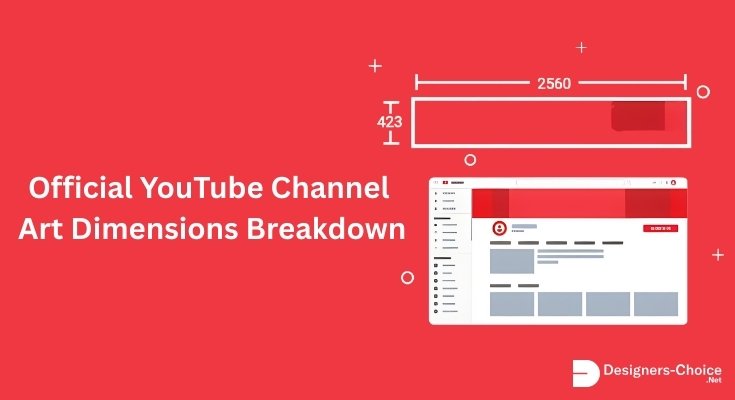
To use the template well, you need to know the numbers. YouTube has strict rules for image size and file types.
Let’s break them down into simple parts.
The Full Canvas Size: 2560 x 1440 Pixels
When you open your design tool, like Adobe Photoshop or Adobe Express, you need to set your canvas size.
The full size you must start with is 2560 pixels wide by 1440 pixels tall. This is a big image! It is this big, so it looks clear on large TV screens.
This is your total working area. Even though phone users only see a small part, you must upload the full 2560 x 1440 image. These are the recommended dimensions for a standard YouTube channel banner.
If you make it smaller, it might look pixelated or fuzzy on a TV.
Minimum Dimensions For Upload
YouTube will not let you upload a tiny picture. The minimum dimensions for an upload are 2048 x 1152 pixels.
If your image is smaller than this, YouTube Studio will give you an error message.
But, even if you upload this minimum size, the safe area rule still applies. It is always better to aim for the full 2560 x 1440 size. This gives you the best quality banner image. You want your YouTube profile to look sharp and clean, not blurry.
Maximum File Size and Supported Formats
You also need to watch out for the file weight. The maximum file size is 6MB. If your picture is 10MB, YouTube will not take it. You will have to make the file smaller. For file types, you can use JPG, PNG, or GIF (but not animated GIFs).
PNG is usually the best choice for banner art because it keeps the text sharp. JPG is good if your file size is too big and you need to shrink it.
Always check your file size before you try to upload. It saves you from getting an error and having to go back to your photo editing software.
How to Use This YouTube Banner Safe Area Template in Your Design?
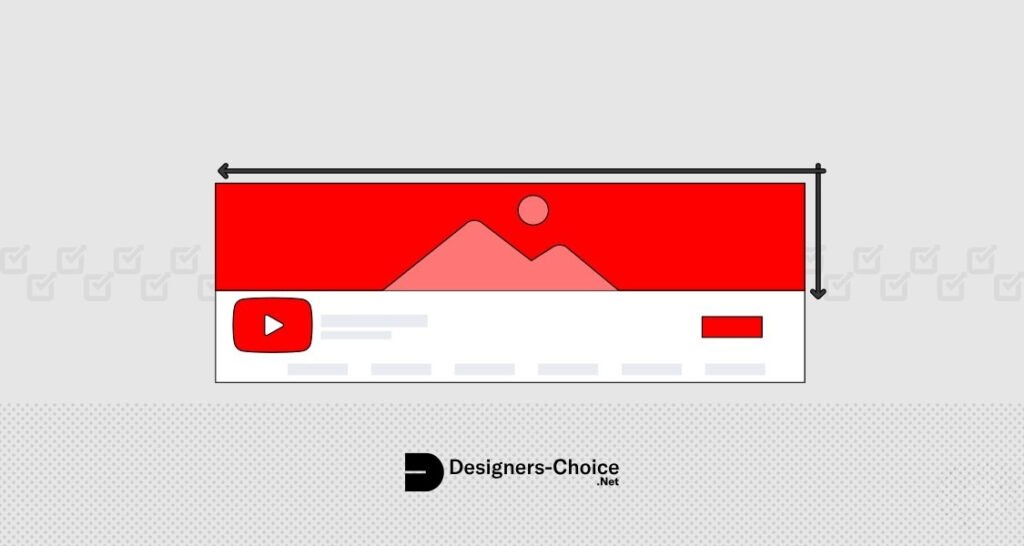
Now that we know the rules, let’s get to work. We will show you how to use a template step-by-step. It is easy once you get the hang of it.
Step 1: Importing the Template Into Canva Or Photoshop
First, you need a YouTube banner safe area template. You can find a free YouTube banner template online. Download the image file.
Next, open your design program. Many people use Canva or Adobe Photoshop.
- In Canva: Create a design with the size 2560 x 1440. Then, upload the template image you downloaded. Drag it onto your white canvas and stretch it until it fits perfectly from corner to corner.
- In Photoshop: Open the template file directly, or create a new file and place the template as a layer.
Now you can see the boxes and lines. You might want to lower the “opacity” of the template layer. This makes it see-through, so you can draw over it but still see the lines.
Step 2: Placing Key Elements in the Center Safe Zone
This is the most critical step.
Look for the darkest or central box on the template. That is the safe zone (1546 x 423 px). Take your channel name, your logo, and your social media handles. Move them all inside this box. Make sure no letters are touching the edge of the box. Give them a little breathing room.
If you have a slogan or text about your new videos, put that here too. Imagine this box is the only part of the screen that matters. If it looks good here, it will look good on mobile devices. This is where your design experience helps—finding a way to make it look neat in a small space.
Step 3: Designing the Background For TV and Desktop Views
Now you have a big space around your safe zone. This space will show on TVs and computers. You cannot leave it blank white (unless that is your style). Fill this outer area with a nice background. You could use a pattern, a texture, or a photo that relates to your video content.
For example, if you do travel videos, you might have a wide shot of a beach filling the whole 2560 x 1440 screen. Remember, the middle part is covered by your text. But the top, bottom, and sides are visible on larger screens. Make sure the background looks nice but does not distract from the text in the middle. The colors should match your brand colors so everything looks like it belongs together.
Step 4: Exporting Your Final Design For High Resolution
When you are happy with your design, delete the template layer or hide it. You do not want the guide lines to show in your final banner image! Save your image. Choose the high quality option. If you are in Canva, download it as a PNG. Check the size.
Is it under 6MB? Is it 2560 x 1440? If yes, you are ready. Go to your google account or YouTube Studio.
Go to the customization tab and find the branding section. Click “Change” or “Upload” on the banner image spot. Select your new file. YouTube will show you a preview of how it looks on TV, desktop, and mobile. Since you used a template, it should look perfect!
Top Design Tips For A Professional YouTube Banner
Making a banner is not just about fitting in the box. It is about style too. Here are some tips to make your YouTube banners stand out.
Keep Your Value Proposition Clear
Your banner should tell people what you do instantly. You do not have much time to grab their attention. Use short words.
If you teach people how to paint, say “Learn to Paint.” If you review toys, say “Best Toy Reviews.” This is your value. Put this text in the safe area. Do not make people guess. Simple is strong.
Use High-Contrast Colors For Readability
Contrast means the difference between light and dark.
If your background is dark blue, do not use black text. No one will be able to read it. Use white or yellow text instead. High contrast makes your text pop out. It is easy to read on a small phone screen.
Think about your brand identity. If your logo is bright red, maybe use a white background. Good graphic design is about being clear.
Use larger images or fonts if you have space in the safe zone.
Match Your Banner Style to Your Thumbnails
Your YouTube thumbnail images and your banner should look like friends. They should use the same fonts and colors.
This helps people remember you. When they see a thumbnail, they will know it is yours because it matches your banner. This builds a strong channel brand. It makes your whole channel page look organized and professional. Consistency is key in social media marketing.
FAQ’s:
What Are the Exact Dimensions For the YouTube Banner Safe Area?
The exact safe area dimensions are 1546 pixels wide by 423 pixels tall. This is the “Text and Logo Safe” zone. Any design elements placed here will be visible on all screen sizes, including mobile phones.
Is There A Difference Between the Full Banner Size and the Safe Area?
Yes, there is a big difference. The full YouTube banner size is 2560 x 1440 pixels. This is the size of the file you upload. The safe area is just the small middle part of that image (1546 x 423 pixels) that shows on every device.
Why Does My YouTube Banner Look Blurry On Mobile Or TV?
Your banner might look blurry if the image size is too small. Always start with a canvas of 2560 x 1440 pixels. Also, save your file as a high-quality PNG or JPG. If you stretch a small picture to fit the banner dimensions, it will lose quality.
Can I Use A YouTube Banner Safe Area Template in Canva?
Yes, absolutely! Canva is a great tool for this. You can upload a banner template image into Canva, set it as your background guide, and place your elements over it. Just remember to remove the guide lines before you save your final channel art.
Does the YouTube Banner Safe Area Change For Tablets?
Tablets show a little bit more than phones but less than computers. The tablet display area is 1855 x 423 pixels. However, stick to the main safe zone of 1546 x 423 PX to be safe for everyone.
What is the Maximum File Size For A YouTube Banner Upload?
The maximum file size allowed by YouTube is 6MB. If your file is bigger, you will need to compress it or save it as a JPG with slightly lower quality.
How Do I Make Sure My Banner Displays Correctly On All Devices?
The best way is to use a YouTube banner size guidelines template. Keep all text and logos inside the center safe box. Also, always check the preview in YouTube Studio before you hit publish. It shows you how it looks on TV, desktop, and mobile.
Conclusion
Creating a great YouTube channel banner does not have to be scary.
With the right tools and a little bit of knowledge, you can make something amazing. The YouTube banner safe area template is your best friend in this process. It makes sure your channel name, logo, and schedule are always visible, no matter what device your viewers use.
At Designers Choice, we believe in helping you create the best content possible. We hope this guide helps you feel more confident in your design skills. Remember to check your YouTube banner dimensions, watch your file size, and keep your important info in the safe zone.
Take some time today to look at your channel. Does your banner need an update? Use these tips and templates to give your social media presence a fresh look. A professional banner shows the world that you are serious about your video content.
It is a small step that makes a big difference. Happy designing!
