
Quick Answer: To use Looka, enter your business name and industry, select your style preferences, choose colors, then review and customise the AI generated logo options. You can preview logos completely free before paying anything. Customise colors, fonts, and layout after selection. Download starts at $20 for basic logo files. The entire process takes about 10 to 15 minutes.
Getting a professional logo used to mean hiring a designer, waiting a week, and spending several hundred dollars. Looka changes that entirely. In about 15 minutes, you can go from a blank page to a polished, professional logo and you do not pay a single dollar until you are completely happy with what you see.
Learning how to use Looka is genuinely straightforward. The AI asks you a few questions about your business and style preferences, then generates dozens of logo options tailored to your answers. You preview everything for free, customise your favorite, and only purchase when you are ready to download.
This guide walks you through every step from start to finish with clear instructions. Before you begin, check out our full Looka review for an honest look at the pros, cons, and pricing. And if you want to compare Looka with other AI logo tools, our roundup of the best AI tools for logo design is worth a read.
Before You Start — What You Need
Looka’s process is fast, but having a few things ready before you begin makes the results better:
- Your business name — exactly as you want it to appear in the logo
- Your industry — Looka uses this to generate relevant icon styles and design directions
- Color preferences — even a rough idea like “dark and professional” or “bright and playful” helps
- 10 to 15 minutes — that is genuinely all the time you need for the full process
You do not need a Looka account to start. The AI logo generation process begins immediately when you visit the site.
How to Create a Logo with Looka (Step by Step)
Step 1 — Enter Your Business Name
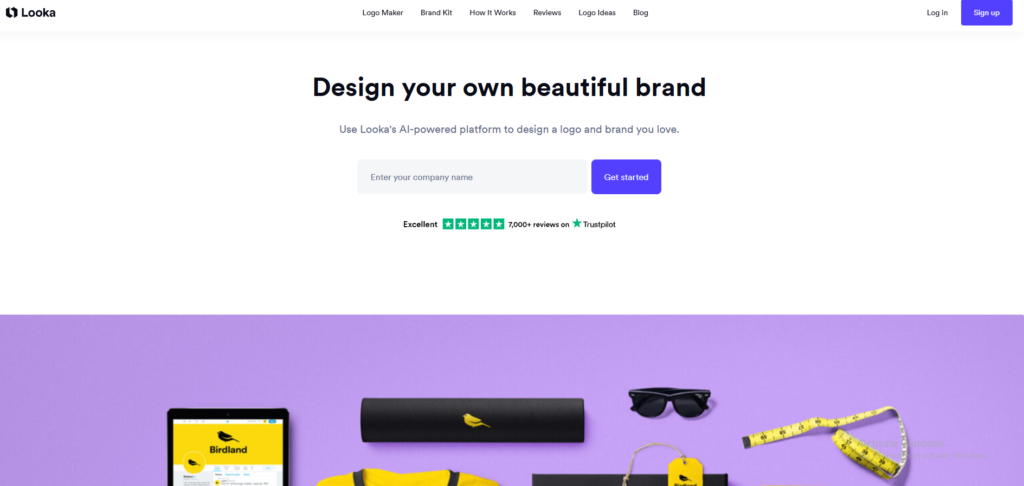
Go to looka.com and click Make your logo or Get started on the homepage. The first screen asks for your business name. Type it exactly as you want it to appear capitalisation, spacing, and punctuation all carry through to your logo options.
Click Next when you are ready.
Step 2 — Select Your Industry
The next screen asks for your industry. Type your business category in the search bar options include everything from Restaurant and Retail to Technology, Health, and Real Estate. Choose the most relevant category from the dropdown.
This step matters more than it might seem. Looka uses your industry to select icon styles, fonts, and design directions that feel appropriate for your field. A tech startup and a bakery need very different visual languages, and the AI adjusts accordingly.
Click Next to continue.
Step 3 — Choose Your Style Preferences
This is one of the most important steps. Looka shows you pairs of logo examples and asks which style you prefer similar to a design personality quiz. Click the logos that feel closest to what you want for your brand.
You are not choosing your final logo here you are teaching the AI your aesthetic preferences. Click as many or as few as feel right. The more accurately you respond, the more relevant your generated options will be.
Step 4 — Pick Your Color Palette
The next screen shows a selection of color palettes ranging from bold and vibrant to minimal and neutral to dark and professional. Click the palette that best matches the feeling you want your brand to have.
If you have existing brand colors, look for the palette closest to them. You can fine-tune the exact shades later in the editor, so do not worry about getting it perfect at this stage.
Step 5 — Review AI Generated Logo Options
After completing the preferences, Looka generates dozens of logo options based on everything you told it. This is the moment where most people are genuinely surprised the variety and quality of options is much higher than you would expect from a free preview.
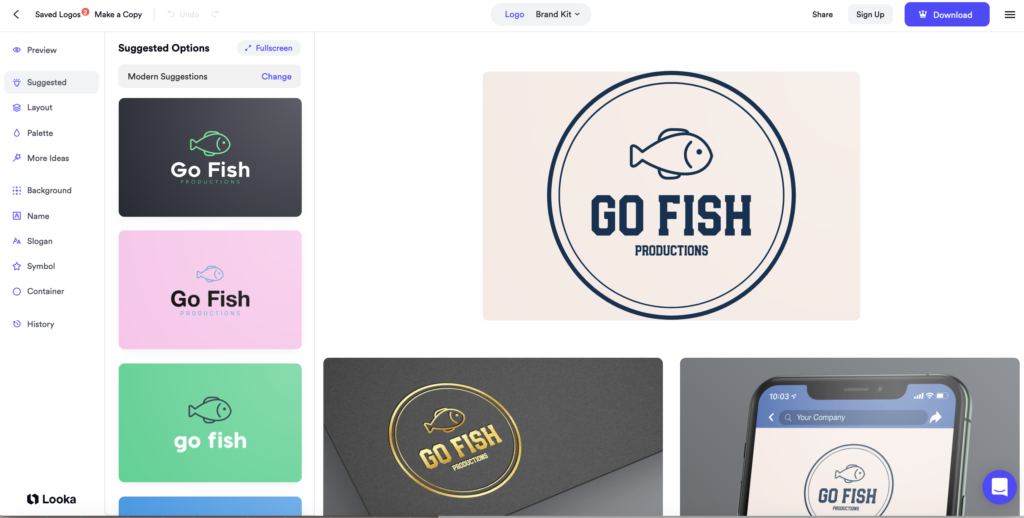
Scroll through the full grid of options. Each logo shows your business name, an icon, and the color palette applied. Click any logo to see a larger preview and explore variations.
Step 6 — Customise Your Chosen Logo
When you find a logo direction you like, click Customize to open the Looka editor. Here you can adjust:
- Icon — swap to a different icon from Looka’s library or try variations of the same concept
- Font — choose from dozens of font options for both your business name and tagline
- Colors — use the color picker to dial in your exact brand colors using hex codes
- Layout — switch between stacked, horizontal, and icon-only arrangements
- Tagline — add or remove a tagline beneath your business name
Take your time here. This is where a good logo becomes a great one. Try a few font combinations and color tweaks before deciding you are finished.
Step 7 — Choose a Plan and Download
When you are happy with your logo, click Continue to see the pricing options. Looka offers three tiers:
- Basic Logo Package — PNG and JPG files, starts around $20
- Premium Logo Package — adds SVG vector files, more formats, and higher resolution
- Brand Kit Subscription — includes business cards, social media templates, email signatures, and all brand assets on a monthly plan
For most small businesses just starting out, the Basic package covers everything you need. If you plan to print your logo on merchandise, signage, or large format materials, the Premium package’s vector files are worth the extra cost.
Complete payment and your files download immediately.
How to Use the Looka Brand Kit Editor
If you purchase a Brand Kit subscription, you get access to a full suite of branded assets beyond just the logo file. Here is how to use it.
Step 1 — Access Brand Kit Dashboard
After purchasing, log in to your Looka account and go to the Brand Kit section. Your dashboard shows all available asset categories business cards, social media profiles, email signatures, letterheads, and more.
Step 2 — Generate Business Cards and Social Templates
Click any asset category to generate branded versions automatically. Looka applies your logo, colors, and fonts to each template. Business cards, Instagram profile images, Facebook banners, and email signatures are all generated in minutes without any additional design work.
Step 3 — Edit Brand Colors Across All Assets
If you want to update your brand colors after purchase, change them once in the Brand Kit settings and Looka updates every asset automatically. This is one of the most useful features for businesses that are still finalising their visual identity.
Tips for Better Looka Logo Results
Try multiple industry options if you are unsure. If your business sits between two categories say, a health-focused tech startup try both and see which generates more relevant icon styles. You can run through the process multiple times for free.
Preview many style combinations before deciding. The style preference step has a big impact on your results. If your first batch of logos does not feel right, go back and adjust your style selections before regenerating.
Save several favorites to compare side by side. Looka lets you save logo options to a favorites list. Save five or six you like before committing to one. Comparing them side by side often makes the best choice obvious.
Customise fonts after the AI generates initial concepts. The AI-chosen font is a good starting point but not always the perfect one. Spend a few minutes browsing the font options in the editor the right font pairing can make a significant difference to how professional the final logo looks.
Common Looka Problems and Solutions
| Problem | Solution |
| All logos look too similar | Go back and try a different industry category or adjust your style preferences small changes produce very different results |
| Cannot find your preferred font | Use the manual font browser in the editor and search by font name or style category |
| Logo looks too complex for small sizes | Choose a simpler icon style in the editor abstract or lettermark icons work better at small sizes than detailed illustrations |
| Want a different color than what was generated | Use the color picker in the editor and enter your exact hex code for precise brand color matching |
Final Thoughts
Looka is one of the most efficient tools available for getting a professional logo without hiring a designer. The AI does the heavy lifting, the preview is completely free, and the editing tools give you enough control to make the result genuinely yours.
The key to getting the best results is taking the style preference step seriously. The more accurately you respond to those logo comparisons, the more relevant your generated options will be. Do not rush through it.
When you are ready to explore the wider world of AI logo tools and see how Looka stacks up against alternatives, our guide to the best AI tools for logo design covers every major option in detail. And for a full honest breakdown of Looka’s features, pricing, and limitations, read our full Looka review. If you are also building a broader visual identity, our roundup of the best AI design tools shows what tools work best alongside Looka.
Frequently Asked Questions
Q: How long does it take to make a logo with Looka? Creating a logo with Looka takes about 10 to 15 minutes from start to finish. Entering your business details and style preferences takes a few minutes, and reviewing the AI generated options and customising your favorite takes the remaining time. The entire process is designed to be fast and beginner friendly.
Q: Can I preview my logo before paying? Yes. Looka lets you preview and customise your AI generated logo completely for free. You only need to pay when you are ready to download the final logo files. This means you can explore as many options as you want and spend as long as you like customising before deciding if Looka is right for your business.
Q: What information do I need before starting Looka? You need your business name and a general idea of your industry. Having some color preferences helps but is not required since Looka will suggest palettes based on your style preferences. The more specific information you provide during the setup steps, the more relevant your generated logo options will be.
Q: Can I change the colors after Looka generates my logo? Yes. After Looka generates your logo options, you can customise the colors using the built in editor. Select your chosen logo, click Customise, and use the color picker to adjust the palette to match your exact brand colors using hex codes before finalising your purchase.
Q: What if I do not like any of the Looka logo options? Go back and adjust your industry selection, style preferences, or color choices to generate a new set of options. Looka allows unlimited regeneration during the free preview stage so you can keep adjusting until you find a direction you are happy with. Changing even one style preference can produce a completely different set of results.
Q: How do I download my finished Looka logo? Select your final design, choose a pricing plan that matches your needs Basic, Premium, or Brand Kit complete the payment, and Looka provides your logo files for immediate download. Higher tier plans include vector SVG files alongside standard PNG and JPG images, which are essential if you plan to use your logo on printed materials or large format displays.
