
Quick answer: To add text in DaVinci Resolve, open the Edit page, select Effects at the top left, go to Toolbox > Titles and drag Text or Text+ onto a video track above your clip. Double-click the new title clip, type your words in the Inspector and change the font, size and color there. Every title tool, including Text+ and Fusion Titles, is included in the free version.
This guide covers the four ways to add text (Text, Text+, Fusion Titles and the Cut page), how to style and position your words, how to fade or animate them and how to add subtitles.
Steps checked against Blackmagic Design’s DaVinci Resolve reference manual and current guides for DaVinci Resolve 21. The basic title tools work the same way in recent versions, though some labels may differ slightly.
Text vs Text+ vs Fusion Titles: Which Should You Use?
| Title tool | Best for | Styling |
|---|---|---|
| Text | Simple captions, names and labels | Font, color, size, stroke, drop shadow and a background box. You can style single words differently. |
| Text+ | Styled titles and animated text | Outlines, glows, shadows, gradients, character-level animation and a Write On reveal |
| Fusion Titles | Ready-made lower thirds, callouts and credits | Pre-animated templates. You mainly change the words and colors. |
| Subtitles | Captions and translations | A dedicated subtitle track you can burn in or export as a file |
If you’re new to Resolve, start with Text. Switch to Text+ when you want animation or effects.
How to Add Text in DaVinci Resolve (Edit Page)
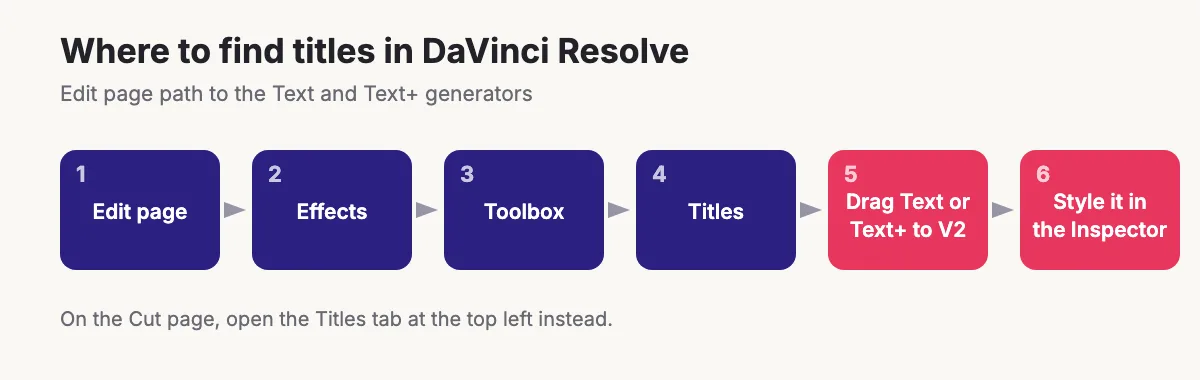
- Open your project and click the Edit page at the bottom of the screen.
- Select Effects in the top-left corner to open the Effects Library.
- In the left column, open Toolbox and select Titles. You’ll see Text, Text+ and a list of Fusion Titles.
- If you only have one video track, right-click the track header area and choose Add Track to create a new video track.
- Drag Text onto the track above your video clip, at the point where the words should appear.
- Drag either end of the title clip to make it shorter or longer, just like any other clip.
- Double-click the title clip to load it into the Inspector, then type your words in the text box.
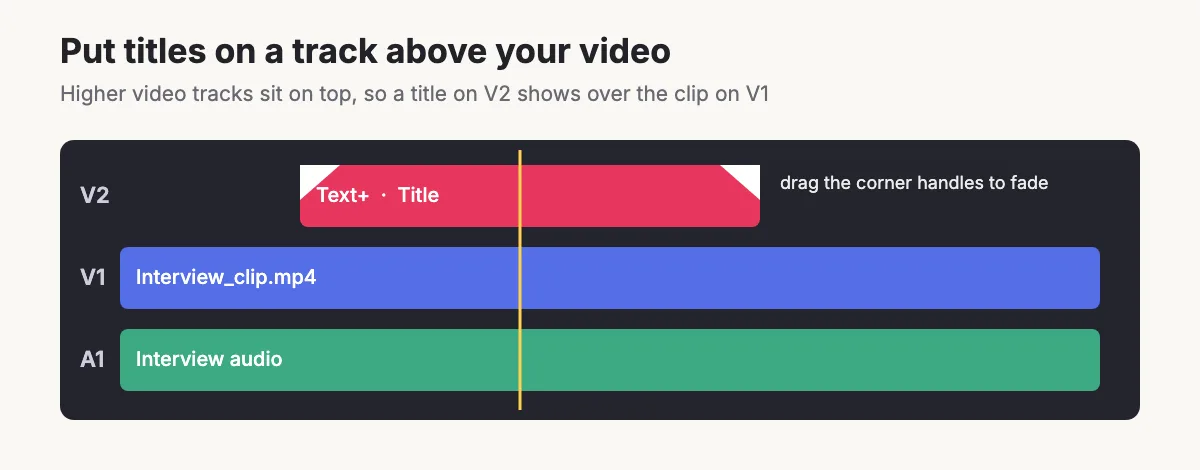
Place the title on a track above your footage. Higher video tracks sit on top of lower ones, so a title on V2 appears over the clip on V1.
How to Edit and Style Text in the Inspector
Select the title clip and open the Inspector at the top right. The Title panel holds the text controls, while the Settings panel holds composite, transform and cropping options.
- Rich Text: type or edit your words here. Select individual characters first if you want to style only part of the text.
- Font Family and Font Face: choose the typeface and weight, such as Bold or Light.
- Color and Size: set the text color and how big it is.
- Tracking and Line Spacing: adjust the space between letters and between lines.
- Font Case: force All Caps, Small Caps or Title Caps without retyping.
- Alignment, Position, Zoom and Rotation Angle: move, scale and rotate the text block. You can also drag the text box directly in the Timeline Viewer.
- Stroke: add an outline around each letter and set its color and thickness.
- Drop Shadow: set the shadow color, offset, blur and opacity so text stays readable over bright footage.
- Background: add a rectangle or rounded box behind the text, with its own color, outline, size, corner radius and opacity.
For a clean lower third, use a white sans-serif font, a soft drop shadow and a semi-transparent black background box. If your footage is very busy, crop or reframe it first with our guide to cropping video in DaVinci Resolve.
How to Use Text+ for Styled and Animated Titles
- In Effects > Toolbox > Titles, drag Text+ onto a track above your clip.
- Double-click the clip and type your words in the Inspector.
- Use the Shading controls to add outlines, glows, shadows or gradient fills. Text+ can stack several style layers on the same text.
- Drag the Write On slider to reveal letters one at a time for a typewriter effect.
- For more control, open the clip on the Fusion page, where Text+ works as a full motion graphics tool.
Text+ is the tool to use when you want titles that move. The basic Text title is quicker for plain captions.
How to Use Fusion Title Templates
Fusion Titles are animated templates such as lower thirds, call-outs and scrolling credits. They sit in the same Titles list under Text and Text+.
- Scroll past Text and Text+ in Toolbox > Titles to the Fusion Titles list.
- Drag a template onto a track above the video.
- Select the clip and change the words, font and colors in the Inspector.
- To change the animation itself, open the clip on the Fusion page.
Blackmagic Design’s own short video shows how to customize these templates:
How to Add Text on the Cut Page
The Cut page is a faster, simpler editing view. To add text there, select the Titles tab at the top left, then drag Text, Text+ or a Fusion Title onto the timeline above your clip. Open the Inspector at the top right to type and style the words, exactly as you would on the Edit page.
How to Fade Text In and Out
- Fade handles: hover over the top-left or top-right corner of the title clip on the timeline and drag the small handle inward. The farther you drag, the longer the fade.
- Opacity keyframes: for precise timing, open the clip’s Settings panel in the Inspector, add a keyframe for Opacity at 0, move the playhead about 10 to 15 frames forward and set it to 100.
- Transitions: drop a Cross Dissolve from Effects > Toolbox > Video Transitions onto either end of the title clip.
Fading music under your titles? Our guide on how to fade audio in DaVinci Resolve uses the same handle trick.
How to Animate Text With Keyframes
- Select the title clip and move the playhead to where the motion should start.
- In the Inspector, open the Settings panel and click the small diamond keyframe button next to Zoom, Position or Rotation Angle in the Transform section.
- Move the playhead forward, then change the value. Resolve adds a second keyframe and animates between the two.
- Play it back and adjust the distance between keyframes to speed up or slow down the move.
A slow push-in with Zoom works well with a matching camera move. See how to zoom in DaVinci Resolve for the same keyframe technique on video clips.
How to Add Subtitles in DaVinci Resolve
- Right-click a track header and choose Add Subtitle Track.
- Add captions at the playhead and type each line, or import an SRT subtitle file and let Resolve place each line at its time code.
- Select the subtitle track to style the font, size and position in the Inspector.
- When you export, open the Deliver page, go to the Video settings and find Subtitle Settings.
- Turn on Export Subtitle and choose Burn into video to make captions permanent, or As a separate file to upload an SRT alongside your video.
Typing captions and importing SRT files works in the free version. Creating subtitles automatically from speech needs DaVinci Resolve Studio.
Common Problems When Adding Text
| Problem | Fix |
|---|---|
| The title doesn’t show in the viewer | Move it to a track above your video and check that the track is enabled. |
| The title replaced part of my video | You dropped it on the same track as the clip. Undo and place it on a higher track. |
| A font is missing from the list | Install the font on your computer, then restart DaVinci Resolve. |
| Text looks blurry on export | Match your timeline resolution to your footage and export at the same resolution. |
| Text gets cut off on vertical video | Change the timeline aspect ratio first. Our guide to changing aspect ratio in DaVinci Resolve explains how. |
Still deciding between the free and paid editions? Read whether DaVinci Resolve has a watermark, then learn to merge clips in DaVinci Resolve once your titles are in place.
Frequently Asked Questions
Where is the text tool in DaVinci Resolve?
On the Edit page, select Effects at the top left, then go to Toolbox, Titles. Text, Text+ and the Fusion Titles templates are all there. On the Cut page, use the Titles tab.
What is the difference between Text and Text+ in DaVinci Resolve?
Text is a simple title with font, color, stroke, shadow and background box options. Text+ is built on Fusion and adds advanced shading, character animation and the Write On effect, so it suits animated titles.
Can you add text in the free version of DaVinci Resolve?
Yes. Text, Text+, Fusion Titles and manual subtitles all work in the free version. Creating subtitles automatically from speech requires DaVinci Resolve Studio.
How do I change the font in DaVinci Resolve?
Select the title clip, open the Inspector and pick a new Font Family and Font Face. If a font is missing, install it on your computer and restart DaVinci Resolve.
Why is my text not showing in DaVinci Resolve?
The title is probably on a track below your video, or the track is turned off. Move the title to a higher video track, such as V2 above a clip on V1.
How do I make text fade in DaVinci Resolve?
Drag the fade handle at the top corner of the title clip inward, or add Opacity keyframes in the Settings panel of the Inspector.
