

Canva Pro is one of the most talked-about design tool upgrades on the internet – but is it actually worth paying for?
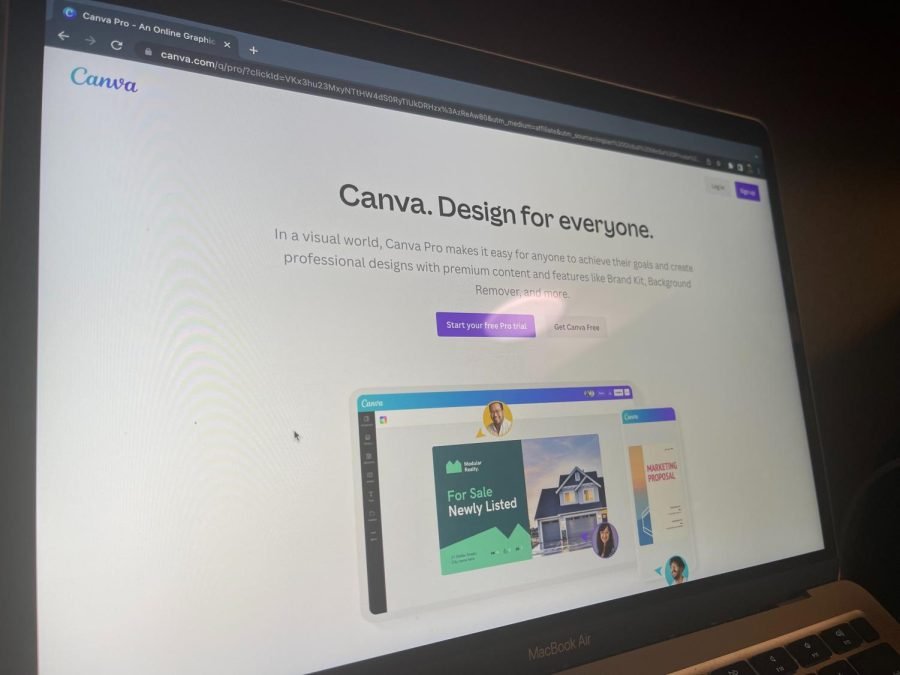
If you are already using Canva’s free plan, you might be wondering what you are missing out on. The honest answer is: quite a lot. From the background remover and Magic Resize to premium templates, a brand kit and 1TB of storage, Canva Pro is packed with features that can save you hours of work every week.
In 2026, Canva Pro costs $12.99 per month – or around $119.99 per year if you pay annually. Whether that is worth it depends entirely on how often you design and what you use Canva for.
In this guide, we break down everything you need to know – features, pricing, limitations and who it is actually worth it for – so you can make the right call.
What is Canva Pro?
Canva Pro is the paid version of Canva that gives you more tools, templates, and features than the free plan.
Difference Between Canva and Canva Pro
The free version of Canva lets you make basic designs with some templates and tools. You get 5GB of storage and can use many free templates.
Canva Pro gives you much more:
- Over 100 million stock photos and design elements
- All premium templates
- 1TB of storage (that’s 200 times more than the free plan!)
- Background remover tool to easily cut out an image in Canva
- Magic resize to quickly change design sizes
- Brand kit to save your colors and fonts
- Tools to work with team members
History and Development of Canva Pro
Canva started in Australia in 2013. The founders wanted to make design easy for everyone, not just professional graphic designers.
Today, Canva has over 220 million users worldwide. The company added Canva Pro to give more features to people who needed them for work or business. As of 2023, Canva reported $2 billion in revenue and continues adding new features like AI tools and better video editing.
Canva Free Vs. Canva Pro: Feature Comparison
Choosing between Canva Free and Canva Pro depends on what you need for your design projects. Let’s see what you get with each version of Canva.
Design Elements and Templates
Free Plan:
- Access to over 1 million free templates and images
- Basic design elements
- Limited fonts and graphics
Canva Pro:
- Access to over 100 million stock photos, videos, graphics, and audio files
- All premium templates
- More fonts and design elements
- Magic Write AI tool for creating text content
Brand Kit and Team Features
Free Plan:
- Basic design capabilities
- Limited team features
Canva Pro:
- Brand kit to save your brand colors, logos, and fonts
- Team folders for sharing designs
- Ability to set up brand templates
- Better tools for team members to work together
Storage and Organizational Tools
Free Plan:
- 5GB of storage
- Basic folder organization
Canva Pro:
- 1TB of storage (that’s 1000GB)
- Unlimited folders to organize your work
- Better ways to find your designs
Publishing and Sharing Capabilities
Free Plan:
- Basic export options (PNG, JPG, PDF)
- Standard sharing features
Canva Pro:
- Content planner to schedule social media posts
- Post directly to social media channels like Facebook, Instagram, Twitter, Pinterest, and LinkedIn
- More export options and higher quality downloads
- Schedule posts ahead of time
Canva Pro Pricing Structure
Before deciding if Canva Pro is worth it, you should know how much Canva Pro costs.
Monthly and Annual Subscription Options
As of May 2025, Canva Pro costs:
- $12.99 per month if you pay monthly
- Less if you pay yearly (around $119.99/year, which saves about 25%)
Team Pricing and Enterprise Solutions
If you need Canva for a team:
- Canva for Teams starts at $14.99 per month for the first 5 users
- Additional users cost extra
- Enterprise pricing is custom and requires contacting sales
Free Trial Information
You can try Canva Pro for free:
- 30-day free trial with full access to all features
- No cost during the trial period
- You can cancel anytime before being charged
For those wondering how to get Canva Pro for free beyond the trial, options exist for students, teachers, and non-profits.
Key Benefits of Canva Pro
- Expanded Design Resources: Canva Pro gives you over 100 million stock photos, videos, and graphics to make your designs look professional. You get premium templates for social media posts, logos, and flyers that aren’t available in the free version. Want to use your fonts? Canva Pro lets you upload custom fonts to match your brand’s style. You also get audio files and video clips to create eye-catching animations or slideshows.
- Time-Saving Features: The background remover tool lets you delete unwanted parts of photos in one click-perfect for product pictures or Instagram posts. Magic Resize automatically adjusts designs for different platforms (like turning a Facebook post into a Pinterest pin). The Magic Write AI tool helps write captions or blog post ideas fast. With so many ready-to-use templates, you don’t waste time starting from scratch.
- Brand Consistency Tools: Keep your brand colors, logos, and fonts the same across all designs using the Brand Kit. Lock templates so team members can’t change your brand’s look. Upload your fonts to make sure every social media graphic matches your style. This helps small businesses look professional without hiring a graphic designer.
- Collaboration Capabilities: Share team folders so everyone can access designs, like flyers or social media posts. Set permissions to control who can edit or view files. Work together in real-time- see changes instantly as teammates edit. Leave comments directly on designs to give feedback without messy emails.
Potential Limitations of Canva Pro
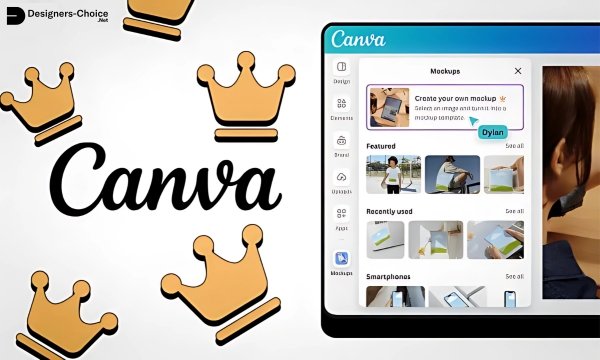
Canva Pro has great features, but it also has some drawbacks.
- Comparison to Professional Design Software: Canva Pro isn’t as powerful as tools like Photoshop for detailed edits. You can’t tweak tiny design details or create complex illustrations. Printing very large posters? Canva might not work as well as Adobe software. It’s better for quick social media graphics than advanced projects.
- Value For Different User Types: Casual users making occasional birthday cards may not need Pro’s premium features. Professional graphic designers might miss tools like vector editing in Photoshop. But small business owners save money by creating logos and ads without hiring help. Social media managers love Pro for scheduling posts and resizing graphics fast.
- Learning Curve Considerations: While easier than Photoshop, Canva Pro still has lots to learn. Features like Magic Write or team folders take time to master. The interface is friendly, but finding all the buttons and tools can feel overwhelming at first.
Who Should Consider Canva Pro?
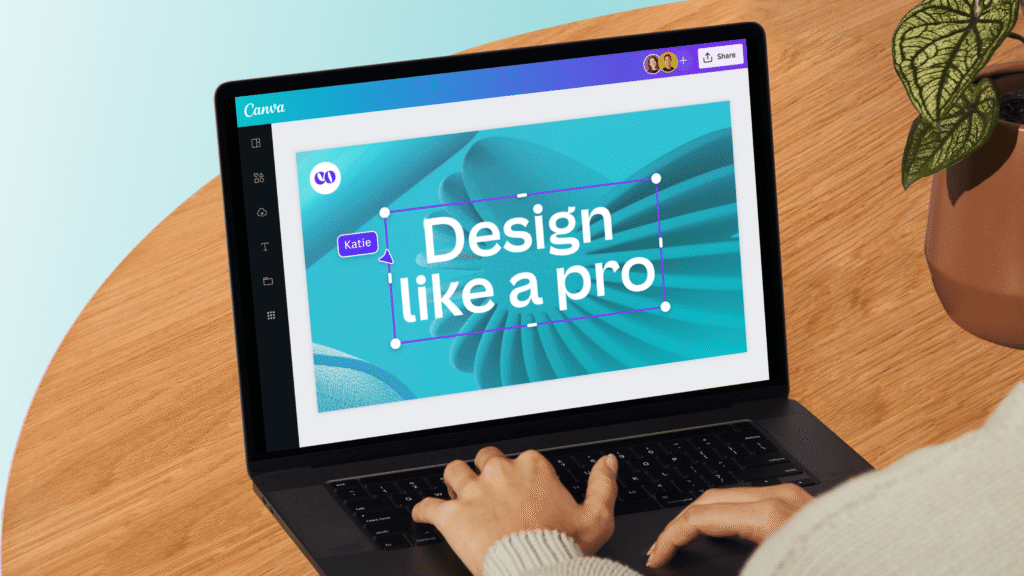
- Small Business Owners and Entrepreneurs: Create logos, flyers, and social media posts without paying a designer. The Brand Kit keeps your business looking consistent. Save money- Pro costs less than hiring someone for every project.
- Marketing Teams and Content Creators: Make Instagram posts, infographics, and blog images quickly. Use Magic Resize to adapt one design for Facebook, Pinterest, and more. Schedule posts ahead of time instead of doing it daily.
- Educators and Non-Profit Organizations: Teachers get Canva for Education free Pro needed. Nonprofits can apply for discounts to create posters or event graphics. Students use Pro features through their school’s account.
- Casual Designers and Hobbyists: Stick to the free plan if you only make a few designs a month. Upgrade to Pro temporarily for projects like party invites or YouTube thumbnails. Try the 30-day free trial to test premium tools.
Alternatives to Canva Pro
There are many alternatives to Canva Pro that fit different needs and budgets.
Free Graphic Design Tools
Other options instead of paying for Canva Pro:
- Keep using Canva’s free plan
- Try other free tools like Adobe Express (limited features)
- Use open-source alternatives (but they might be harder to learn)
Professional Design Software Options
If you need more powerful tools:
- Adobe Creative Cloud (Photoshop, Illustrator, InDesign) – more expensive but more powerful
- Affinity Designer/Photo – one-time payment instead of subscription
- GIMP – free but has a steeper learning curve
Canva Vs Other Premium Design Platforms
How Does Canva Pro Compare to Adobe Creative Cloud?
Canva Pro vs Adobe:
- Price: Canva Pro is much cheaper (about $120/year vs $600+/year for Adobe)
- Ease of use: Canva is easier to learn and use
- Power: Adobe has more advanced tools and capabilities
- Templates: Canva has more ready-to-use templates
- Professional standard: Adobe is still the industry standard for professional design
- Learning time: You can learn Canva much faster than Adobe products
Verdict: Is Canva Pro Worth It?
Value Assessment Based on User Needs
For small business owners:
- Usually worth it if you make designs at least weekly
- The time saved with Magic Resize and background removal pays for itself
- Brand kit helps keep your business looking professional
For content creators:
- Worth it if you post to social media channels regularly
- The content planner and scheduling tools save much time
- Premium stock photos and elements improve your content quality
For teachers:
- Check if you qualify for Canva for Education (100% free)
- If not, Pro might be worth it for creating better classroom materials
For casual users:
- Might not be worth it if you only make a few designs per month
- Consider the monthly option for busy periods only
Making the Most of Your Canva Pro Subscription
If you decide to get Canva Pro:
- Use the brand kit to save time and stay consistent
- Take advantage of the background remover for product photos and headshots
- Try Magic Write for creating text content
- Use Magic Resize instead of recreating designs for different platforms
- Organize with folders to find designs easily
- Schedule social media posts directly from Canva
FAQ’s:
Is Canva Pro Worth It For Beginners?
Yes, it can be – especially if you want to create professional-looking designs without learning complex software. The templates and easy-to-use tools help beginners make great designs quickly. If you plan to make lots of graphics, the time saved with Pro features is worth the cost.
Can I Cancel Canva Pro At Any Time?
Yes, you can cancel Canva Pro anytime. If you have a monthly subscription, you won’t be charged after canceling. If you paid annually, check Canva’s refund policy, as you might not get money back for unused months.
Does Canva Pro Offer Additional Fonts and Elements?
Yes! Canva Pro gives you access to more fonts, elements, graphics, stock photos, videos, and audio files than the free version.
You can also upload your own fonts to use in your designs. You can also apply effects by learning how to add a shadow in Canva.
What Happens To My Designs If I Cancel Canva Pro?
Your designs stay in your account, but you lose access to Pro features and elements. This means:
- Designs with premium elements will show watermarks if edited
- You can’t use the background remover or Magic Resize
- You keep access to your files but can’t use Pro features on them
Is Canva Pro Worth It For One-Time Projects?
For a single project, you might consider the monthly subscription and cancel afterward. The 30-day free trial is perfect if your project fits within that timeframe. Think about how many designs you need and if Pro features would save enough time to justify the cost.
Does Canva Pro Work Offline?
No, Canva requires an internet connection to work. This is one limitation compared to desktop software like Photoshop. You need to be online to access and edit your designs.
Conclusion
So, is Canva Pro worth it? For most people who design regularly, yes – it is.
If you are a small business owner, social media manager, or content creator, Canva Pro pays for itself quickly. The time you save with tools like Magic Resize, the background remover and the brand kit alone is worth the monthly cost.
If you are a teacher or student, check first whether you qualify for Canva for Education – it gives you Pro features completely free. Non-profits can also apply for discounted access.
If you only make a few designs a month, the free plan may be enough. But if you keep hitting its limits, upgrading to Pro will make your work faster, cleaner and more professional.
The easiest way to decide? Start the 30-day free trial. You will know within the first week whether the extra features are worth it for you. And if they are not, you can cancel without being charged.
Check out our other Canva guides on Designers Choice to get the most out of whichever plan you are on.
