
Last updated: October 22, 2026. Eligibility rules checked on canva.com.
Quick answer: There are five legitimate ways to use Canva Pro features for free in 2026: (1) start Canva’s free Pro trial, (2) join Canva for Education if you are a K-12 teacher or a student invited by one, (3) apply for Canva for Nonprofits if you work for a registered nonprofit, (4) claim 12 months of Canva Pro with an eligible Jio plan in India, or (5) be added to a Canva Business team that someone else pays for. Avoid “free Canva Pro” links, shared accounts and fake student emails, which break Canva’s terms.
Canva Pro makes it faster to turn ideas into professional designs, with premium templates, background remover and brand kits. This guide explains each legitimate route, who qualifies and how to get more out of Canva Free if none of them fit.
Understanding Canva Pro and Its Benefits
What is Canva Pro?
Canva Pro is the premium version of Canva that offers enhanced design tools, content creation capabilities, and collaboration features.
It’s designed for professionals who need more advanced options than what the free version provides. With Canva Pro, users gain access to premium templates, 100GB of storage and sophisticated design elements that simplify the creation of professional designs. For those wondering about the investment, you can learn more about how much Canva Pro costs.
Canva Pro costs $18 a month or $144 a year in the US (₹500 a month or ₹4,000 a year in India), which can be a real cost for individual designers, students or a new side hustle.
Many users often weigh whether the features justify the cost, a question explored in detail in this article on whether Canva Pro is worth it.
Key Features of Canva Pro
Canva Pro includes several premium features that set it apart from the free version:
- Background Remover: Instantly remove image backgrounds with a single click. This is a powerful tool for creating clean, professional graphics. If you need to master this, here’s a guide on how to cut out an image in Canva.
- Magic Studio: Access to AI-powered design tools like Magic Write and other advanced features.
- Premium Content: Over 141+ million stock photos, graphics, videos, and audio tracks. It’s important to understand the usage rights so that you might ask, Are Canva images copyright-free?
- Brand Kit: Upload and store your logos, fonts, and brand colors to ensure consistent design. For more on this, see if you can upload fonts to Canva.
- Resize Designs: Quickly adapt designs for different platforms and formats with just one click. You can also change the orientation of your entire design with guides on how to landscape in Canva.
- Advanced Collaboration Tools: Improved workflows for team projects.
- 100GB Storage: Significantly more space for your design files compared to the free version.
- Social Content Planner: Schedule and post content directly to social media platforms. You can also generate QR codes for your campaigns, but you may wonder, Do Canva QR codes expire?
- Premium Templates: Access to more than 3.6 million templates compared to more than 1.6 million in the free version. You can even create your own and learn how to sell Canva templates on Etsy or ask the broader question, “Can I sell Canva designs on Etsy?”.
Beyond the main features, Canva Pro allows for more intricate design manipulations. For instance, you can learn how to add a shadow in Canva to give depth to your elements. Text manipulation is also more advanced; you can discover how to curve text in Canva, how to outline text in Canva, and even how to flip text in Canva. For text layout, knowing how to wrap text in Canva and how to indent in Canva is very useful.
Comparing Free Canva Vs. Canva Pro
Before diving into how to get Canva Pro for free, it’s important to understand what you’re missing with just the free version of Canva:
| Feature | Canva Free | Canva Pro |
|---|---|---|
| Templates | 1.6 million+ | 3.6 million+ |
| Photos, videos, graphics and audio | 4.7 million+ | 141 million+ premium |
| Storage | 5GB | 100GB |
| Background remover | No | Yes |
| AI uses per month | Up to 20 | Up to 200 premium |
| Brand kits | 1 (three colours) | 5 |
| Transparent backgrounds | No | Yes |
| Resize designs | No | Yes |
| Social scheduling | No | Yes |
Source: canva.com/pricing, checked October 22, 2026.
The free version is excellent for basic design needs, but the premium features in Canva Pro significantly enhance productivity and design quality.
For example, manipulating images is more robust in Pro.
You can learn basics like how to replace an image in Canva or how to flip an image in Canva. More advanced techniques include learning how to fade an image on Canva and how to slice in Canva.
Get Canva Pro Free With the Free Trial
How To Sign Up For The Canva Pro Free Trial?
Starting a free trial of Canva Pro is simple:
- Go to canva.com/pricing and choose Start a free trial under Canva Pro.
- Sign in or create a free Canva account.
- Choose monthly or yearly billing for after the trial.
- Add payment details if asked. If you start a trial without payment details, it simply ends when the trial is over.
- Use every Pro feature for the trial period, which has usually been 30 days. Canva shows the exact length before you confirm.
AI usage during a trial stays at the Free level (up to 20 AI uses a month), and Canva allows one trial per account. Use the trial to try Pro-only features such as background remover, or learn tricks like how to put a timer in Canva and highlight text in Canva.
Managing Your Free Trial to Avoid Charges
To ensure you don’t get charged after your free trial ends:
- Make a note of when your trial expires
- Set a reminder a few days before the trial ends
- If you decide not to continue, follow these steps to cancel:
- Log in to your Canva account
- Click on the settings icon (cog) in the top right corner
- Select “Billing & plans.”
- Click on the three dots next to your Canva Pro subscription
- Select “Cancel plan.”
- Click on “Continue cancellation.”
- Provide a reason for cancellation
- Click “Continue cancellation” again
- Confirm by clicking “Cancel subscription.”
- Click “OK” when you see the cancellation confirmation
What to Expect After the Trial Period Ends?
After your free trial ends, one of three things will happen:
- If you cancel before the trial ends, your account will revert to the free version of Canva, but you’ll retain access to all designs you’ve created
- If you don’t cancel, you’ll be charged for the plan you selected (monthly or yearly)
- If payment fails, your account will automatically downgrade to the free version
Even after downgrading to the free version, you’ll still have access to all your created designs, but premium elements will be watermarked if you try to edit them.
You’ll also lose access to features like creating interactive PDFs, so be sure to learn how to add a clickable link in Canva PDF during your trial.
Canva Pro For Students and Teachers
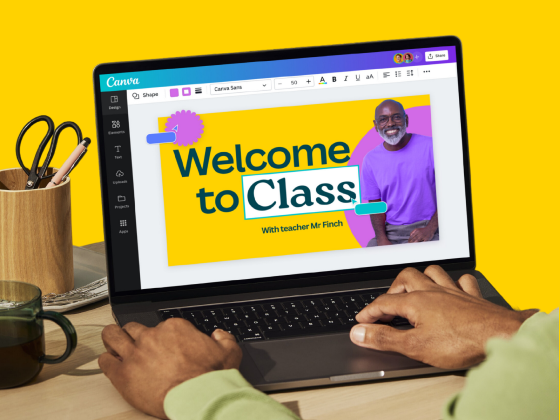
Eligibility For Canva For Education
Canva offers a special program called Canva for Education, which provides free access to Canva Pro features for eligible educational institutions.
To qualify, you must be:
- A certified K-12 (primary or secondary) teacher currently in a teaching position
- A certified K-12 school librarian
- A certified K-12 learning support assistant or teacher
- A certified K-12 curriculum specialist
- A teacher at a technical or vocational school serving primary or secondary students
- Part of a formally accredited K-12 school, school district, or department of education
It’s important to note that Canva for Education is not currently available for higher education institutions like colleges and universities. However, Canva does offer a separate “Canva for Campus” product for these institutions.
How to Apply With Your Educational Email?
Applying for Canva for Education is simple:
- Visit the Canva for Education page
- Sign up using your verified educational email domain for instant access
- If you don’t have a verified email, upload proof of your teaching certification or employment status
- Wait for verification (usually takes up to 48 hours)
Once approved, you’ll have access to Canva for Education’s premium features at no cost, including premium content and classroom tools. Canva asks educators to re-verify every 3 years.
Benefits of Canva For Education
Canva for Education offers numerous benefits specifically designed for educational environments:
- Free premium features for teachers and the students they invite
- Educational templates for lesson plans, presentations, and more
- LMS integrations for seamless classroom use
- Ability to create and assign group projects
- No paywalls or surprise charges – it’s 100% free
- Tools to create whiteboards, presentations, and videos
- Ability to set up sequenced lessons for students to follow at their own pace
- Professional development training resources
- Collaboration tools for student teams
The program makes visual communication easy in educational settings, allowing teachers to create engaging content and students to demonstrate their learning through creative projects.
Canva Pro For Nonprofits
Eligibility Requirements For Nonprofit Organizations
Canva for Nonprofits gives eligible organisations Canva Pro features and team tools for free, for one team of up to 50 people. Extra seats beyond 50 are available at 50% off Canva Enterprise pricing.
To qualify, your organisation must be:
- A registered nonprofit, charity or qualifying social impact organisation
- Working for the public good
Sports clubs, professional associations and businesses are not eligible.
How to Apply For Canva For Nonprofits?
The application process for Canva for Nonprofits is straightforward:
- Fill out the application form on the Canva website
- Submit documentation proving your nonprofit status
- Wait for verification from Canva’s team
- Receive an email confirmation once approved
Canva says it usually replies within about 72 hours. Once approved, your team gets free access to premium features. You can also apply from Settings > Billing by choosing Upgrade to Canva for Nonprofits.
Free Features Available to Nonprofit Organizations
Nonprofit organizations receive access to:
- Canva Pro features and team tools (free)
- Up to 50 user accounts for your team members
- 100GB of storage for design files
- Brand Kit tools for consistent branding across materials
- Premium templates and media library
- Collaboration tools for team projects
- Social media scheduling features
- Background Remover and Magic Resize tools
These tools can significantly enhance a nonprofit’s visual communication strategy without straining limited budgets.
For example, a nonprofit could create a professional marketing portfolio by learning how to create a lookbook in Canva.
Alternative Methods To Access Canva Pro Features
Get Canva Pro Free With Jio in India
From September 2026, Jio customers in India can claim 12 months of Canva Pro on eligible plans (reported to include the ₹399 plan), while some lower plans get Canva Pro Lite instead. You claim the offer in the MyJio app, so check the app for the current list of eligible plans before you recharge.
Join a Canva Business Team
If your employer, client or agency adds you to their Canva Business team, you get Business features, which include everything in Pro, without paying yourself. The team owner pays for each member.
Use Canva Campus at University
Canva for Education does not cover universities, but some universities buy Canva Campus, which is free for their enrolled students. Ask your university’s IT or library team.
Avoid Unofficial “Free Pro” Methods
Shared team invite links, cracked apps, borrowed .edu emails and fake teacher documents all break Canva’s terms. Canva verifies education and nonprofit applications, and accounts that misuse them can be removed.
Tips For Maximizing The Free Version Of Canva
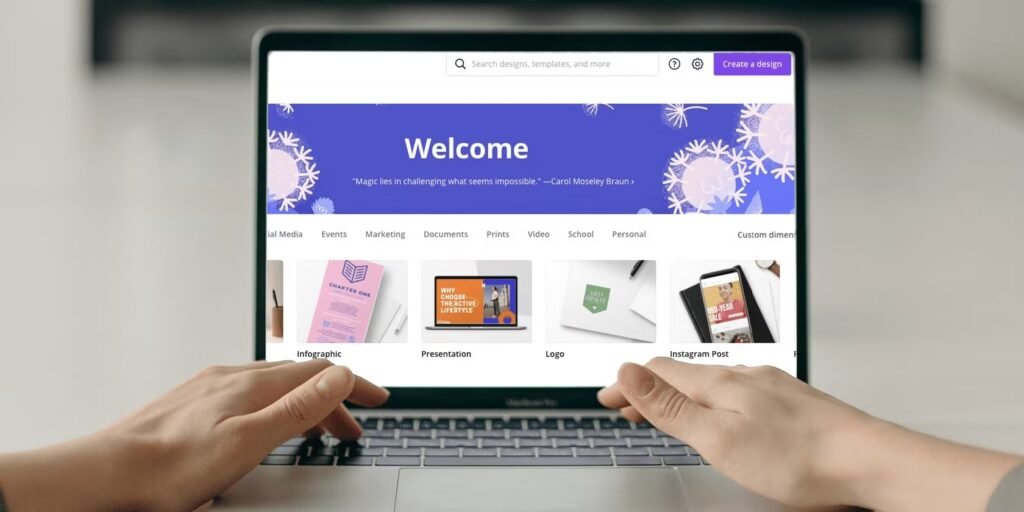
If you can’t access Canva Pro for free through legitimate channels, here are strategies to get the most from the free version:
- Use Free Background Remover Tools: Need to delete a photo’s background? Try removing BG or Picsart! These tools use AI magic to erase backgrounds in seconds. Just upload your photo, let the tool work, then add it back to Canva. Perfect for making logos or social media posts stand out.
- Find Free Photos & Graphics: Sites like Unsplash and Pixabay offer high-quality images for free. Download photos of nature, people, or educational templates, then upload them to Canva. No need to pay for premium content is 100% free to use.
- Keep Designs Organized: Use folders in Canva to sort projects like school assignments or group projects. Archive old designs you don’t need anymore to save space. Think of it like tidying your room- everything stays easy to find.
- Make Free Templates Your Own: Canva’s 1.6 million+ free templates are a great start. Change colors, add your logos, or swap fonts to make them unique. For example, turn a basic poster into a cool class project by adding your photos. It’s also helpful to know if Canva has spell check to ensure your designs are error-free.
FAQ’s:
Can I Cancel My Canva Pro Free Trial Early?
Yes. You can cancel at any time during the trial from Settings > Billing & plans. You keep Pro access until the trial period ends, and then your account returns to Canva Free.
Can I Extend My Canva Pro Free Trial?
Officially, Canva doesn’t offer extensions to the free trial. Once your trial ends, you’ll need to either subscribe to a paid plan or revert to the free version. Some users report success with contacting customer support in special circumstances, but this isn’t guaranteed.
Does Canva Offer Discounts For Educators Beyond K-12?
While Canva for Education is limited to K-12 institutions, Canva does offer a separate “Canva for Campus” product for higher education institutions. This isn’t free by default, but educational institutions can contact Canva for potential special pricing.
Can I Use Canva Pro Features Offline?
Yes, with Pro. Canva announced Canva Offline at Canva Create in April 2026, and it is listed as a Canva Pro feature, so you can keep designing without a connection. Canva Free still needs an internet connection for most editing.
Can I Switch From Canva Free To Canva For Nonprofits Later?
Yes, if your organization qualifies as a nonprofit, you can apply for the Canva for Nonprofits program at any time. Once approved, your existing Canva account will be upgraded to include all premium features at no cost.
Conclusion
Access to premium design tools shouldn’t be limited by budget constraints. Through this guide, I’ve provided multiple legitimate methods to get Canva Pro for free through the free trial, education and nonprofit programs, and offers such as Jio’s in India.
For teachers and students in K-12 settings, Canva for Education offers a permanent solution with free access to premium features.
Nonprofit organizations can similarly benefit from the Canva for Nonprofits program. For everyone else, the free trial provides an excellent opportunity to use premium features for a limited time.
If none of these options work for you, remember that the free version of Canva still offers powerful capabilities that, when combined with creativity and some workarounds, can produce professional-quality designs.
As someone who has spent years in the design field, I’ve learned that while premium tools can enhance efficiency, they’re not a substitute for creativity and skill.
Whether you’re using Canva Pro or the free version, focus on developing your design fundamentals, and you’ll create impressive visual content regardless of which version you use.
