
Quick answer: To add music in Canva, open your design, select the Audio tab in the editor side panel (if you can’t see it, select Apps first, or go to Elements and choose Audio), search for a track and click it to add it. To use your own song, upload an MP3, M4A, WAV or other supported audio file (up to 250 MB) from Uploads. Download the finished design as an MP4 so the music plays.
Music works in Canva videos, Reels, presentations and social posts, but not in responsive designs such as Canva Websites. This guide covers every way to add it, how to trim and fade a track, how to sync cuts to the beat, which songs you’re allowed to use and what to do when the audio goes missing.
Steps checked against the Canva Help Center and tested in the Canva editor in October 2026. Canva updates its menus often, so labels on your screen may differ slightly.
Where Canva Music Comes From
| Source | Who can use it | Good to know |
|---|---|---|
| Free audio library | All plans | Tracks and sound effects covered by Canva’s Content License Agreement. |
| Premium (Pro) tracks | All plans, paid per design on Free | Marked with a Pro or crown icon or a price. Free users buy a one-time license per design; Pro and other paid plans can use them without extra cost. |
| Popular music | Pro, Education and Teams of 10 or fewer, in selected countries | Personal projects only, up to 60 seconds per track in a design. |
| Your own files | All plans | Upload music you own or have a license to use. Canva runs copyright checks on uploads. |
| Canva AI music | Premium feature that counts toward AI usage | Generates 30-second tracks, sound effects or voiceovers from a text prompt. |
How to Add Music From Canva’s Audio Library
- Open your design in the editor.
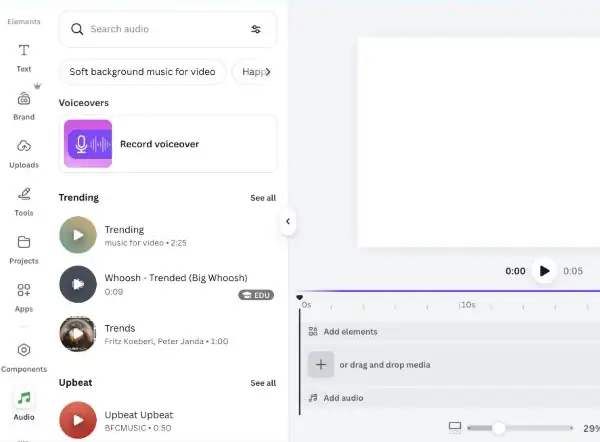
- Select the Audio tab in the side panel. If it isn’t there, select Apps to find it, or go to Elements and choose Audio under the categories.
- Browse the categories or use the search bar. Select See all to see more in a category.
- Click a track to add it. In a video design, it’s placed wherever the playhead sits on the timeline at the bottom of the editor.
To hear more from the same creator, hover over a track, select the More icon and choose View more by contributor.
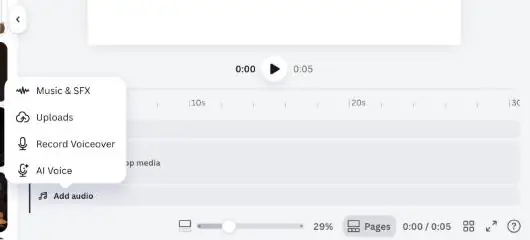
Shortcut in video designs: select Add audio at the bottom of the timeline. The menu offers Music & SFX, Uploads, Record Voiceover and AI Voice.
How to Upload Your Own Music
- Open the Uploads tab in the editor side panel.
- Select Upload files and choose your audio file.
- Once it has uploaded, click it to add it to your design.
Canva accepts AAC, M4A, MP3, OGG, WMA, WAV and WEBM files up to 250 MB each. Only upload music you own or are licensed to use: Canva runs audio fingerprint checks, and if a track infringes copyright, you won’t be able to publish the design with that audio.
How to Generate Music With Canva AI
If the library doesn’t have the right mood, Canva can generate an original track:
- Go to Elements, then Audio, and describe the track you want, such as “upbeat pop with claps”.
- If nothing in the results fits, select Canva AI in the side panel, describe the track in the prompt box and select Submit.
- Preview the results and add the one you like.
Generated tracks run for 30 seconds. Describe the genre, mood, tempo and instruments rather than naming a song or artist: Canva blocks prompts that try to copy copyrighted music or imitate a specific artist. This is a premium feature that counts toward your AI usage.
How to Trim, Fade and Adjust the Volume
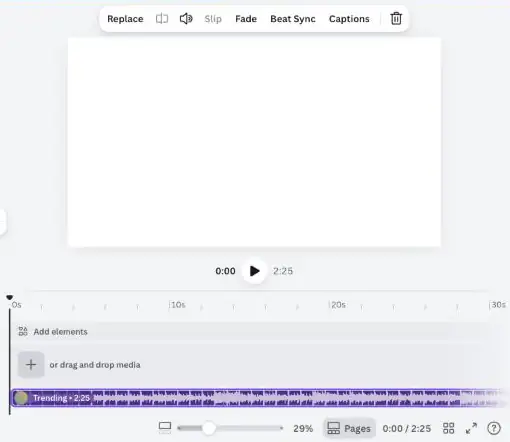
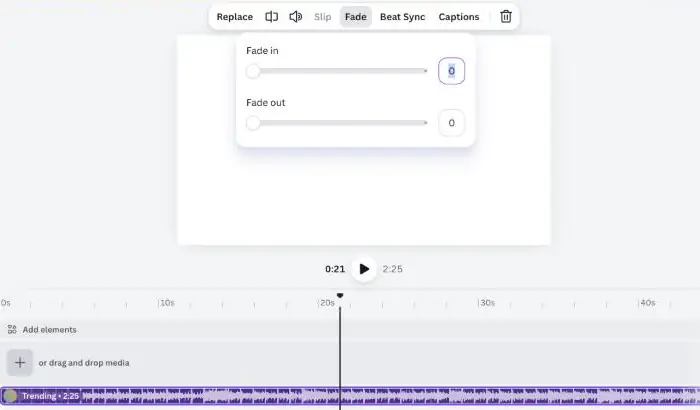
In video designs, every track appears as a colored bar on the timeline below your pages. Select it and the toolbar shows Replace, volume, Slip, Fade, Beat Sync and Captions. Then:
- Trim it: hover over the track and drag a trim handle at either end. Drag the end of the track to extend it again.
- Choose which part plays: select the … (Audio track options) at the end of the track, choose Adjust (or select Slip on the audio toolbar), then drag the waveform into the highlighted section.
- Change the volume: select the volume icon on the toolbar and use the slider. Balance all evens out the levels of every audio and video clip at once.
- Fade in or out: select Fade on the toolbar and drag the Fade in and Fade out sliders to set each duration.
You can layer up to 50 audio tracks in one design, which is useful for adding a sound effect over background music. On the mobile app, the same options appear in the toolbar below the editor.
How to Sync Music to Your Video With Beat Sync
- Open a video, presentation or social media design that has both video and audio.
- Select the audio track (the pill) at the bottom of the editor.
- Select Beat Sync on the floating toolbar.
- Turn on Display beat markers to see where cuts will snap, or turn on Sync now to time your pages and elements to the music automatically.
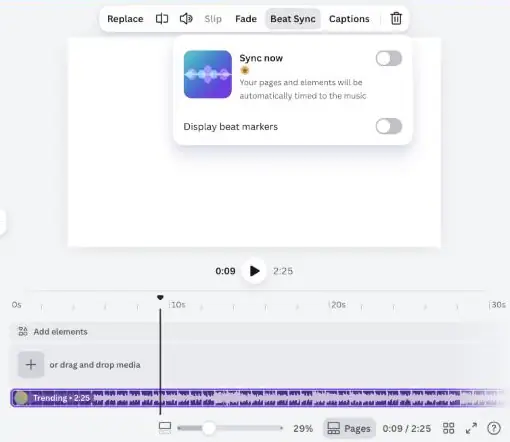
Beat Sync works with tracks of 10 minutes or less and isn’t available in Docs, Whiteboards or Websites. For your own uploaded songs, switch on beat markers from the Beat Sync panel first. Sync now is marked with Canva’s crown icon for paid features, and Beat Sync uses Canva’s AI, so AI usage limits apply.
Can You Add Popular Songs in Canva?
Yes, with limits. Canva’s popular music library has over half a million tracks from artists represented by Warner, Sony and Merlin, but:
- It’s available to Canva Pro, Canva Education and Canva Teams with 10 or fewer members. It isn’t available on the free plan, Canva for Nonprofits or larger Teams.
- It’s only offered in the United States, United Kingdom, Canada, Australia and some European countries.
- Tracks play for up to 30 seconds as a preview and up to 60 seconds once added to a design.
- Popular music is for personal content only, such as travel vlogs or birthday videos. You can’t use it to sell or promote a product or business, and you can’t buy one-off licenses for it.
How to Mute or Delete a Track
- Mute: select the track on the timeline, select Volume and then Mute.
- Delete: right-click the track and select Delete track, or select it and press Delete on your keyboard.
How to Download Your Design With Music
- Select Preview above the editor to check the timing.
- Select Share, then Download.
- Choose MP4 Video as the file type and download.
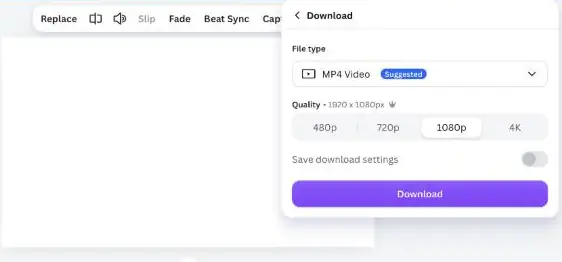
Image and PDF downloads don’t include sound. If you’re posting to YouTube, Facebook or Instagram and used premium tracks, Canva recommends connecting your social account before downloading so the platform can see your license. If the export stalls, try our fixes for a Canva video export stuck at 99%.
Common Problems and Fixes
| Problem | Likely cause | What to do |
|---|---|---|
| No Audio tab in the side panel | It’s hidden under Apps | Select Apps, or go to Elements and choose Audio. |
| Popular songs don’t show up in search | Your plan or country doesn’t include popular music | Use the free and premium audio library or upload a track you’re licensed to use. |
| A song shows as “not available” to a teammate | They’re on the free plan, Nonprofits or outside the supported countries | They can still edit and download without the track, or upgrade to download it with the song. |
| The download has no sound | It was saved as an image or PDF | Download it again as an MP4 video. |
| An uploaded song is blocked | The audio fingerprint check flagged it | If you created or licensed the track, follow Canva’s steps to prove your rights. |
FAQs
Can I add music to Canva for free?
Yes. The free audio library, your own uploads and the editing tools are all available on the free plan. Premium tracks cost extra per design unless you have a paid plan, and popular music isn’t available on Free.
Can I use any song I like?
Only music from Canva’s library or tracks you own or have a license for. Canva checks uploaded music for copyright, and blocked tracks can’t be published with your design.
Can I add more than one song?
Yes. You can add and layer up to 50 audio tracks in one design. If you need more, Canva suggests splitting the design into two.
Can I add music to a Canva presentation?
Yes. Add a track from the Audio tab the same way, and Beat Sync also works in presentations. Download as MP4 if you want a video version with the music built in.
Is Canva music safe to use on YouTube and Instagram?
Free and premium library tracks come with Canva’s license; connect your social account before downloading to help avoid automatic copyright claims. Popular music is for personal content only. Our guide to Canva licensing explains the wider rules.
The Bottom Line
Open the Audio tab, pick a track or upload your own, then trim, fade and sync it on the timeline before downloading as MP4. Check the license before you post, especially for popular songs. Ready to put it to use? See how to make Instagram Reels in Canva, or compare with adding music in CapCut.
