
Quick Answer: Canva and Figma are not really direct competitors — they serve different purposes. Choose Canva for graphic design, social media, marketing materials, and quick visual content. Choose Figma for UI/UX design, app design, and professional product design work. If you need both, most designers eventually use each tool for its specific strength.
Here is the most important thing to understand about the Canva vs Figma debate before reading any further — these two tools are not really competing with each other. They are built for fundamentally different types of design work, and choosing between them is less about which one is better and more about what you are actually trying to make.
Canva is a graphic design and content creation tool. Figma is a UI and product design tool. Comparing them is a bit like asking whether a chef’s knife or a bread knife is better — the answer depends entirely on what you are cutting.
That said, there is real overlap, and plenty of beginners genuinely are not sure which one to start with. This guide breaks down every meaningful difference so you can make the right call for your specific situation. We have used both tools extensively, so everything here is based on real hands-on experience.
For more detail on each tool individually, read our full Canva AI review and our full Figma AI review before deciding.
Quick Comparison Table
| Feature | Canva | Figma |
|---|---|---|
| Primary use | Graphic design | UI/UX design |
| Free plan | ✅ Generous | ✅ Generous (3 files) |
| Best for | Marketing, social media | App and web design |
| Ease of use | ⭐⭐⭐⭐⭐ | ⭐⭐⭐ |
| Collaboration | ⭐⭐⭐⭐ | ⭐⭐⭐⭐⭐ |
| Developer handoff | ❌ No | ⭐⭐⭐⭐⭐ |
| Starting price (paid) | $18/month | $16/month |
| Learning curve | Very Low | Medium |
What is Canva Used For?
Canva is a graphic design platform built for creating visual content — fast. The typical Canva use cases are:
- Social media posts and Stories for Instagram, LinkedIn, TikTok, and Facebook
- Presentations and pitch decks
- Flyers, posters, and event graphics
- Business cards and branding materials
- Email headers and newsletter graphics
- Video thumbnails and YouTube channel art
- Simple logos and brand assets
- Marketing documents and one-pagers
The common thread is that these are all standalone visual assets — finished graphics that get published, printed, or sent somewhere. Canva is optimised for producing these quickly, with thousands of templates and an AI suite that speeds up every step.
What is Figma Used For?
Figma is a UI and product design tool built for designing the interfaces of apps, websites, and digital products. The typical Figma use cases are:
- Mobile app screen design (iOS and Android)
- Web application and dashboard UI design
- Website layout and component design
- Interactive prototypes that simulate app behaviour
- Design systems and component libraries
- UX wireframing and user flow diagrams
- Collaborative design work between designers and developers
- Developer handoff — sharing exact specs, spacing, and code values
The common thread here is that Figma is used to design things that get built — digital products that developers then turn into working code. Figma is the industry standard for this work at companies of every size.
Canva vs Figma — Key Differences
Purpose and Use Case
This is the fundamental difference and everything else follows from it. Canva creates finished graphic assets. Figma creates design specifications for digital products.
If your end goal is an image file — a JPEG, PNG, or PDF that you publish somewhere — Canva is built for that. If your end goal is a design that a developer will build into a working app or website, Figma is built for that.
Most beginners start with Canva because it solves immediate, visible problems — they need a social media graphic today, and Canva delivers one in 20 minutes. Figma serves a different ambition — learning to design digital products, which takes longer but builds a more professionally valuable skill.
Verdict: Neither is better — they solve different problems.
Ease of Use
Canva is significantly easier to learn than Figma. Most people can open Canva and produce a finished design within their first 30 minutes. The drag-and-drop interface is intuitive, templates do most of the structural work, and the AI features reduce the number of decisions you need to make manually.
Figma has a moderate learning curve. You need to understand frames before you can build anything. Auto Layout, components, and prototyping all require deliberate learning rather than instinctive clicking. Most beginners need one to two weeks of regular practice before they feel comfortable in Figma.
That learning curve is worth it if UI design is your goal — but it is a real barrier that Canva simply does not have.
Winner: Canva — meaningfully easier for beginners and faster to produce first results.
Collaboration Features
Both tools support real-time collaboration — multiple people editing the same file simultaneously — but Figma’s collaboration features are deeper and more refined.
Figma was built from the ground up as a collaborative tool. The multiplayer editing is fast and reliable, comments are tied to specific design elements, version history is robust, and the sharing and permissions system is granular enough for large teams. Design handoff to developers happens directly inside Figma through Dev Mode.
Canva’s collaboration is solid for its use case — teams can work on the same graphic together and leave comments — but it is not as deeply integrated into a professional workflow as Figma’s. For a small team making social media graphics, Canva’s collaboration is more than enough. For a product team designing a complex app, Figma’s is essential.
Winner: Figma — stronger collaboration built for professional design teams.
Pricing
Figma’s paid plan starts at around $16 per month per editor, slightly cheaper than Canva Pro at $18 per month. Both have genuinely useful free plans — Canva’s free tier has more templates and features, while Figma’s free tier has more file storage and collaboration depth for what it is designed to do.
For most beginners, the free plan of whichever tool fits their use case is sufficient for at least the first several months of learning.
Winner: Figma — slightly cheaper paid tier, though both free plans are competitive.
AI Features
Canva’s AI suite is broader and more immediately useful for graphic design work. Magic Design, Magic Write, Magic Eraser, and Magic Expand all solve common beginner problems — generating layouts, writing copy, removing backgrounds, and extending images. These are practical features you use constantly.
Figma’s AI features are more focused on the UI design workflow — auto-generating layout suggestions, filling designs with realistic content, and renaming layers automatically. They are useful but more niche than Canva’s AI tools from a beginner’s perspective.
For beginners learning graphic design, Canva’s AI is more immediately impactful. For beginners learning UI design, Figma’s AI is well integrated into the right workflow.
Winner: Canva for graphic design beginners. Figma for UI design beginners.
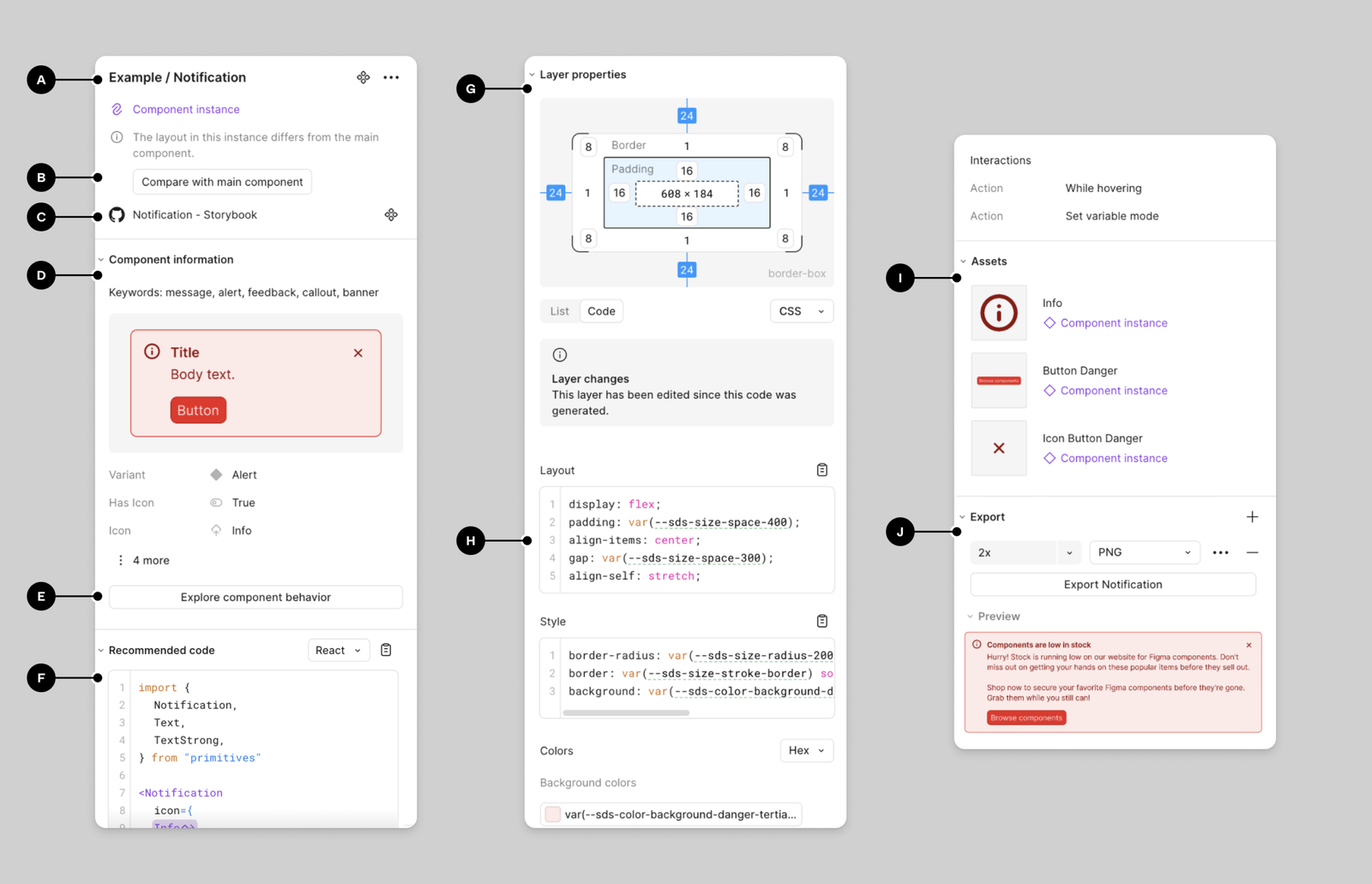
This is Figma’s most significant advantage over Canva — and one of the main reasons it dominates professional design teams.
Figma’s Dev Mode lets developers inspect any design element and see exact measurements, spacing values, color codes, font details, and auto-generated CSS code snippets. When a developer receives a Figma file, they can find every value they need to build the design without asking the designer to explain anything.
Canva has no developer handoff feature. Designs made in Canva are finished assets — images and PDFs. There is no way to inspect spacing, extract CSS values, or get component specifications from a Canva file. If a developer needs to build a UI from a Canva design, they are essentially recreating it from a screenshot.
Winner: Figma — developer handoff is a core feature with no Canva equivalent.
Can You Use Canva for UI Design?
Yes — but with significant limitations. You can create basic website or app mockups in Canva using its shape and text tools, and the results can look presentable in a client presentation. Some freelancers use Canva for quick low-fidelity wireframes or simple website concepts.
What Canva cannot do: components that update across a whole design when you change the master, Auto Layout that adjusts spacing automatically when content changes, prototyping with realistic interactions, developer handoff with code values, or design system management across multiple files.
For anything beyond a static visual mockup, Canva runs out of capability quickly. If a developer needs to build from your design, use Figma.
Can You Use Figma for Graphic Design?
Yes — Figma can technically produce social media graphics, flyers, and marketing assets. Some designers do use it for this. But it is slower and more laborious than Canva for graphic design work because Figma has far fewer templates, no equivalent to Magic Design, and less intuitive text and image handling for simple graphic tasks.
Using Figma to make a birthday flyer is like using a chef’s knife to spread butter. It works — but a butter knife is faster and easier for that specific job.
If you find yourself regularly needing both UI design and graphic design, the most practical approach is to use Figma for UI work and Canva for graphic design work. Most professional designers who use Figma daily also have Canva accounts for quick marketing content.
Canva Pros and Cons
Pros:
- Extremely easy to learn — productive within the first session
- Massive template library covering hundreds of design formats
- Broad AI feature suite including layout, text, and image generation
- Strong mobile app for designing on the go
- Best free plan for graphic design beginners
Cons:
- Not built for UI/UX design — limited precision tools
- No developer handoff features
- Less precise design controls for pixel-perfect work
- Designs can look recognisably template-based
Figma Pros and Cons
Pros:
- Industry standard for UI/UX and product design
- Best-in-class collaboration and multiplayer editing
- Dev Mode provides full developer handoff with CSS values
- Free plan supports real professional learning
- Skills built in Figma are directly valuable in the job market
Cons:
- Steeper learning curve than Canva
- Not ideal for quick marketing graphics or social content
- Smaller template selection for non-UI work
- Takes longer to produce first useful results
Who Should Use Canva?
Canva is the right choice if you are:
- A social media manager or content creator producing visual assets regularly
- A small business owner who needs marketing graphics without hiring a designer
- A blogger, podcaster, or creator who needs thumbnails, headers, and promotional graphics
- A student or teacher creating presentations and visual learning materials
- A complete beginner who wants to start producing professional-looking designs immediately
Who Should Use Figma?
Figma is the right choice if you are:
- Interested in becoming a UI/UX or product designer professionally
- A developer who wants to understand design systems and improve collaboration with designers
- Working on a startup or product team that needs designed app or website screens
- Someone building a portfolio of UI work to enter the design industry
- A designer who needs to hand off work to developers with precise specifications
Final Verdict
Choose Canva if you need to create visual content — social media graphics, presentations, marketing materials, and anything that ends up as an image or PDF. It is faster, easier, and has everything you need for graphic design work.
Choose Figma if you want to design digital products — apps, websites, and interfaces that get built by developers. It is the industry standard, the free plan is genuinely useful, and the skills you build are directly applicable to professional UI/UX design work.
Use both if your work spans graphic design and product design — which is increasingly common. They do not overlap enough to make one redundant, and both have free plans that make running them alongside each other cost nothing.
For more on each tool individually, read our full Canva AI review, our full Figma AI review, and our guide on how to use Figma for beginners if you decide Figma is the right direction. And for the full picture of what is available, our best AI design tools roundup covers everything worth knowing in 2026.
Frequently Asked Questions
Q: Is Canva or Figma better?
Neither is universally better — they serve different purposes. Canva is better for graphic design, social media content, and marketing materials. Figma is better for UI/UX design, app design, and product design work. The right choice depends entirely on what type of design work you need to do.
Q: Can I design a website UI in Canva?
You can create basic website mockups in Canva but it lacks the precise design tools, components, and developer handoff features that make Figma the industry standard for UI design. Canva is better suited for marketing graphics and visual content rather than functional UI design that developers need to build from.
Q: Can I use Figma for social media graphics?
Yes, you can create social media graphics in Figma, but Canva is generally faster and easier for this purpose due to its massive template library specifically designed for social media platforms. Figma is more powerful overall but the learning curve makes it slower for simple graphic design tasks.
Q: Which is easier to learn — Canva or Figma?
Canva is significantly easier to learn than Figma. Most people can start creating designs in Canva within minutes due to its simple drag-and-drop interface and templates. Figma requires understanding concepts like frames, components, and Auto Layout which typically takes one to two weeks of regular practice to get comfortable with.
Q: Is Figma worth learning if I already use Canva?
Yes, if you are interested in UI/UX design or working with development teams, learning Figma is worth it even if you already use Canva. They serve different purposes and many designers use both — Canva for quick marketing content and Figma for structured product design work.
Q: Which tool do professional designers prefer?
It depends on the type of design work. UI/UX and product designers almost universally prefer Figma — it is the industry standard. Graphic designers, social media managers, and marketers often prefer Canva for its speed and template variety. Many professional designers use both tools depending on the project type.
Q: Does Figma have templates like Canva?
Figma has templates available through Figma Community, created by other designers, but the selection is smaller and more focused on UI/UX patterns rather than the marketing-focused templates Canva offers. Canva’s template library is significantly larger and easier to use for non-design tasks.
Q: Is Figma replacing Canva or vice versa?
Neither tool is replacing the other because they serve fundamentally different design needs. Canva continues to dominate graphic design and marketing content creation while Figma remains the standard for UI/UX and product design. Most businesses end up using both tools for their respective strengths rather than choosing one over the other.
