
At Designers Choice, our team knows that bringing great ideas to life means paying close attention to every little detail.
Sometimes, small printer settings can cause the biggest problems.
Have you ever tried duplex printing, only to find the text on the back of your printed pages is completely upside down?
This happens when the flipping options are not correct. We are here to help you get the right choice for your specific needs.
When you print on both sides of the paper, you have to choose between flip on long edge vs short edge.
Getting this setting right is very important for good readability and a great user experience. In this simple guide, we will explain everything.
We want to help you make your brochures, manuals, and marketing materials look perfect every single time.
Let us look closely at how the printing process works, so you never have to waste a test page again. We want to help you create amazing things with ease, without the stress of bad prints.
What is the Difference: Flip on Long Edge Vs Short Edge?
When you look at your computer screen, you will see options for double-sided printing. This is also known as duplex printing.
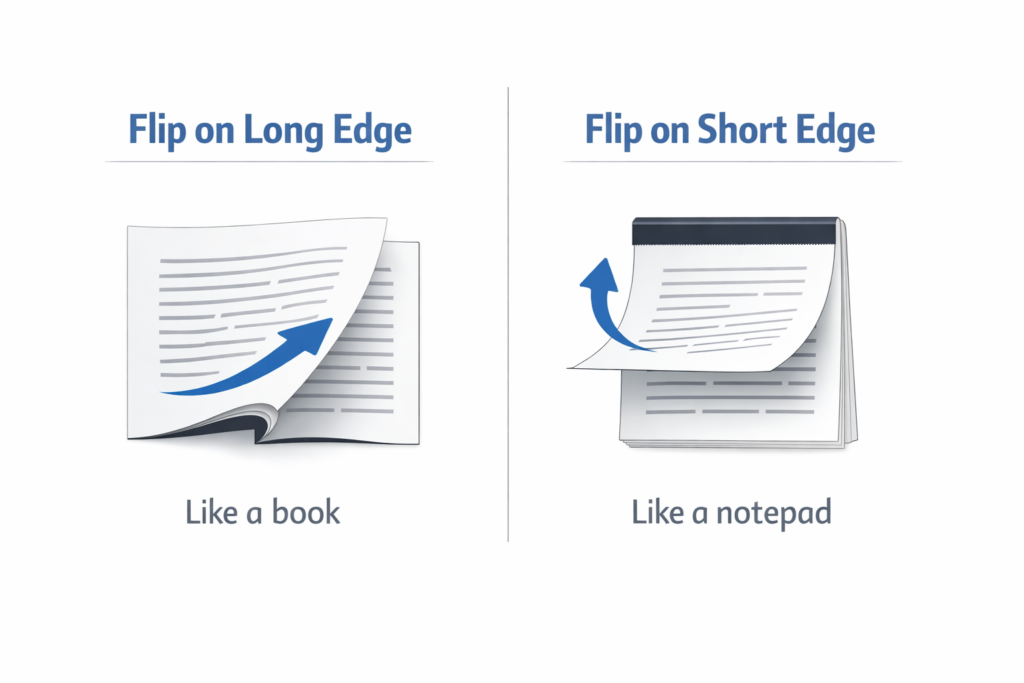
The main difference comes down to how you turn the pages when you are reading them. Think about a regular reading book and a top-bound notepad. They turn differently because they use different sides of the paper to hold the pages together. This holding area is called the binding.
Let us look at the flip on long edge vs short edge portrait settings to see exactly how they work. It is very important to get this right.
If you get it wrong, you waste paper and ink.
Understanding “Flip on Long Edge” (Standard Book Format)
The long edge option means the printer binds the pages along the longer side of the paper.
Think about a normal reading book or a magazine. You hold the book and turn the pages from the right side to the left side. The pages are connected on the longer side. This is the normal, standard setting for a vertical orientation, which we call portrait orientation.
Most of the time, when you print a pdf document or a simple word file, this is the best print settings to pick.
It makes the printed pages look and read just like a normal book. If you choose this setting, the text on both sides of the paper will face the same way when you turn the page from right to left. This is an excellent choice for reading long school reports, reading a booklet, or reading long pages of a book. It keeps the text in the correct direction for easy reading.
Understanding “Flip on Short Edge” (Notepad Format)
Now, let us look at the short edge flipping setting. When you select the short edge option, the printer connects the pages along the shorter side of the page. Think about a legal notepad, a clipboard, or a calendar that hangs on the wall. To read the next page on a clipboard, you have to lift the bottom edge of the paper and flip it all the way over the top edge. The binding is on the shorter side.
This short edge option is great if you want to make a notepad for writing lists.
However, there are some clear disadvantages to using it as a regular reading book. If you use this setting for a normal book, the text on the back will look upside down when you turn it from right to left. We often use this short edge binding when printing in landscape mode.
When to Use Flip on Long Edge Vs Short Edge For Your Documents
Picking the right choice between short edge vs long edge will save you a lot of time, ink, and paper. Your choice depends entirely on your specific needs and the exact layout of your computer file. Let us break down when to use each one so you never get confused again.
Best Settings For Portrait Orientation
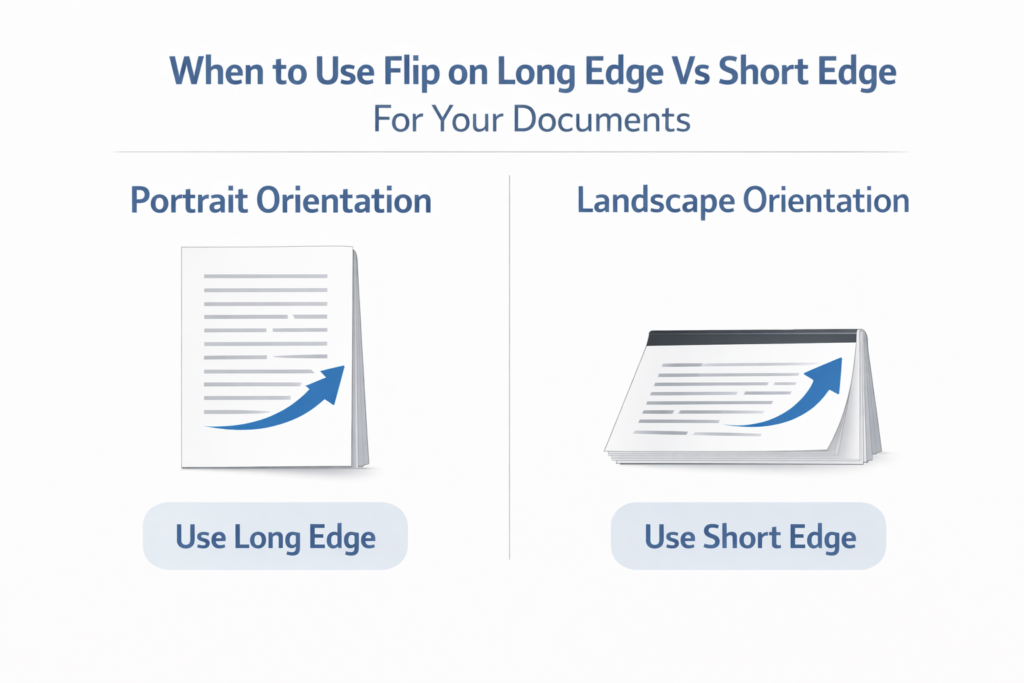
Portrait orientation means the paper is tall. The longer side of the paper goes up and down, and the shorter side goes left to right. This is how most pdf files, letters, and school papers look.
For tall pages, you almost always want to use the long edge setting. This binds the left side of the paper.
It is the best setting for manuals, reading books, and standard office letters. If you pick the short side binding setting for tall paper, you will have to flip the pages over the top edge, just like a notepad.
If you want a standard book layout, the flip on long edge vs short edge portrait question has a very easy answer: pick the long edge. This ensures high readability and makes the paper very easy to hold in your hands.
Best Settings For Landscape Orientation
Landscape orientation means the paper is wide. The longer side goes left to right, and the shorter side goes up and down. We often use this wide layout for large charts, diagrams, illustrations, or special wide brochures. When your paper is wide, the rules change completely.
For landscape mode, you usually want to pick the short edge option. Binding on the short side (which are the left and right sides when the paper is wide) lets you turn the pages like a normal book. If you choose the long-edge option for a wide paper, the binding goes on the top.
This means you will have to flip the pages over the top. This can hurt the readability and the handling of the wide paper, making it hard to read at a desk. Sometimes you have to let the short edge dictate how the paper binds.
How to Change Double-Sided Printing Settings on Your Computer?
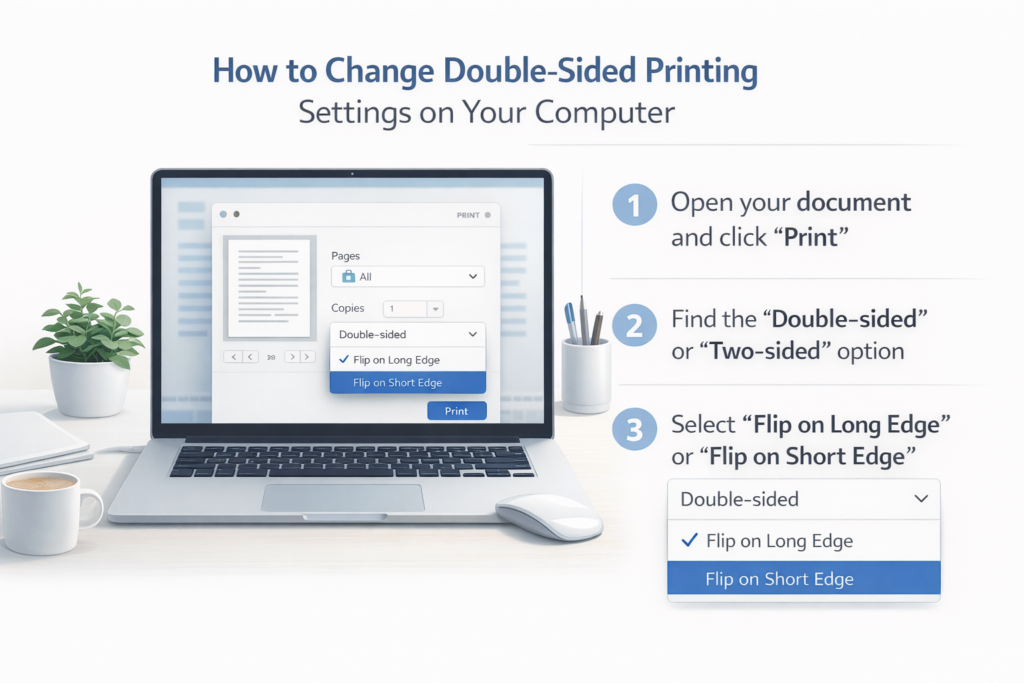
Now that you know the difference, you need to know exactly how to change these print settings on your computer. It is very easy to find the printing options on your pc or your Mac. Before you ever hit the print button, always check the preview screen to make sure it looks correct.
If you want to download a file and print it, follow these steps.
Adjusting Flip Settings in Windows (Word, PDF, Chrome)
If you use a PC running Microsoft Windows, changing the printing settings is a very simple process.
- First, open your file in Microsoft Word, Adobe Reader, or your favorite PDF editor program.
- Click on the word “File” at the top left, and then click the print button.
- Look for the “Print on Both Sides” or “Duplex Printing” option on the screen.
- A small menu will drop down. Here, you will clearly see the flip on long-edge vs. short-edge options.
- Pick the one you need for your file layout.
- If you are printing directly from Google Chrome on the internet, click “Print,” then go down to “More settings.” You will see a small box for “Two-sided.” Check the box, and it will let you pick the long edge or the short edge to dictate the binding. Always look at the preview to make sure everything looks right before you start printing.
Adjusting Flip Settings in macOS
If you have an Apple Mac computer, the steps are a little bit different but still very easy to do. Apple macOS makes printing very simple.
- Open your PDF document or Word file in your macOS viewer.
- Press the Command key and the P key at the same time to open the print screen.
- Look for a check box that says “Two-Sided.” Click to check this box.
- After you check the box, a new menu called “Layout” might appear on the screen.
- In the layout menu, you will see an option called “Two-Sided.” Click on it.
- You can now choose between “Long-Edge binding” and “Short-Edge binding.”
- Make your choice based on your specific needs, look at the preview, and start your printing process.
Troubleshooting Common Duplex Printing Errors
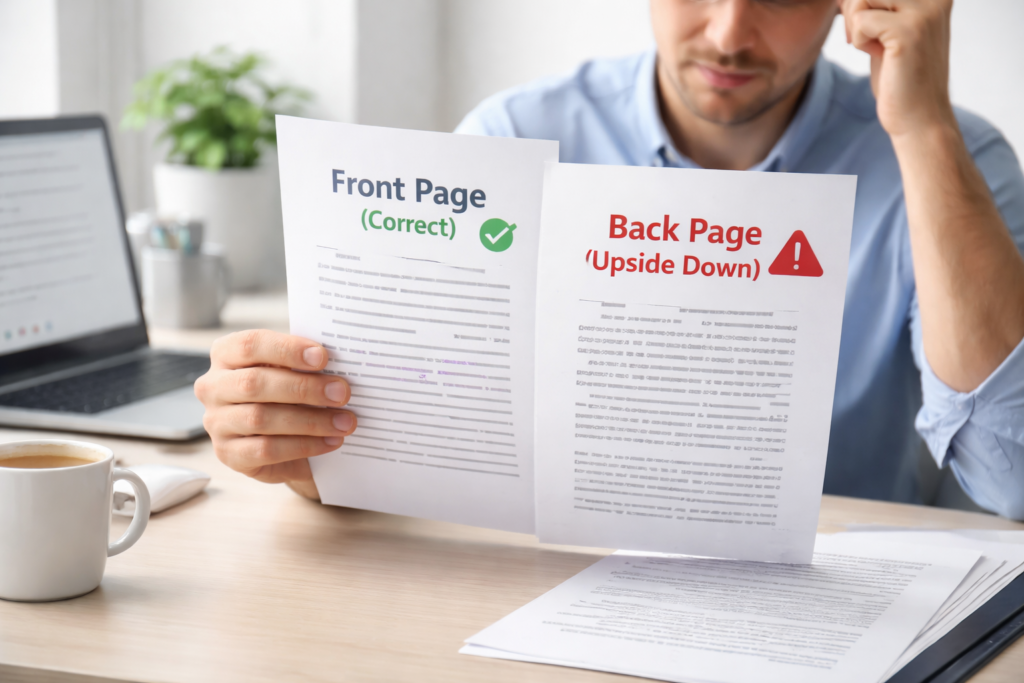
Sometimes, things go wrong during printing. Even when you think you picked the correct printing settings, your printed pages might not look right when they come out of the printer.
Here is how to fix the most common problems to improve your user experience, save paper, and stop feeling frustrated.
Why Are My Back Pages Printing Upside Down?
This is the most common problem people face with duplex printing. If the text on the back of your page is upside down, it means you picked the wrong flipping setting for your specific layout. For example, if you printed a tall, vertical orientation page and you picked short edge flipping, the back page will be completely upside down when you turn it like a book.
To fix this upside-down issue, just open your printer settings on your screen again. If the setting is on short edge, change it to long edge.
If it was on the long edge, change it to the short edge. We always recommend printing a small test page first before printing a big booklet or large marketing materials. This small test step helps check the functionality and prevents wasting lots of printer ink.
Fixing Binding Margin Issues
Another common issue is the binding margin.
When you bind pages of a book together, you need a little bit of extra blank space on the side of the paper where the glue, spiral, or staples go. This blank space is called a margin. If you do not leave enough blank space, the printed words might get hidden in the middle of the book.
You need to know if you are binding the longer side of the paper or the shorter side of the page. If you choose the long edge setting, make sure the left side margin is a little bit wider. If you choose the short edge binding setting, make sure the top edge margin is a bit wider.
Most simple PDF editor programs let you add a “gutter” or a binding margin to make sure your readability stays very high.
FAQ’s:
Which Flip Setting Is Best For A Standard Word Document?
For a normal, tall Word document, the flip on long edge setting is the absolute best. It lets you turn the printed pages from right to left, just like a standard book. This makes reading very natural and easy for everyone.
Why Do My Double-Sided Prints Come Out Upside Down?
They come out upside down because the printer flipped the paper the wrong way. If your paper is tall (portrait orientation), and you picked the short side option, the back side will be upside down. Just switch to the long edge option in your print settings to fix this problem quickly.
Why Is the Text on the Back of my Page Upside Down?
As we mentioned above, this happens because there is a mismatch between your file layout and your flip setting. Tall pages need long-edge flipping. Wide pages need short edge flipping. Picking the wrong one flips the back text upside down on the sides of the paper.
What is the Standard Default Setting For Double-Sided Printing?
Most modern printers have the flip on long edge setting as the standard default choice. This is simply because most people print standard, tall letters and PDF files that read like normal books.
Are There Common Issues If I Select the Wrong Edge Flip Setting?
Yes, the main issue is that the text on the sides of the paper will not match up correctly. You will have to constantly flip the whole paper upside down to read the back side. This hurts the usability of the paper and can make professional manuals look very messy and hard to read.
How Should I Print A Landscape (Horizontal) Document?
For a landscape orientation document, you should almost always select the short edge option. Because the paper is wide, binding the shorter side lets you turn the pages like a normal book, making it very easy to read wide diagrams and charts.
Are These Settings the Same For Both Windows and Mac?
The exact words might look a tiny bit different on the screen, but the basic functionality is the same. Both a Microsoft Windows PC and an Apple macOS computer offer a long-edge and short-edge option when you turn on the duplex printer settings.
Is There A Simple Way to Remember When to Use Long Edge Or Short Edge Flipping?
Yes, there is! Just think about a normal reading book and a top-bound notepad.
If you want your paper to read like a normal book, pick the side you want to bind. For tall paper, bind the long edge. For wide paper, bind the short edge. If you want it to flip over the top like a notepad, bind the top edge.
Also, if you are printing a short-edge PDF, you need to match the settings to the file. It is that simple!
Conclusion
Getting your printer to do exactly what you want does not have to be hard or confusing. At Designers Choice, we want to make every step of your creative work as smooth and easy as possible. Now you know the real differences between flip on long edge vs short edge.
You know that tall pages usually need the long edge option, while wide pages need the short edge option. Remember to check your print settings and always print a quick test page if you are not sure. This saves a lot of time and keeps your printed pages looking great.
Whether you are printing a file to download from adobe reader, google chrome, an android phone, or a pc, you can control the printing options very easily. Paying attention to these small details and nuances helps you create amazing booklets, brochures, and marketing materials that show true excellence. The next time you hit the print button for a pdf document, you will know exactly which duplex setting is the right choice for you and your amazing projects!
