
Quick answer: To add page numbers in Canva, open your design, select Text in the editor side panel and, under Dynamic text, choose Page numbers. Canva adds a number to every page straight away. Then pick a format (Numbers only, Page + number, or Page X of Y) and untick any pages that shouldn’t show a number. The numbers update on their own when you add, delete, hide or move pages. Canva Docs, Whiteboards, Sheets and Websites don’t support automatic page numbers.
Automatic page numbers save you from typing a number on every page and fixing them all each time you reorder slides. This guide shows how to add them on desktop and mobile, style them, keep them off a cover page and remove them, plus what to do in design types that don’t support them.
Steps checked against the Canva Help Center and tested in the Canva editor in October 2026. Canva updates its menus often, so labels on your screen may differ slightly.
Page Number Formats in Canva
| Format | How it looks on page 3 of 12 | Best for |
|---|---|---|
| Numbers only | 3 | Ebooks, workbooks and magazines |
| Page + number | Page 3 | Reports and handouts |
| Page X of Y | Page 3 of 12 | Presentations, proposals and forms, so readers know how long the document is |
How to Add Page Numbers in Canva on Desktop
- Open your design.
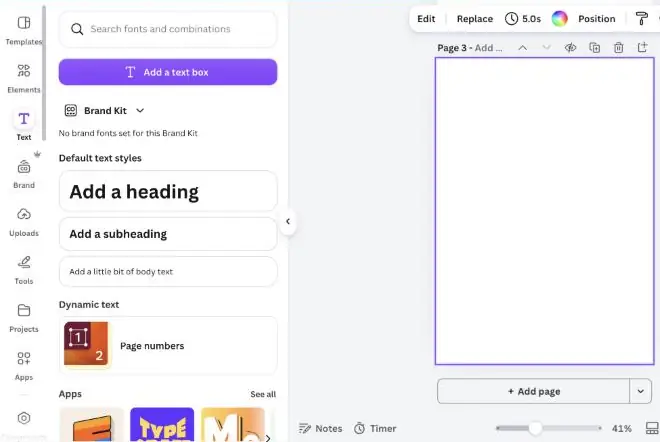
- Select Text in the editor side panel.
- Under Dynamic text, select Page numbers. Canva adds a number to every page right away (“Page numbers added to all pages”) and opens the Page numbers panel.
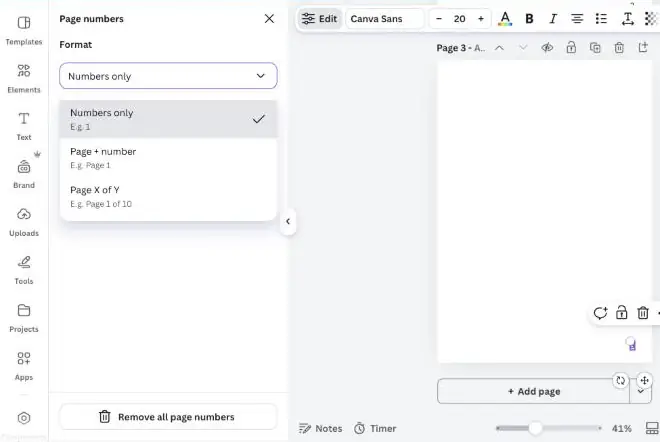
- Under Format, open the dropdown and choose Numbers only, Page + number, or Page X of Y. The change applies to every page at once.
- Under Show numbers on, untick any pages that shouldn’t have a number, then select Done.
In our test, Canva placed the numbers in the bottom-right corner of each page in Canva Sans at size 20. The Apply properties to all pages button, under Appearance and position, copies the look of the selected number to every page.
How to Add Page Numbers in the Canva Mobile App
- Open your design in the app.
- Tap Text in the editor.
- Under Dynamic text, select Page numbers.
- Choose a format and the pages that should show numbers.
- Tap Apply properties to all pages.
How to Style and Move Page Numbers
- Select a page number on any page.
- Use the toolbar to change the font, color, size and effects, or to move it with Position. Brand fonts work here too.
- To copy that style to every page, go back to Text, select Page numbers under Dynamic text, then select Apply properties to all pages.
On mobile, tap the number, use the toolbar at the bottom of the screen, then tap Edit and select Apply properties to all pages to match the rest.
Tip: drag the number onto the page while the alignment guides are showing to keep it centered or tucked into a corner. Our list of Canva keyboard shortcuts also helps you nudge it into place precisely.
How to Keep the Number Off the Cover Page
- Open the Page numbers panel (Text, then Page numbers).
- Open the Show numbers on dropdown. It lists All pages, Current page and a checkbox for every page.
- Untick Page 1 and select Done.
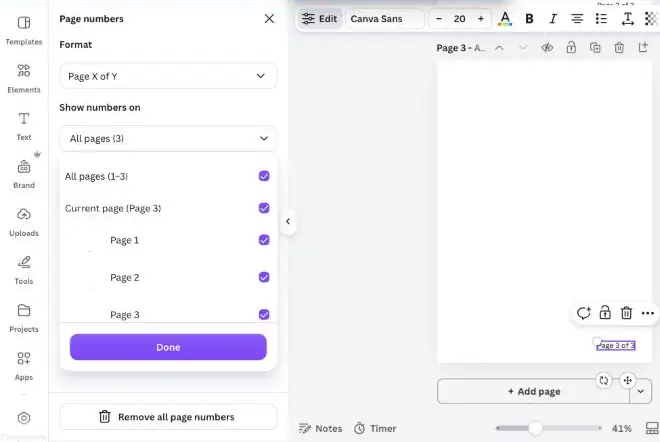
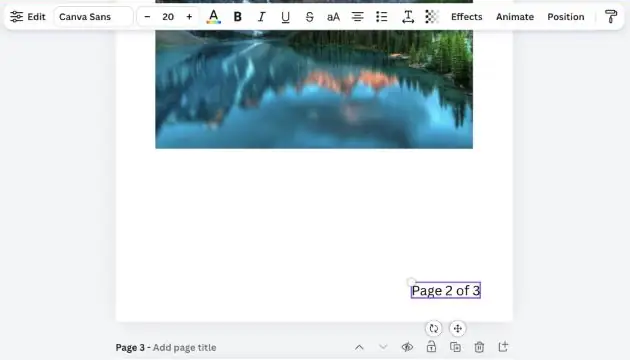
The cover still counts toward the total. When we unticked Page 1 in a three-page design, the second page read “Page 2 of 3”. You can also select the cover’s number and choose Delete on the floating toolbar, which removes only that page’s number.
How to Remove Page Numbers
- From one page: select the page number and choose Delete on the floating toolbar.
- From every page: select Text in the side panel, choose Page numbers under Dynamic text, then select Remove all page numbers.
Page Numbers in Canva Docs and Other Design Types
Automatic page numbers aren’t available in Canva Docs, Whiteboards, Sheets or Websites. If a document needs numbered pages, build it as a fixed-size design, such as an A4 or US Letter document or a presentation, where the Dynamic text option appears. You can also type numbers into text boxes by hand, but they won’t update when pages move.
Tips for Numbered Documents You Plan to Print
- Keep numbers inside the margins. Place them well away from the edge so they aren’t trimmed off. Our guide on how to print from Canva explains bleed and crop marks.
- Download a PDF with the Print preset. It keeps text sharp on paper. If a PDF looks soft, see our fixes for a blurry Canva PDF export.
- Mind the page limit. A Canva design can have up to 350 pages, so split very long books into two designs.
- Check text layout too. For reports and reference lists, see how to indent in Canva.
Common Problems and Fixes
| Problem | Likely cause | What to do |
|---|---|---|
| There’s no Page numbers option under Text | You’re in a Canva Doc, Whiteboard, Sheet or Website | Recreate the document as a fixed-size design, such as A4 or a presentation. |
| Page numbers look different on some pages | One number was restyled on its own | Style one number, then select Apply properties to all pages. |
| The cover page shows a number | Canva numbers every page by default | Untick Page 1 under Show numbers on, or delete that page’s number. |
| Numbers are cut off when printed | They sit too close to the trim edge | Move them inward, then check a PDF proof made with the Print preset before printing. |
FAQs
Can Canva add page numbers automatically?
Yes. Canva’s page numbers are dynamic text, so they update by themselves when you add, delete, hide or move pages.
Can I show “Page 3 of 12” in Canva?
Yes. Choose the Page X of Y format when you add page numbers.
Can I add page numbers in Canva Docs?
No. Canva Docs, Whiteboards, Sheets and Websites don’t support automatic page numbers. Use a fixed-size design instead if you need them.
Do page numbers work on the free plan?
Canva’s Help Center doesn’t list page numbers as a paid feature, and they appear under the standard Text panel.
How many pages can a Canva design have?
Up to 350 pages. For longer documents, Canva suggests creating a second design and merging the downloaded files.
The Bottom Line
Go to Text, then Dynamic text, then Page numbers, and Canva numbers every page for you. Pick a format, style one number and copy the look to every page, untick the cover if it shouldn’t be numbered, and use a fixed-size design if you’re starting from a Canva Doc. For more ideas, see our Canva tips and tricks.
