
Quick answer: Yes, Canva has a free PDF editor. Drag your PDF onto the Canva homepage (or select Upload, then Upload files), open it, and select any text box to change the words. Drag a new image onto an old one to replace it, then go to Share, Download and save it as a PDF again. Scanned PDFs are the exception: Canva imports them as one flat image, so their text can’t be edited.
Canva breaks a PDF into separate text boxes, images and shapes, so you can fix a typo, swap a photo or turn an old flyer into a new design without the original file. This guide shows how to upload a PDF, edit each part of it, download it again and fix the problems people run into most often.
Steps checked against the Canva Help Center and tested in the Canva editor in October 2026. Canva updates its menus often, so labels on your screen may differ slightly.
What You Can Edit in a PDF With Canva
| Part of the PDF | Can you edit it? | Notes |
|---|---|---|
| Text | Yes, in most PDFs | Change words, font, size, spacing and alignment. Unsupported fonts are swapped for similar ones. |
| Images | Yes | Replace or delete them. Brand Controls on team accounts can limit which images you can use. |
| Layout | Yes | Move elements, add shapes, icons and lines, and add or delete pages. |
| Scanned pages | No | A scanned page imports as a single flat image, so the text can’t be selected. |
| Locked layouts | Only with permission | Team admins can lock layouts or restrict who can edit. |
How to Upload a PDF to Canva
You can bring a PDF into Canva from several places. Pick whichever is easiest:
- From the homepage: drag and drop the PDF onto the page, or select Upload on the homepage banner, then Upload files.
- From Projects: go to Projects, select the + (Add new) button, then Upload files.
- From inside a design: drag the PDF into the editor, go to File, then Upload files, or open the Uploads tab and select Upload files.
- From Canva’s PDF editor page: select Upload your PDF, choose the file and log in if Canva asks.
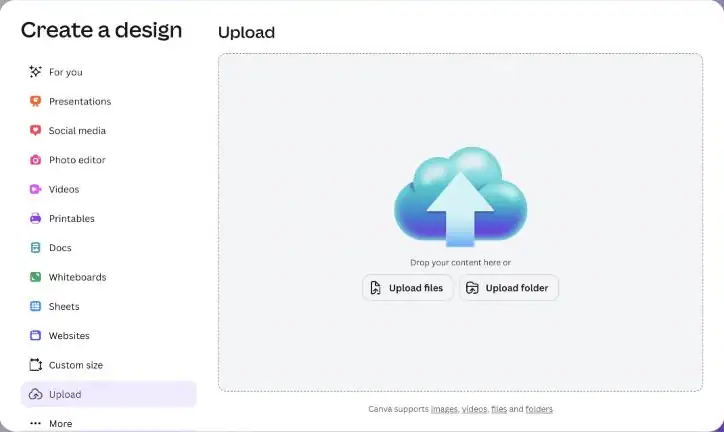
Canva confirms the upload with a “1 item uploaded” message and saves the file to Uploads. Select it to open it in the editor. Canva analyzes the file and keeps the original layout as closely as it can, and recommends a desktop browser for more advanced edits.
How to Edit Text in a PDF
- Select the text box you want to change.
- Type your new text.
- Use the toolbar above the editor to change the font, size, spacing or alignment.
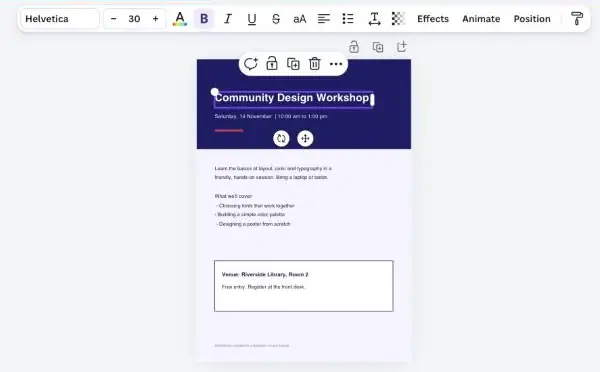
When we imported a simple text-based PDF flyer, every heading and paragraph arrived as its own editable text box, and Canva matched the original Helvetica font. If a heading looks different from the original, Canva probably couldn’t match the font and used a similar one. Select the text and pick a closer font from the toolbar.
How to Replace or Remove Images
- Replace an image: drag a new image from Elements or Uploads onto the image you want to swap. Our guide on how to replace an image in Canva covers frames and grids too.
- Remove an image: select it, then select Delete.
How to Add Pages, Shapes and Signatures
- Move content: drag any element to a new position.
- Add graphics: open Elements to add shapes, icons or lines.
- Add a page: select Add page to insert another page.
- Sign a document: Canva’s PDF editor lets you draw lines, shapes and signatures, so you can sign a form without printing it.
How to Download Your Edited PDF
- Select Share in the top corner of the editor.
- Select Download.
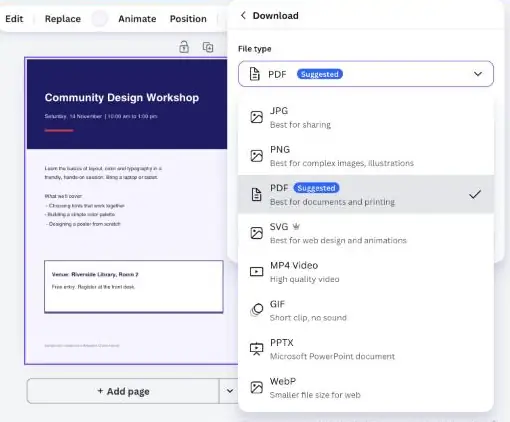
- Under File type, choose PDF (Canva marks it Suggested for documents).
- Under Presets, pick Digital for a file you’ll share on screen, or Print for paper.
- Select Download.
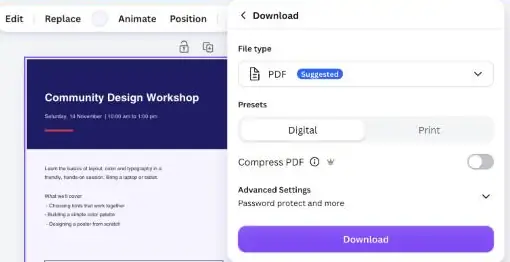
Advanced Settings in the same panel holds extras such as password protection, and Compress PDF is marked as a paid option. Canva’s Help Center and older guides still call the two PDF options PDF Standard and PDF Print, but the editor now shows them as Digital and Print presets.
| File type | Use it when |
|---|---|
| PDF, Digital preset | You’re emailing or sharing the file and want links to stay clickable. |
| PDF, Print preset | You’re printing it or sending it to a print shop. |
| JPG, PNG or WebP | You need an image of a page, for example for social media or a website. |
| PPTX | You want to keep editing it as a PowerPoint presentation. |
| MP4 Video or GIF | You added animation or video to the design. |
| SVG | You need a scalable graphic for the web (marked as a paid option). |
For links that still work after download, follow our guide on adding a clickable link in a Canva PDF. If the downloaded file looks soft, see our fixes for a blurry Canva PDF export, and when you’re ready to print, here is how to print from Canva.
PDF Size Limits in Canva
- Up to 500 pages per PDF.
- Up to 300 MB per file.
- Up to 1,400 elements and images per PDF. Bigger files may import only partly or run slowly.
Common Problems and Fixes
| Problem | Likely cause | What to do |
|---|---|---|
| The text can’t be edited | The PDF was scanned or the text is flattened into an image | Retype the text in new text boxes over the page, or ask for the original, unscanned file. |
| Fonts look different | The original font isn’t available in Canva | Select the text and choose a similar font from the toolbar. |
| Pages or parts are missing | The PDF is over 300 MB or has more than 1,400 elements | Compress or split the PDF, then import it again. |
| The layout shifted | Some layouts move slightly on import | Nudge elements back into place and check every page before downloading. |
| You can’t replace images or move things | Team permissions, Brand Controls or a locked layout | Ask your team admin for edit access, or use approved Brand Kit images. |
Tips for Editing PDFs in Canva
- Keep the original. Download your edit as a new file so the source PDF stays untouched.
- Check every page. Imports are close to the original, not perfect, so scroll through before you send anything.
- Proofread before you share. Canva can catch typos too: see how to spell check in Canva.
- Turn it into something new. Once a PDF is in Canva, you can resize it into a presentation or social post, or add animation and music.
FAQs
Is Canva’s PDF editor free?
Yes. Canva says all users can upload, customize and share PDF documents for free. Some extras inside the editor, such as premium images or Brand Kit tools, still need a paid plan.
Can I edit a scanned PDF in Canva?
Not as text. Canva imports scanned pages as a single flat image, so you can place new text boxes on top or crop the page, but you can’t change the scanned words themselves.
Why did my fonts change after importing a PDF?
Canva replaces fonts it doesn’t support with similar ones. Select the text and choose a closer match from the font menu, or upload the original font if you have a paid plan and the font’s license allows it.
Can I edit a PDF in the Canva mobile app?
Canva says imported PDFs can be edited from any device. For bigger changes, such as moving lots of elements or working with Brand features, Canva recommends a desktop browser.
Can I convert a PDF into a PowerPoint or images?
Yes. After editing, go to Share, then Download, and pick another file type. The list includes PPTX (PowerPoint), JPG, PNG, WebP, GIF, MP4 Video and SVG.
The Bottom Line
Canva is one of the easiest free ways to edit a PDF: upload it, click to change text and images, and download it again. Check scanned pages and fonts after import, then download as a PDF with the Digital preset for sharing or the Print preset for paper. For more shortcuts, browse our Canva tips and tricks.
