
Yes, the Canva PDF editor is free, and for quick fixes it works better than most people expect. Drag your PDF onto the Canva homepage (or select Upload, then Upload files), open it and click any text box to change the words. To swap a picture, drag a new image onto the old one. When you’re done, go to Share, then Download, and save it as a PDF again. The big exception is scanned PDFs: Canva brings those in as one flat image, so their text can’t be edited.
Behind the scenes, Canva splits a PDF into separate text boxes, images and shapes. That’s what lets you fix a typo, swap a photo or rework an old flyer when you no longer have the original file. It won’t replace a dedicated PDF app for heavy editing, but for flyers, menus and simple forms it does the job.
What You Can Edit in a PDF With Canva
| Part of the PDF | Can you edit it? | Notes |
|---|---|---|
| Text | Yes, in most PDFs | Change words, font, size, spacing and alignment. Unsupported fonts are swapped for similar ones. |
| Images | Yes | Replace or delete them. Brand Controls on team accounts can limit which images you can use. |
| Layout | Yes | Move elements, add shapes, icons and lines, and add or delete pages. |
| Scanned pages | No | A scanned page imports as a single flat image, so the text can’t be selected. |
| Locked layouts | Only with permission | Team admins can lock layouts or restrict who can edit. |
How to Upload a PDF to Canva
There are four ways to get a PDF into Canva. Use whichever is closest:
- From the homepage: drag and drop the PDF onto the page, or select Upload on the homepage banner, then Upload files.
- From Projects: go to Projects, select the + (Add new) button, then Upload files.
- From inside a design: drag the PDF into the editor, go to File, then Upload files, or open the Uploads tab and select Upload files.
- From Canva’s PDF editor page: select Upload your PDF, choose the file and log in if Canva asks.
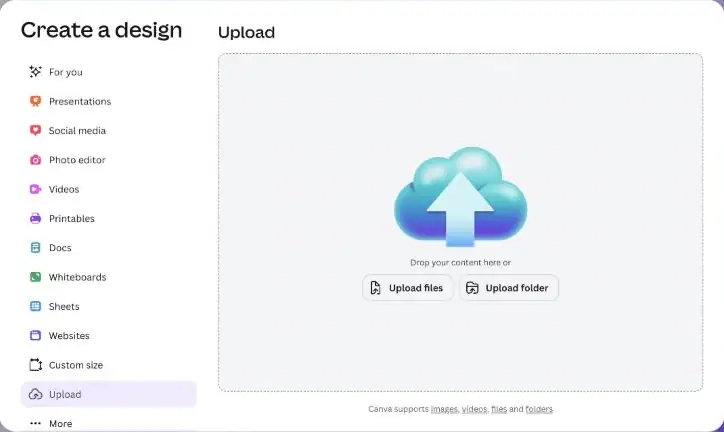
You’ll see a “1 item uploaded” message, and the file lands in Uploads. Click it to open it in the editor. Canva then analyzes the file and tries to keep the original layout. For anything beyond small edits, Canva suggests working in a desktop browser.
How to Edit Text in a PDF
- Select the text box you want to change.
- Type your new text.
- Use the toolbar above the editor to change the font, size, spacing or alignment.
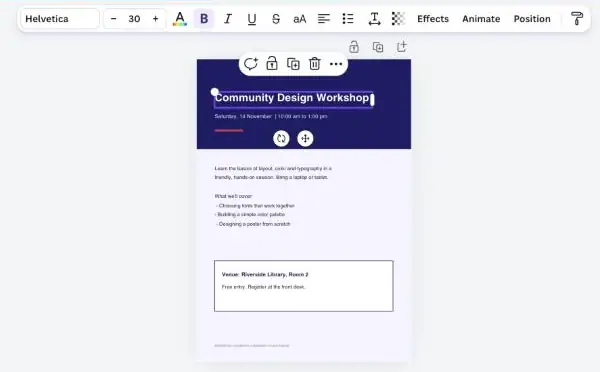
When we imported a simple text-based PDF flyer, every heading and paragraph arrived as its own editable text box, and Canva matched the original Helvetica font. If a heading looks different from the original, Canva probably couldn’t match the font and used a similar one. Select the text and pick a closer font from the toolbar.
How to Replace or Remove Images
- Replace an image: drag a new image from Elements or Uploads onto the image you want to swap. Our guide on how to replace an image in Canva covers frames and grids too.
- Remove an image: select it, then select Delete.
How to Add Pages, Shapes and Signatures
- Drag any element to move it.
- Open Elements to add shapes, icons or lines.
- Select Add page to insert another page.
- Draw lines, shapes or a signature, which means you can sign a form without printing it.
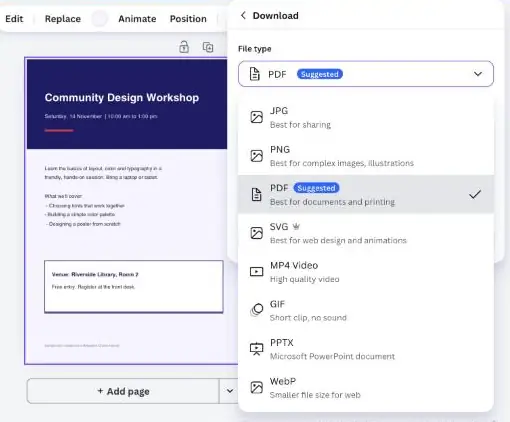
How to Download Your Edited PDF
- Select Share in the top corner of the editor.
- Select Download.
- Under File type, choose PDF (Canva marks it Suggested for documents).
- Under Presets, pick Digital for a file you’ll share on screen, or Print for paper.
- Select Download.
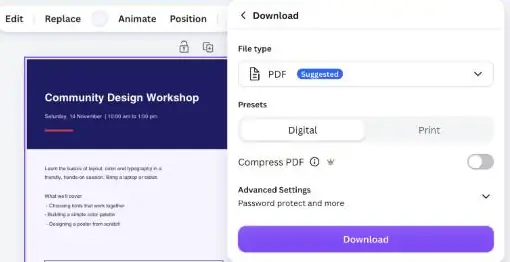
Advanced Settings in the same panel holds extras such as password protection, and Compress PDF is marked as a paid option. Canva’s Help Center and older guides still call the two PDF options PDF Standard and PDF Print, but the editor now shows them as Digital and Print presets.
| File type | Use it when |
|---|---|
| PDF, Digital preset | You’re emailing or sharing the file and want links to stay clickable. |
| PDF, Print preset | You’re printing it or sending it to a print shop. |
| JPG, PNG or WebP | You need an image of a page, for example for social media or a website. |
| PPTX | You want to keep editing it as a PowerPoint presentation. |
| MP4 Video or GIF | You added animation or video to the design. |
| SVG | You need a scalable graphic for the web (marked as a paid option). |
Want the links in your PDF to stay clickable after download? Follow our guide to adding a clickable link in a Canva PDF. If the file comes out soft, see our fixes for a blurry Canva PDF export. And if it’s going on paper, here’s how to print from Canva.
PDF Size Limits in Canva
- Up to 500 pages per PDF.
- Up to 300 MB per file.
- Up to 1,400 elements and images per PDF. Bigger files may import only partly or run slowly.
Common Problems and Fixes
| Problem | Likely cause | What to do |
|---|---|---|
| The text can’t be edited | The PDF was scanned or the text is flattened into an image | Retype the text in new text boxes over the page, or ask for the original, unscanned file. |
| Fonts look different | The original font isn’t available in Canva | Select the text and choose a similar font from the toolbar. |
| Pages or parts are missing | The PDF is over 300 MB or has more than 1,400 elements | Compress or split the PDF, then import it again. |
| The layout shifted | Some layouts move slightly on import | Nudge elements back into place and check every page before downloading. |
| You can’t replace images or move things | Team permissions, Brand Controls or a locked layout | Ask your team admin for edit access, or use approved Brand Kit images. |
Tips for Editing PDFs in Canva
- Download your edit as a new file so the original PDF stays untouched.
- Scroll through every page before you send anything. Imports are close to the original, but not perfect.
- Proofread before you share. Canva can catch typos too: see how to spell check in Canva.
- Once a PDF is in Canva, you can resize it into a presentation or social post, or add animation and music.
FAQs
Yes. Canva says all users can upload, customize and share PDF documents for free. Some extras inside the editor, such as premium images or Brand Kit tools, still need a paid plan.
Not as text. Canva imports scanned pages as a single flat image, so you can place new text boxes on top or crop the page, but you can’t change the scanned words themselves.
Canva replaces fonts it doesn’t support with similar ones. Select the text and choose a closer match from the font menu, or upload the original font if you have a paid plan and the font’s license allows it.
Canva says imported PDFs can be edited from any device. For bigger changes, such as moving lots of elements or working with Brand features, Canva recommends a desktop browser.
Yes. After editing, go to Share, then Download, and pick another file type. The list includes PPTX (PowerPoint), JPG, PNG, WebP, GIF, MP4 Video and SVG.
Is Canva Good Enough for Editing PDFs?
For most everyday jobs, yes. Fixing a typo, swapping a logo or refreshing an old flyer takes a few minutes and costs nothing. Just check scanned pages and fonts after the import. Then download with the Digital preset for sharing or the Print preset for paper. For more shortcuts, browse our Canva tips and tricks.
