

Quick answer: To join a class on Canva with a code, go to canva.com/class/join, type the invite code your teacher gave you and select Join. Log in or sign up when Canva asks (your school email, Google Classroom or Clever account all work), and you are added to the class as a student. Class invite codes refresh every 4 hours, so use yours soon after your teacher shares it.
Joining a class puts you in your school’s Canva Education team, where you can design with your teacher and classmates in one shared space. Canva Education is free for K-12 (primary and secondary) teachers and their students, which makes it one of the best free graphic design tools for students. This guide covers every way to join, fixes for the most common problems and what teachers need to do on their side.
Steps checked against the Canva Help Center in October 2026. Canva updates its menus often, so labels on your screen may differ slightly.
Which Way Should You Join?
Start with whatever your teacher sent you:
| What your teacher gave you | What to do |
|---|---|
| An invite code | Go to canva.com/class/join, enter the code and select Join |
| An email from Canva | Open the email and select Join the class |
| An invite link | Open the link, then log in or sign up |
| A QR code or 6-digit code for a live activity | This is a learning session, not a class (see below) |
| An assignment code | Enter it at canva.com/assignment/join instead |
| Nothing yet | Sign up with your school email and request to join your school team |
How to Join a Canva Class With an Invite Code
Teachers use invite codes for students who don’t have email access, and it is the method most students look for. It works in any web browser, including on phones, tablets and Chromebooks.
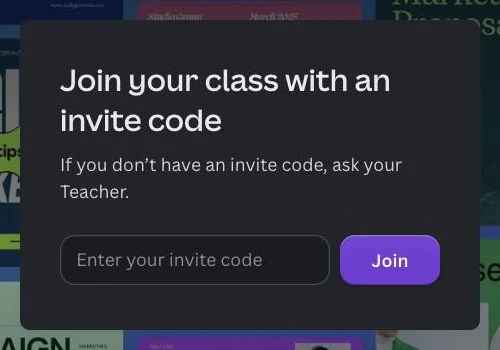
- Open canva.com/class/join in your browser. The page says “Join your class with an invite code.”
- Click the Enter your invite code box and type the code exactly as your teacher shared it.
- Select Join.
- If Canva asks you to log in, use your school email address, or the Google Classroom or Clever account your school uses. No account yet? Select Sign up and create one with the same school details.
- You are added to the class as a Student. Your teacher can change your role later if needed.
Tip: Invite codes refresh automatically every 4 hours, and teachers can also refresh them by hand. If a code stops working, ask your teacher for the current one instead of retyping an old code from your notes.
Other Ways to Join a Class on Canva
Accept an Email Invitation
When your teacher invites you by email, Canva sends you an invitation message.
- Open the invitation email from Canva.
- Select Join the class.
- Log in, or select Sign up to create an account with your email, Google Classroom or Clever.
You are only added to the class after you accept, so an unopened invite does nothing. If you can’t find the email, check your spam or junk folder, then ask your teacher to resend it.
Use an Invite Link From Your Teacher
Teachers can copy a class invite link and share it in a message, an email or your school’s learning platform. Open the link, log in with your school account and you join as a student by default.
Join Through Google Classroom
If your teacher imports a Google Classroom class into Canva, Canva sends invitations to the email addresses on that class list. Accept the invite and sign in with the same Google account you use for Google Classroom, otherwise Canva may not match you to the class.
Request to Join Your School Team (No Invite)
No code, link or email yet? You can still get into your school’s Canva space:
- Go to canva.com and select Sign up.
- Enter your school email address.
- Select your school from the list of matching schools and request to join.
- Wait for your school admin to approve your request.
Once you are approved, your teachers can add you to their classes. If your school isn’t listed, ask your teacher for an invite instead.
Joining a Learning Session With a QR Code or 6-Digit Code
If your teacher shows a QR code or a link plus a 6-digit code for a quick class activity, that is a Canva learning session, not a class. You don’t need a Canva account to take part:
- Scan the QR code with your device’s camera, or open the link your teacher shared.
- Enter the 6-digit code.
- If you are not logged in, enter your name, choose an avatar and select Join learning session.
Sessions last up to 2 hours. Up to 50 guests or 100 signed-in students can edit, and when the session ends only the teacher keeps access to the design, so ask your teacher to share it again if you need a copy.
Can’t Join Your Canva Class? Common Problems and Fixes
| Problem | Likely cause | Fix |
|---|---|---|
| The invite code doesn’t work | The code has refreshed (every 4 hours) or there is a typo, such as the letter O instead of the number 0 | Ask your teacher for the current code and type it again |
| You can’t find the invitation email | It went to spam, or it was sent to a different address | Check spam or junk, then ask your teacher to resend it or share a code |
| You joined, but your old designs are gone | You are now viewing the school team, not your personal team | Switch teams (steps below) |
| Canva puts you in the wrong account | You are logged in with a personal email | Log out, then log in with your school email or school Google account |
| You are under 13 and can’t continue | Canva Education needs parental consent for students under 13 | Ask your teacher. In the US, schools may give consent on a parent’s behalf under COPPA |
| AI or social media apps are missing | These apps are turned off for students by default | Your school’s Canva admin has to enable them |
| The 6-digit session code fails | The learning session ended or the code expired | Ask your teacher to start a new session or share a new code |
How to Switch Between Your Class and Personal Designs
Joining a class doesn’t delete your personal designs. You are simply in a different team, and Canva only shows designs from the team you are currently in.
- From the Canva homepage, select your profile icon.
- Under Teams, select your current team, then the arrow next to it.
- Pick the team you want. A check mark shows which team is active.
If you have two separate Canva accounts (one personal, one for school), log out and log back in with the other account instead.
How to Leave Your School Team on Canva
Leaving removes your access to every design and folder in that team, so copy anything you want to keep first.
- On the homepage, select your profile icon, then Settings.
- Under People management, select Team profile.
- Select Leave team, review the pop-up carefully and confirm. This can’t be undone.
If you don’t see Leave team, your school may have turned it off or your account may be managed by your district. To leave just one class, ask your teacher to remove you, since teachers manage class members. Either way, let your teacher know so your work isn’t missed.
For Teachers: How to Share a Canva Class Code
Students can only join with a code once a teacher or admin in the class creates one:
- From the homepage, select your profile icon, then Settings.
- Select Classes and choose the class.
- Select Add people, then Via code.
- Copy the code, or select Fullscreen to show it on your classroom screen. Select Refresh whenever you want a new code.
You can also invite students from Settings > People > Invite people by copying an invite link, entering email addresses or importing a Google Classroom class. School teams can have up to 500 members. If you haven’t set up Canva Education yet, our Canva for Teachers guide walks through verification step by step.
Why Join a Canva Class? Benefits for Students

- Premium features at no cost: Canva Education is free for K-12 students and teachers, so you get premium templates, photos, fonts and design tools without paying for Canva Pro. It is one of the best graphic design tools for beginners to learn on, and one of the legitimate ways to get Canva Pro features for free.
- Real-time group projects: Everyone in the class can edit the same design at once and leave comments, which is much easier than emailing files back and forth.
- Hand in work inside Canva: Teachers can share assignments with the class and review your designs in Canva, so you often don’t need to download and re-upload files. If your school grades work on another platform, follow your teacher’s instructions for submitting there.
- Classroom-safe AI: Canva says it never uses student data to train its AI models, and your school decides which AI apps students can use. For the bigger picture on AI in design, see our roundup of AI tools for graphic designers.
FAQs
Is joining a Canva class free?
Yes. Canva says Canva Education will remain 100% free for K-12 (primary and secondary) teachers, their students and qualified schools and districts.
Do I need a Canva account to join a class?
Yes. You log in or sign up during the join step, using an email address, Google Classroom or Clever. The exception is a learning session, which you can join as a guest with just a name and an avatar.
How long does a Canva class code last?
Invite codes refresh automatically every 4 hours, and teachers can refresh them manually at any time. An older code may stop working, so always ask for the current one.
Can I join more than one Canva class?
Yes. You can be in several classes within your school team, and each teacher invites you to their class separately.
What is the difference between a class code and an assignment code?
A class code adds you to a class, and you enter it at canva.com/class/join. An assignment code opens a single assignment, and you enter it at canva.com/assignment/join.
Is Canva the same as Canvas?
No. Canva is a design platform. Canvas is a separate learning management system made by Instructure, and joining a Canvas course works differently. If your teacher said “Canvas,” follow your school’s Canvas instructions instead.
Why can’t I see my previous designs after joining a class?
You are viewing your school team. Switch back to your personal team from your profile icon under Teams, and your old designs will be there.
Start Designing With Your Class
For most students, joining a Canva class takes under a minute: open canva.com/class/join, enter the current code and select Join. If that doesn’t work, accept the email invite, use your teacher’s link or request to join your school team with your school email.
Once you are in, our Canva beginner guide and Canva tips and tricks will help you get more out of your first project.
