
Quick answer: To resize an image in Canva, select it and drag one of its corner handles, or go to Position and type an exact width and height under Advanced. To change the size of the whole design, for example turning a post into a story, use Resize in the editor menu bar. That option (often called Magic Resize) is listed for paid plans such as Pro, Teams and Education. On the free plan, create a new design at the size you need and paste your image into it.
“Resize” means two different things in Canva: making one image bigger or smaller inside your design, or changing the dimensions of the design itself. This guide covers both, plus cropping, exact pixel sizes, size limits and what to do when the Resize button is missing.
Steps checked against the Canva Help Center and tested in the Canva editor in October 2026. Canva updates its menus often, so labels on your screen may differ slightly.
Ways to Resize in Canva
| Method | What it changes | Plan |
|---|---|---|
| Drag the corner handles | One image or element inside the design | All plans |
| Position, then Advanced | One element, to exact pixel dimensions | All plans |
| Crop | Which part of an image shows, without scaling it | All plans |
| Resize (Magic Resize) | The whole design, or a copy of it in new sizes | Pro, Teams, Business, Enterprise, Education and Nonprofits |
How to Resize an Image Inside Your Design
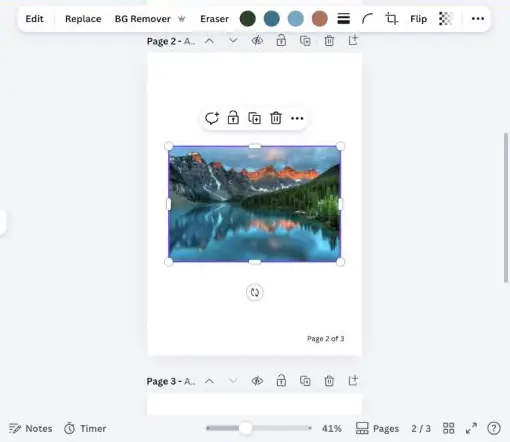
- Select the image, element, text box or video you want to resize. To select several, drag a selection box around them.
- Drag any corner handle outward to make it bigger or inward to make it smaller.
- Release when it’s the size you want. Corner handles keep the proportions, so the image won’t stretch.
For text, use the font size box on the toolbar instead of dragging, which gives you more control.
How to Resize an Image to Exact Pixels
- Select the photo, shape or video.
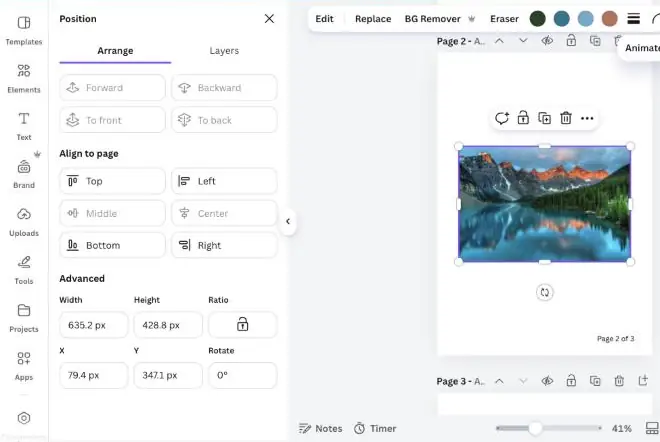
- Select Position on the toolbar above the editor. If the toolbar is narrow, it’s under the … (More) button.
- Under Advanced, type the pixel values in the Width and Height fields.
- Select Ratio to keep the proportions, or leave it off to set each side separately.
Canva graphics have a fixed aspect ratio, so you can’t stretch them out of shape. To stretch a photo on purpose, double-click it to enter crop mode, then hold Shift while dragging a resize handle.
When to Crop Instead of Resize
Resizing scales the whole image. Cropping hides part of it so you can focus on one area, and the hidden part isn’t deleted, so you can change the crop later.
- Select the image or video.
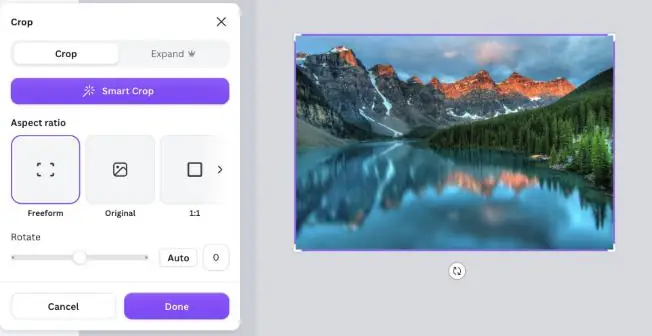
- Select Crop on the toolbar, or double-click the image.
- Pick an aspect ratio if you want a fixed shape, such as square.
- Drag the crop handles until the right part is showing, then select Done or click outside the image.
Images inside frames and grids crop with a double-click. You can’t crop GIFs or embeds. For cutting a subject out of its background instead, see how to cut out an image in Canva, and to swap a photo in a frame, here is how to replace an image in Canva.
How to Resize the Whole Design (Magic Resize)
- Select Resize in the editor menu bar.
- Pick one or more suggested sizes, or use Browse by category.
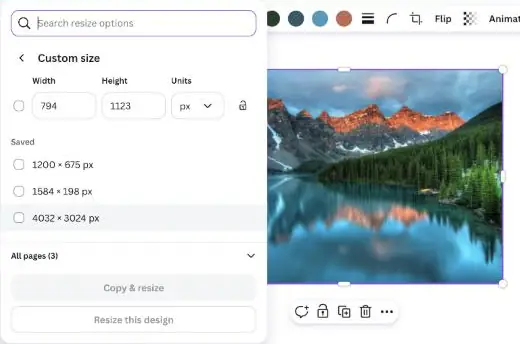
- For your own dimensions, select Custom size and lock or unlock the aspect ratio.
- Under All pages, choose which pages to resize. If you don’t choose, Canva resizes them all.
- Select Copy & resize to keep the original, or Resize this design to change it in place.
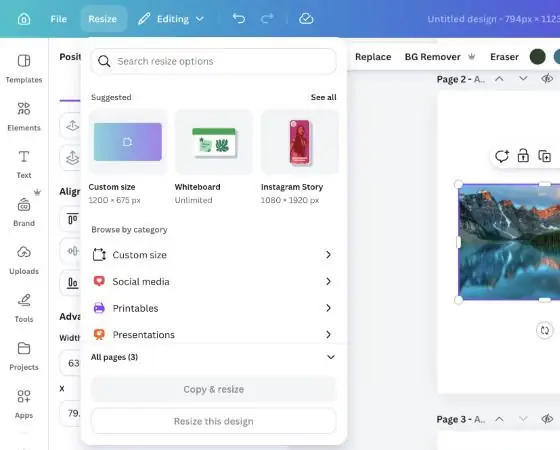
Copies are saved in the same folder as the original. If you picked several sizes, Canva puts them in a new folder and shows its name in the confirmation message. Each use of Magic Resize counts toward your monthly AI usage limit.
Canva also offers bundles, such as a set of vertical video sizes, which create several formats in one go. To resize just one page, select its background, select Edit on the floating toolbar, then Resize.
How to Resize on the Free Plan
If the Resize button asks you to upgrade, you can still get your design into a new size:
- From the homepage, create a new design at the size you need, using a preset or a custom size.
- In your original design, select everything (Ctrl + A or Cmd + A) and copy it (Ctrl + C or Cmd + C).
- Paste it into the new design (Ctrl + V or Cmd + V).
- Drag the corner handles to fit everything to the new page, then rearrange and crop as needed.
For a single photo, Canva’s Image Resizer page lets you upload an image, choose a preset or enter your own dimensions, and download it as a JPG or PNG. To compare what the paid plans add, see how much Canva Pro costs.
Canva Resize Limits
- Minimum size: 40 x 40 px. Maximum size: 8000 x 3125 px. If the Custom size fields turn red, your numbers are outside these limits.
- Bulk limits: up to 50 designs at once, up to 5 new sizes per design and up to 250 resized designs per batch.
- Bigger than the maximum: lock the aspect ratio, enter a size within the limits so the other side updates in proportion, then download as a PNG at up to 3.125 times its size.
Popular Sizes to Resize To
| Format | Size in pixels | Our guide |
|---|---|---|
| Instagram Reel or Story | 1080 x 1920 | Instagram Reel size |
| YouTube channel banner | 2560 x 1440 | YouTube banner safe area |
Common Problems and Fixes
| Problem | Likely cause | What to do |
|---|---|---|
| There’s no Resize button | You’re on the free plan, or working in a Canva Doc | Use the free-plan method above. In Docs, Canva suggests Magic Switch to turn the Doc into a presentation. |
| The image looks blurry after enlarging it | The original photo is too small for the new size | Use a higher-resolution image instead of scaling a small one up. |
| A graphic won’t stretch | Canva graphics keep a fixed aspect ratio | Resize it with a corner handle, or use a shape instead. |
| Custom size fields turn red | The size is under 40 px or over 8000 x 3125 px | Enter a size within the limits, or use the scale-down method above. |
| A presentation resized to video has no timeline | Each slide became its own video page | Select the pages and choose Edit as video. |
FAQs
Is resizing free in Canva?
Resizing and cropping images inside a design is free. Resizing a whole design with the Resize button (Magic Resize) is listed for paid plans such as Canva Pro, Teams, Business, Enterprise, Education and Nonprofits.
How do I resize an image without losing quality?
Make images smaller rather than bigger where you can, and start with the largest version of the photo you have. Scaling a small image up is what makes it look soft.
Can I resize several designs at once?
Yes, on paid plans. Canva lets you resize up to 50 designs at once, with up to 5 new sizes each.
How do I undo a resize?
If you used Resize this design, go to File, then Version history, choose the autosaved version from before the resize and select Restore. If you used Copy & resize, your original is unchanged.
Why can’t I find Resize in my Canva Doc?
Magic Resize doesn’t work in Canva Docs yet. Canva suggests using Magic Switch to turn the Doc into a presentation instead.
The Bottom Line
Drag a corner handle or type exact pixels to resize an image inside your design, crop when you only want to show part of it, and use Resize to change the whole design if you have a paid plan. On the free plan, a new design at the right size and a quick copy and paste does the same job. For more time-savers, see our Canva tips and tricks.
