Categories
Canva

Canva Magic Studio: Canva’s BEST AI Features

At Designers Choice, we know how hard it can be to take a great idea and turn it into a real image or video. We have spent years working in graphic design, so we understand the struggle of staring at a blank screen.

You want to create something amazing, but you might not have the time or the right skills to make it look perfect.

That is why we are so excited to talk about a powerful tool that is changing how we work. It is called Canva Magic Studio.

This new set of AI tools is built right into Canva, a platform many content creators and business owners already love.

Our goal at Designers Choice is to give you the best advice and resources. We want to help you make your boldest visions come to life.

Whether you are making social media posts, marketing materials, or just having fun with art, this guide is for you.

We will show you how Canva Magic Studio can help you save time and create beautiful work with minimal effort.

Let’s look at how this artificial intelligence can change your creative process for the better.

What Is Canva Magic Studio and How Does It Work?
What Is Canva Magic Studio and How Does It Work?

Canva Magic Studio is a special collection of features inside Canva. It uses artificial intelligence to help you do hard design tasks very quickly.

Think of it like having a super-smart assistant who can draw, write, and fix photos for you. You just give it a simple instruction, or text prompt, and it does the heavy lifting. You do not need to be a pro at graphic design to use it. It is made for everyone, from small businesses to students.

The Evolution of AI in Graphic Design

In the past, making a digital image required expensive software and years of training.

You had to learn how to use complicated programs like Photoshop. But things have changed. Generative AI has opened a new door.

Now, computers can create new content by looking at examples and learning from them. Canva AI has grown from simple tricks, like the background remover, into a full suite of magic studio features.

It is not just about fixing mistakes anymore. It is about creating things from scratch with the click of a button.

This shift means that ease of use is now the most important thing. You can focus on your ideas, and the AI tools handle the technical parts.

Who Can Benefit From the Magic Studio Suite?

You might wonder if this is right for you. The answer is yes! Canva Magic Studio is perfect for many different people.

  • Social Media Managers: If you need to make social media content every day, these tools help you work faster.
  • Small Businesses: You can make professional promotional materials without hiring an expensive agency.
  • Graphic Designers: Even pros use it to speed up their workflow and get new ideas.
  • Students and Teachers: It makes creating presentations and posters very easy.
  • Content Creators: If you make videos or blogs, the magic media tools can give you unique visuals.

Top Features Inside Canva Magic Studio You Need to Try
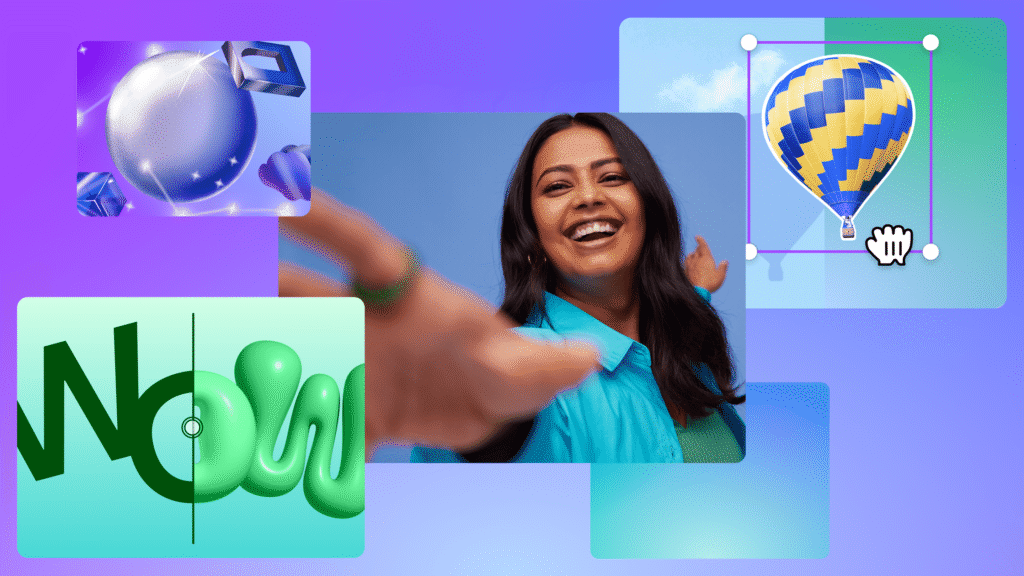
Top Features Inside Canva Magic Studio You Need to Try

There are so many cool things you can do. Let’s break down the best features.

Magic Switch: Instantly Resize and Translate Designs

Have you ever made a perfect post for Instagram, but then realized you also need it for a YouTube thumbnail or a presentation slide?

In the past, you would have to start your design project all over again. You would have to move every picture and text box to fit the new size. It was very boring and took a long time. Magic Switch changes all of that. It is one of the most useful AI features for content creators.

With Magic Switch, you can change your design into different formats instantly. You just click the button, choose the new size you want, and the Canva AI moves everything around for you. It keeps your image quality high and makes sure your layout looks good.

But it does even more than that. It can also translate your text into different languages. If you have social posts that you want to share with people in Spain, France, or Japan, Magic Switch can rewrite the text for you in seconds. It saves you hours of work.

Magic Media: Text-to-Image and Text-to-Video Generation

This feature is like magic. Magic Media lets you create images and videos just by typing a description. This is known as text-to-image and text-to-video generation. Let’s say you need a picture of a “cat wearing sunglasses on a beach” for your social media. You do not have to search for hours on stock photo sites. You just open Magic Media, type that text prompt, and the AI image generator creates it for you.

You can choose different styles, like a painting, a 3D model, or a realistic photo. It is a powerful art generator right inside Canva. It also works for video. You can describe a short scene, and the tool will generate a short video clip for you. This is great for making social media captions more exciting or adding moving visuals to your marketing materials.

The power of AI here is huge because it gives you unique content that no one else has. You are not just using the same stock photos as everyone else; you are making new content that fits your vision perfectly.

Magic Expand: Extend Images Beyond Their Borders

Sometimes you take a photo, but it is too zoomed in.

Maybe you cut off the top of someone’s head, or you need more background to make the text fit better.

Magic Expand is the tool that fixes this problem. It uses generative AI to guess what the rest of the picture should look like.

It looks at the colors and shapes in your photo and “paints” more of the scene around the edges.

For example, imagine you have a vertical photo of a sunset, but you need a horizontal image for a website banner. If you stretch it, it will look bad. But with Magic Expand, you can drag the borders out, and the tool will fill in the empty space with more sky, clouds, and ocean. It blends perfectly with your own images. This gives you so much freedom in your design process. You do not have to worry if a photo is not the perfect size anymore. You can just expand it to fit your design tasks. It helps you keep high image quality while changing the shape of your pictures.

Magic Grab and Magic Morph: Advanced Photo Manipulation

These two tools give you total control over your photos.

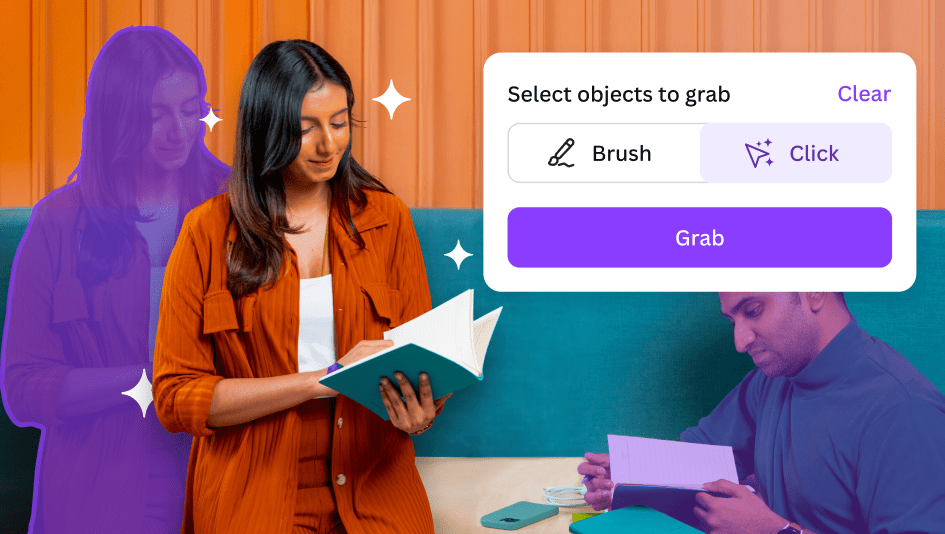
First, let’s look at Magic Grab. This tool lets you pick up an object in a photo and move it, just like it was a sticker.

Usually, objects in photos are stuck flat. But Magic Grab separates the subject from the background. You can move a person to the left to make room for text, or resize a dog to make it bigger.

The AI tools fill in the background behind them, so it looks natural.

Magic Morph is different but equally fun. It lets you change the texture or look of text and shapes.

You can type a prompt like “make this text look like a shiny gold balloon” or “turn this star into a wooden texture.”

The Canva AI takes your shape and applies that style to it. This is great for making logos or fun headlines. Both features allow you to play with your creative process in ways that used to take hours in professional software.

Now, you can do it with minimal effort and have fun while you design.

Magic Write: Your Personal AI Copywriting Assistant

Writing can be just as hard as designing. Maybe you have a great image, but you do not know what to say. Magic Write is here to help.

It is an AI text generator that can write product descriptions, blog outlines, social media captions, and more. It is built on the same technology as other famous chatbots, but it is right inside Canva.

You can tell Magic Write to “write a funny Instagram caption about coffee” or “write a formal email to a client.”

It can also rewrite text you have already written. If your sentence sounds boring, you can ask Magic Write to make it more exciting or professional.

You can even set a brand voice so that all your text sounds like it comes from your company.

This helps you keep brand consistency across all your posts. It creates text in seconds, so you never have to stare at a blank page again.

For business owners and content creators, this is a massive time-saver.

How to Access and Navigate Canva Magic Studio?
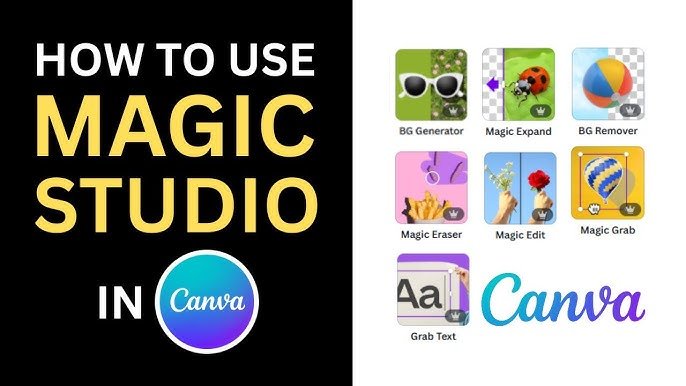
How to Access and Navigate Canva Magic Studio?

Getting to these tools is very easy, but it helps to know where to look and what plan you need.

Understanding the Pricing: Free Vs. Canva Pro

You might be asking, is Canva Magic Studio free? The answer is a mix.

Canva free users can use some parts of the studio, but they have limited access. For example, you might get a few credits to try out Magic Media or Magic Write. However, the full power of the studio is unlocked for Canva Pro users.

The Canva Magic Studio price is included in the Canva Pro subscription. There is no extra fee on top of the Pro plan. If you are on the free plan, you will see a little crown icon next to the premium features.

This means you need to upgrade to use them freely. Canva Pro also gives you access to the background remover tool, more cloud storage, and millions of premium stock photos. If you run a business, the Canva Pro cost is usually worth it for the time you save. They often offer a free trial, so you can test all the magic studio features before you pay.

Locating Magic Tools in the Editor Interface

When you open a design, finding the tools is simple.

Most of the photo tools like Magic Grab, Magic Expand, and Magic Eraser are found when you click on a photo and then click the “Edit Photo” button at the top. A menu will slide out on the left, and you will see the Magic Studio section right there.

For tools like Magic Media (the art generator) or Magic Switch, look at the black sidebar on the left of your screen. Magic Switch is usually at the very top left of the blue header bar. Magic Write shows up when you click the little “sparkle” icon that appears when you type text.

Canva has done a great job of placing these AI tools right where you need them, so they fit smoothly into your design experience.

Why Canva Magic Studio Is A Game Changer For Businesses?
Why Canva Magic Studio Is A Game Changer For Businesses?

For a business, time is money. These tools save both.

  1. Speeding Up Workflow and Content Creation: In the past, making a week’s worth of social media content could take days. You had to write copy, find photos, edit them, and resize them for Facebook, Instagram, and LinkedIn. With Canva Magic Studio, this workflow is much faster. You can generate an image with Magic Media, write the text with Magic Write, and resize it for every platform with Magic Switch. What took days now takes hours. This allows small businesses to stay active online without burning out. The ease of use means you do not need to hire a big team to look professional.
  2. Maintaining Brand Consistency with Magic Design: Keeping your brand looking the same everywhere is important. Magic Design helps with this. You can upload your own photos, and Magic Design will automatically create templates that match your style. It chooses fonts and colors that look good together. Canva Pro users can also set up a Brand Kit. Magic Write can then use your specific brand voice to make sure every post sounds like you. This helps build trust with your customers because your marketing materials always look and sound professional.

Tips For Getting the Best Results with Canva Magic Studio
Tips For Getting the Best Results with Canva Magic Studio

To get the best images and text, you need to know how to talk to the AI.

Writing Effective Prompts For Magic Media

The AI image generator is smart, but it cannot read your mind. You need to be specific.

Instead of typing “dog,” type “a happy golden retriever running in a park, sunny day, realistic style.” The more details you give about the color, lighting, and mood, the better the result. This is called a text prompt. If you do not get what you want the first time, try adding more words. Play around with different styles like “watercolor” or “neon” to see what looks best for your design project.

Combining Multiple Magic Tools For Unique Designs

The real power comes when you use the tools together. Start by generating a unique background with Magic Media.

Then, upload a photo of your product and use the background remover to cut it out. Place your product on the new background.

If the lighting looks wrong, use Magic Edit to adjust it.

Finally, use Magic Write to add a catchy headline. By layering these magic studio features, you create something completely original. This mix of user input and AI features leads to the best design experience.

FAQ’s:

Is Canva Magic Studio Free to Use?

It is not completely free. Free users get limited access to some tools like Magic Write and Magic Media with a set number of uses. To use all the features without limits, you need a Canva Pro plan.

Can I Use Images Generated By Canva Magic Studio For Commercial Purposes?

Yes, you can usually use them for commercial purposes like ads or marketing materials. However, you should check Canva’s specific terms because AI laws change. You do not own the copyright to AI images in the same way as human art.

How Does Magic Switch Work in Canva Magic Studio?

Magic Switch takes your current design and changes its size and layout. You click the button, pick a new format (like changing an Instagram post to a flyer), and the Canva AI moves your text and images to fit the new shape perfectly.

What Types of Projects Are Best Suited to Canva Magic Studio AI?

It is best for digital projects like social media posts, presentations, blogs, and simple videos. It is also great for brainstorming ideas. Complex print designs might still need traditional tools, but for web content, it is perfect.

Is Canva Magic Studio Price Different For Free and Pro Users?

There is no separate price tag for just the Studio. It is part of the Canva Pro subscription. Free users pay nothing but have limits. Canva Pro users pay a monthly or yearly fee to get full access to everything.

Is Canva Magic Studio Better Than Photoshop?

For quick and easy tasks, yes. It is much easier to learn and faster for social media. Photoshop is better for very deep, complex editing. But for most business owners, Canva is the better choice for daily work.

What is the Difference Between Magic Design and Magic Media?

Magic Media creates images or videos from scratch using a text prompt. Magic Design builds whole layouts and templates using images you already have. One creates art; the other creates the structure of your design.

Conclusion

Canva Magic Studio is truly a revolution for anyone who creates content. It takes the hard parts of graphic design and makes them simple. With tools like Magic Switch, Magic Grab, and the AI image generator, you have a complete studio at your fingertips.

At Designers Choice, we believe that everyone has creativity inside them. These AI tools just help let it out.

Whether you are a professional looking to speed up your design process or a business owner wanting better social media posts, these features are for you. The power of AI is here to help you, not replace you. So, go ahead and try the free trial of Canva Pro.

Experiment with Magic Morph, play with Magic Expand, and see what you can create. The only limit is your imagination.
Categories
Design

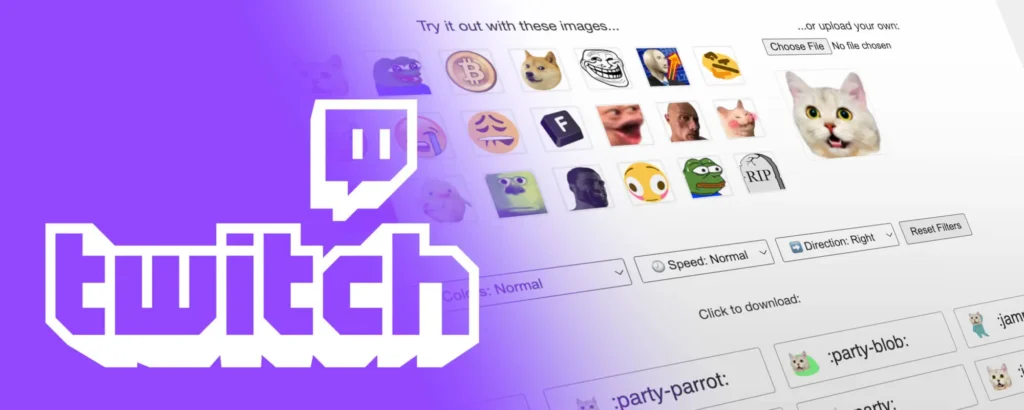
The Ultimate Guide to Finding and Using Free Animated Emotes For Twitch

Welcome to Designers Choice. We are very happy you are here. We know that design is not just about making things look good.

It is about solving problems and making your ideas come to life. We have spent years working with designs, materials, and creative projects.

We built this website to be the helper we always wanted. We want to share our tips and tools with you.

Today, we are talking about streaming. If you stream on Twitch, you know that the chat is very important.

It is where your viewers talk to you and to each other. One of the best ways to make your chat fun is by using free animated emotes for twitch.

When you watch big streamers, you see cool moving pictures in the chat. These are animated emotes.

You might think you need a lot of money to get them. But that is not true. You can get free animated emotes for Twitch or even make them yourself.

In this guide, we will show you exactly how to make animated emotes for twitch free. We will look at the best place to download them and the best online tools to make them. We want to help you build a great twitch channel without spending a single penny.

Let’s get started on making your stream look amazing.

Why You Should Use Free Animated Emotes For Twitch on Your Channel?

Why You Should Use Free Animated Emotes For Twitch on Your Channel?

You might ask, “Why do I need moving emotes?” A static image (a picture that does not move) is good. But an animated one is much better.

Here is why you should add them to your stream.

Increasing Chat Engagement and Viewer Retention

When you are streaming, you want people to stay. You want them to type in the twitch chat. When a viewer types in the chat, they feel like part of the show. Animated emotes give them a fun way to react.

If something funny happens in your game, a simple smiley face is okay. But a laughing cat that shakes and cries tears of joy? That is a good idea.

It shows more emotion. When viewers see sweet animated emotes popping up, they want to use them too. This creates a chain reaction.

More people start typing. The chat moves faster. This is called engagement. When engagement is high, new people who find your stream are more likely to stay. They see a busy, happy community.

Twitch animated emotes are like little toys for your audience. They make the experience interactive.

It keeps the energy high, even if you are just sitting and talking.

Adding Personality to Your Stream Without Spending Money

Every streamer is different. You have your own style. Your Twitch channel should show that style.

Using Twitch’s default options is fine for beginners. But if you want to stand out, you need custom emotes. Maybe you are a cozy streamer who likes tea. You could have a steaming cup of tea emote. Maybe you play scary games. You could have a ghost that fades in and out.

These unique emotes tell a story about who you are. The best part is that you do not need to hire a professional artist right away.

By finding free Twitch emotes, you can test what your viewers like. It is a good way to add personality. You can have special animations that become inside jokes for your community. It makes your brand look professional. It shows you care about the details.

And you can do all of this for free.

Top Websites to Download Free Animated Emotes For Twitch

Top Websites to Download Free Animated Emotes For Twitch

You do not always have to make emotes from scratch. There are many great websites where artists share their work for free.

Here are the top places to find free animated emotes for twitch.

7TV: The Modern Standard For Animated Emotes

7TV is very popular right now. It is a twitch extension.

This means it is a tool you add to your browser. It lets you and your viewers see many more emotes than Twitch allows by default.

7TV is loved because it allows for very high-quality animations. It supports a wide variety of fun emotes. You can find almost anything here. If you want a dancing cat, a spinning logo, or a funny meme, 7TV likely has it.

It is very easy to use. You log in with your Twitch account. Then you search for emotes.

When you find one you like, you click a button to add it to your channel. It is the best solution for streamers who want a huge library of options. It is completely free. The community on 7TV is very active, so there are always new emotes appearing every day.

BetterTTV (BTTV): The Classic Extension

BetterTTV, or BTTV, has been around for a long time. It is one of the first tools to bring animated emotes to Twitch.

Many big streamers use it. If you see an emote like “CATJAM” (a cat bobbing its head), it is likely from BTTV.

To use it, you and your viewers need to install the browser extension.

Once you have it, you can go into the BetterTV settings and pick the emotes you want. You can pick from a list of shared emotes.

BTTV gives you customization options, too. You can choose which emotes are active. It is a very stable and trusted platform.

It is a baseline emote tool that almost every content creator should know about. It helps fill the gaps that Twitch leaves open.

FrankerFaceZ (FFZ): Community-Driven Designs

FrankerFaceZ is another great site. It is very focused on the community. Real people make these designs and upload them.

While FFZ is famous for static emotes, they also support animated emotes now. The nice thing about FFZ is the quality control. Real people check the emotes. This ensures they are safe and look good.

You can find many own designs from talented artists here. You can also use FFZ to see emotes from BTTV and 7TV. It can act as a bridge.

This makes it a best place to start if you are confused by having too many extensions. You can browse thousands of free twitch emotes here.

It is a great resource for finding unique creation styles that match your specific game or vibe.

Gumroad and Ko-fi: Finding Artist Freebies

Gumroad and Ko-fi are different from the extensions above. These are websites where artists have their own shops.

Usually, artists sell things here. But, many artists offer free animated emotes for twitch as a gift.

They do this to get their name out there. It is like a sample. You can search for “free twitch emotes” on these sites. You will find packs of emotes.

You might find a pack of 5 animated hearts or a pack of animated text bubbles. When you download from here, you get the actual file.

This is great because you can upload them directly to your creator dashboard if you are an Affiliate.

It gives you full control. It is a nice way to support artists.

Even if the price is zero, leaving a nice comment or a small tip is a good idea. You can find some very sweet animated emotes that no one else has.

How to Make Your Own Free Animated Emotes For Twitch (DIY)?

How to Make Your Own Free Animated Emotes For Twitch (DIY)

If you cannot find the perfect emote, you can make your own! Creating emotes for Twitch is fun. You do not need to be a pro.

Here is how to do it yourself.

Best Free Tools For Creating Emotes (Canva, Photopea, Ezgif)

You need the right tools. The best online tools are free and easy to use.

  • Canva: Canva is very popular. It has an animated emote maker feature if you know how to use it. You can take a small graphic and animate it. You can make it bounce or fade. It is very simple to drag and drop items.
  • Photopea: This is like a free version of Photoshop that runs in your browser. It is great for editing a static image or removing a background. You can use it to prepare your layers for animation.
  • Ezgif: This is a website for editing GIFs. You can take a video and turn it into a GIF. You can resize images. You can optimize the file size. It is a very powerful tool for fixing your own animated emote.

You can also look at the own3d emote maker.

They have a tool where you can build a character. While some parts cost money, they often have free options or trials.

It is a unique creation tool. Own3d’s animated emote maker is helpful if you want a character that looks like you, but you cannot draw.

Converting Video Clips Into Twitch-Ready GIFs

Do you have a funny video clip? Maybe you made a funny face on stream. You can turn that into an emote.

First, take the clip of your video. Keep it very short. An emote is only a second or two. Next, go to Ezgif.

Upload your video. Use the tool to crop the video. You only want to show your face or the action. Remove the extra space.

Then, convert it to a GIF. You might need to remove the background to make it transparent. A transparent background is very important.

If you leave the background in, it looks like a box in the chat. You want just the head or the object to show. Ezgif has a tool to remove backgrounds, or you can use other free sites like Remove.bg before animating. This is a quick way to get custom emotes that are 100% you.

Understanding Twitch File Size and Resolution Limits

Twitch is strict about files. You cannot just upload a big 4k movie.

For animated emotes, the file must be a GIF format. The file size must be small. Usually, it needs to be under 1MB. If your file is too big, Twitch will reject it. The resolution is also key. Twitch used to ask for three sizes (28×28, 56×56, 112×112). Now, they have an auto-resize feature, but it is best to upload a square image, usually 112×112 pixels.

If you have a lot of frames or little movement, the file size changes.

Special animations with lots of colors take up more space. You have to balance the quality.

You want it to look good, but it must be small enough. Make sure the animation is of high enough quality so it is not blurry, but keep it simple.

How to Upload and Manage Free Animated Emotes For Twitch?

How to Upload and Manage Free Animated Emotes For Twitch?

Once you have your files, you need to put them on Twitch. Here is the guide.

Step-by-Step Guide For Twitch Affiliates and Partners

If you are a twitch affiliate or a twitch partner, you can upload emotes directly to Twitch. This is a great perk.

  1. Go to your Creator Dashboard on Twitch.
  2. Look for the “Viewer Rewards” section on the left menu.
  3. Click on “Emotes.”
  4. You will see a section for “Animated Emotes.”
  5. Click the plus sign (+) to upload.
  6. Select your GIF file from your computer.
  7. Twitch will show you a preview. Name your emote. This is the code people will type (like “MyNameHi”).
  8. Click “Upload.”

After you upload, there is an approval process. Twitch staff or bots check the emote to make sure it is safe. This can take a few hours or a few days. Once approved, your Twitch chat can use them!

How to Enable Extension Emotes For Non-Affiliates?

If you are just starting, you might not be an Affiliate yet.

You have the least affiliate status. That is okay! You can still use emotes using the extensions we talked about earlier (7TV, BTTV).

  1. Go to the website (like BetterTTV.com).
  2. Log in with your Twitch ID.
  3. Go to the dashboard on that site.
  4. Upload your emote file there.
  5. Or, choose existing Twitch emote options from their library.
  6. Click “Add to Channel.”

Now, you must tell your viewers to install the extension.

If they have the extension, they will see your new emotes. It is a free bonus for your community. It works on such a platform very well.

Troubleshooting Common Upload Errors

Sometimes things go wrong. Here are common errors:

  • File too big: The file size is over 1MB. Go to Ezgif and use the “Optimize” tool to make it smaller.
  • Wrong dimensions: The image is not a square. Crop it to be a perfect square.
  • Too fast/slow: The animation speed is weird. Adjust the frame delay.
  • Copyright: You used a character you do not own. Twitch might reject copyrighted characters. Try to use your own emotes or royalty-free art.

If you cannot see the emote, check your Betterttv settings or other extension settings. Make sure “Emote Menu” is on.

FAQ’s:

Do I Need to Be A Twitch Affiliate to Use Animated Emotes?

To upload them directly to Twitch’s servers, yes, you usually need to be a Twitch affiliate or partner.

However, anyone can use Twitch extension tools like 7TV or BTTV to have animated emotes for free. It is a good idea for new streamers.

Can I Use Canva Or Similar Platforms to Design Free Animated Emotes For Twitch?

Yes! Canva is a great emote maker.

You can design a graphic and download it as a GIF with a transparent background (if you have the Pro version, or use a background remover after). It is one of the best online tools for beginners.

Are There Free Twitch Emote Makers That Support Animation?

Yes. Aside from Canva, you can use the own3d emote maker (check for free assets) or MakeEmoji.

There are many simple web tools. You can also use a static image and add effects in photo editors to create little movement.

What File Format Is Required For Animated Twitch Emotes?

Twitch requires the GIF format for animated emotes. The image must be a square. It must be under 1MB in size.

If you use extensions, they also prefer GIF or WEBP formats.

Can I Use Copyrighted Characters In My Free Animated Emotes?

It is risky. Twitch can reject emotes that use copyrighted characters. It is better to create unique creation designs or own designs.

If you use a famous cartoon character, you might get in trouble. Using own emotes is the safest path.

Why Can’t I See My Animated Emotes in the Chat?

If you uploaded them to Twitch, they might be stuck in the approval process. If you used an extension, make sure you and your viewers have the extension installed. Also, check your chat settings to ensure “Animate Emotes” is turned on.

How Many Animated Emotes Can I Upload For Free?

If you are an Affiliate, you start with one or a few slots. As you get more subscribers, you unlock more exclusive options and slots. Extensions like 7TV allow you to add a lot of animated emotes, sometimes over 50 or 100, for free!

Where Can I Find Communities For Sharing and Downloading Free Animated Twitch Emotes?

Discords for streamers are great. Also, the Reddit community for Twitch is helpful. The websites 7TV and FFZ are basically big communities sharing available options. You can find sweet animated emotes shared by others there.

Conclusion

Adding free animated emotes for Twitch to your channel is a smart move. It brings life to your Twitch chat. It helps you build a brand.

Whether you download existing Twitch emote packs or use a Twitch emote maker to create your own, the effort is worth it.

At Designers Choice, we believe in giving you the power to create. You do not need big budgets to have awesome rewards for your viewers.

You just need a little creativity and the right tools. We hope this guide helps you find or make the perfect custom emotes.

Start today. Go download a funny emote or try to make one. Your viewers will love the new features.

Remember, the goal is to have fun and connect with people. Animated emotes are just one tool to help you do that. Good luck with your stream!

Categories
Design

The Ultimate Guide to the Correct Size of Twitch Emotes

At Designers Choice, we know how exciting it is to start a twitch channel. It feels like opening a door to a whole new group of friends.

We have spent years helping content creators build their personal brand. We know that getting your graphics right is a big part of that journey.

One of the most important things you will need is a set of custom twitch emotes. These little images are huge for the twitch community.

They let your viewers share feelings, jokes, and hype during your live stream. But we also know that making them can be tricky. There are so many rules about file size, image sizes, and formats. It can feel confusing when you just want to create something cool.

That is why we wrote this guide. We want to help you make twitch emotes that look sharp and clear. We will explain exactly what size of twitch emotes you need. We will also talk about the Twitch profile picture, Twitch offline banner size, and more.

We want to make sure you have all the right custom graphics to make your channel stand out.

We believe that with the right help, anyone can make a great channel. Let’s look at how to get your own emotes ready for the world.

What is the Standard Size of Twitch Emotes?

What is the Standard Size of Twitch Emotes?

When you act as a creator in the world of Twitch, you need to know about pixels.

A pixel is a tiny square of color on a screen. Twitch emote size is measured in these pixels. If you get the numbers wrong, Twitch might not let you upload your art. Or worse, the image might look blurry and bad.

For a long time, you had to make every emote in three different sizes. This was a lot of work. Now, Twitch’s guidelines have changed to help you.

You have two main ways to handle the size of Twitch emotes. You can let Twitch do the work for you, or you can do it yourself to be safe.

Using Twitch’s Auto-Resize Mode (Single File)

This is the easiest method. Twitch now has a great way to handle uploads called Auto-Resize.

With this, you only need to upload one single file. Twitch will then shrink it down for you.

For this to work, your image must be a square. This means the width and height are the same. This is called a square aspect ratio.

The file you upload should be big and clear. Twitch recommends a size of Twitch emotes between 112 x 112 pixels and 4096 x 4096 pixels.

We suggest using a larger size, like 500 x 500 pixels. This helps your art look crisp before it gets resized.

However, there is a file size rule. The file cannot be heavier than 1MB. If your PNG file is too heavy, the creator dashboard will reject it.

This mode is perfect if you want to save time. But some artists prefer the manual way to ensure small sizes still look good.

Manual Upload Mode (Three Separate Sizes)

Some designers at Designers Choice prefer this method. Why? Because when a computer shrinks an image, it can lose detail.

If you resize it yourself, you can fix little pixel errors. This makes sure your custom emotes look perfect on any screen.

If you choose this path, you must upload three specific files.

  1. 28 x 28 pixels: This is the smallest size. It is very tiny. This is the version people see in the chat room on a web browser. Because it is so small, you cannot use too much detail. Simple lines and bright colors work best here. If you try to fit a whole reference photo into 28 pixels, it will look like a blob. You have to zoom in and check your work carefully.
  2. 56 x 56 pixels: This is the medium size. Twitch uses this for the Retina display or high-definition screens. It is twice as big as the chat version. You can show a bit more detail here. It is also used in some parts of the Twitch overlay size setups or extension panels.
  3. 112 x 112 pixels: This is the largest standard size for the manual upload. When someone hovers their mouse over an emote in chat, this is the big version they see. It needs to look very sharp. This is often the output size artists start with before shrinking down to the smaller ones. Even at this size, you must respect the maximum file size limits.

Dimensions For Animated Twitch Emotes

Animated emotes are very popular. They move, dance, or flash. They grab attention in the chat much better than still images. But because they move, they take up more memory. This means the rules for file size are strict.

Frame Rate and Animation Length

The animation cannot go on forever. Twitch allows a maximum animation length of 60 frames.

If your animation is too long, it will be rejected. You also need to watch the frame rate. This is how many pictures flash per second to move.

Twitch generally supports up to 60 frames per second (fps).

However, most animated emotes run at a lower speed to keep the file small. A smooth animation is a great way to hype up your chat.

But remember, the dimensions are the same as standard emotes. You still need that square shape.

File Size Limitations For Animations

This is where many people get stuck. An animated GIF is much heavier than a PNG-format image.

The maximum file size for an animated emote is usually 1MB. This might sound like a lot, but it fills up fast with animation.

If your file is too big, you might need to remove some frames.

Or you might need to use fewer colors. There are free tool websites online that can help you compress your GIF.

We always check the file weight before we try to upload it to the Twitch account. It saves a lot of frustration during the approval process.

Twitch Sub Badges and Bit Badge Sizes

Twitch Sub Badges and Bit Badge Sizes

Sub badges and bit badges are different from emotes. A twitch profile has emotes for everyone to see.

But badges are special. They sit next to a user’s name to show they support the channel. They show loyalty to the twitch community.

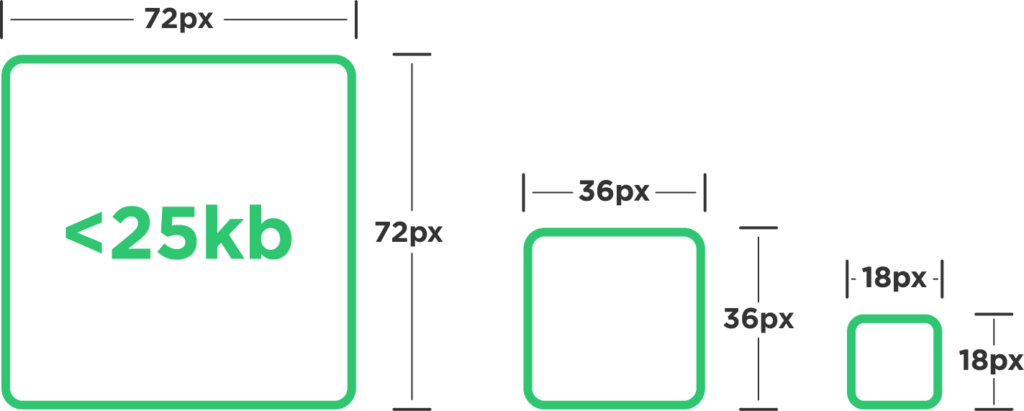
Subscriber Badge Dimensions (18×18, 36×36, 72×72)

These badges are even smaller than emotes. The standard sizes are:

  • 18 x 18 pixels
  • 36 x 36 pixels
  • 72 x 72 pixels

Notice that the smallest one is only 18 pixels wide! That is tiny. You cannot put text on a badge this small.

It will not be readable. You must use simple shapes like a star, a heart, or a simple character face.

If you use a reference photo of a person, it might just look like a dot. These badges also need to have transparent backgrounds.

Bit Tier Badge Dimensions

Bit badges show how much money a viewer has cheered.

These use the same sizes as subscriber badges. As a viewer gives more, the badge changes. You can create custom graphics for each level.

Just like the sub badges, the file type is usually PNG. You must stick to the size limit, or they will not upload.

Important File Requirements Beyond the Size of Twitch Emotes

Important File Requirements Beyond the Size of Twitch Emotes

Getting the pixel count right is only step one. There are other rules you must follow.

If you ignore these, the creator dashboard will give you an error.

Acceptable File Formats (PNG Vs GIF)

For standard emotes, you must use the PNG format. A PNG file is the best because it keeps the image sharp without making the file too heavy.

It also supports transparency, which is vital.

For animated emotes, you must use the GIF format. GIFs allow for movement. You cannot use JPG or JPEG files for emotes. Those formats do not allow for transparent backgrounds, so your emote would have a big white box around it. That looks bad in “dark mode” on Twitch.

File Size Limits (1MB Vs 25 KB)

We mentioned the 1MB limit for auto-resize and animated emotes.

But if you use the manual mode for tiny emotes (like the 28×28 size), the max file size used to be very small, around 25kb.

Today, Twitch is a bit more flexible, but you should still aim for a light file. A heavy file takes longer to load for your viewers.

If a viewer has slow internet, your emotes might not show up if the file size is huge. Keeping your output size efficient is a sign of a professional.

Background Transparency Rules

We cannot stress this enough.

Your emotes must have transparent backgrounds. This means the empty space around your drawing should be see-through. If you save your art with a white background, it will show up as a white square in the chat.

Imagine sticking a square piece of paper on a wall. That is what it looks like without transparency.

You want it to look like a sticker that is cut out perfectly. Most design software has a checkerboard pattern to show where the image is transparent. Make sure you see that checkerboard before you save your PNG file.

Best Practices For Creating Visible and Sharp Emotes

At Designers Choice, we want your art to pop. Since emotes are viewed at very small sizes, you need to use some tricks. A lot of information gets lost when you shrink an image. Here is how to keep it looking good.

Testing Readability At 100% Zoom

When you design, you are often zoomed in very close. You might be looking at your art at 500% zoom to draw the eyes. But viewers will never see it that big. You need to zoom out to 100% size frequently.

Ask yourself: Can I still see the expression? Is the text readable? If you can’t read it, your viewers can’t either. The recommended size for working is large, but the final check must be small. If it looks muddy, simplify the lines. Use fewer colors. High contrast helps a lot.

Utilizing the Full Canvas Space

You have a square space to work with. Use all of it. Do not leave empty space around your drawing.

Stretch your character to touch the edges of the box. This maximizes the visible area.

For example, if you have a twitch emote size of 112×112, but your drawing is only in the middle 50 pixels, it will look tiny in chat. Make it fill the whole 112 pixels. This makes your emote appear larger than others in the chat, which is a great way to get noticed.

FAQ’s:

What is the Best File Format For Twitch Emotes?

The best format for non-moving images is the png format. It supports high quality and transparent backgrounds. For moving images, you must use GIF. Do not use JPG.

Do I Still Need to Upload Three Different Sizes For My Emotes?

No, you do not have to. You can use the Auto-Resize mode. This lets you upload one big square image. However, some professionals still upload different sizes manually to ensure every pixel is perfect.

Why Does My Emote Look Blurry On Twitch?

This often happens if you upload a small image and Twitch tries to stretch it, or if you resize it poorly. It can also happen if your aspect ratio is wrong. Always start with a large canvas and scale down carefully.

What is the Maximum File Size (MB) Allowed For an Emote Upload?

The maximum file size is usually 1MB for auto-resize and animated emotes. Always check the creator dashboard for the newest updates on the size limit.

Can I Use the Same Size For Sub Badges and Emotes?

No. Twitch emote size and badge sizes are different. Emotes are 28, 56, and 112 pixels. Badges are 18, 36, and 72 pixels. They are separate image sizes and serve different purposes on your twitch profile.

How Do I Make Sure My Emotes Stay Sharp At Small Sizes?

Use thick lines and flat colors. Avoid soft shading or tiny details. Check your work at the actual 28×28 size often. If it looks good there, it will look good everywhere on the social media platform.

Can I Use Free Online Tools to Create Twitch Emotes?

Yes! There is usually a free tool available online that can resize images or remove backgrounds. You do not always need expensive software. Just make sure the tool exports a clean PNG file.

What Happens If My Twitch Emote File is Too Large?

If your file size is over the limit, Twitch will reject the upload. You will see an error message. You will need to compress the file or reduce the quality slightly to fit the maximum file size rules.

Conclusion

Creating custom Twitch emotes is a fun journey. It allows you to express your style and build a stronger connection with your viewers. At Designers Choice, we believe that understanding the technical side, like the size of twitch emotes, gives you more freedom to be creative.

Remember to keep your files within the maximum size limits. Use the PNG format for clear, sharp images. Check your work at small sizes to ensure readability. And don’t forget about your other graphics like the Twitch profile picture, Twitch offline banner, and Twitch panel images.

All of these custom graphics work together to create a professional look for your Twitch channel.

We hope this guide helps you navigate the creator dashboard with confidence.

Whether you are making animated emotes or a simple profile banner, taking the time to get the dimensions right is worth it. Your twitch community will appreciate the effort. Now, go create something amazing! We are cheering for you.

Categories
Design

Download the Ultimate YouTube Banner Safe Area Template (2026 Guide)

We know how hard it is to make your creative ideas come to life. You want your channel to look amazing, and we want to help you do that.

At Designers Choice, our goal is to give you the tools and help you need to succeed. We care about good design just like you do. When you start a YouTube channel, the first thing people see is your channel art. It is like the big sign on the front of a store.

If it looks good, people will want to come inside and watch your YouTube videos. But there is a tricky part. YouTube banners show up differently on different devices like phones, computers, and TVs. This is where a YouTube banner safe area template becomes very helpful.

Many new creators struggle with this. You make a beautiful banner design, but when you upload it, half of your text is missing on a phone screen. That is frustrating! We want to stop that from happening.

This guide will teach you everything about the YouTube banner safe area template. We will show you how to use it so your channel banner looks perfect everywhere. We will talk about banner size, file size, and the best ways to design your channel brand.

Let’s make your YouTube profile look professional together.

What is a YouTube Banner Template?

What is a YouTube Banner Template?

A youtube banner template is a guide you can put on your computer screen while you design. Think of it like a map. It shows you exactly where to put your pictures and words so they do not get cut off.

When you create channel art, you work on a big canvas.

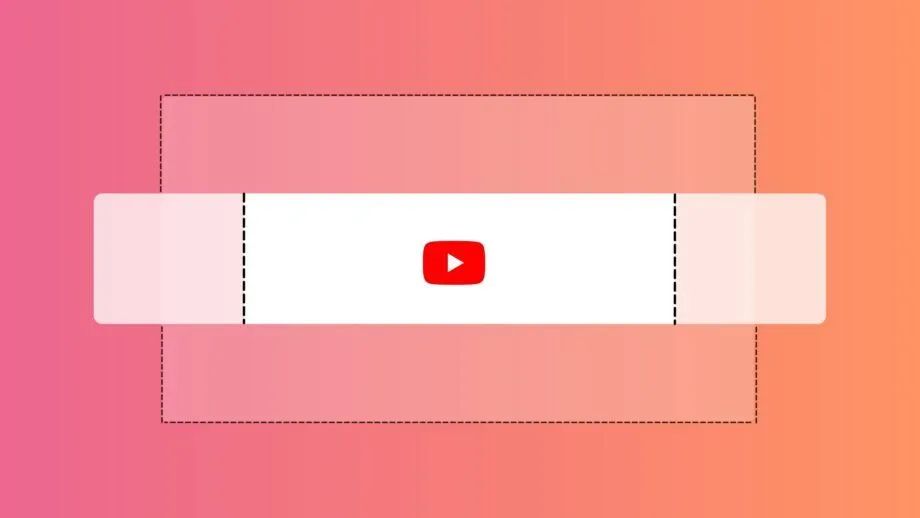
But not everyone sees the whole picture. Someone watching on a huge TV sees the whole thing. Someone on a phone sees a much smaller strip. The template has lines or boxes drawn on it. These lines tell you, “Stop! Do not put your logo here, or mobile users won’t see it.”

Using a banner template saves you time. You do not have to guess where the center is. You do not have to upload your image, check it, fix it, and upload it again. It helps you get the ideal youtube banner right on the first try. It is a simple tool, but it is one of the most important things for good graphic design on YouTube. It ensures your brand identity is safe and visible to all your viewers.

Why You Need A YouTube Banner Safe Area Template For Your Channel?

Why You Need A YouTube Banner Safe Area Template For Your Channel?

You might ask, “Can I just guess?” You can, but it is risky.

A YouTube banner safe area template is the best way to protect your hard work. You want your channel name and social media handles to be seen by everyone. If you do not use a template, you might lose important parts of your image.

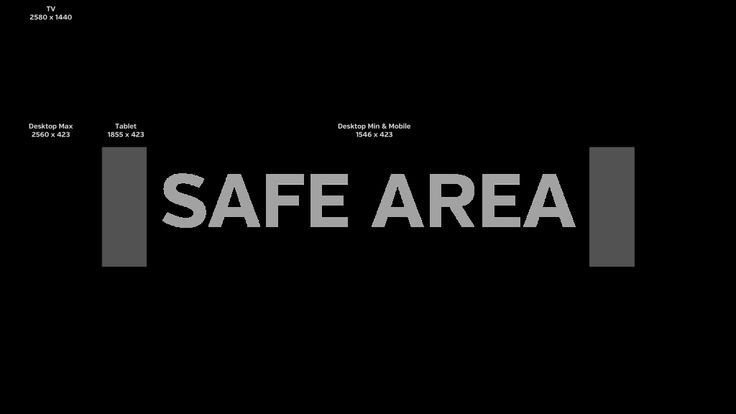
Understanding the “Text and Logo Safe” Zone (1546 x 423 px)

The most important part of the template is the safe area or safe zone.

This is a box in the middle of the image. The size of this box is 1546 pixels wide and 423 pixels tall. Why is this zone so special?

Because everything inside this box will show up on every single device. It does not matter if a person uses an old phone, a tablet, or a laptop.

If you put your text and logo in this safe spot, they will see it. This is where your channel icon, brand colors, and big messages must go.

If you put your channel name outside this box, a person on a phone might only see half of it. That does not look professional.

How Channel Art Displays Differently on TV, Desktop, and Mobile?

YouTube is on many screens. This is what makes banner design hard.

  • TV Displays: TVs show the whole big picture. They show the full YouTube banner dimensions of 2560 x 1440 pixels. It looks like a big poster.
  • Desktop: Computers show a long, thin strip. They cut off the top and bottom of the TV image.
  • Mobile Devices: Phones cut off the sides, too. They show the smallest area.

Because of these screen sizes, your image changes shape.

It is like looking through different-sized windows. The YouTube banner safe area template helps you design for the smallest window (the phone) while still making the big window (the TV) look good.

You need to think about all these different devices at the same time.

Preventing Critical Info From Getting Cropped

Cropped means cut off. Nothing is worse than seeing a banner that says “New Vid… every Fri…” because the rest was chopped off.

You want your viewers to know your upload schedule and what your channel is about. Using the template prevents this. It acts like a guard rail.

It keeps your text inside the safe limits.

This ensures your value proposition—the main reason people should watch—is always clear. Whether you share new videos about cooking or gaming, the info must be visible. This attention to detail shows you care about your channel page and your audience.

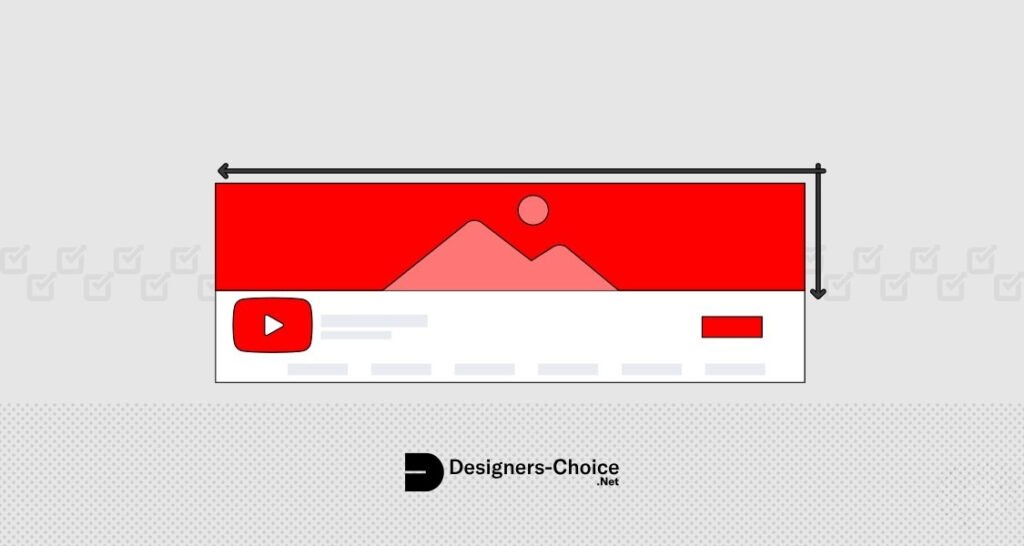
Official YouTube Channel Art Dimensions Breakdown

Official YouTube Channel Art Dimensions Breakdown

To use the template well, you need to know the numbers. YouTube has strict rules for image size and file types.

Let’s break them down into simple parts.

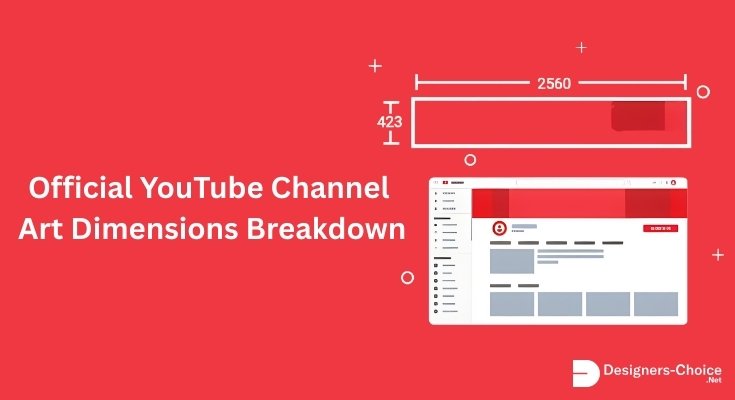
The Full Canvas Size: 2560 x 1440 Pixels

When you open your design tool, like Adobe Photoshop or Adobe Express, you need to set your canvas size.

The full size you must start with is 2560 pixels wide by 1440 pixels tall. This is a big image! It is this big, so it looks clear on large TV screens.

This is your total working area. Even though phone users only see a small part, you must upload the full 2560 x 1440 image. These are the recommended dimensions for a standard YouTube channel banner.

If you make it smaller, it might look pixelated or fuzzy on a TV.

Minimum Dimensions For Upload

YouTube will not let you upload a tiny picture. The minimum dimensions for an upload are 2048 x 1152 pixels.

If your image is smaller than this, YouTube Studio will give you an error message.

But, even if you upload this minimum size, the safe area rule still applies. It is always better to aim for the full 2560 x 1440 size. This gives you the best quality banner image. You want your YouTube profile to look sharp and clean, not blurry.

Maximum File Size and Supported Formats

You also need to watch out for the file weight. The maximum file size is 6MB. If your picture is 10MB, YouTube will not take it. You will have to make the file smaller. For file types, you can use JPG, PNG, or GIF (but not animated GIFs).

PNG is usually the best choice for banner art because it keeps the text sharp. JPG is good if your file size is too big and you need to shrink it.

Always check your file size before you try to upload. It saves you from getting an error and having to go back to your photo editing software.

How to Use This YouTube Banner Safe Area Template in Your Design?

How to Use This YouTube Banner Safe Area Template in Your Design?

Now that we know the rules, let’s get to work. We will show you how to use a template step-by-step. It is easy once you get the hang of it.

Step 1: Importing the Template Into Canva Or Photoshop

First, you need a YouTube banner safe area template. You can find a free YouTube banner template online. Download the image file.

Next, open your design program. Many people use Canva or Adobe Photoshop.

  • In Canva: Create a design with the size 2560 x 1440. Then, upload the template image you downloaded. Drag it onto your white canvas and stretch it until it fits perfectly from corner to corner.
  • In Photoshop: Open the template file directly, or create a new file and place the template as a layer.

Now you can see the boxes and lines. You might want to lower the “opacity” of the template layer. This makes it see-through, so you can draw over it but still see the lines.

Step 2: Placing Key Elements in the Center Safe Zone

This is the most critical step.

Look for the darkest or central box on the template. That is the safe zone (1546 x 423 px). Take your channel name, your logo, and your social media handles. Move them all inside this box. Make sure no letters are touching the edge of the box. Give them a little breathing room.

If you have a slogan or text about your new videos, put that here too. Imagine this box is the only part of the screen that matters. If it looks good here, it will look good on mobile devices. This is where your design experience helps—finding a way to make it look neat in a small space.

Step 3: Designing the Background For TV and Desktop Views

Now you have a big space around your safe zone. This space will show on TVs and computers. You cannot leave it blank white (unless that is your style). Fill this outer area with a nice background. You could use a pattern, a texture, or a photo that relates to your video content.

For example, if you do travel videos, you might have a wide shot of a beach filling the whole 2560 x 1440 screen. Remember, the middle part is covered by your text. But the top, bottom, and sides are visible on larger screens. Make sure the background looks nice but does not distract from the text in the middle. The colors should match your brand colors so everything looks like it belongs together.

Step 4: Exporting Your Final Design For High Resolution

When you are happy with your design, delete the template layer or hide it. You do not want the guide lines to show in your final banner image! Save your image. Choose the high quality option. If you are in Canva, download it as a PNG. Check the size.

Is it under 6MB? Is it 2560 x 1440? If yes, you are ready. Go to your google account or YouTube Studio.

Go to the customization tab and find the branding section. Click “Change” or “Upload” on the banner image spot. Select your new file. YouTube will show you a preview of how it looks on TV, desktop, and mobile. Since you used a template, it should look perfect!

Top Design Tips For A Professional YouTube Banner

Top Design Tips For A Professional YouTube Banner

Making a banner is not just about fitting in the box. It is about style too. Here are some tips to make your YouTube banners stand out.

Keep Your Value Proposition Clear

Your banner should tell people what you do instantly. You do not have much time to grab their attention. Use short words.

If you teach people how to paint, say “Learn to Paint.” If you review toys, say “Best Toy Reviews.” This is your value. Put this text in the safe area. Do not make people guess. Simple is strong.

Use High-Contrast Colors For Readability

Contrast means the difference between light and dark.

If your background is dark blue, do not use black text. No one will be able to read it. Use white or yellow text instead. High contrast makes your text pop out. It is easy to read on a small phone screen.

Think about your brand identity. If your logo is bright red, maybe use a white background. Good graphic design is about being clear.

Use larger images or fonts if you have space in the safe zone.

Match Your Banner Style to Your Thumbnails

Your YouTube thumbnail images and your banner should look like friends. They should use the same fonts and colors.

This helps people remember you. When they see a thumbnail, they will know it is yours because it matches your banner. This builds a strong channel brand. It makes your whole channel page look organized and professional. Consistency is key in social media marketing.

FAQ’s:

What Are the Exact Dimensions For the YouTube Banner Safe Area?

The exact safe area dimensions are 1546 pixels wide by 423 pixels tall. This is the “Text and Logo Safe” zone. Any design elements placed here will be visible on all screen sizes, including mobile phones.

Is There A Difference Between the Full Banner Size and the Safe Area?

Yes, there is a big difference. The full YouTube banner size is 2560 x 1440 pixels. This is the size of the file you upload. The safe area is just the small middle part of that image (1546 x 423 pixels) that shows on every device.

Why Does My YouTube Banner Look Blurry On Mobile Or TV?

Your banner might look blurry if the image size is too small. Always start with a canvas of 2560 x 1440 pixels. Also, save your file as a high-quality PNG or JPG. If you stretch a small picture to fit the banner dimensions, it will lose quality.

Can I Use A YouTube Banner Safe Area Template in Canva?

Yes, absolutely! Canva is a great tool for this. You can upload a banner template image into Canva, set it as your background guide, and place your elements over it. Just remember to remove the guide lines before you save your final channel art.

Does the YouTube Banner Safe Area Change For Tablets?

Tablets show a little bit more than phones but less than computers. The tablet display area is 1855 x 423 pixels. However, stick to the main safe zone of 1546 x 423 PX to be safe for everyone.

What is the Maximum File Size For A YouTube Banner Upload?

The maximum file size allowed by YouTube is 6MB. If your file is bigger, you will need to compress it or save it as a JPG with slightly lower quality.

How Do I Make Sure My Banner Displays Correctly On All Devices?

The best way is to use a YouTube banner size guidelines template. Keep all text and logos inside the center safe box. Also, always check the preview in YouTube Studio before you hit publish. It shows you how it looks on TV, desktop, and mobile.

Conclusion

Creating a great YouTube channel banner does not have to be scary.

With the right tools and a little bit of knowledge, you can make something amazing. The YouTube banner safe area template is your best friend in this process. It makes sure your channel name, logo, and schedule are always visible, no matter what device your viewers use.

At Designers Choice, we believe in helping you create the best content possible. We hope this guide helps you feel more confident in your design skills. Remember to check your YouTube banner dimensions, watch your file size, and keep your important info in the safe zone.

Take some time today to look at your channel. Does your banner need an update? Use these tips and templates to give your social media presence a fresh look. A professional banner shows the world that you are serious about your video content.

It is a small step that makes a big difference. Happy designing!

Categories
Design

Best Free Twitch Panels: Where to Find & How to Use?

Welcome to Designers Choice.

We know that building a twitch channel is hard work. You have to play games, talk to chat, and fix technical issues all at once.

But there is one thing that live streamers often forget. It is the section below the video player.

This area is the essential part of any Twitch profile page. When new people visit your stream, one of the first places viewers look is your profile description. If this area looks messy or empty, they might leave.

This is where free Twitch panels come in. These are the small images or text blocks that organize your page. They tell viewers who you are, what games you play, and where to find you on the internet.

At Designers Choice, we want to help you make your stream look amazing. We believe that good design should be for everyone. You do not need a lot of money to have a professional look. In this guide, we will show you the best free twitch panels and how to use them. We will look at twitch panel templates, tools like a twitch panel maker, and give you panel ideas.

Let’s get started on making your channel look great!

Why Every Streamer Needs Professional Panels?

Why Every Streamer Needs Professional Panels?

You might think that twitch panels are just small pictures. But they do a very big job. They act like signs in a store.

They tell people where to go and what to look at. A good panel design makes your whole channel feel complete.

Improving Channel Aesthetics

Imagine walking into a messy room. It feels chaotic. Now imagine walking into a clean, decorated room. It feels nice.

Your twitch channel page works the same way. If you just have a wall of text, it creates a disconnected look. It shows a lack of style.

Using different panels with a matching theme makes everything look neat.

It shows fresh eyes that you care about your content. It creates a better experience for everyone watching. Whether you want free cute twitch panels or something dark and cool, the design sets the mood.

It turns a boring page into a professional brand.

Organizing Information For Viewers

Streamers have a lot to say. You have chat rules, a schedule, and maybe a list of computer parts.

If you put all this in one big paragraph, no one will read it. Panels help you break this up. You can have a specific panel title for each topic.

For example, you can have a specific section for your hardware specs or a gear list page.

This makes it easy for viewers to find exactly what they want. You can use bullet points to list your computer parts. You can use bold text to make important rules stand out. Organizing your text is a good idea because it keeps your page tidy.

Driving Traffic to Social Media and Donations

Most streamers want to grow on other apps too. You might want people to see your twitter timeline or join your discord server.

Panels are the best way to do this. They act as image links. When a viewer clicks on the image, it takes them straight to your other pages.

This is also how you get tips. You can link your donation page to a panel.

A major advantage of image panels is that they are big and easy to click. If you just use a small text link, people might miss it.

Using a colorful panel helps guide people to your social media and support links. It is a dynamic way to connect your different streams of content.

Top Websites to Download High-Quality Free Twitch Panels

Top Websites to Download High-Quality Free Twitch Panels

You do not need to be an artist to get great designs. Many websites offer free resources. We have tested many sites to find the best ones for you. Here are the places where you can download free Twitch panels right now.

Nerd Or Die: Best For Animated Designs

Nerd or Die is a very famous name for streamers. They make some of the best twitch overlays and alerts.

They also have a great section for panels. While they sell packs, they also offer free ones. They are famous for animated designs.

However, keep in mind that Twitch panels are usually static images (using the JPG file format or PNG).

But Nerd or Die makes the art style match their animated video screens. This creates excellent integration between your video and your profile.

It is a great example of high-quality artwork that costs zero dollars.

WDFlat: Extensive Library of Free Assets

WDFlat is a huge website full of free things for streamers. They have hundreds of Twitch panel templates.

If you want a lot of options, this is the place to go. You can find almost any color or style here.

The best part is that you can download the files instantly. They offer a helpful channel section where you can sort by color.

Whether you want red, blue, or free cute Twitch panels, WDFlat likely has them. It is a fantastic resource for new panel designs.

Streamlabs: Integrated Themes and Panels

Streamlabs is a tool many streamers use to go live. They also have a theme store.

Many of these themes are free. When you install a theme, it often comes with matching panels. This is helpful because it ensures brand consistency. Your alerts, your camera border, and your panels will all match.

You do not have to worry about mixing different links or styles.

It does the hard work for you. It provides an excellent combination of images that look like you paid a professional designer.

Canva: How to Create Your Own For Free

If you want to make something unique, you should use a twitch panel maker free tool like Canva. Canva twitch panels are very popular because they are easy to make. You do not need hard software.

Canva has a search bar where you can type “twitch panel“.

It will show you many templates. You can change the colors, add your own text, and swap icons. This allows you to add your own brand integration.

You can make a text panel or an image panel easily. It is the most popular type of design tool for beginners.

Visuals by Impulse (Own3d): Premium Looks For Free

Visuals by Impulse (now part of Own3d) is known for very fancy designs. They have a section for free tools. Their panels look very expensive.

They use great fonts and sharp graphics. Using their assets gives your channel a premium feel. It avoids the “cheap” look that some free packs have. They often provide the source files too, so you can do some icon work if you know how to use editing software.

It is a great choice for live streamers who want to look like top pros.

How to Customize Your Free Twitch Panels?

How to Customize Your Free Twitch Panels?

Downloading a pack is just the first step. To make it truly yours, you might want to change a few things. Customizing helps you stand out.

Here is how you can edit panels to fit your style.

Choosing the Right Color Scheme

Your colors tell a story. If your logo is blue, your panels should probably use blue too. This is called brand consistency. When you pick a twitch panel maker, try to use the colors that you use on your video overlay.

If you have different panels with random colors, it looks messy. Stick to one or two main colors. This makes your page look unified.

It shows that you thought about the design. It makes the end of the line for your design process look very polished.

Editing Text and Icons Without Photoshop

You do not need expensive software. Many free Twitch panel templates come with blank versions.

You can use free online tools to add text to these blanks. You can use a tool like Canva or Photopea. Just upload the blank panel image.

Then, use the input text tool to type “About Me” or “Donate“. You can also add icons. For example, add a bird icon for Twitter.

This icon work is simple but effective. Make sure the text is big enough to read. Bold text is usually better than thin text for panels.

Ensuring Consistency Across Your Brand

Your brand is not just your panels. It is your whole channel. Make sure your Twitch panel dimensions and style match your offline screen and your profile picture. If your profile picture is a cartoon, use cartoon panels.

If your logo is modern and sleek, use sleek panels. A disconnected look happens when you mix styles that do not go together. Great brand integration means everything looks like it belongs to the same person.

Step-by-Step Guide: How to Add Panels to Your Twitch Profile?

How to Add Panels to Your Twitch Profile?

Now that you have your images, it is time to put them on your page. This might seem tricky at first, but it is actually quite simple.

Follow these steps to set up your Twitch channel page.

Navigating to the “Edit Panels” Section

First, go to your channel page on a computer. Look below your video screen. You will see a switch or button that says “Edit Panels“.

You need to click this to switch from viewing mode to editing mode. Once you click it, you will see a bunch of boxes with plus signs.

These are your empty slots. This is where you will do your work. It is the control center for your profile’s look.

Uploading Your Images and Adding Links

Click on a box with a plus sign. You will see a choice to add a text or image panel. Choose “Add a Text or Image Panel“.

  1. Add Image: Click the “Add Image” button. Select your JPG file format or PNG file from your computer.
  2. Crop: You might need to drag the box to select the whole image. Click “Done“.
  3. Image Links: There is a box that says “Image Links To“. Here, paste the web address (URL) you want the button to go to. For example, paste your Twitter timeline link here.
  4. Panel Title: You can add a title above the image, but a lot of the time, the text is already on the image, so you can leave this blank.
  5. Description: This is where you can write text below the image. You can use Markdown here.
    • Use **words** for bold text.
    • Use *words* for italic text.
    • Use a double return or double line break to make a space between paragraphs.
    • You can even use block quotes for emphasis.
    • You can create anchor links within your text if you know the code, but simple links work best.

Arranging Your Grid For Best Visibility

After you upload one, do the next one. You can drag and drop the boxes to move them around. Think about what is most important.

Usually, the “About Me” or “Subscribe” panel should be first. The donation page link should be easy to see. Put less important things, like a full gear list page, lower down. The layout is an important part of any stream setup. You want the viewer to see the best stuff immediately.

Also, be careful with the HTML page coding if you try to get fancy.

Twitch only allows simple Markdown. If you try fancy HTML styling, it will not work. Stick to the basic configuration options provided.

When you are done, click the “Edit Panels” switch again to turn it off. Now you can see your beautiful new profile!

Common Mistakes to Avoid When Setting Up Panels

Common Mistakes to Avoid When Setting Up Panels

Even with free resources, things can go wrong. Here are some mistakes we see often at Designers Choice.

  1. Wrong Size: The correct width is 320 pixels. If your image is too small, it will look blurry. Always check the twitch panel dimensions.
  2. Too Much Text: Do not write a book in your description. Use bullet points and line breaks. A huge wall of words is hard to read.
  3. Bad Links: Always click your panels to check the external links. It is embarrassing if a viewer clicks “Donate” and gets a broken page error.
  4. Inconsistent Style: Do not use different panels from different packs. It looks like a patchwork quilt. Stick to one theme.
  5. Ignoring Mobile: Remember, many people watch on phones. Great use of borders and big text helps mobile users see clearly.
  6. Empty Sections: If you have a panel for “discord server“, make sure the link actually works and the server is set up.

FAQ’s:

What is the Correct Size For Twitch Panels?

The standard twitch panel dimensions are 320 pixels wide. The height can vary, but 320 pixels wide is the rule. If you make it wider, Twitch will shrink it, and it might look weird.

Are Free Twitch Panels Copyright-Free?

Yes, usually. When you download free Twitch panels from sites like WDFlat or Nerd or Die, they give you a license to use them on your channel.

However, you cannot sell them to other people.

Can I Make My Own Free Twitch Panels Without Graphic Design Skills?

Absolutely. Using a Twitch panel maker like Canva is very easy. You just drag and drop items. You do not need to know how to draw. It is a good idea for beginners.

What Sites Offer the Best Customizable Free Twitch Panels For Beginners?

Canva is the best for customizing easily. WDFlat is great for downloading ready-made ones. Both offer important information on how to use their files.

How Do I Use A Twitch Panel Maker Free to Add My Own Branding?

Upload your logo to the maker. Use your specific brand colors. Add your own unique text. This ensures brand integration across your channel.

Can I Use Canva For Creating and Editing Free Twitch Panels Easily?

Yes. Canva has specific templates for this. Search for “Twitch Panel” inside Canva. It will give you the right size automatically. It is a very helpful channel section tool.

Do I Need Animated Panels, Or Are Static Ones Okay?

Twitch panels are technically static images (JPG or PNG). You generally cannot have moving panels like a GIF in the panel slot. So, static ones are not just okay, they are the standard. Animated designs usually refer to the overlays on your video, not the panels below.

How Do I Link My Donation Page to A Panel?

Go to “Edit Panels“. Click the panel image you want to use. Paste your donation URL into the “Image Links To” box. This turns the image into a button.

Conclusion

Setting up your Twitch channel is a journey. Your profile page is your home on the internet.

Using free Twitch panels is the smartest way to make that home look welcoming and professional. It shows you care about quality. Whether you use Canva Twitch panels to make your own or download a pack from Nerd or Die, the important thing is to take action. Do not leave your profile empty. Use image panels to guide your viewers. Share your important information clearly. Connect your social media accounts.

At Designers Choice, we hope this guide helps you build the stream of your dreams.

Remember to keep your designs clean, use bold text for key points, and check your links. A great use of borders and colors can make you stand out from the crowd. Now, it is time for the last example of advice: Go create something amazing!

Categories
Design

Standard Book Cover Sizes: What Are The Right Dimensions For Your Book?

At Designers Choice, we know exactly what it feels like to hold a finished book in your hands. It is a moment of pride.

We have spent years working with design, helping creators turn their ideas into real products. We built this space to be the helper we always wanted.

It is where skill meets new ideas. We know it can be hard to make a vision real. You have to find the right tools and keep up with what is new.

That is why we share top products and trusted tips. We want to help you make your best work.

Our goal is to help you build your boldest dreams with a group of people who care about doing a great job just as much as you do.

When you start a project, getting the standard book cover size right is the first step. It might seem like a small detail, but it changes everything.

The size affects how the book looks on a shelf and how it feels to hold.

If you are making a cover for the first time, this guide is for you. We will talk about cover dimensions, spine width, and pixel dimensions.

We want to make sure your book cover design looks perfect, whether it is for a printed book or an e-book.

Why Knowing the Standard Book Cover Size Matters?

Why Knowing the Standard Book Cover Size Matters?

You might ask, “Can’t I just make my book any size I want?” technically, yes. But if you want to sell books, the correct dimensions are key.

Think about a bookstore. Books are stacked on shelves in a neat way. If your book is a strange shape, it might not fit.

It might get hidden behind other books. Using a standard book cover helps your book appear to belong with the bestsellers.

Also, printing costs change based on size. Standard sizes are cheaper to print because printers set up their machines for these common book sizes. If you pick a custom size, you might have to pay much more.

This eats into your profit.

For digital books, like on Amazon KDP, the size matters for the screen. If your cover image is the wrong shape, it might look stretched or fuzzy.

A blurry cover makes readers think the story inside is bad, too. A clear, sharp cover helps with book marketing. It grabs attention.

This is valuable real estate on a webpage. You want to use that visual space well.

Lastly, the size changes the reading experience. A book that is too heavy or wide is hard to hold. A mass market paperback fits in a back pocket. A large art book needs a table. Picking the ideal size shows you care about your potential readers.

What is the Standard Book Cover Size For Printed Books?

What is the Standard Book Cover Size For Printed Books?

When we talk about printed books, we talk about “trim size.” This is the final size of the book after the pages are cut. There are three main types of printed books: Mass Market Paperbacks, Trade Paperbacks, and Hardcovers. Each has a different standard book cover size in inches.

Mass Market Paperback Dimensions

These are the small, thick books you see in grocery stores or airports. They are often fiction books, like romance or mystery.

The standard book cover size for these is usually 4.25 x 6.87 inches. They are small, making them easy to carry.

Because they are small, the text inside is smaller too. These books are meant to be cheap to buy.

The paper is not the best quality, but it gets the job done. If you are writing a quick, fun story, this might be the right choice. However, because the size is so tight, your cover design needs to be simple. You do not have much room for great details. The cover art must be bold and clear.

Trade Paperback Dimensions

Trade paperbacks are the books you find in a nice bookstore like Barnes & Noble. They are bigger and have better paper than mass market books.

This is the most common choice for self-publishing authors.

The most popular sizes are:

  • 5.5 x 8.5 inches (often called Digest)
  • 6 x 9 inches (also known as US Trade)

The 6×9 size is very popular. It gives a good balance. It is big enough to show off great cover art, but not too big to carry.

It feels like a “real” book. Many non-fiction and novels use this size. It provides a comfortable reading experience.

Hardcover Book Dimensions

Hardcover books are the premium option. They have a hard, sturdy cover. They often come with a paper “dust jacket” that wraps around the book.

This jacket has the front cover, spine, and back cover printed on it.

Standard sizes for hardcovers often match trade paperbacks, like 6 x 9 inches. However, they can be larger.

For example, 6.14 x 9.21 inches is common. Because of the hard board, the final size of the book will feel bigger than the paper inside.

Hardcovers are great for first-time releases of big novels or important business books. They cost more to print, but they look very professional.

Choosing the Right Standard Book Cover Size by Genre

Choosing the Right Standard Book Cover Size by Genre

Different kinds of stories need different sizes. Readers expect certain genres to look a certain way.

If you print a cookbook in a tiny paperback size, it will look wrong. Here is how to pick the recommended size for your different genres.

Fiction (Thriller, Romance, and Sci-Fi)

For fiction, the standard book cover size depends on how you sell it. If you want to sell cheap copies in many places, go with the mass market size (4.25 x 6.87 inches).

But most self-publishers choose trade paperback sizes.

  • Romance: 5 x 8 inches or 5.5 x 8.5 inches. These are cute and easy to hold.
  • Thriller and Sci-Fi: 6 x 9 inches. These stories are often longer. The larger size helps keep the book from getting too thick. A thicker spine can be hard to read.

Your cover design should match the size. Sci-Fi covers often have big space scenes. You need width to show that off. A 6 x 9 canvas gives you that room.

Non-Fiction (Business, Self-Help, and Memoirs)

Non-fiction books almost always use trade paperback dimensions.

  • Business Books: 6 x 9 inches is the standard. It looks serious and fits well on office shelves.
  • Memoirs: 5.5 x 8.5 inches or 5.25 x 8 inches. This feels more personal and intimate.

The 6 x 9 size is the gold standard here. It allows for nice, readable text inside. It also gives plenty of space on the back cover for testimonials and an author bio.

Children’s Books and Picture Books

Children’s books break the rules. They come in many shapes. Picture books are often square or wide (landscape).

  • Square: 8.5 x 8.5 inches. This is a very common book size for kids. It is easy for small hands to hold.
  • Landscape: 11 x 8.5 inches. This is wide. It is great for big illustrations that spread across two pages.

For these books, the cover image is the most important part. The cover size width and height must be big enough to make the colors pop. Parents pick these books based on the pictures.

Textbooks and Art Books

These are the biggest books.

  • Textbooks: usually 7 x 10 inches or 8.5 x 11 inches. They need room for charts, graphs, and side notes.
  • Art Books: often coffee table style. They can be 10 x 10 inches or even bigger.

For an art book, the best quality paper and printing are needed. You want the high resolution images to look perfect.

The large cover dimensions act like a frame for the art.

Standard Book Cover Size For Ebooks and Digital Publishing

Standard Book Cover Size For Ebooks and Digital Publishing

When you move to digital, you stop thinking in inches and start thinking in pixels. Book cover size in pixels is what matters for screens. Even though an e-book cover is just a file, it still needs to look like a book cover.

Amazon Kindle (KDP) Requirements

Kindle Direct Publishing (KDP) is the biggest place to sell e-books. They have strict rules.

  • Ideal Dimensions: 1,600 x 2,560 pixels.
  • Aspect Ratio: 1.6:1. This means for every 1000 pixels wide, it should be 1600 pixels tall.
  • File Size: It should be less than 50MB (though smaller is better for downloading).

If you stick to these pixel dimensions, your cover will look crisp on every device, from a phone to a tablet.

Amazon KDP will shrink your image for the thumbnail, so make sure your title is big and easy to read even at a smaller size.

Wattpad and Other E-Reader Formats

Wattpad is huge for new writers. The vibe is different, and so is the size.

  • Wattpad Cover Size: 512 x 800 pixels. This is much smaller than a Kindle.

Other platforms like Apple Books or Kobo generally accept the standard Kindle size (1600 x 2560). It is a great way to keep things simple: design one high-quality master file, and then resize it down if needed. Always design in RGB color mode for screens.

CMYK is for print books, but RGB makes colors bright on a phone.

Audiobook Cover Dimensions

Audiobooks are growing fast. Their covers are unique because they are square.

  • Standard Size: 3,000 x 3,000 pixels.
  • Aspect Ratio: 1:1.

You cannot just crop your rectangular book cover. You usually have to redesign it to fit the square. You have less vertical space, so you might need to move the author name or title.

How to Calculate Spine Width For A Standard Book Cover Size?

How to Calculate Spine Width For A Standard Book Cover Size?

If you are making a paperback cover for print, you need a full wrap file. This includes the back cover, the spine, and the front cover all in one image. The width of your spine depends on your page count and the type of paper you use.

  • Cream paper is thicker than white paper.
  • White paper is thinner.

Here is the basic math: Page Count x Paper Thickness = Spine Width.

For example, if you have 300 pages and the paper is 0.002252 inches thick: 300 x 0.002252 = 0.6756 inches.

So, your spine is about 0.68 inches wide. You must add this to your cover width.

Total Width = Back Cover Width + Spine Width + Front Cover Width + Bleed. If you get this wrong, your text might slide off the spine onto the front or back. It looks messy. Most print-on-demand sites like Amazon KDP have template generators.

You type in your number of pages, and they give you a template with the correct dimensions. We strongly suggest using these.

FAQ’s:

Is There A Difference Between the US and UK Standard Book Cover Sizes?

Yes, there is. In the US, sizes are in inches. In the UK, they use A-sizes (like A5) or measure in millimeters. A standard US 6 x 9 is close to a UK “Royal” size, but not exact. If you sell in both places, check the standard book sizes for the specific market.

What Measurements Should I Use When Designing A Book Cover in Photoshop?

If you are setting up book cover size in Photoshop, first decide if it is print or digital.

  • For Print: Set your width and height in inches (e.g., 6 inches wide, 9 inches tall). Set resolution to 300 DPI (Dots Per Inch). This ensures high resolution printing.
  • For Ebook: Set units to pixels. Use 1600 x 2560 pixels. Resolution can be 72 DPI, but 300 DPI is safer if you want to use the art for print later.

What is the Most Common Standard Book Cover Size For Novels?

The most common book sizes for trade paperback novels are 5.5 x 8.5 inches and 6 x 9 inches. Most indie authors pick 6 x 9 because it feels substantial and offers good value.

Where Can I Find Free Book Cover Templates With Standard Sizes?

You can find template generators on KDP, IngramSpark, and other printing sites. Also, design tools like Canva have preset book cover sizes. Just be careful—sometimes preset sizes are for ebooks only. Always check the trim size for print.

Does the Standard Book Cover Size Differ For Self-Publishing?

Not really. Self-publishing platforms use the same standard sizes (like 6×9) as traditional publishers. This is good because it makes your own book cover look just as professional as one from a big company.

What Represents the Standard Dimensions For an E-book Cover?

The gold standard is 1,600 x 2,560 pixels. This is a width ratio of 1:1.6. It fits most e-readers perfectly.

How Do I Determine the Size Of A Children’s Book Cover?

Look at the word count and illustrations. If it is a picture book, go for 8.5 x 8.5 square. If it is a chapter book for older kids (more text, fewer pictures), a smaller size like 5 x 8 inches works well.

Why is the 6×9 Size So Popular?

It is the perfect middle ground. It is not too small like a mass market paperback, and not too big like a textbook.

It offers the best visual space for design and is cost-effective to print.

Conclusion

Getting the standard book cover size right is a huge part of your book’s success.

It affects everything from printing costs to how readers see your work. Whether you choose a classic 6×9 for your novel, a square for a children’s book, or the right pixel dimensions for a Kindle release, accuracy is key.

At Designers Choice, we want you to feel confident. Don’t guess the size. Use this ultimate guide to pick the ideal dimensions.

Remember to check your page count to ensure the spine is correct. Think about your genre. Look at other books in your category.

A great book starts with a great story, but it sells with a great cover.

By sticking to best practices and standard sizes, you give your book the best chance to be picked up and loved. You have put the work into the writing; now make sure the outside is just as good.

We are here to support you on this journey. Happy designing!

Categories
Design

Best Webcam Overlays Guide For Streamers: Free & Animated

At Designers Choice, we know how much fun it is to share your gaming skills with the world.

We are a team of passionate designers who love to help creators like you. We remember starting out and wishing for a place where we could find good advice and cool tools. That is why we built this site. We want to be the friends who help you make your stream look amazing.

We believe that every streamer has a unique style, and we are here to help you show it off.

When you start streaming, you want people to watch and stay. A great way to do this is by making your video look professional.

You do not need to be a computer expert to do this. We will show you how to use a webcam overlay to make your stream look its best. We have years of hands-on experience, and we want to share our top-quality products and trusted insights with you.

Our mission is to empower you to create the stream of your dreams. Let’s learn about webcam overlays together!

What is a Webcam Overlay and Why Do You Need One?

What is a Webcam Overlay and Why Do You Need One?

A webcam overlay is like a digital picture frame for your camera video.

When you watch a streamer on Twitch or YouTube, you often see a box around their face. That box is the overlay. It is a graphic image that sits on top of your video feed. It makes your camera look part of the game screen.

Without it, your video is just a plain rectangle floating on top of the gameplay. You need a Twitch webcam overlay because it helps you stand out. There are millions of streamers out there.

To get noticed, you need to look different. A nice border shows that you care about your channel. It makes your stream look complete.

It tells new viewers that you are serious about streaming. It is a small change that makes a big difference in how people see your content.

Enhancing Your Stream’s Visual Identity

Your visual identity is how your stream looks to others. It is your style. Think of your favorite cartoon or video game.

You can recognize it just by the colors and shapes, right? You want your stream to be the same. A webcam overlay helps you build this style.

If you play scary games, you might want a dark, spooky frame. If you play fun, colorful games, you might want a bright, neon overlay.

This helps viewers know what kind of streamer you are just by looking. It builds a connection. When they see that frame, they know it is you.

You can match your overlay with your other stream overlays, like your banners and alerts. This makes everything look neat and planned.

The Difference Between Static and Animated Borders

There are two main types of overlays: static and animated. A static overlay is a still image. It does not move. It is like a photo frame.

These are good because they are simple. They do not take up much computer power. They are often saved as a PNG file.

An animated webcam overlay has moving parts. It might have glowing lights, spinning shapes, or a light effect that travels around the border.

These look very cool and futuristic. They catch the eye of the viewer. However, they can take a little more work to set up. They are usually video files. Both types are great, but you should pick the one that fits your computer and your style. If you want a simple look, go with static.

If you want to impress people with motion, try an animated one.

How to Design A Custom Webcam Overlay?

How to Design A Custom Webcam Overlay?

Designing your own custom overlay is a fun project. It lets you make something that is 100% you. You do not need to pay a lot of money to do this. You just need some creativity and a plan. We will guide you through the steps to make a design that fits your unique style.

Choosing the Right Resolution and Aspect Ratio

First, you need to know the size of your camera video.

Most webcams use a shape called 16:9. This is a rectangular shape, like a TV screen. Some cameras use 4:3, which is more like a square.

You must make your overlay frame match this shape. If you do not, the frame will cut off part of your face or leave empty spaces.

The quality of the image is also important. This is called resolution.

You want your overlay to look sharp, not blurry. A good size to start with is 1920×1080 pixels for a full screen, but your webcam box will be smaller.

When you design, make sure the lines are clear. High-quality graphics make your stream look HD.

Best Color Schemes to Match Your Brand

Colors are very important. They set the mood. If you use bright yellow and orange, your stream feels energetic.

If you use blue and purple, it feels calm or cool. When you pick colors for your overlay design, think about the games you play.

Also, think about your other graphics. Do you have a logo? Use the colors from your logo in your webcam border. This helps people remember your brand. A gradient is when one color fades into another. This can look very modern. A neon overlay uses bright, glowing colors that look like lights. These are very popular for gaming. Try not to use too many colors at once.

Pick two or three that look good together.

Using Canva Or Photoshop to Create Your Design

You can use different tools to make your overlay. Adobe Photoshop is a very strong tool. It has many features. You can make layers, add shadows, and create special effects. It is great for professionals. If you have experience, you can make very detailed vectors and graphics here.

If Photoshop is too hard, you can use Canva or Adobe Express. These are easier to use. They have templates you can start with.

You can drag and drop shapes and stickers. To make a frame, put a rectangle in the middle and cut it out so it is transparent.

This is where your face will go. Save your file as a PNG with a transparent background. This is very important. If you do not save it as a transparent PNG, you will have a white box over your face instead of a frame!

Where to Find the Best Free Webcam Overlay Templates?

Where to Find the Best Free Webcam Overlay Templates?

Maybe you do not want to design one yourself. That is okay! There are many places to find free stream overlays. These are ready-made designs you can download and use right away. This saves you time and effort.

You can find a template that matches your vibe and start streaming in minutes.

Top Websites For Royalty-Free Stream Graphics

There are many websites that offer free resources for streamers. Some sites let you download a whole pack.

These packs often include a twitch overlay, a “starting soon” screen, and alerts. This helps you get a full stream layout at once.

Look for sites that offer “royalty-free” graphics. This means you can use them without paying every time or getting in trouble.

You can find simple frames, grungy styles, or clean interfaces. Some popular places include specialized graphic stores or community forums.

Always check if the file is a PNG or a video format, so you know how to use it.

Premium Vs. Free: Is A Paid Overlay Worth It?

You might wonder if you should pay for an overlay. A free webcam overlay is great when you are starting. It costs nothing and looks good.

However, many other people might use the same design.

A premium or paid overlay is usually unique. You can buy one that only a few people have, or hire a designer to make one just for you. Paid overlays often come with high-quality animated files and extra widgets.

If you want a very specific look, like a futuristic robot theme or a specific game style, paying might be better. But for most new streamers, a free overlay is perfect. You can always upgrade later when your Twitch stream grows.

How to Add A Webcam Overlay to OBS Studio Or Streamlabs?

How to Add A Webcam Overlay to OBS Studio Or Streamlabs?

Now that you have your image or video file, you need to put it into your streaming software. Most people use OBS Studio or Streamlabs. These programs take your game, your camera, and your microphone and send them to Twitch or YouTube. Adding your overlay is a simple process.

Importing Your Image Or Video File As A Source

Open OBS or Streamlabs. You will see a box called “Sources.”

This is where you list everything you want to show on the screen. Click the plus (+) button to add a new source.

If your overlay is a picture (static), choose “Image.”

Then browse your computer to find your webcam overlay png file. Click okay. You should see your frame on the screen.

If your overlay moves (animated), choose “Media Source.” Find your video file. Make sure to check the box that says “Loop.”

This makes the animation play over and over again. If you do not check loop, the animation will stop after a few seconds.

Resizing and Positioning Your Camera Frame

Now you have your overlay on the screen, but it might be too big or too small. You need to make it fit your camera video. Make sure you have added your camera as a “Video Capture Device” source first.

Click on your overlay in the preview window. You will see red squares on the corners. Click and drag a corner to make it smaller or bigger.

Move it so it sits perfectly on top of your camera video.

It should look like a border. If your camera video is too big for the frame, you can crop the camera video. Hold the “Alt” key on your keyboard and drag the side of the camera box to cut off the extra parts.

Organizing Your Scene Layers Correctly

In the “Sources” box, the order of items matters. It is like a stack of papers. The item at the top of the list sits on top of everything else.

The item at the bottom is in the back. Your webcam overlay must be above your camera video in the list. If the camera is on top, it will cover the frame. If the frame is on top, it will cover the edges of the camera video, which is what you want. Make sure your gameplay capture is at the very bottom so it does not hide your face or your overlay.

Organizing your layout correctly keeps everything visible.

Tips For A Professional Webcam Overlay Setup

Tips For A Professional Webcam Overlay Setup

To make your stream look like a pro, you need to do more than just add a frame. You need to think about how it fits with everything else. A messy screen can confuse viewers. We want to help you create a clean and nice look.

Avoiding Clutter: Keeping the Focus on Gameplay

The most important part of your stream is the gameplay. People come to watch you play. Your camera and overlay should not be too big.

They should not hide important parts of the game, like the map or your health bar. Do not put too many things on the screen at once.

If you have a webcam overlay, a chat box, a recent subscriber alert, a donation goal, and a logo, the screen gets full.

This is called clutter. Keep it simple. A nice twitch webcam border and maybe one or two other widgets are enough. Let the game be the star.

Integrating Alerts and Chat Boxes With Your Frame

A smart way to save space is to combine things. Some overlay designs have spots built-in for other info. For example, the bottom of your webcam frame might have a small space to show the name of your latest subscriber.

You can also place your chat box near your camera. This makes it look like you are looking at the chat. When you design your stream layout, try to group things. This leaves more open space for the game graphics.

It makes the viewing experience better for everyone.

FAQ’s:

What is the Standard Size For A Webcam Overlay?

The standard size for the whole canvas is usually 1920×1080. But the webcam frame itself is usually 16:9 or 4:3. A common size for the frame graphic is around 400×300 pixels or 600×400 pixels, depending on how big you want your face to be on the screen.

Do I Need A Green Screen to Use A Webcam Overlay?

No, you do not need a green screen. A green screen removes the background behind you so only your body shows.

A webcam overlay is a border that goes around your video box. You can use an overlay with or without a green screen.

If you use a green screen, you can use a special “camera frame” or just put graphics behind you.

What File Format Should My Webcam Overlay Be?

For a still image, use a PNG file. PNGs allow for transparent backgrounds, so you can see the game through the empty middle part.

For an animated overlay, use a WEBM file. WEBM files are small videos that can also have transparent parts.

Can I Use A Webcam Overlay on Console Streaming (PS5/Xbox)?

If you stream directly from the console, it is very hard to add custom overlays. You usually need a capture card and a PC to add graphics like a Twitch overlay. Some services, like Lightstream, can help you add overlays to console streams, but using a PC with OBS is the best way.

Does A Webcam Overlay Affect Streaming Performance?

A static PNG overlay takes almost no power.

An animated webcam overlay takes a little bit of power from your computer (CPU and GPU). If your computer is old, stick to static images.

If you have a strong gaming PC, animated ones will work fine.

How Do I Add A Webcam Overlay to My Live Stream Using Streamlabs?

Open Streamlabs. Go to the “Sources” tab. Click the plus sign. Select “Image” for a still picture or “Media Source” for an animated video. Select your file from your computer. Move the layer above your camera source.

Can I Use Webcam Overlays For Both Twitch and YouTube Live Streams?

Yes! The overlay is part of your video feed. It does not matter if you stream to Twitch, YouTube, Facebook, or Trovo. The software (OBS) sends the same picture with the overlay to any platform you choose.

What is the Difference Between Static and Animated Webcam Overlays?

Static overlays do not move. They are simple images. Animated overlays have movement, like flashing neon lights or spinning borders. Animated ones grab more attention but use more computer resources.

Conclusion

We hope this guide helps you understand how to use a webcam overlay.

At Designers Choice, we want to see you succeed. Adding a simple border to your camera can change your whole stream. It shows you care about quality. It helps you build a community of fans who love your unique style.

Remember, you do not need to spend a lot of money. You can start with a webcam overlay free of charge or make your own.

Whether you want a grungy look, a clean gradient, or a good light effect, there is a design out there for you.

Take your time, experiment with different overlays, and find the one that fits you best. Your journey as a creator is just beginning, and we are happy to be a part of it. Go ahead, set up your new graphics, and bring your boldest visions to life!

Categories
Design

Easy Leonardo AI Prompt Guide: Create Perfect Images

At Designers Choice, we know how exciting it is to see an idea turn into a picture. We have spent years working in design, and we understand the feeling of needing the perfect image for a project. Sourcing materials and keeping up with new trends can be hard work.

That is why we built Designers Choice. We want to be the helpful friend you always wished for. We share top-quality products and trusted tips for professionals like you. Our mission is to help you create your boldest ideas. We are a community that loves creativity and doing things well.

In this blog post, we will talk about a game-changer in the world of design: Leonardo AI. This tool is making waves in generative AI.

If you want to make digital art that looks professional, you are in the right place. We have written this Leonardo AI prompt guide to help you get the best results. Whether you are part of a design team or a solo digital artist, this guide is your starting point to mastering image generation.

Why You Need A Comprehensive Leonardo AI Prompt Guide?

Why You Need A Comprehensive Leonardo AI Prompt Guide?

You might ask, “Why do I need a guide? Can’t I just type anything?” You can, but to get the perfect image, you need to know how to talk to the ai model. Artificial intelligence is smart, but it needs clear instructions.

A good guide helps you understand the world of Leonardo and how to use it well.

Understanding the Power of Leonardo.ai

Leonardo AI is not just another image generator. It is a powerful platform that gives you control.

Unlike some other AI tools, Leonardo lets you choose different AI models. You can change the size, the style, and even how much the AI listens to your words. When you enter Leonardo AI, you step into the world of generative AI, where your imagination is the only limit.

It can make detailed images that look like photos, drawings, or 3D models.

How Better Prompts Lead to Better Credit Usage?

Every time you hit the generate button, you use credits.

If you write simple text prompts that are vague, you might get a bad result. Then you have to try again. This wastes your credits.

Effective prompts save you money and time. By learning the right prompt structure, you get amazing results faster.

This Leonardo ai prompt guide will show you the best practices so you don’t waste your creative processes on bad guesses.

Best Leonardo AI Prompts For Art Generation

Best Leonardo AI Prompts For Art Generation

Here is a list of best Leonardo ai prompts to help you get started. We have organized them by style so you can see different styles and how to ask for them.

Photorealistic Cinematic Portraits

If you want a face that looks real, use words that photographers use.

Prompt: “A close-up portrait of a young woman with freckles, soft ambient lighting, 8k resolution, sharp focus, highly detailed skin texture, shot on an 85mm lens, bokeh background, cinematic lighting.”

Why it works: This uses technical camera terms. The AI’s interpretation of “85mm lens” makes the background blurry, which makes the face the central element.

Fantasy RPG Character Design

For games or stories, you need details about clothes and gear.

Prompt: “A full-body shot of a warrior elf, wearing intricate silver armor with glowing blue runes, holding a crystal staff, standing in a mystical forest, magical atmosphere, vibrant colors, intricate patterns on armor, 3d render style, Unreal Engine 5.”

Why it works: It sets the scene and the gear. “Unreal Engine 5” tells the AI art generator to make it look like a high-quality video game.

Cyberpunk Cityscapes

This style needs neon lights and dark shadows.

Prompt: “Futuristic city street at night, raining, neon signs reflecting in puddles, towering skyscrapers, flying cars, bold colors of pink and blue, color palette of cyan and magenta, volumetric fog, high contrast.”

Why it works: The specific color scheme guides the AI to use the right mood.

Studio Ghibli-Inspired Anime

This is a very popular art style.

Prompt: “A cute cottage on a green hill, fluffy white clouds in a blue sky, grassy fields, anime style, hand-drawn texture, pastel colors, cozy vibe, highly detailed landscape, in the style of Studio Ghibli.”

Why it works: Naming the studio helps the AI model copy that specific look.

Isometric 3D Game Assets

Great for map-making or mobile games.

Prompt: “Isometric view of a magic potion shop, cute low poly 3d art, purple roof, glowing windows, white background, clean lines, soft shadows, trending on artstation, 3d icon.”

Why it works:Isometric view” and “white background” are key for game assets.

Abstract Surrealism

For art that looks dreamlike.

Prompt: “A giant clock melting over a tree branch in a desert, abstract art, surrealism, dreamlike atmosphere, vivid colors, oil painting style, brush strokes, Salvador Dali inspiration.”

Why it works: Combining “melting” with “clock” creates a classic surreal image.

Double Exposure Photography

This mixes two images into one.

Prompt: “Double exposure silhouette of a man and a forest, pine trees growing inside the head, white background, black and white, high contrast, artistic, fine art photography.”

Why it works:Double exposure” is the specific term the AI needs to blend the shapes.

Watercolor Landscape

For a soft, painted look.

Prompt: “A peaceful mountain lake at sunrise, golden hour lighting, watercolor painting, wet-on-wet technique, paint splatters, soft edges, pastel color palette, artistic style.”

Why it works:Wet-on-wet” describes a real painting method that the AI can mimic.

Dark Fantasy & Horror

For scary or moody images.

Prompt: “A grumpy old man wizard casting a dark spell, glowing green eyes, dark robes, scary atmosphere, shadows, smoke, hyper-realistic, dramatic lighting, detailed beard.”

Why it works: Describing the facial expressions and lighting creates the mood.

Minimalist Vector Logos

For branding and icons.

Prompt: “A professional logo of a fox head, flat vector art, orange and white, minimalist, simple shapes, clean lines, white background, adobe illustrator style.”

Why it works:Flat vector” and “minimalist” stop the AI from adding too much detail.

The Core Elements Of A Leonardo AI Prompt Guide

The Core Elements Of A Leonardo AI Prompt Guide

To write your own text prompts, you need to know the parts of a good prompt. Think of it like a recipe.

  • Defining the Subject: Who Or What is in the Scene? – Every image needs a central element. Is it a person, a car, or a steaming cup of coffee? Be clear. Instead of “a dog,” say “a happy golden retriever puppy.” The more specific you are, the better the generated image will be.
  • Choosing the Medium: Photography, Illustration, Or 3D Render? – You must tell the AI what kind of art to make. Do you want a photo? An oil painting? A 3D model? If you don’t say, the AI will guess. You can use terms like “digital painting,” “pencil sketch,” or “digital art.”
  • Setting the Style: Artistic Influences and Vibe – This helps the AI’s interpretation of the mood. You can say “cyberpunk,” “steampunk,” or even “renaissance.” You can also mention famous styles like “Game of Thrones style” for a gritty fantasy look.
  • Lighting and Composition: Setting the Mood – This helps the AI’s interpretation of the mood. You can say “cyberpunk,” “steampunk,” or even “renaissance.” You can also mention famous styles like “Game of Thrones style” for a gritty fantasy look.

Advanced Techniques In This Leonardo AI Prompt Guide

Advanced Techniques In This Leonardo AI Prompt Guide

Once you know the basics, you can try advanced tricks to get the perfect image.

  1. Mastering Negative Prompts to Remove Artifacts: A negative prompt is a list of things you don’t want. This is a powerful negative prompt feature. If your person has three hands, you add “extra hands” to the negative prompt. Common negative prompt keywords include: ugly, blurry, low quality, extra fingers, text, and watermark. This tells the AI to avoid these mistakes.
  2. How to Use Image Guidance (Image-to-Image): Sometimes words are not enough. Image generation can use an existing picture as a guide. You upload a photo and tell the AI to use it. This is great for keeping the same pose or shape.
  3. Using Prompt Magic and Alchemy For Detail: Leonardo has special tools called Prompt Magic and Alchemy. Alchemy creates very high-quality, detailed images. It uses more computing power to make lighting and textures look amazing. Prompt Magic helps the AI follow your words exactly.
  4. Understanding Different Finetuned Models: Leonardo offers many AI models. Some are good for anime, some for photos. Choosing the right model is key. If you want a cartoon, do not use a photorealistic model.

Step-by-Step Leonardo AI Prompt Guide By Category

Let’s break down how to build prompts for specific jobs.

Prompts For Photorealistic Portraits

  • Subject: A young woman with blue eyes.
  • Details: Wearing a red scarf, snowy background.
  • Style: Photorealistic, 8k, raw photo.
  • Lighting: Sunlight, cold atmosphere.
  • Negative Prompt: Cartoon, drawing, illustration.

Prompts For Anime and Manga Styles

  • Subject: A samurai with a sword.
  • Style: Anime style, cel shading.
  • Vibe: Action scene, dynamic pose.
  • Colors: Bold colors, red and black.

Prompts For Game Assets and Isometric Views

  • Subject: A treasure chest.
  • View: Isometric view.
  • Style: Low poly, 3D render.
  • Background: White background (easy to remove).

Prompts For Landscapes and Architecture

  • Subject: A modern glass house.
  • Location: On a cliff by the sea.
  • Lighting: Sunset, golden hour lighting.
  • Style: Architectural photography, sharp focus.

Troubleshooting Your Results Using Our Leonardo AI Prompt Guide

Troubleshooting Your Results Using Our Leonardo AI Prompt Guide

Even with best prompts, things can go wrong. Here is how to fix them.

What to Do When Hands Or Faces Look Distorted?

When you see fingers that look wrong or faces that are messy, do not worry because it happens to every digital artist.

The best trick is to use the negative prompt feature effectively to clean up the picture. You should type words like “bad hands” or “blurry face” in the negative box to stop these mistakes from showing up.

Also, try using the Alchemy tool because it is smarter and understands anatomy better than the basic ai model.

If it still looks weird, you can try to generate the image again with a slightly different resolution setting to fix the ai’s interpretation.

How to Adjust Prompt Weighting For Balance?

Sometimes the AI ignores important parts of your text prompts, which can be frustrating when you have a specific idea.

To fix this, you can tell Leonardo what matters most by changing the weight of your words in the prompt bar.

You can put brackets ( ) around a word to make it stronger, or use double brackets (( )) for even more power.

This helps the artificial intelligence focus on your central element, like a steaming cup of coffee, instead of the background. It is like turning up the volume on the specific words you really want to see in your final result.

FAQ’s:

What is the Best Prompt Structure For Leonardo AI?

To get amazing results, start with your main subject and then add the art style you want to see.

Next, include details about the lighting and color palette to set the right mood for the picture.

Finally, list any additional details or textures to help the AI art generator understand exactly what you are picturing in your mind.

How Do Negative Prompts Work in Leonardo AI?

Think of negative prompts as a filter that blocks things you do not want in your generated image. You list negative prompt keywords like “ugly” or “blurry” in the specific box provided on the screen.

This tells the ai model to avoid those elements completely, giving you clean lines and a much better starting point.

Can I Use Leonardo AI Prompts For Commercial Purposes?

Yes, if you are on a paid plan, you usually have full rights to use your images for work or products. This means you can use the creative processes in Leonardo to make a professional logo or art for clients.

It is a true game changer for any design team looking to speed up their workflow.

Where Can I Find A Gallery Or Database of the Best Leonardo AI Prompts?

You can find the best Leonardo examples right inside the app’s community feed where other users share their work. It acts like a massive Leonardo ai prompts database where you can see the image prompts others used.

This is a great place to learn how to get detailed images for your own projects.

What is the Difference Between Prompt Magic and Alchemy?

Prompt Magic is a tool that forces the AI to follow your text descriptions very strictly so nothing gets left out.

Alchemy is a special mode that improves the lighting and texture to give you high-quality, photorealistic results.

Both are powerful ai tools that help you get the perfect image depending on what style you need.

How Can I Copy A Style From an Image I Like?

You can use the “Image Guidance” feature to upload a photo you love and let the AI use it as a reference. You can also look at the ai image prompts of that picture to find keywords about the style or color scheme.

This helps the generative ai mimic the vibe you want for your own digital art.

Conclusion

We hope this ultimate Leonardo guide helps you.

Leonardo AI is a true game-changer for creative processes. It might seem hard at first, but with these best practices, you will be making perfect image art in no time. Remember to use detailed image descriptions, play with different styles, and always use a negative prompt.

The world of Leonardo is vast. You can create various styles, from graphic design layouts to abstract art.

Whether you are making content for social media or art for a game, these effective prompts are your key.

Don’t be afraid to experiment with vibrant colors, clean lines, and intricate patterns. Using an AI prompt generator or writing your own simple text prompts gets easier with practice. As a digital artist, this tool adds to your skills. It provides lifetime access to endless ideas.

So, open the prompt bar, type in your initial drafts, and see what happens. The best Leonardo art is the art you create.

At Designers Choice, we are excited to see what you make. Good luck with your image generation journey!

Categories
Design

How to Get Rid of Background From Images: The Complete Guide

At Designers Choice, we know exactly how it feels. You have taken a great photo, but the messy room behind the main subject ruins the whole picture. We have all been there.

As a team of passionate designers, we understand that turning a creative idea into a real project takes work. We want to be the helpful friend you always wished you had. Our goal is to share trusted insights and top-quality products to help you make your work look professional.

One of the most common tasks in graphic design and photo editing is to get rid of background elements.

Whether you are selling items on an online store or making cool social media posts, a clear background makes a huge difference. In the past, this took much time and technical skills. You had to sit at a computer for hours. Today, things are different.

With the power of AI and advanced algorithms, you can remove background details in a single click. This guide will show you how to do it. We will look at the best background remover tools, mobile app options, and professional software. We want to empower you to bring your boldest visions to life. Let’s start learning how to fix your product images and create a transparent background easily.

Top Online Tools to Get Rid of Background Instantly

Top Online Tools to Get Rid of Background Instantly

If you need to get rid of background clutter fast, online tools are your best friends. These tools use artificial intelligence to look at your photo, find the person or object, and erase everything else. You usually do not need to download a heavy desktop application.

Most of these work right in your web browser.

Adobe Express

Adobe Express

Adobe Express is a fantastic online background remover. It comes from the same family as Photoshop, so you know it is good. It is made for people who need quick results without learning hard software.

To use it, you just upload image files to their website. The ai background remover works automatically.

Within seconds, you will see your main subject on a transparent backdrop. You can then save it as a png file.

This is great for making marketing materials or social media graphics. It keeps the edges smooth and handles colors well.

Canva

Canva

Canva is very popular for design projects. It is not just a background remover tool; it is a whole design studio. If you have the Pro version, you can remove background layers with one click.

When you are making a post for Instagram or a flyer, you simply click “Edit Image” and select the background remover.

The automatic background removal happens almost instantly.

After the background is gone, you can add a new background or a solid background color. It is very easy to use for beginners and gives best results for simple photos.

Remove.bg

Remove.bg

If you want a dedicated background removal tool, Remove.bg is one of the most famous choices. Its name says exactly what it does.

It focuses entirely on helping you get rid of background pixels. You do not need to click anything extra. Just drag and drop your photo. The ai background generator detects the background of a photo and wipes it away. It is excellent for handwritten signature scans or product photos.

Even if you have intricate details like hair, it does a pretty good job. You can download a preview for free or pay for a high-quality PNG image.

Picsart

Picsart

Picsart is a great creative platform that works well on a mobile device and a computer. Their BG remover is powerful. It uses advanced algorithms to separate the foreground from the background.

After you get rid of the background, Picsart lets you do more photo editing. You can add stickers, text, or even an AI background. This means the tool can create a new image scene for you using AI. It is perfect for making fun and catchy social media posts directly from your phone.

Photoroom

Photoroom

Photoroom is a favorite for people who sell things online. It is designed to make product listings look professional.

If you take a picture of a shoe or a bag, Photoroom will get rid of background distractions and let you add a white background instantly.

It is very fast and precise. The AI background eraser is smart enough to fix lighting, too. It saves you much time because you can batch edit, which means you can clean up many product images at once.

It is a highly rated mobile app for sellers.

Clipping Magic

Clipping Magic

Clipping Magic gives you more control. While it has automatic background removal, it also offers smart editor tools. If the AI misses a spot, you can use a specific tool to mark what to keep and what to remove.

This is helpful for photos with tricky colors. It allows for a specific editing process where you can refine the edges.

It helps you get a truly transparent image without losing important parts of your subject. It is a strong online tool for those who want perfection.

PhotoScissors

PhotoScissors

PhotoScissors is another simple tool to remove the background. It is very user-friendly.

It works well if you need to cut out an object to put it on a different background. It handles semi-transparent objects like glass or hair decently.

It creates a clear PNG background. While it might not be as famous as Adobe, it is a solid free background remover option for basic tasks.

It helps you swap the background of an image quickly.

How to Get Rid of Background Using Professional Software?

How to Get Rid of Background Using Professional Software?

Sometimes, online tools are not enough.

If you have a very complex image, you might need professional software. This requires a bit more manual editing, but the results are unmatched.

At Designers Choice, we value craftsmanship, and knowing these tools helps you achieve excellence.

The “Select Subject” Method in Adobe Photoshop

Photoshop is the king of photo editing. For a long time, you had to trace things by hand. Now, Photoshop has a feature called “Select Subject.”

  • Open your photo in Photoshop.
  • Go to the “Select” menu at the top.
  • Click “Select Subject.”

The software uses artificial intelligence to find the main subject. It draws a line of “marching ants” around it. Then, you can click the layer mask button to get rid of background pixels. This creates a transparent backdrop. You can then save it in PNG format to keep it see-through.

This method gives the best results for high-quality design projects.

Using the Magic Wand Tool For Simple Backgrounds

If you have a photo with a solid color background, like a logo on white paper, the Magic Wand is great.

  • Select the Magic Wand tool from the toolbar.
  • Click on the background color you want to remove.
  • It will select all that color.
  • Press “Delete” on your keyboard.

This is a classic way to remove background areas. However, be careful.

If your subject has the same color as the background, the wand might erase parts of your subject too. You might need to adjust the “Tolerance” setting to make it work better. This is where basic technical skills come in handy.

How to Use GIMP (Free Alternative) For Background Removal?

Not everyone can afford Photoshop. GIMP is a free software that can also get rid of background elements. It is a powerful desktop application.

To use GIMP:

  • Open your image.
  • Right-click the layer and choose “Add Alpha Channel.” This ensures you get a transparent background instead of white.
  • Use the “Fuzzy Select Tool” (similar to Magic Wand).
  • Click the background image area.
  • Press Delete.

For harder edges, you might need to use the “Free Select Tool” to draw around the item manually. It takes more editing process steps, but it is free and effective for graphic design on a budget.

Why You Should Get Rid of Background For Product Photography?

Why You Should Get Rid of Background For Product Photography?

You might wonder, “Why does this matter?” In the world of online sales, the image background can make or break a sale. Clean images look trustworthy.

Increasing Sales with Clean White Backgrounds

When a customer looks at an online store, they want to see the product clearly. A busy background distracts them. By using a background remover, you place the focus 100% on what you are selling.

Studies show that product photos with a pure white background sell better. It looks cleaner and more professional. It shows that you care about quality. Whether you use an AI background remover or do it manually, cleaning up your product listings is a smart move to boost your business.

Meeting Amazon and eBay Image Requirements

Big sites like Amazon and eBay have strict rules.

For your main photo, they usually require a pure white background. They do not want to see your table or your garden.

To sell on these platforms, you must get rid of background distractions. Using a photo background remover ensures your images meet these standards. If you upload photos with messy backgrounds, these sites might hide your listings.

So, learning background removal is essential for meeting requirements.

Common Mistakes When You Try to Get Rid of Background

Common Mistakes When You Try to Get Rid of Background

Even with an ai background generator, things can go wrong. Here are mistakes to avoid so your new image looks perfect.

Leaving Jagged Edges (Halos)

Sometimes, after you remove background pixels, you see a thin, ugly line around your object. This is called a “halo.” It happens when the cutout is not precise. It looks like a jagged sticker.

To fix this, you might need to “feather” the edges by 1 or 2 pixels. This softens the cut.

Many background remover apps have a “smooth” feature to help with this. We want your marketing materials to look smooth, not chopped up.

Losing Fine Details Like Hair Or Fur

This is the hardest part.

When you try to get rid of background behind a person with frizzy hair or a fluffy dog, the tool might cut off the hair. It looks unnatural.

To keep these intricate details, do not use a simple eraser. In Photoshop, use the “Select and Mask” feature. In online tools, look for “hair refinement” settings. Preserving these details makes the photo look real.

If you lose the hair strands, the photo looks like a bad fake.

Saving in the Wrong File Format (JPG vs. PNG)

This is a very common mistake. You spend time to get rid of background, and then you save the photo as a JPG.

JPG files cannot have a transparent background. If you save as JPG, the empty space will turn white or black automatically. You must save your work as a PNG file (or TIFF/GIF). The PNG format supports transparency. So, always remember: for a clear background, choose PNG.

FAQ’s:

Can I Get Rid of the Background From an Image For Free?

Yes, absolutely! There are many free background remover options available.

Tools like Adobe Express (free version), Remove.bg (free preview), and GIMP are great choices. You can get rid of background clutter without spending any money. These are perfect for personal projects or quick social media posts.

What File Format Should I Use to Keep the Transparent Background?

You should always use the PNG format. A PNG image allows the background to stay transparent. This means you can drop that image on top of any other picture or color later. Do not use JPG if you want a transparent image.

Is It Possible to Get Rid of the Background in Microsoft Word Or PowerPoint?

Yes, you can. Microsoft Office has a built-in tool.

  • Click on the image.
  • Go to the “Picture Format” tab.
  • Click “Remove Background.”

It works okay for simple images. However, for intricate details or professional marketing materials, a dedicated ai background eraser or photo software gives the best results.

How Do I Handle Difficult Edges Like Hair When Removing A Background?

Handling hair requires patience. If using a tool like Photoshop, use “Refine Edge” or specific brushes with a small brush size to paint over the hair area. If using an online background remover, choose one that specializes in people or animals.

Some AI background tools are trained specifically to recognize hair strands and keep them while they remove background noise.

Can I Get Rid of the Background From Multiple Images At Once?

Yes. This is called “batch processing.”

Tools like Photoroom and some desktop software allow you to upload image batches. The automatic background removal runs on all of them at the same time. This saves much time if you have hundreds of product images to clean up for an online store.

Conclusion

Learning to get rid of background elements is a skill that opens up many doors.

It helps you create better design projects, cleaner product listings, and more exciting social media content. Whether you use a simple mobile app, a free background remover, or professional software like Photoshop, the goal is the same: to make your main subject shine.

At Designers Choice, we believe in providing the resources you need to succeed. We hope this guide helps you feel more confident in your editing process. Don’t be afraid to try a new background or experiment with transparent background layers.

With the power of AI and these helpful tools, you can turn a messy photo into a masterpiece in a single click. Remember to save as a PNG file, watch out for jagged edges, and have fun creating!

Start using a background remover tool today and see how it transforms your work. Check out the rest of our site for more tips on bringing your creative visions to reality.

Categories
Design

The Ultimate Guide to Generating A Consistent Character In AI Art

At Designers Choice, we know the feeling well. You type in a prompt, hit enter, and the AI gives you a character that looks absolutely perfect.

They have the right eyes, the perfect hair, and an expression that fits your story exactly. You feel a rush of excitement.

But then, you try to generate that same person in a different pose or a new place, and suddenly, they look like a stranger. The magic feels lost.

This is the biggest struggle for creators using artificial intelligence today.

Whether you are making a comic book, a storyboard for a film, or assets for game development, you need a consistent character.

You need a face and style that stays the same, even when the camera moves or the clothes change.

We created this guide to be the resource we wished we had when we started. We want to help you turn those random generated images into a stable, reliable cast for your projects.

In this article, we will look at how to master character consistency, from simple prompt tricks to advanced tools like Flux and Stable Diffusion.

We will share our workflow secrets so you can get the best results for your creative process. Let’s create something great together.

Why Creating A Consistent Character is the Holy Grail of AI Generation?

Why Creating A Consistent Character is the Holy Grail of AI Generation?

In the fast-moving land of image generation, making a single beautiful picture is easy. But making the same person twice?

That is the hardest challenge. Achieving a consistent character is often called the “Holy Grail” because it unlocks real storytelling.

Without it, you just have a collection of pretty but unrelated pictures.

The Difficulty of “Randomness” in Diffusion Models

To see why this is hard, we have to look at how these image generators work. Tools like Midjourney or Stable Diffusion do not “know” your character as a human artist does.

They do not have a memory of the person you made five minutes ago.

These models work by using “noise.” Imagine looking at static on an old TV screen (random black and white dots).

The AI looks at that static and tries to find a picture inside it based on your words. Every time you press generate, the static is different.

This means the result is different. Even if you use the same description, the computer rolls the dice differently every time.

This randomness is great for creativity, but it is bad for consistency. It creates a barrier when you want consistent character designs for a project.

The Importance of Identity Retention For Visual Storytelling

If you are writing a book or making a movie, the audience needs to recognize the hero. If the hero has blue eyes in one scene and brown eyes in the next, or if their average height changes, the reader gets confused.

This breaks the story.

For animators, filmmakers, and comic creators, identity retention is everything. It allows the audience to connect with the person on the screen. Visual storytelling relies on the viewer believing that the character in the coffee shop is the same one fighting the dragon later.

When you achieve a consistent character AI workflow, you gain full creative control. You can put your hero in different poses, different scenes, and change their emotions without losing who they are.

This is vital for concept art and keeping a project professional.

Proven Methods to Create A Consistent Character in Midjourney

Proven Methods to Create A Consistent Character in Midjourney

Midjourney is one of the most popular tools right now.

For a long time, it was very hard to keep faces the same. Now, they have added new features that make image creation much easier for creators.

Mastering the Character Reference (–cref) Parameter

The biggest game-changer for consistent characters in Midjourney is the “Character Reference” tag. In the tool, this is typed as –cref.

Think of this like showing a photo to a friend and saying, “Draw this person, but make them hold an apple.” You give the AI a URL link to an image of the character you already like. The AI looks at that reference image and tries to pull the face, hair, and clothes into the new images.

To get the best results, use a clear picture where the face is visible. When you use this parameter, you can also tell the AI how strictly to copy the look. This helps keep facial features and hair color locked in while changing the background.

Utilizing Seed Numbers to Lock Generation Noise

Remember the TV static we talked about? In computer terms, that starting static has a number called a “Seed.”

Usually, the seed is random. But if you tell the AI to use the same seed number (like 12345) for every picture, the starting static stays the same.

This does not guarantee a perfect copy, but it keeps the generated images much closer to each other. It stabilizes the unique features of your art.

Using seeds is a classic technique in the world of character creation to stop things from getting too wild.

Designing A Multi-Angle Character Sheet

Before you try to put your character in complex scenes, make a “Character Sheet” or a “Turnaround.” This is a single image that shows your character from the front, the side, and the back.

You can ask the AI to generate a “character sheet of a [your character description], white background, multiple angles.” Once you have this sheet, you can crop out the faces and use them as reference images.

This gives the AI more data to work with. It helps the consistent character generator understand the 3D shape of the head, not just the front view. This is a standard step in animation and game development.

Using the “Vary Region” Tool For Face Correction

Sometimes, you get a great picture, but the face is just a little bit wrong. Maybe the eye color changed, or the nose is too big. You do not have to throw away the whole image.

Midjourney has a tool called “Vary Region” (also known as Inpainting). You can select just the face area and ask the AI to re-do only that part.

You can keep hitting the re-roll button until the face matches your consistent character.

This saves a lot of time and helps fix small mistakes without ruining the rest of the concept art.

Advanced Workflows For A Consistent Character in Stable Diffusion

If you want more control than Midjourney offers, many professionals move to Stable Diffusion.

This software runs on your own computer or through specific web services. It offers powerful pipelines for consistent avatars.

Training A LoRA (Low-Rank Adaptation) For Your Character

This sounds technical, but think of a LoRA as a mini-brain you plug into the main AI brain. You can teach this mini-brain exactly what your character looks like. To do this, you gather 15-20 images of your character (or a real person). You feed these into a training program.

After a short time, the program gives you a small file.

When you load this file, the AI suddenly “knows” your character. You can type a simple trigger word, and the AI will draw it perfectly almost every time. This is one of the most effective methods for character consistency in long projects like graphic novels.

Using ControlNet to Maintain Features Across Poses

ControlNet is like a puppet master for AI. It allows you to take the pose from one picture and apply it to your character.

If you have a sketch of a person jumping, you can tell ControlNet, “Make my character do this.” The AI will keep the consistent character designs you established, but force the body into that exact shape. This is amazing for different poses that are hard to describe with just words.

It gives you the structure you need for precise storyboard work.

The Role of IP-Adapter in Face Swapping

IP-Adapter is a newer tool that works very well. It acts like a super-powered reference image reader.

You load an image of your character into the IP-Adapter slot. The AI then paints the new image using the identity from that slot.

It is very strong at keeping the facial features identical. Many creators use this for “face swapping.”

They generate a good scene with a random person, and then use IP-Adapter to paste their consistent character’s face onto the body seamlessly.

Prompt Engineering Tips For Maintaining A Consistent Character Identity

Prompt Engineering Tips For Maintaining A Consistent Character Identity

Even with fancy tools, the words you use (your prompt) matter a lot. Good writing helps the AI stick to the plan.

Defining “Anchor” Visual Traits (Hair, Scars, Tattoos)

To keep a character recognizable, give them “anchors.” These are distinct unique features that grab the viewer’s attention.

Examples of anchors include:

  • Bright neon green hair.
  • A scar over the left eye.
  • Specific accessories like round red glasses.
  • A specific hair color style, like “two-tone blue and pink.”

When you repeat these specific traits in every prompt, the AI has a strong target to hit. Even if the face changes slightly, the anchors trick the human brain into thinking, “Oh, that is the same person.”

This is a key trick in character design.

Establishing A Specific Wardrobe and Color Palette

Clothes make the character. If your character wears a different outfit in every shot, they look like a fashion model, not a hero on a journey. Decide on a “default outfit.” Maybe it is a brown leather jacket and blue jeans.

Use the same color descriptions every time. Instead of just saying “shirt,” say “faded red t-shirt.”

Keeping the accessories and clothing colors stable helps with the overall consistency. It creates a visual uniform that ties the new images together.

Avoiding Over-Descriptive Prompts that Confuse the Model

It is tempting to write a novel in the prompt box.

But too many words can confuse the AI. If you describe the background, the lighting, the clothes, the face, the dog next to them, and the weather all in one go, the AI might forget to make the face look right.

Keep your descriptions of the character simple and clear.

Focus on the most important traits. If you put too much information, the consistency often breaks. Trust the consistent character generator to handle the small details, and focus your words on the identity.

Troubleshooting Common Issues with Consistent Character Generation

Troubleshooting Common Issues with Consistent Character Generation

Even experts run into trouble. Here are some ways we fix common problems at Designers Choice.

Handling Style Bleed and Environmental Contamination

Sometimes, the background “bleeds” into the character. For example, if you ask for a “character in a purple forest,” the AI might turn the character’s skin purple too. This is called contamination.
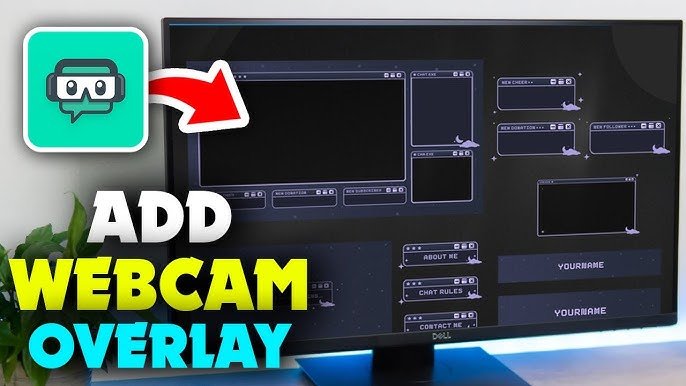
To fix this, try to separate your description of the person from the description of the place. Some tools allow you to use “negative prompts” to say “no purple skin.” You can also generate the character on a white background first, and then use editing software to put them in the scene.

This keeps the image creation clean.

Fixing Distorted Features in Wide Shots

When you generate a “wide shot” or a full-body image, the face is very small in the picture. The AI often draws a messy, blurry face because it doesn’t have enough pixels to work with. This is where “Inpainting” or “Vary Region” is vital. Generate the wide shot first.

Don’t worry if the face looks bad. Then, zoom in on the face using the tool and ask the AI to regenerate just that small square at high quality.

This is a standard workflow step for visualization in professional projects.

FAQ’s:

What is the Easiest AI Tool For Creating A Consistent Character?

Currently, Midjourney, with the –cref (character reference) feature, is likely the easiest option for beginners.

It requires no installation or coding. You simply paste a link to your reference image. Other image generators are catching up, but this remains a user-friendly choice for social media content and quick art.

Can I Use My Own Photo to Create A Consistent Character?

Yes, absolutely. You can upload a photo of yourself or a friend as the reference image.

This is great for making consistent avatars for profiles. Please just be aware of privacy and make sure you have permission to use the photo. Using your own face helps you check if the consistency is working because you know exactly how the person should look.

Can A Consistent Character GPT Help Keep Character Traits Stable in Writing?

Yes. While this article focuses on images, text is important too. A consistent character GPT (a text-based AI) can remember your character’s personality, backstory, and manner of speaking. Writers use ChatGPT to track details like “Does he have a scar?” or “What is his sister’s name?“, ensuring the text description matches the consistent character designs.

How Do I Keep Clothing Consistent With the Character?

This is hard. The best way is to describe the clothing very specifically in every prompt.

Using tools like Flux or training a LoRA specifically on the outfit can also help. In Midjourney, you can use a “Style Reference” combined with a character reference to try and lock in the clothing look.

How Do You Generate the Same Character With Different Poses Or Scenes Using AI Art Generators?

You combine a reference image with a text prompt describing the action. For example: “Image of [Character Name], running fast, side view –cref [Link].” ControlNet is the best tool for specific different poses. It forces the generated images to match a skeleton shape you provide.
Why Does My Character Look Different When I Change the Camera Angle?

The AI is trying to imagine what a 2D image looks like from a new side.

Without a 3D model, it has to guess. This is why making a “Character Sheet” with images of your character from all sides is helpful. It gives the AI data on what the side profile looks like, reducing the “guessing” error.

Does A “Consistent Character” Mean the Background Stays the Same, Too?

No. Usually, you want the character to stay the same while the background changes. That is the goal of storytelling. You want your character to visit different scenes. However, if you want the background to stay the same, you need to use different settings to lock the environment.

Conclusion

Creating a consistent character is a journey. It requires patience, iteration, and a willingness to learn new tools. Whether you are using openai technology, Flux, or stable diffusion pipelines, the goal is the same: to bring your vision to life without compromise.

At Designers Choice, we believe that these tools are here to help creators, not replace them. The technical topics we covered—from datasets to parameters—are just ways to give you more power. We encourage you to try these methods.

Go to the openai developer community or look for a new topic on a forum if you get stuck; the use of this forum knowledge is how we all grow. Read the community guidelines, ask questions about openai’s apis, and share your workflow.

Don’t be afraid to experiment with consistent character ai tools. Try the free trial versions of apps, explore chatgpt developer tools, or build your own chatgpt app connection. The future of character creation is in your hands. We hope this guide helps you create new images that tell amazing stories. Keep creating, keep refining, and keep pushing the boundaries of what is possible.