Categories
Design

How to Edit Someone Out of a Picture: The Complete Guide (PC & Mobile)

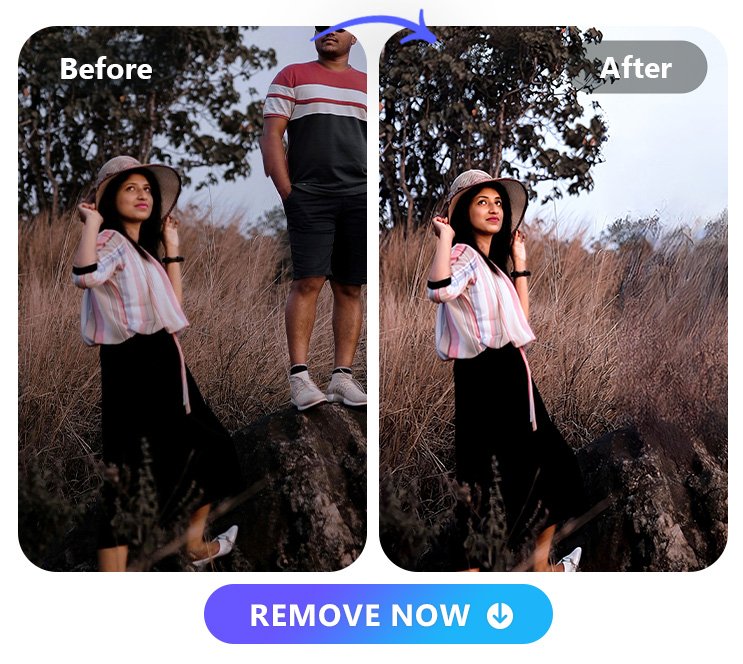
Have you ever taken the perfect shot only to find a stranger walking in the background? It happens to everyone.

You hold your camera steady, get the lighting right, and smile. But when you look at the original image, there is someone you don’t know standing behind you. This can be frustrating, especially if it was a special moment.

At Designers Choice, we know how important it is to keep your creative vision clear. We want to help you turn your ideas into reality without letting small mistakes ruin the big picture.

The good news is that you do not need to be a computer expert to fix this. Learning how to edit someone out of a picture is easier than ever before.

In the past, you needed expensive software and years of training to fix a photo. Today, photo editing has changed.

Whether you are fixing travel photos or cleaning up product images for your online store, there are simple tools available. You can use online AI tools, mobile devices, or professional software to get the job done.

This guide is made for everyone. We will explain everything in simple steps so you can get professional results.

We will show you the best way to remove unwanted people and unwanted objects so your photos look exactly how you imagined.

Let’s get started on making your photos look amazing.

Why You Might Need to Edit Someone Out of a Picture?

Why You Might Need to Edit Someone Out of a Picture?

There are many reasons why you might want to learn how to edit someone out of a picture.

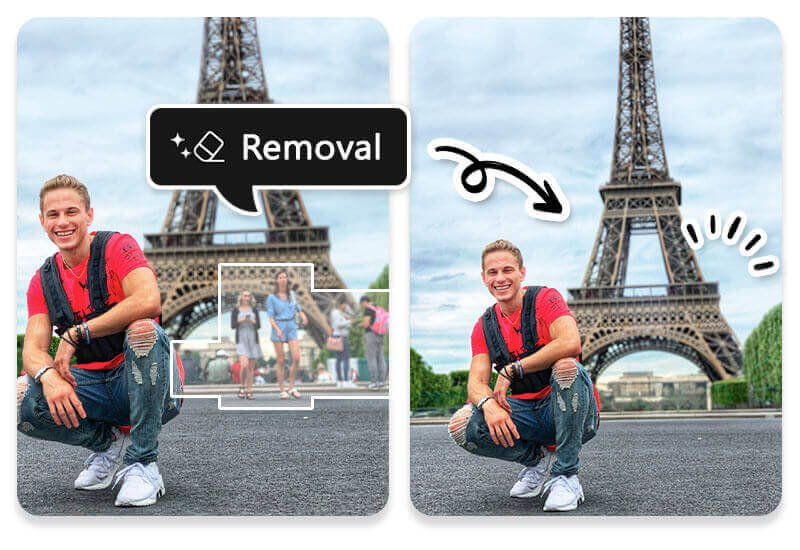
The most common reason is to clean up the background. When you visit a popular tourist spot, it is almost impossible to get a photo without other people in it. You might have a great picture of yourself in front of a landmark, but a crowd of tourists makes the image look messy.

Using an object removal tool helps you put the focus back on the main subject.

Another reason is for social media. We all want our photos to look their best before we share them. Sometimes, a random person in the background can distract from the story you are trying to tell. Removing them makes the photo look cleaner and more professional.

You might also need to edit photos for work.

If you are taking photos for an online store, you need impactful product visuals. Unwanted elements, like a hand holding a product or a person standing in the reflection, can ruin the shot. Background removal or editing out distractions ensures your customers look only at the product.

Sometimes, relationships change.

You might have a nice photo of yourself, but it includes an ex-partner or a friend you no longer speak to. You don’t have to delete the memory of how good you looked. You can simply use a people remover tool to keep yourself in the frame while removing the other person.

Lastly, you might just want to remove unwanted objects like trash cans, power lines, or signs that clutter the view.

The goal is to create a clean, beautiful image that represents your vision.

How to Edit Someone Out of a Picture Using Free Online AI Tools

How to Edit Someone Out of a Picture Using Free Online AI Tools?

If you do not want to download an app, using an online tool is the easiest way to fix your photos. These tools use artificial intelligence to guess what the background should look like after you remove a person.

Here are some of the best tools you can use in your web browser.

Using Canva Magic Eraser For Quick Edits

Canva is a very popular design tool. It has a feature called Magic Eraser. This is a great tool for quick edits. It is very simple to use.

First, upload your photo to Canva. Click on the photo and then click on “Edit Photo” at the top.

You will see the Magic Eraser tool in the menu. When you click it, you can adjust the brush size. This is helpful because sometimes the person you want to remove is small, and sometimes they are large. Paint over the person you want to remove. Make sure you cover them completely.

When you let go of the mouse button, the AI tool works its magic.

It will remove the person and fill in the space. If it misses a spot, you can brush over it again. This is a quick fix for simple backgrounds.

It is a good thing for beginners because the interface is very friendly.

Removing People with Fotor Object Remover

Fotor is another great online tool. It has a dedicated object remover that is very powerful. Fotor uses smart algorithms to analyze your photo.

To use it, go to the Fotor website and upload your image. Select the “Remove Object” feature. You will get a brush tool.

Use the mouse to paint over the unwanted people in your shot. You can change the size of the brush to get closer to the edges.

Once you highlight the person, click the “Remove” button.

Fotor will process the image and show you the result. It usually does a great job of matching the lighting and colors.

This tool is excellent for travel photos where the background might be a beach or a sky. It helps you get better results without much effort.

How to Use Cleanup.pictures For High-Quality Results?

Cleanup.pictures is a specialized clean up tool. It is known for giving high-quality results. The best part is that it is very fast.

Go to their website and drag your photo into the box. You will see a green brush. You can make the brush size bigger or smaller using a slider. Paint over the person or unwanted objects you want to gone. The tool removes them almost instantly.

This tool is great for first time users because there are no confusing buttons. It just does one thing and does it well. If you have a photo with power lines or small distractions, this is the best way to clean it up.

It keeps the image quality high, so your photo doesn’t look blurry.

How to Edit Someone Out of a Picture on Mobile (iPhone & Android)

How to Edit Someone Out of a Picture on Mobile?

Most of us take photos with our phones. It is convenient to edit them right there on the device. Whether you have an iPhone 14 Pro Max or an Android, some apps can help. Here is how to edit someone out of a picture on iPhone and Android devices.

Using Google Photos Magic Eraser (Android & iOS)

Google Photos is one of the best apps for photo storage and editing. It has a famous feature called Magic Eraser.

Originally for Pixel phones, it is now available on more devices, including iPhones, if you subscribe to Google One.

Open your photo in the Google Photos app. Tap on “Edit” at the bottom of the screen. Then, look for “Tools” and select “Magic Eraser.”

The app will scan your photo. It often finds unwanted people or power lines automatically and suggests removing them.

You can just tap “Erase all” for a quick fix. If it doesn’t find them automatically, you can use your finger to circle or brush over the person.

The magic eraser will remove them and fill in the background. It uses advanced AI features to make it look natural. This is often considered the best tool for mobile users because it is fast and effective.

Removing Objects with Snapseed (Free Method)

Snapseed is a completely free app owned by Google. It is a powerful image editing app available on the App Store and Play Store. It is perfect if you are looking for how to edit someone out of a picture for free.

Open your photo in Snapseed. Tap on “Tools” and select “Healing.” This acts like a spot healing brush tool. Zoom in on your picture so you can see the person clearly. Use your finger to paint over the person.

Snapseed will replace the person with pieces of the background near them.

It works best on simple backgrounds like grass, sky, or water. If the background is complex, you might need to do it in small steps.

It takes a little more patience, but it is a great free method to remove person from photo iPhone free.

Using TouchRetouch For Complex Edits

If you are willing to pay a small amount, the Touch Retouch app is amazing. It is designed specifically for object removal.

Open the app and load your image. Select “Object Removal.” You can use a brush or a lasso tool to select the person. The app uses smart technology to understand what is behind the person.

One great feature is the “Line Removal” tool, which is perfect for removing power lines or cables in one tap.

For people, use the brush. The app handles complex backgrounds better than many free apps.

If you want professional results on your phone, this is a great choice. It helps you keep the image quality high while removing distractions.

With new phones, we are also seeing Apple Intelligence starting to play a role in how photos are processed, making these edits even smoother on the latest iPhone models.

How to Edit Someone Out of a Picture with Professional Software?

How to Edit Someone Out of a Picture with Professional Software?

For those who want the absolute best results, professional software like Adobe Photoshop is the answer.

These tools give you total control over the editing process.

The Content-Aware Fill Method in Adobe Photoshop

Adobe Photoshop is the industry standard. One of its most famous features is Content-Aware Fill.

First, open your image in Photoshop. Use a selection tool (like the Lasso tool) to draw a circle around the person you want to remove. You don’t need to be perfect; just make sure the whole person is inside the selection.

Go to the “Edit” menu and choose “Content-Aware Fill.” A window will pop up showing you what the result will look like.

Photoshop analyzes the original image and looks for pixels to fill in the empty space. You can tell it which parts of the background to use.

This is great for handling complex backgrounds. When you are happy, click OK. The person is gone, and the background looks real.

Using the Clone Stamp Tool For Precision Control

Sometimes automated tools make mistakes.

That is when you need the Clone Stamp Tool. This tool allows you to copy one part of an image and paint it over another part.

Select the Clone Stamp Tool from the toolbar. Hold down the Alt key (or Option on Mac) and click on a clean part of the background.

This is your “source.” Then, let go of the key and paint over the person you want to remove.

This takes more time than AI tools. You have to be careful to match lines and patterns.

However, it gives you the best results because you decide exactly what goes where. It is the best way to fix tricky areas where the AI gets confused.

You can change the brush size and hardness to blend the edges softly.

Removing People Using Lightroom’s Healing Brush

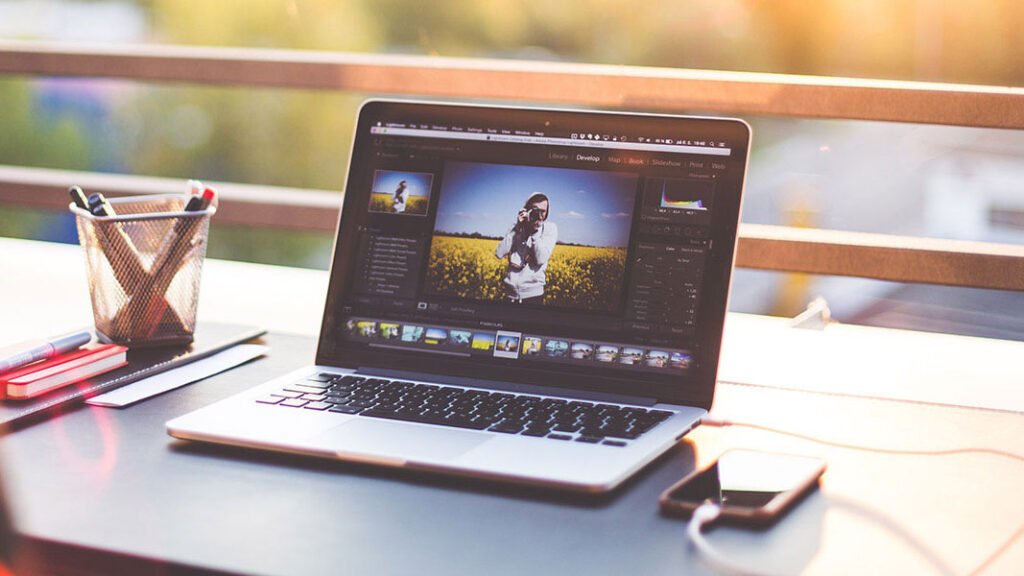
Adobe Lightroom is great for color correction, but it also has a good Healing Brush. This is good for smaller objects or people in the distance.

Open your photo in Lightroom. Click on the “Healing” icon (it looks like a band-aid). You can choose between “Clone” or “Heal.”

Heal” is usually better because it blends the colors and textures.

Adjust your brush size and paint over the person.

Lightroom will pick a source area automatically. You can drag the source area to a different spot if the first guess isn’t right. This is a non-destructive way to edit, meaning your original image is always safe.

Tips For Natural-Looking Edits

Tips For Natural-Looking Edits

Knowing how to edit someone out of a picture is just the first step. You want the photo to look natural, so no one knows it was edited.

Here are some tips.

Managing Complex Backgrounds and Textures

Complex backgrounds like brick walls, crowds, or patterned carpets are hard to edit. When you remove a person, the lines in the background need to match up. If you are using a clone tool, take your time.

Align the bricks or lines carefully.

If you are using an AI tool, try removing the person in smaller chunks rather than all at once. This helps the AI understand the pattern better.

Sometimes, zooming in and using a very small brush helps you fix the tiny details that make the texture look wrong.

How to Handle Shadows and Reflections?

A common mistake is removing the person but leaving their shadow. This looks very strange.

When you edit someone out, make sure you also remove their shadow on the ground. Reflections are also tricky.

If you remove a person standing near a window or water, check if their reflection is visible. You must remove the reflection too.

If you don’t, the brain knows something is wrong. Using the clone stamp is often the best way to fix shadows and reflections because you can paint over them with the surrounding floor or water texture.

Avoiding Blurry Patches After Removal

Sometimes, after using an eraser tool, the spot looks blurry. This happens if the software stretches the pixels too much.

To avoid this, use a tool that copies texture, like the clone stamp or a high-quality AI object remover. If you see a blurry patch, you can try using the “Sharpen” tool in your editing app to bring back some detail.

Another trick is to add a little bit of “Noise” or grain to the edited area so it matches the rest of the photo. This makes the edit blend in and stops it from looking like a smooth, plastic smear.

FAQ’s:

Can I Edit Someone Out Of A Photo Without Using Photoshop?

Yes! You do not need Adobe Photoshop to get good results. There are many simple tools and online AI tools like Canva, Fotor, and Cleanup.pictures. You can also use apps on your phone, like Google Photos or Snapseed.
What Is the Easiest Way to Remove A Person From A Picture For Free?

The easiest way to remove a person from a photo iPhone for free is using the Snapseed app. It is completely free and has a healing tool.

Another option is the free version of Google Photos if your phone supports the magic eraser.

For desktop, Cleanup.pictures allows free edits for smaller images.

Are There Any Online AI Tools That Erase People From Images Instantly?

Yes, tools like the Fotor object remover and Canva Magic Eraser work almost instantly. You just highlight the person, and the artificial intelligence removes them in seconds. It is a very quick fix.

How Do I Remove A Person Without Ruining the Background?

To protect the background, use a variable brush size. Zoom in close and only paint over the person, not the area around them.

If the background is complex, try using a clone stamp tool for precision control so you can align the background lines manually.

Can I Edit Someone Out of a Picture If They Are Hugging Me?

This is difficult but possible. It requires more time.

You will have to rebuild the part of your body that they were covering (like your shoulder or arm). You might need to use the clone stamp to copy the texture from your other shoulder or clothes. Professional software like Adobe Photoshop is best for this type of complex edit.

Does Editing Someone Out Reduce the Image Quality?

It can if you use low-quality apps. However, if you use professional software or high-quality online tools, the image quality should stay high. Always try to save your photo in the highest resolution possible after editing.

Conclusion

Learning how to edit someone out of a picture opens up a world of creativity.

It lets you rescue travel photos, perfect your social media posts, and create professional product images. You no longer have to worry about a stranger ruining your shot or unwanted elements distracting from your subject.

Whether you choose to use simple steps on your mobile devices with Google Photos or dive into Adobe Photoshop for precision control, the power is in your hands. The good news is that technology is getting better every day.

With smart algorithms and AI features, what used to take hours now takes seconds.

At Designers Choice, we want you to feel confident in your skills. Try these best apps and tools.

Experiment with the brush tool and the clone stamp. Don’t be afraid to make mistakes—that is how you learn. With a little practice, you will be able to remove unwanted people and create the perfect shot every time.

We hope this guide helps you take your photo editing to the next level. Remember, the goal is to bring your vision to life. So go ahead, clean up those photos, and share your creativity with the world. You have the tools, and now you have the knowledge to create amazing, clean images.

Categories
Design

How to Fix Grainy Photos: A Step-by-Step Guide

We have all been there. You snap what you think is the perfect picture. You are excited to share it on your social media posts.

But when you zoom in, your heart sinks. The clear, sharp picture you wanted is full of tiny specks. It looks rough and sandy.

This is what photographers call grainy photos. It can ruin a great moment and lower your image quality.

At Designers Choice, we know how frustrating this feels. We are a community of creators who want our work to look its best.

Whether you are a pro or just love taking pictures of your friends, dealing with digital noise is a common struggle.

But here is the good news: you do not have to delete those pictures. You can save them.

In this guide, we will teach you exactly how to fix grainy photos. We will look at why it happens in the first place and show you the best tools to fix it. We will cover big computer programs and simple phone apps.

We will explain how to fix grainy photos in Lightroom, how to fix grainy photos on iPhone, and even fix grainy photos online for free.

Our goal is to help you get a clear image every time. We believe that with a little knowledge and the right tools, you can turn a messy, grainy shot into a masterpiece. Let’s get started and clean up those images.

Understanding Image Noise: Why Do Your Photos Look Grainy?

Why Do Your Photos Look Grainy?

Before we start fixing things, it is a good idea to learn why grain appears. In the world of digital images, we call this “noise.”

Think of it like listening to the radio. If the signal is weak, you hear static hiss. Digital noise is visual static. It usually happens when your camera sensor is struggling. The sensor is the part of the camera that catches light. When there is enough light, the sensor works easily. The image is smooth. But when there is a lack of light, the sensor has to work extra hard. This effort creates those ugly specks we call grain.

There are a few main reasons why your digital camera or phone makes grainy images.

High ISO Settings and Their Impact

The biggest cause of grain is usually your iso settings. ISO is a setting that controls how sensitive your camera’s sensor is to light.

When you are outside in the bright sun, you usually use a low iso, like ISO 100 or 200. At a low iso, the signal is clean. You get very little noise.

However, when it gets dark, you might raise the ISO to make the picture brighter. You might bump it up to ISO 1600 or 3200. This tells the camera to be more sensitive. It brightens the photo, but it comes with a cost.

The higher the ISO, the more digital noise you get. This is why high iso settings almost always lead to grainy photos. It is a trade-off. You get a brighter image, but you lose that smooth, photo quality look.

Underexposure and Low Light Conditions

Sometimes, you might keep your ISO low, but the photo still looks grainy. Why? This often happens because of underexposure. This means the photo is too dark. When you shoot in low light or low lighting without adjusting your settings, the camera does not get as much light as it needs.

When you put that photo into a photo editor and try to brighten it up, you will see a lot of grain appear in the shadows. The information just wasn’t there. The camera sensor tries to guess what is in the dark parts, but it makes mistakes. These mistakes show up as speckled noise.

It is very hard to fix a photo that was taken in near darkness. Low light is the enemy of a clean, sharp photo.

The Difference Between Luminance Noise and Color Noise

Not all grain looks the same. When you look closely at a grainy photo, you will see two types of noise.

  • Luminance Noise: This looks like film grain. It looks like black, white, and gray sand sprinkled over the image. It affects the brightness of the pixels. A little grain like this is not always bad. Some people even like it because it looks like an old movie. It is easier to fix and less distracting.
  • Color Noise: This is the ugly one. These are random splotches of red, green, and blue pixels that do not belong there. If you take a photo of a gray wall in the dark, you might see purple and green specks. This is color noise. It makes the image look unnatural and messy.

Most noise reduction tools treat these two types differently. You will usually want to reduce color noise completely, but you might keep a tiny bit of luminance noise to keep the photo looking sharp.

Step-by-Step: How to Fix Grainy Photos in Post-Processing?

How to Fix Grainy Photos in Post-Processing?

Now that we know what causes the problem, let’s talk about solutions. Post-processing is just a fancy word for editing your photos on a computer or phone. This is where the magic happens.

We will look at how to save your images using different software.

Using Adobe Lightroom’s Detail Panel

Adobe Lightroom Classic is one of the best tools for photographers. It gives you a lot of control over your files.

If you want to know how to fix grainy photos in Lightroom, follow these steps.

  • Import Your Photos: Open Lightroom and import your grainy images. It is best if you work with raw files (or raw images) because they hold more data than JPEGs.
  • Go to the Develop Module: This is where you do all your editing. Look for the “Detail” tab on the right side.
  • The Detail Panel: Click on the detail panel to open it. You will see a section called “Noise Reduction.”
  • Fixing Luminance Noise: Find the Luminance slider. Slowly move it to the right. Watch your image closely. You will see the grain start to disappear. The photo will get smoother. Be careful not to slide it too far, or the photo will look blurry.
  • Fixing Color Noise: Look for the color slider. Usually, Lightroom sets this to 25 automatically. If you still see weird color spots, move this slider to the right. This will blend those red and blue specks away.
  • Detail and Contrast: Under the noise sliders, there is a Detail slider. This helps bring back some texture so the photo doesn’t look like plastic. There are also contrast sliders that help keep the edges sharp.

Using the detail panel in Lightroom is the standard method for adjusting photos. It offers excellent noise reduction without being too hard to use.

How to Remove Grain in Photoshop (Camera Raw Filter)

If you have Adobe Photoshop, you have a very powerful tool. You might be wondering how to fix a grainy photo in Photoshop. The best way is to use the Camera Raw Filter. It works very similarly to Lightroom.

  • Open your image in Photoshop.
  • Go to the top menu and click on “Filter.”
  • Select “Camera Raw Filter.”
  • A new window will pop up. Look for the “Detail” section (it looks like two triangles).
  • You will see the same noise reduction sliders as Lightroom.
  • Adjust the Luminance to smooth out the grain.
  • Adjust the Color to fix the color specks.

This method is great because you can apply it to just part of the image if you want, or the entire image.

It is a quick way to clean up grainy photos before you do other edits.

Best AI De-Noising Software (Topaz DeNoise AI, DxO PureRAW)

Sometimes, the standard tools are not enough. If your photo is very grainy, you might need the power of AI. New software uses Artificial Intelligence to fix photos in ways we could not imagine a few years ago.

Tools like Topaz DeNoise AI and DxO PureRAW are amazing.

They act as an AI image denoiser. Instead of just blurring the grain, the AI looks at the image and understands what it is seeing. It knows the difference between a bird’s feather and a speck of noise. These programs can remove a huge amount of noise while keeping the image sharp.

They are often separate programs, or they can plug into Lightroom. If you have old photos that are very grainy, using an AI photo enhancer like this is a good tip. They can even help unblur image details that seemed lost.

How to Fix Grainy Photos on iPhone and Android Apps?

You do not always need a big computer. You can learn how to edit grainy photos right on your phone.

Whether you need to know how to fix grainy photos on android or how to make a photo less grainy on iPhone, the process is similar.

  • Lightroom Mobile: This is a free app (with paid features). It has a “Detail” tab just like the desktop version. You can slide the noise reduction bar to smooth out your shot.
  • Snapseed: This is a very popular free app. Open your photo, go to “Tools,” and select “Details.” It does not have a specific “noise” slider, but increasing the “Structure” and smoothing it out can help.
  • Google Photos: The built-in editor on Android often has a “Denoise” slider.
  • Apple Photos: On the iPhone, open the photo and hit “Edit.” Go to the noise reduction icon (usually a circle with dots). Slide it to fix the grain.

These apps are great for fixing social media posts on the go. They can help turn a bad shot into a clear one quickly.

Balancing Noise Reduction and Detail Preservation

Balancing Noise Reduction and Detail Preservation

Fixing grain is a balancing act. If you remove too much noise, you ruin the detail. You have to find the sweet spot.

Avoiding the “Plastic” Look

The biggest mistake beginners make is sliding the noise reduction slider all the way to 100. When you do this, the skin on people looks like plastic. Leaves on trees look like green paint blobs. The photo loses all its texture.

You want the image to look natural. It is better to have a little grain than a fake-looking plastic photo. When you use the luminance slider, stop as soon as the worst grain is gone. Do not try to make it perfectly smooth.

Check the eyes and hair of your subject.

If the eyelashes disappear or look blurry, you have gone too far. Back off the slider. You need to keep the color detail and texture real.

Using Masking to Target Specific Areas

A pro trick is to only fix the parts that need it. This is called masking.

Grain shows up most in the dark shadows and the blurry background. It is less obvious on the bright parts or the main subject.

In programs like Lightroom and Photoshop, you can create a mask. You can tell the software, “Only do noise reduction on the background.” This keeps your subject sharp and crisp, while smoothing out the messy darkness behind them.

This is how you get excellent noise reduction results that look professional.

Prevention Tips: How to Avoid Grain Before You Shoot?

Prevention Tips: How to Avoid Grain Before You Shoot?

The best way to fix grainy photos is to not take them in the first place. Fixing it later is okay, but getting it right in the camera is better.

Here is how to prevent grainy images.

Mastering the Exposure Triangle

Photography is all about three things: ISO, Aperture, and Shutter Speed. This is called the Exposure Triangle.

To get less grain, you want to keep your iso settings as low as possible. But if you lower the ISO, the picture gets dark.

To fix that, you need to change the other two settings.

  • Aperture: Open your lens wider (a lower f-number like f/1.8 or f/2.8). This lets in more light.
  • Shutter Speed: Keep the shutter open longer.

When you balance these three, you can get a bright photo with a low iso. This results in a clean, clear image.

The Importance of Proper Lighting

Since lack of light causes noise, the easiest fix is to add more light.

If you are indoors, turn on more lamps. Move your subject closer to a window. If you are taking photos of a product for your website, use a desk lamp. The more light you give the camera sensor, the less it has to struggle.

When you have enough light, the camera doesn’t have to boost the signal. This means no static, no noise, and high image quality.

Don’t be afraid to use a flash if you have one. Even a phone flash can help reduce grain in a dark room.

When to Use A Tripod to Lower ISO?

If you are shooting a landscape at night or a still object in a dark room, use a tripod. Why? Because if you hold the camera in your hands, you need a fast shutter speed to stop camera shake. Fast shutter speeds let in less light, so you have to raise the ISO. High ISO equals grain.

If you put the camera on a tripod, it is perfectly still. You can use a much slower shutter speed. You can leave the shutter open for 1 second, 5 seconds, or even longer. This lets in tons of light.

Because of this, you can keep your ISO very low (like ISO 100). The result is a night photo that is bright but has almost zero noise.

A tripod eliminates motion blur and allows for different exposures without ruining the quality. It is a simple tool that solves big problems.

FAQ’s:

Can You Fix Grainy Photos Completely Without Losing Quality?

It is hard to fix them completely without losing some tiny details. Noise reduction works by smoothing out pixels.

This naturally softens the image a little bit. However, using modern tools and the power of ai, you can get very close.

You can make the photo look great for the web and social media, even if it isn’t perfect for a huge print.

What is the Best Free App to Fix Grainy Photos on a Smartphone?

For a free app, Snapseed is a fantastic choice for both Android and iPhone. Adobe Lightroom Mobile is also excellent and very powerful, even the free version. They both allow you to control the details and smooth out the grainy images.

Does Increasing Resolution Help Fix Grainy Photos?

Not really. Just making the file size bigger or increasing pixel count doesn’t remove noise.

In fact, if you just make a grainy photo bigger, the grain gets bigger too. However, some ai photo enhancer tools can upscale images and remove noise at the same time. They add new pixels to smooth things out.

But simply resizing a standard image won’t help with the grain.

Is Grain Always Bad in Photography?

No! Sometimes grain is a mood. In black and white photography, film grain adds texture and feeling.
It can make a photo feel gritty, real, or vintage. Some photographers even add grain on purpose. But color noise (the colorful splotches) is almost always bad. It looks like a mistake. Artistic grain should be a choice, not an accident caused by low lighting.

Why Do My Photos Look Grainy Even At Low ISO?

If you are using a low iso and still see grain, you probably underexposed the photo. This means the picture was too dark when you took it.

When you brighten a dark photo in a photo editor, you reveal noise that was hiding in the shadows.

Also, older cameras or cameras with a small camera sensor (like old smartphones) produce more grain naturally, even at lower settings.

Conclusion

Dealing with grainy photos is a normal part of being a photographer. Whether you have a fancy Canon Rebel or just a smartphone, you will face low-light situations eventually. But now you know what to do.

We have learned that high iso and underexposure are the main culprits.

We have looked at how to use the detail panel in Lightroom Classic and the filters in Adobe Photoshop. We explored the power of AI with tools that act as an image sharpener and ai image denoiser.

We also discussed how simple changes, like adding light or using a tripod to allow a slower shutter speed, can stop grain before it starts.

Remember, the goal isn’t always perfection. It is about making the image look its best. Don’t be afraid to experiment with the contrast sliders and noise reduction tools. Watch your file size and keep your original image safe just in case.

At Designers Choice, we want you to feel confident in your creativity.

Don’t let a little digital noise stop you from sharing your work. With these tips, you can rescue those blurry photos and grainy images and turn them into something beautiful. So, go out there, shoot with confidence, and make your boldest visions a reality.

If you found this guide helpful, why not try editing one of your old grainy photos today? You might be surprised at how good it can look!

Categories
Design

How to Fix Blurry Photos: The Ultimate Guide to Sharpening Images

Have you ever taken a perfect picture, only to find out later that it is not clear? We know that feeling at Designers Choice. You look at your screen, and the image is fuzzy. It can be very sad, especially if it was a special moment with friends or a great shot for social media.

Blurry photos can happen to anyone, even if you have a great camera. But do not worry! We are here to help you fix this problem.

At Designers Choice, we want to help you make your creative ideas real. We know how hard it can be to get everything right. That is why we picked the best tips and online tools to help you fix blurry photos. We want to share our knowledge so you can have clear photos every time.

Whether you are taking product shots or family photos, image quality is very important.

In this guide, we will show you how to unblur image files and improve picture quality. We will talk about AI technology, photo editing software, and mobile apps. You do not need to be a pro to get crisp details. We will explain everything so you can learn the easy way to get great results.

Let us help you turn those blurry pictures into high-quality images that you will be proud to share.

Why Do Your Pictures Look Blurry?

Why Do Your Pictures Look Blurry?

Before we learn how to fix blurry photos, it is good to know why they happen. There are a few reasons why an image might look soft or fuzzy.

Knowing these reasons can help you take better photos in the future.

Understanding Motion Blur Vs. Out-of-Focus Blur

There are two main types of blur.

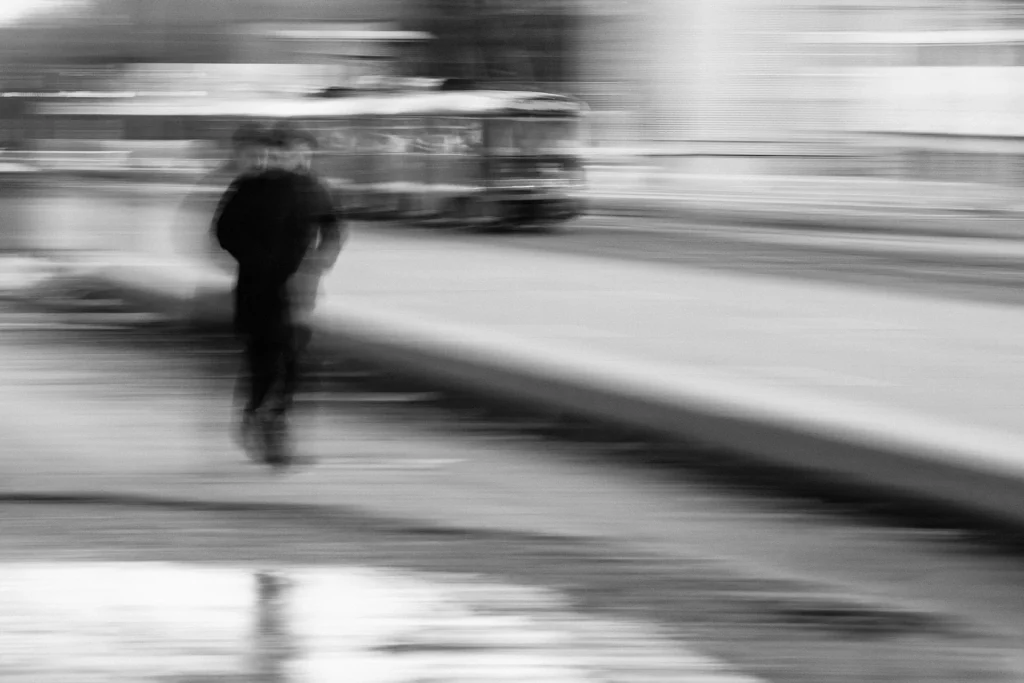
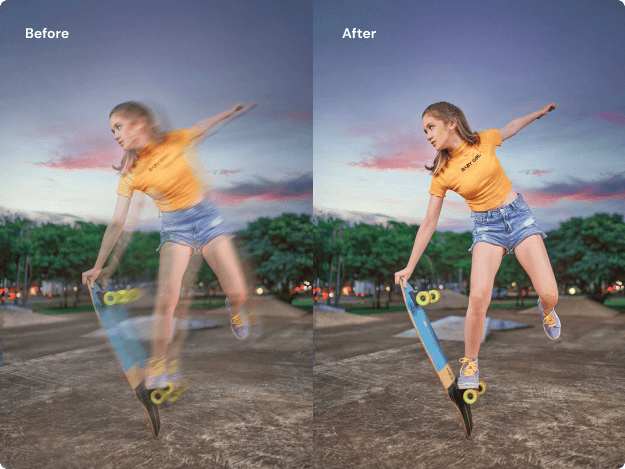
The first one is called motion blur. This happens when the subject moves, or your camera moves while you are taking the photo.

If a car drives by fast and you take a picture, it might look like a streak of color. That is motion blur. It can make social media posts look messy.

The second type is out-of-focus blur. This happens when the camera lens does not focus on the right spot.

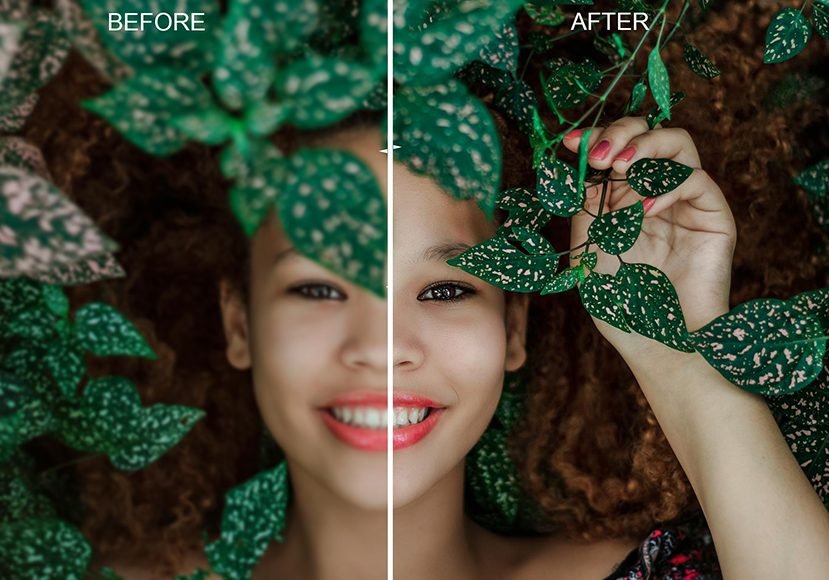
If you want to take a photo of a flower, but the background is sharp and the flower is soft, that is poor focus. This can lead to a blurry image that hides the fine details you wanted to show. Both types ruin image clarity, but you can fix them with the right photo editor.

The Role of Low Light and ISO Noise

Low light is a big enemy of clear photos.

When there is not enough light, your camera has to work harder. It might raise something called ISO to see better. But high ISO creates “noise” or grain. This makes the photo look sandy and less sharp. Also, in low light, the camera might keep the shutter open longer to let in light.

If you move even a tiny bit, you get blurry photos. This is common in vintage photos or pictures taken at night parties.

The image resolution stays the same, but the quality of your image drops because of the noise and blur.

Camera Shake and Stabilization Issues

Camera shake is when your hands shake a little bit while holding the phone or camera. You might not feel it, but the lens sees it. This slight movement spreads the light out and causes a blurry image. This is why many people use a tripod or hold their breath when they click the button.

If you do not hold the device steady, you will lose crisp details. Even the best photo quality camera cannot fix a big shake without help.

But do not worry, we have advanced features in software that can help unblur photos caused by this shake.

Top Tools to Fix Blurry Photos on Desktop

Top Tools to Fix Blurry Photos on Desktop

If you work on a computer, you have powerful choices.

Desktop software gives you the best control to fix blurry photos. You can use professional editing skills to bring life back to your images.

How to Use Adobe Photoshop to Sharpen Images (Smart Sharpen)

Adobe Lightroom and Photoshop are famous for a reason.

In Photoshop, there is a tool called “Smart Sharpen.” It is a powerful tool that helps you control how much you want to clean up the image.

First, open your original image in Photoshop. Go to the Filter menu, choose Sharpen, and then Smart Sharpen. You will see sliders. Move them to see the changes. This tool looks for edges in your photo and makes them stand out. It helps restore fine details that were lost.

It is great for product photos where you need everything to look perfect. It takes a little practice, but it gives you a very professional photo look.

Using Lightroom to Enhance Detail and Reduce Noise

Adobe Lightroom is amazing for color correction and detail. It is very good if your photo is blurry because of low light noise.

In the Develop module, look for the “Detail” panel.

Here, you can use the Sharpening slider to make edges crisp. You can also use the Noise Reduction slider to smooth out the grain.

This balance helps you get a high-quality image. Adobe Lightroom is great because it does not change your original image forever.

You can always go back. It is a favorite for improving image quality with minimal effort.

Top AI Desktop Software to Deblur Images Automatically

If you do not want to adjust sliders, you can use AI technology. There is software that uses artificial intelligence to fix blurry photos ai style.

Programs like Topaz Sharpen AI use the power of ai to understand what the photo should look like. You just put your blurry pictures in, and the software does the work. It can unblur image files, remove motion blur, and even fix poor focus. This is the next level of editing.

It uses advanced features to upscale images and add back texture. It is like magic for old photo restoration or fixing a quick snap.

How to Fix Blurry Photos Online For Free?

How to Fix Blurry Photos Online For Free?

Not everyone has big software on their computer.

Sometimes you need to fix blurry pictures online free. There are many websites that let you do this quickly.

Best Browser-Based Tools For Quick Fixes

If you search for “fix blurry photos free“, you will find many online tools. Websites like Fotor, Canva, or specialized ai photo enhancer sites are very popular. They are easy to use. You do not need to download anything. These sites often have an unblur tool that works with a single click.

You upload your photo, click a button, and the AI image enhancer does the rest. It is perfect for social media posts or when you are in a hurry. You can find a free plan on many of these sites, though some might ask you to pay for the best features.

Pros and Cons of Using Free Online Sharpeners

Using a free plan online is great, but there are things to think about. The good thing is that it is fast.

You can unblur photos without learning hard software. It saves much time. The bad thing is that sometimes the image resolution is lower when you save it for free. Also, you have to upload your family photos to the internet, so you must trust the site.

Sometimes, a free online photo editor will leave a watermark on your image. But for a quick fix for social media, they are often good enough.

Step-by-Step: Uploading and Enhancing Your Image

Here is the easy way to use these tools.

  • Go to an online photo editor website.
  • Look for the button that says “Upload Image” or “Open Image.”
  • Select your blurry image from your computer.
  • Find the tool called “Sharpen,” “Unblur image tool,” or “AI photo enhancer.”
  • Click it. The AI technology will analyze the photo.
  • Wait a few seconds. You will see the unblurred image.
  • If you like it, download it. This process takes very little effort. It is great for fixing face blur or making blurry text readable again.

Best Mobile Apps to Fix Blurry Photos (Android & iOS)

Best Mobile Apps to Fix Blurry Photos

We use our phones for everything.

So, it makes sense to use a photo enhancer app on your phone, too. There are amazing apps in the App Store and Google Play Store.

Using Remini and AI Enhancers on Your Phone

One of the most famous apps is Remini. It is known for its AI photo enhancer power. It is very good at face blur.

If you have old photos or vintage photos where faces are not clear, Remini can draw the face again. It uses artificial intelligence to guess what the face looks like and makes it sharp. It can turn a low-quality memory into a high-quality portrait. You just upload the photo, watch a short ad (if you use the free version), and get a clear photo result.

It is a powerful tool that fits in your pocket.

How to Use Snapseed’s Structure and Sharpening Tools

Snapseed is a free app from Google. It gives you more control than just a single click fix. In the Tools menu, go to “Details.”

Here you will see “Structure” and “Sharpening.” Structure brings out the texture in the photo, which is great for product shots or buildings.

Sharpening fixes the edges. By moving these sliders, you can improve image clarity significantly. It takes a bit more editing skills than an auto-fixer, but the quality of your final image will be very natural.

It helps fix fuzzy photos without making them look fake.

Adobe Lightroom Mobile For On-the-Go Edits

If you like the desktop version, you will like Adobe Lightroom mobile. It has many of the same advanced features.

You can use it to fix blurry pictures on your phone. The app allows you to adjust sharpening and noise masking. It is very good for fixing white photos that are too bright or dark photos that are grainy. It helps you get better quality images before you post them.

It is a professional photo tool made for mobile screens. You can start with a free trial or use the free features to improve your picture quality.

Tips to Prevent Blurry Photos Before You Shoot

Tips to Prevent Blurry Photos Before You Shoot

The best way to fix a blurry photo is to not take one in the first place! At Designers Choice, we believe in learning.

Here are some tips to help you get clear photos from the start.

Mastering Shutter Speed and Focus Modes

Shutter speed is how fast the camera takes the picture. If the shutter is open for a long time, any movement will cause motion blur.

To freeze action, use a fast shutter speed. This is key for clear photos of moving things.

Also, check your focus. Tap the screen on your phone to tell the camera where to look. If you leave it to the camera, it might focus on the wrong thing, giving you poor focus on your subject.

Getting the focus right ensures fine details are sharp.

Using Tripods and Burst Mode For Sharpness

To stop camera shake, use a tripod. It keeps the camera perfectly still. This is very important for low-light shots or product photos.

If you do not have a tripod, try “Burst Mode.” This takes many photos very fast. Usually, one of them will be sharp because your hands were steady for a split second.

This is a simple trick to get better quality images without extra gear.

Proper Lighting Techniques

Light is your friend. The more light you have, the better your image quality will be. Good light lets the camera use a fast shutter speed and low ISO.

If you are inside, go near a window. If it is dark, turn on more lights. Better lighting helps you avoid grainy, fuzzy photos.

It brings out the image details naturally. You will spend less time using a photo editor if you have good light.

FAQ’s:

Can AI Really Make A Blurry Photo Clear?

Yes, AI technology has changed how we edit. An ai photo editor can guess what the missing details look like. It can unblur image files very well, especially faces in old photos. It is not always perfect, but it is very powerful.

Can You Completely Fix an Extremely Blurry Photo?

If a photo is totally grey or just a big blur, it is hard to fix completely. AI image enhancer tools can do a lot, but they cannot create magic from nothing. They work best on photos that are just a little bit soft or have slight motion blur.

Does Increasing Sharpness Affect Image Quality?

Yes, if you sharpen too much, the photo can look grainy or fake. It can add “halos” around objects. The goal is to improve image clarity without making it look edited. Use minimal effort on the sliders to keep it natural.

Is There A Totally Free Way to Fix Blurry Photos Online?

Yes, there are sites to fix blurry photos online free. Many offer a free plan where you can edit a few photos a day. Just search for “fix blurry photos free” to find them.

How Do I Fix Blurry Photos On My Windows PC Or Mac?

You can use the built-in Photos app on Windows or Mac for basic fixes. For better results, use Adobe Lightroom, Photoshop, or desktop AI photo enhancer software. These give you the best image resolution and control.

What is the Best Free App to Fix Blurry Photos on iPhone?

Snapseed is a great free choice. For AI power, you can try the free version of Remini or other photo enhancer app options in the App Store. They are easy to use for social media pictures.

Conclusion

We hope this guide helps you solve the problem of blurry photos.

At Designers Choice, we want you to have the best image quality for your projects and memories. Whether you use AI technology, a simple online photo editor, or professional editing skills, you have the power to fix your images.

Don’t let camera shake or low light ruin your shots. With these tips and tools, you can unblur photos and reveal the fine details hidden inside. Try an unblur tool today or practice with your camera settings. You will be amazed at how clear photos can change the look of your work.

Remember, great design starts with great visuals. Keep creating and capturing the world in high quality!

Categories
Canva

Canva Join Class: The Complete Guide For Students and Teachers

At Designers Choice, we believe that creativity starts with the right tools and a supportive community.

We know how exciting it is to turn a new idea into a visual masterpiece, but we also understand that getting started with new technology can sometimes feel tricky. That is why we have curated this guide to help you navigate your way into a Canva class.

Whether you are a student ready to tackle a group project or a teacher setting up a workspace, our mission is to empower you with trusted insights so you can focus on what matters most—bringing your boldest visions to life.

Top Methods to Join Canva Class Successfully

Top Methods to Join Canva Class Successfully

Joining Via an Email Invitation Link

The easiest way to get started is to look for an invitation in your email. Your teacher will send a link directly to your email address.

Open the message and click the “Join Class” button. This will take you to the Canva login page.

If you are already logged in, you will be added to the team instantly. Always check your spam folder if you do not see the email right away.

Using A Class Code to Join (If Applicable)

Sometimes, your teacher might give you a special code instead of a link.

To use this, go to your Canva dashboard and look for the section that says “Join a Team.” Type in the Canva join class code provided by your instructor. Make sure you type the id correctly. Once you enter the code, you will have access to all the class designs and folders.

How to Join Through Learning Management Systems (Google Classroom, Canvas, etc.)

Many schools use a management system to keep everything organized.

If your school uses Google Classroom or the Canvas apps, you can often join directly from there. For example, in the Canvas management system, you might find a link in your course modules.

This integration is great because it helps keep your canvas gradebook updated when you submit assignments. Always ensure you are signed into your school account for this to work smoothly.

Accepting an Invitation from Your Notification Tab

If you have a Canva account already, you might see a notification bell icon on your dashboard.

Click on it to see if you have a pending invite. It will ask if you want to join the class team. Simply click “Accept,” and you are in!

This method is very fast and works well if you are using the mobile app on iOS or Android.

Troubleshooting Common Canva Join Class Issues

Troubleshooting Common Canva Join Class Issues

What to Do If the Invitation Link Has Expired

Links do not last forever. If you click a link and it says it is invalid, it has likely expired. Do not worry; this happens often. You just need to stay informed and ask your teacher to send a new email invitation. Make sure to click it as soon as you receive it so you do not have to ask again.

Fixing the “Team Does Not Exist” Error

This error usually pops up when using a Canva join class code. Double-check that you have not typed any extra spaces or confused the letter ‘O‘ with the number ‘0‘. If you are trying to download the app or access the site via a bookmark, make sure you are not on a restricted network.

Sometimes, simply refreshing your Google Chrome browser helps.

How to Switch Teams After Joining A Class

Once you successfully use the Canva join class feature, you might notice your personal designs are gone.

They are not lost! You just need to switch teams. Click on your profile icon in the top corner. You will see a list of teams. Select your personal team to view your previous work, or select the class team to complete schoolwork.

You can switch back and forth easily on the mobile app, too.

Solving Login Conflicts (Personal Vs. School Email)

It is common to have a personal email address and a school one.

If you try to join a class with your personal Gmail, it might not work. Log out of all accounts first.

Then, use your school email and password to log in. If you use an iOS device, ensure that your saved passwords do not auto-fill incorrect details.

Why You Should Join Canva Class: Benefits For Students

Why You Should Join Canva Class?
  1. Unlocking Premium “Canva For Education” Features: When you join a class, you often get access to premium features for free. This includes millions of photos, cool fonts, and AI tools that help you write or create images. You can download your projects in high quality without paying. It is a great way to make your presentations look professional.
  2. Real-Time Collaboration on Group Projects: Group work is much easier when everyone is in the same class team. You can invite classmates to edit a design with you at the same time. You can chat in the editor and leave comments. This is much better than sending files back and forth by email.
  3. Sharing Assignments Directly with Teachers: Once you finish a design, you can send it straight to your teacher. You do not need to download it and then upload it somewhere else unless your teacher asks. However, if your school uses the Canvas management system, you might still need to upload a file to ensure it shows up in the Canvas gradebook or for new quizzes.

FAQ’s:

Do I Need to Pay to Join A Canva Class?

No, you do not need to pay anything. The Canva join class process is usually free for students because schools use the Education plan. You get access to premium apps and features without needing a credit card or entering a personal password.

Can I Join Multiple Canva Classes With Different Invite Codes?

Yes, you can join as many classes as you need, using a different Canva join class code for each one. You can see all of them listed under your profile on the dashboard. Just be sure to switch to the correct team id when you start working on a specific assignment.

Do I Need A Canva Account Before I Join A Class?

You do not strictly need an account before you get the link, but you will need to create one to log in. You can use your school google email address to set it up quickly. This ensures your canvas account and design work are linked to the correct student profile.

Why Can’t I See My Previous Designs After Joining the Class?

Your designs are safe! When you join a class, you enter a new “team” space. Your old designs are in your “Personal” team. Go to the menu, click your icon, and switch back to your personal view to find them. This is a common confusion for new users.

Is It Possible to Remove Yourself From A Canva Class After Joining?

Yes, you can leave a class team if you joined the wrong one. Go to your “Team Settings” on the dashboard. Look for the option that says “Leave Team.” If you are unsure, ask a teacher or check the Canvas parent guide if your school provides one for help.

How Do I Leave A Canva Class If I Joined By Mistake?

If you used the wrong Canva join class code, simply go to settings and leave the team.

However, if you are using a school management system, make sure that leaving does not affect your grades. Always keep your teacher informed if you leave a class, so they know why your name disappeared.

Conclusion

We hope this guide helps you feel confident about joining your Canva class.

At Designers Choice, we want to make sure technology never stands in the way of your creativity. By following these simple steps, you can unlock amazing tools, use AI features, and collaborate with friends easily. Whether you are using a laptop or an iOS device, the world of design is now open to you. Remember to keep your password safe, check your English language settings, and have fun creating!

Categories
Canva

Canva Font Pairings: Best to Use When Creating A Stand Out Brand

At Designers Choice, we know exactly what it feels like to stare at a blank screen. You have a great idea, but putting it together is hard work.

We have spent years working in graphic design, and we created this site to be the helper we always wanted. We want to help you turn your creative ideas into something real and amazing. Whether you are picking colors or looking for the perfect materials, we are here to help.

One of the biggest challenges in design is picking the right font. It sounds easy, but with tons of fonts available, it can get confusing fast.

That is why we are here to talk about Canva font pairings. We want to empower you to make designs that look professional and clean. We believe that everyone can create something beautiful with the right tools.

In this blog post, we will show you best Canva font pairings that work well together. We will guide you through options for social media, weddings, and work presentations. Let’s make your design process fun and simple.

Why Mastering Canva Font Pairings Is Essential For Your Brand?

Why Mastering Canva Font Pairings Is Essential For Your Brand?

Picking the right font combinations is very important for your online presence. When you use good font pairings, your brand looks organized and trustworthy. Think about your favorite big brands.

They always use the same fonts, right? That is called brand consistency.

When you use the same Canva font sets over and over, people start to recognize you instantly. It builds trust with your audience.

Also, using the right font pairing helps with something called visual hierarchy. This is just a fancy way of saying “what people read first.” Good pairings use a big, bold font for the title and a simple font for the body text. This guides the reader’s eye across the page.

If you use too many different fonts, it looks messy.

But with the perfect balance, your message is clear. Whether you are a small business or working on personal brands, mastering these font choices makes your marketing materials look top-notch.

Top 10 Canva Font Pairings For Social Media Graphics

Canva Font Pairings For Social Media Graphics

Social media moves very fast. You need social media posts that stop people from scrolling past. The key is using bold brands of text mixed with simple ones. Here are some great ways to mix fonts for impact.

League Spartan & Sanchez (Bold & Modern)

League Spartan is a very strong, geometric font. It is thick and bold, which makes it perfect for headlines.

When you want to shout a message loud and clear on a small phone screen, this is a great choice. It commands attention immediately.

Because it is so heavy, you need a partner who is a little different. That is where Sanchez comes in. Sanchez is a serif font, which means it has those little feet at the ends of the letters. It looks a bit like the classic fonts you see in old books, but with a modern twist.

When you put the thick League Spartan with the sturdy Sanchez, you get a perfect balance. This combination is great for quotes or sale announcements. The contrast between the blocky headline and the detailed body text creates high visual interest. It feels professional but still very modern and fresh for your Canva account.

Glacial Indifference & Montage (Minimalist)

If you love clean lines and simple designs, Glacial Indifference is one of our favorite fonts.

It is an open, round sans-serif font that is extremely easy to read. It does not have any extra decorations. It feels very airy and light.

This makes it a wonderful choice for brands that want to look modern and efficient. We pair this with Montage.

Montage has a totally different vibe. It is a bit more classic and has more character. By mixing the super simple Glacial Indifference with the stylish Montage, you create a look that is minimalist but not boring. This pairing works really well for fashion brands or lifestyle brands that want to look chic. You can use Montage for a short, catchy title and Glacial Indifference for the details. This is one of the best Canva font pairings if you want your social media to look high-end without trying too hard. It is simple, effective, and very stylish.

Brittany & Aileron (Feminine & Clean)

Brittany is one of those beautiful script fonts that looks like real handwriting.

It has lots of loops and curves, making it feel personal and friendly. It adds a nice, human touch to your graphics.

However, because cursive fonts can sometimes be hard to read in long sentences, you should never use them for everything.

To fix this, we pair it with Aileron. Aileron is a very clean, stiff sans-serif font. It stands up straight and is easy to read. When you combine the flowy, soft lines of Brittany with the rigid structure of Aileron, you get a lovely mix. This is perfect for beauty blogs, makeup artists, or anyone wanting an approachable feel. It feels soft but organized. You use Brittany for the “Hello” or the main header, and Aileron for the rest of the information. This combination is a staple for content creators who want to show a softer side while keeping their information clear and readable.

Horizon & Open Sans (High Impact)

Horizon is a font that is tall and decorative. It looks very unique and artistic. It is a thick, script-style font that feels very confident. It takes up space and demands to be looked at. Because it has so much personality, you cannot use it for small text. It would be impossible to read.

So, we match it with Open Sans. Open Sans is one of the most popular google fonts available.

It is incredibly friendly, neutral, and readable on any screen size. It does not fight for attention. It simply does its job of delivering information.

When you use Horizon for a big, bold statement and Open Sans for the details, you create a high-impact design. This is excellent for social media graphics that announce a big event or a new product launch.

The viewer sees the cool style of Horizon first, and then easily reads the details in Open Sans. It creates a strong visual hierarchy.

Intro Rust & Amatic SC (Playful & Rough)

Sometimes you want your design to look fun and handcrafted, not stiff and corporate.

Intro Rust is perfect for this. It is a textured font that looks like it has a bit of wear and tear, almost like a stamp. It feels rugged and strong. It adds a lot of texture to your image without you having to do anything extra.

Amatic SC is the perfect partner here. It is a thin, hand-drawn font that uses all capital letters. It looks like something a teacher might write on a chalkboard or a note you write to a friend. Together, Intro Rust and Amatic SC create a very playful, rough vibe.

This pair is amazing for outdoor brands, coffee shops, or fun announcements. It feels organic and real. It removes that “computer-made” look and replaces it with a human touch. If you want visual appeal that feels warm and inviting, this is the right font pairing for you.

Elegant Canva Font Pairings For Wedding Invitations and Events

Elegant Canva Font Pairings For Wedding Invitations and Events

Weddings and formal events need a special touch. You want types of fonts that look fancy and expensive.

Here are some elegant choices for your wedding invitations.

Pinyon Script & Josephin Sans

Pinyon Script is a classic, romantic font.

It looks very fancy, like the writing on an old love letter. It has beautiful swoops and slanted letters that scream “elegance.”

It is perfect for writing the names of the couple or the word “Menu” on a card. It is one of the best fonts for formal occasions.

We balance this fancy script with Josephin Sans. This is a geometric font, meaning it is made of circles and straight lines. It is very neat and tidy.

Why does this work? Because if you used a script for the whole invitation, no one could read the address! Josephin Sans makes sure the date, time, and location are super clear. The contrast between the old-style Pinyon Script and the modern Josephin Sans creates a high-end look.

It is sophisticated and sharp. This pair ensures your wedding invitations look professional and are easy for guests to understand.

Tan Mon Cheri & Quattrocento

Tan Mon Cheri is a very stylish, decorative font. It has a retro feel to it, almost like a fashion magazine from the 70s, but it is very polished.

It has thick and thin parts in the letters, which creates a lot of style. It is a font that acts like a decoration itself. It draws the eye instantly.

We pair it with Quattrocento. Quattrocento is a classic serif font that is wide and legible. It looks very traditional and grounded.

Because Tan Mon Cheri is so full of personality, it needs a calm partner.

Quattrocento provides that stability. This combination is great for modern, trendy weddings or fashion events. It feels unique and not like every other invitation out there. If you want your event to stand out and look like it was designed by a pro, this is a good font pairing. It mixes artistic flair with classic readability beautifully.

Moontime & Glacial Indifference

Moontime is a light, airy script font. It looks like modern calligraphy done with a thin brush. It flows very naturally and feels very dreamy.

It is not as heavy or formal as other scripts. It feels more relaxed and bohemian. It is great for a spring or summer wedding vibe.

Once again, we bring in Glacial Indifference. We know we mentioned this font before, but it is just that good! Because Moontime is so swirly and loose, the rigid, clean structure of Glacial Indifference creates a wonderful anchor. It stops the design from floating away. This pairing is perfect for “Save the Date” cards or thank you notes. It feels personal and sweet.

The clear difference between the handwritten font style of Moontime and the simple print of Glacial Indifference makes the design look fresh. It is a very popular choice for modern brides and grooms.

Professional Canva Font Pairings For Business Presentations

Professional Canva Font Pairings For Business Presentations

When you are doing work presentations, clarity is king. You need clean lines and easy reading. These pairings help you look like an expert in your field.

Bebas Neue & Montserrat

Bebas Neue is a tall, narrow font that only uses capital letters.

It is very bold and commands respect. It is used a lot in movies and big advertisements because it is strong.

In a presentation, it is perfect for your slide titles. It grabs the audience’s attention right away and tells them what the slide is about.

Montserrat is the perfect teammate. It is a wide, round sans-serif font that is very easy to read, even when it is small.

It was inspired by old signs in a city, so it feels very urban and clear. Using Bebas Neue for headers and Montserrat for bullet points makes your slides look very neat. This combination is a favorite among personal brands and big companies alike.

It ensures that everyone in the back of the room can read your message. It is the gold standard for marketing materials and pitch decks.

Julius Sans One & Archivo Narrow

Julius Sans One is a very thin, elegant font. It only has capital letters, but they are very fine and delicate. It looks very sleek and expensive.

It is great for the main title slide or section headers where you want to look sophisticated. It has a bit of a luxury feel to it.

Archivo Narrow is exactly what it sounds like—narrow. It is a condensed font, which means the letters are squished slightly closer together.

This is great for presentations because it allows you to fit more text on a line without it looking crowded. When you pair the wide, luxurious Julius Sans One with the efficient Archivo Narrow, you get a very modern, architectural look. This is great for architects, designers, or tech companies. It looks sharp and precise. It shows that you care about details and graphic design quality in your work.

Lora & Lato

Lora is a contemporary serif font. It has roots in calligraphy, so it has nice curves. It is one of those serif fonts that is great for reading long paragraphs. It feels a bit more traditional and academic.

It adds a touch of warmth and seriousness to your presentation.

Lato is a sans-serif font that is “semi-rounded.” This means it is not sharp; it feels friendly and stable.

Mixing a serif like Lora with a sans-serif like Lato is a classic design trick. It creates a nice separation between your headings and your content.

Lora gives your titles a bit of class, while Lato keeps the data and facts easy to digest. This pairing works well for reports, educational slides, or financial presentations. It strikes a balance between looking smart and being approachable. It is a safe and effective choice for any business.

Retro and Vintage Canva Font Pairings For Creative Projects

Retro and Vintage Canva Font Pairings For Creative Projects

Vintage styles are very popular right now. Using retro font options can make your brand look cool and established.

Shrikhand & Tenor Sans

Shrikhand is a big, bold, and curvy font. It looks like the hand-painted signs you might see in India or on old street shops.

It has a lot of personality and feels very loud and happy. It is a thick font, so it is best used for just a few words, like a logo or a big headline.

Tenor Sans is a humanist sans-serif font. This means it has a bit of personality in its shape and isn’t just a robot font. It is open and readable.

Because Shrikhand is so wild and curvy, Tenor Sans acts as the straight man in the comedy duo. It calms the design down.

This pairing is fantastic for creative projects that want a 70s vibe or a bohemian look. It feels artistic and free-spirited.

Use this if you want your brand to feel handcrafted and unique. It captures a lot of visual interest instantly.

Genty & Lovelo

Genty is a bubbly, retro script font. It looks like neon signs or bubblegum wrappers from the past. It is round, soft, and very fun.

It definitely brings a “party” vibe to any design. It is one of those unique fonts that people remember because it is so distinct.

Lovelo is a geometric sans-serif font that is made of clean lines. It often comes in a version that is just the outline of the letters.

It looks very modern but also fits the retro geometric style.

When you mix the soft bubbles of Genty with the sharp lines of Lovelo, you get a cool 80s or 90s aesthetic. This is great for party flyers, music events, or fun social media posts. It is energetic and bright.

This pair tells your audience that your brand is fun, youthful, and full of energy. It is a great way to show off a bold personality.

How to Choose the Right Canva Font Pairings For Your Project?

How to Choose the Right Canva Font Pairings For Your Project?

Choosing the best fonts is not magic; it is about following simple rules.

  1. Understanding Contrast and Hierarchy: The most important rule is contrast. You do not want two fonts that look exactly the same. If they are too similar, it looks like a mistake. You want one font to be bold and the other to be light. Or one tall and one wide. This difference helps create hierarchy. It tells the reader what is a title and what is a story. Using different fonts helps break up the text so it is not a big wall of words.
  2. Matching Fonts to Brand Personality: Your fonts must match your brand. If you sell children’s toys, you should use fun, playful fonts. If you are a law firm, you need strong, serious fonts like Times New Roman or Libre Baskerville. Think about your target audience. What do they like? A small business selling handmade soap might use Beth Ellen for a rustic look. Always ask: “Does this font feel like us?” Using the best Canva fonts that match your vibe builds trust.
  3. The “One Serif, One Sans-Serif” Rule: If you are stuck, use this golden rule: pick one serif font (with feet) and one sans-serif font (without feet). For example, pair Playfair Display (serif) with Lato (sans-serif). Or use Le Jour Serif with a clean font. This almost always works. It creates a natural contrast that is pleasing to the eye. It is the safest way to find a font pair that looks professional without needing a degree in design.

FAQ’s:

What Are the Best Canva Font Pairings For A Modern Look?

For a modern look, try using League Spartan with Montserrat. Or try Black Mango if you want something trendy.

Clean, geometric fonts usually look the most modern.

What Are the Best Canva Font Pairings For Wedding Invitations?

Pinyon Script and Josephin Sans is a top choice. You can also try Playlist Script paired with a simple serif like Cinzel for a classic look.

Are There Canva Font Pairings Suitable For Educational Materials?

Yes! Canva font pairings for teachers should be clear.

Fredoka One is fun for headers, paired with Glacial Indifference for reading. Teachers love fonts that are easy for kids to read.

Can I Use These Canva Font Pairings For Commercial Use?

Most free fonts in Canva are fine for commercial use. However, if you use Canva Pro fonts, you must have a valid subscription.

Always check the license info in your Canva account.

How Many Fonts Should I Use in One Design?

Stick to two or three fonts maximum.

Using more than that makes your design look messy. One for the header, one for subheaders, and one for body text is a good rule.

How Do I Find Good Font Pairings Directly Inside Canva?

Canva has a “Styles” tab on the left side. It suggests font combinations for you. It is a great tool to see what works without guessing.

What is the Best Serif and Sans-Serif Pairing in Canva?

A classic pairing is Libre Baskerville (serif) with Source Sans Pro (sans-serif). Another great one is Brown Sugar (serif) with a simple font like Roboto.

Conclusion

Finding the right font pairing can change your whole design. It makes your brand look put-together and professional.

Whether you are making web design graphics, social media posts, or a school project, these combinations will help you stand out.

At Designers Choice, we want to see you succeed. We hope this guide helps you feel more confident in your choices.

Remember to have fun with it! Try out different new fonts, explore Canva Pro options, and find what fits your style.

Don’t forget to sign up with your email address to get our latest tips. Now, go open Canva and start creating something amazing!

Categories
Canva

Canva Magic Studio: Canva’s BEST AI Features

At Designers Choice, we know how hard it can be to take a great idea and turn it into a real image or video. We have spent years working in graphic design, so we understand the struggle of staring at a blank screen.

You want to create something amazing, but you might not have the time or the right skills to make it look perfect.

That is why we are so excited to talk about a powerful tool that is changing how we work. It is called Canva Magic Studio.

This new set of AI tools is built right into Canva, a platform many content creators and business owners already love.

Our goal at Designers Choice is to give you the best advice and resources. We want to help you make your boldest visions come to life.

Whether you are making social media posts, marketing materials, or just having fun with art, this guide is for you.

We will show you how Canva Magic Studio can help you save time and create beautiful work with minimal effort.

Let’s look at how this artificial intelligence can change your creative process for the better.

What Is Canva Magic Studio and How Does It Work?

What Is Canva Magic Studio and How Does It Work?

Canva Magic Studio is a special collection of features inside Canva. It uses artificial intelligence to help you do hard design tasks very quickly.

Think of it like having a super-smart assistant who can draw, write, and fix photos for you. You just give it a simple instruction, or text prompt, and it does the heavy lifting. You do not need to be a pro at graphic design to use it. It is made for everyone, from small businesses to students.

The Evolution of AI in Graphic Design

In the past, making a digital image required expensive software and years of training.

You had to learn how to use complicated programs like Photoshop. But things have changed. Generative AI has opened a new door.

Now, computers can create new content by looking at examples and learning from them. Canva AI has grown from simple tricks, like the background remover, into a full suite of magic studio features.

It is not just about fixing mistakes anymore. It is about creating things from scratch with the click of a button.

This shift means that ease of use is now the most important thing. You can focus on your ideas, and the AI tools handle the technical parts.

Who Can Benefit From the Magic Studio Suite?

You might wonder if this is right for you. The answer is yes! Canva Magic Studio is perfect for many different people.

  • Social Media Managers: If you need to make social media content every day, these tools help you work faster.
  • Small Businesses: You can make professional promotional materials without hiring an expensive agency.
  • Graphic Designers: Even pros use it to speed up their workflow and get new ideas.
  • Students and Teachers: It makes creating presentations and posters very easy.
  • Content Creators: If you make videos or blogs, the magic media tools can give you unique visuals.

Top Features Inside Canva Magic Studio You Need to Try

Top Features Inside Canva Magic Studio You Need to Try

There are so many cool things you can do. Let’s break down the best features.

Magic Switch: Instantly Resize and Translate Designs

Have you ever made a perfect post for Instagram, but then realized you also need it for a YouTube thumbnail or a presentation slide?

In the past, you would have to start your design project all over again. You would have to move every picture and text box to fit the new size. It was very boring and took a long time. Magic Switch changes all of that. It is one of the most useful AI features for content creators.

With Magic Switch, you can change your design into different formats instantly. You just click the button, choose the new size you want, and the Canva AI moves everything around for you. It keeps your image quality high and makes sure your layout looks good.

But it does even more than that. It can also translate your text into different languages. If you have social posts that you want to share with people in Spain, France, or Japan, Magic Switch can rewrite the text for you in seconds. It saves you hours of work.

Magic Media: Text-to-Image and Text-to-Video Generation

This feature is like magic. Magic Media lets you create images and videos just by typing a description. This is known as text-to-image and text-to-video generation. Let’s say you need a picture of a “cat wearing sunglasses on a beach” for your social media. You do not have to search for hours on stock photo sites. You just open Magic Media, type that text prompt, and the AI image generator creates it for you.

You can choose different styles, like a painting, a 3D model, or a realistic photo. It is a powerful art generator right inside Canva. It also works for video. You can describe a short scene, and the tool will generate a short video clip for you. This is great for making social media captions more exciting or adding moving visuals to your marketing materials.

The power of AI here is huge because it gives you unique content that no one else has. You are not just using the same stock photos as everyone else; you are making new content that fits your vision perfectly.

Magic Expand: Extend Images Beyond Their Borders

Sometimes you take a photo, but it is too zoomed in.

Maybe you cut off the top of someone’s head, or you need more background to make the text fit better.

Magic Expand is the tool that fixes this problem. It uses generative AI to guess what the rest of the picture should look like.

It looks at the colors and shapes in your photo and “paints” more of the scene around the edges.

For example, imagine you have a vertical photo of a sunset, but you need a horizontal image for a website banner. If you stretch it, it will look bad. But with Magic Expand, you can drag the borders out, and the tool will fill in the empty space with more sky, clouds, and ocean. It blends perfectly with your own images. This gives you so much freedom in your design process. You do not have to worry if a photo is not the perfect size anymore. You can just expand it to fit your design tasks. It helps you keep high image quality while changing the shape of your pictures.

Magic Grab and Magic Morph: Advanced Photo Manipulation

These two tools give you total control over your photos.

First, let’s look at Magic Grab. This tool lets you pick up an object in a photo and move it, just like it was a sticker.

Usually, objects in photos are stuck flat. But Magic Grab separates the subject from the background. You can move a person to the left to make room for text, or resize a dog to make it bigger.

The AI tools fill in the background behind them, so it looks natural.

Magic Morph is different but equally fun. It lets you change the texture or look of text and shapes.

You can type a prompt like “make this text look like a shiny gold balloon” or “turn this star into a wooden texture.”

The Canva AI takes your shape and applies that style to it. This is great for making logos or fun headlines. Both features allow you to play with your creative process in ways that used to take hours in professional software.

Now, you can do it with minimal effort and have fun while you design.

Magic Write: Your Personal AI Copywriting Assistant

Writing can be just as hard as designing. Maybe you have a great image, but you do not know what to say. Magic Write is here to help.

It is an AI text generator that can write product descriptions, blog outlines, social media captions, and more. It is built on the same technology as other famous chatbots, but it is right inside Canva.

You can tell Magic Write to “write a funny Instagram caption about coffee” or “write a formal email to a client.”

It can also rewrite text you have already written. If your sentence sounds boring, you can ask Magic Write to make it more exciting or professional.

You can even set a brand voice so that all your text sounds like it comes from your company.

This helps you keep brand consistency across all your posts. It creates text in seconds, so you never have to stare at a blank page again.

For business owners and content creators, this is a massive time-saver.

How to Access and Navigate Canva Magic Studio?

How to Access and Navigate Canva Magic Studio?

Getting to these tools is very easy, but it helps to know where to look and what plan you need.

Understanding the Pricing: Free Vs. Canva Pro

You might be asking, is Canva Magic Studio free? The answer is a mix.

Canva free users can use some parts of the studio, but they have limited access. For example, you might get a few credits to try out Magic Media or Magic Write. However, the full power of the studio is unlocked for Canva Pro users.

The Canva Magic Studio price is included in the Canva Pro subscription. There is no extra fee on top of the Pro plan. If you are on the free plan, you will see a little crown icon next to the premium features.

This means you need to upgrade to use them freely. Canva Pro also gives you access to the background remover tool, more cloud storage, and millions of premium stock photos. If you run a business, the Canva Pro cost is usually worth it for the time you save. They often offer a free trial, so you can test all the magic studio features before you pay.

Locating Magic Tools in the Editor Interface

When you open a design, finding the tools is simple.

Most of the photo tools like Magic Grab, Magic Expand, and Magic Eraser are found when you click on a photo and then click the “Edit Photo” button at the top. A menu will slide out on the left, and you will see the Magic Studio section right there.

For tools like Magic Media (the art generator) or Magic Switch, look at the black sidebar on the left of your screen. Magic Switch is usually at the very top left of the blue header bar. Magic Write shows up when you click the little “sparkle” icon that appears when you type text.

Canva has done a great job of placing these AI tools right where you need them, so they fit smoothly into your design experience.

Why Canva Magic Studio Is A Game Changer For Businesses?

Why Canva Magic Studio Is A Game Changer For Businesses?

For a business, time is money. These tools save both.

  1. Speeding Up Workflow and Content Creation: In the past, making a week’s worth of social media content could take days. You had to write copy, find photos, edit them, and resize them for Facebook, Instagram, and LinkedIn. With Canva Magic Studio, this workflow is much faster. You can generate an image with Magic Media, write the text with Magic Write, and resize it for every platform with Magic Switch. What took days now takes hours. This allows small businesses to stay active online without burning out. The ease of use means you do not need to hire a big team to look professional.
  2. Maintaining Brand Consistency with Magic Design: Keeping your brand looking the same everywhere is important. Magic Design helps with this. You can upload your own photos, and Magic Design will automatically create templates that match your style. It chooses fonts and colors that look good together. Canva Pro users can also set up a Brand Kit. Magic Write can then use your specific brand voice to make sure every post sounds like you. This helps build trust with your customers because your marketing materials always look and sound professional.

Tips For Getting the Best Results with Canva Magic Studio

Tips For Getting the Best Results with Canva Magic Studio

To get the best images and text, you need to know how to talk to the AI.

Writing Effective Prompts For Magic Media

The AI image generator is smart, but it cannot read your mind. You need to be specific.

Instead of typing “dog,” type “a happy golden retriever running in a park, sunny day, realistic style.” The more details you give about the color, lighting, and mood, the better the result. This is called a text prompt. If you do not get what you want the first time, try adding more words. Play around with different styles like “watercolor” or “neon” to see what looks best for your design project.

Combining Multiple Magic Tools For Unique Designs

The real power comes when you use the tools together. Start by generating a unique background with Magic Media.

Then, upload a photo of your product and use the background remover to cut it out. Place your product on the new background.

If the lighting looks wrong, use Magic Edit to adjust it.

Finally, use Magic Write to add a catchy headline. By layering these magic studio features, you create something completely original. This mix of user input and AI features leads to the best design experience.

FAQ’s:

Is Canva Magic Studio Free to Use?

It is not completely free. Free users get limited access to some tools like Magic Write and Magic Media with a set number of uses. To use all the features without limits, you need a Canva Pro plan.

Can I Use Images Generated By Canva Magic Studio For Commercial Purposes?

Yes, you can usually use them for commercial purposes like ads or marketing materials. However, you should check Canva’s specific terms because AI laws change. You do not own the copyright to AI images in the same way as human art.

How Does Magic Switch Work in Canva Magic Studio?

Magic Switch takes your current design and changes its size and layout. You click the button, pick a new format (like changing an Instagram post to a flyer), and the Canva AI moves your text and images to fit the new shape perfectly.

What Types of Projects Are Best Suited to Canva Magic Studio AI?

It is best for digital projects like social media posts, presentations, blogs, and simple videos. It is also great for brainstorming ideas. Complex print designs might still need traditional tools, but for web content, it is perfect.

Is Canva Magic Studio Price Different For Free and Pro Users?

There is no separate price tag for just the Studio. It is part of the Canva Pro subscription. Free users pay nothing but have limits. Canva Pro users pay a monthly or yearly fee to get full access to everything.

Is Canva Magic Studio Better Than Photoshop?

For quick and easy tasks, yes. It is much easier to learn and faster for social media. Photoshop is better for very deep, complex editing. But for most business owners, Canva is the better choice for daily work.

What is the Difference Between Magic Design and Magic Media?

Magic Media creates images or videos from scratch using a text prompt. Magic Design builds whole layouts and templates using images you already have. One creates art; the other creates the structure of your design.

Conclusion

Canva Magic Studio is truly a revolution for anyone who creates content. It takes the hard parts of graphic design and makes them simple. With tools like Magic Switch, Magic Grab, and the AI image generator, you have a complete studio at your fingertips.

At Designers Choice, we believe that everyone has creativity inside them. These AI tools just help let it out.

Whether you are a professional looking to speed up your design process or a business owner wanting better social media posts, these features are for you. The power of AI is here to help you, not replace you. So, go ahead and try the free trial of Canva Pro.

Experiment with Magic Morph, play with Magic Expand, and see what you can create. The only limit is your imagination.

Categories
Design

Best Free Animated Twitch Emotes for Streamers (2026 Guide)

Welcome to Designers Choice. We are very happy you are here. We know that design is not just about making things look good.

It is about solving problems and making your ideas come to life. We have spent years working with designs, materials, and creative projects.

We built this website to be the helper we always wanted. We want to share our tips and tools with you.

Today, we are talking about streaming. If you stream on Twitch, you know that the chat is very important.

It is where your viewers talk to you and to each other. One of the best ways to make your chat fun is by using free animated emotes for twitch.

When you watch big streamers, you see cool moving pictures in the chat. These are animated emotes.

You might think you need a lot of money to get them. But that is not true. You can get free animated emotes for Twitch or even make them yourself.

In this guide, we will show you exactly how to make animated emotes for twitch free. We will look at the best place to download them and the best online tools to make them. We want to help you build a great twitch channel without spending a single penny.

Let’s get started on making your stream look amazing.

Why You Should Use Free Animated Emotes For Twitch on Your Channel?

Why You Should Use Free Animated Emotes For Twitch on Your Channel?

You might ask, “Why do I need moving emotes?” A static image (a picture that does not move) is good. But an animated one is much better.

Here is why you should add them to your stream.

Increasing Chat Engagement and Viewer Retention

When you are streaming, you want people to stay. You want them to type in the twitch chat. When a viewer types in the chat, they feel like part of the show. Animated emotes give them a fun way to react.

If something funny happens in your game, a simple smiley face is okay. But a laughing cat that shakes and cries tears of joy? That is a good idea.

It shows more emotion. When viewers see sweet animated emotes popping up, they want to use them too. This creates a chain reaction.

More people start typing. The chat moves faster. This is called engagement. When engagement is high, new people who find your stream are more likely to stay. They see a busy, happy community.

Twitch animated emotes are like little toys for your audience. They make the experience interactive.

It keeps the energy high, even if you are just sitting and talking.

Adding Personality to Your Stream Without Spending Money

Every streamer is different. You have your own style. Your Twitch channel should show that style.

Using Twitch’s default options is fine for beginners. But if you want to stand out, you need custom emotes. Maybe you are a cozy streamer who likes tea. You could have a steaming cup of tea emote. Maybe you play scary games. You could have a ghost that fades in and out.

These unique emotes tell a story about who you are. The best part is that you do not need to hire a professional artist right away.

By finding free Twitch emotes, you can test what your viewers like. It is a good way to add personality. You can have special animations that become inside jokes for your community. It makes your brand look professional. It shows you care about the details.

And you can do all of this for free.

Top Websites to Download Free Animated Emotes For Twitch

Top Websites to Download Free Animated Emotes For Twitch

You do not always have to make emotes from scratch. There are many great websites where artists share their work for free.

Here are the top places to find free animated emotes for twitch.

7TV: The Modern Standard For Animated Emotes

7TV is very popular right now. It is a twitch extension.

This means it is a tool you add to your browser. It lets you and your viewers see many more emotes than Twitch allows by default.

7TV is loved because it allows for very high-quality animations. It supports a wide variety of fun emotes. You can find almost anything here. If you want a dancing cat, a spinning logo, or a funny meme, 7TV likely has it.

It is very easy to use. You log in with your Twitch account. Then you search for emotes.

When you find one you like, you click a button to add it to your channel. It is the best solution for streamers who want a huge library of options. It is completely free. The community on 7TV is very active, so there are always new emotes appearing every day.

BetterTTV (BTTV): The Classic Extension

BetterTTV, or BTTV, has been around for a long time. It is one of the first tools to bring animated emotes to Twitch.

Many big streamers use it. If you see an emote like “CATJAM” (a cat bobbing its head), it is likely from BTTV.

To use it, you and your viewers need to install the browser extension.

Once you have it, you can go into the BetterTV settings and pick the emotes you want. You can pick from a list of shared emotes.

BTTV gives you customization options, too. You can choose which emotes are active. It is a very stable and trusted platform.

It is a baseline emote tool that almost every content creator should know about. It helps fill the gaps that Twitch leaves open.

FrankerFaceZ (FFZ): Community-Driven Designs

FrankerFaceZ is another great site. It is very focused on the community. Real people make these designs and upload them.

While FFZ is famous for static emotes, they also support animated emotes now. The nice thing about FFZ is the quality control. Real people check the emotes. This ensures they are safe and look good.

You can find many own designs from talented artists here. You can also use FFZ to see emotes from BTTV and 7TV. It can act as a bridge.

This makes it a best place to start if you are confused by having too many extensions. You can browse thousands of free twitch emotes here.

It is a great resource for finding unique creation styles that match your specific game or vibe.

Gumroad and Ko-fi: Finding Artist Freebies

Gumroad and Ko-fi are different from the extensions above. These are websites where artists have their own shops.

Usually, artists sell things here. But, many artists offer free animated emotes for twitch as a gift.

They do this to get their name out there. It is like a sample. You can search for “free twitch emotes” on these sites. You will find packs of emotes.

You might find a pack of 5 animated hearts or a pack of animated text bubbles. When you download from here, you get the actual file.

This is great because you can upload them directly to your creator dashboard if you are an Affiliate.

It gives you full control. It is a nice way to support artists.

Even if the price is zero, leaving a nice comment or a small tip is a good idea. You can find some very sweet animated emotes that no one else has.

How to Make Your Own Free Animated Emotes For Twitch (DIY)?

How to Make Your Own Free Animated Emotes For Twitch (DIY)

If you cannot find the perfect emote, you can make your own! Creating emotes for Twitch is fun. You do not need to be a pro.

Here is how to do it yourself.

Best Free Tools For Creating Emotes (Canva, Photopea, Ezgif)

You need the right tools. The best online tools are free and easy to use.

  • Canva: Canva is very popular. It has an animated emote maker feature if you know how to use it. You can take a small graphic and animate it. You can make it bounce or fade. It is very simple to drag and drop items.
  • Photopea: This is like a free version of Photoshop that runs in your browser. It is great for editing a static image or removing a background. You can use it to prepare your layers for animation.
  • Ezgif: This is a website for editing GIFs. You can take a video and turn it into a GIF. You can resize images. You can optimize the file size. It is a very powerful tool for fixing your own animated emote.

You can also look at the own3d emote maker.

They have a tool where you can build a character. While some parts cost money, they often have free options or trials.

It is a unique creation tool. Own3d’s animated emote maker is helpful if you want a character that looks like you, but you cannot draw.

Converting Video Clips Into Twitch-Ready GIFs

Do you have a funny video clip? Maybe you made a funny face on stream. You can turn that into an emote.

First, take the clip of your video. Keep it very short. An emote is only a second or two. Next, go to Ezgif.

Upload your video. Use the tool to crop the video. You only want to show your face or the action. Remove the extra space.

Then, convert it to a GIF. You might need to remove the background to make it transparent. A transparent background is very important.

If you leave the background in, it looks like a box in the chat. You want just the head or the object to show. Ezgif has a tool to remove backgrounds, or you can use other free sites like Remove.bg before animating. This is a quick way to get custom emotes that are 100% you.

Understanding Twitch File Size and Resolution Limits

Twitch is strict about files. You cannot just upload a big 4k movie.

For animated emotes, the file must be a GIF format. The file size must be small. Usually, it needs to be under 1MB. If your file is too big, Twitch will reject it. The resolution is also key. Twitch used to ask for three sizes (28×28, 56×56, 112×112). Now, they have an auto-resize feature, but it is best to upload a square image, usually 112×112 pixels.

If you have a lot of frames or little movement, the file size changes.

Special animations with lots of colors take up more space. You have to balance the quality.

You want it to look good, but it must be small enough. Make sure the animation is of high enough quality so it is not blurry, but keep it simple.

How to Upload and Manage Free Animated Emotes For Twitch?

How to Upload and Manage Free Animated Emotes For Twitch?

Once you have your files, you need to put them on Twitch. Here is the guide.

Step-by-Step Guide For Twitch Affiliates and Partners

If you are a twitch affiliate or a twitch partner, you can upload emotes directly to Twitch. This is a great perk.

  1. Go to your Creator Dashboard on Twitch.
  2. Look for the “Viewer Rewards” section on the left menu.
  3. Click on “Emotes.”
  4. You will see a section for “Animated Emotes.”
  5. Click the plus sign (+) to upload.
  6. Select your GIF file from your computer.
  7. Twitch will show you a preview. Name your emote. This is the code people will type (like “MyNameHi”).
  8. Click “Upload.”

After you upload, there is an approval process. Twitch staff or bots check the emote to make sure it is safe. This can take a few hours or a few days. Once approved, your Twitch chat can use them!

How to Enable Extension Emotes For Non-Affiliates?

If you are just starting, you might not be an Affiliate yet.

You have the least affiliate status. That is okay! You can still use emotes using the extensions we talked about earlier (7TV, BTTV).

  1. Go to the website (like BetterTTV.com).
  2. Log in with your Twitch ID.
  3. Go to the dashboard on that site.
  4. Upload your emote file there.
  5. Or, choose existing Twitch emote options from their library.
  6. Click “Add to Channel.”

Now, you must tell your viewers to install the extension.

If they have the extension, they will see your new emotes. It is a free bonus for your community. It works on such a platform very well.

Troubleshooting Common Upload Errors

Sometimes things go wrong. Here are common errors:

  • File too big: The file size is over 1MB. Go to Ezgif and use the “Optimize” tool to make it smaller.
  • Wrong dimensions: The image is not a square. Crop it to be a perfect square.
  • Too fast/slow: The animation speed is weird. Adjust the frame delay.
  • Copyright: You used a character you do not own. Twitch might reject copyrighted characters. Try to use your own emotes or royalty-free art.

If you cannot see the emote, check your Betterttv settings or other extension settings. Make sure “Emote Menu” is on.

FAQ’s:

Do I Need to Be A Twitch Affiliate to Use Animated Emotes?

To upload them directly to Twitch’s servers, yes, you usually need to be a Twitch affiliate or partner.

However, anyone can use Twitch extension tools like 7TV or BTTV to have animated emotes for free. It is a good idea for new streamers.

Can I Use Canva Or Similar Platforms to Design Free Animated Emotes For Twitch?

Yes! Canva is a great emote maker.

You can design a graphic and download it as a GIF with a transparent background (if you have the Pro version, or use a background remover after). It is one of the best online tools for beginners.

Are There Free Twitch Emote Makers That Support Animation?

Yes. Aside from Canva, you can use the own3d emote maker (check for free assets) or MakeEmoji.

There are many simple web tools. You can also use a static image and add effects in photo editors to create little movement.

What File Format Is Required For Animated Twitch Emotes?

Twitch requires the GIF format for animated emotes. The image must be a square. It must be under 1MB in size.

If you use extensions, they also prefer GIF or WEBP formats.

Can I Use Copyrighted Characters In My Free Animated Emotes?

It is risky. Twitch can reject emotes that use copyrighted characters. It is better to create unique creation designs or own designs.

If you use a famous cartoon character, you might get in trouble. Using own emotes is the safest path.

Why Can’t I See My Animated Emotes in the Chat?

If you uploaded them to Twitch, they might be stuck in the approval process. If you used an extension, make sure you and your viewers have the extension installed. Also, check your chat settings to ensure “Animate Emotes” is turned on.

How Many Animated Emotes Can I Upload For Free?

If you are an Affiliate, you start with one or a few slots. As you get more subscribers, you unlock more exclusive options and slots. Extensions like 7TV allow you to add a lot of animated emotes, sometimes over 50 or 100, for free!

Where Can I Find Communities For Sharing and Downloading Free Animated Twitch Emotes?

Discords for streamers are great. Also, the Reddit community for Twitch is helpful. The websites 7TV and FFZ are basically big communities sharing available options. You can find sweet animated emotes shared by others there.

Conclusion

Adding free animated emotes for Twitch to your channel is a smart move. It brings life to your Twitch chat. It helps you build a brand.

Whether you download existing Twitch emote packs or use a Twitch emote maker to create your own, the effort is worth it.

At Designers Choice, we believe in giving you the power to create. You do not need big budgets to have awesome rewards for your viewers.

You just need a little creativity and the right tools. We hope this guide helps you find or make the perfect custom emotes.

Start today. Go download a funny emote or try to make one. Your viewers will love the new features.

Remember, the goal is to have fun and connect with people. Animated emotes are just one tool to help you do that. Good luck with your stream!

Categories
Design

The Ultimate Guide to the Correct Size of Twitch Emotes

At Designers Choice, we know how exciting it is to start a twitch channel. It feels like opening a door to a whole new group of friends.

We have spent years helping content creators build their personal brand. We know that getting your graphics right is a big part of that journey.

One of the most important things you will need is a set of custom twitch emotes. These little images are huge for the twitch community.

They let your viewers share feelings, jokes, and hype during your live stream. But we also know that making them can be tricky. There are so many rules about file size, image sizes, and formats. It can feel confusing when you just want to create something cool.

That is why we wrote this guide. We want to help you make twitch emotes that look sharp and clear. We will explain exactly what size of twitch emotes you need. We will also talk about the Twitch profile picture, Twitch offline banner size, and more.

We want to make sure you have all the right custom graphics to make your channel stand out.

We believe that with the right help, anyone can make a great channel. Let’s look at how to get your own emotes ready for the world.

What is the Standard Size of Twitch Emotes?

What is the Standard Size of Twitch Emotes?

When you act as a creator in the world of Twitch, you need to know about pixels.

A pixel is a tiny square of color on a screen. Twitch emote size is measured in these pixels. If you get the numbers wrong, Twitch might not let you upload your art. Or worse, the image might look blurry and bad.

For a long time, you had to make every emote in three different sizes. This was a lot of work. Now, Twitch’s guidelines have changed to help you.

You have two main ways to handle the size of Twitch emotes. You can let Twitch do the work for you, or you can do it yourself to be safe.

Using Twitch’s Auto-Resize Mode (Single File)

This is the easiest method. Twitch now has a great way to handle uploads called Auto-Resize.

With this, you only need to upload one single file. Twitch will then shrink it down for you.

For this to work, your image must be a square. This means the width and height are the same. This is called a square aspect ratio.

The file you upload should be big and clear. Twitch recommends a size of Twitch emotes between 112 x 112 pixels and 4096 x 4096 pixels.

We suggest using a larger size, like 500 x 500 pixels. This helps your art look crisp before it gets resized.

However, there is a file size rule. The file cannot be heavier than 1MB. If your PNG file is too heavy, the creator dashboard will reject it.

This mode is perfect if you want to save time. But some artists prefer the manual way to ensure small sizes still look good.

Manual Upload Mode (Three Separate Sizes)

Some designers at Designers Choice prefer this method. Why? Because when a computer shrinks an image, it can lose detail.

If you resize it yourself, you can fix little pixel errors. This makes sure your custom emotes look perfect on any screen.

If you choose this path, you must upload three specific files.

  1. 28 x 28 pixels: This is the smallest size. It is very tiny. This is the version people see in the chat room on a web browser. Because it is so small, you cannot use too much detail. Simple lines and bright colors work best here. If you try to fit a whole reference photo into 28 pixels, it will look like a blob. You have to zoom in and check your work carefully.
  2. 56 x 56 pixels: This is the medium size. Twitch uses this for the Retina display or high-definition screens. It is twice as big as the chat version. You can show a bit more detail here. It is also used in some parts of the Twitch overlay size setups or extension panels.
  3. 112 x 112 pixels: This is the largest standard size for the manual upload. When someone hovers their mouse over an emote in chat, this is the big version they see. It needs to look very sharp. This is often the output size artists start with before shrinking down to the smaller ones. Even at this size, you must respect the maximum file size limits.

Dimensions For Animated Twitch Emotes

Animated emotes are very popular. They move, dance, or flash. They grab attention in the chat much better than still images. But because they move, they take up more memory. This means the rules for file size are strict.

Frame Rate and Animation Length

The animation cannot go on forever. Twitch allows a maximum animation length of 60 frames.

If your animation is too long, it will be rejected. You also need to watch the frame rate. This is how many pictures flash per second to move.

Twitch generally supports up to 60 frames per second (fps).

However, most animated emotes run at a lower speed to keep the file small. A smooth animation is a great way to hype up your chat.

But remember, the dimensions are the same as standard emotes. You still need that square shape.

File Size Limitations For Animations

This is where many people get stuck. An animated GIF is much heavier than a PNG-format image.

The maximum file size for an animated emote is usually 1MB. This might sound like a lot, but it fills up fast with animation.

If your file is too big, you might need to remove some frames.

Or you might need to use fewer colors. There are free tool websites online that can help you compress your GIF.

We always check the file weight before we try to upload it to the Twitch account. It saves a lot of frustration during the approval process.

Twitch Sub Badges and Bit Badge Sizes

Twitch Sub Badges and Bit Badge Sizes

Sub badges and bit badges are different from emotes. A twitch profile has emotes for everyone to see.

But badges are special. They sit next to a user’s name to show they support the channel. They show loyalty to the twitch community.

Subscriber Badge Dimensions (18×18, 36×36, 72×72)

These badges are even smaller than emotes. The standard sizes are:

  • 18 x 18 pixels
  • 36 x 36 pixels
  • 72 x 72 pixels

Notice that the smallest one is only 18 pixels wide! That is tiny. You cannot put text on a badge this small.

It will not be readable. You must use simple shapes like a star, a heart, or a simple character face.

If you use a reference photo of a person, it might just look like a dot. These badges also need to have transparent backgrounds.

Bit Tier Badge Dimensions

Bit badges show how much money a viewer has cheered.

These use the same sizes as subscriber badges. As a viewer gives more, the badge changes. You can create custom graphics for each level.

Just like the sub badges, the file type is usually PNG. You must stick to the size limit, or they will not upload.

Important File Requirements Beyond the Size of Twitch Emotes

Important File Requirements Beyond the Size of Twitch Emotes

Getting the pixel count right is only step one. There are other rules you must follow.

If you ignore these, the creator dashboard will give you an error.

Acceptable File Formats (PNG Vs GIF)

For standard emotes, you must use the PNG format. A PNG file is the best because it keeps the image sharp without making the file too heavy.

It also supports transparency, which is vital.

For animated emotes, you must use the GIF format. GIFs allow for movement. You cannot use JPG or JPEG files for emotes. Those formats do not allow for transparent backgrounds, so your emote would have a big white box around it. That looks bad in “dark mode” on Twitch.

File Size Limits (1MB Vs 25 KB)

We mentioned the 1MB limit for auto-resize and animated emotes.

But if you use the manual mode for tiny emotes (like the 28×28 size), the max file size used to be very small, around 25kb.

Today, Twitch is a bit more flexible, but you should still aim for a light file. A heavy file takes longer to load for your viewers.

If a viewer has slow internet, your emotes might not show up if the file size is huge. Keeping your output size efficient is a sign of a professional.

Background Transparency Rules

We cannot stress this enough.

Your emotes must have transparent backgrounds. This means the empty space around your drawing should be see-through. If you save your art with a white background, it will show up as a white square in the chat.

Imagine sticking a square piece of paper on a wall. That is what it looks like without transparency.

You want it to look like a sticker that is cut out perfectly. Most design software has a checkerboard pattern to show where the image is transparent. Make sure you see that checkerboard before you save your PNG file.

Best Practices For Creating Visible and Sharp Emotes

At Designers Choice, we want your art to pop. Since emotes are viewed at very small sizes, you need to use some tricks. A lot of information gets lost when you shrink an image. Here is how to keep it looking good.

Testing Readability At 100% Zoom

When you design, you are often zoomed in very close. You might be looking at your art at 500% zoom to draw the eyes. But viewers will never see it that big. You need to zoom out to 100% size frequently.

Ask yourself: Can I still see the expression? Is the text readable? If you can’t read it, your viewers can’t either. The recommended size for working is large, but the final check must be small. If it looks muddy, simplify the lines. Use fewer colors. High contrast helps a lot.

Utilizing the Full Canvas Space

You have a square space to work with. Use all of it. Do not leave empty space around your drawing.

Stretch your character to touch the edges of the box. This maximizes the visible area.

For example, if you have a twitch emote size of 112×112, but your drawing is only in the middle 50 pixels, it will look tiny in chat. Make it fill the whole 112 pixels. This makes your emote appear larger than others in the chat, which is a great way to get noticed.

FAQ’s:

What is the Best File Format For Twitch Emotes?

The best format for non-moving images is the png format. It supports high quality and transparent backgrounds. For moving images, you must use GIF. Do not use JPG.

Do I Still Need to Upload Three Different Sizes For My Emotes?

No, you do not have to. You can use the Auto-Resize mode. This lets you upload one big square image. However, some professionals still upload different sizes manually to ensure every pixel is perfect.

Why Does My Emote Look Blurry On Twitch?

This often happens if you upload a small image and Twitch tries to stretch it, or if you resize it poorly. It can also happen if your aspect ratio is wrong. Always start with a large canvas and scale down carefully.

What is the Maximum File Size (MB) Allowed For an Emote Upload?

The maximum file size is usually 1MB for auto-resize and animated emotes. Always check the creator dashboard for the newest updates on the size limit.

Can I Use the Same Size For Sub Badges and Emotes?

No. Twitch emote size and badge sizes are different. Emotes are 28, 56, and 112 pixels. Badges are 18, 36, and 72 pixels. They are separate image sizes and serve different purposes on your twitch profile.

How Do I Make Sure My Emotes Stay Sharp At Small Sizes?

Use thick lines and flat colors. Avoid soft shading or tiny details. Check your work at the actual 28×28 size often. If it looks good there, it will look good everywhere on the social media platform.

Can I Use Free Online Tools to Create Twitch Emotes?

Yes! There is usually a free tool available online that can resize images or remove backgrounds. You do not always need expensive software. Just make sure the tool exports a clean PNG file.

What Happens If My Twitch Emote File is Too Large?

If your file size is over the limit, Twitch will reject the upload. You will see an error message. You will need to compress the file or reduce the quality slightly to fit the maximum file size rules.

Conclusion

Creating custom Twitch emotes is a fun journey. It allows you to express your style and build a stronger connection with your viewers. At Designers Choice, we believe that understanding the technical side, like the size of twitch emotes, gives you more freedom to be creative.

Remember to keep your files within the maximum size limits. Use the PNG format for clear, sharp images. Check your work at small sizes to ensure readability. And don’t forget about your other graphics like the Twitch profile picture, Twitch offline banner, and Twitch panel images.

All of these custom graphics work together to create a professional look for your Twitch channel.

We hope this guide helps you navigate the creator dashboard with confidence.

Whether you are making animated emotes or a simple profile banner, taking the time to get the dimensions right is worth it. Your twitch community will appreciate the effort. Now, go create something amazing! We are cheering for you.

Categories
Design

Download the Ultimate YouTube Banner Safe Area Template (2026 Guide)

We know how hard it is to make your creative ideas come to life. You want your channel to look amazing, and we want to help you do that.

At Designers Choice, our goal is to give you the tools and help you need to succeed. We care about good design just like you do. When you start a YouTube channel, the first thing people see is your channel art. It is like the big sign on the front of a store.

If it looks good, people will want to come inside and watch your YouTube videos. But there is a tricky part. YouTube banners show up differently on different devices like phones, computers, and TVs. This is where a YouTube banner safe area template becomes very helpful.

Many new creators struggle with this. You make a beautiful banner design, but when you upload it, half of your text is missing on a phone screen. That is frustrating! We want to stop that from happening.

This guide will teach you everything about the YouTube banner safe area template. We will show you how to use it so your channel banner looks perfect everywhere. We will talk about banner size, file size, and the best ways to design your channel brand.

Let’s make your YouTube profile look professional together.

What is a YouTube Banner Template?

What is a YouTube Banner Template?

A youtube banner template is a guide you can put on your computer screen while you design. Think of it like a map. It shows you exactly where to put your pictures and words so they do not get cut off.

When you create channel art, you work on a big canvas.

But not everyone sees the whole picture. Someone watching on a huge TV sees the whole thing. Someone on a phone sees a much smaller strip. The template has lines or boxes drawn on it. These lines tell you, “Stop! Do not put your logo here, or mobile users won’t see it.”

Using a banner template saves you time. You do not have to guess where the center is. You do not have to upload your image, check it, fix it, and upload it again. It helps you get the ideal youtube banner right on the first try. It is a simple tool, but it is one of the most important things for good graphic design on YouTube. It ensures your brand identity is safe and visible to all your viewers.

Why You Need A YouTube Banner Safe Area Template For Your Channel?

Why You Need A YouTube Banner Safe Area Template For Your Channel?

You might ask, “Can I just guess?” You can, but it is risky.

A YouTube banner safe area template is the best way to protect your hard work. You want your channel name and social media handles to be seen by everyone. If you do not use a template, you might lose important parts of your image.

Understanding the “Text and Logo Safe” Zone (1546 x 423 px)

The most important part of the template is the safe area or safe zone.

This is a box in the middle of the image. The size of this box is 1546 pixels wide and 423 pixels tall. Why is this zone so special?

Because everything inside this box will show up on every single device. It does not matter if a person uses an old phone, a tablet, or a laptop.

If you put your text and logo in this safe spot, they will see it. This is where your channel icon, brand colors, and big messages must go.

If you put your channel name outside this box, a person on a phone might only see half of it. That does not look professional.

How Channel Art Displays Differently on TV, Desktop, and Mobile?

YouTube is on many screens. This is what makes banner design hard.

  • TV Displays: TVs show the whole big picture. They show the full YouTube banner dimensions of 2560 x 1440 pixels. It looks like a big poster.
  • Desktop: Computers show a long, thin strip. They cut off the top and bottom of the TV image.
  • Mobile Devices: Phones cut off the sides, too. They show the smallest area.

Because of these screen sizes, your image changes shape.

It is like looking through different-sized windows. The YouTube banner safe area template helps you design for the smallest window (the phone) while still making the big window (the TV) look good.

You need to think about all these different devices at the same time.

Preventing Critical Info From Getting Cropped

Cropped means cut off. Nothing is worse than seeing a banner that says “New Vid… every Fri…” because the rest was chopped off.

You want your viewers to know your upload schedule and what your channel is about. Using the template prevents this. It acts like a guard rail.

It keeps your text inside the safe limits.

This ensures your value proposition—the main reason people should watch—is always clear. Whether you share new videos about cooking or gaming, the info must be visible. This attention to detail shows you care about your channel page and your audience.

Official YouTube Channel Art Dimensions Breakdown

Official YouTube Channel Art Dimensions Breakdown

To use the template well, you need to know the numbers. YouTube has strict rules for image size and file types.

Let’s break them down into simple parts.

The Full Canvas Size: 2560 x 1440 Pixels

When you open your design tool, like Adobe Photoshop or Adobe Express, you need to set your canvas size.

The full size you must start with is 2560 pixels wide by 1440 pixels tall. This is a big image! It is this big, so it looks clear on large TV screens.

This is your total working area. Even though phone users only see a small part, you must upload the full 2560 x 1440 image. These are the recommended dimensions for a standard YouTube channel banner.

If you make it smaller, it might look pixelated or fuzzy on a TV.

Minimum Dimensions For Upload

YouTube will not let you upload a tiny picture. The minimum dimensions for an upload are 2048 x 1152 pixels.

If your image is smaller than this, YouTube Studio will give you an error message.

But, even if you upload this minimum size, the safe area rule still applies. It is always better to aim for the full 2560 x 1440 size. This gives you the best quality banner image. You want your YouTube profile to look sharp and clean, not blurry.

Maximum File Size and Supported Formats

You also need to watch out for the file weight. The maximum file size is 6MB. If your picture is 10MB, YouTube will not take it. You will have to make the file smaller. For file types, you can use JPG, PNG, or GIF (but not animated GIFs).

PNG is usually the best choice for banner art because it keeps the text sharp. JPG is good if your file size is too big and you need to shrink it.

Always check your file size before you try to upload. It saves you from getting an error and having to go back to your photo editing software.

How to Use This YouTube Banner Safe Area Template in Your Design?

How to Use This YouTube Banner Safe Area Template in Your Design?

Now that we know the rules, let’s get to work. We will show you how to use a template step-by-step. It is easy once you get the hang of it.

Step 1: Importing the Template Into Canva Or Photoshop

First, you need a YouTube banner safe area template. You can find a free YouTube banner template online. Download the image file.

Next, open your design program. Many people use Canva or Adobe Photoshop.

  • In Canva: Create a design with the size 2560 x 1440. Then, upload the template image you downloaded. Drag it onto your white canvas and stretch it until it fits perfectly from corner to corner.
  • In Photoshop: Open the template file directly, or create a new file and place the template as a layer.

Now you can see the boxes and lines. You might want to lower the “opacity” of the template layer. This makes it see-through, so you can draw over it but still see the lines.

Step 2: Placing Key Elements in the Center Safe Zone

This is the most critical step.

Look for the darkest or central box on the template. That is the safe zone (1546 x 423 px). Take your channel name, your logo, and your social media handles. Move them all inside this box. Make sure no letters are touching the edge of the box. Give them a little breathing room.

If you have a slogan or text about your new videos, put that here too. Imagine this box is the only part of the screen that matters. If it looks good here, it will look good on mobile devices. This is where your design experience helps—finding a way to make it look neat in a small space.

Step 3: Designing the Background For TV and Desktop Views

Now you have a big space around your safe zone. This space will show on TVs and computers. You cannot leave it blank white (unless that is your style). Fill this outer area with a nice background. You could use a pattern, a texture, or a photo that relates to your video content.

For example, if you do travel videos, you might have a wide shot of a beach filling the whole 2560 x 1440 screen. Remember, the middle part is covered by your text. But the top, bottom, and sides are visible on larger screens. Make sure the background looks nice but does not distract from the text in the middle. The colors should match your brand colors so everything looks like it belongs together.

Step 4: Exporting Your Final Design For High Resolution

When you are happy with your design, delete the template layer or hide it. You do not want the guide lines to show in your final banner image! Save your image. Choose the high quality option. If you are in Canva, download it as a PNG. Check the size.

Is it under 6MB? Is it 2560 x 1440? If yes, you are ready. Go to your google account or YouTube Studio.

Go to the customization tab and find the branding section. Click “Change” or “Upload” on the banner image spot. Select your new file. YouTube will show you a preview of how it looks on TV, desktop, and mobile. Since you used a template, it should look perfect!

Top Design Tips For A Professional YouTube Banner

Top Design Tips For A Professional YouTube Banner

Making a banner is not just about fitting in the box. It is about style too. Here are some tips to make your YouTube banners stand out.

Keep Your Value Proposition Clear

Your banner should tell people what you do instantly. You do not have much time to grab their attention. Use short words.

If you teach people how to paint, say “Learn to Paint.” If you review toys, say “Best Toy Reviews.” This is your value. Put this text in the safe area. Do not make people guess. Simple is strong.

Use High-Contrast Colors For Readability

Contrast means the difference between light and dark.

If your background is dark blue, do not use black text. No one will be able to read it. Use white or yellow text instead. High contrast makes your text pop out. It is easy to read on a small phone screen.

Think about your brand identity. If your logo is bright red, maybe use a white background. Good graphic design is about being clear.

Use larger images or fonts if you have space in the safe zone.

Match Your Banner Style to Your Thumbnails

Your YouTube thumbnail images and your banner should look like friends. They should use the same fonts and colors.

This helps people remember you. When they see a thumbnail, they will know it is yours because it matches your banner. This builds a strong channel brand. It makes your whole channel page look organized and professional. Consistency is key in social media marketing.

FAQ’s:

What Are the Exact Dimensions For the YouTube Banner Safe Area?

The exact safe area dimensions are 1546 pixels wide by 423 pixels tall. This is the “Text and Logo Safe” zone. Any design elements placed here will be visible on all screen sizes, including mobile phones.

Is There A Difference Between the Full Banner Size and the Safe Area?

Yes, there is a big difference. The full YouTube banner size is 2560 x 1440 pixels. This is the size of the file you upload. The safe area is just the small middle part of that image (1546 x 423 pixels) that shows on every device.

Why Does My YouTube Banner Look Blurry On Mobile Or TV?

Your banner might look blurry if the image size is too small. Always start with a canvas of 2560 x 1440 pixels. Also, save your file as a high-quality PNG or JPG. If you stretch a small picture to fit the banner dimensions, it will lose quality.

Can I Use A YouTube Banner Safe Area Template in Canva?

Yes, absolutely! Canva is a great tool for this. You can upload a banner template image into Canva, set it as your background guide, and place your elements over it. Just remember to remove the guide lines before you save your final channel art.

Does the YouTube Banner Safe Area Change For Tablets?

Tablets show a little bit more than phones but less than computers. The tablet display area is 1855 x 423 pixels. However, stick to the main safe zone of 1546 x 423 PX to be safe for everyone.

What is the Maximum File Size For A YouTube Banner Upload?

The maximum file size allowed by YouTube is 6MB. If your file is bigger, you will need to compress it or save it as a JPG with slightly lower quality.

How Do I Make Sure My Banner Displays Correctly On All Devices?

The best way is to use a YouTube banner size guidelines template. Keep all text and logos inside the center safe box. Also, always check the preview in YouTube Studio before you hit publish. It shows you how it looks on TV, desktop, and mobile.

Conclusion

Creating a great YouTube channel banner does not have to be scary.

With the right tools and a little bit of knowledge, you can make something amazing. The YouTube banner safe area template is your best friend in this process. It makes sure your channel name, logo, and schedule are always visible, no matter what device your viewers use.

At Designers Choice, we believe in helping you create the best content possible. We hope this guide helps you feel more confident in your design skills. Remember to check your YouTube banner dimensions, watch your file size, and keep your important info in the safe zone.

Take some time today to look at your channel. Does your banner need an update? Use these tips and templates to give your social media presence a fresh look. A professional banner shows the world that you are serious about your video content.

It is a small step that makes a big difference. Happy designing!

Categories
Design

Best Free Twitch Panels: Where to Find & How to Use?

Welcome to Designers Choice.

We know that building a twitch channel is hard work. You have to play games, talk to chat, and fix technical issues all at once.

But there is one thing that live streamers often forget. It is the section below the video player.

This area is the essential part of any Twitch profile page. When new people visit your stream, one of the first places viewers look is your profile description. If this area looks messy or empty, they might leave.

This is where free Twitch panels come in. These are the small images or text blocks that organize your page. They tell viewers who you are, what games you play, and where to find you on the internet.

At Designers Choice, we want to help you make your stream look amazing. We believe that good design should be for everyone. You do not need a lot of money to have a professional look. In this guide, we will show you the best free twitch panels and how to use them. We will look at twitch panel templates, tools like a twitch panel maker, and give you panel ideas.

Let’s get started on making your channel look great!

Why Every Streamer Needs Professional Panels?

Why Every Streamer Needs Professional Panels?

You might think that twitch panels are just small pictures. But they do a very big job. They act like signs in a store.

They tell people where to go and what to look at. A good panel design makes your whole channel feel complete.

Improving Channel Aesthetics

Imagine walking into a messy room. It feels chaotic. Now imagine walking into a clean, decorated room. It feels nice.

Your twitch channel page works the same way. If you just have a wall of text, it creates a disconnected look. It shows a lack of style.

Using different panels with a matching theme makes everything look neat.

It shows fresh eyes that you care about your content. It creates a better experience for everyone watching. Whether you want free cute twitch panels or something dark and cool, the design sets the mood.

It turns a boring page into a professional brand.

Organizing Information For Viewers

Streamers have a lot to say. You have chat rules, a schedule, and maybe a list of computer parts.

If you put all this in one big paragraph, no one will read it. Panels help you break this up. You can have a specific panel title for each topic.

For example, you can have a specific section for your hardware specs or a gear list page.

This makes it easy for viewers to find exactly what they want. You can use bullet points to list your computer parts. You can use bold text to make important rules stand out. Organizing your text is a good idea because it keeps your page tidy.

Driving Traffic to Social Media and Donations

Most streamers want to grow on other apps too. You might want people to see your twitter timeline or join your discord server.

Panels are the best way to do this. They act as image links. When a viewer clicks on the image, it takes them straight to your other pages.

This is also how you get tips. You can link your donation page to a panel.

A major advantage of image panels is that they are big and easy to click. If you just use a small text link, people might miss it.

Using a colorful panel helps guide people to your social media and support links. It is a dynamic way to connect your different streams of content.

Top Websites to Download High-Quality Free Twitch Panels

Top Websites to Download High-Quality Free Twitch Panels

You do not need to be an artist to get great designs. Many websites offer free resources. We have tested many sites to find the best ones for you. Here are the places where you can download free Twitch panels right now.

Nerd Or Die: Best For Animated Designs

Nerd or Die is a very famous name for streamers. They make some of the best twitch overlays and alerts.

They also have a great section for panels. While they sell packs, they also offer free ones. They are famous for animated designs.

However, keep in mind that Twitch panels are usually static images (using the JPG file format or PNG).

But Nerd or Die makes the art style match their animated video screens. This creates excellent integration between your video and your profile.

It is a great example of high-quality artwork that costs zero dollars.

WDFlat: Extensive Library of Free Assets

WDFlat is a huge website full of free things for streamers. They have hundreds of Twitch panel templates.

If you want a lot of options, this is the place to go. You can find almost any color or style here.

The best part is that you can download the files instantly. They offer a helpful channel section where you can sort by color.

Whether you want red, blue, or free cute Twitch panels, WDFlat likely has them. It is a fantastic resource for new panel designs.

Streamlabs: Integrated Themes and Panels

Streamlabs is a tool many streamers use to go live. They also have a theme store.

Many of these themes are free. When you install a theme, it often comes with matching panels. This is helpful because it ensures brand consistency. Your alerts, your camera border, and your panels will all match.

You do not have to worry about mixing different links or styles.

It does the hard work for you. It provides an excellent combination of images that look like you paid a professional designer.

Canva: How to Create Your Own For Free

If you want to make something unique, you should use a twitch panel maker free tool like Canva. Canva twitch panels are very popular because they are easy to make. You do not need hard software.

Canva has a search bar where you can type “twitch panel“.

It will show you many templates. You can change the colors, add your own text, and swap icons. This allows you to add your own brand integration.

You can make a text panel or an image panel easily. It is the most popular type of design tool for beginners.

Visuals by Impulse (Own3d): Premium Looks For Free

Visuals by Impulse (now part of Own3d) is known for very fancy designs. They have a section for free tools. Their panels look very expensive.

They use great fonts and sharp graphics. Using their assets gives your channel a premium feel. It avoids the “cheap” look that some free packs have. They often provide the source files too, so you can do some icon work if you know how to use editing software.

It is a great choice for live streamers who want to look like top pros.

How to Customize Your Free Twitch Panels?

How to Customize Your Free Twitch Panels?

Downloading a pack is just the first step. To make it truly yours, you might want to change a few things. Customizing helps you stand out.

Here is how you can edit panels to fit your style.

Choosing the Right Color Scheme

Your colors tell a story. If your logo is blue, your panels should probably use blue too. This is called brand consistency. When you pick a twitch panel maker, try to use the colors that you use on your video overlay.

If you have different panels with random colors, it looks messy. Stick to one or two main colors. This makes your page look unified.

It shows that you thought about the design. It makes the end of the line for your design process look very polished.

Editing Text and Icons Without Photoshop

You do not need expensive software. Many free Twitch panel templates come with blank versions.

You can use free online tools to add text to these blanks. You can use a tool like Canva or Photopea. Just upload the blank panel image.

Then, use the input text tool to type “About Me” or “Donate“. You can also add icons. For example, add a bird icon for Twitter.

This icon work is simple but effective. Make sure the text is big enough to read. Bold text is usually better than thin text for panels.

Ensuring Consistency Across Your Brand

Your brand is not just your panels. It is your whole channel. Make sure your Twitch panel dimensions and style match your offline screen and your profile picture. If your profile picture is a cartoon, use cartoon panels.

If your logo is modern and sleek, use sleek panels. A disconnected look happens when you mix styles that do not go together. Great brand integration means everything looks like it belongs to the same person.

Step-by-Step Guide: How to Add Panels to Your Twitch Profile?

How to Add Panels to Your Twitch Profile?

Now that you have your images, it is time to put them on your page. This might seem tricky at first, but it is actually quite simple.

Follow these steps to set up your Twitch channel page.

Navigating to the “Edit Panels” Section

First, go to your channel page on a computer. Look below your video screen. You will see a switch or button that says “Edit Panels“.

You need to click this to switch from viewing mode to editing mode. Once you click it, you will see a bunch of boxes with plus signs.

These are your empty slots. This is where you will do your work. It is the control center for your profile’s look.

Uploading Your Images and Adding Links

Click on a box with a plus sign. You will see a choice to add a text or image panel. Choose “Add a Text or Image Panel“.

  1. Add Image: Click the “Add Image” button. Select your JPG file format or PNG file from your computer.
  2. Crop: You might need to drag the box to select the whole image. Click “Done“.
  3. Image Links: There is a box that says “Image Links To“. Here, paste the web address (URL) you want the button to go to. For example, paste your Twitter timeline link here.
  4. Panel Title: You can add a title above the image, but a lot of the time, the text is already on the image, so you can leave this blank.
  5. Description: This is where you can write text below the image. You can use Markdown here.
    • Use **words** for bold text.
    • Use *words* for italic text.
    • Use a double return or double line break to make a space between paragraphs.
    • You can even use block quotes for emphasis.
    • You can create anchor links within your text if you know the code, but simple links work best.

Arranging Your Grid For Best Visibility

After you upload one, do the next one. You can drag and drop the boxes to move them around. Think about what is most important.

Usually, the “About Me” or “Subscribe” panel should be first. The donation page link should be easy to see. Put less important things, like a full gear list page, lower down. The layout is an important part of any stream setup. You want the viewer to see the best stuff immediately.

Also, be careful with the HTML page coding if you try to get fancy.

Twitch only allows simple Markdown. If you try fancy HTML styling, it will not work. Stick to the basic configuration options provided.

When you are done, click the “Edit Panels” switch again to turn it off. Now you can see your beautiful new profile!

Common Mistakes to Avoid When Setting Up Panels

Common Mistakes to Avoid When Setting Up Panels

Even with free resources, things can go wrong. Here are some mistakes we see often at Designers Choice.

  1. Wrong Size: The correct width is 320 pixels. If your image is too small, it will look blurry. Always check the twitch panel dimensions.
  2. Too Much Text: Do not write a book in your description. Use bullet points and line breaks. A huge wall of words is hard to read.
  3. Bad Links: Always click your panels to check the external links. It is embarrassing if a viewer clicks “Donate” and gets a broken page error.
  4. Inconsistent Style: Do not use different panels from different packs. It looks like a patchwork quilt. Stick to one theme.
  5. Ignoring Mobile: Remember, many people watch on phones. Great use of borders and big text helps mobile users see clearly.
  6. Empty Sections: If you have a panel for “discord server“, make sure the link actually works and the server is set up.

FAQ’s:

What is the Correct Size For Twitch Panels?

The standard twitch panel dimensions are 320 pixels wide. The height can vary, but 320 pixels wide is the rule. If you make it wider, Twitch will shrink it, and it might look weird.

Are Free Twitch Panels Copyright-Free?

Yes, usually. When you download free Twitch panels from sites like WDFlat or Nerd or Die, they give you a license to use them on your channel.

However, you cannot sell them to other people.

Can I Make My Own Free Twitch Panels Without Graphic Design Skills?

Absolutely. Using a Twitch panel maker like Canva is very easy. You just drag and drop items. You do not need to know how to draw. It is a good idea for beginners.

What Sites Offer the Best Customizable Free Twitch Panels For Beginners?

Canva is the best for customizing easily. WDFlat is great for downloading ready-made ones. Both offer important information on how to use their files.

How Do I Use A Twitch Panel Maker Free to Add My Own Branding?

Upload your logo to the maker. Use your specific brand colors. Add your own unique text. This ensures brand integration across your channel.

Can I Use Canva For Creating and Editing Free Twitch Panels Easily?

Yes. Canva has specific templates for this. Search for “Twitch Panel” inside Canva. It will give you the right size automatically. It is a very helpful channel section tool.

Do I Need Animated Panels, Or Are Static Ones Okay?

Twitch panels are technically static images (JPG or PNG). You generally cannot have moving panels like a GIF in the panel slot. So, static ones are not just okay, they are the standard. Animated designs usually refer to the overlays on your video, not the panels below.

How Do I Link My Donation Page to A Panel?

Go to “Edit Panels“. Click the panel image you want to use. Paste your donation URL into the “Image Links To” box. This turns the image into a button.

Conclusion

Setting up your Twitch channel is a journey. Your profile page is your home on the internet.

Using free Twitch panels is the smartest way to make that home look welcoming and professional. It shows you care about quality. Whether you use Canva Twitch panels to make your own or download a pack from Nerd or Die, the important thing is to take action. Do not leave your profile empty. Use image panels to guide your viewers. Share your important information clearly. Connect your social media accounts.

At Designers Choice, we hope this guide helps you build the stream of your dreams.

Remember to keep your designs clean, use bold text for key points, and check your links. A great use of borders and colors can make you stand out from the crowd. Now, it is time for the last example of advice: Go create something amazing!