Categories
Design

How to Make an Image Black and White: The Complete Guide

At Designers Choice, we believe that great design starts with a clear vision. We know how hard it is to take a creative idea and make it real.

Whether you are searching for the perfect materials or trying to learn a new skill, we are here to help.

Our goal is to give you the best tools and advice so you can do your best work. One of the most powerful ways to change a picture is to make an image black and white.

It sounds simple, but removing color changes everything. It makes the viewer look at the light, the shadows, and the story inside the photo.

In this guide, we will show you exactly how to do this. We will look at professional software like Photoshop, explore free online tool options, and even show you how to do it on your phone. We want you to feel confident. We want you to create white images that look professional and sharp.

Let’s strip away the color and focus on the beauty of the grayscale image.

Why You Should Make an Image Black and White?

Why You Should Make an Image Black and White?

You might wonder, why take the color out of a perfectly good photo?

Color photo editing is fun, but black and white is special. It is not just about turning a switch off. It is about adding drama and emotion.

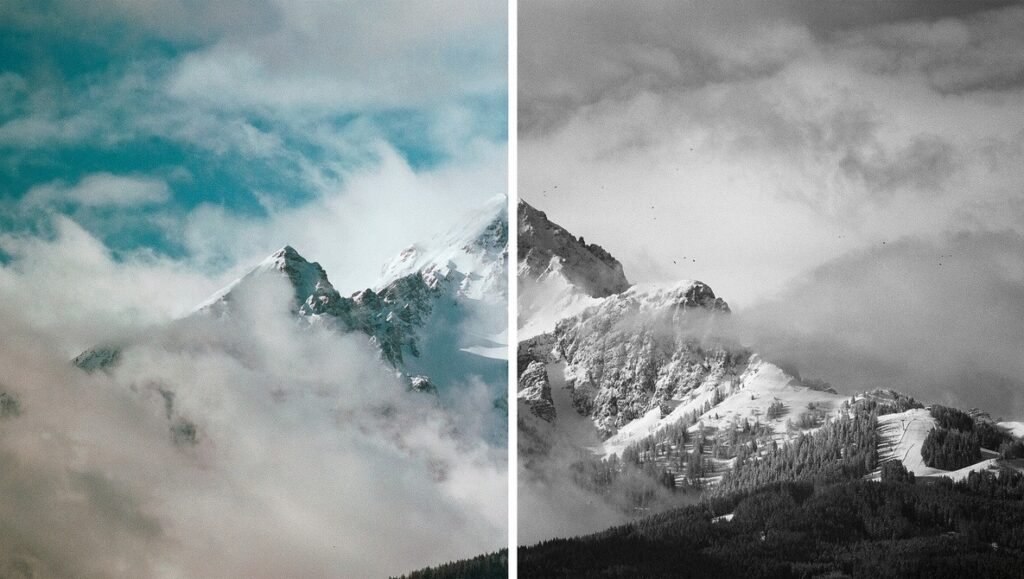
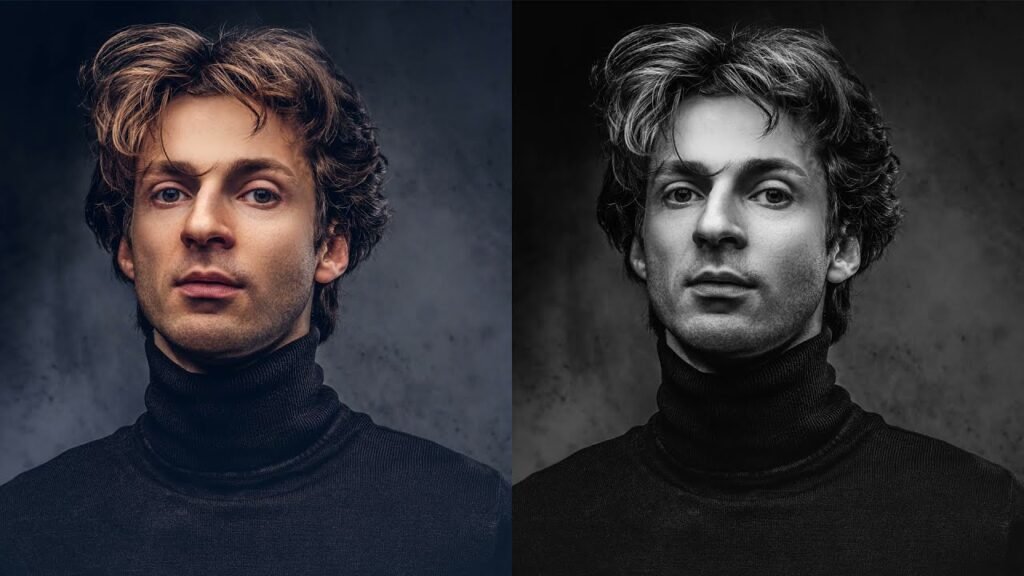
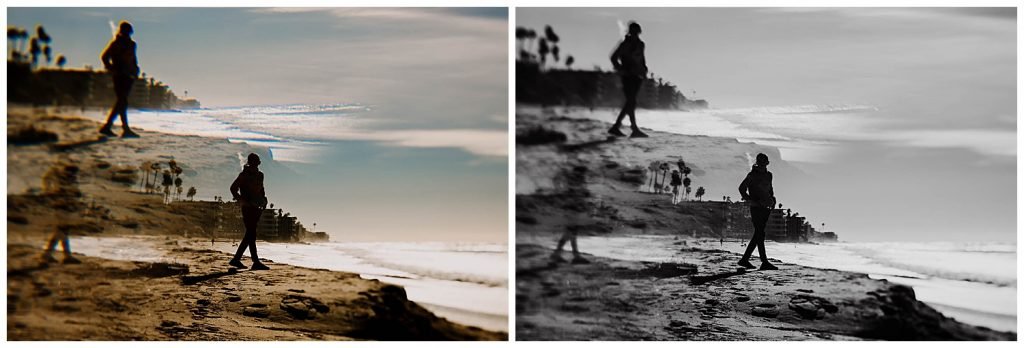
When you convert a color image to black and white, you change how people feel when they look at it.

The Aesthetic Appeal of Monochrome Photography

Monochrome photography is art. It strips the image down to its bones. Without color, you have to look at lines, textures, and shapes.

A white photo or a dark, moody image black and white shot can feel much more serious or artistic than a color one.

Think about famous portraits. Many of them are black and white. This is because white photography focuses on the eyes and the expression.

It makes the subject look strong. If you want professional results, switching to black and white is a great trick.

It creates a mood that color sometimes hides.

Removing Distractions and Focusing on Composition

Sometimes, colors get in the way. A bright red car in the background or a neon sign can ruin a nice portrait. This is the distraction of color.

When you use a white converter or an editor to remove that color, the distraction disappears.

The viewer can finally focus on what matters. They see the smile, the building, or the landscape without their eyes jumping around to bright colors. Making a picture black and white guides the viewer’s eye to the main subject. It cleans up the messy parts of a color picture.
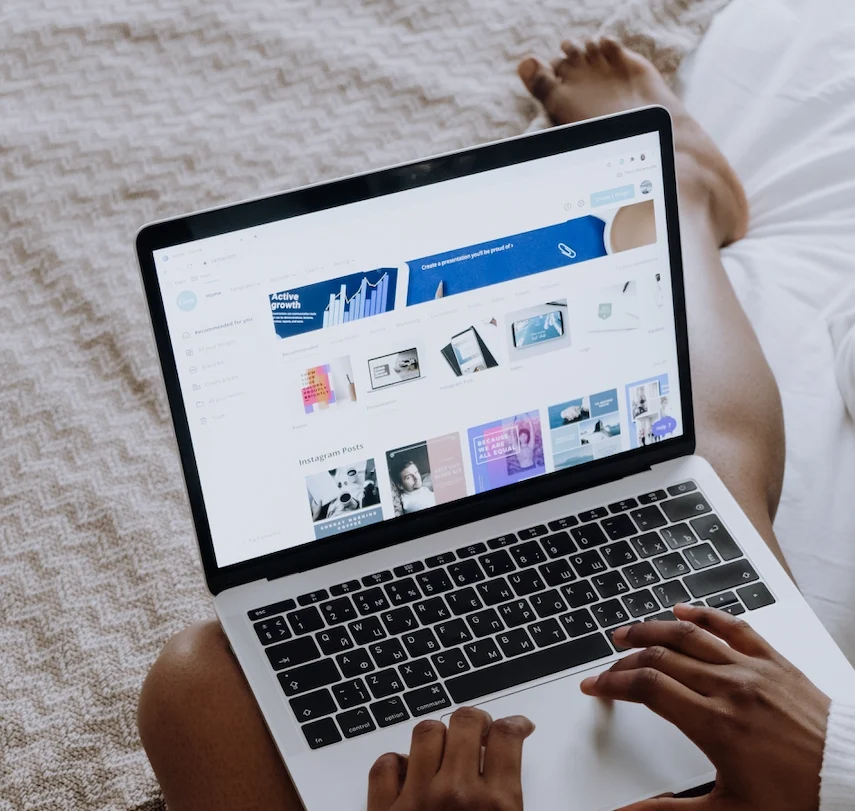
Creating a Vintage or Timeless Look

We all love a vintage feel. Old photos from the past were always black and white because that was the only technology available.

Today, we choose it on purpose. When you make an image black and white, it instantly feels classic.

If you are posting on social media, a white look can make your feed stand out. It feels nostalgic.

Whether it is a wedding photo or a street shot, the white effect adds history to the moment. It makes a new photo feel like a memory.

How to Make an Image Black and White in Adobe Photoshop?

How to Make an Image Black and White in Adobe Photoshop?

For many designers, Adobe Photoshop is the king of editing.

It gives you total control over your pixels. If you want the highest quality and precision, this is where you should work.

Here are three ways to get that perfect white conversion.

Method 1: Using A Black & White Adjustment Layer

This is the best way to work because it is “non-destructive.” This means you can change your mind later.

  • Open your color image in Photoshop.
  • Go to the “Window” menu and select “Adjustments.”
  • Click on the icon that looks like a half-black, half-white rectangle. This adds a white filter layer.
  • A panel will open with sliders. You will see Reds, Yellows, Greens, Cyans, Blues, and Magentas.
  • Move the sliders left or right. This changes how bright or dark specific colors become in the converted image. For example, dragging the Red slider down makes skin tones darker and more dramatic.

Method 2: The Gradient Map Technique

This method gives you a very rich, deep contrast. It is a favorite among pros for getting pure black and pure white.

  • Make sure your foreground color is black, and your background color is white in the toolbar.
  • Go to the Layers panel. Click the circle icon at the bottom and choose “Gradient Map.”
  • Photoshop maps the dark parts of your image to black and the light parts to white.
  • This creates a high-contrast grayscale look immediately. It creates a very strong white photo.

Method 3: Desaturating the Image (Destructive Vs. Non-Destructive)

This is the fastest way, but be careful.

  • Destructive: Go to Image > Adjustments > Desaturate. This removes all color information permanently. You cannot get the color back after you save and close. We usually avoid this.
  • Non-Destructive: Add a Hue/Saturation adjustment layer. Drag the saturation slider all the way to the left (-100). This removes the color but keeps the layer editable.

Fine-Tuning Contrast with Curves

After you turn the photo black and white, it might look a bit flat or gray. You need pop.

  • Add a “Curves” adjustment layer.
  • Click on the line in the middle and drag it up slightly to brighten the highlights.
  • Click lower on the line and drag it down to darken the shadows.
  • This “S” curve adds contrast and makes your white images look sharp and finished.

Ways to Make an Image Black and White Using Free Online Tools

Ways to Make an Image Black and White Using Free Online Tools

Not everyone has Photoshop, and that is okay!

There are amazing tools on the browser that cost nothing. If you need a quick image to black and white converter, the internet is full of options.

Converting Photos with Canva

Canva is very popular for social media graphics. Learning how to make an image black and white in canva is super easy.

  • Log in (or signup if you are new).
  • Click the upload area to add your picture.
  • Drag your photo onto the canvas.
  • Click “Edit Photo” at the top.
  • Go to “Filters.” Scroll until you see the Mono or Ink options.
  • Click one, and your white image conversion is done. You can adjust the intensity to get the right look.
  • Hit the download button to save it.

Using Adobe Express For Quick Edits

Adobe Express is like a lighter version of Photoshop in your browser.

  • Go to the website and look for the white image converter tool.
  • Upload your jpg or png.
  • Use the “Grayscale” option in the adjustments menu.
  • It uses a smart algorithm to balance the lights and darks for you.
  • It is perfect for quick tasks when you don’t have time for complex edits.

Top 3 Free Online Photo Editors For Grayscale Conversion

If you search for convert image to pure black and white online, you will find many sites. Here are three good ones:

  • Pixlr: This acts like a mini-Photoshop. You can use layers and adjust brightness and contrast.
  • Fotor: This white photo editor has one-click filters. It is great for beginners who want artistic effects.
  • LunaPic: A very simple tool. You just upload, click “Black and White,” and download. It works well for GIF files too.

How to Make an Image Black and White on Mobile Devices?

How to Make an Image Black and White on Mobile Devices?

We take most of our photos on our phones.

It makes sense to edit them there too. Whether you have an iPhone or Android, you have a powerful white editor right in your pocket.

Editing on iPhone (iOS Photos App)

You don’t need a special app to do this.

  • Open your Photos app and pick a picture.
  • Tap “Edit” in the top right corner.
  • Swipe the icons at the bottom until you see the three overlapping circles (Filters).
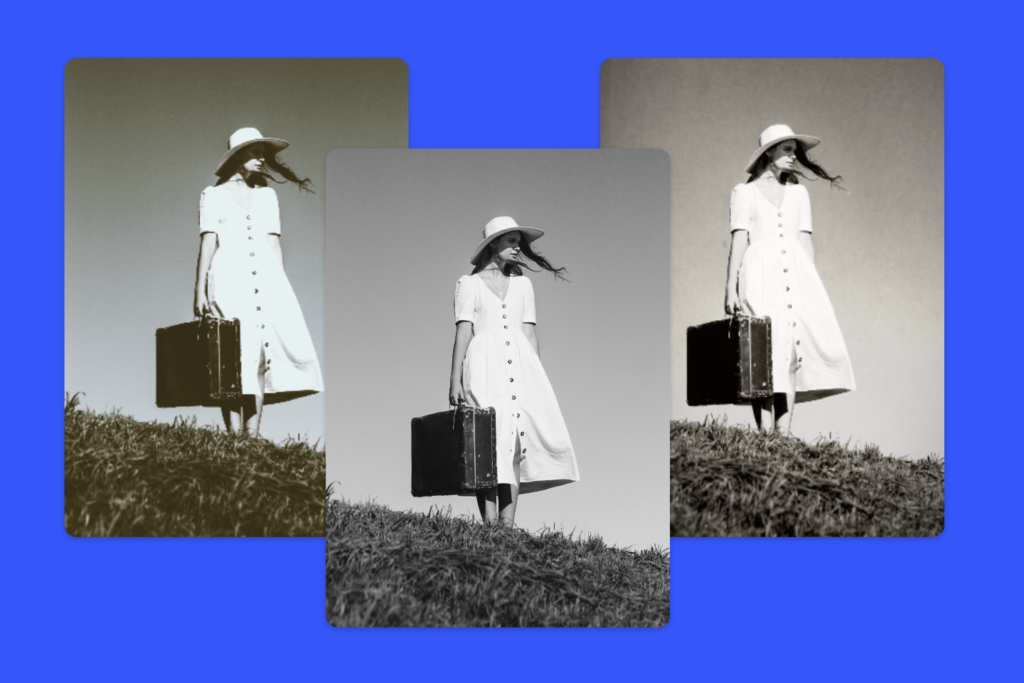
  • Scroll to choose “Mono,” “Silvertone,” or “Noir.” “Noir” creates a very moody, dark picture black and white look.
  • If you want more control, go back to the adjustment knobs. Turn Saturation to -100. Then play with Contrast and Black Point to make it pop.

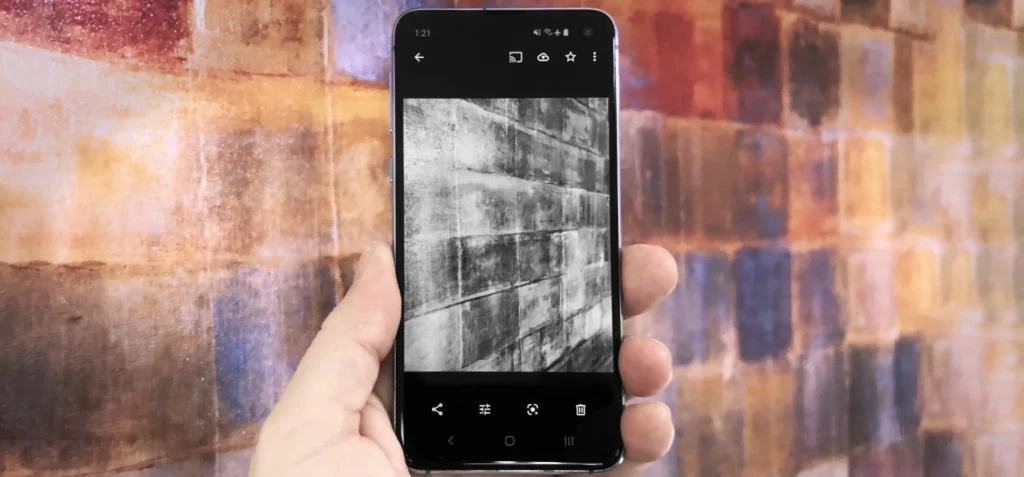
Editing on Android (Google Photos)

Android phones use Google Photos, which is very smart.

  • Open the photo you want to fix.
  • Tap “Edit” at the bottom.
  • Scroll to “Filters.” Look for options like “Eiffel” or “Vogue.”
  • For manual control, tap “Adjust.” Lower the saturation to zero.
  • Use the clarity slider to make the textures stand out. This gives a crisp white photography look.

Best Third-Party Apps For Black and White Photography (VSCO, Snapseed)

If you want professional results on mobile, try these apps:

  • VSCO: This app is famous for its presets. The “B” series (B1, B5, etc.) are beautiful black and white filters that look like real film.
  • Snapseed: Made by Google, this app is powerful. It has a “Black & White” tool with different color filters built in (like using a red filter on a camera). It helps you get a pure black sky or bright skin tones.

Developers Guide: How to Make an Image Black and White with CSS?

How to Make an Image Black and White with CSS?

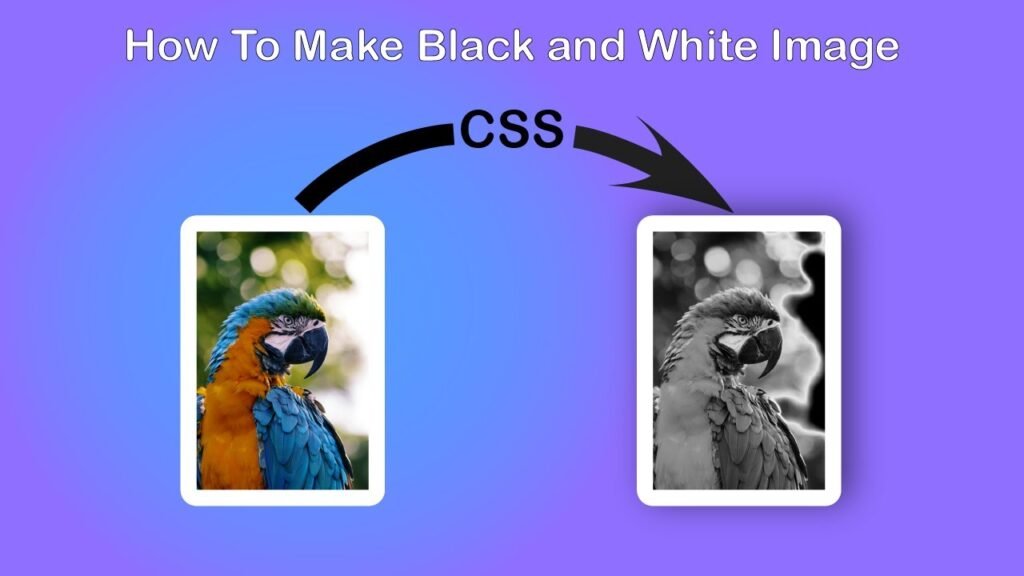
If you build websites, you might want to turn an image black and white using code. You don’t need to edit the file itself. You can do it with CSS.

  • Using the CSS Grayscale Filter: This is the easiest way. You tell the browser to render the image without color. The code is very simple: filter: grayscale(100%). When you apply this to an image tag, it becomes a grayscale image instantly. If you change it to 50%, it looks like a faded color picture.
  • Adjusting Opacity and Blending Modes: You can get creative. Maybe you want the image to be black and white, but show color when someone hovers their mouse over it. You can set the filter to grayscale(100%) as the default. Then, on hover, set it to grayscale(0%). This creates a nice interactive effect. You can also use mix-blend-mode: luminosity, to blend a white image with a colored background div.

Best Practices When You Make an Image Black and White

Best Practices When You Make an Image Black and White

Just removing color is not enough. To make a truly great image, you need to follow some rules.

Shooting in RAW Vs. JPEG

If you are serious about photography, try to shoot in RAW format. A JPG format compresses the image and throws away data to save space.

A RAW file keeps every bit of light information.

When you convert a RAW file, you have much more freedom to rescue shadows or fix bright spots. You get the highest quality result.

If you only have a jpg, you can still edit it, but you might see some fuzzy pixels if you push the edit too hard.

Why Contrast is Key in B&W Images

Without color to separate objects, you need high contrast.

This means you need bright whites and deep blacks. If your image is all middle gray, it will look boring and flat. Always adjust your levels or curves.

Make sure there is at least one point of pure black and one point of pure white in the photo. This creates a strong white look.

Avoiding Common Conversion Mistakes

  • Don’t just desaturate: Simply moving the saturation slider to zero is often boring. It treats all colors the same. Use a white filter or channel mixer to control how different colors turn into gray.
  • Watch the noise: Sometimes, making a photo black and white makes the grain (noise) very visible. You might need to use a noise reduction tool.
  • Don’t overdo the clarity: Adding too much structure or clarity can make the photo look fake and “crunchy.” Keep it natural.

FAQ’s:

Can I Make my Image Black and White on my Phone Or Tablet?

Yes, absolutely. You can use the default photos app on your device, or download a specialized app like VSCO or Snapseed. They work great on both phones and tablets.

Are Free Online Black and White Converters Safe to Use?

Most reputable sites are safe. However, always check if the site uses a secure connection (https). Avoid sites that ask for too much personal info just to use a free black and white tool. Stick to known names like Canva or Adobe Express.

Is Desaturating an Image the Same as Converting it to Black and White?

Technically, yes, but artistically, no. Desaturating just removes color. Converting usually implies you are adjusting the brightness and contrast of those grays to make a better picture. A proper white conversion involves tuning the tones, not just killing the color.

Can I Reverse the Effect If I Make an Image Black and White?

If you are using a “non-destructive” method (like a layer in Photoshop or a filter in Canva), yes. You can just turn it off. If you saved the file as a new jpg and replaced the original color photo, then no, you cannot get the color back. Always save your uploads as a copy!

Does Making an Image Black and White Reduce the File Size?

Not always. A grayscale image can sometimes be smaller because it has less color data to store. However, if you add a lot of grain or detail, the file size might stay big. Formats like PNG or WEBP handle this differently.

What is the Best Format to Save Black and White images in?

For the web, JPG is usually best for photos because it keeps the file size small. If you need transparency or very sharp lines, use PNG. For modern websites, WEBP image format is excellent because it is small and high quality. You can also save as PDF if it is for a document.

How Do I Make Only Part of an Image Black and White (Color Splash)?

This is called the “Color Splash” effect. In Photoshop, you can use a mask to paint black and white over specific areas. On mobile apps, there is often a brush tool or a color picker that lets you keep one color (like a red rose) while the image background turns gray.

What’s the Fastest Tool to Turn A Photo Black and White in Photoshop?

The shortcut Ctrl + Shift + U (or Cmd + Shift + U on Mac) is the Desaturate command. It is the fastest way, but remember, it is destructive. For a better result, using the Black & White adjustment layer is the smartest choice.

Conclusion

Learning how to make an image black and white is a skill every designer and photographer should have. It is not just about removing color; it is about finding the soul of the image. Whether you use Photoshop, a free online tool, or just your phone, the principles are the same.

Look for contrast, emotion, and light. At Designers Choice, we hope this guide encourages you to experiment. Take your old uploads, run them through a white converter, and see how they change. You might find that a simple white effect turns a regular snapshot into a piece of art.

So, go ahead. Open that browser, launch that app, or fire up your desktop software. Start creating stunning white images today. We can’t wait to see what you create.

Categories
Canva

How to Record on Canva: The Ultimate Step-by-Step Guide

At Designers Choice, we know the feeling of having a great idea but not knowing the best way to share it. We have all been there.

You have a vision, but the technical part feels hard. That is why we built this space—to help you turn those ideas into real projects.

Our goal is to make design simple and fun for everyone.

Whether you are a student, a teacher, or just someone who loves to create, we want to help you make your best work.

Today, we are going to talk about a very useful skill: how to record on canva. You might think you need a fancy recording studio or expensive equipment to make a video.

But you do not. You have a powerful tool right in your web browser.

Canva is not just for making posters or slides. It is also a great place to record videos.

You can record your screen, your face, or just your voice. It is perfect for making a tutorial, a school project, or a quick message for a friend.

In this guide, we will walk you through every step. We will show you little tricks to make your audio sound clear and your video look great.

We want you to feel confident when you hit that start recording button. Let’s jump in and learn how to share your voice with the world.

Why You Should Learn How to Record on Canva?

Why You Should Learn How to Record on Canva?

Recording videos might seem like a big task, but it is very useful.

When you learn how to record on Canva, you unlock a new way to communicate. You do not need to switch between different apps like

Zoom or Loom just to make a quick video. You can do it all in one place. This saves time and keeps your creative flow going.

Video is powerful. It grabs attention in a way that text cannot. When people hear your voice or see your face, they connect with you.

This is true for school, work, and fun personal projects. Let’s look at who can benefit from this feature.

Benefits For Educators and Students

For teachers, recording lessons is a game-changer.

You can create a Canva presentation and record your voice explaining the slides. This is great for students who need to review the lesson later.

You can pause, explain a difficult concept, and then move on. It makes learning personal, even when you are not in the classroom.

For students, this feature is amazing for homework. Instead of just handing in a paper, you can turn in a video.

Imagine you have a book report.

You can make slides about the book and then use the Canva recording studio to talk about your favorite parts. You can show your face to look professional or just record your voice if you are shy. It makes assignments more fun and creative. Plus, it is a great skill to show your teachers.

Creating Engaging Social Media Content

If you want to grow on social media, you need video.

Platforms like TikTok, Instagram, and YouTube love video content. Learning how to record on Canva helps you make posts that stand out.

You do not need a separate video editor. You can record a reaction video, a how-to guide, or a story right in your Canva account.

You can use templates to make your video look nice before you even start.

Maybe you want to show a cooking recipe. You can record your screen showing the recipe steps while you talk about the ingredients.

Or you can record yourself talking about a new product.

The best part is that you can add stickers, text, and music right after you finish recording. It makes content creation very fast.

Streamlining Business Presentations

In the business world, time is money.

Sometimes, you cannot get everyone in the same room for a meeting. That is where recording comes in handy.

You can record a pitch deck or a monthly report and send it to your team. They can watch it when they have time.

This ensures that your message is heard exactly how you want it. When you send a PDF, you do not know if people read it.

But when you send a video with narration, you guide them through the information. You can point out the important numbers and explain what they mean. It makes you look prepared and professional. It also stops endless email chains because you answered the questions in the video.

Method 1: How to Record on Canva For Presentations (Talking Head)

Method 1: How to Record on Canva For Presentations (Talking Head)

This is the best method if you want to teach something or present slides.

It is often called a “talking head” video because your face appears in a small circle while your slides show on the big screen.

It is very popular for courses and YouTube videos.

Opening the Presentation Studio

First, you need to log in to your Canva account.

If you do not have one, you can sign up for free. Once you are in, open the design you want to present. This is usually a presentation with slides (16:9 format). Look at the top right corner of your screen. You will see a button that says “Present.” Click on that.

A menu will drop down with a few options. You want to look for the option that says “Present and record.” If you do not see it right away, you might need to click on the three dots menu to find it.

Once you click “Present and record,” a blue button will appear that says “Go to recording studio.” Click that button.

This will take you to a special mode where you can set up your video. It looks like a real recording studio right on your computer.

Setting Up Your Camera and Microphone

Now, Canva needs to see and hear you. Your browser will ask for permission to use your camera and microphone.

You must click “Allow.” If you click “Block,” it will not work. You will see a preview of yourself on the screen.

This is the time to check how you look. Is the light good? Is your background messy? Fix these things now. You will also see a bar that moves when you talk. This is your audio level. Speak a few words to make sure the blue bar moves. If it stays flat, your mic is not working.

You can choose which camera and mic to use from the drop-down menus.

If you have an external USB microphone, select it here for better sound. If you want to know how to record your voice on Canva without a camera, you can select “No Camera” in the camera menu. Then, only your voice will be recorded.

Using the “Present and Record” Feature

When you are ready, look for the red “Start Recording” button. Click it. You will see a countdown: 3, 2, 1. Then, you are live!

As you record, you will see your slides in the middle. On the side, you might see your notes if you wrote any. The people watching your video will only see the slides and your face in a bubble. They will not see your notes.

This is a great trick to help you remember what to say.

To move to the next slide, click the arrows or use the arrow keys on your keyboard. Speak clearly and look at the camera lens, not at yourself on the screen. This helps you connect with the viewer.

Pausing and Resuming Your Recording

Sometimes, you might cough or lose your place. Do not worry. You can pause the recording. Look for the “Pause” button near the timer.

Click it to stop the recording temporarily.

Take a deep breath, drink some water, or check your notes.

When you are ready to go again, click “Resume.” The recording will pick up right where you left off. This makes it easy to fix mistakes without starting all over again. You do not have to be perfect in one take.

Method 2: How to Record on Canva Using the Screen Recorder

Method 2: How to Record on Canva Using the Screen Recorder?

This second method is great if you want to show a website, a document, or just record a quick message without slides. It is very flexible.

Accessing the Uploads Tab to Start Recording

To use this method, open any design in Canva. It can be a video blank canvas, a social media post, or a presentation.

Look at the black sidebar on the left side of the screen. Click on the tab that says Uploads. This is usually where you upload photos.

But there is another button here. Look for the button that says “Record yourself.” It is usually purple.

Click “Record yourself.” This will open a new window. It looks a bit like the presentation studio, but it gives you more choices on what to record.

Choosing Between Camera, Screen, Or Both

In this window, you have three main icons at the top or bottom.

You can choose to record just your camera, just your screen, or both at the same time. If you want to make a connection with your audience, choose the camera.

If you want to show a tutorial on how to use a website, choose the screen. If you want to do both—show the screen while you talk in the corner—choose the option that shows a screen with a small person icon.

Many people ask Canva record yourself not showing. To do this, simply choose the “Screen” option and make sure the camera icon is turned off.

Then, Canva will only record what is on your monitor and your voice.

Selecting A Chrome Tab, Window, Or Entire Screen

If you choose to record your screen, your computer will ask you what exactly you want to share. You will see three tabs:

  • Chrome Tab: This is best if you only want to show one specific website. It is the cleanest option because it hides your other open tabs and your computer taskbar.
  • Window: This records one specific app that is open, like a Word document or a PDF reader.
  • Entire Screen: This records everything on your monitor. If you switch between apps, the viewer sees it all. Be careful with this one so you do not accidentally show private information.

Select the one you want and click “Share.” Then, hit the red start recording button. Remember to speak clearly into your mic.

Editing Your Video After You Record on Canva

Editing Your Video After You Record on Canva

Once you finish recording, click “Done” and then “Save and Exit.” Your video will appear on your canvas.

Now comes the fun part: making it look perfect.

Trimming and Cutting Unwanted Footage

Sometimes the beginning or the end of your video has dead air. Maybe you were waiting to start speaking, or you fumbled to find the stop button.

You can remove this easily.

Click on your video to select it. Then, look at the scissors icon or the timeline at the bottom. You can drag the ends of the video clip inward.

This hides the parts you do not want. It is called trimming.

If you made a mistake in the middle, you can “split” the video. Move the Playhead line to the mistake, right-click, and choose “Split page” or “Split audio.” Then you can delete the bad part.

This helps keep your video smooth and interesting.

Adding Music and Sound Effects

Background music makes a video feel professional.

Go to the “Elements” tab on the left. Scroll down to “Audio.” You can search for “happy,” “calm,” or “corporate” music.

Drag the music file onto your timeline. Make sure the music is not too loud. You want people to hear your voice clearly.

Click on the music track, click the volume icon, and lower it to about 10% or 15%. This is one of those little tricks that makes a big difference.

You can also add audio files for sound effects, like a “pop” or “whoosh” sound when text appears. It keeps the viewer watching.

Positioning Your Camera Bubble Overlay

If you recorded your face and screen, your face appears in a circle or square. The cool thing about Canva is that this bubble is an element.

You can move it! If the bubble is covering important text on your slide, just click and drag it to a different corner.

You can also make it bigger or smaller.

You can even change the shape. Click on the bubble, go to “Effects” or “Shape,” and change it from a circle to a square or a star. This lets you customize how your presentation looks even after you recorded it.

How to Save and Share Your Canva Recording?

How to Save and Share Your Canva Recording?

You made a great video. Now you need to get it out of Canva and to your audience.

Downloading as an MP4 File

The most common way to save is as a video file. Click the “Share” button in the top right corner. Then click “Download.”

In the file type menu, make sure “MP4 Video” is selected. This is the best format for YouTube, Instagram, and almost every other site. Click the purple “Download” button. It might take a few minutes to render. This means Canva is putting all your audio clips and video parts together.

Once it finishes, the file will be in your computer’s “Downloads” folder.

Sharing Via A Viewable Link

If the file is too big to email, you can send a link instead. Click “Share” again. Look for the option that says “Public view link” or “View-only link.” Copy this link and send it to your teacher, boss, or friend.

When they click it, they can watch your video in their browser without downloading anything. They do not even need a Canva account to watch it.

This is very fast and easy.

FAQ’s:

Is It Free to Record Videos on Canva?

Yes, the recording feature is available for free users. You can record yourself, your screen, and your voice. Some special templates or music tracks might require a Pro account, but the basic recording tool is free for everyone.

Can I Record Audio Only, Without Video, In Canva?

Yes. You can use the “Uploads” tab, click “Record yourself,” and then turn off the camera. This is great for making a voiceover. Also, if you want to know how to record audio on Canva specifically, this is the way.

Can I Record My Screen and My Face At the Same Time?

Yes. When you choose the recording mode, select the option that shows both the screen and camera. Your face will appear in a small bubble over the screen content.

Is There A Time Limit When I Record on Canva?

Canva allows fairly long recordings, often up to 30 minutes or more, depending on your plan and browser stability. However, for the best performance, it is better to keep videos under 10-15 minutes. If you have a long presentation, try breaking it into smaller parts.

Where is the Record Feature Located in Canva’s Editor?

You can find it in two main places. First, under the “Uploads” tab on the left sidebar (click “Record yourself”). Second, inside the “Present” menu in the top right corner for presentations.

What File Formats Are Used For Recorded Audio and Video in Canva?

Videos are usually saved as MP4 files. If you only have audio, it might save as an M4A or MP3 file inside Canva, but when you download the final project, it is best to export as MP4 (video) or download the specific audio clip if needed.

Are There Any Limitations to Canva’s Recording Features I Should Know About?

You need a stable internet connection because Canva works in the browser. If your internet cuts out, you might lose your recording. Also, the editing tools are simple. If you need Hollywood-level effects, you might need a different software.

Why is my Microphone Or Camera Not Working in Canva?

This is usually a permission issue. Check the address bar in your browser. If you see a little lock icon or a camera icon with a red line, click it. You need to allow Canva to access your devices. Also, check your computer settings to ensure your mic is not muted.

Conclusion

We hope this guide helps you feel ready to create. Learning how to record on Canva opens up so many doors. You can share your knowledge, finish your homework in style, or pitch your next big business idea. It is a simple tool, but it is very powerful.

At Designers Choice, we believe that the best design tools are the ones that help you express yourself. You do not need to be a tech expert. You just need a message and a willingness to try. So, go to your Canva account, find that top right corner, and hit record.

Your audience is waiting to hear what you have to say. Happy creating!

Categories
Design

How To Make A Collage: The Ultimate Step-By-Step Guide

At Designers Choice, we want to help you create amazing things. We know that turning your ideas into real art can be a challenge.

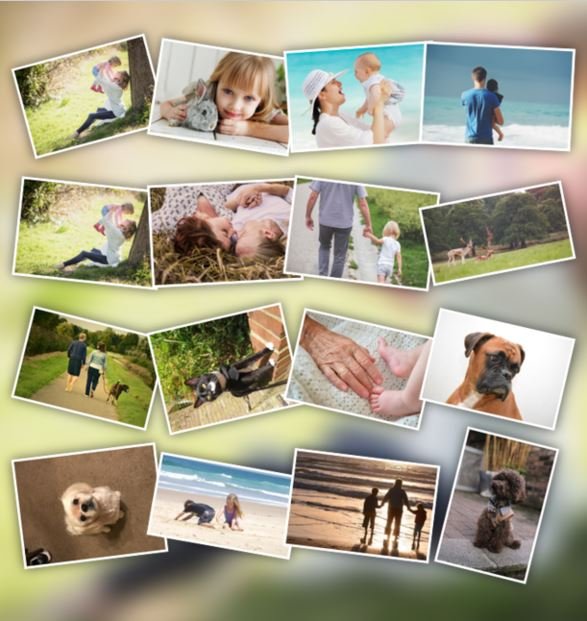
But it is also very fun. One of the best ways to show your creativity is to learn how to make a collage. A collage is a piece of art made by sticking different things together. You can use photos, paper, or digital images.

It is a great way to keep your special moments safe in one place.

Designers Choice is here to give you the best tips and tools. We want to be the resource that helps you make your vision real.

You do not need to be a pro graphic designer to do this. Anyone can make a stunning photo collage with a little help.

In this guide, we will show you how to make a collage for fun, for school, or for social media.

We will talk about the best tools and ideas to get you started. Let’s dive into the world of collage and make something great together.

What You Need to Know Before You Learn How to Make A Collage?

What You Need to Know Before You Learn How to Make A Collage?

Before you start cutting paper or opening an app, you should think about your plan. A good plan makes the collage creation process much easier.

It acts as a starting point for your art.

Defining Your Purpose and Theme

First, ask yourself why you are making this.

Are you a travel enthusiast who wants to show off a recent trip? Maybe you want to share everyday moments with your friends.

You might be making marketing materials for professional use. Or, it could be a simple project for various occasions like a birthday or holiday.

Choosing a theme helps you express ideas clearly.

If you love dogs, your theme is dogs. If it is for a wedding, the theme is love and celebration. This is your favorite thing to focus on.

Having a clear theme helps you pick the right collage photos.

It helps you decide if you need a funny vibe or a serious one. Creative ideas come faster when you know your goal.

Choosing Between Digital Vs. Paper Collages

Next, you must decide how you want to build it. You can make a paper collage with your hands, or you can use a mobile device or computer.

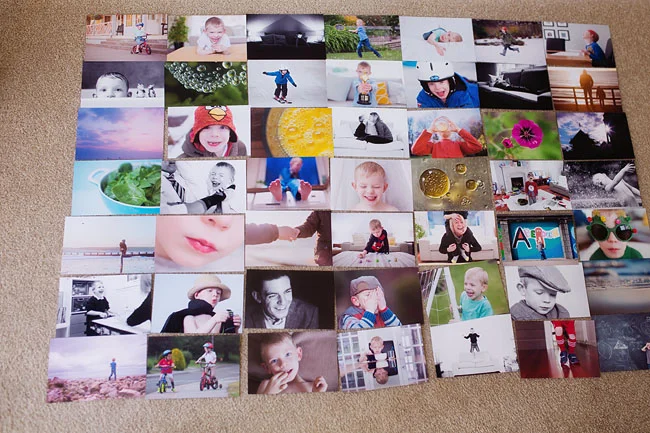
A paper collage is great if you like to touch things. You use a glue stick and scissors. It has a nice, messy, and real feel.

It is perfect for a personal touch.

On the other hand, a digital collage is very clean. You can use a photo collage maker on your phone or laptop. This method gives you image quality that is always sharp. You can change your mind and move things around easily. It is the easiest way to make a picture if you are in a rush.

Also, digital tools often have a free collage maker built-in. This is great for your first collage because you can undo mistakes.

How to Make A Collage Digitally (Phone & Computer)

How to Make A Collage Digitally?

Making a collage on a screen is very popular today. It is fast and you have many customization options. You can do this on your computer using a web browser or on your phone with a mobile app.

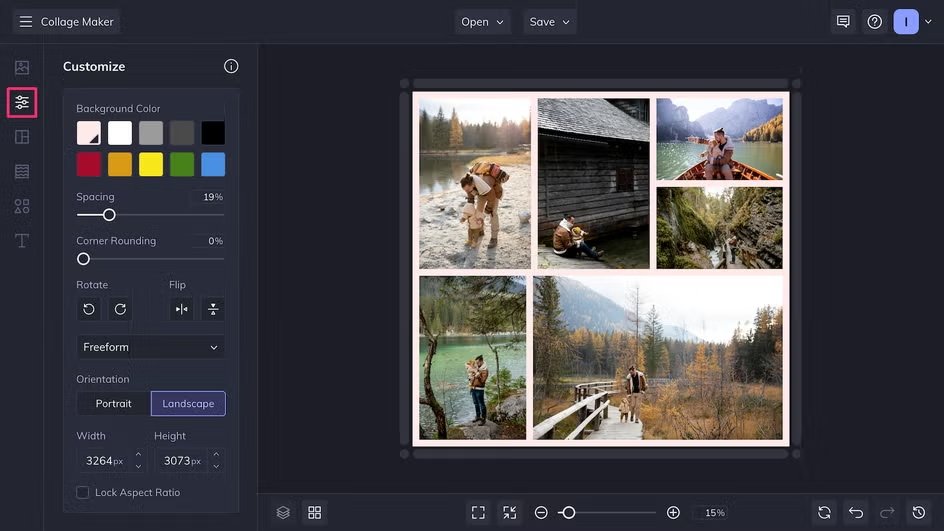
Using Free Online Tools (Canva, Adobe Express)

There are many websites that help you design. Adobe Express is a famous one. Another great option is to find a free online collage maker like Canva.

These tools are very friendly for beginners. They have an intuitive interface, which means the buttons are easy to find and understand.

When you use these tools, you start with collage templates.

A template is a pre-made design. You drop your photos in. These tools offer customizable layouts. You can change the size of the boxes or the colors. You can add text or stickers to show your personal flair.
They also have a wide range of features, such as photo effects that make your pictures look old or bright. Using a tool like the Pixlr photo collage maker can also take your art to the next level.

Best Mobile Apps For Quick Photo Grids

If you are on your phone, you can go to the app store (for iPhone) or the store for Android devices. Search for a collage creator or picture collage app. There are many free photo collage maker apps available.

One simple way is to use Google Photos. The Google Photos app often makes collages for you. It has an auto collage option.

You just select the number of photos you want, and it puts them together. You can also pick a specific aspect ratio.

The aspect ratio is the shape of your image, like a square or a rectangle. This is important if you want to post it on different social media platforms.

Apps allow you to adjust collage cells, which are the little boxes where your photos sit.

Creating A Collage on Instagram Stories

Did you know you can make a collage right inside Instagram? This is perfect for social media posts or Instagram stories.

It allows for seamless integration with your profile.

To do this, open the camera in Instagram. Look for the collage icon on the left or bottom of your screen. It might be called “Layout“.

This tool lets you pick multiple photos. You can choose a layout for a single post. It is great for sharing special occasions quickly.

You just tap the buttons at the bottom of your screen to change the grid. It is a fun way to share beautiful photo collages without leaving the app.

Step-by-Step: How to Make A Collage By Hand?

Step-by-Step: How to Make A Collage By Hand?

Making a collage by hand is a classic art form. It is very relaxing. You do not need a computer, just some basic items.

Gathering the Right Supplies (Magazines, Photos, Adhesives)

First, get your supplies. You will need a glue stick, scissors, and something to cut. You also need images. You can cut up old magazines.

You can use printed copies of your favorite images. Make sure the photos are clear. Image quality matters even on paper. You can also use colorful paper, fabric, or tickets. These are your collage pieces.

Preparing Your Base Or Backing Board

You need a strong base to glue everything onto. This is the background. You can use a piece of thick paper, cardboard, or even a canvas.

The base holds your personalized photo collage together. If you use thin paper, the glue might make it wrinkle. So, pick something stiff.

Cutting and Layering Techniques For Texture

Now, start cutting. You can cut neat squares or rip the paper for a rough look.

Ripping paper adds cool texture. Before you glue, lay your pieces down on the base. Move them around. This is the time to try collage ideas.

Put big pieces at the back and small pieces on top. This is called layering. It makes your art look deep and interesting.

The Best Way to Glue and Seal Your Art

When you are happy with how it looks, use your glue stick.

Put glue on the back of the piece and press it down. Rub it gently to smooth it out. Be careful with the edges.

After everything is dry, you can seal it. Some people use a special clear coat to protect the collage photos. This keeps the edges from peeling up later.

Design Tips on How to Make A Collage Look Professional

Design Tips on How to Make A Collage Look Professional

Whether you use a collage maker or paper, good design rules help. These tips will make your work look like it was done by a pro.

  1. Understanding Balance and Composition: Balance means your collage does not feel heavy on one side. You do not want all the big photos in one corner. Spread them out. A good trick is the rule of thirds. Imagine a grid on your picture. Put the most important parts where the lines cross. This creates a good aspect of your collage. It feels right to the eye.
  2. Choosing A Cohesive Color Palette: Colors are very important. Try to pick photos that have matching colors. If your background is blue, maybe use photos with blue sky or water. This makes the whole picture look united. You can also use black and white photos for a fancy look. A good color mix makes your customization options really shine.

  3. Using Negative Space Effectively: Negative space is the space between photos. You do not have to fill every inch. Leaving some space gives the eyes a break. It helps the viewer see the special moments you captured. In a photo collage maker, you can usually change the border thickness. This white space is negative space. It frames your images nicely.

FAQ’s:

What is the Easiest Way to Make A Photo Collage Online For Free?

The easiest way is to use a free online collage maker like Canva or Adobe Express. These sites have collage templates ready for you. You do not need to download anything. Just open your web browser, pick a layout, and drag your photos in.

Can I Make A Collage on my iPhone Without Downloading an App?

Yes, you can make a collage on an iPhone without app support by using the Shortcuts app, but it is a bit hard. A simpler way is to use the layout feature in Instagram stories or save a grid from Google Photos.

However, Apple’s Photos app does not have a built-in “create collage” button like some Android devices.

How Do I Choose A Theme For My Collage?

Think about the story you want to tell. Is it for a school project? Then the theme is your topic. Is it for a friend? The theme is your friendship. Your favorite thing or hobby is always a good theme.

What Creates A Good Composition In A Collage?

Good composition comes from balance. Use the rule of thirds. Mix big and small images. Do not crowd everything. Let the collage cells breathe with some space.

Is It Legal to Use Magazine Clippings For Art?

Yes, generally, if you make a paper collage for yourself or school, it is fine. It gets tricky if you sell it. But for fun and collage creation at home, use whatever you like!

What is the Best Glue to Use For A Paper Collage?

A glue stick is usually the best. It is not too wet, so it does not ruin the paper. Liquid glue can get messy and make the paper wrinkle.

How Do I Make A Paper Collage Using Magazines and Craft Supplies?

First, cut out shapes and colors you like from the magazines. These are your collage pieces. Get a thick piece of paper for the base. Arrange your cutouts to make a picture or pattern. Then, glue them down.

Can I Create and Edit Collages In My Phone’s Gallery App?

If you have an Android phone, yes. You can often learn how to make collage in a gallery without app downloads. Samsung and Google Pixel phones have a create collage button in the menu. On an iPhone, you usually need a third-party app.

What Are Some Creative Collage Ideas For Teens and Beginners?

You can make a “vision board” for your future goals. You can make a shape collage, where all photos form a heart or star. You can use photo effects to make a rainbow color theme.

Conclusion

Learning how to make a collage is a wonderful skill. It lets you mix your favorite images into one piece of art.

Whether you use a mobile app, a web browser, or a glue stick and paper, the result is something special.

It is a great way to share special occasions or just have fun. Remember, there is no wrong way to do it. Use the best tools you have, add your personal touch, and enjoy the process. We hope this guide helps you bring your boldest visions to life. Happy creating!

Categories
Design

How to Make Your Own Business Cards: The Ultimate Step-by-Step Guide

At Designers Choice, we believe that a great business card is more than just a piece of paper.

It is often the very first thing a new client sees. It is your chance to make a lasting impression. When you meet potential customers, you want to hand them something that feels professional and looks amazing.

We know that starting a business card design project can feel a little scary if you are not a graphic designer. You might think you need expensive software or years of design experience to make something good.

But that is not true anymore. Today, anyone can create a perfect business card in just minutes.

In this guide, we will show you how to make your own business cards from start to finish. We will look at the best tools, from Adobe Express to Microsoft Word, and help you choose the right cardstock.

Whether you want to print them on your laser printer at home or send them to a professional printing service, we are here to help.

Our mission at Designers Choice is to give you the trusted insights you need to bring your creative ideas to life.

Why You Should Learn How to Make Your Own Business Cards?

Why You Should Learn How to Make Your Own Business Cards?

Learning how to make your own business cards is a smart move for any business owner. It gives you power over your personal brand and helps you stand out. Here is why we think you should give it a try.

Cost-Effectiveness of DIY Designs

Hiring a professional graphic designer can cost a lot of money.

When you are just starting out, you might not have a big budget for marketing materials. By choosing DIY business cards, you save money that you can use for other parts of your business.

Many business card templates are available for free.

This means you do not have to pay for a custom design from scratch. You can find free business card templates online that look just as good as the ones a pro would make. If you have a decent laser printer or inkjet printer at home, you can even save on printing costs.

Full Creative Control Over Your Branding

When you hire someone else, you have to explain your vision to them.

Sometimes, they just don’t get it right. When you make your own design, you have full control over every detail.

You can pick your favorite design elements, choose the exact color schemes, and place your company logo exactly where you want it.

You know your business better than anyone. You know what style fits your personal brand.

Whether you want a clean, white paper look or a fancy gold foil effect, doing it yourself ensures the final card looks exactly how you imagined.

Flexibility to Update Information Instantly

Business changes fast. Maybe you got a new phone number or changed your email address.

If you ordered 1,000 cards from a traditional printer, you would have to throw them all away and wait for business days for a new batch.

When you know how to make your own business cards, you can update your contact information instantly.

You can change your job title, add a new physical address, or even create special cards for specific events with special offers.

You can print a small batch of 20 cards for a meeting tomorrow. This flexibility is one of the best parts of making your own business cards.

Essential Tools and Software to Get Started

Essential Tools and Software to Get Started

You do not need a fancy computer to design a great card. There are many tools available, from easy business card maker apps to professional programs.

Beginner-Friendly Tools (Canva, Vistaprint)

For most people, we recommend starting with beginner-friendly tools.

Websites like Canva and Vistaprint are great because they offer thousands of business card templates. You do not need any design experience to use them. These tools work with a drag-and-drop system.

You simply pick a template you like, type in your own text, and upload your company logo.

You can change the font size and colors with one click. They are designed to help you create a professional look in just minutes.

Canva also allows you to use Adobe Express features if you want more options.

Advanced Design Software (Adobe Illustrator, Photoshop)

If you want a truly custom design or unique shapes, you might want to use advanced software. Adobe Illustrator and Photoshop are the industry standards. These programs give you full control over every pixel.

With these tools, you can draw your own icons, manipulate photos for the back side of the card, and set up precise bleed lines.

However, they are expensive software and take time to learn.

If you are serious about design or want to sell your designs to others, they are worth learning. But for a simple standard business card, they might be more than you need.

Using Microsoft Word Or Google Docs

Did you know you can use Microsoft Word to design cards? It is not just for writing reports.

Microsoft Word has built-in templates for business cards. It is a great option if you want to print at home using pre-cut business card paper.

Google Docs is another free option. While it has fewer customization options than Canva, it is simple and accessible. You can set up a table with the right business card dimensions and design your card inside the cells.

It is a good choice if you need a very simple, text-based card quickly.

A 5-Step Tutorial on How to Make Your Own Business Cards

How to Make Your Own Business Cards?

Ready to start? Here is our simple 5-step guide to making the perfect business card.

Step 1: Choose the Right Dimensions and Shape

The first step is to decide on the size. The standard business card size in the US is 3.5 inches by 2 inches. This fits perfectly in a wallet.

Most business card templates will be set to this size automatically. However, you can choose unique shapes to stand out.

Square business cards (usually 2.5 inches by 2.5 inches) are becoming very popular. They look modern and cool.

Just remember, if the card is too big or an odd shape, it might not fit in a standard wallet, which could annoy potential customers.

Step 2: Select A Color Scheme and Typography

Your card needs to match your brand. Choose color schemes that are the same as your website or shop.

If your logo is blue and white, your card should use those colors too. Full color cards catch the eye better than black and white ones.

Next, think about typography. This just means the font style. You want a font that is easy to read. Avoid curly, fancy scripts for your phone number or email. Use a clear, bold font for your company name.

Make sure the font size is big enough to read without glasses, usually at least 8pt or 9pt.

Step 3: Organize Your Contact Information

What information must go on the card? You have limited space, so be picky. You must include:

  • Company Name
  • Your Name and Job Title
  • Phone Number
  • Email Address
  • Website (or Social Media handles)

You might also add your physical address if you have a shop people can visit. Do not clutter the card with too much info. The goal is to give them a way to contact you, not to tell your whole life story.

Step 4: Add Visual Elements (Logos and QR Codes)

Visuals make the card memorable. Place your company logo in a prominent spot. It should be high quality so it doesn’t look blurry.

A modern trend is to add a QR code. You can generate a QR code for free that links directly to your website, portfolio, or a page with special offers. This connects your physical card to your digital world. It is a great way to engage people.

You can put the QR code on the back side of the card so the front stays clean.

Step 5: Proofread and Check Bleed Lines

Before you print, you must proofread. Check your phone number and email address three times.

A wrong number on a business card is a disaster! Also, check the bleed lines. The bleed is the extra color that goes off the edge of the card.

If you are using a printing service, they need this so that when they cut the cards, there are no white edges.

If you use business card templates, they usually show you where the safe line and bleed line are. Keep all your text inside the safe line.

Printing Your Business Cards: Home Vs. Professional Services

Printing Your Business Cards: Home Vs. Professional Services

Now that you have a design, you need to print it. You have two main choices: print at home or use printing services.

How to Select the Best Cardstock and Paper Weight?

The paper you use is very important. Flimsy paper feels cheap and will get ruined in a pocket. You want thick card stock.

Paper thickness is measured in points or pounds. A standard business card usually uses 14pt or 16pt card stock. This feels stiff and professional.

If you print at home, you need to buy specific business card paper sheets that are perforated (easy to tear apart).

You also need to choose the finish. A White paper is standard, but you can get textured paper too.

  • Glossy finish: Shiny and makes colors pop. Great for photos.
  • Matte finish: Smooth and no shine. easier to write on.

Tips For Printing High-Quality Cards At Home

Printing at home is fast and cheap. You can use your laser printer or inkjet. Here are some tips:

  • Buy good paper: Do not use regular copy paper. Buy pre-cut business card paper from an office supply store. Avery is a popular brand.
  • Check printer settings: Set your printer to “High Quality” or “Photo Quality.” Make sure you select “Heavy Paper” or “Card Stock” in the paper type settings.
  • Print a test sheet: Always print one test sheet on plain paper first. Hold it up to the business card paper to see if the alignment is perfect. This saves you from wasting expensive paper.
  • Print Single Page: If your printer jams easily, feed the cardstock one single page at a time.

When to Outsource to A Professional Printer?

Sometimes, home printing is not enough. If you want special finishes like gold foil, raised text, or super-thick paper, you need a professional printer. Printing services (like Vistaprint or local shops) offer consistent quality.

They cut the cards perfectly so you don’t have rough edges from tearing perforations. Professional printing also saves you time if you need 500 or 1,000 cards. You usually have to wait a few business days for shipping, but the professional look is often worth the wait.

Common Design Mistakes to Avoid

Common Design Mistakes to Avoid

Even with the best tools, you can make mistakes. Here are common errors we see at Designers Choice.

  1. Overcrowding the Card with Text: Do not try to fill every inch of white space. White space is good! It makes the card look clean and easy to read. If you cram in your fax number, three email addresses, and a long slogan, the card will look messy. Stick to the essential contact details.
  2. Using Low-Resolution Images: Nothing ruins a professional business card faster than a blurry logo. Make sure your images are high resolution (at least 300 DPI). If you grab a tiny image from a website, it might look pixelated when printed. Always use the best quality logo file you have.
  3. Choosing Unreadable Fonts: You might love that fancy cursive font, but can people read it? If your contact information is hard to read, the card is useless. Stick to simple serif or sans-serif fonts for the text. Use the fancy fonts only for big headlines or your logo. Also, watch your font size. Don’t go smaller than 8pt.

FAQ’s:

Is It Cheaper to Make Your Own Business Cards Or Buy Them?

It is usually cheaper to make DIY business cards if you only need a small amount and have a printer. Printing business cards at home saves on shipping and markup. However, if you need 1000 cards, printing services might actually be cheaper per card because they print in bulk.

Can I Make Business Cards Without Graphic Design Experience?

Yes! You do not need design experience. Tools like Canva and Adobe Express have free business card templates that do the hard work for you. You just change the text and colors.

Where Can I Find Free Templates For Business Cards?

You can find free business card templates on Canva, Microsoft Word, Google Docs, and the websites of printing companies like Vistaprint. These templates are set up with the correct business card dimensions.

How Do I Print Business Cards At Home Without Professional Equipment?

You need a good inkjet or laser printer and pre-cut business card paper (like Avery sheets). You design the cards on your computer, print a test sheet, and then print on the cardstock. Then you carefully separate the cards.

What Paper Type Is Best For High-Quality Business Cards?

The best type of paper is a thick cardstock, usually 14pt or 16pt. You can choose a glossy finish for shiny photos or a matte finish for a classic look.

What is the Standard Size For A Business Card?

The standard business card size is 3.5 inches by 2 inches. Square business cards are usually 2.5 inches by 2.5 inches.

What is the Best Paper Weight For Business Cards?

For a professional feel, look for a paper weight between 250 GSM and 400 GSM (or 14pt to 16pt). Standard printer paper is too thin.

What Information Must Be Included on a Business Card?

You must include your company name, your name, job title, phone number, and email address. A website or QR code is also highly recommended.

Can I Use Microsoft Word to Design Business Cards?

Yes, Microsoft Word is a great tool for this. It has templates specifically for printing business cards on standard perforated paper sheets.

Conclusion

Creating your own business cards is a rewarding project.

It gives you full control over your personal brand and saves you money. Whether you use Microsoft Word, Canva, or Adobe Express, the process is easier than ever. You can create a professional business card that impresses potential customers in just a few steps.

At Designers Choice, we want you to feel confident in your design skills.

Remember to keep your design simple, check your contact details, and choose the right card stock. Whether you print at home or use professional printing, your new cards will help you share your business with the world.

Now that you know how to make your own business cards, it is time to get creative. Pick a favorite design, add your own logo, and start making connections! A great card is the first step toward a successful business relationship.

Categories
Design

Best Guide to Design Bundles: Save Big on Premium Creative Assets

At Designers Choice, we are passionate graphic designers with years of hands-on experience, and we know how hard it is to find the perfect tools.

We created this space to make your life easier because turning a creative idea into reality should be fun, not stressful.

That is where design bundles come in to save the day.

Think of a bundle like a big basket of goodies—instead of buying one item at a time, you get a whole collection of fonts and pictures for a lower price.

Using these packs is a good idea that speeds up your creative process and gives you peace of mind. We are here to help you find the best resources so you can bring your boldest visions to life.

What Are Design Bundles and Why Should You Use Them?

What Are Design Bundles and Why Should You Use Them?

Understanding the Concept of Bundling Digital Assets

When we talk about design bundles, we are talking about a collection of digital items.

These items are things you use on your computer to make art. Imagine you are building a house. You need wood, bricks, glass, and paint.

If you go to the store and buy one brick at a time, it will take forever. But if you buy a whole pallet of bricks, you get them faster and cheaper.

Digital assets work the same way. A pack might have 50 different fonts. Or it might have 100 svg files that you can use for cutting machines.

These packs are put together by graphic designers who want to help you. They group similar things.

For example, they might make a “Summer Fun” pack. This pack would have bright colors, beach pictures, and sunny fonts.

When you buy a pack, you get a lot of files at once. You might get vector files, PNG images, and even templates. This means you have a full library of tools ready to use. You do not have to search for hours to find a nice picture. You have a whole folder full of them on your computer.

The Cost-Benefit Analysis: Buying Individually Vs. Bundles

Money is important for everyone. Whether you have a big business or a small hobby, you want to spend your money wisely.

Buying individual designs can get very expensive very fast. Let’s say you want to make a birthday card. You find a cute flower picture for $5.

Then you find a nice font for $15. Then you want a background pattern for $5. You have already spent $25 for one card!

Now, look at a bundle. You might find a “Flower Power” pack for $20. But this pack does not just have one flower.

It has 200 flowers, 50 patterns, and 10 fonts. You pay less money, but you get hundreds of items. This is a huge saving.

Also, when you buy things one by one, you often have to pay extra fees each time.

With a pack, you pay once. There are usually no hidden fees. You see the price, you pay it, and you get everything.

This is great for your budget. It leaves you with more money to spend on other things, like a new app or better paper for printing.

Top Categories of Design Bundles Available Online

Top Categories of Design Bundles Available Online

Font and Typography Bundles

Words are everywhere. The way words look is very important. This is called typography. A font is the style of the letters.

Some letters look fancy and curly. Some look strong and bold. Graphic designers love having many fonts to choose from.

Font packs are very popular. You can find packs with handwriting styles that look like someone wrote them with a pen.

These are great for wedding invitations or thank you cards. There are also vintage styles that look like old signs. Having a big collection of fonts helps you build a strong brand identity for yourself or your clients.

You can pick the perfect letter style to match the feeling of the project.

SVG and Cut Files For Crafters

If you love making things with your hands, you might know about machines like the Cricut. These machines cut paper, vinyl, and fabric into special shapes. To use them, you need special files called SVG files.

SVG stands for Scalable Vector Graphics. This is a big name, but it just means you can make the picture big or small without it looking blurry. Crafters love these files. You can find packs with thousands of shapes.

You can find animals, holiday shapes, sayings, and more.

For example, you can buy a Christmas pack. It will have snowflakes, Santa Claus, reindeer, and trees. You can use these svg files to make ornaments, shirts, or window stickers. It makes your workflow much faster because the shapes are already drawn for you.

Vector Illustrations and Graphics Packs

Vector illustrations are drawings made on a computer. They are clean and sharp. They are not like photos, which are made of tiny dots.

Vectors are made of lines. This means you can change their size easily.

Graphics packs are full of these drawings. You might find a pack of cute animals for a nursery room. Or you might find a pack of food drawings for a restaurant menu. These packs often have clipart too.

Clipart is easy to use and can be dropped right into your project. These packs are great for making logos.

A logo is the picture that represents a company. With a good graphics pack, you can mix and match different drawings to make a unique logo.

You can change the colors and shapes to make it perfect.

Social Media and Marketing Templates

Everyone uses social media these days. Companies need to post on Instagram, Facebook, and Twitter to talk to their customers.

Making a new post every day is hard work. This is where templates help.

A template is a pre-made design. It has spots for your photos and your text. You just have to fill in the blanks. Marketing packs have lots of these templates. They are made to look good together.

This helps your social media page look neat and professional. You can find layout packs for stories, posts, and banners.

They often come in different sizes for different apps. This saves you so much time. You do not have to measure anything.

You just open the file, put in your picture, and save it. It is a very fast way to share your news with the world.

How to Choose the Best Design Bundles For Your Projects?

How to Choose the Best Design Bundles For Your Projects?

Checking Commercial Vs. Personal Licensing

When you buy a design, you need to know how you are allowed to use it. This is called licensing.

There are two main types: personal and commercial. Personal use means you can use the item for yourself.

You can make a shirt for your mom or a card for your friend. You cannot sell what you make. Commercial use means you can make things to sell.

If you want to put a design on a mug and sell it in a shop, you need a commercial license.

Most big packs come with a commercial license, but you must check. Read the rules carefully. This gives you peace of mind knowing you are following the law. Some licenses allow unlimited access to use the design as many times as you want.

Others might say you can only sell 500 items. Always read the fine print so you know what you can do.

File Compatibility (Adobe, Canva, Cricut, etc.)

Before you buy a pack, you must make sure it works with your computer app. Different programs use different types of files.

If you use a Cricut machine, you need SVG files. If you use Adobe Photoshop, you might need PSD files.

If you use Canva, you need PNG or JPG files that are easy to upload.

Most packs will list the file types included. Look for words like PNG, vector, SVG, and EPS. PNG files are great because they have clear backgrounds. You can put them on top of other pictures. Sublimation printers also use specific file types.

Sublimation is a way to print ink onto shirts and mugs. If you do this, make sure the files are high quality so they print well.

Evaluating the Quality of Designers and Marketplaces

Not all packs are the same. Some are made by experts, and some are not. You want to buy from people who know what they are doing.

Look at the pictures of the product.

Do they look clear? Do they look professional? Read the description. Does the seller speak good English? Do they explain everything clearly?

It is also a good idea to check if the seller offers excellent customer service. Can you send them an email if you have a problem?

Do they answer questions? A good seller wants you to be happy. They will help you if a file does not work.

Where to Find High-Quality Design Bundles?

Where to Find High-Quality Design Bundles?

Leading Marketplaces For Creative Assets

There are many websites where you can buy these packs. Some are big stores with thousands of sellers.

Others are small shops run by one person. Big marketplaces are nice because they have reviews. You can see what other people think before you buy. They often have a search bar so you can find exactly what you need.

You can type in “crafters bundle” or “wedding font” and see lots of options. Some popular places focus only on fonts.

Others focus only on SVG files. It is good to look around and find a site that you like. Look for sites that offer full refund policies.

This means if the file is broken or not what you thought, you get your money back. This makes trying new things safer.

Limited-Time Deals Vs. Subscription Models

There are two ways to pay for these packs.

One is a one-time deal. This is when you pay a low price for a big pack, but the deal only lasts for a few days. These are great if you want a lot of stuff for a little money. But you have to be quick. Watch out for the release date of new bundles so you do not miss out.

The other way is a subscription. This is like paying for a magazine. You pay a monthly fee, and you can download a certain number of files.

Or sometimes you get unlimited access to everything on the site. This is good if you need new things all the time.

Some sites even offer a free trial. You can join for a week or a month without paying. This is a great way to see if you like the service.

You can download a few things and test them out.

Tips For Organizing Your Purchased Design Bundles

Tips For Organizing Your Purchased Design Bundles

Managing Large File Libraries

Once you buy a few packs, you will have thousands of files.

If you are not careful, your computer will become a mess. You will not be able to find that one cute cat picture you bought last month. You need a system. Create folders on your computer. You can organize them by topic.

For example, have a folder for “Christmas,” one for “Fonts,” and one for “Animals.” Or you can organize them by the type of file, like “SVG,” “PNG,” and “vector.”

Rename the files if they have strange names.

If a file is named “img_123.jpg,” change it to “red_flower.jpg.” This will help you search for it later.

Good organization is key to a smooth workflow.

Backing Up Your Creative Assets

Computers can break. Hard drives can fail.

It is very sad to lose all your work and all the things you bought. You must save copies of your files. You can use an external hard drive. This is a small box that plugs into your computer. You copy all your folders onto it.

You can also use cloud storage. This saves your files on the internet.

Make sure you keep your email receipts too. Sometimes, if you lose a file, the store will let you download it again if you can prove you bought it.

Keeping a record is very smart.

Top Trusted Platforms For Purchasing and Downloading Design Bundles

Reviews and Reputation of Online Marketplaces

When you look for a place to buy, listen to other people. Read the reviews. If many people say, “This site is great!” then it is probably safe.

If people say, “The files were bad,” then stay away. Look for sites that have been around for a long time. They have a reputation to protect.

They want to keep their customers happy so they come back. A trusted site will care about your brand identity and your success.

User Experience and Support Services

A good website should be easy to use.

You should be able to find things quickly. The buttons should work. The checkout process should be simple.

Also, look for support. If you have a question, is there a chat box? Is there an email address? Excellent customer service is very important.

If you download a bundle and the zip file won’t open, you need someone to help you fix it. Good support teams reply fast and are polite.

FAQ’s:

What Exactly is Included in Design Bundles?

A bundle usually includes many different files. You might get fonts, illustrations, clipart, templates, and background patterns. Each pack is different, so read the description to see exactly what is inside.

Can I Use Design Bundles For Commercial Projects?

Yes, but you must check the license. Most bundles sold on big sites come with a commercial license. This means you can use the graphics on items you sell. But always double-check the rules for each pack.

How Do I Organize and Access My Downloaded Design Bundles?

After you download the file, it is usually in a zip folder. You need to unzip it to see the files inside. Then, move these files into folders on your computer. Name the folders clearly so you can find them later.

Do Design Bundles Expire?

Usually, once you buy a bundle and download it, it is yours forever. The deal to buy it might expire, but the files do not. You can keep them on your computer and use them whenever you want.

Do I Need Special Software to Use These Bundles?

It depends on the file type. PNG images can be opened on almost any computer. SVG files need special software like the software for a Cricut or Adobe Illustrator. Fonts need to be installed on your computer system.

Are Free Design Bundles Safe to Download?

Many sites offer freebies to get you to visit them. These are usually safe if they come from a reputable site. Be careful with strange websites that have lots of pop-up ads. Stick to trusted names in the graphic design world.

Conclusion

We hope this guide has helped you understand the world of design bundles.

These packs are a fantastic resource for anyone who loves to create. They save you time, save you money, and give you huge amounts of inspiration. Whether you are a professional making a brand identity or a hobbyist making stickers, there is a pack out there for you.

Remember to look for quality, check the license, and keep your files organized. Using these tools is a smart move for your creative process. It lets you focus on the fun part—making beautiful things—without worrying about drawing every single line yourself.

So, go ahead and look for a bundle that catches your eye. Start your next project with a full toolbox. At Designers Choice, we are cheering for you. We know you can make amazing things. Happy designing!

Categories
Design

Essential Guide to Pinterest Templates (Make Your Pins Pop!)

At Designers Choice, we know how hard it is to make great content every single day. We are designers too. We have spent years working with clients and fixing design problems. We built this site to be the place we always wanted to find. We know that taking a creative idea and making it real is not always easy. You have to find the right materials and keep up with what is new. That is why we gathered the best products and trusted tips just for you. Our goal is to help you bring your big ideas to life. We are a community that cares about doing good work, just like you.

In this article, we are going to talk about a very special tool: the Pinterest template. If you use social media to grow your business, you know that Pinterest is different. It is not just about likes.

It is about getting people to visit your blog post or shop.

But making new Pinterest pins every day takes a lot of time. This is where a pin template changes everything. It helps you make beautiful pin design options without starting from scratch. Let’s look at the best way to use them to get more clicks and save your time.

Why Every Creator Needs A Pinterest Template Strategy?

Why Every Creator Needs A Pinterest Template Strategy?

If you are a creator or one of the many business owners using Pinterest, you need a plan. You cannot just guess. A good strategy with a Pinterest template helps you work smarter.

Saving Time on Content Creation

We all wish we had more hours in the day. Making fresh pins for every single blog post or product can take hours if you start with a blank page.

You have to pick the size, find the right brand colors, and move text around until it looks good.

When you use a pin template, the hard work is already done. You just open the file, maybe in a tool like Canva. You drop in your stock photos, change the text, and you are done. It creates a click-of-a-button experience.

Instead of spending twenty minutes on one image, you might spend five minutes. This gives you much time back to work on your products or write more articles. If you use a template pack, you can make five or ten pins in one sitting.

Maintaining Brand Consistency

Have you ever looked at a Pinterest feed and felt like it was messy? That happens when a brand uses too many different styles. You want people to know the pin is yours before they even read the text.

A Pinterest template helps you keep everything looking the same.

You set your brand colors and your favorite fonts one time. Then, every time you make a new pin image, it looks like part of a set. This is important for social networks. When people see your special shade of blue or your specific font style over and over, they start to trust you. They know what to expect. Consistency makes your brand look professional.

Increasing Click-Through Rates (CTR) With Proven Designs

Not all designs work well on Pinterest. Some are too dark. Some have text that is too small.

Experienced designers make Pinterest pin templates with best practices in mind. They know where to put the pin title so it catches the eye. They know how much plenty of white space to leave so the design can breathe.

When you use a proven template, you are using a design that is built to get clicks. The layout guides your eyes to the important parts.

Good graphic design creates curiosity. It makes the person scrolling want to click to learn more.

By using a strong Pinterest template, you are not just making a pretty picture. You are using a tool designed to increase your traffic.

Top Types of Pinterest Template Designs That Go Viral

Top Types of Pinterest Template Designs That Go Viral

There is not just one type of content on Pinterest. People look for different things. To reach the most people, you need enough variety in your pins. Here are the top types you should use.

The “How-To” and Tutorial Pin

People love to learn new things on Pinterest.

That is why “How-To” pins are so popular. These pins usually show a finished project and maybe a few steps. A good Pinterest template for a tutorial will have space for a big photo of the result.

It might have a text box that says “How to Make X in 5 Steps.”

These pins promise value. They tell the user, “If you click this, you will learn a skill.” You can use text overlay to list the materials needed right on the image. This works very well for crafts, cooking, and DIY projects.

The Listicle and Checklist Pin

A listicle is an article that is a list. For example, “10 Ways to Save Money.” Pinterest users love these because they are easy to read.

The pin design for a listicle is simple but effective. It usually has a big number. The number tells the brain that this will be quick to read.

The template might list the first three items and then say “Click to see the rest.” This creates a “gap” of information.

The user wants to know the other items, so they click. Pinterest templates for lists often use clear, bold fonts so the number stands out.

Long-Form Infographic Pins

Sometimes, you want to give a lot of information right on the pin. An infographic is a very tall image.

It uses pictures and short text to explain a topic. These pins are great because they take up more space in the Pinterest feed.

Because they are tall, they stay on the screen longer as someone scrolls.

A pin template for an infographic helps you organize the data. It gives you boxes and lines to keep things straight. You do not have to worry about the aspect ratio because the template is already set up correctly.

These are great for health tips, marketing guides, or educational content.

Product Showcase and Shop- the-Look Pins

If you sell digital products or physical items, you need to show them off. A product pin is all about the item.

For these, the Pinterest template is usually very clean. It uses plenty of white space so the product is the star.

It might have a “Shop Now” button graphic on it. For “Shop the Look” pins, the template might allow you to show one big photo of a room and then three smaller photos of the furniture items in that room.

This helps business owners drive sales directly from Pinterest.

How to Customize A Pinterest Template in Canva?

How to Customize A Pinterest Template in Canva?

Canva is a very popular tool for editing these files. You can use Pinterest template Canva files very easily. Here is how to make them your own.

Integrating Your Brand Colors and Fonts

When you open your Canva templates, the first thing to do is change the colors. You want the pin to look like your brand, not like the generic template. If you have Canva pro, you can save your brand colors in a special kit. This makes it a click of a button to swap the colors.
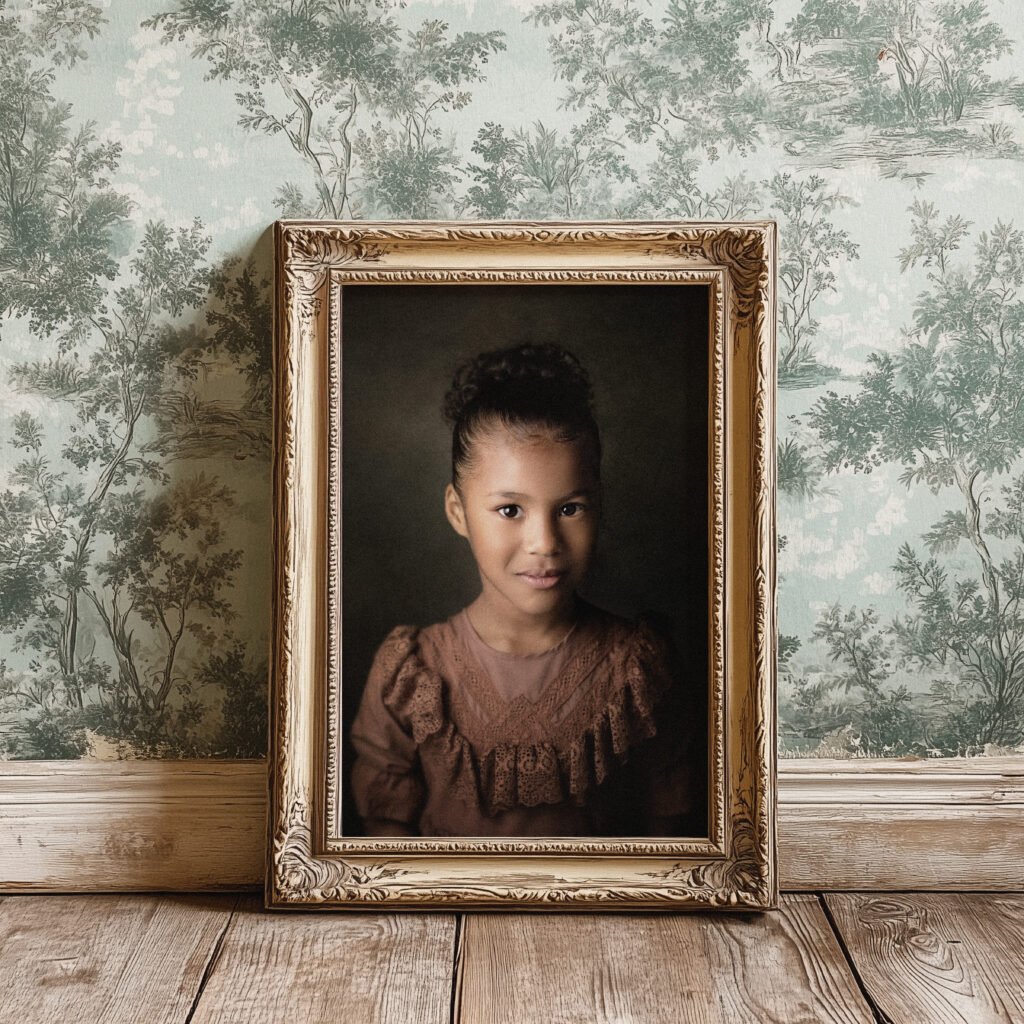
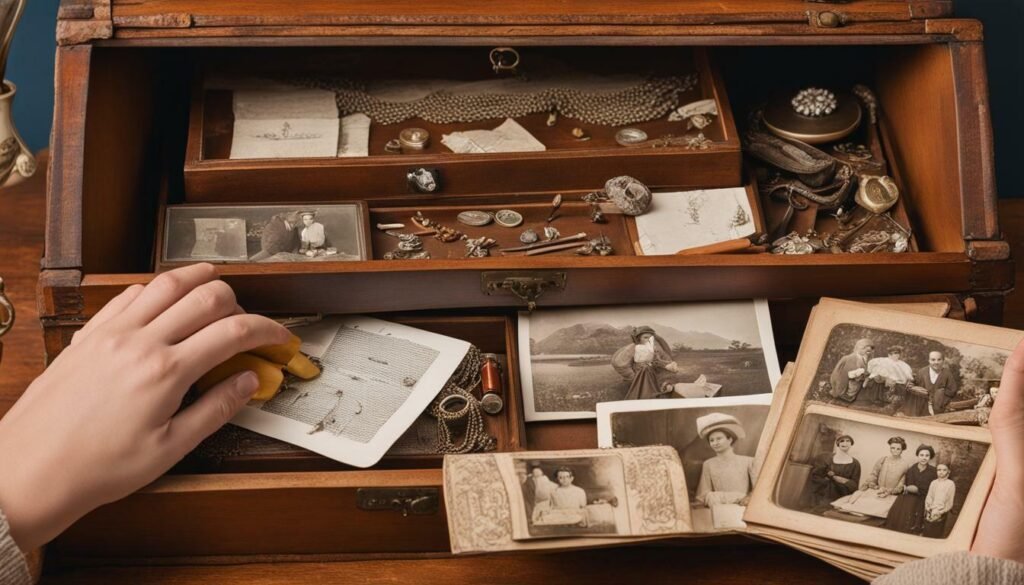
If you use the free version, you can still do this. Just click on the colored parts of the design and pick your specific color. Do the same for fonts.
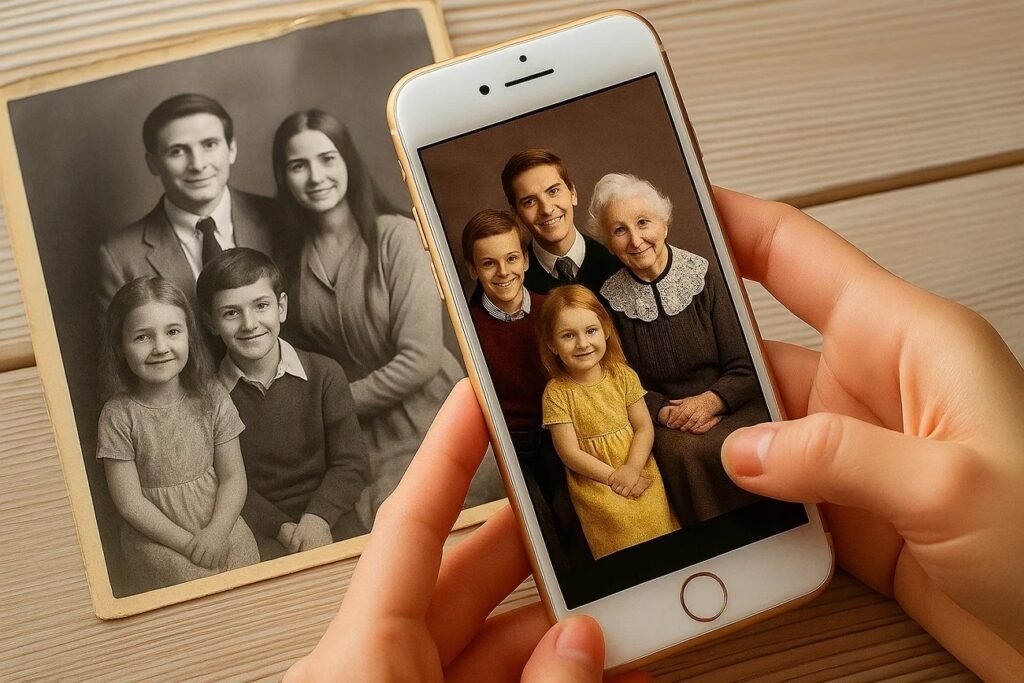
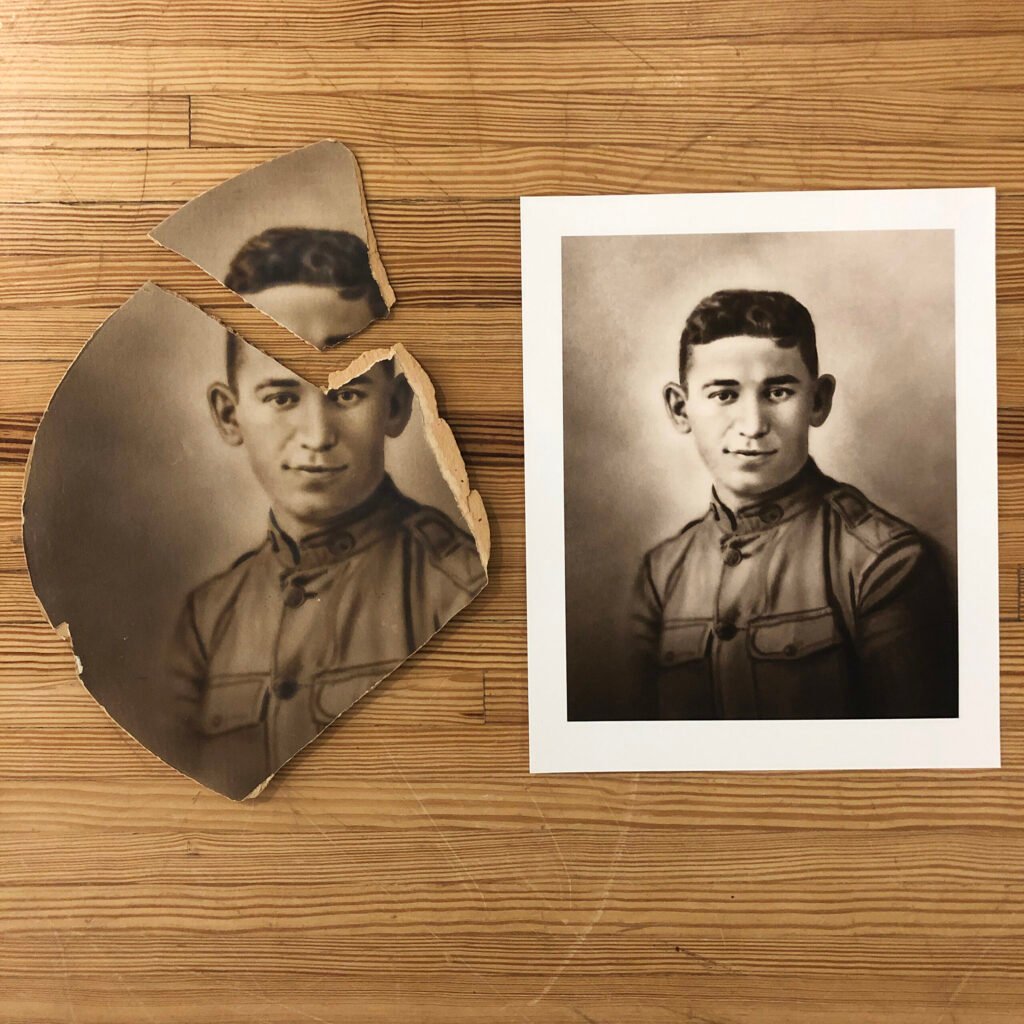
If the template uses a fancy script font but your brand uses a simple block font, change it. This makes the pin image match your website.

Choosing High-Quality Imagery

A template is only as good as the pictures you put in it. You should use high-quality photos. If your photos are blurry, the pin will look bad.

You can use your own photos if you are a photographer or sell products. If you are a blogger, you might need stock photos.

There are many places to find free or paid stock photos. Canva also has a library of photos. When you drag a photo into the pin template, make sure it looks clear. The subject of the photo should be easy to see.

Do not use dark or grainy images.

Writing Compelling Headlines That Fit the Layout

The pin title on the image is very important. It is what people read first. The template will have a text box for the headline.

You need to write a headline that makes people curious. But it also has to fit the design. If the template has a small text box, do not write a long sentence. Use short, punchy words. For example, instead of “Here is a Guide on How You Can Bake a Cake,” write “Easy Cake Recipe.”

If you have a longer title, pick a Pinterest template that has a big text area. The words should be easy to read against the background.

Mistakes to Avoid When Using A Pinterest Template

Mistakes to Avoid When Using A Pinterest Template

Even with a good template, you can make mistakes. Here are things to watch out for.

Overcrowding the Design with Text

It is tempting to put all your information in the image. Do not do this. If there is too much text, people will scroll past it.

A good pin design needs breathing room. Stick to a main headline and maybe a very short sub-headline.

Let the image tell the story. If you fill every corner with words, it looks messy. It looks like an ad from an old newspaper. Keep it clean.

Remember, the goal is to get them to click to your site to read the rest.

Ignoring Mobile Responsiveness

Most people use Pinterest on their phones. This means the screen is small.

A design that looks good on your big computer screen might be too small on a phone. When you edit your Pinterest pin templates, zoom out.

Make the image small on your screen. Can you still read the text? Is the main subject of the photo clear? If not, you need to make the text bigger.

Avoid fancy, curly fonts that are hard to read on small screens. If mobile users cannot read it, they will not click it.

Using Overused Stock Photos

We mentioned stock photos before. They are great, but be careful. Some free photos are used by thousands of people.

If a user sees the same photo of a “woman drinking coffee” ten times in their feed, they will ignore it. It does not look special.

Try to find unique photos. Or, use the Pinterest template to crop the photo in a new way. Put a filter on it. Make it look different.

If you can, taking your own photos is always the best way to stand out.

Where to Find the Perfect Pinterest Template For Your Niche?

Where to Find the Perfect Pinterest Template For Your Niche?

You might wonder where to get these files. You can find free pin templates and paid ones.

Places like Creative Market allow designers to sell high-quality template pack options.

These are usually very good because professional designers make them. You can also look at Etsy. Many creators sell Canva templates there.

And of course, at Designers Choice, we aim to be a resource for you.

We look for the best tools to help you. When looking for a template, check if it fits your style. If you are a food blogger, look for food templates.

If you are a business coach, look for professional, clean templates. Make sure they are easy to edit.

FAQ’s:

What is the Ideal Size For A Pinterest Template in 2026?

The best size for a standard pin is 1000 x 1500 pixels. This is a 2:3 aspect ratio. It looks best on phones and does not get cut off in the feed.

Where Can I Find Ready-Made Pinterest Templates For Free?

You can find free templates inside Canva itself. Many blogs offer a free set of templates if you sign up for their newsletter.

Can I Reuse the Same Pinterest Template Multiple Times?

Yes! That is the point. You should reuse them. Just change the photo and the text. This is how you keep brand consistency.

Do I Need Paid Software to Edit A Pinterest Template?

No. Many templates work with the free version of Canva. Some might need Canva pro, so always check before you download.

How Do Pinterest Templates Help With SEO?

The template itself does not change SEO directly, but a good design gets more clicks. Pinterest sees that people like your pin, so it shows it to more people. This helps your Pinterest marketing.

Should I Use Video in my Pinterest Template?

Yes. Video pins are very popular. You can use a template that has a spot for a video clip. This is a great type of content to grab attention.

Can I See Examples of Successful Pinterest Templates From Other Creators?

Yes. Search for your topic on Pinterest.

Look at the top results. See how they lay out their images and text. This gives you ideas for your own social media posts.

Are There Pinterest Templates Specifically Designed For Bloggers to Boost Traffic?

Yes. Many designers create “blogger bundles.” These focus on clear headlines and great photos to drive clicks to a blog post.

Conclusion

Using a Pinterest template is a smart move for any creator. It helps you create professional social media posts without spending all day on design.

It keeps your brand looking good and helps you get more clicks.

Whether you use free pin templates or buy a premium pin template pack, the key is consistency. Stick to your brand colors.

Use clear text. Avoid common mistakes like overcrowding the image.

By using these tools, you free up much time to focus on what you do best—creating amazing content.

At Designers Choice, we want to see you succeed. We hope this guide helps you build a Pinterest marketing strategy that works. Start building your collection of templates today.

With the right tools and a little creativity, you can turn your Pinterest feed into a powerful engine for traffic. Remember, you do not have to do it all alone. We are here to help you find the best resources to make your vision a reality. Now, go create some beautiful pins!

Categories
Design

Best Photo to Anime Converter: Top Tools & Apps For 2026

At Designers Choice, we love finding new ways to make art. We know that turning a simple picture into something special can be hard.

But today, technology helps us do amazing things. Have you ever seen those cool cartoon pictures on the internet? They look like they came straight from a Japanese movie. Well, you can make them too!

You do not need to be a pro artist. You just need the right tool.

We want to help you find the best photo to anime converter. This tool changes your regular photos into anime style. It is fun and easy.

In this article, we will talk about the best tools you can use.

We will look at free tools and paid ones. We want to help you bring your boldest visions to life. We believe in creativity and quality.

So, let us look at how you can turn your photos into an anime masterpiece.

Why You Need the Best Photo to Anime Converter For Your Social Media?

Why You Need the Best Photo to Anime Converter For Your Social Media?

Social media is a big place. Everyone shares photos every day.

To stand out, you need something different. A regular selfie is nice, but an anime avatar is exciting. It shows your personality in a new way.

The Rise of AI Art and Anime Filters

Anime art is very popular right now. People love the vibrant colors and unique look.

In the past, you had to pay an artist to draw you. Now, AI tool options make it fast. An anime filter can change your look in seconds.

This is why AI art is rising. It lets anyone be a creator. You can make anime creations without drawing a single line.

It is like magic on your phone or computer.

Benefits of Turning Personal Photos Into Anime Style

Why should you change your photo?

First, it protects your privacy. You can show your face without showing your real face. An anime character looks like you but is still a drawing.

Second, it is fun! You can look like a hero from a classic Japanese anime. You can change your background to a fantasy world.

It helps with content creation too. If you make videos or posts, anime images catch people’s eyes. It makes your profile look cool and artistic.

Top 7 Best Photo to Anime Converter Tools Reviewed

Best Photo to Anime Converter Tools

Here are the best tools we found. We tested them to see which one is the best photo to anime converter.

Fotor – The All-in-One AI Editor

Fotor

Fotor is a very famous tool. Many people use it because it does everything. It is not just for anime. You can edit photos, add text, and fix colors.

But its anime converter is really good.

When you use Fotor, you have many choices. You can pick a manga style, which looks like a comic book.

Or you can pick a studio ghibli style. This style is soft and beautiful. It looks like a dream.

Fotor is an all-in-one AI editor because it is easy for beginners. You do not need design skills. You just upload your photo and click a button.

The image quality is great. The facial features stay clear. You can even use it for pet photos. Imagine your dog looking like a cartoon! Fotor has a free tool version, but some best features might cost money. It is safe and fast.

If you want a quick anime transformation, Fotor is a top choice.

Drawever – High-Quality Anime Transformations

Drawever

Drawever is a great tool if you want high quality. It focuses on making your picture look like a real piece of art. The anime conversions here are very detailed. It uses a smart AI model to read your photo.

This tool is good for creative projects. If you are making a story or a game, Drawever helps. It has a background remover too.

This means you can take your anime character and put them anywhere. You can put them in space or a forest.

Drawever gives you free credits to start. This lets you try it without paying. The anime style choices are many. You can make it look 3D or flat, like a drawing. It is very simple to use. The steps are clear. We like how the vibrant colors pop out. It makes your digital art look professional.

If you want a unique anime character, try Drawever.

ZMO.AI – Real-Time AI Generation

ZMO.AI is a powerful AI image generator. It is known for being fast. It works in real-time. This means you do not have to wait long.

As soon as you upload, it starts working. One cool thing about ZMO.AI is the image to anime ai feature. It takes your image and keeps the important parts. Your pose and smile stay the same. But the style changes completely. It feels like magic. It also has a community.

You can see what other people made. This gives you ideas for your own anime artwork. ZMO.AI offers different styles.

You can look like a cyberpunk hero or a classic anime school student. The text prompts feature lets you describe what you want.

You can say “make me wear a hat,” and it might do it. It is a fun AI tool to play with. It is good for making an anime avatar for gaming.

Media.io – Best For Avatar Creation

Media.io

Media.io is one of the best if you want a new profile picture. It is a best photo to anime converter free option that works in your browser.

You do not need to download anything. This makes it safe and easy.

This tool is great for making an anime avatar. It focuses on the face. It captures your emotions well.

If you are smiling, your anime self smiles too. It has a Ghibli-style filter that is very popular. It makes the picture look soft and cute.

Media.io is very safe. It deletes your data after a short time. This is good for privacy. You can use it for social media pictures on Instagram or TikTok. It is a simple anime photo maker. You just upload, pick a style, and save. It is perfect for ordinary photos that you want to make special.

Meitu – Popular Mobile Anime Filter

Meitu

Meitu is a very famous app on phones. It is huge in Asia. People love it for selfies. It is not just an anime converter; it is a beauty camera too.

Meitu has a feature called “Anime Avatar“. It is very smart. You can see your face moving.

It can turn your selfie into a japanese anime style picture instantly. The anime filter effects are very cute. You can add sparkles, cat ears, and more.

It is great for content creation on your phone. You can snap a photo and change it right away.

The anime creations from Meitu are colorful and shiny. It is very easy to use. Even kids can use it. It has many different types of filters.

Some are free, and some are VIP. But the free tool part is enough for most people. If you want a cute anime photo for your phone, get Meitu.

SnapEdit – Simple and Fast Conversion

SnapEdit

SnapEdit is known for being simple. It does not have too many confusing buttons. It is a clean tool. It is great for a quick anime transformation.

SnapEdit is also an editor. It can remove things you do not want in the photo. Then, it can turn the photo into anime.

The processing speed is very fast. You get your best results in seconds. It uses ai anime generator technology to make the lines sharp.

This tool is good for regular photos that are a bit blurry.

It can fix them and then turn them into art. It produces high quality images. You can use it to make anime images for your friends.

It is a straightforward image to anime converter free of complex steps. If you want speed and simplicity, SnapEdit is for you.

AnimeAI – specialized Style Options

AnimeAI is a tool made just for anime. It is very special. It was trained on thousands of anime pictures.

This means it knows exactly what anime art should look like. You can pick styles from famous shows. Do you want to look like a pirate or a ninja?

AnimeAI can do that. It has specialized style options. It is great for fans of japanese anime. The ai model is very smart. It changes your clothes and hair to match the style. It is a great ai anime filter for fans.

You can make an ai action figure version of yourself.

The anime world feels real with this tool. It might have a small cost for the best features, but it is worth it. It creates unique anime characters that look just like you. It is a top anime generator for serious fans.

How to Choose the Best Photo to Anime Converter For Your Needs?

How to Choose the Best Photo to Anime Converter For Your Needs?

Choosing the right tool can be tricky. Here is how to pick the best photo.

Processing Speed and Quality

Time is important. You do not want to wait an hour for one picture. Look for a tool that is fast.

Tools like SnapEdit and ZMO.AI are very quick. But quality is key too. You want the picture to look clear, not blurry. Check the image quality. The best photo to anime converter balances speed and good looks.

It should keep your facial features so people know it is you.

Pricing: Free Vs. Premium Subscriptions

Many tools are free. A free photo tool is great for fun. But sometimes, they have ads or watermarks. Premium tools cost money but give better results.

They might give you higher resolution or more styles. Think about what you need. If it is just for a funny post, a free tool is fine.

If it is for a professional project, you might pay for a premium subscription. Watch out for hidden costs in some apps.

Privacy and Data Security

Safety is the most important thing. When you upload a photo, you want to be safe. Read the rules of the tool.

Good tools delete your photos after you use them. Media.io is good at this. Do not use tools that keep your real photos forever.

Your privacy and data security matter. Always check if the site is safe before you upload your personal or pet pictures.

Step-by-Step Guide: How to Use A Photo to Anime Converter?

How to Use A Photo to Anime Converter?

Using these tools is easy. Here are the simple steps.

Uploading Your Image

First, go to the website or open the app. Look for a button that says “Upload” or “Choose Photo“. Click it. Pick the photo you want to use.

It could be a selfie, a group photo, or a pet. Make sure the photo has good light. Clear photos give the best results.

Selecting the Right Anime Style (Manga, 3D, Cyberpunk)

Now comes the fun part. You will see many options.

You can pick manga style for black and white comics. You can pick 3D for a movie look. Or cyberpunk for a cool robot look. Think about the vibe you want. Do you want a ghibli style nature look? Or a cool anime effect? Click on the style you like. The AI tool will show you a preview.

Downloading and Sharing Your Art

Once the AI finishes, look at your picture. Do you like it? If yes, click “Download“. Save it to your phone or computer. Now you can share it! Post it on Instagram, Facebook, or send it to friends. Show off your new anime masterpiece. Is it that easy to join the anime world?

FAQ’s:

What is the Best Photo to Anime Converter App For Free?

There are many, but Fotor and Media.io are excellent. They are best photo to anime converter free options. They let you make anime images without paying upfront.

Which Photo to Anime Converters Do Not Require Sign-Up?

Media.io often lets you use it without signing up. This is great for a quick anime transformation. You just go to the site and start.

Are These AI Anime Converters Safe to Use With Personal Photos?

Most are safe. Reputable tools like the ones we listed delete your photos later. Always check the privacy policy. It keeps your real photos secure.

Can I Convert Group Photos Into Anime Style?

Yes! Many tools can handle group photos. The ai model detects multiple faces. It turns everyone into an anime character. It is fun for family pictures.

Can I Use These Tools to Turn Selfies and Portraits Into Anime Automatically?

Yes, that is what they do best. They are 100% automatic. You upload, and the anime generator does the rest. It changes your facial features to look like anime.

Do I Need Professional Editing Skills to Use These Tools?

No. You do not need any design skills. These tools are made for everyone. They use simple steps. If you can click a button, you can use it.

Can These Tools Convert Videos to Anime As Well?

Some tools can. Media.io and Meitu have video features. Converting video takes more power, but it is possible. You can make your own anime version movie!

Conclusion

We hope this guide helps you. Turning your photos into anime art is a great way to be creative. You can express yourself with vibrant colors and cool styles. Whether you use Fotor, Drawever, or any other tool, the result is magic.

At Designers Choice, we want you to have the best resources.

These AI photo tools are powerful and fun. They let you step into the Japanese anime world. So, go ahead. Pick a tool. Upload a photo. create your own anime masterpiece today. It is time to let your imagination fly with the best photo to anime converter!

Categories
Design

Remove BG.com – The Ultimate Guide to Free Background Removal

At Designers Choice, we know that creating great images can be hard work. We have spent years working on designs, and we understand the struggle. You have a great idea, but then you get stuck on the boring parts.

One of the hardest parts of graphic design is trying to remove background from a picture. It used to take a lot of time and required technical skills to get it right. You would have to sit there and erase pixels one by one. It was tedious editing.

But things have changed. We want to help you make your work easier and faster. That is why we look for the best tools to share with you.

Today, we are talking about a popular website called remove bg.com. It is an online background remover that uses computers to do the hard work for you. Whether you are making product photos for a store or funny pictures for social media, this tool claims to help.

In this article, we will look at how it works, if it is free, and what other tools you can use. Our goal is to give you the trusted insights you need to do your best work.

What is Remove BG.com and How Does It Work?

What is Remove BG.com and How Does It Work?

Remove bg.com is a website that does exactly what its name says.

It is a background remover tool that takes your photo and deletes the background automatically. You do not need to use complicated software like Photoshop. You just need a web browser or their mobile app.

It is made for people who want professional results without spending hours on a computer. It is very popular for people to make marketing materials or just fix personal photos.

The Technology Behind AI Background Removal

The secret behind this tool is artificial intelligence. This might sound like a big, scary word, but it is actually quite simple. The website uses an ai algorithm. Think of this algorithm like a very smart robot. When you upload a picture, the robot looks at it carefully.

It guesses which part is the main subject of your image (like a person, a car, or a shoe) and which part is the background.

Once it knows the difference, it cuts out the person or object. It creates a transparent background behind them. This is called AI background removal. It is much faster than a human could ever be. In the past, you needed a green screen to do this easily.

Now, the powerful generative AI can handle messy backgrounds with hair or fur and still give you clean results.

Key Features of the Remove.bg Platform

There are many reasons why people like this tool. First, it is a free background remover for standard quality images. It is built for speed.

You do not have to wait long. It usually takes just a few seconds. Another key feature is that it handles unwanted backgrounds very well.

It also has tools for manual editing. Sometimes, the computer makes a small mistake. If that happens, you can use a digital brush to fix it.

You can change the brush size to get the tiny details right. Also, it is not just for one photo. It helps with product images and can even be used as a video background remover in some cases.

It creates a seamless experience from start to finish.

How to Use Remove BG.com to Edit Your Photos?

How to Use Remove BG.com to Edit Your Photos?

Using this background remover is very easy. You do not need to be a pro. Even if you are in 5th grade, you can do it.

Here are the steps to get a transparent backdrop.

Step 1: Uploading Your Image

First, go to the website. You will see a big button that says “Upload Image.” Click on that.

You can choose a file from your computer or mobile device. You can also just drag and drop your picture onto the screen.

This works for product photos, selfies, or pictures of your pet. Make sure the file size is not too huge, but it handles most normal pictures well.

Step 2: Automatic Background Erasure

Once you upload an image, you do not have to press anything else. The advanced algorithms start working right away.

You will see a loading bar for a second. Then, poof! The old background is gone. You will see your object sitting on a checkerboard pattern.

That pattern means it is a transparent background. This happens automatically, saving you less time than doing it by hand.

Step 3: Editing and Adding New Backgrounds

Now comes the fun part. You have a few choices. You can keep it transparent, or you can add a new background.

The tool has a library of background templates you can pick from. You can choose a beach, a city, or a solid color background.

If you are selling things online, a white background is usually best.

This helps boost sales because it looks neat. If you want to fix something, click the “Edit” button.

Here, you can use the manual editing tools to erase or restore parts of the picture. You can change the background color to anything you want.

Step 4: Downloading High-Resolution (HD) Images

When you are happy with how it looks, you need to save it. For free users, you can download a “Preview Image.”

This is good for social media. If you need HD quality for product catalogs or big posters, you usually have to use a “credit” or pay money.

High-resolution images are sharp and clear. Just click the download button, and the file is saved to your device.

Why You Should Choose Remove BG.com For Your Projects?

Why You Should Choose Remove BG.com For Your Projects?

At Designers Choice, we believe in using tools that make life easier. Remove bg.com is one of those tools.

Here is why it might be the right choice for you.

Speed and Efficiency For Personal Use

The biggest reason to use this ai background remover is speed.

If you are making a birthday card or a funny meme, you do not want to spend an hour cutting out a face.

This tool gives you impactful social posts in seconds. It removes the tedious editing work so you can focus on being creative.

It is perfect for personal projects where you want to look good but do not want to work too hard.

API Integrations For Developers and Businesses

This part is for the computer experts. Remove BG has something called an API. This allows other apps and websites to talk to the remove BG software. If a company has a website where people upload thousands of photos, they can use the API to remove background automatically for everyone. This is great for businesses that have huge product catalogs.

It helps them process a lot of images without hiring a hundred people.

Desktop Vs. Mobile: Which Version is Better?

You can use remove bg.com on a computer or download the free background remover app. The computer version is great because you have a big screen. It is easier to see details when you do manual editing.

The mobile app is great for quick edits on the go.

If you take a picture on your phone and want to post it to Instagram immediately, the app is better. Both versions use the same powerful generative ai, so the quality is the same.

Pricing and Plans: Is Remove BG.com Truly Free?

Is Remove BG.com Truly Free?

Is it really free? Yes and no. Let’s break it down so you know what to expect.

Free Account Limitations

You can use remove bg.com as a free tool forever if you want. But there are rules. You can upload as many images as you want and remove the background. However, when you download the result, it will be a smaller size (Standard Quality). This is fine for the web or social media.

But if you want to print it out big, it might look a little blurry. Also, you only get 1 free “credit” for a full HD quality download when you sign up.

Subscription Credits and Pay-As-You-Go Options

If you need the big, HD quality images regularly, you have to pay.

They use a “credit” system. One image equals one credit. You can buy a monthly plan where you get a certain number of credits every month.

Or, you can just buy a pack of credits whenever you need them.

This is good for professionals who need the best results for client work. It is an investment to get clear background images that look perfect.

Top Alternatives to Remove BG.com

Top Alternatives to Remove BG.com

While remove bg.com is great, there are other tools out there. At Designers Choice, we want you to have options.

Here are ten other tools that can remove background and help you create.

Adobe Express

Adobe Express

Adobe Express is a very famous tool made by the same people who made Photoshop.

It is an online background remover that is very powerful. It is not just for removing backgrounds; it is a full design app.

After you use the remove background tool, you can add text, stickers, and shapes. It connects with adobe stock design assets, so you have thousands of photos and fonts to choose from. It is great for making marketing materials because you can do everything in one place.

You can start with a free account, and it gives very clean results. It is a great choice if you want to make a full poster, not just cut out a photo.

Canva

Canva

Canva is huge in the design world. It is very popular because it is so easy to use.

Canva has a built-in background remover, but you usually need the “Pro” (paid) version to use it. However, it is worth it for many people.

Once you remove background with one click, you can instantly put your image into a presentation, a video, or an Instagram post. It has a massive library of background templates. You can turn a boring photo into a cool design in minutes. It uses ai background removal to keep lines sharp.

If you already use Canva for school or work, using their BG remover saves you time because you do not have to switch websites.

Slazzer

Slazzer

Slazzer acts and looks very similar to remove bg.com.

It is an ai background remover focused on speed. It is excellent for handling product images. One of the best things about Slazzer is that it is very good at doing many pictures at once (bulk processing).

If you have 50 photos of shoes for a store, Slazzer can process them quickly. It has an ai algorithm that handles hair and fur nicely. It also offers a desktop app. It allows you to add a white background or a custom image instantly. It is a strong competitor if you need professional results fast.

Pixelcut

Pixelcut

Pixelcut is mostly known as a mobile app, and it is fantastic for people who sell things online.

If you have an online shop, Pixelcut is a great friend.

You take a picture of your product, and the app uses artificial intelligence to remove background. Then, it suggests really cool new background styles that make your item look expensive.

It is very easy to use on a mobile device. It has “Magic Eraser” tools to clean up dust or scratches on your item.

It helps you create product photos that look like they were taken in a studio. It is very popular for its ease of use.

Erase.bg

Erase.bg

Erase.bg is another simple and effective free background remover. It supports high-resolution images up to 5000 x 5000 pixels.

This is great if you need HD quality without paying a lot. It is very straightforward. You upload image, and it does the work.

It allows you to download the image with a transparent background or add a solid color background.

It is lightweight and fast. It works well for logos, signatures, and profile pictures. It is a good choice if you just want a quick image background removal without any confusing buttons or extra features you do not need.

ClipDrop

ClipDrop

ClipDrop is a very fancy tool that uses powerful generative AI.

It does more than just remove the background. It can also change the lighting on your face or remove objects you do not want.

Its background remover tool is exact. It is great for creators who want to do cool artistic things. It has a feature that lets you take a picture of something in real life with your phone, and it “drops” it onto your computer screen with the background already removed.

It feels like magic. It creates clean results and is great for people who want to experiment with the latest tech to get kind content.

Photopea

Photopea

Photopea is a bit different.

It looks almost exactly like Photoshop, but it runs in your web browser.

It is free. It has a “Remove BG” feature, but it also has every other tool you can imagine. You can change colors, draw, add filters, and use layers.

It requires a higher skill level than the other one-click tools.

If you want total control over every pixel, this is for you.

You can use the “Magic Wand” or “Lasso” tools to select the background yourself if the AI misses a spot. It is the best free option for doing complex manual editing and getting professional results.

PhotoRoom

PhotoRoom

PhotoRoom is very similar to Pixelcut. It is a free background remover app that is super famous among resellers and small business owners.

It focuses heavily on product photos. After the automatic background erasure, it lets you resize the image perfectly for eBay, Amazon, or Etsy.

It has a feature called “Instant Backgrounds” where it uses AI to generate a scene around your product. For example, if you sell a candle, it can create a cozy table scene behind it. It turns a simple photo into a professional ad. It saves a lot of time for sellers and helps boost sales.

Pixelbin.io

Pixelbin

Pixelbin.io is a tool for people who have a lot of images to manage. It offers real-time image transformation. It has a strong remove background feature powered by AI. It is great for technical people and developers.

It helps companies store their images and edit them automatically.

It ensures that product images look consistent across the whole website.

It provides transparent backdrop options and lets you crop and resize at the same time. While it might be a bit complex for a beginner, it is very powerful for businesses that need to handle thousands of image background edits every day.

Retoucher.online

Retoucher

Retoucher.online is a simple and helpful tool. It allows you to remove the background and then add shadows to make the product look realistic.

Sometimes when you remove a background, the object looks like it is floating in space. Retoucher.online helps you add a shadow underneath so it looks grounded. It offers a white background or other colors easily.

It is good for people who want their product catalogs to look neat.

It does not have too many confusing options. It focuses on doing one thing well: making your object look good on a clean background.

FAQ’s:

Is Remove BG.com Safe to Use and Are My Images Private?

Yes, remove bg.com is safe. They state that they care about your privacy. When you upload image to their server, they process it to remove the background. After about an hour, they usually delete the file from their system. They do not share your personal photos with other people.

However, you should always be careful with very private or secret images on any website.

Does Remove BG.com Provide A Mobile App For Background Removal?

Yes, there is a mobile app available for both Android and iPhone.

It is free to download. It brings the ai background remover power right to your phone. It is very convenient for editing photos from your camera roll. You can get a transparent background in seconds while you are on the bus or at home.

Do I Need an Account to Use Remove BG.com’s Free Services?

No, you do not need an account to use the basic features.

You can go to the site and use the background remover right away. However, if you want to download high-resolution HD quality images or save your work for later, you will need to sign up. Creating an account also gives you that one free credit we mentioned earlier.

How Do I Change the Background Color After Removing the Original One?

After the automatic background erasure is done, click the “Edit” button on the image preview.

A menu will pop up. Look for the “Background” tab. There, you will see options for “Color.” You can pick a solid color background like red, blue, or the popular white background. You can also choose a photo from their list.

Does Remove bg.com Support Bulk Image Processing?

Yes, but usually not on the free web version.

To process many images at once (bulk processing), you usually need to download the desktop software for Windows or Mac. This is very helpful for businesses with hundreds of product images. It saves a lot of time compared to doing them one by one.

Conclusion

Creating great images does not have to be a headache.

At Designers Choice, our mission is to empower you to bring your boldest visions to life.

Tools like remove bg.com are perfect examples of how technology can help us. Whether you are a student, a seller, or just someone who loves photos, using an ai background generator or remover can save you hours of work.

By removing unwanted backgrounds quickly, you can focus on the creative part of your project. You can make impactful social posts, clean product catalogs, and fun memories. We hope this guide helps you find the right background remover tool for your needs.

Remember, the goal is to work smarter, not harder, and let your creativity shine with clean results.

Categories
Design

Colorify AI: Reviews, Features, Pricing, & Use Cases

At Designers Choice, we know how much fun it is to make art.

We love finding tools that help people show their creative ideas.

Being a designer or an artist is not just about having great skills. It is about having the right help to make your work shine. Our team looks for the best items to help you. We want to share a special tool with you today. This tool is changing how we look at photos and art. It is called Colorify AI.

Many people have old photos that are black and white. You might wish they had color. Or maybe you want to make creative stickers for social media. Perhaps you want to make a coloring book for your kids.

Doing this by hand takes a long time.

It can be hard if you do not know how to draw well.

But now, there is a fun way to do it all. Colorify ai is a free online tool that uses artificial intelligence to help you. It can fix old pictures. It can also be a coloring page generator. It works fast and is very easy to use.

In this article, we will talk about what Colorify AI is. We will show you its key features. We will see how it compares to doing work by hand.

We will also look at the price. If you want a sticker generation tool or a way to save old memories, keep reading.

Let us see how this tool can help you express creativity.

What is Colorify AI and How Does It Work?

What is Colorify AI and How Does It Work?

Colorify ai is a smart computer program on the internet. It uses machine learning to look at images. It understands what is in a picture.

Then, it can add color to it or change it into something new. It is like having a smart art assistant. You do not need to be a pro to use it.

It is made for everyone. You can use it for personal use or even for commercial purposes. The tool has two main jobs.

First, it puts color into black and white photos. Second, acts as a coloring page generator. It can take your own photos and turn them into line art. It can also take a text prompt and make a unique coloring page.

This makes it a great choice for creative projects.

The Technology Behind AI Image Colorization

How does it put color in a photo? It uses artificial intelligence.

The computer has seen millions of photos. It knows that the sky is blue and grass is green. When you upload a black and white photo, Colorify AI guesses the right colors. It looks at the shapes and shadows. It fills in the blanks with colors that look real. This technology is very smart.

It can tell the difference between a shirt and a tree. It knows what skin tones look like. It does all the math and thinking for you.

You just wait a few seconds, and the picture is ready. It is much faster than painting by hand. It brings life back to sad or dull photos.

Why Automated Restoration Outperforms Manual Editing

Fixing photos by hand is hard. You need to know how to use big programs. It takes hours to paint every little part.

If you make a mistake, you have to start over. Automated restoration with Colorify AI is different. It is super fast. You do not need design skills.

Manual editing relies on your eyes only. But the AI has a huge brain full of data. It can see details you might miss. It keeps the photo looking smooth.

It does not leave messy brush marks. For most people, this is the best way to save time. You get a great result without the hard work.

Key Features That Make Colorify AI Stand Out

Key Features That Make Colorify AI Stand Out

There are many art tools online. But Colorify AI has some special things. These key features make it a favorite for many users.

It is not just a line art colorizer. It is a full package for image fun.

One-Click Auto Colorization

The best part is how simple it is. You do not need to press many buttons. You just upload your picture. Then you click one button.

The AI does the rest. It is a true “one-click” tool. This is great for beginners. You do not need to learn a hard menu.

This feature works for old photos and sketches.

It can also colorize line art you drew. If you have a unique coloring page you want to fill, it can do that too. It saves you so much effort.

You get amazing coloring pages or photos in seconds.

High-Resolution Upscaling Support

Sometimes, old photos are small or blurry.

When you make them big, they look bad. Colorify AI helps with this, too. It has a feature to make images bigger and clearer.

This is called upscaling. It keeps the edges sharp. This is very important if you want to print your work.

If you use the coloring book generator to make pages, you want them to look crisp. Upscaling ensures your printable coloring pages look professional. It makes sure your creative stickers look good on social media too. You can print them out and they will not look fuzzy.

Batch Processing For Multiple Images

What if you have a whole album to fix? Doing one by one is slow. Colorify AI lets you do many at once. This is called batch processing. You can upload a group of photos. The tool will colorize all of them at the same time.

This is also great for making full coloring books. You can upload twenty simple text prompts. The tool will act as a coloring pages generator for all of them. You get a stack of coloring book pages quickly. This is good for teachers or sellers. It helps you get more work done fast.

Step-by-Step Guide: How to Use Colorify AI?

How to Use Colorify AI?

Using this tool is very easy. You do not need a manual. But we will show you the steps so you know what to do. Whether you are using the ai sticker generator or fixing a photo, the steps are similar.

Uploading and Prepping Your Images

First, go to the website. You will see a box to drop your image. If you are fixing a photo, choose a clear scan if you can. If you are using the page generator, you can type a description. This is the text prompt.

For example, you can type “a cute cat in a hat“. The ai coloring page generator will understand. It will get ready to make generated coloring pages. If you upload your own photo to turn into a coloring sheet, make sure it has good light. This helps the tool see the lines better.

Adjusting Saturation and Tone Settings

After the AI works, you see the result. Usually, it looks great. But sometimes you want to change it. You might want brighter colors.

Or you might want a different mood. Colorify AI lets you tweak things.

You can slide a bar to make colors pop. You can change the tone to look warm or cool. If you are making artistic styles for stickers, you can play with these settings. It helps you add your own touch. It allows for personal expression. You are the boss of how the final image looks.

Exporting Your Final Colorized Photos

When you are happy, it is time to save.

You can download the image to your computer. The tool lets you choose the format. You can save it as a picture file like JPG or PNG.

If you made printable line art, you can print it right away.

You can use these for coloring sheets at home. If you made a sticker, you can use it online. The quality is high. You can even use these images for commercial use if you have the right plan. It is very flexible.

Colorify AI Vs. Manual Photoshop Editing

Colorify AI Vs. Manual Photoshop Editing

People often ask if they should use AI or big software like Photoshop. Both have good points. But for most people, AI is better.

Let us look at why.

Speed and Efficiency Comparison

Photoshop is a giant program. It takes a long time to open. Then you have to select tools and layers. To color a photo, you have to paint every spot.

It can take hours for one picture.

Colorify AI is instant. You upload and boom, it is done. It is a fast coloring page converter, too. If you want to make detailed coloring pages from a photo, AI does it in seconds. Photoshop would take all day to trace lines.

The AI gives you speed. You can make more art in less time.

Cost Effectiveness For Beginners

Big editing software costs a lot of money.

You have to pay every month. It is expensive for a hobby. Colorify AI is much cheaper. It even has free coloring pages features.

For a beginner, free or low-cost is best. You do not want to spend hundreds of dollars just to try generating coloring pages. With Colorify AI, you can start for free. You can see if you like it. It is a smart choice for your wallet. You get beautiful coloring pages without breaking the bank.

Pricing Plans: Is Colorify AI Worth the Investment?

Is Colorify AI Worth the Investment?

Is it worth paying for? Let us see what you get. There are different plans for different needs.

Free Trial Limitations

You can use Colorify AI for free. This is great for testing. You can try the AI sticker generator to see if it works for you.

You can make a few free printable coloring pages.

But the free version has limits. You might not get the highest quality. You might have a limit on how many images you can do.

You might not be able to do batch processing. It is good for personal use now and then. But if you want to do a lot, you might need more.

Premium Subscription Benefits

If you pay a small fee, you get more power. You can make custom coloring pages in high quality.

You can use the coloring book generator to make big books. You get faster speeds. The paid plan is good for commercial purposes.

If you want to sell coloring books on Amazon, this is for you. You can make unique coloring books that no one else has. You unlock all the art styles. You can make endless creative stickers. For a pro or a serious hobbyist, the price is fair. It pays for itself with the time you save.

Common Use Cases For Colorify AI

Who uses this tool? Many kinds of people. It is not just for photographers. It is for teachers, parents, and artists.

Restoring Family Heritage Albums

This is the most popular use. We all have boxes of old photos. They are fading away. Colorify AI saves them. You can scan them and add color.

It makes the people in the photos look real again.

You can also use the tool to turn these photos into line art. Imagine making a coloring page of your grandparents’ wedding photo.

It is a unique coloring page idea. Kids can color their family history. It connects the past with the present in a fun way.

Colorizing Historical Documents For Education

Teachers love this tool. History books can be boring with black and white pictures.

Adding color makes history feel alive. Teachers use Colorify AI to show students what the past looked like. They also use the page generator for class. They can type “George Washington” and get a coloring sheet.

It is an AI coloring page generator that helps kids learn.

They can color their favorite characters or historical figures. It makes learning fun and visual. It helps with creative projects in school.

FAQ’s:

Is Colorify AI Free to Use, Or Are There Limitations?

Yes, colorify ai free version is available.

You can use it to try features like the sticker generator. However, the free version has some limits on size and number of pictures. For unlimited access to generated coloring pages, you might need to upgrade.

Does Colorify AI Require an Account to Access Its Features?

For some basic tools, you might not need one.

But to save your work or use the batch processing, it is best to make an account. It keeps your artistic styles and history safe.

Does Colorify AI Leave A Watermark On My Photos?

The free version might leave a small mark.

This is common with free online tools. The paid version removes all watermarks. This is important if you want printable line art for selling.

Is My Data Safe When I Upload Photos to Colorify AI?

Yes, the site uses security to keep files safe. They respect your privacy. Your own photos are not shared without your permission.

Can Colorify AI Fix Damaged Or Scratched Photos?

Yes, it does more than color.

It can help smooth out scratches. It cleans up the image before adding color. It makes restoring family heritage albums much easier.

What File Formats Does Colorify AI Support?

It supports common files like JPG and PNG. You can upload these formats to make coloring book pages or stickers easily.

What Do Users in the United States Say About Colorify AI In Their Reviews?

Users in the US love it. They say it is an amazing coloring pages tool. They like the colorify ai art features.

Parents love the free printable coloring pages for rainy days.

Many people praise the sticker generation tool for making chat stickers. They say it helps them express creativity without needing hard skills.

Conclusion

Colorify AI is a powerful tool for everyone. It mixes the best of technology and art.

Whether you are restoring family heritage albums or looking for a coloring page generator, it does the job well. It is easy, fast, and gives great results.

At Designers Choice, we think this tool is a winner. It opens doors for creative ideas. You can make custom coloring pages, creative stickers, and beautiful restored photos. You do not need years of training. You just need your imagination. The machine learning does the hard work.

If you want to try something new, give it a go. Turn your text prompt into art. Fix that old photo of your grandma.

Make a coloring book for a friend. The possibilities are endless. It is time to bring your visions to life with Colorify AI.

Categories
Canva

Easy Fonts to Write By Hand For Beginners in 2026

At Designers Choice, we built this space to be the resource we always wished we had—a place where expertise meets inspiration.

We know the challenges of turning creative ideas into reality, from finding the perfect materials to keeping up with design trends.

That is why we have gathered a collection of top-quality products, smart solutions, and trusted insights, all made for people who want the best.

Our mission is to help you bring your boldest visions to life. We are a community that values creativity and doing things well, just like you do.

Today, we want to talk about something personal and creative: easy fonts to write by hand.

Why Learn Easy Fonts to Write by Hand?

Why Learn Easy Fonts to Write by Hand?

The Benefits of Aesthetic Note-Taking

Taking notes does not have to be boring. When you use hand lettering to make your notes look good, you are more likely to read them later.

A nice handwritten feel makes your notebook special. It turns a simple page into a piece of art.

Handwritten notes help you remember things better because you are paying attention to how the words look. It gives your work a personal touch that typing on a computer cannot match.

Even for beginners, making a page look nice is very satisfying.

Improving Legibility and Speed

Many people think that making your writing look nice takes a lot of work.

But learning easy fonts to write by hand can actually make you faster and neater. When you practice clean lines and simple shapes, your actual handwriting gets better.

You stop rushing and start forming letters correctly. This helps with readability, so you and others can read what you wrote without trouble.

Good penmanship is a skill that helps you in school and at work every day.

Adding Personality to Bullet Journals and Planners

Your planner is your life on paper. Using a range of styles helps you organize your days. You can use big uppercase letters for important dates and small lowercase letters for lists. It adds a touch of personality to your daily tasks. A unique handwriting font style makes your journal feel like it truly belongs to you. It creates a lasting impression on the pages you keep for years. This is the easiest way to make planning fun.

Top 5 Styles of Easy Fonts to Write by Hand

Top Styles of Easy Fonts to Write by Hand

Minimalist Sans Serif (The Cleanest Look)

This is often considered the perfect handwriting font for people who like things tidy.

A “sans serif” font means the letters do not have the little feet at the ends.

To write this, you stick to basic shapes. Think of straight lines and perfect circles. Keep your uppercase letters the same height and width.

This style is great for body text in a journal because it is very clear. It mimics the clean look of web design text but with a human touch. You do not need special skills here. Just focus on making every letter stand up straight. Do not slant your writing. If you write an ‘A‘, make the lines crisp.

If you write an ‘O‘, make it round. This style works well for branding simple products or making lists. It has a modern look that fits anywhere.

Because it is so simple, it is one of the best fonts to start with. It allows you to focus on spacing and size without worrying about fancy curls.

Simple Monoline Cursive (Modern Script)

Cursive can sometimes look old-fashioned, but monoline cursive is modern and cool. “Monoline” means the line stays the same thickness the whole time. You do not need a fancy brush pen for this; a normal ballpoint pen or gel pen works perfectly.

The goal is to keep your pen on the paper and connect the letters smoothly. It creates a flow that looks like script fonts you see online.

It is soft, friendly, and very fast to write once you practice.

To do this, relax your hand. Let the letters loop gently. This style is great for adding elegance to a greeting card or a heading.

It is much easier than traditional calligraphy because you do not have to worry about thick and thin lines.

It feels like your real handwriting, just a bit neater. You can use this for personal use in letters to friends. It shows warmth and care.

Try to keep the loops open and round so the text stays easy to read.

Typewriter Print (Classic and Readable)

This style copies the look of an old machine. It has a vintage feel that many people love. To write like a typewriter, you use “serifs.”

These are the little lines or feet at the bottom and top of letters.

For example, when you write a capital ‘I‘, you put a line across the top and bottom. This style usually looks best when the letters are spaced out evenly. This is sometimes called “monospaced” in computer terms.

It looks very official but also crafty. It is a great choice for quotes or short notes. It has a lot of character and charm. You might see similar styles in Microsoft Word documents, but doing it by hand makes it special.

Focus on imperfections—they actually make this style look better and more authentic. It requires a bit of patience to add the little feet to every letter, but the result is worth it. It gives a feeling of authenticity to your work. It is distinct from your normal writing, so it stands out on the page.

Faux Calligraphy (Fancy But Simple)

Faux calligraphy is the best trick for beginners.

It looks like professional lettering, but it is much simpler. First, you write a word in your best cursive or script style. Then, you find every place where your pen moved down (the downstroke). You draw a second line next to that downstroke to make it thicker. Finally, you color in the gap.

This creates the look of brush lettering using just a normal pen.

This technique adds sophistication to any project. You can use it for big titles or names on envelopes.

It is a fake way to get a fancy look, which is why it is called “faux.” It works on any paper and with any pen, which makes it very versatile.

You can make the thick parts as wide as you want. It is a fun way to play with typography without buying expensive tools. It mimics high-end script fonts used in wedding invitations. It turns plain writing into art.

Tall and Skinny Caps (Great For Headings)

This is a very trendy style used often in branding and social media graphics. It involves writing your uppercase letters very tall and narrow.

You stretch them upwards. Instead of a wide ‘O‘, you draw a tall, thin oval. The crossbar on letters like ‘H‘ or ‘A‘ can be moved higher up or lower down to add style. This font is perfect for headings because it saves horizontal space but still looks big and bold.

It is very easy to read and looks very neat. You can use it to write the date in your planner or a title on a school project.

It has a cheerful and modern vibe. Because the letters are all capitals, you do not have to worry about how they connect.

You just place them close together. This style is often seen in commercial use designs because it grabs attention.

It is one of the free font styles you can easily copy by hand. It makes your work look organized and professional instantly.

Tools to Help You Master Easy Fonts to Write by Hand

Tools to Help You Master Easy Fonts to Write by Hand

Best Pens For Consistent Line Widths

To get clean lines, you need a good pen.

Gel pens are great because the ink flows smoothly. Felt tip pens are also good for bold lines. You do not need expensive tools. Even a standard office pen can work if you control it well. The key is finding a pen that does not skip. This helps your handwriting look solid and professional.

Using Grid and Dot Grid Paper For Practice

Grid paper is your best friend.

The lines help you keep your letters straight and the same size. Dot grid paper is even better because it guides you without being too messy.

It helps you judge the height of your uppercase and lowercase letters.

Using a template or grid sheet is the standard way to practice penmanship.

Free Resources and Tracing Sheets

There are many free handwriting fonts available online.

You can find a text preview of a font you like, print it out, and trace over it. This helps your hand learn the movement.

You can look for downloads of tracing sheets. This is safer than trying to guess the shapes. Tracing helps build muscle memory for creative projects.

Tips For Practicing Easy Fonts to Write by Hand

Tips For Practicing Easy Fonts to Write by Hand
  1. Slowing Down Your Stroke Speed: The biggest mistake is writing too fast. Slow down. When you rush, your lines get shaky. Take your time to close your loops and straighten your lines. Good lettering requires patience. If you treat each letter like a small drawing, your handwritten font will look much better.
  2. Maintaining Consistent Spacing and Height: Try to keep your letters the same height. If you are writing lowercase letters, keep them all in a row. Use the lines on your paper as a guide. Proper spacing makes the text easier to read. It gives your writing a rhythm. This consistency creates a handwritten feel that looks intentional and tidy.
  3. The “Drills” Method For Muscle Memory: Practice drawing shapes, not just words. Draw rows of straight lines. Draw rows of circles. These “drills” help your hand get used to the movements. It is like exercise for your fingers. Over time, these shapes become letters. This makes writing in easy fonts easy to write by hand.

FAQ’s:

What is the Absolute Easiest Font to Write by Hand For A Complete Beginner?

The Minimalist Sans Serif is the easiest. It uses simple sticks and circles. There are no complex loops or feet to draw. It is just clean, simple printing.

Can Learning New Fonts Actually Improve My Bad Handwriting?

Yes. Practicing these styles forces you to slow down and focus on shape. This focus often helps fix messy habits in your actual handwriting.

Do I Need Expensive Brush Pens to Learn these Fonts?

No. All the styles listed here can be done with a regular ballpoint pen, pencil, or gel pen. You do not need fancy tools to start hand lettering.

How Long Does It Take to Master A New Handwriting Font?

It depends on how much you practice. If you do it a little bit every day, you can see big changes in a few weeks. It is not a race.

Is It Better to Practice in Cursive Or Print?

It is good to try both. Print is usually easier to read for body text, while cursive is faster and looks nice for signatures or headers.

Are There Easy Cursive Fonts Suitable For Everyday Writing?

Yes, Monoline Cursive is perfect for every day. It is simple and does not have the extra flourishes of fancy calligraphy, so it is quick to write.

What Are the Best Ways to Practice Easy-to-Write Hand Lettering Styles?

Use tracing sheets. Look at free fonts online for inspiration. Practice on grid paper to keep your lines straight and even.

Conclusion

Mastering easy fonts to write by hand is a journey that adds beauty to your daily life. Whether you are in the US, Canada, or anywhere else, the skill of handwriting connects us. We hope this guide helps you find a style that fits your personal touch. From commercial license designs to a simple grocery list, your writing matters.

At Designers Choice, we want you to feel proud of what you create.

Remember to check terms of use if you download digital fonts, but for your own hand, the sky is the limit. Grab a pen, find some paper, and start writing. You might be surprised at how much fun hand lettering can be.

Thank you for letting us be part of your creative process.