

Ever tried flipping text in Canva only to find no flip button?
Flipping text in Canva is not as straightforward as flipping an image – but it is absolutely possible and the workaround is simpler than you might think.
Unlike images and shapes, Canva does not have a direct flip button for text boxes. To flip text, you need to convert it into a PNG image first, then use Canva’s standard flip tool to mirror it horizontally or vertically. In 2026, this is still the most reliable method – and it works on both the free plan and Canva Pro.
In this guide, we will walk you through the full process step by step. You will also learn how to create a mirror text effect, how to flip text for logos and social media graphics and a few creative ways to use flipped text in your designs – no design experience needed.
Understanding Text Flipping in Canva
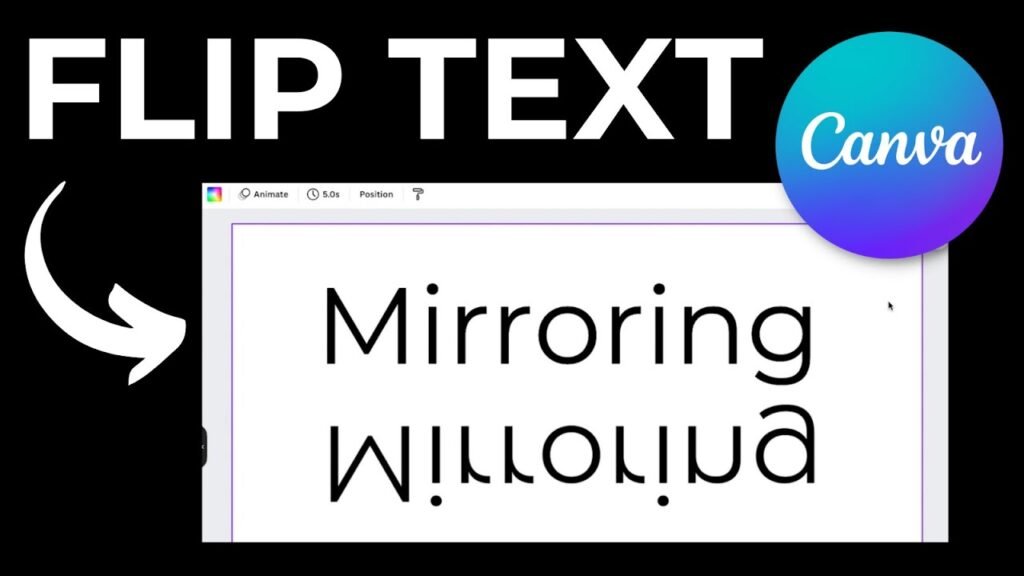
Why Direct Text Flipping Isn’t Available in Canva?
Canva doesn’t let you flip text directly with a flip button like you can with images.
This is because flipped text would be backward and hard to read! Most people need text to be readable from left to right, so Canva keeps it that way.
But sometimes for special designs, you might want flipped text for a mirror effect – and there are ways to make this happen.
Difference Between Rotating and Flipping Text
Before we start, let’s be clear about the difference:
- Rotating: This turns your text in a circle. You can use the rotate handle that appears when you click on text in Canva.
- Flipping: This creates a mirror image of your text – like seeing it backward in a mirror. To flip text, we need to turn it into an image first.
How to Flip Text in Canva?
Method 1: Converting Text To Image For Flipping
Step 1: Create Your Text In Canva
First, open your Canva project and add a text box. Before finalizing, ensure your spelling is correct by checking if Canva has spell check.
Type your words and make them look how you want with the right font, size, and color.
If you want to use a unique font, you might ask, “Can you upload fonts to Canva?” The answer is yes, and it can give your design a custom feel.
You can also explore other text effects, like learning how to curve text in Canva or how to outline text in Canva to make it stand out.
For formatting, knowing how to indent in Canva or how to wrap text in Canva can also be very useful.
Step 2: Download Text As An Image
Now we need to turn your text into a picture:
- Click the “Share” button in the top right corner
- Select “Download“
- Choose “PNG” as the file type
- Check the box for “Transparent background” so only your text downloads
- Click “Download“
When using images, it’s also important to know if Canva images are copyright-free to avoid any legal issues.
Step 3: Upload The Image Back To Canva
Bring that text image back to your design:
- Click “Uploads” in the left menu
- Click “Upload media” and find the text image you just downloaded
- Once it appears in your uploads, click on it to add it to your design
If you ever need to change the image, you can learn how to replace an image in Canva with just a few clicks.
Step 4: Use The Flip Tool On The Uploaded Image
Now that your text is an image, you can flip it:
- Select the text image
- Look for the “Flip” button in the toolbar above your design
- Click “Flip” and choose “Flip horizontal” to flip left to right, or “Flip vertical” to flip top to bottom
Step 5: Adjust The Flipped Text In Your Design
Move your flipped text where you need it. You might need to resize it or move it around to fit right in your design. For a different orientation, you might also want to know how to landscape in Canva.
Method 2: Screenshot Method (No Download Required)
Step 1: Add Text To Your Design
Create your text in Canva and make it look just how you want it.
This is a great time to experiment with different looks, and you can even learn how to highlight text in Canva to add emphasis.
Step 2: Copy To Clipboard Technique
Take a screenshot of your text:
- On Windows: Use the Snipping Tool or press Windows + Shift + S
- On Mac: Press Command + Shift + 4
- Then paste it back into your Canva design
Step 3: Remove Background From Text Image
If you have Canva Pro, select the pasted image and use the Background Remover tool to make the background clear. This feature is a great reason to consider upgrading, but it’s always good to ask, “Is Canva Pro worth it?”
If you’re curious about the cost, you can check how much Canva Pro costs or even find out how to get Canva Pro for free.
If you don’t have Pro, you can still achieve a similar result by learning how to cut out an image in Canva using other tools.
Step 4: Flip The Text Horizontally Or Vertically
With your text now as an image, click on it and find the flip tool in the top toolbar. Choose “Flip horizontal” for a side-to-side flip or “Flip vertical” for an upside-down flip.
Creating Mirror Text Effects In Canva
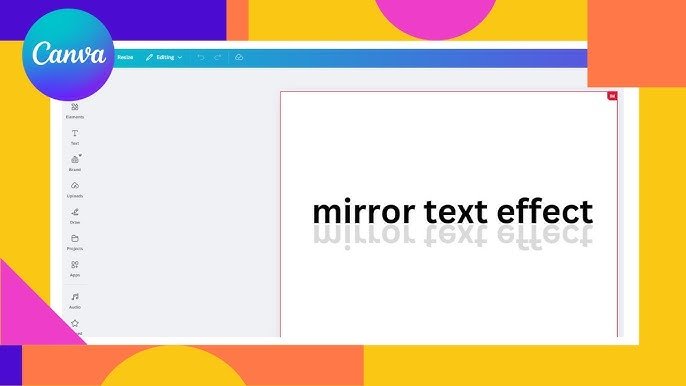
Creating a mirror text effect in Canva can make your designs stand out.
Duplicating and Flipping Text For Symmetry
To make cool mirror effects:
- Create your text image using one of the methods above
- Make a copy of it (select and press Ctrl+D or Command+D)
- Flip one copy using the flip button
- Place them together to create a mirror effect
Creating Reflection Effects With Transparency
For a water-like reflection:
- Make your normal text.
- Create a flipped copy below it.
- Lower the see-through level (transparency) of the flipped copy to about 40-50%. To perfect this effect, you can also learn how to fade an image on Canva.
- You can even add a slight blur to make it look more like water.
Aligning Mirrored Text Properly
Getting your mirror text to line up just right:
- Use Canva’s line-up tools in the top menu
- For side-by-side mirror effects, line both pieces up by their middle
- For top-and-bottom mirror effects, line both pieces up by their sides
- Look at the position numbers to make tiny adjustments
Advanced Text Flipping Techniques
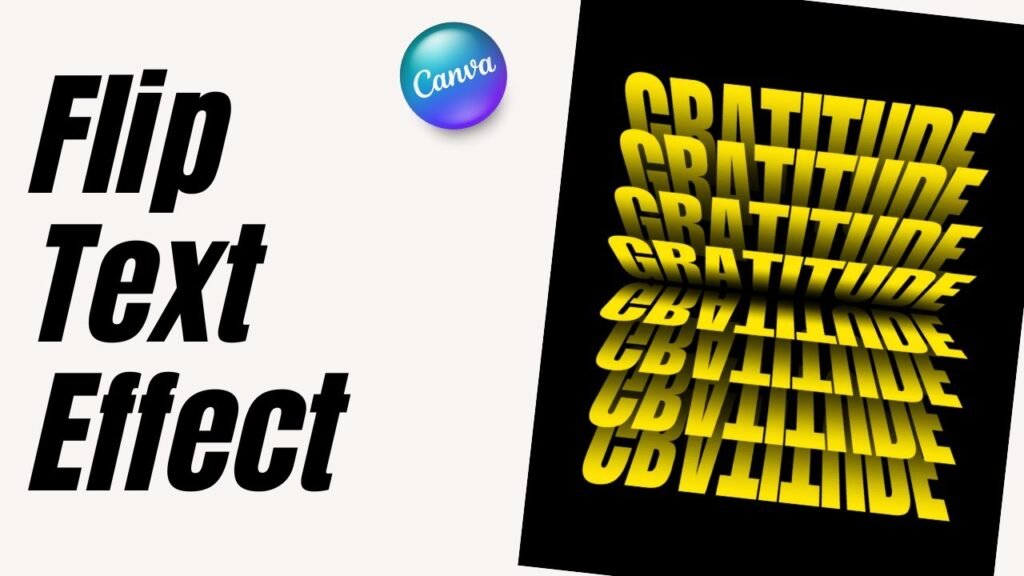
Combining Flipped Text With Animations
If you use Canva Pro, you can make your flipped text move:
- Select your flipped text image.
- Click “Animate” in the top menu.
- Pick an animation that works well with mirror effects.
- When you show or save as a video, your mirror text will come alive. For more dynamic video elements, you could also learn how to put a timer in Canva.
Adding Effects To Flipped Text
Make your flipped text pop:
- Try adding shadows. Learning how to add shadow in Canva can give your text depth.
- Make it glow.
- Change how bright or dark it is.
- Try different colors for cool effects. You can even try to learn how to slice in Canva for more advanced graphical effects.
Using Flipped Text In Various Design Projects
Flipped text works great in:
- Logos
- Social media posts
- Book covers
- T-shirt designs
- Pictures with water
- Any design where you want a mirror look
You can apply these skills to bigger projects, like learning how to create a lookbook in Canva or even discovering how to sell Canva templates on Etsy. If you’re selling digital products, it’s also helpful to know how to add a clickable link in Canva PDF.
Troubleshooting Common Issues During Flipping
When flipping text in Canva, you may face some common challenges.
Fixing Quality Problems With Flipped Text
If your flipped text looks fuzzy:
- Take high-quality screenshots
- When downloading, pick the best quality option
- Don’t stretch the text image too big after flipping
Adjusting Colors of Flipped Text Images
If colors change after flipping:
- Use the photo editor tools in Canva to fix colors
- Adjust brightness and other settings
- If colors look very different, try the download method instead of screenshots
Working With Colored Backgrounds
If your page background has color:
- Use the Background Remover tool with Canva Pro
- Without Canva Pro, make your text on a matching colored background before taking a screenshot
- Make sure the sizes match up right
FAQ’s:
Can I Flip Or Rotate A Page Background in Canva?
You can’t flip a whole page background directly. But you can flip any image first, then set it as your background. Just upload your image, use the flip tool, and then set it as the background.
Can I Flip Text Vertically and Horizontally in Canva?
Yes! Once your text is an image, you can flip it both ways. First, flip it horizontally, then select it again and flip it vertically. This gives you a completely mirrored effect.
Will Flipping An Element In Canva Also Flip The Text Within It?
Yes, if text is part of a group or image, flipping the whole thing will flip the text too. This is why turning text into an image works for flipping.
Is It Possible To Set A Custom Pivot Point For Rotation In Canva?
Canva doesn’t let you pick where to rotate from. The rotate handle always turns things around the center of what you’ve selected.
Are There Any Keyboard Shortcuts To Flip Or Rotate Elements In Canva?
Canva doesn’t have keyboard shortcuts just for flipping. For rotation, you can hold Alt (Windows) or Option (Mac) while using the rotate handle to turn things in smaller steps.
Can I Flip Or Rotate A Video Or GIF In Canva?
Yes, you can flip videos and GIFs just like images! Select the video, click the flip button in the toolbar, and pick which way you want to flip.
For other interactive elements, you might wonder, Do Canva QR codes expire? It’s a good question to explore for marketing materials.
Conclusion
Now you know how to flip text in Canva. Even though there is no direct flip button for text, the PNG workaround is quick and easy once you have done it once or twice.
The most important thing to remember: get your text looking exactly right – font, size, color, spacing – before converting it to an image. Once it is a PNG, you cannot edit the text itself anymore.
From mirror effects on logos to flipped text on social media graphics and creative poster designs, this technique opens up a lot of possibilities that most Canva users never discover.
In 2026, both the free plan and Canva Pro support this method – so there are no barriers to getting started. For more creative text techniques, check out our other Canva guides on Designers Choice – like how to curve text, how to outline text and how to add shadows for even more design options.
