The quickest way to highlight text in Canva is the Background effect: select your text box, click Effects, choose Background and pick a color. It places a solid highlight behind every line in the box. To highlight just one word, put a colored rectangle behind it, or use the Highlighter in Canva’s Draw tool for a hand-drawn marker look.
Working in a Canva Doc? There’s a proper highlighter button there too. Here’s every method, step by step.
| Method | Best for | Can highlight a single word? |
|---|---|---|
| Background effect | Headlines, labels, captions and quotes | No, it covers the whole text box |
| Shape behind the text | One word or a short phrase | Yes |
| Draw highlighter | A hand-drawn, marker-style look | Yes |
| Canva Docs highlighter | Text in Canva Docs | Yes |
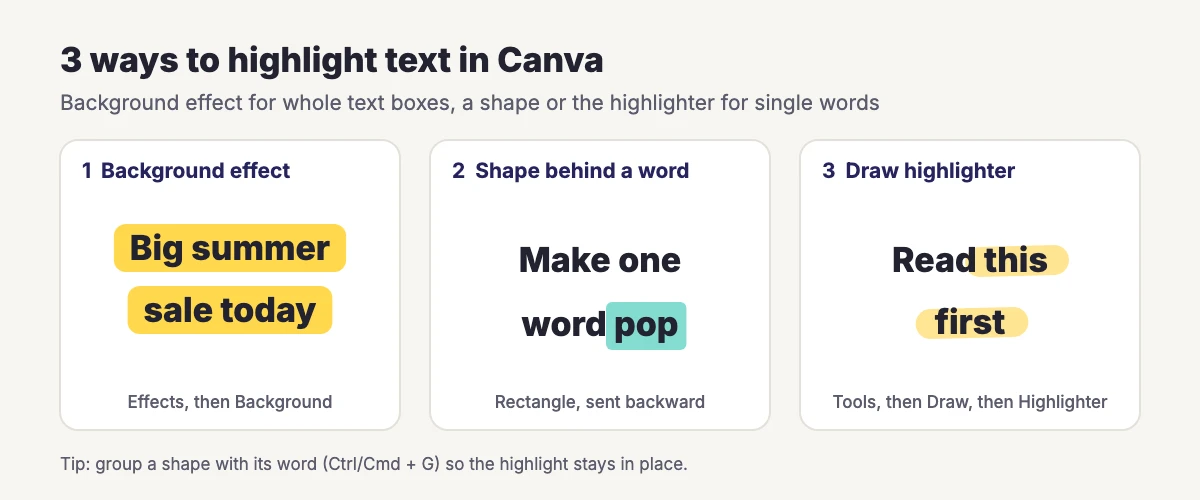
Method 1: Highlight Text With the Background Effect
- Click the text box you want to highlight.
- Select Effects on the toolbar above the editor.
- In the side panel, under Style, choose Background.
- Adjust the sliders: Roundness softens the corners, Spread controls how far the color extends around the text, and Transparency makes it lighter or bolder.
- Select the Color tile to choose your highlight color.
To remove the highlight, select the text box, open Effects and choose Remove effect at the bottom of the panel. In the Canva app, the steps are the same: tap the text, tap Effects, then Background.
The Background effect always applies to the whole text box. To highlight only part of a sentence, move those words into their own text box, or use the shape method below.
Method 2: Highlight One Word With a Shape
- Open Elements in the side panel and add a rectangle from Shapes. If you don’t see it, search for “rectangle”.
- Choose a highlight color with the color tile, then resize the rectangle so it covers the word.
- Send it behind the text: click Position on the toolbar, then Backward, or press Ctrl + [ (Cmd + [ on Mac).
- Lower the rectangle’s Transparency if you want a softer, marker-style color.
- Select the rectangle and the text together and press Ctrl + G (Cmd + G on Mac) to group them, so they move as one.
For a classic marker look, make the rectangle cover only the lower half of the word. Grouping is covered in more detail in our guide to grouping things on Canva.
Method 3: Use the Highlighter in Canva’s Draw Tool
- Select Tools in the editor side panel, then Draw.
- Choose Highlighter.
- Select Color to pick a color and Settings to adjust the thickness and transparency.
- Drag across the text. Hold Shift while you drag to draw a perfectly straight line.
- Click the Select icon to leave drawing mode. You can now move or resize the stroke like any other element.
If the stroke sits on top of the letters, send it backward with Ctrl + [ (Cmd + [ on Mac). Draw works in every design type except Canva Docs.
How to Highlight Text in Canva Docs
- Select the words or phrase you want to highlight.
- Click the Highlighter icon in the editor toolbar.
- Choose a preset color, or click the Plus icon for more colors.
To remove it, select the text, open the highlight colors and choose the No color tile.
Choose Highlight Colors That Stay Readable
| Text color | Highlight colors that work | Avoid |
|---|---|---|
| Black or dark gray | Yellow, light green, pale pink, light blue | Dark or saturated colors that swallow the letters |
| White | Navy, deep purple, dark green, black | Yellow and other pale colors |
| Brand color | A pale tint of the same color, or a neutral | A clashing color of the same brightness |
Keep the contrast high and use one highlight color per design so it reads as emphasis rather than decoration. For other ways to make words stand out, try outlining text, adding a shadow or curving text.
Highlight Not Working? Quick Fixes
| Problem | Why it happens | Fix |
|---|---|---|
| The whole text box is highlighted, not one word | The Background effect covers the entire box | Put the word in its own text box, or use a rectangle behind it |
| The shape hides the text | The rectangle is in front of the text | Click Position, then Backward, or press Ctrl/Cmd + [ |
| The highlight and text drift apart | They aren’t grouped | Select both and press Ctrl/Cmd + G |
| There’s no Draw option | You’re in a Canva Doc | Use the Highlighter icon in the Docs toolbar instead |
| The highlight is too strong | Transparency is at full | Lower the Transparency slider in the effect or on the shape |
Tips for Better Highlights
- Highlight one key word or phrase per section. If everything is highlighted, nothing stands out.
- Reuse the same color and roundness across a carousel or presentation so the style feels intentional.
- Round the corners slightly for a friendly, social-media look, or keep them square for a clean editorial feel.
- Pair highlights with a strong font. Our tips on uploading your own fonts to Canva help if you need a brand font.
Want more time-savers? See our Canva keyboard shortcuts and Canva tips and tricks.
Frequently Asked Questions
Select the text box, click Effects on the toolbar, choose Background and pick a color. Adjust Roundness, Spread and Transparency to style the highlight.
The Background effect covers the whole text box, so add a rectangle from Elements, place it over the word, send it backward with Ctrl + [ (Cmd + [ on Mac) and group it with the text.
Yes. Tap the text, tap Effects, then Background. The shape method and the Draw highlighter also work in the app.
Select the text box, open Effects and choose Remove effect. If you used a shape or a highlighter stroke, select it and delete it. In Canva Docs, choose the No color tile.
Yes. The Background effect has a Transparency slider, and shapes and Draw strokes can be made see-through with the Transparency option.
Yes, two. The Draw tool includes a Highlighter that works in every design type except Docs, and Canva Docs has a Highlighter icon in the toolbar.