Categories
Branding Design Marketing

Using Stock Photos Without Permission? Copyright & License Guide

Designers Choice exists to support creative professionals with practical tools and clear guidance.

The platform addresses real hurdles in design work—from sourcing reliable materials to tracking fast-moving trends.

Content focuses on expert insights, high-quality products, and proven solutions built for professional standards.

The mission is to help bring bold, creative visions to life with confidence.

Resources are crafted to serve busy studios, agencies, and independent creators who value creativity, craftsmanship, and excellence.

Every article, guide, and product recommendation is designed to save time, reduce guesswork, and raise the quality of outcomes.

Understanding Stock Photos and Their Popularity

Understanding Stock Photos and Their Popularity

What Are Stock Photos?

Stock photos are ready-made images that you can get a license for to use in your projects.

Instead of hiring a photographer for a specific shoot, you can search through large libraries of stock photography to find an image that fits your needs. These images are created by professional image creators and cover almost every topic you can think of.

If you are a creator yourself, you might be interested in learning how to sell photos to stock websites. This makes finding the right imagery for your blog or branding much easier.

Why Do People Use Stock Photos?

People use stock photos because they are convenient and affordable.

If you need a high-quality photo for your website, social media, or marketing materials, stock photography offers a quick solution.

Whether you’re working on detailing business cards or a full-scale web project, it saves you the time and money of organizing a photo shoot.

With so many options available, from sites like Shutterstock to Adobe Stock, you can find the perfect stock image to represent your brand or message without a lot of hassle.

If you’re weighing your options, it’s helpful to compare Shutterstock vs Adobe Stock to see which platform best fits your needs. It is also wise to look into the Adobe stock cost to see if it fits your budget. The variety of types of licenses also makes it a flexible option for different kinds of usage.

Can You Use Stock Photos Without Permission?

This is a big question for anyone who creates content online. The quick and direct answer is no, you generally cannot use stock photos without permission. Using a stock photo without the proper licensing is like borrowing a car without asking the owner.

That “permission” comes in the form of a licensing agreement, which is a legal contract that outlines how you can and cannot use the image. Ignoring this can lead to serious trouble, including copyright infringement issues.

The Short Answer: Why “Permission” is Everything

Understanding the Basics: Copyright Law and Photography

Every photo is automatically protected by copyright laws the moment it is taken. This means the creator of the photo owns the exclusive rights to it. They get to decide who can use their work and how.

Using a photo without permission from the creator is a violation of these laws. Copyright infringement is a serious matter, and it’s something every designer and business owner needs to be aware of. The internet makes it easy to copy and paste, but it doesn’t make it legal.

What “Permission” Really Means: The Role of A License

When you get a stock photo, you’re not buying the photo itself; you’re buying a license to use it.

A licensing agreement is the formal permission you need. This document spells out the terms of use, such as where you can use the image, for how long, and for what purposes. There are different types of licenses, and each one gives you a different level of permission.

Decoding Common Stock Photo Licenses: What You Need to Know

Royalty-Free (RF): The Most Common License For Flexible Use

A royalty-free license is one of the most popular types of licenses.

With this kind of licensing, you pay a one-time fee to use the image multiple times for various projects without having to pay a royalty each time. This makes it a great option for ongoing needs like a blog or social media. However, “royalty-free” does not mean “free.”

You still have to pay for the initial license. The pricing for these licenses can vary depending on the stock photography site.

Rights-Managed (RM): Specific Use, Specific Time

Rights-Managed licensing is more specific.

When you get an RM license, you are paying for the right to use a stock image for a specific purpose, for a specific amount of time, and in a specific location. For example, you might get a license to use a photo on a billboard in one city for three months.

This type of image licensing often comes with exclusive rights, meaning no one else in your industry or area can use that same image while your license is active. This can be great for major branding campaigns where you need unique campaign poster ideas that stand out.

Creative Commons (CC): Understanding the Different Types of “Free”

Creative Commons is a type of licensing that allows creators to let others use their work for free.

However, there are different kinds of CC licenses. Some require you to give attribution to the creator, meaning you have to credit them.

Others may restrict you from using the image for commercial purposes, which means you can’t use it to make money. It is very important to check the specific Creative Commons license to understand the rules.

Public Domain (CC0): Truly Free, No Permission Needed

Images in the public domain are not protected by copyright laws.

This means you can use them for any purpose, including commercial purposes, without asking for permission or giving attribution. Works enter the public domain when their copyright expires or when the creator dedicates them to the public domain.

While these free images are a great resource, it’s always a good idea to double-check that an image is truly in the public domain before using it.

The Dangers: What Happens If You Use A Photo Illegally?

  1. Cease and Desist Letters and Demand For Payment: If you use a stock photo without the correct licensing, you could receive a cease and desist letter from the creator or their legal team. This letter will demand that you stop using the image immediately. It will also likely include a demand for payment for the unauthorized usage. This can be a stressful and expensive experience.
  2. Potential Lawsuits and Costly Fines: Ignoring a cease and desist letter can lead to a lawsuit. Copyright infringement cases can result in heavy fines, sometimes thousands of dollars for a single image. The legal fees alone can be a huge burden for any business. The risk of a lawsuit is a major reason to always be careful with image licensing.
  3. Damage to Your Brand’s Reputation and Credibility: Using an image illegally can also harm your brand’s reputation. It can make your business look unprofessional and untrustworthy. In today’s digital world, news of copyright infringement can spread quickly, damaging your branding and relationship with customers. A strong brand is built on trust, and that includes respecting the work of other creators.

Where to Find Stock Photos You CAN Use (Safely and Legally)

Where to Find Stock Photos You CAN Use (Safely and Legally)?

Reputable Paid Stock Photo Sites (e.g., Getty, Adobe Stock, Shutterstock)

Paid stock photography sites like Getty Images, Adobe Stock, and Shutterstock are reliable sources for legally licensed images.

These platforms have clear licensing terms and a huge selection of high-quality imagery. While you have to pay for the licensing, the pricing is often reasonable, and you can sometimes find a Shutterstock coupon or a Getty Images coupon to get a better deal.

This gives you peace of mind knowing you are using the image legally. This is a smart investment for any business that cares about its branding.

High-Quality Free Stock Photo Resources (e.g., Unsplash, Pexels, Pixabay)

Some sites offer free images, such as Unsplash, Pexels, and Pixabay.

These sites operate under licenses similar to Creative Commons, allowing you to use their photos for free, often without attribution. They can be a fantastic resource, especially for small businesses or personal projects, and serve as excellent Shutterstock alternatives. These platforms provide a wide variety of imagery to choose from.

A Critical Note of Caution on “Free” Photo Sites

While free sites are a great resource, you still need to be careful. Always read the terms of use for each site and each image.

Sometimes, photos on these sites are uploaded by users who are not the actual creators, which could lead to copyright infringement issues down the line. It’s a good practice to check for any disclaimer or information about the license before downloading and using a free image.

A little caution can save you a lot of trouble.

Best Practices to Avoid Copyright Infringement

Best Practices to Avoid Copyright Infringement
  1. Always Read the Fine Print of the License Agreement: The most important rule is to always read the licensing agreement. This document contains all the rules for how you can use the stock photo. It will tell you if you can use it for commercial purposes, if attribution is required, and if there are any other restrictions. Don’t just click “agree” without reading the terms of use.
  2. Keep Records of Your Licenses and Downloads: It’s a smart idea to keep records of every stock image you license and download. Save a copy of the license agreement and the receipt. This way, if your usage is ever questioned, you have proof that you obtained the image legally. This can be a lifesaver if you ever face a copyright infringement claim.
  3. Understand the Difference: Commercial Vs. Editorial Use: It is important to know the difference between commercial and editorial usage. Commercial purposes involve using an image to promote a product or service, like in an ad or on a product package. Editorial use is for non-commercial purposes, like in a news article or a blog post that is purely informational. Some licenses only allow for editorial use, so be sure you know which one you need.
  4. Check For Model and Property Releases: If a stock photo includes a recognizable person or private property, the photographer needs to have a model release or property release. This is a legal document signed by the person or property owner permitting the image to be used. Reputable stock photography sites like Shutterstock and Adobe Stock will make sure these releases are in place for images intended for commercial purposes.

FAQ’s:

What Happens If I Use A Stock Photo Without A License?

If you use a stock photo without a licensing agreement, you are committing copyright infringement.

This can lead to legal action, including cease and desist letters, demands for payment, and costly lawsuits. It’s a serious risk that can harm both your finances and your brand’s reputation.

Are Free Stock Photo Sites Always Safe to Use?

While many free stock photo sites are legitimate, they are not always 100% safe. There’s a small risk that an image might have been uploaded without the true creator’s permission.

Always check the site’s terms of use and try to verify the source of the image if possible. Reading the disclaimer is a good habit.

Do I Need to Credit the Photographer Every Time?

Whether you need to give attribution to the photographer depends on the license. Some Creative Commons licenses require it, while others do not. Royalty-free licenses from paid sites usually don’t require attribution. The licensing terms will always tell you what is required.

Can I Use Stock Photos on Social Media and Ads?

Yes, you can typically use stock photos on social media and in ads, as long as you have the correct license for commercial purposes.

A strong Instagram marketing strategy, for example, relies on high-quality visuals. Make sure your licensing agreement covers this type of usage. Using a stock image with a watermark is not allowed; the watermark is there to prevent unauthorized use.

How Can I Check If A Photo Is Copyrighted?

You should assume that almost every photo you find online is protected by copyright laws.

The best way to check is to use a reverse image search on Google to find the source. This can help you determine who the creator is and what kind of licensing, if any, is available for the image. Don’t just assume an image is free to use because it’s on the internet.

What Should I Do If I Receive A Copyright Infringement Notice?

If you receive a copyright infringement notice, don’t ignore it.

The first step is to take down the image immediately. Then, review your records to see if you have a license for that stock photo. If you do, you can present it as proof. If you don’t, it may be best to contact a legal advisor to help you navigate the situation.

Conclusion

Using stock photos can be a fantastic way to enhance your creative projects, from your blog to your professional branding.

However, it’s essential to do so legally and ethically. Understanding the basics of copyright laws, image licensing, and the different types of licenses is key to protecting yourself and your business from the serious consequences of copyright infringement.

Always take the time to read the licensing terms and use reputable sources for your imagery.

As a responsible creator, you not only safeguard your own interests but also demonstrate respect for the work of other artists and designers.

At Designers Choice, we are committed to equipping you with the knowledge you need to create confidently.

Categories
Branding Design

The 15 Best Shutterstock Alternatives & Competitors in 2025

Bringing a creative idea to life is a journey that requires the right tools, the perfect assets, and a spark of inspiration.

The search for high-quality stock photos and other creative elements can be a time-consuming process, taking focus away from the core design work.

That is why this guide exists: to help you find the best Shutterstock alternative.

Shutterstock is a giant in the world of stock photography, but it’s not the only option available. Whether for a freelancer, a team at one of the many small businesses, or a passionate content creator, there is an online platform that will be the best fit for specific creative needs.

This article is designed as a go-to resource, helping you find top-quality products and innovative solutions for your creative projects. The goal is to empower you to bring your boldest visions to life, with the support of a community that cherishes creativity and excellence.

What Is Shutterstock and Why Is It So Popular?

What Is Shutterstock and Why Is It So Popular?

Shutterstock is a massive online marketplace for stock content.

Think of it as a huge digital library filled with millions of stock images, video clips, music tracks, and more. For years, it has been a primary source for creative professionals and businesses in different industries needing visuals for their websites, social media, and marketing materials.

Its popularity comes from its sheer size and variety. You can find almost any kind of image you can imagine, which makes it a reliable choice for many. They offer different subscription plans and image packs, giving users some flexibility.

However, while it’s a powerful tool, it might not always be the best choice for everyone, which leads many to look for a Shutterstock alternative.

Why Look For A Shutterstock Alternative?

Why Look For A Shutterstock Alternative?

While Shutterstock is a leader, there are several reasons why you might look for Shutterstock alternatives.

One of the main factors is the cost. The subscription plans can be expensive for freelancers or small businesses on a tight budget, though finding a Shutterstock coupon can help reduce the price. Sometimes, you might just need a few images and don’t want to commit to a monthly plan.

Another reason is the need for more unique visuals. Because so many people use Shutterstock, some of its stock images can feel overused.

For a brand that wants to stand out, using a different stock photo site can provide fresher, more distinctive content.

Understanding the difference between branding vs brand identity is key to selecting visuals that truly represent your business.

You might also be looking for more flexible licensing options or a platform with a different kind of stock content library.

Many creators are also interested in sites that offer unlimited downloads, which is something a traditional subscription model on Shutterstock doesn’t provide. For these reasons and more, exploring other stock agencies is a smart move for any savvy content creator.

15 Amazing Shutterstock Alternatives You’ll Love

Shutterstock Alternatives

Finding the right online platform for your creative projects can be a game-changer.

Here are 15 of the best sites that serve as excellent Shutterstock alternatives, each with its own unique strengths.

Adobe Stock

Adobe Stock

Adobe Stock is a powerhouse and a top contender as a Shutterstock alternative, especially for users already in the Adobe ecosystem.

It integrates seamlessly with Adobe Creative Cloud applications like Photoshop and Adobe Premiere Pro, allowing you to search for and license stock images and video footage directly within your design software.

It boasts a huge library of high-quality stock photos, vector graphics, and video clips. The Creative Cloud integration is a massive workflow advantage for serious creative professionals.

While it has a paid plan, the convenience it offers is often worth it for those using Adobe Creative Cloud applications.

iStock

iStock

Owned by Getty Images, iStock is a well-respected name in the stock photography world. It offers a vast collection of stock images, including an exclusive Signature collection that you won’t find anywhere else.

This makes it a great choice if you’re looking for premium content with a more artistic feel.

iStock provides flexible pricing with both subscription plans and credit packs, allowing you to buy image downloads as you need them.

It’s a solid Shutterstock alternative for those who need high image quality and exclusive content for their commercial projects.

Pexels

Pexels

Pexels is one of the most popular free stock photo sites. It offers a large library of high-quality free images and video clips that can be used for almost anything, including commercial use, without needing to give credit.

If you’re on a budget or just need some great-looking free photos for your blog or social media, Pexels is a fantastic resource.

While it may not have the depth of a paid plan site, its collection of free stock photos is impressive and constantly growing.

Unsplash

Unsplash

Unsplash is like Pexels. It is a top place for free stock photos.

What makes Unsplash special is its unique, artistic images. You can find great, high-quality pictures shared by a global group of photographers.

If you’re a photographer yourself, you might be curious about how to sell photos to stock websites and contribute to platforms like these.

All the photos on this site are free to use for business purposes. This makes it popular among content creators and small firms.

Unsplash has also added a paid option called Unsplash+. However, its main feature of free images is still one of the best out there.

Freepik

Freepik

Freepik is a versatile Shutterstock alternative that offers more than just stock photos.

It’s a huge resource for vector graphics, icons, and templates. It operates on a freemium model, meaning it has a large selection of free options alongside a paid plan for premium content. The paid plan gives you access to a wider range of assets and more flexible usage rights.

For designers who need a variety of graphic elements, not just photos, Freepik is an excellent choice.

Canva

Canva

While many know Canva as a design tool, it also has a massive library of stock images, videos, and graphics.

Many of these are available on its free plan, while a Canva Pro subscription unlocks millions more premium content assets.

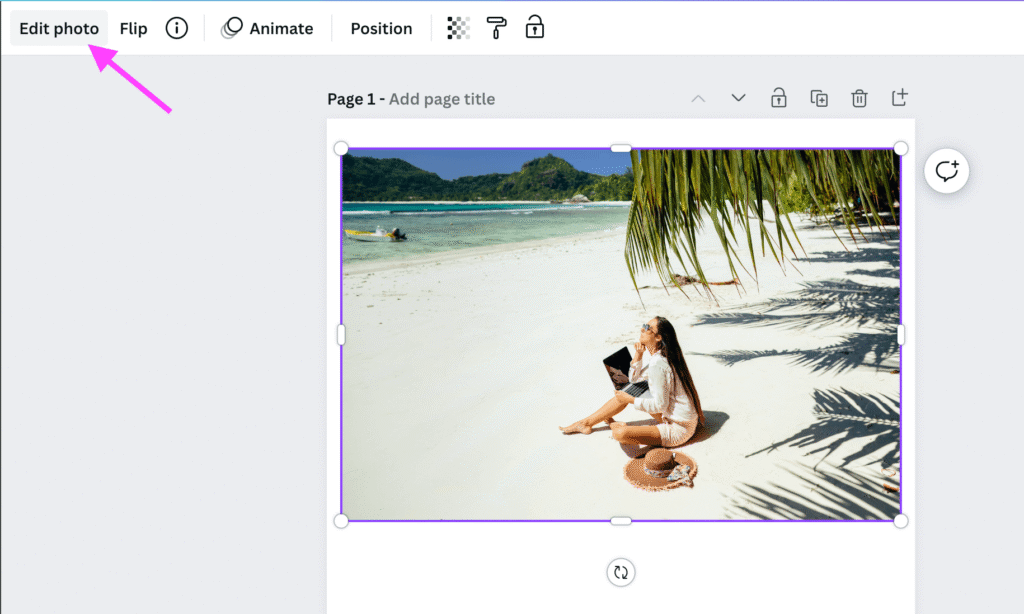
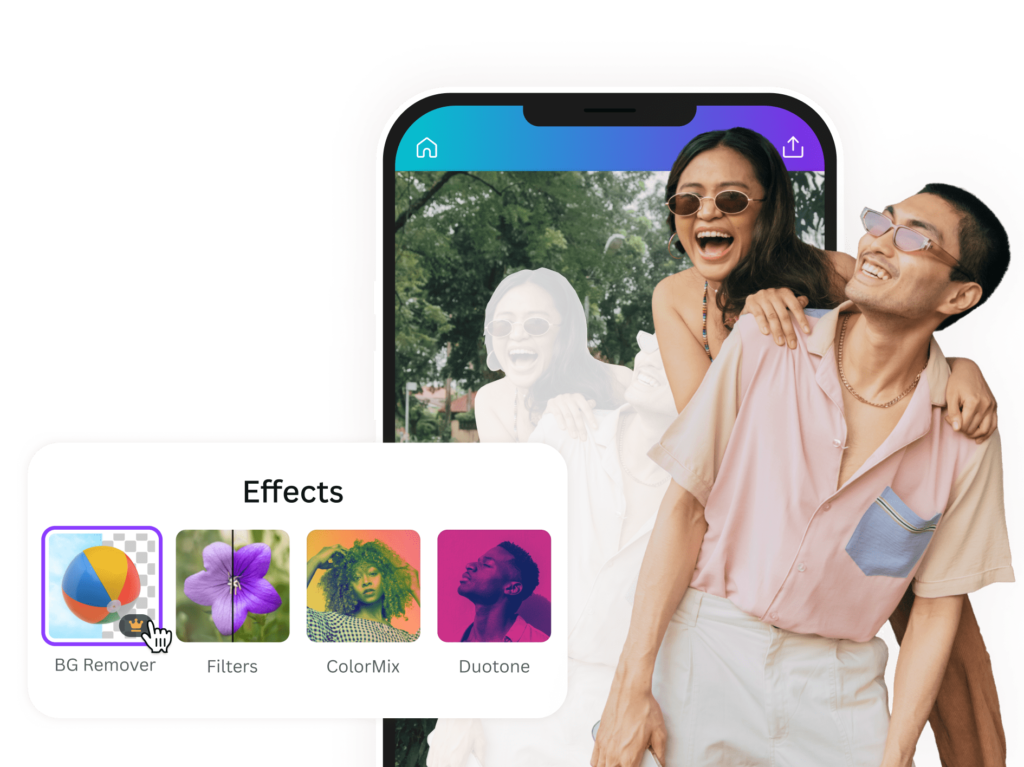
For those who want to design and source images all in one place, Canva is an amazing online platform. It includes tools like a background remover and other design tools that make image creation incredibly simple, even for non-designers.

Getty Images

Getty Images

If you are looking for the highest image quality and truly exclusive, premium content, Getty Images is the industry standard. It’s the platform major brands and publications turn to for their photography needs.

While it is more expensive than most Shutterstock alternatives, its library is unmatched in quality and includes images from top photographers and major events. A Getty Images coupon can make its premium collection more accessible. For high-stakes commercial projects where a unique, powerful image is essential, Getty Images is the best choice.

Dreamstime

Dreamstime

Dreamstime is one of the older stock photo sites and has built a large, diverse community of contributors and users.

It offers a good balance of quality and affordability, with millions of stock images available through subscription plans or credit packs.

Dreamstime also has a section of free images, making it a flexible Shutterstock alternative for different budgets and creative needs.

Vecteezy

Vecteezy

Vecteezy is a site that began with vector graphics. Now, it has many kinds of content. This includes stock photos and video clips. It is a great tool for designers and artists. They often need vectors for their work.

Vecteezy offers both free choices and a paid plan.

The paid plan allows unlimited downloads. It also gives full rights for commercial use. This choice makes it good for busy content makers.

They want quality and easy access to design tools.

Vecteezy’s simple layout and large library make it a top pick. It is perfect for anyone needing creative assets beyond regular stock sites.

Depositphotos

Depositphotos

Depositphotos is known as a cheaper choice than Shutterstock. It still has a large and good-quality library. Users can find over 200 million files easily. This includes stock images, videos, and music for many projects.

One great feature of Depositphotos is its flexible plans.

These plans fit different needs. They also offer on-demand image packs for buying only what you need.

This makes it a smart choice for small businesses and individuals. They can get a lot of content without spending too much money.

Depositphotos often has a free trial too. This lets users try their services without spending any cash.

With affordable prices, variety, and flexibility, Depositphotos is a great pick for anyone needing stock media.

Storyblocks

Storyblocks

Storyblocks is a great choice due to its easy subscription plan.

It lets users download as much as they want. This is very helpful for creators who need lots of content, especially for making videos.

When you subscribe to Storyblocks, you can access their library anytime. They offer HD and 4K video clips, audio files, sound effects, and stock photos. For those who make videos, this site is one of the best options.

It is a fantastic alternative to Shutterstock.

123RF

123RF

123RF is a great choice for those looking for low-cost options instead of Shutterstock. Many users prefer this site. It has a large library filled with stock photos. This makes it a useful resource for creative workers.

In addition to stock photos, you can also find many types of vector art. There are video clips and sound files available too.

This wide range meets many multimedia needs. 123RF has been in the market for many years now.

They have earned the trust of many creative people who rely on their services. Their prices are fair, and they offer flexible plans. Users can choose from subscription plans or credit packs that fit their needs best.

One major benefit of 123RF is its promise to grow its library constantly. They add new and exciting content all the time. Plus, they have an AI tool to help users create unique images. This tool enhances the overall experience for all users.

Pond5

Pond5

Pond5 is a top choice for video clips that don’t need to pay royalties. It is an important site for people who work mostly with video.

Pond5 has a huge library of clips. It has the largest collection of videos in the world. You can find amazing 4K shots and simple, everyday scenes. These clips can improve any project you’re working on.

Besides videos, Pond5 also offers other helpful items. This includes music tracks, sound effects, images, and 3D models.

This wide range of options makes Pond5 a great place for creative work. It meets many needs and tastes in digital projects.

Pixabay

Pixabay

Pixabay is another fantastic resource for free stock photos and free images.

Similar to Pexels, everything on the site is released under a license that makes it safe to use for commercial purposes without attribution.

It has a huge library of over a million assets, including photos, illustrations, vector graphics, and video clips.

For anyone needing quality stock content without a budget, Pixabay is one of the best free stock photo sites available.

Photocase.de

photocase

Based in Berlin, Photocase is a unique option that focuses on art and real images. If you are bored with basic stock photos, try Photocase.

The images here feel more like real life and less like a business.

Although the library is smaller and prices are higher, these unique images work well for brands that want to show their style and personality.

These visuals can powerfully support great brand story examples or communicate a commitment to values like sustainable branding.

Comparing Features of Shutterstock Alternatives

Comparing Features of Shutterstock Alternatives

When choosing a Shutterstock alternative, it’s helpful to compare them based on a few key factors. Your best choice will depend on what you value most for your content strategy.

Image Quality and Diversity

The image quality and diversity vary greatly among stock agencies. Getty Images and iStock are at the top, offering premium content and exclusive collections. Adobe Stock also provides very high-quality content that is perfect for professional commercial projects.

Free sites like Unsplash and Pexels have excellent image quality, but their libraries, while large, are not as deep or diverse as the paid giants. Photocase is the place to go for artistic and unique visuals.

The best fit depends on whether you need a highly specific, professional shot or a more authentic, lifestyle image.

Licensing and Usage Rights

Understanding usage rights is critical. Most Shutterstock alternatives, both free and paid, offer a royalty-free license.

This means you pay once (or not at all for free stock) and can use the image multiple times for commercial use without paying extra royalties.

However, it’s always important to check the specific terms. Paid sites usually offer greater legal protection.

Free sites like Pexels and Pixabay use licenses similar to the public domain, allowing for very broad use. Always check the licensing for any asset you download to ensure it fits your needs for commercial purposes.

Flexible licensing is a key feature to look for.

Pricing and Subscription Options

Pricing models are a major differentiator. Shutterstock primarily uses a subscription model and image packs.

Many alternatives do too, but with variations. Adobe Stock offers plans that let you download different asset types, not just images.

Depositphotos is known for being a cheaper option. Sites like Storyblocks and Envato Elements are game-changers with their unlimited downloads subscription, which is incredible value for heavy users.

Then you have free options like Pexels and Unsplash, which are perfect for those on a tight budget.

Many sites offer a free trial or a coupon code to get you started.

How to Choose the Right Shutterstock Alternative For My Needs?

How to Choose the Right Shutterstock Alternative For My Needs?

With so many options, how do you find the best fit? Here’s a simple guide:

  1. Assess Your Needs: How many images or videos do you need per month? What kind of style are you looking for? Do you need mainly stock photos, or do you also need video clips, music tracks, and vector graphics? Answering these questions will narrow down your choices.
  2. Consider Your Budget: If you have no budget, start with the best free stock photo sites like Pexels, Unsplash, and Pixabay. If you have a small budget, look at affordable options like Depositphotos. If you need a high volume of assets, a platform with unlimited downloads like Envato Elements or Storyblocks is the most cost-effective paid plan.
  3. Evaluate Your Workflow: If you are a heavy user of Adobe Creative Cloud applications, the seamless Creative Cloud integration of Adobe Stock can save you a lot of time and is likely the best choice. If you want an all-in-one design and asset platform, Canva is perfect.
  4. Think About Uniqueness: If you want your brand to stand out with unique visuals, consider a site like Photocase or look for the exclusive collections on iStock. An AI image generator like Jasper Art or others can also help with image creation for truly one-of-a-kind visuals.

FAQ’s:

What Are the Best Free Alternatives to Shutterstock?

The best free alternatives to Shutterstock are Unsplash, Pexels, and Pixabay.

These free stock photo sites offer huge libraries of high-quality free images and videos that you can use for commercial purposes without attribution. They are excellent resources for bloggers, small businesses, and social media managers.

Are There Any Stock Photo Sites With Unlimited Downloads?

Yes! Envato Elements and Storyblocks are two of the best stock photo sites that offer unlimited downloads with a single subscription.

For a flat monthly or annual fee, you get access to millions of creative assets, including photos, videos, music, and more. This is an incredible value for content creators who need a constant supply of fresh content.

Can I Use Images From These Alternative Sites For Commercial Purposes?

Generally, yes. Most paid Shutterstock alternatives like Adobe Stock and iStock provide a standard license that covers commercial use. The best free stock photo sites, like Pexels and Unsplash, also allow commercial use.

However, it is always important to read the specific usage rights for each image or site, as some restrictions may apply (e.g., not using images for logos or in a way that depicts people negatively).

Do Shutterstock Alternatives Also Offer Stock Videos and Music?

Absolutely. Many of the top Shutterstock alternatives are complete creative marketplaces.

Adobe Stock, Pond5, Storyblocks, and Envato Elements have extensive libraries of video footage, music tracks, and sound effects. This is great for video editing and creating rich multimedia creative projects.

Even some free options like Pexels and Pixabay offer a selection of free stock videos.

What is the Main Difference Between Free and Paid Stock Photo Sites?

The main differences are in the library size, exclusivity, and legal protection.

Paid sites have much larger libraries with more specific and diverse premium content. You are also less likely to see the same image used everywhere. Paid sites also offer legal indemnification, which protects you if there’s a problem with the image’s usage rights.

Free stock photo sites are fantastic, but you have a smaller selection and less legal assurance.

Conclusion

The world of stock photography is vast and full of amazing resources beyond the biggest names. This guide shows that a perfect Shutterstock alternative is available for any budget or set of creative needs.

From the seamless integration of Adobe Stock for creative professionals to the incredible value of unlimited downloads on Envato Elements, to the beautiful free photos on Unsplash, the options are plentiful.

The goal is to empower creators with the tools and knowledge to succeed.

Selecting the appropriate online platform allows individuals to find the ideal resources to realize their creative concepts. The optimal option is one that complements the workflow, matches the budget, and offers the premium stock content necessary for outstanding results.

Now you can move forward with confidence in your content strategy, backed by a resource that values creativity and craftsmanship.

Categories
Marketing

Shutterstock Coupon: Get Big Discounts With Official Coupon Codes

Designers Choice was created to be the go-to resource for professionals, a place where expertise meets inspiration.

The challenge of turning creative ideas into reality is well-known, from sourcing the right materials to keeping up with design trends.

That’s why this site provides a collection of top-quality products, innovative solutions, and trusted insights, tailored for professionals who demand the best.

The mission is to empower creators to bring their boldest visions to life, supported by a community that values creativity, craftsmanship, and excellence.

One of the most important tools in any designer’s toolkit is access to high-quality stock photography. That’s where Shutterstock comes in.

While it is a top-tier platform, many professionals also weigh options when making a choice. To make an informed decision, comparing Shutterstock vs Adobe Stock can help you determine which service aligns best with your creative needs.

With a shutterstock coupon, getting the best assets for creative projects becomes much more affordable. This guide will provide the latest shutterstock coupon codes to help you save on your next purchase.

For all content creators and creative professionals, finding the right stock images is a key part of the job, and getting the best value is essential.

It’s also vital to understand the usage rights that come with stock imagery.

A frequent question is, can you use stock photos without permission? The short answer is no, which highlights the importance of using a licensed platform like Shutterstock to avoid legal issues.

Shutterstock Coupon Codes (July 2025): Get Up to 40% Off

Finding a good deal on Shutterstock is a great way to stretch your budget.

For July 2025, there are several promotional offers available that can give you a significant shutterstock discount. You can find a shutterstock coupon code 40% off on some plans, and even a shutterstock coupon code 50% off during special seasonal promotions.

These shutterstock discount codes are a great way for new customers and existing users to save money. Be sure to check the expiration dates of any promo code you use, as some are for a limited time only.

Using a shutterstock coupon is simple and can lead to big savings on your subscription plans. Many shoppers have successfully used these promotional codes to get discounts on everything from a single image pack to a full year’s subscription.

Today’s Top Shutterstock Promo Codes & Deals

Today's Top Shutterstock Promo Codes & Deals

Here are some of the best shutterstock promo codes and deals available right now.

40% Off Annual Image Subscriptions

For those who need a steady supply of stock photos, the annual subscription plan offers the best value.

With a shutterstock coupon, you can get up to 40% off, which is a massive saving for creative professionals who use stock images regularly. This is a great way to ensure you always have access to the wide range of illustrations, vectors, and photos that Shutterstock offers.

15% Off All Video & Music Plans

Shutterstock isn’t just for stock photos. They have a huge library of royalty-free music tracks and video footage. With a promo code, you can get 15% off these plans. This is perfect for content creators who are working on video projects and need high-quality audio and visuals for their Instagram marketing strategy and other social media campaigns.

10% Off Sitewide For New Customers

If you are a new customer to Shutterstock, you can get a 10% discount code to use on your first order.

This is a great way to try out the service without a big financial commitment. This applies to most products sitewide, so you can explore everything Shutterstock has to offer.

There is no minimum purchase amount to use this coupon.

Special Offer: Get 10 Free Images With A Trial

Shutterstock often has a free trial offer where you can download 10 free images.

This is a fantastic way to experience the quality and variety of their stock images without spending any money. You can cancel the subscription at any time during the trial period. This is a great way for anyone to get some free images for their creative projects.

How to Apply Your Shutterstock Coupon Code?

How to Apply Your Shutterstock Coupon Code?

Using a Shutterstock coupon code is a straightforward process. Here’s a simple guide to help you apply your discount code at checkout.

  • Step 1: Choose Your Shutterstock Plan (Images, Video, Or Music) – First, you need to decide which Shutterstock plan is right for you. They offer various subscription plans for images, video, and music. You can choose from on-demand packs or monthly and annual subscriptions. Select the plan that best suits your needs and add it to your cart.
  • Step 2: Proceed to the Checkout Page – Once you have selected your plan, click on the “Buy Now” button to go to the checkout page. Here you will be asked to either log in to your existing Shutterstock account or create a new one.
  • Step 3: Locate the “Do you have a coupon code?” Box – On the checkout page, you will see a summary of your order. Look for a box that says, “Do you have a coupon code?“. This is where you will enter your promo code.
  • Step 4: Enter Your Code and Click “Apply” to See the Discount – Type or paste your Shutterstock coupon into the box and click the “Apply” button. The discount will be applied to your order total, and you will see the new, lower price. Then you just need to enter your payment method to complete the purchase.

Understanding Shutterstock Pricing & Plans

Understanding Shutterstock Pricing & Plans

Shutterstock offers a variety of pricing plans to fit different needs and budgets.

  1. On-Demand Image & Video Packs: If you only need a few stock images or videos for a specific project, an on-demand image pack is a great option. You can buy a pack of images or videos and download them as you need them. This is a flexible option for those who don’t want a monthly subscription.
  2. Monthly & Annual Subscriptions: For creative professionals and content creators who need a constant stream of fresh content, a monthly or annual subscription is the most cost-effective choice. These subscription plans offer the best value, with a lower cost per image. The annual plan provides the biggest savings.
  3. Team & Enterprise Solutions: Shutterstock also offers plans for teams and larger businesses. These plans allow multiple users to access the same subscription and provide additional features like a standard license with more comprehensive coverage and tools for collaboration.

More Ways to Save At Shutterstock Without A Code

Even if you don’t have a Shutterstock discount code, there are still ways to save money. Exploring different platforms can also lead to great deals; for example, you might find a Getty Images coupon that makes another premium service more affordable. If you’re open to exploring other options, looking into Shutterstock alternatives can help you find a service that perfectly matches your budget and style.

  1. Sign Up For the Shutterstock Annual Plan: As mentioned before, the annual subscription plan offers the best value. By paying for a year upfront, you can save a significant amount compared to a monthly plan. This is a smart move for anyone who uses Shutterstock frequently.
  2. Take Advantage of the Shutterstock Free Trial: The Shutterstock free trial is a great way to get started. You can get a feel for the service and even download some free images to use in your projects. It’s a no-risk way to see if Shutterstock is right for you.
  3. Follow Shutterstock For Black Friday & Holiday Deals: Shutterstock often has special promotional offers during the holidays, especially on Black Friday and Cyber Monday. Follow their social media pages on platforms like Instagram and Facebook to stay updated on these seasonal promotions. These storewide discounts can be some of the best of the year.
  4. Sign Up For the Email Newsletter: Subscribing to the Shutterstock email newsletter is another great way to stay informed about the latest Shutterstock promo codes and deals. They will send promotional codes and special offers directly to your inbox, so you’ll never miss a chance to save.

FAQ’s:

Does Shutterstock Offer A Student Discount?

Shutterstock does not offer a special discount for students right now. But students can still save money. They can use different Shutterstock coupon codes and deals. These offers are available to all users. This way, students can lower the cost of their subscription plans.

Is There A Shutterstock Coupon For Existing Users?

Yes, Shutterstock does offer promotional codes for existing users from time to time. These can often be found during seasonal promotions or sent out through the email newsletter. It’s always a good idea to check for a coupon before renewing your subscription.

How Often Does Shutterstock Release New Promo Codes?

Shutterstock releases new promo codes quite frequently. You can usually find new offers every month, with special deals during holidays like Black Friday and Cyber Monday. Checking for new codes regularly is the best way to ensure you’re getting the best deal.

Can I Use More Than One Coupon On A Single Shutterstock Order?

No, you can typically only use one Shutterstock coupon code per order. If you have multiple codes, you should use the one that gives you the biggest discount. Make sure to read the terms of each coupon to get the best value.

Are There Exclusive Shutterstock Promo Codes For First-Time Users?

Yes, Shutterstock often provides special Shutterstock promo codes for new customers. These are designed to welcome new users to the platform and often provide a percentage off their first purchase.

What Is The Best Discount You Can Get At Shutterstock?

The best discount at Shutterstock can vary, but it’s possible to find a Shutterstock coupon code 40% off or even a Shutterstock coupon code 50% off during major sales events.

The annual subscription plan, combined with a good promo, often provides the most significant savings in the long run.

Conclusion

For any designer, having access to a vast library of high-quality stock photos, illustrations, vectors, and footage is essential.

Shutterstock is a fantastic resource for creative professionals and content creators. If you are a photographer yourself, you may be interested in learning how to sell photos to stock websites and contribute to this creative ecosystem. By using a Shutterstock coupon, you can make this valuable tool even more affordable. Whether you’re a new customer or a long-time user, there are always ways to save.

From seasonal promotions to the free trial, you can find the right deal for your needs. Always remember to check for the latest Shutterstock coupon codes before you make a purchase to ensure you are getting the best value for your creative projects.

Categories
Marketing

Getty Images Coupon: Exclusive Official Discount Promo Codes

Designers Choice was built to be a practical resource where expertise meets inspiration.

Creative teams face real hurdles every day—finding the right photo, sourcing reliable materials, staying current with design trends, and keeping projects on budget.

Premium visuals play a big role in making work stand out, and Getty Images offers a massive library of high-quality stock photos, vectors, and templates to match many needs.

Budgets matter, which is why a Getty Images coupon can make a real difference. Much like how a Shutterstock coupon can help with its library, the right Getty coupon code makes premium content more affordable without trading off on quality.

This guide explains the value of Getty’s premium images and shares simple tips for finding and using coupons and discount codes effectively—so bold ideas can move from concept to completion with confidence.

Benefits of Using Premium Images From Getty

Benefits of Using Premium Images From Getty

When you’re working on a project, the quality of your images matters a lot.

Using premium stock photos from a trusted source like Getty Images gives your work a professional edge. It’s not just about having a picture; it’s about having the right photo that tells a story and connects with people.

Let’s look at some of the key benefits of choosing Getty Images for your creative needs. It’s an investment in quality that pays off.

History and Prestige

Getty Images has built a strong reputation over many years as a leading source for high-quality visual content.

Professionals around the world trust Getty because they consistently provide top-tier photography and illustrations.

When you use an image from Getty, you’re not just using a picture; you’re using a piece of content that comes with a history of excellence.

This prestige adds a level of credibility and seriousness to your projects. It shows your clients and audience that you are committed to quality.

This is why so many top designers and companies turn to them. They know they are getting visuals that meet the highest standards.

Licensing Options

Understanding image licensing is very important for any designer. Getty Images makes this process straightforward by offering different types of licenses to fit your needs. For a detailed comparison, our guide on rights-managed vs royalty-free images is a great resource. When you download a file, you are buying a license that lets you use it.

  • Royalty-Free (RF): This is the most common type of license. “Royalty-free” doesn’t mean it’s free of cost; it means you pay for the license once and can use the image multiple times without paying extra fees or royalties for each use. An RF license allows for worldwide and continuous use in various projects like ads, websites, and presentations. The price is usually based on the file size of the image, or what we call the right size.
  • Rights-Managed (RM) and Rights-Ready (RR): These licenses are more specific. They are for particular uses, and the price depends on factors like where the image will appear, for how long, and in what medium. For example, if you need an image for a national advertising campaign, you would get a license that covers that specific use. You can’t use the same image for a different project without getting a new license. While Getty Images no longer offers RM licenses for creative images, they are still used for editorial content.

It’s important to understand the rules, as many wonder, “Can you use stock photos without permission?”. With proper licensing from Getty, you have peace of mind knowing your work is compliant.

Unmatched Quality

One of the biggest reasons designers like me choose Getty Images is the quality.

The images are sharp, well-composed, and professionally shot. You won’t find blurry or amateur-looking pictures here. This commitment to quality ensures that your final design looks polished and professional.

Whether you need a powerful photo for a website banner or a detailed illustration, you can trust that Getty’s content will meet high standards. Using a high-resolution image makes a huge difference in how your work is perceived. It reflects the care and effort you put into your designs.

Extensive Collection

The sheer size of the Getty Images library is incredible. They offer millions of authentic stock photos, images, and pictures. This vast collection is built by creators from all over the world; if you are a photographer, you may want to learn how to sell photos to stock websites yourself.

This means that no matter what you are looking for, you are likely to find it. Do you need a specific scene, emotion, or concept?

Their search tools help you find the right photo quickly. Beyond photos, they have a huge selection of illustrations and vector graphics.

A vector is a type of graphic that you can resize without losing quality, which is very useful for logos and other design elements.

For those specifically focused on logos, a tool like BrandCrowd can also be a valuable asset. They also have a wide variety of template files that can speed up your workflow.

Having so many options at your fingertips saves you time and helps you find the perfect visual for any project.

You can even find specific things like gift certificate stock images or an additional coupon template if you need them.

Global Reach

Many design projects are for a global audience. Getty Images understands this, which is why its standard royalty-free license allows for worldwide use.

This means you can use the image in any country without needing to purchase additional licenses.

This is a huge benefit for businesses and designers who have an international presence.

It simplifies the process and removes geographical restrictions, allowing you to create a consistent brand message across different markets.

This global license is particularly helpful for a cohesive Instagram marketing strategy that targets audiences worldwide. This global reach ensures your creative work can connect with people everywhere.

How to Find and Use Promo Codes and Discounts?

How to Find and Use Promo Codes and Discounts?

As designers, we always appreciate ways to save money without sacrificing quality.

A Getty Images coupon or coupon code can significantly reduce the cost of premium images. Knowing where to look for these deals and how to apply them is a smart way to manage your project budgets.

Taking a few moments to find a coupon code can lead to big savings, allowing you to allocate more of your budget to other parts of your project or even get more images than you originally planned.

Where to Find Discount Coupons?

Finding a working Getty Images coupon is easier than you might think if you know where to look.

Here are some of the best places to find discounts and promo codes:

  • Official Getty Images Website: Check the Getty Images website directly. They sometimes run promotions or offer special deals, especially for new customers or on specific image packs like their UltraPacks.
  • Newsletters: Subscribing to the Getty Images newsletter is a great idea. They often send exclusive coupons and information about sales directly to your inbox. This can include discounts for new customers, sometimes from 5% to 10%.
  • Affiliate Websites: Many trusted websites and blogs partner with Getty Images to offer exclusive discounts. These sites often have a special coupon code or a promotional link that gives you a percentage off your purchase. While you’re looking, it’s also worth checking out some great Shutterstock alternatives to see all available options. Searching for “Getty Images promo code” can lead you to these partners.
  • Social Media: Follow Getty Images on platforms like LinkedIn and Twitter. Companies often announce special promotions and limited-time offers on their social media channels. This is a simple way to stay informed about the latest deals.

By regularly checking these sources, you can find valuable coupons that make high-quality stock photos more affordable.

FAQ’s:

How Do I Redeem A Getty Images Coupon Code?

Redeeming a coupon code is usually a simple process. Here are the typical steps you would follow:

  • First, find the images or the subscription plan you want to purchase and add them to your cart.
  • When you proceed to the checkout page, look for a field labeled “Promo Code,” “Discount Code,” or something similar.
  • Carefully type or paste your coupon code into this box.
  • Click the “Apply” or “Submit” button. You should see the discount reflected in your total price before you complete the purchase.

In some cases, if you use a special promotional link from an affiliate website, the discount might be applied automatically without needing to enter a code.

Can I Use More Than One Coupon Code Per Purchase?

Generally, you cannot use more than one coupon code on a single order. Most companies, including Getty Images, have a policy of one coupon per transaction. It’s always a good idea to read the terms and conditions associated with the specific coupons you have, as it will provide the exact rules. If you have multiple codes, you will have to choose the one that gives you the best discount for your purchase.

Are Getty Images Coupon Codes Available For Existing Customers?

Yes, while some of the best offers are for new customers, there are often coupons available for existing customers as well. For example, you might find a coupon code that offers a discount on annual subscriptions for all customers.

Promotions for UltraPacks, which are bundles of image downloads, can also be available to everyone. Keep an eye on newsletters and affiliate sites, as they often share deals that are not just for first-time buyers.

Where Can I Find the Latest Getty Images Coupon Codes?

To find the most up-to-date Getty Images coupon deals, you should check a few key places regularly.

Reputable coupon and affiliate websites are a great resource, as they collect and verify the latest offers. Signing up for the Getty Images newsletter is another reliable method, as they send promotions directly to subscribers.

Finally, a quick web search for “latest Getty Images coupon” can often yield recent and active coupons from various sources.

Conclusion

Access to top-notch resources is essential for creating professional work.

Getty Images provides a vast collection of high-quality stock photos, illustrations, and vector graphics that can make any project shine. Finding the right photo in the right size or using a flexible template is simpler with a powerful platform.

While premium content has a cost, a Getty Images coupon is a smart strategy to make it more affordable. Knowing where to find a working coupon code allows for effective budget management without sacrificing visual quality.

Whether a project requires specific gift certificate stock images or an additional coupon template, applying these discounts enables creative visions to be realized with excellence and confidence.

Categories
Adobe

Adobe Stock Cost: How Much Are Adobe Stock Images? [2025 Update]

For any professional in the creative field, bringing a vision to life means overcoming challenges, from sourcing materials to staying ahead of design trends. A key tool for modern designers is a great source for visuals, and this guide examines a platform many rely on: Adobe Stock.

It’s often helpful to weigh your options against other industry leaders, such as reviewing a detailed Shutterstock Vs. Adobe Stock comparison to ensure you are getting the best value.

For professionals who demand the best, getting a handle on the adobe stock cost is a key step in managing creative budgets.

The goal is to provide insights that support creativity, craftsmanship, and excellence, empowering you to bring bold visions to life.

Finding the right visuals is essential for any project.

Whether creating a website, a presentation, or promotional content for social media, high-quality stock images can make all the difference.

Adobe Stock is a massive library of stock photography, vectors, videos, and more, but it’s important to know the costs involved.

This guide breaks down the adobe stock cost to help you find the best plan for your needs and get the most out of your creative projects.

Understanding Adobe Stock Costs and Pricing Plans

Understanding Adobe Stock Costs and Pricing Plans

The Adobe stock cost is structured to offer flexibility for different users, from individual freelancers to large teams. The main ways to purchase assets are through subscription plans or by buying credit packs. Subscription plans are great for those who need a steady stream of standard assets, while credit packs are better for occasional needs or for licensing premium assets that aren’t available with a regular subscription.

The choice between a monthly subscription and credit packs depends on your workflow. If you are a busy content creator constantly in need of new stock content, a subscription will likely offer the best deal.

On the other hand, if you only need a few specific Adobe Stock images for a single project, a credit pack might be more suitable.

It’s all about matching the price points to your creative output. The Adobe Stock website has all the details, but I’ll simplify them here for you.

Subscription Plans

Subscription plans are the most popular way to access Adobe Stock because they provide a consistent number of downloads each month at a lower price per asset.

These plans are perfect for designers, marketers, and other professionals who regularly need fresh stock content for their digital media and other creative projects.

When looking at the adobe stock cost for subscriptions, you will notice options for both individuals and teams, each with different tiers.

An Adobe Stock subscription integrates smoothly with other Adobe products, especially if you have an Adobe Creative Cloud plan.

This makes it easy to search for and license stock images directly within apps like Photoshop or Illustrator, which is a huge time-saver.

These plans are designed around providing standard assets, which include high-resolution photos, vectors, illustrations, and standard templates.

Individual Subscription Tiers

For individuals, Adobe Stock offers several subscription plans based on the number of standard assets you need per month.

The most common plans start with options like 10 or 25 assets per month.

For example, a popular plan offers 10 standard images or other standard assets monthly. If you need more, there are larger plans available, going up to 750 assets per month for heavy users. The price of our standard assets becomes much lower when you commit to a subscription.

For instance, with a 10-asset monthly plan, the cost per image is significantly less than buying a single image on its own.

These Adobe Stock plans are a cost-effective way to build a library of high-quality visuals for your work. Keep in mind that these subscriptions are primarily for standard assets; premium images and videos from the premium collection are typically licensed separately using credit packs.

Annual Vs. Month-to-Month Plans

When choosing a subscription, you’ll need to decide between an annual subscription and a month-to-month plan. The annual subscription, billed monthly, almost always gives you the best deal on the Adobe Stock cost.

By committing to a full year, you get a lower monthly price compared to the more flexible monthly option. This is the ideal choice if you know you’ll have a consistent need for stock content throughout the year.

A monthly subscription that you can cancel anytime offers more flexibility but comes at a higher price. This is a good option if your project needs are unpredictable or if you want to try out the service without a long-term commitment.

One of the great features of many subscription plans is the rollover of unused licenses.

If you don’t use all your downloads in one month, they can often be carried over to the next month, giving you more time to use them.

This rollover benefits system adds extra value to your subscription.

Credit Packs

For those who don’t need a steady supply of images every month, credit packs are a fantastic alternative.

They allow you to buy a set number of credits upfront, which you can then use to license any asset type on Adobe Stock, including premium assets and assets requiring an extended license.

This flexibility is perfect for specific creative projects that might require a special image from the premium collection or a video, which aren’t always covered by basic subscription credits. If you’re working with video, remember that high-quality production often involves more than just the visual—you’ll want to ensure clean audio by knowing how to Remove Background Noise in Premiere Pro for a professional final result.

The Adobe stock cost for credit packs is straightforward: you pay a one-time fee for a bundle of credits.

These unused credits are typically valid for one year from the date of purchase, so you have plenty of time to use them (though in Japan, this period is six months). This makes credit packs a great option for users who have fluctuating needs for stock content.

How Credits Work?

Credits are the currency of Adobe Stock for on-demand purchases. Different assets have different credit costs.

A standard license for one of the many standard images typically costs one credit. However, more exclusive content, like premium images or high-definition videos, will require more credits.

For example, a premium photo might cost anywhere from 12 to 50 credits.

This system gives you the freedom to get exactly the asset type you need. If a project calls for a stunning, high-impact image from the premium collection, you can get it without being locked into a subscription.

You can also use credits to purchase an extended license for an image, which is necessary for certain commercial purposes where a large number of reproductions are needed. Credits can also be used for other digital media like music tracks and 3D models.

Credit Pack Pricing Tiers

Adobe Stock offers credit packs in various sizes, and the general rule is that the larger the pack, the lower the Adobe Stock cost per credit. You can buy packs starting from just 5 credits and going up to 150 credits or more.

For example, a 5-credit pack might have a certain cost per credit, but if you buy a 40-credit pack, the price per credit drops, giving you more value for your money. This tiered pricing structure encourages users to buy in bulk if they anticipate needing a variety of assets over time.

It’s a smart way to manage your Adobe Stock cost if your work demands flexibility. Before making a purchase, it’s a good idea to check the Adobe Stock website for the latest pricing, as these price points can be updated.

Having a bank of unused credits also comes in handy for video projects where you might need to license a clip and then edit it—for instance, learning how to Rotate Video in Premiere Pro can be a quick task, but securing the right video asset first requires credits.

For many designers, having a bank of unused credits provides peace of mind, knowing they can access any asset type when inspiration strikes.

Business and Team Plans

Business and Team Plans

For agencies, businesses, and creative teams, Adobe Stock provides specialized plans designed for collaboration. These plans address the needs of multiple users working on shared creative projects.

A key feature is centralized license management, which simplifies administration and ensures that all team members have legal access to the stock content they need.

This is part of what makes Adobe Creative Cloud for teams so powerful.

These plans also allow for pooled assets, meaning the entire team can draw from a shared number of downloads. This is much more efficient than having each person manage their own individual subscription.

The Adobe Stock cost for teams is structured to provide value and scalability for organizations of all sizes.

Team Subscriptions

Team subscriptions for Adobe Stock are similar to individual plans but with added benefits for collaboration.

With team subscriptions, an administrator can assign licenses to different team members, and everyone can access a shared pool of assets.

This is incredibly useful for maintaining brand consistency across different projects, as the whole team can use the same set of Adobe Stock images. The adobe stock cost for team subscriptions is calculated on a per-license basis.

Like individual plans, these often come with rollover benefits, allowing unused licenses from the team’s pool to carry over to the next month.

This ensures that the team gets the full value of its subscription.

These plans are a great way to empower your team with millions of high-quality stock photos and other assets.

Enterprise Solutions

Team subscriptions for Adobe Stock are similar to individual plans but with added benefits for collaboration.

With team subscriptions, an administrator can assign licenses to different team members, and everyone can access a shared pool of assets.

This is incredibly useful for maintaining brand consistency across different projects, as the whole team can use the same set of Adobe Stock images. The adobe stock cost for team subscriptions is calculated on a per-license basis.

Like individual plans, these often come with rollover benefits, allowing unused licenses from the team’s pool to carry over to the next month. This ensures that the team gets the full value of its subscription.

These plans are a great way to empower your team with millions of high-quality stock photos and other assets.

FAQ’s:

How Much Does A Single Adobe Stock Image Cost in the US?

The Adobe stock cost for a single image varies. With a subscription, the price can be as low as $0.26 per image if you have a high-volume annual plan. If you buy stock images using credit packs, a standard image typically costs one credit, which can range from $8.00 to $9.99, depending on the size of the pack you purchase. Premium images cost more, starting from around 12 credits.

Can I Cancel My Subscription Anytime Without Penalties?

It depends on your plan. If you have a month-to-month subscription, you can cancel at any time without a fee.

However, if you signed up for an annual subscription to get a lower Adobe Stock cost, there might be a cancellation fee if you end it early. This is why the Adobe Stock free trial is a great way to test the service before committing.

Are There Free Trial Options Or Free Assets Available?

Yes, Adobe Stock offers a free trial. You can sign up for a 30-day Adobe Stock free trial and get a certain number of standard assets (often 10 or 25) for free. This is a fantastic way to check out the library and see if it fits your needs.

There are also collections of completely free assets, including free images, videos, and templates that you can use in your creative projects.

How Does the Adobe Stock Free Trial Work?

The adobe stock free trial typically applies to the annual 10-asset or 25-asset subscription plans. You sign up, provide payment details, and for the first 30 days, you can download your allotted free assets without charge.

If you cancel before the trial period ends, you won’t be billed. If you continue, your paid annual subscription will begin automatically. It’s a risk-free way to experience the service and get some high-quality stock content.

What is the Difference Between Standard and Extended Licenses?

A standard license allows you to use an asset in many ways, including on websites, in social media, and in printed materials, but it has a print run limit of 500,000 copies. An enhanced license, which comes with premium content and videos, removes this copy limit.

An extended license gives you more rights, allowing you to use the asset on products for resale (like t-shirts or mugs) where the image is the main value. You usually need to buy an extended license with credit packs.

Do Unused Subscription Licenses Roll Over?

Yes, for many Adobe Stock plans, unused licenses do roll over. If you have an annual subscription or a monthly subscription for a certain number of assets (like the 10 or 40 asset plans), any downloads you don’t use in a month are added to your account for the next month.

These rollover benefits are a great feature, but there is usually a cap on how many unused licenses you can accumulate.

Conclusion

For any creative professional, having access to a vast library of high-quality visuals is a game-changer. The adobe stock cost is designed with enough flexibility to suit nearly any user, whether a solo content creator or part of a large team. By choosing between subscription plans and credit packs, it’s possible to control expenses while still accessing millions of incredible Adobe Stock images, videos, and templates.

Keep in mind that an annual subscription offers the best value for continuous needs, so take advantage of the Adobe Stock free trial.

For those special projects that require premium assets or an extended license for commercial purposes, credit packs offer the perfect solution. Ultimately, investing in good stock content is an investment in creative work, helping to produce professional and polished projects every time.

This is why knowing the adobe stock cost is so important for professionals.

Categories
Branding Design

Rights Managed Vs Royalty Free: Key Differences Explained (Guide)

Bringing a creative vision to life involves many small yet important decisions.

One of the most fundamental is how images are sourced and used. The world of stock photography offers a vast ocean of options, but to use them correctly and legally, it is essential to speak the language of licensing.

This topic can seem complex, but it is all about respecting the copyright holder and their work.

This guide is a resource for understanding these critical details. The focus is on the two main licensing models in the stock photography industry: Rights-Managed (RM) and Royalty-Free (RF). A firm grasp of these two license agreements empowers creators to choose the right stock photos for any project, ensuring the final work is both brilliant and legally sound.

What is Rights-Managed (RM) Licensing?

What is Rights-Managed (RM) Licensing?

A Rights-Managed (RM) licence is a more traditional and specific way to use an image.

Think of it like leasing a car for a specific journey—you define exactly where you’re going, for how long, and for what purpose. This model gives you granular control over how a piece of creative work is used.

The Pay-Per-Use, Specific Rights Model

At its core, RM licensing means you are paying for a specific usage.

When you purchase an RM licence, the agreement details precisely how you can use the image. The copyright holder grants you permission for a single, defined application.

If you later decide to use that same image for a different purpose, you must go back and purchase a new licence for that new usage.

It is a true pay-per-use system.

Key Characteristics of Rights-Managed Images

The terms of an RM Licence are highly detailed.

The pricing and permissions are based on a combination of factors, creating a custom fit for your project.

Key characteristics include:

  • Specific Use: The licence will state the exact type of use allowed, such as for an advertising campaign, a corporate brochure, or a website banner.
  • Limited Duration: You can only use the image for a set period of time, whether it’s for six months or five years. After that duration, your rights expire.
  • Geographic Territory: The licence may restrict usage to a specific country or region. A campaign running only in North America would cost less in dollars than one with global rights.
  • Placement and Audience Size: The cost will change depending on where the image appears (e.g., a small blog post versus a national billboard) and the size of the audience it will reach.

The Power of Exclusivity

The most significant advantage of the RM model is the potential for exclusivity.

You can negotiate a licence that prevents your competitors from using the same image for a specific period of time or within your industry.

This is invaluable for building a unique brand identity, especially in high-stakes advertising.

If you’re designing a campaign where a particular image is central to the message, exclusivity ensures your visuals remain distinct and memorable.

This level of control is a powerful tool for any professional designer.

For inspiration on how major companies manage their visual identity, check out this great Brand Guidelines Example or dive into the specific rules for Spotify Brand Guidelines.

What is Royalty-Free (RF) Licensing?

What is Royalty-Free (RF) Licensing?

Royalty-Free (RF) is the most common licensing model you’ll find today, especially on large stock photography platforms.

It’s built for flexibility and simplicity, offering a much broader set of permissions compared to its RM counterpart.

The One-Time Fee, Unlimited Use Model

The concept behind RF licensing is straightforward: you pay a one-time fee to acquire the licence for an image, and then you can use that image multiple times across various projects without ever having to pay another royalty.

Once you’ve paid the initial cost in dollars, you’re free to use the image in a website design one day and a social media post the next, all under the same licence. This is particularly useful when purchasing images through a subscription service.

Key Characteristics of Royalty-Free Images

RF licenses are known for their broad, user-friendly terms, which make them a go-to choice for many designers.

Key characteristics include:

  • Perpetual Use: An RF licence typically does not expire. Once you license the image and use it in a project, it’s licensed for the lifetime of that project.
  • Worldwide Rights: The licence generally allows you to use the image anywhere in the world without geographic restrictions.
  • Unlimited Usage: You can use the image as many times as you want across different applications, whether it’s for a client’s blog, a presentation, or a marketing brochure.
  • Non-Exclusive: This is a critical point. An RF image is non-exclusive, meaning anyone else can also license and use the same image. You might see the same stock photos used by other brands. This is the trade-off for the model’s flexibility and lower cost. You’ll often find these images on microstock websites like Shutterstock. Knowing how to differentiate your brand through strong branding vs brand identity becomes essential when using non-exclusive assets.

Common Misconceptions: Is Royalty-Free the Same as “Free”?

A common point of confusion is the name itself.

Royalty-free does not mean the image is free to use. It simply means it is free from paying ongoing royalties to the copyright holder for each use.

You must still pay the initial licensing fee to acquire the rights. Images that cost nothing are typically in the public domain or offered under a specific type of free license, like certain Creative Commons licenses, which come with their own set of rules.

Key Differences: Rights Managed Vs Royalty Free At A Glance

Key Differences: Rights Managed Vs Royalty Free At A Glance

Choosing between RM and RF comes down to the specific needs of your project.

Here is a direct comparison of these two essential licensing models.

FeatureRights-Managed (RM)Royalty-Free (RF)
Usage RightsSpecific, limited use defined by the licence.Broad, multiple uses across different projects.
ExclusivityExclusivity is possible and can be negotiated.Non-exclusive; other people can use the same image.
Cost StructurePricing is variable and based on specific usage factors.Typically a one-time flat fee, often via subscription.
License DurationLimited to a specific period of time.Perpetual; the licence does not expire.
ControlGranular control over how and where the image is used.Simple and flexible with fewer restrictions.

Usage Rights and Exclusivity

The biggest distinction lies in usage rights and exclusivity.

An RM licence is like a custom-tailored suit—it’s made for one specific occasion but fits perfectly. It gives you the option to be the only one wearing it. An RF licence is like a versatile off-the-rack jacket—you can wear it to many events, but you might see others with the same one.

For companies like Netflix Brand Guidelines, or Instagram Brand Guidelines, maintaining a unique visual presence is paramount.

Cost and Pricing Structure

The pricing for these models is fundamentally different. With RM, the cost in dollars is calculated based on how you’ll use the image, so a small web banner will cost far less than a national TV ad. RF pricing is much simpler. You pay once, whether it’s for a single image download or as part of a monthly subscription, and the price is the same regardless of whether you use it for a small blog or a major web design project.

License Duration and Territory

An RM licence is often limited by both duration and location. You might secure rights for a one-year campaign in Europe, for example. An RF licence breaks down these barriers, offering perpetual rights for worldwide usage in most cases.

Simplicity Vs. Granular Control

If your priority is speed and simplicity, RF is the clear winner. You can get an image and start using it in minutes with clear, broad permissions.

However, if you need precise control, legal assurance, and the power of exclusivity for a high-impact project, the detailed nature of an RM licence is unmatched. When defining your strategy, it’s also worth considering what your niche is and how that impacts your visual needs.

When to Choose Rights-Managed (RM)?

While RF has become the standard for much of the stock photography industry, there are critical scenarios where the control and exclusivity of an RM licence are not just preferable, but necessary.

  • For High-Profile Advertising and Marketing Campaigns: When a brand is investing significant dollars into a major advertising campaign, the visuals must be unique. An RM licence ensures that the hero image of your campaign won’t suddenly appear in a competitor’s ad, diluting your message and Uber’s Brand Guidelines or any other top company’s brand identity.
  • When You Need to Prevent Competitors From Using the Same Image? This is all about exclusivity. If the image you choose is integral to your brand’s story, an RM licence can lock it down. You can secure rights that are exclusive to your industry or territory for a specified period of time, giving you a distinct competitive advantage.
  • For Specific, High-Impact Placements (e.g., Billboards, Book Covers): For a project where the image is the main event, like a book cover or the packaging for a product, RM is often the better choice. The value of the image is high, and an RM licence ensures it is used in a controlled, impactful way. This also applies to video footage used in major films or commercials.
  • When Legal Protection and Usage Tracking Are Critical? RM licensing provides a clear, documented history of an image’s usage. The copyright holder and agency track who licensed the image, for what purpose, and for what duration. This creates a strong legal chain of custody, which is important for large corporations that need to manage legal risks carefully. Even a company following the Walmart Brand Center guidelines would prioritize this level of control.

When to Choose Royalty-Free (RF)?

For the vast majority of day-to-day design projects, the flexibility, affordability, and simplicity of Royalty-Free (RF) licensing make it the ideal choice.

  • For General Business and Web Use (Blogs, Social Media): If you need images for a blog post, social media updates, internal presentations, or website content, RF is perfect. The need for exclusivity is low, and the ability to use the image across multiple platforms without extra fees is a huge benefit. A single subscription can fuel your entire content strategy. If you need graphic design packages or unlimited graphic design services, RF images provide the most cost-effective solution.
  • When Working With A Limited Budget: RF images, particularly those from microstock agencies, offer incredible value. For a predictable monthly fee or a small one-time payment, you can access a huge library of high-quality stock photos. This allows designers and small businesses to produce professional-looking work without a large budget. When deciding on the best websites for small business needs, affordability is a key factor.
  • For Projects With A Long Or Undefined Lifespan: Because an RF licence is typically perpetual, it’s ideal for projects that will be around for a long time. Think of a company’s core website design or printed brochures that will be used for years. You won’t have to worry about the licence expiring and needing to be renewed.
  • When You Need An Image For Multiple Projects: The “use it anywhere, anytime” nature of RF is its superpower. You can license an image for one client’s project and then use it for another client a year later (as long as your licence terms permit it). This versatility is a massive time and money saver for busy designers and agencies.

Cost Comparison: How Pricing Works For Each Model?

Cost Comparison: How Pricing Works For Each Model?

The pricing for stock photos is determined by the licensing model you choose. Understanding what influences the cost in dollars helps you budget effectively and select the right licence for the job.

Factors Affecting Royalty-Free Prices (Resolution, Subscription Vs. Single Purchase)

RF pricing is generally straightforward, but can vary based on a few factors:

  • Purchase Method: Buying images through a subscription is almost always cheaper per image than buying them one by one. A Shutterstock subscription, for instance, can bring the cost per image down to less than a dollar.
  • Resolution: Some sites charge more for higher-resolution files, though many modern subscription plans include all sizes for one price.
  • Image Packs: Buying a pack of 5 or 10 images often gives you a better price per image than a single purchase.

Factors Affecting Rights-Managed Prices (Audience Size, Placement, Duration, Exclusivity)

The pricing for an RM licence is a custom calculation based on the scope of usage.

Key factors that determine the cost include:

  • Placement: Where will the image be used? A billboard is more expensive than a blog post.
  • Audience Size/Print Run: The more people who see the image, the higher the price.
  • Duration: A licence for a three-month campaign will cost less than one for a full year.
  • Geographic Distribution: Rights for a single country are cheaper than worldwide rights.
  • Exclusivity: The level of exclusivity is a major cost driver. Securing total exclusivity will significantly increase the price.

Beyond RM and RF: Other Licensing Models to Know

While RM and RF are the giants of the stock photography industry, a few other licensing models are useful to know as a professional designer.

Creative Commons (CC) Licenses

Creative Commons is a nonprofit organization that provides a range of flexible copyright licenses for free.

A free license under CC allows creators to share their work with the public under certain conditions. Some CC licenses allow for commercial use, while others are restricted to non-commercial projects. Always check the specific CC licence terms before using an image.

Public Domain

Images in the public domain have no copyright restrictions at all. This is either because the copyright has expired or the copyright holder has explicitly waived all rights. You can use these images for any purpose, including commercial use, without permission or payment.

Extended Licenses

An Extended License is a type of RF licence that grants rights beyond what’s included in a standard RF agreement.

For example, if you want to print a stock photo on a t-shirt or mug to sell, you will typically need to purchase an Extended License.

This licence carries a higher one-time fee but unlocks the ability to use the image on products for resale.

This is important for creating best-selling digital products.

FAQ’s:

Can I Edit A Royalty-Free Or Rights-Managed Image?

Generally, yes. Most standard licenses for both RF and RM allow for modifications like cropping, color correction, and overlaying text.

However, there are limits. You cannot use edits to place the subject of the photo in a defamatory or negative light.

Additionally, some “editorial use only” images have stricter rules and may not be altered at all to preserve their journalistic integrity.

What Happens If I Violate the Terms of A License?

Violating the terms of an image licence is a serious issue. It constitutes copyright infringement, and the copyright holder can take legal action against you or your client. This can result in financial penalties, including paying for the unlicensed usage and additional damages, which can amount to thousands of dollars. It’s always best to read the licence agreement carefully.

Is One Type of License Higher Quality Than the Other?

The licensing model itself—RM or RF—does not determine the technical or artistic quality of a photograph.

You can find stunning, high-resolution images under both types of licenses. However, because RM collections are often highly created and feature work from renowned photographers, they are sometimes associated with a higher tier of quality or artistic merit.

But top microstock sites like Shutterstock also have vast collections of exceptional RF images and footage.

Where Can I Find Rights-Managed and Royalty-Free Images?

You can find both types of images at major stock photography agencies.

  • For RF: Sites like Shutterstock, Adobe Stock, and iStock are leaders in the microstock world, offering millions of RF images and footage clips, often through a subscription model. For quick solutions, tools like BrandCrowd might also incorporate RF assets.
  • For RM: Agencies like Getty Images are well-known for their premium RM collections, which are ideal for high-end creative projects requiring exclusivity. Many of these agencies also offer high-quality RF options.

Conclusion

A designer’s work is built on creativity, but it stands on a foundation of professionalism.

Choosing the right image license is a key part of that foundation. The decision between Rights-Managed (RM) and Royalty-Free (RF) isn’t about which one is better, but which one is right for the job at hand.

RF offers speed, flexibility, and affordability, making it ideal for the fast-paced demands of digital content and projects with limited budgets.

RM provides control, protection, and the powerful advantage of exclusivity, which is essential for brand-defining campaigns and high-impact placements like a book cover.

Learning to craft compelling brand descriptions or brand story examples often requires these high-impact visuals.

Considering sustainable branding initiatives might also influence your choice of ethically sourced or higher-tier, RM content.

Understanding the difference between these core licensing models allows for the confident selection of stock photos and footage that not only fit a creative vision but also protect the designer, their clients, and the copyright holder.

It is a skill that strengthens every project undertaken and reinforces the integrity of the creative industry.

Categories
Design

What Is A TIFF File? Explore Its Uses, Pros and Cons & How To Open Them?

As a designer with years of real-world experience, I’ve handled countless file formats. I created Designers Choice to be the resource I always wished for—a place where professional knowledge meets practical application.

I know the challenges you face, from finding the right materials to making sure your final print looks as good as it does on screen. A big part of that process is choosing the correct image file for the job. That’s why I want to talk about a true workhorse in the design world: the TIF file.

For many graphic designers and professionals in desktop publishing, the TIFF file is a fundamental tool.

But if you’re new to the field, you might be asking, “what is a TIFF file?” or “what is a TIFF file used for?

This article is here to answer those questions. We’ll go through what this image file format is, its history, its strengths, and how it compares to other common formats. My goal is to give you the confidence to use the TIFF format effectively in your own creative projects.

What Is A TIFF File?

What Is A TIFF File?

A TIFF file, which stands for Tagged Image File Format, is a type of image file used to store raster graphics. Think of raster graphics as a grid of tiny dots, or pixels; together, these pixels form an image.

The “tagged” part of its name is what makes this file type so special. A TIFF can hold extra information, or “tags,” right inside the file.

This can include details about the camera that took the picture, coordinate system information for mapping, or even layers and text.

The primary reason professionals love the TIFF format is its ability to maintain exceptional image quality. This is because it often uses lossless compression. This type of compression makes the file size smaller without throwing away any of the original image data.

So, when you open the file, every single pixel is exactly as it was when you saved it.

This makes the Tagged Image File Format, also known as the Tag Image File Format, a great choice for work where quality is the top priority.

It’s a very different approach from a format like JPEG, which uses lossy compression and discards some data to achieve a much smaller file size.

History of the TIFF File

History of the TIFF File

The story of the TIFF file begins in the mid-1980s. At that time, desktop publishing was a new and exciting field. Companies were creating powerful software, and desktop scanners were becoming more common.

There was a big problem, though: every brand of scanner saved images in its unique format. If you had a scanner from one company, you couldn’t easily use its files with software from another. This lack of compatibility was a major headache for early graphic artists.

To solve this, the Aldus Corporation (a company later acquired by Adobe) stepped in to create a universal image file format. Their goal was a single, flexible format that could work with any machine or software. The result was the TIFF specification.

It was designed to be adaptable and to support the features that professionals needed, like high-quality imaging and detailed metadata. Adobe now holds the copyright to the TIFF specification and has helped maintain it as a reliable standard for graphics professionals for decades.

Characteristics of TIFF Files

Characteristics of TIFF Files

The TIF format is known for its incredible flexibility, which is one of the main reasons it remains so popular among graphic designers.

Here are some of its key characteristics:

  1. Exceptional Quality: The most important feature of the TIFF image is its quality. Because it primarily uses lossless compression (like the LZW algorithm) or no compression at all, the image quality remains pristine. Every edit you make and save in a TIF file preserves all the original image data, which is vital for professional printing and archiving.
  2. Flexibility with Color: A TIFF file can handle almost any color space. Whether your project is for screens (RGB), for print (CMYK), or is a simple black-and-white image (grayscale), the TIF format can store it accurately. This makes it a dependable file type for a workflow that moves from digital design to physical print.
  3. Support for Layers and Transparency: Just like an Adobe Photoshop file (.PSD), a TIFF file can save layers and transparency. This is a huge benefit for graphic artists who need to keep different elements of a design separate within a single file. You can save your work as a TIFF, close it, and then reopen it later with all your layers intact for further editing.
  4. Multi-Page Capability: A single file saved in the TIFF format can contain multiple pages. This made it a standard for electronic fax machines for years. It’s also useful for scanning a multi-page document and keeping all the pages organized in one convenient image file.
  5. Extensive Metadata: The “tags” in the Tagged Image File Format allow it to store a lot of information. This isn’t just the image itself; it can include details like color profiles, printer resolution instructions, and even complex coordinate system information used in geographic imaging systems.

What Are TIFFs Used For?

What Are TIFFs Used For?

Given its features, the TIFF format has become the go-to image format for several professional applications.

If you’re wondering, “What is a TIFF file used for?” here are the most common scenarios:

  1. High-Quality Printing: This is the number one use for the TIFF file. When you send a design to a professional printer, they need the highest quality possible. Because TIFF supports CMYK color and uses lossless compression, it ensures that the printed product looks sharp, vibrant, and exactly as intended. It’s perfect for everything from brochures and posters to fine art prints.
  2. Professional Photography: While photographers shoot in RAW, they often edit and save their master files as a TIFF. A TIF file preserves all the detailed editing work done in Adobe Photoshop or another program from the Adobe Creative Cloud suite without sacrificing any image quality. These archived TIFF files are the final, perfected versions of their work.
  3. Scanning Documents and Artwork: Many high-quality desktop scanners and professional scanners default to saving scans as a TIF file. This is true for scanning old photos, important documents, or detailed line art. The format captures every detail without introducing the artifacts that can come with JPEG files.
  4. Archiving: Because a TIF doesn’t degrade over time with repeated saves, it’s an excellent file type for archiving important graphics and images. Museums, libraries, and businesses use the TIFF format to create digital archives of their valuable assets, ensuring the image data is perfectly preserved for the future.

Pros and Cons of TIFF Files

Pros and Cons of TIFF Files

Like any tool, the TIFF has its own set of advantages and disadvantages. As a designer, knowing these helps me decide when it’s a great choice for a project.

Advantages of TIFF Files

  • Uncompromised Quality: With lossless compression, the image quality is as good as it gets. You never have to worry about your image becoming blurry or pixelated after saving it.
  • Highly Versatile: The ability to handle layers, transparency, and different color modes (RGB, CMYK, grayscale) in a single file makes it incredibly useful for complex design projects.
  • Broad Compatibility: The TIFF file is a universal standard. You can open it on almost any computer, whether it’s a Windows PC or a Mac, using built-in software or professional programs like those in the Adobe Creative Cloud. This high compatibility makes sharing with clients and printers easy.
  • Excellent for Archiving: If you need to store a master copy of an image, the TIF format is a perfect choice because it protects all the original image data.

Disadvantages of TIFF Files

  • Very Large File Size: The biggest drawback of the TIF file is its enormous file size. All that quality and data take up a lot of storage space. A single file can easily be ten times larger than a comparable JPEG file, or even larger.
  • Not Web-Friendly: Because of the large file size, you should never use a TIFF image on a website. It would take far too long to load in a browser over an HTML page, creating a poor user experience. For the web, formats like JPEG, PNG, and GIF are much better.
  • Can Be Complex: Although it has great compatibility, the TIFF specification is very broad. Sometimes, a TIFF saved in one program might have tags that another program doesn’t recognize, which can occasionally lead to minor display issues.

TIFF Vs. Other Common Image Formats

TIFF Vs. Other Common Image Formats

Choosing the right image file format is a key decision for any graphic designer.

Here’s how the TIFF stacks up against other common options.

TIFF Vs. JPG: Quality Vs. File Size

This is the classic trade-off. A TIFF uses lossless compression to preserve perfect image quality at the cost of a large file size. A JPEG (JPG) uses lossy compression to create a much smaller file size, which is great for websites and email.

However, that compression permanently removes image data.

  • Use TIFF when: Printing professionally, archiving master files, or saving an image you plan to edit again later.
  • Use JPEG when: You need a small file size for web use, email, or informal sharing.

TIFF Vs. PNG: When to Choose Each

Both TIFF and PNG can use lossless compression and support transparency, but they are designed for different jobs.

PNG (Portable Network Graphics) was created specifically for web graphics. It handles transparency exceptionally well and is perfect for logos, icons, and line art on websites. The TIFF, on the other hand, is built for print. Its key advantage over PNG is its support for the CMYK color space, which is essential for professional printing.

  • Use TIFF when: You are working on a print project (CMYK) or need to save layers within your file.
  • Use PNG when: You need lossless quality and transparency for a web graphic in the RGB space.

TIF Vs. RAW: The Editing Workflow

This comparison is a bit different, as a RAW file isn’t technically an image file yet. It’s the raw, unprocessed data straight from a digital camera’s sensor. It must be processed and converted in a program like Adobe Photoshop before it can be used. A TIFF is a processed image file format.

The typical workflow is to open a RAW file, edit it, and then save the finished master version as a TIFF. The TIFF locks in your edits at the highest possible quality. You can then create smaller JPEG files from that master TIF file for sharing online.

How to Work With TIFF Files?

How to Work With TIFF Files?

Working with a TIFF file is straightforward because its compatibility is so good. Here are answers to some common questions.

How to Open A TIFF File?

One of the easiest questions to answer is “How to open a TIFF File?

  • On a Microsoft Windows computer, the built-in Photos app or the older Windows Photo Viewer can open a TIF file without any trouble.
  • On a Mac, the Preview application does the same. For professional work, any major image editing software, including Adobe Photoshop, GIMP, and CorelDRAW, will open and edit a TIFF with all its features, including layers.

How to Create Or Save A File As A TIFF?

In almost any image editing application, from Photoshop to GIMP, you can create a TIFF file easily.

Simply go to the “File” menu and choose “Save As.” In the dialog box that appears, click the dropdown menu for file formats and select TIFF (or TIF). The program will then present you with options, such as the type of compression to use (like LZW or none) and whether to save layers.

How to Convert A TIFF File to Another Format?

Converting a TIFF is just as simple. Open the TIF file in your image editor of choice. Go to “File” and select “Save As” or “Export.”

From the format list, choose the new file type you want, such as JPEG or PNG. Adjust the quality settings for the new format and save. This is a common process for creating web-ready images from a high quality master TIFF image.

FAQ’s:

Are TIFF Files Lossless Or Lossy?

A TIFF file is designed to be a lossless format.

Most TIFF files use lossless compression (like LZW) or no compression at all to preserve perfect image quality. While the TIFF specification does allow for lossy JPEG compression within a TIFF, it is rarely used because it defeats the primary purpose of the format.

Why Are TIFF Files So Large?

The file size of a TIF file is large because it stores a massive amount of image data.

Unlike a JPEG, it doesn’t discard information to compress the file. It keeps every single pixel of image data, along with extra information like layers and color profiles, resulting in a high-quality but large file that requires more storage space.

Can TIFF Files Be Used on the Web?

The file size of a TIF file is large because it stores a massive amount of image data.

Unlike a JPEG, it doesn’t discard information to compress the file. It keeps every single pixel of image data, along with extra information like layers and color profiles, resulting in a high-quality but large file that requires more storage space.

Can I Open TIFF Files On Windows and Mac?

Absolutely. Both Microsoft Windows and Apple’s Mac operating systems have built-in applications that can open and display a TIFF file. This excellent native compatibility is one of the format’s major strengths.

Is PNG Better Than TIFF?

Neither is “better“—they are designed for different tasks. PNG is superior for web graphics, especially those requiring transparency. TIFF is superior for high-resolution printing because it supports the CMYK color space and is a standard in the desktop publishing industry.

How Do I Print All Pages From A TIFF File?

If you have a multi-page TIF file, open it in an application that recognizes multiple pages, such as the Windows Photos app, Adobe Acrobat, or Preview on a Mac.

When you go to the print menu, you should see an option to print the current page or all pages, just as you would with a PDF document.

Is There A Difference Between TIF and TIFF?

There is no difference in the file format itself. TIF and TIFF are simply two different abbreviations for the exact same thing: the Tagged Image File Format. The three-letter .tif extension was required by older file systems (like early versions of Windows), while modern systems can handle the four-letter .tiff extension. Both refer to the same powerful image format.

Conclusion

At Designers Choice, we understand that having reliable tools is everything.

The TIFF format is one of the most dependable tools in our digital toolkit. It is a powerful and versatile image file format that puts quality above all else. For any project destined for print, professional scanning, or long-term archiving, the TIF file is an industry standard for a reason.

Yes, its large file size means it’s not the right choice for every situation, especially the web. But when you need to be certain that your image quality is perfectly preserved, the TIF format is a fantastic choice.

Choosing the right file type is a key step in producing professional work, and now you have the knowledge to use the TIFF with confidence.

Categories
Canva

74 Canva Tips and Tricks For Stunning Visuals Every Time

Creating great graphics for social media or school projects can feel tricky, especially if you’re new to design tools like Canva.

But don’t worry! These 74 simple tips will help you make colorful, professional-looking designs fast.

Whether you’re picking fonts, fixing spacing, or using the color wheel, these tricks cover everything from basic shortcuts to pro-level hacks.

You’ll learn how to match your brand colors, save time with templates, and use white space to make your work stand out.

Even if you’ve never designed before, these tips will boost your skills.

For example, you’ll discover how to remove backgrounds from photos, create quick animations, or design logos that look polished.

Best of all, Canva’s library of graphics, grids, and fonts makes it easy to turn ideas into reality.

These tips are perfect for beginners but also useful for anyone wanting to improve their workflow. By the end, you’ll know how to make eye-catching posters, presentations, and social media posts without stress.

Ready to explore these top tips tailored for Canva users? Let’s dive in!

74 Canva Tips and Tricks

Canva Tips and Tricks

Creating top designs with Canva does not have to be hard. When you learn some Canva tips, you can make your own designs better. You get to use good templates, easy design tools, and add your own style to every graphic.

If you want to make graphics for social media or put together a first-rate presentation, Canva is very handy.

It has good design tools that save you time and help you get what you want. You will find many good design features that are simple to use in the editor. They help you with design skills, get good alignment, and improve how you work.

Dive into these 74 Canva tips and watch your own designs get better, faster, and more fun to make.

Canva Tip #1: Match Image Colors With Graphic Colors

Canva Tip #1: Match Image Colors With Graphic Colors

One of the best ways to create good design is to pick colors from your images and use them in your graphics. This technique helps everything look connected and professional. To do this in Canva, click on the object you want to change, then click the color box.

Next, click the plus sign and select the part of your image where you want to grab the color from. This creates a perfect color scheme that makes your design look polished and thought-out.

Professional designers use this trick all the time because it creates visual harmony. When your graphics and images share the same color palette, your design feels more unified.

This is especially important for social media posts where you want everything to look like it belongs together.

Try this technique with photos, illustrations, and even logos to create consistency across all your design elements.

Canva Tip #2: Never Use Drop Shadow

Canva Tip #2: Never Use Drop Shadow

Drop shadows might seem like a good way to make things stand out, but they often make designs look unprofessional and outdated.

Instead of using drop shadows, try changing your background color, moving your elements to different spots, or using contrast to make important parts pop. Good designers know that clean, simple designs usually work better than ones with lots of effects.

When you want something to stand out, use white space around it, make it bigger, or choose a different color that contrasts well with the background.

These methods create a visual hierarchy without making your design look cluttered.

Remember, less is often more in graphic design, and removing unnecessary effects like drop shadows will make your work look more modern and professional.

Canva Tip #3: Limit Your Design to Two Fonts

Canva Tip #3: Limit Your Design to Two Fonts

New designers often make the mistake of using too many different fonts in one design. This makes everything look messy and hard to read.

A good rule of thumb is to use only two fonts – one for your main titles and another for your body text. This creates a clean, organized look that’s easy for people to read and understand.

When choosing fonts, pick ones that work well together but are different enough to create contrast. You might choose a bold serif font for headlines and a simple sans-serif font for body text.

This combination gives you hierarchy while keeping things simple.

Most professional designers stick to this two-font rule because it creates consistency and makes designs look more polished and trustworthy.

Canva Tip #4: Keep Title Sizes Smaller Than You Think

Many beginners make their titles too big, especially for designs that will appear on screens.

A great way to improve your designs is to make your titles about 20% smaller than you first think they should be.

This gives your design more breathing room and makes it easier to read on different devices and platforms.

Smaller titles also help create better balance in your design.

When titles are too large, they can overwhelm other important elements like images or body text. By keeping titles at a reasonable size, you create space for other design elements to shine.

This technique is especially important for social media graphics, where people often view content quickly on small screens.

Canva Tip #5: Get Better Inspiration

Canva Tip #5: Get Better Inspiration

Good design starts with good inspiration.

Instead of copying what everyone else is doing, look at design work from different industries and periods. Study how professional designers use color, spacing, and typography in their work.

Save examples that inspire you in a folder so you can reference them later when working on your designs.

The Canva design community also offers tons of inspiration through templates and user-created content.

Spend time browsing different template categories to see how other designers solve common design problems.

Pay attention to how they use white space, arrange different elements, and create visual hierarchy. This research time will improve your design skills faster than just jumping into creating without any direction.

Canva Tip #6: Design With Whiteboards

Canva Tip #6: Design With Whiteboards

Canva’s whiteboard feature is perfect for planning your designs before you start creating them.

Use this tool to sketch out your ideas, organize your thoughts, and plan the layout of your design elements. This planning step can save you much time later and help you create better organized final designs.

Whiteboards are also great for collaboration when you’re working with a team. You can share ideas, get feedback, and make changes together before moving to the final design phase.

This collaborative approach helps ensure everyone is happy with the direction before you spend time on detailed design work.

Canva Tip #7: Contrast the Important Parts

Canva Tip #7: Contrast the Important Parts

Contrast is one of the most powerful design tools for directing attention. Make sure the most important parts of your design have strong contrast with their surroundings.

If something isn’t important but has high contrast, try reducing the contrast or changing the image to better control where people look first.

Think of contrast like a spotlight – it should shine on the most important information.

This might mean using bright colors against dark backgrounds, large text against small text, or bold elements against subtle ones.

The key is being intentional about where you want people’s eyes to go and using contrast to guide them there.

Canva Tip #8: Consistent Spacing

Canva Tip #8: Consistent Spacing

Great designs have consistent spacing between all their elements. Canva makes this easy with built-in alignment tools.

Select all your elements, click the position button at the top menu, and you can create even spacing both horizontally and vertically.

This creates a professional, organized look that makes your design easier to read and more visually appealing.

Consistent spacing is like having good posture for your design – it makes everything look more put-together and intentional.

When spacing is inconsistent, designs look sloppy and unfinished.

Canva Tip #9: The Split the Difference Rule

Sometimes you want certain elements to feel connected, like a title and its description. In these cases, you can use half the normal spacing between elements to show they belong together.

This creates visual relationships and helps organize information in a way that makes sense to viewers.

This technique helps create groups of related information while maintaining the overall structure of your design.

It’s particularly useful for layouts with multiple sections or when you’re designing infographics with different categories of information.

Canva Tip #10: Remove the Fluff

Professional designs are usually simple and clean. If your design feels cluttered, start removing elements that aren’t absolutely necessary.

Every graphic, line, or decoration should serve a purpose. If it doesn’t help communicate your message or improve the visual appeal, take it out.

This minimalist approach helps your main message stand out and makes your design easier to process.

People’s attention spans are short, especially on social media, so removing unnecessary elements helps your audience focus on what really matters.

Canva Tip #11: Negative Space

White space (also called negative space) is the empty area around your design elements. Don’t be afraid to use plenty of it!

White space gives your design room to breathe and makes it look more professional and easier to read.

Many new designers try to fill every inch of space, but experienced designers know that empty space is just as important as filled space.

Good use of white space can make your design feel luxurious and high-end.

It also helps create focus by giving important elements space to stand out.

When planning your layout, think about white space as an active design element, not just leftover area.

Canva Tip #12: Grid System

Using grids helps create organized, professional-looking designs. Canva offers grid templates that you can use as guides for placing your elements. Grids help ensure everything lines up properly and creates a structured, easy-to-follow layout.

Even if you don’t use visible grid lines in your final design, thinking in terms of grids will improve your layout skills.

Grids are especially helpful for complex designs with multiple elements. They provide a framework that keeps everything organized and helps create visual rhythm throughout your design.

Canva Tip #13: Best Fonts to Use

Canva Tip #13: Best Fonts to Use

Choose fonts that match your message and audience. For professional business content, stick with clean, readable serif or sans-serif fonts.

For creative projects, you might choose more decorative typefaces, but always prioritize readability. Keep your font choices simple and make sure they work well at different sizes.

The canva editor offers hundreds of fonts, but having too many choices can be overwhelming.

Pick a few favorites and stick with them to create consistency across your designs. This also helps build your brand identity over time.

Canva Tip #14: Color Theory in a Nutshell

Canva Tip #14: Color Theory in a Nutshell

Understanding basic color theory will instantly improve your designs.

Colors next to each other on the color wheel work well together, while colors across from each other create strong contrast.

Use warm colors (reds, oranges, yellows) to create energy and cool colors (blues, greens, purples) to create calm feelings.

Don’t feel like you need to use many colors in one design.

Sometimes the best color scheme uses just two or three colors that work well together. This creates a more sophisticated look than using too many competing colors.

Canva Tip #15: Consistent Color Scheme

Canva Tip #15: Consistent Color Scheme

Pick a color palette and stick with it throughout your design. This creates unity and makes your work look more professional.

Canva’s color palette tools make it easy to save and reuse color schemes across different projects. Consistency in color choices helps build recognition and trust with your audience.

Your color scheme should reflect your brand identity and the mood you want to create. Once you find colors that work well for your style, save them in your brand kit so you can easily access them for future designs.

Canva Tip #16: Saving Templates

Canva Tip #16: Saving Templates

When you create a design you love, save it as a template so you can reuse the layout with different content.

This saves much time and helps maintain consistency across your work. Templates are especially useful for regular content like social media posts or presentations where you want the same look but different information.

To save a template, simply click on the three dots menu and select “Save as template.” This adds it to your personal template library where you can access it for future projects.

Canva Tip #17: Brand Colors, Logos, and Fonts

Canva Tip #17: Brand Colors, Logos, and Fonts

Set up your brand kit with your official colors, logos, and fonts.

This makes it easy to create on-brand content quickly and ensures consistency across all your designs.

Having everything in one place saves time and helps maintain your brand identity across different projects and team members.

Your brand kit becomes especially valuable when working with a team or when you need to create multiple designs quickly.

Instead of searching for your logo or trying to remember your exact brand colors, everything is easily accessible in one tab.

Canva Tip #18: Brand Templates

Canva Tip #18: Brand Templates

Create branded templates for your most common design needs.

This might include social media post templates, presentation layouts, or marketing materials. Brand templates help maintain consistency while allowing for quick customization. This approach is particularly valuable for businesses that need to produce regular content.

Set up templates with your brand colors, fonts, and style already in place. Then team members can simply swap out images and text while maintaining the professional, consistent look of your brand.

Canva Tip #19: Uploading Fonts

You can upload your own custom fonts to Canva to match your brand perfectly. This is especially important if you have specific brand fonts that aren’t available in canva’s library. Custom fonts help your designs stand out and maintain brand consistency across all platforms.

Make sure any fonts you upload are ones you have the legal right to use. Many font licenses allow personal use but require payment for commercial use, so check the terms before uploading fonts for business projects.

Canva Tip #20: Duplicating A Design

Canva Tip #20: Duplicating A Design

When you need to create similar designs with different content, duplicate your original design instead of starting from scratch.

Use the keyboard shortcut Command+D (or Ctrl+D on PC) to quickly duplicate elements, or use the option drag method to copy items while moving them.

This technique saves enormous amounts of time when creating a series of designs like social media content, presentations, or marketing materials that need the same basic layout but different information.

Canva Tip #21: Fast Color Schemes Using Styles

Canva’s styles automatically apply professional color schemes to your designs.

This is a great way to quickly test different color combinations and see what works best for your content. Styles take the guesswork out of color selection and can inspire new direction for your designs.

Try different styles on the same design to see how dramatically color changes can affect the mood and effectiveness of your work.

This experimentation can teach you a lot about color theory and help you develop your own color sense.

Canva Tip #22: Copy and Paste Images From Around the Web

Canva Tip #22: Copy and Paste Images From Around the Web

You can copy images from websites and paste them directly into canva. This makes it easy to quickly add reference images or inspiration to your designs. Just remember to only use images you have permission to use in your final designs.

This feature is particularly useful during the planning and inspiration phase of design work. You can quickly gather visual references and experiment with different directions before committing to final image choices.

Canva Tip #23: Removing Backgrounds From Graphics

Canva Tip #23: Removing Backgrounds From Graphics

Canva’s background removal tool uses AI to automatically remove backgrounds from graphics and illustrations.

Select your graphic and click the background removal filter to instantly create a transparent background. This feature saves hours of manual work that would traditionally require complex software like Photoshop.

Background removal is particularly useful for creating layered designs where you want to combine multiple graphics or place images over different backgrounds. The AI does an impressive job with most images, though you may need to make small adjustments for perfect results.

Canva Tip #24: Removing Backgrounds From Images

Canva Tip #24: Removing Backgrounds From Images

The same background removal feature works on photographs too.

This allows you to cut out subjects from photos and place them on new backgrounds or create transparent PNG files. This opens up endless creative possibilities for combining different visual elements.

This tool is especially valuable for creating product photos, social media content, and marketing materials where you need clean, professional-looking images without distracting backgrounds.

Canva Tip #25: Using Shaped Framed Image Elements

Shape frames let you put images into different shapes like circles, stars, or custom forms.

Drag an image onto a frame to instantly crop it to that shape. You can take this further by removing the background from the framed image and adding shapes with your brand colors behind it for a custom look.

This technique is perfect for creating unique profile pictures, product showcases, or decorative elements that fit your brand style.

The combination of frames and background removal gives you professional-level design control.

Canva Tip #26: Alignment Tool

Proper alignment makes designs look professional and organized. Instead of trying to line things up by eye, use Canva’s alignment tools. Select multiple elements, click position in the top menu, and choose how you want them aligned. This ensures perfect positioning every time.

Good alignment is one of the fastest ways to make your designs look more professional. It shows attention to detail and creates visual order that makes your content easier to read and more trustworthy.

Canva Tip #27: Grouping Tool

Group related elements together so you can move and resize them as one unit. This is especially helpful for complex designs with many different parts. Select multiple elements and right-click to group them, or use the keyboard shortcut Command+G (Ctrl+G on PC).

Grouping helps maintain relationships between elements and prevents accidentally moving parts of your design independently.

It’s particularly useful for logos, complex graphics, or any design elements that should always stay together.

Canva Tip #28: Quick Animation For GIFs

Canva Tip #28: Quick Animation For GIFs

Add simple animations to your designs to create engaging GIFs for social media. Canva offers several animation options that can bring your static designs to life without requiring advanced animation skills.

Animations can help your content stand out in busy social media feeds. Keep animations simple and purposeful. The goal is to enhance your message, not distract from it. Subtle animations often work better than dramatic ones for most business and social media applications.

Canva Tip #29: Creating Charts

Canva Tip #29: Creating Charts

Canva includes chart and graph tools for creating data visualizations.

These are perfect for presentations, infographics, or any design that needs to communicate numerical information clearly.

You can customize colors, fonts, and styles to match your brand.

Good data visualization is important for making complex information understandable. Canva’s chart tools make it easy to create professional-looking graphs without needing specialized software.

Canva Tip #30: Resizing Designs

Canva Tip #30: Resizing Designs

Magic Resize instantly adapts your design to different dimensions for various platforms.

Create one design and resize it for Instagram posts, Facebook covers, presentations, and more. This feature saves hours of manual resizing work.

This tool is particularly valuable for social media management where you need the same content in multiple formats.

Instead of recreating designs for each platform, you can adapt one design to work everywhere.

Canva Tip #31: Locking Elements

Canva Tip #31: Locking Elements

Locking elements stops them from moving accidentally.

Click any object (like text, logos, or images), then click the lock icon in the top menu. This is helpful when working with layers or protecting key parts like brand logos.

For example, lock a logo in the corner so it stays fixed while editing other elements. Unlock it later by clicking the same icon.

This feature saves time and keeps designs tidy, especially for social media templates where consistency matters.

According to Canva tutorials, locking ensures elements like borders or text boxes stay in place, even when selecting multiple items.

Canva Tip #32: Business Logos

Canva Tip #32: Business Logos

Create professional logos using shapes, text, and brand colors. Upload logos to Canva’s brand kit for easy access. Keep logos simple—use 1-2 fonts (like serif for titles and sans-serif for body text) and avoid clutter.

For example, pair bold text with a minimalist icon.

Update colors anytime using your color palette to match projects. Logos with transparent backgrounds work best for social media or business cards.

Canva’s brand kit lets teams maintain consistency across all designs.

Canva Tip #33: Option Drag For Duplicating

Hold the Option or Alt key while moving an item. This lets you make quick copies of it. You can use this for text, icons, or images.

For example, duplicate bullet points in a list. You can also copy social media icons for a neat look.

This method is faster than copy-pasting items. It also helps keep even spacing between items.

Use this tip in presentations or infographics to save time.

Tutorials explain how holding the Alt or Option key allows you to drag copies while keeping the original in place.

Canva Tip #34: Alt Drag For Scaling Proportionally

When you resize images, hold the Alt or Option key. This helps stop distortion, especially in photos with faces.

This method keeps shapes, text boxes, logos, and other design parts looking good together.

For example, scaling a QR code evenly is important to keep it working well.

This tip is great for making nice Instagram posts or eye-catching flyers.

Canva Pro has a resize tool that lets you change sizes without losing image quality. This makes sure your designs look professional on different platforms and print materials.

Always remember that keeping proportion while resizing is key for clear visual message.

Canva Tip #35: Select All Elements

Canva Tip #35: Select All Elements

Pressing Ctrl+A on Windows or Cmd+A on Mac selects everything on your canvas at the same time. This tool is helpful for making big changes. You can change colors, fonts, or alignments all at once.

For example, you can make all headings blue. You can also adjust spacing evenly in a grid layout. This saves time by not needing to edit each piece one by one. It helps keep things looking the same in brand projects.

This ensures a strong visual identity across different media platforms.

Canva Tip #36: Add A Line With L

Press the L key to add straight lines to your design.

You can change the line thickness and color using the options at the top. These lines can help separate text sections or underline important titles.

For example, a nice gold line under a heading makes a brochure look better. In social media graphics or infographics, lines help create structure and order. This makes designs look nicer and easier to follow.

Canva Tip #37: Add A Rectangle With R

Rectangles and squares are useful shapes for design.

They can be used as backgrounds, frames, or buttons. These shapes help people interact with web design better.

For instance, a pink rectangle placed behind a quote catches the eye. It also makes the visual look nicer.

To keep your brand strong, match the rectangle’s color to your brand’s colors.

In resumes or posters, these shapes help organize content for better reading. Try using different sizes and placements to fit your design style.

This could be modern and simple or bright and lively. Rectangles and squares give you many ways to be creative in graphic design.

Canva Tip #38: Circle With C

Press C to add circles. This is an easy way to improve your design.

Circles can have many uses. They work well for profile pictures, bullet points, or icons. They give a new look that makes things more appealing.

For instance, you can use a round badge with your logo in Instagram stories. This helps keep your brand the same on different sites. You can also resize circles without losing quality.

This makes it easy to change your design as needed.

Adding circles to social media posts or flyers makes them more interesting. It also helps your content get noticed.

Try using different sizes, colors, and shapes for better graphics. This will help share your message and grab your audience’s attention.

Canva Tip #39: Text Box With T

Adding text boxes to your design can make your graphics look better and work well.

You can use them for a blog image, poster, or TikTok thumbnail.

Text boxes let you add captions under photos. They also help you highlight key points or include calls to action. Try using different font styles, like bold or italic. This change can make your text pop out more.

Adjust the size and position of your text boxes to make them easier to read. This will help with how nice it looks overall. Press T to quickly add text boxes anywhere in your design. This way, you can show your creativity!

Canva Tip #40: Recording Presentations

Canva Tip #40: Recording Presentations

Recording presentations as videos is a powerful tool for educational or professional purposes.

Adding voiceovers or camera feeds to your slides creates a more engaging experience. Exporting your recordings as MP4 files allows easy sharing on platforms like YouTube, expanding your audience.

Canva’s recording tool enhances video creation, offering the ability to pause and retake sections for a polished final product.

This feature is invaluable for achieving seamless, professional presentations. Whether you’re a student on a project or a business professional pitching ideas, Canva’s recording feature can elevate your presentation quality and leave a lasting impression.

Canva Tip #41: Notes For Presenting

Adding secret notes under each slide with the Notes tab can improve your talks. These notes help you remember key facts or important points, especially for a pitch.

The great thing about these notes is that only you can see them when you present. This helps build your confidence and makes your talk smoother. You won’t miss any important details this way.

Using hidden notes well makes you look more ready and smart while speaking. This can leave a good mark on your audience.

Canva Tip #42: Chat During Presentations

Canva Live lets you talk with your audience in real-time. This means viewers can ask questions during your talks. It helps to keep everyone engaged. You can share a special access code for easy joining.

For instance, if you host a Q&A at a webinar, it increases audience involvement. This doesn’t disturb your main points.

All chat talks are saved for later use and insights. Canva Live also allows live polls and feedback collection.

You can work together to brainstorm ideas, too. This will help you create fun and engaging times for all who join.

Canva Tip #43: Presentation Countdown Timer

Canva Tip #43: Presentation Countdown Timer

Adding a timer from Canva’s video library can make your presentation more lively. You can search for “countdown” in Canva.

Then, you can add it to your slide. This will help build excitement among your audience. It gets them ready before you start your talk or event.

The countdown timer looks professional and adds a nice touch. It also creates urgency and keeps viewers interested.

They will be eager to see what comes next. This simple addition can make the experience engaging and memorable for everyone.

Canva Tip #44: Making Presentations Funner

Canva Tip #44: Making Presentations Funner

To grab your audience’s attention, use animated templates and fun GIFs in your slides. These visuals bring creativity and energy.

They make your content more memorable. Try different slide transitions like “Fade” or “Zoom” to create a smooth flow.

But, keep a balance between being professional and playful. Animations can add life, but they should match your message.

By finding this balance, you will make a great presentation. It will share your ideas clearly while keeping your audience interested.

Canva Tip #45: Remote Control

One convenient way to present slides without being tethered to your computer is by utilizing your mobile phone.

By opening the provided link on your device, you can seamlessly control the slideshow and navigate through your presentation with ease.

This flexibility allows you to move around freely, engaging with your audience without being confined to a specific spot near your computer.

This mobile-friendly approach to presenting offers convenience and enhances your ability to deliver a dynamic and interactive presentation experience.

Canva Tip #46: Delivery Formats

When you save your designs, think about how you will use them. If you want to print, save as PDFs. This gives high-quality prints.

If you need clear images for the web or design, use PNG format.

For social media or moving content, consider saving as videos. Videos are fun and share your message well online.

By choosing the right format for each use, your designs will always look great wherever they appear.

Canva Tip #47: Transparent Backgrounds

Canva Tip #47: Transparent Backgrounds

Removing backgrounds from images makes your designs look better. It helps you get clean and clear images.

This is great for logos, overlays, product photos, and more. Special software has a “Background Remover” tool that makes this easy. You can take out the main subject and make transparent PNG files without trouble.

Whether you are a graphic designer, photographer, e-commerce seller, or social media user, learning to remove backgrounds will improve your images. It brings focus to your subject and keeps your brand strong on different platforms.

Spending time on good background removal methods saves you effort and boosts your content’s quality.

Try out different tools to see which one works best for you.

Canva Tip #48: Sending Prototypes

When sharing your designs, it’s important to provide clickable links that allow others to easily access and interact with your work.

Before finalizing any buttons or navigation elements, it’s a good practice to test them with different users to ensure smooth functionality and user-friendliness.

By getting feedback quickly through shared links instead of sending files back and forth, you can expedite the review process and make necessary revisions promptly.

This approach not only saves time but also promotes effective collaboration and seamless communication among team members or clients involved in the design project.

Canva Tip #49: Changing Logo Colors

Canva Tip #49: Changing Logo Colors

When you change logo colors in the brand kit, keep it the same. This helps your brand look good in all projects.

Click on your logo to pick new colors from your color palette. Keeping your branding the same helps people know your brand better. It also builds trust and respect with your audience.

For both digital and print items, make sure colors and designs match well. This will create a strong brand image that connects with customers.

Always remember, each part of your brand is important. It helps shape how people see your business.

Canva Tip #50: QR Code Generator

Canva Tip #50: QR Code Generator

QR codes are popular because they are easy to use and flexible.

Canva is a simple design tool. It lets you make your own QR codes that link to websites or social media pages.

This is great for businesses that want more online visitors. You can change the colors and designs of the QR codes to match your brand.

This helps with looks and makes them easier to recognize.

After making the QR codes, you can add them to ads like posters, business cards, flyers, or product boxes. Putting them in busy spots encourages people to scan them and view your online content.

In short, Canva’s QR code tool connects offline and online marketing well. It helps engage your audience and drives traffic to your digital sites.

Canva Tip #51: Collaborative Commenting

Canva Tip #51: Collaborative Commenting

Leaving comments on designs helps teams work together and share ideas in group tasks. You can click the comment icon to add your thoughts or suggestions. Tagging teammates makes sure the right people see your comments and can join in.

When you fix a problem, resolve the comments to show it has been handled. This clear process improves communication among team members. It also helps teams make better designs. This way, everyone stays on the same page, and project goals are reached quickly.

Canva Tip #52: Graphic Search Tool

When you look for icons or photos on Canva, use the search bar. Type in specific words to find what you need fast.

For example, use words like “social media” or “nature.”

This will help you explore Canva’s large library. You can find many visuals that fit your designs. This tool makes the creative process easier. It gives access to many high-quality images for different themes and ideas.

Whether you’re making a social media post or a nature project, Canva’s search feature helps a lot. It simplifies the search for the right visual parts to match your design plans.

Canva Tip #53: Linking From Designs With PDFs

Canva Tip #53: Linking From Designs With PDFs

Adding clickable links to PDFs can greatly improve how users interact with your documents.

To do this, first highlight the text you wish to link. Then click on the link icon and enter the URL you want.

This allows readers to go to extra resources or related content easily. This tool is very helpful for making reports, portfolios, or e-books.

Readers can quickly move between sections or find more information from outside sources. Including clickable links makes your PDFs easier to use. It also gives your documents a more professional look.

This makes them more interesting and informative for your audience.

Canva Tip #54: GIF Library

Canva has a “Videos” section. It offers many GIFs you can use.

These GIFs add fun to your posts or emails. They are great for catching your audience’s eye. This makes your content more interesting.

If you want to show a product, share a fun message, or make your talk better, GIFs are helpful. Using GIFs from Canva helps you shine online.

Take time to look through the collection. You will find the right animations that match your brand’s style and words.

Canva Tip #55: The Map Tool

To make your content look better and improve user experience, add maps through the “Elements” tab in your design tools.

Maps are useful for showing event spots or business addresses. They give clear directions to your audience.

You can change map colors to match your brand’s colors. This creates a unified look that helps people remember your brand.

Also, using interactive maps lets users zoom in and check different areas, which boosts engagement.

Features like clickable markers and pop-up windows provide more details about certain places. This makes the maps both helpful and useful.

Canva Tip #56: YouTube Videos

Embedding YouTube videos can make your presentations and websites more fun. It adds exciting visuals for your viewers.

Resizing the video frame helps it fit your layout. This makes your content look better and provides useful information.

This method also increases user interest and helps explain tough ideas easily. It makes the content feel lively too.

Plus, using videos from trusted sources makes your work more reliable. This can also bring more visitors to your site. Make sure that the videos you embed relate to your topic for the best effect.

Canva Tip #57: Quick Websites

Canva’s website templates make it easy to build good-looking sites. You can use a drag-and-drop tool. This lets you change your site with photos, text, and buttons—no coding needed.

When you are happy with your site, publish it right away. You can use a free Canva URL to share it fast.

The templates come in many styles for portfolios, blogs, or business sites. They can be fully changed to fit your brand.

Their responsive design makes sure your site looks great on all devices.

Whether you are new or a pro designer, Canva helps you make stunning websites with ease.

Canva Tip #58: Social Publishing

Canva is a flexible tool that helps you make great-looking content.

You can use it for social media sites like Instagram and Facebook. It lets you create eye-catching posts easily. You can also post directly to your favorite site. This saves you time because you won’t need to switch apps.

Plus, Canva has a scheduling feature. This lets you plan your posts ahead of time. You can keep a steady online presence without working daily.

This tool improves your social media plan and boosts your work speed. It also helps keep your content neat.

Canva Tip #59: Social Scheduling

Canva’s content planner helps you make content more easily. You can plan a week ahead with it.

The drag-and-drop tool lets you pick designs and images for your calendar. Planning early helps keep your message and brand steady. It also meets what your audience wants.

With Canva’s auto-publish tool, you can set up posts ahead of time.

This way, your posts get seen better and attract more people. This smart method saves time and makes your content work more organized.

Canva Tip #60: Animation Formats

Canva Tip #60: Animation Formats

Exporting your designs as GIFs or MP4s makes them more lively. This adds a fun touch to your visuals.

To add motion, use the “Animate” feature in the top menu. It is easy to include movement in your text or images.

Animating parts of your design helps highlight important points. It also makes complex ideas easier to understand.

Whether you use it for social media, presentations, or websites, animation grabs attention. It can leave a strong mark on viewers. Try out different effects and timings to improve your design and message.

Canva Tip #61: Select Elements Behind Other Elements

When using design software or editing tools, it is important to know how to find hidden items.

You can do this by right-clicking and choosing “Select behind.” This lets you reach and change layers that are covered by other parts of your project.

You can do this without messing up the rest of your design.

This feature helps with more exact edits. It ensures you can change specific parts without changing the whole layout.

Learning this skill can make your work faster. It also improves how well you edit, especially when working with tricky or layered designs.

Canva Tip #62: Get Better Photos

When you create nice designs, using good images is very important.

Using high-quality images from Canva’s large library helps improve your design. You can also upload your own clear pictures.

Blurry images can make your work look less professional.

So, it is very important to choose sharp and clear photos. This will help you achieve a polished look in your designs.

Good images not only make your designs look better but also show that you pay attention to detail.

This makes your visuals more interesting and powerful.

Remember, in design, clear photos are vital for making a strong impression on your viewers.

Canva Tip #63: Access Brand Logos

A brand kit is key for keeping a strong brand look in your marketing. It stores logos all in one spot.

This means you can find them easily and design faster. Saving time is important for every project. Being consistent is also very important. Having all logos ready helps you use them right on different sites.

Whether for social media posts or printed items, quick access makes your brand stand out well. Organizing your things in a brand kit makes your work easier and boosts your brand’s image.

Canva Tip #64: Tidy-Up Feature

In Canva, making a pretty design is just one click away. You can select items and go to PositionTidy Up.

Canva will space everything out evenly for you. This tool is great for arranging lists or grids in your designs.

It helps create a clean and nice look easily. The Tidy Up feature makes layout work quicker. It saves you time and gives a polished finish.

Whether you are working on slides, social media posts, or other projects, Canva’s easy tools make design simple and fast.

Canva Tip #65: Downloading Specific Items

When you export files, it is important to choose the right pages or formats.

For example, if you use a PDF and want to leave out some pages, change the export settings to skip them.

This makes your document clearer and keeps only the needed info.

Also, if you want transparency, pick the PNG format. This format keeps the background clear and removes unwanted parts.

Knowing how to choose the best options when exporting helps your work go smoothly.

It also improves the quality of your documents. This applies whether you are leaving out extra pages in a PDF or using transparency in PNG files.

Canva Tip #66: Font Pairing

When you use Canva’s font pairs for titles and body text, keep a good look. Avoid using styles that clash. Canva suggests using only 2 to 3 fonts at most. This will help keep your design looking nice and consistent.

Following these tips can help you make content that is easy to read and nice to see.

Choosing matching fonts for titles and body text can also help show your message well. It will improve the overall look of your project too.

Don’t forget to think about font size, spacing, and order. These factors will help make your graphics easy to read and neat in appearance.

Canva Tip #67: Brand Controls

Setting clear rules for brand colors and fonts is important. This helps keep things consistent across all types of communication.

Consistency builds trust with customers and strengthens your brand.

When you set specific rules, all marketing materials will match your style. This includes social media posts and printed content.

Sticking to these rules helps create a neat, professional look. It also makes it easier to design and produce content while keeping the quality high.

Checking and updating these rules often keeps your brand fresh in a changing market. This reinforces your message and sets you apart from others, helping you gain loyal customers.

Canva Tip #68: Color Pallet Library

Canva Tip #68: Color Palette Library

Creating a brand kit with saved colors is key for keeping things consistent in your marketing. You can click “Styles” to use pre-saved color groups.

This helps make sure your brand’s colors are used on your website and social media. It also works for ads.

This way, people can easily recognize your brand. Using a set color group saves time, too. There is no need to pick colors by hand.

This makes your design work smoother and helps your brand look united.

Canva Tip #69: Importing PDFs

Canva Tip #69: Importing PDFs

Uploading PDFs for text or image editing is an easy way to change old documents. This is great for updating flyers with new info. It helps add more details, too.

By using this tool, people can change content without starting over. They do not need to make the whole document again.

Whether fixing mistakes or updating contact info, editing PDFs is flexible and fast. It makes managing promotional materials simple and quick.

Also, this feature allows easy customization. Users can adjust their content for different audiences or events without any hassle.

Canva Tip #70: Smart Mockups

Canva Tip #70: Smart Mockups

Transform your designs into real products. You can show them on items like mugs or posters. Use an AI mockup tool for your images.

This gives them a neat and professional look. This method helps you see how your designs would look in real life.

It also makes the overall presentation better. This makes your designs more appealing to potential buyers.

By adding this visual part, you can market your work well. You will attract more people who can enjoy the beauty and use of your designs.

Canva Tip #71: Print Your Designs

Ordering prints from Canva is an easy way to make your designs real.

Their simple platform helps you pick the paper type and size. You can choose for business cards, posters, or other printed items.

Canva makes it easy to turn digital designs into real products. This saves you time and gives you great quality.

Whether you are a small business owner or making gifts, Canva’s printing service is a simple way to bring your ideas to life.

Canva Tip #72: Blemish Removal

Canva Tip #72: Blemish Removal

The “Edit photo” tool helps you improve images. You can fix skin and object flaws easily. Use the “Retouch” option and the brush tool.

This is great for portraits or product photos. Try different brush sizes to get a good look.

Also, change the opacity for a soft effect. You can adjust brightness, contrast, and saturation too.

These changes will make your images better. Keep in mind that being subtle is very important. This will give you a realistic and polished look.

Canva Tip #73: AI Artwork

Canva Tip #73: AI Artwork

Canva’s AI tools make it easy to create images. You can do this by typing in simple words like “sunset over mountains.”

This feature lets anyone make art without needing special design skills.

Canva’s AI uses smart programs to read your words and create nice graphics that fit your idea. If you need pictures for social media, presentations, or ads, Canva’s AI tools can help.

They allow you to bring your thoughts to life fast and easily.

Canva Tip #74: Magic Blurs

Blurring backgrounds helps make text easier to read. It also grabs the viewer’s attention. This trick creates a nice contrast in designs.

It focuses on important parts of graphic art, photos, and websites.

To blur a background well, use editing software or online tools that have blur options. Change the strength of the blur to find the right mix of clarity and focus on front items. Using blur smartly leads viewers to key details. This improves how your work is seen and understood.

For your next project, think about using blur effects. They can create a lively design that shows what is most important.

Conclusion

These Canva tips and tricks represent years of learning and experimentation with one of the best design tools available today.

From basic techniques like proper font selection and spacing to advanced features like background removal and magic resize, these skills will transform your design workflow and help you create professional-quality graphics.

Remember that good design is about more than just knowing the right techniques – it’s about understanding your audience, communicating clearly, and creating visual experiences that serve a purpose.

These tips give you the technical foundation to express your creativity and bring your design ideas to life.

Start with the basics like color matching and typography rules, then gradually include more advanced techniques as you become comfortable with the Canva Editor.

With practice and the right knowledge, you’ll be creating designs that rival those of professional designers, all while working more efficiently than ever before.

Categories
Marketing

10 Creative Campaign Poster Ideas You Can Use Today | Unique Ones

Campaign posters are like giant shout-outs that help share big ideas.

Whether it’s for a student council race at school, a political campaign, or raising awareness about a cause, these posters grab attention fast.

Think of them as eye-catching signs that mix cool graphics, bold colors, and catchy slogans to make people stop and listen.

Good posters don’t just look nice—they stick in your mind.

For example, a school election poster might use bright colors and fun animations to get votes, while a social media campaign poster could turn into a Facebook cover photo or Instagram story to reach more people.

Today, posters aren’t just on walls—they’re everywhere online! You can use the same design for printed flyers, Twitter banners, or even WhatsApp stickers to stay consistent. Tools like Canva Creative Studio offer free poster templates to make designing easy, even if you’re new. The key? Keep it simple, clear, and full of energy to make your message unforgettable!

Let’s dive deeper into why campaign posters are essential for any campaign.

Why Campaign Posters Matter?

Why Campaign Posters Matter?

Campaign posters are not just pictures or signs.

They help change the way people think and help spread your message during the campaign season. Good posters will catch the eye, build trust, and help you get the results you want.

For any election campaign poster, it is important to show that you are serious, excited, and can be trusted.

A strong poster design will make more people see you on social media and at all the places where your posters are put up.

This helps ensure that every voter and guest can receive your message. Now, let’s talk about the strength of using pictures and images to share your ideas.

The Power of Visual Communication

Research shows that people remember visual information much better than words alone.

Studies indicate that people only remember 10% of what they hear and 20% of what they read, but about 80% of what they see and do. This makes campaign posters incredibly valuable tools for any campaign season.

Visual communication works because our brains process images much faster than text.

When someone walks past your poster, you have just seconds to grab their attention and share your message.

A well-designed poster can do this job perfectly, whether it’s hanging on a wall or shared as social media graphics on Instagram or Facebook.

Campaign posters also break down language barriers, making them perfect for reaching diverse communities. The right combination of images, colors, and simple text can speak to people from different backgrounds, helping your campaign reach more voters or supporters.

Influencing Public Perception

Campaign posters shape how people think about candidates, causes, and ideas.

They create first impressions that can last throughout an entire campaign.

When people see your poster on social media or as a Facebook cover photo, they quickly form opinions about what you stand for.

A strong Instagram marketing strategy can ensure your campaign visuals reach the right audience and make a lasting impact.

The best campaign posters don’t just share information – they make people feel something. They can create excitement, build trust, or inspire action.

Whether you’re running for student council or leading a political campaign, your poster needs to connect with people’s emotions to be truly effective.

Elements of an Effective Campaign Poster

Elements of an Effective Campaign Poster

Making a good campaign poster begins when you pay attention to a few key points, like eye-catching design, strong slogans, and smart use of color and fonts. Each part is important. They help you grab people’s attention and make them feel something about what you show.

Using templates for poster ideas can help, too.

They give you ready-made designs, so you can spend more time changing the poster to fit your needs. When the right parts are in their place, your message is easy to see and remember.

Let’s look at each part, starting with how to make a design that pops out.

Eye-Catching Design

Great campaign posters need designs that grab attention.

They should stand out from the many banners and graphics we see every day. Use strong visuals like bright images and clear layouts.

Sourcing high-quality images is key; poor quality can hurt your trustworthiness. When using stock imagery, it’s vital to know if you can you use stock photos without permission.

Fortunately, many platforms offer professional images, and you can often find a Shutterstock coupon or a Getty Images coupon to get started.

For photographers looking to contribute, learning how to sell photos to stock websites can be a great opportunity. Organize your content using a grid system to guide viewers through your message in a clear way.

Compelling Slogans

Your poster’s words should be short and clear. They should also be easy to remember. Try to keep your text under 800 words.

Important information should be even shorter. Your main slogan must be easy to read. It should stick in the mind within seconds.

Good slogans work well on many platforms. This includes printed posters and social media graphics.

Think about how your message will look as stickers, banners, or animations. You can share them on sites like Twitter and Pinterest.

Use of Colors and Fonts

Colors are very important in how people feel about your campaign poster. Different colors make people feel different things.

For example, red can show strength and passion. Blue can suggest trust and stability. Green might mean growth or care for the environment. Choose colors that fit your campaign’s style and goals.

Font choices are also very important. Use clear and bold fonts that are easy to read from a distance. Limit your fonts to 2 or 3 to keep the look neat and professional. Your text should have a clear order, with the key information being the biggest and easiest to see.

Inspiring Campaign Poster Ideas

Ready to unlock creativity? Campaign posters are a great way to get your message out there. These work well for a student council, political campaign, social cause, or fundraising event.

With the right poster ideas, you can pick something that matches your campaign goals and also helps you stand out.

You can use these posters for many things. They fit work in a school or in a bigger political campaign. The right tools, like Canva or built-in templates, make it easy to turn your ideas into campaign posters.

Use these to get people’s attention online and offline. Let’s see some different poster categories, starting with political campaign posters.

Political Campaign Posters

Political campaign posters play a big role in elections and how people think. The famous 2008 “Hope” poster for Barack Obama shows the power of good design.

It uses basic colors and strong letters to make a striking image.

Nowadays, campaigns use the same poster styles on sites like Facebook, Instagram, and Twitter. They also put these designs on stickers, banners, and flyers. This helps with clear communication across all platforms.

School Election Posters

Student council elections are great chances for students to practice making campaign signs.

Bright posters with fun images and catchy phrases draw people’s attention. This works well in print and on social sites like Instagram and Facebook.

The best posters connect with what students like. They often use pop culture, jokes, or important topics.

These designs can be used as models for later campaigns. They inspire new student leaders for the future.

Social Awareness Campaigns

Social awareness campaigns use posters to teach and inspire action on key issues. These campaigns work on many platforms.

They include printed papers and social media images. This can be Facebook covers and WhatsApp stickers.

Good campaigns make easy-to-share poster designs for Instagram, Facebook, Twitter, and Pinterest.

This helps spread their message beyond just regular posters.

Fundraising and Charity Posters

Fundraising campaigns need inspiring posters. These posters help encourage donations and involvement. Good posters mix strong images with clear messages. They tell stories that people can relate to.

If your campaign involves selling merchandise online to raise funds, having an effective e-commerce design for your shop is just as important as your poster.

These stories are easy to share on social media. Posters must work in different formats. They can be large event banners or small stickers.

They also include graphics for Facebook, Instagram, and Twitter. They must stay clear and impactful in any size.

10 Creative Campaign Poster Ideas You Can Use Today

Creative Campaign Poster Ideas

Bold Typography Poster

Typography posters use words as the main part of the design. They have large and bold fonts.

This makes strong statements that people notice. These posters are great for social media posts. The text is clear, even on small screens.

Bold typography works well for branding on sites like Instagram and Facebook. You can change the same design for different uses.

This includes Facebook cover photos, stickers, and banners.

Minimalist Design Poster

Minimalist posters use simple designs and have lots of white space. This creates a strong impact.

These clean designs work well for printed items and social media graphics. The simple style helps your message stand out on crowded feeds.

This is true for Instagram, Facebook, and Twitter.

Minimalist designs also work well for different campaign items. You can use the same basic design for flyers, banners, stickers, and social media posts. This keeps a consistent and professional look.

Photo Collage Poster

Photo collage posters blend many pictures to tell a story or show your campaign.

These posters are great for social media sites like Instagram and Facebook.

On these platforms, images tell important stories. They can also be used as cover photos on Facebook or background images for other accounts. Collage designs help show the variety and range of your campaign.

Whether you are running for student council or a political role, photo collages can feature different groups and events. They also showcase supporters you have connected with along the way.

Infographic Poster

Infographic posters mix data with pictures. They help show tough ideas in simple ways.

These posters are great for school projects and social causes.

They are also good for sharing on social media sites like Facebook, Instagram, and Pinterest.

Infographic designs let you share facts and numbers that back your cause.

They work well as posters on their own or as posts for Facebook, Twitter, and Instagram stories.

Hand-Drawn/Illustrated Poster

Hand-drawn posters bring charm and realness to your campaign. These designs catch the eye amid the digital art on social media.

If you have a knack for creating unique illustrations, you might even consider exploring various places to sell art online to monetize your skills.

Illustrated posters can show local culture and community beliefs. This makes them very good for campaigns in schools or local elections.

They also fit well in many sizes, from big banners to small stickers.

Pop Culture Reference Poster

Posters that show popular movies, TV shows, or internet memes can reach specific groups.

This is especially true for younger voters in student council elections. These designs often do well on social media sites like Instagram, Twitter, and Facebook. People love to share content that matches their likes. Pop culture references should be up-to-date and fit your audience.

What works for a high school campaign may not be right for a serious political race or charity event.

Interactive QR Code Poster

QR code posters connect physical and online campaigning. People can scan the code using their phones. This lets them visit websites, watch videos, or link to your social media on Instagram, Facebook, or Twitter.

These posters are good as printed materials and digital images.

QR codes can lead to special content. This includes campaign videos, donation pages, or social media profiles.

They are very helpful for campaigns that want more visitors on their Facebook pages, Instagram accounts, or campaign websites.

Retro/Vintage Style Poster

Vintage-style posters use design from older times. They create warm feelings and stand out from new graphics. These designs are great for print materials. They also look good on social media, like Instagram and Pinterest. Vintage looks are trendy on these platforms.

Retro designs make your campaign feel both classic and new.

They work best with modern things, like QR codes. You can also add social media handles for Facebook, Instagram, and Twitter to them.

Powerful Portrait Poster

Portrait posters focus on a person in your campaign.

The well-known “We Can Do It!” poster with Rosie the Riveter shows how strong portrait designs can be.

These posters build personal ties between candidates and voters. This is true for both school elections and big political campaigns.

Portrait posters fit many formats. They work well as large banners or social media photos on Facebook, Instagram, and Twitter.

They help voters link to the person in the campaign. This builds trust and makes them more recognizable.

Call-to-Action Poster

Call-to-action posters aim to get people to do something specific. This could be voting, donating, volunteering, or sharing online.

These posters use clear words and strong designs to inspire action. They work well in print and online on social media.

Effective call-to-action posters help people take the next step easily. They may have QR codes, social media links, or website addresses.

People can use these links easily from their phones.

Tips For Designing Your Own Campaign Poster

Tips For Designing Your Own Campaign Poster

Tools and Resources

Modern poster design is now much easier. This is thanks to online tools and templates.

Platforms like Canva have thousands of poster templates. You can change them for your campaign needs. Canva Creative Studio gives you high-quality designs. These designs are great for print and social media graphics.

Canva Print services let you change your digital designs into real posters, banners, stickers, and flyers.

This helps keep your look the same online and in print, extending your brand consistency to other materials like detailing business cards.

It is important to choose templates that work well on many platforms.

Common Mistakes to Avoid

One of the biggest mistakes in poster design is filling the space with too much information. People need to get your message fast.

This is true when they walk by a printed poster or scroll through Facebook on their phone.

Keep your design simple. Focus on the most important points.

Another common mistake is using too many fonts or colors. Use only 2-3 fonts and a few colors to keep your design clean and easy to read.

This will also help when you change your design for things like stickers, banners, or social media posts.

Poor image quality can make your campaign seem unprofessional. Always use clear images, especially if you want to print large banners or posters.

Low-quality images look bad on social media platforms like Instagram and Facebook, too.

Real-World Examples of Successful Campaign Posters

Real-World Examples of Successful Campaign Posters

The Obama “Hope” poster from 2008 remains one of the most recognizable campaign designs ever created.

Its simple color scheme and bold typography made it perfect for both printed materials and digital sharing.

The design was easily adapted for stickers, banners, and social media graphics across platforms like Facebook and Twitter.

The “We Can Do It!” poster, often called Rosie the Riveter, shows how powerful portrait designs can be.

Created in 1942, this poster has been adapted countless times for modern campaigns. Its bold design and inspiring message continue to work well across different formats, from printed posters to social media content on Instagram and Pinterest.

These examples show that the best campaign posters have simple, memorable designs that work across many different formats and platforms. They create emotional connections with viewers and inspire action, whether in voting booths or social media shares.

FAQ’s:

How Can I Make My Campaign Poster Stand Out?

Create a clear visual order with bold text and bright colors. Use simple and catchy slogans.

Choose high-quality images that catch the eye right away. Ensure your design looks good in print and online. It should work well on sites like Facebook, Instagram, and Twitter. Keep a similar style in all your campaign items.

This includes banners, stickers, and Facebook cover photos. Consistency helps build trust and recognition for your brand.

What Common Mistakes Should I Avoid In Campaign Poster Design?

Keep your poster clear. Don’t fill it with too much text or too many designs. Use only 2 or 3 fonts.

Choose colors that contrast well for easy reading. Low-quality images can make your campaign seem unprofessional. Always use clear and sharp photos. Your design should also look good in different sizes.

This includes large banners and small graphics for social media, like Instagram and Facebook posts.

Are Digital Or Printed Campaign Posters More Effective In The US?

The best campaigns use both digital and print posters to connect with different people. Printed posters are great for busy places and local neighborhoods. They catch the eye of many passersby.

Digital images on social media like Facebook, Instagram, Twitter, and Pinterest can reach a much bigger crowd faster.

Digital designs are easy to share as stickers or in Facebook cover videos. They can also be changed for different social media sites.

The main point is to keep your printed items and digital images similar. This helps build strong brand awareness.

Conclusion

Great campaign posters mix smart design with clear messages. They are powerful tools for any campaign season.

Whether you are running for student council or leading a big political campaign, your posters must suit many formats.

The best posters start with simple and memorable designs. They work well as printed banners and on social media like Facebook, Instagram, Twitter, and Pinterest. Good posters use bold text, good images, and steady branding to build trust with voters.

Modern campaigns succeed by making poster designs that fit all their messages. This includes printed flyers, stickers, Facebook posts, Instagram stories, and WhatsApp graphics.

Tools like Canva Creative Studio help create great designs easily. They keep your look the same across all these formats. Remember that your poster is often the first thing people see about your campaign.

Whether seen as a Facebook cover photo or a printed banner, it must catch attention quickly. It should share your message and inspire support for your cause. With the right tools and ideas, your campaign posters can help you win both online and in person.

Categories
Marketing

10 Creative Auto Detailing Business Cards For Your Car Brand

When you run a car detailing business, your business card is like a tiny billboard. It shows customers your skills, care, and the quality of your auto detailing work. Think of it as a mini showroom for your car wash services.

A great card makes people remember you and want to call when their vehicle needs cleaning.

Your card should be simple but strong. Use a clear logo, your contact info, and maybe a photo of a shiny car you’ve detailed. Pick colors and fonts that match your brand. Whether you’re mobile or have a shop, a well-designed business card helps you stand out in a busy market.

Make it easy to read, easy to keep, and impossible to forget!

Why Business Cards Matter in the Detailing Industry?

Why Business Cards Matter in the Detailing Industry?

Business cards remain one of the most effective marketing tools for detailing businesses. Studies show that sales increase by 2.5% for every 2,000 business cards distributed. This direct marketing approach creates personal connections that digital advertising often cannot match.

Your car detailing business card creates credibility and trust with potential customers.

When someone receives a high-quality, professional card, they immediately get a sense of the quality they can expect from your services.

This physical representation of your brand helps build confidence before customers even see your work.

The auto detailing industry relies heavily on word-of-mouth referrals and repeat customers. A memorable business card makes it easy for satisfied clients to share your information with friends and family.

Unlike digital contacts that can get lost in phone lists, physical cards often stay in wallets and on desks, where they get noticed regularly.

Key Elements of Effective Detailing Business Cards

Key Elements of Effective Detailing Business Cards

Essential Contact Information

Your detailing business card must include your name, phone number, and email address, as these are the primary ways customers will reach you. For mobile detailing services, a direct phone line is especially important since customers need quick access to schedule appointments.

Include your business address if you have a physical location, as this helps with local SEO and foot traffic.

However, if you operate a mobile car wash service, you might skip the address to save space for other important information. Your website URL should be included, but you can drop the “http://” to save space.

Social media handles can be valuable additions, especially Instagram or Facebook accounts, where you showcase before-and-after photos of your detailing work. These platforms allow potential customers to see your portfolio and read reviews from other clients. A strong Instagram marketing strategy is essential, as it ensures the social media profiles listed on your card effectively convert viewers into customers.

Logo and Branding

Your logo serves as the visual foundation of your brand identity. It should be displayed prominently on your business card using high-quality images at 300dpi to ensure crisp printing. The logo needs enough white space around it to avoid looking cramped.

Your company name should be the largest text element on the card. Make sure to spell out the full business name rather than using abbreviations, so customers immediately understand what services you offer.

For example, use “Elite Auto Detailing Services” instead of just “Elite Auto“.

Consistent branding across your business card and other marketing materials builds recognition and trust. Use the same fonts, colors, and design elements that appear on your website and social media accounts.

For businesses looking to sell branded merchandise or detailing products, your branding should also extend to your ecommerce design to create a seamless customer experience.

Service Highlights

Include a brief list of your core services such as “Interior Cleaning,” “Exterior Polishing,” “Waxing,” or “Paint Protection“. This gives potential customers a quick understanding of what you offer without making them guess.

A compelling tagline can make your card memorable and reinforce your brand message. Examples might include “Making Your Car Shine” or “Professional Auto Care You Can Trust.” Keep it short and focused on the benefits you provide to customers.

Consider adding a value proposition that sets you apart from competitors. Whether you offer the fastest service, use eco-friendly products, or provide mobile convenience, highlight what makes your detailing business special.

Types of Detailing Business Card Designs

Types of Detailing Business Card Designs

Professional Auto Detailing Templates

Professional templates work well for established car detailing businesses that want to project reliability and expertise.

These designs typically use clean layouts with plenty of white space, making the information easy to read. Standard business card sizes of 3.5 by 2 inches work best for professional templates.

Choose colors that reflect the automotive industry, such as deep blues, blacks, or metallics that suggest quality and precision.

Professional templates often feature subtle automotive elements like tire treads or gear icons without being too flashy.

Typography should be clean and readable, with sans-serif fonts like Helvetica or Open Sans working well for modern, professional looks. Avoid decorative fonts that might be hard to read or seem unprofessional.

Luxury Detailing Business Card Designs

Luxury detailing services require cards that match the premium nature of the business. These designs often use high-end materials like thick cardstock, metallic finishes, or even metal business cards to create an immediate impression of quality.

Color schemes for luxury cards tend toward elegant combinations like black and gold, silver and black, or deep burgundy with metallic accents. These colors suggest sophistication and premium service levels that luxury car owners expect.

Special finishes like embossing, foil stamping, or spot UV coating can make luxury cards stand out. These techniques create tactile experiences that reinforce the attention to detail that luxury detailing services provide.

Mobile Detailing Service Cards

Mobile detailing businesses need cards that emphasize convenience and accessibility. These designs often include elements that suggest movement or mobility, such as road graphics or directional arrows.

Include clear messaging about your mobile services, such as “We Come To You” or “On-Site Auto Detailing“.

This immediately communicates the main benefit of choosing your mobile car wash service over traditional shop-based competitors.

QR codes work particularly well on mobile detailing cards, allowing customers to quickly access your booking system or service area map.

This technology integration shows that your business stays current with customer preferences.

Advanced Marketing Features For Business Cards

Advanced Marketing Features For Business Cards

QR Codes and Digital Integration

QR codes have become essential tools for modern business cards, allowing customers to access websites, booking systems, or digital portfolios instantly. For detailing businesses, QR codes can link to photo galleries showing your best work or online scheduling systems.

Digital business cards offer unlimited sharing capabilities and real-time analytics. You can track how often your card gets accessed and which links receive the most clicks, helping you understand what information customers find most valuable.

Integration with digital wallets like Google Wallet and Apple Wallet makes it easy for customers to store your contact information.

This ensures your details stay accessible on their phones rather than getting lost in a pile of paper cards.

Promotional Offers and Call-to-Action

Including special offers on your business cards can motivate immediate action. Examples might include “First-Time Customer 20% Off” or “Free Interior Vacuum with Full Detail.” These incentives give people a reason to contact you soon after receiving your card.

Clear call-to-action statements guide customers toward the next step. Instead of just listing your phone number, try “Call Today for Free Estimate” or “Text for Quick Quote.” This direct approach increases the likelihood that recipients will contact you.

Limited-time offers create urgency and can help you track which card distribution methods work best.

Use different offer codes for cards given out at car shows versus those left at local businesses to measure effectiveness.

Distributing Your Detailing Business Cards

Distributing Your Detailing Business Cards

Strategic Networking and Placement

Networking events, car shows, and automotive trade shows provide excellent opportunities to distribute your detailing business cards.

Rather than handing out cards randomly, engage in meaningful conversations first, then offer your card as a helpful resource for staying in touch.

Local business partnerships can expand your reach effectively.

Consider leaving cards at auto parts stores, gas stations, car dealerships, and tire shops where your target customers frequently visit.

Always ask permission and offer to display their cards in return.

To complement your business cards, you can find more promotional inspiration with these creative campaign poster ideas to further boost your brand visibility in these locations.

Community events and car meets bring together automotive enthusiasts who value quality detailing services.

These venues allow you to connect with potential customers who already understand the value of professional auto care.

Measuring Business Card Effectiveness

Track which distribution methods generate the most leads by using different phone numbers or offer codes on cards distributed in different locations. This data helps you focus your efforts on the most productive networking opportunities.

Digital business cards provide detailed analytics about how often they’re accessed and which information gets viewed most. This feedback helps you optimize your card design and content for better results.

Follow up with contacts made through business card exchanges within 24-48 hours while the conversation is still fresh in their memory.

Personalized follow-up messages that reference your conversation show professionalism and help build relationships.

Design Tips For Detailing Business Cards

Design Tips For Detailing Business Cards

Choosing the Right Colors and Fonts

Choosing colors is important for your brand. They should show your style but also look professional.

Car businesses often use blue, black, and silver. These colors suggest trust and quality. It’s best to avoid very bright colors that can seem unprofessional. The type of font you choose also matters. Fonts like Helvetica, Arial, or Open Sans are good picks.

They look clean and modern for car companies. Make sure the text is big enough to read easily.

This is especially true for contact details. Keeping the same colors on your cards and other ads helps people remember your brand.

Use the same color scheme on your site, car wraps, and uniforms. This will help create a strong and clear image.

Including Imagery and Icons

High-quality before-and-after photos can serve as strong mini-portfolios on your business cards.

Choose one strong image that shows the big results of your work. Make sure the photos are clear and well-taken.

Use car icons, water drops, or shine effects lightly to improve your design. This will keep a nice, professional look.

Stay away from clipart or low-quality images that may look cheap.

If you cannot use professional photos, go for clean designs. Focus on simple text and color instead of pictures.

If you take high-quality photos of your work, you might consider learning how to sell photos to stock websites as a secondary income stream. However, when using any images for your business, it’s important to understand if you can use stock photos without permission.

To find affordable, professional images for your designs, you can use resources like a Shutterstock coupon or a Getty Images coupon.

Material and Finish Options

Matte finishes give a smooth, non-shiny surface. They feel high-quality and look professional.

These cards are easy to write on. They fit well with simple designs. Matte finishes also cut down glare, making text easier to read.

On the other hand, gloss finishes are shiny and colorful. They make colors pop and photos stand out.

This is great for detailing businesses that want to show off their work. Special finishes like soft-touch give a fancy feel. Die-cutting can create unique shapes, too. You can use car shapes or tire shapes for your cards.

Examples of Creative Detailing Business Cards

Examples of Creative Detailing Business Cards

Creative detailing business cards help your auto detailing services stand out from standard rectangular designs.

Car-shaped die-cuts immediately communicate your industry focus while creating memorable impressions.

These unique shapes work especially well for mobile detailing services that want to emphasize their automotive specialization.

For detailers who also create custom automotive art, finding unique places to sell art online can be a great way to cross-promote your skills.

Interactive elements like scratch-and-sniff features can recreate the “new car smell” that customers associate with quality detailing work.

While unconventional, these sensory experiences create lasting memories that standard cards cannot match.

Fold-out cards that reveal before-and-after photos when opened provide mini-portfolios showcasing your best work.

This format gives you more space to display multiple service examples while maintaining standard card storage size.

Where to Print Your Detailing Business Cards?

Where to Print Your Detailing Business Cards?

Online printing services like VistaPrint and Canva offer convenient ordering with professional templates specifically designed for auto detailing businesses. These platforms provide design tools and quality printing options delivered directly to your location.

Local print shops can provide personalized service and allow you to feel paper samples before ordering. This hands-on approach helps ensure you get exactly the quality and finish you want for your detailing business cards.

Specialty printing companies that focus on business cards often offer unique materials and finishes not available through general printers.

Metal business cards, for example, create premium impressions that match high-end detailing services.

10 Creative Detailing Business Cards For Your Brand

Creative Detailing Business Cards For Your Brand

Glossy Finish With Car Silhouette

This business card uses shiny, reflective paper to mimic the polished look of a freshly detailed car.

A simple car outline (silhouette) is printed on it, instantly showing your auto detailing focus. The glossy finish makes colors pop, like the deep shine of waxed paint, and feels smooth to touch. It’s printed on thick, waterproof material, so it won’t tear easily in pockets or wallets.

Perfect for car wash brands that want to highlight their attention to detail.

Before-and-After Flip Card

One side of this card has a dirty car. When you flip it, the same car looks clean and shiny. This design acts like a small portfolio.

It shows your skills in a quick way. The flip feature makes it fun to use. This encourages customers to share it with friends. It is great for mobile detailing services. You can show quick changes with this card.

Use bold text like “We Make Cars Shine!” to highlight your results.

Microfiber Texture Card

The card has a soft feel, like a microfiber cloth. This cloth is used to clean cars without leaving marks.

The soft texture shows customers how much care you put into your work. It is printed on thick paper that feels strong and lasts a long time.

Make sure to add your logo and contact details in clear fonts.

This way, the texture will not take attention away from important info. These cards are great for brands that want to show their skillful work.

Pop-Out Loyalty Card

A small part of the card can be torn off. This piece can act as a loyalty stamp card.

Each time a customer gets their car cleaned, you punch a hole in it. After 5 to 10 visits, they get a free service.

This could be a car wash or an interior vacuum. This helps bring customers back and keeps your brand on their minds.

Make sure to print your brand on both parts of the card. Even the torn piece will help promote your detailing business.

Metallic Foil Accents

Parts of the card, like your logo or phone number, are printed with shiny foil. This foil can be gold, silver, or copper. It makes the card look costly and high-quality. This matches the great service you provide.

The foil reflects light and catches the eye when someone holds it. Use this style for luxury auto detailing brands.

It will help attract owners of fancy cars. Pair it with dark colors like black or navy. This creates a sleek and nice look.

Die-Cut Car Shape

Instead of a plain rectangle, this card is made in the shape of a car, tire, or steering wheel.

The fun shape shows people you work with cars, even before they read what it says. It’s printed on strong cardstock to keep its form in wallets.

Make sure to add your mobile detailing phone number in big text so it’s easy to find.

This design is great for standing out at car shows or parking lots.

QR Code For Instant Booking

A small QR code is on the card. It looks like a square barcode.

When people scan it with their phone, they go to your booking page or website. This helps them book a car wash or detailing service in seconds. They do not have to type anything. You can track how many scans you receive.

This shows if your cards are effective. These cards are great for tech-savvy customers who like fast, digital options.

Scratch-and-Sniff Feature

A small part of the card has a scratchable layer. This layer smells like “new car scent” or fresh leather.

When scratched, it lets out the smell. This links the scent to your auto detailing work.

This fun idea makes your card stand out and helps start talks. It is great for brands that want to reach families or those who enjoy unique things.

Keep the rest of the design simple. This avoids making it too busy for people.

Minimalist Black & Chrome Design

This card has a plain black background. It features shiny silver text and logos. The simple look is modern and professional.

It will attract luxury car owners. Thick, smooth paper gives it a premium feel. Include only key details like your name and phone number.

Add “Expert Detailing Services” to keep it classy. This design is great for high-end auto detailing brands.

Photo Collage of Your Best Work

The card has small pictures of cars you have worked on. You can show shiny hoods, clean interiors, or shiny rims.

These photos prove your skills. They show results better than just words. Use bright and clear prints to make the photos pop.

Include a short line like “See What We Can Do For Your Car!” This invites people to take action. It is great for car wash businesses with a strong showcase of work.

Each design uses creativity to make your business card memorable. Pick one that matches your brand’s style and budget!

FAQ’s:

What Should I Include On My Detailing Business Card?

Include your business name. Also, add your phone number and email address. List the services you offer.

These may include interior cleaning or exterior polishing. You can also add paint protection services. Include your logo and website URL too. Don’t forget to add your social media handles.

This will help customers see your work. Think about adding a short tagline. A tagline could explain what makes you special.

For example, you might use “Mobile Auto Detailing” or “Luxury Car Care Specialists.”

How Important is Business Card Design For Car Detailing Brands in the US?

Business card design is extremely important for car detailing businesses because it reflects the quality and attention to detail that customers can expect from your services. Studies show that 39% of people choose not to do business with companies that have cheap-looking business cards. A professional, well-designed card builds credibility and trust, which are essential for service businesses in the automotive industry.

Can I Use Digital Business Cards For My Detailing Business?

Yes, digital business cards work excellently for detailing businesses and offer several advantages over traditional paper cards. Digital cards allow unlimited sharing, can include photo galleries of your work, and provide analytics about how often they’re accessed. They’re particularly useful for mobile detailing services since customers can save your information directly to their phones and easily share it with others.

What Printing Finishes Work Best For Auto Detailing Business Cards?

Matte finishes work well for professional, elegant appearances and are easy to write on for appointment notes. Gloss finishes make photos and colors more vibrant, which helps showcase the shiny results of your detailing work. For luxury detailing services, consider specialty finishes like foil stamping, embossing, or even metal cards to create premium impressions that match your high-end services.

Conclusion

Creating good detailing business cards needs careful thought on design and materials. You also need to plan how to share them. Your card shows the quality and skill customers can expect from your auto detailing work.

You create effective marketing tools by showcasing your brand, sharing what sets you apart, and including essential contact information. These tools are instrumental in generating leads and fostering connections with customers.

The car detailing field relies on personal ties and word-of-mouth tips. This makes business cards a smart part of your marketing plan. You can pick classic paper cards with nice finishes or modern digital ones with fun features.

Focus on designs that show your commitment to great work and attention to detail.

Keep in mind that your business card is often the first thing potential customers see about your business. Spend time on quality design and printing that aligns with the high standards of your car wash services. With the right steps, your business cards become strong tools that help increase your customer base and build your name in the busy car care market.