Categories
Branding

Spotify Brand Guidelines: Design & Brand Identity For 2026

As a passionate designer with years of hands-on experience, I’ve built my share of brand identities from the ground up.

I created Designers Choice to be the resource I always wished I had—where expertise meets inspiration.

I know the challenges of turning creative ideas into reality, from sourcing the perfect materials to staying ahead of design trends.

One area I see professionals struggle with is brand application. It’s one thing to create a brand, but it’s another to use someone else’s correctly.

For a deeper understanding, you can check out a detailed Brand Guidelines Example on our site.

This is why I’ve curated a collection of top-quality products, innovative solutions, and trusted insights, all tailored for fellow professionals who demand the best. At Designers Choice, my mission is to empower you to bring your boldest visions to life, backed by a community that values creativity, craftsmanship, and excellence as much as you do.

Today, I want to talk about a company that has done a remarkable job with its brand: Spotify.

Their global recognition didn’t happen by accident. It’s the result of hard work and, most importantly, very clear rules.

We’re going to look at the Spotify brand guidelines. These guidelines are a great example of how a company protects its brand identity.

If you’re looking at another successful company, a deep dive into the Netflix Brand Guidelines is also highly recommended.

For us as designers, advertisers, and creators, knowing these rules is not just about following them—it’s about respecting the work of another design team and ensuring our own work looks professional.

A strong Spotify brand presence helps everyone, from the music streaming service itself to the artists who use it to reach their subscribers.

This unified visual identity is built on consistency and clarity.

What Are Spotify Brand Guidelines?
What Are Spotify Brand Guidelines?

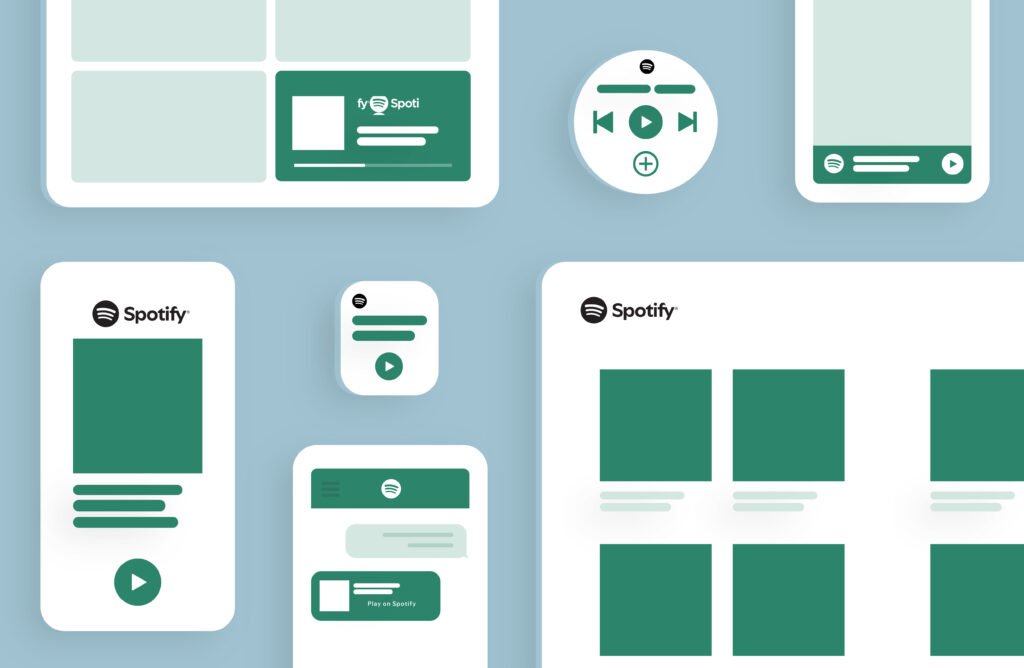
So, what are we really talking about? The Spotify brand guidelines, often called a brand book or Spotify brand book, are simply a set of rules.

Think of it as an instruction manual for the Spotify brand. This manual tells everyone—from internal different teams at Spotify to external partners and advertisers—exactly how to use the company’s brand elements. What are brand elements?

These are the building blocks of the brand: the logo, the color palette, the typography (or font), and even the tone of voice.

The guidelines make sure that every time you see the Spotify logo or read a brand communication from them, it looks and feels like Spotify.

Understanding this distinction is key to professional work; read more about branding vs brand-identity to clarify the concepts.

This isn’t just about being picky. These guidelines are vital for protecting the brand’s trademarks and service marks. They ensure the user experience is the same everywhere, whether you’re using the app in the United Kingdom or looking at a playlist on a blog in the US.

The Spotify brand book is the single source of truth that keeps the entire global brand feeling united. It makes sure the visual elements and the brand identity are not diluted or misused by third parties.

For more examples, reviewing the Instagram Brand Guidelines also highlights the importance of consistency.

Key Elements of the Spotify Brand Guidelines
Key Elements of the Spotify Brand Guidelines

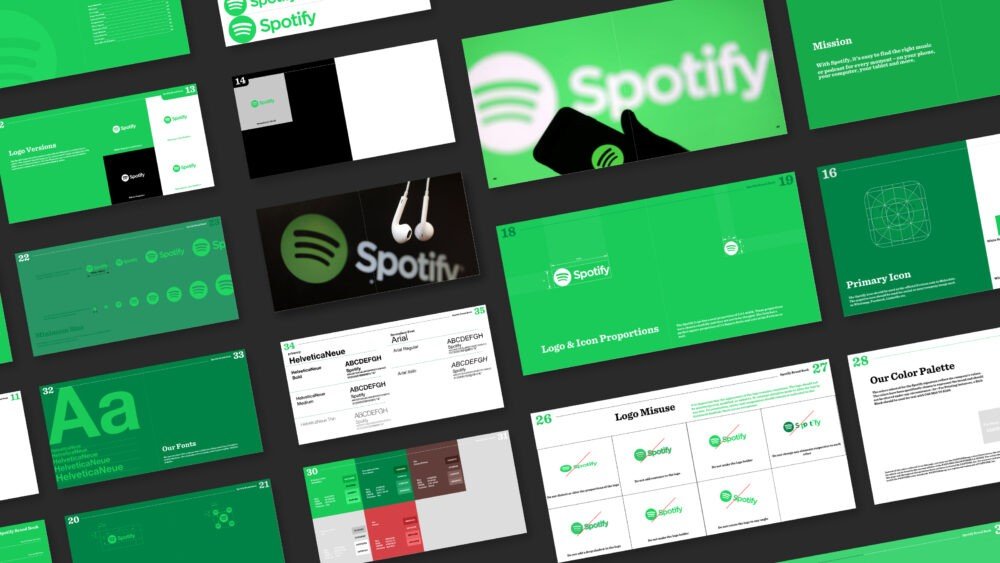
The features of the Spotify brand are distinct and instantly recognizable. The guidelines are built around a few core components.

These Spotify brand features work together to create the brand we know.

Our Logo: Correct Usage and Variations

The Spotify logo is probably the most famous part of the brand.

There are two main parts: the wordmark (the word “Spotify”) and the icon (the circle with three curved lines, which people often call the Spotify icon). The guidelines provide strict rules for using each one.

This includes the primary logo colorway—which is usually the Spotify green logo on a black, white, or green background.

They specify which logo to use in different situations to maintain simplicity and instant recognition.

Color Palette: The Official Spotify Green and Neutrals

When you think of Spotify, you think of that specific shade of green.

This Spotify green is the heart of their brand palette. But a brand can’t live on one color alone.

The guidelines also lay out a full color palette, which includes a set of neutral colors like black, white, and grays.

This supporting color palette is used to create balance, ensure accessibility for all users, and provide clarity in the design, letting the green shine.

Typography: Circular Std Font Family

Spotify uses a specific font family called Circular Std. This typography is a huge part of their visual identity.

By using the same font across the app, website, and all marketing, they create a clean and consistent reading experience.

The guidelines detail which weights of the font to use for headlines versus body text, all to ensure high legibility.

Iconography and Visual Style

Beyond the main Spotify icon, the brand has a whole system of graphics and icons used inside the app and on its website.

These visual elements follow the same design principles of simplicity and clarity. The Spotify design language is clean and modern, and the guidelines provide examples of what to do (and what not to do) when creating or using any graphics associated with the brand.

Voice and Tone Principles

A brand isn’t just what you see; it’s also what you hear and read. The Spotify brand guidelines cover the tone of voice.

This is how the brand “speaks” in its brand communications, whether it’s an email, a social media post, or text inside the app.

The company’s unique approach to communication can be further clarified by reviewing various brand story examples.

The Spotify tone of voice is designed to be a partner in discovering audio and unlocking the potential of human creativity.

It’s generally friendly and confident, but it avoids much more colorful language or slang that could feel unprofessional or exclude people.

How to Correctly Use the Spotify Logo: Dos and Don’ts
How to Correctly Use the Spotify Logo?

As a designer, this is the part I see people get wrong most often. Using the Spotify logo correctly is a key role in maintaining the brand’s integrity.

The Spotify brand book is very specific about this.

Do: Maintaining Clear Space and Minimum Size

You must give the logo “breathing room.”

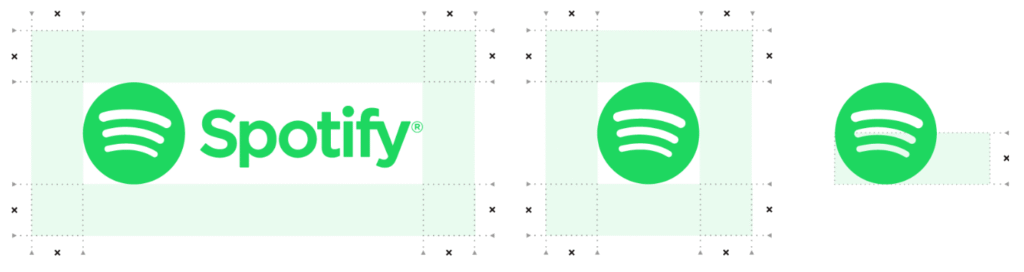
The guidelines show a diagram for clear space, which is an area around the logo that must be kept empty. This prevents it from looking cluttered. They also specify a minimum size. This is the smallest you can make the logo while still keeping the legibility of the logo intact.

If you go any smaller, the wordmark becomes hard to read or the Spotify icon looks like a smudge.

Don’t: Common Misuses to Avoid (Stretching, Recoloring, Altering)

This is a big one. Never, ever stretch, squeeze, or distort the Spotify logo. Never change its colors—don’t make the Spotify green logo red or blue.

Don’t add drop shadows, glows, or any other effects. Don’t rotate it or take it apart. The appearance of the logo must remain consistent. Altering the logo in any way damages the brand identity and violates their trademarks.

Even major brands like Uber have strict rules for their visual assets, which you can see in the Uber Brand Guidelines.

Placement on Different Backgrounds and Images

The guidelines show how to place the logo on different backgrounds. There are specific versions of the logo for light and dark backgrounds.

For example, on a white background, you would use the full-color Spotify green logo or the black wordmark.

When placing the logo on top of a photograph, the rules state you must choose a spot where the logo is easy to see and the clarity is high.

Logo Lockups For Partnerships and Co-Branding

What if you’re working with Spotify on a project? The guidelines have rules for that, too. These are called “logo lockups.”

They show how the Spotify logo should be placed next to another company’s logo. This often happens for product launches or marketing campaigns. The rules ensure that both brands are represented clearly and neither one overpowers the other.

Using Spotify Brand Assets in Your Marketing
Using Spotify Brand Assets in Your Marketing

If you are a partner, an artist, or one of the many advertisers on the platform, you’ll need to use Spotify brand assets. The rules for this are very important for protecting their intellectual property rights.

Guidelines For Digital and Print Media

The rules cover everything. For digital media, this includes how to use the logo and brand elements on websites, in banners, and on social media platforms like Instagram or YouTube. For print, it covers things like posters and merchandise (which we’ll get to).

The goal is always consistency, whether you’re looking at a screen or a piece of paper.

Naming Conventions For Third-Party Apps and Products

This is a common legal issue. You cannot create an app or product and call it “Spotify Music Player” or “Spotify Playlist Maker.”

This would confuse users and violate their trade names and trademarks. The guidelines are very clear about how third parties can and cannot use the name “Spotify.” You also can’t register domain names that look like they are official Spotify sites. When writing brand descriptions for your own projects, clarity on naming conventions is vital.

How to Refer to Spotify in Text?

It’s simple: always write “Spotify” with a capital “S.” Never “spotify” or “SPOTIFY.” When you are writing about content on the platform, you should also be clear, for example, when referencing track names, a playlist, a podcast, or an audiobook.

This textual consistency is just as important as the visual brand identity.

Getting Approval For Your Creative

For any major marketing campaign or use that isn’t covered in the basic guidelines, you must get approval from the Spotify design team or legal department. The brand book will often provide an email address or a portal for submitting your graphics and designs for review.

This is a standard process when working with a major brand and ensures your work won’t be rejected later.

Companies often provide a dedicated resource, such as the Walmart Brand Center, for partners to submit work and find approved assets.

FAQ’s:

Can I Create Merchandise With the Spotify Logo?

In almost all cases, no. You cannot make and sell T-shirts, mugs, or any other merchandise with the Spotify logo or wordmark. These are protected trademarks. This is to prevent confusion and protect the brand from being associated with products they did not create or approve.

If you’re looking to create your own brand assets, resources like BrandCrowd can be a good starting point for inspiration.

Where Can I Download Official Spotify Logos and Assets?

Spotify has an official brand resource website.

This is the only place you should go to download the official logo, Spotify icon, and other graphics.

Never just take a logo from a Google image search, as it may be old, low-quality, or incorrect. The official site will have the correct files.

What Are the Guidelines For Using the “Listen on Spotify” Badge?

The “Listen on Spotify” badge is a special asset.

It’s designed for creators, artists, and partners to link directly to their music, podcast, or playlist on Spotify.

The brand guidelines have a specific section for this badge, showing the correct colors, minimum size, and clear space rules, just like the main logo.

How Often Are Spotify’s Brand Guidelines Updated?

Brands grow and change.

The Spotify brand guidelines are updated periodically to reflect new features of the Spotify brand, new product launches, or small changes in their visual identity. It’s always a good practice to check their official brand website for the latest version of the Spotify brand book.

This reflects a commitment to evolution, similar to the considerations involved in sustainable branding.

How Do I Report Improper Use of the Spotify Brand?

Most companies, including Spotify, have a way for people to report misuse of their brand.

This might be an email or a form on their website.

This helps them protect their intellectual property rights and stop bad actors from creating fake sites, running scams, or associating the brand with things like explicit content that they have not approved.

Conclusion

As designers and creative professionals, we can look at the Spotify brand guidelines as more than just a list of rules. They are a case study in building and protecting a world-class brand identity. The consistency in their visual identity, the clarity of their brand communications, and the simplicity of the Spotify design all play a key role in their success.

These guidelines empower their own different teams and all their partners to create work that feels like Spotify.

It helps the brand connect with millions of users and creators every day, making the user experience seamless.

Defining your area of expertise, as in the question, What is your Niche, is just as important as knowing how to apply brand rules.

My mission at Designers Choice is to give you the insights and tools you need to succeed. Knowing how to respect and use a brand’s assets is a fundamental skill. It shows professionalism and a respect for the hard work that goes into building a brand as strong as the Spotify brand.

I hope this has been a helpful look into why these guidelines matter so much.

Categories
Design

Best Serif and Sans Serif Pairings For Stunning Design to Use in 2025

At Designers Choice, we believe that fonts are one of the most important parts of any design.

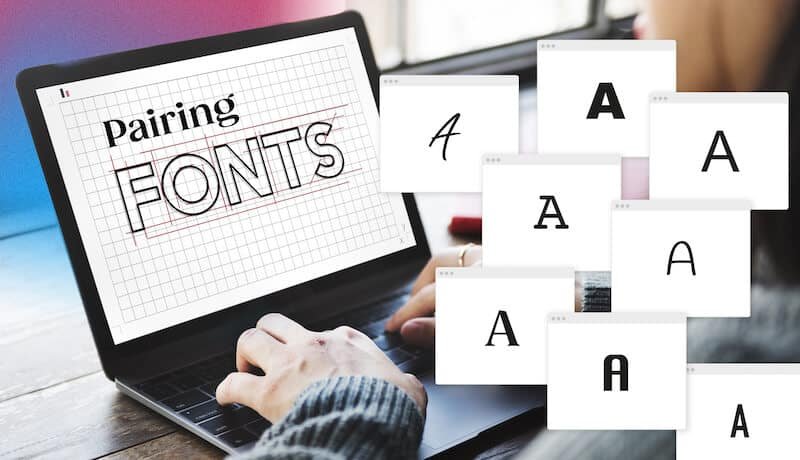
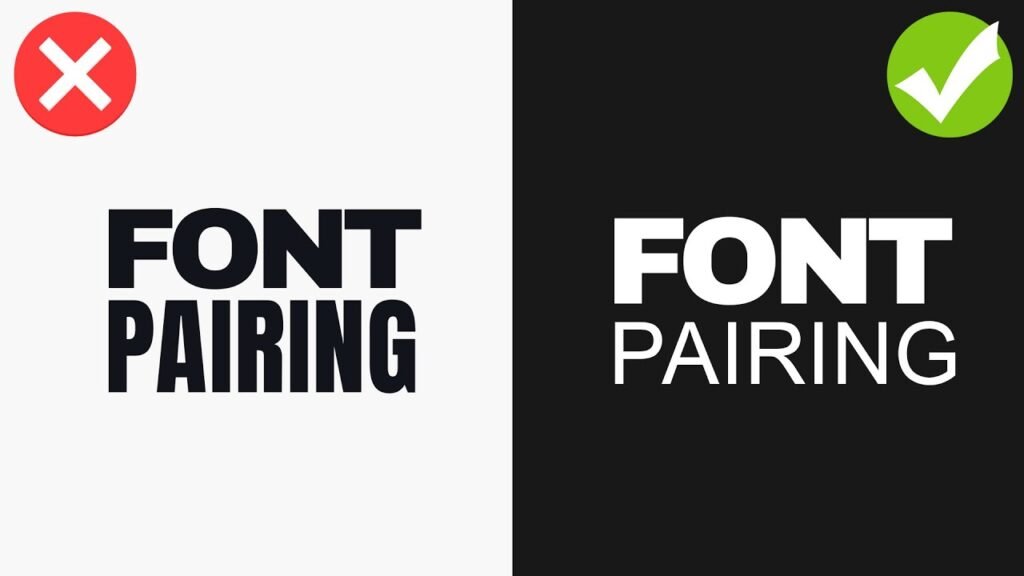
Choosing the right font can make your work look professional and easy to read. But what if you use two fonts? This is called font pairing.

It’s a skill that can make your designs even better. This blog post will teach you all about pairing two kinds of fonts: serif and sans serif.

We will look at many different font combinations to help you make your next design amazing. Finding the right font pairing is a great way to make a lasting impression in your creative projects. This guide will be a helpful starting point for your next project.

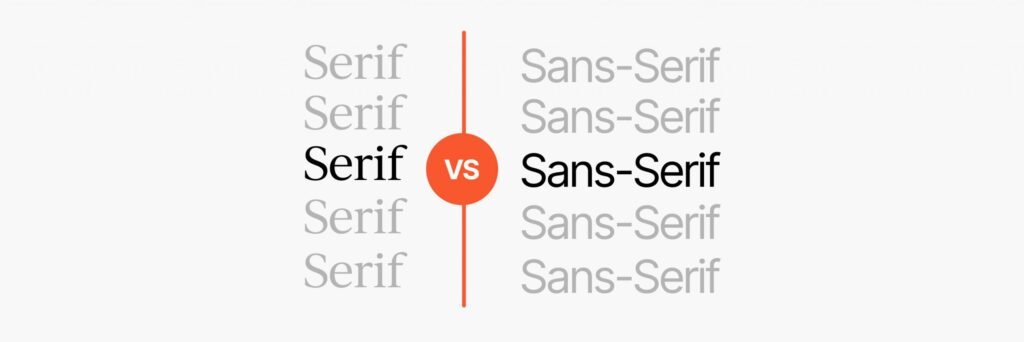
Understanding the Basics: Serif Vs. Sans Serif

Understanding the Basics: Serif Vs. Sans Serif

Before we can pair fonts, we need to know what they are. Fonts are like outfits for your words. Some are fancy, and some are simple.

The two main styles are serif and sans serif.

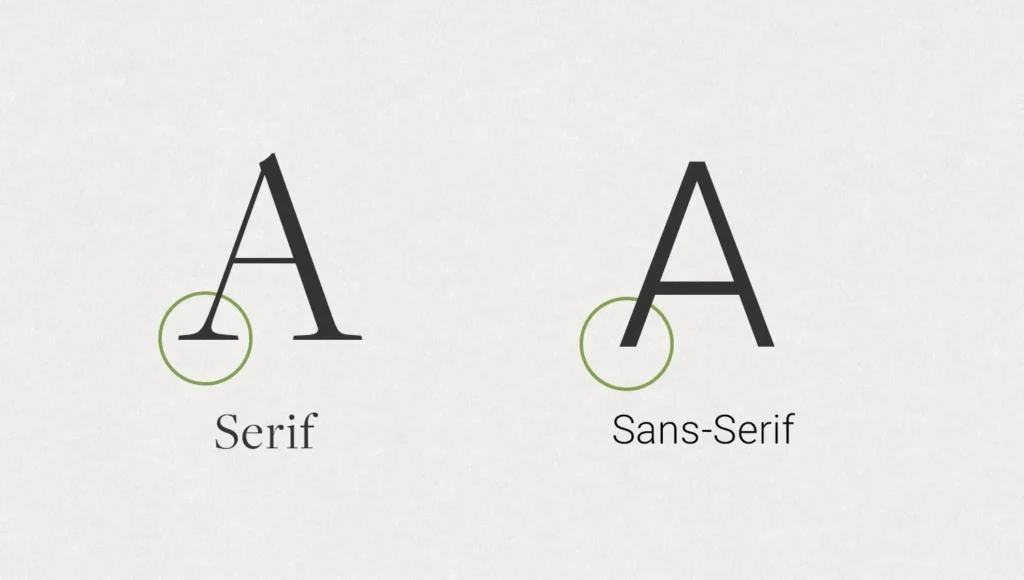
What Is a Serif Font?

A serif font is a font that has small lines, or “feet,” attached to the ends of the letters. Think of the classic font Times New Roman.

Those little extra strokes are serifs. They have been around for a very long time, since the days of stone carving.

A classic serif often feels traditional, elegant, and trustworthy.

Many books and newspapers use serif typefaces for their main text because they are easy to read in print.

These fonts are a great choice for creating a formal or sophisticated look.

What Is A Sans Serif Font?

Sans” means “without” in French. So, a sans serif font is a font “without serifs.” These fonts have clean, straight edges without any extra feet.

Fonts like Arial or Helvetica are common examples. They have a modern look and feel clean and simple.

Sans serif fonts are very popular for screens, like on websites and mobile devices, because their simple shapes are clear even at small sizes.

They often have a friendly and neutral style, making them useful for many types of graphic design.

The Psychology Behind Font Choices

Fonts can make people feel certain things. A serif font might feel calm and serious, making it a good choice for a law firm or a fancy restaurant.

A sans serif font might feel friendly and modern, which is perfect for a tech startup or a kids’ brand. When you start a font pairing, you are mixing these feelings. A good serif font pairing can create a balanced and interesting feeling that helps tell your brand’s story in a powerful way.

Why Use Serif and Sans Serif Pairings in Design?

Why Use Serif and Sans Serif Pairings in Design?

Using a mix of serif and sans serif fonts is a popular technique in graphic design. This method helps organize your information and makes your design more appealing to look at.

Creating Visual Hierarchy

Visual hierarchy is about showing people what to look at first.

By using different fonts for headers and paragraphs, you create a clear visual hierarchy.

For example, you can use a bold serif font for your main title and a simple sans serif font for the body text.

This tells the reader that the title is the most important thing on the page. Using heavy headers is a common way to guide the eye.

Enhancing Readability and User Experience

A perfect font pairing can make your text much easier to read.

The contrast between a decorative headline font and a simple paragraph font helps the brain process information faster. A good pair of complementary fonts keeps the reader from getting tired.

For the main paragraphs, or body copy, you want a font that is very clear.

For example, using a display serif for a title and a clean sans serif for the clean body text is a popular strategy.

Establishing Brand Personality

Font combinations help build a brand’s identity.

Do you want your brand to feel modern and elegant? Or friendly and bold? Your serif and sans serif pairings can show this.

For example, a bank might use a strong, classic serif for its name to show it is stable and trustworthy, but use a clean sans serif for its website for a modern feel. This is also true for corporate communications, where the right font sets a professional tone.

Best Practices For Creating Perfect Serif and Sans Serif Pairings

Best Practices For Creating Perfect Serif and Sans Serif Pairings

Making a perfect match with fonts is both an art and a science. Here are some rules to help you find the best font pairs.

Rule 1: Establish Strong Contrast

The most important rule is to choose two fonts that are clearly different from each other.

If your serif and sans serif fonts are too similar, they might look like a mistake. Look for contrast in things like letter thickness, or weight.

You can use different weights from the same font families or choose two completely different fonts.

The goal is for them to complement, not compete with, each other.

Rule 2: Consider the X-Height

The x-height is the height of a lowercase “x” in a font.

When pairing fonts, try to find two with similar x-heights. This helps them look balanced when they are used near each other on a page.

When the x-heights are similar, the body text will flow nicely and won’t feel jarring next to the headlines, creating a more harmonious next design.

Rule 3: Define A Clear Role For Each Font

Give each font a specific job. One font should be the star for headlines, and the other should be the supporting actor for the body copy.

For example, you can use an expressive display typeface for headlines that need to grab attention and a simple, readable font for longer paragraphs.

This creates a clear visual hierarchy and keeps your design organized.

Rule 4: Match the Mood and Tone

Your chosen fonts should fit the mood of your project. If you are designing a poster for a museum exhibit on space exploration, you might want fonts that feel futuristic and grand. If you are creating a menu for a cozy cafe, you would choose fonts that feel warm and inviting.

The right font pairing reinforces the message you want to send.

12 Timeless Examples Of Serif and Sans Serif Pairings

12 Timeless Examples Of Serif and Sans Serif Pairings

Here are some popular serif and sans serif pairings that you can use.

Many of these are available as free fonts on Google Fonts or as part of a subscription on Adobe Fonts.

  1. Playfair Display & Lato: Playfair Display is an elegant display serif with high contrast, perfect for headlines. When you pair it with Lato, a friendly and warm sans serif, you get a beautiful balance. Lato works great as clean body text because it is very readable even at small sizes. This is a great choice for fashion blogs or portfolio websites.
  2. Merriweather & Montserrat: Merriweather is a serif font designed for on-screen reading, making it an excellent choice for web fonts. It’s sturdy and traditional. Montserrat is a geometric sans serif with a modern feel. Together, this font pairing creates a professional and highly readable combination, ideal for news websites or a long blog post.
  3. Lora & Open Sans: Lora is a well-balanced contemporary serif with calligraphic roots. It feels artistic and sophisticated. Open Sans is a very popular sans-serif font with a neutral style, known for its excellent readability. This serif font pairing is versatile and works for many projects, from online magazines to corporate communications.
  4. Lora & Roboto: Here we see Lora again, but this time paired with Roboto. Roboto is a sans-serif font developed by Google that has a geometric but friendly feel. It has a natural reading rhythm. This modern font pairing is a perfect match for user interfaces and websites that need to feel modern but also trustworthy.
  5. Arvo & Lato: Arvo is a geometric slab serif font. A slab serif design features thick, blocky serifs, giving it a strong and modern personality. It’s great for headlines. When paired with the softer and friendlier Lato for body text, Arvo really stands out. This is a good choice for websites that want to feel confident and approachable.
  6. PT Serif & PT Sans: These two fonts were designed to work together. They are part of the same typeface families, known as a super family. PT Serif is a traditional serif font, while PT Sans is a clean and simple sans serif. Because they were created as a pair, they share similar proportions and styles, making them a foolproof font pairing for almost any project.
  7. Oswald & Noto Sans: Oswald, created by Vernon Adams, is a reworking of the classic gothic typeface style. It is a tall, bold sans serif that works wonderfully for heavy headers at large sizes. Noto Sans is a universal sans serif designed to cover all languages. It is clean and simple. This pairing is excellent for impactful headlines with easy-to-read body copy.
  8. Neue Montreal & Editorial New: Neue Montreal, designed by Matt McInerney, is a versatile grotesque sans serif that feels both classic and contemporary. It has a professional yet friendly vibe. Editorial New is a sharp, elegant serif font that looks amazing in headlines. This modern font pairing is perfect for design agencies, magazines, and brands that want a sophisticated, editorial look.
  9. Abril Fatface & Lato: Abril Fatface, created by Juan Pablo del Peral, is a beautiful display serif inspired by 19th-century advertising fonts. It’s bold and dramatic. To balance its strong personality, pair it with the simple and clean Lato for your body text. This is a fantastic font pairing for posters, invitations, and eye-catching social media graphics.
  10. Yeseva One & Josefin Sans: Yeseva One is a unique serif font with a feminine, high-contrast feel. It’s great for titles that need a touch of elegance. Josefin Sans, designed by Santiago Orozco, is a geometric and vintage-inspired sans serif. Together, they create a stylish and distinctive look. You can also pair it with its sister font, Josefin Slab, for more slab serif options.
  11. Spectral & Rethink Sans: Spectral is an elegant serif font from Google Fonts designed for screen-first reading. It’s perfect for long-form content. Rethink Sans is a modern, grotesque sans-serif that feels clean and approachable, similar to other fonts like DM Sans or Jakarta Sans. This pairing is fantastic for creative projects that need lots of text but still want a modern look.
  12. Cinzel & Josefin Sans: Cinzel is a serif font inspired by classical Roman inscriptions. It feels grand and historical, making it a powerful display font. Pairing it with the light and elegant Josefin Sans creates a beautiful contrast. This is an excellent choice for a luxury brand, a wedding invitation, or any design that needs to feel timeless and special. You could even compare it to other historical fonts like Trade Gothic or Century Gothic for context.

Common Mistakes to Avoid When Pairing Fonts

Common Mistakes to Avoid When Pairing Fonts

Even with the best intentions, it’s easy to make mistakes. Here are a few things to watch out for.

  1. Using Fonts That Are Too Similar: If your serif and sans serif fonts look too much alike, you lose the contrast that makes a font pairing effective. The design can look muddled and unprofessional. Make sure your choices have clear differences in style, weight, or structure. Avoid using two very neutral or similar typeface families.
  2. Ignoring Readability On Different Devices: A font combination that looks great on a large computer screen might be unreadable on mobile devices. Always test your serif and sans-serif pairings on different screen sizes. Pay special attention to the body text font to ensure it remains clear and legible, even at small sizes. This is very important for web fonts.
  3. Overcomplicating With Too Many Fonts: A good rule of thumb is to stick to two, or at most three, fonts for a single project. Using too many different font combinations can make your design look chaotic and confusing. A simple and strong serif font pairing is almost always more effective than a design crowded with too many styles.

FAQ’s:

Can I Pair Two Serif Fonts Together?

Yes, you can create serif pairings. The key is to find a strong contrast.

For example, you could pair a heavy display serif like Libre Baskerville for a headline with a more readable, lighter serif for the body text.

You can also mix a classic serif with a modern slab serif design.

Where Can I Find Good Fonts to Pair?

There are many great places to find fonts. Google Fonts is an amazing resource with hundreds of high-quality free fonts that are open source.

Adobe Fonts is included with a Creative Cloud subscription and offers a huge library of premium fonts.

Many type foundries, like the Indian Type Foundry, also sell or offer fonts directly.

What Makes Serif and Sans-Serif Fonts Work Well Together?

They work well together because of the contrast. The decorative nature of a serif font and the simplicity of a sans-serif create a pleasing visual balance. This contrast helps establish a visual hierarchy, improves readability, and adds personality to a design, making it a perfect match.

Which Serif and Sans Serif Pairings Are Best For Book Design?

For book design, readability is the top priority.

A classic pairing is a highly readable serif font for the body copy, like PT Serif or Merriweather, and a clean sans serif like PT Sans or Lato for chapter titles or subtitles. This creates a comfortable reading experience.

Conclusion

Choosing the right font combinations is a very important part of good graphic design.

A thoughtful serif and sans serif pairing does more than just look nice; it helps guide the reader’s eye and gives your work a unique personality.

Think of the examples and rules in this guide as a great starting point for all your creative projects.

Don’t be afraid to experiment with different fonts to find what works for your style. The main goal is to find that perfect font pairing that makes your text clear and your design feel complete.

Selecting web fonts thoughtfully enables you to craft a memorable design for your upcoming project.

Categories
Design

Lead Magnet Ideas For Coaches, Consultants & Creators: Fast Guide

Growing a coaching business means connecting with the right people who need your help. But how do you find them? A great marketing strategy is key, and a big part of that is using lead magnets.

Here at Designers Choice, we believe that giving value first is the best way to attract potential clients.

This article will show you the best lead magnet ideas for coaches. We will talk about what a lead magnet is, why it is important for your coaching business, and how to create one that helps you get more coaching clients.

Think of this as your ultimate guide to turning website visitors into new clients. Taking this first step will make a big difference in your business.

What Are Lead Magnets and Why Are They Important For Coaches?

What Are Lead Magnets and Why Are They Important For Coaches?

Before you start creating, it is good to know what a lead magnet is and why it is such a powerful tool for your coaching business.

It is a simple concept that can bring big results for lead generation.

Defining A Lead Magnet in the Coaching Industry

A lead magnet is a free resource you offer to potential customers in exchange for their contact information, usually their email address.

This free item gives them something valuable and solves a small problem for them right away. It is the very first step in your sales funnel. For people in the coaching industry, this could be a guide, a checklist, or a short video.

The goal is to provide valuable content that shows you are an expert.

This is not about selling your main coaching program just yet. Instead, it is about starting a relationship with prospective clients by offering a helping hand. This makes them more likely to want to hear from you again.

The Core Benefits of Using Lead Magnets For Your Coaching Business

Using a lead magnet is a great way to grow your coaching business.

One of the biggest benefits is that it helps you build an email list. An email list is something you own, unlike followers on social media.

With email marketing, you can talk directly to your target audience. Another benefit is that effective lead magnets help you build trust.

When you give away a helpful free resource, you show potential clients that you know what you are talking about.

You are not just asking for a sale; you are providing real value first.

This helps attract qualified leads—the right people who are genuinely interested in your coaching services. It saves you a lot of time by filtering out people who are not a good fit for your coaching.

Top Lead Magnet Ideas For Coaches That Convert

Top Lead Magnet Ideas For Coaches That Convert

There are many types of lead magnets you can create.

The best lead magnets for coaches are the ones that solve a specific problem for their ideal client.

Here are some of the most popular lead magnet ideas to get you started.

Downloadable Written Resources (Ebooks, Guides, Checklists)

Written resources are a classic type of lead magnet because they work well. Think about creating short ebooks, guides, or one-page cheat sheets.

These items give your audience a quick win.

For example, a life coach could offer a guide on “5 Steps to a More Productive Week.” These resources are easy for people to download and save for later. They do not have to spend a lot of time to get value.

You can create an ultimate guide on a specific topic related to your coaching niche. This shows your expertise and gives your target audience something they can use right away.

Interactive Lead Magnets (Quizzes & Assessments)

People love to learn about themselves.

Interactive lead magnets like quizzes and assessments are a fun and great way to capture the attention of potential customers. A business coach could create a quiz called “What’s Your Leadership Style?

At the end of the quiz, you can provide personalized results and actionable insights in exchange for an email address.

This is a smart marketing strategy because it is not just giving information; it is creating an experience.

It also helps you learn about the pain points of your potential clients based on their answers, making it easier to see if they are a good fit for your services.

Video and Audio Content (Webinars & Masterclasses)

Video and audio content helps you connect with your audience on a deeper level. Hosting a free webinar or a masterclass lets prospective clients see and hear you, which is a powerful way to build trust. You could also create a short video series that teaches a simple skill.

For example, a fitness coach could offer a 3-part video series on “Proper Form for Basic Exercises.”

This content shows off your coaching style and personality.

It makes potential clients feel like they already know you, which makes taking the next step to book a free discovery call feel more natural.

Multi-Day Challenges and Email Courses

A multi-day challenge or an email course is a great lead magnet that delivers value over a few days.

This keeps your new subscriber engaged with your brand. For instance, a health coach might offer a “5-Day Healthy Breakfast Challenge.” Each day, they receive a new recipe and a motivational tip in their email.

This structures the customer journey and builds anticipation.

It is a fantastic way to introduce someone to your coaching style and guide them toward your paid online courses or one-on-one coaching services.

This is a powerful tool for keeping your coaching business top-of-mind.

Practical Tools (Templates & Swipe Files)

Everyone loves tools that save them time.

Practical resources like templates and swipe files are some of the best lead magnets because they offer immediate, tangible value. A coach specializing in time management could offer a weekly planner template.

Business coaches who help small business owners could provide email templates for reaching out to new customers.

These tools help your ideal client solve a specific problem quickly.

This quick win makes them feel successful and grateful, strengthening their connection to your brand.

Exclusive Access (Resource Libraries & Communities)

Offering exclusive access makes people feel special. You could create a free resource library that is password-protected for subscribers.

This library could contain all your cheat sheets, templates, and past webinar recordings.

Another idea is to offer entry into a private community, like a Facebook group, for people on your email list. This allows coaching clients and potential clients to connect with each other and with you.

It builds a community around your coaching business and provides a space for you to share even more valuable content.

How to Choose the Perfect Lead Magnet Idea For Your Coaching Niche?

How to Choose the Perfect Lead Magnet Idea For Your Coaching Niche?

With so many lead magnet ideas, how do you pick the right lead magnet for you? The best choice connects directly to your ideal client and your paid offers.

Aligning Your Lead Magnet With Your Ideal Client’s Problems

Your lead magnet must solve a real problem for your ideal client. The first step is to know their biggest challenges and pain points.

What keeps them up at night? If you are a life coach for busy moms, a guide on time management would be more helpful than a general goal-setting workbook. Your free resource should speak directly to their needs.

When you address a specific problem, you attract the right people who are looking for the solutions you provide.

This ensures your lead generation efforts bring in qualified leads.

Connecting the Lead Magnet to Your Paid Coaching Offer

A great lead magnet is not just a random freebie; it is the logical first step in your customer journey.

It should naturally lead to your paid coaching services. For example, if your main coaching program helps small businesses with their marketing, your lead magnet could be a checklist for setting up a social media profile.

After they complete the checklist, the next step would be to learn more about your full marketing strategy services.

This connection makes your sales funnel smooth and effective.

Your lead magnet should give them a taste of what it is like to work with you, making a strategy session or free consultation feel like the right move.

Examples For Different Coaching Niches (Life, Business, Health)

  • For A Life Coach: A “Weekly Goal-Setting Planner” is a perfect free resource. It addresses the common problem of feeling unfocused and leads naturally into a coaching program about achieving life goals.
  • For Business Coaches: A “Client Onboarding Checklist” is a valuable tool for other service providers and small business owners. It solves an immediate need and positions the coach as an expert in client management systems.
  • For A Health Coach: An “Immunity-Boosting Recipe Guide” is a great lead magnet. It gives a quick win to people interested in their health and is a good entry point to a larger coaching program about nutrition or wellness. A fitness coach could offer a similar guide.

Creating and Promoting Your Coaching Lead Magnet

Creating and Promoting Your Coaching Lead Magnet

Once you have a great idea, it is time to create and share your lead magnet. A good plan for creation and promotion will help you get the best results.

Step-by-Step Guide to Creating Your Lead Magnet

Creating a lead magnet does not have to take a lot of time.

First, pick one specific topic that you know your ideal client cares about. Second, create a simple outline of the content.

Third, write the content, focusing on providing real value and actionable insights. Keep your language simple and clear.

Finally, put it all together in a clean format. The goal is to create a powerful tool that helps someone, not to write a perfect book.

Designing Your Lead Magnet For Maximum Impact

Your lead magnet is part of your brand, so it should look professional. Use your brand colors and fonts to make it recognizable.

Make sure it is easy to read, with clear headings and short paragraphs.

Even for simple cheat sheets, good design makes the content feel more valuable. You want the person downloading it to feel like they received a high-quality free resource. This helps build trust and makes a good first impression for your coaching business.

Proven Strategies to Promote Your New Lead Magnet

The best way to get your lead magnet in front of your target audience is to promote it in the right place. Create a dedicated landing page on your website for it. This page should clearly explain the benefit of the lead magnet and have a simple form to enter an email address.

Promote this landing page on all your social media channels. Write blog posts related to your lead magnet and include a link to it.

You can also partner with other service providers on guest posts to reach new audiences. The key is to make it easy for website visitors to find and download your offer.

How to Measure the Success of Lead Magnets For A Coaching Business?

How to Measure the Success of Lead Magnets For A Coaching Business?

To know if your lead magnet is working, you need to track its performance.

The most important number to watch is the conversion rate on your landing page. This tells you what percentage of website visitors are signing up. A good conversion rate means your offer is a good fit for the audience.

You should also track how many of these new subscribers open your emails and eventually become new clients. This shows whether you are attracting qualified leads who are truly interested in your coaching services.

Measuring these things helps you improve your marketing strategy over time and create more effective lead magnets.

FAQ’s:

How Long Should A Lead Magnet Be For A Coaching Business?

A lead magnet should be as long as it needs to be to solve a specific problem. The focus should be on real value, not length. A one-page checklist that provides a quick win can be more powerful than a 50-page ebook that is too overwhelming.

Where Can I Promote My Lead Magnet to Get More Subscribers?

Promote your lead magnet on your website with a clear call to action.

Share the landing page on all your social media channels, in your email signature, and within relevant blog posts. You can also write guest posts for other blogs in your coaching niche or join forces with other small business owners.

Should I Have More Than One Lead Magnet?

Yes, it is a great idea to have multiple types of lead magnets. You can create different lead magnets for different segments of your target audience or for different problems they face. This allows you to attract a wider range of potential clients to your coaching business.

Why Are Lead Magnets Important In A Coach’s Marketing Funnel?

Lead magnets are important because they are the very first step in a coach’s sales funnel.

They turn anonymous website visitors into leads by capturing their contact information. This allows you to start a conversation, build trust through email marketing, and gently guide prospective clients along the customer journey toward becoming paying coaching clients.

Conclusion

Creating effective lead magnets is a key part of growing a successful coaching business.

By offering a valuable content freebie, you start building a relationship with your ideal client from the very beginning. Whether you choose to create a guide, a quiz, or a video series, the goal is the same: solve a specific problem and show your expertise.

Remember to align your free resource with your paid coaching services to create a smooth path for new clients. Using the right lead magnet is a powerful tool for lead generation that will help you attract the right people and grow your impact in the coaching industry.

Categories
Canva

Canva Elements Keywords List: Boost Your Design Game FAST

Here at Designers Choice, we love using a good graphic design tool to bring ideas to life. Canva is a favorite for many people, from students to professionals running an online business. It’s great for making everything from homework covers to beautiful social media graphics.

If you’re creating a professional portfolio, you might even want to learn how to create a lookbook in Canva to showcase your work.

One of the best parts of Canva is its giant library of pictures and shapes.

But with so many choices in Canva’s endless options, how do you find the perfect one? The secret is using the right Canva elements keywords.

This blog post is your guide to becoming a master at finding the best Canva elements for any project. Using the right search words will save you countless hours and take your Canva creations to the next level.

Whether you are designing for print or need to know how to add a clickable link in Canva PDF for digital files, these keywords are the foundation.

What Are Canva Elements Keywords and Why Are They Important?

What Are Canva Elements Keywords and Why Are They Important?

Think of Canva as a huge treasure chest.

Inside, you’ll find a goldmine of design assets. To find the treasure you want, you need a map. Canva keywords are that map. They are the words you type into the search bar to find exactly what you need.

Understanding Canva’s Element Library

When you open a project in Canva, you see a menu on the side. One of the buttons says “Elements.” This is the elements tab.

Clicking it opens up the elements section, which is like a giant digital library. This library is filled with millions of graphic elements: shapes, stickers, photos, and videos. There are simple geometric shapes, detailed drawings, and realistic stock photos.

Once you find the perfect photo, knowing how to replace an image in Canva with your chosen element is essential for a smooth workflow.

Your job is to find the right elements in this huge collection. The selection of elements is amazing, but you need a way to sort through it.

The Role of Keywords in Element Searches

Keywords are the words that tell Canva what you are looking for.

When you type “sun” into the elements search bar, Canva shows you all the pictures it has that are tagged with the word “sun.”

These search words are called elements keywords. Using the right keywords is the most important skill for finding the perfect elements quickly. It’s the difference between finding the exact image you have in your head in seconds or spending a long time scrolling.

Benefits of Using Specific Keywords

Using general words is okay, but using specific keywords is much better.

If you just type “flower,” you will get thousands of results.

But if you type “blue hand-drawn flower,” you will get a much smaller, better list of pictures to choose from. This helps you work faster and makes your graphic design work look more professional.

It ensures all your design elements fit your style. Finding the right Canva element keywords is a skill that will make you a much better designer.

How to Effectively Search For Canva Elements Keywords?

How to Effectively Search For Canva Elements Keywords?

Searching for Canva elements is a skill you can learn.

With a few simple tricks, you can find amazing graphics for your social media posts and other projects.

Starting With Broad and Simple Terms

The easiest way to start is with simple words.

If you need a picture of a dog, just type “dog.” This gives you a starting point. From there, you can see what kinds of dog pictures are available. You might see cartoon dogs, photos of dogs, and drawings of dogs.

This can give you ideas for more specific words to use next.

If the orientation isn’t quite right for your layout, learning how to flip an image in Canva can quickly fix the composition.

Using Brand Codes and Creator Names (e.g., brand:BRANDCODE)

Did you know that many artists who add their work to Canva have special codes? These are called brand codes.

If you find a specific element you really like, you can often find its creator’s code. To do this, click the three dots on the element.

You might see a name and a code that looks like “brand:BRANDCODE“.

If you type this code into the search bar, you will see all the canva elements made by that artist. This is a great way to find many graphics that have a similar style. Following your favorite Canva creators is like having a best friend who makes art just for you.

Combining Keywords For More Precise Results

To really get good results, start mixing your keywords. Don’t just search for “arrow.” Search for “wavy red arrow” or “dotted line arrow.”

This helps Canva narrow down the options and show you the perfect canva elements. You can combine words for colors, styles, and objects.

For example, “minimalist pink circle” will give you much different results than just “circle.”

Using bold colors in your search terms, like “bright yellow,” can also help.

Using Canva’s “Magic Recommendations”

Canva has a very helpful tool called Magic Recommendations. When you add an element to your design, Canva will automatically show you a box with similar elements. This is a fantastic way to find more graphics that match the one you already like. If you find a piece of line art you love, the magic recommendations might show you more from the same set or by the same artist, helping you find new keywords to use later.

Top Canva Elements Keywords For Every Design Need

Here is a helpful list of canva keywords to get you started. Try these out to find some of the best canva elements keywords for your designs.

Keywords For Abstract Shapes and Lines

Abstract elements are great for adding a modern feel to your design. They aren’t pictures of one specific thing, but they add style and interest. You can even learn how to slice in Canva to customize these shapes further.

Try searching for these:

  • boho abstract
  • blob
  • gradient shapes
  • scribble
  • shapes
  • geometric shapes
  • abstract pattern
  • organic shapes
  • line art

Keywords For Organic and Hand-Drawn Illustrations

If you want your design to feel personal and handmade, hand-drawn illustrations are perfect. These cute elements add a lot of charm.

Try these keywords:

  • hand-drawn
  • doodle
  • illustration
  • charcoal
  • sketch
  • organic
  • botanical line drawing
  • rustic
  • imperfect

Keywords For Minimalist and Modern Graphics

Minimalist designs are simple, clean, and professional. They use simple lines and shapes to look classy.

If you want this look for your web design or posts, try these terms:

  • minimalist
  • clean
  • monoline
  • simple line
  • modern
  • thin line
  • basic shape

Keywords For Animated Stickers and Dynamic Elements

Animated, or moving, elements can make your social media content pop. They grab attention and make your designs more fun.

For video projects utilizing these stickers, you might also need to know how to put a timer in Canva to manage your clip duration.

Search for these to find moving graphics:

  • animated
  • sticker
  • moving
  • sparkle
  • blinking
  • glowing
  • arrow sticker
  • reaction

Keywords For Backgrounds and Textures

A good background can change the whole feel of your design. Whether you want something simple or full of texture, there are keywords for that.

Sometimes, you may want to learn how to fade an image on Canva
So the background doesn’t overpower your content, or how to landscape in Canva if you need to change the page orientation.

Try these:

  • paper texture
  • gradient background
  • wood texture
  • pattern
  • wallpaper
  • marble
  • fabric texture
  • glitter background

Advanced Tips For Mastering Your Canva Element Search

Advanced Tips For Mastering Your Canva Element Search

Once you know the basics, you can try some of these more advanced tricks to find even better design elements.

Searching For Monoline and Duo-Tone Graphics

Monoline graphics are made with a single line that has the same thickness all the way through. They look very clean and modern.

Duo-tone graphics use only two colors. You can search for “monoline” or “duotone” along with other keywords (like “monoline flower”) to find these specific styles. Matching the right elements is just as important as creating good Canva font pairings.

Speaking of typography, checking a comprehensive Canva fonts list or knowing how to upload fonts to Canva can give you even more options.

Finding Cutouts and Photo-Realistic Elements

Sometimes you need a picture of a real object or person without the background. These are often called cutouts.

Try searching for words like “cutout,” “isolated,” or “person walking cutout.” This is a great way to find high-quality images that look like professional stock photos you can place anywhere in your design.

This is where the Canva Background Remover tool shines, or you can learn how to cut out an image in Canva manually.

Perfecting Your Text Layout

Don’t forget to polish your text to match your elements.

Mastering typography involves knowing how to curve text in Canva, how to outline text in Canva, or even how to wrap text in Canva around your new illustrations. Simple tweaks like knowing how to indent in Canva or how to highlight text in Canva make a big difference.

If you make a mistake, it helps to know does Canva has spell check. You can also get creative and learn how to flip text in Canva or how to add a shadow in Canva for depth.

Using Negative Keywords to Refine Searches

This is a very powerful trick. You can tell Canva what you don’t want to see by adding a minus sign () before a word.

For example, if you want pictures of flowers but you don’t want any red ones, you can search for “flower -red“. This removes all the red flowers from your search results, helping you find what you need faster.

Saving Your Favorite Elements and Creators

When you find canva elements or canva creators that you love, don’t lose them! You can save your favorite canva elements by clicking the star icon.

This adds them to a special “Starred” folder so you can use them again easily. You can also follow creators to see their new work.

Over time, you can build your own personal Canva archive of your favorite graphics, which is a key part of an efficient workflow for any graphic design project. This is much better than trying to remember your favorite Canva elements keywords every time. If you are creating digital products, this efficiency is key when learning how to sell Canva templates on Etsy.

FAQ’s:

Can I Find Free Canva Elements Using keywords?

Yes, absolutely! Canva has millions of free elements that anyone can use, even on the free plan.

When you search in the elements tab, you can use the filter button to select “Free.” This will hide all the premium elements, which are marked with a small crown and require a Canva Pro subscription.

You can use the free elements for personal or commercial use, but always check the license for each one. Many people start with a free trial, but if you are on the fence, you might wonder if Canva Pro is worth it
or ask how much Canva Pro costs exactly. There are even ways to learn how to get Canva Pro for free legally to test it out.

How Do I Find Elements From A Specific Canva Creator?

The best way is to use their unique brand codes. If you find an element you like, click the three dots on it and look for the creator’s name.

Often, you can click their name to see more of their work.

If you find their brand code, type it into the search bar (e.g., brand:12345) to see their entire collection.

This helps you get a similar style across all your Canva creations. Also, if you are designing marketing materials, you might be curious: Do Canva QR codes expire?

It is always good to check the functionality of the elements you use.

What Are the Best Canva Keywords For Aesthetic Designs?

To find beautiful, trendy, and aesthetic elements, you should use keywords that describe a mood or feeling. Some of the best keywords are: aesthetic, vintage, film grain, retro, delicate, dreamy, soft focus, moody, and ethereal.

Combining these with other terms, like “aesthetic flower” or “vintage paper,” will give you great results. You might also want to try festive options like Christmas fonts on Canva for seasonal aesthetic projects.

How Do Codes For Canva Elements Differ From Regular Keywords?

Regular canva keywords are general words that describe what an element is (e.g., “cat,” “circle,” “arrow”). Many different elements from many different creators can share the same keyword.

Brand codes, on the other hand, are unique codes assigned to specific Canva creators. When you search for a brand code, you only see elements from that one creator. It’s a direct way to find art from an artist you like.

What’s the Best Way to Discover New Element Keywords?

A great way to find new keywords is to look at the elements you already love.

Click on an element in your design, then click the “i” (info) button at the top. Canva will often show you the keywords associated with that specific element. You can also get ideas by looking at templates and seeing what graphic elements other content creators are using.

This is a smart move for your online business and overall content plan, almost like an SEO strategy for your designs.

Speaking of business, many users ask, “Can I sell Canva designs on Etsy?” or “Are Canva images copyright-free?”—always verify the licensing before you start selling.

What Tips Can I Use to Organize and Save My Favorite Canva Element Keywords?

Keeping a list is the best method. You can use a simple notebook or a document on your computer to write down your favorite Canva elements keywords. Organize them by style (e.g., “minimalist keywords,” “hand-drawn keywords”).

This way, when you start a new project, you can quickly look at your list and find the right keywords without having to remember them all. Some people also create a blank Canva design and fill it with their favorite Canva elements to use as a quick reference board.

Think of it as your own personal free Canva-type guide, but for elements.

Conclusion

Canva is an amazing tool that can help anyone create beautiful designs.

The key to unlocking its full power is learning the language of the elements tab. By mastering Canva elements keywords, you can stop searching and start creating. You can find the perfect elements every time, whether you’re making social media posts, flyers, or presentations.

It might seem like a lot to learn, but with a little practice, you’ll be finding incredible design elements in no time.

Finding that perfect Canva element can be so satisfying. It feels almost as relaxing as sitting back with a glass of wine. We hope this guide helps you make your best Canva creations yet.

Categories
Branding

Brand Descriptions: How to Make Branding Unforgettable & Easy

As creative professionals and business owners, we pour our hearts into our work, from logo design to product design.

But how do we explain what our brand is all about in just a few words? This is where brand descriptions come in.

Think of it as your brand’s handshake. It is often the first thing people read. It tells them who you are, what you do, and why you matter.

For many small business owners, writing a description for the first time can feel like a big task. This guide will make it easy.

We will show you how to write a great description of your brand that connects with people and helps build a strong brand identity.

A powerful description is a key part of your brand strategy and can help turn curious visitors into a loyal customer base.

What Are Brand Descriptions?

What Are Brand Descriptions?

A brand description is a short piece of writing that explains your business.

It is not just a summary of your product features; it is the story of your brand. A good brand uses its description to share its main purpose and personality. It answers basic questions for potential customers: What does this company do? Who is it for? What makes it special?

This description shows up everywhere. You will see it on a company’s website, on its social media pages, and even on its business cards.

It is a core part of your brand identity, working alongside your brand’s visual identity, like your logo and color palette.

A well-written description helps shape how people see your brand and builds an emotional connection with your target audience.

It sets the foundation for a memorable brand.

Understanding the difference between branding vs brand identity is key to making this foundation strong.

Why A Strong Brand Description Is Essential For Your Business?

Why A Strong Brand Description Is Essential For Your Business?

Having a strong description of your brand is more than just a nice-to-have; it is a must for success. For both new and established business owners, this short text does a lot of heavy lifting. It is one of the best tools for building brand awareness and attracting your ideal customer.

First, it helps you stand out.

In a crowded market, your brand description can be the one thing that grabs a person’s attention. It quickly communicates your unique qualities.

Second, it builds trust. When your description clearly states your core values, customers feel like they know you. This is the first step in building a strong relationship and attracting new customers.

A great brand identity example always starts with a clear description—for instance, looking at a Brand Guidelines Example can show you how major companies formalize their descriptions and values.

Third, it provides direction for your company. A strong description acts as a guide for all your marketing. It helps you maintain a consistent brand voice across every product page, email, and social media post.

This is the power of consistency. When everything you say aligns with your description, you build a standout brand identity that people remember and trust. It informs all your product copy and makes sure your message is always clear. For established companies like Uber, their consistency is captured in their Uber Brand Guidelines.

Key Elements Of A Compelling Brand Description

Key Elements Of A Compelling Brand Description

To write a description that truly works, you need to include a few key things. Think of these as the building blocks for your brand’s story.

Getting these right is the most important thing you can do to create a connection with your ideal client.

Define Your Mission and Vision

Your mission is what you do right now, and your vision is what you hope to achieve in the future. These ideas are at the heart of your business. They are tied to your brand values and show customers what you believe in.

Do you want to make technology easier for everyone?

Do you focus on sustainability efforts? Your description of your brand should give a hint of these bigger goals. Sharing your brand’s values helps people connect with you on a deeper level.

Identify Your Target Audience

You cannot talk to everyone at once. You need to know exactly who you are talking to. Who is your ideal customer?

Are you talking to busy parents, tech lovers, or fellow designers?

Learning to answer the question, “What is your Niche?” is vital here.

When you know your target audience, you can use words and ideas that they will find interesting. Speaking directly to your target customer makes your brand feel more personal and relevant to their needs.

This helps turn potential customers into loyal fans.

Establish Your Brand Voice and Tone

Your brand voice is your brand’s personality, and your tone of voice is how that personality sounds in different situations.

Is your brand fun and playful, or serious and professional? Your voice should be consistent everywhere you write. Your brand personality comes to life through your choice of brand words.

Choosing the right adjectives helps define your unique brand personality and makes your brand feel like a real person. This voice should be used in all product descriptions and marketing materials.

You can see how a successful streaming service does this by reviewing the Netflix Brand Guidelines.

Highlight Your Unique Selling Proposition (USP)

Your Unique Selling Proposition, or USP, is what makes you different from everyone else. It is your special sauce. What do you offer that no one else does? This is your value proposition. Maybe you have the best customer service, use special materials, or have a unique product design. Your brand description must highlight this. The USP is a powerful tool to convince your target customer to choose you over the competition.

A Step-by-Step Guide to Writing Your Brand Description

A Step-by-Step Guide to Writing Your Brand Description

Now that you know the key elements, it is time to start writing.

Here is a simple guide to get your creative juices flowing and help you write a description you can be proud of.

Step 1: Brainstorm Core Ideas and Keywords

Before you write, think. Grab a notebook or open a document and start a brainstorming session. Make a list of words that you feel represent your brand. Create a list of potential adjectives and branding words.

Think about your mission, your target audience, and your USP. What feelings do you want people to have when they think of your brand?

Don’t worry about making perfect sentences yet. Just get all your ideas down. This is the perfect way to gather all the raw materials you will need.

If you need inspiration, using a tool like BrandCrowd can help jumpstart your naming and idea process.

Step 2: Create Your Opening Statement

The first sentence is the most important. It needs to be strong and clear. It should grab the reader’s attention and tell them what you do.

Start with the most important information.

For example, a brand that sells handmade soap might start with, “We create all-natural soaps that are gentle on your skin and the planet.” This opening line immediately communicates the what and the why.

Step 3: Tell Your Brand’s Story

Now, add more detail. Weave your brainstormed ideas and keywords into a short story. Explain why your brand exists.

Share a little about your passion or the problem you solve for your ideal customer. This story is what creates an emotional connection.

For example, if you are a graphic designer, you could talk about your love for vibrant colors and clean designs. Make it personal and authentic.

This is your chance to showcase your brand personality.

Checking out a variety of brand story examples can help you structure your own narrative effectively.

Step 4: Refine and Edit For Clarity and Impact

Once you have a draft, it is time to polish it. Read your description out loud. Does it sound like your brand?

Is the language simple and easy to follow? Cut any words that are not necessary. Check that it has a consistent brand voice.

A good exercise is to read it over a cup of coffee the next day with fresh eyes. Make sure the final version is powerful and memorable. This refined text can even serve as a product description template for your tone.

100+ Essential Words to Describe Your Brand Personality and Voice

Essential Words to Describe Your Brand Personality and Voice

Choosing the right words is key to building your brand personality. The right brand adjectives can instantly tell your audience who you are. Here is a list of brand adjectives to help you define your unique brand personality.

Think of this as a helpful list of adjectives to get you started.

Friendly & Welcoming

  • Authentic
  • Approachable
  • Cheerful
  • Genuine
  • Helpful
  • Honest
  • Kind
  • Playful
  • Sincere
  • Welcoming
  • Warm
  • Joyful
  • Lively
  • Positive
  • Vibrant
  • Down-to-earth
  • Casual
  • Real
  • Supportive
  • Community-focused

Professional & Trustworthy

  • Reliable
  • Expert
  • Secure
  • Professional
  • Official
  • Analytical
  • Practical
  • Methodical
  • Serious
  • Formal
  • Dependable
  • Consistent
  • Established
  • Efficient
  • Precise
  • Strategic
  • Principled
  • Capable
  • Authoritative
  • Certified

Modern & Innovative

  • Bold
  • Creative
  • Fresh
  • Imaginative
  • Innovative
  • Modern
  • Progressive
  • Visionary
  • Daring
  • Dynamic
  • Cutting-edge
  • Futuristic
  • Experimental
  • Original
  • Clever
  • Disruptive
  • Agile
  • Forward-thinking
  • Smart
  • Tech-savvy

Elegant & Sophisticated

  • Classic
  • Elegant
  • Graceful
  • Refined
  • Stylish
  • Sophisticated
  • Luxurious
  • Premium
  • Artful
  • Beautiful
  • Chic
  • Cultured
  • Exquisite
  • Grand
  • Majestic
  • Polished
  • Tasteful
  • Upscale
  • Distinguished
  • Harmonious

Energetic & Passionate

  • Active
  • Adventurous
  • Bold
  • Brave
  • Confident
  • Energetic
  • Enthusiastic
  • Exciting
  • Fearless
  • Free-spirited
  • Passionate
  • Spirited
  • Youthful
  • Zesty
  • Wild
  • Robust
  • Intense
  • Driven
  • Powerful
  • Courageous

Using a list of potential adjectives like this can help you find the perfect brand adjectives to create a good brand description. A good brand personality model often starts with selecting three to five of these personality traits.

Examples of Excellent Brand Descriptions

Examples of Excellent Brand Descriptions

Seeing how other companies do it is a great way to learn.

Here are some fictional examples of great brand descriptions. Each one is a great example of how to communicate a brand identity clearly.

Example 1: A Tech Company

  • Brand Name: CodeSimple
  • Description: “At CodeSimple, we make learning to code straightforward and fun. Our easy-to-follow lessons and supportive community help beginners build real projects from day one. We believe anyone can learn to code, and we provide the tools to make it happen.”
  • Analysis: This description immediately identifies its target audience (beginners). Its brand voice is helpful and encouraging. The USP is its focus on being “straightforward and fun” and helping users build “real projects.” This simple description improves the user experience right from the start.

Example 2: A Fashion Brand

  • Brand Name: TerraThreads
  • Description: “TerraThreads creates comfortable, stylish clothing from 100% sustainable materials. Our mission is to make fashion that feels good and does good. Every piece is designed to be loved for years, reducing waste and celebrating conscious style. Our sustainable branding efforts are at the core of our brand’s values.”
  • Analysis: This is a strong brand identity example. The description highlights its core values (sustainability) and its USP (comfortable, stylish, and eco-friendly clothing). The brand personality is conscious and caring. This is the kind of description that builds a loyal customer base around shared values. It has a clear mission.

Example 3: A Food & Beverage Business

  • Brand Name: Nutty & Nice
  • Description: “We’re nuts about flavor. Nutty & Nice crafts small-batch peanut butter with a twist. From Spicy Honey to Chocolate Chunk, our spreads are made with simple, honest ingredients. We’re here to make your snacks a little more exciting. We’re not as wild as Ben & Jerry, but we are just as focused on taste.”
  • Analysis: This description uses a playful tone of voice. The brand personality is fun and creative. It clearly states what it sells (peanut butter) and what makes it special (unique flavors, simple ingredients). It’s a memorable brand description that makes you want to try the product. This kind of writing makes for a good product description on a product page, too.

FAQ’s:

What is the Main Purpose Of A Brand Description?

The main purpose is to quickly and clearly communicate your brand identity to potential customers.

It should tell them what you do, who you serve, and what makes you unique. It’s your chance to make a strong first impression and start building an emotional connection with your ideal client.

For businesses like Walmart, this clear communication is centralized in their Walmart Brand Center.

How Long Should A Brand Description Be?

It depends on where you use it.

For a social media bio, you might only have space for a sentence or two, such as the brevity required for an Instagram Brand Guidelines summary.

For an ‘About Us‘ page on your website, you can write a few paragraphs. A good rule of thumb for a standard description is between 50 and 150 words. The key is to provide enough product information without being overwhelming.

What Are the Essential Elements to Include In A Brand Description?

Every great brand description should include four things: your mission and brand values, a clear picture of your target audience, your distinct brand voice and personality traits, and your unique selling proposition (USP) or value proposition. These elements work together to create a full picture of your brand. You can see these elements clearly demonstrated in the Spotify Brand Guidelines.

How Do I Define My Brand’s Tone and Voice For the Description?

Start by making a list of brand adjectives that you want people to associate with your business.

Pick three to five right brand adjectives that best fit your brand personality model. These words will guide your writing and help you maintain a consistent brand voice. Think about how you want your ideal customer to feel when they read your words.

Conclusion

Your brand description is one of the most powerful tools in your branding toolkit. It is much more than a few sentences of product copy on a website. It is the foundation of your brand identity, the voice of your brand personality, and the story that invites new customers in.

By defining your mission, knowing your audience, establishing your voice, and highlighting what makes you special, you can write a description that builds trust, fosters connection, and helps grow your business. Remember the power of consistency.

Use your new description to guide your brand strategy everywhere from your product page and detailed descriptions to your social media presence. A well-created description is the first step toward building a standout brand identity that people will remember and love.

Some studies in the Harvard Business Review have shown that brands with strong identities perform better. This is your chance to build a good brand from the ground up.

Categories
Branding Marketing

What Is Your Niche? Easy Guide to Discovering [No Typical Advice]

At Designers Choice, we often talk with creative people who have a great business idea but are not sure where to start.

One of the first questions we ask is, “what is your niche?” This question can seem big, but it is one of the most important for any new business.

A niche helps you focus your energy and connect with the right people. It is the key to building a successful online business or small business.

In this guide, we will break down what a niche is, why it matters so much, and how you can find the perfect one for you.

We will walk you through the steps for finding your business niche and give you clear examples. This will help you turn your passion into a profitable business that serves a happy and loyal customer base.

Let’s get started on finding your special spot in the market.

What Is A Niche In Business?

What Is A Niche In Business?

So, what does your niche mean?

Think of the entire market as a giant pizza. The whole pizza is the mass market, with tons of people who want pizza. A niche market is just one small slice of that pizza, like the slice with extra pineapple and jalapeños. It’s not for everyone, but the people who want it really want it.

In business terms, a niche market is a small, specific part of a larger market. A niche business focuses on serving this small group of people with very specific needs. Instead of trying to sell to everybody, you focus on a dedicated target audience.

For example, instead of selling “clothes,” a niche business might sell “t-shirts with funny cat pictures for veterinarians.”

This focus on a specific area is powerful. It lets a small business compete by being the best option for a particular group of people.

You are not just another store; you are the store for your specific audience. Understanding between branding vs brand identity is important here, as your niche will define your identity.

This helps you build a strong brand and connect deeply with your potential customers. Finding the right niche means you are not a small fish in a big ocean, but a big fish in a small, cozy pond.

Understanding Why ‘What is Your Niche?’ is an Important Question

Understanding Why 'What is Your Niche?' is an Important Question?

Answering “what is your niche?” is more than just a simple exercise; it shapes your entire business. Your niche business idea is the foundation for your brand, your marketing, and the products or services you offer.

Without a clear answer, your marketing efforts can feel scattered, and you might struggle to attract loyal target customers.

Let’s look at why defining your business niche is so important for success.

The Role Of A Niche In Building Brand Authority

When you focus on a specific niche, you can become an expert in that one subject matter.

Instead of knowing a little about a lot of things, you learn a lot about one thing. This makes people see you as a go-to source for that topic.

Over time, you become one of the industry experts.

This builds trust and brand loyalty. When your potential customers have a question about your specific area, they will think of you first.

Good brand descriptions can further solidify this authority.

Having a niche business gives you a greater chance to be seen as an authority, which is hard to do in a broad market.

Your focused content creation, from blog posts to social media updates, will show your expertise and build a strong reputation.

For a clear example of how major companies define their visual and written identity, check out this article on Brand Guidelines Example.

How A Niche Attracts Your Ideal Audience?

A well-defined niche acts like a magnet for your ideal customer. Imagine shouting in a crowded stadium; most people won’t hear you.

Now, imagine whispering to someone standing right next to you. That’s the difference between marketing to a mass market and a niche market.

When you know your specific audience, you know their pain points and what they truly want. Your marketing message can speak directly to those consumer pain points.

This means the right people —your target audience —will find you. They will see that your business is made just for them. This creates a strong connection and makes them more likely to buy from you.

A solid Instagram marketing strategy can be highly effective for reaching a specific niche audience. Your niche marketing becomes much more effective.

Standing Out In A Crowded Market

The online world is crowded. There are millions of businesses all trying to get attention.

Trying to compete with everyone is a losing battle for a small business. A niche gives you a unique selling point. It’s what makes you different.

When a potential customer is looking for a solution to a very specific problem, they will skip the big, general stores and look for a specialist.

That specialist can be you. Your niche business idea allows you to offer unique value that larger companies can’t.

By focusing on a specific niche, you carve out your own space where you can shine, build a loyal customer base, and create a profitable business without fighting the giants. You avoid getting lost in the brand crowd and establish a memorable presence.

How to Discover What Your Niche Is: A Step-by-Step Guide

How to Discover What Your Niche Is?

Finding your niche is a process of matching your interests with what people need. It is a great way to build a business that you love and that also makes money.

Here is a guide to help you find the right niche for your next venture.

Step 1: Identify Your Passions and Expertise

The first step is to look inside yourself. What do you love to do in your free time? What topics could you talk about for hours? What skills or knowledge do you have that others don’t? This is your starting point.

Making a list of your hobbies, interests, and skills gives you a set of potential niches. Your passion will fuel your business when things get tough. Your expertise will give you a unique perspective and credibility.

A business built on what you know and love has a much greater chance of success. This is a fundamental part of finding a profitable niche.

Step 2: Research Market Demand and Profitability

Once you have a niche idea, you need to see if it can become a profitable business. This is where market research comes in. You need to check if there is enough market demand for your idea. Tools like Google Trends can show you if people are searching for your topic.

You can also do keyword research using tools like the Google Keyword Planner to see how many people are looking for terms related to your potential niche. For creators, it’s also wise to understand concepts like rights-managed vs. royalty-free images to see how licensing affects profitability in a creative niche. Look for related keywords to see what specific problems people are trying to solve.

This research will provide valuable insights into whether your niche idea has the potential to make money.

Step 3: Analyze the Competition

No niche is completely empty. You will have competitors. Doing competitive research is not about getting discouraged; it’s about learning.

Look at other businesses in your potential niches. What are they doing well? Where are they weak? Read their customer reviews to find consumer pain points they are not solving.

This analysis helps you find a gap in the market. You can offer something better, different, or more focused. This is how you develop your unique value proposition and figure out how to stand out to your niche audience.

You may even find inspiration by seeing how others develop their visual identity, perhaps by looking at examples like the Spotify Brand Guidelines.

Step 4: Test and Validate Your Niche Idea

Before going all-in, test your niche idea. This is a smart way to see if people are actually interested.

You can create a simple landing page that describes your product or service and ask people to sign up for more information.

Share your idea on social media platforms and see how people react. You could write a few blog posts on the topic and see if they get traffic.

This test phase gives you real-world feedback from your target customers before you invest too much time or money. It helps you confirm you are on the right track to building a successful online business.

To showcase your ideas and attract your audience, having the right visuals is important, which is why services offering unlimited graphic design can be a major advantage during this stage.

Examples to Help You Define ‘What is Your Niche?’

Examples to Help You Define 'What is Your Niche?'

Seeing real niche market examples can make the concept much clearer.

A niche takes a broad category and narrows it down to a very specific audience with specific needs.

Here are some examples across different types of businesses.

Niche Examples in E-commerce

Many successful e-commerce stores are built on a specific niche. Instead of being a general store, they focus on one type of product for one type of person. A smart e-commerce design can help showcase this focus effectively.

  • Broad Market: Skincare
  • Niche Market: Organic, vegan skincare products for people with sensitive skin.
  • Broad Market: Pet Supplies
  • Niche Market: In the pet industry, a good niche is handmade, leather dog collars for large-breed dogs.
  • Broad Market: Home Decor
  • Niche Market: Minimalist, sustainable home decor made from recycled materials. This niche aligns perfectly with the principles of sustainable branding.

Each of these examples targets a clear group of people and offers a unique value.

Niche Examples For Content Creators and Bloggers

For a content creator, a niche is key to building a loyal following. It defines the kind of content you will make.

  • Broad Topic: Travel
  • Niche for a Content Creator: Budget-friendly solo travel guides for women over 50.
  • Broad Topic: Cooking
  • Niche for a Content Creator: 30-minute vegan meal recipes for busy families.
  • Broad Topic: Finance
  • Niche for a Content Creator: Financial planning advice and online courses for freelance artists. This can be monetized with things like affiliate marketing. For visual content, choosing the best apps to make reels can help you stand out.

Niche Examples For Service-Based Businesses

Service businesses also benefit greatly from a business niche. It helps attract the ideal customer looking for specialized help.

  • Broad Service: Graphic Design
  • Niche Service: Logo and branding design for local coffee shops.
  • Broad Service: Fitness Coaching
  • Niche Service: Post-natal fitness coaching for new moms who want to work out at home.
  • Broad Service: Customer Service Consulting
  • Niche Service: Improving customer service strategies for small e-commerce business owners.

Creating Your Answer to “What is Your Niche?”

Creating Your Answer to "What is Your Niche?"

Once you have done your research and chosen a niche, the next step is to own it. This means clearly defining it and communicating it to the world.

Your answer to “what is your niche?” should be sharp, clear, and woven into everything your business does.

Developing A Clear Niche Statement

A niche statement is a short, simple sentence that explains what you do, who you do it for, and why you are different.

This is your unique value proposition. It should be easy for anyone to read and understand. For example: “We provide handmade, durable hiking gear (what you do) for outdoor-loving families (who you do it for) so they can create lasting memories safely (the unique value).”

Having a clear statement guides your business decisions and marketing strategies. It is the core of your content strategy and business plan.

For inspiration, you can look at great brand story examples.

Communicating Your Niche to Customers

Your niche should be obvious to anyone who finds your business.

Your website, your social media profiles, and your marketing materials should all scream your niche.

Use language that speaks directly to your target market. Your content creation should focus entirely on your subject matter.

If your niche is “eco-friendly party supplies,” your Instagram feed should be full of green party ideas, not random pictures.

Consistent communication builds a strong brand identity and assures your niche audience that they have come to the right place.

To help guide your content team, studying the Netflix Brand Guidelines or the Instagram Brand Guidelines can help maintain consistency.

Evolving Your Niche Over Time

Choosing a niche does not mean you are stuck with it forever.

As your business grows, you might see opportunities to expand or shift. You might start a new niche that is related to your first one. For example, a business selling dog collars might expand into selling leashes, then beds.

Or, you might find your initial niche idea was not the right fit and you need to pivot. Listening to your customer base and watching market demand will give you valuable insights. Smart business owners are always ready to adapt to find the most profitable niche.

FAQ’s:

What If My Niche Is Too Broad?

If your niche is too broad, like “health and wellness,” you are trying to talk to too many people at once. Your message will get lost.

The solution is to narrow it down. Think about a more specific audience within that market. For instance, you could focus on “holistic wellness for busy office workers” or “nutrition for college athletes.” A narrower focus makes your niche marketing much stronger.

Can I Have More Than One Niche?

When you are starting a new business, it is best to focus on one specific niche.

Trying to serve multiple niches at once divides your time, money, and energy. It is like trying to build two houses at the same time. Once your first niche business is successful and stable, you can think about expanding into a new niche. But at the beginning, one is the magic number.

What Should I Do If I Have Multiple Interests and Can’t Pick One Niche?

This is a common challenge for creative people. One great way to handle this is to see if you can combine your interests to create a unique perspective. For example, if you love painting and you also love animals, your niche could be “custom pet portraits.” If they are too different to combine, go back to your market research. Which interest has the most market demand and potential to be a profitable business? Start there.

How Do I Know If My Niche Is Profitable Or In Demand?

Research is your best friend here. Use tools like Google Trends and the Google Keyword Planner to check search volumes.

Set up Google Alerts for your niche idea to see how often it’s being talked about online. Look for other businesses, online courses, and popular content in that space. If people are already spending money there, that’s a good sign that there’s a greater chance for profit. You may also want to research what the best selling digital products are in related categories.

Can I Switch to A New Niche If My Current One Isn’t Working?

Absolutely. It is much smarter to switch to a new niche than to stick with one that is not working.

Many success stories in business come from a pivot. Use what you learned from your first attempt to make a better choice the second time. A failed attempt is not a failure; it is market research that gives you valuable insights for your next business idea.

Conclusion

Answering the question “What is your niche?” is the first step toward building a focused and successful brand.

A well-chosen niche helps you connect with your ideal customer, build authority, and stand out in a crowded market. It gives your marketing strategies purpose and makes your content creation more effective.

The process involves looking at your passions, doing your market research, and testing your ideas.

Remember that your niche is your special place in the business world, where you can provide unique value to a specific group of people.

By finding the right niche, you give your small business a powerful advantage and a clear path forward.

For examples of how large, successful companies clearly communicate their brand identity, be sure to look at the Walmart Brand Center or the Uber Brand Guidelines.

Categories
CapCut TikTok

Does TikTok Own CapCut? What You Need to Know Now

At Designers Choice, we are dedicated to providing professionals with the tools and knowledge to excel. Many in our community use CapCut for video editing and have asked about its connection to TikTok.

If you make videos for social media, you have likely used this popular video editor for your content creation.

Because it works so well with TikTok, many people think they are owned by the same company. This has created questions, especially with the US government discussing a potential TikTok ban in the United States due to security concerns. This guide will clarify the link between TikTok and CapCut, look at their shared parent company, and explain the data privacy concerns involved so you know what it means for your work.

Does TikTok Own CapCut? The Direct Answer

Does TikTok Own CapCut?

TikTok and CapCut belong to the same company. This company is called ByteDance.

ByteDance is a big tech firm. TikTok does not own CapCut by itself. Instead, both are part of ByteDance.

You can think of them as siblings in one family business. They share the same parent company, but neither owns the other.

ByteDance: The Parent Company of TikTok

ByteDance is a major technology company based in China. It owns many popular applications used by millions of people globally. Think of it as a big family, and TikTok and CapCut are two of its most famous children.

The parent company ByteDance develops the strategy for both apps, which is why they work so closely together.

This shared ownership is the main reason there are so many questions about their connection and data security.

CapCut’s Original Identity As Jianying

Before it was known as CapCut to the world, the app had a different name in China. It was called Jianying. ByteDance first launched Jianying in China in 2019, and it quickly became a top video editor there.

After its success, ByteDance decided to release it for everyone else.

In 2020, they rebranded Jianying as CapCut for the international market, making its powerful video editing tools available to content creators everywhere.

The Official Link: How CapCut Became TikTok’s Go-To Editor?

The connection became official because ByteDance wanted to create a smooth experience for its users. They knew that people making TikTok videos needed a good video editor. By promoting their own app, CapCut, they could keep users within their ecosystem.

This strategy helped CapCut grow very quickly. It became the default editor for many TikTok users, thanks to special features that link the two applications directly, making it easy to create and share content.

Why Is There Confusion About Ownership?

Why Is There Confusion About Ownership?

The confusion about whether TikTok owns CapCut is understandable because the two apps are very closely linked.

Their integration is so smooth that they often feel like a single service.

This is a deliberate choice by their parent company, ByteDance, to create a connected world for its users.

Seamless Integration Within the TikTok App

When you are on TikTok, you might see a button that says “Try this template on CapCut.”

This is a key reason for the confusion.

This seamless integration allows users to jump from watching TikTok videos to creating their own in CapCut with just one tap.

This makes the content creation process very easy.

This tight link makes it seem like CapCut is just a feature of TikTok, rather than a separate app owned by the same parent company.

The “Edit With CapCut” Feature Explained

The “Edit with CapCut” feature is a genius marketing move.

When creators use a popular template or effect from CapCut, a small button with the CapCut logo appears on their TikTok video.

Anyone who sees the video can press that button and be taken directly to the CapCut app to use the same effect.

This feature not only shows that the video was made with CapCut but also encourages millions of other users to download and use the app for their own quick edits. For those wondering how the final product looks on a different platform, you may also be curious about the various methods that can be used to check does CapCut has a watermark on exported videos.

Cross-Promotional Marketing Strategies

ByteDance uses smart marketing to promote both apps together. Trends that start on TikTok often require CapCut to participate.

For example, a new dance challenge might come with a special video template available only on CapCut.

By doing this, ByteDance ensures that as TikTok grows, so does CapCut.

This is a powerful way to get more active users for both of its ByteDance apps without spending as much on traditional advertising.

Shared Trends and Creator Ecosystem

TikTok and CapCut share more than just a parent company; they share a community of content creators. Trends move back and forth between the two platforms. A new video editing style can become popular on CapCut, leading to a new trend on TikTok.

This creates a cycle where both apps feed each other’s success.

This shared ecosystem makes the line between the two applications blurry for many users, reinforcing the idea that they are the same.

The Strategic Relationship Between TikTok and CapCut

The relationship between TikTok and CapCut is a business strategy designed to dominate the social media landscape.

Their parent company ByteDance has created a powerful duo where each app helps the other grow. This partnership is key to competing with other platforms like Instagram Reels and YouTube Shorts.

How CapCut Empowers TikTok Creators?

CapCut gives TikTok content creators access to powerful video editing tools for free.

Before CapCut, making cool videos often required expensive software like Adobe Premiere Pro or more complex tools. CapCut offers many advanced features, such as color correction, special effects, and a huge library of sound effects, all in a simple mobile app.

This includes great tools for effects like learning how to use green screen on CapCut to add professional backgrounds or elements to your content.

This allows anyone to make high-quality TikTok videos, which helps TikTok have better content on its platform.

How TikTok Drives CapCut’s Popularity?

TikTok is a massive engine for CapCut’s growth. With over a billion active users, TikTok can introduce CapCut to a huge audience instantly.

As mentioned, the “Edit with CapCut” button acts as a constant advertisement. When a video made with a CapCut template goes viral on TikTok, millions of people are prompted to download CapCut.

This has helped CapCut regularly top the download charts on the Apple App Store and Google Play Store.

A Unified User Experience Under ByteDance

By controlling both the content platform (TikTok) and the primary video editor (CapCut), the s parent company, ByteDance, creates a very controlled and unified experience. They can ensure that new video formats, effects, and trends work perfectly between the two apps.

This includes seamlessly using audio, which is important for viral content, so you might want to know how to add music in CapCut for your projects. This gives them an advantage over competitors, who have to rely on third-party editing apps. This strategy helps keep users engaged and spending more time with ByteDance apps.

Competing With Other Social Media Video Editors

The TikTok-CapCut partnership is a direct challenge to other social media giants. Instagram has its own built-in editing tools for Reels, and YouTube has tools for Shorts, but neither is as powerful or popular as CapCut.

By offering a superior free video editor, ByteDance encourages creators to make content for TikTok instead of other platforms.

This forces competitors to improve their own editing tools or risk losing creators to the TikTok ecosystem.

Data Privacy: Are Your CapCut and TikTok Data Connected?

Data Privacy: Are Your CapCut and TikTok Data Connected?

A major concern for users and governments is data privacy.

Since ByteDance owns both TikTok and CapCut, many wonder if user data from both apps is connected. This is a central issue in the discussions about national security risks and a potential TikTok ban.

Understanding ByteDance’s Privacy Policy

ByteDance has a privacy policy that covers its applications, but it can be complicated.

The policy states that it collects user data to improve its services and show personalized ads. Because ByteDance is a Chinese company, the US government and other countries are worried that the Chinese government could force the company to hand over sensitive user data.

This is a key point in the debate around Chinese apps and data security.

If you are concerned, we have a detailed guide on whether CapCut is safe that you can read.

Data Collected By CapCut

CapCut collects various types of information. This includes the videos and photos you upload, your comments, and technical information like your IP address and device type. The app’s privacy policy explains that this data is used to make the app work and to recommend new features.

However, these data collection practices have raised security concerns about where the information is stored and who can access it.

Data Collected By TikTok

TikTok collects a large amount of user data.

This includes everything you do on the app: videos you watch, likes, comments, and even the content of your private messages.

It also collects technical information similar to CapCut.

The volume of data collected by TikTok, combined with its Chinese ownership, is the main reason for the national security concerns voiced by officials like former President Trump and President Joe Biden.

Since users also interact with text on the platform, many also ask, Can you edit captions on TikTok after posting.

Global Concerns and Data Security

The fear is not just in the United States.

The Indian government banned both TikTok and CapCut in 2020 due to national security concerns after border clashes with China.

Other countries are also looking closely at these ByteDance apps.

The main worry is that a foreign adversary could use the collected user data for spying or to influence public opinion.

The “Protecting Americans from Foreign Adversary Controlled Applications Act” is a recent law passed by the US government aimed at addressing these national security risks by forcing a sale or a ban.

User privacy is at the heart of these global discussions.

A separate but related concern for parents is whether CapCut is safe for kids, given its popularity among young users.

FAQ’s:

So, Does TikTok Technically Own CapCut?

No, TikTok does not own CapCut. Both TikTok and CapCut have the same parent company. That company is ByteDance. TikTok and CapCut are sister companies. They are not parent and child companies.

Can I Use CapCut Without Having A TikTok Account?

Yes, you can. CapCut is a standalone video editor that you can download from the Apple App Store or Google Play store.

You can use it to create videos for any platform, including Instagram Reels or YouTube Shorts, or just to save to your phone.

Will CapCut Be Banned If TikTok Is Banned in the US?

A TikTok ban could lead to a potential CapCut ban.

Because they share the same parent company and have similar data privacy concerns, the US government might decide to ban both. The Indian government took this step, and it sets a precedent.

A permanent ban on TikTok would likely increase scrutiny on all ByteDance apps, making a CapCut ban more likely.

Are Decisions About TikTok Affecting CapCut’s Availability?

Yes, they are. The legal challenges facing TikTok, such as a potential ban or a forced sale, create uncertainty for CapCut.

If ByteDance is forced to sell TikTok’s US operations, it is unclear what would happen to CapCut’s deep integration.

Users should be aware that political decisions about TikTok could impact CapCut’s future in the app store.

Is CapCut Free to Use?

Yes, CapCut is free to download and use.

Most of its powerful video editing features are available for free. There is also a “Pro” subscription that offers more advanced features, cloud storage, and additional effects for users who want even more tools for their new video editing projects.

Who is ByteDance?

ByteDance is a massive technology company headquartered in Beijing, China.

It was founded in 2012 and is one of the most valuable startups in the world. It specializes in creating platforms driven by artificial intelligence and owns many successful social media and content applications.

Is ByteDance Involved in Both TikTok and CapCut Operations?

Yes, the parent company ByteDance manages the high-level strategy, development, and operations for both TikTok and CapCut.

It makes the big decisions for both apps, which is why their features and marketing are so closely aligned.

Conclusion

The relationship between TikTok and CapCut is simple: they are both owned by the Chinese tech giant ByteDance.

This connection has allowed them to create a powerful ecosystem for content creation that dominates the social media world.

CapCut provides easy-to-use yet advanced tools, and TikTok provides a massive audience.

However, this shared Chinese ownership is also their biggest challenge.

Serious data privacy concerns and national security risks have drawn attention from the US government and others worldwide. The talk of a TikTok ban and laws like the Protecting Americans from Foreign Adversary Controlled Applications Act means the future is uncertain.

For content creators, this means it might be wise to have a backup plan and be familiar with alternative video editing apps like Adobe Premiere.

While CapCut is an amazing tool, its fate is closely tied to the political and legal battles of its parent company.

Categories
DaVinci Resolve

How to Merge or Join Clips in DaVinci Resolve: 2 Easy Methods

At Designers Choice, we want to help other workers do well. We give you tools and tips to help you grow. We are also designers, so we know that a good work plan is very important. This helps make your ideas real.

When you edit videos for work, you often have many clips to use. It can be hard to keep track of them all.

That is why learning how to join clips in DaVinci Resolve is so important. This skill will help you sort your videos and make the editing job easier.

In this guide, we will show you each step. You will learn how to put your clips together in one place, no matter how easy or hard your project is.

If you have just a few shots or many layers, this guide will help. You will see how to mix all your video parts into one clip.

With these steps, editing will be faster and better for you.

Step By Step: How to Merge Clips in DaVinci Resolve?

How to Merge Clips in DaVinci Resolve?

Merging clips in DaVinci Resolve is a core technique for any video editor. The most common method involves creating a Compound Clip.

This process takes your selected clips and nests them into a new, single container that you can move and edit as one piece.

This is incredibly useful for applying effects, color grading, or simply cleaning up a busy timeline.

How to Merge Clips in DaVinci Resolve: Creating A Compound Clip

Creating a compound clip is the primary way to merge clips in DaVinci Resolve. Think of it as putting several smaller clips into a box.

You can still open the box to see the individual clips, but on your main timeline, you just see the box. This makes your project much tidier.

Step 1: Set Up Your DaVinci Resolve Project

Before you can merge anything, you need to have your clips ready in your project.

Start by opening DaVinci Resolve and importing your video files. You can do this by dragging your footage from a folder on your computer directly into the Media Pool.

The Media Pool is where all the assets for your project are stored.

Once your video clips are in the Media Pool, go to the Edit Page. The Edit Page is the main workspace for assembling your video.

Drag the clips you want to merge from the Media Pool and place them onto the timeline in the order you want them to appear.

Step 2: Select All Clips to Merge

With your clips arranged on the timeline, you now need to select them. You can do this in a couple of ways.

One way is to click and drag your mouse over all the clips, which will highlight them. Another method is to click the first clip, then hold down the Shift key on your keyboard and click the last clip.

This will select the first, the last, and every clip in between.

If you need to select clips that aren’t next to each other, you can hold down the Ctrl key (on Windows) or Command key (on a Mac) and click each clip you want to include. All selected clips will have a red border, showing they are ready for the next step.

Step 3: Creating A New Compound Clip

After selecting all the desired video clips and their linked audio tracks, right-click on any of the selected clips. A menu will appear.

From this menu, choose “New Compound Clip“. A new window will pop up, asking you to give your new compound clip a name.

It’s a good practice to give it a descriptive real name that helps you remember what’s inside, like “Intro Sequence” or “Interview Scene.”

After naming it, click the “Create” button. Your selected clips on the timeline will now be replaced by a single clip—your new compound clip.

This merged clip behaves like any other video clip. You can trim it, move it, and apply effects to it.

The new compound clip will also be saved in your Media Pool, so you can reuse it later in the same or other video projects.

How to Merge Clips in DaVinci Resolve From A Timeline?

Another way to merge clips is by using the timelines themselves.

This method is great if you want to keep your original sequence untouched while creating a merged version of it.

It’s a clean approach for managing different parts of a large project.

Step 1: Create A Timeline

First, create a new timeline that contains only the clips you wish to merge. You can do this by selecting the specific video clips in the Media Pool and dragging them onto the timeline area to create a fresh sequence. Make sure this timeline is clean and only holds the footage you need for the merge. This helps avoid including unwanted clips in your final merged clip.

Step 2: Merging Clips From the Timeline

Now, go back to the Media Pool. You will see the new timeline you just created listed among your other media. Right-click on this timeline itself, not the clips inside it. A menu will appear. From this menu, select the option to create a new clip from the timeline.

DaVinci Resolve will then treat that entire timeline as a single clip. You can drag this new master clip into another timeline and it will behave as one complete, merged clip.

This is a powerful way to nest sequences within other sequences, which is a common practice in professional video editing.

Alternative Method: Merge Clips In DaVinci Resolve With BCC+ Math Composite

Alternative Method: Merge Clips In DaVinci Resolve With BCC+ Math Composite

For more advanced video editing tasks, especially those involving visual effects, you might need more than a simple compound clip.

This is where tools within Fusion or third-party plugins like Boris FX Continuum’s BCC+ Math Composite come in.

This technique is often used for compositing, such as placing a foreground clip over a background clip for a green screen effect.

Step 1: Set Up Your DaVinci Resolve Project

Begin as usual by setting up your DaVinci Resolve project.

Import the footage you’ll be working with, which will typically be a background clip and a foreground clip (for example, an actor filmed in front of a green screen).

Place both clips on the timeline in the Edit Page, usually with the foreground layer on a track above the background layer.

Step 2: Create the Fusion Timeline

Select the clips on your timeline that you want to composite together and right-click them. Choose “New Fusion Clip” to send these clips to the Fusion page. Fusion is DaVinci Resolve’s built-in node-based compositing environment, designed for creating complex visual effects.

This action creates a dedicated Fusion composition for your selected footage.

Step 3: Apply BCC+ Math Composite

Inside the Fusion page, you’ll see a node tree. A node represents a clip or an effect. To combine your clips, you’ll add a compositing tool.

If you have the plugin, you would search for and add the “BCC+ Math Composite” node to your tree.

This node is designed to combine images using mathematical operations, giving you precise control over how the foreground and background interact. You would connect your foreground clip and background clip to the inputs of this node.

Step 4: BCC+ Math Composite Settings

With the BCC+ Math Composite node chosen, you can change its settings using the Inspector panel. You may pick a blend type and set how clear the front layer is. You can also adjust how the two layers mix together. These changes help both layers fit together well.

This smooth mix is needed for top work results. A strong GPU can make play and edits faster. It helps cut down on slowdowns while you work.

Step 5: PixelChooser and Mocha For Mask and Track

Often, you don’t want to merge the entire foreground clip. You might only want to composite a specific part of it.

The BCC+ Math Composite tool includes PixelChooser with integrated Mocha for masking and tracking. This lets you draw a shape around the object you want to keep and have it tracked automatically, even if the camera or the object moves.

Step 6: Working in Mocha

When you launch Mocha from within the plugin, a new interface appears.

Here, you can draw spline shapes to create a precise mask around your subject. Mocha’s powerful planar tracker will analyze the footage and lock your mask to the subject.

Once you’re done, you save and exit Mocha, and the tracking data is applied back in Fusion, ensuring your composite looks perfect.

Tips and Tricks For Merging Clips in DaVinci Resolve

Tips and Tricks For Merging Clips in DaVinci Resolve

Working with merged clips can significantly improve your editing speed. Here are a few tips to enhance your workflow:

  1. Undoing a Merge: If you need to get your original clips back from a compound clip, simply right-click the merged clip on the timeline and select “Decompose in Place.” This will break the compound clip apart, returning the individual video clips and audio tracks to your timeline.
  2. Efficient Effects and Color Grading: One of the biggest advantages of a compound clip is applying effects uniformly. Instead of adding an effect or a color grade to dozens of individual clips, you can apply it just once to the new compound clip. This saves time and ensures consistency across the entire sequence. This is also helpful if you need to know how to change the aspect ratio in DaVinci Resolve for the entire merged sequence at once.
  3. Create Reusable Templates: If you have a standard intro or outro with multiple layers of text, graphics, and video, you can merge them into a compound clip. Save this compound clip in your Media Pool, and you can easily drop it into future video projects as a ready-made template, saving you from rebuilding it every time.
  4. Organize Your Timeline: A complex project can have hundreds of clips, making the timeline look messy. By grouping sections into compound clips (e.g., “Scene 1,” “Scene 2,” “B-Roll Montage”), you can simplify your main timeline, making it easier to manage the overall structure of your video.
  5. Navigating the Cut Page: For quick assemblies, the Cut Page in DaVinci Resolve is fantastic. It’s designed for speed. When you add clips to the timeline on the Cut Page, it can automatically snap them together, making the initial assembly before creating a compound clip very fast. This is great for beginners and pros alike. For visual adjustments, learning how to zoom in on DaVinci Resolve on your footage can help ensure perfect alignment before merging.

FAQ’s:

How Do I Merge Clips in DaVinci Resolve?

The most common way is to select multiple clips on your timeline, right-click, and choose “New Compound Clip“.

This will combine your selected clips into one single clip.

How to Merge Two Clips in DaVinci Resolve?

The process is the same as merging many clips.

Place the two video clips next to each other on the timeline, select them both, right-click, and select “New Compound Clip” to merge them.

How to Merge Audio and Video in DaVinci Resolve?

When you create a compound clip, DaVinci Resolve automatically merges the video and any linked audio tracks. Just make sure you select both the video and audio portions on the timeline before creating the compound clip. For finer control over sound, you might first want to learn how to fade audio in DaVinci Resolve before merging the clips.

How to Merge Clips Without Creating A Compound Clip in DaVinci Resolve?

While a compound clip is the standard way to merge, you can also place clips into their own timeline and then use that timeline as a source clip in another, main timeline. This effectively nests one sequence inside another, behaving like a merged clip.

How to Merge Video Clips Using Fusion in DaVinci Resolve?

In the Fusion page, you can use a “Merge” node. You connect a background clip and a foreground clip to the Merge node’s inputs. This allows you to layer clips on top of each other, which is essential for visual effects work.

Is It Possible to Merge Consecutive Audio Clips on the Same Track?

Yes. You can select multiple audio clips on the same track, right-click, and create a new compound clip. This will merge them into a single audio container, just like with video clips.

Why Can’t I Add A Clip to the Timeline in DaVinci Resolve?

This can happen for a few reasons. Check to make sure the track is not locked (look for a lock icon on the track header).

Also, ensure that the track’s source patching is enabled (the V1/A1 indicators on the left should be illuminated).

Sometimes, a simple restart of the DaVinci software can fix it.

How to Remove Gaps Between Clips in DaVinci Resolve?

To quickly remove space between clips on the timeline, go to the “Edit” menu and select “Delete Gaps.” DaVinci Resolve will automatically ripple delete all the gaps in your timeline, bringing your clips together.

How to Merge Cut Clips Back Together in DaVinci Resolve?

If you used the Blade tool to cut a clip but didn’t remove any frames, you can often right-click the cut and select “Join Clips” to merge them back.

If you’ve moved them or made other changes, selecting both parts and creating a compound clip is the best way to join them.

How Do I Merge Images in DaVinci Resolve?

You can merge images just like video clips. Import them into your Media Pool, place them on the timeline, select them, and create a new compound clip. DaVinci Resolve treats still images as short video clips.

Does DaVinci Resolve Come With Fusion?

Yes, Fusion is fully integrated into DaVinci Resolve. You can access it by clicking the “Fusion” page button at the bottom of the interface.

It is an incredibly powerful tool for visual effects and motion graphics built right into the software.

How Do I Undo A Clip Merge in DaVinci Resolve?

To undo a compound clip, right-click on the merged clip in your timeline and choose “Decompose in Place“.

This will break the clip apart and restore the original individual clips to your timeline, allowing you to edit them separately again.

Before you start your project, you might also be curious does DaVinci Resolve has a watermark on its free version.

A final tip: If you need to edit audio and video separately before merging, here is a guide on DaVinci Resolve separate audio from video.

Conclusion

Learning to join clips in DaVinci Resolve helps you keep your work neat and tidy. It makes video editing easier. You can use compound clips or nest timelines. These tools help you handle big projects with less trouble.

They let you use the same effects on many clips at once.

You can also control your video files better this way. Beginners and experts can both use this skill for their videos on macOS or Windows.

It keeps your timeline simple and lets you think more about your ideas.

At Designers Choice, we know that these basic skills make your work strong. They give you the power to finish any video job, even if it is hard.

With them, your ideas become clean and sharp videos every time.

Categories
DaVinci Resolve

How to Separate Audio From Video in DaVinci Resolve: Super Easy

Welcome to Designers Choice, where we provide resources to help you with your creative projects. We know that video editing involves many small, important steps. A common task in the video editing world is needing to separate audio from a video.

Maybe you need to replace the original audio with background music, clean up background noise, or make precise adjustments to the sound.

This detailed guide is here to help. We will walk you through how to DaVinci Resolve separate audio from video.

Whether you’re a beginner or have some experience, this guide will give you the clear instructions needed to manage your audio tracks and video track independently in DaVinci Resolve, a powerful video editor.

Our goal is to empower you with the skills to make your projects sound as good as they look.

Getting Started: Key Concepts Before You DaVinci Resolve Separate Audio From Video

Key Concepts Before You DaVinci Resolve Separate Audio From Video

Before we jump into the step-by-step process, it’s helpful to know a few basic ideas within DaVinci Resolve.

This will make the editing process smoother.

Understanding Linked Clips in the Timeline

When you first import media and place a video clip onto your timeline in the Edit Page, DaVinci Resolve automatically links the video and audio portions together. These are called Link Clips. This is a helpful feature because it keeps your video and sound synchronized.

If you move the video clip, the attached audio clip moves with it, preventing sync issues during basic editing. You can tell clips are linked because selecting either the video or the audio file will highlight both.

This default behavior is designed to make initial editing faster and prevent accidental misalignments between what you see and what you hear.

It’s also important to note that many of these basic video functions, like learning how to change aspect ratio in Davinci Resolve, work best when clips are linked.

Common Reasons to Unlink Audio and Video

There are many creative and technical reasons why you would need to separate an audio track from a video track.

  • Replacing Audio: You might want to remove the original sound and add a different audio clip, such as background music, a voice-over, or a dubbed language track.
  • Cleaning Audio: The original audio might have unwanted background noise, like wind, traffic, or chatter. Separating the audio file allows you to move it to the Fairlight page for advanced cleaning and repair without affecting the video.
  • J-Cuts and L-Cuts: These are common editing techniques where the audio from one clip extends into the next clip, or vice-versa. To do this, the audio and video must be unlinked so you can adjust their start and end points independently.
  • Creative Sound Design: You might want to create special audio effects, like an echo or reverb, that extend beyond the length of the video clip. Separating the audio gives you the freedom to manipulate it as needed.
  • Using B-Roll: Often, editors will use the audio from one clip (like an interview) and show different video footage (B-roll) over it. This requires unlinking the B-roll’s original audio so you can delete it and keep the main audio track.

How to Back Up Your Project to Prevent Data Loss?

Before making significant changes like unlinking clips, it’s a very good practice to back up your project. Data loss can be a major setback.

In DaVinci Resolve, you can create a backup by going to the “File” menu and selecting “Project Manager.” From there, you can right-click on your current project and choose “Export Project Archive.” This saves your entire project, including all your media files, into a single folder.

If anything goes wrong, you can easily restore this archived version and not lose your work. Taking this simple step ensures that your hard work is safe, giving you the confidence to experiment with your edit.

This is especially important when you are doing complex edits, like learning Davinci Resolve merge clips for a multi-layered scene.

How Do You Separate Audio From Video In DaVinci Resolve?

How Do You Separate Audio From Video In DaVinci Resolve?

Now, let’s get into the practical steps. Here are two main methods for how to separate audio from video on the Edit Page.

Method 1: Separating Audio From A Single Video Clip

This is the most common and direct way to handle a single video clip.

Step 1: Place Your Clip on the Timeline

First, open DaVinci Resolve. Make sure you are on the Edit Page, which you can select from the tabs at the bottom of the screen.

Go to your Media Pool, where all your imported files are located. If you haven’t imported your footage yet, you can do so by going to “File” > “Import Media“. Find the video clip you want to work with and drag it from the Media Pool onto your timeline.

You will see the video part on a video track (usually V1) and the audio part on an audio track (usually A1) right below it.

Step 2: Unlinking the Audio and Video Tracks

With your clip on the timeline, you will notice that clicking on either the video or the audio selects both.

To unlink them, right-click on either the audio or video part of the clip.

A menu will appear. Look for the option that says “Link Clips” – it will have a checkmark next to it. Click on it to uncheck it. The checkmark will disappear, and your clips will now be separate. You can also do this by selecting the clip and clicking the link icon (which looks like a chain link) in the toolbar above the timeline to toggle it off.

Step 3: Editing the Separated Audio and Video Elements

Now that they are unlinked, you can select and manipulate them independently.

Click on just the audio clip; you’ll see that the video clip is no longer selected. You can now delete the audio by pressing the backspace key, move it to a different track, or trim it without affecting the video.

This gives you full control over your audio editing.

For example, you can now drag a new audio file, like a song, onto an empty audio track and position it under your video.

This is the first step toward advanced sound design, such as learning how to fade audio in Davinci Resolve for a smooth transition.

Method 2: Detaching Audio From Multiple Clips Simultaneously

If you have many clips on your timeline and want to separate the audio from all of them at once, this method will save you a lot of time.

Step 1: Selecting A Range of Clips

First, you need to select all the clips you want to modify. You can do this by clicking and dragging a selection box around them on the timeline.

Another way is to click the first clip, hold down the “Shift” key, and then click the last clip in the series.

This will select the first, the last, and all the clips in between.

Step 2: Using the Unlink Command For Bulk Separation

Once all your clips are selected, the process is the same as for a single clip. Right-click on any of the selected clips.

In the menu that appears, find the “Link Clips” option and click it to uncheck it. This single action will unlink the audio and video for every clip you selected. This is much faster than unlinking each clip one by one.

Step 3: Organizing Your Unlinked Tracks

After unlinking a batch of clips, your timeline might look a bit messy. It’s a good time to get organized.

For example, you might want to move all the original dialogue to one audio track and all the sound effects to another.

You can lock the video track by clicking the padlock icon next to the track name. This prevents you from accidentally moving or changing the video while you work on organizing your audio. A clean and organized timeline is a key part of an efficient editing process.

Advanced Separation Techniques and Exporting

Advanced Separation Techniques and Exporting

Once you’ve mastered the basics, you can use more powerful tools for your audio work and for exporting your final files.

Using the Fairlight Page For Detailed Audio Work

The Fairlight page is DaVinci Resolve’s built-in professional suite for all things audio. You can get to it by clicking the Fairlight tab at the bottom of the window. This workspace is designed for advanced audio editing, mixing, and finishing. When you switch to the Fairlight page, you will see your audio tracks in much more detail. Here, you can perform tasks like:

  • Noise Reduction: Clean up background noise and hiss.
  • Equalization (EQ): Adjust the frequencies of your audio to make it sound clearer or richer.
  • Adding Effects: Apply audio effects like reverb or echo.
  • Mixing: You can adjust the volume levels of multiple audio channels to ensure that dialogue, music, and effects are perfectly balanced.

The Fairlight page gives you precise control that isn’t available on the Edit Page, helping you make your audio sound professional.

It’s the place to go when you need to do more than just simple cuts.

Exporting Audio and Video As Separate Files

Sometimes, you may need to export your audio and video as separate files.

For instance, you might be sending the audio to a sound designer for mixing or the video to a colorist.

To do this, go to the “Deliver” page. In the Render Settings on the left, you can choose to export the “Video” and “Audio” tabs separately.

If you only want the video, uncheck the “Export Audio” box.

If you only want the audio, go to the “Audio” settings and choose your desired audio format (like WAV or MP3), then uncheck the “Export Video” box on the “Video” tab.

You can also export audio directly from the Fairlight page.

Simply select the audio clip or range you want to export, go to the “File” menu, choose “Export,” and then select “Export Audio Files“.

This is useful for quickly sending a specific piece of audio to someone else.

When exporting, you’ll also notice the option to export without a does Davinci Resolve have watermark in the free version.

Manually Relinking Audio and Video Tracks

If you separate your clips and later decide you want to link them back together, you can.

Select both the video clip and the audio clip you want to join (hold “Shift” and click each one).

Then, right-click and choose the “Link Clips” option from the menu. This will re-link them, and they will once again move and edit as a single unit. This is helpful if you’ve made adjustments and want to lock the audio and video back in sync to prevent accidental changes.

Troubleshooting Common Problems

Troubleshooting Common Problems

Sometimes things don’t go as planned.

Here are solutions to a few common issues that can arise when you use DaVinci Resolve to separate audio from video.

“Unlink” Option is Grayed Out Or Not Working

If you right-click a clip and the “Link Clips” option is grayed out, it usually means the clips are already unlinked.

Look at the toolbar above the timeline for the link icon (the chain). If it’s not highlighted, it means the global linking function is turned off.

Click that icon to turn it on. Now, when you drag new clips to the timeline, they will be linked by default.

If a specific clip won’t unlink, make sure you are selecting the clip correctly on the timeline.

Resolving Audio Sync Issues After Separation

After you unlink and edit, your audio might fall out of sync with the video. This is a common problem. A tiny red number will appear on the clips, showing you exactly how many frames they are out of sync.

To fix this, you can manually slide the audio clip left or right until the red number disappears. For more precision, select the out-of-sync clip, right-click, and choose “Slip.” This allows you to adjust the clip’s position with more control until it’s perfectly aligned with the video again.

How to Revert to the Original Linked Clip?

If you’ve made a mistake and want to go back to how the clip was before you separated the audio, the easiest way is to use the “Undo” command.

Press “Ctrl+Z” (or “Cmd+Z” on a Mac) a few times to reverse your last few actions.

If you’ve made too many changes to undo, you can simply delete the unlinked clips from your timeline and drag the original video clip from the Media Pool back onto the timeline.

This will give you a fresh, linked version of the clip to start over with.

FAQ’s:

Is It Possible to Separate Audio From Video in DaVinci Resolve on an iPad?

Yes, the process is very similar in DaVinci Resolve for iPad. You can tap and hold on a clip in the timeline to bring up a context menu, where you should find an option to unlink the audio and video. The interface is optimized for touch, but the core functions remain the same.

Can I Extract Only Certain Audio Tracks Or Channels From A Video?

Yes. Some video files have multiple audio channels. When you place such a clip on the timeline, you may see several audio tracks appear.

After unlinking the clips, you can select and delete the specific audio channels you don’t need, leaving only the ones you want to use, like a track with a real person speaking, and removing another that might have been meant for an automated bad bot or a different language.

You can also view clip attributes in the inspector panel to manage audio channels.

Are There Keyboard Shortcuts For Detaching Audio From Video in DaVinci Resolve?

Yes, using keyboard shortcuts can speed up your workflow. To unlink selected clips, you can use the shortcut “Ctrl+Alt+L” on Windows or “Cmd+Option Key+L” on a Mac. This toggles the linked status, allowing you to quickly separate or relink clips without using the mouse.

These shortcuts are great for speeding up other editing tasks too, like when you need to how to zoom in Davinci Resolve for detailed adjustments or when learning to crop video for a precise frame.

What Should I Do If the Separated Audio is Out of Sync?

If your audio is out of sync, first check for the small red indicator on the clip that tells you by how many frames it’s off.

You can manually drag the audio to realign it. For fine-tuning, zoom into the timeline and align the audio waveform with the visual cues in the video.

If you need to relink them at a new sync point, you can select both clips, right-click, and choose “Link Clips.”

Conclusion

Learning how to take audio out of video in DaVinci Resolve is important for all video makers. You may want to swap sound or work on sound design using the Fairlight page. It is key to control both your sound and video parts. You need to know how to use the Link Clips tool.

You should learn how to handle many tracks at once. It helps if you solve common problems while editing.

These steps will help make your work better and more polished. This guide shows you how to separate audio from video with ease in DaVinci Resolve. Now you can change your content the way you want and share your ideas clearly.

Categories
DaVinci Resolve

How to Fade Audio in DaVinci Resolve: A Beginner’s Guide to Learn

In the process of video editing, sound is just as important as the visuals.

A smooth audio experience can make the difference between a project that feels amateur and one that seems professional.

One of the most fundamental techniques in audio editing is the audio fade.

Whether you need to gently introduce music, smoothly transition between speakers, or eliminate abrupt sound cuts, learning how to fade audio in DaVinci Resolve is an essential skill.

Many video editors find themselves needing to apply an audio fade to an audio clip to ensure a clean final product.

This guide provides a comprehensive look at the different methods for creating audio fades in DaVinci Resolve.

We will cover everything from the basic functions on the Edit Page to more advanced controls on the Fairlight Page.

Our goal is to give you the knowledge to handle any audio fading task with confidence, regardless of your experience level.

We’ll walk through using simple on-screen controls, the precision of the Inspector, and the power of the Effects Library.

Understanding the Fundamentals of Audio Fading

Understanding the Fundamentals of Audio Fading

Before we get into the step-by-step instructions, it’s helpful to know the basics of audio fading. This foundation will make the practical steps clearer and help you make better creative decisions in your sound design.

What is an Audio Fade?

An audio fade is a gradual increase or decrease in the volume of an audio clip.

A fade-in starts with silence and slowly raises the volume to its full level, while a fade-out starts at full volume and slowly lowers it to silence.

This technique is applied to prevent abrupt starts and stops, making the listening experience much more pleasant and professional.

Without fades, an audio track can sound jarring when it suddenly appears or disappears.

Why Fading is Essential For Professional Audio?

Fades are a cornerstone of professional audio editing. They serve several key purposes.

  • First, they create smooth beginnings and endings for music tracks or ambient sounds. Imagine a scene opening with a song that just starts abruptly—it would feel jarring. A gentle fade-in makes the music feel like a natural part of the scene.
  • Second, fades help eliminate unwanted noises like clicks and pops that can occur at the start or end of an audio clip. These imperfections are common but can be easily hidden with a quick fade.
  • Finally, fades are instrumental in blending multiple audio elements, ensuring that dialogue, music, and sound effects work together seamlessly.

Key Terminology: Fade In, Fade Out, and Crossfade

To effectively work with audio, you need to know the language. Here are the three main terms you’ll encounter when dealing with fades:

  • Fade In: This is the gradual increase of volume at the beginning of an audio clip. It’s used to ease the listener into a sound.
  • Fade Out: This is the gradual decrease of volume at the end of an audio clip. It provides a smooth conclusion to a sound, preventing an abrupt stop.
  • Crossfade: A crossfade (or crossfade) is a specific type of audio transition where one audio clip fades out while another simultaneously fades in. This technique is used to create a seamless transition between two adjacent clips on the same audio track, so the listener doesn’t notice the cut. It is a very common standard transition. If your audio is currently part of a video, you may first need to use Davinci Resolve to separate audio from video before applying precise crossfades.

How to Fade Audio in DaVinci Resolve: 3 Easy Methods On The Edit Page

How to Fade Audio in DaVinci Resolve?

DaVinci Resolve offers several ways to create an audio fade directly on the Edit Page. After you import media, you can choose the method that best fits your needs, from quick adjustments to precise control.

Method 1: Using the Interactive On-Screen Fade Handles

This is the fastest and most intuitive way to add a fade. DaVinci Resolve provides simple on-screen controls directly on the audio clip in the timeline.

  1. Select Your Audio Clip: Go to the timeline and click on the audio clip you want to fade.
  2. Find the Fade Handles: Hover your mouse over the upper corners of the audio clip. You will see small white fade handles appear. These handles are your primary fade tool.
  3. Apply the Fade:
    • To create a fade-in, click and drag the handle at the top-left corner of the clip to the right.
    • To create a fade-out, click and drag the handle at the top-right corner to the left.
  4. Adjust the Fade Curve: After creating a fade, a small white dot will appear on the fade line. You can drag this dot up or down to change the shape of the fade curve. A straight line is a linear fade, while a curved line creates a more logarithmic or exponential fade, which can sound more natural.

Method 2: Adjusting Fades With Precision in the Inspector

For more precise control over the fade, you can use the Inspector panel. This method involves setting the volume and fade properties with exact numerical values.

  1. Select the Clip and Open Inspector: First, select the audio clip in your timeline. Then, open the Inspector by clicking the “Inspector” button in the top-right corner of the interface.
  2. Navigate to the Audio Tab: In the Inspector, make sure you are in the “Audio” tab.
  3. Adjust the Fade In and Fade Out Values: You will see sliders or input boxes labeled “Fade In” and “Fade Out.” Here, you can type in the exact duration of your fade-in frames or seconds. This gives you consistent results every time and is great for matching fade durations across multiple clips. The Inspector acts as a powerful volume control center.

Method 3: Applying Audio-Only Transitions From the Effects Library

DaVinci Resolve includes a library of pre-built effects, including audio transitions that can be applied quickly.

The most common of these is the crossfade effect.

  1. Open the Effects Library: Make sure the Effects Library is visible. If not, you can open it from the top-left of the screen.
  2. Find Audio Transitions: In the Effects Library panel, go to Toolbox > Audio Transitions. Here, you’ll find a few options, such as “Cross Fade +3 dB” and “Cross Fade 0 dB“.
  3. Apply the Transition: To create a fade-out, you can drag one of these crossfade transition effects to the very end of a single audio clip. To create a cross fade between two clips, place the transition over the cut between them. You can then adjust the duration of the transition by dragging its edges on the timeline. This is a very effective way to apply a standard transition.

Precision Control: Fading With Audio Keyframes

Precision Control: Fading With Audio Keyframes

When you need complete control over how your audio behaves over time, keyframes are the best tool for the job.

They allow you to create custom volume changes, including complex fades that go beyond a simple linear adjustment.

What Are Audio Keyframes?

Audio keyframes are markers that you place on the volume line of an audio clip. Each keyframe stores a specific volume level at a specific point in time. By setting two or more keyframes with different volume levels, you create a transition between them. For instance, a keyframe at 100% volume followed by a second keyframe at 0% volume will produce a fade-out. These markers are sometimes referred to as fade markers.

Step-by-Step: How to Add and Adjust Keyframes On A Clip?

Adding keyframes directly on the Edit Page timeline is a straightforward process that grants you detailed control.

  • Make the Volume Line Visible: First, you may need to increase the height of your audio track to clearly see the volume automation line, which is a thin white line running horizontally across the audio clip.
  • Add the First Keyframe: Hold down Alt (Windows) or Option (Mac) and click on the volume line at the point where you want your fade to begin. A small dot—your first keyframe—will appear.
  • Add a Second Keyframe: Move your playhead to where you want the fade to end. Hold Alt/Option and click again on the volume line to place a second keyframe. This is also where you might zoom in on Davinci Resolve to ensure your keyframes are placed precisely at the correct frame.
  • Adjust the Volume: Now, you can click and drag the second keyframe up or down to adjust its volume level. To create a fade-out, you would drag the second keyframe all the way down. This gives you precise volume control over the fade’s start and end points.

Creating Custom Fade Shapes and Curves With Keyframing

The real power of keyframes lies in their flexibility.

You are not limited to just two points. You can add multiple keyframes to create custom volume ramps.

For example, you could make an audio track fade out partially, hold at a lower volume while someone speaks, and then fade back in.

This level of control is essential for sophisticated sound design. You can also adjust the fade curve between keyframes.

Right-click on a keyframe to change its curve type, allowing you to fine-tune the transition from a sharp, linear change to a smooth, gradual one. This is one of the more advanced methods for shaping audio.

Advanced Fading Techniques in the Fairlight Page

Advanced Fading Techniques in the Fairlight Page

For the most advanced audio work, DaVinci Resolve has a dedicated digital audio workstation built right in: the Fairlight Page. This page offers a suite of professional tools for mixing, mastering, and repairing audio.

An Introduction to the Fairlight Audio Workspace

The Fairlight Page transforms DaVinci Resolve into a professional audio post-production suite. It provides a much more detailed view of your audio tracks, with access to mixers, equalizers, dynamics processors, and more.

While you can perform most basic audio editing on the Edit Page, Fairlight is where you go for complex tasks and perfect audio quality.

Its interface is designed specifically for sound design professionals.

Using the Range Selection Tool For Batch Fades

One of Fairlight’s powerful features is the ability to apply changes to multiple clips at once. If you have a series of clips that all need the same fade-out, you don’t have to do them one by one.

  • Select the Range Selection Tool: In the Fairlight toolbar, select the Range Selection tool.
  • Highlight the Clips: Click and drag across the timeline to select the range of audio across one or more tracks that you want to fade.
  • Apply Fade: With the range selected, you can go to the top menu and select “Fairlight > Fade In to Range” or “Fade Out from Range” to apply a batch fade to everything you’ve selected. This is especially useful if you’ve decided to use Davinci Resolve to merge clips and now need to apply uniform audio treatment across the resulting single track.

Adjusting Fade Curves (Linear, S-Curve) For Natural Sound

Fairlight offers more advanced control over the fade curve.

While the Edit page offers a basic curve adjustment, Fairlight provides presets like Linear and S-Curve. An S-Curve fade is particularly useful because it eases in and out of the fade, making the volume change feel exceptionally smooth and natural to the human ear.

You can right-click on a fade in Fairlight and select different curve shapes to hear which one works best for your audio track.

Saving Custom Fade Presets For Future Use

If you create a specific type of fade with a custom curve that you know you’ll need again, you don’t have to recreate it every time.

In Fairlight, you can save your custom fades and other effects as presets. This allows you to build your own library of go-to audio transitions, speeding up your workflow significantly, especially on large projects.

This is a feature that many professional video editors rely on.

Troubleshooting Common Audio Fading Issues

Troubleshooting Common Audio Fading Issues

Even with a powerful program like DaVinci Resolve, you might occasionally run into issues.

Here are solutions to some common problems related to audio fading.

Why Aren’t My Fade Handles Showing?

This is a very common issue, especially for new users. If you hover over the corners of the audio clip and the white fade handles do not appear, it’s almost always because the audio track height is too small.

To fix this, simply place your mouse on the bottom border of the track header in the timeline and drag it down to increase the track’s height.

Once the audio waveform is clearly visible, the fade handles should appear as expected.

How to Fix Unwanted Clicks and Pops in Your Fades?

Sometimes, even after applying a fade, you might hear a small click or pop at the edge of the audio clip. This often happens if the fade is too short or if the audio waveform is cut at a point other than a zero-crossing.

The easiest fix is to slightly extend the duration of the fade.

Making the fade just a few frames longer usually smooths out the transition and eliminates the pop. If that doesn’t work, you can use the Fairlight page to zoom in on the waveform and ensure the clip starts and ends at a “zero-crossing” point, where the wave is on the center line.

Reverting Or Completely Removing an Audio Fade

If you’ve added a fade and want to remove it, the process is simple.

  • For Fade Handles: If you used the on-screen fade tool, simply drag the white fade handles back to the corners of the clip. The fade will be removed.
  • For Keyframes: If you used keyframes, you can right-click on a keyframe and select “Delete Keyframe.” Alternatively, you can drag the keyframes back to their original volume levels.
  • For Transitions: If you applied a crossfade transition from the Effects Library, simply click on the transition in the timeline and press the Delete or Backspace key to remove it.

FAQ’s:

Can I Batch Apply Fade Effects to Multiple Audio Clips?

Yes. The most efficient way to do this is on the Fairlight page.

By using the Range Selection tool, you can highlight multiple audio clip sections at once and apply a uniform fade-in or fade-out to all of them simultaneously. You can also select multiple clips on the Edit Page, go to the Inspector, and type in the same fade duration value for all of them.

How Can I Fade Audio Without Completely Muting It?

This is a common need in sound design, such as when you want to lower music to make dialogue clearer. The best way to do this is with audio keyframes. Instead of dragging the second keyframe all the way down to silence, just lower it to the desired volume level.

For example, you can create a fade from 0dB (full volume) down to -18dB (background volume).

Are There Shortcuts For Adding Audio Fades Quickly?

Yes. DaVinci Resolve allows you to set up keyboard shortcuts for many actions. You can go into the Keyboard Customization settings and assign a key to apply a default fade-in or fade-out.

By default, you can select a cut point between two clips and press Ctrl+T (Windows) or Cmd+T (Mac) to apply a default crossfade transition.

What’s the Difference Between Crossfade and Simple Fade Effects?

A simple fade affects only one clip, either by fading it in from silence or fading it out to silence.

A crossfade effect, on the other hand, is a standard transition that works on two clips at once. It simultaneously fades out the end of the first video clip or audio clip while fading in the beginning of the second one.

This is used to blend two adjacent clips on the same audio track.

Conclusion

Learning how to fade sound is an important step for making good videos.

DaVinci Resolve has many simple tools for this job. You can use fade handles on the Edit Page if you want a quick way. The Fairlight Page lets you do more with sound, like using keyframes and handling many clips at once.

No matter if you are doing basic cutting or adding detailed sounds, these ways help you control sound levels in your work.

You can use the fade tool to change how each sound clip starts and ends. This makes every sound smooth and clear in your timeline. You may also add audio changes from the Effects Library. These extra steps will help you get better results in your video.

When you use these skills, there are no rough cuts between clips. The music and voices mix well together in your project.

Fades help make your video look neat and sound sharp. Your work will be clean and ready to share with others.

And remember, if you are concerned about your final product, you can always check does Davinci Resolve has a watermark so you can share your clean, professional video with confidence.