Categories
Design

How to Bring Your Sketch to Life: The Ultimate Guide to Art Transformation

Have you ever drawn a picture on a piece of paper and wished it could look real? We know that feeling well. You have these amazing, creative ideas in your head. You grab a pencil and put it on paper. But looking at the paper, it just looks like lines. It does not look like the real world yet.

At Designers Choice, we want to help you change that. We want to help you turn your drawing into a masterpiece.

Bringing a sketch to life is an exciting part of the creative process. It is where your imagination meets reality.

In the past, this was very hard to do. You needed expensive supplies and years of training. Today, things are different.

We have new possibilities thanks to technology. Whether you want to use artificial intelligence or learn to paint on a computer, you can do it.

This guide is for everyone. It does not matter if you are a professional artist or someone who just likes to draw for fun. We will show you how to take your simple sketches and turn them into amazing digital art. We will look at advanced features in software and easy app options for your phone. We are here to help your artistic journey be fun and successful.

Let’s learn how to take your sketch and make it shine.

Understanding the Sketch to Life Process
Understanding the Sketch to Life Process

To start, we need to know what we are doing. What does it actually mean to bring a sketch to life? It sounds like magic, but it is really just a series of simple steps.

What Does It Mean to Bring A Sketch to Life?

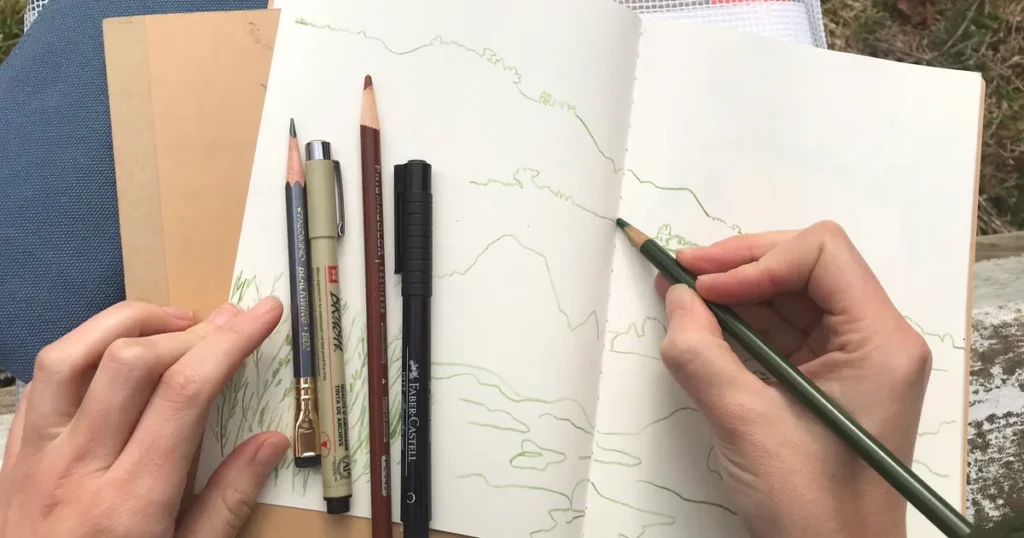
When we say “bring a sketch to life,” we mean taking a flat drawing and giving it depth. A drawing on paper is 2D. It looks flat. A realistic image looks 3D. It has light, shadow, and texture. It looks like you could reach out and touch it.

Imagine you draw a cat. The drawing shows the shape of the cat. But to bring it to life, you need to show the fur. You need to show the light shining in its eyes. You need to show the shadow on the floor. This process transforms rough sketches into finished artwork.

There are many ways to do this. You can use colors and paints. You can use a computer to make digital images. You can even use an AI sketch generator. The goal is always the same. You want to convert sketch content into something that looks finished and professional.

This is great for social media posts, school projects, or just to show your friends.

The Evolution From Pencil to Digital Reality

Long ago, artists only had paint and canvas. If they wanted to turn a sketch into a painting, they had to mix oils and wait days for paint to dry.

It was a slow process. Then came computers and graphic design. Artists started using mouse and keyboard to make art. This changed everything. It made art creation faster. You could undo a mistake with one click.

Now, we have entered the world of ai. Artificial intelligence has changed the game again. We now have the ai image generator. These tools can look at your drawing and guess what you want it to look like. They can turn simple sketches into generated images in seconds.

You can choose various styles. You can make it look like a cartoon or like a photo. The bridge between a pencil drawing and realistic digital art is shorter than ever before.

Best Tools to Turn A Sketch to Life
Best Tools to Turn A Sketch to Life

To do a good job, you need the right tools. There are many art tools out there. Some are for new users and some are for pros.

Let’s look at the best ones.

Top AI Tools For Instant Rendering

If you want fast results, an ai art generator is a great choice. These tools use smart computer programs to do the hard work for you.

You upload your picture, and the ai does the rest. Many people love using an ai sketch generator because it has an intuitive interface.

This means it is easy to use. You do not need to read a big manual. You usually just upload a photo of your drawing. Then, you might type a text prompt. A prompt is a sentence telling the ai what to do. For example, you could type, “Make this cat look like a real fluffy cat in the sun.”

The image generator then gives you many options. You can pick different styles. You might want anime style, or you might want it to look like a painting by Vincent van Gogh. These generators are powerful.

They can act as an image converter, changing lines into full pictures.

This is the power of sketch to life ai. It opens up new possibilities for people who cannot paint but have great ideas.

Professional Digital Painting Software (Procreate & Photoshop)

If you want more control, you might like professional software.

Apps like Procreate and Photoshop are very popular. These are not automatic like an ai image generator. You have to do the painting yourself.

However, they give you the best results for creative projects. You can choose every color. You can draw every single hair on the cat.

These programs let you make high-quality illustrations.

You can save your work as a PNG or other file type. These tools are great for making digital art that looks exactly how you want.

You are not guessing what the computer will do. You are the boss. It takes more time to learn, but the results are worth it.

Many professional artist users prefer this method because they can put their own personal touch on the artwork.

3D Modeling Apps For Realistic Depth

For the most realistic look, some people use 3D apps. This is different from drawing. It is like building a model on your computer.

You take your sketch and use it as a map. Then you build a 3D shape that matches your drawing. This is great for animation. If you want to make a character for a movie or a game, you need 3D tools.

These apps help you get the lighting perfect. The computer calculates exactly how light hits the object. This creates a very realistic image. It is a bit harder to learn than an AI sketch tool, but it is very fun. It truly brings your creative ideas into the real world of 3D space.

Step-by-Step: How to Transform A Sketch to Life
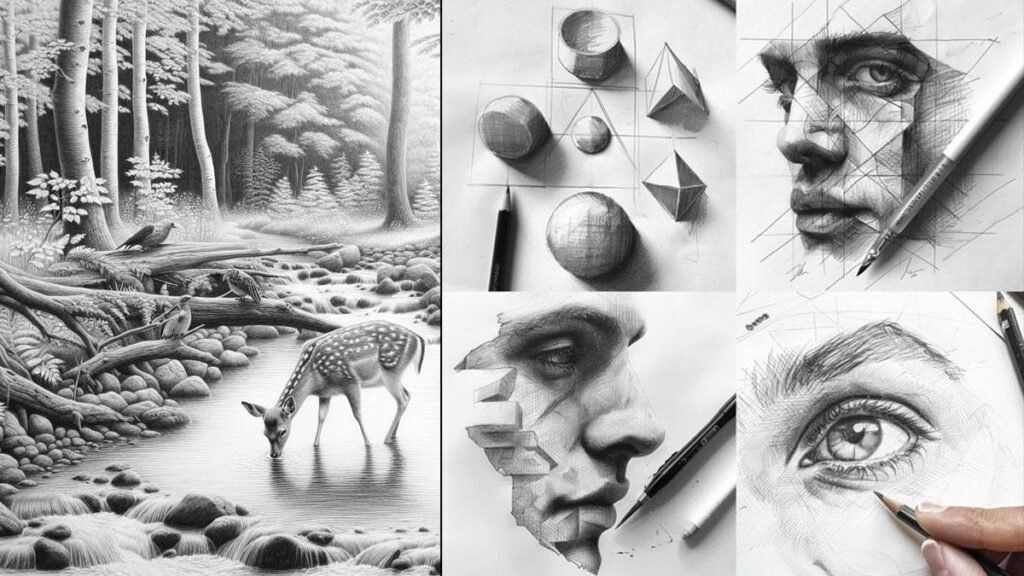
How to Transform A Sketch to Life?

Now that we know the tools, let’s talk about the process. How do you actually go from paper to a finished picture? Here are the simple steps.

Cleaning Up Your Rough Outline

First, you need a clean drawing.

If you drew on paper, take a good photo of it or scan it. Often, rough sketches have messy lines. You might have eraser marks or smudges.

You need to clean this up. If you use an app, you can increase the contrast. This makes the dark lines darker and the white paper whiter. If you are using an ai sketch generator, a clean image helps the computer understand your drawing better.

If your lines are too messy, the ai might get confused. It might think a smudge is a part of the drawing.

So, take time to make your outline clear. If you are working digitally, you can trace over your rough lines on a new layer to make them neat.

When you are done, you can download or save this clean version.

Establishing A Strong Color Palette

Next, think about color. Color changes the feeling of the picture. If you use bright colors, it looks happy. If you use dark colors, it looks serious.

You should pick your colors before you start painting. This is called a color palette. Even if you use an image generator, you can tell it what colors to use in the text prompt. You can say, “blue and purple theme.”

Using various artistic styles requires different colors. Anime might use bright, flat colors.

Realistic digital art uses many shades of colors mixed. Having a good plan for your colors will make your final digital images look much better.

Mastering Light, Shadow, and Texture

This is the most important part. To bring a sketch to life, you must add light and shadow.

Imagine where the light is coming from. Is it the sun? Is it a lamp? The side of the object facing the light should be bright. The other side should be dark. This creates a shadow. Shadows give objects weight. They stop them from looking like floating stickers.

Texture is also key. Texture is how something feels. Is it smooth like glass? Is it rough like a rock?

In digital art, you use special brushes to make these textures. An AI art generator is very good at this. It knows what a rock looks like and can add that texture for you. This detail turns a flat sketch into a deep, interesting image.

Advanced Techniques For A Realistic Sketch to Life Result
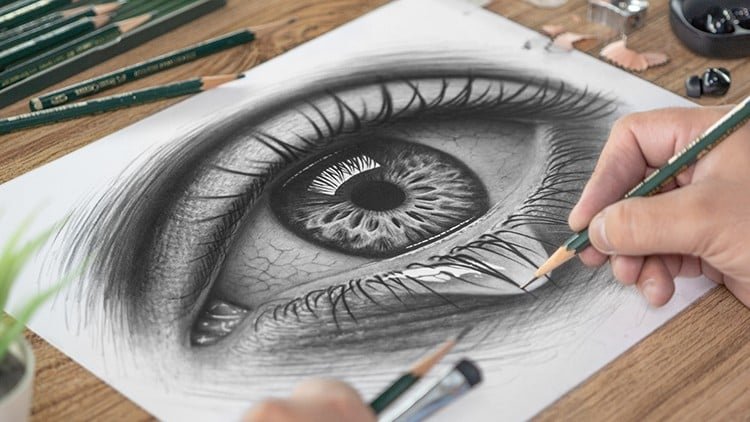
Advanced Techniques For A Realistic Sketch to Life Result

Once you know the basics, you can try harder things. These techniques help you get a very professional look.

Using Photobashing to Add Detail

Photobashing” is a funny word. It means taking photos from the real world and pasting them into your drawing.

Let’s say you drew a knight in armor. Drawing all the metal details is hard. With photobashing, you can find a photo of real metal.

You cut out the metal part and paste it onto your knight. Then you paint over it to make it blend in.

This saves time. It also adds very realistic details. Professional artists do this all the time for movies and games. You can mix this with generated images from AI tools, too. You can take a texture from an AI image generator and paste it into your hand-drawn art.

This mix of art styles creates a very rich look.

Applying Post-Processing Effects

Post-processing means “after work.” This is what you do after the painting is done. It is like putting a filter on a photo.

You can change the colors to make them warmer or cooler. You can add a glow effect to bright lights. You can add a little bit of blur to the background. This makes the main subject stand out. Most art tools have advanced features for this. Even simple apps on your phone have filters.

These small changes tie everything together. They make the digital images look like a finished movie scene. It gives your artwork a polished look.

Converting 2D Drawings Into 3D Models

We mentioned 3D before, but you can go deeper.

There are tools now that can look at a 2D drawing and build a 3D model automatically. This is a very new part of artificial intelligence.

You feed your sketch into the software. The software guesses the shape. It puffs it out like a balloon. Then you can rotate it and look at the back.

It is not always perfect, but it is getting better.

This is great for creative projects where you need to see an object from many angles. It helps you understand the volume of what you drew.

It is one of the most exciting parts of the world of AI right now.

Common Mistakes When Bringing A Sketch to Life
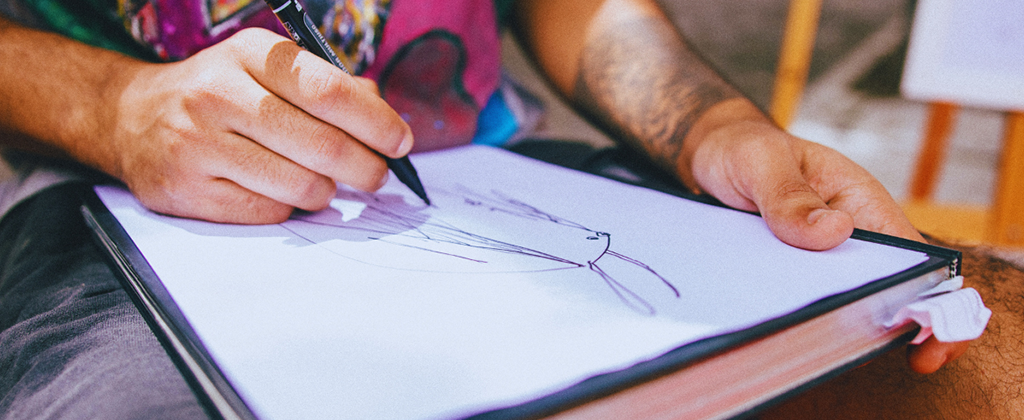
Common Mistakes When Bringing A Sketch to Life

Learning takes time. Everyone makes mistakes. Here are some things to watch out for so you can learn faster.

Overworking the Details Early On

A big mistake is focusing on tiny details too soon. You might spend two hours drawing an eye perfectly.

But then you realize the head is the wrong size. Now you have to erase the perfect eye.

It is better to work on the whole picture at once. Start with big shapes. Get the colors right. Get the shadows right. Only do the tiny details like eyelashes or blades of grass at the very end. This helps your creative process flow better. It stops you from getting stuck.

Ignoring Perspective and Anatomy

Perspective means how things look in space. Things far away look smaller. Things close up look bigger.

If you get this wrong, the picture looks weird. Anatomy means how bodies are built. If an arm is too long or a leg bends the wrong way, people will notice. Even if you use an AI sketch generator, you need a good base drawing.

If your rough sketches have a bad perspective, the AI might make a strange image. Practice drawing basic shapes like cubes and cylinders.

This helps you understand space. It will make your sketch-to-life results much more believable.

Relying Too Heavily on AI Without Refinement

AI is a tool, not a magic wand. Sometimes the generated images have errors. Hands might have six fingers.

Eyes might look in different directions. Do not just accept the first image the generator gives you. You should fix it. Take the image into an art app.

Paint over the bad parts. Fix the weird hands. Using sketch to life AI is a collaboration. The AI starts the work, but you finish it.

This makes the art yours. It ensures the quality is high. Don’t be afraid to mix various styles and tools to get the best result.

FAQ’s:

What is the Best Free App to Bring A Sketch to Life?

There are many great free apps. For manual drawing, “Autodesk Sketchbook” is very popular. It has a nice, clean screen. For AI, there are many online tools. Some let you try for free. Look for sketch generator apps on your phone’s store. They often have simple steps for new users.

Can AI Really Turn A Rough Sketch Into A Realistic Image?

Yes! An AI sketch generator is very smart. It can look at messy lines and guess what you meant. It can turn a stick figure into a human. However, the better your sketch is, the better the result will be.

If you give it more details, it gives you a better realistic image.

Do I Need A Drawing Tablet to Bring My Sketch to Life Digitally?

No, you don’t. You can use a mouse. You can use your finger on a phone or tablet. However, a drawing tablet helps a lot.

It feels like drawing with a pencil. It gives you more control. If you want to be a professional artist, a tablet is a good investment.

But for fun, creative projects, you don’t need one.

How Long Does It Take to Turn A Sketch Into Finished Art?

It depends on the method. If you use an image generator, it takes less than a minute. If you paint it yourself, it can take hours or days. It depends on how much detail you want. Don’t rush. Enjoy the art creation process.

Is “Sketch to Life” Used in Professional Industries?

Yes, absolutely. Architects sketch buildings before making blueprints.

Game designers sketch characters before modeling them. Movie directors sketch scenes (called storyboards) before filming.

Taking a sketch and making it real is a huge part of many jobs. It is used in fashion, car design, and graphic design.

Conclusion

Turning a sketch to life is a magical skill.

It lets you share your vision with the world. You can take a thought from your brain and make it real for everyone to see.

At Designers Choice, we believe everyone has creativity inside them. We hope this guide helps you use tools like digital art software and ai image generator apps to express yourself. Don’t be afraid to try different styles.

Experiment with artistic styles like anime or realism.

Whether you want to make illustrations for a book, social media posts, or just cool art for your room, you have the power to do it. The technology is here. The art tools are ready. Now, all you need is your imagination.

So grab your pencil or open your app. Start your sketch. Watch it transform. We can’t wait to see the masterpiece you create.


Categories
Design

Perfect Christmas Backgrounds Aesthetic For A Festive Look

At Designers Choice, we know that the right visual can change everything. As a team of passionate designers, we created this blog to be the resource we always wished we had—where expertise meets inspiration.

We know the challenges of turning creative ideas into reality, from sourcing the perfect materials to staying ahead of design trends.

That’s why we’ve created a collection of top-quality products, innovative solutions, and trusted insights, all tailored for fellow professionals who demand the best. Our mission is to empower you to bring your boldest visions to life, backed by a community that values creativity, craftsmanship, and excellence as much as you do.

When the holiday season arrives, digital spaces should feel just as festive as our physical homes. A Christmas background aesthetic isn’t just a pretty picture; it is a mood setter. Whether you are updating your desktop for work or creating a cute home screen for your iPhone, the right wallpaper brings instant holiday cheer. In this guide, we will explore everything from cozy Scandinavian vibes to fun cartoon styles. We will also show you how to use AI tools and Canva to make your own aesthetic Christmas wallpaper. Let’s dive into a winter wonderland of design!

What Defines Christmas Backgrounds Aesthetic in Modern Design?

What Defines Christmas Backgrounds Aesthetic in Modern Design?

Modern design changes rapidly, but the love for a beautiful, aesthetic Christmas look remains strong.

Today, a good Christmas background is about more than just a red and green color scheme. It is about feeling and style.

Key Elements of Holiday Visual Appeal

Great Christmas wallpapers often share a few special things. First, lighting is huge. Think of soft Christmas lights glowing in a dark room. This creates warmth. Second, texture matters. You might see a knitted pattern that looks like a sweater, or smooth glass ornaments that shine.

Finally, composition is key. A cluttered image feels messy. A clean, balanced image makes your laptop or phone look smart and professional.

Whether it is a photo of a snowy forest or a cute design of a snowman, the pieces must fit together well.

Color Psychology in Christmas Aesthetics

Colors tell a story. Red is exciting and bold, reminding us of Santa Claus and Christmas decorations. Green brings peace and nature, perfect for a green Christmas theme. But modern trends use other colors too.

Blue can feel like a cold, crisp winter night. Gold and silver add a fancy, expensive touch. White is pure and clean, like fresh snowflakes. When choosing a wallpaper, think about how the color makes you feel. Do you want energy? Or do you want calm?

Balancing Tradition with Contemporary Style

We all love tradition. A classic Christmas tree with tinsel is timeless.

But modern design likes to mix things up. Maybe you take that tree but put it in a clean, white room for a minimal look. or maybe you use neon colors for the lights instead of warm yellow. This mix of old and new creates a unique aesthetic Christmas wallpaper that stands out. It honors the past but fits perfectly on a modern social media feed or blog.

Why A Christmas Background Aesthetic is the Perfect Touch For Your Holiday Décor?

Why A Christmas Background Aesthetic is the Perfect Touch For Your Holiday Décor?

Your digital space is part of your life. You look at your phone and computer all day.

Changing your home screen to a festive image helps you get into the holiday spirit. It is a simple joy. It is also a way to share that joy.

When you open your laptop in a coffee shop, or when family members see your phone, a cute Christmas background spreads smiles.

It connects you to the season, whether you are in the United States, Italy, or Argentina. It turns a boring screen into a celebration.

Popular Types of Christmas Backgrounds Aesthetic

Popular Types of Christmas Backgrounds Aesthetic

There are so many styles to choose from! Let’s look at the most popular ones for 2026.

Minimalist Scandinavian Christmas Themes

The Scandinavian style is very popular. It is simple, clean, and cozy.

Think of lots of white space, light wood, and simple green branches.

It is not loud. It is peaceful. A wallpaper in this style might show just one small reindeer or a single pine cone. It is perfect for people who like a neat and organized desktop. It captures the quiet beauty of December.

Vintage Traditional Holiday Patterns

This style takes us back in time. It uses deep reds, dark greens, and gold.

You might see patterns that look like old wrapping paper or classic fabrics. Images of an old-fashioned Santa Claus or a vintage truck carrying a tree fit here. It feels nostalgic, like memories of Christmas from long ago.

It brings a classic merry Christmas feeling to your screens.

Modern Glam and Metallic Accents

If you like sparkle, this is for you. This style uses lots of gold, silver, and rose gold.

It mimics the look of shiny ornaments and tinsel. The backgrounds often look like they are glittering. It is fancy and elegant.

A Christmas background aesthetic in this style makes your phone look like a piece of jewelry. It is great for a party vibe.

Rustic Farmhouse Christmas Textures

This style is warm and homey. It uses textures like burlap, wood, and plaid fabric.

Imagine a background that looks like a wooden table with some pine branches and cookies on it. It has that look of cooking and baking at home. It feels comfortable and grounded.

It reminds us of a cabin in the woods or a cozy farmhouse in the country.

Whimsical Cartoon-Style Backgrounds

This is the fun one! It features cute illustrations of holiday characters.

Think of a smiling elf, a dancing snowman, or a funny reindeer. The colors are bright and happy. These make great cute aesthetic Christmas wallpapers. They are playful and make you smile. They are perfect if you want to let your imagination run wild and have a fun way to celebrate.

How to Create Your Own Christmas Backgrounds Aesthetic?

How to Create Your Own Christmas Backgrounds Aesthetic?

Making your own background is easier than you think. You can create a unique, cute Christmas wallpaper aesthetic that’s totally yours.

Choosing the Right Festive Color Palette

Start with colors. Do you want traditional red and green? Or maybe icy blue and silver? You could even try pink for a cute aesthetic Christmas look. Pick 3 or 4 colors that look good together. This will be your guide.

If you stick to your palette, your design will look professional.

Using Canva to Design Custom Holiday Wallpapers

Canva is a great tool for this. It is easy to use.

  1. Open Canva and choose “Phone Wallpaper” or “Desktop Wallpaper.”
  2. Search for elements like “snow,” “stars,” or “trees.”
  3. Drag and drop them onto your page.
  4. You can layer things. Put a nice color in the back, then add some illustrations on top.
  5. You can even make your own aesthetic Christmas wallpaper collage. Add photos of your friends or favorite winter things.
  6. Don’t forget to play with fonts. A fancy script font looks great for writing “Noel” or “Merry Christmas.”

Where to Find High-Quality Stock Photos?

If you don’t want to draw, you need good photos. Look for images that are clear and sharp. Avoid blurry ones. You want pictures that look professional. There are many places to find them online.

Best Sources For High-Quality Christmas Backgrounds Aesthetic

Best Sources For High-Quality Christmas Backgrounds Aesthetic

Finding the perfect image is like a treasure hunt. Here are the best places to look.

Free Stock Photo Websites for Holiday Designs

There are amazing free sites. Unsplash and Pexels are very good.

You can search for “aesthetic Christmas” or “winter wonderland” and find thousands of beautiful photos. These are great for personal use on your iPhone or social media. You can find photos from all over the world, showing how beautiful countries like Jordan or France celebrate.

Premium Marketplaces For Professional Use

If you need something for a business or a big project, you might want to pay. Sites like Shutterstock or Adobe Stock have huge libraries.

The images here are very high quality.

You can find very specific things, like a specific type of Christmas decorations or a professional AI image that looks incredibly real.

DIY Creation with Design Tools

We already mentioned Canva, but there are others too. You can use Adobe Express or even simple apps on your phone.

These tools let you add text, filters, and stickers. You can take a simple photo of your own Christmas tree and turn it into a work of art.

Custom Photography Techniques

Why not take your own photos? You don’t need a fancy camera. Your phone is enough.

  • Lighting: Natural light is best. Take photos near a window.
  • Focus: Tap your screen to make sure the subject is sharp.
  • Angles: Try taking a picture from low down or high up.
  • Details: Close-up shots of ornaments or Christmas lights make beautiful abstract backgrounds.
  • Props: Use things like candy canes, ribbons, or pine cones to set the scene.

Christmas Backgrounds Aesthetic For Virtual Meetings

Christmas Backgrounds Aesthetic For Virtual Meetings

We spend a lot of time on video calls now. Your background says a lot about you.

Professional Holiday Backdrops For Zoom and Teams

For work calls on Zoom or Teams, you want to look professional but festive. A messy room is distracting. A nice digital background solves this.

Choose a Christmas background aesthetic that is not too busy. A picture of a tidy living room with a decorated tree in the corner is perfect.

Or maybe a simple wooden wall with a wreath. This shows you have holiday spirit but you are still focused on work.

Animated Aesthetic Backgrounds For Holiday Parties

For virtual parties, you can go wild! Use an animated background. You can find ones with falling snow or twinkling lights. These are fun and engaging. They make the online party feel more alive. Just make sure your computer can handle the animation without slowing down.

FAQ’s:

What Are the Trending Christmas Backgrounds Aesthetic Styles For 2026?

For 2026, we expect to see a lot of “Warm Eucalyptus” green and rich “Cherry Red“. Kitschmas is also big—this is a fun, playful style with retro vibes. Christmas wallpapers featuring sustainable and natural materials will also be very trendy.

Can I Use Free Christmas Backgrounds Aesthetic For Commercial Projects?

Usually, yes, if they come from sites like Unsplash or Pexels. But always check the license. Some photos are only for personal use. If you are using it for a business blog or ad, it is safer to double-check or buy a photo.

What Dimensions Should I Use For A Social Media Christmas Background Aesthetic?

For Instagram Stories, use 1080 x 1920 pixels. For a square post, use 1080 x 1080 pixels. For a Facebook cover, it is different. Always check the current sizes for each social media platform to make sure your cute Christmas image looks crisp.

Are There Any Specific File Formats Recommended For Christmas Backgrounds Aesthetic?

JPG is good for photos. PNG is better for illustrations or images with text because it keeps lines sharp. If you are making an animated background, you will need an MP4 or GIF file.

Can I Use These Aesthetic Backgrounds For My Social Media Stories?

Absolutely! That is one of the best ways to use them. A nice aesthetic wallpaper makes a great background for your text or polls. It grabs attention and spreads holiday cheer to your followers.

Conclusion

Creating or finding the perfect Christmas background aesthetic is a wonderful way to celebrate the season. It brings joy to your daily life, whether it is on your desktop, your phone, or your Zoom calls.

From the snowy hills of a winter wonderland to the cozy corners of a rustic home, there is a style for everyone. We hope this guide helps you find or create a design that makes your holidays bright.

So, go ahead, let your creativity flow, and have a very Merry Christmas! At Designers Choice, we are here to help you make every pixel count.

Categories
Canva

Verified Canva Coupon Code (Get Upto 50% Off on Canva Pro Today)

Creating beautiful designs should be fun and easy for everyone.

Whether you are making a birthday card, a school project, or posts for social media, having the right tools helps a lot.

At Designers Choice, we want to help you make your ideas real. We know that finding good software is important, but saving money is also a big deal. That is why we are talking about the best ways to get a discount on your favorite design tool.

Many people love using Canva because it is simple. It has a drag and drop interface that anyone can learn quickly. But if you want to use all the best pictures and special tools, you might need the paid version.

This is where a Canva coupon code can help you save cash.

In this article, we will look at different ways to pay less. We will talk about deals for new users, discounts for schools, and even how to get a free trial.

We want to make sure you have the best information to help you design better without spending too much.

Let’s look at how you can get more for less with a Canva pro subscription.

Today’s Best Canva Coupon Code & Active Deals

Today's Best Canva Coupon Code & Active Deals

Finding a working promo code can feel like a treasure hunt. Sometimes codes work, and sometimes they do not. We have gathered some of the best offers available right now to help you save.

Exclusive: 40% Off Canva Pro Annual Plan

One of the best deals you can find is the 40% off discount.

This usually applies when you pay for a whole year at once instead of paying every month. A Canva pro subscription can cost a lot if you pay monthly. But if you choose the yearly plan and use a Canva coupon code, the price drops a lot.

This deal is great for people who know they will use online design tools for a long time. When you pay for the year, you do not have to worry about a monthly bill. plus, getting 40% off is almost like getting almost half the year for free.

Make sure to check the pricing page to see if this offer is active for you. It is often available during special sales or for new users.

Canva for Teams: Get 25% Off Your First Year

Do you work with a group? Maybe you have a small business or a club. Canva for Teams is a special plan that lets many people work on the same design at the same time. It is very helpful for making business cards or flyers together.

Right now, there is often a deal to get 25% off your first year for the Teams plan.

This is a special deals offer that helps groups save money. Instead of buying a separate account for every person, you buy one plan for the whole team. This makes sharing graphics and logos very easy. If you run a small company, this Canva coupon code is a smart choice.

It helps you keep your costs low while giving your team access to advanced tools.

Limited-Time Offer: 30-Day Free Trial of Canva Pro (No Code Needed)

If you are not sure if you want to pay yet, the free trial of Canva pro is the best way to start. You do not even need a Canva coupon code for this. You just sign up, and you get to use everything for free for 30 days.

During this trial period, you have free access to all the premium features. You can use all the special photos, fonts, and templates. This is perfect if you have a one-time project.

Maybe you need to make infographics for a science fair or business cards for a new job. You can make them all during the trial.

Just remember to cancel before the 30 days are up if you do not want to pay. This is a favorite option for many people because it is risk-free.

Canva Student & Teacher Discount (Canva For Education)

Schools get a very special deal. In fact, there is a free Canva coupon code for teachers and students that makes the software totally free!

This is called Canva for Education. It is not just a discount; it is a full free account for K-12 schools.

Teacher discounts like this are amazing. Teachers can create lesson plans and worksheets. Students can do their homework with cool designs. Curriculum specialists also use it to make learning materials.

If you are a student, you might look for a Canva discount code or student offer, but often you just need your school email to sign up.

This gives you access to a wide range of tools without paying a cent. It is a great way to help education.

How to Redeem Your Canva Coupon Code? Step-by-Step

How to Redeem Your Canva Coupon Code?

Using a coupon code is easy, but you need to follow the right steps. Here is how you can use your code to save money.

For New Canva Accounts

If you are new to online design, you will need to make an account first.

  • Go to the Website: Open your browser and go to the site.
  • Sign Up: Click the button to sign up. You can use your email or connect with other accounts.
  • Choose Your Plan: Select the Canva Pro plan.
  • Enter the Code: When you get to the checkout page, look for a box that says “promo code” or “coupon code.”
  • View Code: Type your Canva coupon code first order into the box.
  • Apply: Click the button to apply the code. You should see the price drop.
  • Finish: Enter your payment details to finish the sign-up.

This is how new users can start with a discount. It is very simple.

Applying A Discount to An Existing Subscription

If you already have an account, you can still use a coupon code.

  • Log In: Go to your account settings.
  • Billing: Look for the section about billing or subscription.
  • Update Plan: Sometimes you need to upgrade or change your plan to use a new code.
  • Enter Code: There should be a spot to add a Canva discount code.
  • Check: Make sure the code works before you confirm.

Sometimes, a Canva coupon code is only for new people. If you already have a subscription, you might need to wait for a specific renewal offer or check your email for special loyalty deals.

Canva Coupon Code Not Working? Try This.

Canva Coupon Code Not Working

It can be frustrating when a code does not work. Here are some reasons why and what you can do.

Common Reasons Your Promo Code Is Invalid

There are a few reasons why a Canva coupon code might fail.

  • Expired: The code might be too old. Coupons often have an end date.
  • Wrong Plan: The code might be for the annual plan, but you chose the monthly plan.
  • Not Eligible: Some codes are only for new users or specific groups like teachers.
  • Typing Errors: Make sure you typed the code exactly right. Watch out for capital letters.

Always check the rules of the coupon code to be sure.

Alternative Ways to Save On Canva (Without A Code)

If you cannot find a working Canva coupon code, do not worry. You can still save.

  • Pay Yearly: As we said before, paying for the whole year is cheaper than paying every month.
  • Wait for Sales: Sales often happen around Black Friday or back-to-school times.
  • Check Partner Deals: Sometimes companies like Samsung or Verizon offer extended trials or deals if you use their devices or services.
  • Use the App: Sometimes, there are special offers inside the mobile app.

How to Use the Canva Pro Free Trial?

The free trial is the best backup plan. If you cannot find a Canva coupon code for business cards or other items, just use the trial.

  • Sign up for Pro.
  • Choose the trial option.
  • Set a reminder on your phone for 29 days later.
  • Enjoy the premium features.
  • Cancel if you do not want to keep it.

This gives you a full month of free use. It is a great way to test the advanced tools without spending money.

Why A Canva Pro Discount Is Worth It (Key Features)

Why A Canva Pro Discount Is Worth It (Key Features)

You might wonder if paying for the Pro version is worth it. Even with a Canva coupon code, it costs money.

Here is why many people think it is a great value.

Unlock Premium Templates & Stock Assets

The free version is good, but the Pro version is amazing. You get access to millions of photos, videos, and graphics. You do not have to pay extra for them. With the free plan, you often have to pay $1 for a nice picture.

With a canva pro subscription, they are all included.

This is great for social media posts. You can make your posts look very professional. You also get premium templates. These are designs made by experts. You just change the text and pictures. It saves you so much time.

Whether you are making flyers for a bake sale or a presentation for work, these assets help you look your best.

Access Magic Studio (AI Tools)

One of the coolest things about the paid plan is the AI tools. They call it Magic Studio. You can do things that seem like magic.

  • Magic Resize: You can change one design into many sizes for different social media sites with one click.
  • Background Remover: You can take the background off a photo in one second. This is great for making logos or product photos.
  • Magic Write: It helps you write text for your designs.

These advanced tools usually need expensive software like Photoshop. But with Canva Pro, they are easy to use. A Canva coupon code makes getting these tools much cheaper.

Brand Kit & Content Planner Access

If you are running a business, the Brand Kit is very helpful. You can save your logo, your special colors, and your fonts.

Every time you make a new design, your brand’s look is right there. You do not have to search for your colors every time.

You also get a Content Planner. You can schedule your social media posts right from Canva. You do not need another app to post for you.

This saves time and money. For personal use, you might not need this. But for a business, it is a huge help.

Using a Canva coupon code for business cards or a subscription helps you access these pro business tools for less.

FAQ’s:

How Can I Get Canva Pro For Free?

The best way is to sign up for the free trial of Canva pro. This gives you 30 days for free. If you are a teacher or a student in a K-12 school, you can get Canva for Education for free forever. This does not even need a Canva coupon code; you just need to verify your school status.

Is There A Special Canva Coupon Code For Students?

Yes, sometimes there is a Canva discount code student offer.

However, the best deal for students is the Canva for Education program. If you are in university, you might check sites like Student Beans or UNiDAYS to see if they have a code. GitHub also has a student pack that sometimes includes design tools like Figma or Canva.

Are There Special Canva Coupons For Small Business Owners?

Small businesses should look for the “Canva for Teams” deals.

These often give a discount for the first year. Also, looking for a Canva coupon code first order can help a new business start saving right away. Printing business cards or flyers can also be cheaper with occasional print codes that offer free shipping or a percentage off print orders.

How Much Can I Save With the Highest Value Canva Coupon Code?

Usually, the highest discount is around 40% to 50% off an annual plan. Sometimes, during Black Friday or special events in April, the deals are better. If you combine a yearly discount with a promo code, you save the most.

What’s the Difference Between Canva Free and Canva Pro?

The free version is great for basic use. The Pro version gives you premium features like the background remover, resizing tools, and the brand kit. It also gives you access to unlimited premium photos and graphics. If you use Canva a lot, the Pro version is much better.

Conclusion

We hope this guide helps you find the best Canva coupon code for your needs. Whether you are a teacher looking for lesson plans, a business owner needing business cards, or just someone who loves design, saving money is always good.

Remember to check if you are eligible for the education plan or the non-profit plan. These are free! For everyone else, using a promo code or a free trial is the smart way to go. Design does not have to be expensive.

With the right special deals, you can create amazing things without breaking the bank.

Keep checking our site, Designers Choice, for more tips and trusted insights. We want to help you bring your visions to life. Happy designing!

Categories
Photoshop

How to Create Photoshop Type On Path: Quick Tips & Easy Method

Here at Designers Choice, we know that design is more than just placing pictures on a page. It is about telling a story.

As a team of passionate designers, we have spent years learning the tricks of the trade. We created Designers Choice to be the resource we always wished we had—where expertise meets inspiration. We know the challenges of turning creative ideas into reality.

You might struggle to find the perfect layout or get your text to look just right. That is why we have curated a collection of top-quality products, innovative solutions, and trusted insights, all tailored for fellow professionals who demand the best.

At Designers Choice, our mission is to empower you to bring your boldest visions to life, backed by a community that values creativity, craftsmanship, and excellence as much as you do.

Today, we are going to tackle a super fun and useful skill: Photoshop type on path. Have you ever seen a logo with text curving around a circle? Or maybe a poster where the words flow like a wave? That is not magic; it is a simple tool in Adobe Photoshop. Whether you are new to graphic design or just need a refresher, this guide will help you master it. We will write this in very simple steps so anyone can follow along.

What is the Photoshop Type on Path Tool?

What is the Photoshop Type on Path Tool?

Before we start clicking buttons, let us talk about what this tool actually is. In most simple writing apps, you type in a straight line from left to right. But design is not always straight. Sometimes, you want your words to have a shape.

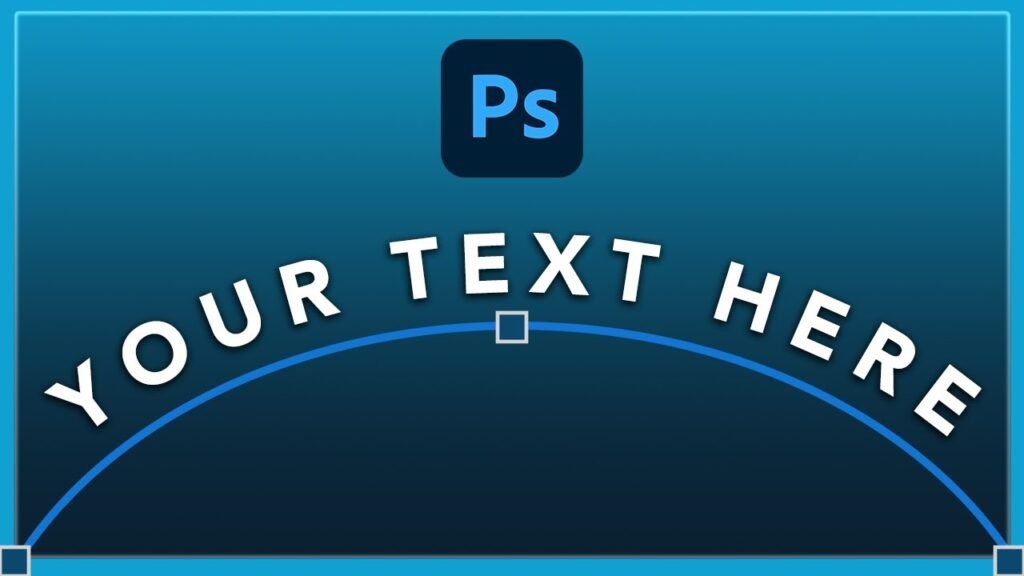
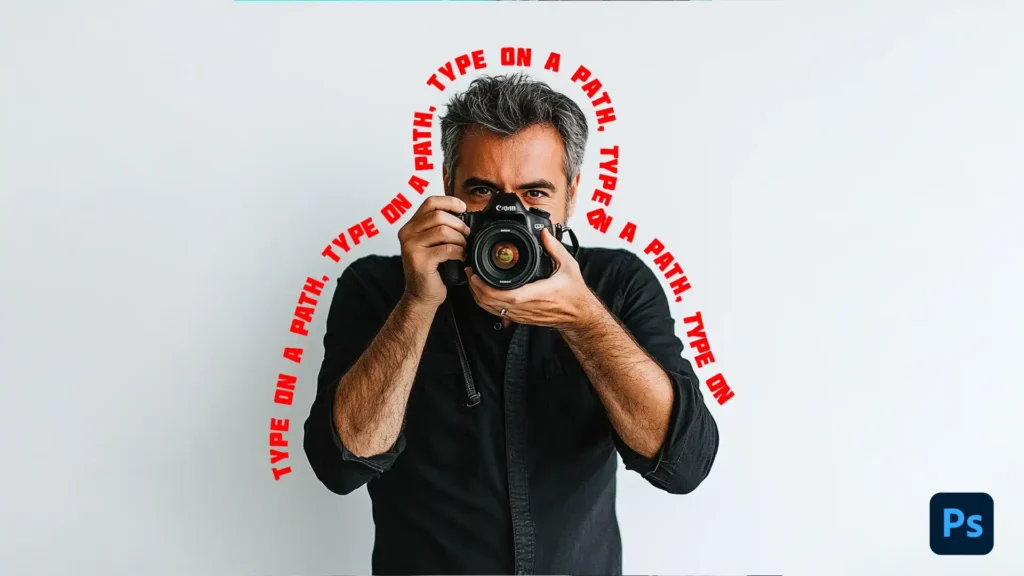
The Photoshop type on path feature allows your text to stick to a line or a shape. This “line” is called a path. A path is like an invisible wire. When you attach text to it, the letters sit on that wire like birds on a telephone line. If the wire curves, the text curves.

If the wire goes in a circle, the text goes in a circle.

Understanding the Basics of Text and Paths

To make this work, you need two things: a text layer and a path. You can make a path out of anything.

It can be a perfect circle made with the ellipse tool. It can be a square made with the rectangle tool.

Or, it can be a squiggly line you draw yourself.

When you combine the type tool with a path, Photoshop creates a special kind of relationship between them. The text is still editable.

You can fix spelling mistakes or change the font size. But now, it follows the rules of the path.

Why Use Type On A Path For Design?

Why would you want to do this? There are many reasons!

  • Logo Design: Many logos use text inside a circle. Think of badges or stickers.
  • Text Effects: You can make text look like it is sliding down a hill or wrapping around a person’s head.
  • Artistic Layouts: Straight text can be boring. Curved text feels more dynamic and fun.

Even with the rise of generative AI, knowing these manual skills is key. AI can make a picture, but it often messes up text. A human designer knows exactly where every letter should go.

How to Create A Photoshop Type on Path Using Shapes?

How to Create A Photoshop Type on Path Using Shapes?

Let us start with the easiest method: putting text on a shape. We will use a circle for this example, as it is the most common request we get.

Step 1: Selecting the Shape Tool (Circle, Rectangle, Polygon)

First, open Adobe Photoshop. You want to look at the tools panel on the left side of your screen.

Look for the shape tools. Usually, the rectangle tool is on top. If you click and hold your mouse button on it, you will see a list of other shapes.

Select the ellipse tool. This is the tool we use to make circles and ovals.

Tip: If you do not see it, check if you are in the Photoshop basics section of your workspace, or search for “Ellipse” in the help bar.

Step 2: Drawing Your Shape on the Canvas

Now, look at the options bar at the top of the screen. This bar changes depending on what tool you have picked. Near the far left of the options bar, you will see a drop-down menu that usually says “Shape“.

You have various options here, but for this technique, you can leave it as “Shape” or switch it to “Path“. If you leave it as “Shape“, it creates a colored shape on a new layer. This is fine.

Go to your canvas. Click and drag to draw your circle.

  • Designers Choice Tip: To make a perfect circle, hold down the shift key on your keyboard while you drag. If you do not hold the shift key, you might get an egg shape.
  • Try to make a circle about the size of a golf ball or an orange on your screen so you have plenty of room to work.

You will see a thin outline appear. This is your path.

Step 3: Activating the Type Tool and Clicking the Path

Now, go back to the tools panel and click the type tool. It looks like a big letter “T“. Specifically, you want the horizontal type tool.

Move your mouse over the edge of the circle you just drew. Watch your cursor closely.

  • Normally, the cursor looks like a box around the letter I.
  • When you touch the edge of the shape, you will see a cursor change. The box around the “I” disappears and turns into a dotted wavy line.

This dotted wavy line is the secret signal! It tells you that if you click now, the text will stick to the shape of the path.

Step 4: Typing and Formatting Your Text

Click once on the edge of the circle. You will see a blinking line. Now, just type! You can type “Designers Choice” or “Best Coffee in Town“.

Notice how the letters wrap around the curve.

  • If the text is too big, select it and change the font size in the options bar.
  • We recommend a clean font like Futura Condensed Medium for circular text because it is easy to read.

When you are done typing, click the checkmark at the top or press Enter (on the number pad) to finish. You now have a type layer that is shaped like a circle!

Mastering Photoshop Type on Path With the Pen Tool

Mastering Photoshop Type on Path With the Pen Tool

Shapes are great, but sometimes you want a path that flows like a river. For this, we use the pen tool.

Drawing Custom Curves With the Pen Tool

Select the pen tool from the tools panel. It looks like the tip of an ink pen.

  • Click on the left side of your canvas to make a dot (an anchor point).
  • Move to the middle, click, and drag. This creates a curve.
  • Move to the right side and click again.

You have now created a freeform path. It is not a shape; it is just a line. This works exactly the same way as the circle.

How to Snap Text to A Custom Path?

Select the text tool again. Hover over your new wavy line.

Wait for that dotted wavy line icon to show up near your cursor. Click on the line. Now, type your text. The words will surf along the wave you drew. This is perfect for text effects where words need to flow around an object, like a person’s head or a mountain.

Adjusting the Start and End Points of Your Text

Here is where it gets a little tricky, but do not worry. When you type on a path, Photoshop puts invisible marks at the start and end of your text. Sometimes, your text starts in the wrong spot.

To fix this, we need a special tool called the path selection tool.

  • Go to the tools panel.
  • Look for the arrow tools. There is a black arrow and a white arrow.
  • Select the black arrow. This is the path selection tool.

Hover your mouse over your text. Your cursor will change to an I-beam with a small arrow pointing left or right.

  • Click and drag the text along the line. You can slide it to the left or right.
  • You will see two points: an ‘X‘ (the start) and a circle (the end).
  • Use the path selection tool to drag these points so your text sits exactly where you want it.

Advanced Techniques For Photoshop Type on Path

Advanced Techniques For Photoshop Type on Path

Now you know the basics. But what if you want the text to be inside the circle? Or flipped upside down? This is a very common question, and our photoshop type on path flip technique is essential.

Flipping Text to the Inside Of A Circle

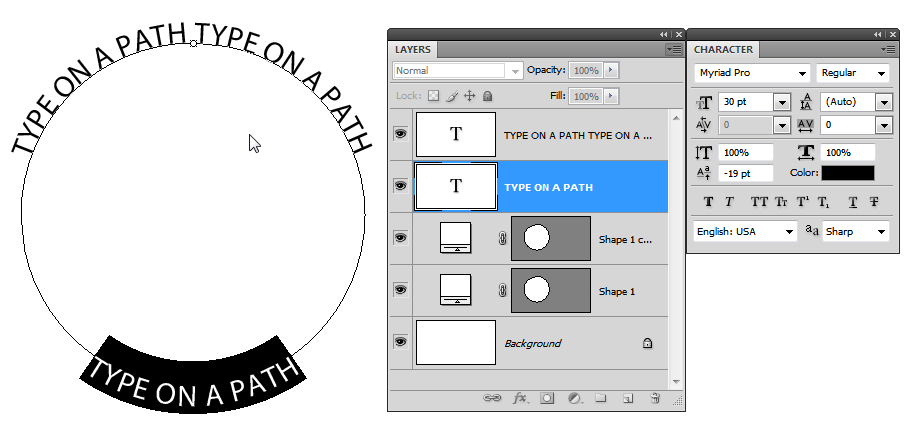
Imagine you are making a stamp style logo. You have text on top that curves up, and text on the bottom that curves down.

If you just type on the bottom of a circle, the text will be upside down. We do not want that! We want it to be readable.

Here is the secret:

  1. Draw your circular path.
  2. Type your text. It will sit on the outside.
  3. Select the path selection tool (the black arrow).
  4. Move your cursor over the text.
  5. Click and drag the text toward the center of the circle.

Snap! The text will flip to the inside of a circle. Now it is on the original side but facing inward.

You might notice the text looks a bit cramped. Since it is inside the circle, the letters get squished.

  • Go to the character panel (Window > Character).
  • Find the “Tracking” option (it looks like VA with arrows).
  • Increase the number to add space between letters.

Distorting and Warping Text Along A Curve

For a fun effect, you can use the warp text feature.

  • Select your type layer.
  • Look at the options bar for an icon that looks like a T on a curved hill. This is warp text.
  • Click it to see various options. You can make text bulge, twist, or look like a fish.

This is different from a path because it distorts the letters themselves, making them fat or thin.

Creating Spiral Text Effects

Want to make a spiral? You can do this with the pen tool or adobe illustrator if you have it.

In Photoshop CC, you can draw a spiral path by hand.

  • Draw a loose spiral with the pen.
  • Click with the text tool.
  • Type a very long sentence.
  • The text will curl all the way into the middle!

Troubleshooting Common Photoshop Type on Path Issues

Troubleshooting Common Photoshop Type on Path Issues

Sometimes, Photoshop type on path not working is a search term we see a lot. Things can go wrong. Here is how to fix them.

Why is My Text Disappearing?

You are typing, and suddenly… poof! The end of the sentence is gone. This usually happens because the text is too long for the path.

  • Switch to the path selection tool.
  • Look for a small circle or square at the end of the text on the path line.
  • If this point is too close to the start, the text gets cut off.
  • Drag the endpoint further down the path to reveal the hidden words.

Also, check your text alignment.

If your text is “Center Aligned” but you clicked at the very end of the path, half your text might be hanging off the edge into space.

How to Hide the Path Line After Typing

Once you are done, you might still see that thin black line or circle. It can be annoying when you are trying to view your final result.

  • This line does not print, but it distracts you.
  • To hide it, simply click on a different layer in the layers panel, like the background layer.
  • Or, press Ctrl + H (Command + H on Mac) to hide extras.

Fixing Spacing and Kerning Issues on Tight Curves

If you put big text on a small circle, the letters might crash into each other.

  • Use the character panel again.
  • Adjust the tracking (space between all letters).
  • You can also use baseline shift. This moves the text up or down from the line.
  • A negative number in the baseline shift box will move the text closer to the center. A positive number moves it away. This helps the text float nicely.

FAQ’s:

How Do I Flip Text On A Path in Photoshop?

Use the path selection tool (the black arrow). Click on your text and drag your mouse cursor across the line of the path.

If you are on the outside, drag inside. The text will flip instantly.

How Do I Remove the Path Line After Typing Text in Photoshop?

You cannot “remove” it because the text needs the path to sit on. However, you can hide it. Just click on another layer, like the background layer, in the layers panel. The line will vanish from view, but the text stays.

Can I Edit the Shape of the Path After I Have Typed On It?

Yes! Use the direct selection tool (the white arrow). Click on the path line. You will see little squares called anchor points.

Drag these squares to change the shape. The text will automatically move to fit the new shape. It is like a smart object that updates itself.

Why Is My Text Upside Down When Using Photoshop Type on Path?

This happens based on the direction of the path you drew or where you clicked. To fix it, grab the path selection tool and drag the text to the other side of the path line. It will flip right-side up.

Which Version of Photoshop Supports Type on Path?

This feature has been around for a long time. It works in Photoshop CC, CS6, and even older versions. Whether you use the latest version with generative ai tools or an old disc version, you can do this.

Conclusion

We hope this guide makes you feel more confident using the Photoshop type on path tools.

At Designers Choice, we believe that mastering the basics is the best way to grow. Whether you are using a custom shapes tool, the pen tool, or just a simple, perfectly circular path, adding curved text can make your designs look professional and unique.

Remember, the next step is practice.

Open a new document, draw a dotted wavy line, and start typing. Play with the direct selection tools and see what happens when you drag the double arrows. Do not be afraid to make mistakes; that is how we all learn.

If you ever feel stuck or need high-quality assets to finish your project, check out Adobe Stock or browse our own curated resources here at Designers Choice. We are here to support your creative journey every step of the way. Happy designing!

Categories
Design

Camera Settings Cheat Sheet: Capture Perfect Images

Taking great photos should be fun, not hard. But when you look at all the buttons and dials on a digital camera, it can feel like you are trying to fly a spaceship. Many people buy a nice camera and leave it on auto mode forever. While auto mode is okay, it does not give you full control over how your picture looks. If you want to take your photography to the next level, you need to know how the camera thinks.

At Designers Choice, we believe that anyone can learn to take amazing pictures. You do not need to be a professional photographer to get professional results. You just need a little help. That is why we wrote this guide. Think of this as your personal camera settings cheat sheet.

We will show you exactly which buttons to push to get the right exposure every time. Whether you are using a big DSLR camera, a mirrorless camera, or even a mobile device, light works the same way.

We will help you understand the exposure triangle so you can fix blurry photos, brighten up dark scenes, and capture sharp action.

By the end of this article, you will feel ready to pick up your camera bag and go out to shoot with confidence.

Let’s get started and learn the secrets to better photos.

Understanding the Exposure Triangle: The Core of Your Camera Settings Cheat Sheet

Understanding the Exposure Triangle: The Core of Your Camera Settings Cheat Sheet

To take a photo, your camera needs light.

The exposure triangle is just a fancy name for the three main settings that control that light. These three settings are Aperture, Shutter Speed, and ISO. They work together. If you change one, you usually have to change another to keep the light balanced.

Imagine a bucket that you need to fill with water. The water is the light. You can open the tap wider (Aperture), leave the tap on longer (Shutter Speed), or use a smaller bucket (ISO). All three ways help you get the correct exposure.

Aperture (f-stop) and Depth of Field

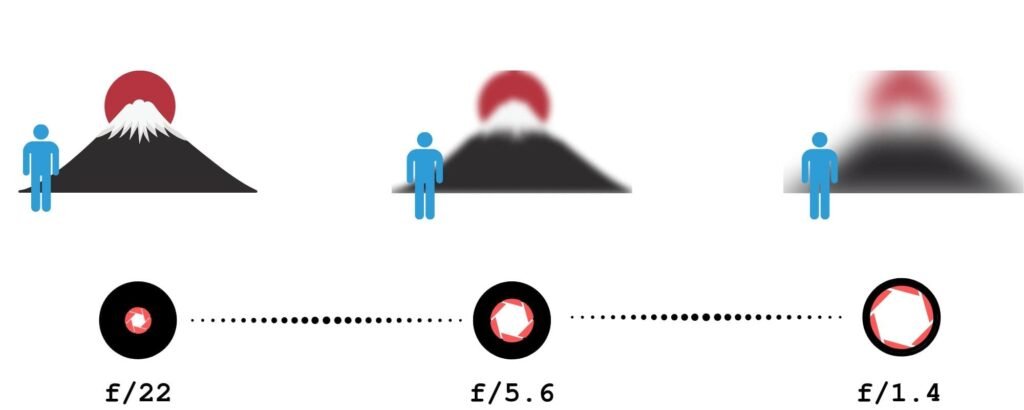
The aperture setting controls how big the hole is in your camera lens. When you take a picture, light goes through this hole to hit the camera sensor. We measure aperture with a number called an “f-stop.” This can be confusing because the numbers seem backward.

  • A smaller numerical value (like f/1.8 or f/2.8) means a wider aperture. This is a big hole. It lets in a lot of light.
  • A larger number (like f/16 or f/22) means a narrower aperture. This is a tiny hole. It lets in less light.

Aperture does more than just control light. It also controls something called depth of field. This determines how much of your photo is in focus.

  • Shallow depth of field: This happens when you use a wide aperture (small f-number). The subject is sharp, but you get a blurred background. This is great for portraits because it separates the person from the busy background.
  • Deep depth of field: This happens when you use a narrow aperture (large f-number). Everything from the front to the back is sharp. This is the best way for landscape photography.

So, remember this rule for your cheat sheet: Low number = blurry background and much light. High number = everything sharp and less light.

Shutter Speed and Motion Blur

Shutter speed is the amount of time the shutter opens to let light in. When you press the shutter button, a curtain moves out of the way.

We measure this in seconds or fractions of a second.

  • Fast shutter speed: This is very quick, like 1/1000th of a second. It freezes action. If a dog is running, a fast speed makes it look frozen in clear detail.
  • Slow shutter speed: This is longer, like 1/30th of a second or even 1 full second. It lets in light for a long time. If something moves, you get motion blur.

You use faster shutter speeds for sports photography or any moving subject. You need to be careful with slower shutter speeds.

If you hold the camera in your hands and the shutter stays open too long, your hands might shake. This causes camera shake, making the whole photo blurry. If you go below 1/60th of a second, you might need a tripod or very steady hands to keep sharp images.

ISO and Image Noise

The third part of the triangle is ISO. This measures the camera’s sensitivity to light.

  • Low ISO (like 100 or 200): The sensor is not very sensitive. You need a lot of light or sunshine. This gives you the highest image quality with no grain.
  • High ISO (like 1600, 3200, or higher): The sensor becomes very sensitive. You use this in low-light or dark rooms. The camera tries to boost the light signal.

The downside of a high ISO is image noise. Noise looks like little sandy grains or colored specks all over your photo. It makes the picture look less clear. To get better photos, you should always try to keep the ISO as low as possible.

Only raise the iso settings if it is too dark, and you cannot open your aperture or slow down your shutter anymore.

Quick-Reference Camera Settings Cheat Sheet By Scenario

Quick-Reference Camera Settings Cheat Sheet By Scenario

It is easy to forget these rules when you are outside taking photos. To help you, we have created scenarios with the settings you should start with. You can write these down or save this as a free camera settings cheat sheet.

Best Settings For Portrait Photography

When taking pictures of people, you usually want them to be the main focus. You want that soft, professional-looking blurred background.

  • Mode: Aperture Priority Mode (Av or A).
  • Aperture: Use a wide aperture (f/1.8 to f/2.8). This creates a shallow depth of field.
  • ISO: Keep it low ISO (100–400) if you are outside.
  • Shutter Speed: The camera will choose this for you in Aperture Priority. Just make sure it is not too slow, so the person doesn’t get blurry if they move.

If you are using a phone camera settings cheat sheet idea, look for “Portrait Mode” on your phone. It mimics this wide aperture look digitally.

Best Settings For Landscapes and Nature

For nature, you want the mountains in the back and the flowers in the front to all look sharp.

  • Mode: Aperture Priority or Manual Mode.
  • Aperture: Use a narrower aperture (f/8 to f/11). Do not go to f/22 unless you have to, as it can sometimes reduce sharpness.
  • ISO: Low ISO (100) for the best image quality.
  • Shutter Speed: The camera will decide. If the light is low, the shutter might stay open longer. You might need a tripod to avoid camera shake.

Best Settings For Action and Sports

In sports photography, everything moves fast. Your goal is to freeze the moment so the player does not look like a blur.

  • Mode: Shutter Priority (Tv or S) or Manual.
  • Shutter Speed: Use a fast shutter speed. Start at 1/500 or 1/1000. For race cars, you might need 1/2000.
  • Aperture: The camera will likely open the lens to a wider aperture to get enough light in that short time.
  • ISO: You might need to raise this to High ISO (800 or 1600) if you are in a stadium or if it is cloudy. It is better to have a little grain than a blurry photo.
  • Focus Mode: Switch to Continuous Focus (AI Servo) to track the moving subject.

Best Settings For Night and Low Light Photography

Low light is tricky. There is not much light available, so you have to help the camera see.

  • Mode: Manual Mode is best here.
  • Aperture: Use the widest aperture your lens has (like f/1.8). You need every bit of light.
  • Shutter Speed: Use a slow shutter speed. It could be 1/30, 1/10, or even longer.
  • ISO: Raise your iso settings. Start at 800 and go up to 3200 if needed. Watch out for image noise.
  • Tip: If you are shooting a city at night and want the lights to streak (long trails), use a tripod and a very slow shutter speed (like 5 seconds).

Advanced Additions to Your Camera Settings Cheat Sheet

Advanced Additions to Your Camera Settings Cheat Sheet

Once you know the exposure triangle, there are a few more settings that help you get great photos.

White Balance: Getting Colors Right

Have you ever taken a photo inside and it looked very orange? Or a photo in the shade that looked very blue? This is because of white balance. Light has different colors. A lightbulb is orange/yellow. The sun is white/blue.

Your eyes adjust automatically, but your camera sensor needs help.

  • Auto White Balance (AWB): Works well most of the time.
  • Daylight: Use this outside on a sunny day.
  • Cloudy: Adds warmth (orange) to the photo.
  • Tungsten/Incandescent: Adds blue to cool down orange indoor lights.

Getting the white balance correct ensures white objects look white, not yellow or blue.

Focus Modes: Single Vs. Continuous

Your camera has different ways to focus.

  • Single Shot (AF-S or One-Shot): When you half-press the shutter button, the camera locks focus. If the subject moves, the focus stays where it was. This is best for still things like landscapes or posing people.
  • Continuous (AF-C or AI Servo): The camera keeps refocusing as long as you hold the button half down. This is the best way to move subjects like kids, pets, or cars.

File Formats: When to Shoot RAW Vs. JPEG

In your menu, you can choose the file type.

  • JPEG: The camera processes the photo for you. It adds contrast and colors and saves a smaller file. It is ready to share immediately.
  • RAW: This saves all the data from the camera sensor. The photo might look flat at first. However, it gives you much more control when editing later. You can fix the white balance or brighten dark shadows easily on a computer.

For a casual snap, JPEG is fine. For a professional photographer or serious hobbyist, RAW is better.

Shooting Modes Explained

Shooting Modes Explained

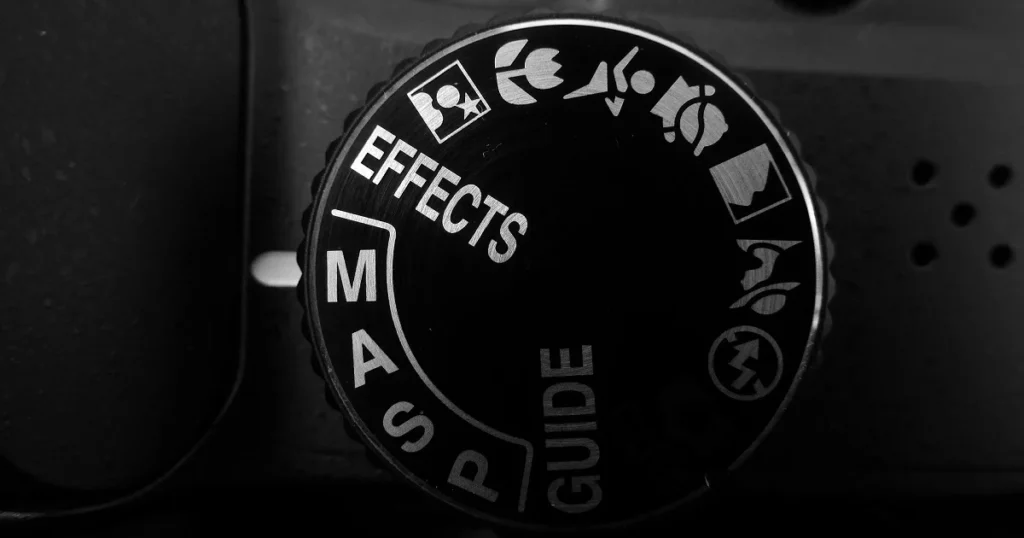
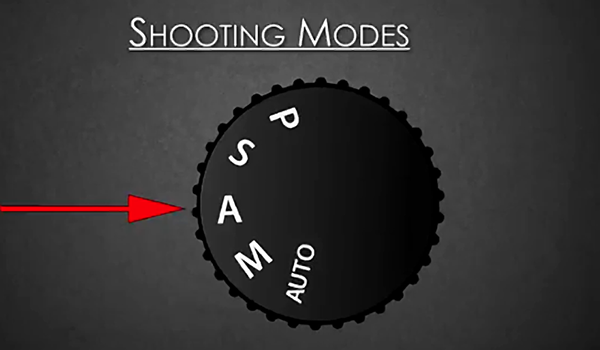
Your camera has a mode dial on top. This dial tells the camera who is in charge: you or the computer.

Aperture Priority (Av or A)

This is a favorite mode for many photographers. You choose the aperture setting (f-stop), and the camera chooses the shutter speed to get the right exposure.

  • Use it when: You want to control the depth of field. If you want a blurred background, pick a small f-number. The camera does the math for the speed. It is semi-automatic and very fast to use.

Shutter Priority (Tv or S)

In this mode, you choose the shutter speed, and the camera picks the f-stop.

  • Use it when: You are freezing motion (sports) or want to create blur (waterfalls). You tell the camera, “I need 1/1000 speed,” and the camera opens the aperture to make that work.

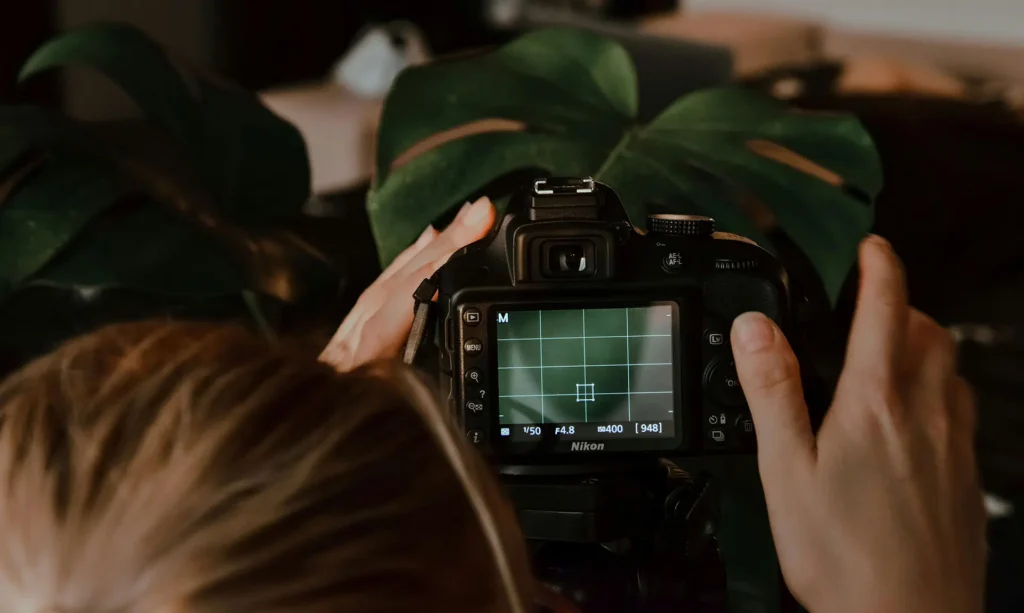
Manual Mode (M)

This is the big goal. In Manual Mode, you set the Aperture, Shutter Speed, and ISO. Nothing is automatic.

  • Use it when: The lighting is tricky, or you want a specific creative effect. It gives you full control. It takes time to learn, but it is worth it. It stops the camera from making bad guesses.

FAQ’s:

What Are the Best Camera Settings For Indoor Photography?

Indoors, you usually have less light than you think.

  • Increase your ISO (try 800 or 1600).
  • Use a wider aperture (small f-number) to let light in.
  • Watch your shutter speed. If it goes below 1/60, your photos might be blurry from hand movement. For an iPhone camera settings cheat sheet, tap the screen to focus and slide the sun icon up to brighten the image.

Do I Always Need to Shoot in Manual Mode?

No. Even a professional photographer often uses Aperture Priority mode. Manual mode is great when the lighting does not change (like in a studio) or when the camera is confused. But for walking around, semi-automatic modes are very useful and faster.

How Do I Get A Blurry Background in my Photos?

To get that creamy, blurred background, you need a shallow depth of field.

  • Select Aperture Priority.
  • Dial in the lowest f-number your lens allows (like f/1.8 or f/2.8).
  • Get close to your subject.
  • Make sure the background is far away from the subject. If you are using a mobile device, use “Portrait Mode.”

What is the “Sunny 16” Rule?

This is an old rule from the days of film, before digital screens. It says: On a sunny day, set your aperture to f/16. Then, set your shutter speed to match your ISO. For example, if ISO is 100, shutter speed is 1/100. This usually gives the correct exposure without needing a light meter.

Which ISO Setting Should I Use to Avoid Grainy Photos?

To avoid image noise (grain), use the lowest ISO possible.

ISO 100 or 200 is best. As you increase the number (400, 800, 1600), the camera adds electricity to the sensor, which creates noise. Only raise the ISO if you have poor lighting conditions and cannot fix it with aperture or shutter speed.

Conclusion

Learning your camera’s settings is the best thing you can do for your photography. It might feel like a lot to remember at first.

That is normal. The exposure triangle is a balancing act. If you change one thing, you check the others.

Start by trying one mode at a time. Spend a day in Aperture Priority. See what happens when you change from f/2.8 to f/16.

Then spend a day thinking about shutter speed. Try to freeze a car or make water look like silk.

Remember, even the most expensive digital camera is just a tool. The real magic comes from your vision. This camera settings cheat sheet is here to help you unlock that vision. Don’t be afraid of the manual mode or the mode dial. Mistakes are just part of learning.

So, grab your camera, check your battery, and head out.

Whether you are using a phone with an iPhone camera settings cheat sheet app or a heavy DSLR, the light is waiting for you. Next time you see a beautiful moment, you will know exactly how to capture it.

We hope this resource helps you on your creative journey. Keep practicing, keep shooting, and enjoy the process of making great photos.

Categories
Design

How to Add Presets to Lightroom Mobile: The Ultimate Step-by-Step Guide

Welcome to Designers Choice. We know that turning a regular photo into a piece of art can be hard work.

As designers and creators, we understand the struggle of trying to get the colors just right. You want your images to look amazing, but you also want to save time. This is where lightroom presets come in to save the day.

If you are reading this, you probably want to know how to add presets to lightroom mobile. Maybe you downloaded a preset pack and felt stuck. Don’t worry, you are not alone. Many people get confused about how to move files from a computer or a zip file into their mobile app.

At Designers Choice, our goal is to give you the best tools and knowledge. We want to help you bring your ideas to life. In this article, we will guide you through every single step. We will show you how to put free Lightroom presets on your phone and how to organize them.

Whether you use an iPhone or an Android, we have the answers. Let’s make your photos look professional with the Lightroom mobile app.

What Are Lightroom Presets?

What Are Lightroom Presets?

Think of a preset like a magic recipe for your photos. When you cook, a recipe tells you exactly how much salt or sugar to add.

In the Adobe Lightroom world, a preset does the same thing for your image. It is a saved group of settings.

When you take a photo, it might look a little dull. You could move every slider yourself to fix the brightness, contrast, and colors. But that takes a long time. With Lightroom presets, you click one button, and the app changes all those things for you instantly.

Professional photographers use presets to make their work look consistent. It helps them keep a specific style across all their images.

For example, if you look at a famous page on social media, you will see that all the photos have a similar look. They likely use the same presets.

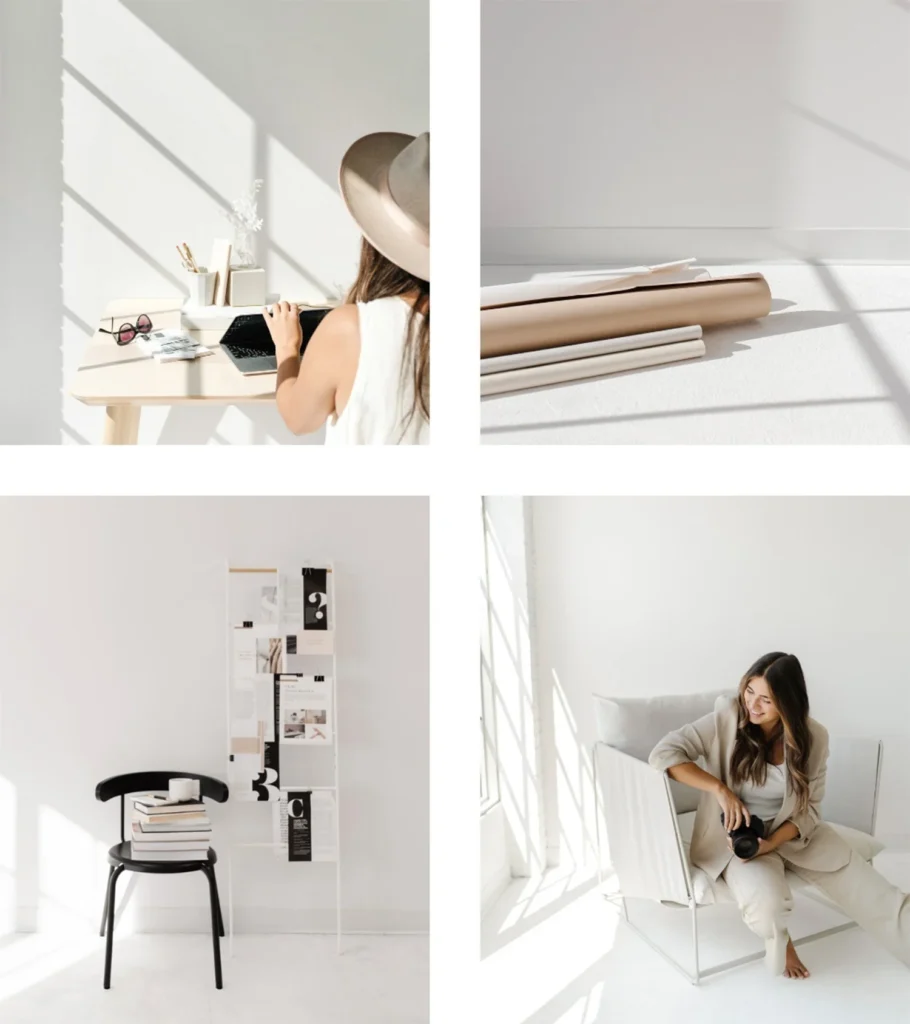
You can use presets to make a photo look bright and airy, or dark and moody. You can even find winter options to make snow look white, or landscape elements to make grass look greener. The best part is that you can use these editing tools on your mobile device anywhere you go.

Understanding Lightroom Mobile Presets (DNG Vs. XMP)

Understanding Lightroom Mobile Presets (DNG Vs. XMP)

Before we start the steps, we need to talk about file types. This is the part where many people get confused, so we will keep it simple.

There are two main types of files you will see when you look for presets.

  1. XMP Files: These are the standard files for Lightroom Classic and Lightroom Desktop. XMP files are very small text files that tell the computer what settings to use. If you use the Lightroom desktop app on your computer, you use the XMP format.
  2. DNG Files: This stands for “Digital Negative.” This is a special type of photo file. To the Lightroom mobile app, a DNG file looks just like a photo. However, this photo has the edit settings hidden inside it.

If you are using the free version of the Lightroom app, you cannot import XMP files directly.

You must use DNG files. When you download mobile presets, you are usually downloading a DNG image. You add this image to your Lightroom library, and then you copy the settings from it. This is the trick to get import presets to Lightroom Mobile for free.

How to Add Presets to Lightroom Mobile Using DNG Files (No Subscription Required)

How to Add Presets to Lightroom Mobile Using DNG Files?

This is the most common way to add presets if you do not pay for an Adobe subscription.

This works for the free app on both iPhone and Android.

Step 1: Download and Unzip the Preset Files on Your Phone

First, you need to get the files onto your phone. When you buy or download a preset pack, it usually comes as a zip file.

  1. Click the download button on the website or email where you got the presets.
  2. If you have an iPhone, the file will go to your Files app. If you are on Android, it usually goes to your “My Files” or “Downloads” folder.
  3. You cannot open a zip file in Lightroom directly. You must unzip it first.
  4. Go to your files app or file manager. Tap on the zip file. Your phone should automatically unzip it.
  5. Now you will see a folder. Open it, and look for files that end in “.dng“. These are your preset files. They might look like black or blank images in your folder. Do not worry; this is normal for DNG files.

If you have trouble downloading directly to your phone, you can download them to a computer first. Then, upload them to Google Drive or Dropbox. Open the Google Drive app on your phone and download the files from there.

Step 2: Import the DNG Files Into the Lightroom App

Now that the files are unzipped, it is time to open Lightroom Mobile.

  1. Open the Adobe Lightroom mobile app on your phone.
  2. Make sure you are in the Lightroom library view.
  3. Look at the bottom of the screen. You will see a blue button with a plus sign (+) and a photo icon. This is how you add photos.
  4. Tap that button. You want to add photos from your camera roll or files.
  5. If your DNG files are in your camera roll, select them. If they are in your Files app, tap “From Files” and locate the folder you previously unzipped.
  6. Select the DNG files. You can select more than one at a time.
  7. Tap “Add” or “Import.”

Now, you will see new photos in your “All Photos” list. They might have a little “RAW” badge on them. These are your mobile presets.

Step 3: Create and Save the Preset Settings

Currently, the preset is simply a photo in your library. We need to turn it into a saved preset so you can use it on other pictures.

  1. Tap on one of the DNG photos you just imported to open it in edit mode.
  2. Look at the top right corner of the screen. You will see three little dots. Tap on those dots.
  3. A menu will pop up. Look for the option that says “Create Preset.”
  4. Tap “Create Preset.” This will take you to the new preset screen.
  5. Here, you need to give your preset a name. Use the name from the pack, like “Summer Glow 01.”
  6. Below the name, you will see a spot for a preset group. By default, it might say “User Presets.”
  7. Tap on the preset group box. You can choose to save it in “User Presets” or create a new preset group. We suggest creating a new group to keep things organized.
  8. Select which settings to save. Usually, you leave all the boxes checked. This saves the light, color, and detail settings.
  9. Tap the checkmark icon at the top right corner to save.

Congratulations! You have successfully learned how to add presets to Lightroom Mobile. Repeat this step for every DNG file in the pack.

Step 4: Organizing Your New Presets Into Groups

If you download many presets, your list can get messy. Organizing them is key. When you are in the new preset screen, you see the create new preset group option. Use this! If you bought a “Winter Pack,” make a group called “Winter Pack.”

To manage them later:

  1. Open any photo in edit mode.
  2. Scroll to the bottom menu until you find the presets tab. Tap it.
  3. Tap the name of the group at the top of the presets panel.
  4. Here you can see all your groups. You can rename them or move presets around.

A good organization gives you instant access to the right look for your photo without scrolling forever.

How to Add Presets Via Desktop Sync (Creative Cloud Subscribers Only)

How to Add Presets Via Desktop Sync?

If you have a paid subscription and use lightroom classic or lightroom cc on your computer, this method is much faster. You do not need DNG files. You can use the XMP files.

Importing XMP Presets to Lightroom Desktop

  1. Open lightroom classic on your computer.
  2. Go to the develop module.
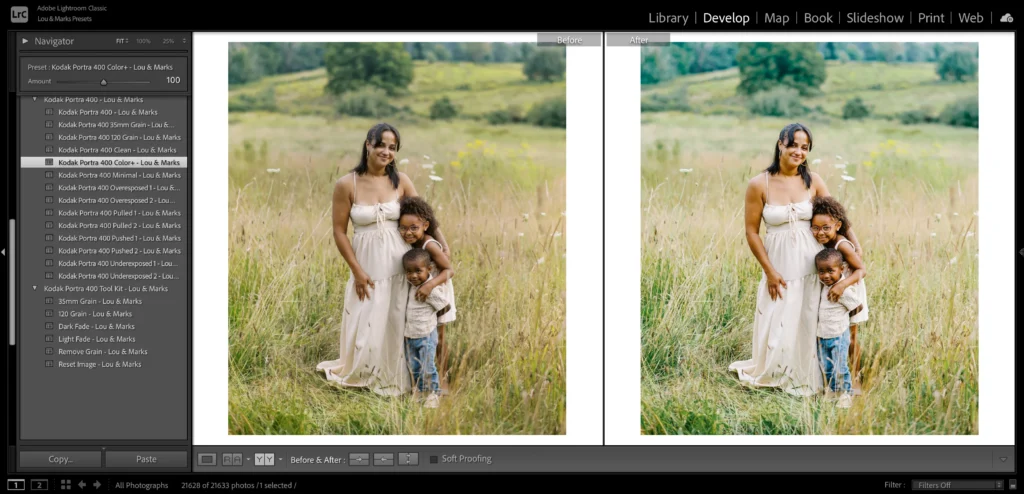
  3. Look at the left side for the presets panel.
  4. Click the plus (+) icon at the top of the panel.
  5. Choose “Import Presets.”
  6. Find the zip file or the unzipped XMP files on your computer.
  7. Click “Import.”

The presets will now appear in your list on the desktop.

Syncing Presets to the Mobile App Via the Cloud

This is where the magic of the Adobe account comes in.

  1. Make sure you are signed in with the same Adobe ID on both your computer and your mobile device.
  2. Ensure that sync is turned on in the top right corner of Lightroom Classic (click the little cloud icon).
  3. The computer will upload the presets to the cloud storage.
  4. Now, open Lightroom Mobile on your phone.
  5. Wait a few minutes. The app will talk to the cloud.
  6. Open a photo and go to the presets tab. Your new presets group from the desktop will automatically appear there.

This is very easy because you do not have to deal with DNG files or manual saving. It fixes the issue where Lightroom import presets are not showing up because the cloud does the work for you.

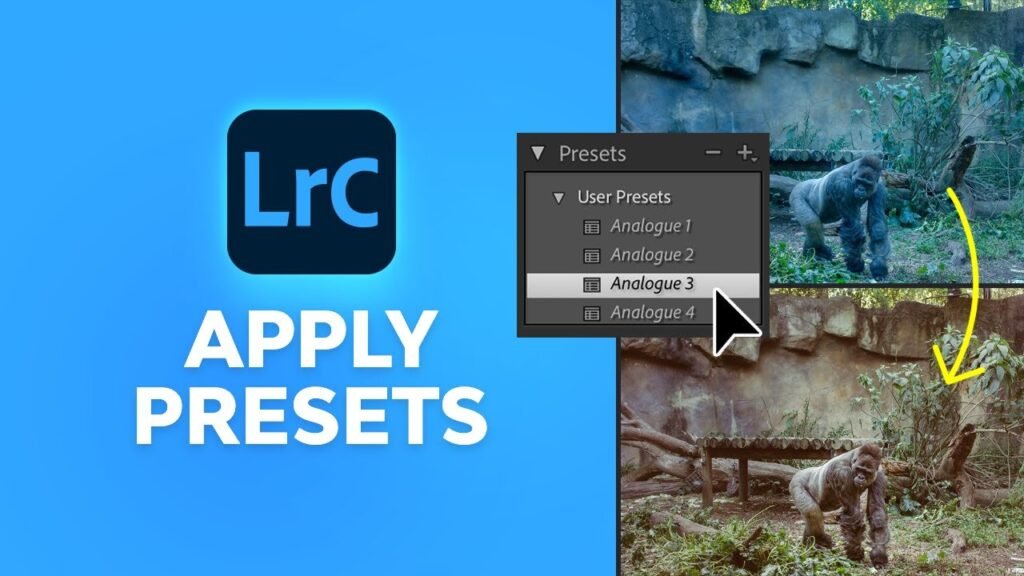
How to Apply Your New Presets to Your Photos?

How to Apply Your New Presets to Your Photos?

Now that you have learned how to use presets in Lightroom Mobile, let’s edit a photo!

  1. Open Lightroom and choose a photo from your library that you want to edit.
  2. Look at the toolbar at the bottom of the screen. You might need to slide the bar to the left to see more tools.
  3. Tap on the presets icon. It looks like two overlapping circles.
  4. This opens the presets panel.
  5. Tap the name of the group at the top to select your new group where you saved your presets.
  6. You will see a list of your presets. Tap on one to see how it looks.
  7. You can try different ones. Maybe “Vintage 1” looks better than “Vintage 2.”
  8. Once you pick one, tap the checkmark at the bottom of the screen.

After applying the preset, you can still make changes.

Maybe the photo is too bright. Go to the “Light” tab and lower the exposure. A preset is just a starting point. You can also use the versions of Lightroom features to save different edits of the same photo so you can compare them later.

Troubleshooting: Why Can’t I See My Presets?

Troubleshooting: Why Can't I See My Presets?

Sometimes things go wrong. If you are thinking, “can t import presets to lightroom mobile,” check these tips.

  1. “Lightroom import presets not showing up” Did you save them correctly? Remember, if you use the free app, you must open the DNG file and click “Create Preset.” Just adding the DNG photo to your Lightroom library does not add it to the presets menu automatically. You have to do the manual step.
  2. Wrong File Format: If you try to import XMP files or lrtemplate files directly to the mobile app without a subscription, it will not work. The free app on the phone only understands DNG files for importing settings. Lrtemplate files are very old files for older Lightroom desktop versions. You cannot use them on mobile.
  3. Sync Issues: If you are a subscriber and your presets from the desktop are not showing on the phone, check your internet. You need a good connection for the cloud storage to sync. Also, check that your Adobe account is the same on both devices.
  4. Search Issues Sometimes you just can’t find them. With the help of Adobe Sensei, Lightroom tries to organize things, but sometimes user presets get hidden. Check the “User Presets” group. Also, make sure you didn’t accidentally hide the group in the “Manage Presets” menu.

FAQ’s:

Do I Need A Paid Adobe Subscription to Use Presets on Lightroom Mobile?

No, you do not. You can use the free version of the app. You just need to follow the method using DNG files. You can get the app from the App Store (iPhone) or Google Play (Android) for free.

Why Are My Preset Files Showing Up As Black Or Blank Images?

This is very common. When you look at DNG files in your camera roll or files app, your phone might not know how to display them, so it shows a blank square. Do not worry. Once you open Lightroom and import them, the image will appear correctly.

Can I Use Standard Desktop (.xmp or .lrtemplate) Presets on the Free Mobile App?

Not directly. You cannot just copy an XMP format file to your phone and open it in the free app. You would need to use a computer to apply that XMP to a photo, export it as a DNG, and then send that DNG to your phone. Or, ask the seller for the mobile preset version (DNG).

Where Do My Presets Go After I Save Them?

They live inside the Lightroom app. When you are in edit mode, tap the presets tab. Tap the group name at the top. You will see your preset group list there. They are stored safely in the app data.

Will Adding Presets Lower the Quality Of My Photos?

No. Lightroom presets only change the settings (like contrast and color). They do not change the resolution or quality of your original image file. Your photos will remain sharp and high quality.

Conclusion

We hope this guide has helped you understand how to add presets to Lightroom Mobile.

At Designers Choice, we believe that everyone should have the ability to create beautiful images. Whether you are using import presets for Lightroom mobile iPhone methods or import presets for Lightroom mobile (Android) steps, the result is the same: stunning photos in less time.

By using preset files, you can turn a simple snapshot into a professional-looking image. You do not need to be a tech wizard. You just need to follow the steps to unzip the zip file, import the DNG files, and save your settings.

Now that your presets folder is full of great looks, it is time to get creative. Go out, take photos, and use your new editing tools. Remember to play with the settings. Use the auto option or auto settings if you get stuck, and then apply your preset.

Next Step: Would you like us to create a guide on how to make your own custom presets from scratch to sell or share with friends? Let us know!

Happy editing from the Designers Choice team.

Categories
Canva

The Ultimate Guide to Canva Stock Images: Library, Licensing, and Tips

At Designers Choice, we know how hard it can be to turn a good idea into a real design. We have spent years working on projects, and we know that finding the right materials is a big part of the job. You want your work to look professional, but you also want the process to be easy.

That is why we are here to help. Our goal is to give you the best advice and tools so you can create things that you are proud of.

One tool that has changed the way many people work is Canva.

It is a popular graphic design tool that helps both beginners and professionals. A huge part of what makes it so useful is the library of Canva stock images. These photos can help you make a website, a poster, or social media posts look amazing without needing a camera.

In this article, we will talk about everything you need to know about these images. We will answer the big question: can i use canva stock images on my website? We will also explain how to find the best photos, how to edit them, and what the rules are for using them.

We want to give you the knowledge you need to build your own creative projects with confidence.

What Are Canva Stock Images and Where Do They Come From?

What Are Canva Stock Images and Where Do They Come From?

Canva stock images are a large collection of photos that you can use in your designs.

When you open Canva, you can see a tab called “Photos” or “Elements” on the side. This is where the magic happens.

You do not need to go to different websites to find pictures. They are all right there inside the tool. These images come from many different places.

Some are taken by photographers who work directly with Canva.

These people are often called Canva contributors. They take high-quality photos and upload them to the platform so that users can use them.

Other images come from partners that Canva works with. This mix of sources means you have millions of options to choose from.

The Difference Between Canva Free and Canva Pro Libraries

When you use Canva, you will notice that some photos are free and others have a crown icon on them.

This is the main difference between the free version and the paid version.

Canva Free gives you access to thousands of photos that cost nothing to use.

You can put them in your designs, save them, and share them. These are great for people who are just starting or for small businesses with a tight budget. You do not need to pay any money to use these Canva images. However, there is also Canva Pro. This is a paid subscription.

If you become a paid subscriber, you get unlimited access to the full library. This includes millions of premium stock photos that free users cannot use without paying a fee. Canva Pro users often find that these paid images look more unique and professional. If you see an image with a crown, it is a Canva Pro element. If you are on the free plan, you can still use it, but there will be watermarks on it until you pay for it.

Integrations With Pexels and Pixabay

You might not know this, but Canva works with other big stock photo sites too. Two of the most famous ones are Pexels and Pixabay.

These sites offer free content that is high quality. Canva has integrated these libraries directly into its system.

This means you can search for stock photography from Pexels and Pixabay without leaving your design tab. It is very convenient.

You do not have to open a new tab, search for a photo, download it, and then upload it back to Canva.

You just search, click, and the photo appears on your canvas. This saves a lot of time in the design process. It gives you even more choices for free content to use in your marketing materials or personal projects.

How to Find High-Quality Canva Stock Images For Your Designs?

How to Find High-Quality Canva Stock Images For Your Designs?

Finding the right picture is not always easy because there are so many options. Sometimes, you might feel lost in the millions of photos. But do not worry. We at Designers Choice have some tricks to help you find the perfect image quickly.

Using Search Keywords and Filters Effectively

The first step is to use the right words in the search bar. This is called a keyword. If you just type “dog,” you will get thousands of results.

But if you type “happy dog running in park,” you will get results that are much closer to what you want. Be specific with your words.

You should also use the filter tool. This is a button that looks like sliders at the top of the search bar. When you click it, you can sort the images by color, orientation (square, horizontal, or vertical), and price (Free or Pro). For example, if your brand uses the color blue, you can select the blue color filter. Then, Canva will only show you images that have blue in them. This helps you find images that fit your style perfectly.

How to Find “Secret” Brand Codes For Specific Aesthetics?

There is a cool trick that many designers use to find images that look similar. It involves using brand codes. Every photographer or company that puts images on Canva has a specific code. If you find a photo you really like, you can find more photos by the same person.

To do this, click on the three dots () on top of the image. A menu will pop up. You will see the name of the creator.

If you click on their name or the code that starts with “brand:“, Canva will show you all the other graphics and photos they have made.

You can save this code for later. You can also search for these codes in the search bar to go straight to that collection. This is a great way to keep your look consistent across all your social media posts.

Browsing Trending and Seasonal Collections

Another way to find great Canva stock images is to look at the collections. Canva groups photos together based on themes. For example, during Christmas, they will have a collection of holiday photos.

In the summer, they will feature beach and sun photos. You can find these collections on the main photo page.

Browsing these folders is a good way to get inspiration if you are not sure what you are looking for. It helps you stay up to date with visual trends.

This is very useful for creating marketing materials that feel fresh and relevant to your audience.

Understanding the Licensing of Canva Stock Images

Understanding the Licensing of Canva Stock Images

This is a very important part. Many people ask, “can i use canva stock images on my website?” The short answer is yes, but you need to know the rules. This is called the licensing agreement.

Commercial Use Vs. Editorial Use

Most of the time, you are using images for commercial purposes. This means you are using the image to help sell something, promote a business, or on a business website. Canva content allows this. You can use the photos in your ads, on your website, and in your brochures.

This applies to both free content and Pro content, as long as you follow the rules. However, there is something called “Editorial Use.” These are images that can only be used for news or educational stories. They usually feature famous people or recognizable brands.

You cannot use these images to sell a product. For example, you cannot take a photo of a famous actor marked for “Editorial Use” and put it on a t-shirt to sell. You need to check the information on the photo to see if it has any restrictions.

Usage Rights For Print on Demand (POD)

If you want to sell products like t-shirts, mugs, or posters (this is called Print on Demand), the rules are strict. You cannot just take a single stock photo, put it on a shirt, and sell it. That is not allowed.

To sell a design with stock images, you must make a “unique design.”

This means you have to combine the photo with other elements like text, illustrations, or other graphics. The final design must be your own creation. You cannot just resell the stock photo as it is. This protects the original photographers and creators who own the rights to the image.

Copyright Rules For Social Media Posts

For social media, the rules are very friendly. You can use Canva stock images in your posts for Instagram, Facebook, Pinterest, and more. You do not need to pay extra royalties every time people see your post.

Once you create a design in Canva and export it (save it as a file), you have a license to use that specific design. This gives you peace of mind knowing that your business page is safe. Just remember, you cannot sell the image file itself to others.

You are sharing your design, not selling the raw photo.

How to Edit and Customize Canva Stock Images?

How to Edit and Customize Canva Stock Images?

One of the best things about Canva is that it is not just a place to find photos; it is a place to edit them too. You can change a stock photo to make it look unique for your brand.

Removing Backgrounds With One Click

This is one of the most popular features for Canva Pro users. It is called the Background Remover.

Sometimes you find a perfect picture of a person or a product, but you do not like the background. With a Canva Pro account, you can click on the image, select “Edit Photo,” and then click “Background Remover.”

The tool uses AI (Artificial Intelligence) to erase the background instantly. You are left with a clear subject on a transparent background. You can then put this subject on top of any color or pattern you want.

This is perfect for making logos or clean product images.

Applying SmartMockups and Filters

SmartMockups are a great way to show off your designs.

Let’s say you created a nice image and you want to see what it looks like on a computer screen or a t-shirt. You can use the SmartMockups feature.

You just select your image and choose a mockup. Canva will wrap your image onto the object automatically. It looks very realistic.

You can also use filters to change the mood of a photo. If your brand uses warm colors, you can add a “Summer” or “Solar” filter to all your canva stock images. This makes them look like they belong together.

Using Magic Edit and AI Tools on Stock Photos

Canva has added new tools that use AI. One of them is called Magic Edit. This tool lets you change a specific part of a photo.

For example, if you have a picture of a man holding a red rose, but you want him to hold a blue flower, you can use Magic Edit. You just brush over the rose and type “blue flower” in the text box. The AI will change the rose to a blue flower while keeping the rest of the photo the same.

This allows you to customize stock photos in ways that were impossible before, without expensive software like Photoshop.

Why You Should Choose Canva Stock Images Over Traditional Stock Sites?

Why You Should Choose Canva Stock Images Over Traditional Stock Sites?

There are many websites where you can buy photos. So, why should you use Canva? We at Designers Choice believe there are two main reasons: cost and convenience.

Cost Comparison: Canva Pro Vs. Stock Subscriptions

Traditional stock photo sites can be very expensive.

Some charge you a lot of money for just one photo. Others ask for a very high monthly fee, and you only get a few images.

Compared to that, a Canva Pro license offers great value. When you pay the monthly fee for Canva Pro, you get unlimited access to millions of photos, videos, and fonts. You do not have to pay extra for each picture.

For small businesses and freelancers, this saves a huge amount of money. You get high-quality premium stock photos for a fraction of the cost of other sites.

The Convenience of the Integrated Design Workflow

The biggest benefit is how easy it is. In the past, you had to go to a website, search for a photo, pay for it, download it, and then upload it to your design tool. This took a lot of time.

With Canva, everything is in one place. You search, drag, and drop. You can try ten different photos in seconds to see which one looks best.

This speeds up your design process significantly. You can move from an idea to a finished PDF or social post very quickly.

Tips For Customizing Canva Stock Images to Fit Your Brand

Tips For Customizing Canva Stock Images to Fit Your Brand

You do not want your website to look exactly like everyone else’s.

Since many people use Canva, it is important to change the images a little bit to fit your style.

Using Filters and Adjustments

Never use a stock photo exactly as it is. Always make small changes. You can adjust the brightness, contrast, and saturation. If your brand is bright and colorful, increase the saturation. If your brand is calm and minimal, lower the saturation.

You can also use the “Blur” tool. If you want to put text over an image, you can blur the photo slightly. This helps the text stand out and makes the image look more like a background texture than a distracting photo.

Removing Backgrounds and Layering Elements

We mentioned the background remover before, but it is also a great design trick. You can take a person out of a stock photo and place them behind some text, but in front of a shape. This layering effect makes your design look 3D and professional.

You can also mix different elements. Take a stock photo of a desk, remove the background, and place it on top of a different colored background. Then add some illustrations or design elements around it. This creates a custom scene that no one else has.

Adding Brand Colors and Typography

The best way to make Canva stock images yours is to add your brand’s colors and fonts. You can place a colored shape over the photo and lower the transparency. This gives the photo a tint of your brand color.

Also, always use your specific fonts. When you add text to a stock photo, use the font that you use on your website. This connects the image to your brand identity. You can save these preferences in your Canva Pro account under the “Brand Kit” section.

This makes it easy to apply your style to any new Canva templates you start.

FAQ’s:

Are Canva Sock Images Free to Use For Commercial Projects?

Yes, you can use both free and Pro images for commercial purposes. This includes marketing, websites, and social media. However, you cannot sell the image file itself.

Why Do Some of my Canva Stock Images Have Watermarks?

If you see a crisscross pattern or the Canva logo on an image, it means it is a Canva Pro image and you are using a free account. To remove the watermark, you need to purchase the image or upgrade to a paid subscriber plan.

Is It Legal to Use Canva Pro Images If I Cancel My Subscription?

If you cancel your subscription, you can continue to use the designs you created and exported (downloaded) while you were a member. However, you cannot edit those designs or create new designs with Pro content after your subscription ends.

Can I Trademark A Logo That Uses Canva Stock Images?

No, generally you cannot. Because stock images and design elements are used by many people, you cannot claim exclusive rights to them. If you want a trademarked logo, you should use your own graphics or hire a designer to draw something from scratch.

Where Does Canva Get Its Stock Images From?

Canva gets images from its own community of Canva contributors and from partners like Pexels and Pixabay. They have a huge network of photographers and creators.

Can I Use Canva Stock Images For Logos?

You can use them in a logo for personal use or for a small business, but you cannot trademark that logo. Also, be aware that other people might use the same image in their logo too.

Do I Need to Give Credit to the Photographer When Using Canva Stock Images?

No, the content license agreement says you do not need to give credit. However, it is always nice to do so if you can, but it is not a legal requirement.

How Do I Find the Same Style of Images Again in Canva?

You can use the brand codes we talked about earlier. Or, you can click the “i” info button or the three dots on an image and select “See more like this.” This will show you similar photos.

What is the Difference Between “Free” and “Pro” Canva Stock Images?

Free content is available to everyone at no cost. Pro content is available only to those with a Canva Pro license or those who pay for the individual image. Pro images are often higher resolution and more unique.

Conclusion

Canva has made design easy for everyone. Their huge library of Canva stock images is a powerful resource for any designer, business owner, or student. Whether you are using the free version or you are a Canva Pro member, there are millions of photos waiting for you.

At Designers Choice, we believe that with the right tools, you can create anything. By using keywords, filters, and editing tools, you can find high-quality images and make them match your brand. Just remember to check the licensing rules, especially for logos and trademarks.

We hope this guide helps you feel more comfortable using stock photos.

Now, it is time to open Canva, browse the library, and start creating your next masterpiece. If you have questions, you can always check the disclaimer on their site or contact their support via email. Happy designing!

Categories
Photoshop

How to Add Image in Photoshop? A Step-by-Step Guide

Welcome to Designers Choice. We are a community that loves graphic design and creativity.

We know that starting a new project can feel big. You have a great idea, but you need to know how to put it on the screen. Adobe Photoshop is a strong tool for this. It helps you change photos and make art.

But sometimes, even simple things can look hard at first.

One of the most important things to learn is how to add an image in Photoshop. This is the first step for almost every design.

You might want to put a logo on a picture. Or maybe you want to combine various images to make something new.

If you do not know how to do this, you might feel stuck. But do not worry. We are here to help you.

At Designers Choice, we want to make things easy for you.

We believe that anyone can create amazing things with the right help. In this guide, we will show you different ways to put a picture into your work. Whether you are using a Mac or a PC, these steps will help you.

Let us start this journey together and make your creative ideas real.

Why Learning How to Add an Image in Photoshop is Essential?

Why Learning How to Add an Image in Photoshop is Essential?

Why do we need to learn how to add image in photoshop? Can we just use Microsoft Word? Well, Photoshop is special. It works with layers.

Imagine a sheet of paper. Now, imagine a clear plastic sheet on top of it. You can draw on the clear sheet without ruining the paper below.

This is how a new layer works in Photoshop.

When you bring a second image into your project, it usually goes onto its own separate layer. This is very good for photo editing. You can move the new image around without moving the background image. You can make the top image see-through. You can even cut parts of it out.

If you want to make a poster, a funny meme, or a nice card, you need to mix pictures. You need to know how to insert image in photoshop on top of the background. This skill lets you build a final image that looks professional. It is the key to all graphic design. Once you know this, you can do almost anything in the program. It opens the door to using blending modes, layer masks, and more. It is the most useful skill to have.

How to Add an Image in Photoshop Using Basic Methods?

How to Add an Image in Photoshop Using Basic Methods?

There are a few simple ways to get your picture onto the screen. We will look at the easiest ways first. You can choose the one that feels best for you.

Drag and Drop From File Explorer

This is the method many people use because it is very fast. It works just like moving files on your computer.

  1. First, open Adobe Photoshop and open your new photoshop document. You should see your white canvas or background layer.
  2. Next, open your computer’s file folder. On Windows, this is the File Explorer. On a Mac, it is the Finder.
  3. Find the image file you want to use.
  4. Click on the file with your mouse button and keep holding the button down.
  5. Drag the file over to the Photoshop window.
  6. Let go of the mouse button when the cursor is over the canvas.

The computer will think for a moment. Then, you will see your image appear. It will have a box around it with corner handles. This box creates a Smart Object by default in newer versions. Press Enter on your keyboard to finish. Now you have a new layer with your picture on it.

File > Place Embedded Command

This is another easy way to add a photo. It is good if you like using menus.

  1. Look at the top of the screen where the words are. Click on the word “File.”
  2. A long menu will drop down. Look for “Place Embedded.” Click on it.
  3. A window will open showing your files. Browse to find your original photo.
  4. Click on the image and then click the “Place” button.

This puts the image into your Photoshop document. It is called “Embedded” because the image is now stuck inside your project file. If you delete the original image from your computer later, your design will still have the picture. This is a very safe way to work.

Copy and Paste From Clipboard

Sometimes, you might find a picture on the internet or in another open document. You can copy it just like text.

  1. Open the image you want to use. If it is in a web browser, right-click and choose “Copy Image.”
  2. If the image is already open in another tab in Photoshop, press Ctrl + A (to select the entire image) and then Ctrl + C (to copy).
  3. Go to your main project tab where you want the image to go.
  4. Press Ctrl + V on your keyboard.

This will paste the pixels directly. It creates a new layer above your background layer. Note that this method usually pastes pixels, not a Smart Object, so be careful if you resize it many times.

How to Add an Image in Photoshop as a Smart Object?

How to Add an Image in Photoshop as a Smart Object?

You might hear the term Smart Objects a lot. What are they? A Smart Object is like a protective box for your picture. When you learn how to add an image to another image in photoshop, using Smart Objects is a pro tip.

Benefits of Using Smart Objects

When you change the size of a normal picture (made of pixels), it can get blurry.

If you make it small and then big again, it loses image quality. It looks bad.

A Smart Object is different. It keeps the original image data safe inside. You can make it tiny, then huge, then tiny again. It will always look as sharp as the start. This is called “non-destructive” editing.

It means you do not destroy the original quality. Also, if you use a Smart Object, you can change the original file later, and it will update in your design. This is great if you are working on a logo that might change.

Converting Existing Layers to Smart Objects

If you pasted an image and it is just normal pixels (a raster layer), you can turn it into a Smart Object easily.

  1. Look at the layers panel on the right side of your screen.
  2. Find the layer that has your new image.
  3. Right-click on the gray part of that layer (not the thumbnail picture, but the name).
  4. A menu pops up. Look for “Convert to Smart Object.” Click it.

Now you will see a small icon in the corner of the layer thumbnail. This means it is safe. You can resize it without worry. This is one of the best simple tasks you can do to keep your work looking good.

How to Insert an Image Into A Specific Shape Or Selection?

How to Insert an Image Into A Specific Shape Or Selection?

Sometimes you do not want a square picture. Maybe you want your photo to be a circle, or a star, or fit inside a text letter. This is fun to do.

Using Clipping Masks to Fit Images

A clipping mask is like looking through a window. The bottom layer is the shape of the window. The top layer is the view outside.

  1. First, make a shape. You can use the Shape Tool to make a circle on a new layer.
  2. Next, bring in your second image. Make sure this image layer is above the circle layer in the layer panel.
  3. Move your mouse between the two layers in the panel. hold down the Alt key (or Option key on Mac).
  4. You will see a little square arrow icon appear. Click the mouse button.

Snap! Your image will jump inside the circle. The parts of the image outside the circle are hidden, not deleted. You can use the move tool to slide the picture around inside the circle until it looks perfect. This is a very cool trick for graphic design.

Using the “Paste Into” Feature

This is an older way, but it still works for specific selections.

  1. Use a selection tool (like the Marquee tool) to draw a box or circle on your canvas. You will see “marching ants” (dotted lines).
  2. Copy your image from somewhere else (Ctrl + C).
  3. Go to “Edit” in the top menu.
  4. Go down to “Paste Special” and choose “Paste Into.”

This creates a layer mask automatically. The image only shows where you drew the selection. You can see a black and white box next to your image in the layers panel. The white part is where the image shows. The black part hides the image.

Editing Your Image After Adding It

Editing Your Image After Adding It

Once you know how to add a photo to the background in Photoshop, you need to make it fit. Usually, the new photo is too big or too small.

Resizing and Transforming Your Image

To change the size, we use “Free Transform.”

  1. Click on your image layer in the layer panel.
  2. Press Ctrl + T on your keyboard.
  3. You will see a box with corner handles around your picture.
  4. Click on a corner handle and drag it. If you want to keep the shape correct (so it does not look squished), most new versions of Photoshop do this automatically. If you have an old version, you might need to hold the Shift key.
  5. You can also move your mouse outside the corner to spin or rotate the image.
  6. When you like the size, press Enter.

This helps you fit the new image onto your canvas size perfectly.

Rasterizing Smart Objects For Editing

Sometimes, you want to use the eraser or a brush on your image.

If you try to do this on a Smart Object, Photoshop will give you an error. It says you cannot edit the smart object directly.

To fix this, you must “rasterize” it. This turns the smart layer back into simple pixels.

  1. Right-click on the layer name in the layer panel.
  2. Choose “Rasterize Layer.”

Now it is just paint on a digital sheet of paper. You can erase parts of it or draw on it. But remember, you lose the “smart” protection.

If you make it small and then big again, it will lose image quality. Only do this if you really need to use the eraser or brush.

Troubleshooting When You Add an Image In Photoshop

Troubleshooting When You Add an Image In Photoshop

Sometimes things go wrong. It is okay. Here are some common problems and how to fix them.

Fixing “File Format Not Supported” Errors

You try to open a file, but Photoshop says “No.” This happens if the file format is strange. Photoshop likes JPG, PNG, and PSD files.

If you have a file type like “WEBP” (from the internet) or a specific camera raw file, an old Photoshop might not know it.

To fix this, you can open the image in a simple program like Paint or Preview first. Then save it as a JPG.

Now, try to add it to your Photoshop document. It should work.

Resolving Layer Visibility Issues

I added the image, but I cannot see it!

Don’t panic. Check your layers panel.

  1. Is the new layer below the background layer or another big image? In Photoshop, the layer at the top covers the layers at the bottom. Click and drag your image layer to the very top of the list.
  2. Look for the little eye icon next to the layer. If the eye is gone, the layer is invisible. Click the box to bring the eye back.
  3. Did you move it off the canvas? Press Ctrl + T. If you see the handles far away, use the move tool to drag them back to the center.

Handling Oversized Or Undersized Images

If you add a photo and it is huge, you might only see a tiny patch of color. This means the image resolution is much bigger than your canvas size.

  1. Press Ctrl + 0 (zero). This zooms out so you can see everything.
  2. Press Ctrl + T to see the edges. Shrink it down using the corner handles.

If the image is tiny, be careful. Making a tiny image huge makes it look blocky or blurry. It is better to find a larger original photo if you can.

Advanced Techniques After You Add an Image in Photoshop

Advanced Techniques After You Add an Image in Photoshop

Now you have your images. Let’s make them look amazing.

Using Layer Masks For Seamless Blending

A layer mask is the best way to mix images. It is better than erasing. Why? because if you erase, the pixels are gone forever. With a mask, you just hide them.

  1. Click your top image layer.
  2. Click the layer mask icon at the bottom of the layer panel (it looks like a rectangle with a circle inside).
  3. A white box appears next to your layer.
  4. Choose the Brush tool. Pick the color black.
  5. Paint on the image. The black paint makes the image disappear!
  6. If you make a mistake, switch your paint color to white. Paint over it, and the image comes back.

This is great for making a white background transparent or blending two faces.

Adjusting Blend Modes and Opacity Settings

At the top of the layer panel, there is a box that says “Normal.”

This is the blend mode. Click it and try others like “Multiply,” “Screen,” or “Overlay.”

  1. Multiply makes the white parts clear. It creates a dark mix.
  2. The screen makes the black parts clear. It creates a light mix.
  3. Overlay mixes the colors nicely.

Next to that is “Opacity.” This controls how solid the layer is. If you lower the opacity of the top layer to 50%, you can see the background image through it. This is how you create a ghost effect or a gentle texture overlay image.

FAQ’s:

What File Formats Can I Use When I Add an Image in Photoshop?

You can use many types. The most common are JPEG and PNG. PNG is great because it can have a clear background. You can also use TIFF, GIF, and PSD. If you use a new file from a camera, it might be RAW, which Photoshop can also handle.

How Do I Resize an Image After Adding it to Photoshop?

Select the layer in the layer panel. Press Ctrl + T on your keyboard. Grab the corner handles and drag them. Hold Shift if you want to keep the shape the same (on older versions). Press Enter when you are done.

Why Can’t I Use the Brush Tool Or Eraser on the Image I Just Added?

It is likely a Smart Object. Look for a small icon on the layer thumbnail. To draw on it, right-click the layer name and choose “Rasterize Layer.” Now it is a regular pixel layer.

Why Can’t I Add an Image in Photoshop – Getting an Error Message?

Your scratch disks might be full (your computer’s hard drive is full). Or the file format is broken. Try saving the image again or restarting Photoshop.

How Do I Add Multiple Images in Photoshop At Once?

You can go to your file explorer, select various images by holding the Ctrl key, and drag them all onto your canvas. You will have to press Enter for each one to place them as separate layers.

How Do I Open an Image as a New Layer in an Existing Project?

Do not use “Open.” Use “Place Embedded” from the File menu. Or, open the image in a separate tab, copy it, and paste it into your main project. This puts it on a new layer.

What is the Difference Between “Place Embedded” and “Place Linked”?

Embedded” puts the whole file inside your Photoshop document. The file gets bigger, but it is safe. “Linked” just looks at the file on your hard drive. If you move or delete the original file on your computer, Photoshop will lose it. Linked keeps your Photoshop file size small.

How Can I Add an Image in Photoshop Without Losing Quality?

Always bring it in as a Smart Object. Do not rasterize it unless you have to. Avoid making a small image big. Start with a high-quality original photo.

Conclusion

We hope this guide helps you feel more ready to create. Learning how to add an image in Photoshop is the start of a fun adventure. You can now mix your own images, create a cool image overlay, or just fix up a family photo.
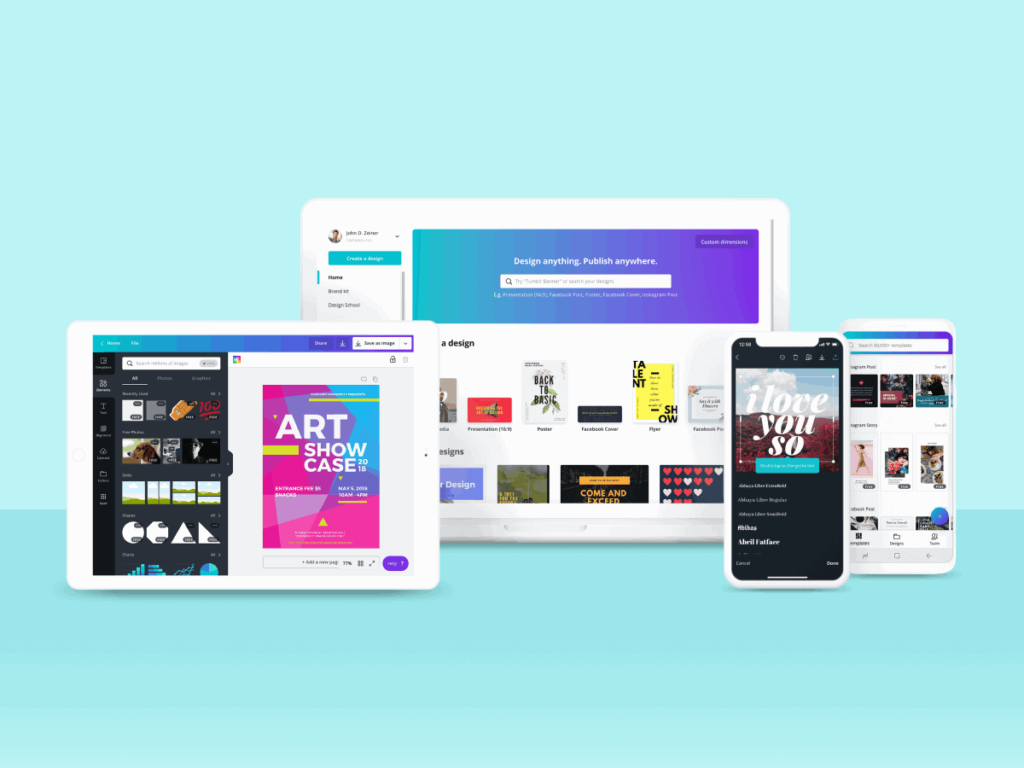
Remember, every expert started as a beginner. Do not be afraid to make mistakes. That is what the “Undo” button (Ctrl + Z) is for!

At Designers Choice, we want you to play with the tools. Try the move tool. Test different blending modes. See what happens when you add a drop shadow or use the gradient tool. The more you practice, the easier it gets.

Soon, adding a second image or working with a white layer mask will feel as natural as writing on a sheet of paper. Keep creating, keep learning, and trust your ideas. Your final result will be something to be proud of. Thank you for reading, and happy designing!

Categories
AI

Wepik AI Presentation Maker: Create Stunning Slides in Seconds

At Designers Choice, we know that turning your ideas into a great looking presentation can be hard work.

You have the big idea, but making the slides look good takes a lot of time and effort. We have spent years working in design, so we understand the struggle of finding the right pictures, fonts, and layouts. That is why we want to talk about a tool that is changing the game for everyone.

This tool is the Wepik AI Presentation Maker. It is designed to help you make professional presentations without needing advanced design skills.

Whether you are working on a school project or marketing materials for a business, this tool can help.

Our mission is to help you find the best ways to create amazing things. We believe that creativity should be fun, not stressful.

In this article, we will look at how this AI tool works and why it might be the best AI presentation maker for you.

We want to show you how artificial intelligence can make your presentation creation process faster and easier than ever before.

What is the Wepik AI Presentation Maker?

What is the Wepik AI Presentation Maker?

The Wepik AI Presentation Maker is a smart online tool that builds slides for you.

It uses artificial intelligence to read what you want and then creates a slide deck in seconds. Think of it like a helper that knows exactly how to design slides. You do not need to start with a blank white screen anymore.

Unlike older presentation software, this AI presentation maker does the heavy lifting. It picks the colors, finds the photos, and arranges the text.

It is part of the Wepik platform, which is known for helping people create social media posts, business cards, and other designs.

Now, they have used that same power for presentation creation.

From Text Prompt to Full Presentation Instantly

The magic of the Wepik AI Presentation Maker starts with a simple text prompt. A text prompt is just a sentence or two describing what you want.

For example, you could type, “A presentation about the history of space travel for a 6th-grade class.”

Once you hit the button, the AI presentation generator goes to work. It reads your words and understands the specific needs of your topic.

In just a few moments, it builds an entire presentation. It creates the titles, writes some of the text, and adds pictures.

It takes you from a simple idea to a full set of slides almost instantly. This is a great starting point for anyone who feels stuck.

Key Features of the Wepik AI Tool

Many key features make this tool stand out. First, it has a simple drag-and-drop interface. This means you can move things around easily with your mouse. If you do not like where a picture is, you just drag it to a new spot.

Another great feature is the image generator. Sometimes, you cannot find the perfect photo. This tool has an AI image generator built right in.

You can tell it to make a picture for you, and it will appear on your slide.

It also has a huge template library.

There are thousands of presentation templates to choose from. Whether you want something fun and colorful or serious and neat, you will find it.

Plus, you get access to design elements from Freepik and Flaticon, which are famous for high-quality graphics.

Who Should Use the Wepik AI Maker? (Students, Marketers, Businesses)

This presentation tool is great for many different people.

  • Students: If you have a school project due soon, this tool can save you. You can type in your topic, and the AI PPT maker will give you a great structure. You can then add your own facts and details.
  • Marketers: People who work in marketing need to make social media content and marketing materials often. This tool helps them make professional presentations that match their brand.
  • Businesses: For a business owner, time is money. Using an AI PowerPoint generator helps you get ready for meetings fast. You can create detailed reports or pitch decks without spending days on design. It allows team members to share ideas quickly and clearly.

How to Use the Wepik AI Presentation Maker: A Step-by-Step Guide

How to Use the Wepik AI Presentation Maker?

Using the Wepik AI Presentation Maker is very easy.

We have broken it down into simple steps so you can see exactly what to do. You do not need to be a computer expert to use this design tool.

Step 1: Enter Your Topic Or Text Prompt

The first thing you need to do is go to the Wepik AI website.
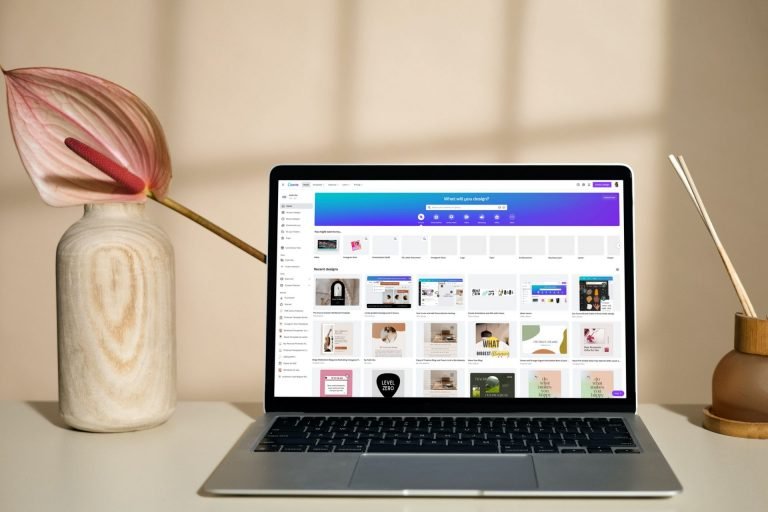
Look for the presentation maker. You will see a box where you can type. This is where you enter your text prompts.

Be clear about what you want. If you want a presentation about healthy eating, type “Tips for healthy eating for kids.”

The more details you give, the better the AI tool can understand. It uses these words to decide what pictures and text to put on your slide creation.

It is the most important part of the presentation creation process.

Step 2: Select Your Design Style and Tone

After you type your topic, you get to choose the look of your slides. The tool offers different styles.

You might see options like “Doodle,” “Simple,” “Elegant,” or “Geometric.” Think about who will see your presentation.

If it is for a fun class project, “Doodle” might be best. If it is for a business meeting, “Elegant” might be better. You can also pick the writing tone. You can ask the AI presentation tool to sound fun, professional, or informative. This helps the content generation match your needs.

Step 3: Generate and Review Your AI-Crafted Slides

Now comes the fun part. You click the button to generate the slides. The Wepik AI Presentation Maker will think for a few seconds.

Then, it will show you the entire presentation. You will see a specific number of slides created just for you.

Take a moment to look at them. Read the titles and look at the pictures.

You will see how the power of artificial intelligence has arranged everything. It usually gives you a very good draft right away.

It is exciting to see your words turn into visual slides so fast.

Step 4: Customize Your Presentation With the Wepik Editor

Even though the AI does a great job, you might want to change things. This is where the Wepik editor comes in.

It gives you extensive customization options.

You can change the colors to match your brand identity. You can swap out photos using the AI image generator or pick new ones from the library.

You can change the text if you want to say something different.

The tool allows for easy editing. You can add interactive elements or new design elements like stickers and icons.

It is designed to be flexible, so you can make the presentation truly yours.

Why Choose the Wepik AI Presentation Maker?

Why Choose the Wepik AI Presentation Maker?

There are many tools out there, like Google Slides and PowerPoint presentations. So, why should you choose Wepik AI? We believe there are several strong reasons why it is one of our favorite presentation tools.

Save Time With Automated Design

The biggest reason is time. Making a presentation from scratch can take hours. You have to think of the layout, find the art, and type all the text.

The Wepik AI presentation generator does most of this for you in minutes.

It automates the hard parts. This lets you focus on speaking and presenting, rather than just designing. For busy people, this ability to save time is huge. It turns a long task into a short one.

Access Millions of Resources (Freepik & Flaticon)

When you use Wepik, you are not just using one tool. You are getting access to a massive library.

Wepik is connected to Freepik and Flaticon. These are huge websites full of photos, icons, and drawings.

This means you have a wide range of templates and images to use. You do not have to search the internet for hours to find a good picture.

It is all right there inside the presentation tool. This makes your slides look high-quality and unique.

Maintain Brand Consistency With Your Brand Kit

For businesses, looking the same in every email and presentation is important. This is called brand consistency.

Wepik allows you to save your brand colors and logos. When you use the AI PPT generator, you can apply your brand kit.

This means every slide will use your specific colors and fonts. It makes your marketing materials look professional.

Your team members can all use the same brand kit, so everyone’s work looks like it comes from the same company.

Easy Editing and Customization

Some AI tools give you a result that you cannot change. Wepik is different. It offers customization options that are easy to use.

As we mentioned, it has a simple drag-and-drop interface. You can change the size of text, move images, or change background colors easily.

You have unlimited access to change the slides until they are perfect.

This ease of use makes it great for beginners and pros alike. You get the speed of AI with the control of a human designer.

Wepik AI Presentation Maker Vs. Traditional Presentation Tools

Wepik AI Presentation Maker Vs. Traditional Presentation Tools

We all know Google Slides and PowerPoint slides. They have been around for a long time.

But how does Wepik AI compare to these traditional presentation tools?

The Power of AI Vs. Manual Slide Building

In traditional tools, you start with a blank page. You have to build every single slide by yourself. This is called manual slide building.

It takes a lot of skill and time.

Wepik AI uses the power of artificial intelligence to skip that hard work.

It builds the base for you. You start with a finished draft instead of a blank page. While PowerPoint presentations are adding AI features, Wepik was built with AI in mind from the start.

The content generation is faster and more creative because of the AI.

Template Variety and AI-Powered Style Suggestions

Traditional tools have templates, but they often look the same. Everyone has seen the standard PowerPoint slide templates a million times.

Wepik offers a wide range of templates that look modern and fresh. Plus, the AI presentation maker suggests styles based on your topic.

If you type a fun topic, it gives you a fun style. If you type a serious topic, it gives you a serious style. This smart suggestion feature helps you find the right look faster than browsing through a list of old templates. It gives you different styles that fit your specific needs.

FAQ’s:

Is the Wepik AI Presentation Maker Free to Use?

Yes, Wepik offers a free plan. This free AI presentation maker lets you create slides without paying. You get access to many features and templates. There is also a Premium plan if you need more advanced options, but the free plan is very generous. It is a great way to try the tool.

How Does the Wepik AI Presentation Maker Work?

It works by using text prompts. You type in what you want, and the AI understands your language. It then looks through its library to find the best layouts and images. It puts them together to make a slide deck. It is like having a digital designer working for you in real time.

What Do Users Say About Wepik AI Presentation Maker?

Users often say it is one of the best AI tools for design.

They love the ease of use and how fast it is. Students like it for school project work because it is simple. Professionals like the customizable templates and how it helps with social media graphics too. Many people appreciate the free trial or free access options.

What Kind of Presentations Can I Create?

You can create almost anything. You can make business cards, social media posts, and of course, full slide decks. You can make pitch decks, educational lessons, detailed reports, or just a slideshow of photos. The use cases are endless.

Whether it is for work, school, or personal use, the tool adapts to what you need.

Conclusion

At Designers Choice, we want you to have the best tools to express your ideas.

The Wepik AI Presentation Maker is a powerful resource. It combines the speed of artificial intelligence with the quality of professional presentations. It takes the stress out of slide creation and lets you focus on your message.

From the AI image generator to the easy customization options, it has everything you need. It is a great alternative to Google Slides and PowerPoint presentations because it does the hard work for you.

Whether you are a student needing to finish a project or a business owner making marketing materials, this tool is worth trying.

We encourage you to try the free AI presentation maker today. Type in a prompt and see what happens. You might be surprised at how good your entire presentation looks in just a few minutes. With Wepik AI, creating beautiful designs is no longer hard; it is simple, fast, and fun.

Join the community of people using the best AI presentation maker to bring their visions to life.

Categories
AI

AI Flyer Maker: Your Tool For Eye-Catching Designs

At Designers Choice, we know that turning your ideas into a real flyer design can sometimes feel hard.

You might have a great idea for a new product launch or a big party, but you do not know how to make it look good on paper or a screen.

In the past, you had to hire a person to do the graphic design or spend days learning hard software. But now, things have changed. With the power of artificial intelligence, making professional flyers is easy for everyone.

An ai flyer maker is a smart tool that does the hard work for you. It uses the power of ai to look at what you want and builds a perfect flyer in seconds. You do not need to be an expert. You do not need expensive classes. You just need your idea and an ai tool.

We want to help you bring your vision to life. Whether you need marketing materials for your shop or social media posts for your personal brand, an ai flyer generator is the answer. It helps you make unique visuals that grab attention. At Designers Choice, we believe that everyone deserves to have top-quality designs. That is why we are talking about how an ai flyer creator can change the way you work. It takes the heavy lifting out of the creation process. You get to focus on your message while the AI generator handles the colors, layout, and design elements.

This article will show you how to use these tools.

We will talk about free AI flyer maker options and how to go from a simple text prompt to a finished design.

Let’s look at how you can make customizable templates work for you.

Why Choose Our AI Flyer Maker For Your Marketing?

Why Choose Our AI Flyer Maker For Your Marketing?

Marketing is very important for any business. If you want people to know about your business details, you need to show them. An AI flyer maker is the best choice for this. It is fast, easy, and looks great. Here is why you should use one for your marketing campaigns.

Save Hours with Automated Design Layouts

Time is money. When you run a business, you have a lot of things to do. You cannot spend five hours moving pictures around on a screen.

A traditional flyer creator might make you do everything by hand. You have to pick the font, draw the boxes, and line everything up.

This takes a long time. With an AI flyer maker, the creation process is automated. You give the tool some info, and it gives you a balanced layout right away. It knows where to put the headline, the image, and the contact details. It creates a flyer vision that looks organized.

You can save hours of work. Instead of struggling with a blank page, you start with a design that is almost done. This lets you make advertising campaigns much faster. You can make a flyer in the morning and post it on social media platforms by lunch.

No Design Skills Required

Many people think they cannot make a flyer because they are not artists. They worry that they do not have design skills. With an ai flyer generator, this does not matter. The tool has the skills for you.

The artificial intelligence knows what looks good. It understands how to match colors and which fonts are easy to read. You do not need to know about “white space” or “color theory.” The ai design engine does it all. It acts like a professional designer sitting right next to you.

You can make professional flyers that look like they cost a lot of money to make. Even if you have never done graphic design before, your output will look amazing. This is great for small businesses that cannot hire a full-time designer.

Cost-Effective Solutions For Small Businesses

Hiring a graphic designer is expensive. Buying big software packages like Photoshop can also cost a lot. For a small shop or a startup, this is a lot of money. An ai flyer maker is a very cost-effective choice.

Many tools offer a free plan or a free ai flyer generator option. This means you can start without paying anything. Even the paid versions are much cheaper than hiring a person. You get access to flyer templates, stock photos, and powerful tools for a low price.

This helps you keep your budget for other things, like buying stock or paying rent. It creates a level playing field.

Now, a small bakery can have marketing materials that look just as good as a big chain store. You get high value for a low cost.

Top Features of the Best AI Flyer Maker

Top Features of the Best AI Flyer Maker

Not all tools are the same. The best AI flyer maker will have special features that make your life easier.

At Designers Choice, we look for tools that offer these top benefits.

Text-to-Design Generation

This is a magical feature. It is often called ai flyer generator from text. You simply type what you want into a box. For example, you might type: “Make a flyer for a summer sale at a shoe store, use bright colors.” The ai writer and design engine work together.

The ai generator reads your words and builds the design. It picks images of shoes.

It chooses bright colors like yellow and red. It writes a catchy headline. This is the power of the text prompt. You describe it, and the AI builds it. This feature is perfect for when you have an idea but do not know how to start. It turns your words into digital flyers instantly.

Smart Brand Kit Integration (Logos, Fonts, Colors)

Your brand is your identity. When people see your flyer, they should know it is from you. The best tools have a brand kit. This lets you save your brand assets. You can upload your logo using an AI logo maker or your own file. You can save your brand colors and custom fonts.

When the AI flyer creator makes a new design, it uses these things automatically. It puts your logo in the corner. It uses your special shade of blue. This ensures brand consistency. Every promotional flyer you make will look like it belongs to your company.

You do not have to pick the colors every time. The tool remembers your brand identity for you.

One-Click Resize For Social Media

Today, you need to share your message everywhere. You need a printed flyer, but you also need a post for Instagram and Facebook. These social media platforms use different sizes. A printed flyer is tall. An Instagram post is a square.

A top AI flyer maker has a one-click resize feature. You make your perfect flyer once. Then, you click a button to change it to a square for Instagram or a tall rectangle for a story. The AI design moves the text and images to fit the new shape. It keeps the balanced layout.

This saves you from making the same design three times. It makes sharing on social media very fast.

Access to Millions of Stock Photos

A good flyer needs good pictures. But taking professional photos is hard. The best flyer creator tools give you access to millions of stock photos. You can search for anything. Need a picture of a happy family? A picture of a pizza? A beach at sunset? You will find it.

Some tools even have an ai image generator. If you cannot find the right photo, the AI can make one for you. This image generation creates unique pictures that no one else has. You can also upload your own product photos if you have them.

Having great images makes your flyer design look high-quality and trustworthy.

How to Use an AI Flyer Maker in 3 Easy Steps

How to Use an AI Flyer Maker?

Using these tools is very simple. We want to show you exactly how to do it. Here is the process to create custom flyer designs.

Step 1: Enter Your Text Prompt

First, you need to tell the AI what you want. Open the AI flyer maker. You will see a box to type in. This is where you put your text prompt.

Be specific. Tell the AI the business name. Tell it what the event is. For example: “Grand Opening for Designers Choice Coffee Shop. Saturday at 9 AM. Free coffee for the first 100 people.” The more detail you give, the better the result.

You can also say what style you like, such as “modern,” “vintage,” or “fun.” This helps the AI tool understand your mood.

Step 2: Customize the AI-Generated Template

After you hit enter, the tool will show you several options. These are flyer templates made just for you. Pick the one you like best.

Now, you can change it. Even though the AI did the heavy work, you can still add your touch. You can change the text content if there is a typo. You can swap the image for one of your product photos. You can change the colors to match your brand kit.

You can add a QR code so people can scan it to go to your website.

This step is easy. It is usually drag-and-drop. You can add design elements like shapes or icons. This ensures the flyer meets your exact needs.

Step 3: Download For Print Or Digital Sharing

Once you are happy with the look, it is time to save it. You can download for print if you want to hand them out. The tool will let you save it as a PDF or high-quality image. If you want to use it online, you can save it as a JPG or PNG. These are perfect for digital flyers.

You can email them or post them on social media. The quality will be sharp and clear. Now you have a finished piece of marketing ready to go.

Who Can Benefit From an AI Flyer Maker?

Who Can Benefit From an AI Flyer Maker?

Almost anyone can use these tools. At Designers Choice, we see many different types of people using ai flyer generator tools.

Here are a few groups that benefit the most.

Event Planners and Promoters

If you plan parties, concerts, or meetings, you need flyers fast. Event planners have to share event details quickly.

An AI flyer maker helps you create event flyers in minutes. You can make a flyer for the main event and different versions for social media. It helps you sell tickets and get people excited. The unique visuals help your event stand out from others.

Real Estate Agents

Selling houses requires great photos and clear information. Real estate agents use flyers to show off new homes.

You can put the house photo, the price, and your contact info on the flyer. An AI flyer maker can make the layout look very elegant.

It helps you look professional to buyers and sellers. You can create “Just Listed” or “Open House” flyers very fast.

Restaurant and Retail Owners

Shops and restaurants always have news. maybe you have a new product or a new menu item.

Maybe you are having a holiday sale. Restaurant and retail owners can use an ai flyer generator to tell customers about these things.

You can take a picture of your food or clothes and put it on a flyer. It helps drive foot traffic to your store. It is a key part of business promotions.

Educators and Non-Profits

Schools and charities need to spread the word, but they often have small budgets.

Educators and non-profits can use a free ai flyer maker to save money. You can make flyers for fundraisers, school plays, or community meetings.

It helps you share important information without spending money on a designer. The ease of use means volunteers can make the designs too.

How AI Flyer Makers Help Small Businesses in the USA?

How AI Flyer Makers Help Small Businesses in the USA?

In the USA, small businesses are very important. They need every advantage they can get. AI flyer makers are a powerful helper for these companies.

Quick Professional Design Without Graphic Skills

We talked about this before, but it is very true for US businesses. The market is competitive. Your marketing materials need to look good.

But you are busy running the business. You do not have time to learn adobe express or complex tools. The ai flyer maker gives you quick professional design. You look like a big company, even if it is just you. This builds trust with your customers. They see a nice flyer and think, “This is a good business.” It removes the barrier of needing design experience. You can compete with the big brands.

Mobile App Accessibility For On-the-Go Editing

Many business owners are not sitting at a desk. They are in the kitchen, on the construction site, or in the store.

Many ai flyer generator tools have mobile apps. This means you can make a flyer on your phone. You can take a photo of a new item, open the app, use the ai image generator, add some text, and post it. This mobile app accessibility is great for on-the-go editing.

You can do your marketing while you wait in line or take a break. It fits into your busy life perfectly.

AI Flyer Maker Vs. Traditional Graphic Design Tools

AI Flyer Maker Vs. Traditional Graphic Design Tools

You might wonder, “Should I use AI or the old tools?” Let’s compare an ai flyer maker with traditional design tools.

Traditional tools give you a blank screen. You have to draw every box.

You have to pick every font. This gives you total control, but it takes a lot of skill and time. You need to know how to balance the layout.

If you are a pro designer, this is fine. But for most people, it is hard.

An ai flyer maker or ai flyer generator Canva gives you a head start. It does the setup for you. It suggests the best design elements.

It is much faster. You might have a little less control over every single pixel, but the speed and ease of use are much better.

Also, traditional tools do not have ai writer features. You have to write all the text yourself. The ai tool can help you write catchy headlines.

Traditional tools do not generate images from nothing. The ai image generator can create art for you.

For most business needs, the ai flyer maker is the smarter choice because it combines writing, designing, and image creation in one place.

FAQ’s:

Is the AI Flyer Maker Free to Use?

Yes, many tools offer a free plan. You can use a free ai flyer maker to create designs without paying. Some advanced features, like premium stock photos or resizing, might cost money, but the basics are often free.

Do I Own the Rights to the Designs Created With the AI Flyer Maker?

Usually, yes. When you make a design, you can use it for your business. However, you should always check the rules of the specific AI tool you use. If you use stock photos, make sure they are cleared for commercial use.

Can I Upload My Own Images and Logos?

Yes. To keep your brand consistency, you should upload your own brand assets. You can add your logo from an AI logo maker and your own product photos. This makes the flyer truly yours.

What File Formats Can I Download?

Most tools let you download standard formats. For digital flyers, you can get JPG or PNG files. For printing, you can usually get a PDF file. This ensures your flyer design looks sharp on paper.

Can I Generate Flyers From Text Using A Free AI Flyer Maker?

Yes, the text prompt feature is often available in free versions. You can type “Sale flyer for flower shop,” and the AI flyer generator from text will work. It creates the layout based on your words.

How Accurate is the Text Generation on the Flyers?

The AI writer is very smart, but it is not perfect. It puts placeholder text that makes sense. You should always read it and fix any mistakes. Make sure your contact details and prices are correct before you print.

Is It Possible to Create Both Flyers and Posters With the Same AI Tool?

Yes. Most tools are also a poster maker. You can pick different sizes. You can create a small flyer and a big poster with the same design style.

How Do AI Flyer Makers Compare to Traditional Flyer Design Software?

AI flyer makers are faster and easier. They are for people who want good results quickly. Traditional software is for professional designers who need total control. For most marketing needs, the AI tool is better because it saves time and does the heavy lifting.

Conclusion

At Designers Choice, we want you to succeed. We know that good design helps your business grow. The new wave of AI flyer maker tools is a game-changer. They allow anyone to create professional flyers without years of training.

By using an ai flyer generator, you save time and money. You can turn a simple text prompt into a beautiful design. You can maintain your brand identity with a brand kit. You can share your message on social media and in print with ease.

Whether you need a promotional flyer, event flyers, or just a way to share business details, these tools are here to help.

Don’t let the fear of design stop you. Use the power of ai to build your marketing campaigns. Try a free ai flyer generator today and see how easy it is. You have the vision; let the AI help you show it to the world. Your perfect flyer is just a few clicks away.