Categories
Canva Fonts

Top 15 Irish Fonts Which Bring Ireland’s Art To Your Designs

Irish fonts are a great way to make your designs look special. They come from Ireland’s long history of art and writing – think Celtic knots, old Gaelic scripts and beautiful ancient books like the Book of Kells. No regular font can give your work that same feeling.

In 2026, Irish and Celtic fonts are more popular than ever. Designers are using them for logos, wedding cards, book covers, brand designs and social media posts – not just for St. Patrick’s Day. If you want your design to feel truly Irish, picking the right font is the first step.

At Designers Choice, we went through Canva’s full font library and picked the 15 best Irish fonts available right now. Whether you’re making a St. Patrick’s Day poster, designing a logo or creating something that celebrates Irish culture, this list will help you find the perfect font quickly and easily.

What Are Irish Fonts?

What Are Irish Fonts?

Irish fonts are typefaces that come from Ireland’s writing history.

They’re based on old styles of writing that Irish monks and scholars used hundreds of years ago. These fonts have special looks that remind us of Celtic art, ancient manuscripts like the Book of Kells, and the unique writing styles from medieval Ireland.

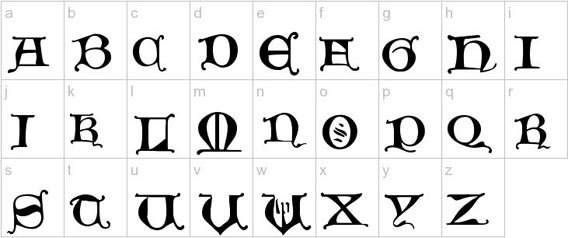
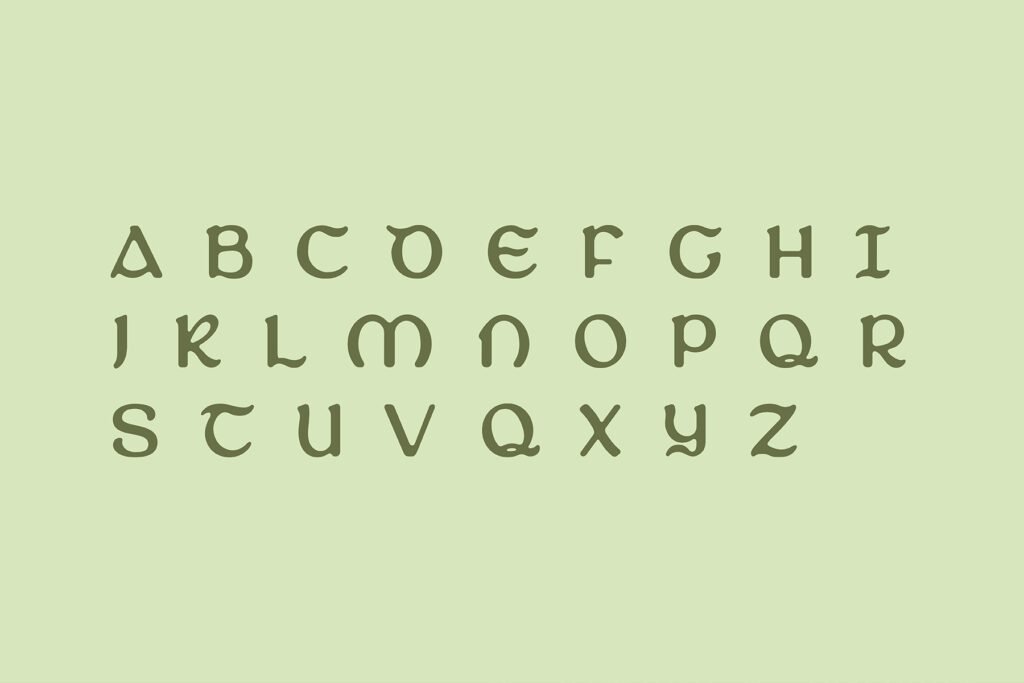
Most Irish fonts fall into a few main groups: Celtic fonts with fancy knot designs, Gaelic script fonts that were used in Ireland for many years, Uncial fonts with round letter shapes, and newer fonts that mix old Irish styles with modern looks.

What makes a font “Irish” isn’t just where it comes from, but how it looks. True Irish fonts have special curves, fancy decorations, and unique letter shapes that connect them to Ireland’s artistic past.

They often show the same kinds of designs you’d see in old Irish art, with twisting patterns and beautiful details.

15 Best Irish Fonts On Canva For Authentic Celtic Designs

Best Irish Fonts On Canva For Authentic Celtic Designs

Canva offers many great Irish fonts that bring Celtic flair to your designs. Here are 15 top choices that work well for many projects:

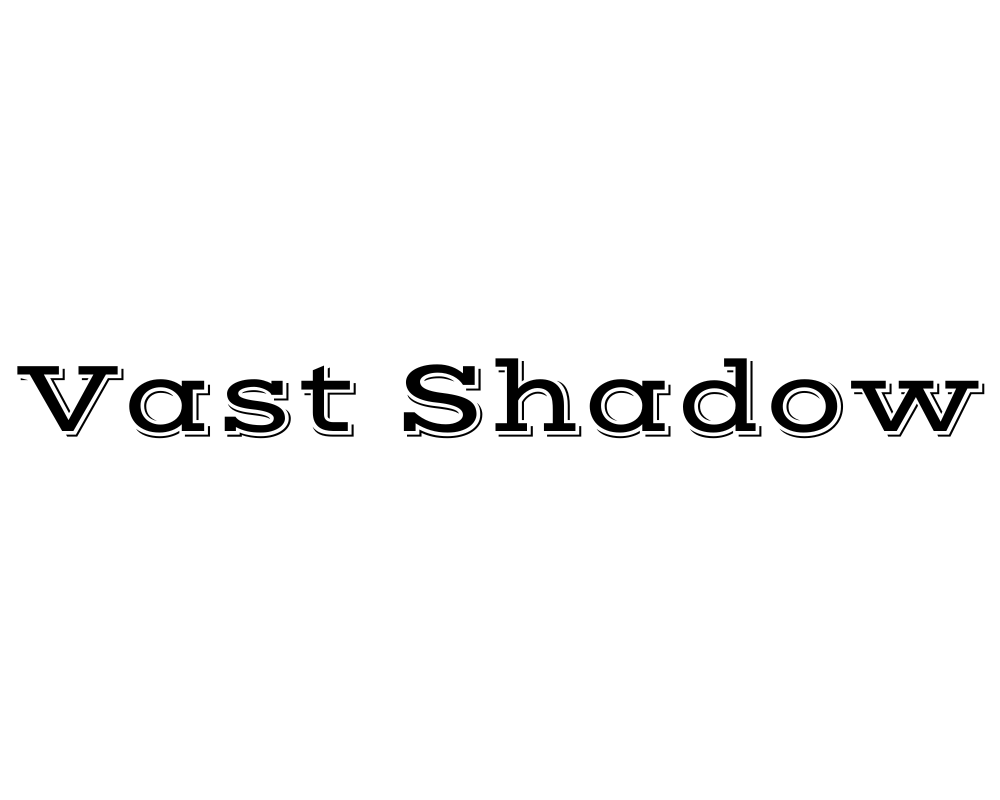
Vast Shadow

Vast Shadow

Vast Shadow is a font with thick, strong letters and a big shadow behind each one. The shadow makes the words look important, almost like a headline in a newspaper. This font is perfect for creating posters, logos, or invitations that need a touch of elegance and authenticity.

Vast Shadow can remind people of vintage Irish pub signage or old book covers from Ireland. It pairs well with decorative elements like Celtic knots or other Celtic fonts.

This font is also great for St. Patrick’s Day projects or anything related to Irish culture. Its boldness helps your words get noticed.

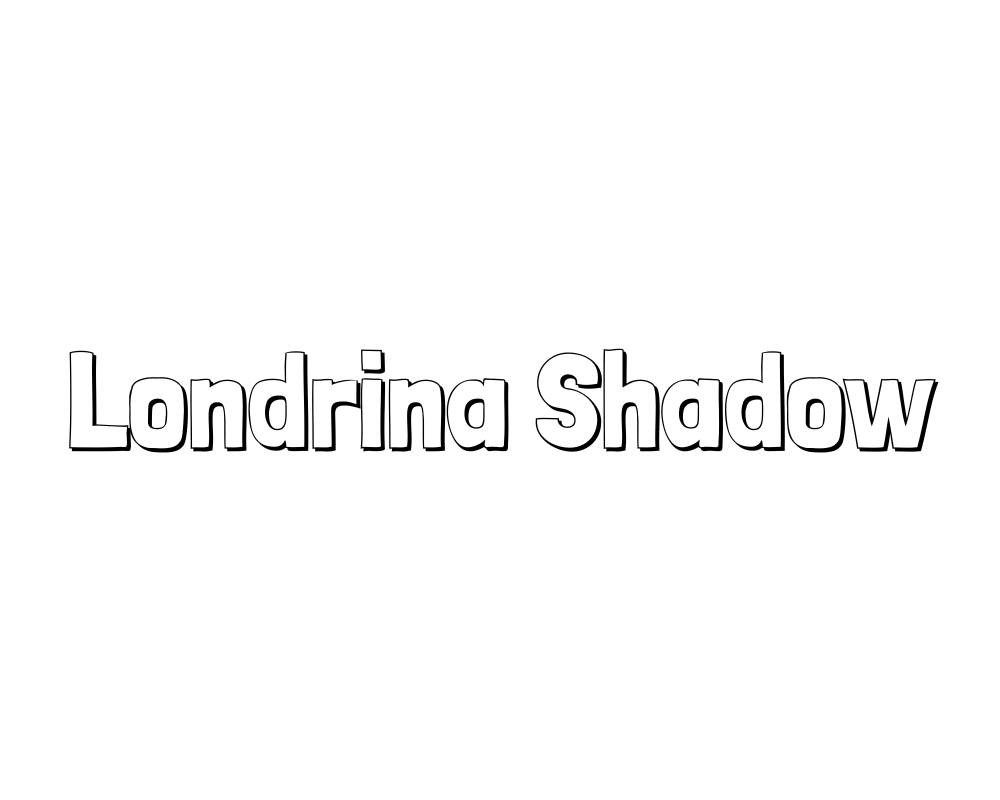
Londrina Shadow

Londrina Shadow

Londrina Shadow is a playful font with chunky, rounded letters and a shadow that adds a 3D effect.

This makes your text look fun and friendly, which is perfect for greeting cards, social media graphics, or book covers for kids. The style is modern but can be used with celtic art or celtic culture themes for an Irish touch.

Londrina Shadow is easy to read and brings a sense of joy to your designs. It’s also great for making invitations or certificates that need a little extra flair. The shadow makes your words stand out on any background.

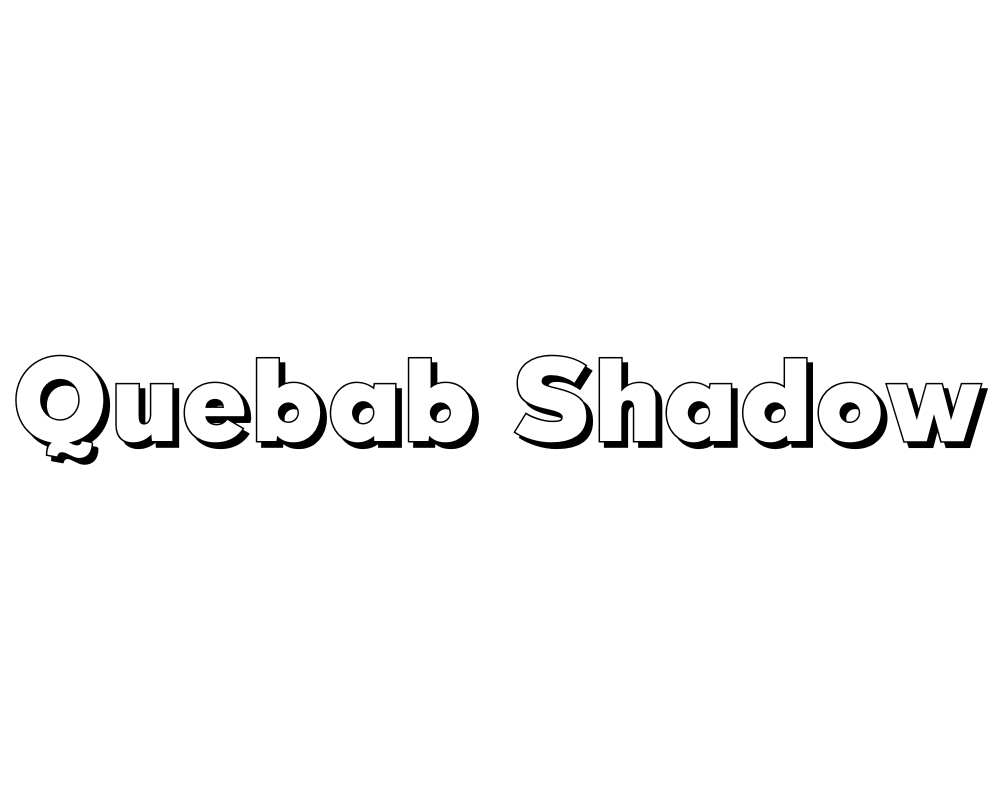
Quebab Shadow

Quebab Shadow

Quebab Shadow is a sans-serif font with thick letters and a strong shadow that gives it a bold, modern look.

This font is great for logos, certificates, and signage where you want your text to be clear and easy to read.

The shadow effect adds depth, making your words pop out, which is perfect for commercial use or social media graphics.

Quebab Shadow can be paired with celtic fonts or decorative elements to add a touch of sophistication and authenticity.

It works well for both modern and vintage designs, especially if you want to show off Irish culture.

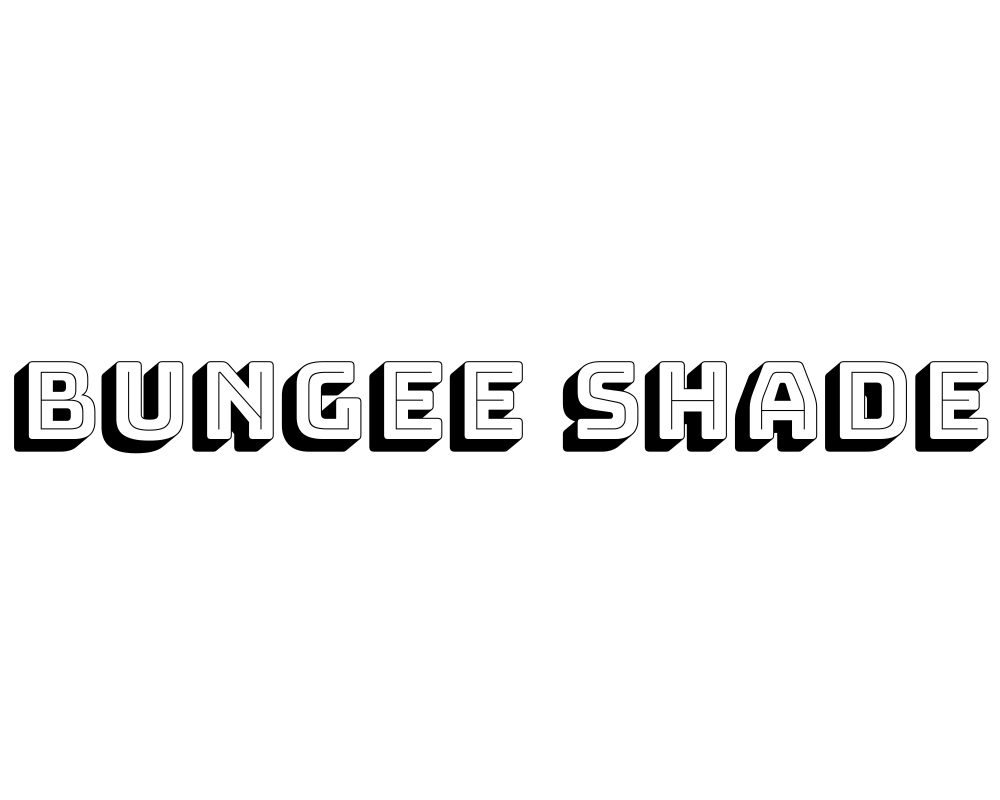
Bungee Shade

Bungee Shade

Bungee Shade is a fun, energetic font with big letters and a deep shadow that makes your text look like it’s jumping off the page.

This font is perfect for event posters, St. Patrick’s Day graphics, or signage that needs to grab attention. The boldness and decorative elements give your design a modern look, but you can also use it with Celtic knots or other Irish symbols for authenticity.

Bungee Shade is easy to read and adds a touch of flair to any project. It’s also great for greeting cards and book covers that need to stand out.

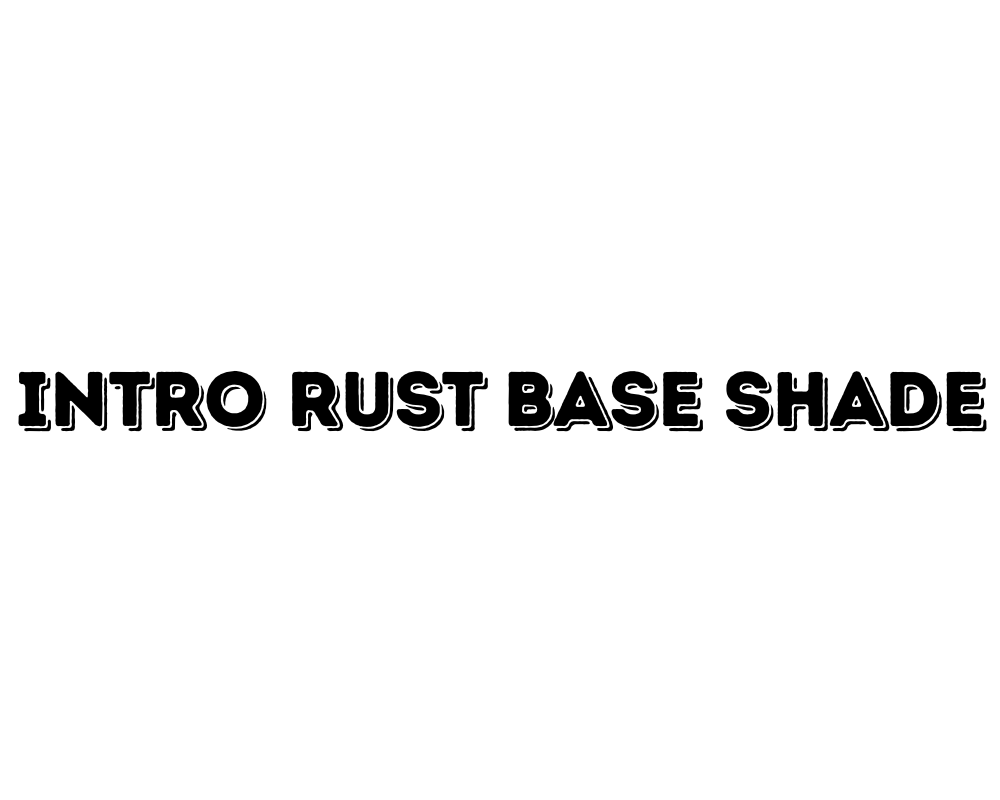
Intro Rust Base Shade

Intro Rust Base Shade

Intro Rust Base Shade is a font with a rough, vintage feel and a shadow that adds a 3D effect.

The letters look a little worn, like old Irish pub signs or vintage book covers. This font is perfect for projects that want to show cultural significance or a connection to Celtic culture. Use it for logos, certificates, or invitations that need a touch of authenticity and boldness.

The shadow makes your text pop, while the rustic style adds sophistication. It works well for both modern and old-fashioned designs.

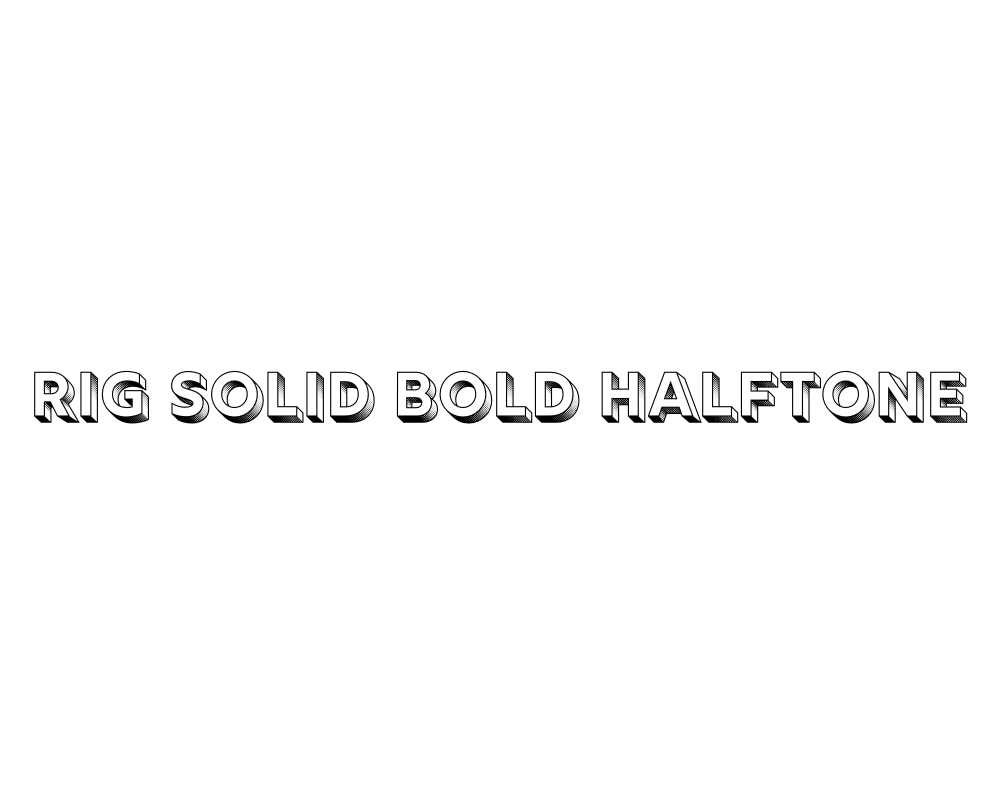
Rig Solid Bold Halftone

Rig Solid Bold Halftone

Rig Solid Bold Halftone is a thick, bold font with a dotted shadow that gives it a cool, textured look.

This makes your text look modern and stylish, perfect for social media graphics, posters, and signage. The halftone shadow adds a decorative element, making your words stand out with flair.

Rig Solid Bold Halftone can be used for book covers, certificates, or any project that needs a touch of sophistication and boldness.

It pairs well with Celtic fonts or Celtic art for an Irish vibe. The font is easy to read and great for commercial use.

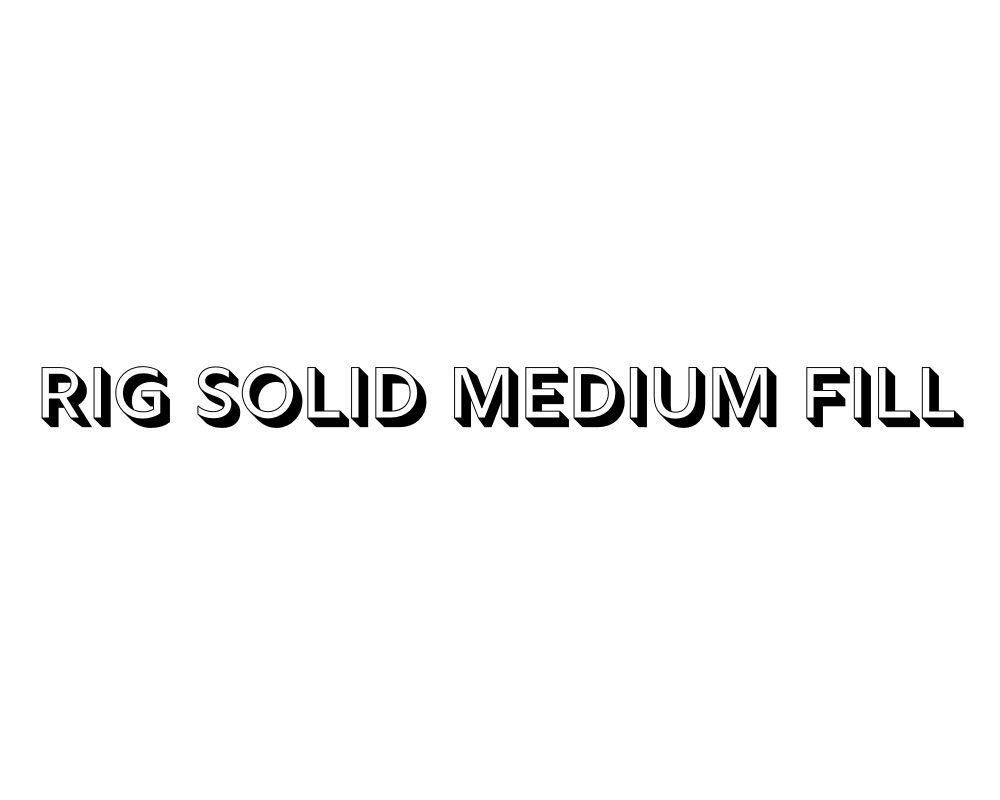
Rig Solid Medium Fill

Rig Solid Medium Fill

Rig Solid Medium Fill is a strong, solid font with medium-thick letters and a subtle shadow for depth.

The clean lines make it easy to read, which is great for logos, invitations, or certificates.

This font adds a touch of elegance and modern look to your designs, but you can also use it with Celtic decorative elements for authenticity.

Rig Solid Medium Fill is perfect for book covers, signage, or social media graphics that need to stand out. The shadow effect gives your words a 3D feel, adding flair to any project.

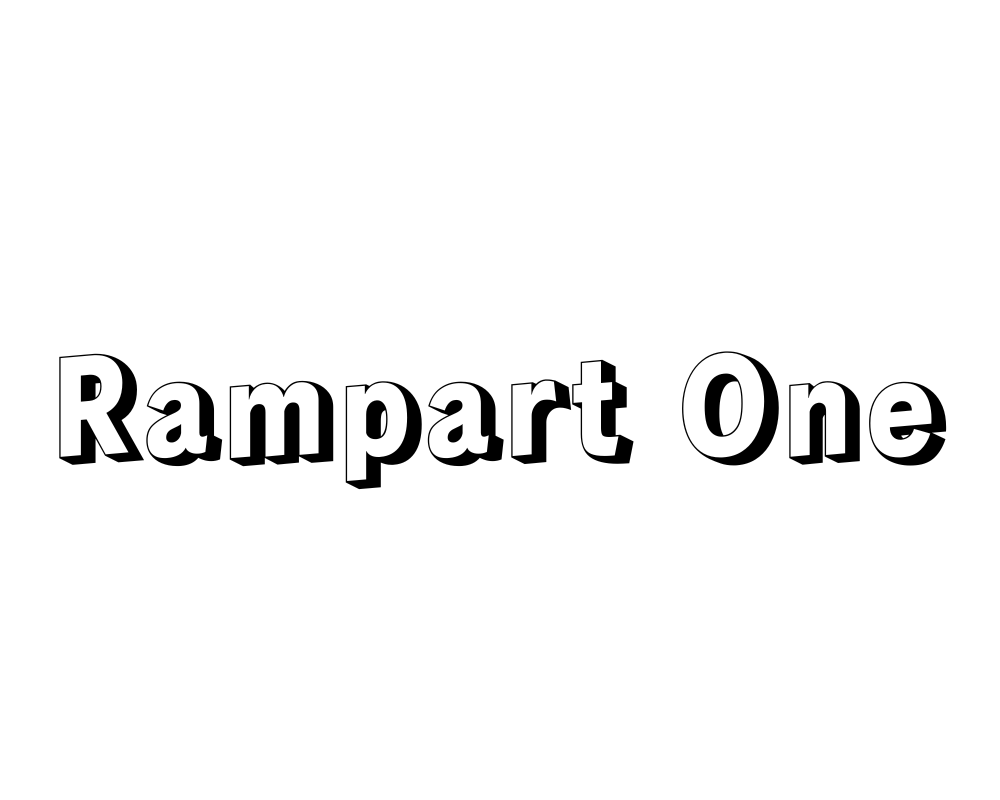
Rampart One

Rampart One

Rampart One is a bold font with sturdy letters and a shadow that makes your words look strong and important. This font is perfect for certificates, signage, or logos that need to show strength and cultural pride.

Rampart One can remind people of Irish castles or ancient manuscripts, making it great for book covers or projects about Irish culture.

The shadow adds depth and helps your text stand out on any background. It’s also good for social media graphics and greeting cards that need a touch of sophistication and authenticity.

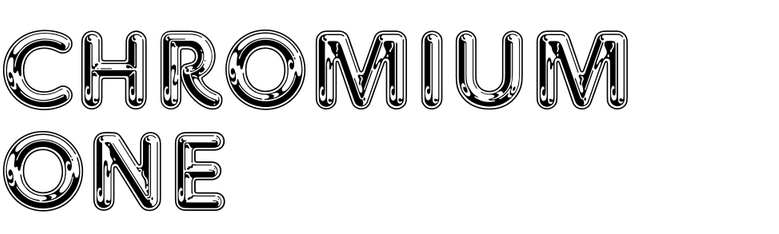
Chromium One

Chromium One

Chromium One is a modern font with shiny-looking letters and a shadow that adds a 3D effect. The style is sleek and easy to read, making it great for social media graphics, event posters, or book covers.

Chromium One adds a touch of sophistication and flair to your designs, while the shadow makes your words pop out. You can use this font with celtic art or decorative elements for an Irish look.

It’s also good for logos, certificates, and signage that need a modern touch with a bit of boldness.

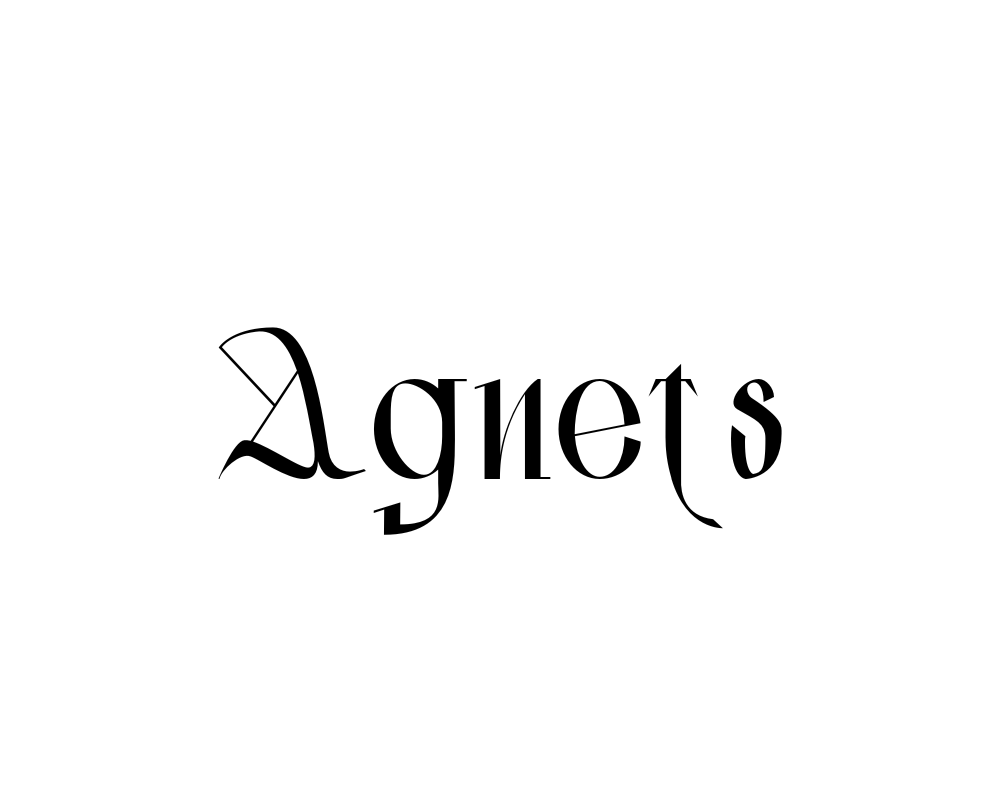
Agnets

Agnets

Agnets is a modern, bold font with a unique style that mixes decorative elements and a modern look.

Its letters have sharp, artistic shapes with intricate details, making it stand out in logos, social media graphics, or signage.

Though not a traditional Irish font, Agnets adds boldness and flair to designs, especially for projects needing a touch of sophistication.

It works well for commercial use, like branding or posters, thanks to its eye-catching letterforms.

While it doesn’t include Celtic knots or Gaelic script, Agnets brings a creative, modern twist to typography, perfect for making your work look fresh and stylish.

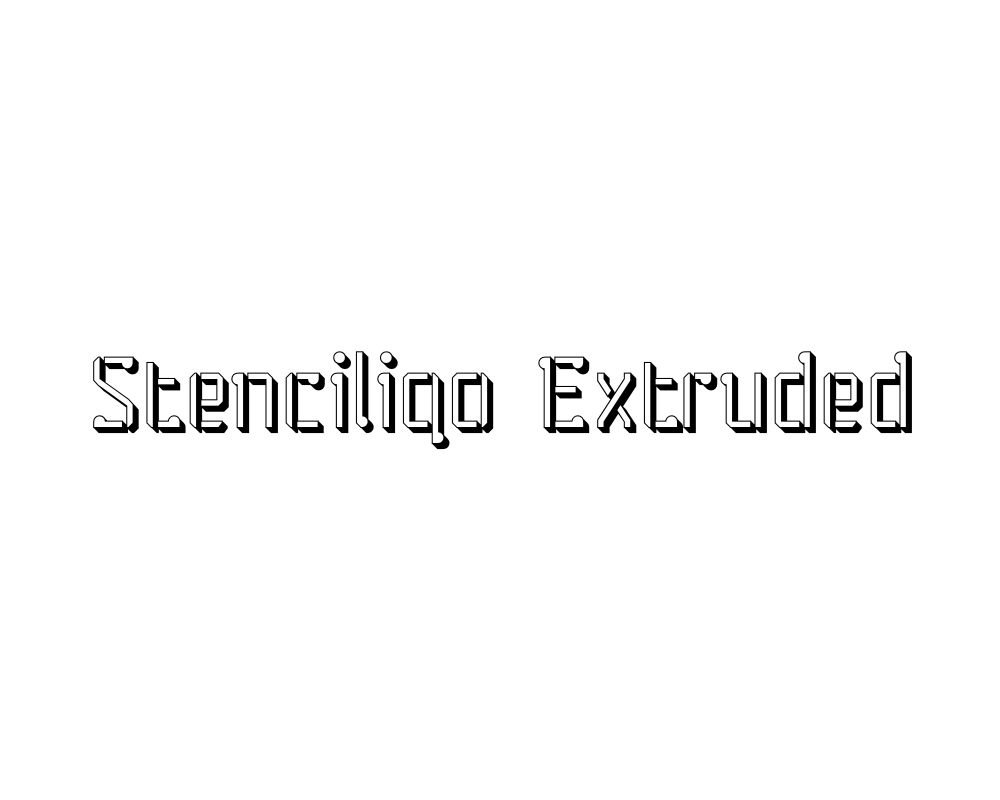
Stenciliqo Extruded

Stenciliqo Extruded

Stenciliqo Extruded is a stencil-style font with thick letters and a strong 3D shadow. The letters look like they were cut out and lifted off the page, which is perfect for signage, certificates, and logos.

This font adds a touch of celtic art and boldness to any project, making it great for book covers or greeting cards with an Irish theme. The shadow effect helps your words stand out and gives your design a modern look.

Stenciliqo Extruded is also easy to read and works well for commercial use.

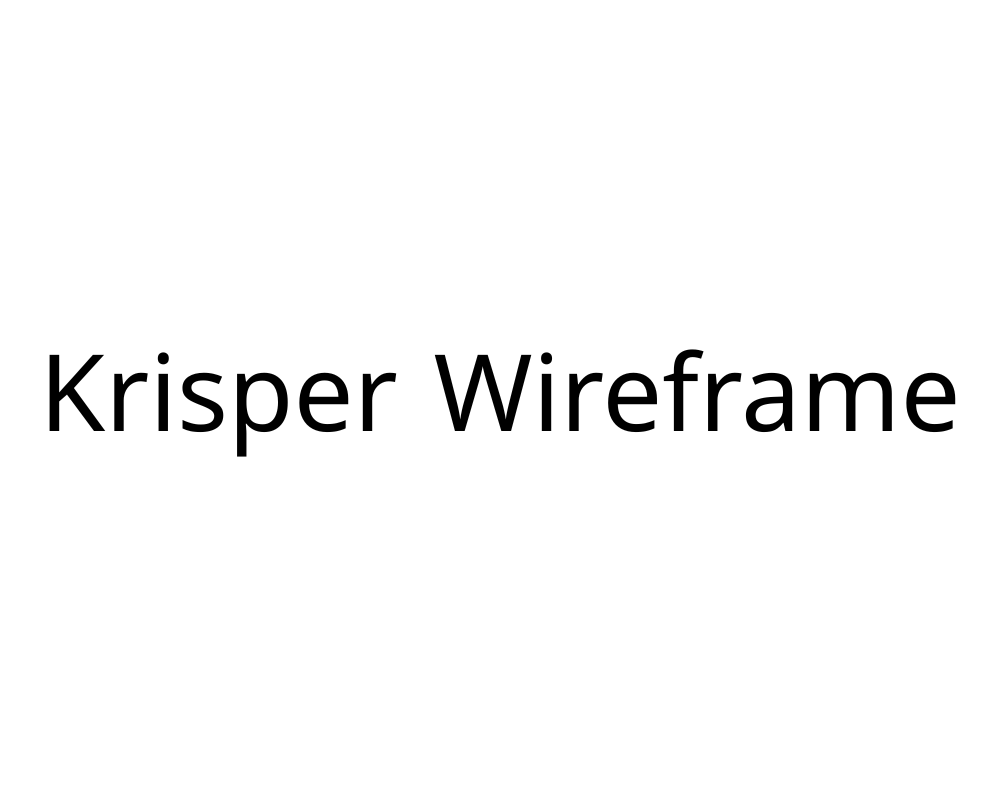
Krisper Wireframe

Krisper Wireframe

Krisper Wireframe is a creative font with letters that look like they are made from thin wires, with a shadow for extra depth.

This gives your text a modern and unique look, perfect for book covers, greeting cards, and social media graphics.

Krisper Wireframe adds a touch of sophistication and flair to your designs. You can use it with celtic knots or decorative elements for an Irish feel. The font is easy to read and brings a sense of elegance and authenticity to any project.

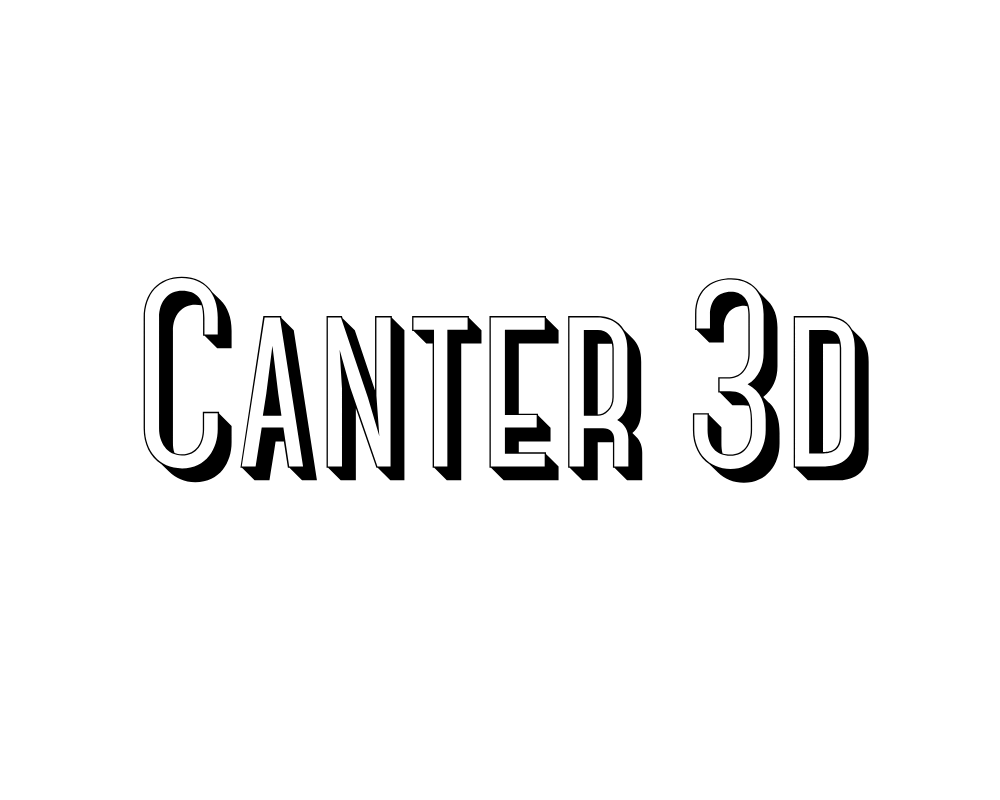
Canter 3d

Canter 3d

Canter 3D is a tall, thin font with a 3D shadow that makes your text look stylish and modern. The clean lines and shadow effect add a touch of sophistication and celtic culture to your designs.

Canter 3D is great for event posters, signage, and certificates that need to stand out. The font is easy to read and works well with decorative elements like celtic knots or celtic art. Use it for book covers, logos, or greeting cards that need a modern look with a bit of Irish flair.

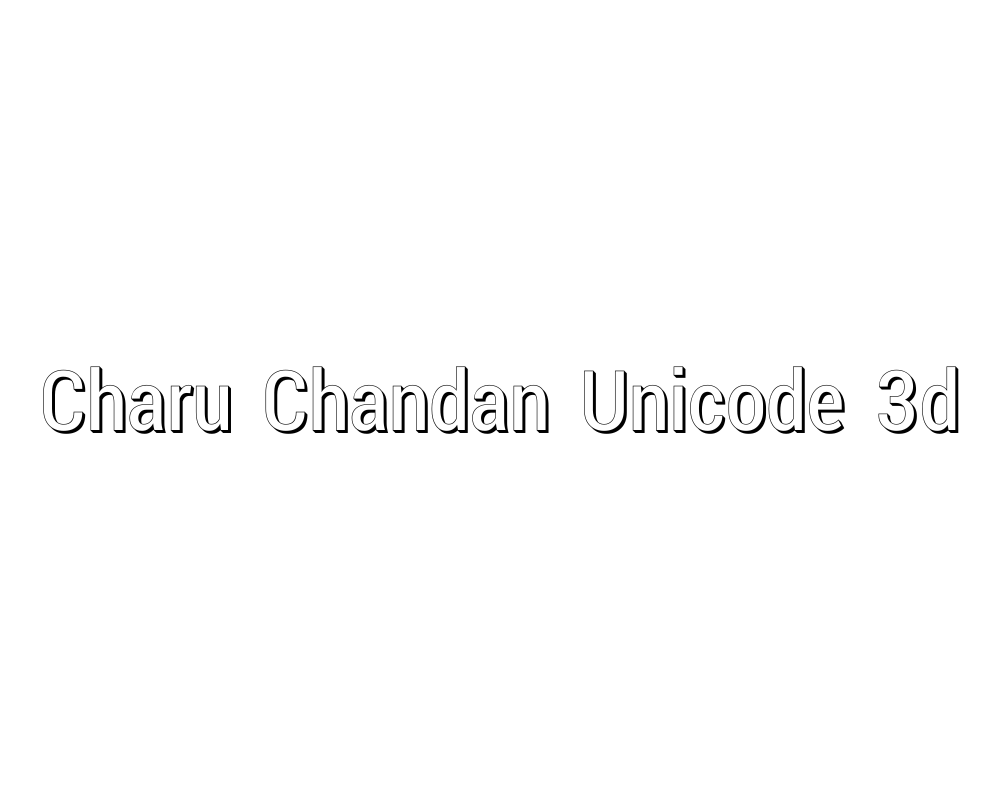
Charu Chandan Unicode 3d

Charu Chandan Unicode 3d

Charu Chandan Unicode 3D is a font with bold, rounded letters and a strong 3D shadow. The style is playful and easy to read, making it great for social media graphics, book covers, and greeting cards.

The shadow effect gives your words a sense of depth and makes your design feel modern and authentic. Charu Chandan Unicode 3D can be paired with Celtic fonts or decorative elements for an Irish touch.

It’s also good for certificates, signage, and commercial use.

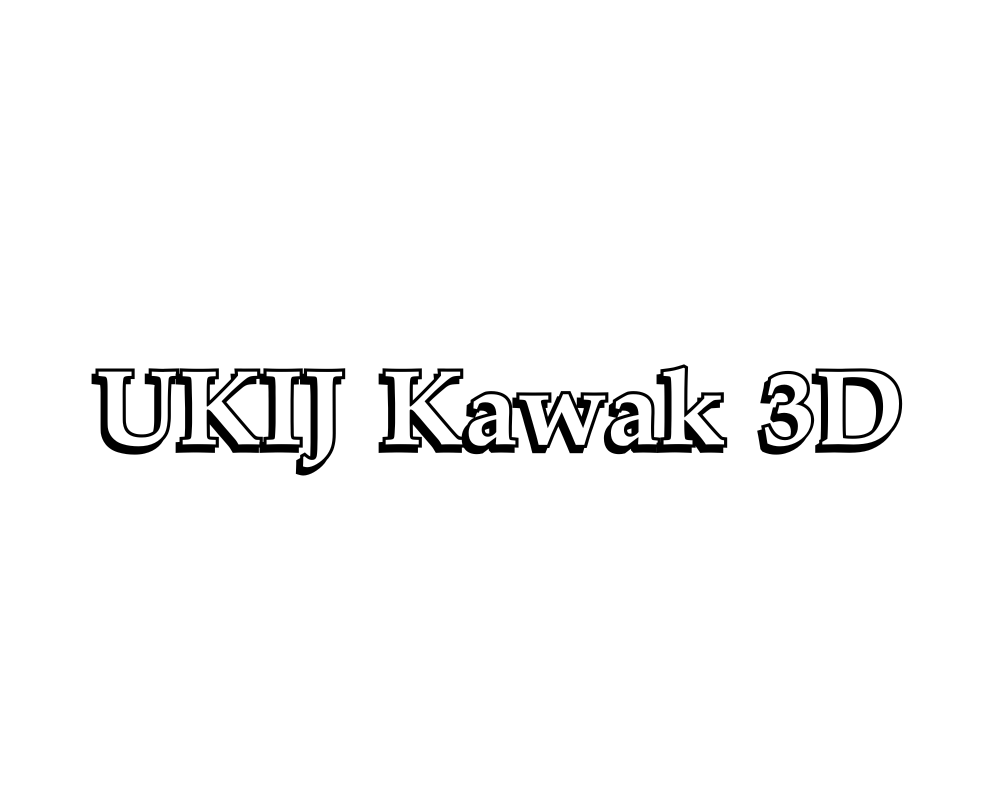
UKIJ Kawak 3D

UKIJ Kawak 3D

UKIJ Kawak 3D is a fun font with thick letters and a deep 3D shadow that makes your text stand out.

This font is perfect for posters, logos, and signage where you want to grab attention. The style brings a touch of Celtic flair and boldness, making your designs pop with a modern look.

UKIJ Kawak 3D is easy to read and works well for book covers, greeting cards, and social media graphics. You can use it with celtic art or decorative elements for extra authenticity and sophistication.

These fonts all use shadows and 3D effects to make your words pop, adding depth, flair, and a touch of sophistication to any project.

They are great for Irish-themed designs, Celtic culture, and anything that needs to stand out and be noticed!

Types of Irish Fonts

Types of Irish Fonts

Many types of Irish fonts show the rich culture and art of Ireland.

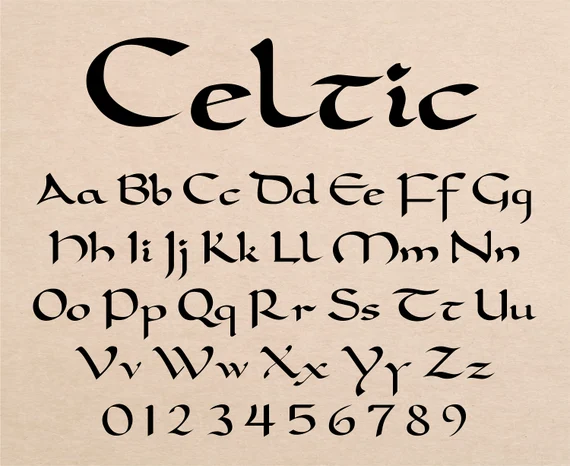
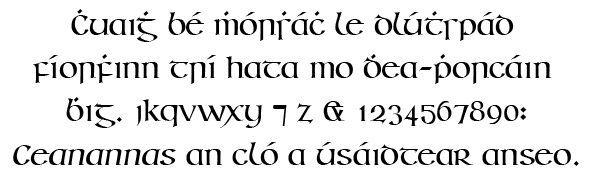
  1. Celtic Fonts: Celtic fonts show off the beautiful art style of ancient Celtic culture. They often have fancy knot designs and curved lines that twist and turn. These fonts look like the art you might see in old Irish books or stone carvings. They’re perfect for projects that need to feel magical or ancient. Fonts like Enchant and Celtoria belong in this group.
  2. Gaelic Script Fonts: Gaelic script fonts come from the old writing system used in Ireland for hundreds of years. This type of writing was used in Ireland from the 16th century until about 100 years ago. Gaelic fonts have some special letter shapes that look different from regular letters we use today. TF-Gaelic and Old Norse are good examples of this style.
  3. Uncial Fonts: Uncial fonts have round, curved letters that look like they were written with a broad pen tip. Irish monks used this style when writing religious books in medieval times. These fonts look fancy but are still easy to read. Piera and Agnets show the uncial style well.
  4. Modern Irish-Inspired Fonts: These newer fonts take ideas from traditional Irish writing but update them for today’s designs. They keep some Celtic or Gaelic features but make them work better for modern projects. They often have better readability while still looking Irish. Fonts like She Dance and Ring of Kerry mix old Irish style with new design ideas.

Characteristics of Irish Fonts

Characteristics of Irish Fonts

Distinctive Design Elements

Irish fonts stand out because of their special designs inspired by Celtic culture. They often include Celtic knots-twisty patterns that look like braided ropes-woven into the letters.

Many letters have decorative elements at the ends, like small curls or dots, giving them a fancy look. Some letters connect, almost like they’re holding hands, which makes the text flow smoothly.

The shapes are often round and curvy, similar to handwriting, and some letters look different from regular alphabets, like a “d” with a loop or a “g” with a tail. These features help Irish fonts feel tied to Ireland’s artistic history and Celtic art.

Insular Script Features

Many Irish fonts are based on Insular script, a writing style from 600 AD used by Irish monks. This script has triangle-shaped tops on tall letters (like “b” or “h”) and wide, rounded parts in letters like “b,” “d,” or “q.”

When monks wrote, they’d start a line with big letters that slowly got smaller, creating a “fading” effect. They also added dots or marks to change how letters sounded. The letters look like they were written with a flat-tipped pen, giving them thick and thin lines.

These features come from old manuscripts like the Book of Kells, written on animal skin pages.

Typography and Letter Forms

Irish fonts have unique letter shapes that make them different from regular fonts. Letters are often wider and rounder, making them look friendly and artistic. Capital letters might have extra swirls or decorations, like a crown on a king.

The spacing between letters is sometimes wider, giving the text room to breathe. Some letters, like “s” or “r,” have unusual shapes- for example, an “s” that looks like a snake or an “r” with a hook. Letters also mix thick and thin lines, as if they were drawn with a brush.

These details help Irish fonts feel both old-fashioned and special, perfect for logos, book covers, or St. Patrick’s Day projects.

Historical Background of Irish Fonts

Historical Background of Irish Fonts

Origin and Development

Irish fonts started with the writing of Irish monks in the 600s AD. These monks created beautiful handwritten books using special writing styles. They combined Roman letter shapes with their own Celtic art style to make something new and beautiful.

The most famous example is the Book of Kells, made around 800 AD. This amazing book shows the highest level of Irish lettering skill. The monks used colored inks and gold to make letters that were also pieces of art.

As time went on, these handwritten styles were turned into printing fonts. Even as printing became common, Ireland kept using its own special letter styles that were different from what was used in other European countries.

Gaelic Type History

Gaelic type became the main way to print Irish language materials from the 1500s until the 1900s. This special type style was used for books, newspapers, and official documents in Ireland.

The Queen Elizabeth font, created in 1571, was one of the first fonts made specially for printing Irish. For hundreds of years after that, most things printed in the Irish language used some form of Gaelic type.

In the 1900s, Ireland slowly shifted away from using Gaelic type for everyday printing. But today, these font styles are making a comeback for special designs that want to show Irish culture and history.

Cultural Significance

Irish fonts are more than just letters – they represent Ireland’s cultural identity. When Ireland was trying to keep its culture strong while under British rule, these special letter forms became important symbols of Irish independence and cultural pride.

Even today, Irish fonts appear on signs throughout Ireland, especially in areas where the Irish language is still spoken daily. They’re used for road signs, pub names, and shop signs in Dublin and across the country.

For Irish people around the world, these font styles create an immediate connection to their heritage and homeland. Using an Irish font on a design instantly links it to thousands of years of Irish cultural history.

Popular Uses For Irish Fonts

Popular Uses For Irish Fonts

St. Patrick’s Day Projects

Irish fonts work perfectly for St. Patrick’s Day designs. They add authentic Irish style to:

  • Party invitations with shamrock designs
  • Food and drink menus for March 17th celebrations
  • Posters and flyers for St. Patrick’s Day events
  • Social media graphics announcing holiday specials
  • T-shirts with fun Irish sayings and symbols

The right Irish font makes these items feel more truly connected to Irish tradition rather than just using green colors.

Branding and Logo Design

Businesses with Irish connections often use Celtic fonts for their brand identity:

  • Irish pub and restaurant logos that need authenticity
  • Celtic jewelry brand names that show craftsmanship
  • Tourism companies focused on Irish travel
  • Music groups performing traditional Irish music
  • Irish cultural organizations and festivals

These fonts give immediate visual clues about a business’s Irish connections and values.

Invitations and Cards

Irish fonts add special meaning to personal items like:

  • Wedding invitations for couples with Irish heritage
  • Greeting cards celebrating Irish holidays or events
  • Birth announcements for families wanting to honor their Irish roots
  • Certificates of Irish ancestry or family trees
  • Special occasion cards with Celtic blessing texts

The elegant curves and decorative elements of Irish fonts add beauty to these important personal items.

Publishing and Print Media

Books and printed materials use Irish fonts for:

  • Books about Irish history, folklore, or fiction
  • Chapter titles in books about Celtic topics
  • Poetry collections featuring Irish writers
  • Magazines about Irish culture and traditions
  • Educational materials teaching about Ireland

These fonts help readers immediately understand the Irish connection of the content they’re about to read.

Where To Find Irish Fonts?

Where To Find Irish Fonts?

Free Irish Font Resources

You can find free Irish fonts in several places:

  • FontSpace offers 89 free Irish style fonts you can download
  • 1001 Free Fonts has a section with 138 Celtic Irish fonts
  • Google Fonts includes some options with Celtic style
  • Canva’s free plan includes several Irish-inspired fonts
  • Free font websites often have basic versions of Celtic typefaces

These free options give you a good starting point for projects with limited budgets.

Premium Irish Font Collections

For higher quality and more complete Irish font families:

  • MyFonts marketplace has professional Irish fonts with full character sets
  • Creative Market offers handcrafted Irish fonts from independent designers
  • Adobe Fonts includes premium Celtic typefaces in their subscription
  • Font foundries like Fontfabric create high-quality Irish fonts with special features
  • Professional type designers sell Irish font packages with multiple styles and weights

Premium fonts usually have better letter spacing, more character options, and higher quality details.

Font Marketplaces

These online stores sell both free and paid Irish fonts:

  • Etsy has many affordable Irish font bundles, including some for Canva
  • Creative Fabrica regularly features Celtic font collections
  • DesignCuts sometimes offers discounted Irish font packages
  • FontBundles includes Irish options in their regular deals
  • Individual type designers’ websites often sell directly to customers

Buying fonts from these marketplaces helps support the designers who create and maintain these special typefaces.

How To Use Irish Fonts In Design?

How To Use Irish Fonts In Design?

Pairing With Other Typefaces

When using Irish fonts in your designs:

  • Pair a fancy Irish headline font with a simple body text font for good readability
  • Use a Celtic font for the first letter of paragraphs and a regular font for the rest
  • Match an Irish script with a clean sans-serif font for modern contrast
  • Choose fonts from the same designer for heading and text that work well together
  • Consider using an Irish font for someone’s name and a standard font for their contact information

The right pairing keeps your design looking professional while still having Irish character.

Color Combinations

Colors that work well with Irish fonts include:

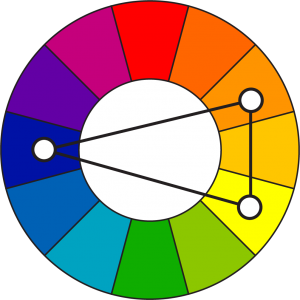
  • Green and gold – traditional Irish colors that feel authentic
  • Deep blues and greens – reminding readers of the Irish countryside
  • Earth tones like brown and cream – giving an aged manuscript look
  • Black on cream background – mimicking traditional book printing
  • White on deep green – creating a strong contrast for readability

The right colors help strengthen the Celtic feel of your Irish font choices.

Best Practices For Readability

To keep Irish fonts readable:

  • Use larger sizes for very decorative Irish fonts
  • Add more space between lines when using Celtic fonts
  • Limit the use of the fanciest fonts to short headings or titles
  • Make sure there’s a strong contrast between the font and the background
  • Test your design on different screens to check that details remain clear

Remember that communication is still the main goal, even when using decorative Irish fonts.

FAQ’s:

What Makes A Font “Irish”?

A font becomes “Irish” when it includes elements from Ireland’s writing history. This means it might have features from Celtic art like knot patterns, follow the style of Gaelic script that was used in Ireland for centuries, or look like the handwriting in ancient Irish manuscripts. True Irish fonts connect to Ireland’s artistic traditions through their letter shapes, decorative elements, and overall style.

Are Irish Fonts and Celtic Fonts The Same?

Not exactly. Celtic fonts represent the broader Celtic culture that includes Ireland but also Scotland, Wales, Cornwall, Brittany, and the Isle of Man. Irish fonts specifically connect to Ireland’s writing traditions. Many Celtic fonts work well for Irish projects because Ireland is part of Celtic culture, but some Celtic fonts may include symbols or styles from non-Irish Celtic regions.

Which Irish Fonts Work Best For Professional Designs?

For professional designs, choose Irish fonts that balance authenticity with clarity. Saint George works well for formal certificates or logos. Garamond with Celtic elements adds sophistication to business cards or letterheads.

For corporate materials, consider less decorative Irish fonts that maintain readability while still showing Irish flair. The best professional Irish fonts keep their cultural connections without sacrificing clarity.

Do Irish Fonts Support Special Characters?

Many modern Irish fonts include special characters needed for the Irish language, like vowels with the fada (á, é, í, ó, ú).

Premium Irish fonts usually offer better language support than free versions. Check the font’s character map before purchasing to make sure it includes all the letters and symbols you need, especially if you’ll be typing actual Irish text rather than just English with an Irish look.

How Can I Create Authentic Irish-Looking Typography?

To create authentic Irish typography, start with a genuine Irish font like those based on uncial or insular scripts. Add appropriate spacing between letters and lines.

Consider adding Celtic decorations like knots or spirals as accents rather than overwhelming the text.

Study examples from the Book of Kells or other Irish manuscripts for inspiration. Sometimes authenticity comes from restraint – using decorative elements carefully rather than everywhere.

Conclusion

Irish fonts bring the beauty and history of Celtic culture to your design work. These special typefaces connect your projects to Ireland’s rich artistic past through their unique letterforms and decorative elements.

Whether you’re creating something for St. Patrick’s Day, designing a logo with Irish roots, or making greeting cards with Celtic flair, the right Irish font adds authenticity and visual interest.

Canva makes it easy to access many Irish fonts for your design needs. From traditional styles based on ancient manuscripts to modern interpretations with fresh looks, these fonts help you create work that stands out.

Remember to balance the fancy features of Irish fonts with good readability, and pair them with colors and other design elements that strengthen their Celtic character.

Irish fonts aren’t just letters – they’re connections to thousands of years of artistic tradition that continue to inspire designers today.

Categories
Uncategorized

GPT Zero: Can It Really Spot AI Writing? A Simple Guide

AI writing tools like ChatGPT have changed how people create content. With just a few clicks, anyone can generate essays, reports, and articles in seconds. But this has created a big problem: how do we know if a piece of text was written by a human or by artificial intelligence?

This is where AI detection tools come in. These tools help teachers, students, writers, and businesses check if content is human-written or machine-made. One of the most popular tools in this space is GPT Zero.

At Designers Choice, we know how important it is to have the right tools for your work. Whether you are a teacher checking student work, a writer protecting your reputation, or a business owner verifying content, understanding how AI detection works matters.

This guide will give you a closer look at GPT Zero, how it works, and whether it is the right AI content detector for your needs.

What is GPT Zero?

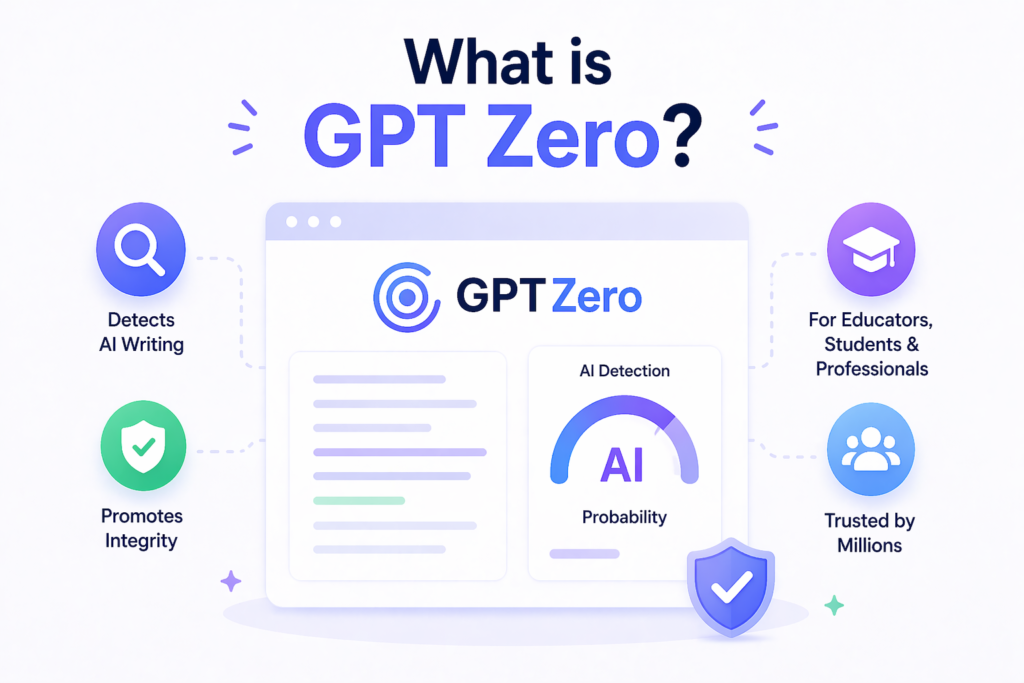
What is GPT Zero infographic showing AI writing detection and content analysis tool

GPT Zero is an AI detection tool created by Edward Tian, a student at Princeton University. He launched it in January 2023, making it one of the first tools designed to spot AI-generated text. Since then, it has become one of the most widely used AI detectors in the world.

The tool checks text to see if it was written by large language models like ChatGPT, Claude, or Google Gemini.

It looks at patterns in the writing to decide if a human or a machine created it. Millions of people use GPT Zero, including teachers, students, content creators, and professionals who care about academic integrity.

GPT Zero has grown into a full platform with a free plan for basic use and premium plans for heavy users. It offers features like batch file uploads, a Chrome extension, and even API integration for businesses that want to build AI detection into their own systems.

How Does GPT Zero Work to Detect AI-Generated Text?

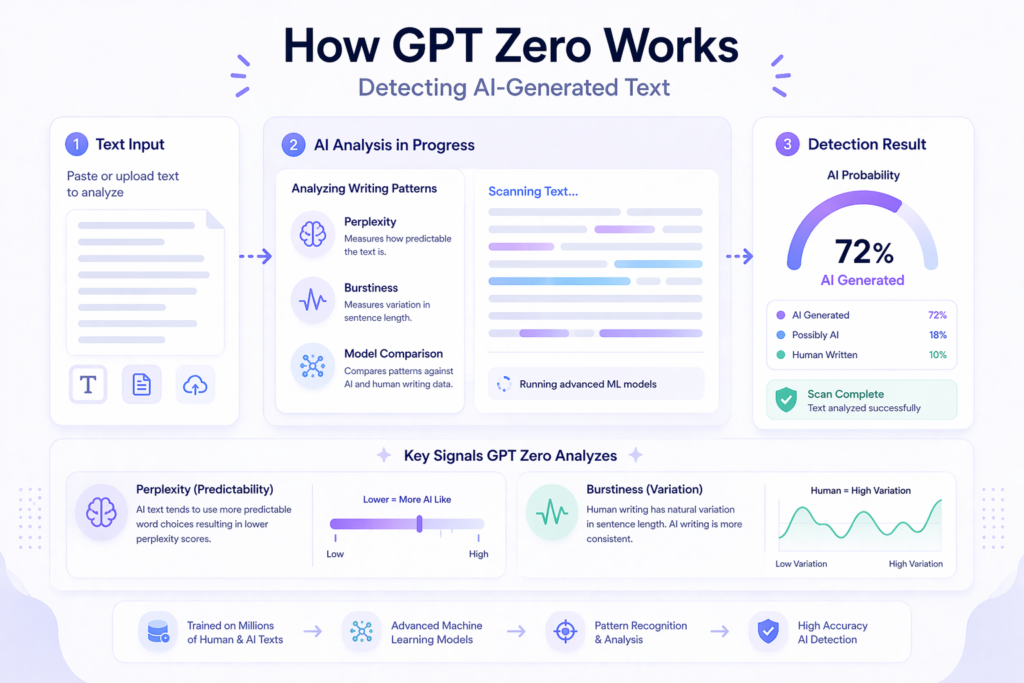
AI infographic showing how GPT Zero detects AI-generated text using perplexity, burstiness, and machine learning analysis with a probability score dashboard

GPT Zero uses machine learning and natural language processing to analyze text. It does not just look for copied words like a plagiarism checker. Instead, it studies how the text is written to find signs of AI use.

Understanding Perplexity and Burstiness

Two key ideas power GPT Zero: perplexity and burstiness.

Perplexity measures how surprised a language model would be by the word choices in a text. If the writing uses very predictable words and phrases, the perplexity score is low. AI writing usually has low perplexity because language models pick the most likely next word.

Human writing often has higher perplexity because people make more unusual word choices.

Burstiness looks at how much sentence length varies.

Human writers naturally mix short and long sentences. They might write one very long sentence followed by a short one. AI tends to be more consistent, creating sentences that are similar in length and structure. When GPT Zero sees low burstiness, it suspects AI content.

By combining these two signals, GPT Zero creates a detection model that can spot AI text with high accuracy.

The Technology Behind the Scans

GPT Zero runs text through advanced algorithms that compare it against training distribution data from known AI models.

The tool has been trained on millions of examples of both human writing and AI writing. This deep learning approach helps it recognize the small differences between human text and machine-generated content.

The technology also looks at sentence structure and writing style.

AI often follows patterns that are too perfect or too uniform. Human writing has more variation, more personality, and more natural flow. The detection tool flags these differences to give you a final verdict on whether the content is human or AI-made.

Supported Languages and Models (ChatGPT, Claude, Gemini)

GPT Zero supports multiple languages including English, Spanish, French, German, and Portuguese. It can detect content from all major AI models including ChatGPT-4, Claude, Google Gemini, and others.

The tool is constantly updated to keep up with new versions of these language models. This wide support makes GPT Zero useful for people around the world who need to check AI content in different languages.

Key Features of GPT Zero For Educators and Professionals

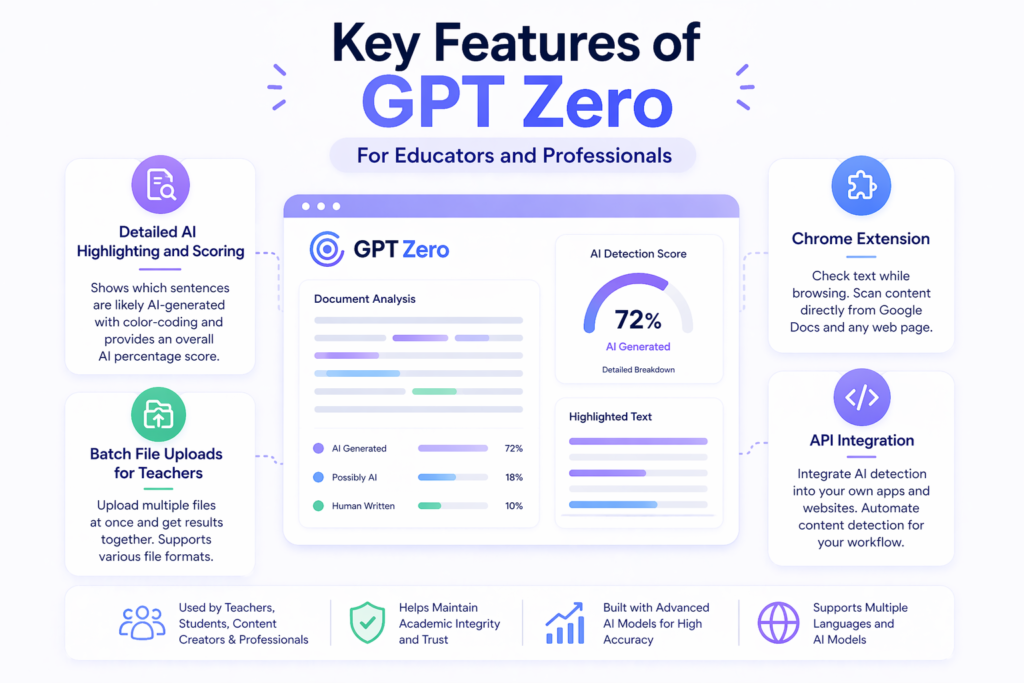
Infographic showing key features of GPT Zero including AI highlighting and scoring, batch file uploads, Chrome extension, and API integration

GPT Zero offers several features that make it stand out from other AI detection tools.

Detailed AI Highlighting and Scoring

One of the best features is the detailed highlighting.

When you scan a piece of text, GPT Zero shows you exactly which sentences it thinks are AI-generated. It uses color-coding to mark different levels of probability. This granular detail helps teachers and editors see exactly where the AI content appears. The tool also gives an overall score showing the percentage of text that appears to be AI-generated. This writing report makes it easy to understand the results at a glance.

Batch File Uploads For Teachers

For educators who need to check many student papers at once, GPT Zero offers batch uploads. Teachers can upload multiple files simultaneously and get results for all of them. This saves time when grading large classes.

The tool supports various file formats, making it flexible for different use cases.

The GPT Zero Chrome Extension and API Integration

GPT Zero offers an excellent Chrome extension that lets you check text while browsing the web. You can scan content directly from Google Docs or any web page. This makes the writing process smoother because you do not need to copy and paste text into a separate website.

For businesses and educational institutions, GPT Zero provides API integration. This allows developers to build the AI detection model directly into their own apps and websites. Customer service teams, publishers, and schools can automate content detection as part of their workflow.

GPT Zero Pricing: Is the AI Detector Free?

Many people want to know if they can use GPT Zero without paying. The answer is yes, but with some limits.

Exploring the Free Tier Limits

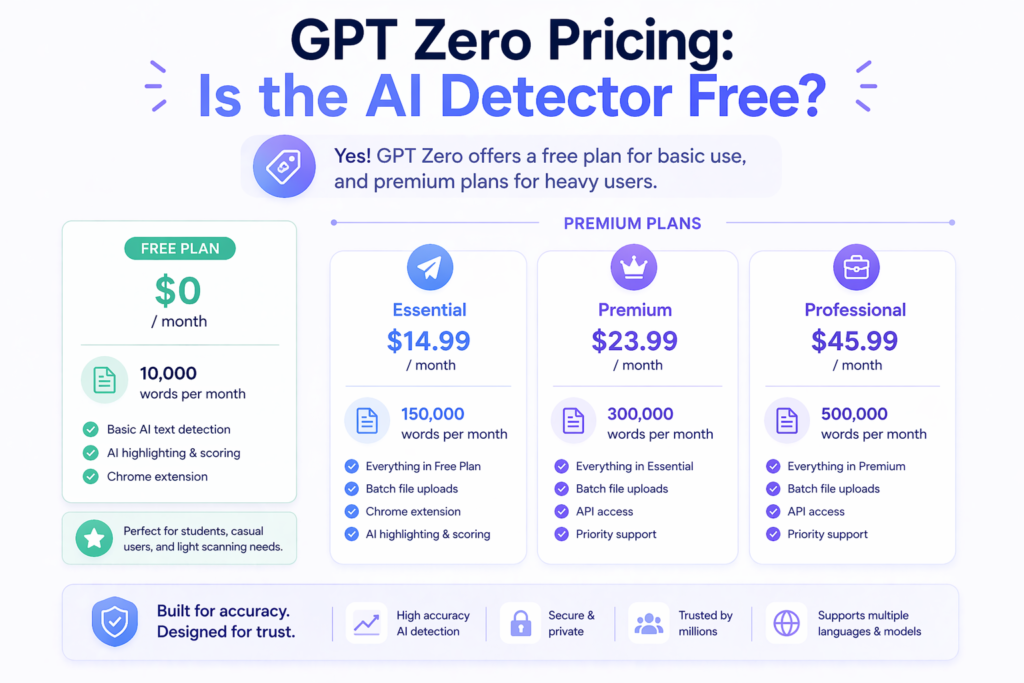
GPT Zero offers a free plan that lets you scan up to 10,000 words per month. This is enough for casual users, students checking their own work, or teachers with light needs. The free plan includes basic text detection and the Chrome extension.

However, the free version has limits. You cannot use batch uploads or access the API. If you need to scan large amounts of text regularly, you will need to upgrade.

Premium Plans For Heavy Users

For users who need more power, GPT Zero offers several paid plans:

  • Essential: $14.99 per month for 150,000 words
  • Premium: $23.99 per month for 300,000 words
  • Professional: $45.99 per month for 500,000 words

These plans unlock features like batch processing, API access, and higher word limits. For schools and businesses that need to check AI content at scale, these plans offer good value compared to other AI detection tools on the market.

GPT Zero Vs. Other Popular AI Detectors

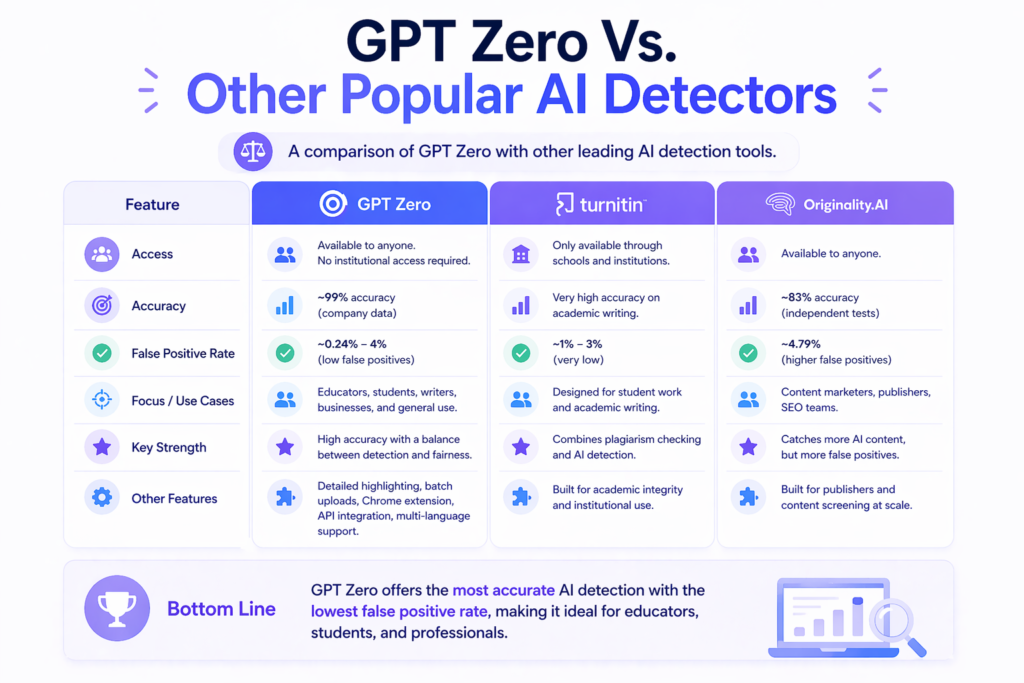
Simple comparison of GPT Zero with other AI detectors using icons for accuracy, access, and use cases

There are many AI detectors available today. How does GPT Zero compare to the competition?

GPT Zero Vs. Turnitin

Turnitin is the most famous name in academic integrity. It has been used by schools for years to check for plagiarism. In 2023, Turnitin added AI detection to its tools.

Key differences:

  • Access: Turnitin is only available through schools and institutions. You cannot buy it as an individual. GPT Zero is available to anyone.
  • False positives: Turnitin has a very low false positive rate (about 1-3%) on native English writing. GPT Zero has a slightly higher rate (about 2-4%) but still performs well.
  • Focus: Turnitin is built specifically for student work and academic writing. GPT Zero works for all types of content including news articles, blog posts, and social media content.
  • Features: Turnitin combines plagiarism checking and AI detection in one tool. GPT Zero focuses mainly on AI detection but offers writing feedback tools.

For students who want to check their work before submitting to Turnitin, GPT Zero is a good first step. However, if your school uses Turnitin, that is the tool that will actually evaluate your work.

GPT Zero Vs. Originality.AI

Originality.AI is another popular AI content detector, especially among content marketers and publishers.

Key differences:

  • Accuracy: Independent tests show GPT Zero has an accuracy rate of about 99% with a false positive rate of only 0.24%. Originality.AI has an accuracy rate of 83% with a false positive rate of about 4.79%.
  • Calibration: Originality.AI is calibrated more aggressively. It catches more AI content but also flags more human writing by mistake. GPT Zero aims for a balance between catching AI and avoiding false accusations.
  • Use cases: Originality.AI is designed for publishers and SEO teams who need to screen content before posting. GPT Zero is better for educational settings and general use.
  • Pricing: Both offer free plans, but GPT Zero’s paid plans are generally more affordable for individual users.

For most users, especially students and teachers, GPT Zero offers the most accurate AI detector experience with fewer false positives.

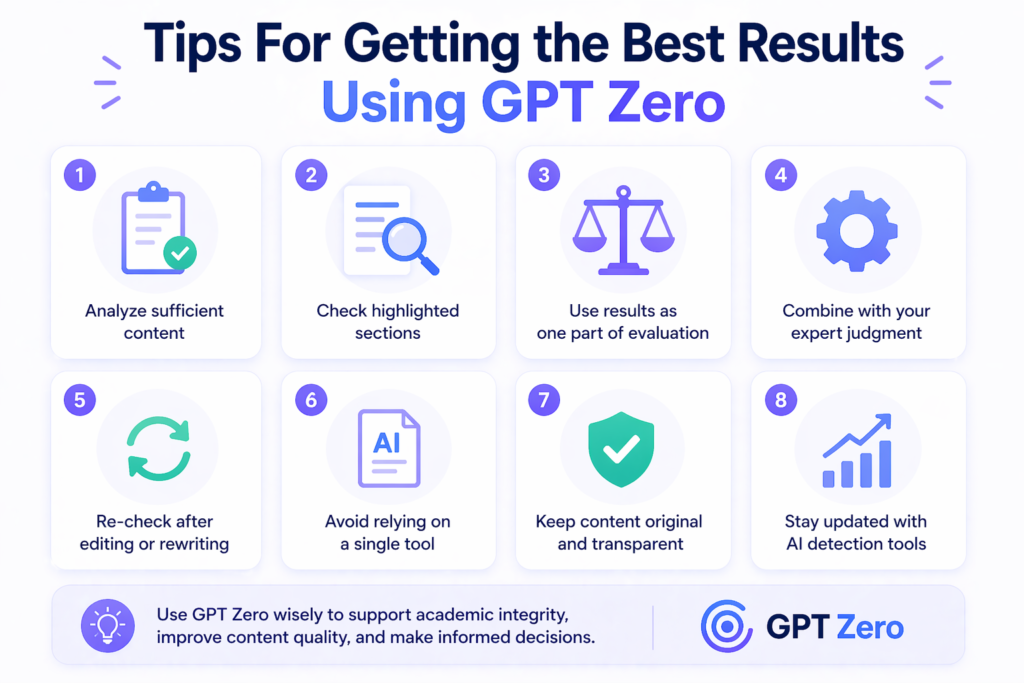
Tips For Getting the Best Results Using GPT Zero

Infographic showing tips for using GPT Zero including analyzing enough text, checking highlighted sections, and reviewing results carefully

To get the most out of this AI detection tool, follow these simple tips.
Optimal Word Counts For Accurate Detection

Research shows that GPT Zero works best with medium-length texts. Very short pieces (under 100 words) can give unreliable results. Very long pieces (over 800 words) can also be tricky. For the best accuracy rate, try to scan texts that are between 100 and 350 words.

If you have a longer document, consider breaking it into smaller sections. This gives you more granular detail about which parts might be AI-generated.

How to Handle Mixed Content (AI + Human Text)

Many documents contain both human writing and AI writing. This is called mixed content. GPT Zero can detect this, but the results can be confusing. When you scan mixed content, look at the sentence-level highlighting rather than just the overall score.

This shows you exactly which sentences are flagged as AI. If you are a teacher reviewing student work, this helps you start a conversation about the writing process rather than making accusations.

Remember that no AI detection tool is perfect. False positives do happen. A flagged sentence does not always mean the student cheated. It might just mean they have a very formal writing style.

FAQ’s:

How Accurate Is GPT Zero?

GPT Zero has an accuracy rate of about 99% according to company data, with a false positive rate of less than 1%.

However, independent studies show slightly different results. One study found GPT Zero correctly identified AI text 100% of the time but had a 16% false positive rate on human writing. Another study found 80% overall accuracy with a 0.65 sensitivity for detecting AI content.

The accuracy depends on the type of text, the length, and whether the AI content has been edited. Raw AI output is easier to detect than text that has been rewritten by humans.

Can GPT Zero Detect Text From ChatGPT-4 and Claude?

Yes. GPT Zero can detect text from ChatGPT-4, Claude, Google Gemini, and other modern language models. The tool is regularly updated to keep up with new AI models as they are released. It can even detect text from the newest models like GPT-5 and Claude Sonnet with high accuracy.

Is GPT Zero Suitable For Students, Writers, and Educators?

Yes. GPT Zero is designed for all these groups. Students can use it to check their work before submitting assignments. Writers can verify that their content will pass AI detection checks from clients. Educators can use it to maintain academic integrity in their classrooms.

The free plan is especially helpful for students who need a reliable AI detector without spending money.

Will GPT Zero Flag Human Writing As AI (False Positives)?

Sometimes. Like all AI detection tools, GPT Zero can produce false positives. This happens when human writing has characteristics that look like AI writing. For example, very formal scientific writing or highly edited prose might be flagged.

Non-native English speakers may also see higher false positive rates because their writing patterns differ from the training distribution data.

If GPT Zero says your writing is AI, but you wrote it yourself, try adding more personal style, varying your sentence length, and using more unique word choices.

Does GPT Zero Save Or Store the Data I Upload?

GPT Zero has privacy policies in place to protect user data.

However, if you are concerned about privacy, you should read their current data policy on their website. For sensitive documents, consider using the tool’s features that minimize data retention or contact their customer service for specific questions about data handling.

Is There A Word Limit For Scanning Text in GPT Zero?

Yes. The free plan allows up to 10,000 words per month. Paid plans offer higher limits ranging from 150,000 to 500,000 words per month. For single scans, there may be limits on how much text you can paste at once, but you can usually break longer documents into sections.

Conclusion

GPT Zero has become one of the most trusted names in AI detection since its launch in 2023.

Created by Edward Tian at Princeton University, this tool uses advanced algorithms to analyze perplexity and burstiness in text. It offers high accuracy rates and low false positive rates compared to many competitors.

For educators, GPT Zero provides batch uploads, detailed writing reports, and an excellent Chrome extension that integrates with Google Docs. For students and writers, the free plan offers enough power to check work before submission.

For businesses, the API integration allows built-in AI detection across platforms.

While no detection tool is perfect, GPT Zero stands out as one of the best AI detection tools available today. It balances accuracy with fairness, helping maintain academic integrity without creating too many false alarms.

Whether you are checking a single piece of text or managing content at scale, GPT Zero offers the features and reliability you need.

As generative AI continues to evolve, tools like GPT Zero will remain important for protecting human-written content. We are huge fans of the writing reports and granular detail this tool provides.

If you need to verify that your content is truly human, give GPT Zero a try and see the results for yourself.

Categories
AI

What Is Undetectable AI? A Complete Guide For 2026

In 2026, artificial intelligence has changed how we create content.

From blog posts to social media posts, AI writing tools help people work faster than ever before. But there is one big problem: AI detection tools have also become smarter.

Many writers now face a challenge, their AI-generated content gets flagged by AI detectors, even when they have put in real effort. This is where undetectable AI comes into play.

An undetectable AI tool helps transform AI text into human writing that passes through detection systems.

At Designers Choice, we understand the needs of content creators who want to maintain quality while using modern technology. This guide will explain everything you need to know about undetectable AI, how it works, and why it matters for your content creation process in 2026.

What is Undetectable AI?

Infographic showing AI-generated text being transformed into human-like writing through undetectable AI on a laptop with clean icons.

Undetectable AI is a type of software that takes AI-generated content and rewrites it to sound like human writing.

When you use AI writers like ChatGPT or Claude, the text often follows patterns that AI detection tools can spot.

These patterns include repetitive sentence structure, predictable word choices, and a lack of natural variation in writing style.

An undetectable AI writer changes these patterns. It rewrites the text so that AI checker tools cannot tell it was made by a machine.

The goal is to produce humanized text that reads naturally while keeping the original meaning intact.

The Difference Between AI Generators and AI Humanizers

AI generators are the tools that create content from scratch.

You give them a prompt, and they write paragraphs, articles, or social media posts for you. Examples include ChatGPT, Claude, and Gemini. These tools use large language models to produce text quickly.

AI humanizers, on the other hand, do not create new content.

Instead, they take existing AI text and transform it. An AI humanizer looks at the text, finds the parts that sound robotic, and rewrites them to match human writing styles. Think of it as an editor that specializes in making machine writing sound personal and real.

The main difference is this: AI generators produce the first draft, while AI humanizers polish that draft so it can pass AI detection tools.

Why Standard AI Content Gets Flagged?

Standard AI content gets flagged because it has telltale signs. AI writing tools tend to use similar sentence structure across paragraphs. They repeat certain phrases and transitions like “furthermore” or “in addition.”

They also lack the small mistakes and variations that come with natural writing.

AI detection tools use machine learning to spot these patterns. They analyze the text for predictability and uniformity. When the content shows high predictability, the AI detector flags it as machine-made.

This is why even good AI-generated content can fail when checked by detection software.

How Does Undetectable AI Software Work?

Minimal infographic showing four-step process of undetectable AI with icons for scanning, rewriting, checking, and final human-like content.

Undetectable AI software uses several methods to transform AI text into human content. Understanding these methods helps you see why these tools are effective.

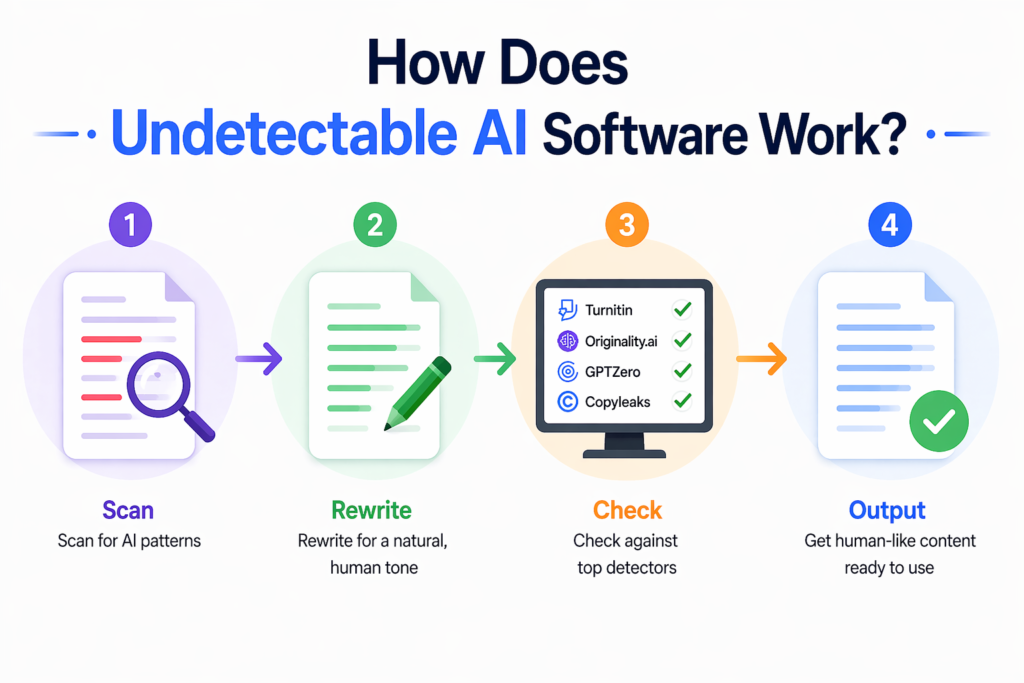
Scanning For AI Patterns

The first thing an undetectable AI tool does is scan the text. It looks for patterns that AI detection tools target. These include repetitive sentence length, overuse of formal transitions, and predictable word choices.

The software identifies sections that are most likely to trigger AI detectors.

This scanning process is similar to what an AI checker does, but with a different goal. Instead of just labeling content as AI or human, the undetectable AI tool marks the problem areas that need rewriting.

Rewriting For A Natural, Human Tone

Once the software identifies AI patterns, it begins the rewriting process.

It changes sentence structure by breaking long sentences into shorter ones or combining short sentences for variety. It replaces formal words with casual alternatives. It adds natural transitions that real people use when they write.

The rewritten text keeps the original meaning but changes how that meaning is expressed. This is different from a simple paraphrasing tool, which might just swap words with synonyms. An undetectable AI rewriter restructures entire paragraphs to create a natural flow.

Checking Against Top Detectors

Quality undetectable AI tools do not just rewrite and hope for the best. They check their work against top AI detection tools.

Many undetectable AI websites have built-in AI detectors that test the humanized text before giving you the final output. This checking process ensures that the humanized text can pass strict detection systems like Turnitin, Originality.ai, GPTZero, and Copyleaks. When the text passes these checks, you can be confident that it will not get flagged by the AI detection tools your audience or clients might use.

Top Benefits of Using Undetectable AI For Your Content

Minimal infographic showing key benefits of undetectable AI including faster writing, SEO protection, brand voice consistency, and human-like content.

Using an undetectable AI tool offers several advantages for anyone involved in content creation.

Here are the main benefits you should know about.

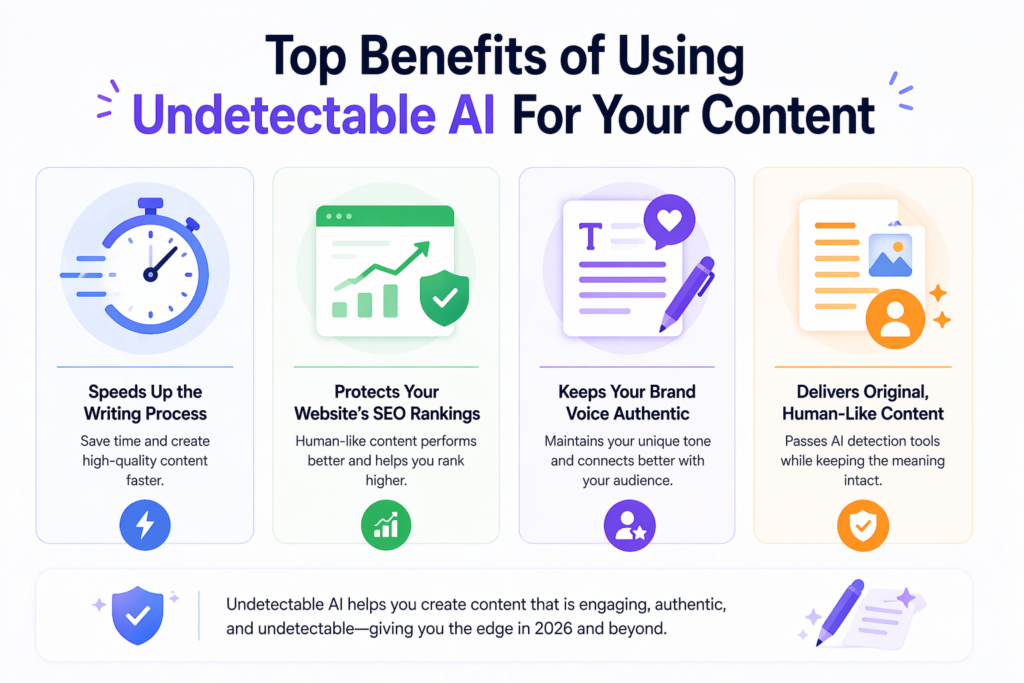
Speeds Up the Writing Process

Writing from scratch takes time. Even when you use AI generators, you still need to edit the output to make it sound human. An undetectable AI humanizer speeds up this second step. Instead of spending hours rewriting AI text yourself, you can process it through the tool in minutes.

This speed is valuable for content creators who need to produce blog posts, product descriptions, or social media content at scale. You get the efficiency of AI writing without the delay of manual editing.

Protects Your Website’s SEO Rankings

Search engines want to show high-quality, original content to their users. While they do not penalize AI content directly, they do penalize low-quality or spammy content. AI-generated text that sounds robotic can hurt your rankings because readers bounce away quickly.

By using an undetectable AI rewriter, you ensure that your content reads well for human visitors. Better readability leads to longer time on page and lower bounce rates. These signals tell search engines that your content is valuable, which helps protect and improve your SEO rankings.

Keeps Your Brand Voice Authentic

Your brand voice is how you connect with your target audience. If your content sounds like a machine wrote it, you lose that connection.

An undetectable AI tool helps maintain your writing style while still using AI assistance.

The best tools allow you to adjust the tone of the rewritten text. Whether you need a casual voice for social media posts or a formal tone for academic papers, you can set the AI humanizer to match your needs. This keeps your brand voice consistent across all your content.

Is Undetectable AI Safe to Use For SEO?

Undetectable AI SEO safety infographic showing safe, SEO-friendly, ranking boost and original content icons

Many content creators worry about the safety of using undetectable AI tools. They fear that search engines might punish them for using these technologies. Let us look at what the facts tell us.

What Search Engines Say About AI Content

Search engines like Google have made their position clear: they do not care whether content is written by AI or humans. What matters is the quality and helpfulness of the content. Google’s guidelines focus on rewarding original content that serves the reader’s needs.

However, there is a catch. If your AI content is low-quality, thin, or spammy, it will not rank well. The same rules apply to human-written content. The key is to produce valuable material that answers user questions and provides real insights.

An undetectable AI tool helps by ensuring your AI-generated content meets quality standards. When the text sounds natural and reads well, it is more likely to satisfy both search engines and human readers.

Best Practices For Staying Safe Online

To use undetectable AI safely, follow these best practices:

  • First, always review the humanized text before publishing. No AI tool is perfect, and you should check that the rewritten text makes sense and fits your brand voice.
  • Second, do not rely entirely on AI for content creation. Use it as a starting point, then add your own insights, examples, and expertise. This creates truly original content that stands out.
  • Third, be transparent with your audience when required. Some platforms and clients ask you to disclose AI use. Honesty builds trust and protects your reputation.
  • Fourth, choose a reputable, undetectable AI website with good security practices. Your content may contain sensitive data, so make sure the tool you use protects your information.

How to Choose the Best Undetectable AI Tool?

How to choose the best undetectable AI tool infographic showing accuracy, usability, features and pricing

With many options available in 2026, picking the right undetectable AI tool can feel overwhelming.

Here are the key features to look for when making your choice.

Look For High Pass Rates

The most important factor is whether the tool actually works. Look for an undetectable AI tool that shows high pass rates against major AI detection tools. The best tools can pass detectors like Turnitin, Originality.ai, GPTZero, and Copyleaks consistently.

Some tools offer a free trial or free version that lets you test their effectiveness. Take advantage of these offers to see if the tool delivers on its promises before committing to a paid plan.

Check For Multiple Language Support

If you create content for a global audience, language support matters. Many AI humanizers work best with English, but some offer support for dozens of languages. Check that the tool can handle the languages you need for your content marketing efforts.

Good tools use language-specific models that understand the unique patterns of AI writing in different languages. This ensures your humanized text sounds natural no matter what language you are working in.

Read Real User Reviews

Marketing claims are one thing, but real user experiences tell the true story. Look for reviews from content creators, students, and professionals who have used the tool. Pay attention to comments about output quality, customer service, and billing practices.

Be wary of tools with many complaints about hidden fees, difficult cancellations, or inconsistent results. The best undetectable AI tools have transparent pricing and reliable performance.

FAQ’s:

Can Google Detect Undetectable AI Content?

Google does not use AI detection tools to filter content.

Instead, it looks at quality signals like user engagement, backlinks, and content depth. If your undetectable AI content is helpful and well-written, it can rank just as well as human-written content. The key is quality, not how the content was produced.

How Can I Make My AI-Generated Content Look More Human?

To make AI text look more human, use an AI humanizer tool that changes sentence structure and word choice. You can also manually edit the text by adding personal examples, varying paragraph length, and using contractions.

Reading the text aloud helps you spot robotic phrasing that needs fixing.

Does Using an Undetectable AI Tool Change the Meaning of my Text?

A good undetectable AI tool preserves the original meaning while changing how it is expressed.

However, you should always review the rewritten text to make sure key facts and messages remain intact. Some tools offer different modes that control how much the text is changed, letting you balance naturalness with accuracy.

Can Undetectable AI Pass Strict Detectors Like Turnitin Or Originality.ai?

Quality undetectable AI tools are designed to pass strict detection systems. However, no tool guarantees 100% success every time. The best approach is to use a tool with built-in detection checking and to review the output yourself.

For academic work, always follow your institution’s guidelines about AI use.

Is It Considered Plagiarism to Use an AI Humanizer?

Using an AI humanizer is not plagiarism if you are rewriting content you have the right to use. Plagiarism means passing off someone else’s work as your own. When you humanize your own AI-generated content, you are not plagiarizing.

However, if you humanize content copied from others without permission, that is still plagiarism.

Who Benefits the Most From Using Undetectable AI?

Content creators, marketers, students, and business professionals all benefit from undetectable AI tools.

Anyone who needs to produce large amounts of written content quickly can use these tools to save time while maintaining quality. The technology is especially helpful for non-native English speakers who want their writing to sound more natural.

Conclusion

Undetectable AI has become an essential tool for content creation in 2026. As AI detection tools grow more advanced, the need for quality AI humanizers continues to rise. These tools bridge the gap between the efficiency of AI writing and the natural flow of human writing.

When used properly, undetectable AI software helps you create content that serves your audience well. It protects your SEO rankings, maintains your brand voice, and speeds up your workflow.

The key is to choose a reliable tool with high pass rates and to use it as part of a thoughtful content strategy.

At Designers Choice, we believe in empowering creators with the best tools and insights.

Whether you are writing blog posts, social media updates, or academic papers, understanding undetectable AI helps you work smarter. The technology is here to stay, and learning to use it well will give you an edge in the ever-changing landscape of digital content.

Remember that the best content comes from combining AI efficiency with human creativity. Use undetectable AI as a writing tool, not a replacement for your own voice. When you do, you can produce original content that connects with readers and stands up to any AI checker.

Categories
AI

Smodin AI Review 2026: Features, Accuracy & Best Alternatives

In today’s fast-moving digital world, artificial intelligence has changed how we create and check content.

Whether you’re a student working on research papers, a blogger making marketing content, or a teacher checking academic papers, you need reliable writing tools that get the job done right. One name that keeps coming up in 2026 is Smodin AI, an AI tool that promises to help with content creation, plagiarism checking, and AI detection. But does Smodin AI really deliver what it promises?

Is the Smodin AI detector accurate when it comes to finding AI content? And should you spend your money on this AI writing platform?

This Smodin AI detector review will answer all these questions. We’ll look at the key features, test how well the AI content detector works, check the pricing, and compare it with other AI detection tools on the market.

By the end of this guide, you’ll know if Smodin AI is the right detection tool for your needs, or if you should look elsewhere.

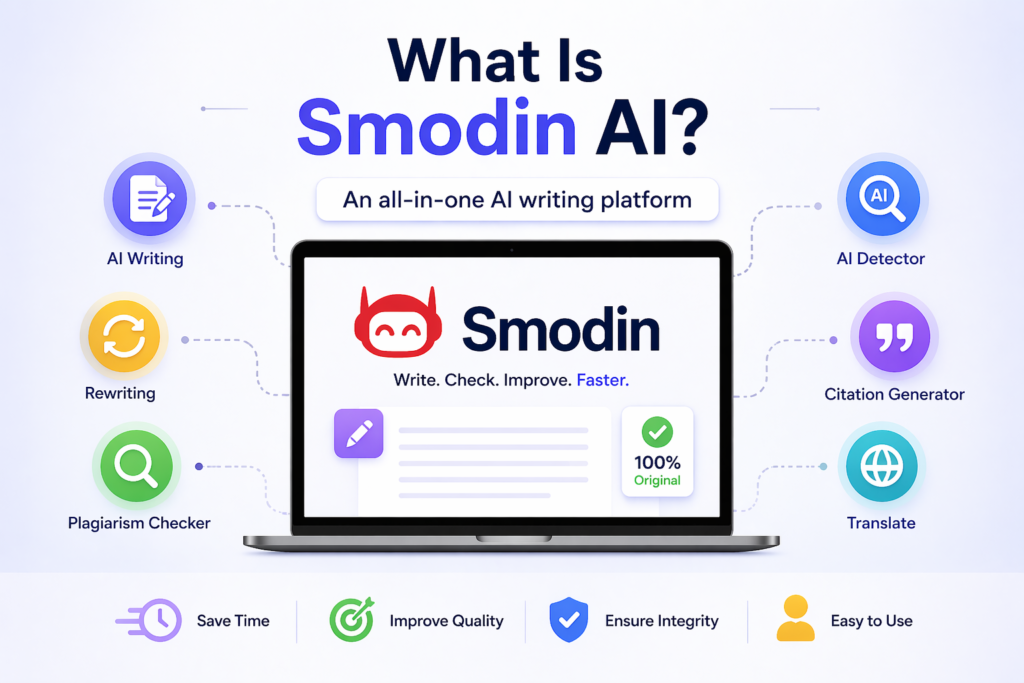
What Is Smodin AI?

Smodin AI overview showing AI writing, plagiarism checker, AI detection, and text rewriting tools

Smodin AI is an online platform that offers several AI writing tools in one place.

It helps people write faster, rewrite existing text, check for copied work, and even detect whether text was written by a human or an AI writer. The tool uses machine learning and natural language processing to understand and work with language.

The platform has become popular among students, teachers, content creators, and business professionals who need quick help with writing tasks. It promises ease of use and claims to save hours of work on content writing projects.

Who Can Use This Tool?

Smodin AI works for many different people:

  • Students who need help with essay writing and want to make sure their work passes plagiarism detection
  • Teachers and professors who need to check academic integrity by finding AI use in student submissions
  • Content creators and bloggers who want to speed up their content creation process
  • Marketing teams that produce lots of marketing content quickly
  • Professional writing services that need rewriting tools and AI checker features

Basically, anyone who deals with text regularly can find value in this AI assistant.

How Does It Work?

Smodin AI works through your web browser. You don’t need to download anything. You simply visit the website, paste your piece of text into the tool you want to use, and get results within seconds. The platform uses advanced AI models trained on millions of examples.

When you use the AI article writer, it creates generated content based on your topic. When you use the AI detector, it looks at sentence structure, word choice, and patterns to decide if a human or an AI writer created the piece of writing.

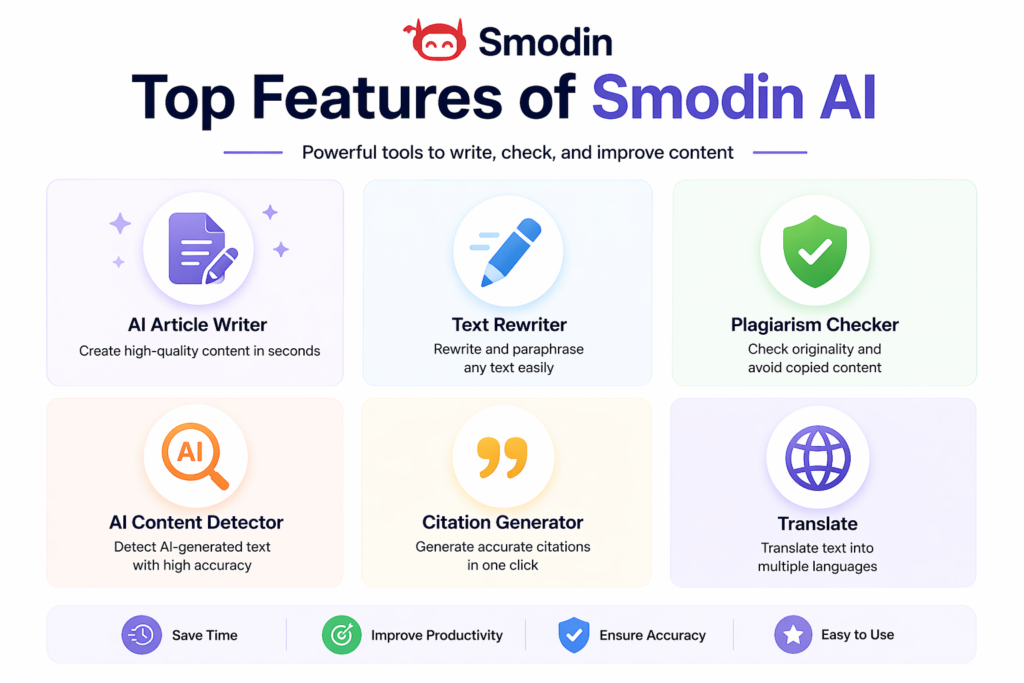
Top Features of Smodin AI

Top features of Smodin AI including AI writer, plagiarism checker, AI detector, and text rewriter icons

Smodin AI packs several key features into one platform. Here’s what you get:

AI Article Writer

The AI article writer helps you create types of content quickly. You enter a topic, choose how long you want the article, and the tool generates text for you. This feature is great for content creators who need to produce blog posts, articles, or social media updates fast.

The writer claims to create original content that reads naturally. However, you should always check the output because AI writing sometimes needs editing to match your writing style.

Text Rewriter and Spinner

Have existing text that needs a fresh look? The rewriting tool takes your piece of text and changes words and sentence structure while keeping the same meaning. This helps avoid plagiarism checking issues and can make old content feel new again.

This tool works well for repurposing marketing content or updating old blog posts without starting from scratch.

Plagiarism Checker

The plagiarism checker scans your work against billions of web pages to find copied content. It highlights matching text and gives you a percentage score showing how original your work is.

For students working on academic writing, this feature helps ensure academic integrity before turning in assignments. For professionals, it protects against accidental copying that could hurt your reputation.

Citation Machine

Writing research papers requires proper citations. Smodin AI includes a citation tool that formats your sources correctly. This saves time and helps students follow academic rules for referencing their work.

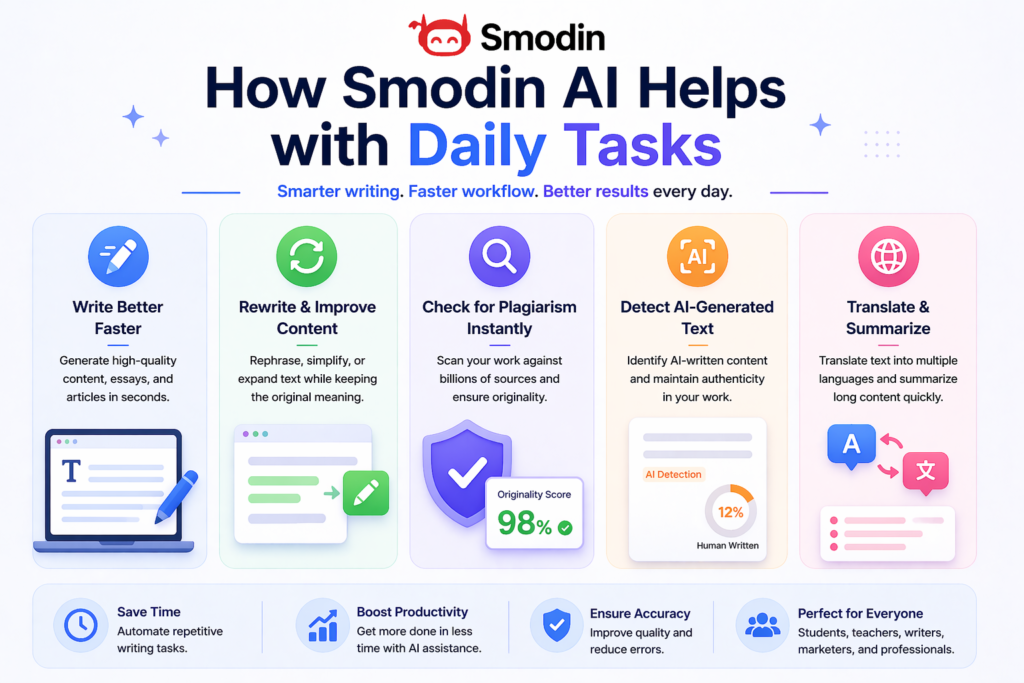
How Smodin AI Helps with Daily Tasks?

How Smodin AI helps with daily tasks like writing, rewriting, plagiarism checking, and content creation

Let’s look at real ways people use Smodin AI in their daily work:

Making School Work Easier

Students face tight deadlines and heavy workloads. Smodin AI helps by:

  • Generating first drafts for essay writing assignments
  • Checking academic papers for copied content before submission
  • Creating proper citations for research papers
  • Helping non-native English speakers improve their writing style

The AI assistant acts like a study buddy that’s available 24/7, making the writing process less stressful.

Creating Content Faster

Content creators and marketers benefit from Smodin AI through:

  • Quick generation of blog post ideas and drafts
  • Rewriting tool options to create multiple versions of the same marketing content
  • Plagiarism detection to ensure original work
  • Faster turnaround on content writing projects

This speed helps businesses post more often on social media and keep their websites fresh with new types of content.

Translating Text to Other Languages

Smodin AI includes translation features that convert text between languages. This helps businesses reach global audiences and students working with foreign sources. The translations use natural language processing to maintain meaning across languages.

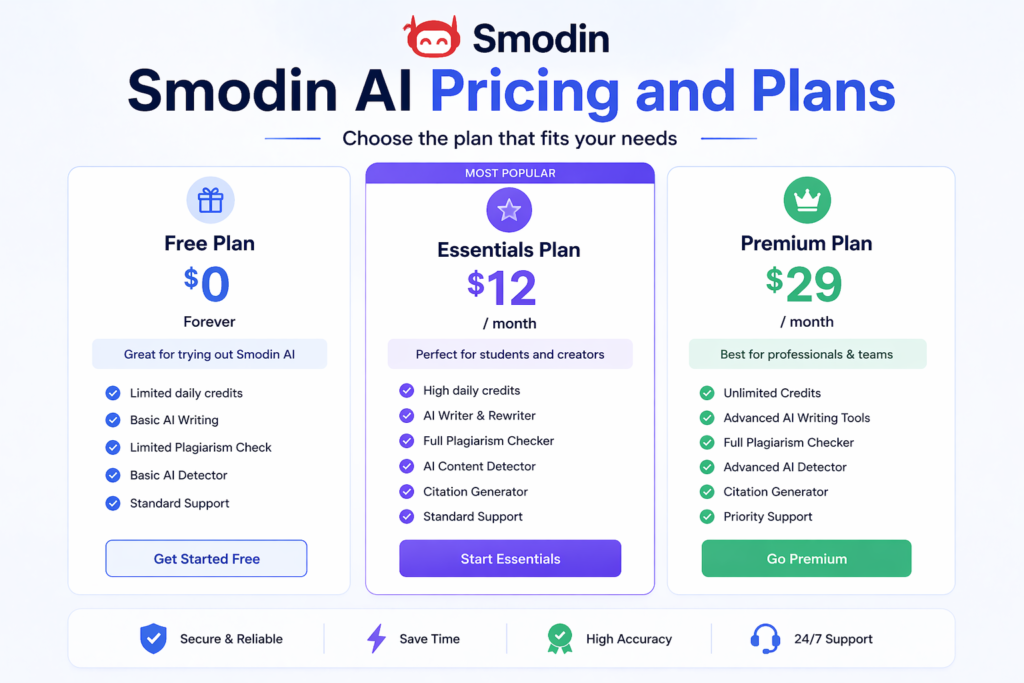
Smodin AI Pricing and Plans

Smodin AI pricing plans showing free and paid options with features and usage limit

Smodin AI offers both free and paid options. Here’s the breakdown:

The Free Plan

The free version gives you limited access to test the platform. With the free plan, you typically get:

  • A small number of credits for AI writing each day
  • Limited access to the plagiarism checker
  • Basic use of the AI content detector
  • Some restrictions on the generated content length

The free trial lets you test key features before spending money. However, serious users quickly hit the limits and need to upgrade.

Paid Subscriptions

Smodin AI offers several paid tiers. While exact prices change, paid plans usually include:

  • Unlimited or high-limit AI writing
  • Full access to plagiarism detection
  • Complete AI content detection capabilities
  • Priority customer support
  • Longer generated text outputs
  • Access to advanced tools

Most content creators and students find the paid plans worth the cost if they use the tool regularly. The paid plan removes daily limits that can interrupt your writing process.

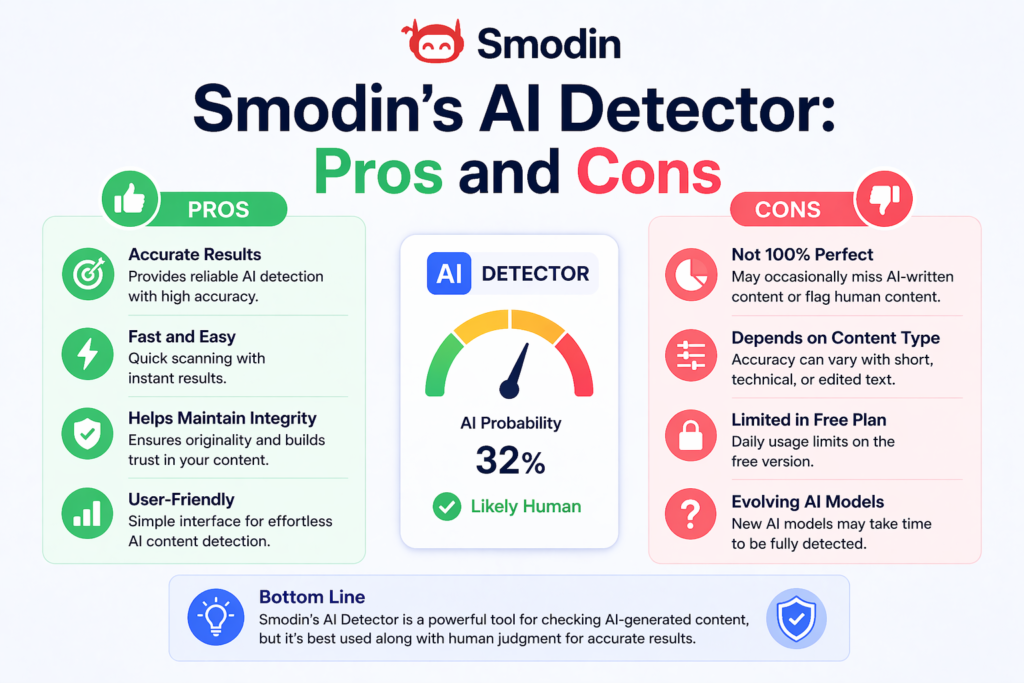
Smodin’s AI Detector: Pros and Cons

Smodin AI detector pros and cons showing accuracy, speed, false positives and limitations

The AI detector is one of the most used features. Let’s look at what’s good and bad about this detection tool.

Pros:

  • Ease of use — Simple interface that anyone can understand
  • Quick results — Get AI detection scores in seconds
  • Checks multiple AI models — Detects text from ChatGPT, GPT-4, and other AI writers
  • Helps maintain academic integrity in schools
  • Useful for content creators who want to verify human writing
  • Part of a larger suite of writing tools

Cons:

  • False positives — Sometimes marks human writing as AI content
  • The accuracy of Smodin varies depending on the text detection methods used
  • Can give different results for the same piece of text tested multiple times
  • Struggles with certain writing styles, especially technical or formal academic writing
  • May not catch all uses of AI in cleverly edited generated content
  • High accuracy claims don’t always match real-world performance

Smodin Review – What Does It Get Seriously Wrong?

Smodin AI review limitations shown with icons representing accuracy issues, slow performance, and detection errors

No AI detection tool is perfect, and Smodin AI has some real problems you should know about.

  • First, the false positives issue is serious. Many users report that Smodin AI flags their original human writing as AI content. This happens because the tool looks for patterns that AI writers use, but sometimes human writing follows similar patterns, especially in formal or simple writing styles.
  • Second, testing the same piece of text multiple times can give different results. This inconsistency makes it hard to trust the AI checker completely. If you’re a teacher checking academic papers, this could lead to unfair accusations of AI use.
  • Third, Smodin AI sometimes misses generated text that has been lightly edited. If someone takes AI writing and changes a few words, the content detector might not catch it. This creates a false sense of security.
  • Fourth, the text detection struggles with content written by non-native English speakers. The sentence structure differences can trigger false alarms, which isn’t fair to international students.
  • Finally, while Smodin AI claims high accuracy, independent tests in 2026 show mixed results. Some AI content detection tests show Smodin AI performing worse than competitors like Originality AI or Turnitin AI Detector.

Can You Bypass Smodin’s AI Detector?

Many people want to know if they can trick Smodin’s AI detector. The short answer is yes, it’s possible, but we don’t recommend it for academic writing or professional work where academic integrity matters.

Methods that sometimes work include:

  • Heavy editing of the generated text to change the sentence structure
  • Mixing AI writing with human writing in the same document
  • Using multiple AI writers and combining their outputs
  • Adding personal stories and unique examples that AI models rarely use

However, trying to beat AI content detection raises ethical questions. Schools and employers increasingly use these tools to ensure honest work. Getting caught can have serious consequences for your reputation and career.

Instead of trying to bypass AI detection, use Smodin AI as a helper rather than a replacement for your own thinking. Use the AI article writer for ideas and outlines, then write the final version yourself.

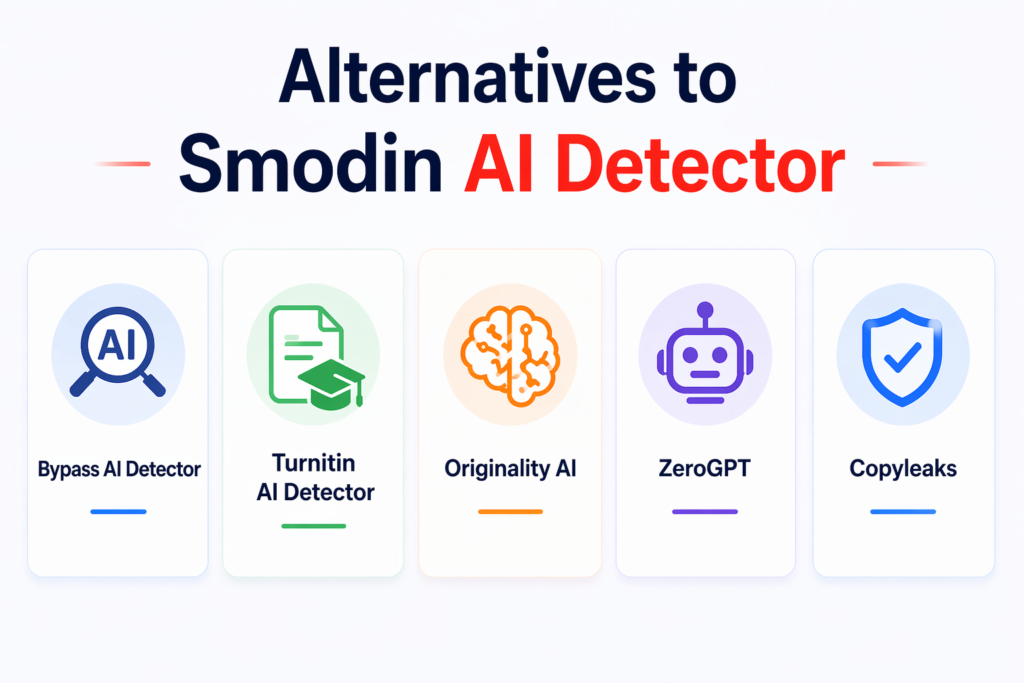
Alternatives to Smodin AI Detector

Minimal infographic showing alternatives to Smodin AI Detector including Bypass AI Detector, Turnitin AI Detector, Originality AI, ZeroGPT, and Copyleaks.

If Smodin AI doesn’t meet your needs, several other AI detection tools exist:

  1. Bypass AI Detector: This tool focuses specifically on helping content creators make AI writing appear more human. It rewrites generated content to avoid triggering AI content detectors. However, using such tools raises the same ethical concerns as trying to beat plagiarism detection.
  2. Turnitin AI Detector: Turnitin AI Detector is widely used in schools and universities. It integrates with the popular Turnitin plagiarism checker and offers AI content detection as part of its service. Many teachers trust this detection tool because of Turnitin’s long history in academic integrity.
  3. Originality AI: Originality AI markets itself as one of the most accurate AI detectors available. Tests in 2026 often show it performing better than Smodin AI at finding generated text with fewer false positives. It offers both AI detection and plagiarism checking in one platform.
  4. ZeroGPT: ZeroGPT is another popular AI content detector that claims high accuracy. It offers a simple interface and quick results. Some users find it more reliable than Smodin AI for checking text from various AI models.
  5. Copyleaks: Copyleaks provides both plagiarism detection and AI content detection. It’s used by businesses and schools to check content authenticity. The platform offers API access for companies wanting to build content detection into their own systems.

FAQ’s:

Is Smodin AI Free to Use?

Smodin AI offers a free version with limited features. You can test basic AI writing and AI detection without paying. However, the free plan has strict limits on how much content you can process. For regular use, you’ll need a paid plan.

Can Smodin AI Pass AI Content Detectors?

This question usually means: “If I use Smodin AI to write something, will other AI detectors catch it?” The answer depends.

Smodin AI generates AI text that most AI content detectors can identify. Simply using Smodin AI doesn’t guarantee your text will pass as human writing. You would need to heavily edit any generated content to have a chance at beating AI detection.

Does Smodin AI Support Multiple Languages?

Yes, Smodin AI works with multiple languages. The platform offers translation services and can process content in various languages. However, the accuracy of AI detection and plagiarism checking may vary depending on the language.

Is the Smodin AI Plagiarism Checker Safe and Accurate?

The plagiarism checker is generally safe to use.

Smodin AI doesn’t store or share your content permanently. As for accurate results, it finds most copied text but may miss some sources. For academic papers or important documents, consider using multiple plagiarism detection tools to be sure.

Is Smodin AI Good For Writing Essays?

Smodin AI can help with essay writing by generating ideas, creating outlines, and checking your work. However, submitting generated text as your own work violates academic integrity at most schools. Use it as a study aid, not a replacement for your own writing process.

The essay writer feature works best for learning how to structure arguments, not for submitting finished assignments.

Conclusion

After this complete Smodin AI detector review, what’s the final verdict?

Smodin AI offers a solid package of writing tools including AI writing, rewriting tools, plagiarism checking, and AI detection. The platform provides good ease of use and reasonable prices, especially for the free version that lets you test before buying.

However, the accuracy of Smodin as an AI content detector has real problems.

The false positives can wrongly accuse honest students, and inconsistent different results make it hard to fully trust. While it works okay as a first check, important decisions about academic integrity shouldn’t rely solely on Smodin AI.

For content creators and casual users, Smodin AI provides helpful AI assistant features that speed up content creation. The AI article writer and text detection tools save time on routine writing tasks.

For schools and teachers needing reliable AI content detection, better options exist. Tools like Originality AI, Turnitin AI Detector, and Winston AI often provide more accurate results with fewer mistakes.

In 2026, artificial intelligence continues changing how we write and check content. Smodin AI plays a role in this changing world, but users should understand its limits. Use it wisely as one tool among many, not as the final judge of whether text is human or machine-made.

Whether you choose Smodin AI or another AI tool, remember that no AI checker replaces careful reading and critical thinking. The best content detection still comes from engaged humans who understand context, creativity, and the writing style that makes each person unique.

Categories
AI

QuillBot AI Review 2026: Is This Writing Tool Worth It?

At Designers Choice, we know that great design starts with great communication. Whether you’re writing project proposals, client emails, or creative briefs, clear writing helps your ideas shine. That’s why our team tests the best writing tools to help creative professionals work smarter.

Today, we’re looking at QuillBot AI, one of the most popular AI writing assistants available. This paraphrasing tool has helped millions of people improve their writing process using artificial intelligence and natural language processing. But is it right for you in 2026?

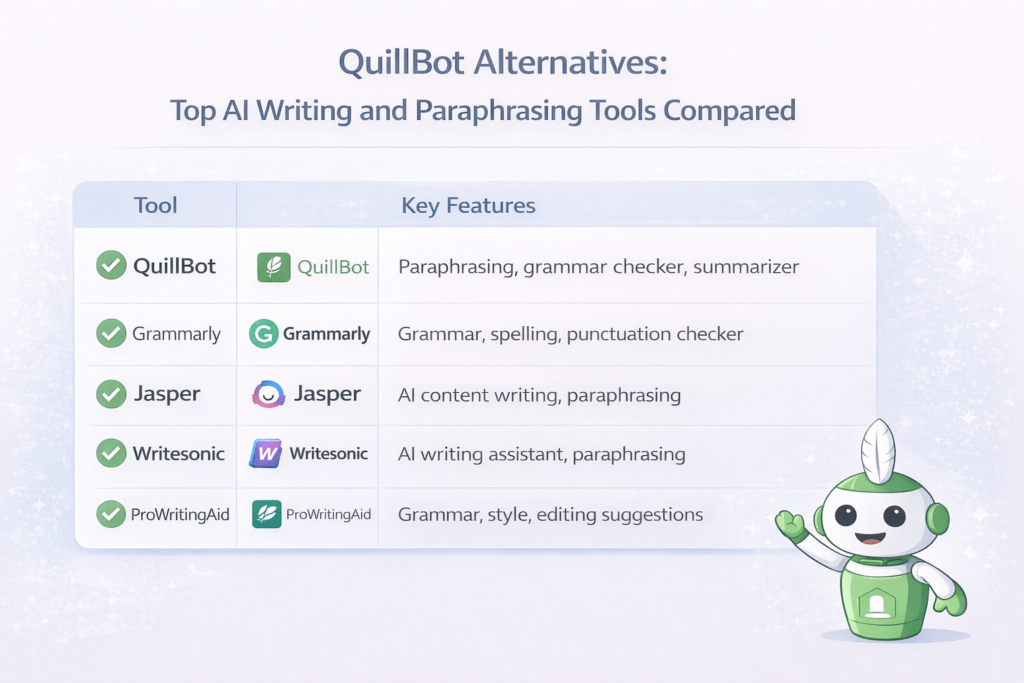
This guide breaks down everything you need to know about this AI writing assistant. We’ll cover its key features, pricing, who should use it, and how it compares to other writing assistant options. By the end, you’ll know if QuillBot deserves a spot in your creative toolkit.

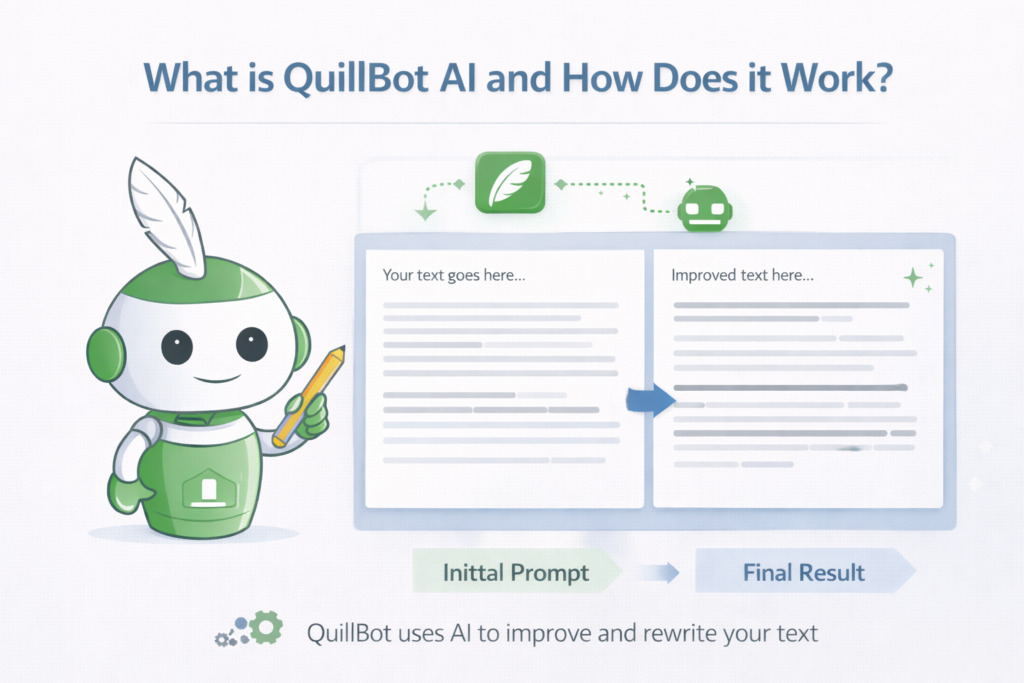
What is Quillbot AI and How Does it Work?

QuillBot AI interface showing text paraphrasing from original content to improved rewritten version

QuillBot AI is an AI tool that helps people write better. It uses machine learning to understand your text and suggest improvements. Think of it as a smart helper that reads your writing and offers ways to make it clearer.

The tool works by analyzing natural language, the way humans actually speak and write. When you paste text into QuillBot, its artificial intelligence studies your sentence structure, word choices, and grammar. Then it gives you options to improve your work.

You can use QuillBot through its website, Chrome extension, or add-ons for Microsoft Word and Google Docs.

This ease of use makes it simple to fit into your existing workflow. The user experience is straightforward: type or paste your text on the left side, and see suggestions on the right. What makes QuillBot special is that it doesn’t just fix mistakes. It helps you rewrite content in different styles while keeping the original meaning. This is helpful for content creators who need to adapt their message for different audiences.

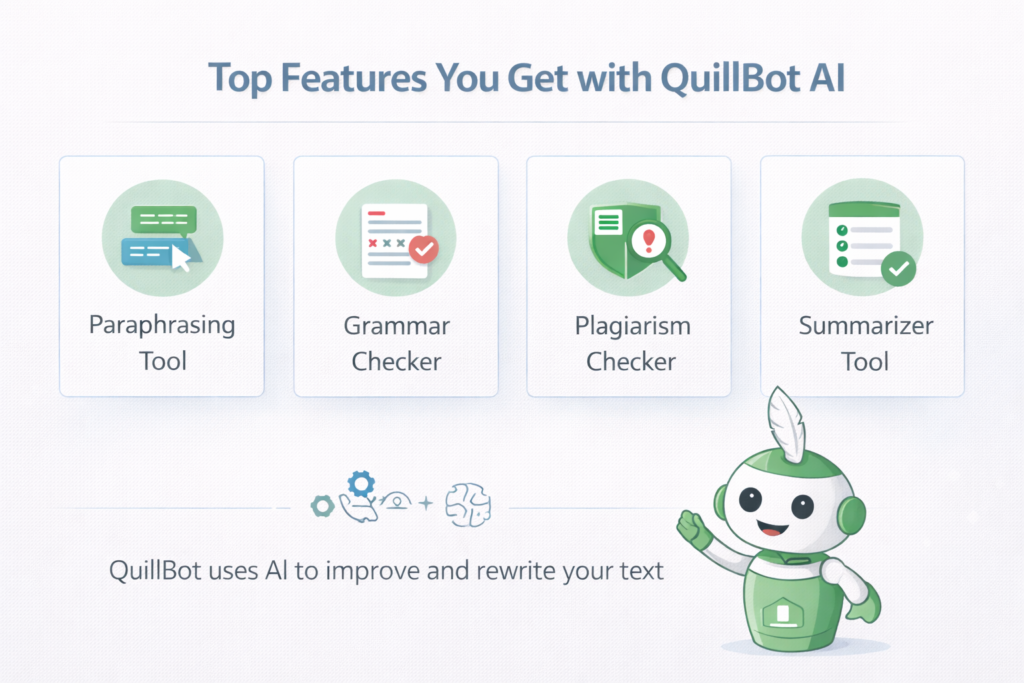
Top Features You Get with Quillbot AI

QuillBot AI features infographic showing paraphrasing tool, grammar checker, plagiarism checker, and summarizer

QuillBot packs several writing tools into one platform. Here’s what you get:

The Paraphrasing Tool

The paraphrasing tool is QuillBot’s star feature. It takes your text and rewrites it in fresh ways. The tool offers multiple paraphrasing modes to match your needs:

  • Standard mode: Balanced rewrites for general use
  • Fluency mode: Smoother, more natural flow
  • Formal mode: Professional tone for business writing
  • Academic mode: Perfect for academic writing and research papers
  • Creative mode: More expressive and original phrasing
  • Shorten mode: Cuts extra words to reduce word count
  • Expand mode: Adds detail to brief points

The free version lets you paraphrase up to 125 words at once. The premium version removes this word limit entirely, letting you rewrite long texts in one go. This saves time when working with full documents.

The Free Grammar Checker

QuillBot includes a solid grammar checker that catches grammatical and punctuation errors. It scans your text and highlights mistakes in red. You can fix errors one by one or click “Fix All Errors” to correct everything at once.

The grammar checking feature works in several languages, not just English. However, the free plan limits you to 150 words per check. The premium plan offers unlimited access to the grammar checker. While helpful, this tool isn’t as powerful as dedicated grammar apps.

It catches basic mistakes but may miss subtle issues. For simple proofreading, though, it works well.
The Plagiarism Checker

The plagiarism checker is a premium feature that helps ensure your work is original. It scans your text against billions of web pages and academic papers to find matching content. This protects your academic integrity and ensures you’re creating original content.

The plagiarism detector allows up to 25,000 words of checking per month on the premium plan . It shows you exactly where potential issues exist and provides sources. This is important for students, writers, and professionals who need plagiarism detection they can trust.

The Summarizer Tool

The summarizer tool condenses long texts into key points. Paste an article, report, or research paper, and QuillBot extracts the most important information. You can get summaries as paragraphs or bullet points.

The free version handles up to 1,200 words. The premium version extends this to 6,000 words. This helps content creators quickly digest information and create new content from existing sources.

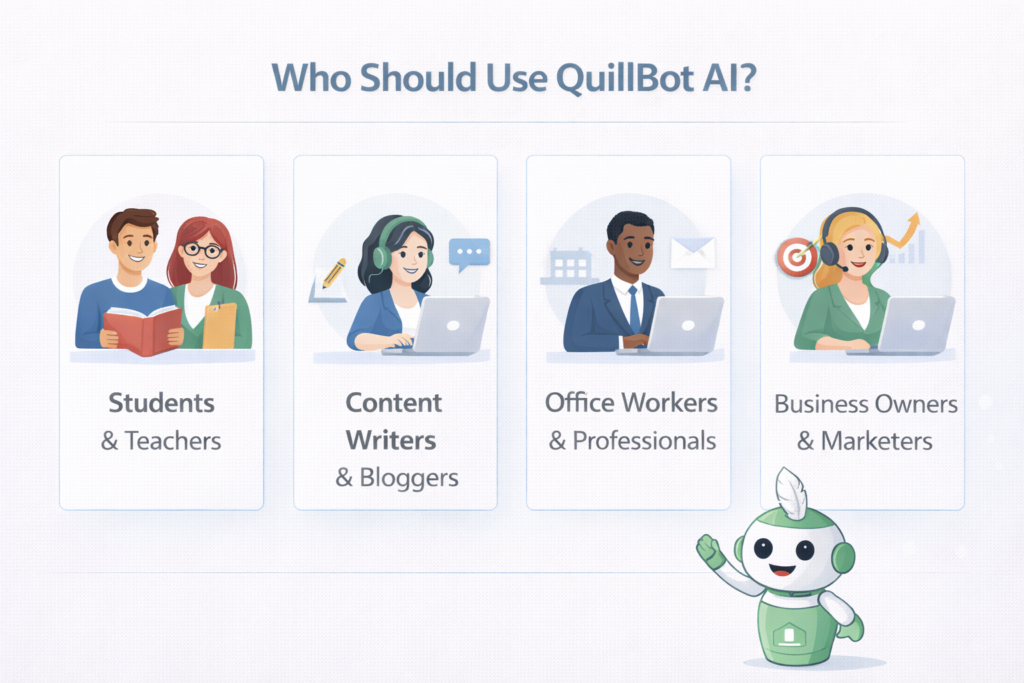
Who Should Use Quillbot AI?

Who should use QuillBot AI infographic showing students, content writers, professionals, and marketers

QuillBot serves different users in different ways. Here’s who benefits most:

Students and Teachers

For academic writing, QuillBot is a valuable AI assistant. Students use it to:

  • Rewrite research papers while keeping original meaning
  • Check grammar before submitting assignments
  • Create proper citations with the citation generator
  • Summarize long readings into key points
  • Ensure plagiarism protection before turning in work

Teachers use it to check student submissions and create teaching materials. The academic writing mode helps maintain a formal tone suitable for schoolwork.

Content Writers and Bloggers

Content creators and bloggers rely on QuillBot for content generation. It helps:

  • Refresh old blog posts with new phrasing
  • Adjust writing style for different platforms
  • Create marketing copy variations quickly
  • Maintain consistent tone across articles
  • Reduce word count when needed

The AI writing tools speed up the content creation process while keeping quality high.

Office Workers and Professionals

Business professionals use QuillBot for:

  • Polishing emails and reports
  • Creating social media posts
  • Rewriting technical documents in simpler terms
  • Checking grammar in Microsoft Word documents
  • Improving sentence structure in presentations

The browser extension makes it easy to use across different work platforms.

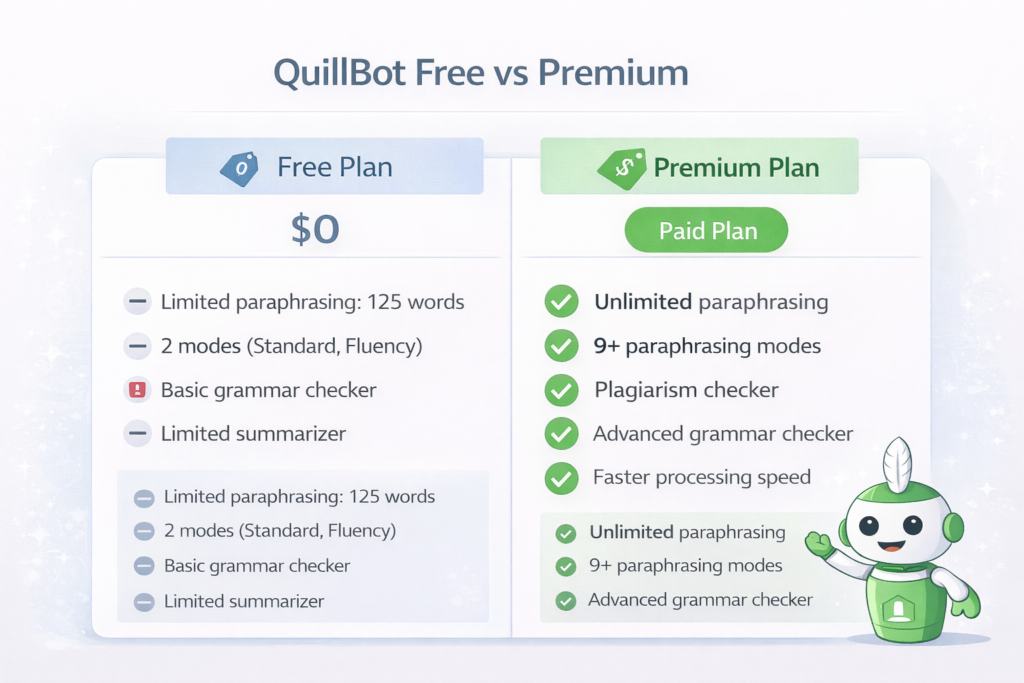
QuillBot Pricing: Free Vs. Premium Plans — Which One Is Right For You?

QuillBot free vs premium pricing comparison showing features like unlimited paraphrasing and grammar checker

Understanding QuillBot’s pricing helps you choose wisely.

Is QuillBot AI Free? What You Get Without Paying

Yes, QuillBot offers a free plan that costs $0. Here’s what you get:

  • Paraphrasing up to 125 words per use
  • Two paraphrasing modes (Standard and Fluency)
  • Summarizer up to 1,200 words
  • Basic grammar checker (150-word limit)
  • Basic AI detector (1,200-word limit)
  • Citation generator access

The free version works for casual users who need occasional help. However, the word limit restrictions can frustrate heavy users.

QuillBot Premium: Is It Worth the Upgrade?

The premium plan unlocks QuillBot’s full power. You get:

  • Unlimited paraphrasing with no word limit
  • All 9+ paraphrasing modes
  • Summarizer up to 6,000 words
  • Plagiarism checker (25,000 words/month)
  • Unlimited grammar checker
  • Faster processing speed
  • Tone adjustments
  • Paraphrase history to save previous work
  • Compare mode to see different versions side-by-side

For anyone doing regular content creation, these premium features save significant time.

QuillBot Premium Pricing Breakdown

QuillBot offers flexible payment options:

PlanPriceBest For
Monthly$19.95/monthShort-term projects
Semi-Annual$13.33/month ($79.95 total)Medium commitment
Annual$8.33/month ($99.95 total)Best value
Student$6.25/month ($74.95/year)Verified students

The annual plan saves you 58% compared to monthly billing. At roughly $8.33 per month, it’s cheaper than many coffee drinks but delivers daily writing assistance.

Is There A Money-Back Guarantee?

Yes, QuillBot offers a 3-day, 100% money-back guarantee. This lets you test all premium features risk-free. If you’re not happy, request a refund within three days of purchase.

QuillBot Alternatives: Top AI Writing and Paraphrasing Tools Compared

QuillBot alternatives comparison showing Grammarly, Jasper, Writesonic, and ProWritingAid features

How does QuillBot stack up against competitors? Let’s compare:

Grammarly – Best For Grammar and Style Enhancements

Grammarly is the heavyweight champion of grammar checking. It catches more grammatical errors than QuillBot and offers deeper style suggestions. However, Grammarly lacks strong paraphrasing features; its rewriting is limited to basic suggestions.

  • Pricing: $12-$30/month
  • Best for: Writers who prioritize perfect grammar over rewriting

Wordtune – AI-Powered Rewriting with Tone Adjustments

Wordtune focuses on making sentences clearer and more natural. It offers excellent tone adjustments and understands context well. However, it lacks QuillBot’s plagiarism checker and citation generator.

  • Pricing: $6.99/month for unlimited access
  • Best for: Business writers needing precise, professional rewrites

Spinbot – Free Paraphrasing Tool with No Word Limit

Spinbot offers unlimited paraphrasing completely free. However, the quality is basic, and it lacks grammar checking, plagiarism detection, or other advanced features.

  • Pricing: Free
  • Best for: Users who only need simple rewriting without extra tools

Jasper AI – Best For AI-Generated Content

Jasper AI creates generated content from scratch, not just rewriting existing text. It’s powerful for content generation and marketing copy, but costs significantly more.

  • Pricing: Starts at $49/month
  • Best for: Teams needing full AI writing creation, not just editing

Scribbr – Best For Academic Writing & Plagiarism Detection

Scribbr specializes in academic writing with excellent plagiarism detection. It offers detailed feedback on research papers and citations. However, it’s more expensive and focused only on academic use.

  • Pricing: Around $20 per plagiarism check
  • Best for: Students needing thorough academic integrity checks

Final Verdict: Is QuillBot Still Useful in 2026?

Final verdict on QuillBot AI showing pros and cons and overall usefulness in 2026

After testing QuillBot against current alternatives, here’s our assessment:

QuillBot Pros & Cons: What You Need to Know

QuillBot Pros – Why It’s A Top AI Writing Assistant

  1. Affordable pricing: At $8.33/month annually, it costs less than competitors
  2. All-in-one toolkit: Paraphrasing, grammar checking, summarizing, and plagiarism detection in one place
  3. Multiple modes: 9+ paraphrasing modes suit different writing needs
  4. Easy integration: Works with Google Docs, Microsoft Word, and Chrome
  5. User-friendly: Simple interface with no learning curve
  6. Citation help: Free citation generator supports 1,000+ styles
  7. AI detection: Built-in tools to check for AI content detection issues

QuillBot Cons – Where It Falls Short

  1. Grammar limitations: Not as thorough as Grammarly for grammar checking
  2. Plagiarism limits: Only 25,000 words/month on premium plans
  3. English focus: Primarily supports English only
  4. No mobile app: Only browser and desktop extensions available
  5. AI detection concerns: Some AI detection tools may still flag QuillBot output
  6. False positives: The plagiarism detector occasionally shows incorrect matches

Should You Use QuillBot AI in 2026?

Yes, if you:

  • Need affordable writing assistance with multiple features
  • Write blog posts, social media content, or marketing copy
  • Want paraphrasing with control over tone adjustments
  • Require basic plagiarism detection for school or work
  • Use Google Docs or Microsoft Word regularly

Consider alternatives if you:

  • Need the absolute best grammar checking (choose Grammarly)
  • Write exclusively in languages other than English
  • Require unlimited plagiarism detection without word caps
  • Need AI content detection bypassing (results vary)

For most content creators and professionals, QuillBot delivers excellent value. The combination of paraphrasing tool, grammar checker, summarizer tool, and plagiarism checker at under $9/month makes it a smart investment for better writing.

FAQ’s:

Is Quillbot AI Reliable For Academic Writing in 2026?

Yes, QuillBot works well for academic writing when used properly. The Academic mode maintains formal tone suitable for research papers.

The plagiarism checker helps ensure academic integrity by catching unintentional copying. However, always review QuillBot’s output to ensure accuracy and proper citations. Some schools have policies about AI writing tools, so check your institution’s rules first.

Is QuillBot Effective in Producing Plagiarism-Free Content?

QuillBot’s paraphrasing tool creates new content by rewriting your text. However, simply changing words doesn’t guarantee original content.

Always run your final work through the plagiarism checker to verify. The tool compares against billions of sources, but false positives can occur. For important submissions, consider using additional detection tools to double-check.

How Accurate is QuillBot in Paraphrasing Complex Or Technical Content?

QuillBot handles most text well, but technical content with specialized terms can challenge it. The “Freeze Words” feature helps by keeping specific terms unchanged. For highly technical academic papers, review the output carefully.

Machine learning improves constantly, but natural language processing still struggles with some niche jargon.

Can QuillBot Be Detected By AI Content Detectors?

Possibly. While QuillBot aims to create human writing, some AI detection tools may flag its output. The AI humanizer mode attempts to bypass content detection, but results vary. No AI tool guarantees undetectable content.

For sensitive submissions, combine QuillBot with your own editing to ensure an authentic voice.

Does Quillbot AI Work in Languages Other Than English?

Currently, QuillBot primarily supports English. The grammar checker works with several languages, but paraphrasing and advanced features focus on English text. If you need multi-language support, consider alternatives like DeepL or Grammarly, which offer broader language options.

Can I Use QuillBot For SEO Content Writing?

Yes, QuillBot helps with SEO content writing by improving readability and sentence structure.

The Shorten and Expand modes help hit target word counts. However, remember that generated content should always be reviewed for quality. Search engines value original content and human writing, so use QuillBot as an assistant, not a replacement for your expertise.

Can QuillBot Generate Full Articles Automatically?

No, QuillBot is a rewriting and editing AI assistant, not a full content generation tool like Jasper AI. It improves existing text but doesn’t create blog posts from scratch. You need to provide the original text and key points, then QuillBot helps polish and rephrase.

Do I Need to Make an Account to Use It?

No, you can use the free version without creating an account. Simply visit the website and start typing. However, making an account lets you save paraphrase history, access the Chrome extension, and sync work across devices.

For premium features, account creation and payment are required.

Conclusion

At Designers Choice, we believe the right writing tools should make your creative work easier, not harder. QuillBot AI delivers solid value as an AI writing assistant that combines paraphrasing, grammar checking, summarizing, and plagiarism detection at an affordable price.

For content creators, students, and professionals who need help polishing their writing, QuillBot offers an impressive toolkit. The premium plan at $8.33/month provides unlimited access to features that streamline the writing process and improve content creation quality.

While it’s not perfect, grammar checking lags behind Grammarly, and AI detection remains a concern, QuillBot’s combination of features, ease of use, and fair pricing make it worth considering in 2026.

Whether you’re drafting blog posts, refining academic papers, or perfecting marketing copy, QuillBot serves as a reliable writing assistant that helps bring your ideas to life with clarity and confidence.

Categories
Design

How to Crop an Image in InDesign: A Step-by-Step Guide

At Designers Choice, we know that working with images is a big part of any design projects.

Whether you are making brochures, printing materials, or creating a PDF, knowing how to crop an image in InDesign is an essential skill.

Many beginners get confused when they first start using Adobe InDesign because cropping works differently here than in Photoshop.

This guide will show you the easy steps to get consistent results every time.

Understanding the Basics: How to Crop an Image in InDesign

Understanding the basics of how to crop an image in Adobe InDesign using frames, selection tools, and clipping paths

The Relationship Between the Image and the Frame

In InDesign, every image file sits inside an image frame.

Think of the frame as a window. The image content is behind that window. When you crop, you are changing the size of the window, not the photo itself. This is why InDesign cropping is different from other programs. The frame size controls what part of the image you see.

Step-by-Step: Using the Selection Tool (Black Arrow)

The selection tool (also called the black arrow) is in the tools panel on the left side of your screen. Here is how to use it:

  • Click the black arrow in the toolbar
  • Click on your selected image frame
  • Look at the corners of the frame. You will see small squares called anchor points
  • Drag any corner handle to resize the frame
  • Hold the shift keys on the side of the keyboard to keep the aspect ratio

This is the normal sequence for basic cropping. The control panel at the top of your screen also shows the frame size numbers.

Utilizing the Content Grabber to Position Your Crop

The content grabber is a small circle that appears when you hover over a placed image. It helps you move the image content inside the frame. Click and drag it to show a different part of the image. This gives you precise cropping without changing the frame size.

Advanced Techniques For Cropping an Image in InDesign

Advanced techniques for cropping an image in Adobe InDesign using direct selection tool, frame fitting options and custom shape cropping

Resizing and Cropping with the Direct Selection Tool (White Arrow)

The direct selection tool (the white arrow) lets you work with the image content directly. When you select this tool from the tools panel, you can:

  • Click on the image content to select it
  • Drag the image content to move it inside the frame
  • Use the control handle points to resize the image itself

This tool is great when you need to fit a frame to specific dimensions while keeping the photo in the right spot.

Using Frame Fitting Options For Automatic Cropping

Adobe InDesign has built-in options to make cropping faster. With your selected image frame selected, go to the file menu and choose Object > Fitting. You will see options like:

  • Fit Content Proportionally
  • Fill Frame Proportionally
  • Center Content

These options help with InDesign cropping instead of resizing mistakes that beginners often make. The autofit feature can also be turned on in the control panel.

Cropping Images Into Custom Shapes (Circles, Polygons, and Text)

You can crop images into shapes other than rectangles. Use the pen tool to draw a custom shape, or use the shape tools for circles and polygons. Then:

  • Place your image file on the page
  • Draw your shape on top of it
  • Select both the shape and image
  • Go to Object > Clipping Path > Make

This creates a clipping path that crops the image to your shape. You can even use text as a custom shape for creative effects.

Best Practices For Non-Destructive Cropping in Adobe InDesign

Non-destructive cropping in Adobe InDesign showing image frame resizing with hidden image area and best practices checklist

Why InDesign Cropping is Always Non-Destructive?

One great thing about Adobe InDesign is that cropping never deletes your original image. The image file stays complete. You can always:

  • Double-click with the direct selection tool to see the full image
  • Drag the frame bigger to show more of the image
  • Use the content grabber to reposition

This is why InDesign cropping instead of resizing confusion happens, because the image content and frame size are separate things.

Managing File Sizes: When to Pre-Crop in Photoshop

While InDesign cropping is safe, large image file sizes can slow down your indesign document.

For printing projects with many photos, consider:

  • Cropping in Photoshop first for huge images
  • Saving copies at the right pixels size
  • Then placing them in InDesign

This keeps your layout running smoothly, especially for brochures with many pages.

FAQ’s:

What is the Difference Between the Selection Tool and the Direct Selection Tool When Cropping?

The selection tool (black arrow) moves and resizes the image frame. The direct selection tool (white arrow) moves and resizes the image content inside the frame. Use the black arrow for the frame, white arrow for the picture.

How Do I Crop an Image Into A Perfect Circle in InDesign?

Use the ellipse tool to make a circle. Place it over your image. Select both, then go to Object > Clipping Path > Make. Or use Object > Pathfinder options. This creates a circular crop using a clipping path.

Why Does My Image Look Blurry Or Pixelated After I Crop It?

This usually happens when you stretch the image content bigger than the original image resolution. Check your pixels in the control panel. For printing, images should be 300 DPI at the final size.

Why Won’t My Image Crop in InDesign, and How Can I Fix It?

Make sure you are clicking on the corner of the frame with the selection tool. If the frame moves but the image does not crop, check that you are not using the direct selection tool by mistake. Also, locked layers prevent editing. Check the Layers panel.

How Can I Quickly Fit My Image to the Cropped Frame Without Distorting It?

Select the selected image frame, then go to Object > Fitting > Fill Frame Proportionally. This keeps the aspect ratio while filling the frame. You can also use keyboard shortcuts: cmd (on Mac) or ctrl (on PC) + Alt + C.

Is Cropping A Vector Shape in InDesign Possible, Like Cropping A Photo?

Yes! You can place vector graphics inside frames just like photos. Use the same range of tools, the selection tool, direct selection tool, and frame fitting options work the same way.

Is Cropping in InDesign Permanent? Can I Get the Rest of my Image Back?

No, cropping is not permanent. Your original image is always there. Just drag the edges of the frame outward to reveal more. Or double-click with the direct selection tool to access the full image content.

Conclusion

Learning how to crop an image in InDesign opens up many different methods for your design projects. From basic selection tool moves to advanced clipping path techniques, you now have the skills to handle any cropping task.

Remember that InDesign keeps your original image safe, so do not be afraid to experiment with different cropping techniques.

At Designers Choice, we believe that mastering these tools helps you create better layouts for brochures, printing jobs, and digital PDF files. Keep practicing with these steps, and soon cropping will feel like second nature. Happy designing!

Categories
Uncategorized

How to Change Artboard Color in Illustrator: A Complete Guide

Have you ever stared at a bright, plain screen while working on your computer? Sometimes, that bright white screen makes it very hard to see what you are doing. At Designers Choice, we know that making art should be fun and easy. It should not be hard on your eyes.

When you do graphic design, you might need a different workspace to see things clearly. Knowing exactly how to change the artboard color in Illustrator is a very handy trick to learn. It is an essential skill that helps you see your design elements much better.

In this easy guide, we will show you the simple steps to change the color of the artboard. We will look at two simple methods that anyone can do. Whether you are making fun art for social media or getting ready to print a big image file, these neat tricks will make your illustrator workflow much better. Let us look at how you can pick a new background color today!

We will make sure you learn this quickly so you can get back to drawing.

Why Learn How to Change Artboard Color in Illustrator?

Why Learn How to Change Artboard Color in Illustrator?

You might wonder why you even need to learn how to change the artboard color in Illustrator in the first place. Most new projects start with a giant, plain white canvas. It looks just like a fresh piece of copy paper. But leaving it plain white is not always the best choice for your art.

Here are a few great reasons why you might want to change the background color of an artboard.

Enhancing Visibility For White Or Light-Colored Artwork

If you are drawing a fluffy white cloud or a light yellow star, it will blend right into a white background.

You will not be able to see the edges of your art at all. It can make you feel lost. If you change background color to something dark, like blue or black, your light-colored art will pop right out. This makes it so much easier to work on your graphic design.

You can pick different backgrounds to see your work clearly and easily. You will not have to guess where your lines are anymore.

Simulating Final Print Materials (Like Colored Paper)

Sometimes you want to print your art on real blue paper or pink paper at your house or at a print shop. If you only look at a white screen while you draw, it is hard to guess what the final print will actually look like.

You can use the simulate colored paper option inside the program to see exactly how your ink will look on that colored paper. This helps you plan your art much better before you spend money on printing.

Reducing Eye Strain During Long Design Sessions

Staring at a super bright screen for hours and hours can make your eyes feel very tired and sore. It can even give you a headache.

If you change the artboard background color to a soft gray or a warm, gentle tone, it is much kinder to your eyes. This is a very helpful trick for anyone who spends a lot of time sitting at a desk and working on design elements.

You can even adjust your user interface brightness to help your eyes even more while you work.

Document Setup Method: How to Change Artboard Color in Illustrator

Document Setup Method: How to Change Artboard Color in Illustrator

The first way to do this is called the document setup method. This way only changes how the workspace looks on your computer screen. It is great when you just want a better view while you are drawing. Let us break it down into very simple steps.

Step 1: Open the Document Setup Menu

First, you need to turn on your computer and open adobe illustrator.

Start your new document or open a file you already made earlier. Now, look at the very top of your screen. You will see a list of words. Click on the word “File” in the menu bar. A drop-down list will appear on your screen. Scroll down that list and click on the words “Document Setup.”

This will open the document setup window right in the middle of your screen. You can also access document setup by clicking a special button inside the properties panel. You can usually find this panel on the right side of your screen.

Step 2: Locate the Transparency Grid and Colors Section

Inside the document setup window, you need to look for a specific section. It is called the “Transparency and Overprint Options” section.

Here, you will see a little box that looks like a checkerboard. This little box is related to the transparency grid. You will also see two small color boxes right next to it. These two boxes are very important. They control the color of the grid and the color of your artboard.

Step 3: Select Your New Artboard Color

Now, click on the top color box. This action opens up the color selector tool. Now, you have the power to pick any color you want for your canvas color. You can click on a nice dark gray, a soft gentle blue, or any other color that helps you see your drawing better.

Once you pick the exact color you want, click the button that says “OK.”

Step 4: Enable the “Simulate Colored Paper” Option

There is one more very important thing to do. You must check the little box right next to the simulate colored paper option. If you forget to check this box, nothing will happen at all. Once you check it, click “OK” to close the menu completely.

If you still see a white screen after doing this, do not worry. You just need to turn on the grid. Go back to the menu bar at the top, click on the word “View,” and select show transparency grid. Now, you will finally see your brand new background color!

The Background Shape Method: An Alternative Way to Change Artboard Color

The Background Shape Method: An Alternative Way to Change Artboard Color

The first method is cool, but it only changes what you see on your monitor. It does not actually print that color on your printer. If you want the color to print out, or if you want to save it as a raster image with the color showing, you need to use a different method.

This way is called the rectangle method. Here is exactly how to make a background rectangle for your art.

Step 1: Select the Rectangle Tool (M)

Go to your tool panel on the left side of your screen. Look for the rectangle tool and click on it with your mouse. It looks like a simple square. You can also just press the letter “M” on your computer keyboard to pick it super quickly.

Step 2: Draw A Shape Over Your Artboard

Now, click and drag your mouse across the entire artboard. You want to make a big shape that is the exact size of your artboard. If your artboard is a perfect square, draw a perfect square. Make sure it covers every single edge perfectly so no white parts are left showing.

Step 3: Apply Your Desired Fill Color

With your big shape still selected, look at your color tools. Pick a new fill color for your shape. This color will be your new image background. You can change it to bright blue, deep red, or anything you like. Now, your shape acts as the solid color of the background.

Step 4: Lock the Layer to Prevent Accidental Edits

You do not want to accidentally move this background shape while you are busy drawing other fun things.

So, you need to open your layers panel. It is usually sitting on the right side of your screen. Look for your new shape in the list. Click the empty little box next to the eye icon to lock it. A small picture of a padlock will appear. Now, the shape is safely locked in place.

For better organizing, make a new layer right above it to draw your other design elements. Always make sure to keep your background shape sitting at the bottom of the layer list.

Document Setup Vs. Background Shape: Which Should You Use?

Document Setup vs Background Shape

Now you know two great ways to change the color of your artboard. But which one should you pick for your project? It really depends on what you want to do with your file later on.

When to Use Document Setup (Viewing Purposes Only)

The document setup method is strictly for your eyes while you work on your computer. It only changes the user interface view.

If you use this method, the color will not show up when you print your artwork on a printer. It will also not show up if you save your file as a picture with a transparent background.

You should only use this method if you just want to reduce eye strain or if you just need to see white shapes better while you work.

When to Use A Background Shape (Exporting and Printing)

The rectangle method is exactly what you need if you want the color to be part of your final art.

If you are making a fun post for social media and want a pink background, you must draw a solid pink shape. This method makes sure the background colors are saved when you export your final image file. It makes the color real and permanent, unlike the other way.

FAQ’s:

Will the Color I Set in Document Setup Show Up When I Export Or Print My File?

No, it will not. The color you pick in the document setup menu is only there to help you see better on your computer screen. When you print the file or save it to show your friends, it will act like it has a transparent background or a plain white background.

If you want the color to actually print out on paper, you must use the rectangle tool to make a solid shape behind your art.

How Do I Change the Artboard Color Back to White?

If you used the document setup method, just go right back to the document setup window. Click the color selector and pick the white color again. Make sure the simulate colored paper option is still checked, and click “OK.” If you drew a big shape instead, just unlock the shape in the layers panel. Then, you can change its fill color to white. Or, you can just press delete on your keyboard to remove the shape completely.

Can I Have Multiple Artboards With Different Colors in the Same Illustrator Document?

If you use the document setup method, the color you pick will change the look of the entire artboard workspace all at once. It will make all your boards look the same color. If you want different colors on different boards, you must use the rectangle tool.

Draw a shape on the first board and give it one color. Then, draw a shape on the next board and give it a different color. You can use the artboard tool and the artboard options to easily fix the size of your artboard for each different one you make.

Why Isn’t the Color Changing Even After I Picked A New One in Document Setup?

This is a very common problem for beginners. Usually, it happens because you forgot to check the tiny box for the simulated colored paper option. Go back into the menu and make sure that box has a check mark in it. Also, you must make sure your transparency grid is turned on.

Go to “View” in the menu bar and click the words Show Transparency Grid. Then you will see your new background color.

Does Changing the Illustrator UI Interface Color Affect My Artboard?

No, it does not do that. You can change your user interface brightness to make the menus dark gray or light gray.

This only changes the toolbars and menus sitting around your workspace. It just changes the user interface. It does not change the actual canvas color where you draw your art. The color of your artboard stays the same, no matter how dark or light your menus are.

Conclusion

Knowing how to change artboard color in Illustrator is a great trick that makes your work so much easier.

We hope these simple steps help you enjoy your graphic design work even more today. Whether you use the document setup method for a better view or the background rectangle for printing, you now have the tools you need to succeed.

At Designers Choice, we love sharing tips that help you create better art without getting a headache. You can easily save your eyes from staring at a super bright white screen all day long. You can easily test how your art looks on different colored paper before you print it.

There is no need for a fancy automated background remover tool when you know how to control your layers and backgrounds right from the very start. Try out these simple methods today on your brand new projects, and see how much better your workspace feels!

Categories
Fonts

How to Add Fonts to GIMP? A Complete Guide

As passionate designers with years of hands-on experience, we created Designers Choice to be the resource we always wished we had—where expertise meets inspiration. We know the challenges of turning creative ideas into reality, from sourcing the perfect materials to staying ahead of design trends. That’s why we bring you a collection of top-quality products, innovative solutions, and trusted insights, all tailored for fellow professionals who demand the best. Our mission is to empower you to bring your boldest visions to life, backed by a community that values creativity, craftsmanship, and excellence as much as you do.

Today, we are going to talk about a very fun topic: how to add fonts to gimp. If you use this free software to draw or edit pictures, you already know it is a great tool. However, the basic letters that come with it might feel a little boring after a while.

To make your pictures look amazing, you need a new font. We will show you exactly how to get a new font and place it in your fonts folder so you can use it every day. This guide is written so that anyone can read it and learn how to add fonts to gimp.

Why You Should Learn How to Add Fonts to GIMP?

Why You Should Learn How to Add Fonts to GIMP?

When you type words on a picture, the shape of the letters is called a font. Learning how to add fonts to gimp is a great skill to have. It gives you many new choices for your art. You do not have to stick to the same old typefaces anymore.

Elevating Your Graphic Design Projects

If you only use the default options, your art might look like everyone else’s art. A fresh, fun font makes your work stand out.

Whether you are making a birthday card or a poster for school, using the text tool with fresh styles makes everything look much better. When you add a great new font, your pictures tell a better story. Beautiful typefaces catch the eye of anyone who looks at your work.

Matching Brand Guidelines and Aesthetics

Sometimes, a company has rules about how their words should look. They might want a special serif style with little lines on the letters.

If you do not have their exact font files, you cannot match their rules. By keeping your gimp fonts updated, you can always pick the right style to match any brand or project. Having many font files ready to use makes you look like a real professional.

Preparation: Finding and Downloading Custom Fonts

The first step is to go on the internet and look for the files you need. You have to save them to your computer before you can use them.

Best Free Font Resources (Google Fonts, DaFont, etc.)

There are many amazing font websites where you can get free fonts. Some of the most popular places are Google Fonts and DaFont.

Just go to Google, type what you are looking for, and hit search. When you find a style you like, just click the download button. Always check if the downloaded fonts are marked for personal use only.

If they are for personal use, it means you cannot use them to make money or sell things.

Extracting ZIP Files Before Installation

When you click the download button, the computer usually gives you a zip file. A zip file is like a tight suitcase that holds your files inside so they take up less space. You cannot put a zip file straight into your fonts folder. You have to open it first.

To do this, right-click on the file and click “extract“. Once you extract it, a normal folder will appear. Open that folder, and you will see your actual font files. Most of the time, they will be a TTF file (TrueType) or an OTF (OpenType) file.

Step-by-Step: How to Add Fonts to GIMP on Windows

Step-by-Step: How to Add Fonts to GIMP on Windows

If you are using a PC running Microsoft Windows, your operating system makes it very easy to add these files. You have two ways to do this.

Method 1: Installing Fonts System-Wide (Recommended)

This is the best way because it lets all the programs on your PC use the letters. It will work for Adobe Photoshop, Inkscape, and Microsoft Word, too. First, open your file manager and find the TTF or OTF file you saved. Right click right on the name of the font. A menu will pop up. Click the word “Install“. The computer will copy it for you. The next time you open gimp, the style will be sitting in your font list, ready to go.

Method 2: Adding Fonts Directly to the GIMP Directory

If you only want this style for one program, you can drop it right into the personal gimp directory.

First, open your file manager and look for your gimp fonts folder. The file location is usually hidden in your user files. Once you find this special fonts directory, just drag the TTF file or OTF file and drop it inside.

When you open your software, it will check the fonts directory and load the letters.

Step-by-Step: How to Add Fonts to GIMP on Mac

How to Add Fonts to GIMP on Mac

If you use an Apple computer, your operating system is a little different, but it is still very simple.

Using the macOS Font Book

On a Mac, find the TTF or OTF file you saved. Double-click on it. A small window will open up.

This window gives you a nice preview of what the letters look like. It will also show you the number of characters in the file. At the bottom, click the install button. This puts the file straight into your font book. Because it is in your font book, your software will find it easily.

Moving Files to the Mac GIMP Library

You can also use your Mac file searcher, called Finder, to place files yourself.

Open Finder and look for your Application Support directory. Look for the specific font folders for your drawing software. When you find the right folder, drag the downloaded fonts inside. Now your custom gimp fonts are ready.

Step-by-Step: How to Add Fonts to GIMP on Linux

How to Add Fonts to GIMP on Linux

For people who like free and open software like Linux, the steps are very fast.

Installing Via the ~/.fonts or ~/.local/share/fonts Directory

On Linux, you do not need to click install. You just open your local file directory.

Look for a folder named ~/.fonts or ~/.local/share/fonts. If it is not there, you can just make a new folder with that name. Drag your free fonts and drop them in. Your system uses a tool called fontconfig. The computer knows fontconfig’s font path, which means it knows exactly where to look for letters. Your font engine, which is usually called freetype, will read the files. You do not even need a full reboot of your computer!

How to Add Fonts to GIMP and Refresh the Font Cache?

How to Add Fonts to GIMP and Refresh the Font Cache

Sometimes, you might be working on a picture and decide you want a new style right then. You can get one even if you are already running gimp. You do not have to save your work and close the program.

Finding the “Rescan Font List” Button in GIMP

Look at your screen and find the dockable dialog menu on the side. Inside this menu, you will see a specific font dialog. Click the small folder tab at the top of this box. At the bottom, look for a tiny refresh button. This is your rescan font list button. Click it once! The software will stop for a second, read all your font folders, and update the font list. When it finishes, grab your text tool, and your new style will be there.

Troubleshooting: What to Do If Your Fonts Aren’t Showing Up

Troubleshooting: What to Do If Your Fonts Aren't Showing Up

Sometimes things go wrong. Please do not worry. If you followed the steps but your letters are missing, here are some ways to fix the problem.

Verifying Font File Formats (.TTF and .OTF)

The very first step is to make sure you used the correct file type. Did you remember to extract the zip file? Your software cannot read a zipped package. Look at the file location. You must see a true TTF (TrueType) or OTF (OpenType) file. If it is a picture file or a web link, it will not work.

Checking GIMP’s Custom Folder Preferences

If the TTF file is correct, check your program settings. Go to the top menu and click Edit, then click Preferences. A big list will open. Click on Folders to open it more, then click on Fonts. Look at the screen.

Is your custom fonts folder listed there? If your gimp fonts folder is missing, click the small icon that looks like a paper to add your fonts directory. Click OK. The next time you try to type, the issue should be fixed.

FAQ’s:

Do I Need to Restart GIMP After Installing A New Font?

No, you do not always have to restart gimp. If you are already running gimp, you can just open the fonts dialog and click the rescan font list option. Pressing this refresh button makes the software look in your fonts folder again right away.

Why Isn’t My New Font Showing Up In GIMP?

There are a few reasons.

First, check your file manager to make sure you remembered to extract the zip file. Second, check your font book or computer settings to see if it installed correctly. Sometimes the font engine needs a second to read new files. Make sure the file is actually in the correct gimp fonts folder.

What Font File Formats Does GIMP Support?

This software likes two main types of files. It loves TTF files, which stand for TrueType. It also loves OTF files, which stand for OpenType. The program reads these easily because it uses a smart open source tool called freetype.

Can I Add Fonts to GIMP Without Restarting the Application?

Yes! You can skip the reboot of the program. Just go to your dockable dialog area. Find the fonts dialog screen. Click the small folder tab and press the rescan font list button. The software will look at your fontconfig’s font path and find your new files instantly.

Where is the Specific GIMP Fonts Folder Located on my Computer?

On a PC, the personal gimp directory is usually hidden inside your AppData user files.

On a Mac, you use Finder to look in Library and Application Support. On Linux, look for your ~/.config/ directory. If you cannot find the exact file location, open the program Preferences, click the folder tab for Folders, and it will tell you the exact path.

Can I Use Downloaded Fonts For Commercial Projects In GIMP?

You must be careful!

If you use font websites to find free fonts, read the rules. Many files from places like DaFont will clearly say “Free for personal use“. This means you cannot put them on things you sell. Look for styles from Google Fonts that are completely free to use for any business.

Why Is My New Font Showing Up As Weird Symbols Or Default Text?

Sometimes, a downloaded font does not have all the letters.

A fancy serif style might have the ABCs, but it might be missing numbers or question marks. Check the number of characters in your preview window on your computer. If the character is missing, your fontconfig or font engine will just show a weird box or a boring default letter instead.

Conclusion

Learning how to add fonts to gimp is a wonderful trick to learn. We hope this easy guide makes the whole process very simple for you. Now you know how to go on the internet, find great font websites like Google Fonts, and click download. You know how to use your file manager to extract a zip file and find the ttf file inside. You also learned how to install it on your operating system, whether you use a PC, a Mac, or Linux.

Do not forget to check if your files are for personal use only. And remember, you do not always have to restart gimp. You can just click the refresh button to rescan font list whenever you want. Once you fill your fonts folder with amazing typefaces, your art will look better than ever.

Grab your text tool, pick an exciting name of the font from your font list, and start making beautiful graphic designs today!

Categories
AI

A Complete Guide to Perplexity AI Image Generation Capabilities

We at Designers Choice are a team of passionate designers with years of hands-on experience. We built our site to be the resource we always wished we had. We know the challenges of turning creative ideas into reality.

Finding perfect materials and staying ahead of design trends takes hard work. That is why we have gathered a collection of top-quality products, new solutions, and trusted insights. All of this is made for fellow professionals who demand the best. Our mission is to empower you to bring your boldest visions to life. We are backed by a community that values creativity, craftsmanship, and excellence.

Today, we want to talk about perplexity ai image generation capabilities.

As a very smart answer engine, it changes how we work with visual content. It uses powerful artificial intelligence to turn text into beautiful art. Let us dive in and see how this amazing tool works!

What Is Perplexity AI Image Generation?

What Is Perplexity AI Image Generation?

When you think of Perplexity AI, you might think of reading facts.

But it can do much more now. Image generation is a huge part of what it does. This means it takes the words you type and turns them into brand-new pictures. It uses natural language processing to read your sentences. Then, it uses generative AI to draw the art from scratch.

If you make posts for social media, you always need good pictures. This tool helps you get them fast.

You just give it clear text prompts, and it gives you what you asked for. It is like having a digital artist right on your computer.

How Perplexity AI Image Generation Works?

How Perplexity AI Image Generation Works?

How does this smart tool make a picture from just words? The process happens in a few fast steps behind the scenes.

  1. Prompt Interpretation: First, the system looks at your query. It reads every single word you typed. It uses smart algorithms to figure out what kind of picture you want to see.
  2. Model Selection: Next comes the model selection phase. The system picks the exact right ai model to draw your art. Some models are good at fast sketches, while others are great at detailed photos.
  3. Image Rendering: Then, the true AI technology starts to work. This is the main image creation step. The system builds your picture pixel by pixel until it is completely drawn.
  4. Output Display: Finally, you see the finished picture on your screen. Now you can save it and use it for your work and fun projects.

Key Features of Perplexity AI Image Generation

Key Features of Perplexity AI Image Generation

This tool has many great parts that make it stand out from the rest.

  1. Text-to-Image Prompt System: You just type what you want, and it makes it. This system is the core of its amazing image generation features. It turns simple words into bright, clear art.
  2. AI Image Editing Capabilities: Sometimes, the first picture needs a small fix. With basic image editing, you can change small details. This helps you get exactly what you need without starting over.
  3. Multi-Model Generation: You do not have to stick to just one style. The system uses different image models to give you fun choices. You can get a painting, a photo, or a cartoon.
  4. Integrated Research + Image Creation: You can look up facts and make pictures at the same time. This means you do deep research and get pictures fast. It saves a lot of time.

How to Generate Images Using Perplexity AI (Step-by-Step Guide)

How to Generate Images Using Perplexity AI (Step-by-Step Guide)

Making your own pictures is very easy. Just use these basic steps.

  • Step 1: Open Perplexity – First, go to the official website on your computer or open the app on your phone. Make sure you are logged into your main account so your work saves.
  • Step 2: Enter A Prompt – Type your fun idea into the search bar. Tell the system exactly what you want it to draw for you. A clear prompt always gets better results.
  • Step 3: Generate the Image – Press the big button to start the job. The system will process your deep research queries and your art ideas all at once in a few seconds.
  • Step 4: Review the Result – Look closely at the final picture it made. Check the image quality to see if it looks right. Does it match your bright vision perfectly?
  • Step 5: Refine the Prompt – If the picture is not perfect yet, change a few words in your text prompt. Try again and again until the final result matches what you had in your mind.

The AI Models Powering Perplexity’s Visuals

The AI Models Powering Perplexity's Visuals

The magic behind this tool comes from very strong advanced models that work day and night.

Using DALL-E 3 For High-Detail Images

DALL-E 3 is one of the top tools right now in the world. It is famous for making very detailed and pretty pictures.

It is a huge part of modern AI’s image generation. When you need high-quality art for work, this model is a great choice.

Stable Diffusion and Playground AI Options

The smart system also gives you other good options like Stable Diffusion. These choices bring completely different styles to the table.

They make the total perplexity ai image generation capabilities very strong and flexible for all kinds of fun work.

Perplexity AI Image Generation Pricing and Limits

Perplexity AI Image Generation Pricing and Limits

Is this tool free to use? Yes, there is a free plan. But you need to know about the perplexity image generation limit.

On the free version, you can only make a few pictures each day. This is a big question we hear: can perplexity pro generate images?

Yes, absolutely! When you upgrade to perplexity pro, you unlock much more power. Pro users have a much higher limit. If you need to make lots of pictures for your projects, the Pro plan is the best way to go.

Editing, Refining and Regenerating Images in Perplexity

Editing, Refining and Regenerating Images in Perplexity

Sometimes the first picture the tool makes is not exactly right. You might want to fix a color or add a new detail.

You can refine your prompt by typing new, clearer words. Good text updates help you reach the best results. You can ask the tool to try again and again until you love the art. This basic image editing process is very helpful for everyone. It lets creators make small changes without starting completely over. If the tool draws a red car but you wanted a blue car, just tell it to change the color to blue.

Can You Use Perplexity-Generated Images Commercially?

If you work in digital marketing, you might want to use these pictures to sell things or promote your business.

Marketers love using AI art for ads, blog posts, and websites. Good pictures help boost your SEO and increase your brand visibility online.

Most of the time, you are allowed to use these pictures for your business work. However, you should always check the exact rules and terms on the website to be completely sure. The rules can sometimes change, so it is very smart to stay updated.

Using AI art can save your company a lot of money and time compared to hiring a photographer every single time.

Troubleshooting: Why Can’t Perplexity Generate My Image?

Troubleshooting: Why Can’t Perplexity Generate My Image?

Sometimes the tool will not make your picture. Why does this happen? First, you need to check your words carefully. The ai technology has very strict safety rules. If you ask for something bad, violent, or unsafe, the system will instantly block your prompt.

Unlike older traditional search engines, this modern system works hard to keep everything safe and clean for everyone.

Another reason might be a bad internet connection on your end. Or, you might have hit your daily limit for making art. If the system stops working, just check your prompt, check your internet speed, and try again a bit later.

Perplexity Vs ChatGPT : Which Is Better For AI Image Generation?

Perplexity vs ChatGPT vs Gemini

People always want to know how this tool compares to others. ChatGPT is a very famous tool. The upgraded version, ChatGPT plus, also makes amazing pictures. Some people also love to use Gemini from google.

So, which one is better? Perplexity is amazing because it links true facts with its pictures. It is great for fast learning. ChatGPT Plus is very creative and acts like a smart talking partner. Gemini is also very fast.

All of these tools are wonderful for content creation. The best choice depends on what kind of work you need to do today.

What Makes Perplexity Different From Other Image Tools?

This tool has a few special things that others do not have.

First, it gives you citations. This means it tells you exactly where it found its facts. If you ask a question and get a picture, you also get links to real websites. Most other tools do not do this at all. Right now, this tool does not do video generation or make audio. It focuses totally on strong facts, clear text, and great pictures. Because it provides exact sources, many content creators trust it more than other platforms.

Best Practices For Getting the Best Results

Best Practices For Getting the Best Results

If you want great art, you need to follow some simple rules.

  1. Keeping Prompts Clear and Simple: Do not use big, confusing words. Keep your text short and simple. If you are clear, the tool will know exactly what to draw.
  2. Matching the Image Style to Your Topic: Always match your art style to what you are writing about. If you are writing a fun kids’ story, ask for colorful illustrations. If you are writing a serious business report, ask for clean, real-looking photos. Matching the style makes your work look much better.

Future of AI Image Generation in Perplexity

Future of AI Image Generation in Perplexity

The future looks very bright and exciting for this amazing tool. We will soon see even faster and smarter systems coming out.

The total artificial intelligence inside it will keep learning and growing every single day.

In the future, we might even see new tools that let us put our pictures straight into our spreadsheets or business presentations with just one click.

As AI’s image generation gets better, it will become an even bigger part of our daily work and our personal lives.

We cannot wait to see what comes next!

FAQ’s:

Is Perplexity AI Image Generation Free to Use?

Yes, there is a free version you can try. But remember, the free version limits how many pictures you can make each day.

Can Perplexity Generate Photorealistic Images That Match Real-World Facts?

Yes, it is very good at taking real facts and making pictures that look like real, high-quality photos.

Can I Upload and Edit Existing Photos With Perplexity?

Right now, the tool focuses mostly on making brand-new pictures from the words you type. It is not built to be a full photo editor.

How Does Perplexity Keep an Image Tied to Its Sources?

It places neat, clickable links right next to the picture. This shows you exactly where the facts came from.

Are the Images Generated by Perplexity AI Copyright-Free?

Usually, you can use the pictures freely. However, laws are always changing. Always read the newest rules on their official site.

Is Perplexity Better Than Midjourney For Creative Art?

Midjourney is often chosen for pure, wild art. But Perplexity is better if you need fast facts paired with nice pictures.

How Many Images Can Pro Users Generate Per Day?

The exact limit can change, but Pro users can generate hundreds of pictures daily. It is great for heavy users.

Can I Export Generated Images and Their Source List Into A Report Or Spreadsheet?

You can easily save the pictures to your computer. But right now, you cannot send them directly into spreadsheets. You have to copy and paste them yourself.

Can I Use the Image Generation Feature on the Perplexity Mobile App?

Yes, the mobile app is very handy. It lets you type words and get pictures right on your phone while you are out.

Conclusion

At Designers Choice, we love finding powerful new tools. We know that working on big design projects can be hard.

But tools like this make it much easier. Our main goal is to empower you to bring your boldest visions to life. We want to support a strong community that values true creativity and excellence.

We hope this simple guide helped you learn about perplexity ai image generation capabilities. Go ahead and try making your own pictures today. Keep testing new words and have fun with it. Your next great project is just a few words away!

Categories
Design

Flip on Long Edge Vs Short Edge: Easy Double-Sided Print Guide

At Designers Choice, our team knows that bringing great ideas to life means paying close attention to every little detail.

Sometimes, small printer settings can cause the biggest problems.

Have you ever tried duplex printing, only to find the text on the back of your printed pages is completely upside down?

This happens when the flipping options are not correct. We are here to help you get the right choice for your specific needs.

When you print on both sides of the paper, you have to choose between flip on long edge vs short edge.

Getting this setting right is very important for good readability and a great user experience. In this simple guide, we will explain everything.

We want to help you make your brochures, manuals, and marketing materials look perfect every single time.

Let us look closely at how the printing process works, so you never have to waste a test page again. We want to help you create amazing things with ease, without the stress of bad prints.

What is the Difference: Flip on Long Edge Vs Short Edge?

What is the Difference: Flip on Long Edge Vs Short Edge?

When you look at your computer screen, you will see options for double-sided printing. This is also known as duplex printing.

The main difference comes down to how you turn the pages when you are reading them. Think about a regular reading book and a top-bound notepad. They turn differently because they use different sides of the paper to hold the pages together. This holding area is called the binding.

Let us look at the flip on long edge vs short edge portrait settings to see exactly how they work. It is very important to get this right.

If you get it wrong, you waste paper and ink.

Understanding “Flip on Long Edge” (Standard Book Format)

The long edge option means the printer binds the pages along the longer side of the paper.

Think about a normal reading book or a magazine. You hold the book and turn the pages from the right side to the left side. The pages are connected on the longer side. This is the normal, standard setting for a vertical orientation, which we call portrait orientation.

Most of the time, when you print a pdf document or a simple word file, this is the best print settings to pick.

It makes the printed pages look and read just like a normal book. If you choose this setting, the text on both sides of the paper will face the same way when you turn the page from right to left. This is an excellent choice for reading long school reports, reading a booklet, or reading long pages of a book. It keeps the text in the correct direction for easy reading.

Understanding “Flip on Short Edge” (Notepad Format)

Now, let us look at the short edge flipping setting. When you select the short edge option, the printer connects the pages along the shorter side of the page. Think about a legal notepad, a clipboard, or a calendar that hangs on the wall. To read the next page on a clipboard, you have to lift the bottom edge of the paper and flip it all the way over the top edge. The binding is on the shorter side.

This short edge option is great if you want to make a notepad for writing lists.

However, there are some clear disadvantages to using it as a regular reading book. If you use this setting for a normal book, the text on the back will look upside down when you turn it from right to left. We often use this short edge binding when printing in landscape mode.

When to Use Flip on Long Edge Vs Short Edge For Your Documents

When to Use Flip on Long Edge Vs Short Edge For Your Documents

Picking the right choice between short edge vs long edge will save you a lot of time, ink, and paper. Your choice depends entirely on your specific needs and the exact layout of your computer file. Let us break down when to use each one so you never get confused again.

Best Settings For Portrait Orientation

Portrait orientation means the paper is tall. The longer side of the paper goes up and down, and the shorter side goes left to right. This is how most pdf files, letters, and school papers look.

For tall pages, you almost always want to use the long edge setting. This binds the left side of the paper.

It is the best setting for manuals, reading books, and standard office letters. If you pick the short side binding setting for tall paper, you will have to flip the pages over the top edge, just like a notepad.

If you want a standard book layout, the flip on long edge vs short edge portrait question has a very easy answer: pick the long edge. This ensures high readability and makes the paper very easy to hold in your hands.

Best Settings For Landscape Orientation

Landscape orientation means the paper is wide. The longer side goes left to right, and the shorter side goes up and down. We often use this wide layout for large charts, diagrams, illustrations, or special wide brochures. When your paper is wide, the rules change completely.

For landscape mode, you usually want to pick the short edge option. Binding on the short side (which are the left and right sides when the paper is wide) lets you turn the pages like a normal book. If you choose the long-edge option for a wide paper, the binding goes on the top.

This means you will have to flip the pages over the top. This can hurt the readability and the handling of the wide paper, making it hard to read at a desk. Sometimes you have to let the short edge dictate how the paper binds.

How to Change Double-Sided Printing Settings on Your Computer?

How to Change Double-Sided Printing Settings on Your Computer?

Now that you know the difference, you need to know exactly how to change these print settings on your computer. It is very easy to find the printing options on your pc or your Mac. Before you ever hit the print button, always check the preview screen to make sure it looks correct.

If you want to download a file and print it, follow these steps.

Adjusting Flip Settings in Windows (Word, PDF, Chrome)

If you use a PC running Microsoft Windows, changing the printing settings is a very simple process.

  1. First, open your file in Microsoft Word, Adobe Reader, or your favorite PDF editor program.
  2. Click on the word “File” at the top left, and then click the print button.
  3. Look for the “Print on Both Sides” or “Duplex Printing” option on the screen.
  4. A small menu will drop down. Here, you will clearly see the flip on long-edge vs. short-edge options.
  5. Pick the one you need for your file layout.
  6. If you are printing directly from Google Chrome on the internet, click “Print,” then go down to “More settings.” You will see a small box for “Two-sided.” Check the box, and it will let you pick the long edge or the short edge to dictate the binding. Always look at the preview to make sure everything looks right before you start printing.

Adjusting Flip Settings in macOS

If you have an Apple Mac computer, the steps are a little bit different but still very easy to do. Apple macOS makes printing very simple.

  1. Open your PDF document or Word file in your macOS viewer.
  2. Press the Command key and the P key at the same time to open the print screen.
  3. Look for a check box that says “Two-Sided.” Click to check this box.
  4. After you check the box, a new menu called “Layout” might appear on the screen.
  5. In the layout menu, you will see an option called “Two-Sided.” Click on it.
  6. You can now choose between “Long-Edge binding” and “Short-Edge binding.”
  7. Make your choice based on your specific needs, look at the preview, and start your printing process.

Troubleshooting Common Duplex Printing Errors

Troubleshooting Common Duplex Printing Errors

Sometimes, things go wrong during printing. Even when you think you picked the correct printing settings, your printed pages might not look right when they come out of the printer.

Here is how to fix the most common problems to improve your user experience, save paper, and stop feeling frustrated.

Why Are My Back Pages Printing Upside Down?

This is the most common problem people face with duplex printing. If the text on the back of your page is upside down, it means you picked the wrong flipping setting for your specific layout. For example, if you printed a tall, vertical orientation page and you picked short edge flipping, the back page will be completely upside down when you turn it like a book.

To fix this upside-down issue, just open your printer settings on your screen again. If the setting is on short edge, change it to long edge.

If it was on the long edge, change it to the short edge. We always recommend printing a small test page first before printing a big booklet or large marketing materials. This small test step helps check the functionality and prevents wasting lots of printer ink.

Fixing Binding Margin Issues

Another common issue is the binding margin.

When you bind pages of a book together, you need a little bit of extra blank space on the side of the paper where the glue, spiral, or staples go. This blank space is called a margin. If you do not leave enough blank space, the printed words might get hidden in the middle of the book.

You need to know if you are binding the longer side of the paper or the shorter side of the page. If you choose the long edge setting, make sure the left side margin is a little bit wider. If you choose the short edge binding setting, make sure the top edge margin is a bit wider.

Most simple PDF editor programs let you add a “gutter” or a binding margin to make sure your readability stays very high.

FAQ’s:

Which Flip Setting Is Best For A Standard Word Document?

For a normal, tall Word document, the flip on long edge setting is the absolute best. It lets you turn the printed pages from right to left, just like a standard book. This makes reading very natural and easy for everyone.

Why Do My Double-Sided Prints Come Out Upside Down?

They come out upside down because the printer flipped the paper the wrong way. If your paper is tall (portrait orientation), and you picked the short side option, the back side will be upside down. Just switch to the long edge option in your print settings to fix this problem quickly.

Why Is the Text on the Back of my Page Upside Down?

As we mentioned above, this happens because there is a mismatch between your file layout and your flip setting. Tall pages need long-edge flipping. Wide pages need short edge flipping. Picking the wrong one flips the back text upside down on the sides of the paper.

What is the Standard Default Setting For Double-Sided Printing?

Most modern printers have the flip on long edge setting as the standard default choice. This is simply because most people print standard, tall letters and PDF files that read like normal books.

Are There Common Issues If I Select the Wrong Edge Flip Setting?

Yes, the main issue is that the text on the sides of the paper will not match up correctly. You will have to constantly flip the whole paper upside down to read the back side. This hurts the usability of the paper and can make professional manuals look very messy and hard to read.

How Should I Print A Landscape (Horizontal) Document?

For a landscape orientation document, you should almost always select the short edge option. Because the paper is wide, binding the shorter side lets you turn the pages like a normal book, making it very easy to read wide diagrams and charts.

Are These Settings the Same For Both Windows and Mac?

The exact words might look a tiny bit different on the screen, but the basic functionality is the same. Both a Microsoft Windows PC and an Apple macOS computer offer a long-edge and short-edge option when you turn on the duplex printer settings.

Is There A Simple Way to Remember When to Use Long Edge Or Short Edge Flipping?

Yes, there is! Just think about a normal reading book and a top-bound notepad.

If you want your paper to read like a normal book, pick the side you want to bind. For tall paper, bind the long edge. For wide paper, bind the short edge. If you want it to flip over the top like a notepad, bind the top edge.

Also, if you are printing a short-edge PDF, you need to match the settings to the file. It is that simple!

Conclusion

Getting your printer to do exactly what you want does not have to be hard or confusing. At Designers Choice, we want to make every step of your creative work as smooth and easy as possible. Now you know the real differences between flip on long edge vs short edge.

You know that tall pages usually need the long edge option, while wide pages need the short edge option. Remember to check your print settings and always print a quick test page if you are not sure. This saves a lot of time and keeps your printed pages looking great.

Whether you are printing a file to download from adobe reader, google chrome, an android phone, or a pc, you can control the printing options very easily. Paying attention to these small details and nuances helps you create amazing booklets, brochures, and marketing materials that show true excellence. The next time you hit the print button for a pdf document, you will know exactly which duplex setting is the right choice for you and your amazing projects!