

Adding shadows in Canva makes your designs look cool and stand out! Whether you’re working on a school project or a social media post, shadows help text, images, and shapes pop off the screen.
With Canva’s easy tools, you can add drop shadow effects in just a few clicks.
On the top toolbar, you’ll find options to adjust the blur, opacity, and intensity of the shadow to match your style. Even if you’re using the free Canva account or the mobile app, creating shadow effects is simple.
This guide will show you how to make text shadows, add shadows to design elements like photos, and fix common issues like blurry shadows.
Let’s turn flat designs into awesome 3D creations!
Understanding Shadows in Canva
What Are Shadows in Design?
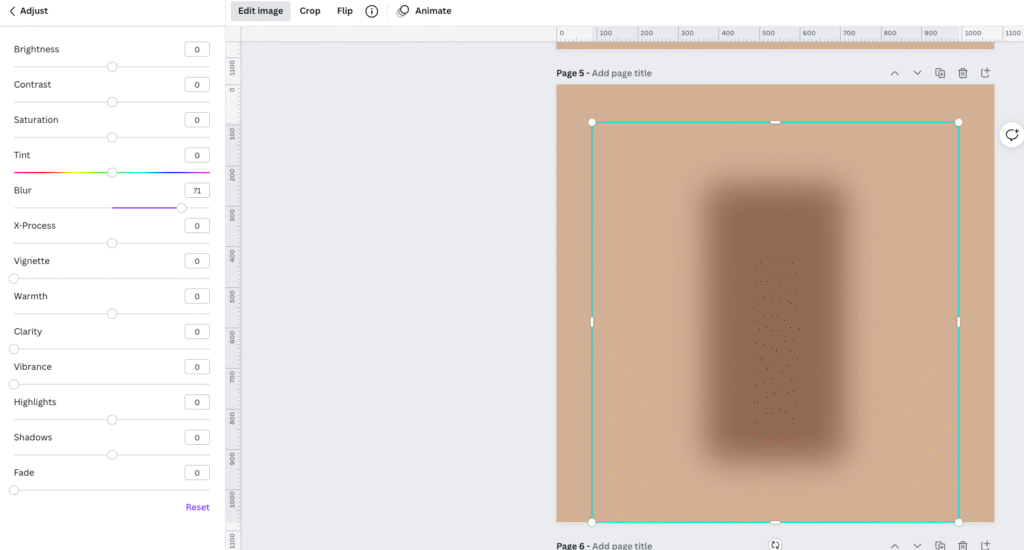
Shadows in design are dark areas that appear when light hits an object. In Canva, shadows are effects that make your design elements look like they float above the page. When you add a shadow effect to your graphics or text, they stop looking flat and start looking 3D. This makes your designs look more real and helps parts of your design stand out from others.
Why Shadows Matter in Graphic Design?
Shadows are super important in design because they:
- Make designs look more professional
- Add depth so things don’t look flat
- Help important things stand out
- Make designs more fun to look at
- Create space between different parts of your design
Even the simplest design can look much better with the right shadow. Your Canva projects will look more polished when you add shadows in the right places.
Basic Shadow Terminology in Canva
Here are the main words Canva uses for shadows:
- Drop shadow: Makes things look like they’re floating
- Glow: A soft light all around an object
- Blur: How soft or sharp the shadow edges look
- Intensity: How strong the shadow appears
- Transparency: How see-through the shadow is
- Opacity: Another word for transparency
- Angle: Which way the shadow falls
- Distance: How far away the shadow appears
Knowing these words will help you work with shadows in your Canva account.
Types of Shadows Available in Canva
Drop Shadows
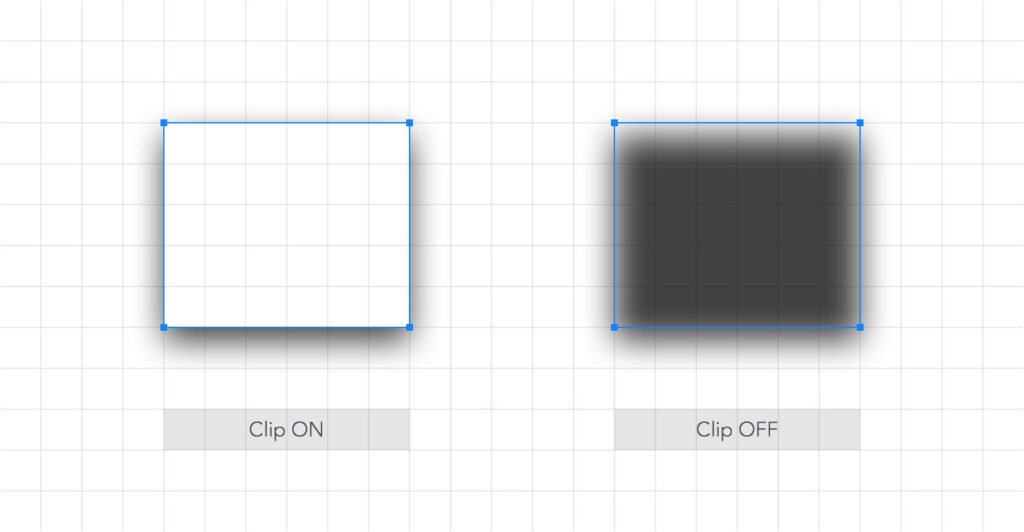
Drop shadows are the most common type in Canva. They make your design elements look like they’re floating above the page.
To add a drop shadow to image elements, you select the image, click “Edit photo” in the top toolbar, and then choose “Shadows.”
Once you have your image selected, you can do more than just add shadows; you can also learn how to flip an image in Canva or even how to replace an image in Canva without starting over.
The drop shadow effect is great for making things stand out. You can control how far and which direction the shadow falls, making your graphics look more professional.
Inner Shadows
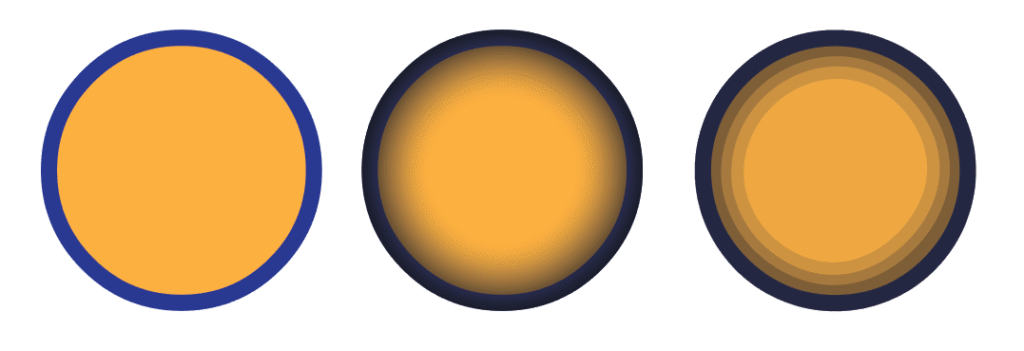
Inner shadows make the edges of something look raised while the middle looks pushed in. Canva doesn’t have a built-in inner shadow button, but you can create this effect with other tools.
You can make inner shadows by being clever with outlines and transparency settings.
This gives your design elements an interesting 3D look.
Text Shadows
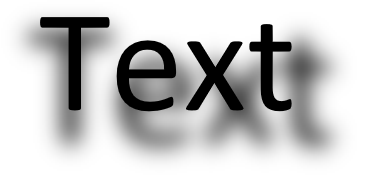
Text shadows make your words pop off the page. When you add shadow text in Canva, the words stand out more and become easier to read.
To make your text even more dynamic, you can learn how to curve text in Canva or how to outline text in Canva for a bold effect. This is very helpful when your text is on top of a photo or a busy background.
Before finalizing, you might wonder, “Does Canva have spell check?” to ensure everything is perfect. To add shadows to text, you use the effects panel after clicking on your text box. You can then adjust how the shadow looks to match your design. You can even explore if you can upload fonts to Canva to truly personalize your typography.
Element Shadows
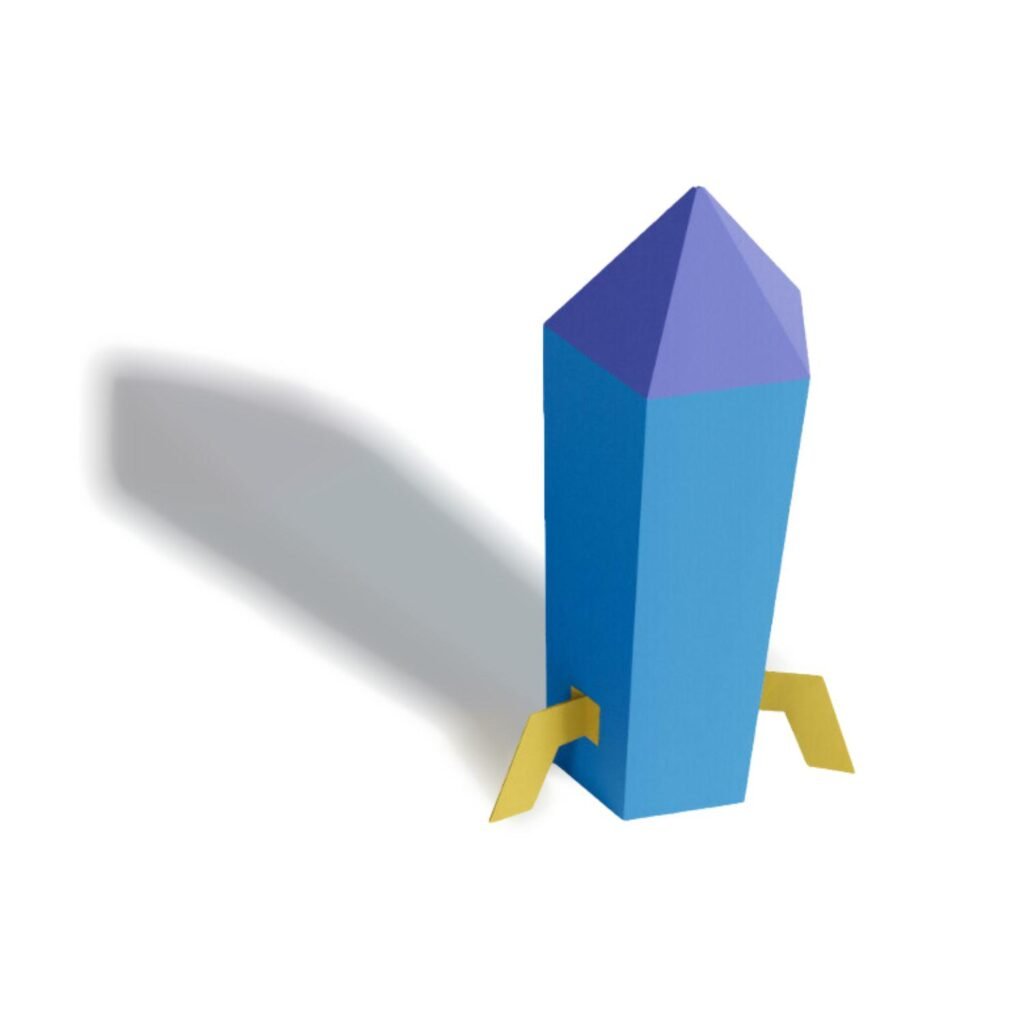
Element shadows are for shapes and graphics.
Adding shadow to shape elements in Canva is a bit tricky because shapes don’t have the same shadow options as images.
While you’re working with various elements, you might want to learn how to put a timer in Canva for presentations or videos. Also, if you use QR codes, it’s useful to know if Canva QR codes expire.
There are special ways to add shadow to shapes in Canva that we’ll show you later in this guide. These methods help make your shapes look more interesting and professional.
How to Add Shadow in Canva?
Adding shadows in Canva is easy and can be changed to fit what you want.
Adding Shadows to Text in Canva
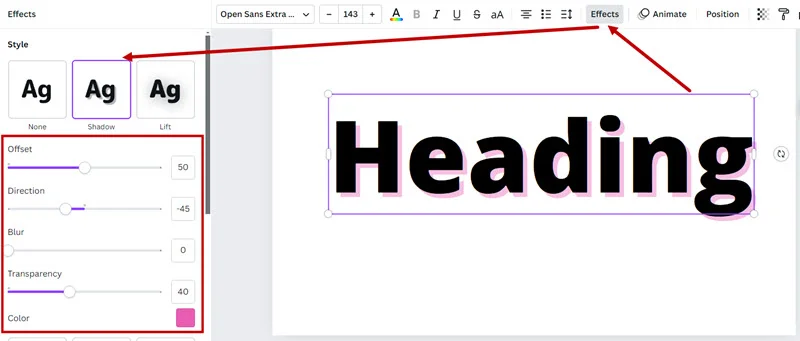
Here’s how to add a shadow to Canva text:
- Click on your text to select it
- Click “Effects” in the top toolbar
- Select “Shadow” from the options
- Choose your shadow style
- Adjust the settings:
- Offset (how far the shadow is)
- Direction (which way it falls)
- Blur (how soft the edges are)
- Transparency (how see-through it is)
- Color (what color the shadow is)
Besides shadows, you can also manage text layout by learning how to indent in Canva or how to wrap text in Canva for cleaner paragraphs.
For a unique look, you could even learn how to flip text in Canva. Try different settings to see what looks best. You can make bold shadows for headlines or subtle shadows for body text. A common task is to highlight text in Canva, which can be combined with shadows for emphasis.
Creating Shadows For Images and Elements
To add a drop shadow to image elements:
- Select your image in Canva
- Click “Edit photo” in the top toolbar
- Find “Shadows” in the sidebar options
- Choose a shadow type: drop, glow, or outline
- Adjust the settings:
- Size of the shadow
- Blur amount
- Angle
- Distance
- Color
- Intensity of the shadow
Mastering image manipulation is key.
For example, knowing how to cut out an image in Canva gives you clean objects to apply shadows to. Similarly, learning how to fade an image on Canva can complement your shadow effects beautifully.
The shadow will make your image stand out from the page. This works great for product photos, logos, and other graphics in your designs.
Customizing Shadow Properties
After adding a shadow, you can change these things to make it perfect:
- Size: How big the shadow is
- Blur: How soft or sharp the edges are
- Angle: Which way the light seems to come from
- Distance: How far the shadow extends
- Color: What color the shadow is (doesn’t have to be black!)
- Intensity: How strong the shadow looks
Moving these sliders helps you create exactly the look you want. Try small changes to see how they affect your shadow effect.
Using Shadow Effects With Templates
Canva has many templates with shadows already built in.
When using these templates, you can:
- Keep the shadows as they are
- Change the shadows to match your style
- Remove shadows you don’t want
- Add more shadows to other parts
If you get good at customizing templates, you might be interested in learning how to sell Canva templates on Etsy.
Looking at templates is a good way to learn how shadows work.
You can copy these ideas in your own designs to make them look better, such as when you create a lookbook in Canva.
Advanced Shadow Techniques in Canva
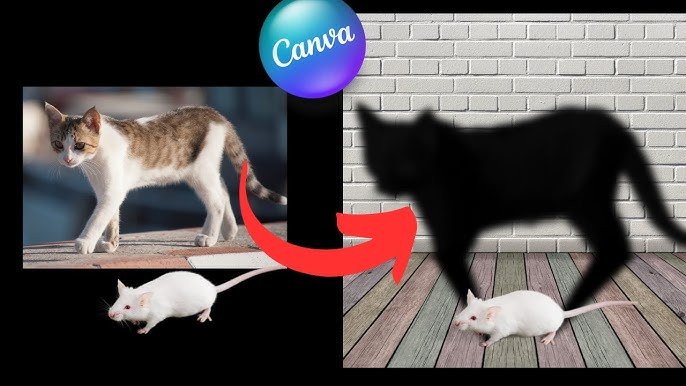
Using advanced shadow techniques can improve your designs in Canva.
Creating Layered Shadow Effects
Layered shadows use more than one shadow to create cool effects.
Here’s how to make them:
- Add your first shadow to something
- Make a copy of it
- Add a different shadow to the copy
- Put them on top of each other
- Make the top one a bit see-through
This works well for text and makes a neat 3D effect that looks better than what Photoshop beginners can do!
Realistic Shadow Techniques
To make shadows look real:
- Make sure all shadows fall the same way
- Match the shadow size to the object size
- Use soft blur for most shadows
- Lower the opacity so shadows aren’t too dark
- Use dark gray instead of pure black for more natural shadows
Real shadows aren’t perfectly sharp or solid black. Softening your shadows makes them look more natural.
Colored and Gradient Shadows
For fun designs, try colored shadows:
- Add a shadow to your element
- Click the shadow color option
- Pick a color that matches your design
- Try a dark version of your main color
For gradient shadows:
- Create a shape that looks like a shadow
- Fill it with a gradient
- Put it behind your main element
- Adjust the blur and transparency
Colored shadows work well for fun projects and social media graphics.
3D Shadow Effects
To create a 3D effect:
- Add multiple shadows at different angles
- Use different distances for each shadow
- Change the blur amount between shadows
- Group everything so it moves together
This makes your design elements look like they’re floating at different heights. It’s great for important text or featured content in your blog graphics.
Troubleshooting Common Shadow Issues
- Fixing Blurry Shadows: If your shadows look fuzzy, check the blur setting in the effects panel and reduce it. Make sure your original image isn’t blurry-sharp images create clearer shadows. A related question is whether Canva images are copyright-free, which is important to know before using them. If shadows still look messy, try changing the distance or color so they don’t blend with the background. Download designs as PNG files for better quality.
- Adjusting Shadow Intensity: If shadows are too dark or light, use the intensity of the shadow slider in Canva. Move it left to make shadows lighter or right to make them darker. Lowering opacity also softens shadows, while increasing blur makes them look more natural.
- Mobile Vs Desktop Shadow Features: The Canva app (mobile) has fewer shadow options than the desktop version. For example, adjusting angle or distance might require the desktop’s top toolbar. On mobile, tap “More” in the edit menu to find shadow tools.
- Shadow Compatibility Across Formats: Shadows look best in PNG files (which keep the transparent background) or PDFs. For PDFs, it’s useful to know how to add a clickable link in Canva PDF to make them interactive. JPG files might make shadows look pixelated. You might also want to know how to landscape in Canva if you’re creating designs with different orientations. Always check how shadows appear after downloading.
Design Tips For Effective Shadows
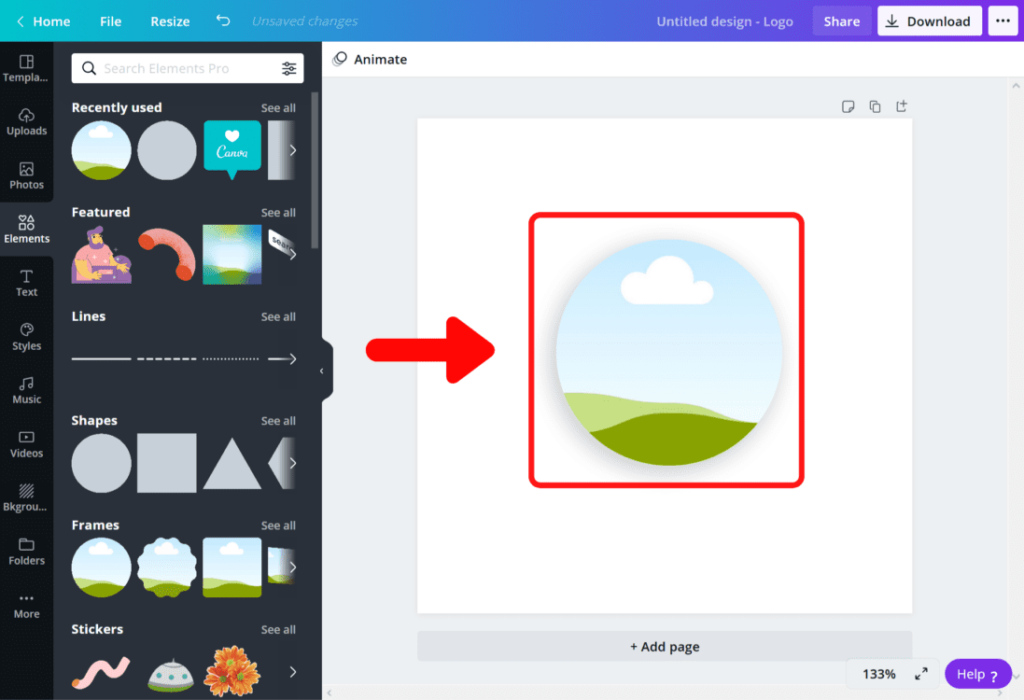
Using shadows well can improve your designs.
Best Practices For Shadow Direction
In most designs, shadows should:
- All fall in the same direction
- Usually go down and to the right
- Match other light effects in your design
- Look natural and not too extreme
Most designers make shadows fall from the top-left to the bottom-right. This looks natural because it matches how we usually see shadows in real life.
Color Theory For Shadows
Choose good colors for your shadows:
- Dark gray often looks more natural than black
- Try using a darker shade of the object’s color
- Blue-tinted shadows look cool and calm
- Warm shadows (with brown/orange tints) look cozy
The color of your shadow can change how your whole design feels. Think about what mood you want when picking shadow colors.
Balancing Multiple Shadows in a Design
When using many shadows in one design:
- Keep them all similar in style
- Don’t make all shadows too dark
- Use stronger shadows for important things
- Use lighter shadows for background items
Too many strong shadows can make your design messy. Pick which parts need to stand out the most.
Shadows For Different Design Purposes
Different projects need different shadow styles:
- Business Designs: small, neat shadows
- Kids’ Content: fun, colorful shadows
- Modern Designs: sharp, clean shadows
- Old-Fashioned Styles: soft, blurry shadows
Think about who will see your design and what feeling you want to create before choosing your shadow style.
Canva Pro Vs Free: Shadow Features
Enhanced Shadow Options in Canva Pro
Canva Pro gives you more shadow options:
- More shadow effect styles
- Better quality shadows
- More control over settings
- Special templates with cool shadow effects
If you’re wondering about the cost, you can find out how much Canva Pro costs. If you make lots of designs with shadows, Canva Pro might be worth the money just for the better shadow tools!
Many users ask, “Is Canva Pro worth it?“, and the advanced shadow features are a big reason why it can be.
Maximizing Shadow Tools in Free Version
Even with free Canva, you can:
- Add basic shadows to text and images
- Use elements from the free library to create shadow effects
- Try the shadow tricks we showed you
- Save your shadow designs as templates to use again
The free version still has good shadow options that can make your designs look great. For those on a budget, it’s worth exploring how to get Canva Pro for free through trials or special programs.
Conclusion
Adding shadows in Canva is a simple way to make your designs stand out!
By using the effects panel and top toolbar, you can add drop shadows to text, images, and shapes, making them look 3D and professional.
Whether you’re on the app or desktop, adjusting the blur, intensity, or transparency helps create the perfect shadow effect.
Remember to keep shadows pointing the same direction for a natural look and try colors like dark gray instead of black.
Even with a free Canva account, you can make cool shadows, but Canva Pro offers more styles for advanced designs. Once you master these skills, you may wonder, “Can I sell Canva designs on Etsy?” The answer is yes, and your professional-looking designs will be a great start.
Practice these tricks on templates or your own graphics, and soon you’ll be creating eye-catching posters, social media posts, and more.
Shadows turn flat designs into something amazing-give them a try! 🎨
