

Have you ever taken the perfect shot only to find a stranger walking in the background? It happens to everyone.
You hold your camera steady, get the lighting right, and smile. But when you look at the original image, there is someone you don’t know standing behind you. This can be frustrating, especially if it was a special moment.
At Designers Choice, we know how important it is to keep your creative vision clear. We want to help you turn your ideas into reality without letting small mistakes ruin the big picture.
The good news is that you do not need to be a computer expert to fix this. Learning how to edit someone out of a picture is easier than ever before.
In the past, you needed expensive software and years of training to fix a photo. Today, photo editing has changed.
Whether you are fixing travel photos or cleaning up product images for your online store, there are simple tools available. You can use online AI tools, mobile devices, or professional software to get the job done.
This guide is made for everyone. We will explain everything in simple steps so you can get professional results.
We will show you the best way to remove unwanted people and unwanted objects so your photos look exactly how you imagined.
Let’s get started on making your photos look amazing.
Why You Might Need to Edit Someone Out of a Picture?
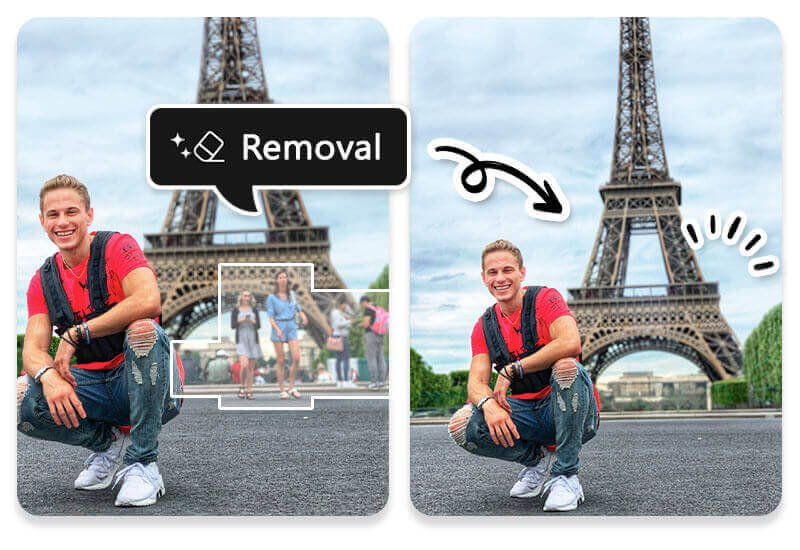
There are many reasons why you might want to learn how to edit someone out of a picture.
The most common reason is to clean up the background. When you visit a popular tourist spot, it is almost impossible to get a photo without other people in it. You might have a great picture of yourself in front of a landmark, but a crowd of tourists makes the image look messy.
Using an object removal tool helps you put the focus back on the main subject.
Another reason is for social media. We all want our photos to look their best before we share them. Sometimes, a random person in the background can distract from the story you are trying to tell. Removing them makes the photo look cleaner and more professional.
You might also need to edit photos for work.
If you are taking photos for an online store, you need impactful product visuals. Unwanted elements, like a hand holding a product or a person standing in the reflection, can ruin the shot. Background removal or editing out distractions ensures your customers look only at the product.
Sometimes, relationships change.
You might have a nice photo of yourself, but it includes an ex-partner or a friend you no longer speak to. You don’t have to delete the memory of how good you looked. You can simply use a people remover tool to keep yourself in the frame while removing the other person.
Lastly, you might just want to remove unwanted objects like trash cans, power lines, or signs that clutter the view.
The goal is to create a clean, beautiful image that represents your vision.
How to Edit Someone Out of a Picture Using Free Online AI Tools

If you do not want to download an app, using an online tool is the easiest way to fix your photos. These tools use artificial intelligence to guess what the background should look like after you remove a person.
Here are some of the best tools you can use in your web browser.
Using Canva Magic Eraser For Quick Edits
Canva is a very popular design tool. It has a feature called Magic Eraser. This is a great tool for quick edits. It is very simple to use.
First, upload your photo to Canva. Click on the photo and then click on “Edit Photo” at the top.
You will see the Magic Eraser tool in the menu. When you click it, you can adjust the brush size. This is helpful because sometimes the person you want to remove is small, and sometimes they are large. Paint over the person you want to remove. Make sure you cover them completely.
When you let go of the mouse button, the AI tool works its magic.
It will remove the person and fill in the space. If it misses a spot, you can brush over it again. This is a quick fix for simple backgrounds.
It is a good thing for beginners because the interface is very friendly.
Removing People with Fotor Object Remover
Fotor is another great online tool. It has a dedicated object remover that is very powerful. Fotor uses smart algorithms to analyze your photo.
To use it, go to the Fotor website and upload your image. Select the “Remove Object” feature. You will get a brush tool.
Use the mouse to paint over the unwanted people in your shot. You can change the size of the brush to get closer to the edges.
Once you highlight the person, click the “Remove” button.
Fotor will process the image and show you the result. It usually does a great job of matching the lighting and colors.
This tool is excellent for travel photos where the background might be a beach or a sky. It helps you get better results without much effort.
How to Use Cleanup.pictures For High-Quality Results?
Cleanup.pictures is a specialized clean up tool. It is known for giving high-quality results. The best part is that it is very fast.
Go to their website and drag your photo into the box. You will see a green brush. You can make the brush size bigger or smaller using a slider. Paint over the person or unwanted objects you want to gone. The tool removes them almost instantly.
This tool is great for first time users because there are no confusing buttons. It just does one thing and does it well. If you have a photo with power lines or small distractions, this is the best way to clean it up.
It keeps the image quality high, so your photo doesn’t look blurry.
How to Edit Someone Out of a Picture on Mobile (iPhone & Android)
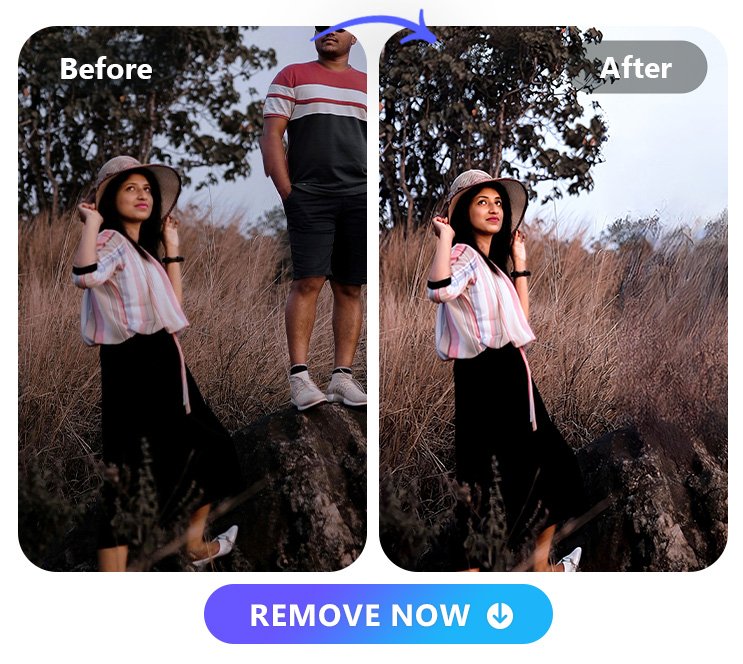
Most of us take photos with our phones. It is convenient to edit them right there on the device. Whether you have an iPhone 14 Pro Max or an Android, some apps can help. Here is how to edit someone out of a picture on iPhone and Android devices.
Using Google Photos Magic Eraser (Android & iOS)
Google Photos is one of the best apps for photo storage and editing. It has a famous feature called Magic Eraser.
Originally for Pixel phones, it is now available on more devices, including iPhones, if you subscribe to Google One.
Open your photo in the Google Photos app. Tap on “Edit” at the bottom of the screen. Then, look for “Tools” and select “Magic Eraser.”
The app will scan your photo. It often finds unwanted people or power lines automatically and suggests removing them.
You can just tap “Erase all” for a quick fix. If it doesn’t find them automatically, you can use your finger to circle or brush over the person.
The magic eraser will remove them and fill in the background. It uses advanced AI features to make it look natural. This is often considered the best tool for mobile users because it is fast and effective.
Removing Objects with Snapseed (Free Method)
Snapseed is a completely free app owned by Google. It is a powerful image editing app available on the App Store and Play Store. It is perfect if you are looking for how to edit someone out of a picture for free.
Open your photo in Snapseed. Tap on “Tools” and select “Healing.” This acts like a spot healing brush tool. Zoom in on your picture so you can see the person clearly. Use your finger to paint over the person.
Snapseed will replace the person with pieces of the background near them.
It works best on simple backgrounds like grass, sky, or water. If the background is complex, you might need to do it in small steps.
It takes a little more patience, but it is a great free method to remove person from photo iPhone free.
Using TouchRetouch For Complex Edits
If you are willing to pay a small amount, the Touch Retouch app is amazing. It is designed specifically for object removal.
Open the app and load your image. Select “Object Removal.” You can use a brush or a lasso tool to select the person. The app uses smart technology to understand what is behind the person.
One great feature is the “Line Removal” tool, which is perfect for removing power lines or cables in one tap.
For people, use the brush. The app handles complex backgrounds better than many free apps.
If you want professional results on your phone, this is a great choice. It helps you keep the image quality high while removing distractions.
With new phones, we are also seeing Apple Intelligence starting to play a role in how photos are processed, making these edits even smoother on the latest iPhone models.
How to Edit Someone Out of a Picture with Professional Software?

For those who want the absolute best results, professional software like Adobe Photoshop is the answer.
These tools give you total control over the editing process.
The Content-Aware Fill Method in Adobe Photoshop
Adobe Photoshop is the industry standard. One of its most famous features is Content-Aware Fill.
First, open your image in Photoshop. Use a selection tool (like the Lasso tool) to draw a circle around the person you want to remove. You don’t need to be perfect; just make sure the whole person is inside the selection.
Go to the “Edit” menu and choose “Content-Aware Fill.” A window will pop up showing you what the result will look like.
Photoshop analyzes the original image and looks for pixels to fill in the empty space. You can tell it which parts of the background to use.
This is great for handling complex backgrounds. When you are happy, click OK. The person is gone, and the background looks real.
Using the Clone Stamp Tool For Precision Control
Sometimes automated tools make mistakes.
That is when you need the Clone Stamp Tool. This tool allows you to copy one part of an image and paint it over another part.
Select the Clone Stamp Tool from the toolbar. Hold down the Alt key (or Option on Mac) and click on a clean part of the background.
This is your “source.” Then, let go of the key and paint over the person you want to remove.
This takes more time than AI tools. You have to be careful to match lines and patterns.
However, it gives you the best results because you decide exactly what goes where. It is the best way to fix tricky areas where the AI gets confused.
You can change the brush size and hardness to blend the edges softly.
Removing People Using Lightroom’s Healing Brush
Adobe Lightroom is great for color correction, but it also has a good Healing Brush. This is good for smaller objects or people in the distance.
Open your photo in Lightroom. Click on the “Healing” icon (it looks like a band-aid). You can choose between “Clone” or “Heal.”
“Heal” is usually better because it blends the colors and textures.
Adjust your brush size and paint over the person.
Lightroom will pick a source area automatically. You can drag the source area to a different spot if the first guess isn’t right. This is a non-destructive way to edit, meaning your original image is always safe.
Tips For Natural-Looking Edits
Knowing how to edit someone out of a picture is just the first step. You want the photo to look natural, so no one knows it was edited.
Here are some tips.
Managing Complex Backgrounds and Textures
Complex backgrounds like brick walls, crowds, or patterned carpets are hard to edit. When you remove a person, the lines in the background need to match up. If you are using a clone tool, take your time.
Align the bricks or lines carefully.
If you are using an AI tool, try removing the person in smaller chunks rather than all at once. This helps the AI understand the pattern better.
Sometimes, zooming in and using a very small brush helps you fix the tiny details that make the texture look wrong.
How to Handle Shadows and Reflections?
A common mistake is removing the person but leaving their shadow. This looks very strange.
When you edit someone out, make sure you also remove their shadow on the ground. Reflections are also tricky.
If you remove a person standing near a window or water, check if their reflection is visible. You must remove the reflection too.
If you don’t, the brain knows something is wrong. Using the clone stamp is often the best way to fix shadows and reflections because you can paint over them with the surrounding floor or water texture.
Avoiding Blurry Patches After Removal
Sometimes, after using an eraser tool, the spot looks blurry. This happens if the software stretches the pixels too much.
To avoid this, use a tool that copies texture, like the clone stamp or a high-quality AI object remover. If you see a blurry patch, you can try using the “Sharpen” tool in your editing app to bring back some detail.
Another trick is to add a little bit of “Noise” or grain to the edited area so it matches the rest of the photo. This makes the edit blend in and stops it from looking like a smooth, plastic smear.
FAQ’s:
Can I Edit Someone Out Of A Photo Without Using Photoshop?
Yes! You do not need Adobe Photoshop to get good results. There are many simple tools and online AI tools like Canva, Fotor, and Cleanup.pictures. You can also use apps on your phone, like Google Photos or Snapseed.
What Is the Easiest Way to Remove A Person From A Picture For Free?
The easiest way to remove a person from a photo iPhone for free is using the Snapseed app. It is completely free and has a healing tool.
Another option is the free version of Google Photos if your phone supports the magic eraser.
For desktop, Cleanup.pictures allows free edits for smaller images.
Are There Any Online AI Tools That Erase People From Images Instantly?
Yes, tools like the Fotor object remover and Canva Magic Eraser work almost instantly. You just highlight the person, and the artificial intelligence removes them in seconds. It is a very quick fix.
How Do I Remove A Person Without Ruining the Background?
To protect the background, use a variable brush size. Zoom in close and only paint over the person, not the area around them.
If the background is complex, try using a clone stamp tool for precision control so you can align the background lines manually.
Can I Edit Someone Out of a Picture If They Are Hugging Me?
This is difficult but possible. It requires more time.
You will have to rebuild the part of your body that they were covering (like your shoulder or arm). You might need to use the clone stamp to copy the texture from your other shoulder or clothes. Professional software like Adobe Photoshop is best for this type of complex edit.
Does Editing Someone Out Reduce the Image Quality?
It can if you use low-quality apps. However, if you use professional software or high-quality online tools, the image quality should stay high. Always try to save your photo in the highest resolution possible after editing.
Conclusion
Learning how to edit someone out of a picture opens up a world of creativity.
It lets you rescue travel photos, perfect your social media posts, and create professional product images. You no longer have to worry about a stranger ruining your shot or unwanted elements distracting from your subject.
Whether you choose to use simple steps on your mobile devices with Google Photos or dive into Adobe Photoshop for precision control, the power is in your hands. The good news is that technology is getting better every day.
With smart algorithms and AI features, what used to take hours now takes seconds.
At Designers Choice, we want you to feel confident in your skills. Try these best apps and tools.
Experiment with the brush tool and the clone stamp. Don’t be afraid to make mistakes—that is how you learn. With a little practice, you will be able to remove unwanted people and create the perfect shot every time.
We hope this guide helps you take your photo editing to the next level. Remember, the goal is to bring your vision to life. So go ahead, clean up those photos, and share your creativity with the world. You have the tools, and now you have the knowledge to create amazing, clean images.
