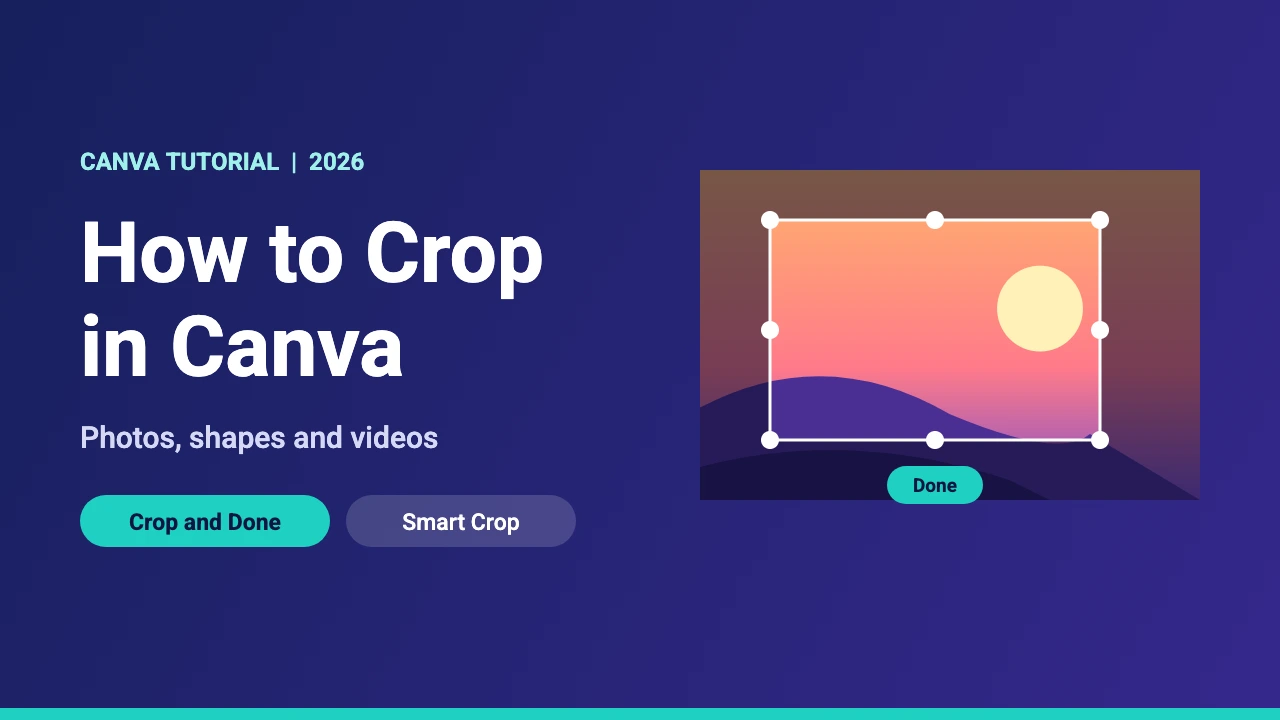
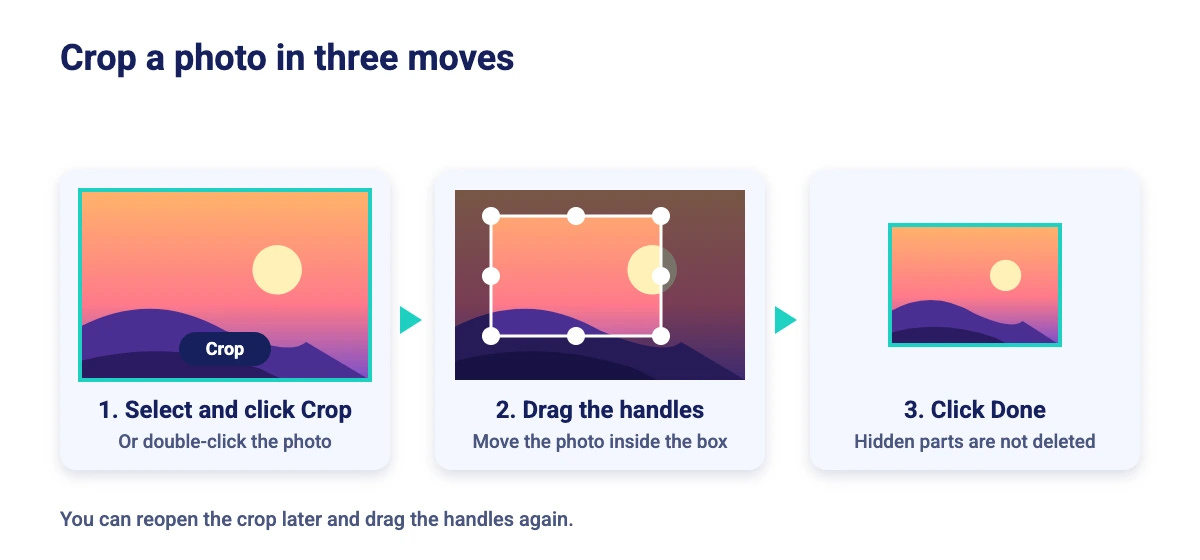
To crop in Canva, click the photo, choose Crop on the toolbar above the editor (or double-click the photo), drag the handles around the part you want to keep and click Done. The hidden parts are not deleted, so you can reopen the crop later and adjust it again.
This guide covers the basic crop, exact sizes and ratios, Smart Crop, cropping into shapes with frames, cropping videos and fixes for common problems. The steps follow Canva’s own help pages, including Resize and crop elements precisely, Use frames and crop images into a shape and Instantly crop photos, all read on 18 November 2026. Canva updates its editor often, so a button may move slightly.
Crop, Resize and Stretch: What Is the Difference?
These actions sound alike but do different things. Canva explains that resizing changes an element’s dimensions and affects everything in it, while cropping hides part of the element so you can focus on one area.
| Action | What it does | When to use it |
|---|---|---|
| Resize | Makes the whole element bigger or smaller, keeping all of its content | You like the photo as it is but need it a different size |
| Crop | Hides part of the photo or video; the hidden part is kept | You want to remove distractions or focus on one area |
| Stretch | Changes the photo’s proportions: double-click it, then hold Shift while dragging a handle | You want to change the shape of the photo on purpose |
| Exact size | Position, then Advanced, then enter width and height | You need a specific size for print or a platform |
If you only need a different size, see our guide to resizing an image in Canva.
How to Crop an Image in Canva
- Open your design and click the photo you want to crop.
- On the toolbar above the editor, click Crop. You can also double-click the photo to open the crop settings.
- If the photo is not inside a frame, choose a crop aspect ratio, or leave it free to drag any edge.
- Drag any crop handle to change which part of the photo stays visible. You can also move or resize the photo inside the crop area.
- Click Done in the side panel, or click outside the photo, to finish.
Canva says you can crop images and videos, but not GIFs or embeds. For photos inside frames and grids, double-click (or double-tap on a touch screen) to crop them.
How to Crop to an Exact Size or Ratio
For a standard shape, pick an aspect ratio in the crop options, then drag the photo until the right part is inside the box. For an exact size, Canva’s resize options let you enter measurements:
- Select the photo, shape or video and click Position on the toolbar.
- Under Advanced, enter pixel values in the Width and Height fields.
- Turn on the Ratio option if you want to keep the same proportions.
Canva graphics have a fixed aspect ratio, so you cannot stretch them this way. If you are cropping for a particular platform, check the dimensions first. Our guides to Instagram post size and YouTube thumbnail size list the usual numbers.
How to Use Smart Crop in Canva
Smart Crop is Canva’s automatic crop. According to its help page, it crops your photo to show the most interesting part. To use it:
- Select the photo you want to crop.
- On the toolbar, click Crop.
- Click Smart Crop.
- Click Done.
Smart Crop also works on photos inside frames and grids and on page backgrounds. Canva recommends avoiding it on images with transparency and on images that are not photos, such as screenshots and graphics. If it removes something you want to keep, you can still crop and resize the image by hand.
How to Crop an Image Into a Shape (Circle, Heart and More)
Canva uses frames to crop a photo or video into a shape. A frame works like a placeholder that you drop your media into.
- In the editor side panel, click Elements.
- Under Browse categories, choose Frames, then search for the shape you want, such as a circle.
- Click a frame to add it to your design.
- Drag your photo or video onto the frame until it snaps into place.
- Double-click the photo inside the frame to resize or reposition it. Drag a white corner handle to resize, drag the photo to move it, then click Done.
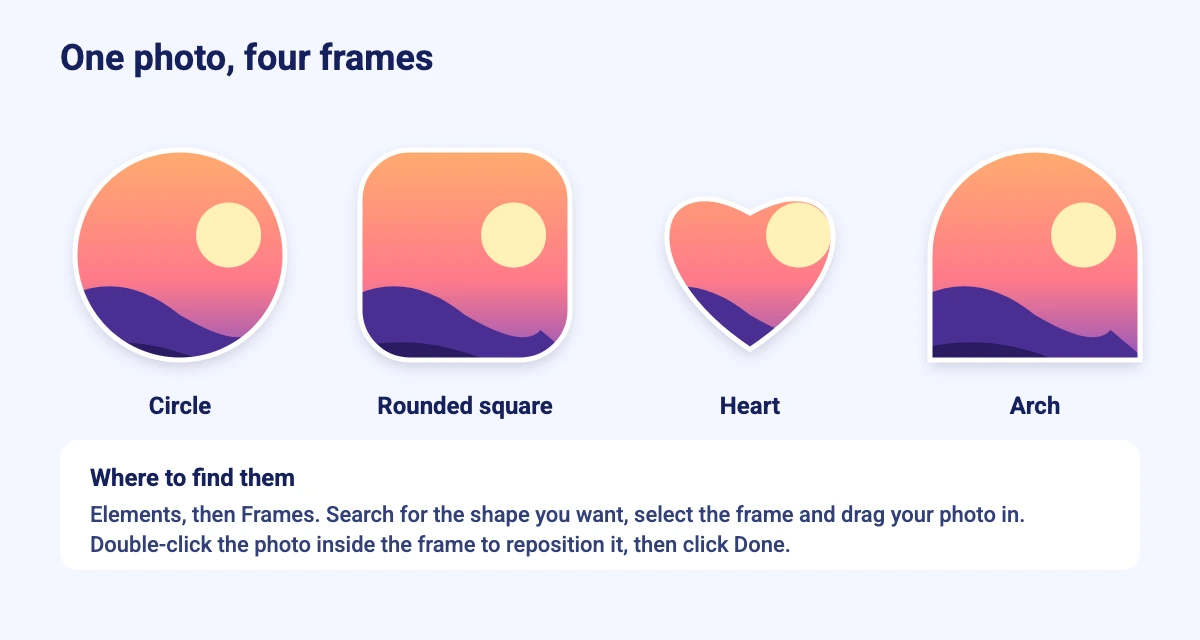
A frame also lets you do a few other things, according to the frames help page:
- Replace the photo. Select the frame and choose Replace on the toolbar. This only works with frames, not regular shapes or graphics. Our guide to replacing an image in Canva covers it in more detail.
- Round the corners. Select the frame, choose Corner rounding and drag the slider or enter a number.
- Change the border. Some frames have editable borders, and you can adjust the stroke color, weight and style.
- Fill it with color. If you are not using media, you can fill a frame with a solid color or gradient.
Turn a Shape Into a Frame
If you already have a shape in your design, you may be able to convert it into a frame:
- Add the shape and the image you want to fit into it.
- Select both items by dragging across them, or by holding Shift as you click each one.
- Right-click the selected items and choose Change to frame.
- To separate them again, right-click the fitted shape and choose Detach image.
The option appears for eligible shapes with a single visible outline, such as basic shapes, AI-generated shapes and drawn shapes. It does not appear for graphics, stickers, photos, lines, tables or charts. For a polished look, pair a framed photo with our tips on adding a shadow in Canva.
How to Crop a Video in Canva
Cropping a video uses the same steps as cropping a photo. Click the video, choose Crop, drag the handles to the area you want and click Done. Videos can also go into frames, which crops them into a shape. GIFs and embeds cannot be cropped, and Canva says only images and videos can be added to frames. Our guide to making a GIF in Canva shows how to export animations.
Crop in Canva on Mobile
The Canva app uses the same ideas. Select the photo, find the crop option in the toolbar and adjust the crop handles. To crop media inside frames and grids, double-tap it. Canva’s help pages list separate desktop and mobile steps, so check the Mobile tab if a control looks different on your phone.
Crop Problems and Fixes
| Problem | What to try |
|---|---|
| The crop is too tight | Double-click the photo and drag the handles back out. The hidden part is not deleted. |
| I cannot crop my GIF or embed | Canva does not support cropping GIFs and embeds. Use a photo or video instead. |
| Smart Crop removed something I need | Adjust it manually, as Canva suggests, by dragging the crop handles. |
| Smart Crop looks wrong on my screenshot | Smart Crop works best on photos. Crop screenshots and graphics by hand. |
| I do not see “Change to frame” | The option does not appear for graphics, stickers, photos, lines, tables or charts. Add a frame from Elements instead. |
| The photo looks soft after I enlarge it | Cropping and then enlarging can reduce sharpness, so start with a larger photo. See our guide to fixing blurry photos. |
Other Ways to Edit Photos in Canva
Cropping is one of several quick photo edits. You can flip an image, fade an image, use the Canva background remover or cut out an image to keep only the subject. If you want to build a layout from several photos, try our guide to making a collage, and use grouping to move cropped photos and text together.
Conclusion
Cropping in Canva takes three moves: select the photo, click Crop and drag the handles, then click Done. Use Smart Crop for a quick automatic crop of a photo, Position and Advanced for exact sizes, and frames when you want a circle, heart or other shape. Because the hidden parts are not deleted, you can always go back and change the crop.
Frequently Asked Questions
Click the image, choose Crop on the editor toolbar (or double-click the image), drag the crop handles to keep the part you want and click Done. You can also pick an aspect ratio for elements that are not in frames.
The Crop button is on the editor toolbar above your design when a photo or video is selected. Double-clicking the element also opens the crop settings.
No. Canva says the hidden parts are not deleted, so you can adjust the crop at any time by double-clicking the element and moving the handles.
Open Elements, choose Frames, search for a circle frame and add it to your design. Drag your photo onto the frame, double-click the photo to reposition it and click Done.
Smart Crop is an automatic crop that shows the most interesting part of a photo. Select the photo, click Crop, choose Smart Crop and click Done. It works best on photos rather than screenshots, graphics or images with transparency.
Select the element, click Position, and under Advanced enter pixel values in the Width and Height fields. Turn on the Ratio option to keep the proportions. Canva graphics have a fixed aspect ratio, so they cannot be stretched.
You can crop videos with the same Crop tool and steps as photos. Canva says GIFs and embeds cannot be cropped.
Add the shape and the image, select both, right-click and choose Change to frame. The option appears for basic shapes, AI-generated shapes and drawn shapes, but not for graphics, stickers, photos, lines, tables or charts.