Categories
Design tools

Best AI UI Design Tools in 2026

Quick Answer: The best AI UI design tools in 2026 are Figma AI, Uizard, Framer AI, Galileo AI, and Khroma.

  • Figma AI is best for professional UI designers
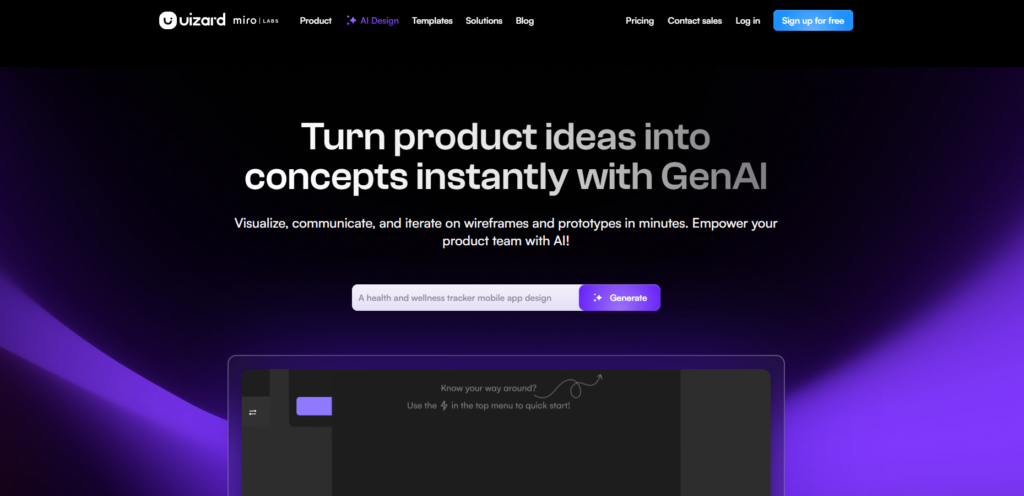
  • Uizard is best for quick wireframe generation
  • Framer AI is best for building websites with AI
  • Galileo AI is best for generating UI from text
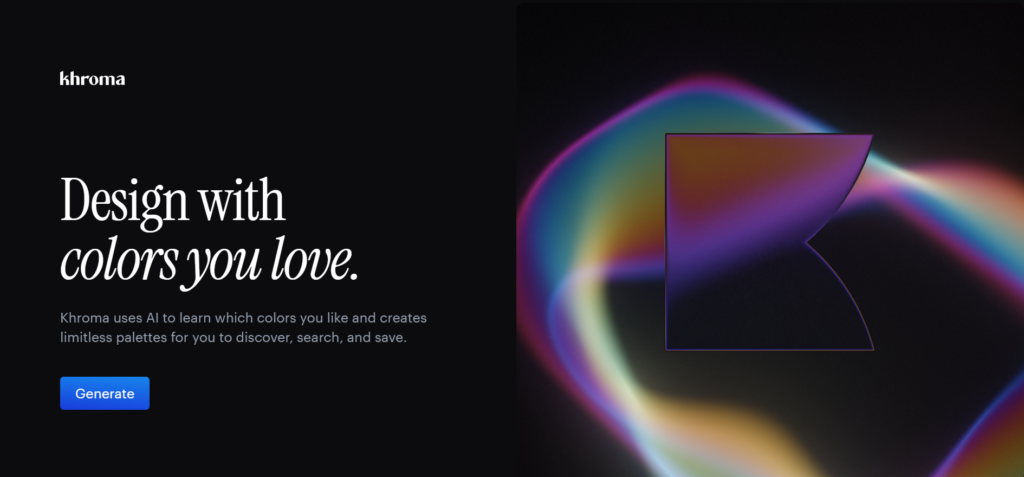
  • Khroma is best for AI color palette generation

Read on for full details on all 8 tools including pricing and who each one is designed for.

Introduction

AI UI design tools are completely changing how designers create interfaces in 2026. What used to take hours — wireframing, prototyping, color palettes, component generation — can now be done in minutes with the right AI tool.

Whether you are a professional UI designer looking to speed up your workflow, or just starting to learn UX design, this guide covers the 8 best AI UI design tools available right now. We give you honest reviews of features, pricing, and who each tool works best for — so you can find the right tool and get back to designing.

How AI is Changing UI Design in 2026

A few years ago, AI in UI design was mostly about color suggestions and auto-align features. That has changed dramatically.

In 2026, AI can generate full wireframes from a single text description. You type “a mobile banking app home screen with account balance and recent transactions” and get a working wireframe in seconds. Tools like Galileo AI and Uizard have made this a reality, not a demo feature.

AI now suggests color palettes that match your brand style, generates entire component sets, and automates the repetitive layout decisions that used to eat up half a designer’s day. Figma’s AI copilot handles layer naming, auto layout adjustments, and design suggestions — small things that add up to hours saved each week.

Prototyping is faster too. AI can generate interaction flows, link screens together, and even predict which parts of a design users are likely to look at first — which is what Attention Insight does with AI-powered heatmaps.

One thing has not changed: human designers are still essential. AI handles the mechanical parts. Strategic thinking, user research, accessibility decisions, and creative direction still require a human brain. The designers winning right now are the ones using AI tools to handle the repetitive work so they can focus on the decisions that actually matter.

How We Tested These AI UI Design Tools

We logged into each tool and tested it with real UI design tasks — not just marketing demos.

For every tool on this list, we generated wireframes, tested color palette suggestions, and evaluated how well the AI output matched the design intent we gave it. We checked how quickly a beginner could get useful output versus how powerful the tool is for professionals.

We compared free plan AI features against paid tiers honestly — not all tools give useful AI features on the free plan. We also looked at how accurate and polished the AI-generated output is, because some tools generate impressive-looking results that fall apart on closer inspection.

Every recommendation here is based on real testing with real UI design tasks.

8 Best AI UI Design Tools in 2026

1. Figma AI — Best AI UI Tool for Professionals

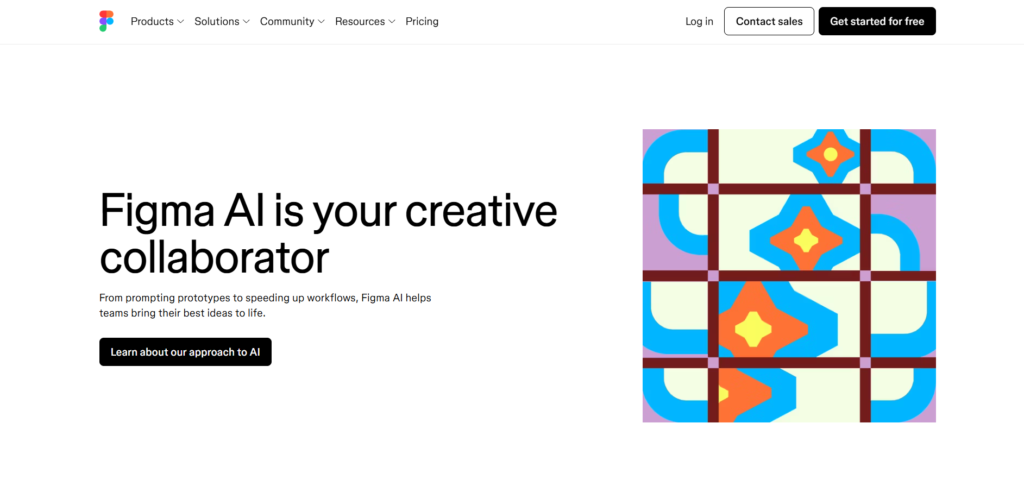
Figma AI is the most powerful AI tool for serious UI designers — if you design interfaces professionally, this is the one to use.

What it is: Figma is the industry standard UI design tool, used by design teams at some of the biggest companies in the world. Its AI features build on that foundation — adding auto layout intelligence, a design copilot, component generation, and AI-assisted prototyping to the tool designers already live in every day.

Key AI Features:

  • Auto Layout generation — AI suggests and applies layout rules automatically
  • Design copilot — describe a change and AI makes it
  • Component auto creation from existing design elements
  • AI-powered rename layers — saves serious time on complex files
  • First Draft — generate initial UI screens from text prompts

Pricing:

PlanPriceAI Features
StarterFreeBasic AI features
Professional$12/monthFull AI suite
Organization$45/monthAdvanced team AI features

Best For: Professional UI/UX designers and design teams who want AI built into their existing workflow.

Our Honest Take: Figma AI is not a standalone AI tool — it is AI woven into the tool professional designers already use every day. That integration is what makes it so useful. The auto layout feature alone saves significant time on complex files. First Draft is useful for quick wireframes when a client needs to see something fast. The AI is improving with every update. If you are a professional UI designer and not using Figma already, this is the reason to switch.

ProsCons
Industry standard toolAI features still maturing
Strong free planSteeper learning curve for beginners
Best for team collaborationCan be slow on very large files
AI deeply integrated into workflowOrganization plan is expensive

2. Uizard — Best for Quick Wireframe Generation

Uizard is the fastest way to turn an idea — or even a rough sketch — into a working wireframe.

What it is: Uizard is an AI wireframing and prototyping tool that specializes in turning rough inputs into digital designs. Upload a hand-drawn sketch, paste in a screenshot of an app you like, or type a description of what you want — Uizard converts it into an editable digital wireframe in seconds.

Key AI Features:

  • Screenshot to design — upload any app screenshot and get an editable version
  • Sketch to wireframe — draw on paper, photograph it, and Uizard converts it digitally
  • Text to UI — describe your screen and AI generates it
  • Auto Theme — generates a full visual style from a text description
  • Autodesigner — generates multi-screen app prototypes from a single prompt

Pricing:

PlanPriceAI Features
Free$0/monthBasic AI features, limited projects
Pro$19/monthFull AI suite, unlimited projects
Business$39/monthTeam features, advanced AI

Best For: Designers, product managers, and founders who need to wireframe ideas quickly — especially early in a project when speed matters more than polish.

Our Honest Take: The screenshot-to-design feature is genuinely one of the most impressive things you will see in a design tool. You screenshot an app you like, paste it into Uizard, and get back an editable wireframe version in under 30 seconds. It is not pixel-perfect, but it gets you 70% of the way there instantly. For early-stage ideation and client presentations where you need something visual fast, nothing beats Uizard’s speed.

ProsCons
Fastest wireframe generation availableNot for production-ready UI
Screenshot to design is a standout featureOutput needs cleanup and refinement
Great for non-designers and foundersLess powerful than Figma for professionals
Generous free planAI output can be inconsistent

3. Framer AI — Best for AI-Powered Website UI

If you want to build a real, live website with AI doing most of the design work, Framer AI is the tool for that.

What it is: Framer AI is a website builder and design tool that uses AI to generate complete website UI — not just mockups, but actual working websites with animations, interactions, and real content. You describe what you want and Framer builds it, ready to publish.

Key AI Features:

  • AI website generation from a text prompt
  • Generates layouts, animations, and interactions automatically
  • AI copy generation built into the design tool
  • Responsive design AI handles mobile and desktop layout
  • Publish directly from Framer without any code

Pricing:

PlanPriceAI Features
Free$0/monthBasic AI, limited pages
Mini$5/monthAI site generation, custom domain
Basic$15/monthFull AI suite, more pages

Best For: Designers who want to create live website UI with AI assistance — not just mockups, but actual published websites.

Our Honest Take: Framer AI sits in a unique space — it is not just a design tool, it is a design tool that publishes live websites. The AI can generate a complete website from a text description and have it live on a custom domain within an hour. For small business sites, portfolios, and landing pages, that is genuinely impressive. For app UI design, Figma or Uizard are better choices. But for web UI that needs to go live fast, Framer AI is hard to beat.

ProsCons
Generates live, publishable websitesNot ideal for app UI design
Great animations and interactions built inLearning curve for complex customization
Affordable pricing for what it doesFree plan is quite limited
AI handles responsive designBest used for web — not print or social

4. Galileo AI — Best for Generating Full UI from Text

Galileo AI does one thing that is still remarkable to watch — you describe a UI and it generates a complete, polished design.

What it is: Galileo AI is a text-to-UI design tool. You type a description of the interface you want — including the purpose, content, and style — and Galileo generates a complete, multi-element UI design. It is not a wireframe, it is a full visual design with real UI components.

Key AI Features:

  • Text to full UI — describe any interface and get a polished design
  • Generates multiple design variations from one prompt
  • Outputs designs compatible with Figma for further editing
  • Handles complex multi-screen apps from a single description
  • AI generated illustrations and icons included in output

Pricing:

PlanPriceAI Features
Free TrialLimitedBasic generation
PaidContact for pricingFull AI generation

Best For: Designers and product teams who want to generate high-quality UI concepts quickly for client presentations or early-stage product development.

Our Honest Take: Galileo AI produces the most visually polished AI-generated UI output of any tool on this list. The designs it generates from text prompts look like something a senior designer put together. The catch is pricing — it is not cheap and the pricing model is contact-based, which can be frustrating when you just want to try it. But for generating impressive UI concepts fast, nothing else comes close right now.

ProsCons
Most polished AI-generated UI outputNo self-serve free plan
Generates Figma-compatible designsPricing requires contacting sales
Handles complex multi-screen appsOutput still needs designer refinement
Impressive text-to-UI qualityNewer tool — features still developing

5. Khroma — Best for AI Color Palette Generation

Khroma solves the color problem that trips up designers at every level.

What it is: Khroma is a free AI color tool that learns your personal color preferences and then generates unlimited palettes, gradients, and color combinations tailored to your taste. It is not a full design tool — it is a dedicated color assistant that does exactly one thing very well.

Key AI Features:

  • Trains on your color preferences to generate personalized results
  • Generates palettes, gradients, typography combos, and full poster mock-ups
  • Searchable by hue, shade, or hex code
  • AI learns from your choices over time — gets better the more you use it

Pricing:

PlanPrice
Free$0 — completely free

Best For: UI designers who spend too much time on color decisions, or anyone working on brand identity and needing palettes that feel considered rather than random.

Our Honest Take: Khroma is a niche tool that does exactly one thing really well. Once you train it on your color preferences, the palettes it generates feel genuinely personal — they match your taste rather than just being mathematically harmonious. We use it at the start of brand and UI projects to explore color directions quickly. It is free, it is fast, and it is better than any color picker we have found.

ProsCons
Completely freeOnly does color — not a full design tool
Personalizes to your taste over timeRequires setup time to train
Great for UI and brand color explorationNo direct export to design files
Fast palette generationSimple interface — not feature-rich

6. Visily — Best for Screenshot-to-UI Conversion

Visily makes it effortless to take an existing design idea and turn it into a professional wireframe.

What it is: Visily is an AI wireframing tool that specializes in converting screenshots of existing apps, hand-drawn sketches, or text descriptions into clean, editable UI designs. It is built for speed and accessibility — designed to be usable by people who are not professional UI designers.

Key AI Features:

  • Screenshot to editable UI — paste any screenshot, get an editable design
  • AI theme generation — generates a visual style from a description or image
  • Text to wireframe — describe a screen and Visily builds it
  • Component suggestions based on context
  • Team collaboration built in

Pricing:

PlanPriceAI Features
Free$0/monthBasic AI features, limited projects
Starter$10/monthFull AI suite
Team$20/user/monthTeam features

Best For: Product managers, startup teams, and non-designers who need to create wireframes quickly without a design background.

Our Honest Take: Visily and Uizard are the two tools that make wireframing genuinely accessible to non-designers. Visily has a slightly cleaner interface and feels more polished right out of the box. If you are a product manager who needs to communicate UI ideas to a design team without being a designer yourself, Visily is one of the most practical tools on this list.

ProsCons
Very easy for non-designersNot for production-level UI
Clean, polished interfaceLess powerful than Figma for professionals
Screenshot to UI works reliablyOutput still needs designer polish
Good free planSmaller community than Figma or Uizard

7. Attention Insight — Best for AI Heatmap Prediction

Attention Insight tells you where users will actually look before your design ever goes live.

What it is: Attention Insight is an AI-powered UX testing tool that predicts where users will focus their attention on a design. You upload a mockup or screenshot and the AI generates a heatmap showing which areas will capture the most visual attention — based on patterns from millions of eye-tracking studies.

Key AI Features:

  • AI attention heatmap — predicts where users will look on any design
  • Clarity score — rates how clearly your design communicates its key elements
  • Folding analysis — shows what users see above the fold without scrolling
  • Compare multiple design versions side by side
  • Works with Figma, Adobe XD, and image uploads

Pricing:

PlanPriceAI Features
Free TrialLimited scansBasic heatmap
Starter$23/monthFull heatmap suite
Professional$59/monthAdvanced analysis

Best For: UI/UX designers and researchers who want data-driven insight into how users will perceive their designs before spending time on user testing.

Our Honest Take: Attention Insight fills a real gap user testing takes time and money, but getting zero feedback before launch is risky. AI heatmaps are not a perfect substitute for real user testing, but they catch obvious attention problems before they become expensive mistakes. We use it as a quick gut-check before presenting designs to clients. The $23/month entry point is reasonable for professional designers who do this regularly.

ProsCons
Unique AI heatmap prediction capabilityNo free plan with meaningful access
Catches attention problems before launchAI predictions are not a replacement for real user testing
Works with existing design filesPricier than other tools on this list
Saves time vs traditional user testingLess useful for early wireframe stages

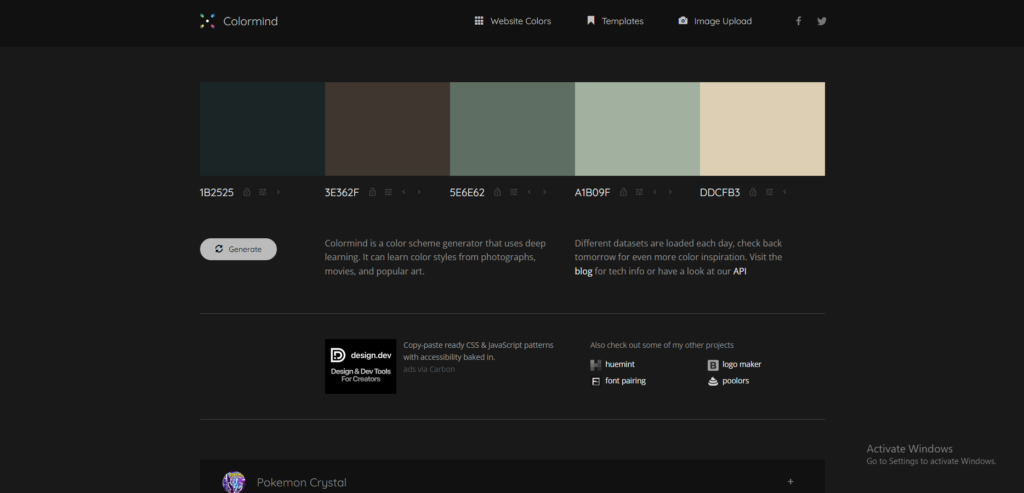
8. Colormind — Best for AI Color Scheme Generation

Colormind generates color schemes that look like a designer made them — because it learned from real designers’ work.

What it is: Colormind is a free AI color scheme generator that uses deep learning trained on real design work — photography, films, and art — to generate color palettes that feel cohesive and intentional. You can lock colors you like and regenerate the rest, making it fast to find the right palette.

Key AI Features:

  • AI color scheme generation from deep learning
  • Lock individual colors and regenerate the rest
  • Upload an image to extract its color palette
  • Bootstrap mode for web and UI color application
  • One-click new scheme generation

Pricing:

PlanPrice
Free$0 — completely free

Best For: UI designers and brand designers who need a quick, reliable color scheme and want something more grounded than a random palette generator.

Our Honest Take: Colormind is a reliable color tool we keep bookmarked. The palettes feel more intentional than what you get from random generators, and the ability to lock colors you like and regenerate the rest makes it fast to work with. It is not as personalized as Khroma, but it does not require setup time either — you can get a solid palette in 30 seconds. The fact that it is completely free makes it an easy recommendation.

ProsCons
Completely freeNo saving or account features
Fast — good palette in under a minuteSimpler than Khroma for personalization
Image-to-palette feature is usefulOnly does color — not a full design tool
Works for web and print color needsInterface is very basic

Quick Comparison Table

ToolBest ForFree PlanStarting PriceAI SpecialtyEase of Use
Figma AIProfessional UI✅ Yes$12/monthFull design copilot⭐⭐⭐⭐
UizardWireframing✅ Yes$19/monthScreen generation⭐⭐⭐⭐⭐
Framer AIWeb UI✅ Yes$5/monthAI site builder⭐⭐⭐⭐
Galileo AIUI generation❌ NoContact for priceText to UI⭐⭐⭐⭐⭐
KhromaColor palettes✅ YesFreeColor generation⭐⭐⭐
VisilyWireframing✅ Yes$10/monthScreenshot to UI⭐⭐⭐⭐⭐
Attention InsightUX testing❌ No$23/monthHeatmap AI⭐⭐⭐
ColormindColor schemes✅ YesFreeColor AI⭐⭐⭐

Verify all pricing at each tool’s official website before purchasing.

How to Choose the Right AI UI Design Tool

Are you a professional UI/UX designer? Figma AI is the clear choice. It is the industry standard and the AI features integrate directly into your existing workflow.

Do you need to wireframe quickly from ideas or screenshots? Uizard or Visily. Both are fast, both handle screenshot-to-wireframe well. Uizard has a slightly larger community. Visily has a cleaner interface for non-designers.

Are you building a website with AI help? Framer AI. It generates live, publishable websites from text prompts — not just mockups.

Do you need AI to generate a full UI from a text description? Galileo AI. The output quality is the most impressive on this list. The pricing model is the main friction.

Do you only need help with colors? Khroma or Colormind. Both are completely free. Khroma personalizes over time. Colormind is faster to get started with.

Do you want to predict how users will experience your design? Attention Insight. It is the only tool on this list that gives you AI-powered attention heatmaps before a design goes live.

Are AI UI Design Tools Replacing Designers?

This comes up constantly, so here is an honest answer.

No — AI is not replacing UI designers. What it is doing is changing what designers spend their time on.

AI handles the repetitive and mechanical parts of design work well. Generating wireframe options, suggesting color palettes, auto-applying layout rules, predicting user attention — these are all things AI tools do faster than any human. That is genuinely useful and genuinely time-saving.

What AI cannot do is understand your users. It cannot decide what problem you are solving, who you are solving it for, and how to design an experience that feels right for that specific context. Those decisions require human judgment, empathy, and strategic thinking. No AI tool gets there yet.

The designers who are thriving right now are the ones who have embraced AI tools to handle the mechanical work and redirected their energy toward the decisions that require a human. The ones who ignore AI tools entirely are at risk of being slower and more expensive than designers who use them.

The best outcome is not AI instead of designers — it is human designers with AI tools working together. That combination is genuinely better than either alone.

Final Verdict

After testing all 8 tools, here are our top picks:

For professional UI designers — Figma AI. It is the industry standard with the best-integrated AI features. If you design interfaces for a living, this is the tool to be in.

For quick wireframing — Uizard. Nothing else generates wireframes from screenshots and text descriptions as fast. Great for early-stage projects and non-designers who need to communicate UI ideas.

For free color work — Khroma or Colormind. Both are excellent and completely free. Khroma personalizes to your taste over time. Colormind is faster to get your first palette.

Want to see how Figma AI compares in a full review? Read our detailed Figma AI review. Or check our main guide to the best AI design tools for graphic designers.

Frequently Asked Questions

Q: What is the best AI tool for UI design?

Figma AI is the best AI tool for professional UI design in 2026. It is the industry standard design tool and its AI features include auto layout, component generation, and a design copilot. For beginners who want to wireframe quickly, Uizard is the better choice because it is easier to learn and faster for generating initial UI concepts.

Q: Can AI generate UI designs automatically?

Yes, tools like Galileo AI and Uizard can generate complete UI designs from a text description or screenshot. Galileo AI is the most advanced — you type what you want and it generates a full, polished UI layout. Uizard can convert a rough hand-drawn sketch into a digital wireframe in seconds using AI.

Q: Is Figma an AI design tool?

Yes, Figma has added significant AI features to its platform including an AI design copilot, auto layout generation, and AI component suggestions. While Figma started as a traditional UI design tool it is now one of the most capable AI-powered design tools available and is the industry standard for professional UI and UX designers.

Q: What AI tools do UX designers use?

UX designers commonly use Figma AI for interface design, Attention Insight for AI heatmap predictions, Uizard for quick wireframing, and Khroma for AI color palette generation. Many UX designers also use general AI tools like ChatGPT for user research synthesis and writing UX copy for their designs.

Q: Are there free AI UI design tools?

Yes, several excellent AI UI design tools have free plans. Figma AI, Uizard, Framer AI, Visily, Khroma, and Colormind all offer free plans. Figma and Uizard are the most useful free AI UI tools — both let you create real designs and wireframes without paying anything.

Q: Can beginners use AI UI design tools?

Yes, tools like Uizard and Visily are specifically designed for beginners with no design experience. Both use AI to generate wireframes from screenshots or simple text descriptions. Figma AI is more powerful but has a steeper learning curve and works better for people who already understand basic design principles.

Q: How does AI help in UI/UX design?

AI helps UI/UX designers in several ways. It generates wireframes from text descriptions, suggests color palettes based on brand style, auto-creates component layouts, predicts where users will look using heatmaps, and speeds up repetitive design tasks. AI does not replace the strategic thinking and user research that makes great UX — it handles the mechanical parts so designers can focus on the creative work.

Q: Is Framer AI good for UI design?

Yes, Framer AI is excellent for building website UI with AI assistance. You can describe what you want and Framer AI generates a functional website design with animations and interactions. It is best for designers who want to create web UI that is also live and publishable — not just a mockup. For app UI design, Figma AI or Uizard are better choices.

Related reading:

  • Best AI design tools for graphic designers — Link
  • Graphic design tools for beginners — Link
  • Free graphic design tools for beginners — Link

Categories
Design tools

Best Graphic Design Tools for Beginners in 2026

Quick Answer: The best graphic design tools for beginners in 2026 are Canva, Adobe Express, Figma, Microsoft Designer, and Affinity Designer.

  • Canva is easiest for complete beginners free
  • Adobe Express is best for social media beginners
  • Figma is best for beginners learning UI design
  • Microsoft Designer is best free AI option
  • Affinity Designer is best paid tool for beginners

Read on for full details, pricing, and who each tool is best suited for.

Introduction

Choosing the right graphic design tool as a beginner can feel overwhelming there are so many options. But the truth is most beginners only need one good tool to get started and start producing great work.

In this guide we cover the 10 best graphic design tools for beginners in 2026 including free and affordable paid options. We explain who each tool is best for so you can pick the right one and start designing with confidence. Whether you are making your first social media post, learning UI design, or exploring design as a career path, there is a tool on this list that fits where you are right now.

What to Look for in a Beginner Design Tool

Not every design tool is built with beginners in mind. Before picking one, here is what actually matters.

Ease of learning. The best beginner tool is one you will actually use. If the interface overwhelms you in the first five minutes, you will close the tab and never come back. Look for tools with clean layouts, good templates, and tutorials that make sense.

Template quality. Good templates are a huge shortcut for beginners. They help you understand what good design looks like and give you a starting point that is already professional. A tool with a strong template library lets you produce solid work before you fully understand design principles.

Output quality. Does the tool actually produce designs that look good? Some free tools create results that feel generic or low-quality. The tools on this list produce results you would be proud to share or show a client.

Price. We cover both free and paid tools here. Free is a great starting point, but some paid tools especially one-time purchase options like Affinity Designer offer real value for beginners serious about learning design.

Community and tutorials. Can you find help when you get stuck? The tools with large communities and YouTube libraries make learning much faster.

Future-proofing. Will the tool grow with you? Starting on a tool that professionals also use like Figma or Adobe Illustrator means your skills transfer directly into a real design career.

How We Selected These Tools

We personally tested every tool on this list not just skimmed the feature pages.

We approached each tool from a beginner perspective: how fast can a first-time user go from signing up to producing something that looks good? We paid attention to the learning curve, the quality of the first-run experience, and how much help is available when things are unclear.

We compared free plan value against paid plan value honestly. We also thought about which tools are worth learning long-term tools that professional designers still use, so the skills beginners build today are still relevant years from now.

The goal was to build a list that gives beginners the best starting point, not just the most popular names.

10 Best Graphic Design Tools for Beginners in 2026

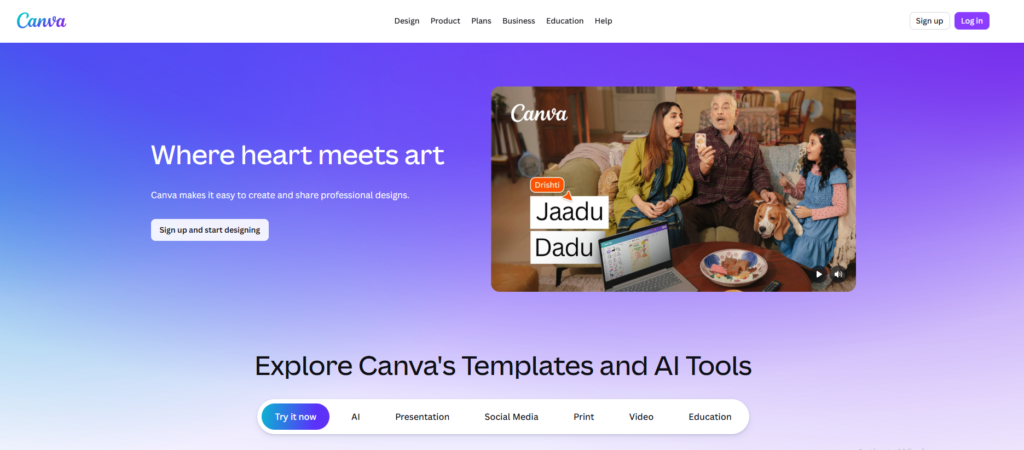
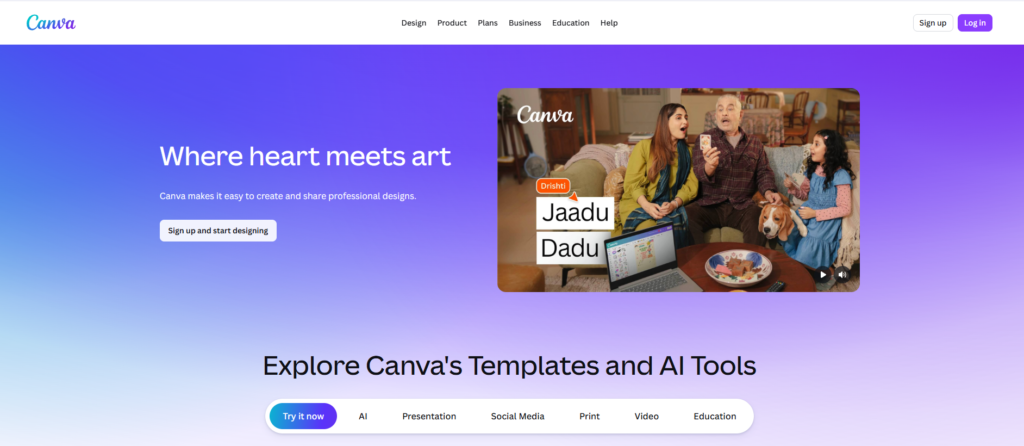
1. Canva — Best Overall for Complete Beginners

Canva is the best starting point for anyone who has never designed anything before in their life.

What it is: Canva is a browser-based design tool with a massive template library, a drag-and-drop editor, and a growing set of AI features. It covers social posts, presentations, logos, print materials, and more all in one place. It is free to start and used by over 150 million people worldwide.

Key Features:

  • 250,000+ free templates across every design category
  • Magic Design AI builds a full layout from a photo or prompt
  • Background remover available on free plan
  • Magic Write for AI-generated copy and captions
  • One-click resize for any platform

Pricing:

PlanPriceWhat You Get
Free$0250,000+ templates, basic AI, 1GB storage
Pro$15/monthAll templates, brand kit, premium AI features

Beginner Friendliness: ⭐⭐⭐⭐⭐ Easiest tool on this list

Best For: Complete beginners who want to design anything from social posts to presentations without any prior experience.

Our Honest Take: Canva is where almost every beginner should start in 2026. The gap between opening the app and producing something that looks professional is shorter than any other tool. The free plan is genuinely useful not a gimped demo. Our one note of caution is that designs made in Canva can sometimes look similar to what everyone else is making, since so many people use the same templates. Customize as much as you can to make your work stand out.

ProsCons
Easiest to learnDesigns can look generic
Huge free template libraryLimited professional-level features
AI features on free plan1GB storage on free plan
Works on web and mobileSome Pro-only templates can confuse beginners

2. Adobe Express — Best for Social Media Beginners

If your main goal is creating content for social media, Adobe Express is purpose-built for that.

What it is: Adobe Express is Adobe’s fast, beginner-friendly design tool. It is nothing like Photoshop or Illustrator it is simple, template-driven, and focused on quick content creation. Every template is pre-sized for the right platform, which saves beginners a lot of trial and error.

Key Features:

  • Templates pre-sized for every social platform
  • AI background removal
  • Animated content creation for Reels and Stories
  • Text effects and simple photo editing
  • Free stock photo library built in

Pricing:

PlanPriceWhat You Get
Free$0Thousands of templates, basic AI, 2GB storage
Premium$10/monthFull template library, unlimited stock, advanced AI

Beginner Friendliness: ⭐⭐⭐⭐⭐ As easy as Canva for social content

Best For: Beginners focused on Instagram, Facebook, LinkedIn, and TikTok content who want templates that are already the right size.

Our Honest Take: Adobe Express has a cleaner, more polished template library than Canva in many categories. If you are already in the Adobe world or planning to be it fits naturally. The free plan is solid for daily social media use. The main reason Canva edges it out for beginners is the sheer volume of templates, but for social-first creators Adobe Express is a genuine competitor.

ProsCons
Templates pre-sized for every platformSmaller template library than Canva
Clean, professional designsAdvanced features behind paywall
AI tools on free planLess versatile for non-social design
Part of Adobe ecosystemSome exports include Adobe watermark

3. Microsoft Designer — Best Free AI Option for Beginners

If you want AI to do most of the design work for you for free Microsoft Designer delivers.

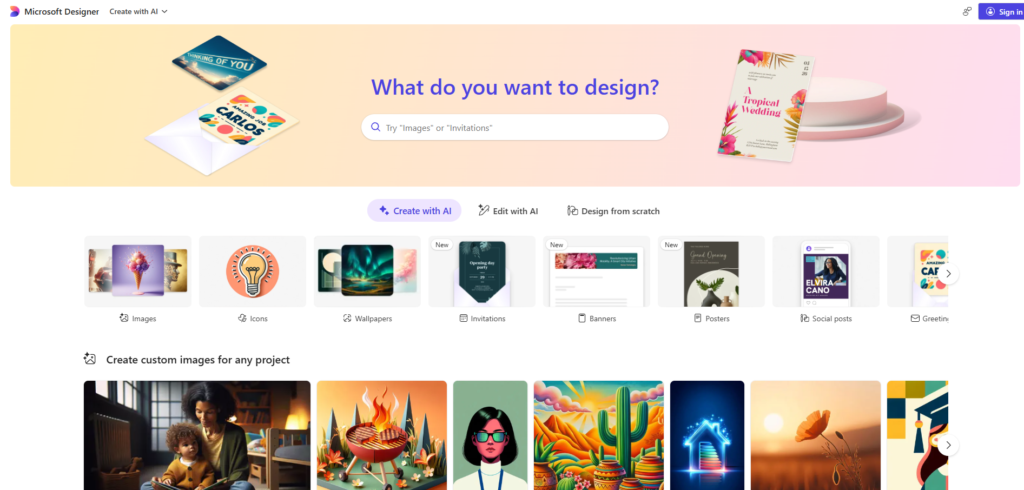
What it is: Microsoft Designer is a free AI design tool powered by DALL-E. You describe what you want and it generates a complete design. It is the most AI-forward free tool on this list you spend less time choosing and arranging, and more time prompting and refining.

Key Features:

  • DALL-E powered AI image generation best quality available for free
  • Text-to-design describe your idea and get a full layout
  • No watermarks on any downloads
  • AI background removal
  • Integrates with Microsoft 365

Pricing:

PlanPriceWhat You Get
Free$0Full access, no watermarks, unlimited designs

Beginner Friendliness: ⭐⭐⭐⭐⭐ Easiest AI-powered tool on this list

Best For: Beginners who want AI to handle the design decisions and just need to describe what they want.

Our Honest Take: Microsoft Designer is genuinely impressive for a free tool. The DALL-E image quality is the best you will get without paying, and the absence of any watermarks is a real differentiator. It is not as template-deep as Canva, but for AI-generated designs from a text prompt, nothing free comes close. Worth having in your toolkit alongside Canva.

ProsCons
Best free AI image generationFewer templates than Canva
No watermarks at allNewer and still maturing
Zero cost — no paid tierLess customization depth
No design experience neededNot ideal for print work

4. Figma — Best for Beginners Learning UI Design

If you are interested in designing apps, websites, or digital products, Figma is where you should start.

What it is: Figma is the industry-standard tool for UI and UX design. It is used by design teams at major companies worldwide. It has a free plan that is genuinely capable, a huge community of designers sharing resources, and AI features that make wireframing and prototyping faster.

Key Features:

  • Drag-and-drop interface with precise control
  • Real-time collaboration share a link and work together
  • Component libraries and design systems
  • AI-powered First Draft generate UI from a text description
  • Thousands of free plugins and community resources

Pricing:

PlanPriceWhat You Get
StarterFree3 projects, unlimited files, full editor
Professional$12/monthUnlimited projects, team features

Beginner Friendliness: ⭐⭐⭐⭐ Some learning needed, but worth it

Best For: Beginners who want to learn UI and UX design with a tool that professional designers actually use.

Our Honest Take: Figma has a steeper learning curve than Canva, but if you are interested in a career in UI or UX design, starting here is the right call. You will not have to unlearn bad habits from a simpler tool later. The free plan is more than enough to learn and build a portfolio. The community is enormous and the YouTube tutorials are excellent. Give it 30 days and you will not look back.

ProsCons
Industry standard for UI/UXSteeper learning curve than Canva
Strong free planNot ideal for print or social graphics
Huge community and resourcesCan be overwhelming at first
Real-time collaborationAI features still developing

5. Affinity Designer — Best Paid Tool for Beginners

If you are ready to invest in a design tool and want something that will grow with you, Affinity Designer is the best value available.

What it is: Affinity Designer is a professional vector and raster design tool think Adobe Illustrator but at a fraction of the cost and with a one-time payment. It handles logos, illustrations, UI design, and print work with professional-level precision.

Key Features:

  • Professional vector and pixel editing in one tool
  • One-time purchase no subscription
  • Handles print, UI, and illustration work
  • Smooth performance works well on older hardware
  • Regular free updates included

Pricing:

PlanPriceWhat You Get
Affinity Designer 2$70 one-timeFull software, all features, free updates

Beginner Friendliness: ⭐⭐⭐ Some learning needed

Best For: Beginners who are serious about design and want a professional-level tool without an ongoing subscription cost.

Our Honest Take: Affinity Designer is the best one-time-purchase deal in design software right now. Seventy dollars gets you a professional tool that competes directly with Adobe Illustrator and you never pay again. The learning curve is real but manageable. If you are committed to learning design seriously and want a tool that will be with you for years, this is where we would put that $70.

ProsCons
One-time purchase — no subscriptionNo free plan
Professional-level outputLearning curve steeper than Canva
Works for print, UI, and illustrationNo cloud-based collaboration
Regular free updatesNot as widely used as Adobe tools

6. Adobe Illustrator — Best for Beginners Learning Vector Design

If your goal is to work in professional graphic design, Adobe Illustrator is the tool the industry runs on.

What it is: Adobe Illustrator is the industry standard for vector graphics logos, icons, illustrations, brand identity design. It is powerful, has a steeper learning curve than the other tools on this list, and requires a subscription. But if you are serious about professional design, learning Illustrator is a career investment.

Key Features:

  • Industry-standard vector editing tools
  • Integrates with Photoshop, InDesign, and the full Adobe suite
  • Massive library of tutorials and learning resources
  • AI-powered Generative Recolor and vector generation
  • Professional output for print and digital

Pricing:

PlanPriceWhat You Get
Illustrator$22/monthFull software, cloud storage, Adobe fonts
Creative Cloud All Apps$60/monthAll Adobe apps included

Beginner Friendliness: ⭐⭐ Steeper learning curve

Best For: Beginners who are serious about a career in graphic design and want to learn the tool professionals actually use.

Our Honest Take: We would not recommend starting here unless you are committed to design as a career or profession. The learning curve is real and the subscription adds up. That said, if you want to work as a graphic designer professionally, you will eventually need Illustrator. Start with Canva or Affinity Designer, learn design fundamentals, and then move to Illustrator when you are ready for the next level.

ProsCons
Industry standard for vector workExpensive monthly subscription
Integrates with full Adobe suiteSteep learning curve for beginners
Best professional output qualityOverkill for casual design needs
Strong learning resources availableRequires ongoing commitment to learn

7. Pixlr — Best for Beginners Who Need Photo Editing

When you need to edit photos and do not want to pay for Photoshop, Pixlr gets the job done for free.

What it is: Pixlr is a free browser-based photo editor with a feature set that goes well beyond what most people expect from a free tool. It has layers, filters, AI tools, and adjustment options all accessible from any browser without downloading anything.

Key Features:

  • Layers and masks for non-destructive editing
  • AI background removal and enhancement
  • Hundreds of filters and effects
  • Cutout and object removal tools
  • No download or install required

Pricing:

PlanPriceWhat You Get
Free$0Core editing tools, basic AI, cloud storage
Plus$8/monthPremium features, more AI credits, no ads

Beginner Friendliness: ⭐⭐⭐⭐ Easy for photo tasks

Best For: Beginners who primarily need to edit photos retouching, background removal, color correction without paying for professional software.

Our Honest Take: Pixlr sits in a useful middle ground between the simplicity of Canva and the complexity of Photoshop. For photo editing tasks that beginners typically need background removal, basic retouching, adding text to images it handles them well and quickly. The free version shows ads, which is the main downside. Everything else works reliably.

ProsCons
Layers on free planAds on free version
No download neededAI credits limited on free tier
Good for photo editing basicsInterface can feel busy at first
AI background removal includedLess capable than Photopea for advanced work

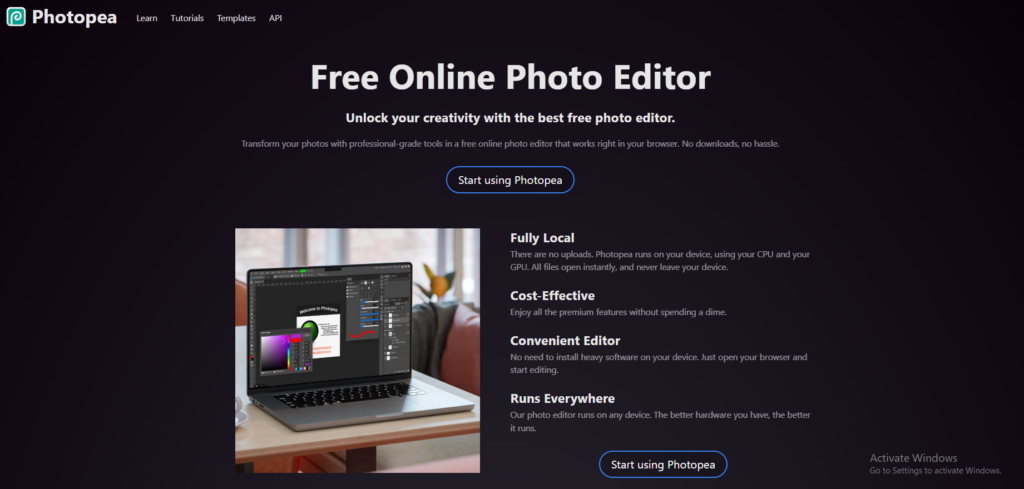
8. Photopea — Best Free Photoshop Alternative

Photopea is the most powerful free photo editing tool on the internet, period.

What it is: Photopea is a free browser-based photo editor that functions almost identically to Adobe Photoshop. It opens PSD files, supports layers, masks, and smart objects, and uses the same keyboard shortcuts. All of this at zero cost, with no download and no signup required.

Key Features:

  • Opens PSD, XD, Sketch, and AI files
  • Full Photoshop-level editing layers, masks, curves, levels
  • Same keyboard shortcuts as Photoshop
  • No signup or download needed
  • All features available on the free version

Pricing:

PlanPriceWhat You Get
Free$0Full feature access, no watermarks
Paid$9/monthSame features — just removes the ads

Beginner Friendliness: ⭐⭐⭐ More complex, but very capable

Best For: Beginners who need Photoshop-level editing without the cost, or anyone who needs to open and edit PSD files.

Our Honest Take: Photopea is remarkable for what it offers at zero cost. If you need Photoshop and do not have it, Photopea is the answer. The interface is more complex than Canva or Adobe Express, so it is better suited to beginners who are ready to invest some time in learning. But the payoff is significant you get professional-level photo editing completely free.

ProsCons
Opens PSD, XD, and Sketch filesComplex for complete beginners
Full Photoshop-like feature setAds on free version
No signup or install neededSaves locally — no cloud storage
All features freeNot great for non-photo design work

9. Sketch — Best for Mac Beginners Interested in UI Design

If you are on a Mac and want to learn UI design, Sketch is a solid professional option.

What it is: Sketch is a Mac-only UI design tool that has been a staple in the industry for years. It is used by professional product designers and has a strong community, extensive plugin ecosystem, and a large library of tutorials.

Key Features:

  • Clean, focused UI design interface
  • Symbols and reusable components
  • Strong plugin ecosystem
  • Excellent community resources and templates
  • Export tools optimized for developer handoff

Pricing:

PlanPriceWhat You Get
Individual$10/monthFull app, cloud storage, updates
Mac App (one-time)$120App only — no cloud, no updates after one year

Beginner Friendliness: ⭐⭐⭐ Some learning needed

Best For: Mac users who want to learn UI design with a tool that has strong industry history and community support.

Our Honest Take: Sketch used to be the industry standard for UI design before Figma took over. It is still a solid tool, especially on Mac. For beginners on Mac who want an alternative to Figma, Sketch is worth considering. The main downside compared to Figma is that it is Mac-only and not free. For most beginners we would recommend Figma first, but Sketch is a legitimate option if you prefer it.

ProsCons
Professional-quality UI designMac only — no Windows or browser version
Strong plugin ecosystemNo free plan
Good community and tutorialsFigma has largely replaced it in teams
Clean, focused interfacePricier than Figma for similar features

10. CorelDRAW — Best for Beginners Pursuing Professional Design

CorelDRAW is a professional design suite that gives beginners access to the tools working designers use every day.

What it is: CorelDRAW is a professional vector design application that has been around for decades. It handles everything from logo design and illustration to print layout and photo editing all in one suite. It is a serious tool with a real learning investment required.

Key Features:

  • Professional vector editing and illustration tools
  • Built-in photo editing (Corel PHOTO-PAINT)
  • Print-ready output tools
  • Font management and typography tools
  • AI-powered design assistance

Pricing:

PlanPriceWhat You Get
CorelDRAW Essentials$22/monthFull suite, cloud storage, updates
Perpetual License$499 one-timeFull software, no ongoing cost

Beginner Friendliness: ⭐⭐⭐ Medium learning curve

Best For: Beginners who are serious about professional design work, especially in print and illustration, and want an alternative to the Adobe ecosystem.

Our Honest Take: CorelDRAW is a professional tool with a long history. If you want to work in print design or illustration professionally and prefer not to use Adobe software, it is a legitimate choice. For most beginners, we would recommend starting with Canva or Affinity Designer both are easier to learn and more affordable. CorelDRAW is worth considering once you know design is a serious pursuit.

ProsCons
Professional-level outputNo free plan
Handles print and illustration wellExpensive for beginners
Good alternative to Adobe toolsSteep learning curve
One-time purchase option availableLess widely used than Adobe in many markets

Quick Comparison Table

ToolFree PlanStarting PriceEase of UseBest ForPlatform
Canva✅ Yes$15/month⭐⭐⭐⭐⭐All-round beginnersWeb + Mobile
Adobe Express✅ Yes$10/month⭐⭐⭐⭐⭐Social mediaWeb + Mobile
Microsoft Designer✅ YesFree⭐⭐⭐⭐⭐AI designsWeb
Figma✅ Yes$12/month⭐⭐⭐⭐UI/UXWeb + Desktop
Affinity Designer❌ No$70 one-time⭐⭐⭐Vectors + PrintDesktop
Adobe Illustrator❌ No$22/month⭐⭐Professional vectorsDesktop
Pixlr✅ Yes$8/month⭐⭐⭐⭐Photo editingWeb
Photopea✅ Yes$9/month⭐⭐⭐Photo editingWeb
Sketch❌ No$10/month⭐⭐⭐UI designMac only
CorelDRAW❌ No$22/month⭐⭐⭐Professional designDesktop

Verify all pricing at the tool’s official website before purchasing.

Free vs Paid — Which Should Beginners Choose?

This is one of the most common questions beginners ask, and the answer is almost always the same: start free.

Free tools have improved so dramatically in recent years that most beginners will not hit their limits for months if ever. Canva, Adobe Express, Microsoft Designer, Figma, Pixlr, and Photopea all have free plans that are genuinely useful, not just stripped demos.

Start free if:

  • You are exploring design for the first time
  • You have no budget right now
  • You are not sure which tool fits your style
  • You need results quickly without a learning curve

Go paid if:

  • You are serious about building design skills professionally
  • You want features not available on free plans like watermark-free exports or unlimited storage
  • You are learning design for a career
  • You need to work on client projects where free plan limits are a problem

Our recommendation for most beginners: start with the Canva free plan for 30 days. If you enjoy design and want to go further, consider the Figma free plan for UI work or Affinity Designer as a one-time paid investment for professional-level design.

How to Choose the Right Tool for Your Goals

You want to make social media posts: Use Canva or Adobe Express. Both are free, both have templates the right size for every platform, and both are easy enough to use on day one.

You want to learn UI and UX design: Use Figma. It is the industry standard. Free to start. The skills transfer directly into a real design career.

You want to edit photos: Use Pixlr or Photopea. Both are free. Pixlr is easier for beginners. Photopea is more powerful and opens PSD files.

You want to make logos and vectors: Use Affinity Designer if you are ready to invest. Use Gravit Designer or Vectr if you want free options to start.

You want to pursue professional design: Start with Canva to learn design basics, then move to Adobe Illustrator or Affinity Designer when you are ready for professional-level work.

Final Verdict

For most beginners in 2026, the answer is simple: start with Canva.

It is free, easy, produces professional results from day one, and covers almost every design need a beginner has. If you enjoy it and want to keep going, the free plan will carry you further than you expect.

For beginners interested in UI and UX design specifically, Figma is the better starting point it is the industry standard and free to begin. Learning it early sets you up for a real career in product design.

If you are ready to invest in a paid tool that will grow with you for years, Affinity Designer at $70 one-time is the best value in design software right now. No subscription, professional output, and it handles vectors, print, and UI design.

Want to see which of these tools are completely free? Read our full guide to free graphic design tools for beginners. Or check our complete guide to the best AI design tools for graphic designers.

Frequently Asked Questions

Q: What is the best graphic design tool for beginners?

Canva is the best graphic design tool for beginners in 2026. It has the easiest learning curve, a huge free template library, and built-in AI features. For beginners interested in UI/UX design specifically, Figma is the better choice as it is the industry standard tool used by professional designers.

Q: Should beginners use free or paid design tools?

Beginners should start with free tools like Canva, Adobe Express, or Figma before investing in paid software. Free tools let you learn design fundamentals and discover your preferred style without spending money. Once you know design is something you want to pursue seriously, then consider upgrading to paid tools.

Q: How long does it take to learn graphic design tools?

Basic tools like Canva and Adobe Express can be learned in a few hours. More advanced tools like Figma and Adobe Illustrator typically take 2–4 weeks of regular practice to become comfortable with. Most beginners can produce professional-looking work within 30 days of consistent practice with any beginner-friendly tool.

Q: Is Figma good for beginners?

Yes, Figma is good for beginners who want to learn UI and UX design. It has a free plan, excellent tutorials, and a huge community of designers who share resources. The learning curve is steeper than Canva but Figma is the industry standard for UI design, so learning it early sets beginners up for a career in design.

Q: What design tool do most graphic designers use?

Professional graphic designers most commonly use Adobe Illustrator for vector design, Adobe Photoshop for photo editing, and Figma for UI and UX design. However, many designers also use Canva for quick social media content and client presentations because of its speed and ease of use.

Q: Is Adobe Illustrator too hard for beginners?

Adobe Illustrator has a steeper learning curve than tools like Canva but it is not impossible for beginners. Most designers recommend starting with Canva or Figma first to learn design fundamentals, then moving to Adobe Illustrator when you are ready for professional-level vector work. There are also many free YouTube tutorials that make learning Illustrator accessible.

Q: Can I use graphic design tools on mobile?

Yes, Canva, Adobe Express, and Microsoft Designer all have excellent mobile apps for iOS and Android. These are the best options for designing on your phone or tablet. Desktop-focused tools like Figma and Adobe Illustrator have limited mobile support and work best on a laptop or desktop computer.

Q: Which graphic design tool is best for making logos?

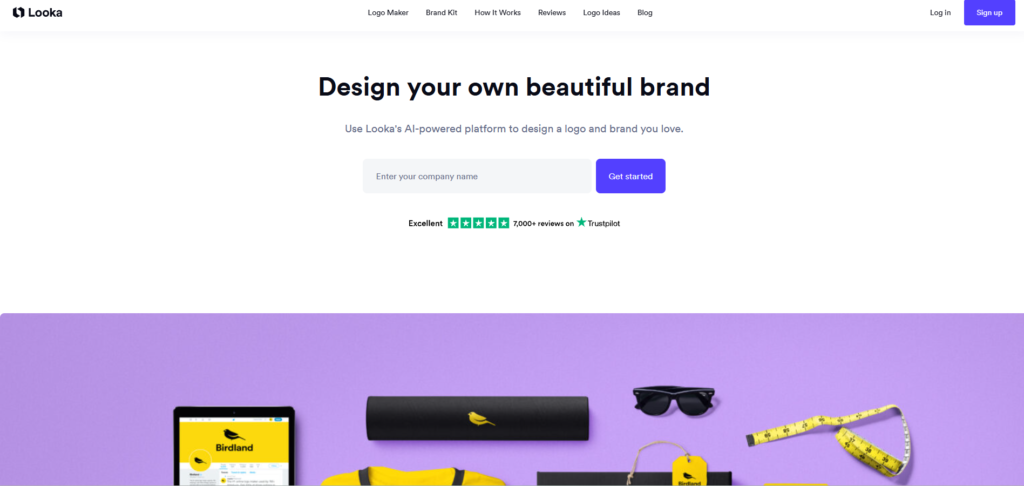
For beginners making logos, Canva is the easiest option with hundreds of free logo templates. For more professional logo design, Affinity Designer or Adobe Illustrator give you more control and produce truly unique results. If you want AI to generate your logo automatically, Looka is purpose-built for this and takes just minutes.

Related reading:

  • Best AI design tools for graphic designers — link
  • Free graphic design tools for beginners —link
  • Best Canva Alternatives For Designers in 2026 — link

Categories
Design tools

Best Free Graphic Design Tools for Beginners in 2026

Quick Answer: The best free graphic design tools for beginners in 2026 are Canva, Microsoft Designer, Adobe Express, Pixlr, and Gravit Designer.

  • Canva is the easiest free tool for complete beginners
  • Microsoft Designer is best for AI-powered free designs
  • Adobe Express is best for social media graphics
  • Pixlr is best for free photo editing
  • Gravit Designer is best for free vector design

All tools in this list are 100% free to start.

Introduction

Finding the best free graphic design tools for beginners does not have to be complicated. In 2026 there are more free design tools than ever before and many of them are just as powerful as paid options. Whether you want to create social media posts, logos, presentations, or website graphics this guide covers the 10 best free tools that any beginner can start using today. No design experience needed.

We personally tested every tool on this list, checked what is actually free versus what requires a paid upgrade, and made sure each one is beginner-friendly from day one. If you are starting from scratch and do not want to spend a dollar, you are in the right place.

Why Free Design Tools Are Good Enough for Beginners

A few years ago, free design tools felt limited and clunky. That has completely changed.

In 2026, free tools like Canva and Microsoft Designer offer features that used to cost hundreds of dollars a year. AI is a big part of that shift many free tools now have AI image generation, background removal, and smart design suggestions built right in, at no cost.

For beginners, paid tools are rarely necessary. Most people starting out need templates, basic editing, and the ability to export clean files. Every tool on this list covers that. The free plan on most of these tools will carry you further than you think.

There is also a practical reason to start free you do not yet know which tool fits your workflow. Spending money before you have used a tool for a few weeks is rarely a good idea. Start free, learn what you like, and upgrade only when the free plan genuinely holds you back.

Professional-looking results are absolutely possible with free tools. Thousands of small businesses, freelancers, and content creators use them every single day.

How We Selected These Free Tools

We did not just pick the most popular names and call it a day. We actually logged into each tool on a free plan and used it.

For every tool on this list, we checked whether it is truly free no hidden credit card required, no bait-and-switch after a trial period. We tested ease of use from a complete beginner perspective, which means we paid close attention to how fast you can go from signing up to producing something that looks good.

We also checked output quality. A free tool is only useful if the designs you make with it actually look professional. We verified what the free plan limitations are storage, watermarks, template access and made sure those limits are workable for a beginner, not just frustrating.

Every recommendation here is honest. If the free plan is too limited to be useful, the tool did not make this list.

10 Best Free Graphic Design Tools for Beginners in 2026

1. Canva — Best Free Tool Overall for Beginners

If you are starting from zero, Canva is the tool you should open first it is free and takes minutes to learn.

What it is: Canva is a browser-based design tool with a drag-and-drop editor, a massive template library, and a growing set of AI features. It covers everything from social media posts and presentations to logos and print materials all in one place.

Key Features:

  • Over 250,000 free templates across every design category
  • Magic Design AI generates full layouts from a photo or prompt
  • Background remover on free plan
  • Magic Write for AI-generated text and captions
  • Resize designs for different platforms in one click

What is Free: The free plan includes 1GB of storage, access to 250,000+ templates, basic AI features including background removal, and unlimited designs. You can export files as PNG, JPG, or PDF at no cost.

What is NOT Free: Some templates and elements are marked as Pro-only and require a Canva Pro subscription ($15/month). The watermark appears on certain downloads if you use premium assets accidentally. The brand kit feature and full AI suite require Pro.

Best For: Complete beginners who want to create anything from social posts to presentations without any design experience.

Our Honest Take: Canva is the first tool we recommend to anyone who has never designed before, and for good reason. You can sign up and have something that looks great within your first 20 minutes. The free plan is genuinely generous the 250,000+ templates alone make it worth it. The only frustration is accidentally clicking a Pro element and then finding out your download has a watermark. Just watch for the crown icon and stick to free assets and you will be fine.

ProsCons
Completely free to startSome templates are Pro only
No design experience neededWatermark if Pro assets used
Huge template libraryDesigns can look similar to others
AI features on free planLimited storage on free plan (1GB)

2. Microsoft Designer — Best for AI-Powered Free Design

If you want the most powerful AI features completely free, Microsoft Designer is the one to use.

What it is: Microsoft Designer is a free AI-powered design tool from Microsoft, powered by DALL-E. It generates complete designs from text descriptions you tell it what you want and it builds it for you. No templates to browse through, no design choices to make just describe your idea and Designer takes it from there.

Key Features:

  • DALL-E powered AI image generation some of the best quality available for free
  • Text-to-design type a description and get a full design
  • AI background removal
  • Integrates with Microsoft 365 apps
  • No watermarks on downloads

What is Free: Everything. Microsoft Designer is completely free with no paid tier currently. You get unlimited designs, cloud storage, and full access to all AI features at no cost.

What is NOT Free: Nothing it is all free right now.

Best For: Beginners who want AI to do most of the design work for them, and anyone who wants professional-looking results without learning design basics.

Our Honest Take: The DALL-E image quality on Microsoft Designer is genuinely impressive better than most paid tools at the same task. And the fact that there are zero watermarks and zero costs makes it hard to argue against. It is not as deep as Canva in terms of templates and customization, but for AI-generated designs it is the best free option out there. Worth having as your go-to alongside Canva.

ProsCons
100% free — no watermarksFewer templates than Canva
Best free AI image generationLess customization depth
No design experience neededNewer tool still maturing
Integrates with Microsoft appsNot ideal for print work

3. Adobe Express — Best Free Tool for Social Media Graphics

If you are creating content for Instagram, Facebook, or LinkedIn, Adobe Express is built exactly for that.

What it is: Adobe Express is Adobe’s free online design tool, built for quick content creation. It is lighter and faster than Photoshop or Illustrator, and it comes with templates pre-sized for every major social media platform. It also has solid AI features on the free plan.

Key Features:

  • Thousands of templates sized for every social platform
  • AI-powered background removal
  • Text effects and animation for social content
  • Brand color and font tools
  • Remove backgrounds from photos instantly

What is Free: The free plan includes 2GB of storage, thousands of templates, basic AI features including background removal, and the ability to export clean files with no watermark on most content.

What is NOT Free: Premium templates, Adobe Stock photos, and advanced AI features require Adobe Express Premium ($10/month). Some exports may carry an Adobe badge on the free plan.

Best For: Beginners who are primarily creating social media content and want templates that are already the right size for every platform.

Our Honest Take: Adobe Express is the tool we reach for when speed matters for social content. The templates are clean, professionally designed, and already sized correctly you are not wasting time resizing. The free plan is solid for everyday social media use. If you are already in the Adobe ecosystem, it feels like a natural fit.

ProsCons
Templates sized for every social platformSome exports carry Adobe badge
Clean, professional template designsFewer templates than Canva on free plan
Good AI features for freePremium stock photos require paid plan
2GB storage on free planLess versatile for non-social design

4. Pixlr — Best Free Photo Editing Tool

If you need to edit photos and do not want to pay for Photoshop, Pixlr is the best free option.

What it is: Pixlr is a free browser-based photo editor with tools that feel surprisingly close to Photoshop. It has layers, filters, adjustment tools, and AI-powered features all accessible from any browser without downloading anything.

Key Features:

  • Layers support for non-destructive photo editing
  • AI background removal and photo enhancement
  • Hundreds of filters and effects
  • Cutout tool for removing objects from photos
  • Works in browser no download or install needed

What is Free: Core editing tools, layers, filters, and basic AI features are all free. Cloud storage is included. No download required.

What is NOT Free: Some premium filters, AI credits, and export options require Pixlr Premium ($8/month). The free version shows ads.

Best For: Beginners who need to edit photos adjusting colors, removing backgrounds, cutting out objects without paying for professional software.

Our Honest Take: Pixlr sits in a nice spot between being genuinely capable and actually free. For photo editing tasks that beginners typically need background removal, basic retouching, color adjustments it handles them well. The interface takes a few minutes to get used to but once you find your way around, it is fast and reliable. The ads on the free plan are a minor annoyance but not a dealbreaker.

ProsCons
Closest free alternative to PhotoshopAds on free plan
No download requiredSome features require paid plan
Good AI photo featuresInterface can feel cluttered at first
Layers support on free planAI credits are limited on free tier

5. Gravit Designer — Best for Free Vector Design

If you need to create logos, icons, or scalable graphics without paying for Illustrator, Gravit Designer is worth your time.

What it is: Gravit Designer is a free vector design tool that runs in the browser. Vector graphics are scalable they stay sharp at any size which makes Gravit useful for logos, icons, and illustrations. It is more technical than Canva but still approachable for beginners willing to spend a bit of time learning.

Key Features:

  • Full vector editing tools pen tool, bezier curves, shapes
  • 500MB free cloud storage
  • Export to SVG, PDF, PNG, and other formats
  • Symbols and reusable components
  • Multi-page documents

What is Free: The core vector editor, 500MB storage, and all basic design tools are free with an account. Export to common formats is free.

What is NOT Free: Offline access, unlimited cloud storage, and advanced features require Gravit Designer Pro ($49/year).

Best For: Beginners who want to learn vector design and create logos or icons without paying for Adobe Illustrator.

Our Honest Take: Gravit Designer is a solid free tool for anyone who wants to get into vector design without the Illustrator price tag. The learning curve is steeper than Canva but that is the nature of vector work it takes more time to learn. For logo design and icon creation, it does the job well. If you are serious about learning vector design, this is the best free starting point available.

ProsCons
Full vector editor for freeSteeper learning curve than Canva
Export to SVG and PDF freeLimited templates
Good for logos and iconsNo offline access on free plan
Browser-based — no install needed500MB storage limit

6. Photopea — Best Free Photoshop Alternative

Photopea is the closest thing to Photoshop you will find completely free, no questions asked.

What it is: Photopea is a free browser-based photo editor that looks and works almost identically to Adobe Photoshop. It opens PSD files, supports layers and masks, and handles all the photo editing tasks that Photoshop is known for entirely for free.

Key Features:

  • Opens and saves PSD, XD, Sketch, and AI files
  • Full layers and masks support
  • Same keyboard shortcuts as Photoshop
  • No download, no signup required just open the browser and go
  • Smart objects and adjustment layers

What is Free: Everything is free. No signup needed, no storage limits, no watermarks. You work on files locally and save them to your computer.

What is NOT Free: A paid plan ($9/month) removes ads from the interface. That is the only difference all features are available on the free version.

Best For: Anyone who needs Photoshop-level editing without paying for it, or anyone who needs to open and edit PSD files for free.Our Honest Take: Photopea is one of the most impressive free tools on the internet, full stop. The fact that it opens PSD files, handles layers properly, and uses the same shortcuts as Photoshop all for free, in a browser is remarkable. The ads are a small annoyance. Everything else about it is excellent. If you need Photoshop and do not have it, open Photopea.

ProsCons
Opens PSD, XD, and Sketch filesAds on free version
Full Photoshop-level feature setCan feel overwhelming for beginners
No signup or download neededNo cloud storage — saves locally
All features freeInterface is complex for first-timers

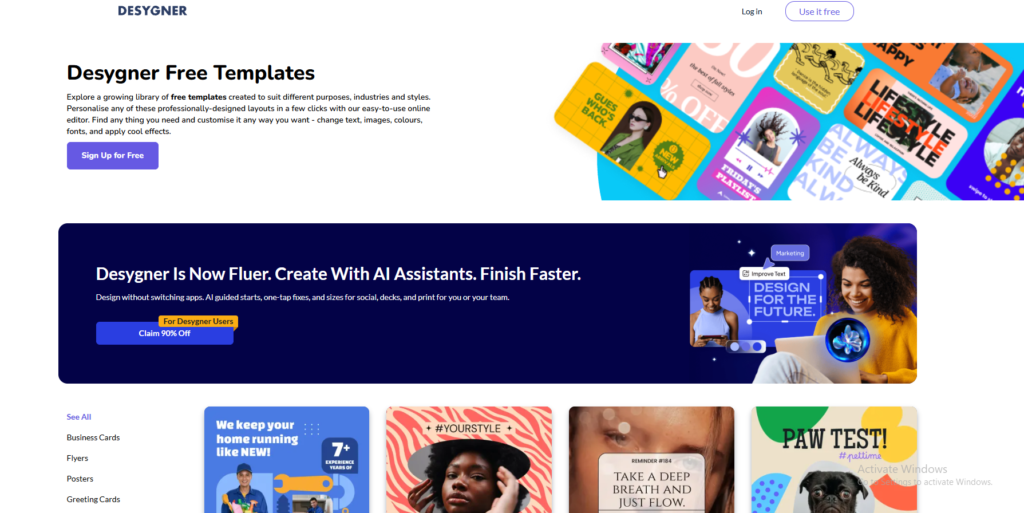
7. Desygner — Best Free Template-Based Design Tool

Desygner gives you access to thousands of ready-made templates that cover almost any design need.

What it is: Desygner is a free online design tool focused on templates. It has thousands of designs for social media, marketing materials, business documents, and more. It is similar to Canva in concept but with its own template library and editor.

Key Features:

  • Thousands of free templates across categories
  • 1GB free storage
  • PDF editing you can edit existing PDFs directly
  • Team sharing features
  • Mobile app available

What is Free: The free plan includes 1GB storage, access to most templates, and basic editing tools. PDF editing is included for free.

What is NOT Free: Premium templates, some design elements, and advanced brand features require Desygner Business ($9.95/month). Some downloads may include a Desygner watermark on the free plan.

Best For: Beginners who need a quick template-based design tool and also need to edit PDF files occasionally.

Our Honest Take: Desygner is a solid alternative to Canva with one unique advantage PDF editing. If you regularly need to update or edit existing PDF documents, Desygner handles that better than most free tools. The template library is good but not as deep as Canva’s. Worth having in your toolkit, especially if PDF work is part of your workflow.

ProsCons
PDF editing on free planWatermark on some free downloads
Thousands of templatesSmaller template library than Canva
1GB free storageLess intuitive than Canva
Mobile app availableSome features feel limited on free tier

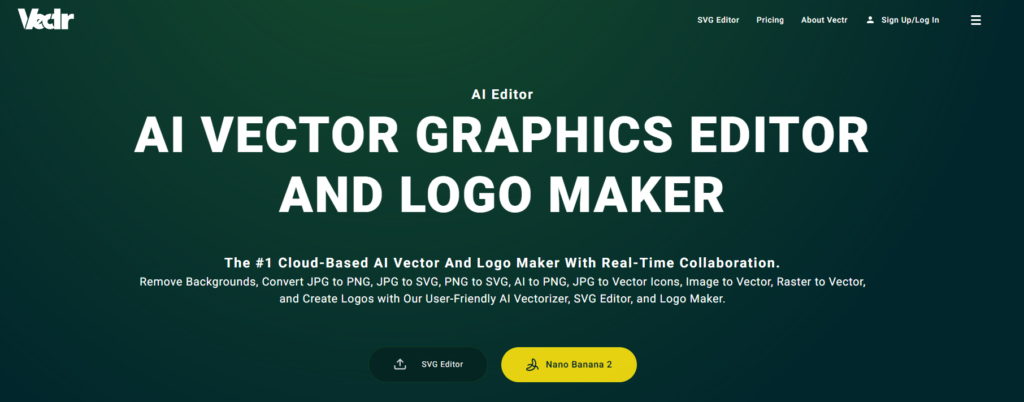
8. Vectr — Best Free Vector Graphics Tool for Beginners

Vectr makes vector design as simple as possible a good starting point if Gravit Designer feels too advanced.

What it is: Vectr is a free, simplified vector graphics editor designed specifically for beginners. It is less powerful than Gravit Designer or Illustrator, but that simplicity is the point it is easier to learn and faster to get results if you are just starting out with vector design.

Key Features:

  • Simple vector editing tools shapes, paths, text
  • Real-time collaboration share a link and work together
  • Cloud-based no download needed
  • Free for all users with no paid tier
  • Basic export to SVG and PNG

What is Free: Everything Vectr is completely free with no paid plan. All features are available to all users.

What is NOT Free: Nothing. It is all free.

Best For: Beginners who want to learn the basics of vector design in a tool that is less intimidating than Gravit or Illustrator.

Our Honest Take: Vectr is not the most powerful vector tool, but it is genuinely one of the easiest to learn. If you are a complete beginner curious about vector design, Vectr is a low-pressure way to start. The real-time collaboration feature is a nice bonus for working with teammates or clients. Once you outgrow it, moving to Gravit Designer or Figma is a natural next step.

ProsCons
Completely free — no paid planLimited compared to Gravit or Figma
Easiest vector tool for beginnersFewer export options
Real-time collaboration includedNot suitable for complex vector work
No download requiredLimited template library

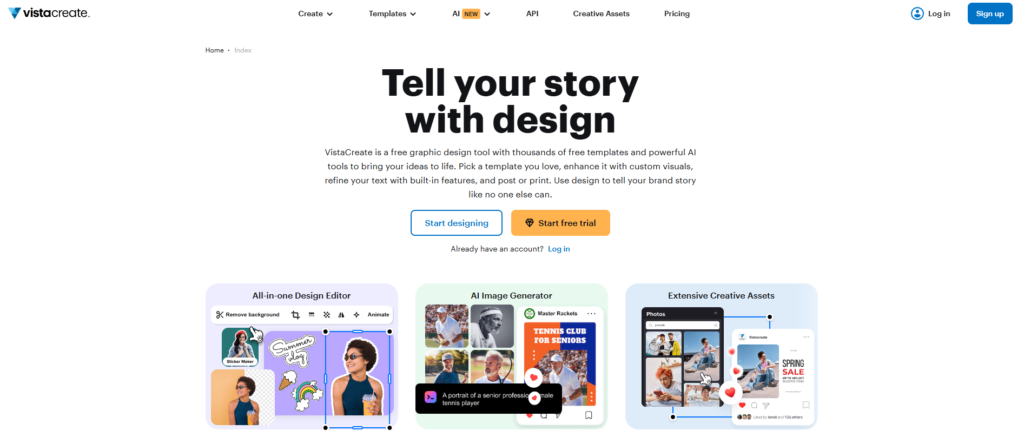
9. Crello (Vista Create) — Best Free Tool for Animated Designs

If you want to make animated social media content for free, Vista Create (formerly Crello) is the tool to use.

What it is: Vista Create, which most people still call Crello, is a free design tool focused on animated content. It has thousands of templates including animated versions great for Instagram Stories, TikTok content, and any social media that benefits from movement.

Key Features:

  • Thousands of free animated templates
  • Video and GIF creation tools
  • Brand kit features on free plan
  • Large library of free stock photos and videos
  • One-click resizing for different platforms

What is Free: The free plan includes access to thousands of templates (including animated ones), basic stock assets, and export to common formats. A watermark may appear on some free exports.

What is NOT Free: Premium templates, extended stock library, and removing watermarks require Vista Create Pro ($13/month).

Best For: Beginners creating animated content for social media who want ready-made templates that move.

Our Honest Take: Vista Create is the best free option specifically for animated social content. The animated templates are a big differentiator Canva has some, but Vista Create has more variety in this specific category. If animation matters to your content, it is worth spending time here. For static designs, Canva is still the better all-around choice.

ProsCons

Best free animated template library
Watermark on some free exports
Good stock photo and video libraryLess known — smaller community
Brand kit on free planNot as deep as Canva overall
Easy to use for animated contentPremium templates require paid plan

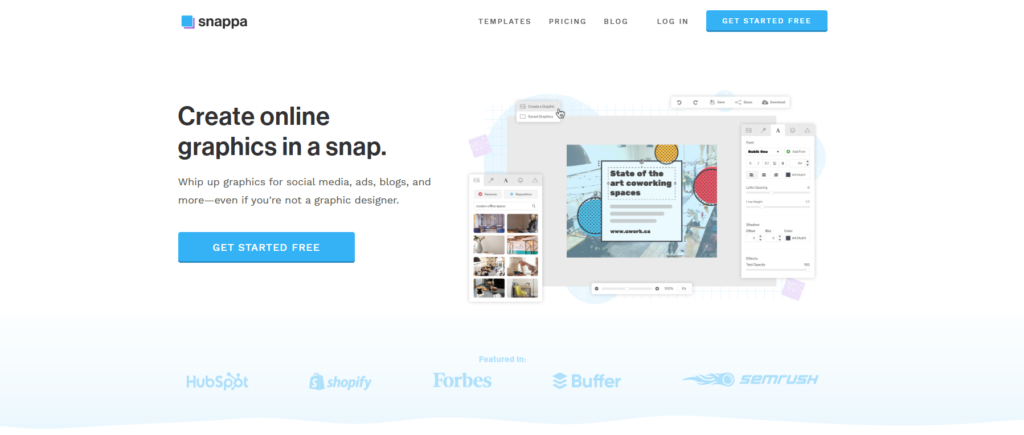
10. Snappa — Best Free Tool for Quick Social Media Design

When you need a social media graphic done in under five minutes, Snappa makes it happen.

What it is: Snappa is a free online design tool built specifically for social media and digital marketing graphics. It is fast, simple, and focused no unnecessary features, just a clean editor with good templates and the right canvas sizes already set up.

Key Features:

  • Pre-set canvas sizes for every major social platform
  • Thousands of free templates
  • One-click background removal
  • Free stock photo library built in
  • Simple drag-and-drop editor

What is Free: The free plan includes 3 downloads per month, access to all templates, and the full stock photo library. No watermark on downloads.

What is NOT Free: Unlimited downloads require Snappa Pro ($10/month). The 3 downloads per month limit is the main restriction on the free plan.

Best For: Beginners who need to create a small number of social media graphics each month and want a fast, simple tool with no learning curve.

Our Honest Take: Snappa is genuinely fast and clean. The interface is simpler than Canva which is actually an advantage if you just need to get something done quickly. The 3 downloads per month limit on the free plan is restrictive if you create content regularly, but if you only need a handful of graphics per month, it works well. No watermarks is a big plus.

ProsCons
No watermarks on free planOnly 3 downloads per month free
Very fast and easy to useNot great for non-social design
Clean, simple interfaceLimited customization depth
Built-in free stock photosFewer templates than Canva

Quick Comparison Table

Tool
Best For
Storage
Templates

AI Features

Watermark
CanvaOverall1GB250,000+✅ YesSome files
Microsoft DesignerAI DesignCloudUnlimited✅ Yes❌ No
Adobe ExpressSocial Media2GBThousands✅ YesSome files
PixlrPhoto EditCloudHundreds✅ Yes❌ No
Gravit DesignerVectors500MBLimited❌ No❌ No
PhotopeaPhoto EditLocalNone❌ No❌ No
DesygnerTemplates1GBThousands❌ NoSome files
VectrVectorsCloudLimited❌ No❌ No
Vista CreateAnimationCloudThousands✅ YesSome files
SnappaSocial MediaCloudThousands❌ No❌ No

Always verify free plan details directly on each tool’s website these change regularly.

How to Choose the Right Free Tool

Are you a complete beginner with no design experience? Start with Canva. It is the easiest to learn and covers almost every design need. You can be up and running in under 10 minutes.

Do you want AI to generate designs for you? Use Microsoft Designer. Describe what you want and it builds it. Best free AI image quality available right now.

Are you creating social media content? Adobe Express or Snappa. Both have templates pre-sized for every platform. Adobe Express has more depth, Snappa is faster for quick work.

Do you need to edit photos? Pixlr for beginner-friendly photo editing. Photopea if you need Photoshop-level tools and want to open PSD files.

Do you need to design logos or icons? Gravit Designer or Vectr. Vectr is easier to start with. Gravit Designer is more powerful once you get the hang of it.

Do you need animated social content? Vista Create. It has the best free library of animated templates.

Do you have almost no time and need quick results? Snappa. It is the fastest tool on this list for getting a social graphic done and exported.

Tips for Beginners Using Free Design Tools

Starting out with a new design tool can feel overwhelming. Here are a few things that will save you time and frustration.

Start with templates, not blank canvases. Every tool on this list has templates. Use them. There is no shame in starting from a template even professional designers do it. Pick one that is close to what you want, swap out the text and images, and you have something that looks great in minutes.

Watch one YouTube tutorial before you start. Every tool here has free tutorials on YouTube. Spending 15 minutes watching someone use the tool before you open it will save you an hour of confusion. Search the tool name plus “beginner tutorial” and pick the most recent one.

Stick to one tool for your first 30 days. It is tempting to try all of them. Resist that urge. Pick one tool probably Canva if you are unsure and use it for 30 days. You will learn it much faster by going deep on one tool than jumping between five.

Save your work regularly. Most of these tools auto-save in the browser, but do not assume. Download a copy of your work after finishing anything important. You do not want to lose two hours of work because a browser tab closed unexpectedly.

Use free design communities for inspiration. Dribbble, Behance, and Pinterest are all free to browse. When you are stuck on how something should look, spend five minutes looking at what other designers have created. Inspiration is not cheating it is how design works.

Final Verdict

After testing all 10 tools, here are our top picks for different types of beginners:

For most beginners — Canva. It is free, easy to learn, produces professional results, and covers almost every design need. If you are unsure where to start, start here.

For AI-powered designs — Microsoft Designer. The best free AI image generation available, with no watermarks and no cost. A powerful companion to Canva.

For social media content — Adobe Express. Templates pre-sized for every platform, clean designs, and solid AI features on the free plan.

For photo editing, Pixlr and Photopea both deliver. For vector work, start with Vectr and graduate to Gravit Designer. For animated content, Vista Create is the standout free option.

The most important thing is to pick one and start. You will learn more in a week of actually using a tool than in a month of reading about them.

Frequently Asked Questions

Q: What is the best free graphic design tool for beginners?

Canva is the best free graphic design tool for beginners in 2026. It has over 250,000 free templates, requires no design experience, and includes free AI features. Microsoft Designer is a strong second choice for beginners who want more AI-powered options for free.

Q: Can I do professional graphic design with free tools?

Yes, you can create professional-quality designs using free tools like Canva, Adobe Express, and Microsoft Designer. Many small businesses and freelancers use these free tools daily for social media, presentations, and marketing materials without needing paid software.

Q: Is Canva really free for beginners?

Yes, Canva has a completely free plan that includes access to over 250,000 templates, basic AI features, 1GB of storage, and unlimited designs. Some premium templates and features require Canva Pro which starts at around $15 per month, but the free plan is more than enough for most beginners.

Q: What free tool is best for social media graphics?

Adobe Express and Canva are the best free tools for social media graphics. Both have templates sized perfectly for Instagram, Facebook, Twitter, and LinkedIn. Adobe Express has slightly better photo editing features while Canva has more template variety on its free plan.

Q: Is there a free alternative to Adobe Photoshop?

Yes, Photopea and Pixlr are the best free alternatives to Adobe Photoshop. Both run directly in your browser with no download needed. Photopea is the closest match to Photoshop and even opens PSD files. Pixlr is easier for beginners with a simpler interface.

Q: Can beginners learn graphic design with free tools?

Absolutely. Free tools like Canva, Adobe Express, and Microsoft Designer are designed specifically for people with no design experience. Starting with free tools is actually recommended for beginners because you can learn design fundamentals without spending money before knowing which tool fits your workflow.

Q: What is the easiest free graphic design tool?

Canva is the easiest free graphic design tool for complete beginners. Its drag-and-drop interface, pre-made templates, and AI design suggestions mean you can create a professional-looking design in under 10 minutes even with zero design experience.

Q: Are free graphic design tools good enough for business use?

Yes, many businesses use free design tools successfully. Canva, Adobe Express, and Microsoft Designer are all used by small businesses for social media, presentations, email graphics, and basic marketing materials. For advanced branding or print work, a paid tool may eventually be needed.

Related reading:

  • Best AI design tools for graphic designers — link
  • Canva Alternatives For Designers in 2026 — link
  • Canva Pro Vs Free — link
Categories
Design tools

Best AI Design Tools for Graphic Designers in 2026

Quick Answer: The best AI design tools for graphic designers in 2026 are Canva AI, Adobe Firefly, and Figma AI.

  • Canva AI is best if you are a beginner
  • Adobe Firefly is best for professional designers
  • Figma AI is best for UI and UX design work
  • Microsoft Designer is the best completely free option

Keep reading to see all 10 tools with full details, pricing, and who each one is best for.

Introduction

AI design tools are completely changing how graphic designers work in 2026. Whether you are a beginner looking for your first design tool or a professional wanting to speed up your workflow there is an AI design tool that fits your exact needs.

In this guide we tested and reviewed the 10 best AI design tools for graphic designers. We cover pricing, features, ease of use, and who each tool works best for so you can make the right choice without wasting time. If you have been wondering which tools are actually worth it and which ones are just hype, you are in the right place.

Why Graphic Designers Need AI Tools

A few years ago, AI in design felt like a gimmick. Now it is one of the most practical things you can add to your workflow.

The biggest win is time. Tasks that used to eat up a whole afternoon like removing backgrounds, generating color palettes, or resizing assets for different platforms now take seconds. That frees you up to focus on the work that actually requires your brain.

AI tools also help when you hit a creative block. Need five different logo concepts to show a client? An AI tool can generate a starting point in minutes. You still bring the creative direction, but you are not starting from a blank page.

For freelancers and small studios, the cost savings are real too. You can produce more work in less time, which means you can take on more clients without burning out. And for beginners, AI tools have made professional-looking design accessible to people who do not have years of training.

The bottom line: AI does not replace what makes you a good designer. It just handles the repetitive stuff so you can do more of the creative stuff.

How We Tested and Selected These Tools

We did not just read the marketing pages. We actually logged into each tool and put it through its paces.

For every tool on this list, we tested it for ease of use both as someone who is new to design and as someone with professional experience. We created real design assets: social media graphics, logos, color palettes, wireframes, and marketing materials.

We compared what you actually get on the free plan versus what is locked behind a paywall. We also looked at how often each tool pushes out updates and improvements, because in the AI world a tool that is not evolving is already falling behind.

Price was a big factor too. We asked ourselves honestly is this worth the money at every price point? If the answer was no, it did not make the list.

Every recommendation here is based on real testing, not sponsored rankings.

10 Best AI Design Tools for Graphic Designers in 2026

1. Canva AI — Best for Beginners

If you have never used a design tool before, Canva AI is honestly the best place to start.

What it is: Canva started as a drag-and-drop design tool, but in the last couple of years it has added a serious set of AI features. You can generate images, write copy, remove backgrounds, and get full design suggestions all inside the same platform you probably already know.

Key Features:

  • Magic Design generates full layouts from a single prompt
  • AI image generation built right into the editor
  • Background remover that works in one click
  • Magic Write for AI-generated copy and captions
  • Resize designs for any platform automatically

Pricing:

PlanPriceBest For
Free$0/monthBeginners
Pro$18/monthFreelancers
Business$25/monthTeam

Best For: Beginners, social media managers, and small business owners who want professional results without a design degree.

Our Honest Take: We use Canva AI regularly for quick social media graphics and client presentations. The AI suggestions genuinely save time probably an hour or more per week. The one frustration is the watermark on the free plan, which makes it awkward for client work. If you are serious about using it professionally, the Pro plan is worth it.

ProsCons
Incredibly easy to useFree plan has a watermark
Huge library of templatesDesigns can look similar to everyone else’s
AI features on free planLimited fine-tuning control
Works in browser — no install neededNot ideal for complex print work

2. Adobe Firefly — Best for Professionals

If you are a working designer who lives inside Adobe Creative Cloud, Firefly is the AI upgrade you have been waiting for.

What it is: Adobe Firefly is Adobe’s AI image and content generation tool, built directly into Photoshop, Illustrator, and other Adobe apps. It is commercially safe — meaning you can use the outputs in client work without worrying about copyright issues.

Key Features:

  • Generative Fill in Photoshop add, remove, or expand elements with text prompts
  • Text to vector in Illustrator
  • Text effects that turn words into illustrated art
  • Generative Recolor for instant color variations
  • Commercially safe outputs trained on licensed content

Pricing:

PlanPriceBest For
Free$0/monthTesting the tool
Firefly Premium$20/monthProfessionals
Creative CloudIncludedExisting CC subscribers

Best For: Professional graphic designers and photographers already using Adobe products.

Our Honest Take: Generative Fill alone is worth the price of entry. It handles tasks in Photoshop that used to take real skill and time extending backgrounds, removing objects, filling in gaps. The output quality is noticeably better than most competitors. The only catch is you need to already be in the Adobe ecosystem to get full value from it.

ProsCons
Integrates directly with Photoshop and IllustratorBest features require Creative Cloud subscription
Commercially safe outputsLearning curve if you are new to Adobe tools
Excellent output qualitySlower for quick social media work
Regular updates and improvementsCan be expensive for hobbyists

3. Figma AI — Best for UI/UX Designers

For anyone designing apps, websites, or digital products, Figma AI is the tool your whole team should be using.

What it is: Figma has been the standard for UI and UX design for years. Their AI features a layer on top of that foundation helping designers prototype faster, generate layouts, and collaborate in real time without constantly starting from scratch.

Key Features:

  • Auto Layout with AI suggestions for consistent spacing
  • AI-powered design suggestions based on context
  • Rename layers automatically saves serious time on complex files
  • First Draft generate UI screens from text descriptions
  • Real-time collaboration with AI-assisted handoff notes

Pricing:

PlanPriceBest For
StarterFreeSolo designers
Professional$20/monthFreelancers
Organization$55/monthDesign teams
Enterprise$90/monthExpert

Best For: UI/UX designers, product teams, and developers who collaborate on digital products.

Our Honest Take: Figma is already the industry standard for product design, and the AI additions make it even stickier. First Draft is genuinely useful for rough wireframes when a client needs to see something quickly. The auto-rename feature is one of those small things that saves more time than you would expect. If you are building digital products, nothing else comes close.

ProsCons
Industry standard for UI/UXNot great for print or social design
Strong real-time collaborationAI features still maturing
Free plan is very capableCan be overwhelming for beginners
Integrates with developer handoff toolsOrganization plan is expensive

4. Looka — Best for Logo Design

If you need a professional logo and you need it fast, Looka is built exactly for that.

What it is: Looka is an AI-powered branding tool that generates custom logos based on your business name, industry, and style preferences. It is not a general design tool — it is purpose-built for logo creation and brand identity packages.

Key Features:

  • AI logo generator that creates dozens of options instantly
  • Full brand kit including business cards, email signatures, and social profiles
  • Customizable fonts, colors, and icon combinations
  • High-resolution files for print and digital use
  • Brand identity package option

Pricing:

PlanPriceBest For
Logo Package$20 one-timeStartups and small businesses
Brand Kit$96/yearFull brand identity needs

Best For: Entrepreneurs, startups, and small businesses that need a professional logo without hiring a designer.

Our Honest Take: For what it costs, Looka delivers real value. The logos it generates look professional and the customization options give you enough control to make it feel unique. It is not going to replace a senior brand designer for a major rebrand, but for a small business getting started, it is a smart and affordable choice.

ProsCons
Fast — logos in minutes
No free download
Professional looking resultsNot ideal for complex brand work
One-time payment optionLimited if you need very unique designs
Full brand kit available_

5. Microsoft Designer — Best Free Option

If your budget is zero, Microsoft Designer gives you more than you would expect for free.

What it is: Microsoft Designer is a free AI design tool powered by DALL-E. You can create social media graphics, invitations, flyers, and more — all from text prompts or customizable templates. No design experience needed.

Key Features:

  • DALL-E powered AI image generation
  • Text-to-design — describe what you want and it builds it
  • Hundreds of templates for social, presentations, and print
  • Background remover
  • Integrates with Microsoft 365 apps

Pricing:

PlanPriceBest For
Free$0Everyone
Microsoft 365IncludedMicrosoft 365 subscribers

Best For: Anyone who wants a capable free design tool with strong AI image generation.

Our Honest Take: Microsoft Designer is genuinely impressive for a free tool. The DALL-E integration produces some of the best AI-generated images of any tool at this price point — which is zero. It does not have the depth of Canva or Adobe, but if you are not ready to pay for a design tool yet, this is where you should start.

ProsCons
100% freeFewer templates than Canva
DALL-E image quality is excellentLess mature than other tools
No watermarksNot ideal for professional client work
Easy to learnFewer integrations

6. Khroma — Best for Color Palettes

Khroma solves one of the most common headaches in design — choosing the right colors.

What it is: Khroma is an AI color tool that learns your color preferences and then generates unlimited palettes, gradients, and color combinations tailored to your taste. It is free and entirely focused on color.

Key Features:

  • Trains on your color preferences to personalize results
  • Generates palettes, gradients, typography combos, and images
  • Searchable by hue, shade, or hex code
  • Exports color values for use in any design tool

Pricing:

PlanPrice
Free$0

Best For: Designers who struggle with color choices or want to explore new combinations fast.

Our Honest Take: Khroma is one of those niche tools that does exactly one thing really well. Once you train it on your preferences, the palettes it suggests feel genuinely personal — not random. It is not a full design tool, but as a standalone color assistant it is hard to beat for free.

ProsCons
Completely freeOnly does color — not a full design tool
Personalized to your tasteRequires setup time to train
Great for branding projectsNo direct export to design files

7. Uizard — Best for Wireframing

Uizard is the fastest way to go from a rough idea to a working prototype.

What it is: Uizard is an AI wireframing and prototyping tool that lets you upload a hand-drawn sketch or a screenshot and turn it into a digital design. It is designed for non-designers and early-stage product teams who need to visualize ideas quickly.

Key Features:

  • Screenshot to design upload any app screenshot and get an editable version
  • Sketch to wireframe draw something on paper, upload it, and Uizard converts it
  • Auto Theme generates color schemes and design styles from text
  • Pre-built UI component library
  • Team collaboration features

Pricing:

PlanPriceBest For
Free$0/monthIndividuals
Pro$19/monthFreelancers
Business$39/monthTeams

Best For: Product managers, startup founders, and designers who need fast wireframes and prototypes.

Our Honest Take: The screenshot-to-design feature is genuinely magical the first time you use it. It is not perfect you will still need to clean things up but it gets you 70% of the way there in seconds. For early-stage product work when speed matters more than polish, Uizard is a real time-saver.

ProsCons
Screenshot to design is a standout featureNot for production-ready UI
Great for non-designersLess powerful than Figma for professionals
Fast prototypingOutput needs cleanup

8. Designs.ai — Best All-in-One AI Design Suite

If you want one tool that handles everything from logos to videos to social posts, Designs.ai tries to be that.

What it is: Designs.ai is a full AI design platform that covers logos, videos, mockups, social media content, and more all under one subscription. It is built for marketing teams and content creators who need variety without switching between five different tools.

Key Features:

  • AI logo maker, video maker, and social content creator
  • Speechmaker for AI voiceover videos
  • Design maker with thousands of templates
  • Color matcher and font pairer
  • Brand identity tools

Pricing:

PlanPriceBest For
Plus$19.50/month
Individuals
Pro$39.50/monthProfessionals
Enterprise$94/monthLarge teams

Best For: Marketing teams, content creators, and small agencies who need a wide range of design output in one place.

Our Honest Take: Designs.ai is impressive in scope but the individual tools do not always match the depth of dedicated tools like Canva or Adobe. If you need a little of everything and do not want to manage multiple subscriptions, it makes sense. If you only need one type of design work, you will probably get better results from a focused tool.

ProsCons
Covers a wide range of design needsNo free plan
One subscription for many toolsIndividual tools not as deep as dedicated apps
Good for marketing contentCan feel overwhelming

9. Autodraw — Best for Quick Illustrations

Autodraw is a free Google tool that turns rough sketches into clean illustrations instantly.

What it is: Autodraw is a free AI drawing tool from Google that recognizes what you are trying to draw and suggests polished versions of it. It is simple, fast, and surprisingly fun to use.

Key Features:

  • AI sketch recognition draw something rough and it guesses what you meant
  • One-click clean illustration suggestions from professional artists
  • Completely free to use
  • Works in any browser no install required
  • Download finished drawings as PNG files

Pricing:

PlanPrice
Free$0

Best For: Anyone who needs a quick, clean illustration and does not have the skills or time to draw it from scratch.

Our Honest Take: Autodraw is not a professional tool, but it fills a real gap. Sometimes you just need a simple icon or illustration and you do not want to spend 30 minutes on it. Autodraw gets you there in under a minute. It is a fun tool that more designers should have bookmarked.

ProsCons
Completely freeVery limited in scope
Instant resultsNot for professional illustration work
No login requiredOutput can look basic
Great for quick diagrams and icons

10. Colormind — Best for Branding Color Schemes

Colormind uses deep learning to generate color schemes that actually look good together.

What it is: Colormind is a free AI color scheme generator that pulls color inspiration from photos, movies, and art. It generates complete color palettes that you can lock, shuffle, and adjust — useful for branding projects, web design, and any work where you need a cohesive color story.

Key Features:

  • AI-generated color palettes based on real-world sources
  • Lock individual colors and regenerate the rest
  • Bootstrap UI color mode for web developers
  • Upload an image to extract its color palette
  • One-click new palette generation

Pricing:

PlanPrice
Free$0

Best For: Brand designers, web designers, and anyone who needs a solid color palette fast.

Our Honest Take: Colormind is a reliable tool we keep coming back to at the start of branding projects. The palettes feel more grounded and intentional than what you get from random generators. It is free, it is fast, and it does its job well. No complaints.

ProsCons
Free to useNo account or saving features
Smart, cohesive palettesSimpler than Khroma for personalization
Image-to-palette feature is greatOnly does color
Works for web and print

Quick Comparison Table

ToolBest ForFree PlanStarting PriceEase of UseKey AI Feature

Canva AI
Beginners✅ Yes
$15/mo
⭐⭐⭐⭐⭐
Magic Design, AI Image Gen
Adobe FireflyProfessionals✅ Yes
$20/mo
⭐⭐⭐⭐Generative Fill, Text Effects
Figma AIUI/UX✅ Yes$20/mo⭐⭐⭐⭐
Auto Layout, AI Suggestions
LookaLogo Design❌ No$20 one-time⭐⭐⭐⭐⭐
AI Logo Genera-
tor
Microsoft DesignerFree Users✅ YesFree⭐⭐⭐⭐⭐
DALL-E Image Gen
KhromaColor✅ YesFree⭐⭐⭐
AI Color Palette Gen
UizardWireframes✅ Yes$12/mo⭐⭐⭐⭐Screenshot to Design
Designs.aiAll in One❌ No$19/mo⭐⭐⭐⭐
Full AI Suite
AutodrawIllustration✅ YesFree⭐⭐⭐⭐⭐
AI Sketch Recognition
ColormindBranding✅ YesFree⭐⭐⭐
AI Color Schemes

How to Choose the Right AI Design Tool

Not sure which one is right for you? Here is a simple way to think about it.

Are you a complete beginner? Start with Canva AI or Microsoft Designer. Both are free, easy to pick up, and do not require any prior design knowledge. You will be making things that look professional within an hour of signing up.

Are you a professional designer? Adobe Firefly or Figma AI will fit your workflow best. Adobe Firefly integrates directly into the Creative Cloud apps you are already using. Figma AI is the standard for digital product and UI work.

Do you only need logo design? Looka is purpose-built for that exact job. The results are clean, professional, and you can get a full brand kit without hiring a designer.

Are you on a zero budget? Use Microsoft Designer, Autodraw, Khroma, or Colormind. All four are completely free with no hidden costs or watermarks. You can build a solid design workflow without spending a dollar.

Do you work in a team? Figma AI and Canva Teams are both built for collaboration. Multiple people can work on the same designs at the same time, which cuts down on the back-and-forth that slows most teams down.

Do you need a little of everything? Designs.ai covers logos, videos, social content, and more under one subscription. It is worth looking at if you hate juggling multiple tools.

Final Verdict

After testing all 10 tools, here are our top picks:

Best overall — Canva AI. It is the easiest tool for most people, has strong AI features on the free plan, and works for a huge range of design tasks. If you only try one tool from this list, make it this one.

Best for professionals — Adobe Firefly. The integration with Photoshop and Illustrator alone makes it worth the price for any serious designer. Generative Fill is one of the most useful AI design features built right now.

Best free option — Microsoft Designer. The DALL-E image quality is genuinely impressive for a free tool. No watermarks, no limits on everyday use, and no reason not to try it.

If you are just starting out, go with Canva AI — it will get you moving fast. If you are serious about professional design work, Adobe Firefly is worth the investment.

Sources and Further Reading

Frequently Asked Questions

Q: What is the best AI tool for graphic design?

Canva AI is the best AI tool for most graphic designers because it is easy to use, free to start, and works for social media, presentations, and print design. If you are a professional, Adobe Firefly gives you more advanced features and better quality output.

Q: Are AI design tools free to use?

Yes, several great AI design tools are completely free. Microsoft Designer, Canva AI free plan, Autodraw, Khroma, and Colormind are all free with no hidden costs. Paid plans on tools like Canva Pro and Adobe Firefly unlock more advanced AI features and remove usage limits.

Q: Can AI replace graphic designers?

No, AI cannot replace graphic designers. AI tools help designers work faster and handle repetitive tasks, but human creativity, strategic thinking, and problem solving are still essential. AI is a tool that makes designers more productive — not a replacement for design skills and creative judgment.

Q: What AI tool do professional designers use?

Professional designers most commonly use Adobe Firefly, Figma AI, and Midjourney in their workflows. Adobe Firefly integrates directly with Photoshop and Illustrator. Figma AI is the standard for UI and UX design teams. Midjourney is popular for creative concept generation and client presentations.

Q: Is Canva an AI design tool?

Yes, Canva has added powerful AI features including Magic Design, Magic Write, AI image generation, and background removal. These features are available on both free and paid plans, making Canva one of the most accessible AI design tools for beginners and professionals alike.

Q: What is the best free AI design tool for beginners?

Microsoft Designer and Canva AI are the best free AI design tools for complete beginners. Both are easy to use, require no prior design experience, and use AI to generate professional-looking results. Microsoft Designer is powered by DALL-E, which produces particularly impressive AI images at no cost.

Q: Which AI design tool is best for logo design?

Looka is the best AI tool specifically built for logo design. It generates professional logos based on your industry and style preferences in minutes. If you want a free option, Canva AI has a logo maker with AI-generated templates you can customize without any design experience.

Q: Do AI design tools work on mobile?

Yes, most popular AI design tools have mobile apps. Canva AI, Microsoft Designer, and Adobe Firefly all have iOS and Android apps. This lets you create and edit designs on your phone without needing a laptop or desktop useful for quick social media content on the go.

Related reading:

  • Best Free Graphic Design Tools for Beginners in 2026 — link
  • Canva Vs Illustrator: Which One Is Better In 2026— link
  • Best Graphic Design Tools for Beginners in 2026— link