

At Designers Choice, we believe that great design starts with a clear vision. We know how hard it is to take a creative idea and make it real.
Whether you are searching for the perfect materials or trying to learn a new skill, we are here to help.
Our goal is to give you the best tools and advice so you can do your best work. One of the most powerful ways to change a picture is to make an image black and white.
It sounds simple, but removing color changes everything. It makes the viewer look at the light, the shadows, and the story inside the photo.
In this guide, we will show you exactly how to do this. We will look at professional software like Photoshop, explore free online tool options, and even show you how to do it on your phone. We want you to feel confident. We want you to create white images that look professional and sharp.
Let’s strip away the color and focus on the beauty of the grayscale image.
Why You Should Make an Image Black and White?
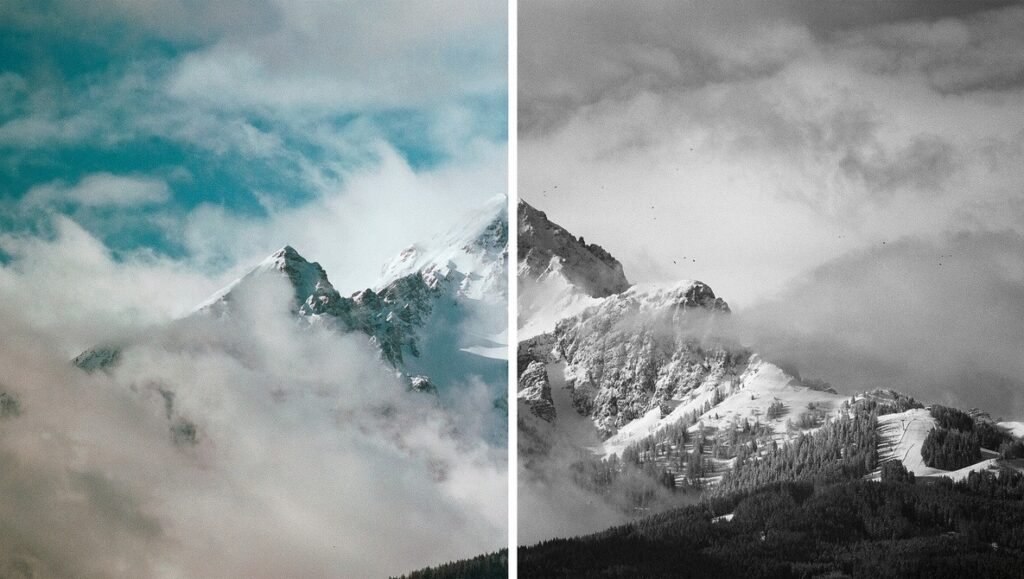
You might wonder, why take the color out of a perfectly good photo?
Color photo editing is fun, but black and white is special. It is not just about turning a switch off. It is about adding drama and emotion.
When you convert a color image to black and white, you change how people feel when they look at it.
The Aesthetic Appeal of Monochrome Photography
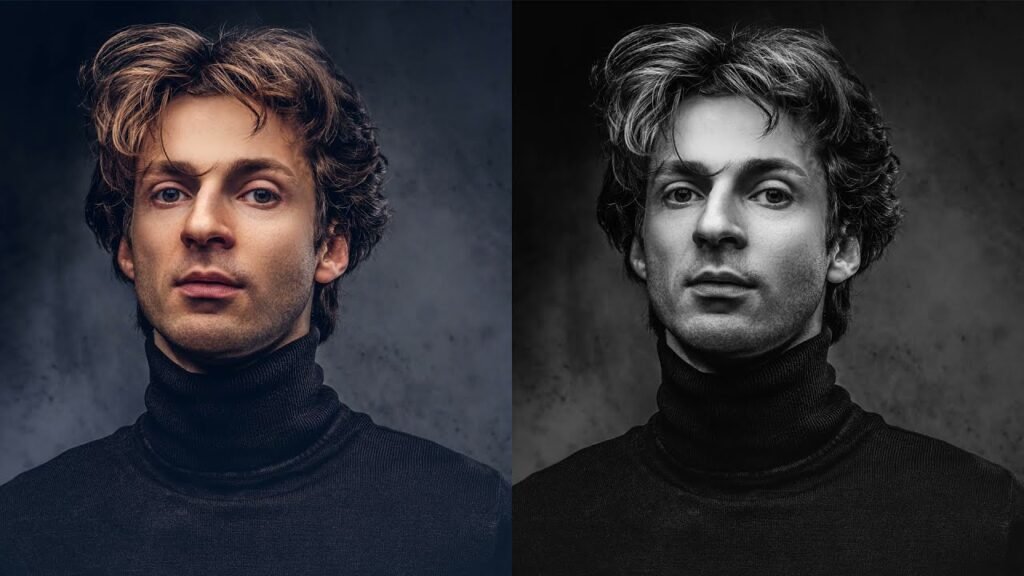
Monochrome photography is art. It strips the image down to its bones. Without color, you have to look at lines, textures, and shapes.
A white photo or a dark, moody image black and white shot can feel much more serious or artistic than a color one.
Think about famous portraits. Many of them are black and white. This is because white photography focuses on the eyes and the expression.
It makes the subject look strong. If you want professional results, switching to black and white is a great trick.
It creates a mood that color sometimes hides.
Removing Distractions and Focusing on Composition
Sometimes, colors get in the way. A bright red car in the background or a neon sign can ruin a nice portrait. This is the distraction of color.
When you use a white converter or an editor to remove that color, the distraction disappears.
The viewer can finally focus on what matters. They see the smile, the building, or the landscape without their eyes jumping around to bright colors. Making a picture black and white guides the viewer’s eye to the main subject. It cleans up the messy parts of a color picture.
Creating a Vintage or Timeless Look
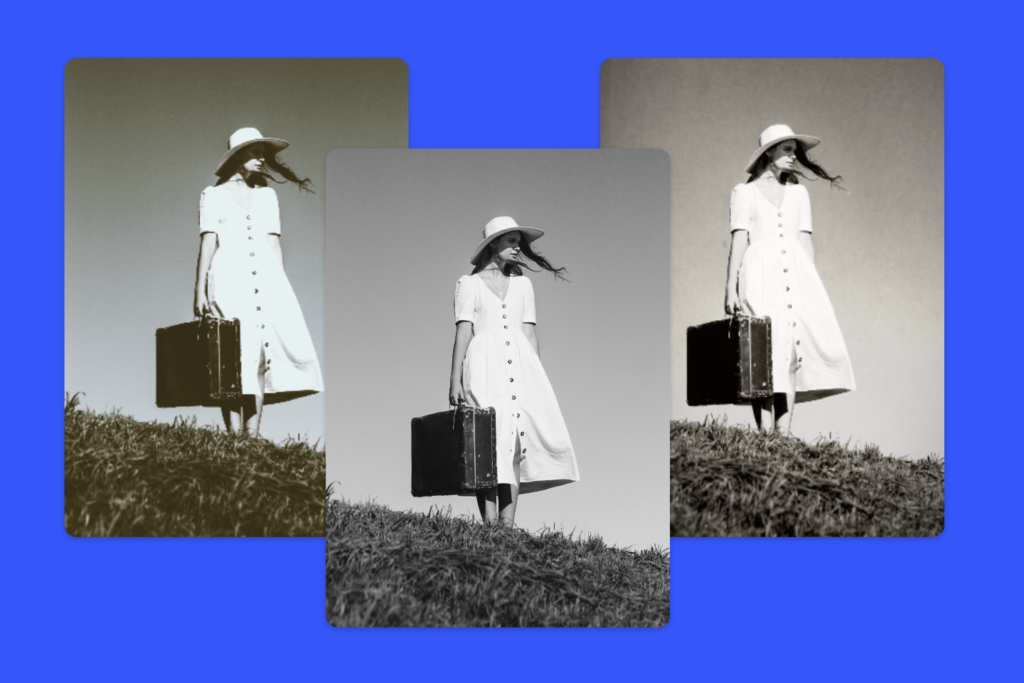
We all love a vintage feel. Old photos from the past were always black and white because that was the only technology available.
Today, we choose it on purpose. When you make an image black and white, it instantly feels classic.
If you are posting on social media, a white look can make your feed stand out. It feels nostalgic.
Whether it is a wedding photo or a street shot, the white effect adds history to the moment. It makes a new photo feel like a memory.
How to Make an Image Black and White in Adobe Photoshop?
For many designers, Adobe Photoshop is the king of editing.
It gives you total control over your pixels. If you want the highest quality and precision, this is where you should work.
Here are three ways to get that perfect white conversion.
Method 1: Using A Black & White Adjustment Layer
This is the best way to work because it is “non-destructive.” This means you can change your mind later.
- Open your color image in Photoshop.
- Go to the “Window” menu and select “Adjustments.”
- Click on the icon that looks like a half-black, half-white rectangle. This adds a white filter layer.
- A panel will open with sliders. You will see Reds, Yellows, Greens, Cyans, Blues, and Magentas.
- Move the sliders left or right. This changes how bright or dark specific colors become in the converted image. For example, dragging the Red slider down makes skin tones darker and more dramatic.
Method 2: The Gradient Map Technique
This method gives you a very rich, deep contrast. It is a favorite among pros for getting pure black and pure white.
- Make sure your foreground color is black, and your background color is white in the toolbar.
- Go to the Layers panel. Click the circle icon at the bottom and choose “Gradient Map.”
- Photoshop maps the dark parts of your image to black and the light parts to white.
- This creates a high-contrast grayscale look immediately. It creates a very strong white photo.
Method 3: Desaturating the Image (Destructive Vs. Non-Destructive)
This is the fastest way, but be careful.
- Destructive: Go to Image > Adjustments > Desaturate. This removes all color information permanently. You cannot get the color back after you save and close. We usually avoid this.
- Non-Destructive: Add a Hue/Saturation adjustment layer. Drag the saturation slider all the way to the left (-100). This removes the color but keeps the layer editable.
Fine-Tuning Contrast with Curves
After you turn the photo black and white, it might look a bit flat or gray. You need pop.
- Add a “Curves” adjustment layer.
- Click on the line in the middle and drag it up slightly to brighten the highlights.
- Click lower on the line and drag it down to darken the shadows.
- This “S” curve adds contrast and makes your white images look sharp and finished.
Ways to Make an Image Black and White Using Free Online Tools
Not everyone has Photoshop, and that is okay!
There are amazing tools on the browser that cost nothing. If you need a quick image to black and white converter, the internet is full of options.
Converting Photos with Canva
Canva is very popular for social media graphics. Learning how to make an image black and white in canva is super easy.
- Log in (or signup if you are new).
- Click the upload area to add your picture.
- Drag your photo onto the canvas.
- Click “Edit Photo” at the top.
- Go to “Filters.” Scroll until you see the Mono or Ink options.
- Click one, and your white image conversion is done. You can adjust the intensity to get the right look.
- Hit the download button to save it.
Using Adobe Express For Quick Edits
Adobe Express is like a lighter version of Photoshop in your browser.
- Go to the website and look for the white image converter tool.
- Upload your jpg or png.
- Use the “Grayscale” option in the adjustments menu.
- It uses a smart algorithm to balance the lights and darks for you.
- It is perfect for quick tasks when you don’t have time for complex edits.
Top 3 Free Online Photo Editors For Grayscale Conversion
If you search for convert image to pure black and white online, you will find many sites. Here are three good ones:
- Pixlr: This acts like a mini-Photoshop. You can use layers and adjust brightness and contrast.
- Fotor: This white photo editor has one-click filters. It is great for beginners who want artistic effects.
- LunaPic: A very simple tool. You just upload, click “Black and White,” and download. It works well for GIF files too.
How to Make an Image Black and White on Mobile Devices?
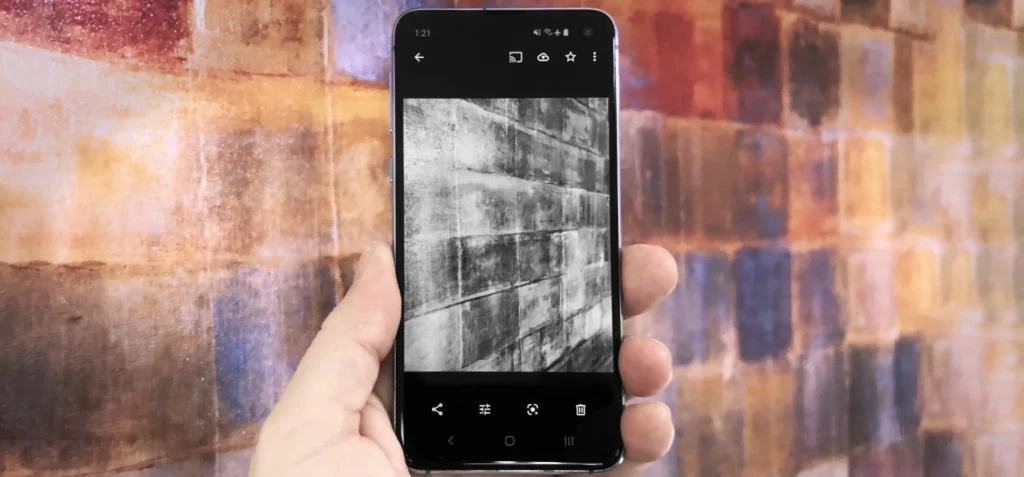
We take most of our photos on our phones.
It makes sense to edit them there too. Whether you have an iPhone or Android, you have a powerful white editor right in your pocket.
Editing on iPhone (iOS Photos App)
You don’t need a special app to do this.
- Open your Photos app and pick a picture.
- Tap “Edit” in the top right corner.
- Swipe the icons at the bottom until you see the three overlapping circles (Filters).
- Scroll to choose “Mono,” “Silvertone,” or “Noir.” “Noir” creates a very moody, dark picture black and white look.
- If you want more control, go back to the adjustment knobs. Turn Saturation to -100. Then play with Contrast and Black Point to make it pop.
Editing on Android (Google Photos)
Android phones use Google Photos, which is very smart.
- Open the photo you want to fix.
- Tap “Edit” at the bottom.
- Scroll to “Filters.” Look for options like “Eiffel” or “Vogue.”
- For manual control, tap “Adjust.” Lower the saturation to zero.
- Use the clarity slider to make the textures stand out. This gives a crisp white photography look.
Best Third-Party Apps For Black and White Photography (VSCO, Snapseed)
If you want professional results on mobile, try these apps:
- VSCO: This app is famous for its presets. The “B” series (B1, B5, etc.) are beautiful black and white filters that look like real film.
- Snapseed: Made by Google, this app is powerful. It has a “Black & White” tool with different color filters built in (like using a red filter on a camera). It helps you get a pure black sky or bright skin tones.
Developers Guide: How to Make an Image Black and White with CSS?
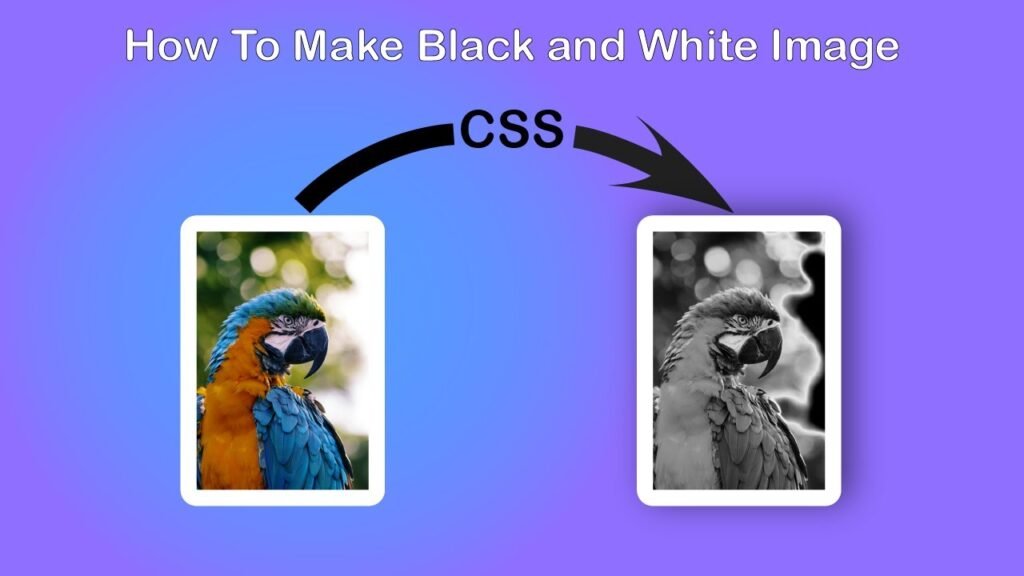
If you build websites, you might want to turn an image black and white using code. You don’t need to edit the file itself. You can do it with CSS.
- Using the CSS Grayscale Filter: This is the easiest way. You tell the browser to render the image without color. The code is very simple: filter: grayscale(100%). When you apply this to an image tag, it becomes a grayscale image instantly. If you change it to 50%, it looks like a faded color picture.
- Adjusting Opacity and Blending Modes: You can get creative. Maybe you want the image to be black and white, but show color when someone hovers their mouse over it. You can set the filter to grayscale(100%) as the default. Then, on hover, set it to grayscale(0%). This creates a nice interactive effect. You can also use mix-blend-mode: luminosity, to blend a white image with a colored background div.
Best Practices When You Make an Image Black and White
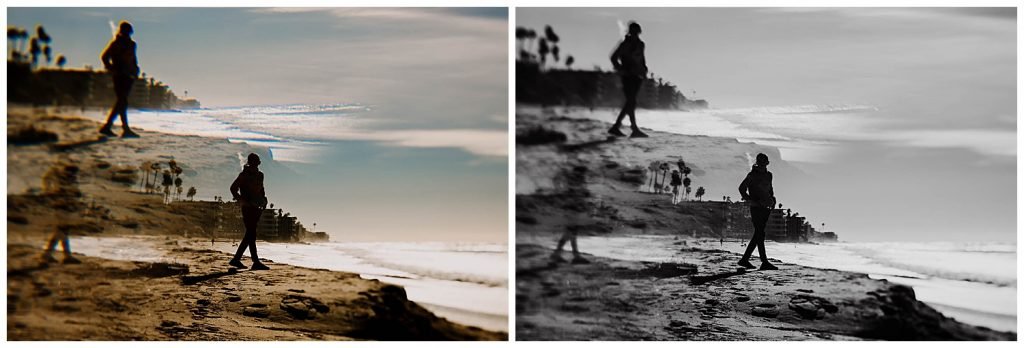
Just removing color is not enough. To make a truly great image, you need to follow some rules.
Shooting in RAW Vs. JPEG
If you are serious about photography, try to shoot in RAW format. A JPG format compresses the image and throws away data to save space.
A RAW file keeps every bit of light information.
When you convert a RAW file, you have much more freedom to rescue shadows or fix bright spots. You get the highest quality result.
If you only have a jpg, you can still edit it, but you might see some fuzzy pixels if you push the edit too hard.
Why Contrast is Key in B&W Images
Without color to separate objects, you need high contrast.
This means you need bright whites and deep blacks. If your image is all middle gray, it will look boring and flat. Always adjust your levels or curves.
Make sure there is at least one point of pure black and one point of pure white in the photo. This creates a strong white look.
Avoiding Common Conversion Mistakes
- Don’t just desaturate: Simply moving the saturation slider to zero is often boring. It treats all colors the same. Use a white filter or channel mixer to control how different colors turn into gray.
- Watch the noise: Sometimes, making a photo black and white makes the grain (noise) very visible. You might need to use a noise reduction tool.
- Don’t overdo the clarity: Adding too much structure or clarity can make the photo look fake and “crunchy.” Keep it natural.
FAQ’s:
Can I Make my Image Black and White on my Phone Or Tablet?
Yes, absolutely. You can use the default photos app on your device, or download a specialized app like VSCO or Snapseed. They work great on both phones and tablets.
Are Free Online Black and White Converters Safe to Use?
Most reputable sites are safe. However, always check if the site uses a secure connection (https). Avoid sites that ask for too much personal info just to use a free black and white tool. Stick to known names like Canva or Adobe Express.
Is Desaturating an Image the Same as Converting it to Black and White?
Technically, yes, but artistically, no. Desaturating just removes color. Converting usually implies you are adjusting the brightness and contrast of those grays to make a better picture. A proper white conversion involves tuning the tones, not just killing the color.
Can I Reverse the Effect If I Make an Image Black and White?
If you are using a “non-destructive” method (like a layer in Photoshop or a filter in Canva), yes. You can just turn it off. If you saved the file as a new jpg and replaced the original color photo, then no, you cannot get the color back. Always save your uploads as a copy!
Does Making an Image Black and White Reduce the File Size?
Not always. A grayscale image can sometimes be smaller because it has less color data to store. However, if you add a lot of grain or detail, the file size might stay big. Formats like PNG or WEBP handle this differently.
What is the Best Format to Save Black and White images in?
For the web, JPG is usually best for photos because it keeps the file size small. If you need transparency or very sharp lines, use PNG. For modern websites, WEBP image format is excellent because it is small and high quality. You can also save as PDF if it is for a document.
How Do I Make Only Part of an Image Black and White (Color Splash)?
This is called the “Color Splash” effect. In Photoshop, you can use a mask to paint black and white over specific areas. On mobile apps, there is often a brush tool or a color picker that lets you keep one color (like a red rose) while the image background turns gray.
What’s the Fastest Tool to Turn A Photo Black and White in Photoshop?
The shortcut Ctrl + Shift + U (or Cmd + Shift + U on Mac) is the Desaturate command. It is the fastest way, but remember, it is destructive. For a better result, using the Black & White adjustment layer is the smartest choice.
Conclusion
Learning how to make an image black and white is a skill every designer and photographer should have. It is not just about removing color; it is about finding the soul of the image. Whether you use Photoshop, a free online tool, or just your phone, the principles are the same.
Look for contrast, emotion, and light. At Designers Choice, we hope this guide encourages you to experiment. Take your old uploads, run them through a white converter, and see how they change. You might find that a simple white effect turns a regular snapshot into a piece of art.
So, go ahead. Open that browser, launch that app, or fire up your desktop software. Start creating stunning white images today. We can’t wait to see what you create.
