
Canva AI can help you generate images, edit photos, write copy, and create presentation drafts. Instead of starting with a blank page, you can describe what you need and refine the result in Canva’s editor.
This guide explains how to use Canva AI and Magic Studio tools for everyday design tasks. You’ll learn how to create visuals, improve text, build slides, and resize finished designs.
Before you begin: Feature availability, menu labels, and AI usage allowances can vary by plan, device, language, and account settings. The steps below focus on desktop use.
What Is Canva AI?
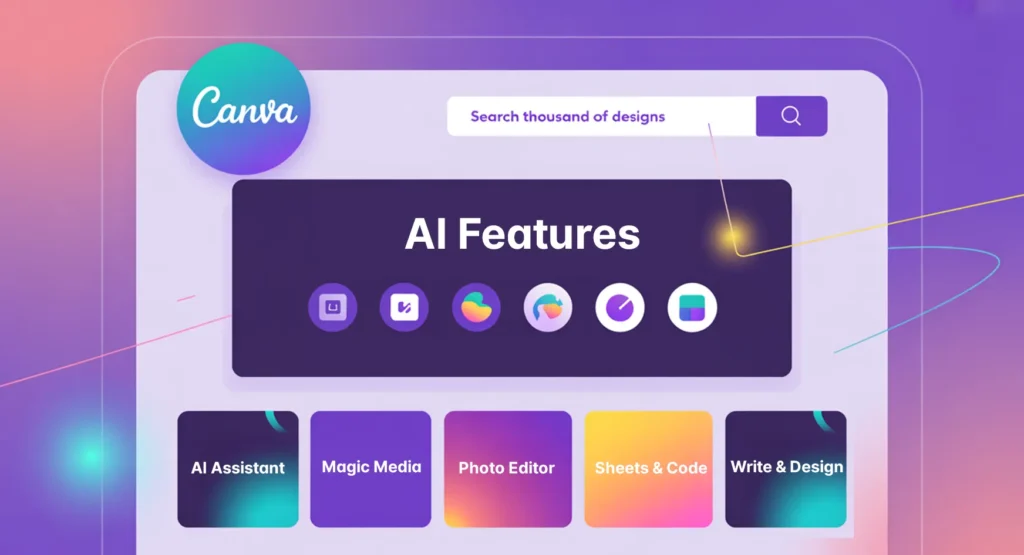
Canva AI includes a conversational assistant and AI-powered tools built into Canva. You can use these features to turn a prompt into a design draft or complete individual tasks, such as removing an object from a photo.
Treat generated content as a starting point. Check the wording, images, and layout before using the finished design.
What Is Magic Studio?
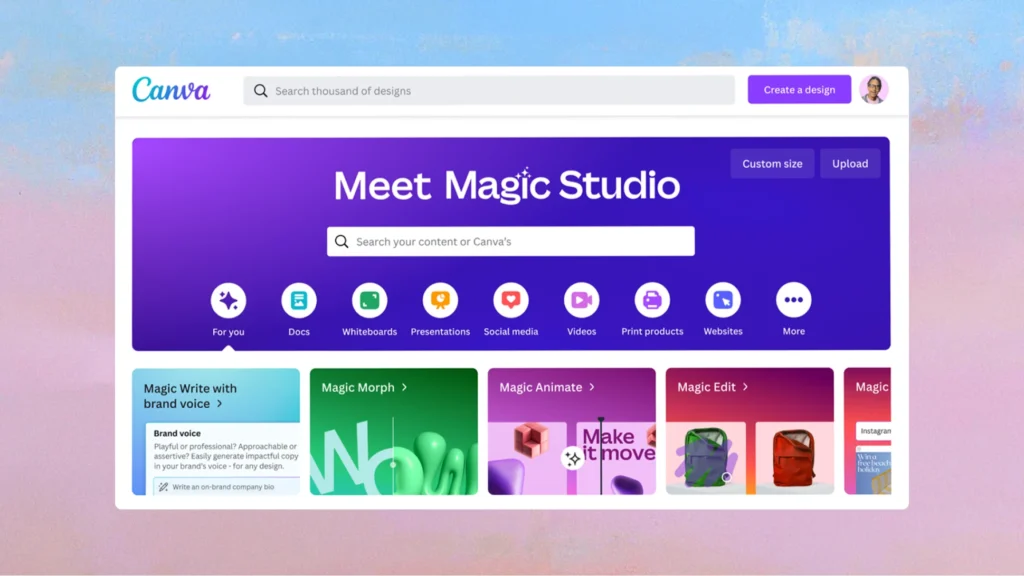
Magic Studio brings together AI tools such as Magic Write, Magic Edit, Magic Eraser, and Magic Expand. You may find these tools in different parts of Canva rather than on a single dashboard.
Canva AI also provides a conversational way to create and refine content. For beginners, the simplest approach is to start with one task and choose the tool that fits it.
How to Access Canva AI
- Sign in to your Canva account.
- Select Canva AI in the homepage’s side navigation.
- Describe what you want to create.
- Submit your prompt and review the response.
- Continue the conversation to refine the result, or open the generated design in the editor.
You can also access individual tools while editing. Select a photo to explore its editing options, or look in Apps for a specific tool. If an option is missing, check your plan, account permissions, and supported design types.
Is Canva AI Free?
Canva Free includes access to some AI features, subject to usage limits. Paid plans provide additional access, but they do not make every AI tool unlimited.
Canva uses plan-dependent AI allowances, with different treatment for different tools. Third-party apps may have separate credits or subscriptions.
- Select your profile icon.
- Open Settings.
- Select Billing.
- Look for AI usage to check your current allowance.
Check your account before starting a project that requires repeated generations.
How to Generate Images with Canva AI
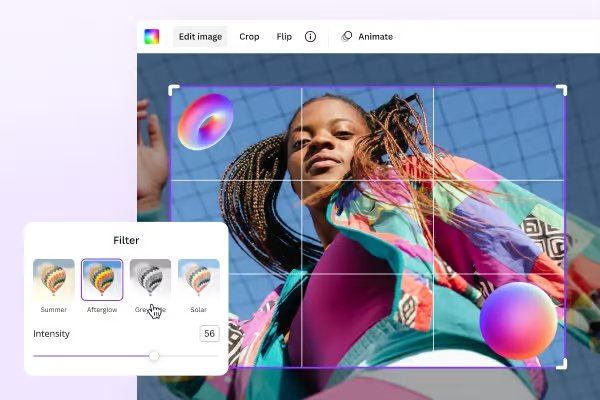
Canva offers image-generation tools including Dream Lab and Magic Media. These tools create visuals from written descriptions.
Create an Image from a Prompt
- Open Dream Lab or locate an available image generator in Canva.
- Describe the image you want to create.
- Choose any available style or format settings.
- Generate the image and review the results.
- Refine your prompt if needed, then add the selected image to your design.
A useful prompt describes the subject, setting, style, lighting, and composition. For example:
“A ceramic coffee cup on a light wooden café table, soft morning window light, realistic product photography, warm neutral colors, horizontal composition with empty space on the left for a headline.”
The request for empty space helps you plan where your text will go. Check hands, reflections, object shapes, and generated lettering before using an image. Do not assume the result is exclusive to your project.
How to Edit Photos with Magic Studio
Replace an Object with Magic Edit
Magic Edit can help replace or alter a selected area of an image.
- Add a photo to your design.
- Select the photo and open its editing options.
- Find Magic Edit, if available.
- Brush over the area you want to change.
- Describe the replacement, generate the edit, and inspect the result.
For example, you could replace a coffee cup with a small vase of flowers. Check the lighting, edges, and proportions; the edited area may need another attempt.
Remove Objects with Magic Eraser
- Select the photo and open its editing tools.
- Choose Magic Eraser, if available.
- Adjust the brush size.
- Brush over the object you want to remove.
- Review the filled area and repeat carefully if needed.
Simple backgrounds are often easier to repair than detailed patterns or overlapping objects.
Extend a Background with Magic Expand
- Select your photo and open the editing options.
- Choose Magic Expand, if available.
- Select an expansion size or area.
- Generate the extension.
- Check the new background before applying it.
Pay attention to straight lines, repeated patterns, and objects near the original image’s edges. Expanding a background is different from simply enlarging the original photo.
How to Create a Presentation with Canva AI
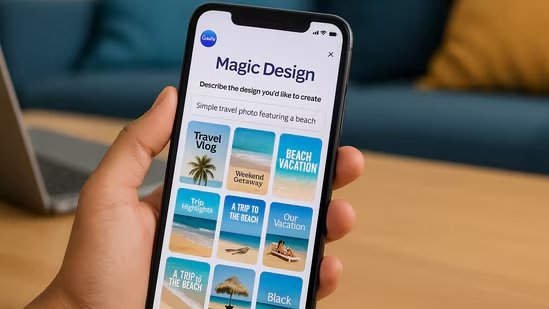
Canva AI can generate a presentation draft from a topic, outline, or supplied content. Give it enough context to create a useful structure.
- Select Canva AI from the homepage.
- Select Presentation, or describe the presentation you want.
- Enter a detailed prompt and submit it.
- Review and adjust the proposed outline, if one appears.
- Select Generate presentation.
- Open the result in the editor.
Try this prompt:
“Create a six-slide presentation for a neighborhood coffee shop’s marketing plan. Include the audience, campaign idea, content schedule, budget categories, and success measures. Use short bullet points and leave placeholders for figures I have not provided.”
Check factual claims, image relevance, text size, and slide order. Replace invented statistics with verified information. Presentation generation counts toward AI usage, and access depends on your plan.
How to Resize Designs with Magic Resize
Resizing helps you adapt a design for different formats, such as a presentation slide and an Instagram Story.
- Open your design.
- Select Resize from the editor menu bar.
- Choose a suggested size or enter custom dimensions.
- Select the pages you want to resize.
- Follow the prompts to complete the resize.
Some interfaces may show a label that also references Magic Switch. Review every resized page: text may wrap differently, images may need repositioning, and important details can fall outside the new layout.
How to Write Copy with Magic Write
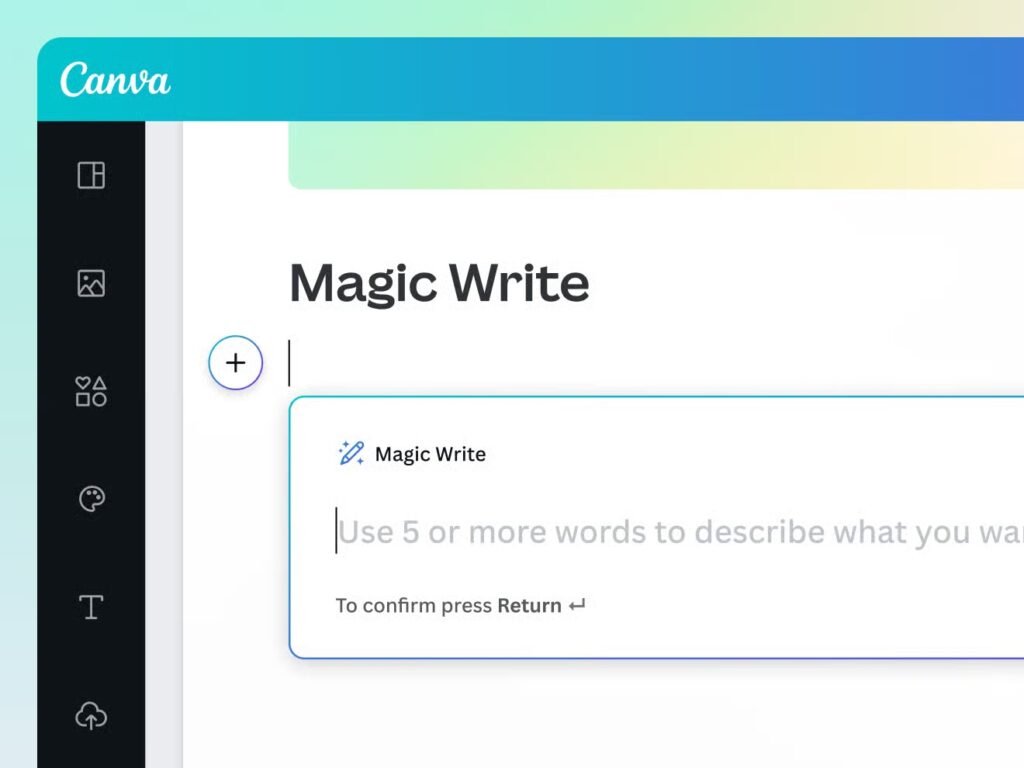
Magic Write can help brainstorm headlines, draft captions, summarize text, and rewrite existing copy.
Draft New Text
Open Magic Write from the available text or writing tools. Include the audience, purpose, tone, and length in your request:
“Write three Instagram captions for a neighborhood coffee shop introducing a new iced latte. Use a friendly tone, keep each caption under 40 words, and avoid inventing prices or discounts.”
Review the suggestions and edit them to match your brand. Confirm any product details before publishing.
Rewrite or Summarize Existing Copy
Select the text you want to improve and explore the available rewriting options. You can also give a direct instruction:
“Rewrite this paragraph in plain English. Keep the meaning and reduce it to two sentences.”
Compare summaries with the original text. Important qualifications, figures, or dates can be lost. For translated customer-facing copy, ask someone fluent in the language to review the result.
How to Add an AI Voiceover
Canva includes a native AI Voice tool for turning written scripts into spoken audio.
- Open your design.
- Go to Apps → AI Voice, or look under Elements → Audio → Generate AI Voice.
- Enter your script.
- Choose an available language and voice.
- Select Generate AI voice.
- Listen to the recording and adjust its timing.
Check the pronunciation of names, abbreviations, and specialist terms before exporting.
A Practical Workflow: Create a Coffee-Shop Promotion
Use this example project to combine several Canva AI tools. It is a workflow to follow, rather than a report of a completed test.
1. Define the Promotion
Write down the confirmed product name, price, availability, and call to action. Use these details as your brief so the final design accurately represents your offer.
2. Generate a Background
Try: “A sunlit café table with a blank area on the right for promotional text, warm natural colors, realistic photography, uncluttered background.” If you are advertising a specific drink, use an accurate product photo so customers can see what they will receive.
3. Draft the Headline
Ask Magic Write: “Suggest five headlines for our new iced latte. Keep each under seven words. Do not add discounts, prices, or health claims.” Choose a headline and revise it to suit your brand.
4. Assemble the Design
Add the headline, product photo, confirmed details, and call to action. Check that the text is readable against the background and that the main message is clear on a phone screen.
5. Create Other Sizes
Resize the design for your other channels. Adjust the placement of text and images in each version instead of assuming the automatic layout is ready to publish.
6. Review and Download
Check spelling, product details, image quality, and alignment. Select Share → Download and choose a file type suitable for the destination. Use an image format for static social posts and a supported video format if the design includes motion or audio.
Tips for Better Canva AI Results
- Give useful context. Specify the audience, format, style, and required content.
- Change one detail at a time. This makes it easier to judge whether a revised prompt improves the result.
- Supply confirmed information. Provide the facts you want included rather than asking AI to invent them.
- Check small details. Review image artifacts, spelling, alignment, and text contrast.
- Keep your brand consistent. Use a deliberate set of fonts, colors, and image styles.
Can You Use Canva AI Content Commercially?
Canva permits lawful use of AI outputs subject to its terms. Permission to use an output is different from a guarantee of copyright protection or exclusive rights.
- Ownership between you and Canva applies to the extent permitted by law.
- Outputs that incorporate or modify licensed Canva content remain subject to the relevant licenses.
- Other users may receive similar outputs.
- You are responsible for checking your inputs and outputs before use.
For commercial projects, review the applicable licenses and check for third-party rights, including trademarks and identifiable people. Do not assume editing an AI image automatically resolves rights issues.
Common Canva AI Problems and What to Try
- A tool is missing: Check plan access, supported design types, language, and administrator settings.
- Generation is paused: Check your AI allowance and account notifications.
- A third-party app has no credits: Check that app’s own subscription or credit settings.
- An image looks wrong: Simplify the prompt and change one detail at a time.
- Presentation text is inaccurate: Replace unsupported claims with verified information.
- A resized design looks crowded: Shorten the text and manually reposition elements.
FAQs
Start with a task you already need to complete. Magic Write can help with a caption, an image generator can create a background, and Canva AI can draft a presentation.
It can produce a useful draft, but you should review the content, layout, and usage rights before publishing.
Some features are available on Canva Free with limits. Other tools and higher allowances depend on your plan. Paid plans do not make every AI feature unlimited.
Uniqueness is not guaranteed. Canva states that other users may receive similar outputs.
Yes. Canva AI Voice turns text into spoken audio. You can find it through the available audio options or in Apps.
Check facts, spelling, image details, readability, layout, and licenses. For business content, confirm that the design accurately represents your product or service.
Start with One Canva AI Task
Choose a small project, such as writing a caption, generating a background, or drafting a short presentation. Give the tool a clear brief, review the result, and make the changes your audience needs.
Once that workflow is comfortable, combine tools to create and adapt a complete design.
