
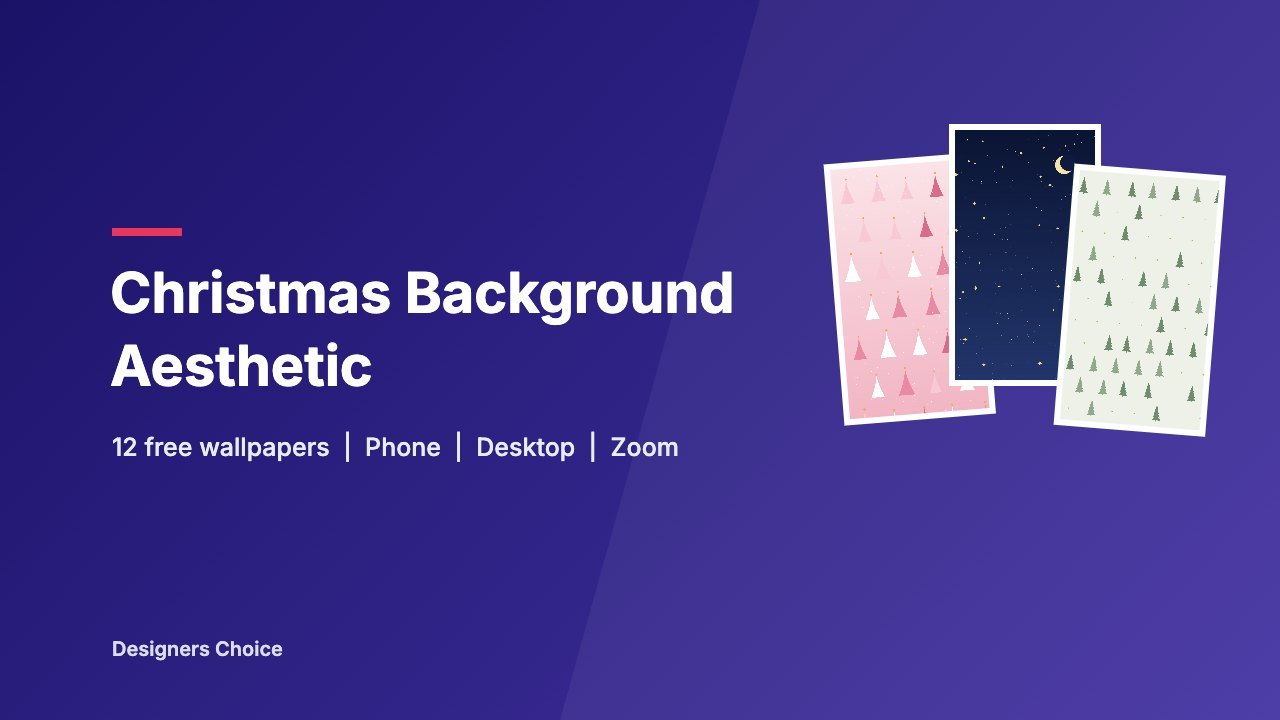
Looking for a Christmas background aesthetic for your phone, laptop or next video call? Below are 12 free backgrounds we designed for this guide: eight phone wallpapers and four widescreen backgrounds that work on a desktop, in Zoom and in Microsoft Teams. Click any image to open the full-size file, then save it.
They’re free for personal use, so set them as a wallpaper, use them behind you on calls or add them to your own social posts and cards. Please don’t resell them or upload them to other download sites.
Free Aesthetic Christmas Phone Wallpapers (1080 x 1920)
These are sized for phones and Instagram or Facebook stories. On most iPhones and Android phones you’ll be able to move and zoom the image slightly to frame it around your clock and widgets.








Free Christmas Desktop, Zoom and Teams Backgrounds (1920 x 1080)
These widescreen versions fit a laptop or monitor and match the 16:9 shape most webcams use, so Zoom and Teams won’t need to crop much. The busiest details sit toward the edges, which keeps the area behind your head calm.




How to Use These Christmas Backgrounds
As an iPhone or Android Wallpaper
- Open the full-size image and save it to your photos (press and hold it on a phone, or right-click and save on a computer).
- iPhone: go to Settings, then Wallpaper, then Add New Wallpaper, choose Photos and pick the image.
- Android: on most phones, press and hold an empty spot on your home screen, choose Wallpaper (or Wallpaper and style), then pick the image from your photos. The exact labels vary by brand.
As a Zoom Virtual Background
- In the Zoom desktop app, click your profile picture, then Settings.
- Open Video & effects, then Virtual backgrounds.
- Click the add icon, choose to add an image and select the background.
Zoom accepts JPG and PNG images up to 15 MB and suggests 1280 x 720 or 1920 x 1080 for a 16:9 camera, which is exactly what the widescreen versions above are.
As a Microsoft Teams Background
- Before a meeting: on the pre-join screen, select Effects and avatars, then More video effects, then Add new.
- During a meeting: select More actions, then Video effects and settings, then Video effects, then Add new. Preview it, then select Apply.
Teams accepts JPG, PNG and BMP files.
Christmas Background Sizes at a Glance
| Where you will use it | Size to use | Notes |
|---|---|---|
| Phone wallpaper | 1080 x 1920 px | Works on most phones. Your phone may zoom in slightly to fit the screen. |
| Instagram or Facebook story | 1080 x 1920 px | Keep text away from the top and bottom edges, where the app places buttons. |
| Laptop or desktop | 1920 x 1080 px | Fine for most screens. Use 2560 x 1440 for a sharper look on large monitors. |
| Zoom virtual background | 1920 x 1080 or 1280 x 720 px | JPG or PNG, up to 15 MB. Match your camera shape (usually 16:9). |
| Microsoft Teams background | 1920 x 1080 px | JPG, PNG or BMP. Microsoft doesn’t list a size, but 16:9 matches most webcams. |
Need a different size? See how to resize an image in Canva, or check our Instagram Reel size guide if you’re making video.
Popular Christmas Background Aesthetics
- Pink Christmas: blush and rose instead of red, often with white or gold accents. It’s one of the most searched looks, and our hot pink color guide has codes if you want a bolder version.
- Cute Christmas: simple trees, stars and rounded shapes in soft colors. Keep shapes chunky and spacing generous so the wallpaper still reads behind app icons.
- Minimalist: one or two colors and lots of empty space, like the sage pines above. Great for desktops, where clutter competes with your files.
- Classic red and plaid: buffalo check, candy cane stripes and deep red. Warm and nostalgic, and it pairs well with cream text.
- Dark and moody: navy, forest green or near black with gold lights. Easy on the eyes at night, and gold looks richer on dark backgrounds. Our gold color code guide lists the gold shades designers use most.
- Snowy and wintry: blue skies, pine silhouettes and falling snow. It works all season, not only on Christmas Day.
How to Make Your Own Christmas Background in Canva
- On the Canva home page, search for Phone Wallpaper, Desktop Wallpaper or Zoom Virtual Background and open a blank design. Each one opens at the right size.
- In the Templates tab, search for “Christmas” and pick a starting point, or build your own with shapes and graphics from Elements.
- Change the colors to suit your style. Two or three colors plus one metallic accent usually looks the most “aesthetic”. Our Christmas color palettes list the hex codes for each look.
- Add a festive font for any text. Our list of Christmas fonts on Canva covers the best free picks.
- Select Share, then Download, and save it as a PNG or JPG.
New to Canva? Our beginner guide to using Canva walks through the editor step by step. To turn a background into printed cards, see how to print from Canva. For layouts and messages, browse our Christmas card ideas.
Where to Find More Free Christmas Backgrounds
- Canva templates: a large library of editable Christmas wallpapers and Zoom backgrounds. Items with a crown need Canva Pro, and the rest are free.
- Unsplash, Pexels and Pixabay: free Christmas photos such as lights, trees and snowy scenes. Their licenses let you use photos for free, including in your own designs, without asking permission. You can’t sell the photos unchanged.
- Pinterest: great for ideas, but a pin isn’t a license. Use it to find a style, then download from the original creator’s site and follow their terms.
Frequently Asked Questions
Yes. All 12 backgrounds on this page are free for personal use, including phone and desktop wallpapers, video call backgrounds and your own social posts. Please don’t resell them or upload them to other download sites.
1080 x 1920 pixels works on most phones. Your phone may zoom in slightly to fill the screen, so keep important details away from the very edges.
Zoom suggests 1280 x 720 or 1920 x 1080 pixels for a 16:9 camera, in JPG or PNG format up to 15 MB.
Before a meeting, select Effects and avatars, then More video effects, then Add new. During a meeting, select More actions, then Video effects and settings, then Video effects, then Add new. Teams accepts JPG, PNG and BMP files.
It’s a festive background with a consistent look, such as pink Christmas, minimalist, classic red plaid or dark and moody with gold lights. The style comes from a tight color palette and simple, repeated shapes.
Yes. Open a Phone Wallpaper, Desktop Wallpaper or Zoom Virtual Background design, search the templates for Christmas, change the colors and text, then download it as a PNG or JPG.
