
Quick Answer: The best free graphic design tools for beginners in 2026 are Canva, Microsoft Designer, Adobe Express, Pixlr, and Gravit Designer.
- Canva is the easiest free tool for complete beginners
- Microsoft Designer is best for AI-powered free designs
- Adobe Express is best for social media graphics
- Pixlr is best for free photo editing
- Gravit Designer is best for free vector design
All tools in this list are 100% free to start.
Introduction
Finding the best free graphic design tools for beginners does not have to be complicated. In 2026 there are more free design tools than ever before and many of them are just as powerful as paid options. Whether you want to create social media posts, logos, presentations, or website graphics this guide covers the 10 best free tools that any beginner can start using today. No design experience needed.
We personally tested every tool on this list, checked what is actually free versus what requires a paid upgrade, and made sure each one is beginner-friendly from day one. If you are starting from scratch and do not want to spend a dollar, you are in the right place.
Why Free Design Tools Are Good Enough for Beginners
A few years ago, free design tools felt limited and clunky. That has completely changed.
In 2026, free tools like Canva and Microsoft Designer offer features that used to cost hundreds of dollars a year. AI is a big part of that shift many free tools now have AI image generation, background removal, and smart design suggestions built right in, at no cost.
For beginners, paid tools are rarely necessary. Most people starting out need templates, basic editing, and the ability to export clean files. Every tool on this list covers that. The free plan on most of these tools will carry you further than you think.
There is also a practical reason to start free you do not yet know which tool fits your workflow. Spending money before you have used a tool for a few weeks is rarely a good idea. Start free, learn what you like, and upgrade only when the free plan genuinely holds you back.
Professional-looking results are absolutely possible with free tools. Thousands of small businesses, freelancers, and content creators use them every single day.
How We Selected These Free Tools
We did not just pick the most popular names and call it a day. We actually logged into each tool on a free plan and used it.
For every tool on this list, we checked whether it is truly free no hidden credit card required, no bait-and-switch after a trial period. We tested ease of use from a complete beginner perspective, which means we paid close attention to how fast you can go from signing up to producing something that looks good.
We also checked output quality. A free tool is only useful if the designs you make with it actually look professional. We verified what the free plan limitations are storage, watermarks, template access and made sure those limits are workable for a beginner, not just frustrating.
Every recommendation here is honest. If the free plan is too limited to be useful, the tool did not make this list.
10 Best Free Graphic Design Tools for Beginners in 2026
1. Canva — Best Free Tool Overall for Beginners
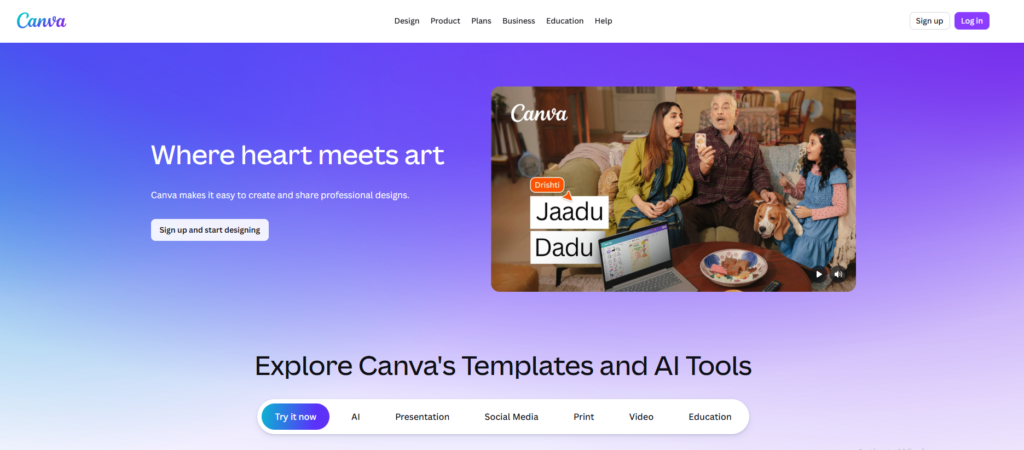
If you are starting from zero, Canva is the tool you should open first it is free and takes minutes to learn.
What it is: Canva is a browser-based design tool with a drag-and-drop editor, a massive template library, and a growing set of AI features. It covers everything from social media posts and presentations to logos and print materials all in one place.
Key Features:
- Over 250,000 free templates across every design category
- Magic Design AI generates full layouts from a photo or prompt
- Background remover on free plan
- Magic Write for AI-generated text and captions
- Resize designs for different platforms in one click
What is Free: The free plan includes 1GB of storage, access to 250,000+ templates, basic AI features including background removal, and unlimited designs. You can export files as PNG, JPG, or PDF at no cost.
What is NOT Free: Some templates and elements are marked as Pro-only and require a Canva Pro subscription ($15/month). The watermark appears on certain downloads if you use premium assets accidentally. The brand kit feature and full AI suite require Pro.
Best For: Complete beginners who want to create anything from social posts to presentations without any design experience.
Our Honest Take: Canva is the first tool we recommend to anyone who has never designed before, and for good reason. You can sign up and have something that looks great within your first 20 minutes. The free plan is genuinely generous the 250,000+ templates alone make it worth it. The only frustration is accidentally clicking a Pro element and then finding out your download has a watermark. Just watch for the crown icon and stick to free assets and you will be fine.
| Pros | Cons |
| Completely free to start | Some templates are Pro only |
| No design experience needed | Watermark if Pro assets used |
| Huge template library | Designs can look similar to others |
| AI features on free plan | Limited storage on free plan (1GB) |
2. Microsoft Designer — Best for AI-Powered Free Design
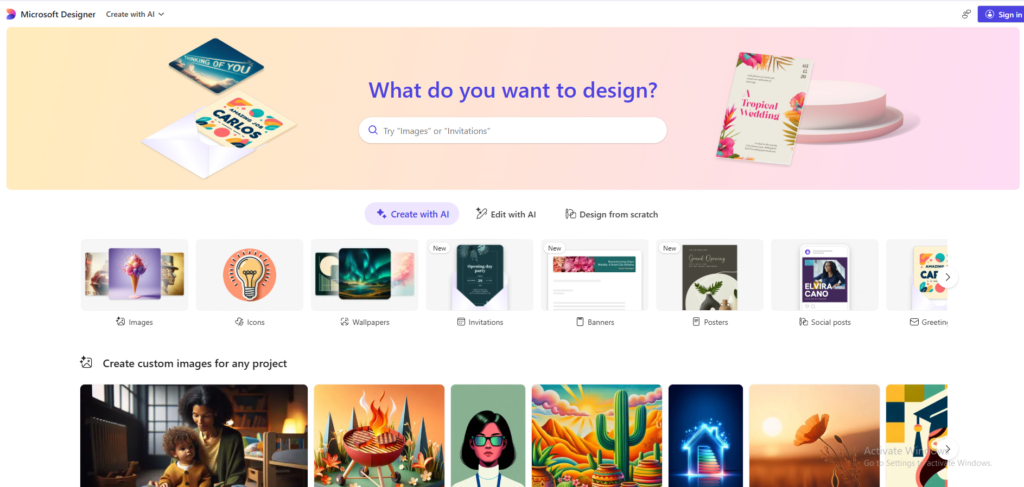
If you want the most powerful AI features completely free, Microsoft Designer is the one to use.
What it is: Microsoft Designer is a free AI-powered design tool from Microsoft, powered by DALL-E. It generates complete designs from text descriptions you tell it what you want and it builds it for you. No templates to browse through, no design choices to make just describe your idea and Designer takes it from there.
Key Features:
- DALL-E powered AI image generation some of the best quality available for free
- Text-to-design type a description and get a full design
- AI background removal
- Integrates with Microsoft 365 apps
- No watermarks on downloads
What is Free: Everything. Microsoft Designer is completely free with no paid tier currently. You get unlimited designs, cloud storage, and full access to all AI features at no cost.
What is NOT Free: Nothing it is all free right now.
Best For: Beginners who want AI to do most of the design work for them, and anyone who wants professional-looking results without learning design basics.
Our Honest Take: The DALL-E image quality on Microsoft Designer is genuinely impressive better than most paid tools at the same task. And the fact that there are zero watermarks and zero costs makes it hard to argue against. It is not as deep as Canva in terms of templates and customization, but for AI-generated designs it is the best free option out there. Worth having as your go-to alongside Canva.
| Pros | Cons |
| 100% free — no watermarks | Fewer templates than Canva |
| Best free AI image generation | Less customization depth |
| No design experience needed | Newer tool still maturing |
| Integrates with Microsoft apps | Not ideal for print work |
3. Adobe Express — Best Free Tool for Social Media Graphics
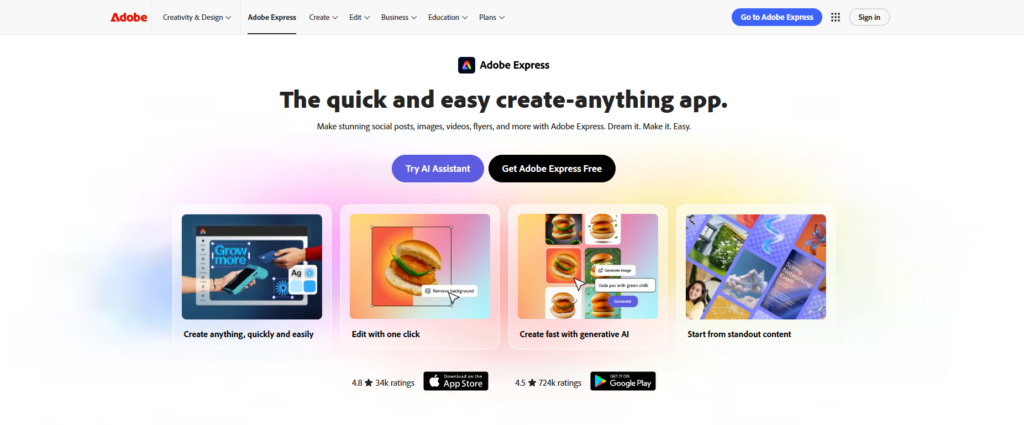
If you are creating content for Instagram, Facebook, or LinkedIn, Adobe Express is built exactly for that.
What it is: Adobe Express is Adobe’s free online design tool, built for quick content creation. It is lighter and faster than Photoshop or Illustrator, and it comes with templates pre-sized for every major social media platform. It also has solid AI features on the free plan.
Key Features:
- Thousands of templates sized for every social platform
- AI-powered background removal
- Text effects and animation for social content
- Brand color and font tools
- Remove backgrounds from photos instantly
What is Free: The free plan includes 2GB of storage, thousands of templates, basic AI features including background removal, and the ability to export clean files with no watermark on most content.
What is NOT Free: Premium templates, Adobe Stock photos, and advanced AI features require Adobe Express Premium ($10/month). Some exports may carry an Adobe badge on the free plan.
Best For: Beginners who are primarily creating social media content and want templates that are already the right size for every platform.
Our Honest Take: Adobe Express is the tool we reach for when speed matters for social content. The templates are clean, professionally designed, and already sized correctly you are not wasting time resizing. The free plan is solid for everyday social media use. If you are already in the Adobe ecosystem, it feels like a natural fit.
| Pros | Cons |
| Templates sized for every social platform | Some exports carry Adobe badge |
| Clean, professional template designs | Fewer templates than Canva on free plan |
| Good AI features for free | Premium stock photos require paid plan |
| 2GB storage on free plan | Less versatile for non-social design |
4. Pixlr — Best Free Photo Editing Tool
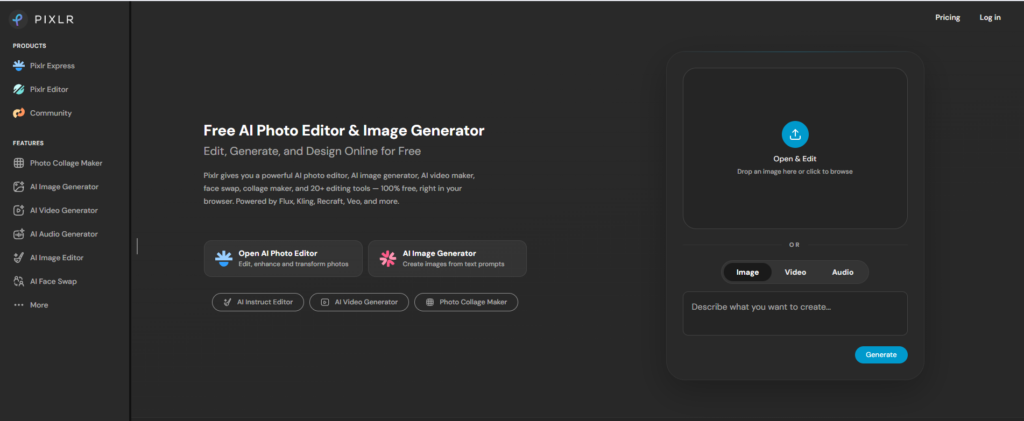
If you need to edit photos and do not want to pay for Photoshop, Pixlr is the best free option.
What it is: Pixlr is a free browser-based photo editor with tools that feel surprisingly close to Photoshop. It has layers, filters, adjustment tools, and AI-powered features all accessible from any browser without downloading anything.
Key Features:
- Layers support for non-destructive photo editing
- AI background removal and photo enhancement
- Hundreds of filters and effects
- Cutout tool for removing objects from photos
- Works in browser no download or install needed
What is Free: Core editing tools, layers, filters, and basic AI features are all free. Cloud storage is included. No download required.
What is NOT Free: Some premium filters, AI credits, and export options require Pixlr Premium ($8/month). The free version shows ads.
Best For: Beginners who need to edit photos adjusting colors, removing backgrounds, cutting out objects without paying for professional software.
Our Honest Take: Pixlr sits in a nice spot between being genuinely capable and actually free. For photo editing tasks that beginners typically need background removal, basic retouching, color adjustments it handles them well. The interface takes a few minutes to get used to but once you find your way around, it is fast and reliable. The ads on the free plan are a minor annoyance but not a dealbreaker.
| Pros | Cons |
| Closest free alternative to Photoshop | Ads on free plan |
| No download required | Some features require paid plan |
| Good AI photo features | Interface can feel cluttered at first |
| Layers support on free plan | AI credits are limited on free tier |
5. Gravit Designer — Best for Free Vector Design
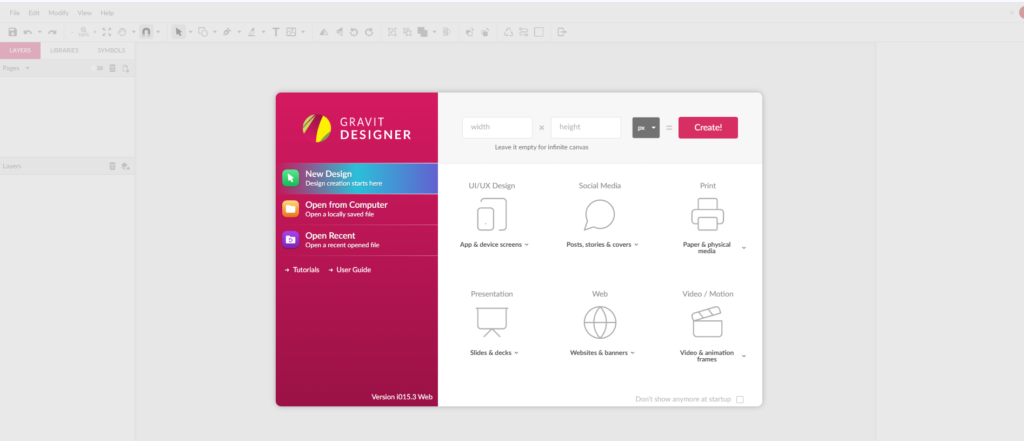
If you need to create logos, icons, or scalable graphics without paying for Illustrator, Gravit Designer is worth your time.
What it is: Gravit Designer is a free vector design tool that runs in the browser. Vector graphics are scalable they stay sharp at any size which makes Gravit useful for logos, icons, and illustrations. It is more technical than Canva but still approachable for beginners willing to spend a bit of time learning.
Key Features:
- Full vector editing tools pen tool, bezier curves, shapes
- 500MB free cloud storage
- Export to SVG, PDF, PNG, and other formats
- Symbols and reusable components
- Multi-page documents
What is Free: The core vector editor, 500MB storage, and all basic design tools are free with an account. Export to common formats is free.
What is NOT Free: Offline access, unlimited cloud storage, and advanced features require Gravit Designer Pro ($49/year).
Best For: Beginners who want to learn vector design and create logos or icons without paying for Adobe Illustrator.
Our Honest Take: Gravit Designer is a solid free tool for anyone who wants to get into vector design without the Illustrator price tag. The learning curve is steeper than Canva but that is the nature of vector work it takes more time to learn. For logo design and icon creation, it does the job well. If you are serious about learning vector design, this is the best free starting point available.
| Pros | Cons |
| Full vector editor for free | Steeper learning curve than Canva |
| Export to SVG and PDF free | Limited templates |
| Good for logos and icons | No offline access on free plan |
| Browser-based — no install needed | 500MB storage limit |
6. Photopea — Best Free Photoshop Alternative
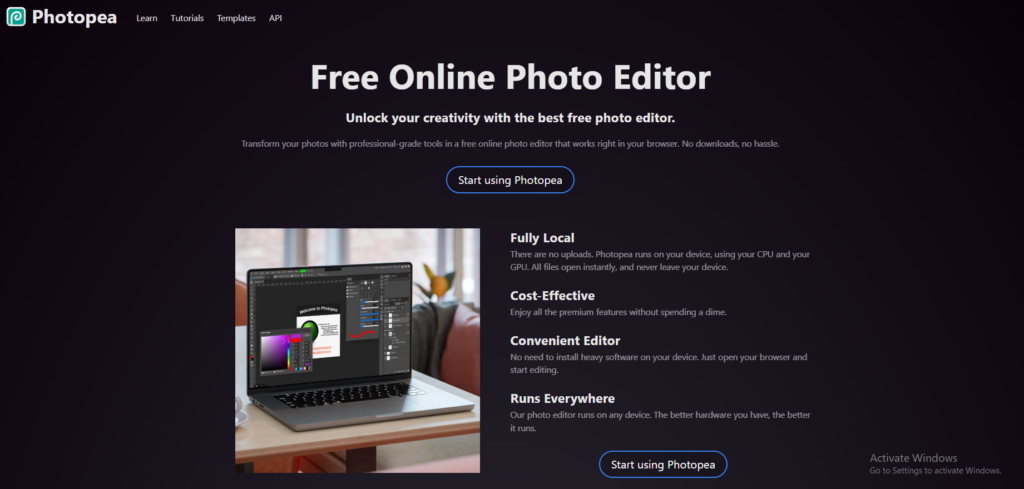
Photopea is the closest thing to Photoshop you will find completely free, no questions asked.
What it is: Photopea is a free browser-based photo editor that looks and works almost identically to Adobe Photoshop. It opens PSD files, supports layers and masks, and handles all the photo editing tasks that Photoshop is known for entirely for free.
Key Features:
- Opens and saves PSD, XD, Sketch, and AI files
- Full layers and masks support
- Same keyboard shortcuts as Photoshop
- No download, no signup required just open the browser and go
- Smart objects and adjustment layers
What is Free: Everything is free. No signup needed, no storage limits, no watermarks. You work on files locally and save them to your computer.
What is NOT Free: A paid plan ($9/month) removes ads from the interface. That is the only difference all features are available on the free version.
Best For: Anyone who needs Photoshop-level editing without paying for it, or anyone who needs to open and edit PSD files for free.Our Honest Take: Photopea is one of the most impressive free tools on the internet, full stop. The fact that it opens PSD files, handles layers properly, and uses the same shortcuts as Photoshop all for free, in a browser is remarkable. The ads are a small annoyance. Everything else about it is excellent. If you need Photoshop and do not have it, open Photopea.
| Pros | Cons |
| Opens PSD, XD, and Sketch files | Ads on free version |
| Full Photoshop-level feature set | Can feel overwhelming for beginners |
| No signup or download needed | No cloud storage — saves locally |
| All features free | Interface is complex for first-timers |
7. Desygner — Best Free Template-Based Design Tool
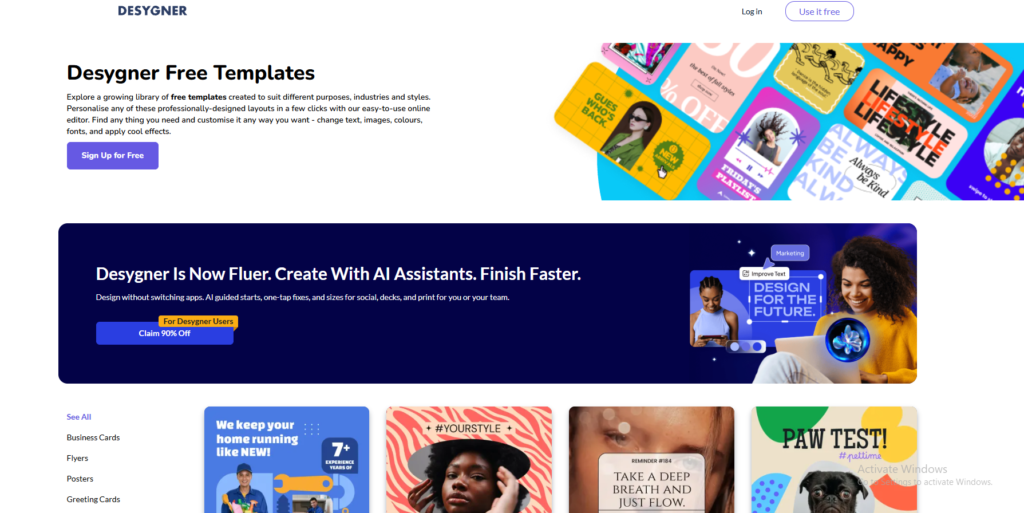
Desygner gives you access to thousands of ready-made templates that cover almost any design need.
What it is: Desygner is a free online design tool focused on templates. It has thousands of designs for social media, marketing materials, business documents, and more. It is similar to Canva in concept but with its own template library and editor.
Key Features:
- Thousands of free templates across categories
- 1GB free storage
- PDF editing you can edit existing PDFs directly
- Team sharing features
- Mobile app available
What is Free: The free plan includes 1GB storage, access to most templates, and basic editing tools. PDF editing is included for free.
What is NOT Free: Premium templates, some design elements, and advanced brand features require Desygner Business ($9.95/month). Some downloads may include a Desygner watermark on the free plan.
Best For: Beginners who need a quick template-based design tool and also need to edit PDF files occasionally.
Our Honest Take: Desygner is a solid alternative to Canva with one unique advantage PDF editing. If you regularly need to update or edit existing PDF documents, Desygner handles that better than most free tools. The template library is good but not as deep as Canva’s. Worth having in your toolkit, especially if PDF work is part of your workflow.
| Pros | Cons |
| PDF editing on free plan | Watermark on some free downloads |
| Thousands of templates | Smaller template library than Canva |
| 1GB free storage | Less intuitive than Canva |
| Mobile app available | Some features feel limited on free tier |
8. Vectr — Best Free Vector Graphics Tool for Beginners
Vectr makes vector design as simple as possible a good starting point if Gravit Designer feels too advanced.
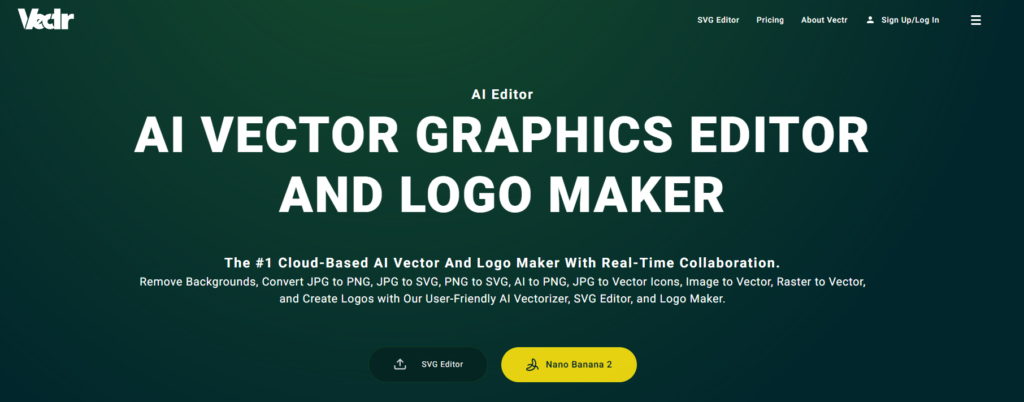
What it is: Vectr is a free, simplified vector graphics editor designed specifically for beginners. It is less powerful than Gravit Designer or Illustrator, but that simplicity is the point it is easier to learn and faster to get results if you are just starting out with vector design.
Key Features:
- Simple vector editing tools shapes, paths, text
- Real-time collaboration share a link and work together
- Cloud-based no download needed
- Free for all users with no paid tier
- Basic export to SVG and PNG
What is Free: Everything Vectr is completely free with no paid plan. All features are available to all users.
What is NOT Free: Nothing. It is all free.
Best For: Beginners who want to learn the basics of vector design in a tool that is less intimidating than Gravit or Illustrator.
Our Honest Take: Vectr is not the most powerful vector tool, but it is genuinely one of the easiest to learn. If you are a complete beginner curious about vector design, Vectr is a low-pressure way to start. The real-time collaboration feature is a nice bonus for working with teammates or clients. Once you outgrow it, moving to Gravit Designer or Figma is a natural next step.
| Pros | Cons |
| Completely free — no paid plan | Limited compared to Gravit or Figma |
| Easiest vector tool for beginners | Fewer export options |
| Real-time collaboration included | Not suitable for complex vector work |
| No download required | Limited template library |
9. Crello (Vista Create) — Best Free Tool for Animated Designs
If you want to make animated social media content for free, Vista Create (formerly Crello) is the tool to use.
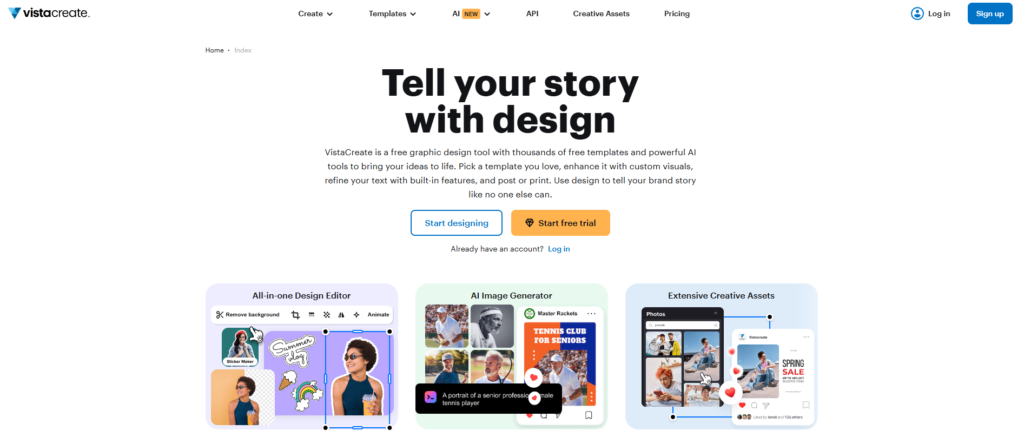
What it is: Vista Create, which most people still call Crello, is a free design tool focused on animated content. It has thousands of templates including animated versions great for Instagram Stories, TikTok content, and any social media that benefits from movement.
Key Features:
- Thousands of free animated templates
- Video and GIF creation tools
- Brand kit features on free plan
- Large library of free stock photos and videos
- One-click resizing for different platforms
What is Free: The free plan includes access to thousands of templates (including animated ones), basic stock assets, and export to common formats. A watermark may appear on some free exports.
What is NOT Free: Premium templates, extended stock library, and removing watermarks require Vista Create Pro ($13/month).
Best For: Beginners creating animated content for social media who want ready-made templates that move.
Our Honest Take: Vista Create is the best free option specifically for animated social content. The animated templates are a big differentiator Canva has some, but Vista Create has more variety in this specific category. If animation matters to your content, it is worth spending time here. For static designs, Canva is still the better all-around choice.
| Pros | Cons |
Best free animated template library | Watermark on some free exports |
| Good stock photo and video library | Less known — smaller community |
| Brand kit on free plan | Not as deep as Canva overall |
| Easy to use for animated content | Premium templates require paid plan |
10. Snappa — Best Free Tool for Quick Social Media Design
When you need a social media graphic done in under five minutes, Snappa makes it happen.
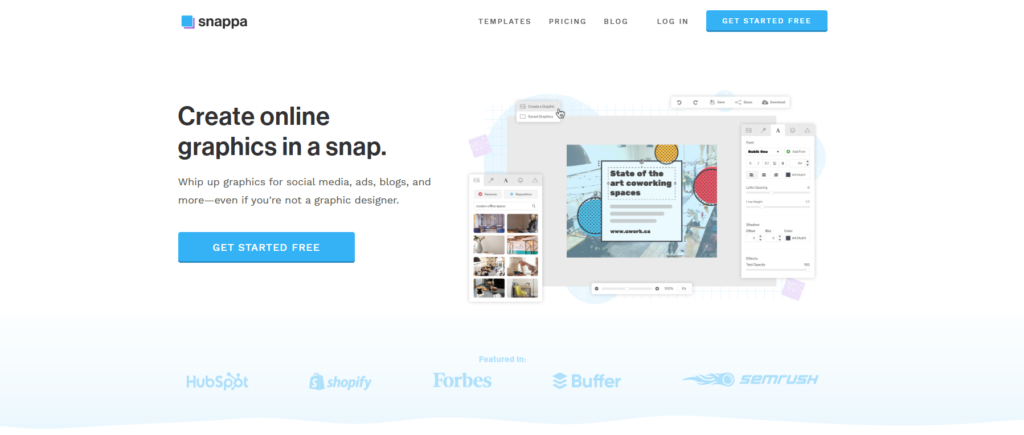
What it is: Snappa is a free online design tool built specifically for social media and digital marketing graphics. It is fast, simple, and focused no unnecessary features, just a clean editor with good templates and the right canvas sizes already set up.
Key Features:
- Pre-set canvas sizes for every major social platform
- Thousands of free templates
- One-click background removal
- Free stock photo library built in
- Simple drag-and-drop editor
What is Free: The free plan includes 3 downloads per month, access to all templates, and the full stock photo library. No watermark on downloads.
What is NOT Free: Unlimited downloads require Snappa Pro ($10/month). The 3 downloads per month limit is the main restriction on the free plan.
Best For: Beginners who need to create a small number of social media graphics each month and want a fast, simple tool with no learning curve.
Our Honest Take: Snappa is genuinely fast and clean. The interface is simpler than Canva which is actually an advantage if you just need to get something done quickly. The 3 downloads per month limit on the free plan is restrictive if you create content regularly, but if you only need a handful of graphics per month, it works well. No watermarks is a big plus.
| Pros | Cons |
| No watermarks on free plan | Only 3 downloads per month free |
| Very fast and easy to use | Not great for non-social design |
| Clean, simple interface | Limited customization depth |
| Built-in free stock photos | Fewer templates than Canva |
Quick Comparison Table
| Tool | Best For | Storage | Templates | AI Features | Watermark |
| Canva | Overall | 1GB | 250,000+ | ✅ Yes | Some files |
| Microsoft Designer | AI Design | Cloud | Unlimited | ✅ Yes | ❌ No |
| Adobe Express | Social Media | 2GB | Thousands | ✅ Yes | Some files |
| Pixlr | Photo Edit | Cloud | Hundreds | ✅ Yes | ❌ No |
| Gravit Designer | Vectors | 500MB | Limited | ❌ No | ❌ No |
| Photopea | Photo Edit | Local | None | ❌ No | ❌ No |
| Desygner | Templates | 1GB | Thousands | ❌ No | Some files |
| Vectr | Vectors | Cloud | Limited | ❌ No | ❌ No |
| Vista Create | Animation | Cloud | Thousands | ✅ Yes | Some files |
| Snappa | Social Media | Cloud | Thousands | ❌ No | ❌ No |
Always verify free plan details directly on each tool’s website these change regularly.
How to Choose the Right Free Tool
Are you a complete beginner with no design experience? Start with Canva. It is the easiest to learn and covers almost every design need. You can be up and running in under 10 minutes.
Do you want AI to generate designs for you? Use Microsoft Designer. Describe what you want and it builds it. Best free AI image quality available right now.
Are you creating social media content? Adobe Express or Snappa. Both have templates pre-sized for every platform. Adobe Express has more depth, Snappa is faster for quick work.
Do you need to edit photos? Pixlr for beginner-friendly photo editing. Photopea if you need Photoshop-level tools and want to open PSD files.
Do you need to design logos or icons? Gravit Designer or Vectr. Vectr is easier to start with. Gravit Designer is more powerful once you get the hang of it.
Do you need animated social content? Vista Create. It has the best free library of animated templates.
Do you have almost no time and need quick results? Snappa. It is the fastest tool on this list for getting a social graphic done and exported.
Tips for Beginners Using Free Design Tools
Starting out with a new design tool can feel overwhelming. Here are a few things that will save you time and frustration.
Start with templates, not blank canvases. Every tool on this list has templates. Use them. There is no shame in starting from a template even professional designers do it. Pick one that is close to what you want, swap out the text and images, and you have something that looks great in minutes.
Watch one YouTube tutorial before you start. Every tool here has free tutorials on YouTube. Spending 15 minutes watching someone use the tool before you open it will save you an hour of confusion. Search the tool name plus “beginner tutorial” and pick the most recent one.
Stick to one tool for your first 30 days. It is tempting to try all of them. Resist that urge. Pick one tool probably Canva if you are unsure and use it for 30 days. You will learn it much faster by going deep on one tool than jumping between five.
Save your work regularly. Most of these tools auto-save in the browser, but do not assume. Download a copy of your work after finishing anything important. You do not want to lose two hours of work because a browser tab closed unexpectedly.
Use free design communities for inspiration. Dribbble, Behance, and Pinterest are all free to browse. When you are stuck on how something should look, spend five minutes looking at what other designers have created. Inspiration is not cheating it is how design works.
Final Verdict
After testing all 10 tools, here are our top picks for different types of beginners:
For most beginners — Canva. It is free, easy to learn, produces professional results, and covers almost every design need. If you are unsure where to start, start here.
For AI-powered designs — Microsoft Designer. The best free AI image generation available, with no watermarks and no cost. A powerful companion to Canva.
For social media content — Adobe Express. Templates pre-sized for every platform, clean designs, and solid AI features on the free plan.
For photo editing, Pixlr and Photopea both deliver. For vector work, start with Vectr and graduate to Gravit Designer. For animated content, Vista Create is the standout free option.
The most important thing is to pick one and start. You will learn more in a week of actually using a tool than in a month of reading about them.
Frequently Asked Questions
Q: What is the best free graphic design tool for beginners?
Canva is the best free graphic design tool for beginners in 2026. It has over 250,000 free templates, requires no design experience, and includes free AI features. Microsoft Designer is a strong second choice for beginners who want more AI-powered options for free.
Q: Can I do professional graphic design with free tools?
Yes, you can create professional-quality designs using free tools like Canva, Adobe Express, and Microsoft Designer. Many small businesses and freelancers use these free tools daily for social media, presentations, and marketing materials without needing paid software.
Q: Is Canva really free for beginners?
Yes, Canva has a completely free plan that includes access to over 250,000 templates, basic AI features, 1GB of storage, and unlimited designs. Some premium templates and features require Canva Pro which starts at around $15 per month, but the free plan is more than enough for most beginners.
Q: What free tool is best for social media graphics?
Adobe Express and Canva are the best free tools for social media graphics. Both have templates sized perfectly for Instagram, Facebook, Twitter, and LinkedIn. Adobe Express has slightly better photo editing features while Canva has more template variety on its free plan.
Q: Is there a free alternative to Adobe Photoshop?
Yes, Photopea and Pixlr are the best free alternatives to Adobe Photoshop. Both run directly in your browser with no download needed. Photopea is the closest match to Photoshop and even opens PSD files. Pixlr is easier for beginners with a simpler interface.
Q: Can beginners learn graphic design with free tools?
Absolutely. Free tools like Canva, Adobe Express, and Microsoft Designer are designed specifically for people with no design experience. Starting with free tools is actually recommended for beginners because you can learn design fundamentals without spending money before knowing which tool fits your workflow.
Q: What is the easiest free graphic design tool?
Canva is the easiest free graphic design tool for complete beginners. Its drag-and-drop interface, pre-made templates, and AI design suggestions mean you can create a professional-looking design in under 10 minutes even with zero design experience.
Q: Are free graphic design tools good enough for business use?
Yes, many businesses use free design tools successfully. Canva, Adobe Express, and Microsoft Designer are all used by small businesses for social media, presentations, email graphics, and basic marketing materials. For advanced branding or print work, a paid tool may eventually be needed.
Related reading:
