This guide shows how to delete ChatGPT history one chat at a time or all at once. It also covers how to archive chats, find archived chats and clear memory. Deleting is final: OpenAI says you cannot restore a deleted chat, so choose between delete, archive and Temporary Chat before you start.
We read OpenAI’s page on deleting and archiving chats, its chat and file retention page, its locked chats page, its data controls page and its memory announcement in November 2026. Menu names change, so we use the labels OpenAI’s pages use and say where a page does not cover something.
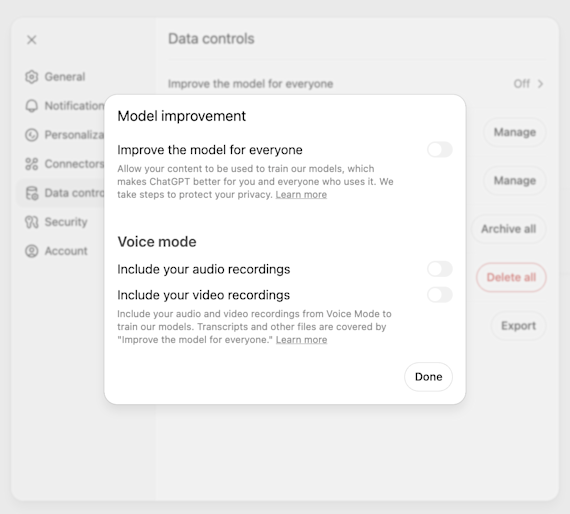
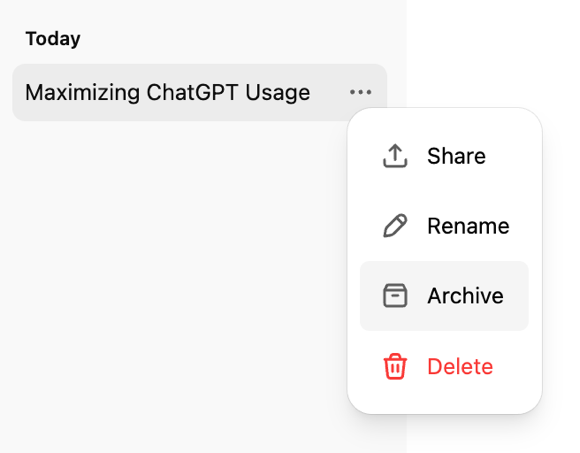
Featured image: screenshot from OpenAI Help Center, “Data Controls FAQ”, shown unedited. © OpenAI.
Delete, Archive or Temporary Chat?
| Option | What it does | Can you undo it? | What OpenAI says about retention |
|---|---|---|---|
| Delete | Removes the chat from your account view right away. | No. OpenAI cannot restore a deleted chat in ChatGPT or through Support. | Permanent deletion is scheduled within 30 days. Exceptions: chats already de-identified, and data OpenAI must keep for security or legal reasons. |
| Archive | Hides the chat from the regular sidebar. The chat stays saved and searchable. | Yes. Unarchive it from Settings, then Data controls. | Archiving does not change the retention period. |
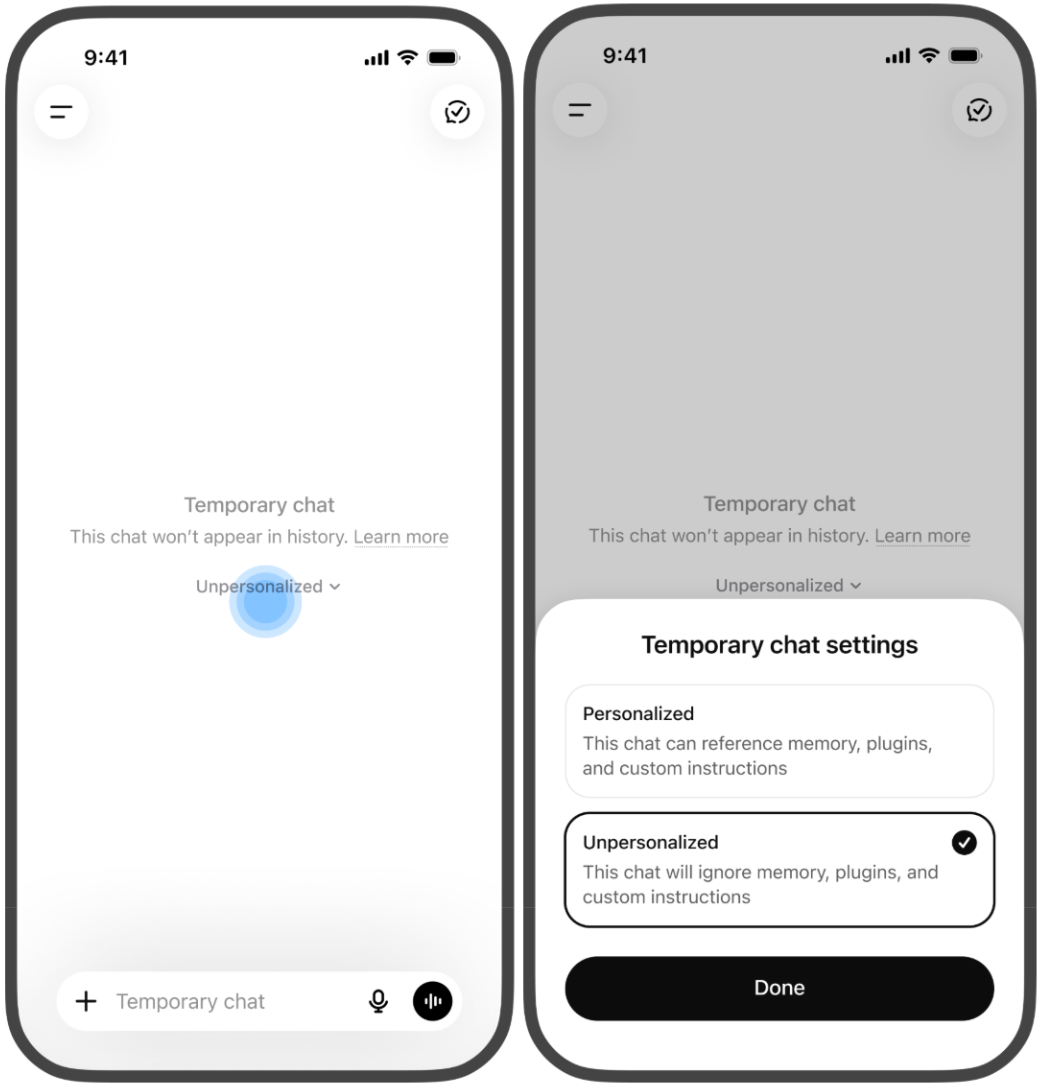
| Temporary Chat | Does not appear in your history unless you save it. | Not applicable. | OpenAI may keep a copy for up to 30 days for safety. It does not create or update memories and does not train models. You choose whether it can use your saved memories. |
How to Delete ChatGPT History: One Chat
- Open your ChatGPT chat history.
- Select the more options menu (the three dots) next to the chat.
- Select Delete.
- Confirm the deletion.
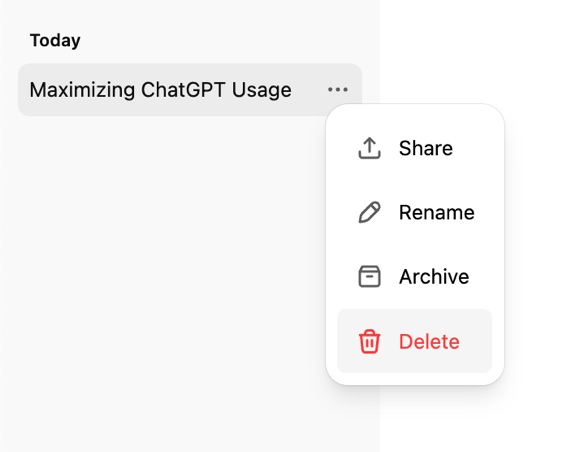
OpenAI gives one set of steps for all devices. It does not split web, iPhone and Android.
How to Delete All ChatGPT Chats
- Open Settings.
- Select Data controls.
- Select Delete all chats.
- Read the confirmation message and continue.
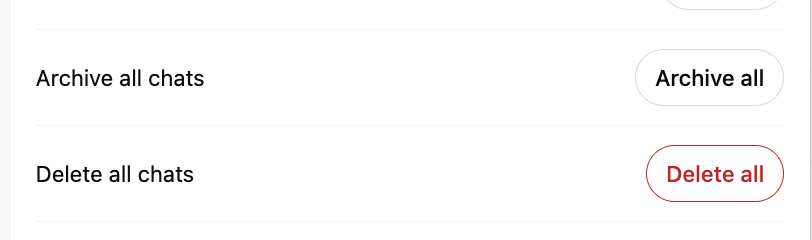
OpenAI says this cannot be undone. It also says the action can affect chats in your current account or workspace, including chats in projects.
Deleting chats does not delete everything. A file saved in Library stays there until you delete it from Library. If a chat holds data from a connected app, deleting the chat removes the copy inside the chat. The original data in the connected app stays.
How to Archive Chats and Find Archived Chats
Archiving hides a chat from the sidebar without deleting it. OpenAI says archived chats remain searchable and keep the same retention period.
- Archive one chat: open your chat history, select the three dots next to the chat, then select Archive. OpenAI says no confirmation is required.
- Archive all chats: open Settings, select Data controls, then select Archive all chats and continue after you review the message.
- Find archived chats: open Settings, select Data controls, then select Archived chats. Some devices show View archived chats instead. If you see Manage, select it.
- Unarchive a chat: select Unarchive to return it to your regular history. Select Delete to remove it.

How to Clear ChatGPT Memory
Deleting a chat does not delete what ChatGPT remembered from it. OpenAI’s memory announcement says deleting a chat does not erase its memories, so you must delete the memory itself.
- See and delete memories: open Settings, then Personalization, then Manage Memory. You can delete specific memories or clear them all.
- Turn memory off: open Settings, then Personalization, then Memory.
- Skip memory for one conversation: use Temporary Chat and choose Unpersonalized, which uses no memory, custom instructions or plugins. Temporary Chat never creates memories.
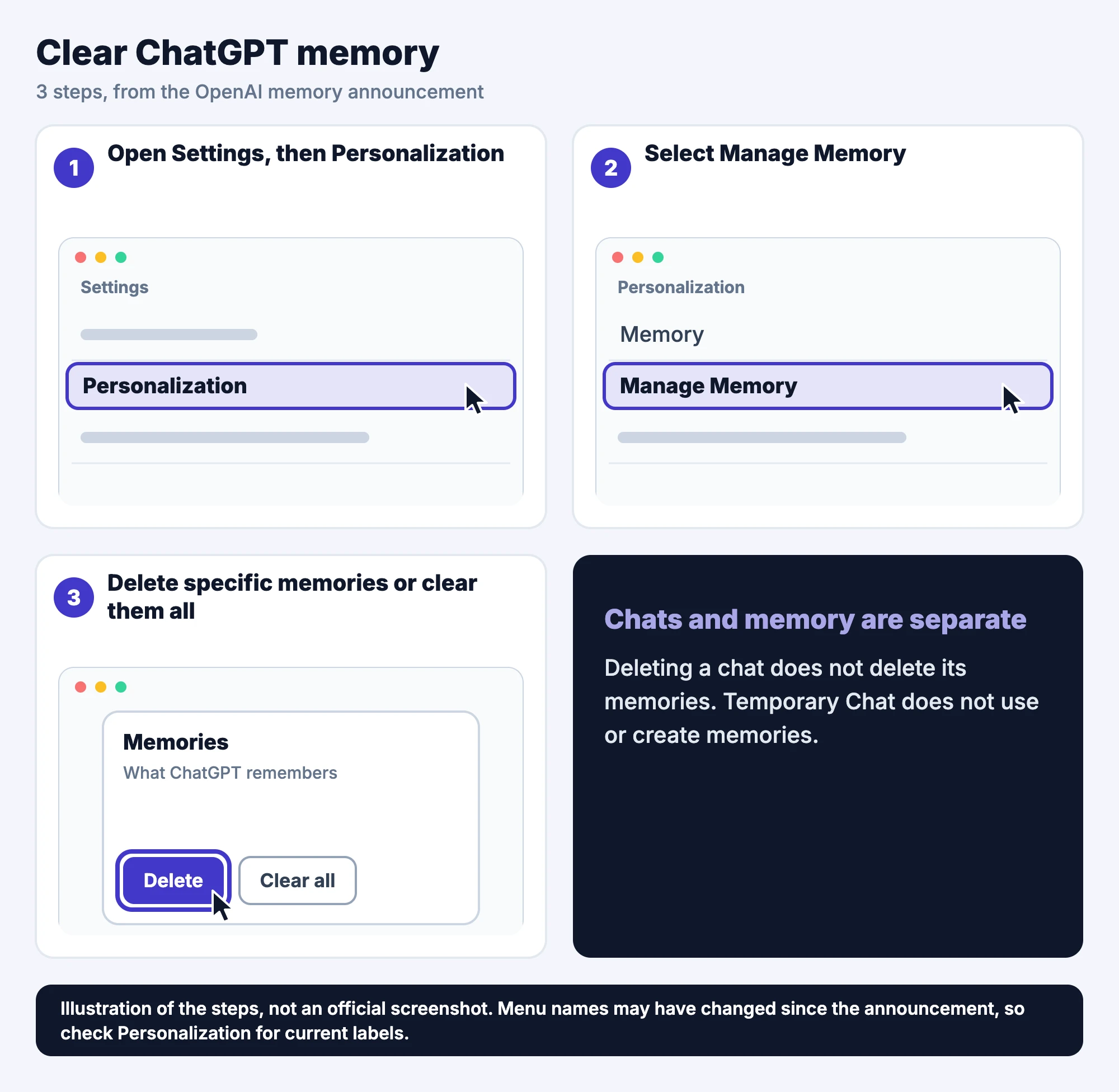
That announcement dates from 2024, with notes added up to June 2025. It covers saved memories and chat history. Menu paths may have changed since, so look in the Personalization area for the current labels.
Locked Chats, Projects and Files
Locked chats are hidden from regular history and protected by a 4-digit PIN. To delete one, open it, select the three dots, then Delete. OpenAI says you cannot recover a deleted locked chat. A locked chat cannot be archived until you unlock it. Resetting your PIN under Settings, then Security and login, permanently deletes all locked chats.
Files follow their own rules. Files added to a project stay until you delete the project or the file. Knowledge files for a custom GPT stay until you delete the GPT. OpenAI schedules permanent removal within 30 days after you delete them, unless security or legal rules require longer.
Can You Recover a Deleted ChatGPT Chat?
No. OpenAI says you cannot restore a deleted chat in ChatGPT or through OpenAI Support. If you might need a chat later, archive it or export your data first. Open Settings, then Data controls, then Export data. OpenAI sends the file by email. The pages we read do not say what the export contains or how long the link lasts, and they do not say what happens to a shared link when you delete the chat.
Deleting History Does Not Stop Training
Deleting chats and opting out of training are separate. To opt out, open Settings, then Data controls, and turn off Improve the model for everyone. OpenAI says the opt-out applies going forward only. It also says that if you have not opted out, it may de-identify a cleared chat instead of deleting it after 30 days.
Want a clean break instead? See how to delete ChatGPT account or how to cancel ChatGPT subscription. For a side by side look at the name, read our Chat GLT vs ChatGPT comparison.
FAQ
Open Settings, select Data controls, then select Delete all chats and confirm. OpenAI says this cannot be undone and can affect chats in projects.
Open your chat history, select the three dots next to the chat, choose Delete and confirm.
No. OpenAI says you cannot restore a deleted chat in ChatGPT or through OpenAI Support. Archive or export a chat first if you may need it.
OpenAI removes a deleted chat from your account view right away and schedules permanent deletion within 30 days. Exceptions include chats already de-identified and data OpenAI must keep for security or legal reasons.
Open Settings, select Data controls, then select Archived chats. Some devices show View archived chats instead. Select Manage if it appears, then choose Unarchive or Delete.
No. OpenAI’s memory announcement says deleting a chat does not erase its memories. Delete the memory itself under Settings, then Personalization, then Manage Memory.
No. Archiving hides the chat from the sidebar. It stays saved and searchable, and OpenAI says archiving does not change the retention period.
A chat that does not appear in your history unless you save it. OpenAI says it does not create or update memories, does not train models, and may be kept for up to 30 days for safety.