Adobe Firefly new features arrived on November 10, 2026, when Adobe announced a long list of updates at Adobe MAX. This guide sorts them into what you can use today, what is still in beta and what Adobe has not explained yet.
We read Adobe’s newsroom release, its Community announcement and its Firefly Design page. Where those pages give no number, plan or date, we write “Not stated” instead of guessing.
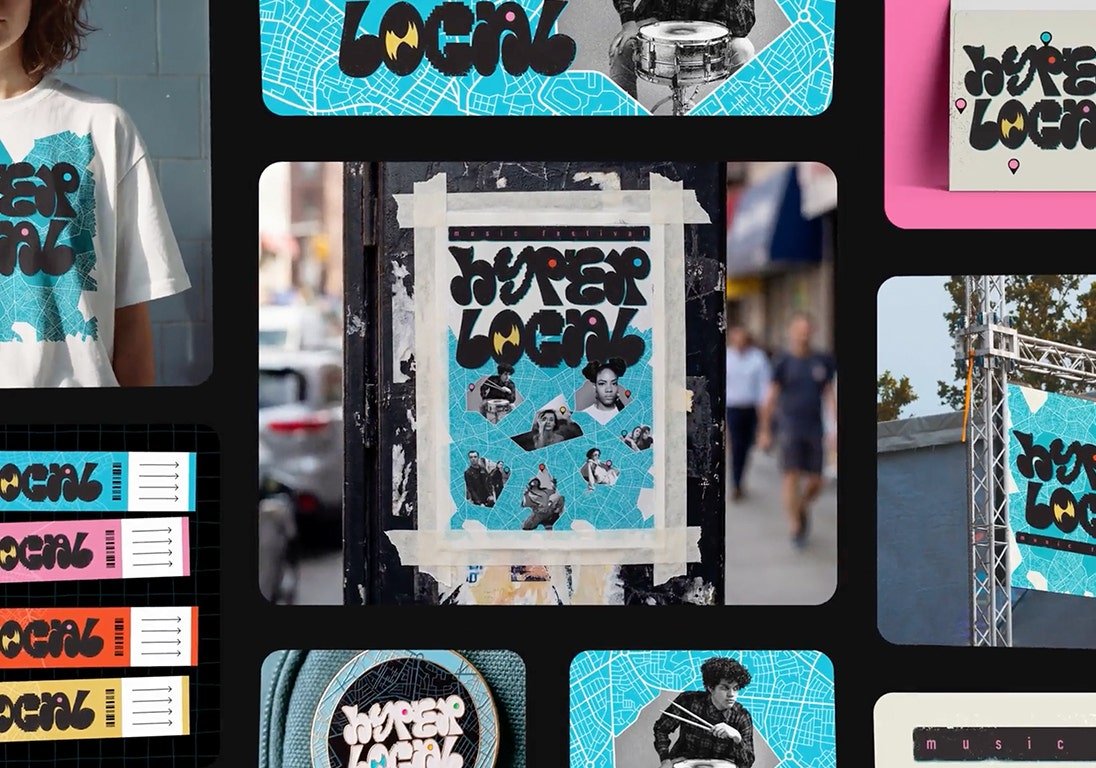
Featured image: Adobe. Source: Adobe newsroom, Adobe Firefly Expands as the AI Creative Studio
Adobe Firefly New Features at a Glance
Adobe says Edit Text, Retouch, Relight and Quick Actions are generally available in Firefly today. It describes the other new tools and capabilities as beta, and it puts Firefly Builder in a private beta with a waitlist.
| Feature | What Adobe says it does | Status |
|---|---|---|
| Quick Actions | One-click workflows from the Firefly homepage, such as Remove Object, Thumbnail Generator and Build Product Ad | Generally available |
| Relight | Adds up to three point or directional lights and lets you choose how much of the original lighting to keep | Generally available (the toolbar in Adobe’s own image still shows a beta label) |
| Retouch and Skin Cleanup | Removes temporary blemishes such as acne and permanent marks such as moles, freckles and scars | Generally available |
| Edit Text | Makes text in an image editable line by line and matches the original font and style | Generally available |
| Edit Object | Lets you select one object and edit only that object | Beta |
| Firefly AI Assistant | Runs on Adobe Creative Agent, with Plan Mode, a Model Selector and saved preferences | Beta |
| AI Assistant Memory | Saves your preferences or learns from chats, and you can edit or delete what it keeps | Beta |
| Always-on agents | No detail beyond the name | Preview |
| Firefly Design | One canvas for illustration, image editing, animation, 3D and print | Public beta |
| Firefly Graph | Custom, repeatable AI workflows with a built-in AI Assistant | Beta |
| Firefly Builder | Prototypes of websites, presentations or apps from natural language | Private beta with a waitlist |
| Firefly Video editing | Expanded editing, including captions, transitions and b-roll | Not stated for each item |
Adobe’s Community post calls the skin tool Skin Cleanup, while the newsroom release lists the same area as Retouch. We treat them as one feature family.
Image Tools You Can Use Today
These four tools are the ones Adobe marks as generally available. Open your photo in the Firefly image editor and look for them in the toolbar. The left toolbar in Adobe’s own images lists Edit text, Relight, Fill, Retouch and remove, Crop and expand, Upscale and Remove background.
Relight
Relight changes the light in a photo after you take it. Adobe says you can add up to three lights, each point or directional, and adjust each one. You also control how much of the original lighting stays, and there are lighting presets for a quick start.
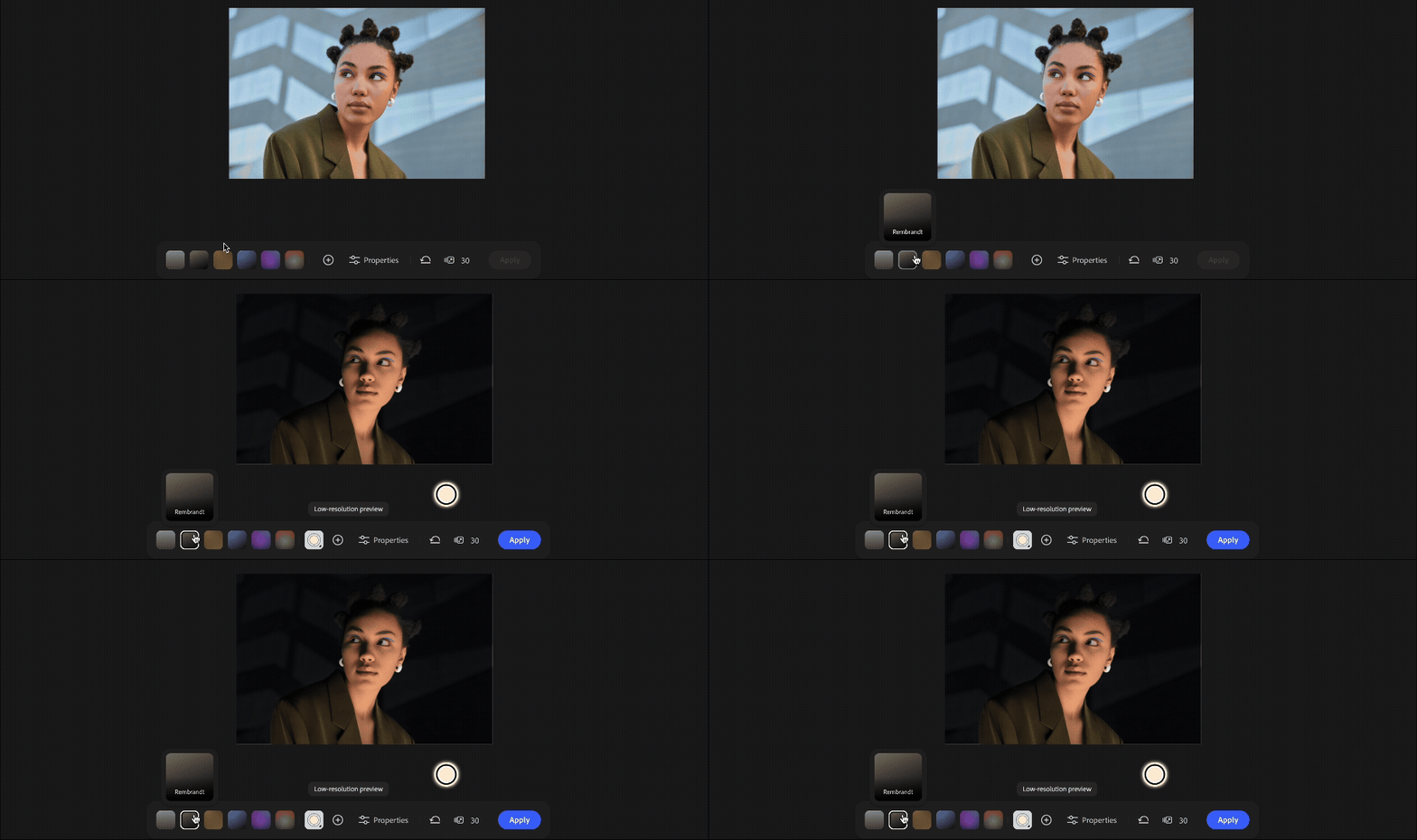
Adobe’s newsroom release lists Relight as generally available. The toolbar in the image above still says beta, so check the label in your own account before you rely on it for client work.
Retouch and Skin Cleanup
Adobe says Skin Cleanup removes temporary blemishes such as acne. It also removes permanent marks such as moles, freckles and scars. The panel in Adobe’s image has an All blemishes control, a Fade slider and an Apply button.
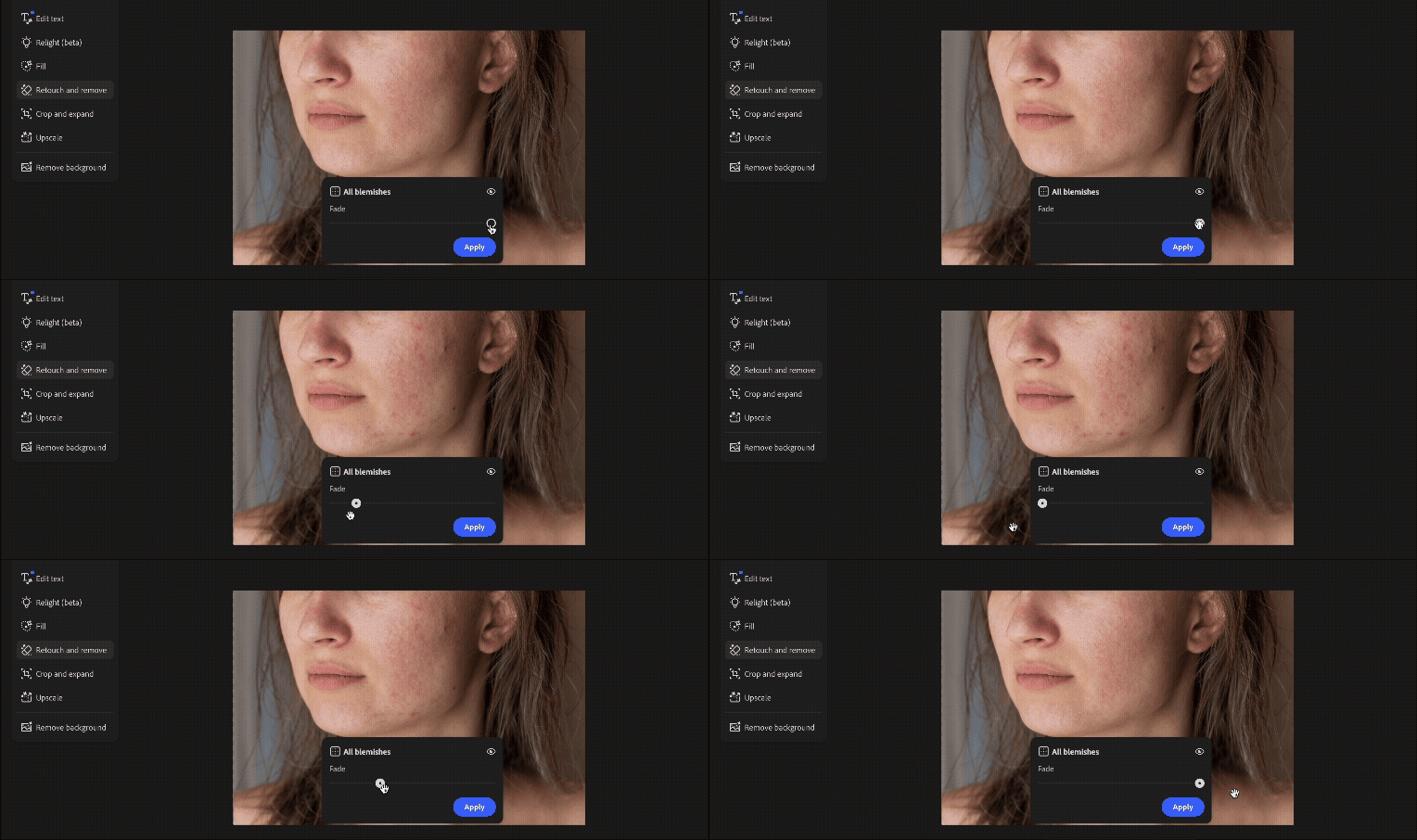
This is our view, not Adobe’s: use skin retouching with the consent of the person in the photo, and keep a copy of the original file. Removing a mole or scar changes how a person looks, and some clients will not want that.
Edit Text
Edit Text makes the words inside an image editable line by line. Adobe says it matches the original font and style. That helps when you have a flattened poster, a screenshot or an AI image with a typo and no layered file to open.
Adobe does not say how well it handles unusual fonts, curved text or small type. Test it on your own artwork first.
Edit Object
Edit Object lets you select a single object and change only that object. Adobe labels it beta in its Community post. Adobe gives no limits on object size or type.
Quick Actions: One-Click Workflows
Adobe describes Quick Actions as a way to squeeze a whole multi-step workflow into a single click. You open them from the Firefly homepage. Adobe’s newsroom release names Remove Object, Thumbnail Generator and Build Product Ad as examples.
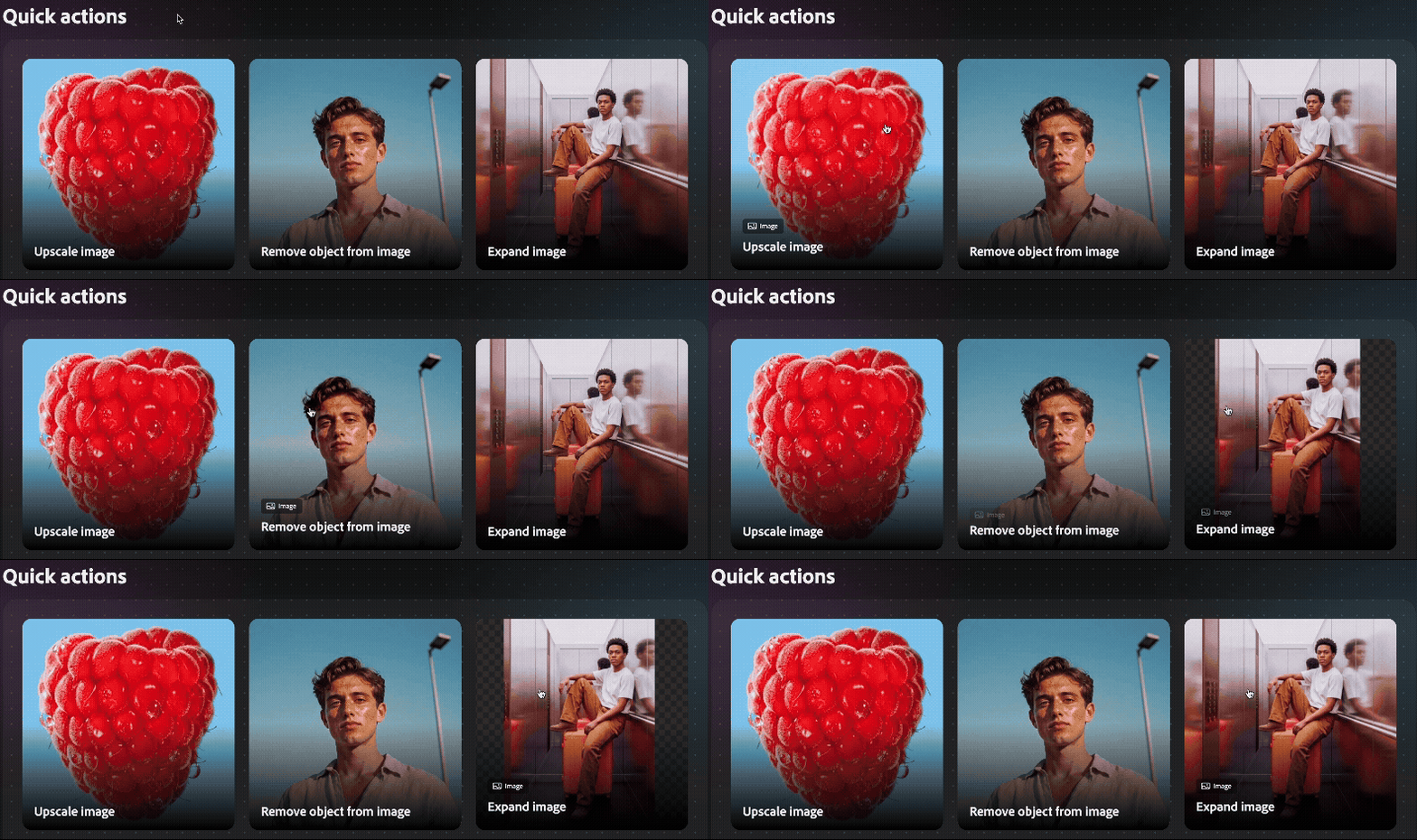
The Quick actions gallery in Adobe’s image shows three cards: Upscale image, Remove object from image and Expand image. Adobe does not list every action, so open the gallery in your account to see the current set.
If you already edit photos in Photoshop, our guide to how to use Adobe Firefly covers Generative Fill and the other Firefly tools inside that app.
Firefly AI Assistant and Adobe Creative Agent
The biggest change is the Firefly AI Assistant, which runs on a new Adobe Creative Agent. Adobe marks it beta. The newsroom release lists these updates:
- Customization and preferences, so you set formats, colors, brand guidelines, characters and products once.
- Plan Mode, where you review and approve the agent’s plan or let it run.
- A Model Selector, where you pick a model or leave it on Auto-Select.
- Deeper links to the Firefly multimedia editors.
- New availability in Firefly Boards.
- Always-on agents, in preview.
The Community post adds AI Assistant Memory (beta). It can keep your preferences or learn from your chats, and you can edit or delete what it stores. It also describes a feature that builds a consistent visual story from reusable elements and generates clips.
Adobe does not say how many requests the assistant allows, how it counts credits or which plans include it. All of that is Not stated in the pages we read.
Firefly Design: One Canvas for Every Format
Firefly Design is a new design space in beta. Adobe’s product page calls it a multi-medium design app that covers vector, raster, motion, 3D and print on one canvas, with client review and delivery built in.
| Area | What Adobe’s page says |
|---|---|
| Files | Photoshop (PSD) files place as live-linked layers, and Illustrator (AI, SVG) files place as linked assets |
| Export | SVG, MP4 and print PDF |
| Logo tools | A pen tool and Vector Networks |
| Motion | Turn a headline or logo into a motion clip by typing the feel you want |
| Brand | Brand kit extraction, and agents that can enforce brand rules |
| Review | Client review with video annotation, with comments through a client portal |
| Access | Open to all users during the public beta, with tiered access after general availability |
| Price or credits | Not stated |
Adobe says Firefly Design is for professional graphic designers and design teams who produce multi-format work, and for the clients they deliver to. If you work in Canva today, our comparison of AI design tools in the best AI design tools for graphic designers guide shows where other tools fit.
Firefly Graph and Firefly Builder
Firefly Graph lets you build custom, repeatable AI workflows, with a built-in AI Assistant to help. Adobe marks it beta. Think of it as a saved recipe: set the steps once, then run them on new files.
Firefly Builder turns plain language into prototypes of websites, presentations or apps. It is in private beta, and Adobe links a waitlist from its release. The release also mentions a preview of design-to-code prototyping tools, with no further detail.
Which AI Models Firefly Offers Now
Adobe says Firefly now offers more model choice. The newsroom release names these recent image and video models:
- Dreamina Seedance 2.5
- Kling 4.0
- GPT Image 2.6 Sunburst
- GPT Image 2.6 Flare
- Nano Banana 2.1
It also names ByteDance, Google, Kling, OpenAI, ElevenLabs and Topaz Labs as partners. The release does not say which model each plan can use, what each model costs in credits or what licence terms apply to partner models. Read Adobe’s terms before you use any of them for paid work.
Google’s image model appears here too. For a hands-on look at the earlier version, see our guide to Nano Banana image editing.
What Adobe Has Not Said
The announcement leaves several practical questions open. Here is what we could not find in the pages we read.
| Question | Answer in the pages we read |
|---|---|
| Price of the new tools | Not stated. The release only links to Adobe’s Firefly pricing page |
| Credit cost per feature | Not stated |
| Plans that include each beta tool | Not stated |
| Country or language availability | Not stated |
| Model access by plan | Not stated |
| Licence terms for partner models | Not stated |
| Limits on Edit Text and Edit Object | Not stated |
Adobe also runs a separate generative credits help page that explains how credits work across its plans. Open it before you plan a big batch of work, because plans and credit amounts can change.
Who Should Try These Tools First
This section is our own reading of the announcement, not something Adobe says.
- Photographers and retouchers: Relight and Skin Cleanup are the two tools that save the most manual work.
- Marketers and social teams: Quick Actions such as Thumbnail Generator and Build Product Ad aim at repeat tasks.
- Design teams: Firefly Design is the one to watch if you move between Photoshop, Illustrator and video files.
- Agencies with brand rules: the saved preferences and brand guideline settings in the AI Assistant may reduce rework, once you test them.
If you are in the US, Europe or India, check that each tool appears in your own account and region before you promise it to a client. Adobe’s pages do not say where each feature is live.
How to Try the New Firefly Tools
- Sign in to Firefly on the web with your Adobe account.
- Open Quick Actions from the Firefly homepage and try one on a test image.
- Open a photo in the image editor and pick Relight, Retouch or Edit text from the toolbar.
- Turn on the AI Assistant if your account shows it, and read its Plan Mode steps before you approve them.
- Join the Firefly Builder waitlist only if you want to test website or app prototypes.
- Check your credit balance after your first few edits so you know what each action costs.
If you compare Adobe’s tools with Canva’s, start with our guide to how to use Canva AI and our overview of free AI image generators.
FAQ
Adobe announced Edit Text, Retouch, Relight and Quick Actions as generally available, plus beta tools including the Firefly AI Assistant, Firefly Design, Firefly Graph and Edit Object. Firefly Builder is in private beta with a waitlist.
Adobe’s newsroom release says Edit Text, Retouch, Relight and Quick Actions are generally available in Firefly today. It describes the other new tools and capabilities as beta.
It is a beta assistant that runs on Adobe Creative Agent. Adobe lists preferences for formats, colors, brand guidelines, characters and products, Plan Mode, a Model Selector with Auto-Select, and deeper links to the Firefly editors.
Adobe describes it as a design app that covers vector, raster, motion, 3D and print on one canvas. Its page says all users can use it during the public beta and that access will be tiered at general availability.
Adobe’s announcement gives no prices or credit amounts for the new tools. It links to Adobe’s Firefly pricing page, so check your plan and credit balance there.
Yes. Edit Text makes text in an image editable line by line and matches the original font and style, according to Adobe. Adobe lists it as generally available but gives no limits for unusual fonts.
Adobe’s release names Dreamina Seedance 2.5, Kling 4.0, GPT Image 2.6 Sunburst, GPT Image 2.6 Flare and Nano Banana 2.1. It does not say which plans can use each model.
Firefly Builder creates prototypes of websites, presentations or apps from natural language. Adobe lists it as a private beta and links a waitlist from its release.