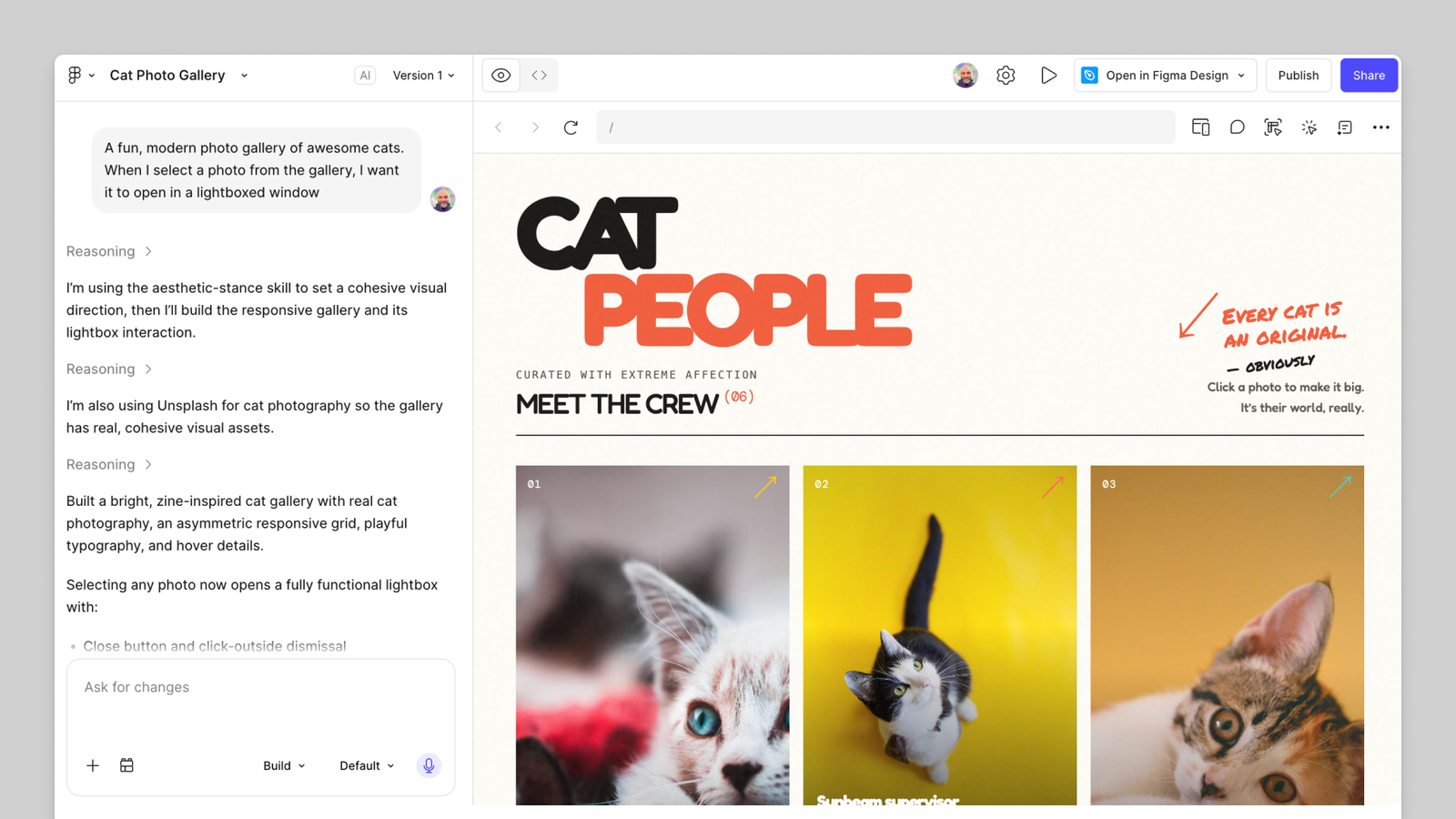
Figma Make is an AI prompt-to-app tool inside Figma that turns an idea or an existing Figma design into an interactive app. Figma calls the results functional prototypes, web apps and interactive UI. This guide shows how to use Figma Make, what each plan allows and what Figma has not said.
We read Figma’s own help pages for Figma Make, including the pages on creating files, plan mode, models, backends and publishing. Where those pages give no number, we write “Not stated.”
Featured image credit: Figma, from Figma Help Center, Create a Figma Make file
What Figma Make Does
You chat with an AI agent, and it writes and runs the code for your app. You can then edit the preview, edit the code or keep prompting. Figma says you can use it to preview the look and feel of a design in working form, turn a proposal into a prototype and explore several answers to one problem.
| Feature | What Figma says |
|---|---|
| Chat with an agent | Describe the app, or use the dictate button. Attach Figma designs, paste frames or add images |
| Style context | Bring styles from one of your Figma Design libraries. Paid plans only |
| Editing tools | An edit tool with a design-style properties panel, a draw tool, annotations and version history |
| Plan mode | A structured plan that you review before any code is written. Paid plans only |
| Backend | Store data, add sign-in and manage content with a Payload backend or a Supabase project |
| Models | A default model plus a model selector with other options |
| Share and publish | Share a preview, publish to a dedicated URL, assign a custom domain or push code to GitHub |
Who Can Use Figma Make and What It Costs
Figma’s help pages list Starter, Professional, Education (not K-12), Organization, Government and Enterprise plans. Starter is a free way to explore Figma Make. For Organization and Enterprise teams, Figma Make is only on when AI features are enabled.
Starter has limits. It cannot use team libraries for style context, and it can only publish to the public web if it also publishes to the Figma Community. Figma Make is not available for K-12 Education users.
On paid plans, your seat matters. Figma Make is included in the Full seat. Dev, Collab and View seats can try it in drafts.
| What you can do | Full seat | Dev, Collab or View seat |
|---|---|---|
| Create Figma Make files in drafts | Yes | Yes |
| Create files in folders or teams | Yes | No |
| Share Figma Make files | Yes | No |
| Publish Figma Make files | Yes | No |
| Attach designs, point and edit, use style context, edit code | Yes | In drafts only |
Figma does not state a price on these help pages, and it does not state how many AI credits each plan includes. Check your own plan and your AI balance before you start. Open the file’s main menu and choose AI balance to see what you have used and when it resets.
How to Create Your First App in Figma Make
These steps follow Figma’s help article. Figma’s screens and labels may change, so treat the names below as a guide.
- In the Figma file browser, open your drafts.
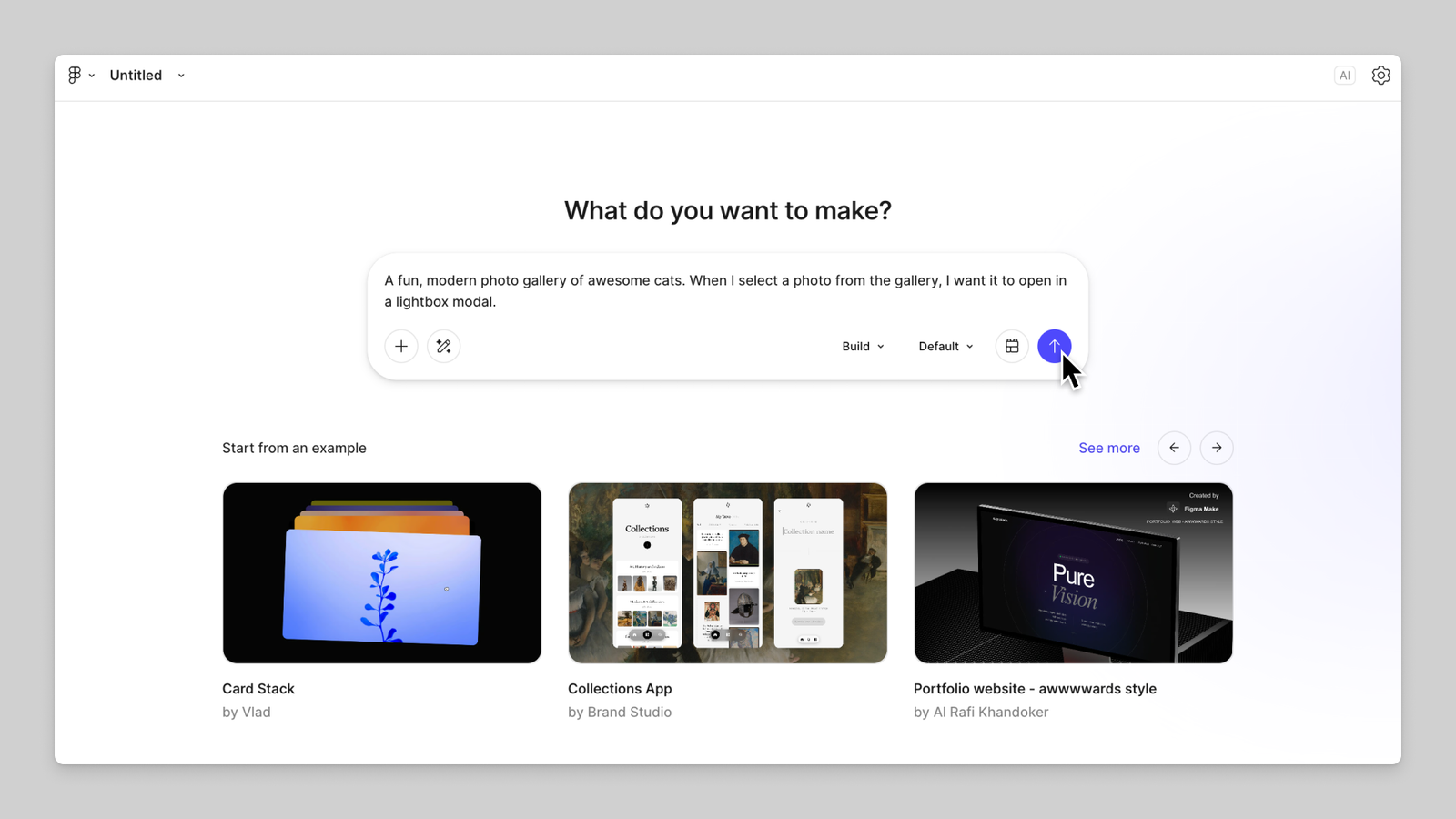
- Click Make in the upper-right corner. You can also start from a GitHub repository or from a template.
- In the chat, describe what you want. Type it, or use the dictate button.
- Add context if you need it: attach Figma designs, paste a frame, add a backend or switch on plan mode.
- Click Send.
- Watch the to-do list in the chat. When the agent finishes, it posts a summary and an interactive preview opens.
Figma says complex apps can take a few minutes to generate. If the first result is off, Figma’s advice is to tell the agent what went wrong and give examples of the result you want.
Find Your Way Around the Workspace
Figma Make has two areas. The chat is where you work with the agent. The workspace is where you preview the app and work with its files.
| Workspace tab | What it does |
|---|---|
| Browser | Preview and use your app, and use the editing tools to change it |
| Files | Explore the app files and edit the code |
| Review | See the additions and deletions in the changed files |
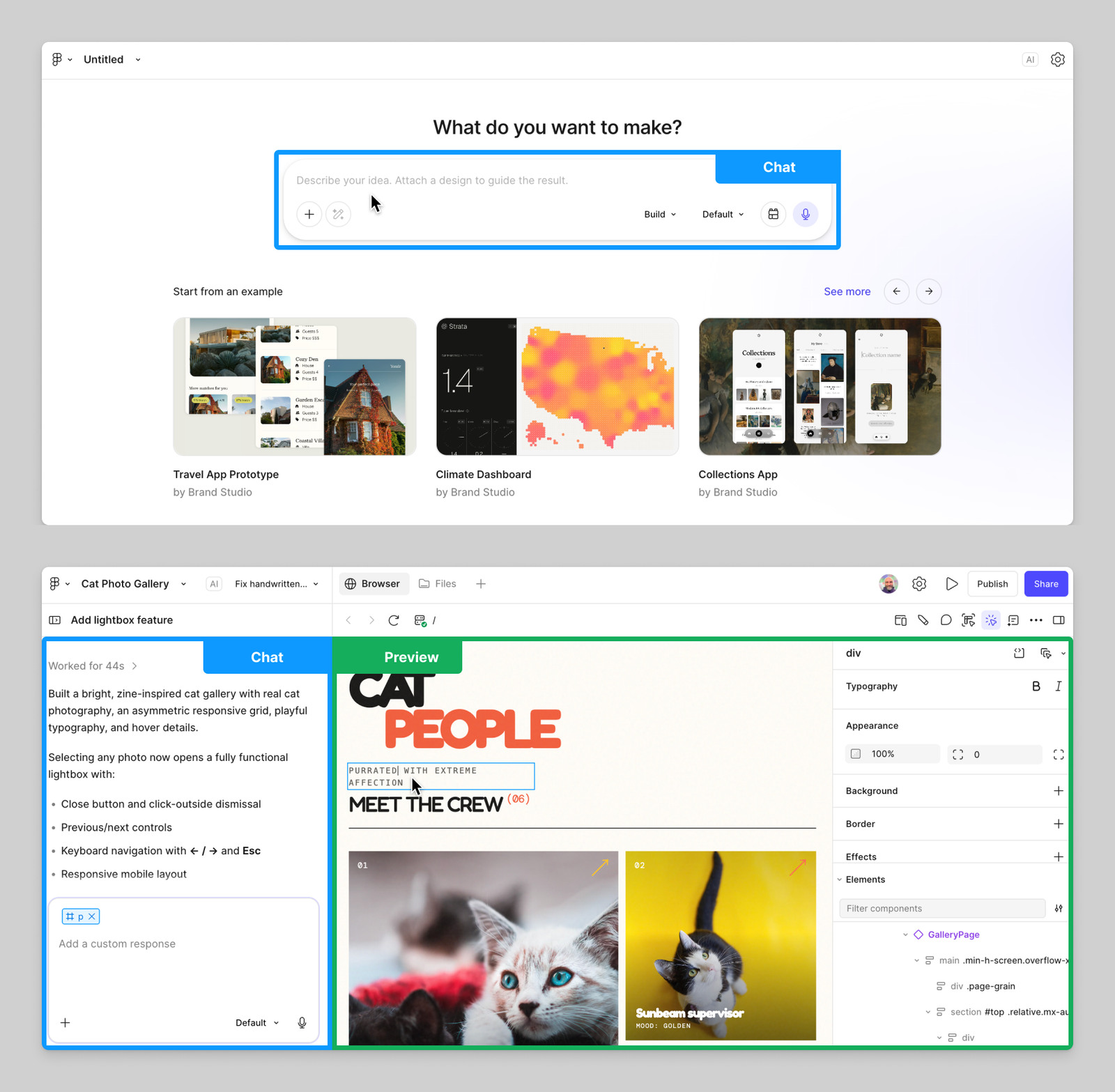
Figma also says you can run more than one chat at the same time in a single Make file. You can start a new change while another chat is still working.
How to Write Better Prompts for Figma Make
Figma’s own advice is to be clear and direct. Its example contrasts a list of exact note-taking features with the vague prompt “Create an app I can take notes in.” The more specific you are, the fewer assumptions the model makes.
- Give examples. Attach Figma frames rather than images when you can, because frames carry structured design data.
- Structure the prompt as task, context and constraints. Say what you are building and who it is for.
- Build layout first and add functions after.
- Attach one or two designs at a time for the closest match.
- Use auto layout in your designs where you can.
- Aim for desktop and full-screen results. Figma says it is still improving mobile output.
- Never paste API keys or personal data into the chat. Ask for an input box instead.
These three prompts are our own examples, not Figma’s:
| Goal | Example prompt |
|---|---|
| Habit tracker | Build a habit tracker for desktop. I want to add a habit, tick it off each day and see a weekly streak. Use a clean white layout with one teal accent. |
| Pricing page | Use the attached pricing frame as a 1:1 build. Make the monthly and yearly toggle work, and highlight the middle plan when I hover over it. |
| Bakery site | Build a small bakery website with an editable product list on a backend. Add six sample products and an order request form. |
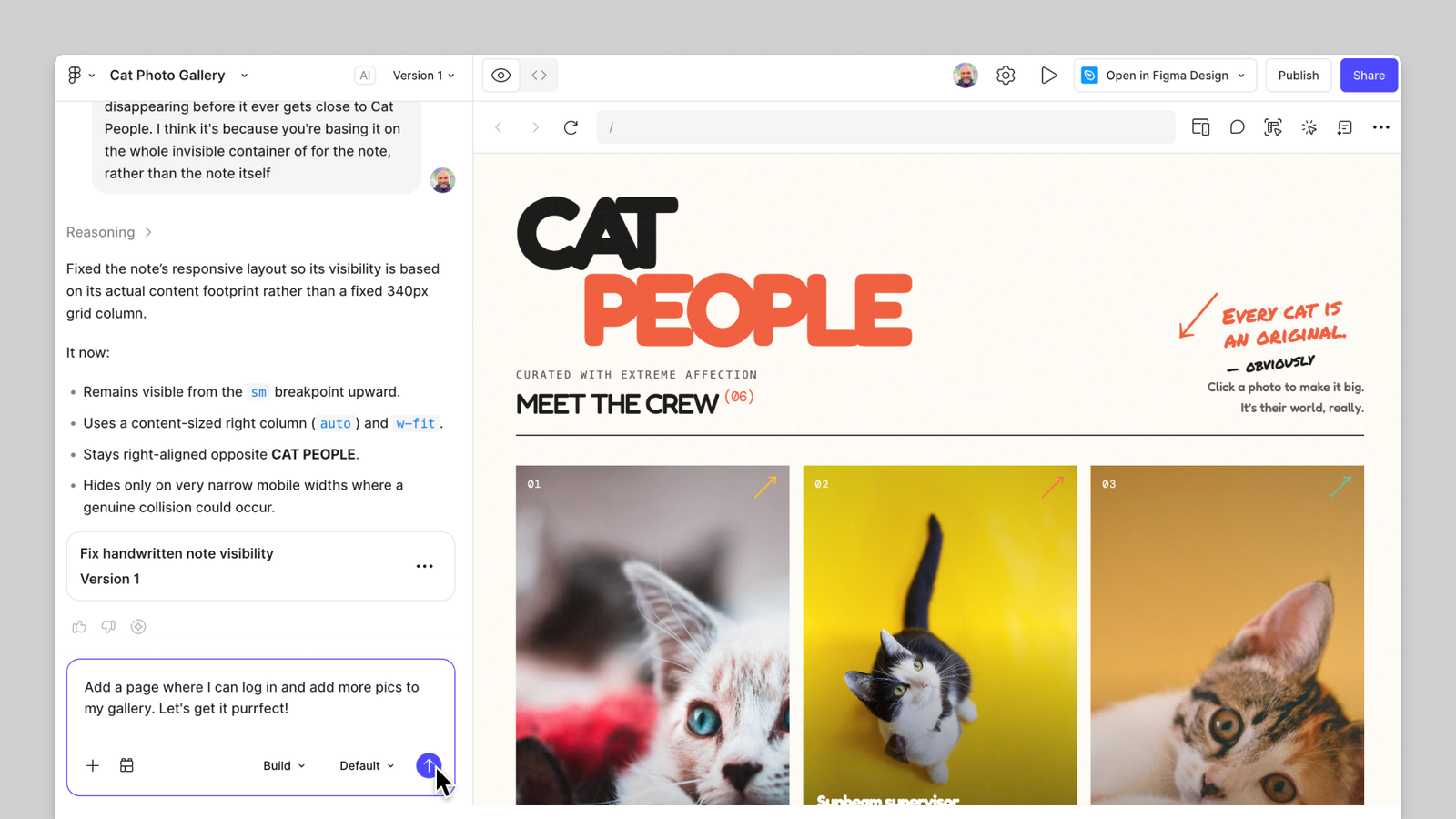
While the agent works, you can keep typing. Figma says extra prompts join a queue, and you can reorder, edit or delete queued messages. If the answers drift after many prompts, Figma suggests clearing the chat context to reset the agent’s memory for that file.
Edit Without Starting Over
You do not need a new prompt for every small fix. Figma lists four ways to refine an app:
- The edit tool, which lets you point at part of the preview and change colors, padding, margins and text in a properties panel.
- The draw tool, which lets you mark up the preview and add those marks to a prompt.
- Annotations, which pin instructions to one element.
- Version history, which lets you go back to an earlier version of the app.
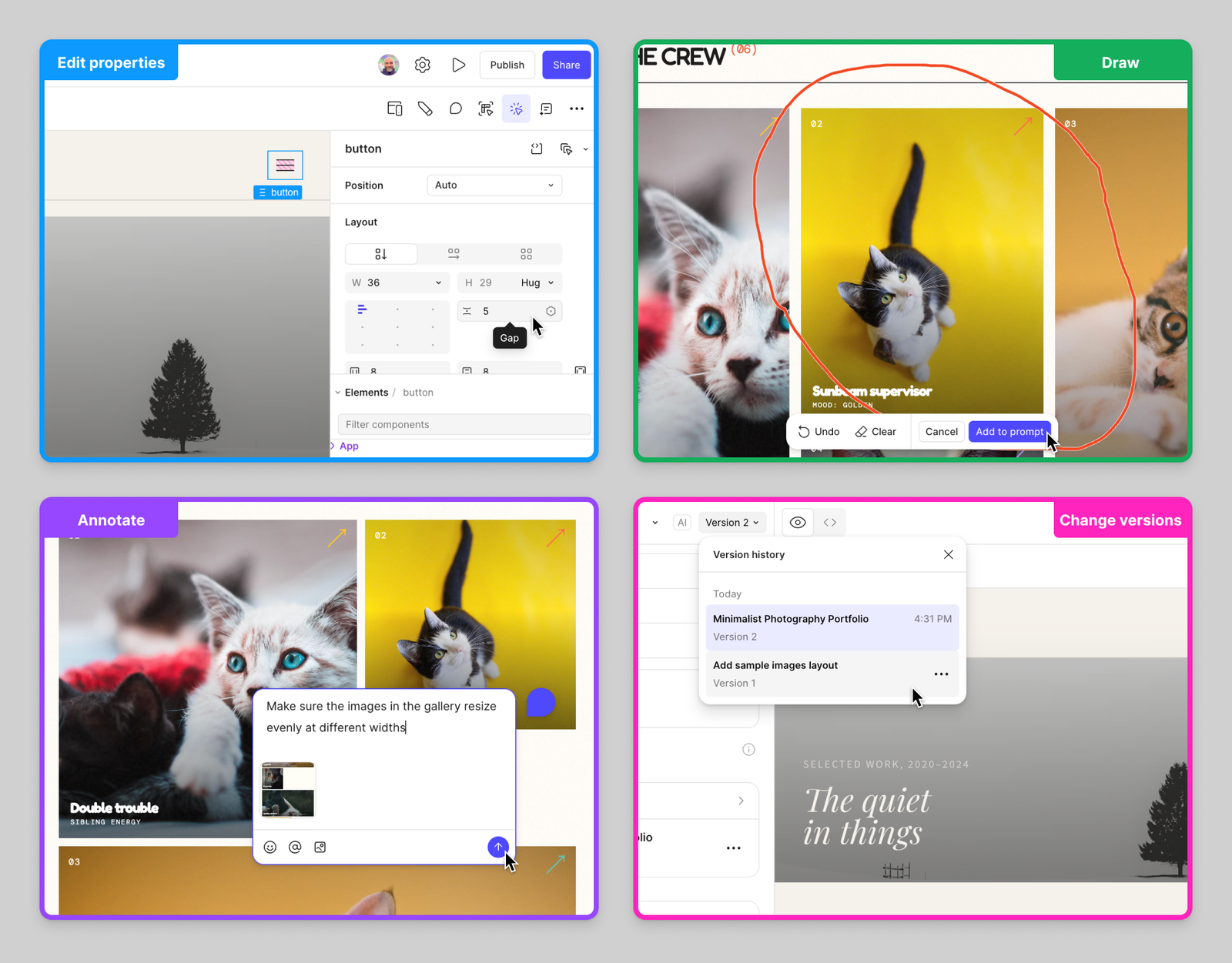
Figma advises using the edit tool or an annotation before a broad rewrite prompt. That keeps the model focused on the right part of the app and cuts needless regeneration.
Plan Mode for Bigger Builds
Plan mode makes the agent read your project and write a plan before it changes any code. You can switch it on from Add context, or type /plan in the chat. The plan appears in the chat and as a plan.md file, and you can edit it or ask for revisions. When it looks right, click Build.
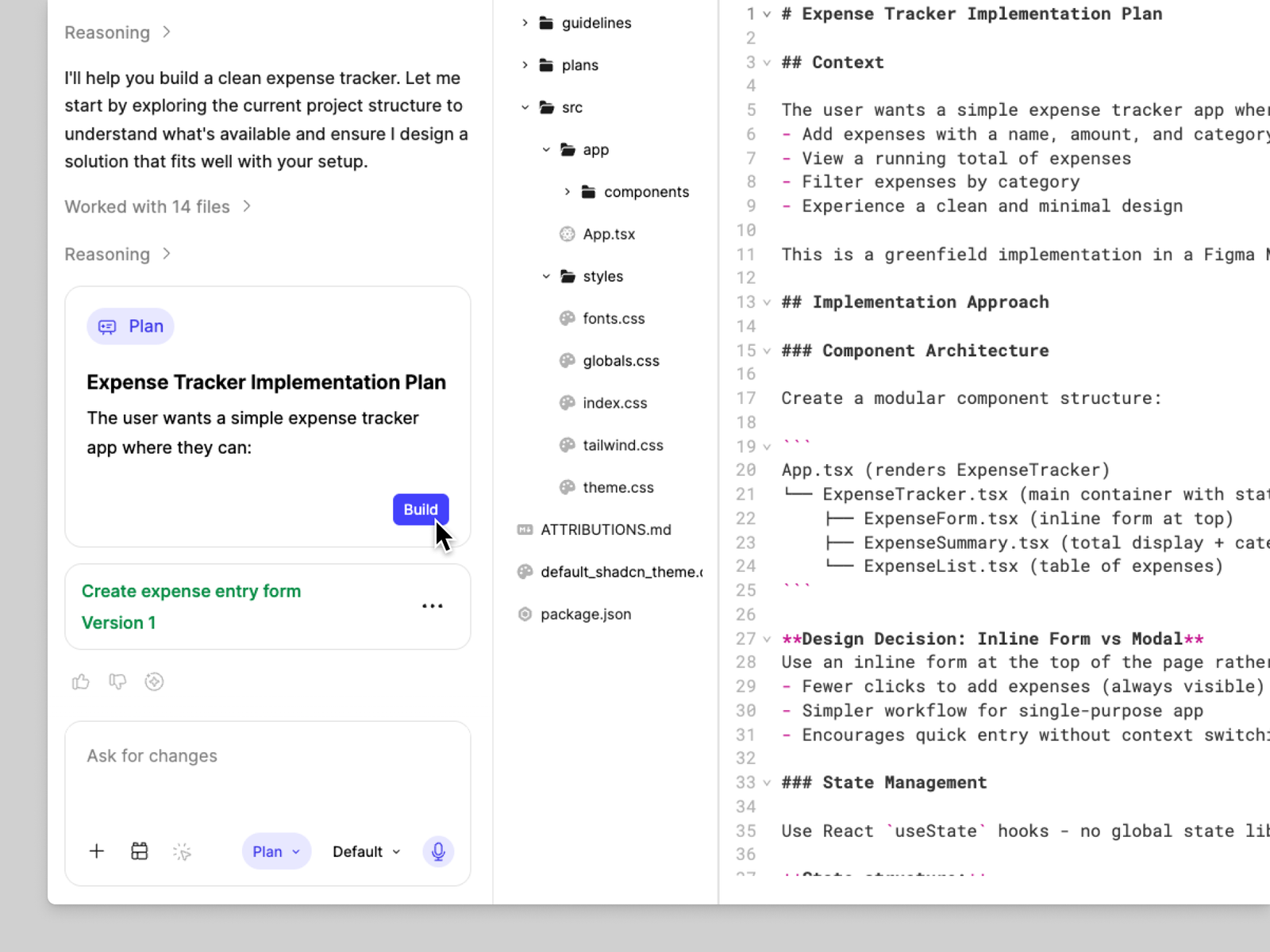
Figma recommends plan mode on the first turn of a complex build. It says plan mode uses more AI credits than build mode, so skip it for quick edits. Plan mode is for Professional, Education, Organization, Government and Enterprise plans.
One catch: Figma’s plan mode page says it works with the default model or Claude Opus 4.7 and not with Gemini models. Figma’s model page lists a different set of names, so check which models offer plan mode in your own account.
Choose an AI Model and Watch Your Credits
Figma Make starts every new file on the default model, and Figma does not name it because it changes over time. You can change the model in the chat box at any time, and Figma Make remembers the last choice for each file. The model selector is not available in Figma for Government.
Figma’s model page lists these models besides the default: GPT-5.6 Terra, GPT-6.1 Sol, Claude Sonnet 4.5, Claude Opus 5.5, Gemini 3.8 Flash and Gemini 4 Argon. Figma says Gemini 4 Argon has a limited-time credit promotion through November 30, 2026. It says Gemini 3.8 Flash has one through December 31, 2026. After a promotion ends, credit use for that model goes up.
Figma says AI credits are spent each time you send a prompt. The amount depends on the model, the task and how much context the model has to read. Figma’s tips for saving credits are practical:
- Write a clear first prompt, because it sets the direction for everything after it.
- Match the model to the job instead of using a heavy one for small tasks.
- Start fresh when old chat history is no longer useful.
- Add a guidelines.md file so standing rules do not need repeating in every prompt.
Add a Backend
A backend stores information behind your interface. Figma says you need one to save data between visits, support user accounts, collect form submissions, store content or use private API keys.
| Option | How to set it up | Where you manage it |
|---|---|---|
| Payload | Describe an app that needs data and click Create when the backend card appears | The CMS tab in Make, or the admin panel after you publish. Figma hosts the app and its data |
| Supabase | Connect your own project in Make settings, then Integrations | In Supabase |
Figma says Make can build a data model, a database, file storage, sign-in and an admin panel with Payload. Figma’s backend page lists Starter, Professional, Education, Organization and Enterprise plans. It does not list Government.
Publish, Share and Export
You can share a preview with teammates, or publish the app to the public web. Figma gives a published app a random address in the form three-random-words.figma.site. You can assign a custom domain instead. Publishing needs a Full seat on paid plans, and Starter users must also publish to the Figma Community.
Any change you make after publishing stays hidden until you click Update in the Publish window. Organization admins can turn website and app publishing off for their organization.
Figma also warns that Figma Make may bring in third-party content such as fonts, code packages or images. You are responsible for having the rights to everything you publish. Figma says the images that Make supplies come from a stock photo library with its own terms, and you must vet them for your use. Figma also suggests you consult a lawyer about legal duties. We are not lawyers, so treat this as a pointer and not as advice.
For code, Figma lets you push a Make project to GitHub. It is a one-way push from Figma Make to a repository that Make creates. Edits you make in GitHub do not come back into Figma Make and are overwritten on your next push. The GitHub connection covers your whole team or organization.
Copy a Preview Back into Figma Design
You can copy a snapshot of a preview as design layers and paste it into a Figma Design file. In the Browser tab, click Edit, choose Copy designs and click Whole page. Figma says this needs a Professional, Education, Organization, Government or Enterprise plan.
The pasted layers are a snapshot. They are not linked to the Make file, they are not interactive and they are not tied to your design system automatically. Changes you make to the layers do not flow back into the app.
What Figma Has Not Said
| Question | Answer on the pages we read |
|---|---|
| Price of a plan or a seat | Not stated on these help pages |
| AI credits per prompt | Not stated. Figma says it varies by model, task and context |
| Monthly AI credits per plan | Not stated on these help pages |
| Name of the default model | Not stated. Figma says it may change over time |
| Traffic or storage limits for published apps | Not stated |
| Mobile output quality | Figma says it is working to improve mobile output |
Where Figma Make Fits
This is our own view. Figma Make looks strongest for turning a finished frame or a clear idea into something you can click, test and show. It is a weaker choice if you need exact, pixel-perfect production code with no rework, because Figma itself says complex designs may take several rounds of prompts. If you are new to Figma, start with our Figma beginner guide. For a wider view of the field, see our guide to the best AI UI design tools.
Google is building in the same direction. Read our Google Stitch guide and our summary of Canva AI 2.0 to compare the chat-first approach across tools.
FAQ
Figma Make is an AI prompt-to-app tool in Figma. You chat with an agent, attach designs, and it builds functional prototypes, web apps or interactive UI that you can preview, edit and publish.
Figma says Starter plans are a free way to explore Figma Make, with limits on style context and publishing. Figma does not state the number of AI credits or a price on the help pages we read.
Yes. You can attach frames and components, or paste them into the chat. Figma says frames work better than images and that pasting a link to a design file is not recommended.
Figma Make has a default model and a selector with other options. Figma’s model page lists GPT-5.6 Terra, GPT-6.1 Sol, Claude Sonnet 4.5, Claude Opus 5.5, Gemini 3.8 Flash and Gemini 4 Argon. The selector is not available in Figma for Government.
Plan mode makes the agent write a plan that you can edit before it changes any code. It is for paid plans, works best on complex builds and uses more AI credits than build mode.
Yes. Figma gives the app a dedicated address ending in figma.site, and you can assign a custom domain. Paid plans need a Full seat, and Starter users must also publish to the Figma Community.
Yes. Make can create a Payload backend with a database, file storage, sign-in and an admin panel, or you can connect your own Supabase project from Make settings.
You can copy a preview as design layers and paste it into Figma Design on a Professional or higher plan. The layers are a static snapshot, so changes do not flow back to the app.