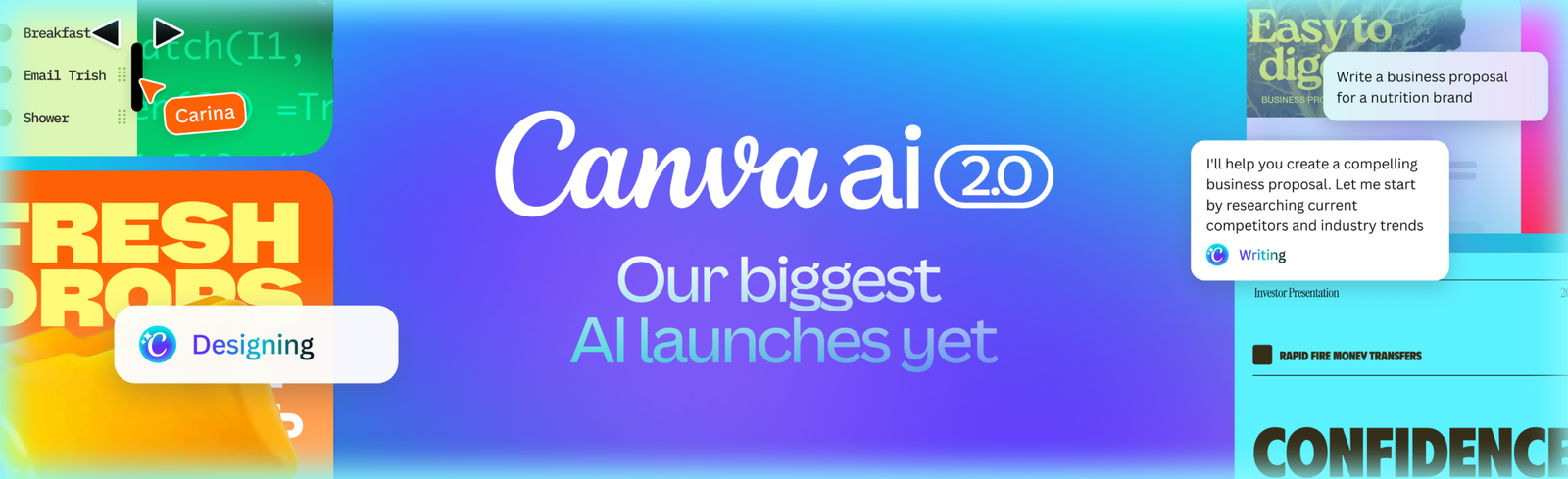
Canva AI 2.0 is Canva’s chat-based way to create and edit designs. Canva calls it the biggest product launch in its history. This guide covers what it does, who can use it, how to start a design and how the monthly AI allowance works.
We read Canva’s launch announcement and several Canva Help Center pages. Where those pages give no number or give two different answers, we say so instead of guessing.
Featured image credit: Canva, from Canva Newsroom, Introducing Canva AI 2.0
What Canva AI 2.0 Is
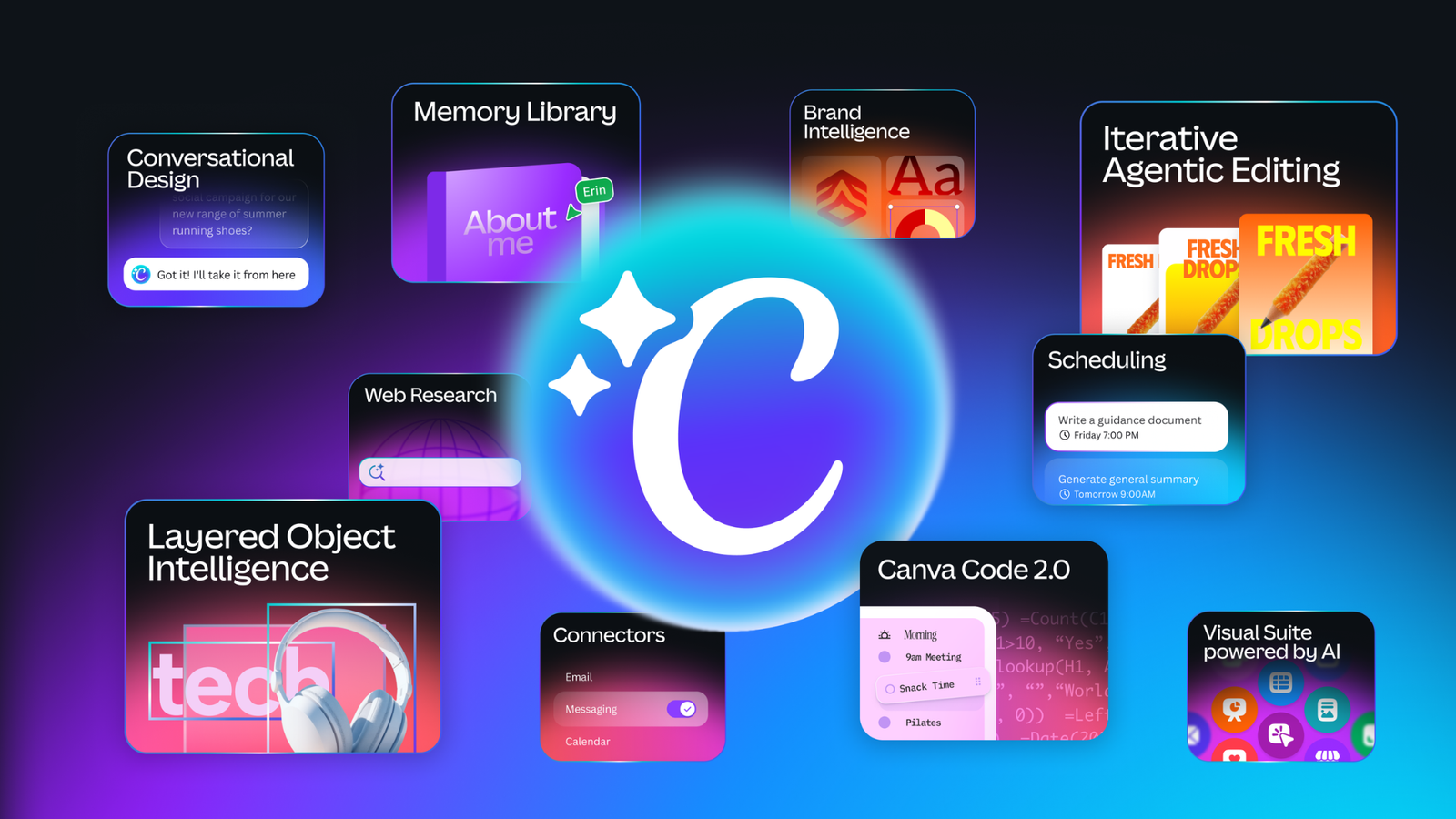
Canva’s announcement says you can start with an idea, a goal, a brief, a rough sketch or an unfinished thought. You then work through it in conversation with Canva AI. Canva says it builds each design from individual, editable objects, so every element stays layered and editable.
Canva says the system runs on the Canva Design Model. Canva calls it the first foundation model built to understand the structure, hierarchy and complexity of real-world design. That is Canva’s own claim, and we have not tested it. At launch, Canva described Canva AI 2.0 as a research preview, with wider availability rolling out over the coming weeks.
| Part of Canva AI 2.0 | What Canva says it does |
|---|---|
| Conversational design | You describe an idea or goal, and Canva AI generates a fully editable design and stays with you as you refine it |
| Agentic orchestration | Canva AI calls the right Canva tools for your goal and combines them into one outcome |
| Layered object intelligence | Everything is built from individual objects, so a change to one element leaves the others alone |
| Memory Library | Remembers how you work, so it can apply your style and keep projects on brand |
| Connectors | Links Canva AI to tools such as Slack, Gmail, Google Drive, Google Calendar, Notion, Zoom, HubSpot, Microsoft, Atlassian and Linear |
| Scheduling | Runs tasks on a schedule in the background |
| Web research | Gathers and structures information from the web into your design |
| Brand Intelligence | Applies your fonts, colors and style from the first output |
| Sheets AI | Builds a structured sheet from a plain-language request |
| Canva Code 2.0 | Builds interactive experiences from one prompt, and imports HTML files |
Who Can Use Canva AI 2.0
Canva’s Help Center lists the plans below. Its pages do not agree on every detail, so we note each difference.
| Plan | What Canva’s Help Center says |
|---|---|
| Canva Pro, Teams, Business, Nonprofit and Enterprise | Canva AI features, including Memory Library and Connectors, are available |
| Canva Free | Includes some AI features, such as Magic Write and Background Remover, with monthly limits. Canva’s Connectors page says Connectors are available to Free users |
| Canva for Education | Includes access, but it differs for teachers and students. Students do not get Memory Library, Web Research or scheduling assignments |
The Help Center’s prompting page leaves Enterprise off its list of plans, while its AI usage page includes Enterprise. One page says Memory Library needs a paid plan. Another says Free and Education users can create and use one Memory. Check your own account.
Canva AI may not appear in every language or country yet. Canva lists these languages: English, Spanish, Portuguese, French, German, Italian, Dutch, Polish, Turkish, Arabic, Japanese, Korean, Chinese (Simplified and Traditional), Indonesian, Thai, Vietnamese and Hindi. Some features support fewer languages.
Where to Find Canva AI
- On the web, look for Canva AI in the side navigation of your Homepage. If it is missing, select More and look again.
- On mobile, look for Canva AI in the bottom navigation, or tap More.
- In the editor, open any design and look for Canva AI in the left side panel. If it is missing, select Apps, or More, and search for Canva AI.
If you still cannot find it, switch your Canva language to one that Canva AI supports, such as English. Then check the Homepage again. On a team or Enterprise plan, ask your admin whether they limit AI access. In Canva for Education, your school’s Canva admin must turn it on.
How to Create a Design with Canva AI 2.0
These steps come from Canva’s Get started page. Canva says the exact flow depends on your Canva AI experience.
- Go to your Homepage and select Canva AI in the side navigation.
- Enter a prompt, or pick one of the suggested design types. A design type starts a prompt for you, and you can add more detail.
- Optional: select Brand to apply a Brand Kit. Or use the plus icon to upload a file, add a Canva design or connect an app.
- Optional: use the voice input icon.
- Press Enter or select the submit icon.
- Depending on the design type, Canva opens the editor, or you select the generated design and choose Use Canva Editor.
To give Canva AI more context, select the plus icon. Choose Upload for files from your device, Add from Canva for your own designs, Import for connected apps or Sources for web information. Paid plans can run more than one chat at a time from the New chat icon. Canva says Free and Education accounts can have two chats at once.
Chat history sits at the lower left of the Canva AI page. Canva warns that it cannot restore a chat you delete.
How to Edit a Design by Chatting
Open a design in the editor, select the Canva AI tab in the sidebar and type what you want to change. Canva’s examples are “Make all headlines blue” and “Add a background that matches the brand.” Select Stop to interrupt the agent. Then type a new prompt or edit by hand.
Canva lists these edit types:
- Improve a design so it looks more professional.
- Create style variations, each on a new page.
- Resize or flip a design for another platform.
- Add pages to a presentation from an attached document.
- Apply the same edit to every page, such as converting images to black and white.
- Change the theme to match a new topic or occasion.
- Generate Gantt charts, or charts from a CSV file or a supported data source.
Canva also gives limits. The agent works best on simpler layouts, and multi-layered designs may give lower-quality results. Open-ended prompts such as “make it better” can change more than you meant. If that happens, press Ctrl+Z on Windows or Cmd+Z on Mac. Then try a clearer prompt with a color, size or position.
Canva Core and Canva Brush Models
Canva says you can choose between two models when you generate designs. With Canva Brush, every design you generate uses a model Canva trained itself. With Canva Core, some designs may use a different model. Editing requests always use Canva Brush, whichever you choose.
In the editor, open Canva AI, select the Model dropdown in the prompt box and choose Core or Brush. Canva says the dropdown is still rolling out. It is not available in Docs, Sheets, Code or Video. Canva does not name the other model that Core may use.
Brand Kits and Brand Templates
Canva says Brand Templates added to a Brand Kit appear in Canva AI and help it match your brand. Brand designers and admins can add them, and team members can use them. You can also extract brand context from a website address if you have not set up a Brand Kit.
- On the Canva AI homepage, select the plus icon, then Apply Brand.
- Choose your Brand Kit and a Brand Template, then select Use Brand Template.
- Optional: upload a data file, then enter your prompt and submit.
Canva lists presentations and social media designs as supported. Website designs, Sheets, videos and Code are not supported for this flow yet.
Memory, Connectors, Scheduled Tasks and Web Research
Memory Library
Memory Library holds an About Me page and Canva designs you add as personal memory sources. Canva says adding a source does not guarantee Canva AI will use it, because it picks sources by relevance. Removing a design from Memory Library does not delete the design. You can turn About Me on or off in your AI personalization settings.
Connectors
Connectors let Canva AI use information from apps you link. Select the plus icon in the Canva AI box, choose Connect, authorize the app and toggle it on. Canva says all connections are read-only, so Canva AI can read your apps but cannot change them. Toggling an app off does not disconnect it.
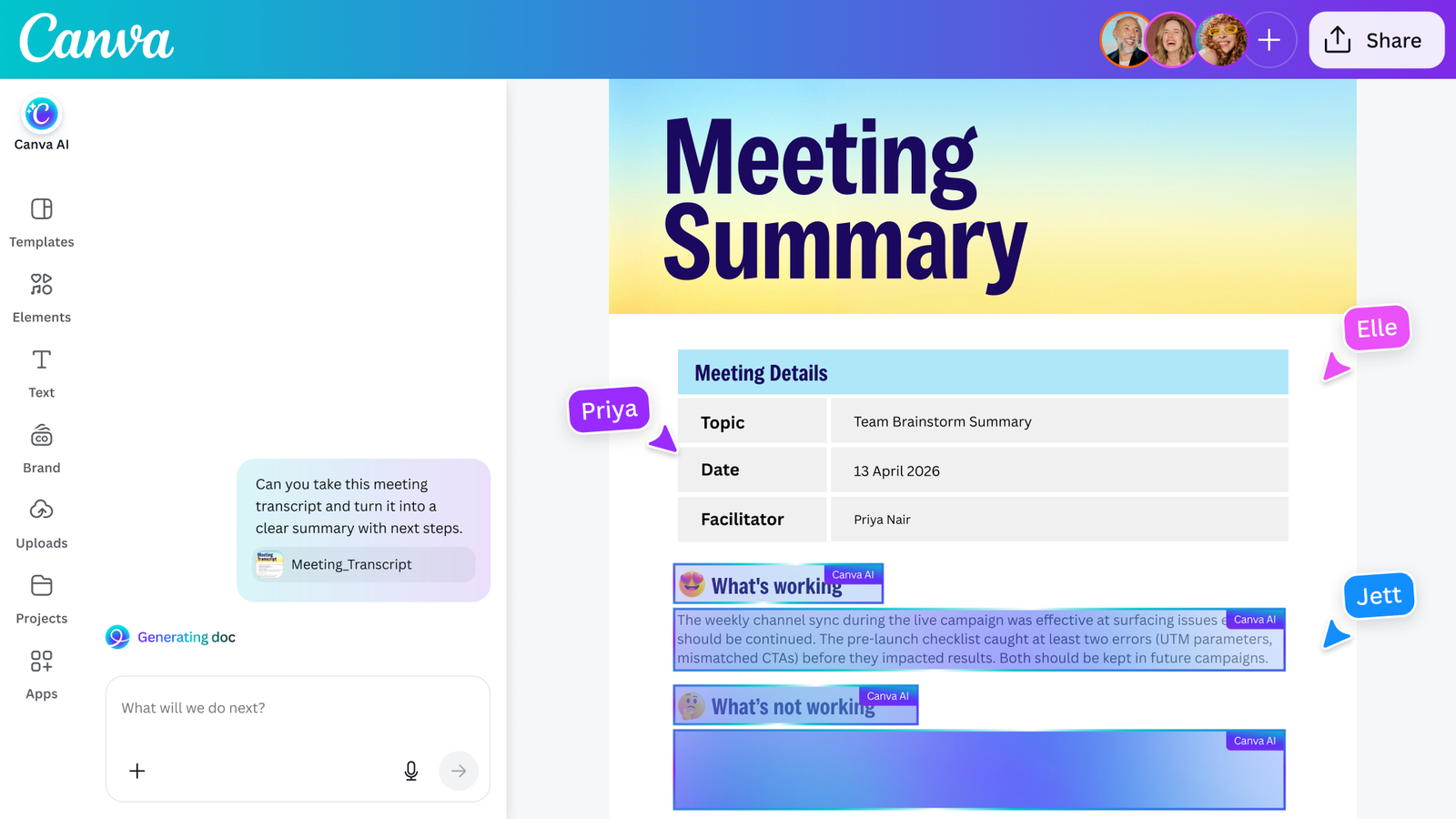
Canva’s own example shows Canva AI turning a meeting transcript into a doc with a summary and clear next steps. Name the app in your prompt, such as “using my Google Calendar events from this week.” Canva says it may not detect the right app on its own.
Scheduled Tasks
Scheduled Tasks run a prompt on a repeat. Write a detailed prompt, select the schedule button in the text box and pick a time. Canva says you can run up to 10 scheduled tasks at a time, daily, weekly or monthly. Each run creates a new chat and sends a notification. Canva adds that the feature may not be on your account yet.
Web Research
Canva says Canva AI can search the web for current information and put it into presentations, social posts, reports and print materials. Canva does not say which sources it uses, so check facts before you publish.
Canva AI 2.0 in Sheets
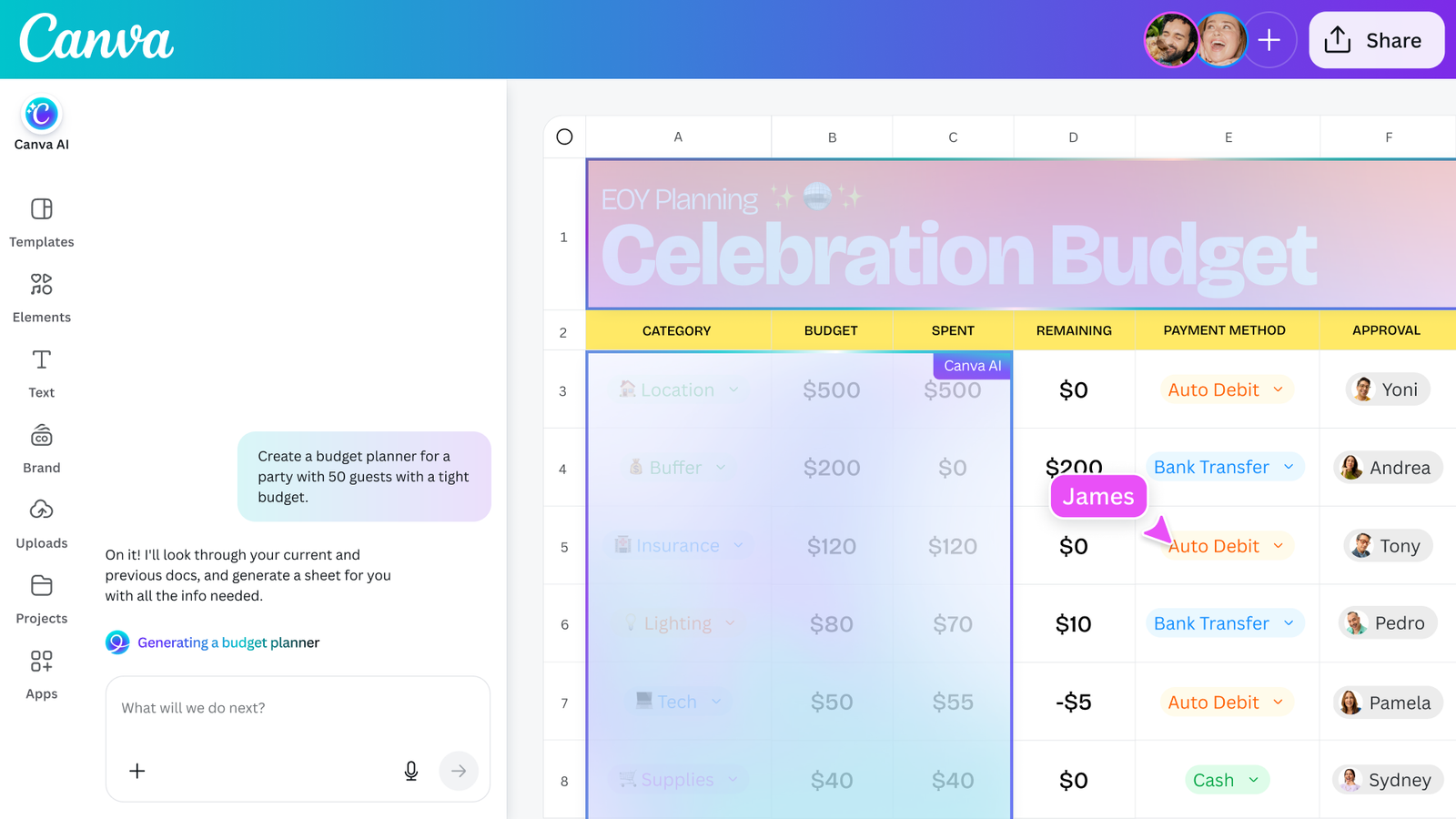
Open Canva Sheets from your Homepage, select Canva AI 2.0 in the editor and enter a prompt. Canva’s example prompt is “Create a budget tracker with columns for date, category, amount, and notes.” It can also sort data, fill missing values, create charts, translate content and write formulas.
| Limit | What Canva says |
|---|---|
| Sheets per prompt | One sheet at a time |
| Filtering, grouping and hiding | Not supported yet, so use the Sheets toolbar |
| Formulas | Only some are supported, so enter complex formulas in the formula bar |
| Data types | Text, numbers, currency and dates |
| Language | English locales only |
| Bulk Create and resizing from Sheets data | Not supported yet |
The Sheets page gives two plan statements. One calls Canva AI 2.0 in Sheets a premium feature that counts toward your allowance. The other calls it a standard feature that does not draw from the allowance on paid plans. We could not tell which is current, so watch your AI usage tracker.
AI Allowance and Limits
Canva’s AI usage page says all AI tools draw from one monthly allowance, grouped into three tiers.
| Tier | Examples Canva names |
|---|---|
| Standard | Image Upscaler and Magic Formulas. Translate and Magic Write do not count toward the allowance |
| Premium | Generate a design with Canva AI, Create an image with Canva AI, Magic Layers, Canva Code, Music and Sound Effect Generator |
| Ultra | Conversational design with Canva AI 2.0, and Create a video clip with Canva AI |
| Plan | Allowance Canva states |
|---|---|
| Canva Free and Pro Lite | Limited Standard and Premium. No Ultra tools |
| Canva Pro and Nonprofits | Standard as much as you like, with fair use limits, plus 10x the Free AI allowance for Premium and Ultra |
| Canva Business and Enterprise | Standard as much as you like, with fair use limits, plus 20x the Free AI allowance |
| Canva Education | Standard as much as you like, with fair use limits, plus 10x the Free AI allowance |
| Pro and Business trials | Limited Standard and Premium only |
Canva does not state the actual number of uses per plan, and it does not state the reset day. It says usage depends on prompt complexity, the size of any design you reference, the number of tools and the model. Canva AI 2.0 uses more because it works on its own.
To check your balance, select your profile icon, then Settings, then Billing, then find AI usage. When you reach the limit, Canva says Free users see short pauses between generations. Ultra tools stay unavailable until the monthly reset. Paid plans can upgrade or buy an add-on such as AI Pass or an AI top-up.
Prompt Tips from Canva
- Start with the design type, such as an Instagram post, presentation or business card.
- State the goal and the audience.
- Describe the style, colors, brand feel and theme.
- Give the key message or topic.
- To change an existing design, select the page, image or text and choose Ask Canva, then say exactly what to change.
- For video clips, put the main subject or action first and describe the camera movement.
- For Canva Code, say who the experience is for and add the words editable and interactive if others will change it.
Here are three prompts of our own, not Canva’s, that follow those tips:
| Goal | Example prompt |
|---|---|
| Social post | Create an Instagram post for a neighborhood bakery sale on Saturday. The audience is local families. Use warm yellow and brown, a friendly tone and the headline “Fresh Bread, Half Price.” |
| Presentation | Create a 6-slide presentation that explains our onboarding process to new sales hires. Use our Brand Kit and keep the text short. |
| Edit | On page 2, make the large blue heading bigger and move the image in the top corner to the right. |
What Canva Does Not Say
| Question | Answer in the pages we read |
|---|---|
| Price of Canva AI 2.0 | Not stated |
| Uses per month on each plan | Not stated |
| Day the allowance resets | Not stated |
| Which country or region gets each feature | Not stated |
| Which other model Canva Core may use | Not stated |
| Whether Enterprise has the full feature set | Pages differ |
How It Compares to Canva’s Earlier AI Tools
This is our own view. Canva’s earlier AI tools worked one feature at a time, as our guide to how to use Canva AI and our overview of Canva Magic Studio describe. Canva AI 2.0 aims to hold one conversation across a whole design. If you are new to Canva, start with our how to use Canva guide first.
If you also use Adobe’s tools, see our summary of Adobe Firefly new features to compare the two approaches.
FAQ
Canva AI 2.0 is Canva’s conversational design assistant. You describe a design or an edit in chat, and Canva AI builds or changes the design in the editor. Canva says every element stays layered and editable.
Canva’s Help Center says Canva Free includes some AI features with monthly limits, such as Magic Write and Background Remover. Canva lists Canva AI 2.0 features such as Memory Library and Connectors for paid plans. Canva does not state a price for Canva AI 2.0 itself.
Canva lists Canva Pro, Teams, Business, Nonprofit and Enterprise, and Education with different access for teachers and students. Canva’s own pages differ on Enterprise and on Free, so check your account.
On the web, select Canva AI in the Homepage side navigation, or select More. On mobile, use the bottom navigation. In a design, open the left side panel and look for Canva AI.
With Canva Brush, every design you generate uses a model Canva trained. With Canva Core, some designs may use another model. Editing requests always use Canva Brush.
Canva states multiples, not counts. Pro and Education get 10x the Free allowance for Premium and Ultra tools, and Business and Enterprise get 20x. The actual number of uses is not stated.
Yes, through Connectors. Canva names Slack, Gmail, Google Drive, Google Calendar, Notion, Zoom, HubSpot, Microsoft, Atlassian and Linear. Canva says connections are read-only.
Canva lists English, Spanish, Portuguese, French, German, Italian, Dutch, Polish, Turkish, Arabic, Japanese, Korean, Chinese, Indonesian, Thai, Vietnamese and Hindi, and says some features support fewer languages. Canva AI 2.0 in Sheets works in English locales only.