Categories
Canva

How to Curve Text in Canva? A Step By Step Easy 1 Minute Guide

Ever wanted to make your social media posts or logo designs pop with a creative touch?

Curved text-like words bending in a circle or arching like a smile-is an easy way to add flair to any project. Whether you’re designing business cards, stickers, or eye-catching social media graphics, Canva’s curve text feature lets you bend words in seconds, no fancy skills needed!

At Designers Choice, we know how small details like curved text can transform your work. Maybe you’ve seen curved text on a badge or a social media post and wondered, “How do they do that?

Good news: You don’t need the desktop version or Canva Pro guide works on the mobile app too! We’ll walk you through bending text, adjusting the curve direction, and even creating circular text for logos or graphics.

Let’s turn ordinary words into dynamic design elements with Canva’s text tool and Effects panel.

By the end, you’ll be curving text like a pro, whether you’re on a keyboard or tapping your phone screen! 🎨

How to Curve Text in Canva?

How to Curve Text in Canva?

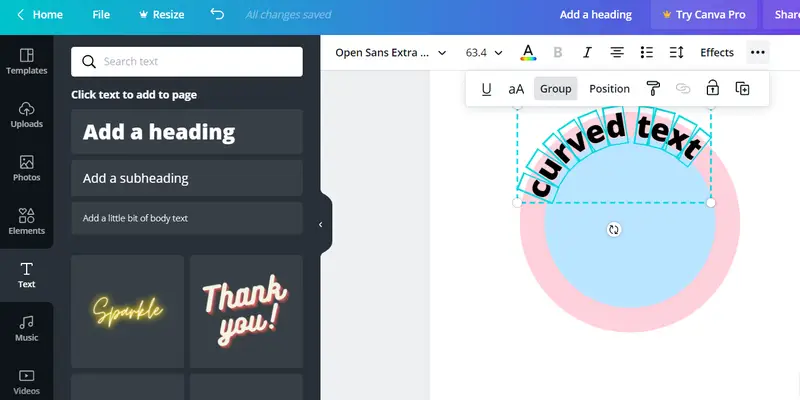
To curve text in Canva follow these steps:

Adding Text to Your Canvas

First, you need to add the text you want to curve:

  • Click the “Text” button in the toolbar
  • Choose “Add a heading,” “Add a subheading,” or “Add a little bit of body text.
  • Click on the canvas and type your text
  • Use the toolbar to pick a font and size for your text

Accessing the Effects Panel

Now it’s time to curve your text:

  • Click on your text box to select it
  • Look at the toolbar at the top of the screen
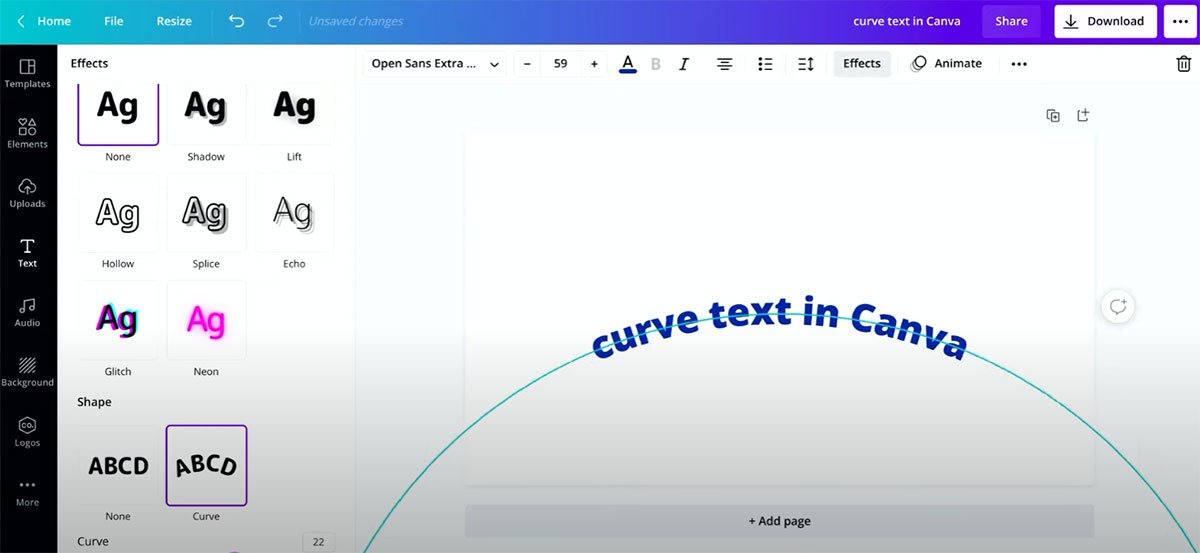
  • Click on “Effects” – this button opens the text effects panel

Selecting the Curve Effect

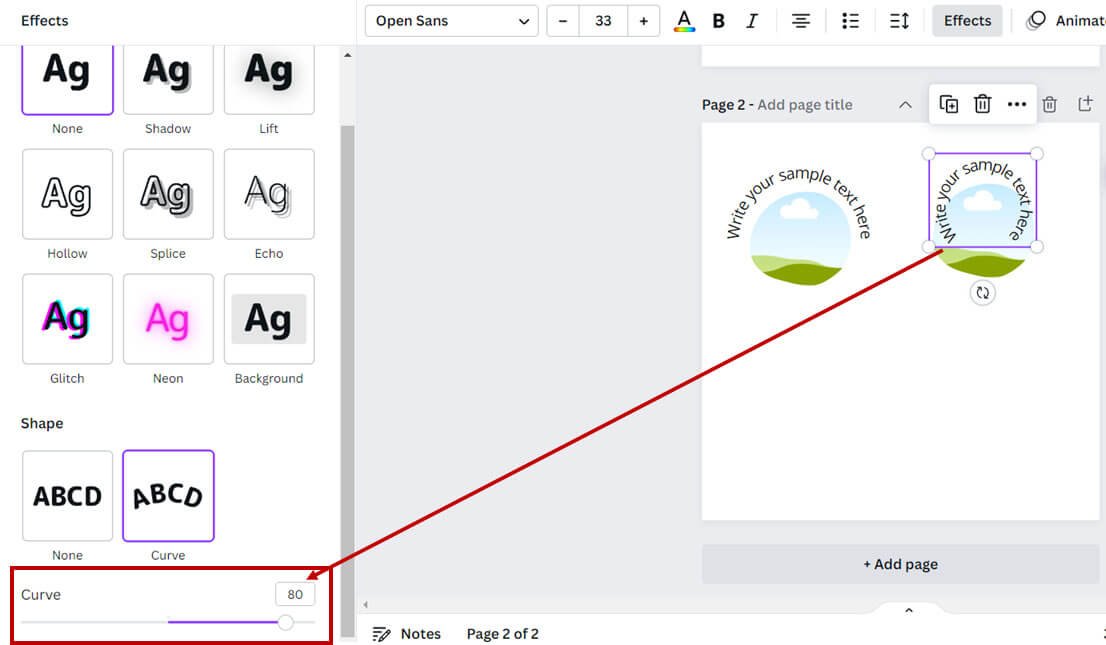
In the Effects panel, you’ll find the curve option:

  • Scroll down in the Effects panel
  • Look for the “Shape” section
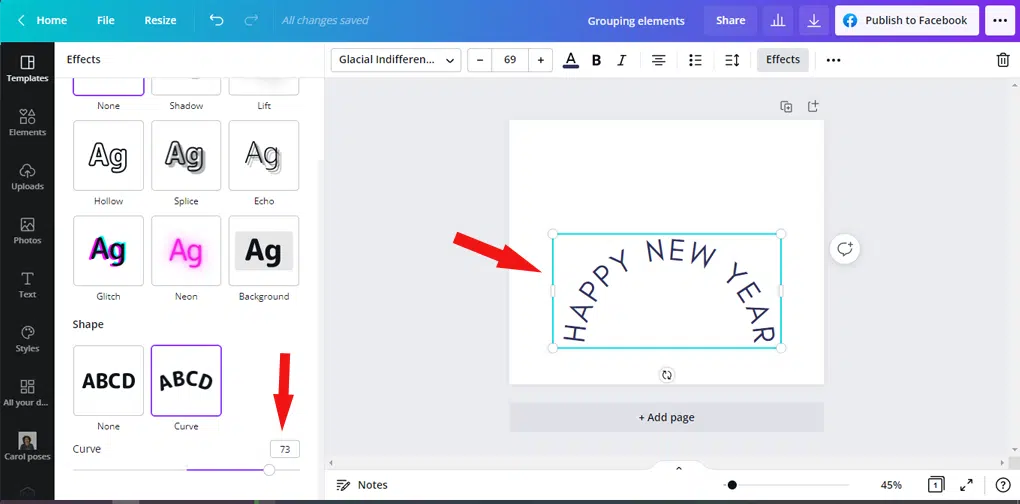
  • Click on “Curve” – your text will instantly start to curve!

Adjusting the Curve Direction

You can control how your text curves:

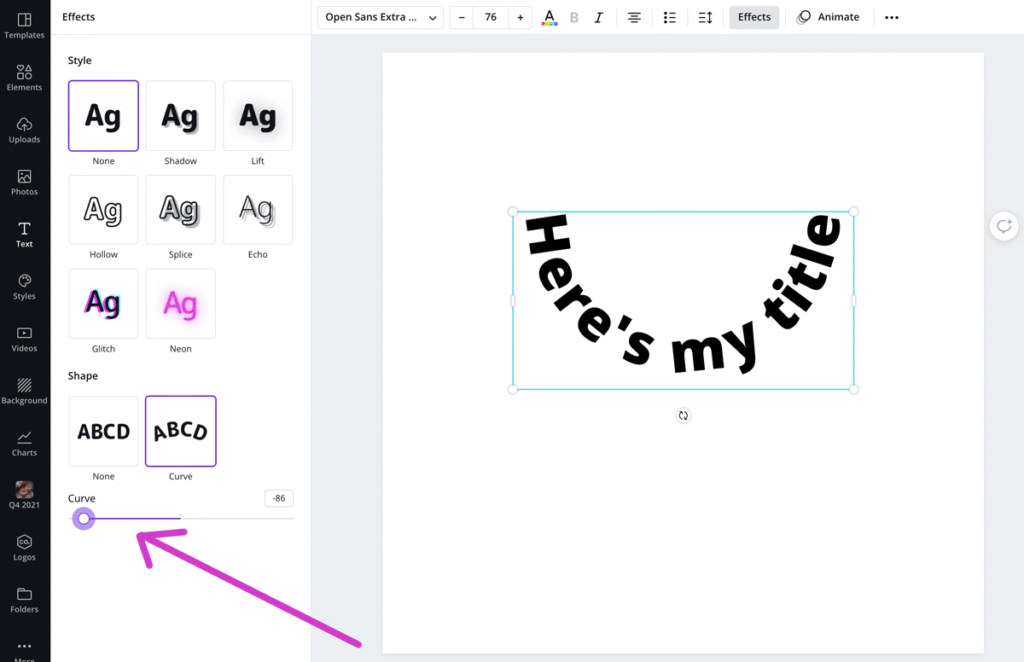
  • After clicking “Curve,” you’ll see a slider.
  • Move the slider to the right (positive numbers) to curve your text downward.
  • Move the slider to the left (negative numbers) to curve your text upward.
  • The higher the number, the more curved your text will be. You can even experiment with how to flip text in Canva to create unique mirrored effects.

Fine-Tuning Your Curved Text

To make your curved text look just right:

  • Use the slider to adjust how much your text curves.
  • Try different fonts to see which looks best when curved.
  • Change the size of your text box by dragging the corners.
  • Adjust letter spacing by clicking “Spacing” in the toolbar and moving the slider. You can also refine your text layout by learning how to indent in Canva for cleaner paragraphs.

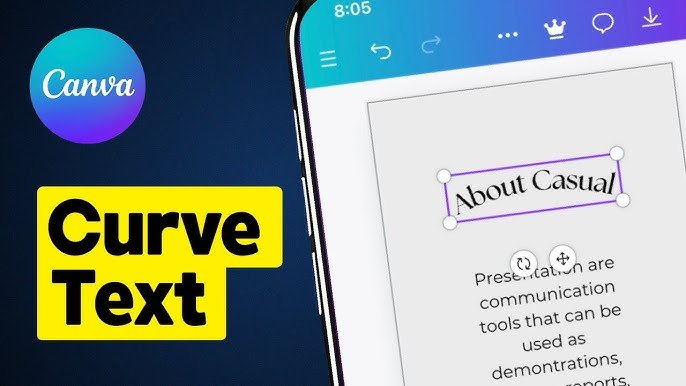
How to Curve Text in the Canva Mobile App?

How to Curve Text in the Canva Mobile App?

To curve text in the Canva mobile app, follow these steps:

Adding Text in the Mobile App

The Canva mobile app lets you curve text too:

  • Open the Canva app on your phone
  • Start a new design or open an existing one
  • Tap the “+” button at the bottom
  • Choose “Text” from the menu
  • Pick a text style or tap “Add text.”
  • Type your text

Applying the Curve Effect On Mobile

To curve your text in the mobile app:

  • Tap on your text to select it
  • Look for the menu at the bottom of the screen
  • Swipe left on this menu until you see “Effects
  • Tap on “Effects
  • Scroll down and tap on “Shape
  • Tap on “Curve

Adjusting Curved Text On Mobile Devices

To change how your text curves on your phone:

  • After tapping “Curve,” you’ll see a slider appear
  • Slide your finger left or right to change the curve amount
  • Tap the checkmark when you’re happy with the curve
  • Use the corner handles of the text box to resize if needed

How To Curve Text in Canva Using Templates?

How to Curve Text in Canva Using Templates?

Templates make curving text even faster.

If you’re creating a marketing asset, you might want to know how to create a lookbook in Canva to showcase your products in style.

Tap the Social Media Option

Templates make curving text even faster:

  • When starting a new design, look for social media templates
  • Tap on “Social Media” to see template options
  • Browse through templates that already have curved text

Select the Template

Pick a template with text you want to customize:

  • Tap on a template that has curved text you like
  • The template will open in the editor
  • Tap on the curved text in the template to edit it
  • Type your own words to replace the sample text

Tap the “Effects” and Change It to Curve

Even with templates, you can adjust the curve:

  • With your text selected, tap “Effects
  • The curve effect will already be applied
  • Adjust the curve slider to change how much it bends
  • Try different curve amounts until it looks right

Why Use Curved Text in Your Designs?

Why Use Curved Text in Your Designs?

Curved text makes designs look special because:

  • It adds movement and flow to your graphics
  • It helps text follow the shape of other design elements
  • It makes logos and badges look professional
  • It catches people’s eye when scrolling through social media
  • It can fit more text in a small space when made into a circle
  • It adds a creative touch that flat text doesn’t have

Curved text works great for:

  • Company logos
  • Social media posts
  • Product labels
  • Stickers
  • Badges
  • Business cards
  • T-shirt designs

Customizing Your Curved Text

Customizing Your Curved Text

Changing Font Styles For Curved Text

Different fonts look different when curved:

  • With your curved text selected, click on the font dropdown in the toolbar
  • Try various fonts to see which ones curve nicely
  • Bold fonts often look good when curved
  • Script and handwriting fonts can create flowing, curved text
  • Remember that some fonts might look squished when curved

Adjusting the Angle of Curved Text

You can change exactly how your text bends:

  • Select your curved text
  • Go back to Effects > Curve
  • Use the slider to make small changes to the curve angle
  • Try both positive and negative numbers
  • For a complete circle of text, you’ll need to adjust both the curve amount and the letter spacing

Positioning Curved Text in Your Design

Place your curved text just right:

  • Click and drag to move your curved text around the canvas.
  • Use the resize handles to make it bigger or smaller.
  • Try placing curved text around circular images. To perfect this, you might need to know how to replace an image in Canva or even how to flip an image in Canva.
  • Make sure curved text doesn’t get too close to the edge of your design.
  • If you want text to curve around an object, position it to follow that shape. For more advanced edits, learning how to cut out an image in Canva can help isolate objects perfectly.

Creative Uses For Curved Text

Creative Uses For Curved Text

Designing Logos With Curved Text

Curved text makes logos look professional:

  • Start with a simple shape like a circle or shield.
  • Add your main text and curve it to follow the shape.
  • Use the letter spacing tool to spread letters evenly.
  • Add straight text in the middle for a contrast.
  • Try placing curved text above and below a central image. Exploring techniques like how to fade an image on Canva can add a subtle, professional background to your logo.

Creating Circular Text Designs

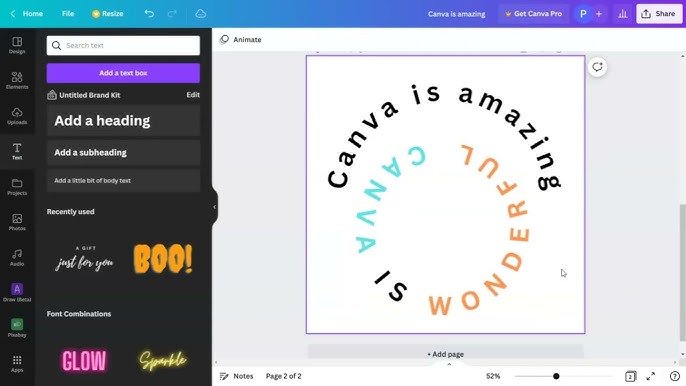
Make text go all the way around in a cir cle:

  • Type your text in a text box
  • Apply the curve effect with a high value
  • Click on “Spacing” in the toolbar
  • Increase letter spacing until your text forms a complete circle
  • Add an image or design element in the center of your circle

Using Curved Text in Social Media Graphics

Make your social posts stand out:

  • Create a post for Instagram, Facebook, or other platforms. For interactive posts, consider learning how to put a timer in Canva.
  • Use curved text for headings or important messages.
  • Try curving text around product photos.
  • Make quote graphics with the quote in curved text.
  • Use curved text to highlight special offers or announcements.

If you plan to sell your creations, it’s a great idea to learn how to sell Canva templates on Etsy to turn your design skills into a business.

Troubleshooting Curved Text Issues

Troubleshooting Curved Text Issues

Common Problems With Curved Text

Sometimes curved text doesn’t look right. Here’s why:

  • Text Looks Squished: Your text box might be too small.
  • Letters Are Too Far Apart: Your letter spacing is too high.
  • Can’t See All The Text: Your curve amount might be too extreme.
  • Text Looks Pixelated: Try using a different font.
  • Can’t Curve The Text: Make sure you’re selecting a text box, not an image. For other text formatting challenges, you may wonder how to wrap text in Canva.

Tips For Better Curved Text Results

Try these tricks for better curved text:

  • Use shorter words or phrases for the best curve effect.
  • Make sure your text is big enough to read when curved.
  • High contrast colors help curved text stand out.
  • Add a text background or shadow for better readability. You can also learn how to highlight text in Canva to make certain words pop.
  • Use the letter spacing tool to fix uneven spaces between letters.
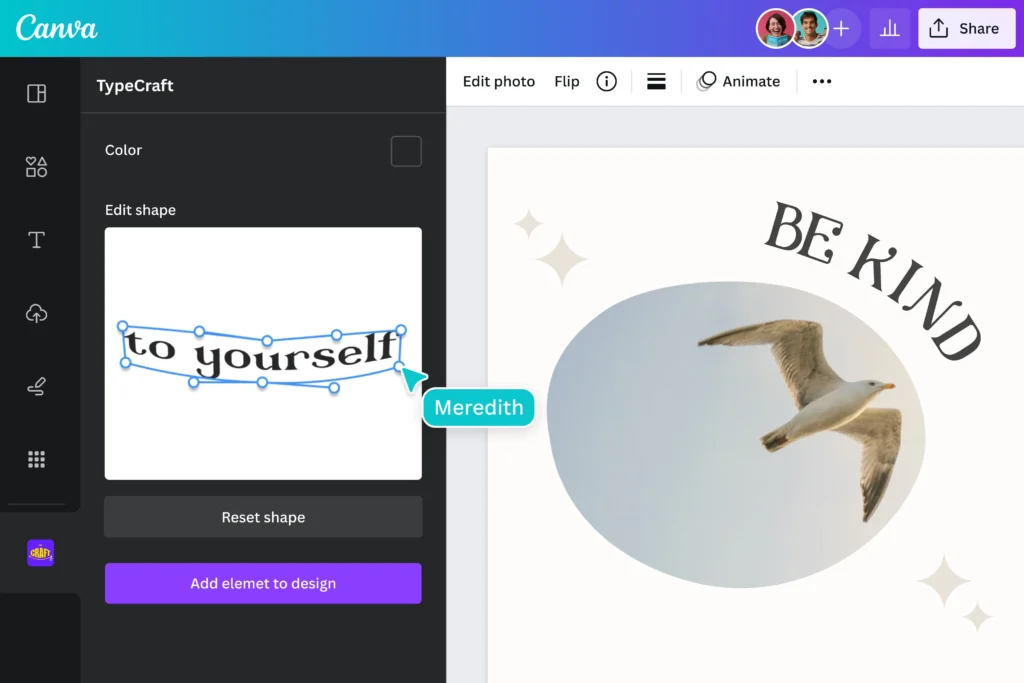
  • Try the TypeCraft app in Canva for more advanced text-bending options.

FAQ’s:

Can I Change the Curve Direction on Canva?

Yes! When you select your text and go to Effects > Curve, move the slider to the left (negative numbers) to curve text upward, or to the right (positive numbers) to curve text downward.

Can I Use Curved Text With Different Fonts?

Absolutely! All fonts in Canva can be curved. Some fonts look better curved than others, so try a few different options to find what works best for your design.

Can I Change the Curve After Adding Other Effects?

Yes, you can edit the curve at any time. Select your text, go to Effects, and adjust the curve slider. You can combine curved text with shadows, color effects, and other text styles.

Is Curved Text Available in Free Canva?

Yes! The curve text feature is available in both free and Canva Pro accounts. However, many users wonder how much Canva Pro costs and whether Canva Pro is worth it. If you’re on a budget, you might even be curious about how to get Canva Pro for free.

How Do I Create A Complete Circle With Text?

To make text go all the way around in a circle:

  • Add your text and apply the curve effect
  • Adjust the curve amount using the slider
  • Click on “Spacing” in the toolbar
  • Increase the letter spacing until your text forms a complete circle
  • You might need to adjust both the curve amount and letter spacing to get a perfect circle

Conclusion

Now you know how to curve text in Canva! With just a few clicks, you can bend, arch, and circle your text to make eye-catching designs.

The curve effect works on both computers and phones, and you can use it with any font. Try using curved text in your next design project.

It works great for logos, social media posts, and lots of other graphics.

Just remember to keep your text readable and not too curved if you want people to easily understand your message.

And don’t forget to explore other features like changing your page orientation to how to landscape in Canva for different layouts.

At Designers Choice, I believe small changes like adding curved text can make a big difference in how professional your designs look. So give it a try – select your text, click Effects, choose Curve, and start creating!

Categories
Canva

How To Outline Text In Canva: 3 Easy Methods For Perfect Designs

Adding outlines to text in Canva helps your words stand out, especially on busy photos or colorful backgrounds.

Imagine creating social media posts where your text never gets lost, YouTube thumbnails that grab attention, or logos that look professional by adding a simple border around letters, like how to properly replace an image in Canva to find the perfect backdrop.

When I started designing, I struggled with text blending into backgrounds until I learned Canva’s outlining tricks.

Whether you use the free version of Canva or Canva Pro, you can master this skill quickly.

You’ll use tools like the Effects panel and color picker to customize outlines, adjust thickness with sliders, and even create 3D effects.

Mastering these small details, including learning how to flip text in Canva, can elevate your designs significantly.

I’ll guide you through three easy methods: the one-click Hollow effect, the versatile Splice effect, and the manual duplicate-text technique for full control. No need for complicated software-these steps work for social media graphics, bloggers, or anyone wanting polished designs.

Let’s make your text pop!

How to Outline Text in Canva?

How To Outline Text In Canva?

Method 1: Using the Hollow Effect

The Hollow effect is one of the quickest ways to create outlined text in Canva. It removes the fill from your text, leaving just the outline.

  • Open Canva and start a new design or open an existing one. For instance, you might be working on a design where you need to know how to landscape in Canva.
  • Click on the text box tool in the side panel to add text.
  • Type your text and select it.
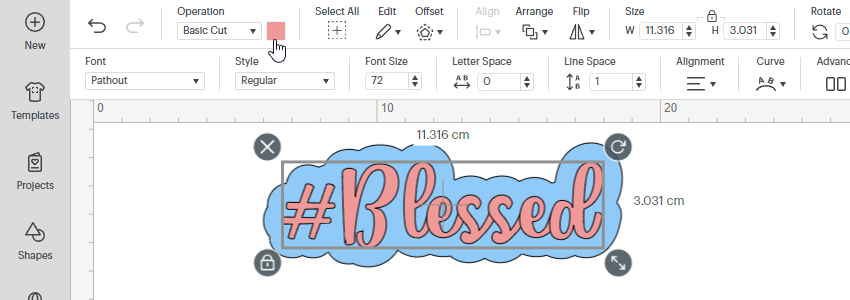
  • Click on “Effects” in the top toolbar.
  • Select “Hollow” from the effects panel.
  • Your text now has an outline instead of being filled.

Adjusting Thickness and Appearance

Once you’ve applied the Hollow effect:

  • Use the thickness slider that appears to adjust how thick or thin your outline is
  • Move it to the right for a thicker outline
  • Move it to the left for a thinner outline
  • The changes will show up right away on your text

Customizing Color Options

To change the color of your outlined text:

  • With your text still selected, click on the text color option
  • Use the color picker to choose any color for your outline
  • You can select from the color palette or enter a specific color code
  • The outline of your text will update with your chosen color

The Hollow effect works best for larger text and headings rather than body text, where you might be more focused on learning how to indent in Canva for readability. Thin outlines can be hard to see at small sizes.

Method 2: Using the Splice Effect

The Splice effect is another built-in Canva tool that creates outlined text with more customization options.

It’s almost as intuitive as learning how to slice in Canva.

How to Apply the Splice Effect?

  1. Add a text box to your design and type your text
  2. Select your text
  3. Click on “Effects” in the top toolbar
  4. Choose “Splice” from the effects panel
  5. Your text will now have an outline applied to it

Adjusting Offset and Direction

The Splice effect gives you more control:

  • Use the thickness slider to adjust the width of your outline
  • Change the offset slider to control how far the outline sits from your text
  • Select a direction (horizontal, vertical, or diagonal) to change how the outline appears
  • Each adjustment gives your text a different look

Creating 3D Text Effects

The Splice effect can create a 3D text effect, which pairs nicely with other depth-creating techniques. For example, you can learn how to add shadow in Canva to enhance this effect even further.
  • Apply the Splice effect to your text
  • Set the offset slightly to the right and bottom
  • Choose a lighter color for your text and a darker color for the outline
  • This creates a shadow effect that makes your text look three-dimensional

Method 3: Duplicate Text Method

For more control over your outlines, especially if you want multiple outlines, you can use the duplicate text method.

This technique gives you the ultimate freedom, similar to how you can learn how to cut out an image in Canva for precise layering.

Creating Layered Text

  1. Add a text box and type your text
  2. Format it with your desired font and size
  3. Select the text and use the keyboard shortcut Ctrl+D (or Cmd+D on Mac) to duplicate it
  4. Make sure the duplicate text is in exactly the same position as the original
  5. Use the three dots menu, go to “Layer” and select “Send to back
  6. The text that’s now in the back will become your outline layer.

Positioning Tips

Getting perfect alignment is key:

  1. Select both text layers by holding Shift and clicking on each one
  2. Use the “Position” tab to align them in the center, both horizontally and vertically
  3. Make the back layer slightly larger than the front layer if you want the outline to be visible all around
  4. Use the white circle handles to resize text if needed

Color Combinations

Playing with colors can create striking effects:

  • Make the front text layer a different color from the outline layer
  • For a double outline, create a third text layer behind the others
  • Give each layer a different color and thickness
  • Try contrasting colors like white text with a black outline, or bright colors against darker outlines
  • Use your brand colors for a consistent look

What Must You Consider Before Adding An Outline To Text?

Before adding an outline to your text, think about:

  1. Font Choice: Sans-serif fonts like Arial or Verdana often work better for outlines than complicated fonts
  2. Size Matters: Outlined text works best at larger sizes, as small outlined text can be hard to read
  3. Letter Spacing: Adjust the letter spacing if your outlined letters are too close together
  4. Background Complexity: The busier your background, the more your text needs to stand out
  5. Purpose: Make sure the outline helps your message, not distracts from it

Benefits of Outlined Text

Benefits of Outlined Text

Outlined text offers several advantages:

  1. Better Readability: Text outlines help words stand out against busy backgrounds or images
  2. Visual Appeal: Outlines add style and dimension to otherwise flat text
  3. Attention-Grabbing: Outlined text draws the eye to important information
  4. No Background Needed: Outlined text can float over images without needing a solid background box
  5. Matches Design Styles: Outlines work well for gaming, sports, or bold marketing materials

When To Use Outlined Text In Your Designs?

When To Use Outlined Text In Your Designs?

Outlined text works especially well in these situations:

  1. Over Photographs: When text needs to be placed directly on images
  2. For Headings: To make titles and headers stand out
  3. Logo Design: To create memorable and legible logos
  4. YouTube Thumbnails: To ensure text is readable at small sizes
  5. Social Media Graphics: To catch attention while scrolling
  6. When Space is Limited: Instead of adding a text background box

Best Practices For Outlined Text

Best Practices For Outlined Text

Font Selection Tips

Choose sans-serif fonts like Verdana or Arial because their simple shapes make outlines clearer.

Avoid decorative fonts with swirls or uneven thickness- they can look messy when outlined. Bold fonts work better than thin ones since their thicker letters hold outlines well.

Always test your font at different sizes using the size slider to ensure it stays readable, especially for social media graphics or YouTube thumbnails.

Design Principles

Use contrasting colors between your text and outline (like white text with a black outline) to make words pop.

Stick to your brand palette for consistency. Your logo uses blue, so use blue outlines in designs. Don’t add more than two outline layers; too many can make text look cluttered.

Match the border weight to your design style: thick outlines for bold posters, thin ones for subtle logo designs.

Legibility Considerations

Always check if your text is easy to read after adding outlines. Avoid outlining body text or small fonts- they become blurry.

Test your design on phones and tablets using the preview feature to ensure it looks good everywhere.

Ensure high contrast between the outline and background (like dark outlines on light photos) so words don’t disappear. Larger text (like headings) can handle thicker outlines without losing clarity.

Following these tips, your outlined text will look clean, professional, and easy to read in any design!

Practical Applications

Social Media Graphics

Social Media Graphics

Outlined text makes your social media posts stand out:

  • Create eye-catching Pinterest pins with outlined headings
  • Make Instagram quotes more readable with text outlines
  • Design Facebook headers with outlined text that pops against cover images
  • Add outlined text to profile pictures for temporary announcements
  • Use outlined text for hashtags or calls to action on promotional graphics

YouTube Thumbnails

YouTube Thumbnails

YouTube creators can benefit from outlined text:

  1. Make your video titles readable at thumbnail size
  2. Use contrasting colors for maximum visibility
  3. Apply the Splice effect for a 3D look that stands out in search results
  4. Keep text large and the message simple
  5. Use outlined text to build your channel’s recognizable style

Logo Design

Logo Design

For logo design, outlined text can:

  1. Create a distinctive brand mark
  2. Make text readable across different backgrounds
  3. Add a professional touch to simple text-based logos
  4. Work well for export as a PNG with transparent background
  5. Be easily scaled without losing clarity

Marketing Materials

Marketing materials benefit from outlined text in many ways:

  1. Create attention-grabbing headlines for flyers
  2. Design readable text for banners and posters
  3. Make coupon codes stand out in promotional materials
  4. Highlight important dates or deadlines
  5. Create watermarks that don’t obscure images

FAQ’s:

Can I Outline Text in the Free Version of Canva?

Yes! The Hollow and Splice effects are available in the free version.

However, a Pro account offers more features. If you’re wondering how much Canva Pro costs, the pricing is competitive.

Many users ask Is Canva Pro worth it, and for frequent designers, the extra tools are often a game-changer. There are even ways to learn how to get Canva Pro for free through special programs.

How Do I Make the Outline Thicker Or Thinner?

After applying the Hollow or Splice effect, use the thickness slider that appears in the effects panel. Move it to the right for a thicker outline or to the left for a thinner one. With the duplicate text method, you can adjust the size of the background text to change the outline thickness.

Can I Outline Any Font in Canva?

Yes, you can apply outline effects to any font in Canva. However, some fonts work better than others.

Sans-serif fonts with consistent thickness usually look best with outlines. Very decorative or thin fonts might not show outlines as clearly.

How Do I Remove An Outline Effect?

To remove an outline effect, select your text and click on “Effects” in the top toolbar. Then click on the currently applied effect (like Hollow or Splice) to deselect it.

This will return your text to its normal appearance without an outline.

Can I Save My Outlined Text As A Template?

Yes! After creating the perfect outlined text, you can save your entire design as a template for future use.

Simply click the “Share” button in the top right corner of your screen and select “Save as template.” You can also save it as an element by grouping your text layers and using the “Save as element” option.

Conclusion

Adding outlines to your text in Canva is a simple way to make your designs stand out. Whether you use the Hollow effect, Splice effect, or duplicate text method, outlined text can improve readability and visual impact.

Remember to choose fonts that work well with outlines, keep your designs clean and readable, and use outlines where they add value – like headings, social media graphics, and YouTube thumbnails.

With these three methods and best practices, you’re ready to create professional-looking outlined text in Canva for all your design needs. Try each method to see which works best for your projects, and soon you’ll be creating eye-catching designs like a pro!

Categories
Canva

How To Wrap Text In Canva: A Simple 1 Min Step-By-Step Guide

Text wrapping in Canva helps you make your designs look neat and professional. It means making your text flow nicely around images or shapes, instead of just sitting in a plain box.

While you are working with images, you might also find it useful to know how to flip an image in Canva or even how to replace an image in Canva to get your composition just right.

Even though Canva doesn’t have an automatic text wrapping tool, you can still wrap text by resizing your text boxes with the white pill handles and placing them next to your images or shapes.

You can also use the toolbar to change the font, adjust alignment, and play with spacing so your paragraph fits well.

For more advanced text edits, learning how to highlight text in Canva can also make important information stand out.

For special shapes, like circles, you can use the Effects tool to curve your text and make it wrap around the shape.

This way, your designs look better and are easier to read, whether someone is viewing them on mobile devices or a computer.

With a few simple steps, you can use text wrapping to make your Canva projects stand out and share your ideas clearly.

What is Text Wrapping and Why Use It?

What is Text Wrapping and Why Use It in canva?

Text wrapping helps text flow around pictures and design parts.

This creates a more natural look. It makes the layout look better by linking words with images. This shows how they relate to each other.
For instance, you could be designing a promotional graphic and need to know how to put a timer in Canva to build anticipation; wrapping text around it would integrate it smoothly.

Text wrapping also uses space better, especially when there is not much room. It helps give a clean and nice look.

Canva does not have an automatic text wrap like Microsoft Word.

However, it has other ways to get similar results with some changes you make. Learning these skills gives you more choice and control over your designs.

Types of Text Wrapping Possible in Canva

Types of Text Wrapping Possible in Canva

Canva offers several approaches to text wrapping, each suitable for different design scenarios. Understanding these options helps you select the most appropriate technique for your specific project needs.

The first method involves manipulating text boxes around your images or shapes. By adjusting the size and shape of your text boxes, you can create the illusion of text wrapping around objects. This technique works well for rectangular images and simple shapes.

Sometimes, you might want to alter the image itself, and learning how to slice in Canva can offer more creative possibilities.

For circular or oval objects, Canva offers a specialized text curving tool found in the Effects panel.

This feature, which is detailed in guides on how to curve text in Canva, allows text to follow the contour of circular shapes, creating an organic flow. More complex wrapping effects can be achieved by using multiple text boxes positioned strategically around your images.

While more time-consuming, this approach offers the greatest control over text placement and flow.

For advanced designs, you can create custom text wrapping by duplicating shapes and positioning them carefully to create the illusion of text flowing around complex forms. This technique requires more effort but produces highly customized results for unique design challenges.

Text Wrapping Vs. Standard Text Formatting

Understanding the differences between text wrapping and standard text formatting helps clarify when each approach serves your design needs best.

Standard text formatting in Canva involves working with rectangular text boxes where text flows in straight lines from top to bottom.

For more structured paragraphs, you may find it useful to learn how to indent in Canva. The text box maintains its shape regardless of other elements on the canvas. This approach works well for simple designs or when text needs to maintain strict alignment.

Text wrapping, by contrast, creates a more dynamic relationship between text and other design elements. The text adapts to the contours of images or shapes, creating visual interest and a more integrated composition.

Wrapped text draws the viewer’s attention to both the text and the object it surrounds, establishing a stronger connection between these elements.

When deciding between these approaches, consider your design objectives. Standard formatting provides clarity and simplicity, while text wrapping offers visual interest and space efficiency.

Professional designers often combine both techniques within a single project, using standard formatting for headings and important information while employing text wrapping for body text around images.

The Significance of Text Wrapping in Design

The Significance of Text Wrapping in Design

Enhancing Readability and Comprehension

Text wrapping makes reading easier. It helps the eye move smoothly across the page. When text flows around images, it keeps the reader interested.

Good text wrapping shows how text and pictures relate to each other. This helps readers understand better.
It also makes it easier for the brain to take in what they read. By changing text boxes and aligning images well, you can create space.

This space stops things from looking messy. It keeps readers focused instead of feeling lost in big blocks of text.

Elevating Design Aesthetics

Text wrapping makes simple layouts look better.
It allows text to flow around images nicely. This creates a look that is more polished than plain boxes. To further refine your text, you might want to learn how to add shadow in Canva for a subtle, professional touch.
Using this method helps blend text and pictures. This results in a nice, balanced design that looks professional.

Furthermore, text wrapping adds space between design parts. This space gives rhythm and movement.

It helps keep viewers interested in your design.

Ensuring Consistency and Cohesion

Consistent text wrapping techniques throughout a multi-page document or across a brand’s marketing materials create a recognizable visual language that strengthens brand identity. For larger projects, such as learning how to create a lookbook in Canva, this consistency is key.

When viewers encounter similar wrapping patterns across different designs, they subconsciously register this consistency as professional and trustworthy. Text wrapping helps establish and maintain visual hierarchy by controlling how text interacts with focal elements. This consistent approach to organizing information guides viewers to process content in the intended sequence, improving communication effectiveness.

Accommodating Different Mediums

Text wrapping techniques can be adapted for various design formats, from social media posts to print materials.

When creating shareable documents, knowing how to add a clickable link in Canva PDF can make your designs more interactive. 

Understanding how to modify your approach for different canvas sizes ensures your designs translate effectively across mediums.

For mobile devices, thoughtful text wrapping becomes even more critical due to limited screen space. Properly wrapped text maintains readability on smaller screens while preserving the relationship between text and images.

When designing responsive layouts, text wrapping techniques must be adjusted to account for how text and images will reflow on different devices. Canva’s positioning and alignment tools help ensure your wrapping strategies work across various viewing contexts.

Facilitating Accessibility

Strategic text wrapping improves accessibility by creating a clear visual separation between content sections. This organization helps users with cognitive disabilities navigate your design more easily.

Proper spacing achieved through careful text wrapping enhances readability for users with visual impairments who may use screen magnification. The clear delineation between text and images reduces confusion and eye strain.

How To Wrap Text In Canva?

How To Wrap Text In Canva?

Step 1: Open Canva and Create A New Design

Start by logging into your Canva account and selecting “Create a design” from the home page. Choose a template that suits your project needs or create a custom-sized canvas by entering your desired dimensions.

If you need to switch orientations, you can learn how to landscape in Canva easily. For optimal text wrapping results, consider the amount of content and imagery you’ll need to accommodate. Larger canvases typically offer more flexibility for text wrapping techniques, while smaller formats require more precise text box adjustments.

Before adding any elements, plan your layout mentally or sketch it on paper. Deciding where images and text will interact helps you anticipate which text wrapping approaches will work best for your specific design.

Step 2: Insert Text and Image

Upload your image by clicking the “Uploads” button in the left sidebar or select from Canva’s extensive library of stock photos and graphics.

Position your image on the canvas where you want it to serve as the focal point for your text wrapping. For a clean look, you may want to cut out an image in Canva before placing it.

Add text by clicking the “Text” option in the left toolbar.

Choose from heading, subheading, or body text options based on your content hierarchy needs.

For text wrapping, you’ll often need multiple text boxes, so don’t worry about fitting all your content into a single text element.

If you’re planning to wrap text around a circular object, consider using a circular image or shape from the “Elements” section.

Circular text wrapping requires a different technique than wrapping around rectangular images.

Step 3: Adjust The Text Box

With your text added to the canvas, it’s time to shape it around your image.

Select your text box and look for the white pill handles that appear on its edges. These handles allow you to resize and reshape the text box to flow around your image. For basic text wrapping, create a text box that extends to one side of your image.

Type or paste your content, then adjust the width of the text box using the white pill handles until the text aligns neatly alongside your image.

Canva automatically reflows text within the box as you adjust its dimensions. Experiment with different text box shapes-wide and short, tall and narrow-to see how the text flow changes and which arrangement best complements your image.

Step 4: Position Text Around The Image

Move your text box into position beside your image, leaving an appropriate margin of space between them. This space creates visual breathing room that prevents your design from feeling crowded. To soften the edge of an image, you might want to learn how to fade an image on Canva.

For more complex wrapping, you’ll need to create multiple text boxes that follow the contours of your image. Position each text box strategically to create the illusion of continuous text flowing around the image.

Use Canva’s alignment tools (accessible when you select multiple elements) to ensure your text boxes maintain consistent distances from your image.

This precision creates the professional appearance of true text wrapping.

Step 5: Use Spacing and Line Height Adjustments

Fine-tune your text wrapping by adjusting paragraph spacing and line height. Select your text box and look for these options in the text formatting panel at the top of the screen.

Increasing line height (the space between lines of text) can improve readability, especially when text wraps around irregular shapes.

Similarly, adjusting paragraph spacing helps create visual separation between content sections.

For multi-paragraph text, consider using different spacing settings depending on how close the text comes to your image.

Paragraphs directly adjacent to images may benefit from increased line height to create more visual separation.

Step 6: Duplicate Text Boxes (Optional)

For longer content that needs to wrap around multiple sides of an image, consider duplicating your text boxes. This approach gives you greater control over how text flows throughout your design.

To duplicate a text box, select it and press Ctrl+D (Windows) or Cmd+D (Mac). Alternatively, right-click and select “Duplicate” from the context menu. Position the duplicate text box where the next segment of text should appear.

When using multiple text boxes, maintain consistency in font, size, color, and spacing to create the illusion of continuous text flow.

Any variations in these properties will disrupt the wrapping effect and call attention to the separate text boxes.

Advanced Text Wrapping Techniques

Advanced Text Wrapping Techniques

Wrapping Text Around A Circle

Canva offers a specialized feature for wrapping text around circular objects. Select your text, click on “Effects” in the top toolbar, then choose “Curve” under the Shape section.

Adjust the curve radius using the slider that appears. A smaller radius creates a tighter curve, while a larger radius produces a gentler arc. Experiment with this setting until your text follows the contour of your circular object naturally.

For text that needs to wrap completely around a circle, you may need to create two curved text elements-one for the top arc and another for the bottom. Adjust each separately to create a complete circular text wrapping effect.

Creating Complex Wraps With Multiple Text Boxes

For irregular shapes or complex images, create a series of text boxes that follow the contours of your object. This approach requires more manual adjustment but offers precise control over your text placement.

Start by positioning text boxes around the straightforward sections of your image. Then add additional text boxes to accommodate protrusions or indentations in the shape. Adjust each text box individually to create a cohesive wrapping effect.

Use Canva’s grouping feature to keep your carefully positioned text boxes together. Select all related text boxes, right-click, and choose “Group” from the context menu. This prevents accidental disruption of your text wrapping arrangement.

Using The “Effects” Tool For Text Shaping

Beyond the curve effect, Canva’s Effects panel offers additional text transformations that can enhance your wrapping techniques. You can even learn how to flip text in Canva for more creative options.

Explore options like wave, circle, and arch to create more dynamic text arrangements around your images.

Combine different effects for more complex wrapping scenarios. For example, use curved text for circular elements and standard text boxes for straight edges within the same design.

Remember that not all fonts support all text effects equally well.

If you want to use your own fonts, it’s good to know if you can upload fonts to Canva. Sans-serif fonts typically work better for curved text, while serif fonts may distort or become less readable when heavily manipulated.

Test different font options to find the most effective combination for your specific design.

Design Tips For Effective Text Wrapping

Design Tips For Effective Text Wrapping

Utilizing Canva’s Grid and Alignment Tools

Enable Canva’s grid feature by clicking the menu icon in the top-right corner and selecting “Show grid.” This overlay helps you position text boxes with precision, creating more professional text wrapping effects.

Use alignment tools to maintain consistent spacing between your text and images. Select both elements, click “Position” in the top toolbar, and explore alignment options that help create a balanced, professional appearance.

When working with multiple text boxes, use the grid to ensure they align perfectly with each other. This precision creates the illusion of continuous text flow even though you’re using separate text elements.

Combining Text and Shapes For Visual Interest

Include shapes from Canva’s Elements section to create more dynamic text wrapping opportunities. Simple shapes like circles, triangles, or custom organic forms provide interesting contours for text to wrap around.

Layer semi-transparent shapes between your text and images to create depth and visual interest. This technique adds sophistication to your text wrapping while maintaining readability. Experiment with contrasting shape styles against your text wrapping patterns.

For example, wrap text fluidly around rigid geometric shapes, or use structured text blocks around organic, flowing images.

Ensuring Contrast and Readability

Maintain a strong contrast between your text and background to ensure readability. To help your text stand out, you can learn how to outline text in Canva. Even the most elegant text wrapping fails if viewers struggle to read the content.

Consider adding a subtle shadow or highlight to text that wraps close to complex images. This effect creates visual separation that enhances readability without disrupting your wrapping design.

Test your text wrapping designs at various zoom levels to ensure readability across different viewing contexts.

What looks perfectly spaced at 100% zoom might appear crowded or disconnected at other magnifications.

Implementing Visual Hierarchy

Use different text formatting styles to establish hierarchy within your wrapped text. Vary font size, weight, or color to indicate the relative importance of different content sections.

Position your most important content where the text wrapping creates natural focal points. Areas where text curves dramatically or creates interesting negative space naturally draw the viewer’s eye.

Consider how your text wrapping affects the overall flow of information through your design. The wrapping pattern should guide viewers through your content in a logical, intuitive sequence that supports your communication goals.

Troubleshooting Common Text Wrapping Issues

Troubleshooting Common Text Wrapping Issues

Fixing Alignment Problems

If text appears misaligned around your images, check that you’re using the white pill handles to precisely adjust each text box. Small misalignments can disrupt the professional appearance of your text wrapping.

When text wrapping looks uneven, enable Canva’s rulers and guides (available in the View menu) to ensure consistent spacing between text and images throughout your design.

For stubborn alignment issues, try grouping and ungrouping elements, then realigning them. Sometimes this reset helps resolve positioning conflicts between text boxes and images.

Dealing With Text Overflow

When text extends beyond your desired wrapping area, adjust the text box size or break your content into additional text boxes. Balancing content volume with available space is important for effective text wrapping.

If reducing the text box size causes awkward word breaks or hyphenation, try rewording your content to better fit the available space.

A common question is, “Does Canva have spell check?” Knowing this can help you proofread any changes. 

Often, slight content edits can resolve visual flow problems without compromising your message.

For designs with strict space limitations, consider using font size or line height adjustments before resorting to content cuts. Sometimes, a one-point reduction in font size or a slight decrease in line height provides enough space without affecting readability.

Font Compatibility Concerns

Some fonts may display inconsistently when used with Canva’s curve and other text effects. If your wrapped text appears distorted, try alternative fonts with similar aesthetic qualities but better technical performance.

Decorative or script fonts often present challenges for text wrapping due to their complex letterforms. For critical text wrapping elements, consider using cleaner sans-serif fonts that maintain legibility when manipulated.

When wrapping text in designs for both digital and print use, test fonts that perform well across mediums.

It’s also vital to ensure you have the right to use your chosen visuals; you can learn more about whether Canva images are copyright-free in our related article.

Some fonts that display beautifully on screen may lose definition when printed, compromising your carefully crafted text wrapping.

FAQ’s:

Does Canva Have A Built-In Text Wrap Feature?

Canva does not have an automatic text wrap feature like Microsoft Word.

This often leads users to wonder how much Canva Pro costs and if it includes more advanced features.

Instead, you’ll need to manually adjust text boxes around images or use the curve effect for circular wrapping.

While this requires more effort, it also offers greater creative control over exactly how your text interacts with images and shapes.

How Can I Wrap Text Around Multiple Objects?

To wrap text around multiple objects, create separate text boxes for each area where text needs to flow. Position these text boxes strategically around your objects, adjusting their size and shape using the white pill handles.

Maintain consistent spacing and formatting across all text boxes to create the illusion of continuous text flow.

Can I Wrap Text Around Shapes As Well As Images?

Yes, you can wrap text around shapes in Canva using the same techniques as for images.

For geometric shapes, create text boxes that follow the straight edges. For circular or organic shapes, use the curve effect for text that follows rounded contours. More complex shapes may require a combination of techniques or multiple text boxes.

What’s The Easiest Way To Align Text in Canva?

The easiest way to align text in Canva is to use the alignment tools in the top toolbar. Select your text box, then click on “Position” to access options for aligning to the top, bottom, left, right, or center of your canvas.

For more precise alignment relative to other elements, select both the text and the reference object before using the alignment tools.

How Can I Adjust Text Spacing When Wrapping?

To adjust text spacing when wrapping, select your text box and look for the line height and spacing options in the text formatting panel.

Increasing line height creates more space between lines, while paragraph spacing affects the gap between paragraphs.

For fine-tuning, you can also adjust letter spacing (tracking) or the space between specific character pairs (kerning) in the advanced text options.

How Can I Ensure My Text is Readable After Wrapping?

To ensure readability in wrapped text, maintain adequate contrast between your text and background, use fonts designed for readability at your chosen size, and leave sufficient space between text and images.

Avoid extreme curving or distortion that might compromise legibility, and always test your design at various zoom levels to confirm that text remains clear from different viewing distances.

Conclusion

Text wrapping in Canva can change simple designs into smart, neat works. These works share your message well and look good too.

Although Canva does not have an automatic text wrap tool, you can still gain control manually.

Many users ask, “Is Canva Pro worth it?”, and some even seek ways to get Canva Pro for free. This guide shows how to do it effectively. By learning how to move text boxes, use curves for round shapes, and apply smart methods for tough wrapping tasks, you will boost your design skills a lot.

Good text wrapping means not only using the right tools but also thinking about how easy it is to read.

It also means keeping visual order and overall design in mind. The next time you work on a design in Canva, try these text wrapping tips.

They may make your work better. With practice, you’ll get a feel for when and how to use different wrapping styles for the best results.

For those looking to monetize their creations, a common question is, “Can I sell Canva designs on Etsy?”. If so, the next step is learning how to sell Canva templates on Etsy. Your designs will impress with a level of skill that shows you are a true design expert.

Categories
Canva

Are Canva Images Copyright Free? A to Z Content Licensing Guide

Canva has become a go-to tool for creating social media graphics, promotional materials, and professional designs, but its image licensing terms often raise questions.

Are Canva images truly copyright-free?

While you retain ownership of original designs, stock images from Canva’s library come with specific rules under their content license agreement.

Free and Pro content can be used for commercial projects, social media posts, and more, but each type has distinct permissions.

Free users get a non-exclusive license for most images, while Pro subscribers unlock premium elements with fewer restrictions.

However, third-party rights may apply to certain assets, and redistributing unaltered content is prohibited. Understanding these terms helps avoid legal issues while maximizing Canva’s creative potential.

What is Canva and Its Image Library?

What is Canva and Its Image Library?

Canva is a free-to-use online graphic design platform that enables users to create a wide range of visual content such as social media posts, presentations, posters, and logos with ease. It offers a user-friendly drag-and-drop interface along with thousands of customizable templates to help both beginners and professionals create unique designs quickly.

Mastering a few simple techniques, like learning how to replace an image in Canva or how to flip an image in Canva, can significantly speed up your workflow. Canva’s image library includes millions of free and premium stock photos, illustrations, and graphic elements that users can include in their designs directly from the platform.

These images cover various themes and categories, making it easy to find the perfect visual for any project.

Overview of Canva’s Design Platform

Canva is a graphic design platform that has transformed how designers create content for both personal projects and commercial use.

The platform offers an intuitive interface where users can create everything from social media posts to presentations, videos, and print materials without needing extensive design expertise.

You can even manage specific design elements, like learning how to landscape in Canva for different orientations or exploring advanced edits, like understanding how to slice in Canva.

Since its launch, Canva has grown to become one of the most widely-used design tools available today. The platform offers both a free version of Canva with substantial capabilities and Canva Pro, a subscription service that unlocks additional features and content.

This accessibility has made quality design more accessible to individuals, small businesses, and large organizations alike.

Types of Images Available On Canva

Canva’s image library contains millions of photos, illustrations, and graphic elements categorized by their licensing terms:

  • Free Content: Available to all Canva users, including those on the free version, these images can be used for various purposes according to Canva’s content license agreement.
  • Premium Images: Marked with a crown icon, these are available to Canva Pro subscribers or for individual purchase by free users through a one-time license fee.
  • AI-generated Content: Starting June 2024, Canva introduced AI-generated images in its free content library, marked as “AI image generated by Canva” in the source information.

You can further customize these visuals by learning how to fade an image on Canva for a subtle effect or how to cut out an image in Canva to isolate subjects.

Are Canva Images Copyright Free?

Are Canva Images Copyright Free?

The simple answer is no – Canva images are not entirely “copyright free.”

Instead, they come with specific licensing terms that grant users certain rights to use the content.

When you use images from Canva’s library, you’re agreeing to follow the terms outlined in their content license agreement.

Free users have access to a substantial portion of Canva’s library, but this doesn’t mean the content is free from copyright.

Rather, Canva has secured licenses that allow you to use these images within specific parameters. Similarly, Canva Pro subscribers gain access to premium content, but these images still come with licensing terms rather than being completely free from copyright restrictions.

For those weighing the benefits, it’s helpful to understand how much Canva Pro costs and explore if you can get Canva Pro for free through special programs.

The key concept to understand is that “free to use” doesn’t equate to “free from copyright.”

Each piece of content in Canva’s library comes with license terms that specify how you can and cannot use it in your designs.

Copyright Status of Canva Images

Copyright Status of Canva Images

Free Vs. Premium Images

The copyright status varies between free content and premium images in Canva:

  • Free Content: Available to all Canva free users, the content can be used in both personal and commercial projects under the Free Content License. According to the content license agreement, Canva grants users “a perpetual, non-exclusive, non-transferable worldwide license to use the Free Content for the Permitted Uses“. You also cannot trademark a logo featuring a graphic from the Canva library. Nonetheless, it is possible to utilize basic shapes and lines from Canva to design unique icons from the ground up, similar to the way oblong shapes and straight lines were employed to represent coffee beans in the example. This means you can use these images in your designs, but certain restrictions still apply.
  • Premium Images: These images, marked with a crown icon, are available to Canva Pro subscribers. If a free user wants to use a premium image, they must pay a one-time license fee for that specific design. Premium images generally come with more flexible usage rights but still have licensing restrictions.

The distinction between free and premium content isn’t about who owns the copyright but about the specific licensing terms Canva has negotiated with content creators.

Canva Pro and Canva For Teams Licensing

Canva Pro subscribers receive access to over 75 million premium images, videos, graphics, and audio files. This subscription model allows designers to use premium content across multiple projects without paying individual licensing fees for each piece of content.

With Canva Pro, users benefit from:

  • Full access to the entire stock photo and media library
  • The ability to use premium content in numerous designs
  • Regular updates to the content library with fresh stock images

For many, the question of Is Canva Pro worth it? comes down to the frequency of use and the need for premium assets.

For businesses and organizations, Canva for Teams offers similar benefits with added collaboration features, allowing multiple designers to access the same resources efficiently.

Understanding Canva’s License Agreement

Canva’s Content License Agreement (CLA) is the definitive document outlining what users can and cannot do with Canva content.

This agreement covers all types of content on the platform, including photos, icons, illustrations, video, audio, fonts, and templates.

Since fonts are a key part of design, many users wonder, “Can you upload fonts to Canva?” The Pro plan allows this, giving you greater brand consistency.

Key aspects of Canva’s license agreement include:

  • Perpetual License: Canva generally grants a perpetual license, meaning you can continue using the content in your designs indefinitely.
  • Non-Exclusive: The license is non-exclusive, so other users can use the same content in their designs.
  • Non-Transferable: With some exceptions, the license cannot be transferred to others.
  • Worldwide: The license applies globally, allowing you to use the content regardless of location.

The agreement distinguishes between different content types and their permitted uses, making it essential to understand which specific license applies to the content you’re using in your designs.

Legal Usage Of Canva Images

Legal Usage Of Canva Images

Personal Projects and Usage Rights

For personal projects, Canva offers considerable flexibility.

Both free and premium images can be used for:

  • Social media posts for personal accounts
  • School projects and academic work
  • Personal blogs and websites
  • Non-commercial creative projects

Even when using Canva images for personal projects, it’s important to follow the limitations outlined in the license agreement. For instance, you cannot claim ownership of the original images or redistribute them as standalone assets.

Commercial Usage Guidelines

Commercial use of Canva images is permitted, with specific guidelines:

  • Both Free and Pro users can sell designs that include Canva images on printed merchandise like posters, mugs, and tote bags.
  • Users can design and sell certain digital products like e-books, photo books, and magazines, or create designs for clients. For example, fashion brands can learn how to create a lookbook in Canva to showcase their collections.
  • The designs sold must be your own work, not just unmodified stock images from Canva’s library.

According to Canva’s CLA, “The designs printed on the merchandise you sell must be your own work. To make a design your own, you should include other elements like icons, graphics, vectors, and stickers… so the original media becomes a part of a unique composition”.

Attribution Requirements

Attribution requirements vary depending on the type of content:

  • Free Content: Free-to-use content within Canva generally does not require attribution. However, it’s considered good practice to provide attribution when possible, especially in academic or professional contexts.
  • Canva Pro Content: Pro content must be attributed as the license states you cannot take credit for the work. Not including an attribution would imply you were the creator.

To properly attribute Canva content, you should include the creator’s name, mention Canva as the source, and state the license type. Place the attribution near the content, in a caption, or in a credits section.

Limitations and Restrictions

Limitations and Restrictions of canva images

What You Cannot Do With Canva Images?

While Canva provides generous usage rights, there are important restrictions:

  • You cannot use Canva images in ways that violate the license agreement.
  • You cannot claim copyright ownership of unmodified Canva content.
  • You cannot use the content in ways that are defamatory or illegal.
  • You cannot use images featuring models or property in ways that suggest endorsement without proper releases.
  • You cannot use Canva images for logos or trademarks without significant modifications. This often involves unique text arrangements, and mastering skills like how to curve text in Canva or how to outline text in Canva can help create a distinct look. You can also learn how to flip text in Canva or how to add a shadow in Canva to further customize your typography.

Understanding these limitations ensures your usage of Canva content remains within legal boundaries.

Reselling and Redistribution Rules

To make money from your Canva templates, look into the Canva Creators program. This program lets creators sell their designs. It can be a great way to earn income. Many people use this option to share their work.

Joining the program is simple and helpful for earning cash. With Canva, you can turn your ideas into profit easily.

For those looking to sell on other platforms, it’s important to understand how to sell Canva templates on Etsy legally by creating original and valuable designs.

One of the most important restrictions concerns reselling and redistribution:

“What users cannot do under any circumstances, is sell Content on a standalone basis. This means you can’t put an illustration or image from Canva’s Content library on a T-shirt and sell it as-is”.

This means you cannot:

  • Download Canva stock images and resell them as stock photos
  • Create a collection of Canva elements and sell them as your own graphics
  • Share Canva Pro content with non-subscribers to avoid licensing fees

Instead, you must include Canva content into your own unique designs before selling products featuring those designs.

Template and Product Restrictions

Canva also places restrictions on how templates and products can be used:

  • Existing templates on Canva cannot be resold as-is. If you want to sell your template, “the safest approach is to create a template from scratch”.
  • When creating digital products like e-books or print-on-demand items, the Canva content must be integrated into your original design. Features like knowing how to add a clickable link in Canva PDF become essential for interactive digital products. Similarly, if you’re adding dynamic elements, you might question, “Do Canva QR codes expire?”, which is important for marketing materials.
  • You cannot include Canva content into a competing product or service.

These restrictions ensure that Canva’s content is used as intended-as elements within your creative work, not as products themselves.

Best Practices For Using Canva Images

Best Practices For Using Canva Images

To ensure you’re using Canva images correctly and legally, follow these best practices:

  1. Read the License Agreement: Familiarize yourself with Canva’s Content License Agreement to understand what you can and cannot do with their content.
  2. Check Image Types: Be aware of whether you’re using free content or premium images, as they come with different licensing terms.
  3. Create Unique Designs: Rather than using stock images as-is, incorporate them into original compositions with other design elements. This includes text styling, and knowing how to wrap text in Canvahow to indent in Canva, or how to highlight text in Canva can improve your layouts.
  4. Keep Track of Usage: Maintain records of which images you’ve used and how, especially for commercial projects.
  5. Provide Attribution When Needed: Even when not strictly required, consider crediting the source of images, particularly for Canva Pro content.
  6. Stay Updated on Policy Changes: Licensing terms may change over time, so periodically review Canva’s latest agreements. Before finalizing, always double-check your text. A common question is, “Does Canva have spell check?”, and while it does, manual proofreading is still recommended.
  7. Consider Upgrading to Pro: If you frequently use Canva for commercial projects, a Canva Pro subscription might be more cost-effective than purchasing one-time licenses.

FAQ’s:

Are All Canva Images Free To Use?

No, not all Canva images are free to use. Canva offers both free content available to all users and premium images (marked with a crown icon) that require either a Canva Pro subscription or individual purchase through a one-time license fee.

Even the free content comes with specific licensing terms that dictate how it can be used.

Can I Use Canva Images For Commercial Purposes?

Yes, you can use Canva images for commercial purposes, subject to the terms of the content license agreement.

Both Free and Pro users can include Canva images into designs sold on merchandise or used in client work. However, you cannot sell unmodified Canva content as standalone products.

Can I Sell Canva Designs On Etsy?

Yes, you can sell products featuring your Canva designs on platforms like Etsy, provided you follow certain rules.

If you’re wondering, “Can I sell Canva designs on Etsy?“, the key is that your designs must be your own work, not just unmodified Canva templates or images. You can create unique designs using Canva elements and sell them on products like t-shirts, mugs, or digital downloads.

Do I Need To Credit Or Attribute Canva Images?

Attribution requirements depend on the type of content:

  • Free content generally does not require attribution, though it’s good practice to provide credit when possible.
  • Canva Pro content must be attributed, as the license specifies you cannot take credit for the original work.

What’s The Difference Between Free and Premium Canva Images?

Free images are available to all Canva users without additional cost, while premium images (marked with a crown icon) are available to Canva Pro subscribers or for individual purchase by free users. Premium images often offer higher quality and more unique options.

Both types come with specific licensing terms that allow various uses while maintaining certain restrictions.

Can I Resell Canva Designs Or Images?

You cannot resell Canva images or elements as standalone products.

However, you can sell products featuring your original designs that include Canva elements. For instance, you cannot download a Canva illustration and sell it as stock art, but you can create a unique design using Canva elements and sell products featuring that design.

What Happens If I Use Canva Images Incorrectly?

Using Canva images in ways that violate the license agreement could lead to legal consequences, including:

  • Copyright infringement claims
  • Termination of your Canva account
  • Potential legal action by Canva or the original content creators
  • Removal of your products from sales platforms

Can I Use Canva Images After My Subscription Ends?

According to Canva’s policies, if you’ve used Pro content in a design while your subscription was active, you can continue to use that specific design after your subscription ends. However, you cannot create new designs using Pro content once your subscription has expired unless you purchase individual licenses for those elements.

Conclusion

Understanding the copyright rules of Canva images is important for designers. They want to use this strong platform well while respecting rights. Canva images are not completely “copyright-free,” but they have clear rules that allow many personal and business uses.

The main idea is that Canva’s content license tells how you can use their images legally. Both free and paid images come with these rules.

They usually allow use in personal projects, client work, and even products for sale. However, you must create your designs instead of just reselling the original ones.

Learning the license terms, knowing different image types, and following good practices for crediting sources lets you use Canva images safely. This way, there’s no need to stress about copyright issues.

For designers wanting more options and clear rules, a Canva Pro subscription offers access to premium content.

Whether you use the free version or Pro, staying updated on Canva’s licensing rules is best. It helps protect you while crafting great designs that connect with your audience. With the right information and methods, Canva can remain a key tool in your design toolkit for years ahead.

Categories
Canva

Can I Sell Canva Designs On Etsy? Easy Guide To Extra Income (2025)

Selling Canva designs on Etsy isn’t just a trend-it’s a huge opportunity to turn creativity into passive income.

With over 90 million active buyers on Etsy and Canva’s user-friendly graphic design tools, designers can create digital products like social media templates, wedding invitations, or business cards and sell them as customizable designs.

The best part? You don’t need advanced design skills or a Canva Pro account to start.

Whether you’re looking for a side hustle or a full-time venture, platforms like Etsy let you tap into profitable niches like Instagram templates or digital planners that are in high demand.

You can create a shop that stands out by doing good market research.

When working with your visuals, it’s helpful to know basics like how to replace an image in Canva to keep your workflow efficient.

Use Canva’s free fonts and design parts. Also, use Etsy SEO to help your store. Write clever product descriptions to attract buyers. Your Canva templates can reach many people around the world.

Ready to turn your ideas into a great passive income stream? Let’s dive in!

Guide to Selling Canva Designs On Etsy

Guide to Selling Canva Designs On Etsy

Can I Sell Canva Designs On Etsy?

Yes, you can sell Canva designs on Etsy, but with specific parameters.

You can sell templates you’ve created using Canva as digital downloads, allowing buyers to customize them for their needs. This process is straightforward once you learn how to sell Canva templates on Etsy.

However, you cannot simply resell Canva’s pre-made templates or stock elements as standalone products.

The key difference is that you must create original designs using Canva as your graphic design tool. Your digital products must represent your original work and creative input, not just unmodified Canva elements.

Can I Use Canva To Sell Printables On Etsy?

Absolutely! Canva is an excellent platform for creating printables to sell on Etsy. You can design everything from planners and journals to wall art and educational worksheets. Mastering simple techniques, such as how to landscape in Canva, can help you create a wider variety of printable layouts.

When creating printables, the first thing to remember is resolution quality-Canva’s default is 72 ppi, but for print-quality digital products, you’ll want to adjust your canvas size to achieve 300 ppi.

Many successful Etsy sellers use Canva to create high-quality printables, generating significant passive income through these digital downloads.

Can I Use Canva For My Business Logo?

Yes, you can use Canva to create a business logo for your Etsy shop or other business ventures.

Canva offers numerous design elements, free fonts, and graphic elements that make logo creation straightforward even for beginners.

If you want to use custom branding, it’s useful to know if you can upload fonts to Canva to truly make your logo unique.

For your Etsy shop, creating a professional shop icon (logo) helps establish your brand identity.

Using Canva’s free plan, you can design a 500×500 pixel icon for your shop, including your brand colors and typography.

Can I Use Canva Free To Sell On Etsy?

Yes, you can use a free Canva account to create templates for Etsy.

In fact, when creating templates for customers to edit, you must only use free elements. If you include Canva Pro elements in your designs, your customers will be forced to upgrade to Pro to access them.

For those considering the upgrade, understanding how much Canva Pro costs is a key factor.

The free plan gives you access to thousands of free elements, free fonts, and design tools- more than enough to create sellable templates.

However, a Canva Pro account does offer additional design elements, more storage, and advanced features that might enhance your template creation process.

Many wonder if Canva Pro is worth it, and the answer often depends on your business volume. There are also ways to learn how to get Canva Pro for free through various programs and trials.

Is It Legal To Sell Canva Designs On Etsy?

Is It Legal To Sell Canva Designs On Etsy?

Yes, selling Canva designs on Etsy is legal as long as you follow Canva’s licensing terms. It’s important to understand if Canva images are copyright-free before you start selling.

According to Canva’s Content License Agreement:

  1. You can sell designs where Canva elements are part of a larger, original composition
  2. You cannot sell unmodified Canva elements as standalone products
  3. You cannot sell existing Canva templates “as-is

For example, you can use Canva’s free elements to create a wedding invitation template and sell it on Etsy.

However, you cannot take a heart illustration from Canva and sell it as clipart without significant modification.

Canva’s free media use license allows for commercial use, but there are limitations. Always check the specific licensing for elements you use, especially stock photos with recognizable people or company logos.

Benefits Of Selling Canva Designs On Etsy

Benefits Of Selling Canva Designs On Etsy

Selling Canva templates on Etsy offers numerous advantages:

  1. Passive Income Potential: Once created, the same template can be sold repeatedly without additional work
  2. Low Startup Costs: No inventory or shipping required
  3. Accessibility: Canva’s user-friendly interface makes design creation possible even for beginners
  4. Large Marketplace: Etsy has over 90 million potential buyers
  5. Flexibility: Create templates at your own pace as a side hustle

Many successful template sellers earn $1,000-2,000 monthly, with top shops generating $20,000-30,000+ per month. Some individual templates created in just an afternoon have generated over $1,000 in sales.

What Kinds Of Canva Designs Sell Well On Etsy?

The most successful Canva templates on Etsy tend to fall into several high-demand categories:

  1. Social Media Templates: Instagram templates, Pinterest graphics, and content calendars. For dynamic content, you might want to learn how to put a timer in Canva.
  2. Wedding Invitations: Save-the-dates, RSVP cards, and wedding programs.
  3. Business Marketing Templates: Business cards, price lists, and real estate templates. Knowing how to create a lookbook in Canva is also great for showcasing products.
  4. Digital Planners: Budget trackers, meal planners, and fitness journals.
  5. Resume and CV Templates: Professional templates for job seekers.
  6. Specialized Templates: Templates for freelancers, RV rental agreements, homeschool curricula.

Niche-specific templates often perform better than generic ones. For example, laser cut files for specific crafts or specialized meal plans for dietary restrictions represent profitable niches with less competition.

How To Create and Sell Templates On Etsy?

How To Create and Sell Templates On Etsy?

Create Your Canva Account

Start by setting up your Canva account at Canva.com.

You can begin with a free Canva account and consider upgrading to a Canva Pro account as your business grows.

Set up your brand kit with your color palette for consistent designs.

Research The Market and Validate Your Product Ideas

Conduct thorough market research before creating templates.

Use Etsy’s search bar to see what’s trending-type “Canva template” and note the auto-suggestions. Look for listings with “bestseller” badges to identify high-demand products.

Pay attention to search results, prices, and the number of sales for similar products. Tools like Alura can help identify profitable niches by showing digital products sorted by sales volume.

Start Creating Canva Templates

Begin designing your templates using Canva’s graphic design tool.

Focus on creating customizable designs that solve problems for your target audience. You can get creative with your images by learning how to flip an image in Canva or how to fade an image on Canva.

For more advanced edits, you might explore how to slice in Canva or how to cut out an image in Canva to create unique compositions.

Use free elements if you want customers to edit the templates without needing a Pro account. Remember that Canva operates at 72 ppi by default. For printable designs, adjust your canvas size-multiply dimensions by 300 for print-quality output.

For example, an 8.5×11 inch document should be 2550×3300 pixels.

Fine-Tune Your Designs

Polish your templates by ensuring they follow current design trends while remaining practical and user-friendly. Adding visual effects, like learning how to add shadow in Canva, can make your designs pop. 

Test your templates by using them yourself to identify any usability issues. Make sure text is editable and all elements are properly aligned.

To perfect your text, you should know how to highlight text in Canva and how to indent in Canva.

For more stylistic text effects, you can learn how to flip text in Canvahow to curve text in Canva, or how to outline text in Canva. It’s also helpful to know how to wrap text in Canva for complex layouts.

Finally, check your work because you might ask yourself, “Does Canva have spell check“? The answer is yes, and it’s a lifesaver.

Set Up Your Etsy Shop

Create your Etsy account and set up your shop with a professional shop name and branding. Configure your shop settings for digital downloads and prepare compelling listing images that showcase your templates.

Use Canva to create professional listing images that highlight your templates’ features and benefits. Include mockups showing how the finished designs will look when used.

Share Canva Templates On Etsy

To share your Canva template on Etsy:

  • Create a shareable Canva template link by clicking “Share” and then “Template link“.
  • Create a PDF file containing the template link and instructions. Knowing how to add a clickable link in Canva PDF is essential for this step.
  • Upload this PDF file to your Etsy listing.
  • Set proper expectations about what customers will receive.

The PDF should include the shareable Canva template link, clear instructions on how to access and edit the template, and any other relevant information like printing recommendations.

For added functionality, you may want to know do Canva QR codes expire if you plan to use them in your delivery files.

Grow Your Etsy Shop

Launch with at least 20 listings to increase visibility.

These don’t need to be completely different products- you can create variations in color, layout, and style.

Optimize your listings with relevant keywords and compelling product descriptions to improve your Etsy SEO and search results ranking.

How To Find What Templates To Sell?

How To Find What Canva Templates To Sell on Etsy?

Identifying profitable niches requires strategic research:

  1. Search Etsy: Use the search bar and note auto-complete suggestions to identify high-demand topics
  2. Check Bestsellers: Look for “bestseller” badges on listings to spot successful products
  3. Analyze Competition: Low competition + high demand = ideal niche
  4. Follow Trends: Stay updated on design trends and seasonal needs
  5. Listen To Customer Requests: Pay attention to what potential buyers are asking for

Focus on solving specific problems for clearly defined target audiences. Specialized templates for professional groups (consultants, photographers, real estate agents) often sell better than generic ones.

Prerequisites For Selling Canva Templates On Etsy

Prerequisites For Selling Canva Templates On Etsy

To sell Canva templates on Etsy, you’ll need to consider a few important steps.

Creating An Etsy Seller Account

To start selling, you’ll need an Etsy account configured for selling. Visit Etsy.com and follow the steps to open your shop. Make sure to:

  • Set up shop policies for digital products
  • Configure payment methods
  • Create a professional shop name and brand identity

Tools and Skills Needed

Required tools include:

  • Canva account (free or Pro)
  • Computer with reliable internet
  • Basic design skills
  • PDF creation capability

While advanced design skills can help, Canva’s intuitive interface makes it possible for beginners to create sellable templates with practice and attention to detail.

Preparing Your Shop For Digital Products

Configure your Etsy shop settings for digital downloads:

  • Enable automatic delivery of digital products
  • Set up clear shop policies regarding templates
  • Create informative FAQ sections about your digital products
  • Prepare template delivery instructions

Pricing and Packaging Your Templates

How To Determine Pricing?

When setting prices:

  • Research similar products on Etsy
  • Consider your time investment
  • Factor in Etsy fees
  • Start competitively and adjust based on demand
  • Price based on value, not just competition

Most successful Canva templates on Etsy sell between $3-15, with bundles priced higher at $20-50.

Create Bundles

Increase your average order value by creating bundles of related templates. For example:

  • Complete social media template packages
  • Wedding stationery suites
  • Business branding kits

Bundles typically sell for 2-3 times the price of individual templates while providing perceived value to customers.

Use Discounts and Promotions

Use strategic promotions to attract interested buyers:

  • Offer limited-time sales
  • Create coupon codes for return customers
  • Provide quantity discounts
  • Run seasonal promotions
  • Offer freebies to build your email list

5 Best-Selling Canva Templates On Etsy

Best-Selling Canva Templates On Etsy

Finding the best-selling Canva templates on Etsy can help your shop stand out and make more money.

Social Media Templates

Social media templates help businesses maintain consistent branding across platforms.

Top-selling products include:

  • Instagram post and story templates
  • Pinterest pin templates
  • Social media content calendars
  • Quote graphics
  • Engagement post templates

These templates save time for social media managers and small business owners who need professional-looking content without design expertise.

Business Marketing Templates

Business templates help entrepreneurs present their services professionally:

  • Business cards
  • Media kits
  • Price lists
  • Real estate flyers
  • Email newsletter templates
  • Proposal templates

The business market is especially lucrative because these templates directly contribute to customers’ income generation.

Planner and Journal Templates

Planners and journals remain consistently popular:

  • Budget planners
  • Digital planners for tablet use
  • Habit trackers
  • Meal planners
  • Fitness journals
  • Goal-setting workbooks

According to Etsy search data, printable planners average 2,197,332 monthly views and sell for an average price of $4.93.

Resume and CV Templates

Job-seeking templates provide high value to customers:

  • Modern resume templates
  • CV designs
  • Cover letter templates
  • LinkedIn banner templates
  • Portfolio layouts

These templates help job seekers stand out while saving time on design work.

Wedding Invitations and Event Designs

Event designs represent a massive market:

  • Wedding invitation suites
  • Save-the-date templates
  • RSVP cards
  • Wedding newspaper templates
  • Event programs
  • Menu designs

Wedding templates are particularly profitable because customers are willing to pay premium prices for special occasions.

Canva’s Terms of Use: Rules For Selling Templates

Canva’s Terms of Use: Rules For Selling Templates

Understanding Canva’s terms of use is important if you want to sell templates.

A. Canva Licensing Options

Canva offers different licensing options:

  • Free Media License Agreement covers most free content
  • The One Design Use License applies to Pro content
  • Special licenses apply for content from partners like Pixabay and Pexels

Under the Free Media License Agreement, you can use Canva’s free content in commercial projects, including templates for sale, as long as they become part of a larger, original composition.

B. Commercial Use Guidelines

Canva allows commercial use of its platform with specific guidelines:

  • You can sell designs where Canva elements are part of a new composition
  • You can sell physical and digital products featuring your Canva-created designs
  • You cannot sell unmodified Canva elements or templates

Generally, both Free and Pro users can sell designs on merchandise and create certain digital products like e-books and magazines.

How To Avoid Violations?

To stay compliant:

  • Create designs from scratch rather than modifying existing templates
  • Don’t resell Canva elements on their own
  • Don’t claim Canva elements as your own work
  • Check licensing for specific elements, especially photos with people
  • Use only free elements if customers will be editing the templates

How To Optimize Your Canva Template Listings On Etsy?

How To Optimize Your Canva Template Listings On Etsy?

Implement these Etsy SEO strategies:

  • Research relevant keywords using Etsy’s search bar suggestions
  • Include keywords in titles, tags, and product descriptions
  • Create high-quality listing images that showcase your templates
  • Write detailed descriptions explaining template features and benefits
  • Respond quickly to customer questions
  • Encourage positive reviews from buyers

The first thing in your title should be your main keyword, followed by descriptive terms that potential buyers might search for.

How to Promote Your Canva Templates Outside of Etsy?

Expand your reach through:

  • Pinterest marketing with template previews
  • Instagram posts showcasing template usage
  • Facebook groups for entrepreneurs and content creators
  • YouTube tutorials demonstrating your templates
  • Email marketing to previous customers
  • Collaborations with influencers in your niche

Creating valuable content around your templates helps attract your target audience and position you as an expert.

How to Manage and Grow Your Etsy Business?

Scale your template shop by:

  • Regularly adding new listings
  • Updating existing templates to follow design trends
  • Building an email list of interested buyers
  • Tracking your sales and popular items
  • Expanding into complementary product types
  • Considering multiple platforms beyond Etsy

Template selling represents a huge opportunity for passive income, but requires consistent effort in the beginning to build momentum.

FAQ’s:

Can I Sell Canva Templates For Commercial Use?

Yes, you can sell Canva templates for commercial use. Buyers can purchase your templates and use them for their businesses. However, you should clarify in your listing whether your templates include free elements only or if they require a Canva Pro account to access certain features.

Can You Include Canva Pro Elements In Your Design?

You can include Canva Pro elements in your designs, but be aware that customers will need a Canva Pro account to access those elements. For maximum accessibility, many successful sellers use only free elements in their templates so all customers can use them regardless of their Canva subscription level.

Can I Use Canva Graphics For Print-On-Demand Designs?

Yes, you can use Canva to create designs for print-on-demand products like t-shirts, mugs, and tote bags.

Canva’s Content License Agreement allows both Free and Pro users to sell designs on printed merchandise as long as the Canva elements are part of a unique composition and not used standalone.

Is Selling Canva designs On Etsy Worth It?

Yes, selling Canva designs on Etsy is worth it for many designers.

With low startup costs, no inventory management, and the potential for great passive income, it’s an attractive business model. Some shops earn $1,000-2,000 monthly, with top performers making $20,000+ per month. Individual templates can generate over $1,000 in sales.

The key to success is creating high-quality, in-demand templates that solve specific problems for a clearly defined target audience.

Conclusion

Selling Canva templates on Etsy represents a significant opportunity for designers at all skill levels. The combination of low entry barriers, scalable passive income potential, and growing demand makes this business model particularly attractive in 2025.

Success requires understanding Canva’s licensing terms, creating truly valuable templates, and effectively marketing your digital products to the right audience. While competition exists, focusing on profitable niches and high-quality design will help your templates stand out.

The most successful sellers approach this business strategically-conducting thorough market research, creating customizable designs that solve real problems, and optimizing their listings with relevant keywords to attract potential customers.

If you’re ready to turn your design skills into a rewarding side hustle or even a full-time business, selling Canva templates on Etsy might be the perfect opportunity. Start with one type of template, master the process, and gradually expand your digital product offerings as you learn what resonates with your target audience.

Categories
Canva

10 Top Audio To Text Converters Online – FREE AI Transcriptions

Audio to text converters make it easy to turn voice notes, interviews, podcasts, and meetings into text.

As a designer, I know how important it is to catch client feedback and creative talks. This way, I can avoid long manual typing.

Today’s best converters use smart AI and speech tools. They give quick and accurate results even with noise or many speakers around. You can use a web app or a mobile tool to easily change recordings into text for emails or documents. Many of these tools offer free minutes for transcription. They also support formats like MP3 and WAV. You can upload files from Google Drive or record directly with your microphone.

Some have features for live transcription and work with platforms like Zoom or YouTube. The right converter can save you time and improve your workflow. Plus, you don’t need a credit card to start using the best free options available.

What Is An Audio To Text Converter?

What Is An Audio To Text Converter?

An audio to text converter is a special tool. It can be software or a web app.

This tool changes spoken words in audio files into written text. It does this through automated transcription. These tools use smart speech recognition to analyze audio recordings. They then make text transcripts that can be easily edited, searched, and shared.

Modern audio transcription tools use artificial intelligence. This helps improve accuracy and recognize different speakers. They can also deal with background noise well. There are many options available. Some are free and have basic features.

Others are premium and offer high accuracy plus more features like translation. The best free audio to text converters usually have limits on minutes for transcription before they need payment.

However, they can still work well for occasional use. Professional tools provide stronger features for content creators, researchers, and businesses that need regular transcription services.

How Audio To Text Conversion Works?

How Audio To Text Conversion Works?

Audio-to-text conversion uses voice tech and AI to change spoken words into text.

The process starts when you upload an audio file. The system then breaks the file into smaller parts to study the sound patterns. AI transcription checks these patterns against many speech samples. It identifies phonemes, which are tiny sound units.

Then, it uses math models to guess the spoken words. Some advanced systems can tell different speakers apart. They can also remove background noise for better clarity. This tech is quickly improving and can reach up to 98% accuracy with clear audio.

However, accuracy may drop with low quality audio or strong accents, as well as hard words.

Top 10 Best Audio to Text Converters

Best Audio to Text Converters

Audio-to-text converters help users by making transcription easier and faster. They provide high accuracy for recordings and use advanced AI features.

Here are some of the best options available:

Sonix

Sonix

Sonix stands out as a powerful audio transcription tool that specializes in delivering high accuracy across multiple languages. This web app processes audio files quickly and supports automated translation features, making it ideal for international projects.

Sonix offers robust editing capabilities within its interface, allowing you to refine transcripts without switching platforms. The platform supports numerous file formats, including MP3, WAV, and various video files.

Sonix integrates well with other tools like Google Drive and offers team collaboration features that make it suitable for professional environments where multiple people need access to the same transcripts.

Notta

Notta

Notta is an AI-powered transcription tool that delivers impressive accuracy, even with technically dense terms.

The platform supports 58 transcription languages and offers bilingual transcription in 11 languages, making it versatile for global users. Notta integrates with popular calendar and video conferencing software, simplifying the workflow for business users.

This transcription service automatically identifies different speakers and adds timestamps, creating well-organized transcripts.

Notta’s AI features automatically highlight key points and generate summaries of meetings, saving users significant time when reviewing content. The platform supports multiple audio and video file formats such as WAV, MP3, AVI, MP4, and MOV.

Descript

Descript

Descript takes a unique approach by combining audio transcription with audio/video editing capabilities.

This all-in-one platform allows you to edit your audio by editing the text transcript, making it particularly valuable for podcast creators and video editors. The text transcription tool offers impressive accuracy and an intuitive interface.

With Descript, you can remove filler words automatically, collaborate with team members, and export in various formats.

The platform uses AI transcription to convert audio to text quickly while maintaining high accuracy levels, even with challenging audio recordings containing multiple speakers.

Maestra

Maestra

Maestra.ai delivers fast AI transcription with support for over 80 languages including German, English, Spanish, Italian, and Portuguese.

The platform features a built-in text editor for making quick corrections and supports various audio formats such as MP3, AAC, FLAC, M4A, and WAV. Users appreciate Maestra for its simple interface and custom dictionary feature, which allows you to add technical terms for improved accuracy.

The platform enables export in multiple formats, including Word (DOCX), PDF, TXT, SRT, and VTT, making it versatile for different use cases. Maestra offers a free trial with premium subscriptions starting at $5 per month.

Canva’s Transcribe Audio

Canva

Canva has expanded beyond design to offer audio transcription capabilities within its platform.

This integration makes it particularly useful for designers who already use Canva in their workflow. The transcribe audio feature allows you to convert spoken content directly within your design projects, streamlining the process of creating visual content with accompanying text.

The tool supports multiple languages and provides reasonable accuracy for clear recordings. While not as feature-rich as dedicated transcription services, Canva’s solution offers convenience for those already working within the Canva ecosystem.

Otter.ai

Otter

Otter.ai specializes in real-time transcription, making it excellent for meetings, interviews, and lectures. The platform offers live transcription during Zoom meetings and can identify different speakers automatically.

Otter’s mobile app allows you to record and transcribe on the go, syncing across devices for a seamless workflow.

The service provides AI-generated summaries, highlights, and automated action item extraction, saving users significant time after meetings. Otter also offers strong search capabilities, allowing you to find specific moments in long recordings quickly.

The platform’s voice recognition technology continues to improve, delivering increasingly accurate results.

Happy Scribe

Happy Scribe

Happy Scribe offers both automated AI transcription and human transcription services, giving users flexibility based on their accuracy needs.

The platform supports 45+ formats and converts audio recordings to text with impressive speed. Users can import files from Google Drive, YouTube, Dropbox, and other sources. This transcription tool provides approximately 85% accuracy compared to other apps and allows users to get transcripts of podcasts and class lectures.

Happy Scribe enables export in various formats including plain text, Microsoft Word, PDF, and subtitle formats like SRT. The basic plan starts at $18 per month and is designed for individual users.

Amberscript

Amberscript

Amberscript combines automated transcription with human editing options for maximum accuracy.

The platform is particularly popular in Europe and offers strong support for European languages. Amberscript provides specialized services for subtitling and captioning, making it valuable for video content creators.

The platform features an intuitive text editor for refining transcripts and supports multiple export formats including subtitles. Amberscript integrates well with video platforms and offers enterprise solutions for organizations with high-volume transcription needs.

Rev

Rev

Rev offers both automated transcription and human transcription services, with the latter providing exceptional accuracy for critical content.

The platform is known for its quick turnaround times and straightforward pricing model. Rev’s automated service provides good accuracy for clear recordings, while the human service delivers near-perfect results.

The platform includes an editor for making corrections and supports various audio and video files. Rev also offers additional services like captioning, subtitling, and translation, making it a comprehensive solution for content creators and businesses.

Scribie

Scribie

Scribie differentiates itself by offering tiered transcription services based on accuracy needs and budget constraints.

The platform provides both automated AI transcription and various levels of human transcription services. Scribie’s automated option delivers quick results at a lower cost, while its human services offer exceptional accuracy with longer turnaround times.

The service includes a built-in editor for corrections and supports multiple file formats. Scribie is particularly useful for researchers and academics who need verbatim transcripts with high precision.

Key Features To Look For In Audio To Text Converters

Key Features To Look For In Audio To Text Converters

Accuracy and Language Support

Accuracy is very important when picking an audio-to-text converter.

The best tools can reach 95-99% accuracy with clear audio. It is good to test each option with your own recordings to see how well they work. You should also look for services that can understand specific terms, accents, and different ways of speaking.

Language support can be different; top converters like Notta can handle up to 58 languages.

This includes English, German, Spanish, French, and Hindi. If you use many languages, make sure your tool keeps good accuracy in all the languages you need.

File Format Compatibility

Good audio to text tools work with many file types. They can change recordings from formats like MP3, WAV, and M4A. They also support FLAC and video files such as MP4, MOV, and AVI.

This means you do not have to change the files first. It is useful to see if the tool can take files directly from places like YouTube or Google Drive. This helps make your work faster. Some tools also let you record live in their apps for quick text changes.

Editing Capabilities

Strong editing tools help make transcripts better. Important features include editing text, knowing who speaks, adjusting time stamps, and fixing repeated words. Good interfaces show possible mistakes for fast checking.

Advanced editors have search and replace tools. They also have custom lists for special words and work with spelling and grammar checkers. These features can save a lot of time when improving a transcript, especially for long recordings.

Translation Features

Translation features improve your transcripts for audiences around the world. Top services give built-in translation between many languages. This lets you write in one language and get results in another. This is very helpful for creators and researchers who work globally.

The quality of automated translation can be different. It is smart to test this feature with sample text before using it for important tasks. Some services also provide human translation for better accuracy when needed.

Export Options

Versatile export choices make it easy to use transcripts in your work. You should pick converters that support formats like plain text, RTF, DOCX, PDF, and subtitles like SRT and VTT. The option to export with or without timestamps is important.

It also allows for speaker tags and paragraph breaks. This feature offers much-needed flexibility.

Some advanced services allow direct use with content management systems. They also work with video editors and teamwork tools. This saves time by removing the need for manual copying and formatting steps.

Benefits Of Using Audio To Text Converters

Benefits Of Using Audio To Text Converters

Time and Effort Savings

Transcribing one hour of clear audio by hand takes a skilled worker 4 to 5 hours. AI tools can do this in just minutes. This saves more than 95% of the time. With this ease, you can focus on understanding the content instead of typing it out.

The best tools also lessen mental effort by taking care of the hard parts of transcription. This helps you get more done with other tasks. For workers who deal with audio often, these time savings lead to big cost cuts.

Improved Content Accessibility

Text transcripts help make audio content easier to access. They are useful for people who cannot hear well. This feature helps you reach a larger audience. It also ensures you follow rules about accessibility.

Transcripts allow people to enjoy content in quiet places. Users can read in libraries, on public transport, or in quiet offices. They do not need to wear headphones. This flexibility improves how people engage with the content.

SEO Enhancement

Search engines cannot read audio content directly. However, they can read text transcripts.

Converting audio to text helps your content get found. This may increase organic traffic to your site. Transcripts filled with keywords can improve search rankings. They also allow for better internal links and anchor text use, which boosts SEO value.

Plus, longer user engagement with both audio and text shows quality to search engines. This helps improve your overall site ranking.

Content Repurposing Opportunities

Transcripts are very important for making different types of content. You can use one transcript to make blog posts. It can help create social media posts, email newsletters, ebooks, and course materials.

This way, you get the most from your original recording. Transcripts also allow for quick changes and updates. Editing text is faster than re-recording audio. This makes it easy to adjust your message or include new ideas.

Search and Organization Benefits

Text transcripts help you find audio content easily. They let you locate specific facts without listening to every recording. This is very helpful for reference works, interviews, and research where exact details matter. Transcripts also make it easier to organize content. You can use tags and categories to improve how you manage large audio files. This makes your audio collection more valuable over time.

How To Convert Audio To Text: Step-By-Step Guide

How To Convert Audio To Text?

Converting audio to text is easy if you follow some simple steps.

Uploading Your Audio File

Start by picking a transcription service. You may need to create an account. Services like Notta make it easy. You can upload your audio file by clicking ‘Select File.’ You can also drag and drop the file. Make sure your file is in a supported format.

These formats include MP3, WAV, M4A, or video files like MP4. Your audio should have clear sound with little background noise. Look for any size limits before uploading. Many tools let you import files directly from cloud storage like Google Drive or from sites like YouTube.

Selecting Language and Settings

Choose the main language for your recording from the options given. Some services, like Notta, support many languages. Pick the one that fits best. If your audio has more than one language, check if it can handle bilingual notes.

Set up features like speaker identification to tell voices apart. Some services allow you to add special industry terms or upload a custom word list. This can improve accuracy for specific words. Change quality settings based on your needs and budget.

Processing and Transcription

After you upload your audio file and set the options, you can start the transcription. The system will use AI and speech tools to change speech into text. The time it takes to process depends on how long the recording is and which service you use.

However, most tools work faster than real-time speaking. Some services give updates as it works.

When done, tools like Notta will send the results to your email. They may also show them in your account dashboard. Check the first version of the text for quality before making changes.

Editing and Correcting The Transcript

Check the transcript for mistakes. Most transcription tools have built-in editors. These editors show issues for easy fixing. Pay close attention to tricky words, names, and numbers. They often have more mistakes. Use the search tool in the editor to find and fix repeated errors.

Take advantage of features like changing playback speed and synchronized audio/text highlighting. You can also use keyboard shortcuts to make editing easier. For long transcripts, split the work into smaller parts. This helps with accuracy and focus.

Exporting In Your Preferred Format

After you finish your transcript, export it in the format you want. Most services let you choose from plain text, Word files, PDFs, and subtitle types like SRT for videos. Pick the format that works best for you.

You can change export settings to add timestamps, speaker names, or breaks between paragraphs if needed. Some services also let you export directly to Google Docs or video editing apps. Save a copy in your account or download it for safety.

Common Use Cases For Audio to Text Converters

Common Use Cases For Audio to Text Converters

Podcasts and Interviews

Podcast makers use audio transcription to help those who can’t hear well. It also helps with SEO. Transcripts let listeners find specific details easily. They provide good reference material too. Turning transcripts into new content adds value to the original recording.

For news writers and researchers, transcribing interviews saves a lot of time. It gives clear records for quotes and study. The search feature of transcripts makes it easy to analyze themes. It also helps find key statements fast, acting as a backup for important interviews.

Meetings and Lectures

Meeting transcription helps to record talks, choices, and tasks. This is done without the need for manual notes. It lets people take part fully while keeping a record. The transcripts can be searched easily. This makes it simpler to follow up on certain points.

Lecture transcription gives students study materials. These help with audio or video recordings. They also make learning easier for those who have hearing issues or are not fluent in the language. Searchable transcripts allow for focused review of ideas or sections.

Content Creation

Content creators use transcription to change spoken thoughts into written words. This process is often quicker than writing from scratch.

This is especially true for those who speak more easily than they write. Transcripts act as a base for articles, blogs, and books. Video creators also use transcription for subtitles and captions. This makes their content easier to access and helps keep viewers engaged.

Furthermore, transcripts help in making video descriptions, show notes, and extra articles. These additions improve SEO. They allow viewers to look at content before watching the full videos.

Research and Education

Researchers use transcription to write down interviews, focus groups, and field notes. These written records are key for studying ideas. They also act as main sources for research.

Digital transcripts make it easier to sort themes and analyze data. Teachers depend on transcription to make learning materials easy for all students. This allows lessons to be changed into different languages. It also helps students go over material at their own speed.

Accessibility Compliance

Organizations use typing services to follow rules for access. These rules help people with hearing issues. This makes sure they can get information easily. Following these rules lowers the chances of legal problems. It also helps to reach more people.

Media firms create closed captions for their videos. This meets both legal needs and viewer likes.

Many people choose to watch with captions, no matter their hearing ability. Transcripts give another choice for those with slow internet. Some prefer reading text instead of streaming video.

FAQ’s:

What is Audio Transcription?

Audio transcription is the process of converting spoken words from an audio recording into written text. This applies to various audio sources like interviews, lectures, podcasts, and meetings, and can be performed manually by transcriptionists or automatically using speech recognition technology.

How Do I Convert Audio To Text Online?

To convert audio to text online, open a web browser and access an audio to text converter like Notta or Media.io. Upload your audio file, select the transcription language, and initiate the transcription process. Some services may require an email address to receive your transcript. Within minutes, you’ll receive your text transcription that can be downloaded or edited online.

Can I Convert Audio To text For Free?

Yes, you can convert audio to text for free using services like Media.io, Restream, or the free tier of Notta.

However, free services typically have limitations such as restricted transcription minutes, limited features, or watermarks. Notta’s free tier, for example, only transcribes the first three minutes of a conversation, while other services might offer 5-10 minutes of free transcription monthly.

How Do I Transcribe Audio To Text Automatically For Free?

To transcribe audio to text automatically for free, visit an online transcriber like Media.io or Restream. Upload your audio file from your local storage, select the language and settings, and start the automatic transcription process. Once complete, you can preview the text and export it in formats like TXT or SRT. Free services typically limit the duration or number of transcriptions you can perform.

What File Formats Are Supported For Audio To Text Conversion?

Audio to text converters support numerous file formats. Common audio formats include MP3, WAV, M4A, FLAC, AAC, AIFF, and OGG. Many services also accept video files like MP4, MOV, AVI, WMV, and RMVB.

Top converters like Notta support a wide range of formats, including WAV, MP3, M4A, AVI, RMVB, FLV, MP4, and MOV.

How Long Does It Take To Transcribe An Hour-Long Audio Manually?

Manually transcribing an hour-long audio recording typically takes 4-5 hours for an experienced transcriptionist.

This ratio varies based on audio quality, number of speakers, speech clarity, and technical terminology. In contrast, AI transcription tools can complete the same task in minutes, representing a significant time savings.

What’s The Difference Between Automatic and Manual Transcription?

Automatic transcription uses AI and speech tools. It changes audio to text without needing people. This method is quick and cheaper. However, it can have accuracy problems. These issues arise with bad audio quality or strong accents.

Manual transcription is done by people. Human workers listen to the audio and write down what they hear. This method gives better accuracy. It also handles many speakers and tricky words well. But, it costs much more and takes longer to finish.

How Accurate Are Audio To Text Converters?

The accuracy of audio to text converters typically ranges from 80% to 99%, depending on audio quality, speech clarity, and the sophistication of the AI system. Premium services like Notta can deliver up to 98.86% accuracy for high-quality audio recordings.

Factors affecting accuracy include background noise, accents, technical terminology, and speaker overlap.

What Languages Are Supported By Audio To Text Converters?

Modern audio to text converters support numerous languages. Notta supports 58 transcription languages including English, German, Spanish, French, Hindi, and many more. Restream supports 15 languages including Dutch, English, French, German, Hindi, Indonesian, Italian, Japanese, Korean, Mandarin, Portuguese, Spanish, Swedish, Turkish and Ukrainian. Maestra.ai offers transcription in over 80 languages.

Can ChatGPT Transcribe Audio?

Currently, ChatGPT itself cannot directly transcribe audio files. ChatGPT is a text-based AI that processes and generates text content but lacks native audio processing capabilities.

For audio transcription, you need to use dedicated audio to text converters like the ones covered in this article. However, ChatGPT can help analyze, summarize, or refine transcripts after they’ve been created using a transcription tool.

Can I Edit My Transcript After Conversion?

Yes, most audio to text converters provide editing capabilities within their platforms. After transcription, you can correct any inaccuracies, add speaker labels, adjust timestamps, and format the text as needed.

Advanced editors include features like search and replace, custom dictionaries, and collaborative editing. Once edited, you can export the final transcript in your preferred format for further use.

Conclusion

The best audio to text converters change how we use spoken content. They make transcription easy, cheap, and very accurate. There are free tools with basic features. There are also full platforms with advanced AI tools. The market today has options for every need and budget.

When choosing the right tool, think about what features you need most. This includes accuracy levels, language support, editing tools, and how well it works with your current tools. Try out different options with your usual audio to find the best fit for your needs.

As AI keeps improving, we can expect better accuracy and more language choices from these tools. Whether you are transcribing meetings or making content easier to access, these helpful tools will save time. They will also help spread your voice-based content further.