Categories
Canva

How To Create A Lookbook In Canva? Step-By-Step Guide

Making a lookbook has never been easier when you have the right tools at your fingertips.

A lookbook is a special book with pictures that tells a story about your products or creative work. Think of it like a photo album, but one that helps people see your style and fall in love with what you create.

With Canva’s easy-to-use template options, you can make a beautiful lookbook that looks professional without needing years of design training. You can share your finished lookbook through email, save it as a PDF, or even post it on social media to reach more people.

Once you’ve created your designs, you might even consider learning how to sell Canva templates on Etsy to monetize your skills.

Your logo and brand colors will help make your lookbook special and unique to you.

Like a ray of sunshine breaking through clouds, a well-made lookbook can brighten someone’s day and inspire them to connect with your work.

The best part? All these amazing design tools are right at your fingertips, waiting to help you create something truly special.

What Is A Lookbook?

What Is A Lookbook?

Definition and Purpose

A Lookbook is a collection of photographs that showcases your products or style in a way that inspires and engages your audience.

Unlike regular catalogs, lookbooks tell a visual story and create an emotional connection with viewers.

They help people see how products work together and fit into their lives.

The main goal is to make your audience want what you’re showing them and feel excited about your brand.

Digital Vs Traditional Lookbooks

Traditional lookbooks were printed books that brands would send to buyers and customers.

Today, most lookbooks are digital, living on websites and social media.

Digital lookbooks have many advantages: they’re cheaper to make, easier to share through email, and can include interactive features like clickable links. You can also update them quickly when you have new products or ideas.

Benefits of Using Canva For Lookbooks

Canva is perfect for creating Lookbooks because it’s designed to be simple yet powerful. You don’t need to be a professional designer to create something that looks amazing.

The platform offers thousands of templates to get you started, a huge library of photos and graphics, and easy drag-and-drop tools.

For those wondering, “Is Canva Pro worth it,” the free version is often sufficient, but the Pro plan offers even more features.

Getting Started With Canva

Getting Started With Canva

Getting started with Canva is easy because it has a simple layout and many tools.

Setting Up Your Canva Account

Creating your Canva account is quick and easy. Visit canva.com and sign up using your email, Google, or Facebook account. Choose the free plan to start – it has plenty of features for creating beautiful lookbooks.

If you’re curious about the premium version, you can research how much Canva Pro costs and even explore ways to get Canva Pro for free through special offers.

Choosing The Right Canvas Size

For lookbooks, the best sizes depend on how you’ll share them.

For digital lookbooks that people will view on computers, try 8.5 x 11 inches (US Letter size). If your lookbook will mainly be viewed on phones, consider 1080 x 1920 pixels for mobile-friendly viewing.

You also have the flexibility to change your orientation; learning how to landscape in Canva can be useful for different layouts.

Canva’s minimum size is 40 x 40 pixels, and maximum is 8000 x 3125 pixels, so you have lots of options.

Understanding Canva’s Interface

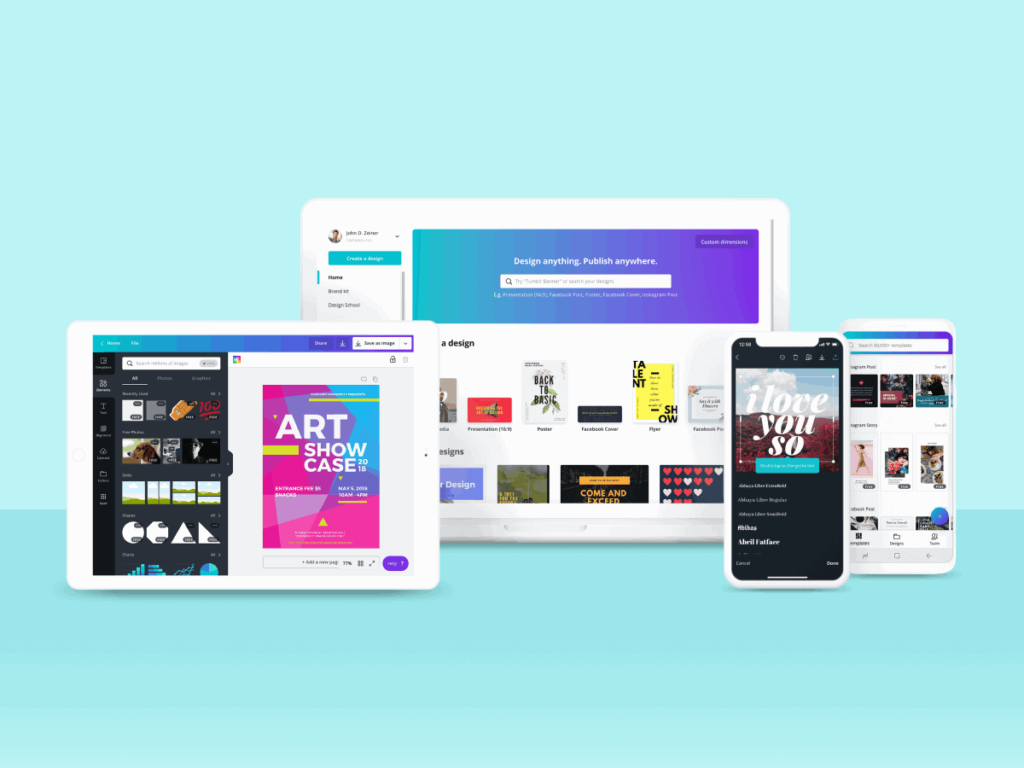
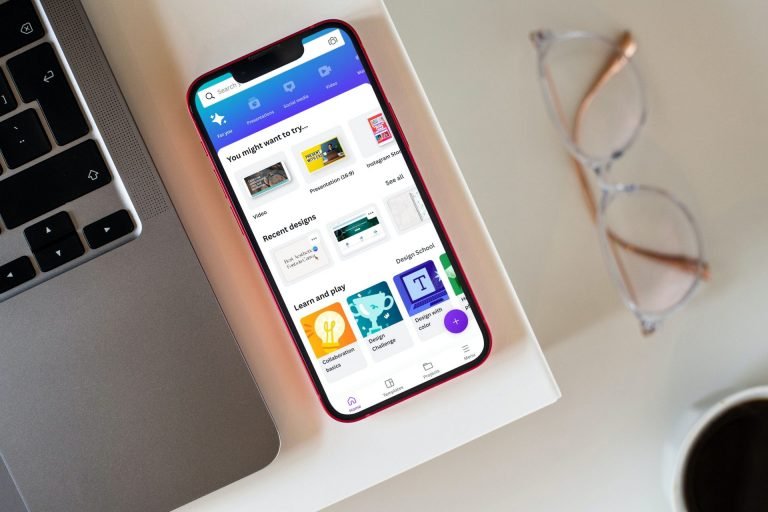
When you open Canva’s editor, you’ll see a clean workspace with tools on the left side.

The main workspace in the center is where you’ll create your design.

On the left, you’ll find templates, elements, photos, and text tools. Everything works with simple drag-and-drop actions – just click on what you want and move it around.

The top toolbar lets you save, share, and download your work.

Planning Your Lookbook Content

Planning Your Lookbook Content

Defining Your Target Audience

Before you start designing, think about who will see your lookbook. Are they young professionals, families, or creative types? Knowing your audience helps you choose the right colors, fonts, and style.

Consider their age, interests, and what matters to them. This knowledge will guide every design choice you make.

Conceptualizing Your Vision

Your lookbook should tell a story. Think about the feeling you want to create – is it fun and playful, elegant and sophisticated, or bold and edgy? This vision will help you choose images, colors, and layouts that work together.

Write down a few words that describe your brand’s personality to keep you focused.

Planning Content Structure

Organize your lookbook into clear sections.

Start with a strong cover page, then think about how to group your products or ideas. You might organize by season, color, or product type. Plan for 10-20 pages for a good digital lookbook.

Remember to include a table of contents if your lookbook is longer than 10 pages.

Gathering Images and Assets

High-quality images are the heart of any great lookbook.

If you’re photographing products yourself, use good lighting and keep backgrounds simple.

If you need stock photos, Canva has millions to choose from, but it’s important to understand if are Canva images copyright free for your specific use case.

Also gather your logo, brand colors, and any text you want to include. Having everything ready before you start makes the design process much smoother.

Design Fundamentals For Lookbooks

Design Fundamentals For Lookbooks

Layout Principles

Good layout design starts with balance.

Don’t try to fit too much on one page – white space is your friend. Use a grid system to keep things organized and aligned.

Make sure your most important information stands out by making it bigger or using contrasting colors.

Remember that people’s eyes naturally follow a Z-pattern when reading, so place key elements along this path.

Color Palette Selection

Choose 2-3 main colors and stick to them throughout your lookbook.

Your brand colors should be the foundation, with one or two supporting colors for accents.

Canva’s color wheel tool can help you find colors that work well together.

Consistent colors make your lookbook look professional and help strengthen your brand identity.

Typography Choices

Use no more than two different fonts in your lookbook.

Choose one for headlines and another for body text. A common question is, “can you upload fonts to Canva,” and the answer is yes, with a Pro account, which allows for greater brand consistency.

Make sure they’re easy to read on both computer and phone screens. Keep your text simple and clear – the photos should do most of the talking.

White Space and Visual Hierarchy

White space (empty areas around your content) is just as important as your images and text.

It gives the eye a place to rest and makes your content easier to understand. Use different sizes and colors to show what’s most important.

Your main headline should be the biggest thing on the page, followed by images, then smaller text.

How to Create A Lookbook in Canva?

How to Create A Lookbook in Canva?

To create a lookbook in Canva, follow these:

Starting With Templates Vs Custom Design

Canva has nice lookbook templates that save you time. You can search for “lookbook” in the template library. This will show you many options. These templates provide a good starting point. You can change them with your own images and words.

If you want to design from the start, pick “Custom Size.” Then, you can make your own layout. Templates are perfect for beginners. Custom designs let you have full control over your work.

Adding and Organizing Images

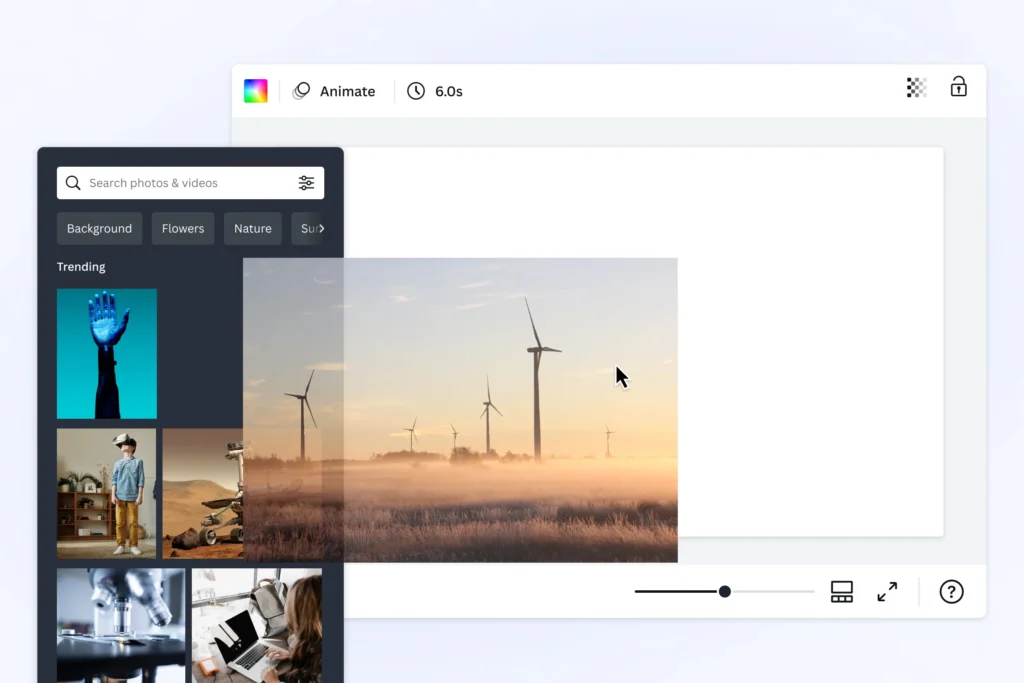
Upload your pictures using the “Uploads” tab on the left side of Canva.

After you upload them, drag and drop them onto your canvas. You can make images smaller or bigger by pulling the corner handles.

If you need to make a quick change, you can learn how to replace an image in Canva with just a few clicks. Try to keep your pictures similar in style and quality. This will help your lookbook seem more professional.

Using Grids and Frames

Canva has tools called grids and frames. These tools help you place many images on one page.

You can find them in the “Elements” section. Grids help you make tidy layouts with several photos. Frames add nice borders around your images.

These tools work great for showing different views of the same item. They are also good for making photo collages.

Including Text Elements

To add text, click the “Text” tab. You can choose from headings, subheadings, or body text.

The toolbar at the top allows you to change the font, size, and color.

For more advanced text styling, you can explore how to highlight text in Canva or how to indent in Canva to structure your descriptions.

Keep your text short and simple. Lookbooks are visual tools, so let your images share most of the story.

Essential Lookbook Elements

Essential Lookbook Elements
  1. Cover Design: Your cover page is the first thing people see, so make it count. Include your brand name, logo, and a striking image that represents your collection. Keep it clean and simple – too many elements can be overwhelming. The cover should give viewers a taste of what’s inside and make them want to see more.
  2. Table of Contents (If Applicable): For longer lookbooks, a table of contents helps readers find what they’re looking for. List your main sections with page numbers. Keep the design simple and match the style of the rest of your lookbook. This is especially helpful for lookbooks with multiple product categories or seasonal collections.
  3. Product Information and Style Numbers: Include basic product information without cluttering your pages. You might add style numbers, fabric details, or size information. Keep this text small and place it where it won’t distract from your images. Consider using a consistent format for all product information to maintain a professional look.
  4. Brand Identity Integration: Your lookbook should feel like it belongs to your brand. Use your brand colors, fonts, and logo consistently throughout. Include your website, social media handles, and contact information. This helps people remember your brand and makes it easy for them to find you later. Every page should feel connected to your overall brand story.

Advanced Canva Features For Lookbooks

Using Canva’s Elements Library

Canva’s Elements library has over a million graphics, icons, and design elements.

Search for specific items like “fashion,” “minimalist,” or “vintage” to find elements that match your style. You can change colors, resize elements, and layer them with your photos to add personality to your lookbook. For unique visual effects, you might want to learn how to add shadow in Canva.

Photo Editing and Enhancement

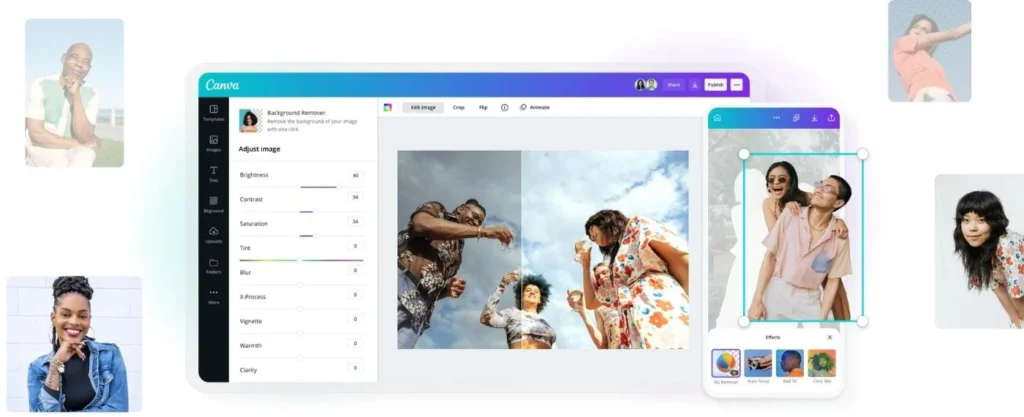
Canva’s photo editor helps you enhance your images easily.

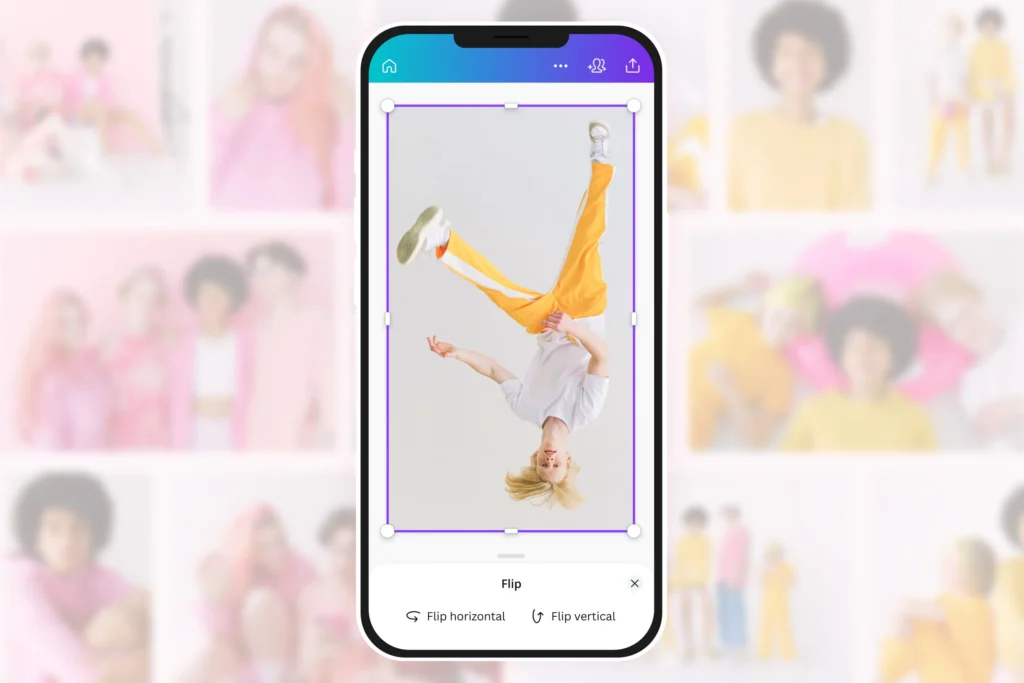
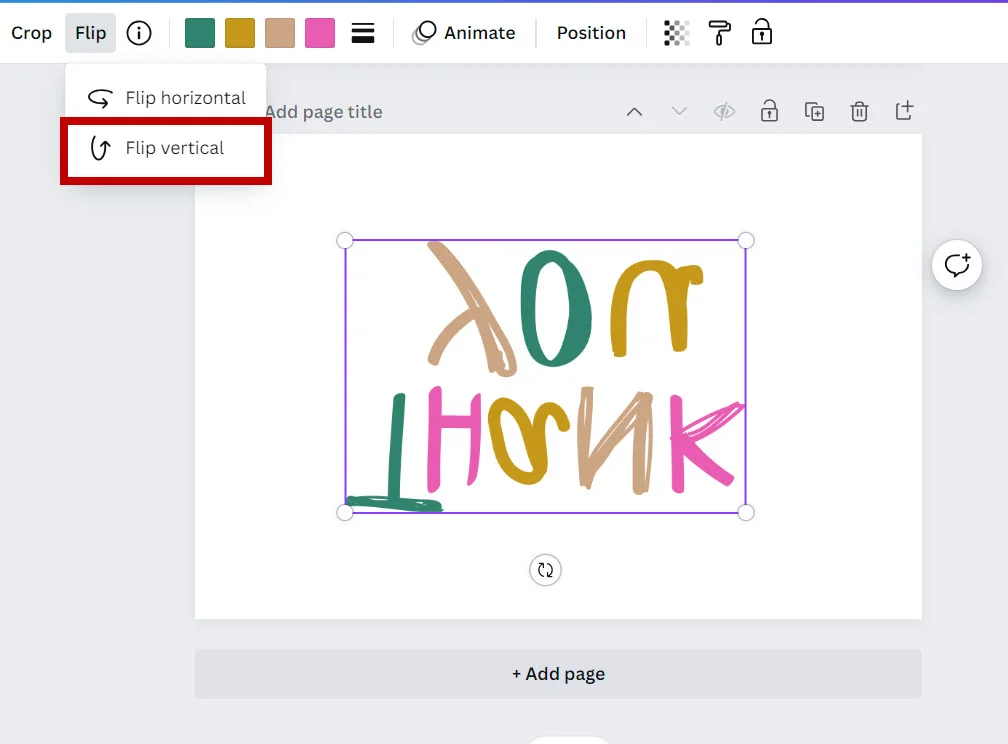
You can change brightness, contrast, and saturation. You can also explore creative edits like learning how to flip an image in Canva for a mirrored effect or how to fade an image on Canva for a softer look.

The background remover tool is great for isolating products, and you can even get specific with techniques like understanding how to cut out an image in Canva or how to slice in Canva.

Creating Consistent Branding

You can use Canva’s Brand Kit feature. This helps you save your colors, fonts, and logo. It makes it easy to access them later.

This way, all pages of your lookbook will be the same. They will look professional too. You can also create brand templates for future projects. Reusing these templates helps keep things consistent.

Having a steady brand makes your lookbook look better. It also helps people recognize your brand more easily.

Adding Interactive Elements

For digital lookbooks, think about adding clickable parts.

You can master how to add a clickable link in Canva PDF to direct users to your site or social media pages. For some projects, you might even find a use for dynamic elements and wonder how to put a timer in Canva.

Lookbook Structure and Organization

Lookbook Structure and Organization

Opening Pages and Introduction

Start your lookbook with pages that introduce your brand and collection. This might include a welcome message, your brand story, or an overview of what’s featured inside. Keep the text engaging but brief – most people want to get to the visual content quickly.

These opening pages set the tone for everything that follows.

Product Showcase Sections

Organize your items so they are easy for your audience to understand. You can group them by color or season. You can also sort by type of product or price. Make sure each section has a clear title. Think about using pages to divide different groups.

This way, it helps viewers find what they like best. It also makes your lookbook simple to use.

Styling and Lifestyle Content

Show your products in real life. Don’t just use single shots of items.

Instead, include pictures of people using or wearing your things. This helps customers see themselves with your products. It also builds a bond between them and the items. Lifestyle photos often do better than simple product images. They tell a story that connects with people.

Closing Pages and Contact Information

End your lookbook with clear steps for interested customers. Include your website, phone number, and email.

Don’t forget to add links to your social media accounts. You might also include a “thank you” note. A preview of future collections can be nice too. Make it easy for people to contact you or order while they are excited about what they have seen.

Best Practices and Design Tips

  1. Image Quality and Resolution: Always use high-quality images in your lookbook. Blurry or pixelated photos make your brand look unprofessional and can turn away potential customers. If you’re taking your photos, use good lighting and a steady camera. For print lookbooks, make sure your images are at least 300 DPI for crisp, clear results.
  2. Maintaining Visual Consistency: Keep your design elements consistent throughout your lookbook. This means using the same fonts, colors, and layout styles on every page. Consistency makes your lookbook look more professional and helps strengthen your brand identity. Create a style guide for yourself with your chosen fonts, colors, and spacing to refer back to as you work.
  3. Mobile-Friendly Design Considerations: Many people will view your lookbook on their phones, so make sure it looks good on small screens. Use larger fonts that are easy to read on mobile devices. Keep your layouts simple and avoid tiny details that might be hard to see on a phone. Test your lookbook on different devices to make sure it works well everywhere.
  4. Brand Storytelling Through Visuals: Let your images tell your brand’s story. Each photo should contribute to the overall feeling you want to create. Think about the emotions you want your audience to feel and choose images that evoke those feelings. Your lookbook should feel like a journey through your brand’s world, not just a random collection of photos.

Finalizing and Publishing Your Lookbook

  1. Reviewing and Testing Your Design: Before you share your lookbook, review every page carefully. A common question is, “Does Canva have spell check?” and while it does, it’s always good to double-check for errors yourself. Ask friends or colleagues to look at it and give feedback. Fresh eyes often catch things you might have missed. Make sure all your contact information is correct and up to date.
  2. Export Options and File Formats: Canva offers several export options for your lookbook. For digital sharing, PDF is usually the best choice because it maintains quality and works on all devices. For social media, you might export individual pages as PNG or JPG files. If you plan to print your lookbook, choose PDF Print for the best quality. Remember that larger files might take longer to download or load.
  3. Sharing and Distribution Methods: Once your lookbook is ready, think about how you’ll share it. You can email it as a PDF attachment, upload it to your website, or share it on social media. Consider creating a short link that’s easy to remember and share. You might also print copies for events or in-person meetings with customers.
  4. Getting Feedback and Making Revisions: Share your lookbook with a small group first to get feedback before wider distribution. Ask specific questions like “Is the text easy to read?” or “Do the colors work well together?” Use this feedback to make improvements. Remember that you can always update a digital lookbook, so don’t worry about making it perfect the first time.

Common Mistakes to Avoid

  1. Overcrowding Pages With Content: One of the biggest mistakes in lookbook design is trying to fit too much on each page. This makes your lookbook look cluttered and hard to read. Instead, give your images and text room to breathe. It’s better to use more pages with less content than to cram everything together. White space is your friend – use it generously.
  2. Inconsistent Design Elements: Switching between different fonts, colors, or layout styles makes your lookbook look unprofessional. Pick your design elements at the beginning and stick with them throughout the entire lookbook. This consistency helps create a cohesive brand experience and makes your lookbook more pleasant to look at.
  3. Poor Image Quality Or Resolution: Low-quality images are the fastest way to make your lookbook look amateur. Always use the highest quality images you can find or create. If an image looks blurry or pixelated on your computer screen, it will look even worse when printed or viewed on high-resolution displays. Invest time in getting good photos – they’re the foundation of your lookbook.
  4. Neglecting Mobile Optimization: With so many people viewing content on their phones, ignoring mobile optimization is a serious mistake. Make sure your text is large enough to read on small screens, your buttons are easy to tap, and your layout works well on vertical displays. Test your lookbook on different devices to ensure a good experience for all users.

Inspiration and Examples

Looking at different examples of lookbooks can help you get new ideas and be more creative.

Fashion Lookbook Examples

Fashion lookbooks often have clean and simple designs. This helps the clothing stand out. They usually use a lot of white space. They also use simple fonts and good-quality photos. Check out brands like Cherry Lookbook for ideas. They show elegant color choices and smart layouts. You can see how good fashion lookbooks mix product photos with lifestyle images. This mix helps to tell a full story.

Creative Layout Ideas

Try different ways to make your lookbook fun. You can use sunlight effects to shine on some products. You might also make photo collages that show several views of the same item. Grid layouts are good for showing collections of items.

Single-product pages can add drama and focus to your lookbook. Don’t be scared to play around with different page layouts in your lookbook.

Seasonal and Themed Lookbooks

You can make lookbooks based on themes or seasons.

For spring, use light and soft designs. These layouts should be airy with gentle colors. In winter, choose darker and cozier styles. Themed lookbooks help shoppers see how your items fit into their daily lives. This way, they can feel excited about new collections.

FAQ’s:

Can I Create A Professional Lookbook In Canva For Free?

Yes! Canva’s free plan includes everything you need to create a beautiful Lookbook. You get access to thousands of templates, basic photos and graphics, and all the essential design tools. While the Pro plan offers additional features like premium images and advanced editing tools, the free version is perfectly capable of producing professional-quality results.

What Are The Best Image Sizes For A Canva Lookbook?

For digital lookbooks, 8.5 x 11 inches works well for computer viewing, while 1080 x 1920 pixels is better for mobile. For individual images within your lookbook, aim for at least 1080 pixels wide to ensure crisp quality.

Remember that Canva supports sizes from 40 x 40 pixels up to 8000 x 3125 pixels, so you have plenty of flexibility.

How Do I Make My Lookbook Interactive Or Shoppable In Canva?

While Canva doesn’t have built-in shopping features, you can add clickable links to your PDF lookbooks.

Include your website URL, social media links, or specific product pages in your text. When people view your PDF lookbook, they can click these links to visit your online store. You can also use QR codes that link to your website or email address for easy access.

Can I Print My Canva Lookbook As A Physical Booklet?

Absolutely! Canva offers print services, or you can download your lookbook as a PDF and have it printed locally.

For best print quality, choose “PDF Print” when downloading and make sure all your images are high resolution. Consider the paper quality and binding options when printing – a nice paper choice can make your lookbook feel more premium and professional.

Conclusion

Creating a lookbook in Canva puts the power of professional design right at your fingertips.

From planning your content and choosing the perfect template to adding those final touches that make your brand shine, every step brings you closer to a lookbook that truly represents your vision.

Remember that the best lookbooks tell a story, connect with their audience, and make people excited about what you’re offering.

With Canva’s user-friendly tools and the techniques covered in this guide, you have everything you need to create a lookbook that not only looks amazing but also drives real results for your brand.

Whether you’re sharing it through email, posting on social media, or printing physical copies, your Canva-created lookbook will help you connect with customers and grow your business in ways you never thought possible.

Categories
Canva

How To Sell Canva Templates On Etsy & Earn Money: 2025 Best Guide

Do you love creating art or designs? You can turn that skill into money by selling Canva templates on Etsy!

Etsy is a big online shop with over 95 million buyers, and Canva is a free tool to make cool social media posts, invitations, or cards.

Many people earn passive income here—money that keeps coming even when you’re not working. You just need a Canva Pro account to start.

Small business owners and others buy these digital downloads to save time. This guide will show you step-by-step how to open your Etsy shop, design templates, and sell them easily. It’s simple, fun, and perfect for beginners! Let’s get started.

Can You Sell Canva Designs On Etsy?

Can You Sell Canva Designs On Etsy?

Yes, you can sell Canva designs on Etsy, but there are important rules to follow. You can create an original design using free Canva elements and your creative ideas. However, you cannot simply copy Canva’s existing templates and sell them as your work. It’s also important to understand if Canva images are copyright-free to avoid any legal issues.

Here’s what you can do legally:

  • Create an original design using free content from the Canva library
  • Use Canva Pro elements in designs shared through a template link
  • Sell completed designs as PDF, JPG, or PNG files
  • Build editable templates for customers to customize

What you cannot do:

  • Resell Canva’s pre-made templates without changes
  • Sell Canva Pro elements as standalone products
  • Copy existing designs and claim them as your designs

The key is creating something new and original. When you use Canva as your online graphic design tool, you’re building your creative work that happens to use their platform and resources.

Why Sell Canva Templates On Etsy?

Why Sell Canva Templates On Etsy?

Starting a Canva template shop on Etsy has many good points for creative workers.

First, it is a great side job that can turn into a full-time Etsy shop. Unlike real products, digital product sales do not need stock, shipping, or storage space. The chance to earn money while you sleep is amazing.

Once you make and list your Canva template, it can sell many times without extra cost or work. Some successful Etsy sellers say they earn over $93,000 each year from digital downloads.

Others have made $168,000 in just one year. Etsy gets lots of visits from people looking for design help.

Whether they want social media templates, marketing tools, or wedding invites, Etsy buyers come ready to purchase.

This built-in group of possible buyers makes it easier to find people who want your Canva designs.

What You Need Before You Start?

Canva Account Setup

You will need your own Canva account to start making templates. You can begin with a free Canva account.

However, new changes mean you now need a Canva Pro account to sell on Etsy. The Canva Pro plan gives you access to better design tools, fonts, and more. For those wondering about the investment, you can learn how much Canva Pro costs to budget accordingly. Most importantly, it allows you to create shareable links for your customers.

A Canva Pro account costs about $15 each month, but you might be interested in learning how to get Canva Pro for free.

Many find the extra cost is worth it when you think about how much you can earn. If you’re still unsure, consider reading up on if Is Canva Pro worth it for your specific needs. The Pro version also provides access to premium elements and allows you to explore if can you upload fonts to Canva for more unique designs. These can help make your designs look more professional and attractive to buyers.

Etsy Seller Account Setup

Starting your Etsy shop is easy and costs nothing. You will pay $0.20 for each listing you make.

Also, there is a fee of 6.5% for every sale you get. Choose a clear name for your shop that shows your design style. Many successful Etsy sellers use names with words like “templates,” “designs,” or “creative.”

This helps customers know what they are buying.

How to Sell Canva Templates on Etsy?

How to Sell Canva Templates on Etsy?

Selling Canva templates on Etsy is easy and can work well.

Choose Your Niche and Target Audience

Success comes from focusing on a specific type of product rather than trying to serve everyone.

Look at what small business owners, content creators, and social media platforms need most. Popular niches include social media graphics, business marketing materials, and personal planning tools.

Do market research to see what’s already selling well. Check the search results for terms like “social media templates” or “business card designs” to see what Etsy shoppers are buying. This research helps you identify gaps in the market where your designs can stand out.

Design Your Canva Templates

Start making your Canva template with the design tools in your Canva Pro account. Focus on making designs that look good and work well. Your customers want templates they can change to fit their needs.

Mastering skills like how to replace an image in Canva or how to flip an image in Canva will be essential.

Use free fonts and graphics to help keep costs low for them.

You can learn unique text effects, like how to curve text in Canva or how to outline text in Canva to make your templates more appealing.

While Canva Pro tools can make your designs better, remember that some customers do not have Pro accounts.

They may not be able to use all the features you include.

Prepare Your Templates For Sale

Before you list your Canva designs, set up a clear way to organize your work. Make different folders for each design project.

Include the original workspace, the customer template, listing photos, and delivery files in these folders.

The customer version should look neat and be easy to edit.

Techniques like knowing how to fade an image on Canva can add a professional touch. Remove any Canva Pro items that could cause issues for customers using free accounts. Your goal is to make it easy for anyone who buys your digital product. Always double-check your text, and it helps to know that yes, Canva has spell check.

Create A Deliverable File (PDF With Canva Link)

When customers buy your Canva template, they need a way to access it.

Create a PDF file containing the template link that takes them directly to their copy of the design. Knowing how to add a clickable link in Canva PDF is important for this step. This PDF becomes the actual digital download customers receive after purchase.

Make sure to use the correct sharing settings. Click “template link” rather than “copy link” so customers get their copy of the design rather than editing your original. This protects your work while giving customers full access to customize their purchase.

List Your Templates On Etsy

Create your Etsy listing. Use clear and simple titles that have your main keywords. Your title should tell buyers what they are buying.

It should also show them how to use it. Add words that people might search for when looking for your product. Use all the tag spaces you have. This will help your listings show up in search results. Combine broad terms like “social media templates” with specific ones like “Instagram story design.” This helps you reach more kinds of searches.

Write Compelling Product Descriptions and Titles

Your product description should explain what customers will receive and how to use it.

Start with the key details first. Tell them what the template includes and what software they need. Note that they must have their own Canva account to edit the design. Be clear about what is in your digital downloads.

List how many templates there are, file types, and any extra materials. This clarity helps set clear expectations and lowers customer questions.

Set Pricing For Your Templates

Pricing can be very different based on how complex a design is and what people want. A simple template may sell for $5 to $10. On the other hand, a bundle of templates could sell for $20 to $50 or even more. It is smart to look up what other Etsy sellers charge for items like yours.

You might think about offering bundle deals. This can help you raise your average sale amount. Instead of just one social media template, you could make a pack of 10 related designs. This gives customers more value and helps you earn more money.

Add High-Quality Images and Previews

Your listing photos are very important for getting customers. Make clear mockups that show how your Canva template works. You can learn how to create a lookbook in Canva to showcase your designs professionally.

Show different designs and add text to explain what customers can change.

You can learn how to highlight text in Canva to draw attention to key features. Use bright and clean images that pop in search results.

Include lifestyle photos that help buyers see how they can use your marketing tools or social media graphics in their work.

Optimize Your Listings For Etsy SEO

Getting to the top of search results takes smart keyword use. You should add your main keywords in the title, tags, and description.

Make sure they fit well and sound natural. Focus on words that your potential customers will search for.

Don’t just use what sounds cool. You can research popular keywords with Etsy’s search bar. Look at the words that show up when you type about your niche. These ideas come from actual user searches.

They can help you improve your listings and reach more buyers.

Promote Your Templates On Social Media

Use social media sites to show off your work. This can help bring people to your Etsy shop. Share posts that look at how you make your designs.

For example, showing you how to cut out an image in Canva can be engaging. You can also share customer feedback and previews of new items. Make social media posts that show how your templates work.

Knowing how to put a timer in Canva can be a great way to create countdowns for new product launches.

This kind of content has two benefits. It helps market your products and shows buyers what they will get.

How Much Can You Earn From Canva Templates On Etsy?

How Much Can You Earn From Canva Templates On Etsy?

Earning money can differ a lot. It depends on your work, niche, and how you market your items.

Some Etsy sellers say they make a few hundred dollars each month. Others grow their businesses to six figures. One case study shows a seller of digital downloads made $168,000 in their first year.

Another seller earned $93,534 by selling planners and templates. Your income relies on many things. This includes the quality of your Canva designs and how well you know your buyers. It also depends on how well you set up your listings for Etsy’s search tool.

Mastering various design skills, like knowing how to slice in Canva or how to add a shadow in Canva, can improve the quality of your templates and your potential earnings.

Most successful sellers treat this as a true business. They keep making new content and improving their marketing plans.

How to Find What Templates to Sell?

How to Find What Templates to Sell?

Start by looking at what sells well on Etsy. Search for popular template types. Take note of the listings with the most sales and reviews.

Find patterns in price, style, and customer comments to spot chances. Use tools like Google Trends to see which design topics are popular.

Social media sites also show what creators and small businesses want most. Watch for common questions in design groups and online forums.

5 Best-Selling Canva Templates On Etsy

Best-Selling Canva Templates On Etsy

Here are five of the best-selling Canva templates that do well on Etsy:

  1. Social Media Templates: Social media templates are always among the best-selling digital products. These templates include Instagram story designs, Facebook post styles, and Pinterest images. Small business owners need new social media graphics often. Content creators also want fresh designs to keep their online presence strong.
  2. Business Marketing Templates: Selling marketing tools like flyers, brochures, and business cards is a good idea. These items sell well all year long. Canva designs make it easy for small business owners to look nice. They can do this without needing to hire costly designers.
  3. Planner and Journal Templates: Planning and organization templates attract many people. Daily planners are popular among buyers. Goal-setting worksheets also sell well. Budget trackers find a good market, too. Habit trackers are in demand as well. These templates assist people in managing their daily tasks. They help in both personal and work life.
  4. Resume and CV Templates: Job seekers often buy new and smart resume templates. These designs help people shine in tough job markets. You might think about making templates for certain jobs or levels in a career.
  5. Wedding Invitations and Event Designs: Wedding and event templates are always popular. They stay in demand all year long. These items have high value and often cost more. Customers want to spend extra for special events.

How to Optimize Your Canva Template Listings On Etsy?

How to Optimize Your Canva Template Listings On Etsy?

You need to keep checking your listings’ performance. It is important to see which words bring traffic to your Etsy shop.

Change your tags based on this data. Use Etsy’s tools to find out what words customers use to look for your products.

Keep updating your listings with new words, better photos, or clearer descriptions. Etsy likes sellers who are active and always try to improve their listings. New content shows the algorithm that your Canva template shop is up-to-date and important.

How to Promote Your Canva Templates Outside Of Etsy?

How to Promote Your Canva Templates Outside Of Etsy?

Building traffic from outside helps you rely less on Etsy’s search.

You can create posts on social media. Show your design process and the templates you make, perhaps showing you how to flip text in Canva for a cool effect. Think about starting a blog or YouTube channel.

Email marketing works well for getting repeat sales. Collect emails from customers and send them newsletters.

Share new releases, design tips, and special deals. This way, you build a loyal group of customers who come back to buy more.

How to Manage and Grow Your Etsy Business?

How to Manage and Grow Your Etsy Business?

Success means treating your template shop like a real job. You should set regular times to create new Canva designs. For example, you can learn how to landscape in Canva to offer different template orientations.

Also, respond to customer messages on time. It is important to check how well you are doing. Keep track of your best-selling products.

Then, make more templates in those popular areas. Think about growing beyond Etsy after you have a strong base. Many sellers start their websites later. They also sell on different platforms to earn more money.

FAQ’s:

How Much Can You Make Selling Canva Templates On Etsy?

Earnings can be very different. Some people make a few hundred dollars each month.

Others earn several thousand dollars monthly. Sellers who take this job seriously can earn between $1,000 and $10,000 or more each month. One study showed that a seller made $168,000 in a year.

Do I Need A Canva Pro Account To Sell Templates?

Yes, in 2025, you will need a Canva Pro account. This account is important to make shareable links for your customers. The Pro subscription gives you the tools to share templates. These features are required if you want to sell on Etsy.

Can I Sell Canva Templates For Commercial Use?

Yes, buyers can use your Canva templates for their work. This is allowed if you’ve made new designs. You must also use content that you have the right to use.

Can You Include Canva Pro Elements In Your Design?

You can add Canva Pro items in templates shared through a link. Customers without Pro accounts might need to upgrade. They do this to use some features. It’s best to use free Canva items when you can. This helps avoid confusion for customers.

Can I Use Canva Graphics For Print-On-Demand Designs?

Yes, you can use Canva images in print-on-demand items. You must follow Canva’s content rules. This allows you to earn more money. You can make more than just digital templates.

Conclusion

Learning to sell Canva templates on Etsy opens up incredible opportunities for creative professionals seeking great passive income.

With the right approach, consistent effort, and quality Canva designs, you can build a profitable Etsy business that generates revenue while you sleep.

The next step is simple: start creating. Set up your own Canva account, choose your niche, and begin designing templates that solve real problems for your potential customers.

Remember, every successful Etsy seller started with their first listing. Your expertise and creativity, combined with Etsy’s massive marketplace, can create the financial freedom you’ve been seeking.

At Designers Choice, we believe in empowering creatives to achieve their biggest goals.

This guide provides the foundation you need, but your success depends on taking action. Start building your canva template empire today, and join the thousands of designers already earning substantial income through this powerful combination of creativity and commerce.

Categories
Canva

How to Add Clickable Link in Canva PDF: Step-By-Step Guide

Want to make your Canva PDFs more useful?

Adding clickable links lets people visit your website, email you, or check your social media pages with just one click.

Imagine turning a boring school project poster into something where friends can click your Instagram link or email you questions easily!

Here’s the good news: you don’t need to be a tech expert.

Whether you’re using Canva’s free version or Canva Pro, adding links is as simple as typing text or dragging images.

For example, you can make a “Visit My Website” button for your online business or link social media icons in your email signature.

This guide will show you step-by-step how to create these clickable parts in your PDF files.

If you’re creating professional documents, you might even be interested in learning how to create a lookbook in Canva to showcase your work.

You’ll learn to add links to text boxes, pictures, and even buttons – all while avoiding common mistakes.

For those looking to monetize their designs, understanding these features is the first step. Later, you can explore how to sell Canva templates on Etsy to turn your skills into a business.

Let’s turn your designs into interactive tools that everyone can enjoy!

Now that the groundwork is set, let’s dive deeper into clickable links in Canva PDFs!

Understanding Clickable Links In Canva PDFs

Understanding Clickable Links In Canva PDFs

What Are Clickable PDF Links?

Clickable PDF links are interactive elements within your PDF files that redirect users to external websites, email addresses, or other pages when clicked.

These hyperlinks appear as underlined text or clickable images that respond when someone taps or clicks them in their browser or PDF viewer.

The Canva website builder includes this functionality as a core feature, allowing designers to create professional documents without coding knowledge.

When you add a link to any text box or image in your existing design, Canva automatically formats it to work in PDF format.

The link icon appears in the toolbar when you select any design element, making the process straightforward for users at any skill level.

However, these interactive features only function when you export your work as PDF files, not as image files like JPG or PNG.

You also need to ensure you understand that Canva images are copyright-free before using them in commercial projects.

Benefits and Use Cases

Interactive PDF documents serve multiple purposes for online business owners and graphic design professionals.

Email signatures become more effective when they include direct links to your social media platforms, allowing recipients to connect with your brand instantly.

Blog post content can reference additional resources through embedded links, keeping readers engaged while providing valuable information.

If you’re creating marketing assets, you might wonder, Can I sell Canva designs on Etsy? The answer often lies in how you use Canva’s resources.

Social media posts often reference longer content that requires PDF format for detailed information.

Adding clickable links creates a seamless bridge between your social media graphics and your main website or specific landing pages.

This integration works particularly well for ebook projects, where readers expect to click through to related content or purchase pages.

Marketing materials benefit significantly from this functionality.

When creating presentations or promotional documents, you can link directly to product pages, contact forms, or social media icons that expand your reach. The ability to track user engagement through these links provides valuable analytics for improving your content strategy.

Technical Requirements and Limitations For Adding Clickable Links in Canva

Canva supports clickable links exclusively in PDF format, which means your final export must be set to PDF Standard rather than PDF Print.

The flattened PDF option removes all interactive elements, so you must leave this setting unchecked during the download process.

While many features are available for free, some advanced options are exclusive to Canva Pro. If you’re weighing the options, it’s useful to know how much Canva Pro costs and explore if Canva Pro is worth it for your needs. For those on a budget, you might even look into how to get Canva Pro for free through educational or nonprofit programs.

Most modern browsers support these interactive features, but some older PDF viewers may not display links correctly.

The platform allows unlimited links per document, but each link must be attached to a specific design element such as text, images, or graphics. You cannot add floating links or invisible clickable areas. Each text box, image, or shape can contain one primary link, though you can duplicate elements if you need multiple links in the same area.

Advanced features like QR codes can also be linked, but it’s important to know do Canva QR codes expire, to manage your campaigns effectively.

How To Add A Clickable Link In Canva?

How To Add A Clickable Link In Canva?

Creating New Designs With Links

Starting a new project with clickable links requires planning your content structure before adding design elements.

Open the Canva Editor and select your preferred document size, such as A4 or letter format for PDF compatibility.

The templates available in both free and Canva Pro versions provide excellent starting points for interactive documents.

Begin by mapping out where you want links to appear in your layout.

Text elements work best for obvious clickable areas, while images and social media icons can serve as visual cues for specific actions.

The apply button becomes your primary tool for confirming each link addition throughout the design process.

Consider your target audience when planning link placement. Social media links work well in headers or footers, while email addresses typically appear in contact sections. Product links or additional resources fit naturally within body content where they add value to your readers.

Adding Links to Text Elements

Select any text box in your design to begin adding a clickable link.

The toolbar displays a link icon when text is selected, providing direct access to the hyperlink features. Click this icon to open the link dialog box where you can enter your target URL. While working with text, you can get creative. Did you know you can learn how to curve text in Canva for logos or how to flip text in Canva for unique effects?

For email addresses, simply type the complete email into the link field, and Canva automatically formats it with the proper “mailto:” prefix. This creates a direct email link that opens the user’s default email application when clicked.

Social media links require the full URL, including “https://” for proper functionality.

The process involves selecting your text, clicking the link icon from the toolbar, entering your URL, and clicking the apply button to confirm. You can modify the font and formatting of linked text while maintaining the hyperlink functionality.

The underline formatting appears automatically but can be removed if desired while keeping the link active.

Adding Links to Images and Graphics

Images and graphics require a slightly different approach compared to text elements.

Select your image or graphic element, then click the three-dot menu that appears above the selected item. Choose the link option from this dropdown menu to access the same URL input dialog.

Social media icons work particularly well as clickable elements because users naturally expect them to link to your platforms.

Upload your logo or custom graphics and link them to your main website or specific landing pages.

The visual appeal of clickable images often generates higher engagement than text-only links.

When working with complex graphics, ensure each clickable element is clearly defined as a separate layer. Grouped elements can share a single link, but individual items within a group cannot have different destinations.

This limitation requires careful planning when designing complex layouts with multiple interactive areas.

Creating Interactive Buttons

Interactive buttons combine visual appeal with clear functionality, making them ideal for call-to-action elements. Create rectangular shapes or use existing button templates from the Canva Editor.

Customize the colors and fonts to match your brand while ensuring the button indicates its purpose.

Add descriptive text to your buttons, such as “Visit Website,” “Contact Us,” or “Follow on Instagram,” to guide user actions.

Link these buttons to appropriate destinations such as your social media pages, email address, or specific sections of your Canva website. The combination of visual design and clear messaging improves click-through rates significantly.

Button placement affects user experience and engagement levels. Position primary action buttons prominently, while secondary links can appear in less prominent locations. Consider the natural reading flow of your document when deciding where to place interactive elements.

Advanced Techniques and Best Practices

Advanced Techniques and Best Practices

Multi-Page Document Navigation

Creating navigation between multiple pages within a single PDF requires linking to specific page numbers rather than external URLs.

Canva supports internal page navigation through the same link interface used for external links. Select your navigation element and choose the page destination from the available options.

Table of contents sections benefit greatly from internal linking, allowing readers to jump directly to relevant sections.

Create a clear visual hierarchy with numbered sections and corresponding navigation links. This approach works particularly well for longer documents such as guides, e-book projects, or comprehensive reports.

Navigation buttons should appear consistently throughout multi-page documents to maintain user experience.

Consider adding “back to top” or “next page” buttons that help readers move through your content efficiently. The key is maintaining consistent placement and styling across all pages.

Email Link Integration

Email links require specific formatting to function correctly across different devices and email applications.

Always include the complete email address in the link field, and Canva will automatically add the necessary “mailto:” prefix. This ensures compatibility with various email clients and mobile devices.

Consider adding subject lines to your email links by including “?subject=Your Subject Here” after the email address.

This pre-fills the subject field when users click the link, making it easier for them to contact you about specific topics. The feature works particularly well for customer service or inquiry forms.

Test email links on multiple devices and platforms to ensure consistent functionality.

Some older email clients may not support advanced formatting, so keep your approach simple and universal. Always provide alternative contact methods for users who may experience technical difficulties.

Link Management and Organization

Organizing links within complex documents requires systematic planning and clear visual cues.

Create a consistent color scheme or formatting style for different types of links such as external websites, email addresses, and internal navigation. This helps users understand what to expect when they click each element.

Keep a master list of all URLs used in your document to facilitate updates and maintenance. Link rot occurs when external websites change or remove content, breaking your carefully crafted connections. Regular testing ensures your links continue working properly over time.

Consider using URL shortening services for long or complex web addresses that might break during the design process.

However, be cautious with shortened links as some users and security systems flag them as potentially unsafe. Transparency in your linking strategy builds trust with your audience.

Downloading and Exporting Interactive PDFs

Proper Export Settings

The download process determines whether your clickable links function correctly in the final PDF.

Click the download button in the top-right corner of the canva editor and select PDF Standard from the file type options. Avoid PDF Print format as it removes interactive elements during the export process.

Ensure the “Flatten PDF” option remains unchecked throughout the download process. This setting removes all interactive elements including links, buttons, and navigation features. The standard PDF format preserves all clickable elements while maintaining professional print quality.

Select appropriate page ranges if your document contains multiple sections. You can export entire documents or specific pages depending on your distribution needs. The Canva website automatically processes your settings and generates the interactive PDF file.

Avoiding Common Export Mistakes

Common mistakes during export can render all your clickable links non-functional. Always preview your PDF after download to test each link before sharing with your audience. Open the file in different PDF viewers to ensure compatibility across various platforms and devices.

Avoid selecting print-optimized settings when your primary goal is digital distribution. Print settings often remove interactive elements to prevent printing errors. Choose standard PDF format for documents intended for digital sharing, email distribution, or website download.

Check file size after export, especially for documents with many images or graphics. Large files may not email properly or could load slowly on mobile devices. Balance image quality with file size to maintain both visual appeal and functionality.

Testing Link Functionality

Test every clickable element immediately after download to identify any non-functional links. Open your PDF in multiple applications such as Adobe Reader, browser built-in viewers, and mobile PDF apps. Different applications may handle interactive elements differently.

Create a testing checklist that includes all link types present in your document. Verify external website links, email addresses, social media links, and internal navigation features. Document any issues for future reference and improvement.

Share test versions with colleagues or friends before final distribution. Fresh eyes often catch issues that designers miss after working extensively with the same content. This quality control step prevents embarrassing broken links in professional documents.

Troubleshooting and Common Issues

Link Validation and Testing

Broken links damage your professional reputation and frustrate users attempting to access your content.

Validate all external URLs before adding them to your design by opening each link in a separate browser tab. This simple step prevents most linking issues before they affect your audience.

Create a systematic testing protocol that covers all interactive elements in your PDF. Test links immediately after adding them, again after making design changes, and finally after export. This multi-stage approach catches issues at various points in the design process.

Monitor your links periodically after publication, especially for documents with long-term distribution goals. Websites change, social media platforms update, and email addresses may become inactive over time. Regular maintenance keeps your documents current and functional.

Browser Compatibility Considerations

Different browsers and PDF viewers handle interactive elements with varying levels of support.

Modern browsers like Chrome, Firefox, and Safari generally provide excellent compatibility with Canva-generated PDFs. However, older or specialized viewers may not support all interactive features.

Mobile devices require special consideration as touch interfaces behave differently from mouse-driven desktop environments. Test your PDFs on smartphones and tablets to ensure links respond appropriately to touch gestures. Screen size limitations may also affect link visibility and usability.

Enterprise environments often use specialized PDF viewers or security settings that may block external links.

Consider providing alternative access methods for users in restrictive network environments. Clear instructions help users navigate any technical limitations they may encounter.

Updating and Maintaining Links

Link maintenance becomes important for documents with extended lifespans. Social media platforms change URLs, businesses relocate websites, and email addresses become inactive over time. Establish a review schedule that checks all links at regular intervals.

Create master documents in Canva that allow easy updates without recreating entire designs. Save your original design files and maintain organized folders for different versions. This approach enables quick updates when link changes become necessary.

Document all external links used in your projects for easy reference during maintenance cycles. Include contact information for linked websites when possible, allowing you to verify changes or request updated URLs.

Proactive maintenance prevents link rot and maintains document quality.

FAQ’s:

How Can I Edit an Existing Link in Canva?

Click on any link in your design. This will open editing options for you. A pencil icon will show up near linked items.

This lets you change the URL or remove the link. You can also edit links using the three-dot menu. This menu is above the selected items. This process keeps the original style while letting you update URLs.

It helps change website addresses or social media links. Always check edited links before finishing your document. Make sure they work properly. Keep in mind that editing many links at once needs care with each item.

Canva does not allow mass updates for links. Plan your linking method well during the first design phase for easier edits later.

What Types of Links Can Be Added to a Canva PDF?

Canva allows different types of links. These include outside websites, email addresses, phone numbers, and internal links.

Social media links guide users to sites like Instagram and Facebook. Email links use “mailto:” at the start for easy use. Internal links help connect pages in a PDF. They are great for tables of contents and cross-references.

File downloads need outside hosting. Canva cannot add them directly but lets you link to cloud storage or sharing sites. Make sure the linked files are easy for your audience to reach.

How Do I Track Clicks On My Canva Links?

Canva does not have tools to track clicks on PDF links. However, you can use outside methods to do this.

Services like Bitly can shorten links and track clicks. They also give you stats about how well your links are doing. Google Analytics is another option. It can track clicks from PDF links on your site. You will need to set up goal tracking and UTM settings for this.

This information helps you improve your linking plans and content results. Also, check the analytics on social media sites. They show how PDF links help with overall engagement. You should compare this data with your posting schedule to find the best ways to share your content.

Conclusion

Creating clickable links in your Canva PDF files transforms static documents into interactive experiences that connect your audience with your online business, social media platforms, and additional resources. The simple steps outlined in this guide work equally well for beginners and experienced designers using either free accounts or Canva Pro subscriptions.

Always export as PDF Standard with interactive features enabled, test all links before distribution, and maintain your URLs over time for continued functionality. The integration of clickable elements elevates your graphic design projects from basic documents to professional tools that guide user actions and build stronger connections with your audience.

Whether you’re adding social media links to your email signature, creating interactive Ebook content, or developing comprehensive marketing materials, these techniques provide the foundation for more engaging and effective design work.

Master these skills and watch your PDF documents become powerful assets for your creative and business goals.

Categories
Canva Fonts

Preppy Fonts: The Perfect Choice For Trendy Designs in 2025

Choosing the right font can make your design stand out!

Preppy fonts are like the fancy clothes of typography—they mix classic styles with modern flair. These font styles have clean lines and a polished look, perfect for logos, social media posts on Instagram or Facebook, and even school projects.

Whether you want playful cursive for captions or a bold italic font for your Instagram bio, preppy fonts add a personal touch while keeping things professional. They work everywhere, from WhatsApp messages to birthday cards, blending elegance with fun.

With options like serif fonts for a traditional vibe or monospace for a techy feel, these fonts help your designs shine with sophistication and creativity. Let’s dive into the world of preppy typography and see how it can make your work unforgettable!

What Are Preppy Fonts?

What Are Preppy Fonts?

Preppy fonts represent a specific aesthetic that draws inspiration from classic American collegiate and upper-class styling. These typefaces typically feature clean lines, sophisticated letterforms, and a refined appearance that suggests both tradition and contemporary relevance.

The term “preppy” itself comes from preparatory school culture, where appearance and presentation were paramount. These font styles serve as the perfect bridge between formal serif traditions and more approachable modern typography.

They offer designers the opportunity to create work that feels both authoritative and accessible, making them ideal for branding projects that need to establish trust while maintaining approachability.

Characteristics of Preppy Fonts

Characteristics of Preppy Fonts

What Makes A Font ‘Preppy’?

A preppy font distinguishes itself through several key characteristics that create its signature sophisticated vibe.

The most important feature is balance – these fonts maintain elegant proportions without becoming overly ornate or difficult to read. Clean lines play an important role, ensuring that each letterform maintains clarity whether used in large headlines or smaller body text.

Typography experts recognize preppy fonts by their refined details and careful attention to spacing.

Unlike more decorative typefaces, preppy fonts focus on subtle sophistication rather than flashy elements. This restraint makes them particularly effective for branding applications where professionalism matters most.

Color Palettes and Styles

When working with preppy fonts, the choice of color palette can dramatically impact the final result.

Traditional preppy aesthetics favor sophisticated color combinations that enhance the font’s inherent elegance. Classic navy and white combinations work particularly well, as do soft pastels that complement the refined nature of these typefaces.

The versatility of preppy fonts allows them to work effectively across different media, from social media posts on Instagram and Facebook to printed materials like stationery and business cards.

This adaptability makes them especially valuable for comprehensive branding projects that need consistency across multiple platforms.

Common Letterforms and Features

Preppy fonts often feature specific letterform characteristics that contribute to their distinctive appearance.

Many include subtle serif details that add sophistication without overwhelming the overall design. The letterforms typically maintain consistent stroke weights, creating a harmonious appearance that works well in both headlines and body text applications.

Italic variations of preppy fonts often showcase graceful curves and flowing connections between letters, adding a personal touch that feels both handwritten and polished. These features make them particularly effective for applications like wedding invitations, luxury branding, and editorial design where elegance matters most.

Essential Preppy Font Categories

Classic Serif Fonts

Classic serif fonts form the foundation of preppy typography, offering the sophistication and authority that defines this aesthetic.

These fonts feature traditional serif details that add elegance while maintaining excellent readability across different sizes and applications. Their versatility makes them perfect for everything from logos to extensive text blocks.

The beauty of classic serif preppy fonts lies in their ability to convey trustworthiness and established authority. This makes them particularly valuable for branding projects in fields like law, finance, education, and luxury goods where credibility is paramount.

Modern Sans-Serif Options

Modern sans-serif preppy fonts offer a contemporary take on classic elegance, featuring clean lines and minimalist aesthetics that work beautifully in digital applications. These fonts maintain the sophisticated vibe of traditional preppy typography while offering improved readability on screens, making them perfect for websites, social media graphics, and digital marketing materials.

The simplicity of modern sans-serif options makes them incredibly versatile for designers working on projects that need to feel both current and refined. They work particularly well when paired with classic serif fonts, creating dynamic contrast that enhances visual hierarchy.

Script and Handwritten Styles

Script and handwritten preppy fonts add a personal touch to designs while maintaining the sophisticated aesthetic that defines this category.

These fonts often feature flowing cursive letterforms that suggest handwritten calligraphy, making them perfect for invitations, greeting cards, and branding that needs to feel both elegant and approachable. The key to successful script preppy fonts is their restraint – they provide personality and flair without becoming overly decorative or difficult to read.

This balance makes them valuable for designers who want to add warmth and character to their work while maintaining professional standards.

Best Preppy Fonts

Best Preppy Fonts

A good choice of preppy fonts can take your design to the next level. Here are the best preppy fonts which are as follows:

Dream Avenue

Dream Avenue

Dream Avenue mixes modern style with classic beauty. This makes it a great serif font for designers.

Its letters are made with care for easy reading. They also give each project a special touch.

The font has uppercase and lowercase letters, numbers, and many punctuation marks. This offers many choices for different design needs.

What makes Dream Avenue special is its modern classic look. It works well in many formats. You can use it for logos of fancy businesses or branding for luxury items. It’s also great for invitations to special events.

This font brings the high-class feel that good design shows. Its clean lines and balanced shapes work well for headlines and body text too. Designers will find it flexible for all kinds of projects.

Abril

Abril

Abril is a font made by José Scaglione and Veronika Burian for TypeTogether. It shows a modern serif style.

The font mixes slab serifs from the 1800s with Scotch Romans. This gives it both history and a fresh look.

Abril works well for many uses. It is great for magazines, branding, and online projects where clear reading is important.

Its display weights are good for titles, while the text weights are strong for regular text. This helps create a balanced yet diverse look in design.

You can find Abril on Adobe Fonts. It allows endless page views for both desktop and web use. This makes it perfect for large design tasks.

Manison

Manison

Manison shows stylish preppy font choices. It has a serif style that mixes class with easy reading. The letters look great at different sizes. This makes it perfect for branding and detailed text tasks.

With good spacing and size, Manison works well in print and online.

The font’s special style fits luxury brands and high-end designs. It is also good for professional services. Its clear lines give a sense of trust and authority. Its easy-to-read design is perfect for social media platforms like Instagram and Facebook.

Garamond

Garamond

Garamond Premier is a well-known font in the preppy style. It comes from the work of Claude Garamond, who lived in the mid-1500s. Robert Slimbach made an Adobe version that keeps the original charm.

At the same time, it makes it fit for use today. This font is very flexible and has many symbols.

It includes letters from Central Europe, Cyrillic, and Greek. You can find it in five weights, which go from light to bold. Its classy design works great for high-end brands and magazine projects. It also fits cultural works that mix history with modern themes.

Garamond Premier works well both in print and online, ensuring top quality every time.

Brown Sugar

Brown Sugar

Brown Sugar is a bold and modern display font. It shows a strong preppy style in its design. The thick-to-thin strokes make a big visual impact.

At the same time, it keeps a classy feel. This font has uppercase letters, numbers, and punctuation marks. It works well for headlines and displays in many projects.

Brown Sugar is great for strong visual statements with elegance. This makes it a good choice for luxury fashion brands and high-end packaging. It also fits well in ads that need sophistication. Its modern design looks good in digital spaces, too. You can use it for social media graphics and website headers. When you pair it with simple body fonts, Brown Sugar helps improve content readability.

Craw Modern

Craw Modern

Craw Modern is a special font made for a preppy style. It was created by Freeman Craw and published by URW Type Foundry.

This font family has three styles. Designers can use these styles to make smart text systems. The mix of old serif features and new ideas makes it great for projects that need both strength and friendliness.

Craw Modern works well for branding. It helps keep a steady look across different types of media. This font does well on both computers and websites. It keeps a clear look in printed items and online content.

With its nice design, this font fits well with professional services and schools. It also works for cultural groups that want clear and friendly text. The smooth lines of the font make it easy to read on social media sites like Instagram, Facebook, and LinkedIn.

Della Respira

Della Respira

Della Respira is a new take on the old Della Robbia typeface. It comes from American Type Founders.

This font works in many languages and scripts. This makes it great for global design work. It has 292 defined characters and 239 unique shapes. These features give many options for stylish text.

Della Respira has a license under the SIL Open Font License. This means it is both high quality and easy to get. It blends old style with modern needs well. Its clean lines and balanced look make it perfect for magazines, cultural projects, and branding.

This is where using history adds value. The font works well in print and online, making it useful for projects that need many languages.

Bodoni FLF

Bodoni FLF

Bodoni FLF mixes classic Bodoni style with modern design.

This serif font has a strong look with thick and thin lines, making it eye-catching. It is also easy to read. The font comes in Regular, Bold, Bold Italic, and Medium Italic styles.

This gives designers many choices for smart font designs.

With 245 symbols and great spacing support, Bodoni FLF shows high quality for good layout. Its design works well at any size, from big signs to small text. It is great for luxury brands, fancy magazines, and strong ads.

It keeps a uniform look in both print and online spaces. This makes it important for strong branding projects.

Didot LP Display

Didot LP Display

Didot LP represents the pinnacle of 18th-century French typography refinement, offering designers access to one of history’s most elegant typeface designs.

This interpretation by LetterPerfect captures the essential characteristics that made Didot famous: fully rationalized shapes, delicate hairlines, and unprecedented balance. The Display version optimizes proportions and spacing specifically for large-size applications.

The classical elegance of Didot LP makes it particularly valuable for luxury branding, high-end fashion, and cultural projects where sophistication is paramount.

Its refined character works beautifully for logo design, headline typography, and display applications where maximum visual impact is desired.

The font’s historical pedigree adds depth and authority to projects, making it perfect for institutions, luxury brands, and editorial applications where credibility matters.

Its performance characteristics ensure excellent results in both print and digital environments, providing consistency across all media types.

Prata

Prata

Prata is a font made by Ivan Petrov for Cyreal. It combines classic style with a modern look.

This stylish typeface has sharp details and soft teardrop shapes. These features add visual appeal while keeping clean lines for a neat appearance. Its strong contrast makes it great for eye-catching displays.

Prata mixes bold serifs with smooth curves. This balance is perfect for logos, headlines, and branding where style is key. Its fresh view of classic ideas works well online. It is suitable for websites and social media images.

Sego

Sego

Sego is a modern serif font. It has a stylish and unique shape. This font works well for many uses. It mixes classic serif parts with new ideas. This creates text that feels both known and new. Sego’s special look helps projects stand out.

At the same time, it keeps a professional feel. It works well on many platforms. Sego is great for print and online media. Its clear lines help with easy reading. This makes it perfect for logos, brands, or long texts.

Sego suits luxury brands and professional services, too. It also works well for editorial projects, offering quality and style.

Its use on social media like Instagram, Facebook, and LinkedIn boosts its worth in digital marketing plans.

Edinburgh

Edinburgh

Edinburgh is a font made by Letterfabric. It mixes modern style with art. This makes it great for today’s designers.

The font has a classy look and adds a special touch to projects. It helps people remember the work better. There are 259 characters to choose from, giving many options. This makes it easy to create stylish text for different needs.

Edinburgh works well in creative fields, luxury brands, and cultural projects. It shines in both print and online media. The font gives high-quality results for social media posts, helping your Instagram and Facebook stand out. It is flexible enough for logo design or magazine work.

Overall, Edinburgh is a helpful tool for branding projects.

RoxboroughCF

RoxboroughCF

RoxboroughCF is a bold serif font. It takes ideas from calligraphy and handwriting. This stylish family has a unique single-story ‘a.

It also has fancy details in its letters. The nice italics match the regular types, making a smooth set.

This set looks good in both print and online media. Its calligraphy style makes RoxboroughCF great for work needing class and charm. The eye-catching letters go well with simpler fonts.

They provide a strong contrast and clear layout. This font works well on social media, too. It helps content stand out while keeping it easy to read. You can find it for commercial use on MyFonts. It meets the style and needs of new design projects.

Poiret

Poiret

Poiret shows a stylish look in preppy fonts. It blends old art styles with modern charm. Its clear lines and shapes feel fresh and classy.

This font is great for brands that want to show new ideas and style. Poiret is made for online use. It is easy to read on different screen sizes because of its even shapes. This elegant font works well for luxury brands, high-end packs, and magazines where looks are key.

Also, its modern feel makes it perfect for social media pictures. It helps graphics look great on sites like Instagram and Facebook.

Hatton

Hatton

Hatton mixes classic serif styles with modern design. This makes it great for both old and new uses. This smart font gives you the trust of classic letters. It also brings a fresh look to new work. Its balanced size and careful details help in branding across different platforms.

Hatton works well for both print and online use. It stays steady in old ads and social media posts. Its neat lines and professional style are good for business brands, magazine layouts, and high-end products. These features make it reliable where trust matters most.

Plus, it reads well in all sizes. It is perfect for big signs or small social media text.

The Seasons

The Seasons

The Seasons shows the natural charm of simple letters while adding a touch of stylish design. This special font mixes smooth shapes with balanced sizes, making it look both nice and smart. Its unique look is great for brands that want to show their creativity and trust.

The Seasons works well in creative jobs, lifestyle brands, and art projects where how things look is important. Its smooth style fits well for logo design and social media posts, making them stand out but easy to read.

Also, it works well with both serif and sans-serif fonts, boosting the overall design effect.

Great Vibes

Great Vibes

The Seasons captures the organic beauty of natural typography while maintaining the sophistication essential to preppy design aesthetics.

This distinctive font combines flowing letterforms with structured proportions, creating typography that feels both artistic and professional.

Its unique character makes it particularly valuable for brands and projects that want to convey both creativity and reliability in their visual communications.

The artistic qualities of The Seasons make it particularly effective for creative industries, lifestyle brands, and cultural projects where visual personality is important. Its flowing character works beautifully in applications ranging from logo design to social media graphics, ensuring that Instagram posts and Facebook content maintain distinctive character while remaining highly readable.

The font’s versatility allows it to work effectively with both serif and sans-serif companions, creating dynamic typographic systems that enhance overall design impact.

Lemon Tuesday

Lemon Tuesday

Lemon Tuesday shows fun, preppy style in its letters. It mixes nice letter shapes with a happy feel.

This font looks modern and keeps the quality that good design needs. Its vibe works well for brands that want to show skill and friendliness. This makes it great for lifestyle brands and creative groups. It is also useful for places focused on customers where fun and skill meet.

Lemon Tuesday works well on social media, too. It makes Instagram posts, Facebook updates, and online ads easy to read. Its use stretches across many areas. This includes logo design and full branding systems on different platforms.

Key Considerations When Using Preppy Fonts

When choosing preppy fonts for your work, think about some key points.

First, the font must be easy to read. Even a fancy font won’t help if people can’t read it. Think about where you will use the font. Fonts that look great in big headlines may not work well in small text or social media posts.

Brand consistency is also very important when picking a font. The font you choose should match your brand’s style and blend well with your other visuals. Make sure the font looks good on all platforms, from printed materials to Instagram posts.

It should keep a consistent look no matter where it is used. Technical details are also very important when selecting fonts.

Ensure the fonts you pick have the right licenses for how you plan to use them. They should have all the weights and styles you need for your whole project. Also, think about loading times for websites and if the fonts work on different devices and browsers when setting up digital use.

How to Use Preppy Fonts in Your Designs?

How to Use Preppy Fonts in Your Designs?

To use preppy fonts well in your designs, follow these:

Branding and Logos

Preppy fonts are great for branding. They mix style with friendliness. When making logos, think about how the font looks in different sizes. Their clean lines work well on both small and large items. This makes them good for business cards and big signs.

To brand well using preppy fonts, choose your fonts carefully. Pair them smartly and think about their order. Mix serif and sans-serif fonts for good contrast. This helps keep a nice look together. Make sure the text fits your brand’s colors and style to build a strong brand image.

Invitations and Stationery

Preppy fonts are great for branding. They mix style with friendliness. When you make logos, think about how they look in different sizes. Their clear lines help them look good in both small and large formats. This makes them fit well on business cards and big signs.

Good branding needs smart font choices. You should mix serif and sans-serif fonts for a lively look. This helps keep the design unified. Make sure the text matches your brand’s colors and style for an easy-to-remember identity.

Social Media Graphics

Social media brings special challenges for text design. It needs fonts that are easy to read in small sizes.

These fonts should also look good. Preppy fonts do well in this area. They have clean lines and nice shapes. This makes them perfect for Instagram posts, Facebook pictures, and other content where looking good and being clear is important.

When you design for social media, think about the needs of each platform.

For example, Instagram bio text needs to be very clear to read. Facebook posts work best with fonts that help guide the eyes of the reader. The wide use of preppy fonts makes them useful on all major platforms.

FAQ’s:

How Do I Choose The Right Preppy Font For My Design?

Choosing the right preppy font is important. You need to think about your project’s needs. It is also key to know your audience.

Start by finding out what the font will be used for. Will it be for headlines, body text, or branding? Think about the mood you want.

Some fonts feel formal, while others are more fun. Test the font in different uses to see how it looks. Make sure it is easy to read at all sizes. Check if it fits well with your brand’s colors and style too.

Also, look into licensing rules and tech details. This is especially important for web use since loading times can matter a lot.

Can Preppy Fonts Be Used For Professional Projects?

Preppy fonts are great for work projects. They work well in jobs that need a mix of style and warmth.

This includes fields like law, finance, education, and high-end brands. It is important to pick the right weight and style for your project. Make sure they fit the level of formality you need.

Also, focus on how easy they are to read. Good readability helps with clear communication. Think about how these fonts will look in different places. They should work well in print, online presentations, and social media posts.

Where Can I Find Premium Preppy Fonts?

Premium preppy fonts come from many trusted places with the right licenses. Adobe Fonts has a large selection for Creative Cloud users. Foundries such as TypeTogether, LetterPerfect, and MyFonts sell individual licenses too.

There are also many free online tools that provide good preppy fonts. These often include licenses for commercial use. It is important to check the licensing terms before using them. Professional foundries usually give better support and more character options.

They also have higher quality work. Good ties with your favorite foundries help you get new fonts and tech help easily.

Conclusion

Preppy fonts represent one of the most versatile and valuable categories in contemporary typography, offering designers the perfect balance of sophistication and accessibility that modern projects demand.

From classic serif elegance to contemporary script flair, these fonts provide the foundation for creating memorable designs that connect with audiences across all platforms and applications.

The careful selection and application of preppy fonts can transform ordinary projects into extraordinary visual communications that reflect both professionalism and personality.

Whether you’re creating luxury brand identities, designing social media content for Instagram and Facebook, or creating comprehensive marketing materials, these fonts offer the quality and character needed to achieve exceptional results.

As typography continues to play an increasingly important role in brand differentiation, investing in quality preppy fonts becomes not just a design decision but a strategic business choice that supports long-term success and brand recognition across all touchpoints.

Categories
Canva

How to Slice in Canva: A Step-by-Step Guide For Images & Text

Want to make your pictures and words look like they’ve been sliced with scissors?

In Canva, you can use the slice effect to chop up text and images in fun ways! This trick makes your designs pop, like giving them a 3D look or making parts “disappear.”

Whether you’re making posters, social media posts, or school projects, slicing helps your work stand out.

Here’s how it works: For text, you’ll type words in a text box, pick a thick font size, and add shapes (like lines or curves) to “cut” the letters.

For photos, Canva’s Slice app lets you split images into pieces that you can slide around. You can even take a screenshot of your design to save it!

By the end of this guide, you’ll know how to slice like a pro—no fancy tools needed!

How To Slice Text In Canva?

How To Slice Text In Canva?

Slicing text is a game-changing feature in Canva that can help transform the look of your designs. To get started, follow these steps:

Add The Text

The first step in creating a sliced text effect is adding the text you want to modify:

  1. Open your Canva project and click on “Add a text box” from the sidebar
  2. Type the word or phrase you want to apply the sliced effect to
  3. Position your text box centrally in your working area to give yourself space for adjustments

For best results, use short words or phrases that will maintain readability after slicing. Once your text is in place, you can also explore other formatting options. For instance, you can learn how to indent in Canva to better structure your text blocks. The text box placement is important as it determines how your slice effect will appear in the final design.

Choose Font and Size

Selecting the right font is important for an effective slice effect:

  1. Click on your text to access the text editing options
  2. Select a bold, substantial font that will create visual impact when sliced
  3. Increase the font size to make your text large enough to work with effectively

Bold fonts work best as they provide more visual weight when sliced.

Fonts like Impact, Bebas Neue, or Montserrat Bold create dramatic results due to their thickness.

If you have a specific brand font, you might wonder, “Can you upload fonts to Canva“? The answer is yes, with a Pro account. Beyond slicing, you can also learn how to curve text in Canva or how to outline text in Canva to make your typography stand out. Adjust the font size to ensure your text is large enough that the slices will be visible in your final design.

Selecting The Element For Slicing

Now you need to choose an element that will create the slice effect:

  1. Navigate to the “Elements” section in Canva’s sidebar
  2. Search for shapes like lines or curves that can represent where your text will be sliced
  3. Select an element that suits your design vision – straight lines create clean cuts, while curves create more dynamic effects

The type of element you select will determine the style of your slice. An elegant curve might create a flowing, artistic slice, while a jagged line might create a more energetic, disruptive effect.

Apply The Slicing Element

Once you’ve chosen your slicing element, it’s time to apply it to your text:

  1. Drag the element over your text, positioning it where you want the slice to appear
  2. Resize, rotate, or adjust the element as needed
  3. Make sure the element fully extends beyond the edges of your text

For multiple slices, duplicate the slicing element and place each copy in different positions across your text. This technique creates a more complex, fragmented look that adds visual interest to your design.

For even more dynamic text effects, you might want to learn how to flip text in Canva or how to add a shadow in Canva to create depth.

Adjust Colors If Needed

The final step in creating sliced text is adjusting the colors to enhance the effect:

  • Select your slicing element
  • Change its color to match the background color of your design
  • This creates the illusion that parts of the text have been removed

For a clean slice effect, the slicing element should be the same color as your background.

While you’re adjusting colors, you might also find it useful to know how to highlight text in Canva for emphasis in other parts of your design.

If the element color differs from the background, it won’t look like true slicing but rather like a colored element overlaying your text.

How To Slice Images In Canva?

How To Slice Images In Canva?

Slicing an image in Canva can help you make interesting and creative looks without much effort. To Slice images in Canva, follow these steps:

Select Your Image

Start by adding the image you want to slice to your Canva project:

  1. Upload your own image by clicking on “Uploads” in the sidebar
  2. Or choose from Canva’s library of stock images
  3. Place the image on your canvas where you want it to appear

If you need to change the image later, it’s easy to learn how to replace an image in Canva.

For best results, select images with clear focal points and good contrast. You can also edit the image before slicing; for example, you can discover how to flip an image in Canva or how to fade an image on Canva for creative effects.

Images with clean backgrounds often work well for slicing effects, as they allow the sliced portions to stand out more clearly.

Locate The Slice App

Canva makes image slicing easy with its dedicated Slice app:

  1. Select your image by clicking on it
  2. Click on “Edit image” in the top toolbar
  3. Scroll down through the available editing tools to find the “Slice” app
  4. The app might be under the “Apps” section

If you’re using the new Canva editor and don’t see the Slice app, you may need to revert to the old editor. This brings up a common question about subscription levels and their features. If you’re wondering how much Canva Pro costs or if “Is Canva Pro worth it,” these resources can help you decide. For those on a budget, it’s also useful to know how to get Canva Pro for free through trials or special programs.

To do this, scroll down to the bottom of the Effects tab and click on “click here” to revert to the old editor, where the Slice effect is available.

Apply The Slice App

After locating the Slice app, it’s time to apply it to your image:

  1. Click on the Slice app to open it
  2. Make sure your image is selected before trying to apply the effect
  3. If you get an error message, check that your image is properly selected

It’s important to note that your image must be selected before applying the Slice app. If you try to open the app without an image selected, you’ll receive an error message prompting you to select an image first.

Choose A Slice Style

Once the Slice app is open, you’ll be presented with different slice style options:

  1. Browse through styles like “Chipped,” “Sliced,” “Minced,” and “Torn
  2. Each style creates a different visual effect
  3. Click on different options to preview how they affect your image

The “Sliced” option typically creates clean, straight cuts, while “Torn” creates more irregular, textured edges. Take some time to experiment with each style to see which one best suits your design goals.

Adjust The Slicing Parameters

After selecting a slice style, you can fine-tune the effect using the parameter controls:

  1. Look for slider controls labeled “Offset,” “Count,” and “Position
  2. Move the sliders to adjust these parameters
  3. Watch how they transform your image in real-time

The “Count” slider increases or decreases the number of slices, while “Offset” adjusts how far the slices move from their original position. “Position” allows you to change where the slices are placed across the image.

Apply The Changes

Once you’re satisfied with the slice effect:

  1. Click “Save” or “Apply” to confirm the changes
  2. The app will process your selections and apply the final effect to your image
  3. Your image will now display the slice effect in your Canva design

After applying the effect, you can continue to make other adjustments to your image, such as changing its size, position, or applying additional effects. Once you’re done, you might want to adjust the orientation of your entire design; learning how to landscape in Canva is a useful skill for that.

Remember that the slice effect becomes part of your image, so any subsequent changes will affect the entire image, including the slices.

Creative Applications For Sliced Designs

Creative Applications For Sliced Designs

Sliced designs can be used in numerous creative ways:

  • Social Media Graphics: Create eye-catching posts, stories, or profile headers with sliced text or images to stand out in crowded feeds.
  • Brand Identity Elements: Include sliced text in logos, business cards, or email signatures for a modern, edgy feel.
  • Promotional Materials: Use slice effects to highlight special offers or create visual breaks in flyers, posters, and digital ads. For business promotion, you could also learn how to create a lookbook in Canva to showcase products. If you’re creating digital documents, knowing how to add a clickable link in Canva PDF can make your promotional materials interactive.
  • Website Elements: Add sliced images to your website for a contemporary look that draws attention to important sections.
  • Video Thumbnails: Create compelling YouTube or video thumbnails with sliced text that entices viewers to click. To add a sense of urgency or a countdown, you could also find out how to put a timer in Canva.
  • T-Shirt Designs: Apply slice effects to create unique t-shirt graphics with a modern, street-style aesthetic.
  • Monetizing Your Designs: Once you master effects like slicing, you can create templates to sell. Many creators ask, “Can I sell Canva designs on Etsy“? The answer is yes, and you can learn how to sell Canva templates on Etsy to get started.

The slice effect works particularly well for designs that need to convey motion, disruption, or a contemporary edge. By strategically applying slices, you can guide the viewer’s eye through your design and emphasize key information.

Tips and Troubleshooting For Slicing in Canva

Tips and Troubleshooting For Slicing in Canva

Working with Text:

  • Use bold, substantial fonts for the best slice effects
  • Group your text elements before slicing to maintain alignment
  • Take a screenshot of complex text arrangements before slicing to treat them as a single image

Image Considerations:

  • High-contrast images typically work best with slice effects.
  • Consider the focal point of your image when positioning slices. Before you even begin slicing, a more fundamental skill is knowing how to cut out an image in Canva cleanly.
  • Some images may not slice well if they have too many detailed elements. Also, ensure you have the right to use your selected photos by checking if Canva images are copyright-free.

Technical Solutions:

  • If the Slice app isn’t available in your Canva interface, try reverting to the old editor where the feature might still exist
  • For precise text slicing, use the ruler feature (press Shift+R) to align your slicing elements perfectly
  • Always duplicate your original elements before applying slice effects, so you have a backup

Alternative Slicing Methods:

  • For more control over text slicing, try downloading your text as a PNG with a transparent background, then re-uploading it to slice as an image
  • For complex slice patterns, consider creating them in another program and importing them as elements

Common Issues:

  • If your slice effect looks unnatural, try adjusting the parameters for a more subtle effect.
  • When slicing text, make sure your slicing element exactly matches the background color for a seamless effect.
  • If the app seems to freeze, try refreshing your browser or restarting the Canva app. To avoid simple text errors before you get to the design stage, it’s helpful to know the answer to, “Does Canva have spell check“?

FAQ’s:

What is the Slicing Tool in Canva, and How Does it Work?

The slicing tool in Canva creates the visual effect of cutting or splitting text and images.

For text, it works by strategically placing elements that create the appearance of slices in the text. For images, Canva offers a dedicated Slice app that automatically creates various slicing effects through algorithmic processing.

Both methods allow you to create dynamic, modern visual effects that add movement and interest to your designs.

Can I Undo A Slice Once Applied?

Yes, you can undo a slice effect in Canva. For text slicing, simply delete the slicing elements or move them away from your text.

For image slicing using the Slice app, use the undo button (Ctrl+Z or Cmd+Z) immediately after applying the effect.

If you’ve already made other changes, you might need to revert to a previous version of your design through Canva’s version history feature, or replace the sliced image with the original.

Can I Apply The Slice Effect To A Grouped Set Of Elements?

For text slicing using elements, you generally need to work with ungrouped elements to achieve the desired effect.

The Slice app for images can only be applied to individual images, not to groups. If you want to slice multiple elements together, take a screenshot of them first, then upload that screenshot as a single image to apply the slice effect.

Can I Use The Slice Effect On Videos In Canva?

Currently, the Slice app in Canva is designed primarily for still images rather than videos. For video content, you would need to either create a sliced still image to use as an overlay or transition or use more advanced video editing software.

However, Canva’s capabilities are continually expanding, so this feature might become available in future updates.

How to Slice Letters in Canva?

To slice letters in Canva, start by creating text with a bold font. Then, use lines or shapes from the Elements section to create the slicing effect. Position these elements over the letters where you want the slices to appear, and change their color to match the background.

For more complex letter slicing, consider breaking your text into individual letters, duplicating each letter, and then manipulating the copies separately by cropping them at different angles.

Can I Slice Multiple Elements At Once In Canva?

Directly slicing multiple distinct elements simultaneously isn’t supported in Canva.

However, you can achieve a similar effect by first combining the elements into a single image. Take a screenshot of your arranged elements, upload it to Canva, and then apply the Slice app to this composite image.

Alternatively, slice individual elements separately and arrange them together to create the appearance of a unified sliced design.

How Do I Fix A Mistake Made During Slicing?

If you make a mistake while creating a slice effect, there are several ways to fix it.

For text slicing using elements, select and adjust or delete the problematic slicing elements. For image slicing with the Slice app, use the undo function (Ctrl+Z or Cmd+Z) if you’ve just applied the effect.

If you’ve already committed to the changes, you might need to start over with a fresh copy of your original image, which is why it’s good practice to duplicate elements before applying slice effects.

Conclusion

The slice effect in Canva provides an effective way to add visual interest and a contemporary edge to your designs.

Whether you’re slicing text to create a dynamic typographic effect or applying the Slice app to images for a modern, fragmented look, this technique can take your designs from ordinary to extraordinary.

Following the steps in this guide helps you master both text and image slicing in Canva, opening up new creative possibilities for your design projects. Keep in mind that the best slice effects enhance your message instead of distracting from it, so aim for a balance between visual impact and clarity.

As you practice creating sliced designs, you’ll develop an intuition for which fonts, images, and slice parameters work best for different projects. Don’t be afraid to experiment with different styles and settings to find your unique approach to the slice effect.

With these techniques in your design toolkit, you’ll be able to create eye-catching graphics that make an impact and help your content stand out in today’s visually competitive landscape.

Categories
Canva

How to Cut Out an Image in Canva: Instant Guide (5 Ways)

Cutting out images means removing parts of pictures you don’t want. This makes your designs look cleaner and more professional.

Maybe you want to remove the sky behind a building or cut out a person from a group photo.

Canva is a popular tool for making designs. It has several ways to cut out images. Some methods are free, while others need Canva Pro.

If you’re wondering how much is Canva Pro, it’s a subscription with several pricing tiers. There are even ways you might be able to learn how to get Canva Pro for free. Canva makes cutting out images easy, even if you’re not a tech expert. Many users ask, “Is Canva Pro worth it“? For those who frequently need advanced tools, the answer is often yes.

This article will show you all the ways to cut out images in Canva—from quick automatic tools to more detailed manual methods. You’ll learn about adding borders, creating cool effects, and fixing common problems.

Beyond just cutting images, you might also be interested in learning how to flip an image in Canva to get the perfect orientation.

In this guide, I’ll show you how to cut out images step by step. With these simple steps, your designs will look more professional and eye-catching.

By the end of this guide, you’ll be able to remove backgrounds and cut out any image like a pro!

How To Cut Out An Image In Canva?

How To Cut Out An Image In Canva?

Using Background Remover Tool in Canva

Using Background Remover Tool in Canva

The background remover tool is the fastest way to cut out an image in Canva. It uses smart technology to find the main subject and remove everything else around it.

Here’s how to use it:

  1. Upload your image to Canva. If you need to switch out a picture later, you can learn how to replace an image in Canva.
  2. Click on your image to select it.
  3. Click on “Edit image” in the toolbar at the top.
  4. Select “BG Remover” (short for Background Remover).
  5. Wait a few seconds while Canva works its magic.
  6. The background will disappear, leaving only your subject.
  7. Click “Apply” to save your changes.

The background remover works best with images that have clear subjects and simple backgrounds. It’s great for cutting out people, products, or animals from pictures. This tool is part of Canva Pro, but you can try it once for free. When you’re done, you can download your cut-out image as a PNG file with a transparent background.

Using Magic Grab For Selective Cutouts

Using Magic Grab For Selective Cutouts

Sometimes you don’t want to remove the whole background. Maybe you just want one part of an image. That’s where Magic Grab helps.

Follow these steps to use Magic Grab:

  1. Select your image in Canva
  2. Click “Edit image” in the toolbar
  3. Choose “Magic Grab
  4. Canva will look for objects in your picture
  5. Click on the part you want to cut out
  6. Use the “Brush” tool to add more areas if needed
  7. Click “Grab” when you’re happy with your selection
  8. The selected part will be cut out and ready to use

Magic Grab is really helpful when you have busy pictures with many things in them. For example, if you have a photo of a product display but only want one item, Magic Grab can help you get just that one product.

Like the background remover, Magic Grab is a Canva Pro feature. It saves you lots of time compared to manual cutting methods.

Free Methods For Cutting Out Images

Free Methods For Cutting Out Images

Using Choppy Crop App

If you don’t have Canva Pro, don’t worry! There’s a free app called Choppy Crop that you can use right inside Canva.

Here’s how to find and use Choppy Crop:

  1. In Canva, click on “Apps” in the side menu
  2. Search for “Choppy Crop” and click on it
  3. Select the image you want to cut out
  4. Use the tool to click around the edges of what you want to keep
  5. Connect back to your starting point to complete the shape
  6. Click “Add to design” to place your cut-out in your project

Choppy Crop is different from the background remover because you have to manually trace around your subject. This takes more time but gives you control over exactly what gets cut out. It’s great for creating fun, scrapbook-style cutouts with interesting shapes. The app creates a cut-out with a choppy, hand-drawn look. This style works well for creative projects like collages, mood boards, and social media posts.

External Tools Compatible With Canva

There are also websites outside of Canva that can help you cut out images. These tools work well with Canva because you can download your cut-out image and then upload it to Canva.

One popular tool is remove.bg. Here’s how to use it:

  1. Go to remove.bg website
  2. Upload your image
  3. The tool automatically removes the background
  4. Download the cut-out image as a PNG file
  5. Upload it to your Canva project

Remove.bg lets you cut out one image for free, but you need to pay for more. Other similar tools include LunaPic and PhotoScissors, which also offer free options with some limits. When using external tools, make sure to download your images with transparency (as PNG files) and be mindful of whether you are using licensed images. It’s always good to be clear on whether Canva images are copyright-free. This way, when you put them in Canva, they won’t have a white box around them.

Manual Outlining Techniques

If you want more control over your cutouts and don’t mind spending extra time, you can try these manual methods. While you’re manually editing, you may find it useful to learn how to slice in Canva for more creative cuts.

Using Shape Masks:

  1. Upload your image to Canva
  2. Add a shape (like a circle or square) over your image
  3. Select both the image and shape
  4. Right-click and choose “Crop
  5. Your image will be cropped to the shape

Using the Frame Tool:

  1. Add a frame from the Elements section
  2. Upload your image
  3. Drag your image into the frame
  4. Adjust your image inside the frame

These methods don’t completely remove backgrounds like the background remover does, but they give you creative ways to display parts of an image. They’re completely free to use with any Canva account.

Advanced Techniques and Effects

Advanced Techniques and Effects

Once you cut out your image, you can make it more impressive with advanced techniques.

Adding Borders To Cut-Out Images

After cutting out an image, you might want to add a border around it. Borders make your cut-out stand out more and look finished.

Similarly, you can also learn how to outline text in Canva to make your headlines pop.

To add a border to your cut-out image:

  1. Select your cut-out image
  2. Click “Edit” in the toolbar
  3. Go to “Effects” then “Shadows
  4. Select “Outline
  5. Choose a color for your border
  6. Adjust the size of the border using the slider

You can make white borders for a clean look, or colorful borders that match your design. Thicker borders stand out more, while thin borders give a subtle touch.

Adding borders works especially well with photos of people, products, or any image you want to highlight in your design. The border helps separate your cut-out from the background, making it easier to see.

Creating Pop-Out Effects

A fun way to use cut-out images is to make them “pop out” of their frames or backgrounds.

This 3D effect makes your designs look more interesting. Learning how to add shadow in Canva is key to mastering this effect.

Here’s how to create a basic pop-out effect:

  1. Cut out your image using any of the methods above
  2. Add a shape or frame that will be your background
  3. Place your cut-out image so part of it extends beyond the frame
  4. Add a shadow under your cut-out to create depth

For a more advanced pop-out effect:

  1. Cut out your image
  2. Make a copy of it and place it behind the original
  3. Make the back copy slightly larger
  4. Change the color of the back copy to create a shadow effect
  5. Offset it slightly to create dimension

This technique works great for product photos, character illustrations, or any image where you want to create visual interest. The pop-out effect makes flat designs look more dynamic and eye-catching.

Implementing Cutouts In Various Design Projects

Cut-out images are useful in many types of projects.

Here are some ways to use them:

Social Media Posts:

  • Cut out a product and place it on a colored background.
  • Remove backgrounds from profile pictures for a cleaner look.
  • Create collages with multiple cut-out images. You can also highlight text in Canva to draw attention to your message.

Presentations:

  • Cut out team members’ photos for an “Our Team” slide.
  • Remove backgrounds from product images to focus on features.
  • Create clean, professional-looking slides without distracting backgrounds. You might also want to know how to put a timer in Canva for timed presentations or activities. If you’re sharing your presentation, learning how to add a clickable link in Canva PDF is incredibly useful.

Marketing Materials:

When placing cut-out images in your projects, think about where they will look best. You can overlap them with text boxes, place them on top of other images, or use them as part of a larger design.

Troubleshooting Common Issues

Fixing Imperfect Edges

Sometimes when you cut out an image, the edges don’t look perfect. This often happens with hair, fur, or objects with many small details.

To fix rough edges:

  1. After using the background remover, click on “Edit
  2. Select “Erase” to remove unwanted parts
  3. Select “Restore” to bring back parts that were cut off
  4. Use a smaller brush size for more precise edits
  5. Zoom in to see the details better

If your cut-out still has problems, try taking a new photo with a simpler background. Photos with high contrast between the subject and background work best for cutting out.

Handling Complex Backgrounds

Complex backgrounds make cutting out images harder.

Examples include backgrounds with lots of colors or patterns or when the subject blends into the background.

Tips for handling tricky backgrounds:

  1. Use Magic Grab instead of the background remover for more control
  2. Try cutting out small sections at a time instead of the whole image
  3. If using Choppy Crop, make more points around complex areas
  4. For very complex images, consider using an external tool like remove.bg

Sometimes, taking a screenshot of part of your work and then cutting out that screenshot can help with very difficult areas.

Optimizing Image Quality

To make sure your cut-out images look good in your final design:

  1. Start with high-quality images – blurry images will make poor cut-outs
  2. Keep the aspect ratio of your original image when possible
  3. Don’t make cut-out images larger than their original size
  4. Save your final designs as PNG files to preserve transparency
  5. If your cut-out looks pixelated, try using a higher resolution image

Remember that the quality of your final cut-out depends a lot on the quality of your starting image. When possible, use clear, well-lit photos with good contrast between the subject and background.

Conclusion

Now you know how to cut out images like a pro! The background remover tool (available in Canva Pro) works fastest for simple photos, while Magic Grab lets you pick specific parts of an image.

If you’re using the free version, apps like Choppy Crop help with manual cutouts—just trace around your subject in the toolbar. Don’t forget to save your work as a PNG file to keep the transparency when you download it!

For tricky edges, use the erase tool or adjust the aspect ratio to avoid stretched images.

Adding borders or smart crop can make your designs pop, and placing cutouts over text boxes or colorful backgrounds adds flair.

If you’re stuck, try taking a screenshot of part of your image for easier editing.

Remember, practice makes perfect. Start with clear photos, experiment with the toolbar tools, and soon you’ll create pro-level designs.

Whether for school projects or social media, these tips will help you download polished, transparent images every time. Happy designing!

Categories
Canva

Do Canva QR Codes Expire? FREE QR Code + Optimization Tricks

In today’s digital world, QR codes are a smart way to connect printed things like business cards, product packaging, and flyers to online content.

When you use Canva’s design platform, you can easily add a QR code to your Canva designs with their free QR code generator.

This makes it simple to share your website, social media profiles, contact information, or extra details with your target audience.

Many people wonder, “Do Canva QR codes expire?” Knowing how long your QR code will work is important for your marketing strategy and for reaching potential customers.

In this article, you’ll get valuable insights about Canva QR codes, how they work, and how to make sure your marketing materials always lead to the right online content.

Let’s find out how you can use QR codes for better results in your business and personal projects!

Understanding QR Codes

Understanding QR Codes

What Are QR Codes?

A QR code (quick response code) is a two-dimensional barcode that stores information in a pattern of black squares arranged on a white background. Invented in 1994 by Masahiro Hara of Denso Wave, these codes were initially used for tracking automotive parts.

Today, they’ve evolved into versatile tools that store various types of data, including website URLs, contact information, and text.

QR codes can be scanned using smartphone cameras, making them an easy solution for directing users to online content.

The technology behind QR codes allows them to store significantly more information than traditional barcodes, with error correction capabilities that ensure functionality even if parts of the code are damaged.

Static Vs. Dynamic QR Codes

When creating a QR code, you’ll encounter two main types: static and dynamic QR codes. Understanding the difference is essential for your marketing campaigns and determines whether your QR codes will expire.

Static QR codes contain fixed information that cannot be changed after creation. Once generated, the linked content remains permanent.

These codes are:

  • Free to create with most QR code generators
  • Simple to implement
  • Valid indefinitely (they don’t expire on their own)
  • Unable to be edited after creation
  • Not trackable for analytics purposes

Dynamic QR codes, on the other hand, offer greater flexibility. They contain a short URL that redirects to the actual destination, allowing you to:

  • Change the destination URL without creating a new QR code
  • Track scans and gather analytics about usage
  • Implement features like password protection
  • Schedule content changes or expiration dates
  • Achieve better results through data-driven optimization

How Canva’s QR Code Generator Works?

Canva provides a free QR code generator within its design platform that creates static QR codes. The process involves simple steps to integrate QR codes directly into your Canva designs.

When you generate a QR code through Canva, you’re creating a static code that embeds the information permanently.

The QR code generator in Canva allows you to:

  • Add URLs to direct users to websites
  • Create QR codes for contact information
  • Integrate codes directly into your design files
  • Customize the appearance to match your brand colors (with some limitations)
  • Export designs with embedded QR codes for print or digital use

While the QR code itself is a key part of your design, you can enhance the surrounding visuals to make it more appealing. Mastering a few design tricks can make your final product look more professional.

For example, you can learn how to replace an image in Canva or how to flip an image in Canva to perfect your layout. For more advanced visual effects, you might want to know how to fade an image on Canva or even how to add a shadow in Canva to make your QR code pop.

If you’re working with text elements, knowing how to curve text in Canva or how to highlight text in Canva can also elevate your design.

Where Can You Use A Canva QR Code?

Where Can You Use A Canva QR Code?

Canva Print Ads

QR codes enhance print advertisements by creating interactive experiences. By adding a QR code to your Canva-designed print ads, you provide additional information beyond what fits in the physical space.

These codes can link to product demonstrations, promotional offers, or detailed specifications, giving potential customers immediate access to valuable insights about your offerings.

Canva Business Cards

Business cards remain a networking staple, but space limitations can be challenging. QR codes on business cards created in Canva offer an elegant solution for sharing more than just basic contact information.

A single QR code can function as a digital address book entry, linking to your portfolio, social media profiles, or even scheduling tools, making your networking efforts more effective.

Canva Custom Invitations

Event invitations benefit tremendously from QR codes.

When designing custom invitations in Canva, including a QR code can link guests to:

  • Event registration pages
  • Digital maps with directions
  • Gift registries
  • RSVP forms
  • Photo galleries from previous events

This technology streamlines the guest experience while providing event hosts with valuable data about attendee engagement.

Social Media Content

Canva-designed social media content often needs to direct audiences to specific destinations.

QR codes can connect your visual content to:

  • Landing pages for promotions
  • Product pages
  • Newsletter sign-ups
  • App downloads
  • Contest entries

This integration creates seamless pathways from social media engagement to concrete action.

Canva-Designed eBooks

Digital publications created in Canva can use QR codes to enhance the reader experience.

Within eBooks, QR codes can link to:

  • Video tutorials that complement written content
  • Interactive worksheets
  • Community forums for discussion
  • Updated resources as information evolves
  • Audio versions of written content

Do Canva QR Codes Expire?

Do Canva QR Codes Expire?

Official Statement From Canva On QR Code Longevity

According to Canva’s official statement: “Your QR code will not expire unless you want to change the link or you break the link behind it.

Our QR Code Generator allows you to create static QR codes which are valid forever”. This confirms that Canva QR codes themselves do not have built-in expiration dates.

Since Canva creates static QR codes, the code pattern itself remains functional indefinitely. This means that as long as the destination URL remains active and unchanged, your QR code will continue working without any time limitation.

The Difference Between Expiration and Functionality

While Canva QR codes don’t technically expire, there’s an important distinction between a code’s technical longevity and its practical functionality. A QR code can remain technically valid forever but become functionally useless if the linked content changes or disappears.

The static nature of Canva QR codes means they permanently encode whatever URL or information you initially provide. If that destination changes in any way, the QR code will still attempt to direct users to the original location, potentially resulting in errors or misdirection.

Common Reasons Why Canva QR Codes Stop Working

Common Reasons Why Canva QR Codes Stop Working

Many things can make Canva QR codes stop working.

  1. URL Or Link Changes: The most frequent cause of QR code failure is URL modification. If you rebrand your website, restructure your site architecture, or change your domain name, any existing QR codes pointing to old URLs will lead to errors. This limitation is inherent to static QR codes like those created in Canva.
  2. Website Removal Or Downtime: QR codes are only as reliable as the content they link to. If your website experiences downtime or if you remove specific pages, users scanning your QR code will encounter errors. This is particularly problematic for temporary marketing campaigns where landing pages may be discontinued after the promotion ends.
  3. Access Restriction Changes: Changes to access permissions can render QR codes ineffective. If content that was previously public becomes password-protected or moved behind a paywall, users scanning an existing QR code will be unable to access the intended information.
  4. Domain and Hosting Issues: Expired domains, hosting transfers, or server configuration changes can break QR code functionality. When creating marketing materials with QR codes, consider the technical infrastructure supporting your linked content and its long-term stability.
  5. 404 Errors and Broken Links: As websites evolve, pages may be removed or URLs changed, resulting in 404 errors. A QR code linking to a non-existent page provides a poor user experience and reflects negatively on your brand’s attention to detail.

Creating Long-Lasting QR Codes in Canva

Creating Long-Lasting QR Codes in Canva

Making QR codes that last is easy with a few steps in Canva.

Step-by-Step QR Code Creation Process

  • Creating a QR code in Canva involves these simple steps:
  • Open Canva and create your design or select an existing template
  • Click on the “Apps” button in the side panel and search for “QR Code
  • Select the QR Code generator app
  • Enter the URL or information you want to encode
  • Click “Generate” to create your QR code
  • Customize size and position within your design
  • Download or publish your completed design with the embedded QR code

When entering your URL, consider using permanent links that won’t change over time. For business websites, avoid linking to pages that might be restructured or renamed during site updates. You can learn how to slice in Canva or how to cut out an image in Canva to make your visuals unique.

Best Practices For QR Code Longevity

To maximize the lifespan of your Canva QR codes:

  • Link to stable, long-term URLs rather than temporary campaign pages
  • Consider using URL shorteners that allow for destination changes (though these may eventually expire)
  • Use your domain’s root or key landing pages that are unlikely to change
  • When possible, create dedicated, permanent pages specifically for QR code destinations
  • Maintain a consistent website structure to avoid breaking links
  • Print QR codes at appropriate sizes (minimum 1×1 inch) with adequate resolution (300 DPI minimum)
  • Ensure high contrast between the QR code and the background for better scanning
  • Include a call-to-action near your QR code to encourage scanning

How to Test Your Canva QR Code?

Before finalizing any design with a QR code:

  • Download a preview of your Canva design
  • Scan the QR code with multiple devices and browsers
  • Verify that the linked content loads correctly and quickly
  • Check the mobile experience of the destination page
  • Test scanning in different lighting conditions
  • Consider distance testing based on the intended scanning environment

Regular testing ensures your QR codes continue functioning as expected, especially after website updates or changes.

Alternatives To Canva For QR Code Generation

Alternatives To Canva For QR Code Generator

There are many tools to create QR codes besides Canva. These options fit different needs.

Dynamic QR Code Services

For greater flexibility, consider dedicated dynamic QR code generators like:

  • QR Code Dynamic, which offers both static and dynamic options
  • Uniqode’s QR code generator, which provides advanced tracking capabilities
  • Other specialized services with enhanced features beyond what Canva offers

These services create QR codes that point to a redirect URL, allowing you to change the final destination without creating new codes.

Benefits of Premium QR Code Services

Dedicated QR code generators offer advantages over Canva’s basic functionality:

  • Analytics and tracking of scan data
  • Ability to edit destination URLs
  • Scheduled content changes
  • A/B testing capabilities
  • Geolocation targeting
  • Device-specific content delivery
  • Password protection options
  • Expiration date settings

These features provide valuable insights for refining your marketing strategy and improving target audience engagement.

Comparing Canva With Dedicated QR Code Generators

While Canva offers convenience for designers already using the platform, dedicated QR code services provide superior functionality.

A common question is about affordability; to understand the investment, it’s helpful to know how much Canva Pro costs and whether there are ways to get Canva Pro for free. Ultimately, deciding if Canva Pro is worth it depends on your specific needs.

FeatureCanvaDedicated QR Services
QR Code TypeStatic onlyStatic and dynamic
URL EditingNot possiblePossible with dynamic codes
AnalyticsNoneComprehensive tracking
Design IntegrationSeamless with CanvaMay require importing
CostFree with CanvaOften requires subscription
CustomizationBasicAdvanced customization options
TrackingNoYes, with scan metrics

Maintaining Functional QR Codes For Business Use

Maintaining Functional QR Codes For Business Use

Regular Testing and Maintenance

Implement a testing schedule to verify QR code functionality:

  • Monthly checks for critical marketing materials
  • Testing after website updates or changes
  • Periodic scanning of printed materials in circulation
  • Browser and device compatibility verification

This maintenance helps identify issues before they impact potential customers.

Updating QR Codes When Needed

When content changes necessitate new QR codes:

  • Create replacement codes in Canva or a dynamic QR service
  • Update digital materials promptly
  • Plan for physical material replacement when practical
  • Consider using dynamic QR code services for future campaigns to avoid this issue

QR Code Analytics and Tracking

While Canva doesn’t provide tracking capabilities, you can implement measurement strategies:

  • Use Google Analytics with UTM parameters for destination URLs
  • Create dedicated landing pages for each QR code to track traffic
  • Implement form submissions or special offers to measure conversion
  • Use vanity URLs that redirect to trackable destinations
  • Consider future campaigns with dynamic QR codes for better insights

FAQ’s:

Can I Set An Expiration Date On A QR Code Created in Canva?

No, Canva creates static QR codes without expiration functionality. For codes with planned expiration, you’ll need a dynamic QR code generator that offers this feature.

What Happens If I Delete My Canva Account? Do My QR Codes Stop Working?

QR codes created in Canva will continue functioning even if you delete your account. The code itself is embedded in your final design and operates independently of your Canva account status.

Can I Track How Many Times A QR Code Created in Canva is Scanned?

No, Canva’s QR codes don’t include tracking capabilities. For analytics on scan rates, you’ll need a dynamic QR code service or to implement Google Analytics with specific parameters on your landing page.

Is It Possible To Edit the URL In A QR Code After It Has Been Created In Canva?

No, Canva creates static QR codes where the URL is permanently encoded. To change the destination, you must create a new QR code with the updated URL.

How Long Do QR Codes Last On Canva?

Canva QR codes don’t expire on their own. They will remain functional as long as the linked content continues to exist at the same URL. The limiting factor is not the code itself but the stability of the destination.

Conclusion

Canva QR codes don’t technically expire, but their functionality depends entirely on the stability of the content they link to.

As static QR codes, they permanently encode whatever information you provide at creation, making them suitable for long-term, stable URLs but less ideal for content that might change.

For basic marketing materials with enduring destinations, Canva’s free QR code generator offers a convenient, integrated solution.

However, for sophisticated marketing campaigns requiring analytics, URL flexibility, or advanced features, investing in a dedicated dynamic QR code service will yield better results.

Regardless of which QR code generator you choose, remember that regular testing and maintenance are essential for ensuring your codes continue functioning correctly.

By following the best practices outlined in this article, you can create QR codes that effectively connect your audience to your digital content for as long as you need them to.

Categories
Canva

How To Highlight Text In Canva & Canva App: Fast 1 Minute Guide

Text highlighting in Canva helps make important information pop in your designs.

Whether you’re creating social media graphics, presentations, or posters, knowing how to highlight text can take your work to the next level.

This guide will show you three easy ways to highlight text in Canva, plus tips to make your highlights look great.

Mastering this skill is just as important as knowing other key techniques, like how to flip an image in Canva or understanding if Canva images are copyright-free.

Understanding Text Highlighting In Canva

Understanding Text Highlighting In Canva

What Is Text Highlighting?

Text highlighting is putting a colored background behind words to make them stand out.

Just like using a yellow marker on paper, digital text highlighting in Canva makes certain words or phrases catch people’s attention. You can highlight a single word, a few words, or even an entire text box.

Why Highlight Text In Your Designs?

When you have lots of text in your design, people might not read everything. Highlighting helps point out the most important information. For example, if you’re making a flyer for a sale, you might highlight the discount amount or date so people notice right away.

Benefits of Text Highlighting

Text highlighting offers many advantages in your Canva designs:

  • Makes important information stand out
  • Helps organize your content by importance
  • Adds color and visual interest to your design
  • Guides the reader’s eye to key points
  • Makes your message easier to remember
  • Creates visual breaks in long text

How To Highlight Text In Canva?

How To Highlight Text In Canva?

Highlighting text in Canva is easy, thanks to its many design tools. You start by picking your text box. Then, choose how you want to highlight it. You can use the built-in Background Effect, add shapes and elements, or get creative with the Drawing Tool.

Each method lets you change things like highlight color, transparency, or padding. Mastering text formatting is as fundamental as knowing how to indent in Canva for creating clean, professional layouts.

Below, we will explore three main ways to highlight text in Canva. Let’s discover these useful techniques.

Method 1: Using The Background Effect

This is the quickest way to highlight text in Canva:

  1. Open your Canva design and click on the text box you want to highlight.
  2. Look at the top menu and click on “Effects.”
  3. In the panel that opens on the left sidebar, scroll down and find “Background.”
  4. Click on “Background” to apply a highlight to your selected text box.
  5. Now you can customize your highlight:
    • Use the Roundness slider to make the corners more or less rounded
    • Use the Spread slider to adjust how far the highlight extends from your text
    • Use the Transparency slider to make the highlight more or less see-through
    • Click on the color box to open the color picker and change the highlight color

Remember, this method will highlight the entire text box, not just specific words within it.

Method 2: Using Shapes and Elements

For more control over what you highlight, try using shapes:

  1. In your Canva design, click on the “Elements” tab in the left menu.
  2. Search for “square shape” or “rectangle” in the search bar.
  3. Pick a shape and drag it onto your design.
  4. Resize the shape to fit behind the text you want to highlight.
  5. Change the color of the shape by clicking on it and using the color picker at the top.
  6. If the shape is covering your text, right-click on the shape and select “Send to back” so your text appears on top.
  7. Adjust the opacity of the shape if needed using the transparency slider in the toolbar.

This method is great for precision, similar to the control needed when you how to cut out an image in Canva or want to how to fade an image on Canva to blend elements seamlessly.

Method 3: Using The Drawing Tool

For a more hand-drawn highlight effect:

  1. In your Canva design, click on the “Draw” button in the left sidebar.
  2. Select the highlighter tool (it looks like a marker).
  3. Choose a color for your highlight from the color palette.
  4. Adjust the thickness using the slider.
  5. Carefully draw over the text you want to highlight by clicking and dragging your cursor.

This method works well if you want a more natural, hand-drawn look, but it requires a steady hand.

Key Points To Consider When Putting Highlight

Key Points To Consider When Putting Highlight

When highlighting text in your Canva design, keep these important points in mind:

  • Make sure the text is still easy to read after highlighting it
  • Don’t highlight too much text, or nothing will stand out
  • Choose a highlight color that works well with your text color
  • Keep enough padding (space) between your text and the edge of the highlight
  • Be consistent with your highlight style throughout your design
  • Consider how the highlight fits with the rest of your design

Mistakes To Avoid When Putting Highlight

Here are some common mistakes to avoid when highlighting text in Canva:

  • Using too many different highlight colors in one design
  • Making the highlight too bright or distracting
  • Highlighting too much text (when everything is highlighted, nothing stands out)
  • Not leaving enough space between the text and the edge of the highlight
  • Using a highlight color that makes the text hard to read
  • Inconsistent highlighting styles across your design
  • Placing highlights that don’t align properly with the text

Tips For Effective Text Highlighting

Tips For Effective Text Highlighting on canva

Striking text highlighting needs careful planning. Your design choices are also impacted by the tools at your disposal, so it’s wise to consider how much Canva Pro costs to see if its advanced features are right for you.

Choosing The Right Colors For Highlighting

The color of your highlight can make a big difference:

  • Use colors that match your brand or design color scheme
  • Make sure there’s enough contrast between the text color and highlight color
  • Yellow, pink, and light blue are popular highlight colors because they’re bright but still allow text to be read easily
  • Try using lighter shades for a subtle highlight effect
  • Avoid using dark highlight colors with dark text
  • Test your highlight colors to make sure the text is still easy to read

Creating Consistent Highlight Styles

Consistency helps make your design look professional:

  • Use the same highlight color throughout your design (or colors with a clear purpose)
  • Keep the roundness setting the same for all highlights
  • Use the same amount of padding (space between text and highlight edge)
  • Create a style guide for your highlights if you’ll be using them in multiple designs
  • If you’re highlighting different types of information, use a consistent color system

Combining Highlighting With Other Text Effects

Highlighting can work well with other text effects:

  • Combine highlights with bold text for extra emphasis. You can also learn how to curve text in Canva for more dynamic designs.
  • For a layered look, try pairing highlights with a subtle text shadow, a technique we explain in our guide on how to add shadow in Canva.
  • Using custom fonts can also enhance your designs. If you’re wondering, “can you upload fonts to Canva,” the answer is yes, and it’s a great way to maintain brand consistency.
  • When working with longer passages, knowing how to wrap text in Canva is another essential skill.

Troubleshooting Common Highlighting Issues

Why Can’t I Highlight Specific Words?

One limitation in Canva is that the Background effect can only highlight an entire text box, not specific words within it.

Here are some solutions:

  • Break your text into multiple text boxes, with separate ones for the highlighted words
  • Use the shapes method (Method 2) to place highlights behind specific words
  • Try the drawing tool method (Method 3) to manually highlight specific words
  • Create separate text elements for the words you want to highlight

Fixing Misaligned Highlights

If your highlights don’t line up properly with your text, try these fixes:

  • Make sure your text box is properly aligned (use the alignment options in the toolbar)
  • If using shapes, zoom in to position them more precisely
  • Group your text and highlight them together after positioning them correctly
  • Use the keyboard arrow keys for fine adjustments to the position
  • Check that your text padding and line spacing are consistent
  • Try adjusting the spread of the highlight if using the Background effect

Solutions For Common Problems

Here are solutions for other common highlighting issues:

  • If the highlight color looks different than expected, check your screen brightness
  • If you can’t find the Background effect, make sure you’ve selected a text box first
  • If the highlight isn’t visible, check that it’s not the same color as your background
  • If the highlight looks pixelated when downloaded, try using a PNG format
  • If the highlight appears in the wrong layer, use the “Position” options to adjust it
  • If the highlight doesn’t appear in your download, make sure all elements are within the page boundaries

FAQ’s:

Can I Highlight Text In Canva On Mobile Devices?

Yes! The Canva mobile app lets you highlight text just like the desktop version.

Tap your text box, then find the “Effects” button at the bottom. Scroll to the “Background” option to add a colored highlight behind your words. You can also use shapes from the “Elements” tab to create custom highlights on your phone or tablet.

How Do I Remove A Highlight From Text If I Change My Mind Later?

Removing highlights is easy. If you used the “Background” effect, click the text box, open the “Effects” toolbar, and turn off “Background.” For shape highlights, just click the colored box or line and press the Delete key or trash icon. Your text will stay exactly as it was before.

Can I Adjust The Opacity Of The Text Highlight In Canva?

Yes! Use the “Transparency” slider to make highlights see-through. For “Background” highlights, find the slider in the “Effects” menu. If you used shapes, click the shape and adjust the slider in the top toolbar. This helps make dark highlights lighter so your text stays easy to read.

Is It Possible To Animate Highlighted Text In Canva Presentations?

Absolutely! Click your highlighted text or shape, then press the “Animate” button in the top menu. Choose effects like “Fade In” or “Slide” to make your highlights move. This works great for making parts of your presentation pop during slideshows.

How Do I Ensure The Highlighted Text Remains Legible With Darker Highlight Colors?

Pair dark highlights with bright white or light-colored text. Make the text bold using the “Font” menu, and use the “Transparency” slider to soften the highlight. Adding a subtle shadow effect (from the “Effects” menu) also helps words stand out against dark backgrounds.

Conclusion

Highlighting text in Canva is an easy way to make your designs more effective.

Whether you use the Background effect, shapes, or the drawing tool, highlights help your important information get noticed.

Remember to keep your highlights consistent, choose colors carefully, and make sure your text stays easy to read.

With the methods we’ve covered in this article, you can now add great-looking highlights to your Canva designs. Try these techniques in your next project to make your message clearer and your design more eye-catching.

At Designers Choice, we hope this guide helps you create better designs.

Keep checking our website for more helpful tips and tutorials on making the most of design tools like Canva.

Categories
Canva

How Much Is Canva Pro: Worth The Price? (Plans, Features & More)

Canva is a popular design tool that helps people create eye-catching social media posts, school projects, and flyers-even if they’re not design experts.

But did you know it comes in two versions: a free plan and a paid subscription called Canva Pro?

If you’re curious about how much Canva Pro costs or whether its premium features like Magic Resize, Background Remover, and 1TB cloud storage are worth it, this guide is for you!

We’ll break down the pricing plans (including discounts for students and teachers), compare the free and Pro versions, and explain how tools like the Brand Kit or Magic Studio can save time. For those wondering, a detailed breakdown can help you decide if Is Canva Pro worth it.

Whether you’re a small business owner, a teacher making classroom posters, or just love designing, you’ll learn how Canva Pro’s advanced design tools and library of templates can turn your ideas into reality-without breaking the bank. Let’s dive in!

How Much Is Canva Pro?

How Much Is Canva Pro?

Canva Pro costs $12.99 per month if you choose the monthly payment option, or $119.99 per year with the annual subscription-saving you approximately 33% compared to paying monthly.

This paid subscription unlocks all of Canva’s premium features, including over 100 million stock images, videos, and audio tracks, advanced design tools like Background Remover and Magic Resize, plus 1TB of cloud storage for all your projects.

Understanding the copyright rules for these assets is also important; you can learn more about whether Canva images are copyright-free.

For teams and businesses, Canva offers different pricing structures. Canva Teams costs $100 per year per person with a minimum of 3 team members, making the starting price $300 per year.

This teams plan includes everything in Canva Pro plus additional collaboration features for team members working together on projects.

Why Choose Canva Pro?

Why Choose Canva Pro?
  1. Design Without Limits: Canva Pro removes the limitations of the free plan, giving you full access to over 100 million premium images, videos, templates, and design elements. The vast library of templates helps you create professional designs for social media posts, presentations, marketing materials, and more without starting from scratch. For instance, you can learn how to create a lookbook in Canva to showcase your products professionally. With Magic Studio features like Background Remover, Magic Edit, and Magic Write, you can transform your design skills and create professional-quality content in minutes rather than hours. You can even master simple tricks like learning how to fade an image on Canva to add a professional touch to your visuals.
  2. Build and Grow Your Brand: With Canva Pro’s Brand Kit feature, you can store your brand colors, fonts, and logos in one place for easy access. This ensures brand consistency across all your designs and saves time by allowing you to apply your brand elements with just one click. If you’re wondering you can upload fonts to Canva; the Pro plan makes it easy. You can create up to 1000 Brand Kits with the Pro plan, making it perfect for designers working with multiple clients or brands who need extra branding capabilities.
  3. Free Up More Time in Your Day: Canva Pro includes time-saving features like Magic Resize, which lets you automatically adapt your designs for different platforms and social media channels with just one click. Instead of recreating designs from scratch for each platform, you can create once and resize for all your needs. For example, learning how to landscape in Canva can be done in seconds. The background remover tool instantly removes image backgrounds without requiring advanced design skills or external software, and you can easily learn how to cut out an image in Canva with this feature.
  4. Work in One Place: Canva Pro gives you 1TB of cloud storage compared to just 5GB with the free plan. This means you can store all your design assets, templates, and finished projects in one place, accessible from any device. The collaboration features allow you to share designs with clients or team members, collect feedback, and make revisions all within the Canva platform, streamlining your workflow. You can even improve your PDFs by learning how to add a clickable link in Canva PDF.

Canva Free Vs Canva Pro: What’s The Difference?

Canva Free Vs Canva Pro: What’s The Difference?

What You Get With the Free Plan?

The free version of Canva provides access to basic design tools and a limited library of free templates, images, and fonts. You can create simple designs like social media posts, presentations, and flyers without paying anything. You can even perform basic edits and learn how to replace an image in Canva or how to flip an image in Canva using the free tools.

The free plan includes:

  • Access to over 2 million free templates
  • Basic editing tools for creating designs, including text effects like how to highlight text in Canva
  • 5GB of cloud storage for your projects
  • Limited selection of stock photos and graphic elements (about 4.5 million)
  • Ability to collaborate with others on designs
  • Access to basic AI creative tools
  • 24/7 customer support for technical issues

Limitations of the Free Plan

While Canva Free offers impressive capabilities, it comes with several limitations that may impact professional designers:

  • Limited access to premium templates and stock images
  • No background remover tool (except for one-time use)
  • No magic resize feature for adapting designs to different platforms
  • Limited brand kit functionality (only one brand kit)
  • Cannot create transparent PNG files easily
  • Limited storage space (5GB vs 1TB with Pro)
  • Limited access to Magic Studio AI features and advanced techniques like how to slice in Canva
  • Restrictions on premium elements

Canva Pro Pricing: How Much Is Canva Pro?

Canva Pro Pricing

Canva Free Plan

The free plan costs $0 and includes basic features suitable for casual users or beginners. You get access to thousands of templates, 5GB of cloud storage, and basic editing capabilities.

This free version of Canva is perfect for trying out the platform before committing to a paid subscription.

Canva Pro Plan – Monthly & Annual

Canva Pro is priced at:

  • $12.99 per month when billed monthly
  • $119.99 per year when billed annually (equivalent to $10 per month, saving about 33%)

The Pro plan includes all premium features:

  • Full access to 140+ million stock photos, videos, and audio tracks
  • 1TB of cloud storage for all your design assets
  • Background Remover tool for instant image editing
  • Magic Resize feature to adapt designs for different platforms
  • Magic Studio AI tools, including Magic Write and other advanced features
  • 1000 Brand Kits for managing multiple brands
  • Social media scheduling for content planning and features like learning how to put a timer in Canva for your video content.
  • Priority customer support when you need help

Canva For Teams (Canva Enterprise):

Canva Teams starts at:

  • $100 per year per person
  • Minimum of 3 people ($300/year total)
  • $14.99 per month for up to 5 users, according to some sources

Enterprise pricing is custom-based on the specific needs and number of users in your organization.

Enterprise plans include additional features like:

  • Enhanced brand controls for maintaining consistency
  • Team roles and permissions for managing access
  • Advanced security features for larger organizations
  • Dedicated customer support for enterprise users

Regional Pricing Differences

US/North America Pricing

In the United States and North America, Canva Pro costs:

  • $12.99 per month when billed monthly
  • $119.99 per year when billed annually

Canva Teams costs $100 per year per person, with a minimum of 3 people in the US

India and Asia Pricing

Pricing in India and parts of Asia is regionally adjusted:

  • India: ₹500 per month for Canva Pro
  • India: ₹380 per month per person for Canva Teams
  • Philippines: ₱349 per month for Canva Pro

Importantly, while Canva has raised prices in many regions, they have confirmed that pricing for users in India will remain unchanged for now.

Europe and UK Pricing

European pricing varies by country:

  • UK: £10.99 per month for Canva Pro
  • Other European countries have similar regional adjustments based on local currencies and market conditions

Who Should Get Canva Pro?

Who Should Get Canva Pro?

Canva Pro is ideal for:

  1. Freelance designers who need professional tools without the learning curve of more complex software. They can even monetize their skills by learning how to sell Canva templates on Etsy.
  2. Small business owners creating marketing materials for multiple platforms. For those wondering, Can I sell Canva designs on Etsy? The answer is yes, and Pro makes it easier.
  3. Social media managers handling content for various social media channels, who might want to know do Canva QR codes expire when planning campaigns.
  4. Content creators needing high-quality visuals regularly
  5. Marketers creating consistent brand materials across campaigns
  6. Anyone who uses Canva frequently and finds the free plan limitations frustrating

The paid subscription makes the most sense for regular users who need the advanced design tools, premium content, or who value the time saved with features like Background Remover and Magic Resize.

Canva Pro Vs. Canva Free: Which One Is Right For You?

Canva Pro Vs. Canva Free: Which One Is Right For You?

Choose Canva Free if:

  • You’re just starting with graphic design and building design skills
  • You create designs occasionally rather than regularly
  • You don’t need premium stock images or advanced features
  • You’re working with a very limited budget
  • You only need basic templates for simple designs

Upgrade to Canva Pro if:

  • You create designs regularly as part of your work
  • You need access to premium stock images and templates
  • You want to save time with features like Background Remover and Magic Resize
  • You need to maintain brand consistency with Brand Kit
  • You work with multiple clients or brands
  • You need more cloud storage for your growing design library
  • You want full access to Magic Studio AI features and text manipulations, like learning how to curve text in Canva or how to outline text in Canva.

Canva Pro Free Trial Options

Canva Pro Free Trial Options

30-Day Free Trial

Canva offers a 30-day free trial of Canva Pro, giving you full access to all premium features without any initial commitment.

This allows you to test all Pro features before deciding if the paid subscription is worth it for your specific needs.

There’s no obligation to continue after the trial period, and you can cancel anytime if you decide it’s not right for you. Many users search for how to get Canva Pro for free, and the 30-day trial is the best official way to do so.

Free For Educational & Non-Profit Use

Canva offers free access to premium features for certain groups:

  1. Teachers and Students: Educators can get Canva Pro for free through Canva for Education. Teachers need to verify their status with an education email. Students may get free access through their school’s account.
  2. Nonprofit Organizations: Registered nonprofits can apply for Canva for Nonprofits, which provides free access to Canva Pro features for their organization.

Best Canva Pro Alternatives in 2025

Best Canva Pro Alternatives

Many strong options are coming up as alternatives to Canva Pro in 2025.

Adobe Express

Adobe Express

Adobe Express (formerly Adobe Spark) offers similar functionality to Canva with:

  • Strong integration with other Adobe Creative Cloud products
  • More advanced editing capabilities for professional designers
  • Pricing starting at a competitive rate
  • Access to Adobe fonts and stock images
  • Steeper learning curve compared to Canva

VistaCreate

VistaCreate

VistaCreate (formerly Crello) provides:

  • Competitive pricing at $10/month
  • Extensive library of stock images and templates
  • Animated templates for dynamic content
  • Growing AI capabilities for faster design
  • Less name recognition than Canva

Snappa

Snappa

Snappa offers:

  • More affordable pricing options
  • Simpler interface focused on social media graphics
  • Thousands of templates for quick design
  • Fewer advanced features than Canva Pro
  • Faster onboarding for new users

Is Canva Pro Really Worth It?

Is Canva Pro Really Worth It?

Whether Canva Pro is worth it depends on your specific design needs and usage frequency.

For professionals creating designs regularly, the time saved with features like Background Remover and Magic Resize alone can justify the cost. Access to premium templates and stock images eliminates the need for separate subscriptions to stock photo sites.

Consider these factors when deciding:

  • How often do you create designs for work or personal projects
  • Whether you need premium templates and stock images
  • The value of your time (and how much time features like Magic Resize can save)
  • If you need brand consistency across multiple designs
  • Whether you need the extra storage space for your growing design library

For most regular users, the annual subscription offers the best value at effectively $10 per month, making Canva Pro quite affordable compared to other professional design tools like Adobe Creative Cloud while maintaining ease of use for all skill levels.

FAQ’s:

How Much Is Canva Pro Per Month?

Canva Pro costs $12.99 per month when billed monthly. This gives you full access to all premium features including over 100 million stock images, videos, and audio tracks, plus advanced design tools like learning how to add shadow in Canva.

Can I Pay Canva Pro Monthly?

Yes, Canva offers a monthly payment option at $12.99 per month. This provides flexibility if you don’t want to commit to an annual subscription, though you’ll pay about 33% more than with the annual plan.

How Much Does Canva Pro Cost Per Year?

Canva Pro costs $119.99 per year when billed annually, which breaks down to about $10 per month. This annual subscription saves you approximately 33% compared to paying monthly.

Can I Use Canva Pro Without Paying?

Yes, you can use Canva Pro without paying through:

  • The 30-day free trial (available to any new user)
  • Canva for Education (free for verified teachers and eligible students)
  • Canva for Nonprofits (free for registered nonprofit organizations)

What is the Cancellation Policy For Canva Pro?

You can cancel your Canva Pro subscription at any time.

If you cancel a monthly plan, you’ll retain Pro access until the end of your current billing cycle. For annual plans, you’ll maintain access until the end of your paid year. Canva does not offer prorated refunds for partial use of subscription periods.

Can I Upgrade From Canva Free to Canva Pro At Any Time?

Yes, you can upgrade from Canva Free to Canva Pro at any time.

Your account will immediately gain access to all premium features, and you’ll be billed according to the plan you select. Any designs you’ve created with the free plan, including those where you learned how to flip text in Canva or how to wrap text in Canva, will remain accessible.

Conclusion

Canva Pro offers significant value for designers, small businesses, and content creators who need professional-quality design tools without complex software.

At $12.99 per month or $119.99 per year, it provides access to premium features that save time and enhance design capabilities.

The decision between Canva Free and Canva Pro ultimately comes down to your specific needs, usage frequency, and budget.

For occasional users, the free plan may be sufficient. For professionals creating designs regularly, the time-saving features and premium content library make Canva Pro a worthwhile investment.

Before committing, take advantage of the 30-day free trial to test all the premium features and determine if they justify the cost for your particular situation.

Whether you choose the free plan, Pro, or Teams, Canva remains one of the most accessible and powerful design tools for all skill levels in 2025, with pricing options to fit various budgets and requirements.

Categories
Canva

How To Get Canva Pro For Free: A Beginner’s Guide (100% WORKING)

Creating cool designs shouldn’t cost money.

As someone who loves making graphics, I know how Canva Pro helps turn ideas into professional designs fast.

This guide shows simple ways to use Canva Pro for free-perfect for teachers, students, or anyone wanting premium features like Magic Studio or background remover without paying.

You’ll learn about the 30-day free trial (no tricks!), special programs for schools, and tips to make the free version work harder.

Whether you’re designing social media posts, educational templates, or logos, these 2025-approved methods help you unlock high-quality tools.

Teachers can get free access for group projects, while students use .edu emails for student access. Even nonprofits get free templates and advanced collaboration tools! Let’s dive in.

Understanding Canva Pro and Its Benefits

Understanding Canva Pro and Its Benefits

What is Canva Pro?

Canva Pro is the premium version of Canva that offers enhanced design tools, content creation capabilities, and collaboration features.

It’s designed for professionals who need more advanced options than what the free version provides. With Canva Pro, users gain access to premium templates, unlimited storage, and sophisticated design elements that simplify the creation of professional designs. For those wondering about the investment, you can learn more about how much Canva Pro costs.

The paid subscription for Canva Pro typically costs $14.99 per month, which might be a significant investment for individual designers, small businesses, or those just starting their side hustle in graphic design.

Many users often weigh whether the features justify the cost, a question explored in detail in this article on whether Canva Pro is worth it.

Key Features of Canva Pro

Canva Pro includes several premium features that set it apart from the free version:

  • Background Remover: Instantly remove image backgrounds with a single click. This is a powerful tool for creating clean, professional graphics. If you need to master this, here’s a guide on how to cut out an image in Canva.
  • Magic Studio: Access to AI-powered design tools like Magic Write and other advanced features.
  • Premium Content: Over 141+ million stock photos, graphics, videos, and audio tracks. It’s important to understand the usage rights so that you might ask, Are Canva images copyright-free?
  • Brand Kit: Upload and store your logos, fonts, and brand colors to ensure consistent design. For more on this, see if you can upload fonts to Canva.
  • Resize Designs: Quickly adapt designs for different platforms and formats with just one click. You can also change the orientation of your entire design with guides on how to landscape in Canva.
  • Advanced Collaboration Tools: Improved workflows for team projects.
  • 100GB Storage: Significantly more space for your design files compared to the free version.
  • Social Content Planner: Schedule and post content directly to social media platforms. You can also generate QR codes for your campaigns, but you may wonder, Do Canva QR codes expire?
  • Premium Templates: Access to over 5+ million templates compared to 2.2+ million in the free version. You can even create your own and learn how to sell Canva templates on Etsy or ask the broader question, “Can I sell Canva designs on Etsy?”.

Beyond the main features, Canva Pro allows for more intricate design manipulations. For instance, you can learn how to add a shadow in Canva to give depth to your elements. Text manipulation is also more advanced; you can discover how to curve text in Canvahow to outline text in Canva, and even how to flip text in Canva. For text layout, knowing how to wrap text in Canva and how to indent in Canva is very useful.

Comparing Free Canva Vs. Canva Pro

Comparing Free Canva Vs. Canva Pro

Before diving into how to get Canva Pro for free, it’s important to understand what you’re missing with just the free version of Canva:

FeatureCanva FreeCanva Pro
Templates2.2+ million5+ million
Stock media library4.7+ million141+ million
Storage5GB100GB
Background RemoverNoYes
Magic Studio AI toolsLimited messages per month10x more messages
Brand KitLimited color savingComplete brand management
Transparent backgroundsNo (white background only)Yes
Resize designsNoYes (one-click resize)
Social schedulingNoYes

The free version is excellent for basic design needs, but the premium features in Canva Pro significantly enhance productivity and design quality.

For example, manipulating images is more robust in Pro.

You can learn basics like how to replace an image in Canva or how to flip an image in Canva. More advanced techniques include learning how to fade an image on Canva and how to slice in Canva.

Get Canva Pro Free With The 30-Day Trial

Get Canva Pro Free With The 30-Day Trial

How To Sign Up For The Canva Pro Free Trial?

Getting started with a free trial of Canva Pro is straightforward.

Here’s how to do it:

  1. Visit the Canva website through a special affiliate link that offers a 30-day trial (standard trials are usually shorter)
  2. Click on “Start your free Pro trial” button
  3. Sign up using your Google, Facebook, or email account
  4. Choose between a monthly or yearly plan (remember, you won’t be charged during the trial)
  5. Enter your payment details (required, but you won’t be charged until the trial ends)
  6. Start enjoying all premium features of Canva Pro for 30 days

The extended 30-day trial gives you plenty of time to create professional designs and test all the premium features. For instance, you could spend time learning how to put a timer in Canva for your video projects or figure out how to highlight text in Canva for your presentations.

Managing Your Free Trial to Avoid Charges

To ensure you don’t get charged after your free trial ends:

  1. Make a note of when your trial expires
  2. Set a reminder a few days before the trial ends
  3. If you decide not to continue, follow these steps to cancel:
    • Log in to your Canva account
    • Click on the settings icon (cog) in the top right corner
    • Select “Billing & plans.”
    • Click on the three dots next to your Canva Pro subscription
    • Select “Cancel plan.”
    • Click on “Continue cancellation.”
    • Provide a reason for cancellation
    • Click “Continue cancellation” again
    • Confirm by clicking “Cancel subscription.”
    • Click “OK” when you see the cancellation confirmation

What to Expect After the Trial Period Ends?

After your free trial ends, one of three things will happen:

  1. If you cancel before the trial ends, your account will revert to the free version of Canva, but you’ll retain access to all designs you’ve created
  2. If you don’t cancel, you’ll be charged for the plan you selected (monthly or yearly)
  3. If payment fails, your account will automatically downgrade to the free version

Even after downgrading to the free version, you’ll still have access to all your created designs, but premium elements will be watermarked if you try to edit them.

You’ll also lose access to features like creating interactive PDFs, so be sure to learn how to add a clickable link in Canva PDF during your trial.

Canva Pro For Students and Teachers

Canva Pro For Students and Teachers

Eligibility For Canva For Education

Eligibility For Canva For Education

Canva offers a special program called Canva for Education, which provides free access to Canva Pro features for eligible educational institutions.

To qualify, you must be:

  • A certified K-12 (primary or secondary) teacher currently in a teaching position
  • A certified K-12 school librarian
  • A certified K-12 learning support assistant or teacher
  • A certified K-12 curriculum specialist
  • A teacher at a technical or vocational school serving primary or secondary students
  • Part of a formally accredited K-12 school, school district, or department of education

It’s important to note that Canva for Education is not currently available for higher education institutions like colleges and universities. However, Canva does offer a separate “Canva for Campus” product for these institutions.

How to Apply With Your Educational Email?

Applying for Canva for Education is simple:

  • Visit the Canva for Education page
  • Sign up using your verified educational email domain for instant access
  • If you don’t have a verified email, upload proof of your teaching certification or employment status
  • Wait for verification (usually takes up to 48 hours)

Once approved, you’ll have access to all Canva Teams features, which include everything in Canva Pro plus education-specific tools.

Benefits of Canva For Education

Canva for Education offers numerous benefits specifically designed for educational environments:

  • Free access to all Canva Teams features for teachers and students
  • Educational templates for lesson plans, presentations, and more
  • LMS integrations for seamless classroom use
  • Ability to create and assign group projects
  • No paywalls or surprise charges – it’s 100% free
  • Tools to create whiteboards, presentations, and videos
  • Ability to set up sequenced lessons for students to follow at their own pace
  • Professional development training resources
  • Collaboration tools for student teams

The program makes visual communication easy in educational settings, allowing teachers to create engaging content and students to demonstrate their learning through creative projects.

Canva Pro For Nonprofits

Canva Pro For Nonprofits

Eligibility Requirements For Nonprofit Organizations

Canva offers free access to Canva Teams (which includes all Canva Pro features) for eligible nonprofit organizations through the Canva for Nonprofits program.

To qualify, your organization must be:

  • A registered charity or nonprofit organization
  • Working for the public good
  • Operating with ethical practices

How to Apply For Canva For Nonprofits?

The application process for Canva for Nonprofits is straightforward:

  • Fill out the application form on the Canva website
  • Submit documentation proving your nonprofit status
  • Wait for verification from Canva’s team
  • Receive an email confirmation once approved

The verification process typically takes a few weeks, after which your organization will gain free access to premium features.

Free Features Available to Nonprofit Organizations

Nonprofit organizations receive access to:

  • All Canva Teams premium features (100% free)
  • Up to 50 user accounts for your team members
  • 100GB of storage for design files
  • Brand Kit tools for consistent branding across materials
  • Premium templates and media library
  • Collaboration tools for team projects
  • Social media scheduling features
  • Background Remover and Magic Resize tools

These tools can significantly enhance a nonprofit’s visual communication strategy without straining limited budgets.

For example, a nonprofit could create a professional marketing portfolio by learning how to create a lookbook in Canva.

Alternative Methods To Access Canva Pro Features

Alternative Methods To Access Canva Pro Features

Using Referral Programs For Free Access

While Canva has changed its referral program over time, there are still opportunities to earn free access to premium features:

  • Canva’s affiliate program allows content creators to earn commissions by promoting Canva
  • By becoming a Canva affiliate, you can potentially earn enough to cover your subscription
  • The application process requires you to demonstrate experience creating content about Canva

How To Get A .edu Email Address?

Some users attempt to access Canva for Education by obtaining a .edu email address.

Here’s what you should know:

  • In the US, .edu email addresses are issued to students and faculty of colleges and universities
  • Some websites claim to offer methods for non-students to obtain .edu emails
  • These methods typically involve applying to community colleges and creating an account

However, I must emphasize that misrepresenting your status as an educator or student violates Canva’s terms of service. Canva actively verifies eligibility for their education program, and dishonest applications risk account termination.

Tips For Maximizing The Free Version Of Canva

Tips For Maximizing The Free Version Of Canva

If you can’t access Canva Pro for free through legitimate channels, here are strategies to get the most from the free version:

  1. Use Free Background Remover Tools: Need to delete a photo’s background? Try removing BG or Picsart! These tools use AI magic to erase backgrounds in seconds. Just upload your photo, let the tool work, then add it back to Canva. Perfect for making logos or social media posts stand out.
  2. Find Free Photos & Graphics: Sites like Unsplash and Pixabay offer high-quality images for free. Download photos of nature, people, or educational templates, then upload them to Canva. No need to pay for premium content is 100% free to use.
  3. Keep Designs Organized: Use folders in Canva to sort projects like school assignments or group projects. Archive old designs you don’t need anymore to save space. Think of it like tidying your room- everything stays easy to find.
  4. Make Free Templates Your Own: Canva’s 2.2+ million free templates are a great start. Change colors, add your logos, or swap fonts to make them unique. For example, turn a basic poster into a cool class project by adding your photos. It’s also helpful to know if Canva has spell check to ensure your designs are error-free.

FAQ’s:

Can I Cancel My Canva Pro Free Trial Early?

Yes, you can cancel your Canva Pro free trial at any time during the 30 trial. Your account will continue to have Pro access until the trial period ends, after which it will revert to the free version.

Can I Extend My Canva Pro Free Trial?

Officially, Canva doesn’t offer extensions to the free trial. Once your 30-day trial ends, you’ll need to either subscribe to a paid plan or revert to the free version. Some users report success with contacting customer support in special circumstances, but this isn’t guaranteed.

Does Canva Offer Discounts For Educators Beyond K-12?

While Canva for Education is limited to K-12 institutions, Canva does offer a separate “Canva for Campus” product for higher education institutions. This isn’t free by default, but educational institutions can contact Canva for potential special pricing.

Can I Use Canva Pro Features Offline?

Canva is primarily a web-based tool that requires internet access. However, the Canva mobile app allows you to download designs for offline viewing. For full editing capabilities, you’ll need an internet connection.

Can I Switch From Canva Free To Canva For Nonprofits Later?

Yes, if your organization qualifies as a nonprofit, you can apply for the Canva for Nonprofits program at any time. Once approved, your existing Canva account will be upgraded to include all premium features at no cost.

Conclusion

Access to premium design tools shouldn’t be limited by budget constraints. Through this guide, I’ve provided multiple legitimate methods to get Canva Pro for free through the 30-day trial, education programs, and nonprofit initiatives.

For teachers and students in K-12 settings, Canva for Education offers a permanent solution with free access to premium features.

Nonprofit organizations can similarly benefit from the Canva for Nonprofits program. For everyone else, the 30-day free trial provides an excellent opportunity to use premium features for a limited time.

If none of these options work for you, remember that the free version of Canva still offers powerful capabilities that, when combined with creativity and some workarounds, can produce professional-quality designs.

As someone who has spent years in the design field, I’ve learned that while premium tools can enhance efficiency, they’re not a substitute for creativity and skill.

Whether you’re using Canva Pro or the free version, focus on developing your design fundamentals, and you’ll create impressive visual content regardless of which version you use.