To use Ideogram AI, sign in at ideogram.ai, choose Image on the Home screen, type a prompt that puts any exact wording in quotation marks and click generate. Your results appear in the Assets tab, where you can download them. A free account gets 30 credits per week, but everything a free account creates is public. Plus costs $20 a month ($15 a month billed yearly), includes 2,400 credits and adds private generation.
Ideogram is an AI image generator, and its own help pages spend a lot of time on getting readable text inside images, which makes it a good fit for posters, social graphics and thumbnails. This guide covers the plans and prices, how to generate your first image, how to write prompts, how to get text right and how to fix mistakes. Everything here comes from Ideogram’s help pages, read on 18 November 2026, and we did not run side-by-side tests, so image quality is not rated.
Ideogram Plans and Pricing
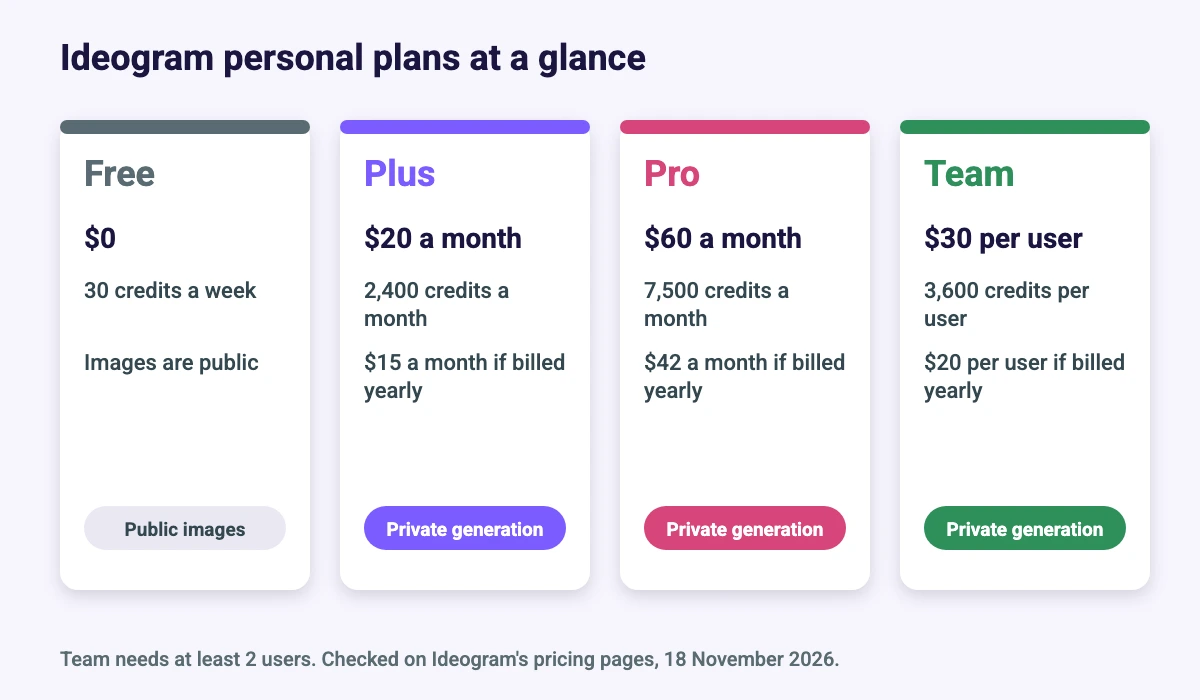
Ideogram’s plans page lists four personal plans, and says its prices were last verified on 15 October 2026. Check the live page before you pay, because plans change.
| Plan | Monthly price | Yearly price (per month) | Credits | Private images |
|---|---|---|---|---|
| Free | $0 | $0 | 30 per week | No, everything is public |
| Plus | $20 | $15 ($180 a year) | 2,400 per month | Yes |
| Pro | $60 | $42 ($504 a year) | 7,500 per month | Yes |
| Team | $30 per user | $20 per user ($240 a year) | 3,600 per user | Yes (at least 2 users) |
On the paid plans, credits reset on each renewal date, and once they run out Ideogram models keep working in a slower queue. Pro adds batch generation and a larger generation queue, and Team adds central billing and admin with credits assigned to each member. The FAQ says unused monthly credits do not roll over, while credits you buy separately last 365 days.
Is Ideogram Free?
Yes, with limits. The free plan gives 30 credits a week, which refresh weekly. The pages are not fully consistent about which sign-in methods earn those credits: they say Google and Apple sign-ups do and that email sign-ups do not, and they are unclear about Microsoft. Check your own account after you sign up.
Three other free-plan details are worth knowing. Everything you generate is public, so do not use it for confidential client work. Downloading a JPEG at its original size is free. Edits, upscales and reference images always cost credits, though failed or blocked generations are not charged. If you want to compare it with other no-cost tools first, see our best free AI image generators.
How to Use Ideogram Step by Step
The Quick Start page describes the basic route. In short:
- Go to ideogram.ai and sign in. Pick your username carefully, because it cannot be changed later.
- On the Home screen, open the selector under “What will you design?” and choose Image.
- Type your prompt. Put any exact wording in quotation marks.
- Leave the model on Auto, which picks one for you, or choose a model yourself. Set the aspect ratio and number of images under the prompt box.
- Submit the prompt and wait for the results.
- Find your images in the Assets tab, or under Library, then Generations.
- Choose a file type and size to download. On the free plan, JPEG at original size costs nothing.
Ideogram Settings Explained
Ideogram’s Create Images page describes these controls. Some depend on the model you choose, and model availability can vary by account.
| Setting | What it does |
|---|---|
| Model picker | Auto chooses a model for you. You can also pick from your recent, pinned and saved models, or browse all models. |
| Aspect ratio and number of images | Set under the prompt box, so you can match a poster, thumbnail or social post. |
| Quality | A model-specific setting shown under the prompt. |
| Magic Prompt | On Ideogram models, expands a short prompt into a more detailed one. |
| Reference images | Attach up to 9 JPEG, PNG or WebP files of up to 25 MB each, or type @ to reuse a past image. |
| Seed | Found under Advanced settings, useful when you want to repeat a result. |
| Publish to community | On Plus, Pro, Team and Enterprise plans, new images stay unpublished until you publish them. |
Ideogram’s FAQ also lists style presets, style reference images, negative prompts and color palettes for Ideogram 3.0, and a transparent-background model, Ideogram 4.0 Transparent, for images without a background. Which models you see depends on your account, so open the model picker to check.
How to Write Ideogram Prompts
Ideogram does not need a fixed format, but its prompt structure guide recommends a consistent order. Start with an image summary: one sentence naming the image type, the main subject and the tone. Then add whichever of these elements matter:
- Main subject details, including any text in quotation marks
- Pose or action
- Secondary elements, such as props
- Setting and background
- Lighting and atmosphere
- Framing and composition, such as camera angle and placement
- Finish, such as a lens or brush style
Put the main idea near the start and avoid piling on unrelated ideas. On Ideogram 3.0, the guide suggests keeping plain-language prompts to about 150 words, because later words may be weakened or ignored. Short prompts leave room for surprise, and longer prompts give tighter control.
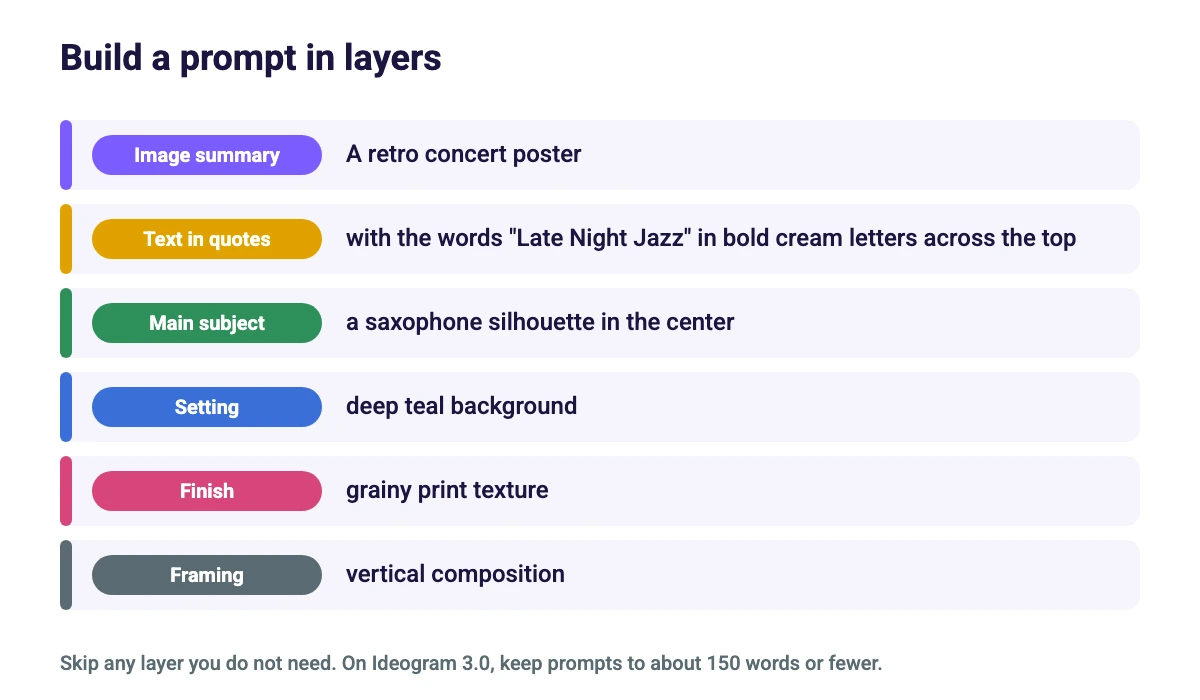
Here are four example prompts that follow that structure. We wrote them as starting points and have not tested them, so results will vary:
| Goal | Example prompt |
|---|---|
| Poster | A retro concert poster with the words “Late Night Jazz” in bold cream letters across the top, a saxophone silhouette in the center, deep teal background, grainy print texture, vertical composition. |
| Badge or logo style | A round coffee shop badge with the words “Morning Bean” in flowing script along the bottom, a steaming cup in the center, flat vector style, warm brown and cream colors, white background. |
| YouTube thumbnail | A bold video thumbnail with the words “Learn Canva” in thick white sans-serif letters on the left, a smiling person pointing at a laptop on the right, bright purple background, high contrast, 16:9. |
| Product photo | Close-up photo of a ceramic mug on a wooden table, soft morning window light, shallow depth of field, steam rising, calm and cozy mood. |
For thumbnails, check the right dimensions in our YouTube thumbnail size guide, and for social posts see Instagram post size. If you want more prompt ideas for another tool, our Leonardo AI prompt guide follows a similar approach.
How to Get Readable Text in Ideogram Images
Text is where most AI image tools slip, so Ideogram’s text in images guide is worth following closely:
- Put the exact words in quotation marks, spelled and capitalized the way you want them.
- Mention the text early in the prompt, because early text usually comes out more reliably.
- Say where the text goes, such as across the top of a poster or along the bottom.
- Keep the text short. Brief titles have fewer chances for typos, and long body copy is better added later in a design tool.
- Keep the scene simple so there is clean space for lettering.
- Describe the style by weight, shape and mood, such as bold sans-serif or flowing script, rather than relying on a specific font name.
- For several text blocks, list them from top to bottom, each with its own style and position.
The guide also notes that English is the most accurate language and that non-Latin scripts and accents may fail. If a word comes out wrong, regenerate, shorten the text, or use Studio’s AI edit or Select area tools to correct only the text. Another option is to leave the words out and add them in Canva with fonts you control, using our Canva font pairings for ideas.
Character Consistency and Reference Images
If you want the same character across several images, Ideogram’s FAQ points to reference images. It describes Ideogram 3.0 Character and recommends Ideogram 4.5 for character consistency, with one to five reference images and tags such as @img_1 in the prompt. The approach is similar in other tools, and our guide to a consistent character in AI art explains the general method.
Ideogram vs Other AI Image Tools
Ideogram is a standalone generator, so you create images on its site and bring them into your design tool. Canva takes a different route, with image generation built into the editor. Our guides to how to use Canva AI and Canva Magic Studio cover that. For editing existing photos with prompts, see how to use Nano Banana for image editing, and for a wider comparison read best AI design tools for graphic designers.
Limits to Know Before You Pay
- Free images are public. Private generation starts on Plus.
- Credits are limited. Free credits refresh weekly, and paid credits reset at each renewal without rolling over.
- Edits and upscales cost credits. So do reference images.
- Text still needs checking. Even with good prompts, proofread every word before you publish.
- Model availability varies by account. You may not see every model mentioned in the docs.
- Commercial use depends on the terms. The pricing pages do not settle it, so read Ideogram’s Terms of Service before using images in client or commercial work.
Conclusion
Ideogram is easy to start with: sign in, choose Image and write a prompt with the exact text in quotation marks. The free plan is enough to test it, but its images are public and the weekly credits are limited, so move to Plus if you need privacy or more volume. Follow the documented prompt order, keep text short and proofread every result.
Frequently Asked Questions
Ideogram is an AI image generator that turns text prompts into images. Its help pages put particular emphasis on putting readable text inside images, such as posters, social graphics and thumbnails.
Yes, there is a free plan with 30 credits per week. Free-plan images are public, and edits, upscales and reference images cost credits. Free credits depend on how you sign up, so check your account.
According to Ideogram’s plans page, Plus is $20 a month ($15 a month billed yearly) with 2,400 credits, Pro is $60 a month ($42 billed yearly) with 7,500 credits, and Team is $30 per user ($20 billed yearly) with 3,600 credits per user and at least 2 users.
Not on the free plan, where everything you generate is public. Plus, Pro and Team include private generation, and on those plans new images stay unpublished until you publish them.
Put the exact words in quotation marks, mention them early, say where they go, keep them short and describe the style instead of naming a font. If a word is wrong, regenerate, shorten the text or fix it with Studio’s AI edit or Select area tools.
Ideogram’s pricing pages do not address commercial use, and its FAQ says it depends on its Terms of Service. Read the current terms, and check them again if you are working for a client.
Magic Prompt, available on Ideogram models, expands a short prompt into a more detailed one. It can help if you are not sure what to add, but write your own full prompt when you want tight control.
Short prompts leave more room for surprise and long prompts give more control. For Ideogram 3.0, the prompt guide suggests keeping plain-language prompts to about 150 words, because later words may be weakened or ignored.