Canva AI vs Adobe Firefly is the new choice many designers face, because both companies now offer AI that can build and edit designs. This guide compares them using each company’s own announcements and help pages, and it marks every gap as “Not stated.”
We based this on the pages we read for our guides to Canva AI 2.0 and Adobe Firefly new features. Both tools change fast, so check your own account before you decide.
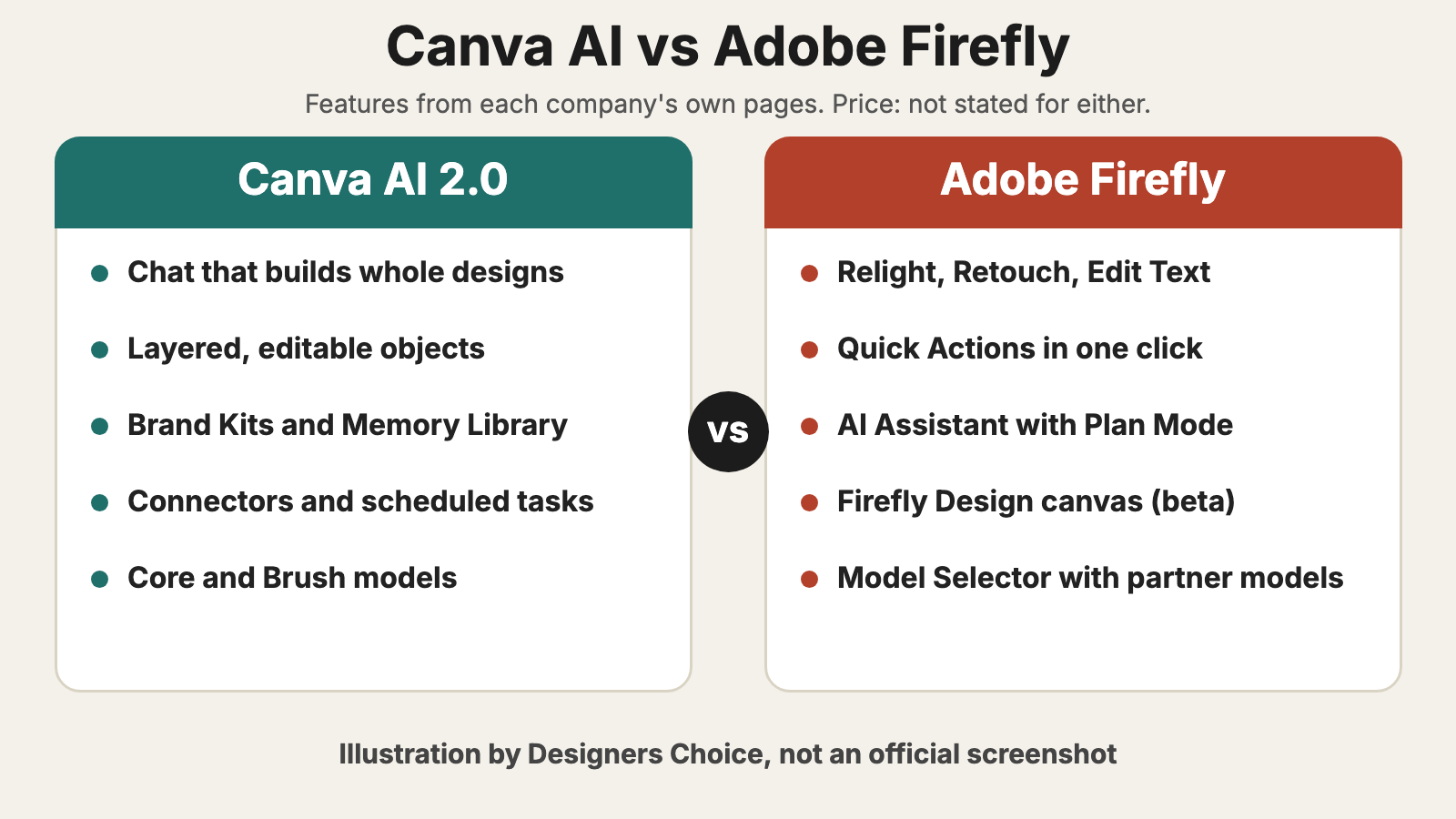
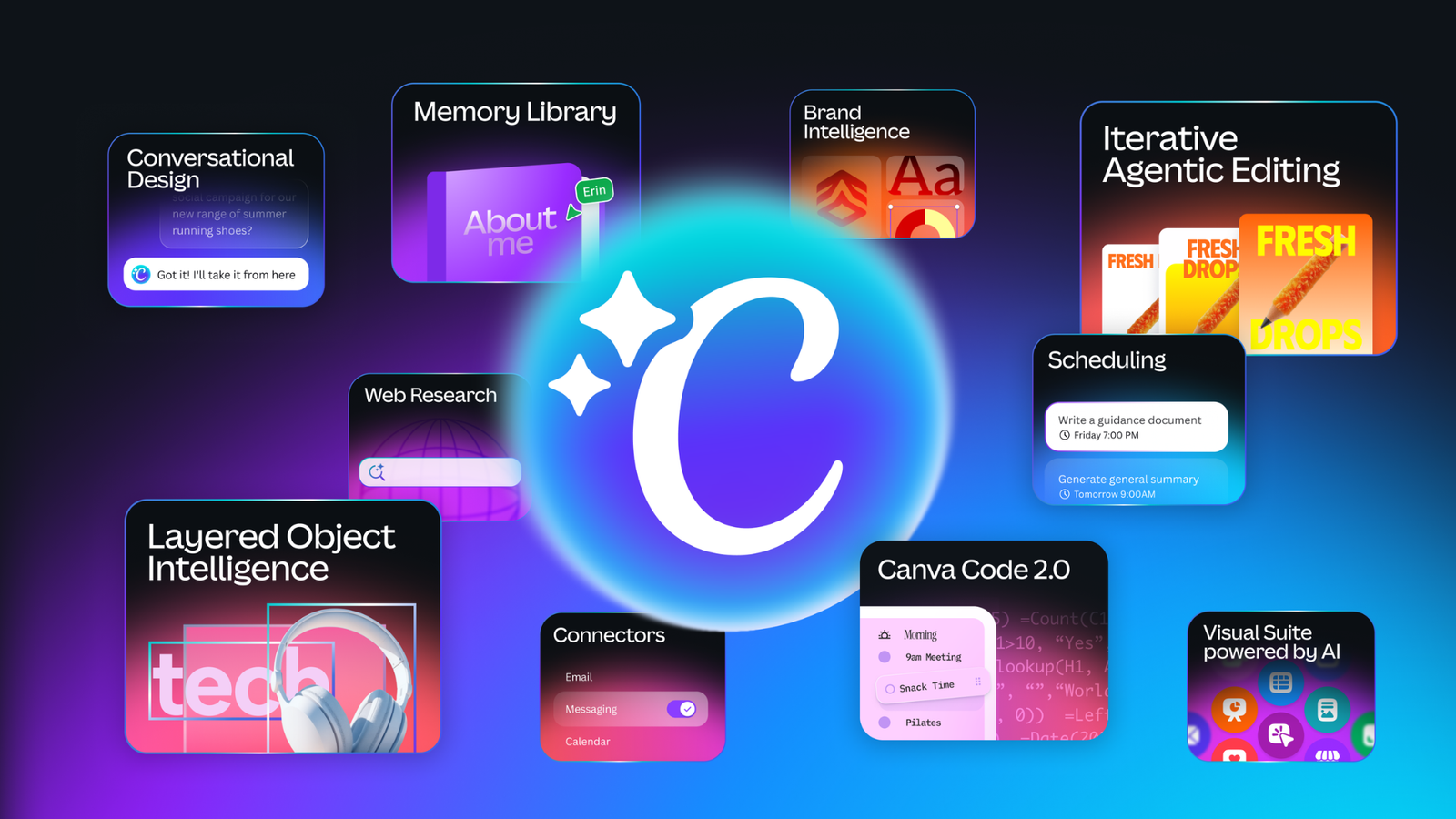
Illustration by Designers Choice, not an official screenshot
Canva AI vs Adobe Firefly at a Glance
| Area | Canva AI 2.0 | Adobe Firefly |
|---|---|---|
| Main idea | A chat that creates and edits whole designs from individual, editable objects | A set of AI editing tools, an AI Assistant and a new design app |
| Status | Research preview at launch, with wider access rolling out | Edit Text, Retouch, Relight and Quick Actions are generally available. Most other new tools are beta |
| Edit by chat | Yes, in the editor, and you can stop the agent at any time | The Firefly AI Assistant is in beta, with a Plan Mode you can approve |
| Photo edits | Not the focus. Canva lists tools such as Background Remover and Image Upscaler | Relight, Retouch and Skin Cleanup, Edit Text, Edit Object |
| Brand control | Brand Kits, Brand Templates and a Memory Library | Saved preferences for formats, colors, brand guidelines, characters and products |
| Apps and automation | Read-only Connectors, Scheduled Tasks and web research | Firefly Graph workflows and always-on agents (preview) |
| Models | A choice between Canva Brush and Canva Core | A Model Selector with Auto-Select and named partner models |
| Price | Not stated for Canva AI 2.0 | Not stated for the new tools |
The Core Difference
This is our own reading. Canva AI 2.0 treats the design as the unit of work. You describe a goal, and the chat produces a layered design that you keep refining. Adobe’s Firefly announcement reads more like a toolbox. It adds sharp image tools, such as Relight and Edit Text, and then wraps an assistant around them.
Canva says its approach builds every design from individual objects, so a change to one element leaves the others alone. Adobe says Firefly Design is one canvas for vector, raster, motion, 3D and print. Both claims are the companies’ own, and we have not tested them.
Creating a Design from a Prompt
Canva’s Get started page says you open Canva AI from the Homepage, enter a prompt or pick a design type, and optionally add a Brand Kit, a file or a connected app. Canva then opens the editor, or shows the design for you to open there. Canva names presentations and social media designs among supported Brand Template flows.
Adobe’s release describes several routes. Quick Actions are one-click workflows from the Firefly homepage, such as Remove Object, Thumbnail Generator and Build Product Ad. Firefly Builder turns plain language into prototypes of websites, presentations or apps, but it is in private beta with a waitlist.
Editing Photos and Text in Images
This is where Adobe’s announcement is stronger on paper. Adobe lists four image tools as generally available: Relight, Retouch (with Skin Cleanup), Edit Text and Quick Actions. Edit Object is in beta.
| Task | What Adobe says Firefly offers | What Canva says |
|---|---|---|
| Change the lighting | Relight adds up to three point or directional lights and lets you keep some of the original lighting | Not stated as a Canva AI 2.0 feature |
| Clean skin | Skin Cleanup removes blemishes such as acne, and marks such as moles, freckles and scars | Not stated as a Canva AI 2.0 feature |
| Edit text in an image | Edit Text makes text editable line by line and matches the original font and style | Not stated for images. Canva edits text inside its own layered designs |
| Edit one object | Edit Object lets you select one object and change only that (beta) | Edits by chat on the page, image or text you select |
| Remove or upscale | Quick Actions include Remove Object and Upscale image | Background Remover is on Free, and Image Upscaler is in the Standard tier |
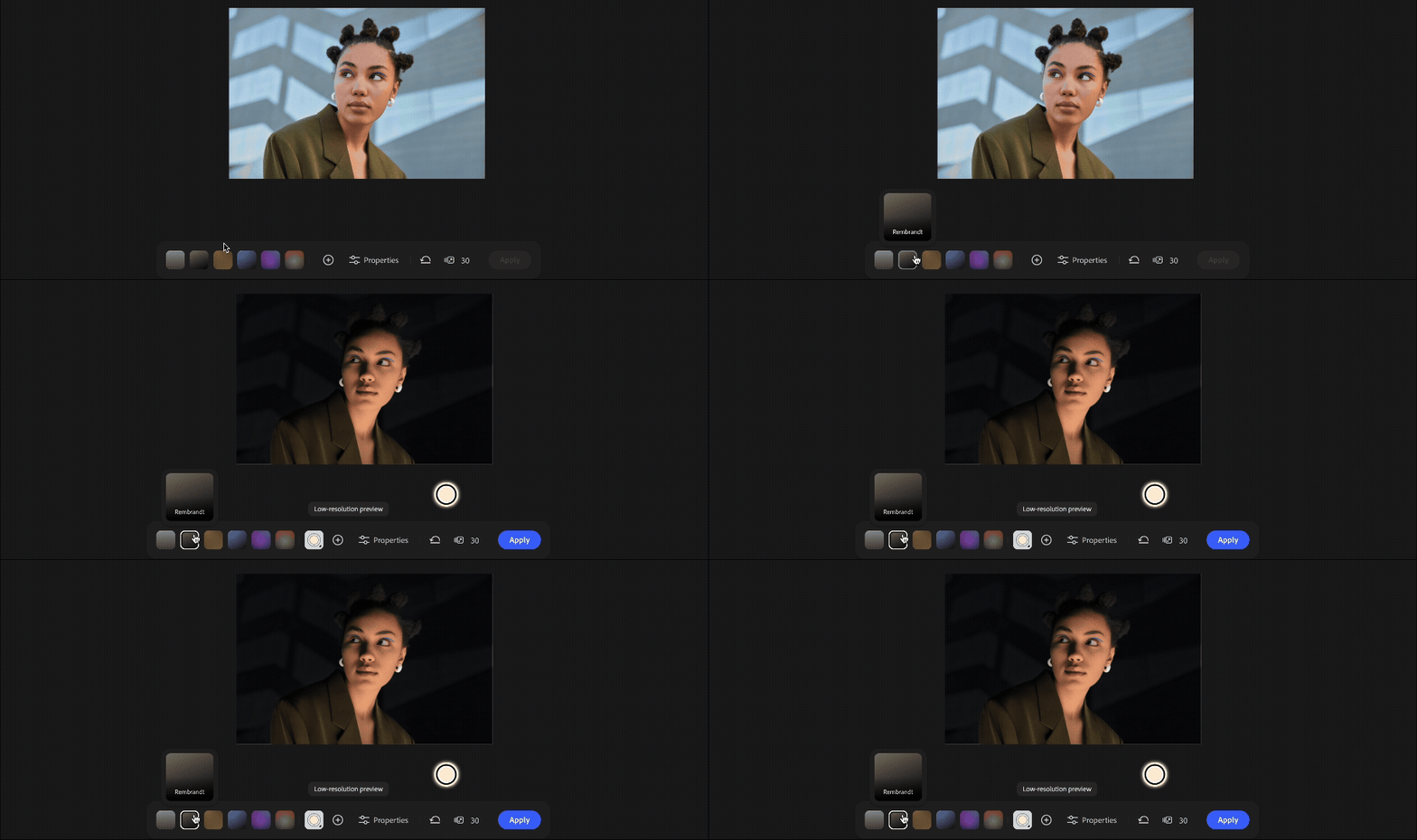
If your daily work is retouching photos, Adobe’s tools are closer to that job. If your daily work is social posts, decks and flyers, Canva’s chat is closer to yours. That is our view, not either company’s.
Brand Control
Canva says Brand Templates in a Brand Kit appear in Canva AI and help it match your brand. Its Memory Library stores an About Me page and designs as personal sources, though Canva says adding a source does not guarantee Canva AI will use it.
Adobe says the Firefly AI Assistant lets you set formats, colors, brand guidelines, characters and products once. Its Firefly Design page adds brand kit extraction and agents that can enforce brand rules. Adobe also lists AI Assistant Memory in beta, which you can edit or delete.
Neither company says how closely its AI follows a brand guide in practice. Test both on a real Brand Kit before you trust them with client work.
Apps, Automation and Research
- Canva Connectors link Canva AI to apps such as Slack, Gmail, Google Drive, Google Calendar, Notion, Zoom, HubSpot, Microsoft, Atlassian and Linear. Canva says every connection is read-only.
- Canva Scheduled Tasks run a prompt on a repeat, up to 10 at a time, daily, weekly or monthly.
- Canva says Canva AI can search the web and place current information into a design.
- Adobe Firefly Graph builds custom, repeatable AI workflows, and always-on agents are in preview. Adobe gives no detail on connected apps in the pages we read.
AI Models
Canva lets you choose between two models for generating designs. With Canva Brush, every design uses a model Canva trained. With Canva Core, some designs may use a different model, which Canva does not name. Editing requests always use Canva Brush.
Adobe’s Model Selector lets you pick a model or leave it on Auto-Select. Adobe’s release names Dreamina Seedance 2.5, Kling 4.0, GPT Image 2.6 Sunburst, GPT Image 2.6 Flare and Nano Banana 2.1. It does not say which plan can use which model, or what licence terms apply to partner models.
Plans, Limits and Price
Canva states its AI allowance as multiples of the Free allowance, not as counts. Canva Pro and Nonprofits get 10x the Free allowance for Premium and Ultra tools, and Business and Enterprise get 20x. Canva Free and Pro Lite have no Ultra tools. Canva does not state a price for Canva AI 2.0 or the number of uses.
Adobe’s announcement gives no prices, credit amounts or plan lists for the new tools. It links to Adobe’s Firefly pricing page. Adobe says Firefly Design is open to all users during its public beta, with tiered access after general availability.
| Question | Canva AI 2.0 | Adobe Firefly |
|---|---|---|
| Price of the new AI | Not stated | Not stated |
| Exact uses or credits per plan | Not stated. Only multiples of the Free allowance | Not stated |
| Which countries get each feature | Not stated. Canva lists supported languages | Not stated |
| Licence terms for partner models | Not stated. Canva does not name the Core alternative model | Not stated |
| Limits on complex layouts | Canva says simpler layouts work best | Not stated for Edit Text or Edit Object |
Who Should Pick Which?
This section is our own opinion, not either company’s claim.
- Choose Canva AI 2.0 if you make social posts, presentations and flyers, want one chat across the whole design, and work with a small team.
- Choose Adobe Firefly if you retouch photos, fix text inside flat images, or already work in Photoshop and Illustrator files.
- Use both if you edit photos in Firefly and then lay out the finished design in Canva. Check licence terms before you move images between tools.
- Wait if you need clear pricing. Neither company states a price for its newest AI tools in the pages we read.
For hands-on steps, read our guides to how to use Canva AI and how to use Adobe Firefly. For a wider list of tools, see the best AI design tools for graphic designers.
FAQ
It depends on the job. Canva AI 2.0 aims at chat-based creation of whole designs, while Adobe’s Firefly announcement is stronger on photo and text-in-image tools. Neither company states a price for its newest AI.
Adobe lists Relight, Retouch with Skin Cleanup and Edit Text as generally available in Firefly. Canva’s pages we read focus on design creation, with tools such as Background Remover and Image Upscaler.
Canva names presentations and social media designs among its supported Brand Template flows, and its chat builds and edits whole designs. Adobe’s Quick Actions include a Thumbnail Generator and Build Product Ad.
Canva says Canva Free includes some AI features with monthly limits, and Adobe links to a pricing page. Neither states a price for its newest AI tools in the pages we read.
Yes. Canva Connectors link to apps such as Slack, Gmail, Google Drive and Notion, and Canva says every connection is read-only. Adobe gives no list of connected apps in its release.
Canva offers Canva Brush and Canva Core. Adobe’s Model Selector names Dreamina Seedance 2.5, Kling 4.0, GPT Image 2.6 Sunburst, GPT Image 2.6 Flare and Nano Banana 2.1.
You can, for example by retouching a photo in Firefly and laying out the design in Canva. Check each company’s terms before you move images or partner-model results between tools.
Not stated. Canva lists many supported languages and says some features may not be in every country yet. Adobe does not say where each Firefly feature is live.