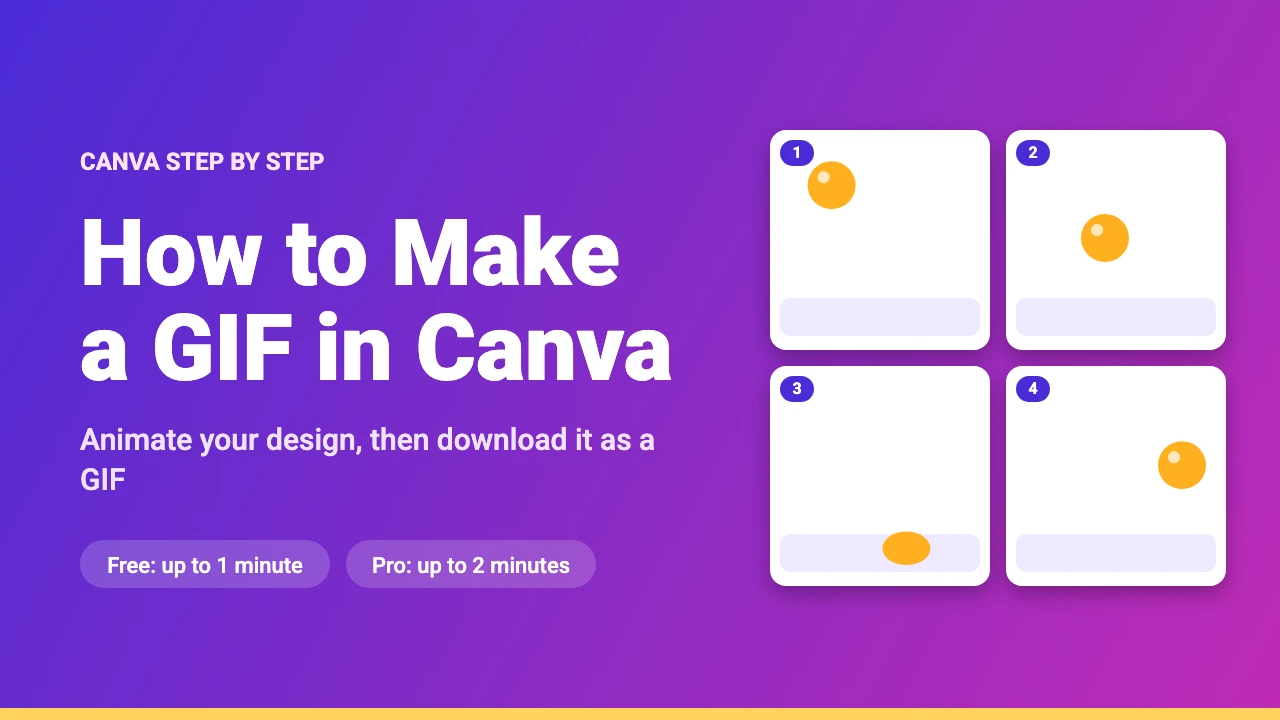
To make a GIF in Canva, create a design, animate it with the Animate tool, then click Share, Download and choose GIF as the file type. Canva Free can download GIFs up to 1 minute long at a maximum of 1280 × 720 pixels, and paid plans allow up to 2 minutes at up to 1920 × 1080 pixels.
This guide walks through each step, explains the Free and Pro limits, shows how to change the size, make a transparent GIF and turn a video into a GIF, and fixes common problems. The limits come from Canva’s own help pages, read on 17 November 2026. Canva updates its tools often, so the menus you see may differ slightly.
Canva GIF Limits: Free vs Pro
According to Canva’s help page on downloading designs as video or GIF, the limits depend on your plan. The paid column applies to Canva Pro, Teams, Nonprofits and Education.
| Download | Canva Free | Canva Pro, Teams, Nonprofits and Education |
|---|---|---|
| GIF length | Up to 1 minute | Up to 2 minutes |
| GIF resolution | Up to 1280 × 720 px | Up to 1920 × 1080 px |
| MP4 video length | Up to 30 minutes | Up to 2 hours |
| MP4 video resolution | Up to 1920 × 1080 px | Up to 3840 × 2160 px |
How to Make a GIF in Canva
The process is the same whether you start from a blank design or a template. Here is the full flow at a glance, followed by details for each step.
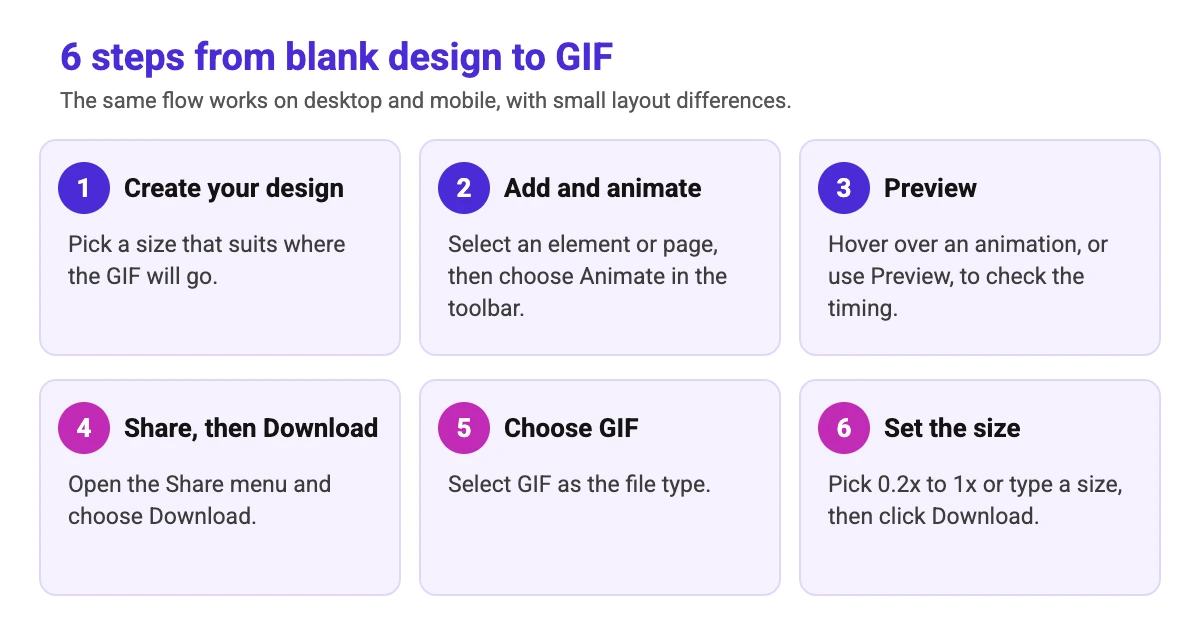
- Create your design. Open Canva and click Create a design. Choose a size that suits where the GIF will go, such as a square for a social post. You can also start from an animated template.
- Add your content. Upload images or video, add text and drop in stickers, shapes and frames. Canva’s GIF maker page says you can combine uploads, text, stickers, filters and frames in the editor before you download.
- Animate your design. Select the element or page, then click Animate in the toolbar above the editor. Pick an animation to apply it.
- Preview it. Hover over an animation to see it, or use Preview to watch the whole design play.
- Share, then Download. Click Share, then Download, and choose GIF as the file type.
- Set the size and download. Choose a size from 0.2x to 1x, or type your own, then click Download. If your design has several pages, choose All, This Page or Custom first.
Ways to Animate Your Design
Canva’s animation help page describes three main ways to add movement. You can mix them in one design.
Animate Pages, Elements and Text
After you click Animate, a panel opens with Page, Element and Text tabs. Choose the tab that matches what you selected, hover over an animation to preview it, then click it to apply. For many animations you can pick a speed preset (Slow, Medium or Fast) or set exact intro and outro durations, and you can combine General or Suggested animations with Add-on effects. Some animations are tagged for Canva Pro. To remove movement, select the page or element, open Animate and choose Remove animation.
Create Your Own Motion Path
Select an element, click Animate, then choose Create an animation. Drag the element, text or photo along the path you want, adjust the Movement Style and Add-on effects, then click Done. This is how you make a ball bounce or a logo glide across the page. Canva says each animation can be up to 10 seconds long, and a design can have up to 50 animations.
Change Timing and Order
Select an animated element, open the floating toolbar, click More and choose Show element timing. The timing appears below the editor, where you can drag tiles to change the order and drag the handles to change how long each animation lasts. Canva also offers Magic Animate, which adds animations and transitions with one click, and our guide to Canva Magic Studio explains the AI tools around it.
How to Turn a Video Into a GIF in Canva
You can make a GIF from a clip instead of a design. Canva’s GIF maker page says to upload your video, trim it, add captions, stickers or animations, then click Download, open the file type drop-down and choose a GIF format. Keep the clip short, because Canva Free allows GIFs of up to 1 minute, and shorter clips make smaller files. If you only need a few seconds of a long video, trim it first.
How to Add an Existing GIF to a Canva Design
If you want a ready-made GIF instead of making your own, Canva’s Apps marketplace lists apps such as GIPHY and KLIPY that let you search for GIFs and add them to a design. Check the license and terms of any GIF you did not make before you use it in commercial work.
How to Make a Transparent GIF in Canva
In the GIF download settings, toggle Transparent background on before you click Download. A transparent GIF is useful for stickers and overlays, such as stream graphics. If the toggle shows an upgrade prompt on your account, you need a paid plan for it. If the background does not become transparent, check that the page has no background color or image. For stream graphics, see our guides to webcam overlays and Twitch emote sizes, which include GIF size notes.
GIF Size, Quality and File Size Tips
- Match the size to the destination. A smaller size multiplier such as 0.4x makes a lighter file, and 1x keeps the full size of the design. For social sizes, see our Instagram post size guide.
- Expect limited colors. The GIF format supports up to 256 colors per frame, so photos and smooth gradients can look grainy. Flat colors, text and illustrations look cleaner.
- Keep it short. A few seconds that loop well is enough for most uses, and it keeps the file small.
- Remember there is no sound. GIFs do not carry audio. If you need music, download an MP4 instead and read how to add music to Canva.
GIF or MP4: Which Should You Download?
| If you need | Choose | Why |
|---|---|---|
| A short looping reaction or sticker | GIF | Plays automatically and works in many chat and social apps |
| Sound or music | MP4 | GIFs have no audio |
| A photo-heavy or long clip | MP4 | GIFs are limited to 256 colors per frame and Free GIFs stop at 1 minute |
| A higher resolution | MP4 on a paid plan, or GIF on a paid plan | Paid plans allow GIFs up to 1920 × 1080 px and MP4 up to 3840 × 2160 px |
Common Canva GIF Problems and Fixes
| Problem | Likely cause | What to try |
|---|---|---|
| The GIF will not download or is cut short | The design is longer or larger than your plan allows | Free GIFs are limited to 1 minute and 1280 × 720 px. Shorten the design, lower the size or move to a paid plan |
| Animations look reduced or missing | The Reduce motion setting is on for your device | Canva says animations are reduced, and transitions and background animations removed, when Reduce motion is on. Turn it off to preview in full |
| The GIF looks grainy | The GIF format has a limited color range | Use flat colors and simple graphics, or export an MP4 for photo-heavy clips |
| The file is too large to share | Long clip or full size | Use a smaller size multiplier, trim the clip or reduce the number of pages |
| The export stalls | A slow connection or a heavy design | Try again with a simpler design. Our guide on video exports stuck at 99 percent covers fixes for stalled video downloads |
Related Canva Guides
If you want to build more animated content, try our best Instagram reel templates, compare Canva video alternatives or read how AI animation works. You can also create a still with one of the best free AI image generators and animate it in Canva, and 74 Canva tips and tricks has more shortcuts.
Conclusion
Making a GIF in Canva takes a few minutes: create a design, animate it, then download it as a GIF and choose a size. Stay inside the limits of your plan (1 minute and 1280 × 720 on Free), keep the clip short and simple, and switch to MP4 when you need sound or sharp photos. Check Canva’s help page if a limit looks different, because plans change.
Frequently Asked Questions
Yes. Canva Free can download GIFs of up to 1 minute at a maximum of 1280 x 720 pixels. Some animations and options are marked for Canva Pro.
Up to 1 minute on Canva Free, and up to 2 minutes on Canva Pro, Teams, Nonprofits and Education, according to Canva’s help page.
Upload the video to a Canva design, trim it, add any text or effects, then click Share, Download and choose GIF as the file type. Keep the clip within your plan’s GIF length limit.
No. The GIF format does not carry audio. Download an MP4 if you need music or sound.
In the GIF download settings, switch on Transparent background before you click Download. If it asks you to upgrade, that option needs a paid plan on your account.
GIFs support up to 256 colors per frame, so photos and gradients can look rough. Use flat colors and simple graphics, download at 1x size, or choose MP4 for photo-heavy clips.
Yes. Canva’s Apps marketplace has apps such as GIPHY and KLIPY that let you search for GIFs and add them to a design. Check the license before using someone else’s GIF commercially.
Use a smaller size multiplier such as 0.4x or 0.2x, trim the clip, remove extra pages and keep animations simple. A smaller design also downloads faster.