AI image prompts work best when they say what is in the picture, how it should look and where you will use it. This guide gives you a simple formula, summarizes what Adobe and other tools advise, and shares prompts you can adapt for graphic design.
We read Adobe’s Firefly prompt pages, plus the prompt advice in the Canva, Midjourney, Recraft and Figma pages we covered in our other guides. The prompts in this guide are our own examples. Where a page gives no answer, we write “Not stated.”
Illustration by Designers Choice, not an official screenshot
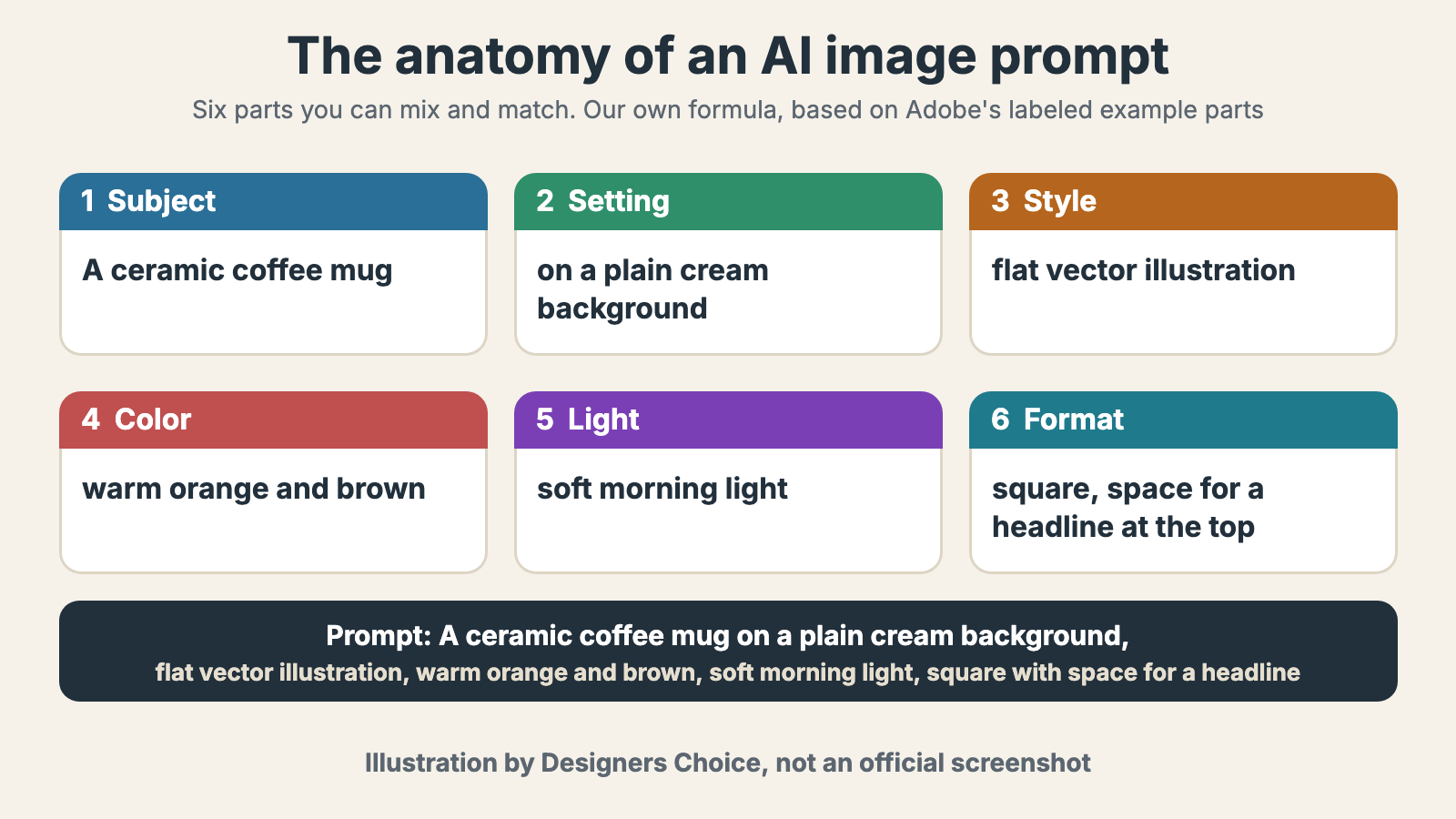
A Simple Formula for AI Image Prompts
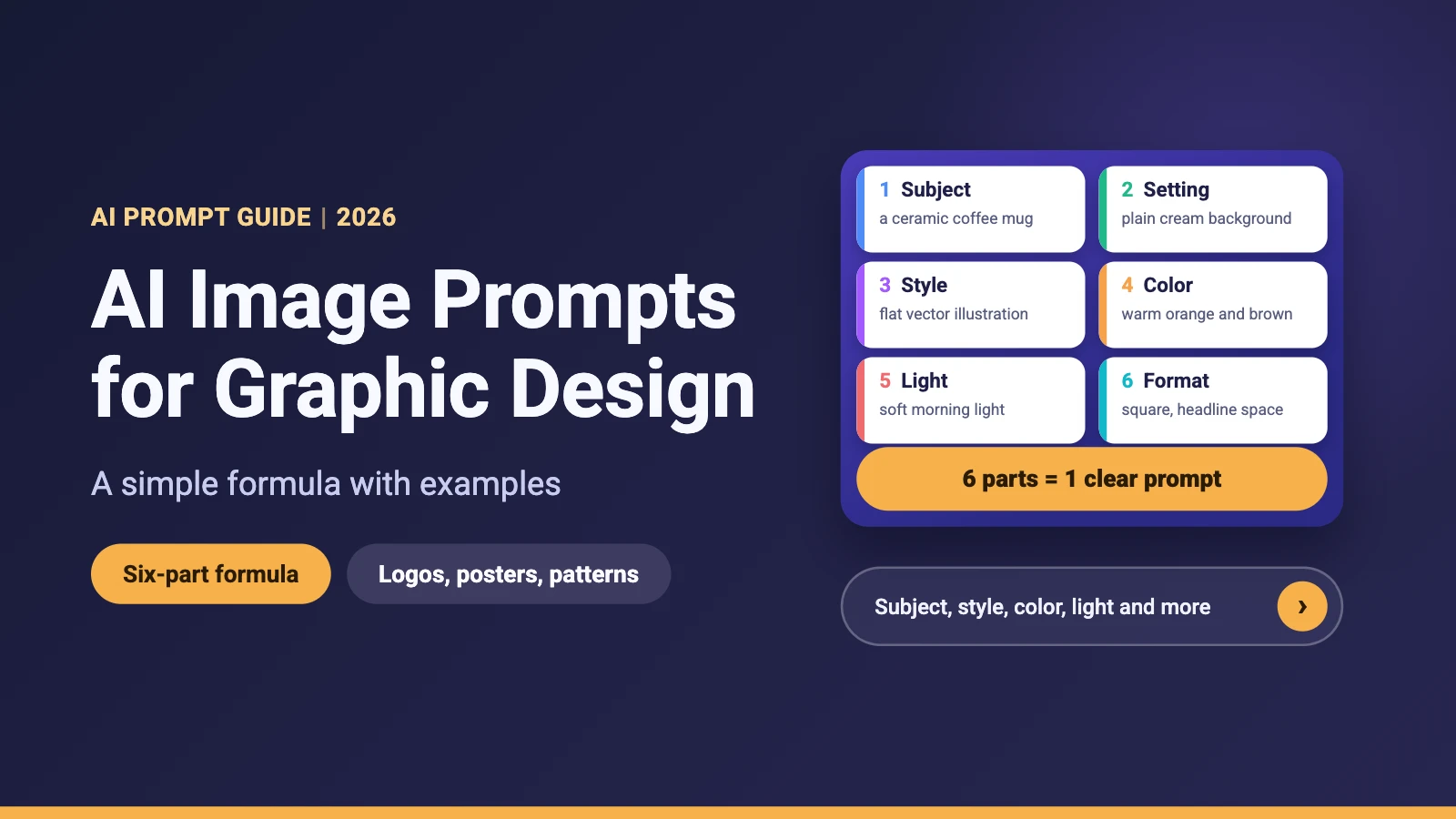
Adobe’s prompt guide breaks an example prompt into labeled parts: subject, background, image type, style, color, lighting and action. We turn that into a six-part formula you can reuse. It is our own summary, not an official template.
| Part | What to say | Example |
|---|---|---|
| Subject | What is in the picture | A ceramic coffee mug |
| Setting | Where it is, or the background | on a plain cream background |
| Style | The art or photo style | flat vector illustration |
| Color | The palette or mood | warm orange and brown |
| Light | How it is lit | soft morning light |
| Format | Shape and use | square, space for a headline at the top |
Put together, that gives: A ceramic coffee mug on a plain cream background, flat vector illustration, warm orange and brown, soft morning light, square with space for a headline at the top.
What the Official Guides Say
| Source | Advice we found |
|---|---|
| Adobe Firefly help page (dated June 16, 2026) | Use at least three words, and keep the language simple and direct. Build the prompt from a subject, descriptors and keywords. Add feeling, style and lighting for a more original result |
| Adobe Firefly prompt guide | Start simple, then get descriptive. Be specific, name the art style, think about color scheme and lighting, and try the Prompt Enhancement feature. It lists Firefly aspect ratios of square (1:1), landscape (4:3), portrait (3:4) and widescreen (16:9) |
| Canva Help Center | Start with the design type, state the goal and audience, describe style and colors, and give the key message |
| Midjourney docs | Put parameters at the end of the prompt, with a space before the dashes |
| Recraft FAQ | Use the Negative prompt field to exclude things instead of writing “no” in the prompt |
| Figma Make help | Be clear and direct, give examples, and structure the prompt as task, context and constraints |
Adobe’s pages disagree on one point. The Firefly help page says to avoid words like generate or create in a prompt. An older Adobe Express blog post from 2023 says opening with an instruction like that is not required but allowed. Test both styles in your own tool.
Tool-specific syntax matters, so read our guides to Midjourney V8, Recraft AI and Canva AI 2.0.
Prompts for Logos and Icons
These prompts are our own examples. Vector tools such as Recraft suit them best.
| Goal | Example prompt |
|---|---|
| Café logo | A simple round logo for a neighborhood cafe, a steaming cup beside a small leaf, two colors, flat shapes, no gradients |
| App icon | A rounded square app icon for a habit tracker, a white checkmark on a deep teal background, soft shadow, minimal |
| Icon set | Six outline icons for a travel app, same stroke weight and corner radius, on a white background |
| Monogram | A monogram of the letters R and K intertwined, thin gold lines on dark navy, elegant, symmetrical |
Prompts for Social Posts and Posters
| Goal | Example prompt |
|---|---|
| Sale background | A soft gradient background in peach and lavender with paper grain, large empty area in the center for text, portrait format |
| Event poster art | A bold geometric poster illustration of a night music festival, layered circles and stripes, electric blue and magenta, high contrast |
| Quote card | A calm watercolor sky in pale blue and cream with plenty of empty space, square format, no text |
| Seasonal banner | A wide banner of winter pine branches with small lights, deep green and gold, room for a headline on the left, widescreen |
Prompts for Product and Packaging Mood
| Goal | Example prompt |
|---|---|
| Tea packaging | A top-down flat lay of eco-friendly tea packaging in sage green and cream, studio light, clean shadows |
| Skincare scene | A single frosted glass bottle on a stone block, soft window light, pale pink background, shallow depth of field |
| Craft product | Hand-poured candles on a wooden tray, warm light, linen cloth, cozy style, portrait format |
Prompts for Patterns and Textures
| Goal | Example prompt |
|---|---|
| Floral pattern | A repeating pattern of wildflowers in muted blue and cream, flat vector style, even spacing |
| Paper texture | A subtle off-white paper texture with fine fibers, evenly lit, no objects |
| Geometric pattern | A seamless pattern of overlapping arches in terracotta, olive and sand, flat shapes |
Fix Common Problems
This section is our own advice from using prompts like these.
| Problem | Try this |
|---|---|
| The result looks generic | Add a specific style, a color palette and a light direction |
| Too many objects appear | Name one subject, and say “single” or “one” |
| The layout has no room for text | Ask for empty space and say where it should sit |
| The style keeps changing | Save one good result, then reuse its style as a reference in your tool |
| Unwanted items keep showing up | Use the negative prompt field if your tool has one |
| Letters come out garbled | Ask for no text, and add the words in your layout app |
Change One Thing at a Time
When a prompt almost works, change one part and run it again. Swap the style, then the color, then the light. If you change everything at once, you will not know which edit helped. Adobe’s page says to reword the prompt and adjust settings when results miss, and then to refine in an editor.
Check the Result Before You Use It
- Look at hands, edges, small text and logos. AI images often get these wrong.
- Remove brand names, characters or real people that you did not intend.
- Check the plan and licence for commercial use. Our guide to AI generated images for commercial use explains what to ask.
- Consider adding Content Credentials to show your edits.
For a wider list of tools, see our roundup of the best free AI image generators and our Leonardo AI prompt guide.
What We Could Not Confirm
| Question | Answer on the pages we read |
|---|---|
| The best prompt length | Not stated. Adobe says at least three words |
| Whether words like generate hurt results in every tool | Not stated. Adobe’s pages disagree |
| Which style words each tool understands best | Not stated |
| Whether our example prompts work the same in every tool | Not tested. Results vary by tool and model |
FAQ
A good prompt names the subject, the setting, the style, the colors and the lighting. Adobe advises specific detail, naming the art style and thinking about color scheme and lighting.
Adobe says to use at least three words and keep the language simple and direct. It does not state a best length, so start short and add detail until the result matches your idea.
Adobe’s Firefly help page says to avoid them, while an older Adobe Express post says an opening instruction is not required but allowed. Test both in your tool.
Ask for empty space and say where it should sit, such as room for a headline at the top. Then add the real words in your layout app, because AI text is often unreliable.
Adobe’s prompt guide lists square (1:1), landscape (4:3), portrait (3:4) and widescreen (16:9).
Recraft says to use its Negative prompt field instead of writing no or do not in the prompt. Other tools have similar settings, such as the no parameter in Midjourney.
You can start with the same idea, but syntax and results differ. Midjourney uses parameters at the end of the prompt, and Recraft has separate fields for style and negative prompts.
Yes, but check the tool’s plan and licence first. Our guide to AI generated images for commercial use lists what to check. This is not legal advice.