Categories
Canva

How To Get Canva Pro For Free: A Beginner’s Guide (100% WORKING)

Creating cool designs shouldn’t cost money.

As someone who loves making graphics, I know how Canva Pro helps turn ideas into professional designs fast.

This guide shows simple ways to use Canva Pro for free-perfect for teachers, students, or anyone wanting premium features like Magic Studio or background remover without paying.

You’ll learn about the 30-day free trial (no tricks!), special programs for schools, and tips to make the free version work harder.

Whether you’re designing social media posts, educational templates, or logos, these 2025-approved methods help you unlock high-quality tools.

Teachers can get free access for group projects, while students use .edu emails for student access. Even nonprofits get free templates and advanced collaboration tools! Let’s dive in.

Understanding Canva Pro and Its Benefits
Understanding Canva Pro and Its Benefits

What is Canva Pro?

Canva Pro is the premium version of Canva that offers enhanced design tools, content creation capabilities, and collaboration features.

It’s designed for professionals who need more advanced options than what the free version provides. With Canva Pro, users gain access to premium templates, unlimited storage, and sophisticated design elements that simplify the creation of professional designs. For those wondering about the investment, you can learn more about how much Canva Pro costs.

The paid subscription for Canva Pro typically costs $14.99 per month, which might be a significant investment for individual designers, small businesses, or those just starting their side hustle in graphic design.

Many users often weigh whether the features justify the cost, a question explored in detail in this article on whether Canva Pro is worth it.

Key Features of Canva Pro

Canva Pro includes several premium features that set it apart from the free version:

  • Background Remover: Instantly remove image backgrounds with a single click. This is a powerful tool for creating clean, professional graphics. If you need to master this, here’s a guide on how to cut out an image in Canva.
  • Magic Studio: Access to AI-powered design tools like Magic Write and other advanced features.
  • Premium Content: Over 141+ million stock photos, graphics, videos, and audio tracks. It’s important to understand the usage rights so that you might ask, Are Canva images copyright-free?
  • Brand Kit: Upload and store your logos, fonts, and brand colors to ensure consistent design. For more on this, see if you can upload fonts to Canva.
  • Resize Designs: Quickly adapt designs for different platforms and formats with just one click. You can also change the orientation of your entire design with guides on how to landscape in Canva.
  • Advanced Collaboration Tools: Improved workflows for team projects.
  • 100GB Storage: Significantly more space for your design files compared to the free version.
  • Social Content Planner: Schedule and post content directly to social media platforms. You can also generate QR codes for your campaigns, but you may wonder, Do Canva QR codes expire?
  • Premium Templates: Access to over 5+ million templates compared to 2.2+ million in the free version. You can even create your own and learn how to sell Canva templates on Etsy or ask the broader question, “Can I sell Canva designs on Etsy?”.

Beyond the main features, Canva Pro allows for more intricate design manipulations. For instance, you can learn how to add a shadow in Canva to give depth to your elements. Text manipulation is also more advanced; you can discover how to curve text in Canvahow to outline text in Canva, and even how to flip text in Canva. For text layout, knowing how to wrap text in Canva and how to indent in Canva is very useful.

Comparing Free Canva Vs. Canva Pro
Comparing Free Canva Vs. Canva Pro

Before diving into how to get Canva Pro for free, it’s important to understand what you’re missing with just the free version of Canva:

FeatureCanva FreeCanva Pro
Templates2.2+ million5+ million
Stock media library4.7+ million141+ million
Storage5GB100GB
Background RemoverNoYes
Magic Studio AI toolsLimited messages per month10x more messages
Brand KitLimited color savingComplete brand management
Transparent backgroundsNo (white background only)Yes
Resize designsNoYes (one-click resize)
Social schedulingNoYes

The free version is excellent for basic design needs, but the premium features in Canva Pro significantly enhance productivity and design quality.

For example, manipulating images is more robust in Pro.

You can learn basics like how to replace an image in Canva or how to flip an image in Canva. More advanced techniques include learning how to fade an image on Canva and how to slice in Canva.

Get Canva Pro Free With The 30-Day Trial
Get Canva Pro Free With The 30-Day Trial

How To Sign Up For The Canva Pro Free Trial?

Getting started with a free trial of Canva Pro is straightforward.

Here’s how to do it:

  1. Visit the Canva website through a special affiliate link that offers a 30-day trial (standard trials are usually shorter)
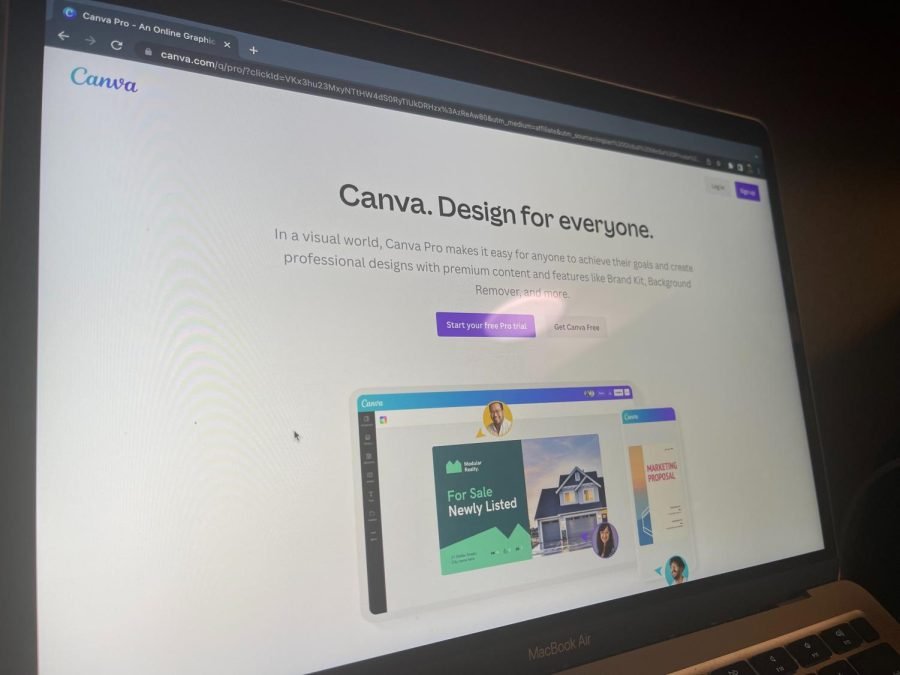
  2. Click on “Start your free Pro trial” button
  3. Sign up using your Google, Facebook, or email account
  4. Choose between a monthly or yearly plan (remember, you won’t be charged during the trial)
  5. Enter your payment details (required, but you won’t be charged until the trial ends)
  6. Start enjoying all premium features of Canva Pro for 30 days

The extended 30-day trial gives you plenty of time to create professional designs and test all the premium features. For instance, you could spend time learning how to put a timer in Canva for your video projects or figure out how to highlight text in Canva for your presentations.

Managing Your Free Trial to Avoid Charges

To ensure you don’t get charged after your free trial ends:

  1. Make a note of when your trial expires
  2. Set a reminder a few days before the trial ends
  3. If you decide not to continue, follow these steps to cancel:
    • Log in to your Canva account
    • Click on the settings icon (cog) in the top right corner
    • Select “Billing & plans.”
    • Click on the three dots next to your Canva Pro subscription
    • Select “Cancel plan.”
    • Click on “Continue cancellation.”
    • Provide a reason for cancellation
    • Click “Continue cancellation” again
    • Confirm by clicking “Cancel subscription.”
    • Click “OK” when you see the cancellation confirmation

What to Expect After the Trial Period Ends?

After your free trial ends, one of three things will happen:

  1. If you cancel before the trial ends, your account will revert to the free version of Canva, but you’ll retain access to all designs you’ve created
  2. If you don’t cancel, you’ll be charged for the plan you selected (monthly or yearly)
  3. If payment fails, your account will automatically downgrade to the free version

Even after downgrading to the free version, you’ll still have access to all your created designs, but premium elements will be watermarked if you try to edit them.

You’ll also lose access to features like creating interactive PDFs, so be sure to learn how to add a clickable link in Canva PDF during your trial.

Canva Pro For Students and Teachers
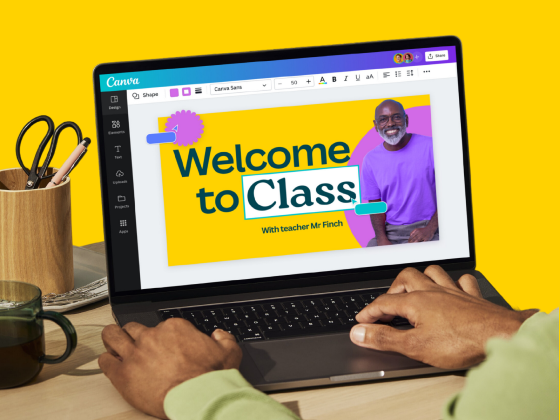
Canva Pro For Students and Teachers

Eligibility For Canva For Education

Eligibility For Canva For Education

Canva offers a special program called Canva for Education, which provides free access to Canva Pro features for eligible educational institutions.

To qualify, you must be:

  • A certified K-12 (primary or secondary) teacher currently in a teaching position
  • A certified K-12 school librarian
  • A certified K-12 learning support assistant or teacher
  • A certified K-12 curriculum specialist
  • A teacher at a technical or vocational school serving primary or secondary students
  • Part of a formally accredited K-12 school, school district, or department of education

It’s important to note that Canva for Education is not currently available for higher education institutions like colleges and universities. However, Canva does offer a separate “Canva for Campus” product for these institutions.

How to Apply With Your Educational Email?

Applying for Canva for Education is simple:

  • Visit the Canva for Education page
  • Sign up using your verified educational email domain for instant access
  • If you don’t have a verified email, upload proof of your teaching certification or employment status
  • Wait for verification (usually takes up to 48 hours)

Once approved, you’ll have access to all Canva Teams features, which include everything in Canva Pro plus education-specific tools.

Benefits of Canva For Education

Canva for Education offers numerous benefits specifically designed for educational environments:

  • Free access to all Canva Teams features for teachers and students
  • Educational templates for lesson plans, presentations, and more
  • LMS integrations for seamless classroom use
  • Ability to create and assign group projects
  • No paywalls or surprise charges – it’s 100% free
  • Tools to create whiteboards, presentations, and videos
  • Ability to set up sequenced lessons for students to follow at their own pace
  • Professional development training resources
  • Collaboration tools for student teams

The program makes visual communication easy in educational settings, allowing teachers to create engaging content and students to demonstrate their learning through creative projects.

Canva Pro For Nonprofits
Canva Pro For Nonprofits

Eligibility Requirements For Nonprofit Organizations

Canva offers free access to Canva Teams (which includes all Canva Pro features) for eligible nonprofit organizations through the Canva for Nonprofits program.

To qualify, your organization must be:

  • A registered charity or nonprofit organization
  • Working for the public good
  • Operating with ethical practices

How to Apply For Canva For Nonprofits?

The application process for Canva for Nonprofits is straightforward:

  • Fill out the application form on the Canva website
  • Submit documentation proving your nonprofit status
  • Wait for verification from Canva’s team
  • Receive an email confirmation once approved

The verification process typically takes a few weeks, after which your organization will gain free access to premium features.

Free Features Available to Nonprofit Organizations

Nonprofit organizations receive access to:

  • All Canva Teams premium features (100% free)
  • Up to 50 user accounts for your team members
  • 100GB of storage for design files
  • Brand Kit tools for consistent branding across materials
  • Premium templates and media library
  • Collaboration tools for team projects
  • Social media scheduling features
  • Background Remover and Magic Resize tools

These tools can significantly enhance a nonprofit’s visual communication strategy without straining limited budgets.

For example, a nonprofit could create a professional marketing portfolio by learning how to create a lookbook in Canva.

Alternative Methods To Access Canva Pro Features
Alternative Methods To Access Canva Pro Features

Using Referral Programs For Free Access

While Canva has changed its referral program over time, there are still opportunities to earn free access to premium features:

  • Canva’s affiliate program allows content creators to earn commissions by promoting Canva
  • By becoming a Canva affiliate, you can potentially earn enough to cover your subscription
  • The application process requires you to demonstrate experience creating content about Canva

How To Get A .edu Email Address?

Some users attempt to access Canva for Education by obtaining a .edu email address.

Here’s what you should know:

  • In the US, .edu email addresses are issued to students and faculty of colleges and universities
  • Some websites claim to offer methods for non-students to obtain .edu emails
  • These methods typically involve applying to community colleges and creating an account

However, I must emphasize that misrepresenting your status as an educator or student violates Canva’s terms of service. Canva actively verifies eligibility for their education program, and dishonest applications risk account termination.

Tips For Maximizing The Free Version Of Canva
Tips For Maximizing The Free Version Of Canva

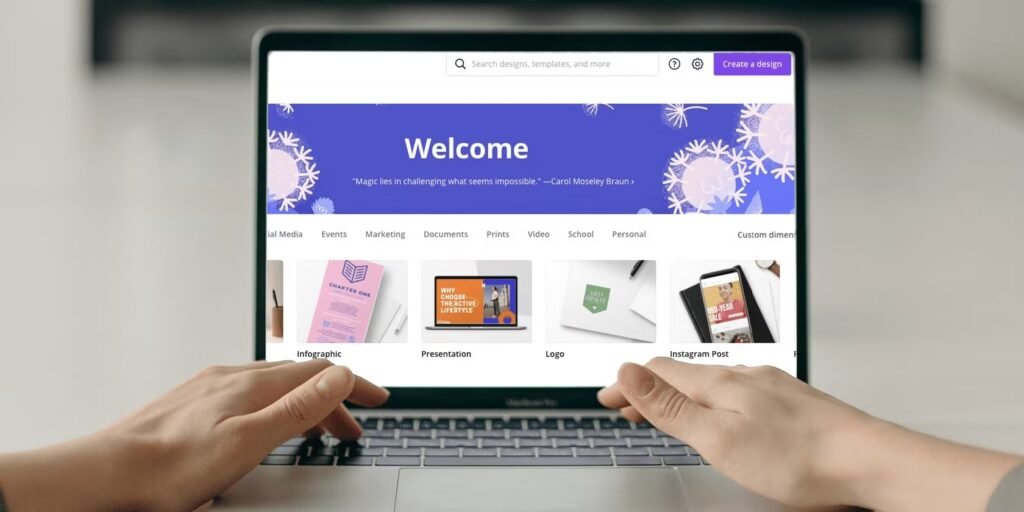
If you can’t access Canva Pro for free through legitimate channels, here are strategies to get the most from the free version:

  1. Use Free Background Remover Tools: Need to delete a photo’s background? Try removing BG or Picsart! These tools use AI magic to erase backgrounds in seconds. Just upload your photo, let the tool work, then add it back to Canva. Perfect for making logos or social media posts stand out.
  2. Find Free Photos & Graphics: Sites like Unsplash and Pixabay offer high-quality images for free. Download photos of nature, people, or educational templates, then upload them to Canva. No need to pay for premium content is 100% free to use.
  3. Keep Designs Organized: Use folders in Canva to sort projects like school assignments or group projects. Archive old designs you don’t need anymore to save space. Think of it like tidying your room- everything stays easy to find.
  4. Make Free Templates Your Own: Canva’s 2.2+ million free templates are a great start. Change colors, add your logos, or swap fonts to make them unique. For example, turn a basic poster into a cool class project by adding your photos. It’s also helpful to know if Canva has spell check to ensure your designs are error-free.

FAQ’s:

Can I Cancel My Canva Pro Free Trial Early?

Yes, you can cancel your Canva Pro free trial at any time during the 30 trial. Your account will continue to have Pro access until the trial period ends, after which it will revert to the free version.

Can I Extend My Canva Pro Free Trial?

Officially, Canva doesn’t offer extensions to the free trial. Once your 30-day trial ends, you’ll need to either subscribe to a paid plan or revert to the free version. Some users report success with contacting customer support in special circumstances, but this isn’t guaranteed.

Does Canva Offer Discounts For Educators Beyond K-12?

While Canva for Education is limited to K-12 institutions, Canva does offer a separate “Canva for Campus” product for higher education institutions. This isn’t free by default, but educational institutions can contact Canva for potential special pricing.

Can I Use Canva Pro Features Offline?

Canva is primarily a web-based tool that requires internet access. However, the Canva mobile app allows you to download designs for offline viewing. For full editing capabilities, you’ll need an internet connection.

Can I Switch From Canva Free To Canva For Nonprofits Later?

Yes, if your organization qualifies as a nonprofit, you can apply for the Canva for Nonprofits program at any time. Once approved, your existing Canva account will be upgraded to include all premium features at no cost.

Conclusion

Access to premium design tools shouldn’t be limited by budget constraints. Through this guide, I’ve provided multiple legitimate methods to get Canva Pro for free through the 30-day trial, education programs, and nonprofit initiatives.

For teachers and students in K-12 settings, Canva for Education offers a permanent solution with free access to premium features.

Nonprofit organizations can similarly benefit from the Canva for Nonprofits program. For everyone else, the 30-day free trial provides an excellent opportunity to use premium features for a limited time.

If none of these options work for you, remember that the free version of Canva still offers powerful capabilities that, when combined with creativity and some workarounds, can produce professional-quality designs.

As someone who has spent years in the design field, I’ve learned that while premium tools can enhance efficiency, they’re not a substitute for creativity and skill.

Whether you’re using Canva Pro or the free version, focus on developing your design fundamentals, and you’ll create impressive visual content regardless of which version you use.
Categories
Canva

Canva Pro Review: Is Canva Pro Worth It? Let’s Break It Down (Honest Review)

Have you ever made a social media post, school presentation, or colorful graphic? If yes, you’ve probably used Canva’s free version.

But what if you need more-like fancier templates, tools to remove photo backgrounds, or ways to save your brand colors? That’s where Canva Pro comes in! Many people, especially small business owners who create lots of designs, ask: Is Canva Pro worth the money?

In this article, we’ll break down everything about Canva Pro. We’ll compare its premium features to the free plan, talk about prices, and help you decide if upgrading makes sense for you.

Whether you’re a teacher making classroom posters, a student designing projects, or someone who just loves creating graphics, we’ll show you how Canva Pro can save time, keep your designs consistent, and unlock cool tools like Magic Resize or unlimited storage.

Let’s find out if it’s worth the upgrade!

What is Canva Pro?

What is Canva Pro?

Canva Pro is the paid version of Canva that gives you more tools, templates, and features than the free plan.

Difference Between Canva and Canva Pro

The free version of Canva lets you make basic designs with some templates and tools. You get 5GB of storage and can use many free templates.

Canva Pro gives you much more:

  • Over 100 million stock photos and design elements
  • All premium templates
  • 1TB of storage (that’s 200 times more than the free plan!)
  • Background remover tool to easily cut out an image in Canva
  • Magic resize to quickly change design sizes
  • Brand kit to save your colors and fonts
  • Tools to work with team members

History and Development of Canva Pro

Canva started in Australia in 2013. The founders wanted to make design easy for everyone, not just professional graphic designers.

Today, Canva has over 220 million users worldwide. The company added Canva Pro to give more features to people who needed them for work or business. As of 2023, Canva reported $2 billion in revenue and continues adding new features like AI tools and better video editing.

Canva Free Vs. Canva Pro: Feature Comparison

Canva Free Vs. Canva Pro

Choosing between Canva Free and Canva Pro depends on what you need for your design projects. Let’s see what you get with each version of Canva.

Design Elements and Templates

Free Plan:

  • Access to over 1 million free templates and images
  • Basic design elements
  • Limited fonts and graphics

Canva Pro:

  • Access to over 100 million stock photos, videos, graphics, and audio files
  • All premium templates
  • More fonts and design elements
  • Magic Write AI tool for creating text content

Brand Kit and Team Features

Free Plan:

  • Basic design capabilities
  • Limited team features

Canva Pro:

  • Brand kit to save your brand colors, logos, and fonts
  • Team folders for sharing designs
  • Ability to set up brand templates
  • Better tools for team members to work together

Storage and Organizational Tools

Free Plan:

  • 5GB of storage
  • Basic folder organization

Canva Pro:

  • 1TB of storage (that’s 1000GB)
  • Unlimited folders to organize your work
  • Better ways to find your designs

Publishing and Sharing Capabilities

Free Plan:

  • Basic export options (PNG, JPG, PDF)
  • Standard sharing features

Canva Pro:

  • Content planner to schedule social media posts
  • Post directly to social media channels like Facebook, Instagram, Twitter, Pinterest, and LinkedIn
  • More export options and higher quality downloads
  • Schedule posts ahead of time

Canva Pro Pricing Structure

Canva Pro Pricing Structure

Before deciding if Canva Pro is worth it, you should know how much Canva Pro costs.

Monthly and Annual Subscription Options

As of May 2025, Canva Pro costs:

  • $12.99 per month if you pay monthly
  • Less if you pay yearly (around $119.99/year, which saves about 25%)

Team Pricing and Enterprise Solutions

If you need Canva for a team:

  • Canva for Teams starts at $14.99 per month for the first 5 users
  • Additional users cost extra
  • Enterprise pricing is custom and requires contacting sales

Free Trial Information

You can try Canva Pro for free:

  • 30-day free trial with full access to all features
  • No cost during the trial period
  • You can cancel anytime before being charged

For those wondering how to get Canva Pro for free beyond the trial, options exist for students, teachers, and non-profits.

Key Benefits of Canva Pro

Key Benefits of Canva Pro
  1. Expanded Design Resources: Canva Pro gives you over 100 million stock photos, videos, and graphics to make your designs look professional. You get premium templates for social media posts, logos, and flyers that aren’t available in the free version. Want to use your fonts? Canva Pro lets you upload custom fonts to match your brand’s style. You also get audio files and video clips to create eye-catching animations or slideshows.
  2. Time-Saving Features: The background remover tool lets you delete unwanted parts of photos in one click-perfect for product pictures or Instagram posts. Magic Resize automatically adjusts designs for different platforms (like turning a Facebook post into a Pinterest pin). The Magic Write AI tool helps write captions or blog post ideas fast. With so many ready-to-use templates, you don’t waste time starting from scratch.
  3. Brand Consistency Tools: Keep your brand colors, logos, and fonts the same across all designs using the Brand Kit. Lock templates so team members can’t change your brand’s look. Upload your fonts to make sure every social media graphic matches your style. This helps small businesses look professional without hiring a graphic designer.
  4. Collaboration Capabilities: Share team folders so everyone can access designs, like flyers or social media posts. Set permissions to control who can edit or view files. Work together in real-time- see changes instantly as teammates edit. Leave comments directly on designs to give feedback without messy emails.

Potential Limitations of Canva Pro

Potential Limitations of Canva Pro

Canva Pro has great features, but it also has some drawbacks.

  1. Comparison to Professional Design Software: Canva Pro isn’t as powerful as tools like Photoshop for detailed edits. You can’t tweak tiny design details or create complex illustrations. Printing very large posters? Canva might not work as well as Adobe software. It’s better for quick social media graphics than advanced projects.
  2. Value For Different User Types: Casual users making occasional birthday cards may not need Pro’s premium features. Professional graphic designers might miss tools like vector editing in Photoshop. But small business owners save money by creating logos and ads without hiring help. Social media managers love Pro for scheduling posts and resizing graphics fast.
  3. Learning Curve Considerations: While easier than Photoshop, Canva Pro still has lots to learn. Features like Magic Write or team folders take time to master. The interface is friendly, but finding all the buttons and tools can feel overwhelming at first.

Who Should Consider Canva Pro?

Who Should Consider Canva Pro?
  1. Small Business Owners and Entrepreneurs: Create logos, flyers, and social media posts without paying a designer. The Brand Kit keeps your business looking consistent. Save money- Pro costs less than hiring someone for every project.
  2. Marketing Teams and Content Creators: Make Instagram posts, infographics, and blog images quickly. Use Magic Resize to adapt one design for Facebook, Pinterest, and more. Schedule posts ahead of time instead of doing it daily.
  3. Educators and Non-Profit Organizations: Teachers get Canva for Education free Pro needed. Nonprofits can apply for discounts to create posters or event graphics. Students use Pro features through their school’s account.
  4. Casual Designers and Hobbyists: Stick to the free plan if you only make a few designs a month. Upgrade to Pro temporarily for projects like party invites or YouTube thumbnails. Try the 30-day free trial to test premium tools.

Alternatives to Canva Pro

Alternatives to Canva Pro

There are many alternatives to Canva Pro that fit different needs and budgets.

Free Graphic Design Tools

Other options instead of paying for Canva Pro:

  • Keep using Canva’s free plan
  • Try other free tools like Adobe Express (limited features)
  • Use open-source alternatives (but they might be harder to learn)

Professional Design Software Options

If you need more powerful tools:

  • Adobe Creative Cloud (Photoshop, Illustrator, InDesign) – more expensive but more powerful
  • Affinity Designer/Photo – one-time payment instead of subscription
  • GIMP – free but has a steeper learning curve

Canva Vs Other Premium Design Platforms

Canva Vs Other Premium Design Platforms

How Does Canva Pro Compare to Adobe Creative Cloud?

Canva Pro vs Adobe:

  • Price: Canva Pro is much cheaper (about $120/year vs $600+/year for Adobe)
  • Ease of use: Canva is easier to learn and use
  • Power: Adobe has more advanced tools and capabilities
  • Templates: Canva has more ready-to-use templates
  • Professional standard: Adobe is still the industry standard for professional design
  • Learning time: You can learn Canva much faster than Adobe products

Verdict: Is Canva Pro Worth It?

Is Canva Pro Worth It?

Value Assessment Based on User Needs

For small business owners:

  • Usually worth it if you make designs at least weekly
  • The time saved with Magic Resize and background removal pays for itself
  • Brand kit helps keep your business looking professional

For content creators:

  • Worth it if you post to social media channels regularly
  • The content planner and scheduling tools save much time
  • Premium stock photos and elements improve your content quality

For teachers:

  • Check if you qualify for Canva for Education (100% free)
  • If not, Pro might be worth it for creating better classroom materials

For casual users:

  • Might not be worth it if you only make a few designs per month
  • Consider the monthly option for busy periods only

Making the Most of Your Canva Pro Subscription

If you decide to get Canva Pro:

  • Use the brand kit to save time and stay consistent
  • Take advantage of the background remover for product photos and headshots
  • Try Magic Write for creating text content
  • Use Magic Resize instead of recreating designs for different platforms
  • Organize with folders to find designs easily
  • Schedule social media posts directly from Canva

FAQ’s:

Is Canva Pro Worth It For Beginners?

Yes, it can be – especially if you want to create professional-looking designs without learning complex software. The templates and easy-to-use tools help beginners make great designs quickly. If you plan to make lots of graphics, the time saved with Pro features is worth the cost.

Can I Cancel Canva Pro At Any Time?

Yes, you can cancel Canva Pro anytime. If you have a monthly subscription, you won’t be charged after canceling. If you paid annually, check Canva’s refund policy, as you might not get money back for unused months.

Does Canva Pro Offer Additional Fonts and Elements?

Yes! Canva Pro gives you access to more fonts, elements, graphics, stock photos, videos, and audio files than the free version.

You can also upload your own fonts to use in your designs. You can also apply effects by learning how to add a shadow in Canva.

What Happens To My Designs If I Cancel Canva Pro?

Your designs stay in your account, but you lose access to Pro features and elements. This means:

  • Designs with premium elements will show watermarks if edited
  • You can’t use the background remover or Magic Resize
  • You keep access to your files but can’t use Pro features on them

Is Canva Pro Worth It For One-Time Projects?

For a single project, you might consider the monthly subscription and cancel afterward. The 30-day free trial is perfect if your project fits within that timeframe. Think about how many designs you need and if Pro features would save enough time to justify the cost.

Does Canva Pro Work Offline?

No, Canva requires an internet connection to work. This is one limitation compared to desktop software like Photoshop. You need to be online to access and edit your designs.

Conclusion

After looking at all aspects of Canva Pro, I can say it’s worth it for most people who make designs regularly. The time-saving features alone can make up for the cost if you use Canva often.

For small business owners and social media managers, Canva Pro is almost always worth the money. The brand kit, premium elements, background remover, and Magic Resize features save hours of work each month. Teachers and students should check if they can get Canva for Education for free first. Non-profits should also look into free or discounted access.

For casual users who just make a few designs now and then, the free version might be enough. But if you find yourself hitting the limits of the free plan, the Pro version will make your design work faster and better.

The best way to decide is to try the 30-day free trial of Canva Pro. You’ll quickly see if the extra features are helpful for your specific needs.

Remember that good design helps your business, social media, or projects stand out. If Canva Pro helps you create better designs faster, then yes – it’s worth it!

Categories
Canva Fonts

Top 15 Irish Fonts Which Bring Ireland’s Art To Your Designs

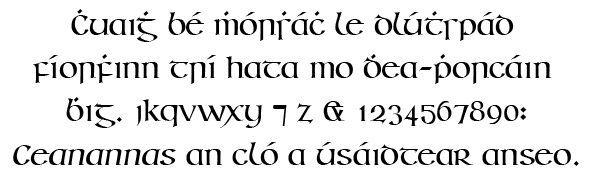
Irish fonts are special letter styles that show off Ireland’s history and art. These fonts use designs from Celtic culture, like curly knots, fancy patterns, and old Irish traditions. When you pick an Irish font, your work gets a unique look that feels connected to Ireland’s stories and art.

These fonts are great for projects like St. Patrick’s Day cards, logos for businesses, or book covers with Irish themes. They add cultural significance and a touch of sophistication to your designs.

For example, fonts with intricate letterforms or decorative elements make social media graphics or greeting cards stand out.

At Designers Choice, we’ve found the best Irish fonts on Canva to help you create professional designs.

Whether you’re making party posters, wedding invites, or certificates, these fonts mix old Celtic art with a modern look. Try them to give your work authenticity and a dash of Irish elegance!

What Are Irish Fonts?

What Are Irish Fonts?

Irish fonts are typefaces that come from Ireland’s writing history.

They’re based on old styles of writing that Irish monks and scholars used hundreds of years ago. These fonts have special looks that remind us of Celtic art, ancient manuscripts like the Book of Kells, and the unique writing styles from medieval Ireland.

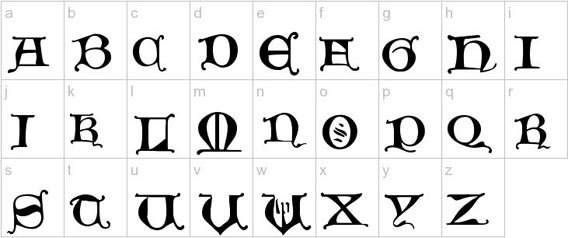
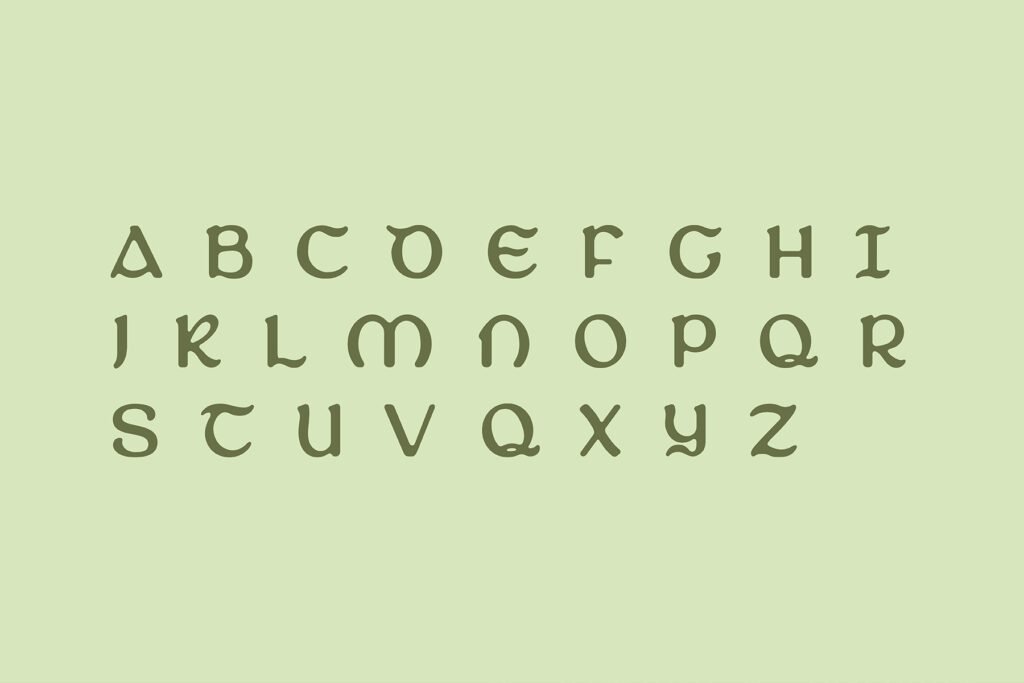
Most Irish fonts fall into a few main groups: Celtic fonts with fancy knot designs, Gaelic script fonts that were used in Ireland for many years, Uncial fonts with round letter shapes, and newer fonts that mix old Irish styles with modern looks.

What makes a font “Irish” isn’t just where it comes from, but how it looks. True Irish fonts have special curves, fancy decorations, and unique letter shapes that connect them to Ireland’s artistic past.

They often show the same kinds of designs you’d see in old Irish art, with twisting patterns and beautiful details.

15 Best Irish Fonts On Canva For Authentic Celtic Designs

Best Irish Fonts On Canva For Authentic Celtic Designs

Canva offers many great Irish fonts that bring Celtic flair to your designs. Here are 15 top choices that work well for many projects:

Vast Shadow

Vast Shadow

Vast Shadow is a font with thick, strong letters and a big shadow behind each one. The shadow makes the words look important, almost like a headline in a newspaper. This font is perfect for creating posters, logos, or invitations that need a touch of elegance and authenticity.

Vast Shadow can remind people of vintage Irish pub signage or old book covers from Ireland. It pairs well with decorative elements like Celtic knots or other Celtic fonts.

This font is also great for St. Patrick’s Day projects or anything related to Irish culture. Its boldness helps your words get noticed.

Londrina Shadow

Londrina Shadow

Londrina Shadow is a playful font with chunky, rounded letters and a shadow that adds a 3D effect.

This makes your text look fun and friendly, which is perfect for greeting cards, social media graphics, or book covers for kids. The style is modern but can be used with celtic art or celtic culture themes for an Irish touch.

Londrina Shadow is easy to read and brings a sense of joy to your designs. It’s also great for making invitations or certificates that need a little extra flair. The shadow makes your words stand out on any background.

Quebab Shadow

Quebab Shadow

Quebab Shadow is a sans-serif font with thick letters and a strong shadow that gives it a bold, modern look.

This font is great for logos, certificates, and signage where you want your text to be clear and easy to read.

The shadow effect adds depth, making your words pop out, which is perfect for commercial use or social media graphics.

Quebab Shadow can be paired with celtic fonts or decorative elements to add a touch of sophistication and authenticity.

It works well for both modern and vintage designs, especially if you want to show off Irish culture.

Bungee Shade

Bungee Shade

Bungee Shade is a fun, energetic font with big letters and a deep shadow that makes your text look like it’s jumping off the page.

This font is perfect for event posters, St. Patrick’s Day graphics, or signage that needs to grab attention. The boldness and decorative elements give your design a modern look, but you can also use it with Celtic knots or other Irish symbols for authenticity.

Bungee Shade is easy to read and adds a touch of flair to any project. It’s also great for greeting cards and book covers that need to stand out.

Intro Rust Base Shade

Intro Rust Base Shade

Intro Rust Base Shade is a font with a rough, vintage feel and a shadow that adds a 3D effect.

The letters look a little worn, like old Irish pub signs or vintage book covers. This font is perfect for projects that want to show cultural significance or a connection to Celtic culture. Use it for logos, certificates, or invitations that need a touch of authenticity and boldness.

The shadow makes your text pop, while the rustic style adds sophistication. It works well for both modern and old-fashioned designs.

Rig Solid Bold Halftone

Rig Solid Bold Halftone

Rig Solid Bold Halftone is a thick, bold font with a dotted shadow that gives it a cool, textured look.

This makes your text look modern and stylish, perfect for social media graphics, posters, and signage. The halftone shadow adds a decorative element, making your words stand out with flair.

Rig Solid Bold Halftone can be used for book covers, certificates, or any project that needs a touch of sophistication and boldness.

It pairs well with Celtic fonts or Celtic art for an Irish vibe. The font is easy to read and great for commercial use.
Rig Solid Medium Fill

Rig Solid Medium Fill

Rig Solid Medium Fill is a strong, solid font with medium-thick letters and a subtle shadow for depth.

The clean lines make it easy to read, which is great for logos, invitations, or certificates.

This font adds a touch of elegance and modern look to your designs, but you can also use it with Celtic decorative elements for authenticity.

Rig Solid Medium Fill is perfect for book covers, signage, or social media graphics that need to stand out. The shadow effect gives your words a 3D feel, adding flair to any project.

Rampart One

Rampart One

Rampart One is a bold font with sturdy letters and a shadow that makes your words look strong and important. This font is perfect for certificates, signage, or logos that need to show strength and cultural pride.

Rampart One can remind people of Irish castles or ancient manuscripts, making it great for book covers or projects about Irish culture.

The shadow adds depth and helps your text stand out on any background. It’s also good for social media graphics and greeting cards that need a touch of sophistication and authenticity.

Chromium One

Chromium One

Chromium One is a modern font with shiny-looking letters and a shadow that adds a 3D effect. The style is sleek and easy to read, making it great for social media graphics, event posters, or book covers.

Chromium One adds a touch of sophistication and flair to your designs, while the shadow makes your words pop out. You can use this font with celtic art or decorative elements for an Irish look.

It’s also good for logos, certificates, and signage that need a modern touch with a bit of boldness.

Agnets

Agnets

Agnets is a modern, bold font with a unique style that mixes decorative elements and a modern look.

Its letters have sharp, artistic shapes with intricate details, making it stand out in logos, social media graphics, or signage.

Though not a traditional Irish font, Agnets adds boldness and flair to designs, especially for projects needing a touch of sophistication.

It works well for commercial use, like branding or posters, thanks to its eye-catching letterforms.

While it doesn’t include Celtic knots or Gaelic script, Agnets brings a creative, modern twist to typography, perfect for making your work look fresh and stylish.

Stenciliqo Extruded

Stenciliqo Extruded

Stenciliqo Extruded is a stencil-style font with thick letters and a strong 3D shadow. The letters look like they were cut out and lifted off the page, which is perfect for signage, certificates, and logos.

This font adds a touch of celtic art and boldness to any project, making it great for book covers or greeting cards with an Irish theme. The shadow effect helps your words stand out and gives your design a modern look.

Stenciliqo Extruded is also easy to read and works well for commercial use.
Krisper Wireframe

Krisper Wireframe

Krisper Wireframe is a creative font with letters that look like they are made from thin wires, with a shadow for extra depth.

This gives your text a modern and unique look, perfect for book covers, greeting cards, and social media graphics.

Krisper Wireframe adds a touch of sophistication and flair to your designs. You can use it with celtic knots or decorative elements for an Irish feel. The font is easy to read and brings a sense of elegance and authenticity to any project.

Canter 3d

Canter 3d

Canter 3D is a tall, thin font with a 3D shadow that makes your text look stylish and modern. The clean lines and shadow effect add a touch of sophistication and celtic culture to your designs.

Canter 3D is great for event posters, signage, and certificates that need to stand out. The font is easy to read and works well with decorative elements like celtic knots or celtic art. Use it for book covers, logos, or greeting cards that need a modern look with a bit of Irish flair.

Charu Chandan Unicode 3d

Charu Chandan Unicode 3d

Charu Chandan Unicode 3D is a font with bold, rounded letters and a strong 3D shadow. The style is playful and easy to read, making it great for social media graphics, book covers, and greeting cards.

The shadow effect gives your words a sense of depth and makes your design feel modern and authentic. Charu Chandan Unicode 3D can be paired with Celtic fonts or decorative elements for an Irish touch.

It’s also good for certificates, signage, and commercial use.
UKIJ Kawak 3D

UKIJ Kawak 3D

UKIJ Kawak 3D is a fun font with thick letters and a deep 3D shadow that makes your text stand out.

This font is perfect for posters, logos, and signage where you want to grab attention. The style brings a touch of Celtic flair and boldness, making your designs pop with a modern look.

UKIJ Kawak 3D is easy to read and works well for book covers, greeting cards, and social media graphics. You can use it with celtic art or decorative elements for extra authenticity and sophistication.

These fonts all use shadows and 3D effects to make your words pop, adding depth, flair, and a touch of sophistication to any project.

They are great for Irish-themed designs, Celtic culture, and anything that needs to stand out and be noticed!

Types of Irish Fonts

Types of Irish Fonts

Many types of Irish fonts show the rich culture and art of Ireland.

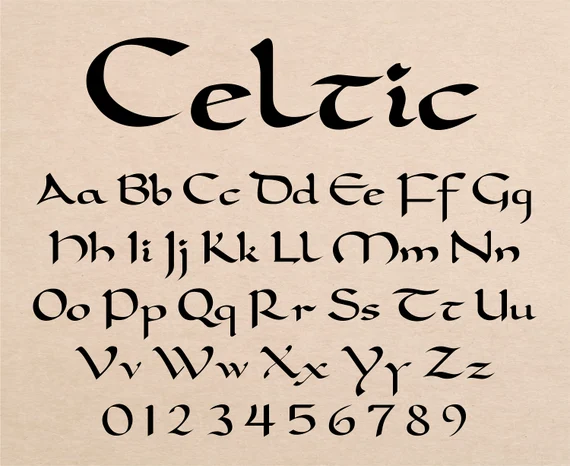
  1. Celtic Fonts: Celtic fonts show off the beautiful art style of ancient Celtic culture. They often have fancy knot designs and curved lines that twist and turn. These fonts look like the art you might see in old Irish books or stone carvings. They’re perfect for projects that need to feel magical or ancient. Fonts like Enchant and Celtoria belong in this group.
  2. Gaelic Script Fonts: Gaelic script fonts come from the old writing system used in Ireland for hundreds of years. This type of writing was used in Ireland from the 16th century until about 100 years ago. Gaelic fonts have some special letter shapes that look different from regular letters we use today. TF-Gaelic and Old Norse are good examples of this style.
  3. Uncial Fonts: Uncial fonts have round, curved letters that look like they were written with a broad pen tip. Irish monks used this style when writing religious books in medieval times. These fonts look fancy but are still easy to read. Piera and Agnets show the uncial style well.
  4. Modern Irish-Inspired Fonts: These newer fonts take ideas from traditional Irish writing but update them for today’s designs. They keep some Celtic or Gaelic features but make them work better for modern projects. They often have better readability while still looking Irish. Fonts like She Dance and Ring of Kerry mix old Irish style with new design ideas.

Characteristics of Irish Fonts

Characteristics of Irish Fonts

Distinctive Design Elements

Irish fonts stand out because of their special designs inspired by Celtic culture. They often include Celtic knots-twisty patterns that look like braided ropes-woven into the letters.

Many letters have decorative elements at the ends, like small curls or dots, giving them a fancy look. Some letters connect, almost like they’re holding hands, which makes the text flow smoothly.

The shapes are often round and curvy, similar to handwriting, and some letters look different from regular alphabets, like a “d” with a loop or a “g” with a tail. These features help Irish fonts feel tied to Ireland’s artistic history and Celtic art.

Insular Script Features

Many Irish fonts are based on Insular script, a writing style from 600 AD used by Irish monks. This script has triangle-shaped tops on tall letters (like “b” or “h”) and wide, rounded parts in letters like “b,” “d,” or “q.”

When monks wrote, they’d start a line with big letters that slowly got smaller, creating a “fading” effect. They also added dots or marks to change how letters sounded. The letters look like they were written with a flat-tipped pen, giving them thick and thin lines.

These features come from old manuscripts like the Book of Kells, written on animal skin pages.

Typography and Letter Forms

Irish fonts have unique letter shapes that make them different from regular fonts. Letters are often wider and rounder, making them look friendly and artistic. Capital letters might have extra swirls or decorations, like a crown on a king.

The spacing between letters is sometimes wider, giving the text room to breathe. Some letters, like “s” or “r,” have unusual shapes- for example, an “s” that looks like a snake or an “r” with a hook. Letters also mix thick and thin lines, as if they were drawn with a brush.

These details help Irish fonts feel both old-fashioned and special, perfect for logos, book covers, or St. Patrick’s Day projects.

Historical Background of Irish Fonts

Historical Background of Irish Fonts

Origin and Development

Irish fonts started with the writing of Irish monks in the 600s AD. These monks created beautiful handwritten books using special writing styles. They combined Roman letter shapes with their own Celtic art style to make something new and beautiful.

The most famous example is the Book of Kells, made around 800 AD. This amazing book shows the highest level of Irish lettering skill. The monks used colored inks and gold to make letters that were also pieces of art.

As time went on, these handwritten styles were turned into printing fonts. Even as printing became common, Ireland kept using its own special letter styles that were different from what was used in other European countries.

Gaelic Type History

Gaelic type became the main way to print Irish language materials from the 1500s until the 1900s. This special type style was used for books, newspapers, and official documents in Ireland.

The Queen Elizabeth font, created in 1571, was one of the first fonts made specially for printing Irish. For hundreds of years after that, most things printed in the Irish language used some form of Gaelic type.

In the 1900s, Ireland slowly shifted away from using Gaelic type for everyday printing. But today, these font styles are making a comeback for special designs that want to show Irish culture and history.

Cultural Significance

Irish fonts are more than just letters – they represent Ireland’s cultural identity. When Ireland was trying to keep its culture strong while under British rule, these special letter forms became important symbols of Irish independence and cultural pride.

Even today, Irish fonts appear on signs throughout Ireland, especially in areas where the Irish language is still spoken daily. They’re used for road signs, pub names, and shop signs in Dublin and across the country.

For Irish people around the world, these font styles create an immediate connection to their heritage and homeland. Using an Irish font on a design instantly links it to thousands of years of Irish cultural history.

Popular Uses For Irish Fonts

Popular Uses For Irish Fonts

St. Patrick’s Day Projects

Irish fonts work perfectly for St. Patrick’s Day designs. They add authentic Irish style to:

  • Party invitations with shamrock designs
  • Food and drink menus for March 17th celebrations
  • Posters and flyers for St. Patrick’s Day events
  • Social media graphics announcing holiday specials
  • T-shirts with fun Irish sayings and symbols

The right Irish font makes these items feel more truly connected to Irish tradition rather than just using green colors.

Branding and Logo Design

Businesses with Irish connections often use Celtic fonts for their brand identity:

  • Irish pub and restaurant logos that need authenticity
  • Celtic jewelry brand names that show craftsmanship
  • Tourism companies focused on Irish travel
  • Music groups performing traditional Irish music
  • Irish cultural organizations and festivals

These fonts give immediate visual clues about a business’s Irish connections and values.

Invitations and Cards

Irish fonts add special meaning to personal items like:

  • Wedding invitations for couples with Irish heritage
  • Greeting cards celebrating Irish holidays or events
  • Birth announcements for families wanting to honor their Irish roots
  • Certificates of Irish ancestry or family trees
  • Special occasion cards with Celtic blessing texts

The elegant curves and decorative elements of Irish fonts add beauty to these important personal items.

Publishing and Print Media

Books and printed materials use Irish fonts for:

  • Books about Irish history, folklore, or fiction
  • Chapter titles in books about Celtic topics
  • Poetry collections featuring Irish writers
  • Magazines about Irish culture and traditions
  • Educational materials teaching about Ireland

These fonts help readers immediately understand the Irish connection of the content they’re about to read.

Where To Find Irish Fonts?

Where To Find Irish Fonts?

Free Irish Font Resources

You can find free Irish fonts in several places:

  • FontSpace offers 89 free Irish style fonts you can download
  • 1001 Free Fonts has a section with 138 Celtic Irish fonts
  • Google Fonts includes some options with Celtic style
  • Canva’s free plan includes several Irish-inspired fonts
  • Free font websites often have basic versions of Celtic typefaces

These free options give you a good starting point for projects with limited budgets.

Premium Irish Font Collections

For higher quality and more complete Irish font families:

  • MyFonts marketplace has professional Irish fonts with full character sets
  • Creative Market offers handcrafted Irish fonts from independent designers
  • Adobe Fonts includes premium Celtic typefaces in their subscription
  • Font foundries like Fontfabric create high-quality Irish fonts with special features
  • Professional type designers sell Irish font packages with multiple styles and weights

Premium fonts usually have better letter spacing, more character options, and higher quality details.

Font Marketplaces

These online stores sell both free and paid Irish fonts:

  • Etsy has many affordable Irish font bundles, including some for Canva
  • Creative Fabrica regularly features Celtic font collections
  • DesignCuts sometimes offers discounted Irish font packages
  • FontBundles includes Irish options in their regular deals
  • Individual type designers’ websites often sell directly to customers

Buying fonts from these marketplaces helps support the designers who create and maintain these special typefaces.

How To Use Irish Fonts In Design?

How To Use Irish Fonts In Design?

Pairing With Other Typefaces

When using Irish fonts in your designs:

  • Pair a fancy Irish headline font with a simple body text font for good readability
  • Use a Celtic font for the first letter of paragraphs and a regular font for the rest
  • Match an Irish script with a clean sans-serif font for modern contrast
  • Choose fonts from the same designer for heading and text that work well together
  • Consider using an Irish font for someone’s name and a standard font for their contact information

The right pairing keeps your design looking professional while still having Irish character.

Color Combinations

Colors that work well with Irish fonts include:

  • Green and gold – traditional Irish colors that feel authentic
  • Deep blues and greens – reminding readers of the Irish countryside
  • Earth tones like brown and cream – giving an aged manuscript look
  • Black on cream background – mimicking traditional book printing
  • White on deep green – creating a strong contrast for readability

The right colors help strengthen the Celtic feel of your Irish font choices.

Best Practices For Readability

To keep Irish fonts readable:

  • Use larger sizes for very decorative Irish fonts
  • Add more space between lines when using Celtic fonts
  • Limit the use of the fanciest fonts to short headings or titles
  • Make sure there’s a strong contrast between the font and the background
  • Test your design on different screens to check that details remain clear

Remember that communication is still the main goal, even when using decorative Irish fonts.

FAQ’s:

What Makes A Font “Irish”?

A font becomes “Irish” when it includes elements from Ireland’s writing history. This means it might have features from Celtic art like knot patterns, follow the style of Gaelic script that was used in Ireland for centuries, or look like the handwriting in ancient Irish manuscripts. True Irish fonts connect to Ireland’s artistic traditions through their letter shapes, decorative elements, and overall style.

Are Irish Fonts and Celtic Fonts The Same?

Not exactly. Celtic fonts represent the broader Celtic culture that includes Ireland but also Scotland, Wales, Cornwall, Brittany, and the Isle of Man. Irish fonts specifically connect to Ireland’s writing traditions. Many Celtic fonts work well for Irish projects because Ireland is part of Celtic culture, but some Celtic fonts may include symbols or styles from non-Irish Celtic regions.

Which Irish Fonts Work Best For Professional Designs?

For professional designs, choose Irish fonts that balance authenticity with clarity. Saint George works well for formal certificates or logos. Garamond with Celtic elements adds sophistication to business cards or letterheads.

For corporate materials, consider less decorative Irish fonts that maintain readability while still showing Irish flair. The best professional Irish fonts keep their cultural connections without sacrificing clarity.

Do Irish Fonts Support Special Characters?

Many modern Irish fonts include special characters needed for the Irish language, like vowels with the fada (á, é, í, ó, ú).

Premium Irish fonts usually offer better language support than free versions. Check the font’s character map before purchasing to make sure it includes all the letters and symbols you need, especially if you’ll be typing actual Irish text rather than just English with an Irish look.

How Can I Create Authentic Irish-Looking Typography?

To create authentic Irish typography, start with a genuine Irish font like those based on uncial or insular scripts. Add appropriate spacing between letters and lines.

Consider adding Celtic decorations like knots or spirals as accents rather than overwhelming the text.

Study examples from the Book of Kells or other Irish manuscripts for inspiration. Sometimes authenticity comes from restraint – using decorative elements carefully rather than everywhere.

Conclusion

Irish fonts bring the beauty and history of Celtic culture to your design work. These special typefaces connect your projects to Ireland’s rich artistic past through their unique letterforms and decorative elements.

Whether you’re creating something for St. Patrick’s Day, designing a logo with Irish roots, or making greeting cards with Celtic flair, the right Irish font adds authenticity and visual interest.

Canva makes it easy to access many Irish fonts for your design needs. From traditional styles based on ancient manuscripts to modern interpretations with fresh looks, these fonts help you create work that stands out.

Remember to balance the fancy features of Irish fonts with good readability, and pair them with colors and other design elements that strengthen their Celtic character.

Irish fonts aren’t just letters – they’re connections to thousands of years of artistic tradition that continue to inspire designers today.

Categories
Canva Fonts

25 Must-Have Retro Canva Fonts For Your Vintage & Retro Projects

Retro fonts let you use fun, old-school styles in your designs.

Think of bubbly 70s letters, sharp 80s shapes, or fancy vintage typefaces-they add a cool “blast from the past” vibe to posters, social media graphics, or school projects.

Whether you’re new to Canva or use it daily, this guide helps you pick the best retro fonts for free or with a Canva Pro plan.

You’ll learn how to mix groovy fonts with modern ones, create wavy text effects, and choose colors that scream retro.

From free fonts like Bright Retro to Pro picks like Lucidity Condensed, these tools make your work stand out. Let’s dive into the world of retro fonts and turn your next Canva design into a vintage masterpiece!

What Are Retro Fonts?

What Are Retro Fonts?

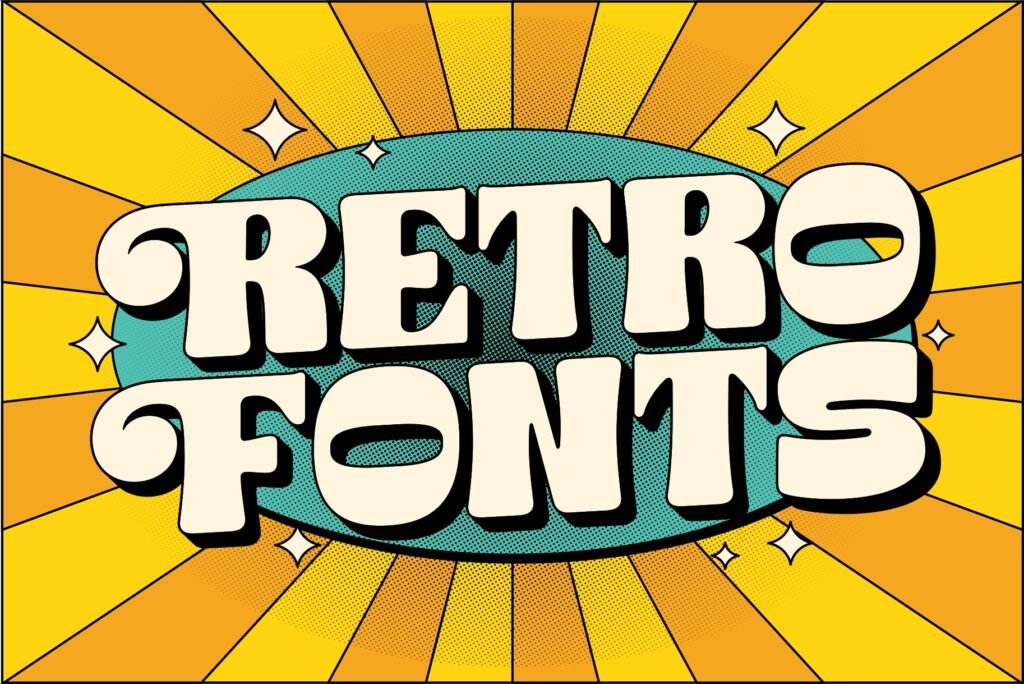
Retro fonts are typefaces that look like they came from a past time period.

According to Wikipedia, “Retro style is imitative or consciously derivative of lifestyles, trends, or art forms from the past”.

When we talk about retro fonts, we usually mean fonts that look like they’re from the 1950s through the 1990s.

These fonts have special features that make them look old-school. Some have thick, chunky shapes.

Others have thin, curvy lines. Many retro fonts have unique details that remind us of old movie posters, record covers, or store signs.

What makes a font truly “retro” is that it brings back the feeling of a certain time. Some retro fonts were actually created in the past, while others are new fonts made to look old. Either way, they take us back to another era through their shapes, styles, and overall look.

Why Retro Fonts Are Popular?

Why Retro Fonts Are Popular?

Retro fonts keep showing up in today’s designs for good reasons:

  • They make us feel nostalgic – Retro fonts connect with memories and emotions from past times. When people see a 70s-style groovy font, it might remind them of happy childhood memories or cool old movies.
  • They stand out – In a world full of plain, modern designs, retro fonts catch the eye with their unique shapes and styles. They make logos, social media graphics, and other projects look different from everyone else’s work.
  • They have personality – While many modern fonts try to be clean and simple, retro fonts have character. They can be fun, bold, fancy, or even weird in ways that today’s fonts often aren’t.
  • They work for many projects – Retro fonts fit well with many design ideas, from coffee shop menus to music posters to online stores. This makes them useful for all kinds of design projects.

Categories of Retro Fonts

Categories of Retro Fonts

Retro fonts come in several unique categories, each with its charm.

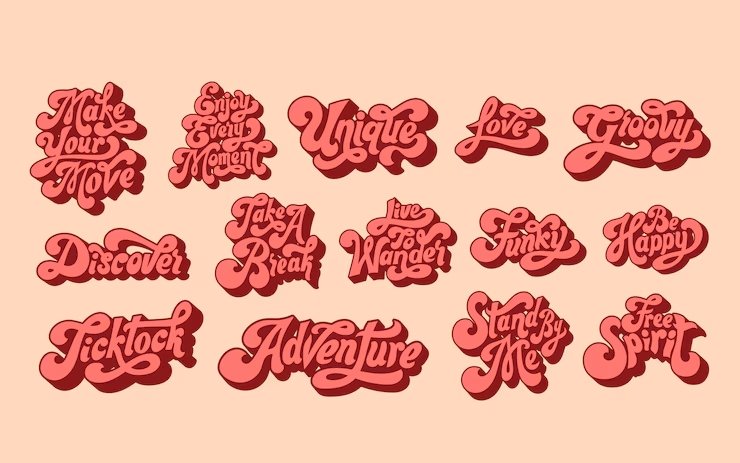
70s Groovy Fonts

The 1970s were all about big, round shapes and flowing lines. Fonts from this era often look:

  • Bubbly and soft
  • Extra bold
  • Curvy with loops
  • Fun and playful

Groovy fonts from the 70s show the fun, free spirit of disco and flower power. These fonts often have thick, round letters that flow together in a friendly way. You’ll spot them on old album covers and movie posters from that time.

80s and 90s Inspired Fonts

The 1980s and 90s brought us bold fonts with a tech feel. These fonts often feature:

  • Neon-inspired colors
  • Sharp angles and edges
  • Computer-like styles
  • Bold, chunky letters

The 80s brought bright colors and new computer technology, which shows in the fonts from that time. The 90s added a grunge look to many designs. Both decades had their take on retro typography.

Classic Vintage Typefaces

Before the 70s came classic vintage typefaces with timeless style:

  • Elegant serif fonts
  • Script and cursive styles
  • Art deco influences
  • Clean lines with careful details

These older vintage fonts often look more formal than later retro styles. They appear in old books, newspapers, and signs from the early 1900s through the 1960s. Many of these classic typefaces still work well for fancy invitations or brand logos today.

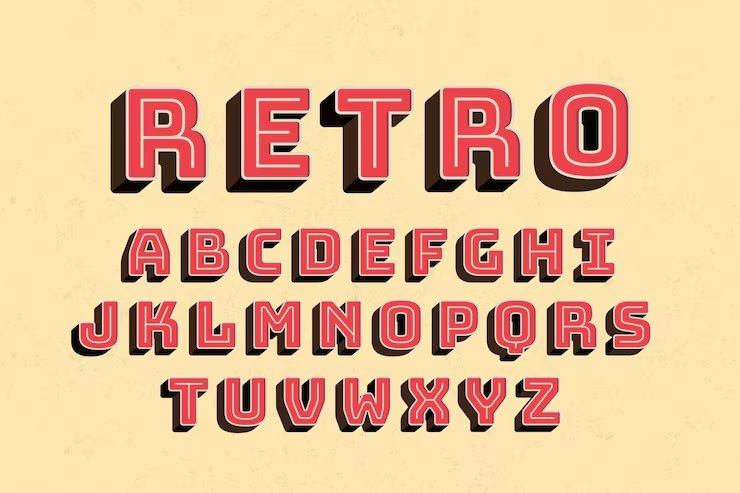
25 Best Retro Canva Fonts

Best Retro Canva Fonts

A thoughtfully chosen set of the best retro Canva fonts displays different styles that bring back memories and improve your design tasks.

Retropix

Retropix

Retropix is a retro font that looks just like the text from old video games and computers. It has blocky, pixelated letters that give your design project a cool, vintage vibe. This Canva font works great for tech brands, social media graphics, and fun posters.

You can use Retropix in the free version of Canva, so you don’t need Canva Pro to try it. Pair it with bright color palettes for a real 80s look.

It’s easy to read and stands out in display areas like headlines. Retropix is a personal favorite for anyone who loves retro fonts!

Bright Retro

Bright Retro

Bright Retro is one of the best Canva fonts for adding a groovy, 70s vibe to your design.

The letters are big, rounded, and bold, making them perfect for party invites, shoppable posts, or social media graphics. This retro font style looks awesome with orange, yellow, and other bright color schemes. You can find it in the free fonts list, so everyone can use it.

Bright Retro is great for making your brand visuals pop and feel fun. Try pairing it with serif fonts or cursive fonts for a cool mix. It’s a top pick for anyone who loves vintage typography.

Rig Solid Bold Halftone

Rig Solid Bold Halftone

Rig Solid Bold Halftone is a retro font that has a dotted, textured look, just like old comic books or magazines.

This font gives your design project a worn, vintage vibe perfect for posters, banners, or social media graphics.

It works well in display areas where you want your words to stand out. You can use this font with other serif fonts or even cursive fonts for extra style. The halftone effect makes your work look like it was printed in the past.

This font is available in Canva’s font list and is a fun choice for retro designs.

Rig Solid Medium Fill

Rig Solid Medium Fill

Rig Solid Medium Fill is a bold, solid version of the Rig fonts without any dots or texture. It has clean lines and is easy to read, making it perfect for headlines, logos, or brand visuals. This retro font style looks great in both the free version of Canva and Canva Pro.

Try pairing it with script or cursive fonts to balance its strong look. You can use it for social media graphics, shoppable posts, and any design project that needs a clear, vintage vibe.

It’s a reliable font for all kinds of retro designs.

Candice

Candice

Candice is a groovy font with curvy, playful letters inspired by the 60s and 70s. It’s perfect for fun projects like birthday cards, social media graphics, or even shoppable posts. This retro font style works well with pastel color palettes, giving your design a soft, vintage vibe.

Candice is easy to read and adds a touch of elegance to your brand visuals. You can find it in the Canva font list, and it’s a personal favorite for anyone who loves retro fonts. Try using it for headlines or display areas to make your designs stand out.

Track

Track

Track is a sporty, retro font that looks like the letters on old-school team jerseys or varsity jackets. It’s bold and strong, making it great for school projects, sports logos, or social media graphics.

Track pairs well with clean lines and bright color palettes for a dynamic, vintage vibe. You can use it in both the free version of Canva and Canva Pro. This font is easy to read and works well in display areas like headlines or banners.

Track is a perfect Canva font for anyone who wants their design project to feel energetic and classic.

Roller Coaster Serif

Roller Coaster Serif

Roller Coaster Serif is a fun retro font with wavy, roller-coaster-like letters. It gives your design project a playful, vintage vibe that’s perfect for party invites, kids’ events, or social media graphics.

This font pairs well with modern sans serifs to keep your designs easy to read. You can use Roller Coaster Serif in both the free version of Canva and Canva Pro. It looks great in display areas like headlines or banners.

Try using bright color palettes for extra retro fun. This font is a personal favorite for cheerful designs.

TAN Ashford

TAN Ashford

TAN Ashford is a serif font with a classic, vintage look that feels elegant and timeless. It’s perfect for invitations, brand visuals, or any design project that needs a touch of old-fashioned style. This retro font style pairs well with Lucidity Condensed for a modern twist.

You can find TAN Ashford in Canva Pro fonts, which gives you extra fonts to choose from. It works well in display areas like headlines or logos. Use gold or muted color palettes to highlight its vintage typography.

TAN Ashford is a great choice for anyone who loves retro fonts with a touch of elegance.

Della Respira

Della Respira

Della Respira is a vintage serif font that looks like it belongs in an old book or newspaper. It’s perfect for serious projects like certificates, book covers, or classic branding. This retro font style works well with dark color palettes and textures to create a real vintage vibe.

You can use Della Respira in the free version of Canva, so it’s easy for everyone to try. Pair it with cursive fonts for a soft, balanced look. It’s a reliable font for anyone who loves vintage typography and classic design.

Wellston

Wellston

Wellston is a sturdy, industrial retro font that feels like it came from early 1900s advertisements. It’s bold and strong, making it perfect for logos, posters, or shoppable posts that need a rugged vintage vibe. This font pairs well with halftone textures or serif fonts for extra style.

You can use Wellston in both the free version of Canva and Canva Pro. It works great in display areas like headlines or banners. Try using muted color palettes for a real vintage look.

Wellston is a solid pick for retro designs.

Lucky Bones

Lucky Bones

Lucky Bones is a hand-painted retro font with rough edges, giving your design project a rustic, vintage vibe. It’s perfect for café menus, craft brands, or social media graphics that want to feel handmade and authentic. This font works well with both free fonts and Canva Pro fonts.

Pair Lucky Bones with textures or doodles for extra style. It looks great in display areas like headlines or logos. Try using warm color palettes to make your designs feel cozy and inviting.

Lucky Bones is a personal favorite for anyone who loves vintage typography.

Nine by Five

Nine by Five

Nine by Five is a bold, blocky retro font that’s perfect for headlines and display areas. It’s easy to read, even at small sizes, and gives your design project a cool, vintage vibe. This font works well with bright color schemes for 80s-inspired social media graphics or posters.

You can use Nine by Five in both the free version of Canva and Canva Pro. Pair it with serif fonts or cursive fonts for extra style. It’s a top pick for anyone who wants their designs to stand out with retro fonts.

Metropolis

Metropolis

Metropolis is a retro font with art deco shapes, giving your design project a fancy, glamorous vibe. It’s perfect for luxury brands, event posters, or anything that needs a touch of elegance. This font pairs well with serif fonts and gold color palettes for a real vintage typography look.

You can use Metropolis in the free version of Canva, so it’s easy for everyone to try. It works well in display areas like headlines or logos. Metropolis is a great choice for anyone who loves vintage fonts with a modern twist.

Oleo Script

Oleo Script

Oleo Script is a smooth, cursive retro font that feels friendly and personal. It’s great for quotes, invitations, or product labels that need a warm, vintage vibe. This font works well with textures for a handmade look.

You can use Oleo Script in the free version of Canva, making it a perfect Canva font for everyone. Pair it with bold or serif fonts for extra style. Oleo Script is a personal favorite for anyone who loves retro fonts with a soft touch.

Notable

Notable

Notable is a clean, mid-century modern retro font with a subtle vintage vibe. It’s perfect for blogs, logos, or brand visuals that need a simple, classic look. This font pairs well with modern sans serifs like Montserrat for a balanced design.

You can use Notable in both the free version of Canva and Canva Pro. It works well in display areas like headlines or banners.

Try using muted color palettes for a real vintage feel. Notable is a great choice for anyone who loves retro fonts that are easy to read.

Limelight

Limelight

Limelight is a dramatic retro font that grabs attention with its bold letters. It’s perfect for headlines, announcements, or event posters that need to stand out. This font pairs well with dark backgrounds and neon outlines for an exciting, 80s-inspired look.

You can use Limelight in the free version of Canva, so it’s easy for everyone to try. It works well in display areas like banners or logos. Limelight is a top pick for anyone who wants their designs to shine with retro fonts.

Trochut

Trochut

Trochut is a decorative retro font with fancy details that make your designs look elegant and unique. It’s great for logos, invitations, or any project that needs a sophisticated, vintage vibe. This font works best when you don’t mix it with too many other fonts, so it stays easy to read.

You can use Trochut in both the free version of Canva and Canva Pro. Pair it with simple backgrounds and color palettes for extra style. Trochut is a personal favorite for anyone who loves retro fonts with a touch of class.

Graduate

Graduate

Graduate is a varsity-style retro font that looks like the letters in old school yearbooks or sports jerseys. It’s bold and traditional, making it perfect for sports teams, school projects, or social media graphics.

This font pairs well with sporty color palettes for extra retro style.

You can use Graduate in the free version of Canva, so everyone can try it. It works great in display areas like headlines or banners.

Graduate is a great choice for anyone who loves classic, vintage fonts.

Cheque

Cheque

Cheque is a formal retro font that looks like the writing on old certificates or business papers. It’s perfect for diplomas, business logos, or classic branding that needs a serious vintage vibe. This font works well with muted color palettes for a real old-fashioned look.

You can use a Cheque in the free version of Canva, making it easy for everyone to access. Pair it with serif fonts or cursive fonts for extra style. Cheque is a reliable font for anyone who loves vintage typography.

Satisfy

Satisfy

Satisfy is a smooth script retro font that feels friendly and welcoming.

It’s great for quotes, product labels, or social media graphics that need a personal touch. This font works well with textures or vintage backgrounds for a handmade look.

You can use Satisfy in the free version of Canva, so it’s perfect for everyone. Pair it with bold or serif fonts for extra style. Satisfy is a personal favorite for anyone who loves retro fonts with a warm feel.

Norwester

Norwester

Norwester is a bold, condensed retro font that makes a strong statement in any design project. It’s perfect for headlines, ads, or social media graphics that need to grab attention.

This font works well with bright 80s color schemes for extra retro vibes.

You can use Norwester in both the free version of Canva and Canva Pro. Pair it with serif fonts or cursive fonts for a balanced look.

Norwester is a great choice for anyone who loves strong, vintage fonts.

Cranberry

Cranberry

Cranberry is a playful, bouncy retro font that’s perfect for fun projects like kids’ party invites, casual social media posts, or shoppable posts. This font pairs well with doodles, stickers, or bright color palettes for extra fun.

You can use Cranberry in both the free version of Canva and Canva Pro. It works great in display areas like headlines or banners. Cranberry is a personal favorite for anyone who loves cheerful, vintage fonts.

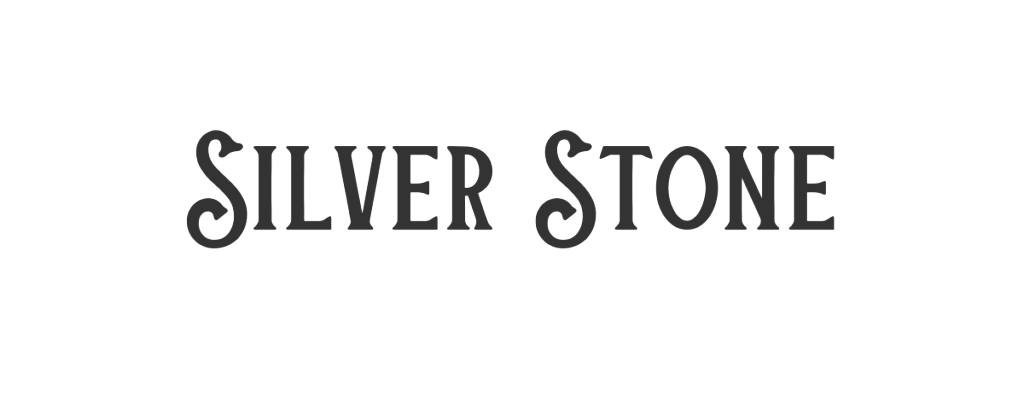
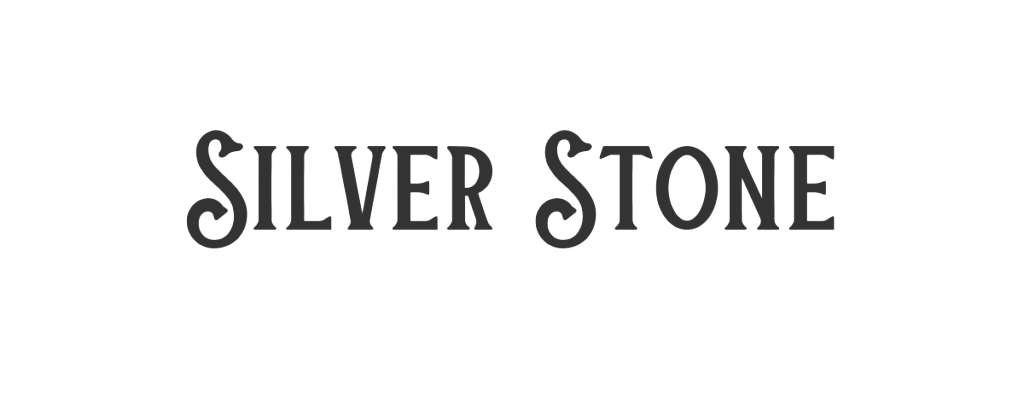
Silver Stone

Silver Stone

Silver Stone is a retro font that mixes vintage and modern styles for a classy look. It’s great for logos, websites, or brand visuals that need a touch of elegance. This font works well with metallic colors or textures to make your design project shine.

You can use Silver Stone in Canva Pro fonts, which gives you extra fonts to choose from. Pair it with simple backgrounds for a clean, vintage vibe. Silver Stone is a top pick for anyone who loves stylish retro fonts.

Costa Rica

Costa Rica

Costa Rica is a retro font with a relaxed, tropical vibe that’s perfect for travel posters, summer sales, or beach-themed social media graphics. This font pairs well with palm leaf graphics and bright color palettes for a cool, vintage look.

You can use Costa Rica in both the free version of Canva and Canva Pro. It works great in display areas like headlines or banners. Costa Rica is a personal favorite for anyone who loves fun, retro fonts.

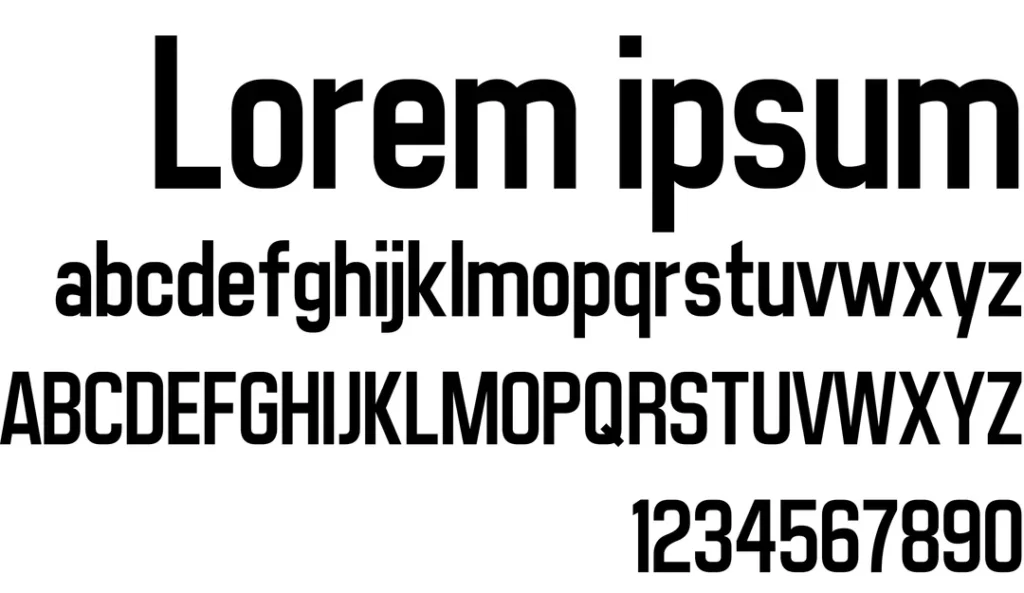
Lucidity Condensed

Lucidity Condensed

Lucidity Condensed is a slim, modern retro font that’s great for tech brands, modern logos, or social media graphics that need a clean, futuristic style. This font pairs well with geometric shapes and bold color palettes for balance. Y

ou can use Lucidity Condensed in Canva Pro fonts, which gives you extra fonts to choose from. It works well in display areas like headlines or banners. Lucidity Condensed is a perfect Canva font for anyone who loves unique, retro fonts with a modern twist.

Premium Retro Fonts Worth Upgrading For

Canva Pro Exclusive Retro Fonts

Canva Pro gives you extra fonts that aren’t available in the free version of Canva. These premium options include:

  • TAN Twinkle – A sparkly, glamorous font that brings 70s disco style
  • Hagrid Text Heavy – A bold, slightly worn font with serious impact
  • Kooka – A fun, bouncy font with retro cartoon vibes
  • Mokoto Glitch – A distorted, tech-inspired font for digital retro looks
  • Arsenica Antiqua ExtraBold – A strong serif font with classical appeal

These Canva Pro fonts offer more unique styles and better quality than some free options. They can give your designs an edge when you need something special.

Are Premium Fonts Worth It?

If you make designs often, Canva Pro fonts can be worth the money. Here’s why:

  • More choices – You get access to thousands of extra fonts beyond the free list
  • Better quality – Many premium fonts have more detailed characters and better spacing
  • Complete font families – You often get multiple weights (bold, light, etc.) of the same font
  • Less common – Your designs won’t look like everyone else’s using the same free fonts

For casual users, free fonts might be enough. But if you design a lot or need special fonts for a brand, Canva Pro can save you time and make your work look more professional. You can try Canva Pro with a free trial to see if the extra font options help your work.

Designing With Retro Fonts

Designing With Retro Fonts

Best Practices For Retro Typography

When using retro fonts, keep these tips in mind:

  • Don’t mix too many – Use one or two retro fonts at most. Too many can make your design look messy.
  • Size matters – Many retro fonts look best when used large. Give them room to show their special details.
  • Watch readability – Some retro fonts look cool but are hard to read. Use them for short headlines, not long text.
  • Keep the mood – Match your font to your message. A serious business message might not work with a super funky 70s font.
  • Mind the gaps – Pay attention to the spacing between letters. Some retro fonts need extra space to look right.

Color Schemes For Retro Designs

Colors work with fonts to create that retro feeling. Try these color ideas with your retro fonts:

  • 70s colors: Orange, brown, avocado green, mustard yellow
  • 80s colors: Neon pink, electric blue, bright purple, teal
  • 90s colors: Teal, purple, hot pink, electric yellow
  • Vintage colors: Faded red, navy blue, cream, olive green

The colors from specific decades help make your retro fonts feel more authentic. A groovy 70s font looks even better with colors from that time period.

Creating Balance With Retro Fonts

Retro fonts can be strong and eye-catching. To make a balanced design:

  • Pair with simple fonts – Use a basic sans serif font for body text when you use a bold retro font for headlines.
  • Add white space – Give your retro fonts room to breathe with empty space around them.
  • Keep other elements simple – If your font is busy, keep other design elements clean and simple.
  • Use a grid – Organize your layout with a clean grid to balance the energy of retro fonts.

Perfect Font Pairings For Retro Designs

Perfect Font Pairings For Retro Designs

Pairing Retro Fonts With Modern Sans Serifs

Retro fonts often work best when paired with simple, modern fonts. Try these combinations:

  • Bright Retro + Poppins – The simple, clean lines of Poppins balance the boldness of Bright Retro.
  • Oleo Script + Montserrat – The flowing curves of Oleo Script contrast nicely with structured Montserrat.
  • Limelight + Open Sans – The dramatic Limelight headlines stand out over easy-to-read Open Sans body text.
  • Retropix + Roboto – The pixelated retro style pairs well with the clean, modern look of Roboto.

Using a modern sans serif for your main text keeps your design readable while letting the retro font shine in display areas like headers and titles.

Complementary Font Combinations

Some retro fonts work well together when carefully matched:

  • Lucky Bones + Lucidity Condensed – The rough edges of Lucky Bones contrast with the clean lines of Lucidity Condensed.
  • Metropolis + Satisfy – The structured geometry of Metropolis balances the flowing script of Satisfy.
  • Candice + TAN Ashford – The playful Candice works as a headline over the more serious TAN Ashford for body text.
  • Wellston + Norwester – These two vintage-inspired fonts share a similar feel but work at different sizes.

When pairing retro fonts, look for ones that have different shapes but share a similar mood or time period.

Creating Retro Font Effects in Canva

Creating Retro Font Effects in Canva

Wavy Text Effect Tutorial

To make groovy 70s-style wavy text in Canva, start by typing your words in a retro font like Candice or Bright Retro. Split each word into separate text boxes for better control.

Click “Effects” and select “Curve” for the first word, adjusting the slider to around 51 for a downward wave. For the next word, use -51 to curve it upward. Keep alternating these values to create a bouncing effect, like letters dancing on a roller coaster.

Arrange the curved words close together to form a flowing line. This effect works great for social media graphics or posters needing that retro vibe. Pair it with color palettes from the 70s (like orange or avocado green) for extra authenticity.

Adding Texture to Retro Fonts

Make your retro fonts look vintage by adding textures. After typing your text (try Wellston or Lucky Bones), head to the Elements tab and search for “textures“. Choose patterns like halftone dots or paper grain to mimic old posters or magazines.

Drag the texture over your text, then use the “Position” tool to place it on top. Match the texture’s color to your background (e.g., cream for a worn look) to blend seamlessly. This trick adds a vintage vibe without needing Canva Pro.

For shoppable posts or brand visuals, textures make designs feel handcrafted and timeless.

Retro Shadows and Outlines

Give retro fonts depth with shadows or outlines. Duplicate your text box (use Metropolis or Graduate), change the copy’s color to a darker shade, and nudge it slightly down/right to create a shadow.

For outlines, use Canva’s “Hollow” effect under Effects-adjust thickness for a bold or subtle edge. Bright colors (like neon pink) work for an 80s-inspired look, while muted tones suit classic vintage designs. These effects make text pop, just like old-school printing techniques. Pair outlined fonts with clean lines or cursive fonts for balanced brand visuals.

Each method uses Canva’s free tools, but upgrading to the Canva Pro plan unlocks extra fonts and advanced texture options. Experiment with these effects to turn social media graphics or design projects into retro masterpieces!

FAQ’s:

What Makes A Font “Retro”?

A font feels “retro” when it looks like it’s from the past, like the 1950s to 1990s. It might have bubbly shapes (like 70s groovy fonts) or sharp edges (like 80s designs). These fonts often remind people of old movie posters, diner signs, or vintage packaging. They use colors and styles from specific decades to create a nostalgic vibe.

Can I Use Canva’s Retro Fonts For Commercial Projects?

Yes! Fonts in Canva (even retro ones) are safe for business use if you create designs in Canva. You can use them for logos, social media graphics, or products like T-shirts. Just export your design from Canva—don’t download the font files for other apps.

Canva Pro offers extra retro fonts, but the free version has plenty for most projects.

How Do I Add Custom Retro Fonts to Canva?

If you have retro fonts from other websites, upload them to Canva via Brand Kits.

Go to the menu, select Brand, then Brand Kits, and click Upload a font (use .ttf or .otf files). This works best with a Canva Pro plan, which lets you save more fonts. Custom fonts help your designs stand out while keeping that retro vibe.

Which Retro Fonts Work Best For Specific Industries?

  • Food/Restaurants: Use warm, friendly fonts like Lucky Bones or Oleo Script (think vintage diners).
  • Fashion: Try elegant fonts like Limelight or Della Respira for a glamorous touch.
  • Technology: Retropix (pixelated) or Metropolis (clean lines) fit tech themes.
  • Music/Entertainment: Bold fonts like Bright Retro or Candice add energy. Match the font to your industry’s mood!

Are There Free Alternatives to Premium Retro Fonts?

Absolutely! The free version of Canva has great retro fonts.

If you can’t get Canva Pro, try Satisfy (script), Graduate (sporty), or Metropolis (geometric). These free fonts work for social media graphics, logos, or shoppable posts. Upgrade to Pro later for more options like Lucidity Condensed or premium serif fonts.

Conclusion

Retro fonts bring special character to your Canva designs, connecting with people through styles from the past. Whether you want the groovy feeling of the 70s, the bold energy of the 80s, or the classic look of vintage typography, Canva has retro font options for every project.

The 25 best retro fonts we covered give you many choices for headlines, logos, social media posts, and more. By pairing these fonts well, adding effects like waves and textures, and using the right color palettes, you can create designs that stand out with that perfect retro vibe.

Remember that the best font choice depends on your specific project and the feeling you want to create. Try different retro fonts to see which ones work best for your needs. And if you make designs often, think about trying a Canva Pro plan to get even more retro font options.

Now it’s time to try these retro fonts in your next Canva design! Pick a font that matches your project’s mood, pair it with the right colors and effects, and watch your design transform with that special retro touch.

Categories
Canva Fonts

Best 20 Aesthetic Canva Fonts: Top Picks For Stunning Brands Projects

Fonts are like the clothes words wear-they make your designs look beautiful and unique! Aesthetic fonts are special because they add style and personality, whether you’re creating social media graphics, wedding invitations, or building a brand identity.

Imagine using a fancy script font for a birthday card or a bold display font for a poster-it changes how people feel about your work!

Canva has many aesthetic fonts to help your projects shine. Some, like Playfair Display or Brown Sugar, are free, while others, like Black Mango, need Canva Pro. These fonts make your designs look professional, like a fashion magazine cover or a luxury branding ad.

Picking the right font is like choosing the perfect color-it makes everything fit together nicely.

In this guide, you’ll learn about the best Canva fonts and how to mix them for social media, blog posts, or greeting cards. Let’s make your designs stand out with clean lines, smooth curves, and a touch of elegance!

Types of Aesthetic Fonts

Types of Aesthetic Fonts

Fonts come in different styles, each with its own look and feel. Knowing these types will help you pick the right font for your projects.

Serif Aesthetic Fonts

Serif fonts have small lines at the ends of letters. These fonts give designs a classic, fancy look.

They work great for:

  • Fashion magazine covers
  • Wedding invitations
  • Luxury branding
  • Formal documents

Some beautiful serif fonts in Canva include Playfair Display, Della Respira, The Seasons, and Hatton. These fonts add a touch of sophistication to any design with their elegant details and smooth curves.

Sans-Serif Aesthetic Fonts

Sans-serif fonts don’t have those small lines at the ends.

They look clean and modern, making them perfect for:

  • Web design
  • Digital content
  • Social media graphics
  • Brand identity

Popular sans-serif fonts in Canva include Montserrat, Poppins, and Open Sans. These fonts have clean lines and are easy to read, even with small text. They give your designs a modern look that works well for most projects.

Script and Handwritten Aesthetic Fonts

Script fonts look like handwriting and add a personal touch to your designs. They’re great for:

  • Wedding invitations
  • Greeting cards
  • Personal blogs
  • Small business branding

Beautiful script fonts in Canva include Great Vibes, Dream Avenue, Brown Sugar, and Halimum. These fonts use flowing lines that look like they were written with brush strokes or a pen, adding warmth and personality to your designs.

Display and Decorative Aesthetic Fonts

Display fonts are bold and eye-catching.

They work best for:

  • Headlines
  • Posters
  • Social media graphics that need to grab attention
  • Creative projects

Examples include Black Mango, Bangee Shade, and Chromium One. These fonts come in many styles, from 3D effects to vintage styles, and can make your designs pop!

Top 20 Canva Aesthetic Fonts

Top Canva Aesthetic Fonts

Canva offers a wide selection of both free and Pro aesthetic fonts. This library is perfect for creating eye-catching visuals.

The top 20 choices include different styles, which are as follows:

Canva Sans

Canva Sans

Canva Sans is a clean, modern font that works well for almost anything. It has smooth curves and clean lines, which make it easy to read on social media graphics, websites, and even formal documents.

You can use it for both big headlines and small text in your blog post or brand identity. It’s a great choice for people who want a simple but stylish look. Canva Sans is also a free font in Canva, so anyone can use it for their creative projects.

Canva Student Font

Canva Student Font

Canva Student Font looks like the neat handwriting you learn in school.

It’s perfect for making educational worksheets, classroom posters, or anything for kids. The letters are rounded and friendly, so they feel welcoming and easy to read. This font is very popular for greeting cards and projects for younger students.

If you want your design to look friendly and helpful, this is the perfect font style to use.
Canva Student Font Dotted

Canva Student Font Dotted

This font is just like Canva Student Font, but each letter is made with dots. It’s made for tracing activities, so kids can practice writing by following the dots. Teachers and parents use this font for learning worksheets and alphabet practice.

It helps children learn to write letters neatly and is also fun for craft projects or making greeting cards with a personal touch.

Canter 3d

Canter 3d

Canter 3D is a display font that looks like the letters are popping out of the page.

It gives a cool 3D effect to your words, making them stand out in posters, social media graphics, or even magazine covers.

This font is great for grabbing attention and is often used for party invites or school event banners.

If you want your text to look bold and exciting, Canter 3D is a perfect choice.

Chromium One

Chromium One

Chromium One is a strong, bold 3D font with a sturdy style.

It’s perfect for making your headlines or titles look important and powerful, like on a fashion magazine cover or a brand logo. This font has a high contrast look, making it easy to see from far away.

It’s a great choice for graphic design projects where you want your words to really pop.

Londrina Shadow

Londrina Shadow

Londrina Shadow is a fun font with a cool shadow effect behind each letter.

It was inspired by street signs from Brazil, so it feels playful and creative. This font is excellent for social media graphics, birthday cards, or any design that needs a touch of whimsy.

The shadow makes the words look like they’re floating, which is great for adding a unique style to your projects.

Vast Shadow

Vast Shadow

Vast Shadow is another font with a big, bold shadow behind each letter.

It gives your text a vintage feel and makes it look like it’s popping off the page. This font works well for posters, wedding invitations, and branding materials where you want a strong, classic look.

The heavy contrast makes it easy to read, even from a distance.

Shado

Shado

Shado is a simple but striking font with a 3D shadow that adds depth to your words. It’s perfect for making headlines or social media posts stand out. The shadow effect is not too heavy, so it keeps your design looking clean and modern.

Shado is a great font for both fun and professional projects.

Intro Rust Base Shade

Intro Rust Base Shade

Intro Rust Base Shade is a vintage style font with a rough, textured look.

It’s great for designs that need an old-school or rugged feel, like adventure posters, branding for small business, or wedding invites with a rustic theme. The shade effect makes your text look like it’s been stamped or printed, adding a touch of character to your design.

Rig Solid Bold Halftone

Rig Solid Bold Halftone

Rig Solid Bold Halftone is a bold font with a halftone pattern-tiny dots that make it look like a comic book or old newspaper.

It’s fun and energetic, perfect for kids’ party invites, game posters, or any project that needs a playful look.

The heavy contrast and bold letters make it easy to see and read.

Rig Solid Medium Fill

Rig Solid Medium Fill

Rig Solid Medium Fill is similar to Rig Solid Bold Halftone but a bit lighter and easier to read in smaller sizes. It still has the retro style and works well for product labels, comic book subtitles, or social media graphics.

The medium font gives it a balanced look, making it a great choice for both headlines and body copy.

Nefelibata Brush Canvas

Nefelibata Brush Canvas

Nefelibata Brush Canvas seems like it was made with a brush.

This gives your design a personal touch. It is great for art projects and creative blogs. You can also use it for social media quotes.

This font adds an artistic feel to your work. The brush strokes make each letter look special. This adds warmth and creativity to your designs.

Rampart One

Rampart One

Rampart One is a thick and bold font. It has a lot of character.

This font is great for cartoon titles. It also works well for school posters. You can use it for any design that needs to be fun. The letters are easy to read. They catch attention very well.

Rampart One goes great with bright colors too. It fits playful themes perfectly.

Bangbang Outline

Bangbang Outline

Bangbang Outline is a font that has letters made only of outlines. There is no fill inside the letters. This makes your text look light and airy.

It is great for modern designs, simple logos, or wedding invites. This font works well with other fonts too. It helps create cool font combinations. Bangbang Outline adds a stylish touch without being too loud.

Quebab Shadow

Quebab Shadow

Quebab Shadow is a strong font. It has a big shadow behind each letter. This font works well for movie titles.

It looks good on book covers too. You can also use it for social media headlines. It makes your words stand out on the page.

The shadow adds depth to your design. This makes it more fun and eye-catching.

Bungee Shade

Bungee Shade

Bungee Shade is a fun font. It can be used both up and down, and side to side. It looks like street signs. The font has a neat shadow effect. This makes your text stand out. It is perfect for posters or website titles. It also works well for designs aimed at teens.

The style is modern and playful. This makes it great for digital content.

Krisper Wireframe

Krisper Wireframe

Krisper Wireframe looks like it is made from thin wires. It has a techy, futuristic feel. This font is perfect for science projects. It works well for app designs or gaming graphics. The open, geometric style feels light and modern. Using this font adds a fresh touch to your design.

Stenciliqo Extruded

Stenciliqo Extruded

Stenciliqo Extruded is a font that combines a stencil style with a 3D look. This gives your text a popping effect. It looks like the letters are coming out of the page. The font is bold and has an industrial feel. This makes it great for sports team logos and workshop posters.

It works well for any design that needs a strong style. The font is easy to read. It is suitable for both big and small text.

UKIJ Kawak 3D

UKIJ Kawak 3D

UKIJ Kawak 3D is a fun 3D font. It supports many languages, like Arabic. The letters seem to jump off the page.

This makes it great for projects in multiple languages. It works well for posters of cultural events, too. It’s also good for a brand identity that needs to be eye-catching. This font adds a global feel to your designs.

Charu Chandan Unicode 3d

Charu Chandan Unicode 3d

Charu Chandan Unicode 3D is a 3D font. It works well for Indian languages and English. This font is great for festival posters.

It also fits movie titles and branding needs. This font gives your work a bold, multicultural look. The depth and style of this font make your text easy to read. It adds a special, unique feel to your design.

These fonts help you create amazing designs for social media, wedding invitations, school projects, and more. Mix them for terrific font pairs and see how they make your work stand out!

Creating Perfect Aesthetic Font Pairings

Creating Perfect Aesthetic Font Pairings

Using just one font can work, but mixing two or more fonts can make your designs even better.

Here’s how to create great font pairings.

Font Pairing Principles

When pairing fonts, keep these simple rules in mind:

  • Mix different types: Pair a serif font with a sans-serif font to create contrast.
  • Don’t use too many: Stick to 2-3 fonts in one design to avoid confusion.
  • Keep it readable: Make sure your font choices are easy to read, especially for body copy.
  • Match the mood: Pick fonts that fit the feeling of your design. For example, don’t use playful fonts for serious topics.

Ready-to-Use Aesthetic Font Combinations

Here are some font pairs that work well together:

  • For elegant designs: Playfair Display (headings) + Montserrat (body copy)
  • For modern designs: Bebas Neue (headings) + Open Sans (body copy)
  • For creative designs: Great Vibes (accent text) + Poppins (headings and body copy)
  • For vintage feel: Hatton (headings) + Lato (body copy)
  • For bold designs: Black Mango (headings) + Raleway (body copy)

Pairing Fonts For Different Design Styles

Different styles need different font combinations:

  • Minimalist: Use clean sans-serif fonts like Montserrat or Poppins with lots of white space.
  • Luxury: Pair an elegant serif like Hatton or Playfair Display with a simple sans-serif.
  • Vintage: Use fonts with an old-fashioned feel like Abril or The Seasons with script fonts.
  • Playful: Mix rounded sans-serif fonts with fun display fonts for a friendly look.

How To Choose The Right Aesthetic Fonts For Your Brand?

How To Choose The Right Aesthetic Fonts For Your Brand?

Picking fonts for your brand is important.

Here’s how to choose the best ones.

Understanding Your Brand Personality

Think about what your brand stands for:

  • Professional brands work well with clean serif and sans-serif fonts
  • Creative brands can use more playful, unique fonts
  • Luxury brands often use elegant serif fonts
  • Friendly brands might use rounded, soft fonts

Match your font choices to how you want people to see your brand. The right font tells people about your brand before they even read the words.

Considering Readability and Legibility

A beautiful font isn’t helpful if people can’t read it. Remember:

  • Body copy should always be very readable
  • Headlines can be more decorative
  • Check how your fonts look in different sizes
  • Make sure there’s enough contrast between your font and background

Test your fonts with different people to make sure they’re easy to read, especially if you’re making designs for websites or small text on social media graphics.

Ensuring Cross-Platform Compatibility

Your fonts need to work everywhere:

  • Pick fonts that look good on both phones and computers
  • Check how your fonts look on different social media platforms
  • If you’re making print projects, make sure the fonts print clearly
  • For web design, stick to fonts that load quickly

Using fonts from Canva helps with this, as they’re made to work well across different devices and platforms.

How to Use Aesthetic Fonts in Your Canva Designs?

How to Use Aesthetic Fonts in Your Canva Designs?

Here are tips for using aesthetic fonts in different types of projects.

For Social Media Graphics

Social media needs fonts that grab attention quickly:

  • Use bold, eye-catching fonts for headlines
  • Keep body text simple and readable
  • Consider how your text will look as a small thumbnail
  • Use no more than 2-3 fonts per graphic
  • Try adding color or effects to make important text stand out

Fonts like Black Mango, Dream Avenue, and Montserrat work great for social media because they’re clear and have personality.

For Branding Materials

Branding needs consistent fonts that represent your business:

  • Pick 2-3 fonts to use across all your materials
  • Choose fonts that match your brand personality
  • Make sure your fonts work at different sizes for logos, business cards, etc.
  • Create rules for how to use your fonts (which one for headings, which for body text, etc.)

Fonts like Canva Sans, Playfair Display, and Poppins are popular for branding because they’re versatile and professional.

For Print Projects

Print projects have special font needs:

  • Make sure your fonts are readable when printed
  • Serif fonts often work well for printed body text
  • Consider the paper type when choosing fonts (some papers make thin fonts harder to read)
  • Test print your designs before the final print

Fonts like Dela Respira, Montserrat, and Hatton work well in print because they’re clear and look professional.

FAQ’s:

How Do I Add Custom Fonts To Canva?

To add your own fonts, you need Canva Pro. First, download the font file (like .TTF or .OTF) to your computer.

In Canva, click the Menu button, choose Brand, then Brand Kits. Scroll to Fonts, click Add new, and select Upload a font. Pick the file and confirm you have permission to use it. Now, your custom font will appear in Canva for all your designs!

Which Aesthetic Fonts Are Available in Canva’s Free Version?

Canva’s free version has many aesthetic fonts like Playfair Display (elegant serif), Great Vibes (flowing script), and Brown Sugar (casual handwritten). Others include Amatic SC (playful), Open Sans (clean sans-serif), and The Seasons (vintage style).

These work great for social media graphics, wedding invites, or blog posts without needing to pay for Pro.

Which Canva Font is Best For Creating A Vintage Aesthetic?

For a vintage aesthetic, try The Seasons (old-fashioned handwriting), Hatton (classic serif), or Abril (fancy letters). Higuen Elegant Serif and Calgary also give designs a retro look, perfect for rustic wedding invitations or branding that needs a timeless feel.

What Are The Best Aesthetic Font Pairings For Logos?

Great font pairings mix styles. Try Montserrat Bold (strong sans-serif) with Montserrat Light for contrast.

Playfair Display (elegant serif) pairs well with Open Sans (simple sans-serif) for a balanced look. Bebas Neue (bold) and Lato (clean) make logos stand out while staying easy to read.

How Do I Find More Aesthetic Fonts in Canva?

Open your design and click the font name in the toolbar. Use the search bar to type words like “script,” “serif,” or “vintage.” Browse categories like Handwritten or Decorative to see options. Try new fonts in your design-if they look good, you’ve found a perfect font!

Can I Use Canva Fonts For Commercial Projects?

Yes! You can use Canva fonts for commercial projects like logos, posters, or social media graphics, as long as you follow Canva’s rules. However, you can’t sell the font files themselves or claim them as your own. Always check the font’s license if you downloaded it elsewhere.

Conclusion

Choosing the right font in Canva can make your social media graphics, wedding invitations, or brand identity look amazing!

Whether you pick serif fonts like Playfair Display for a fancy touch, script fonts like Brown Sugar for a personal feel, or bold display fonts like Black Mango, each style adds its magic.

Remember to mix fonts wisely- pair a serif with a sans-serif for balance, and keep designs simple with 2-3 fonts. Always check if your text is easy to read, especially for small text or print projects.

With Canva’s free fonts and Canva Pro options, you can create professional designs that match your style, from vintage feels to modern looks.

Try different combinations, play with colors, and make your work stand out. Happy designing!

Categories
Canva Fonts

25 Best Cursive Fonts On Canva For Stunning Designs (Free & Pro)

Creating visually striking designs demands the right typography choices, and cursive fonts on Canva offer that perfect blend of elegance and personality that can transform ordinary projects into extraordinary ones.

As a designer, your font selection speaks volumes about your brand’s voice and aesthetic sensibility. Cursive fonts, with their flowing lines and distinctive character, have become essential tools in the modern designer’s toolkit.

Whether you’re creating wedding stationery, social media graphics, or developing brand identity materials, this list of the best cursive fonts on Canva can add that special touch your projects need.

This comprehensive guide walks you through the top cursive options available on the platform, helping you make informed typography decisions for your creative projects.

What Is A Cursive Font?

What Is A Cursive Font?

Cursive fonts digitally replicate handwritten text where letters connect in a flowing, continuous style.

Dating back to the 16th century, cursive writing was developed to increase writing speed and improve the aesthetic appeal of handwritten documents. Today’s digital cursive fonts maintain this heritage while offering precise design control.

A cursive font features characters that appear joined together in a fluid manner, mimicking the natural movement of writing by hand. Unlike block letter fonts, cursive typefaces create an impression of movement and personality. The distinctive feature of true cursive fonts is their connected letters, though some modern interpretations may include partial connections while maintaining the cursive aesthetic.

Cursive fonts range from elegant and formal to casual and playful, providing designers with numerous stylistic options for different projects. These fonts often feature varying stroke thicknesses, flowing curves, and decorative elements that add character and visual interest to designs.

Why Use Cursive Fonts In Your Designs?

Why Use Cursive Fonts In Your Designs?

Cursive fonts transform ordinary text into visually compelling elements that capture attention and communicate personality.

When applied thoughtfully, these fonts can:

  • Add a touch of elegance and sophistication to wedding stationery, invitations, and formal announcements
  • Create a sense of authenticity and personal connection in branding materials
  • Enhance the visual appeal of social media graphics, especially on platforms like Instagram and Pinterest
  • Provide contrast when paired with more structured serif or sans-serif typefaces
  • Convey specific moods ranging from playful and casual to formal and luxurious

For social media content, cursive fonts help your graphics stand out in crowded feeds. Pinterest pins featuring elegant cursive typography often receive higher engagement rates because they catch the eye while scrolling.

Similarly, Instagram posts with well-chosen cursive elements tend to appear more thoughtfully designed.

In logo design, cursive fonts can become the foundation of memorable brand identities.

Many successful businesses use cursive typography in their logos to communicate craftsmanship, creativity, or exclusivity. The flowing nature of cursive letters creates distinctive letterforms that customers remember.

Difference Between Cursive, Script, and Calligraphy Fonts

Though often used interchangeably, cursive, script, and calligraphy fonts each have distinct characteristics that make them suitable for different applications:

  • Cursive fonts feature connected letters designed to mimic continuous handwriting. These fonts prioritize flow and readability, maintaining consistent spacing and stroke width. Cursive fonts typically balance legibility with decorative elements.
  • Script fonts represent a broader category that includes cursive styles but extends to other handwriting-inspired typefaces. While all cursive fonts are script fonts, not all script fonts are cursive. Some script fonts have disconnected letters but still maintain a handwritten appearance.
  • Calligraphy fonts specifically emulate the art of decorative handwriting created with specialized tools like brushes, pens, or nibs. These fonts often feature dramatic variations in stroke thickness, elaborate flourishes, and highly stylized letterforms. Calligraphy fonts tend to be more ornate and formal than typical cursive fonts.

On Canva, you’ll find these font types categorized under “Handwriting” or “Script” in the font selection panel. The platform offers a mix of all three styles, giving designers plenty of options for various projects.

25 Best Cursive Fonts On Canva

Best Cursive Fonts On Canva

Canva has a great collection of cursive fonts for designers.

Amsterdam One

Amsterdam One

Amsterdam One is a modern font. It has a relaxed cursive style. The letters have soft curves and flow nicely.

The tails of the letters are simple and not too fancy. This makes it great for social media graphics. It is also good for casual branding needs. This font is perfect for fashion brands or lifestyle blogs.

A handwritten look adds charm to these projects.

Amsterdam Two

Amsterdam Two

Amsterdam Two is a part of the Amsterdam family. It has more noticeable curves and extra characters.

This font has a balanced weight. It is easy to read, even in smaller sizes. This makes it great for headers on Pinterest pins. It also works well for signatures on digital content. The Amsterdam font family is still popular today. People like it for its flexible use and tidy look.

Amsterdam Three

Amsterdam Three

Amsterdam Three has bolder lines and clearer curves than other popular script fonts.

This style is great for making important parts stand out in designs.

It also works well as a main font for headlines. Its relaxed look makes it ideal for fun projects.

These can include greeting cards or casual invites.

Amsterdam Four

Amsterdam Four

The Amsterdam family has many types of fonts. One special font is Amsterdam Four.

It has big curves and bold shapes. This makes it stand out. It is a great choice for logos.

If you want a cursive font that gets noticed, choose this one. When you use Amsterdam Four for titles or special text, it catches the eye right away.

True North

True North

True North mixes cursive style with a neat design.

It is a hybrid font that has both charm and clear letters. The uppercase letters have unique curves but are still easy to read.

This makes it great for branding tasks. It works well when you need both character and a smart look.

Daydream

Daydream

Daydream is true to its name. It has fun, flowing letters that feel dreamy.

This cursive font softly connects letters. It also has small changes in line thickness. Its playful look makes it great for creative work.

It is especially good for projects aimed at women or young people.

Brittany

Brittany

Brittany is now one of the most liked script fonts on Canva.

It has nice, thin lines and bold uppercase letters. The pretty shapes of the letters have small tails. These tails add style but still keep it easy to read.

This font works great for wedding invites, fancy branding, and any job needing classy text.

Vintage Goods

Vintage Goods

Vintage Goods offers a throwback feel with distinctively retro cursive styling.

Its slightly irregular baseline and varied stroke weight create an authentic handwritten appearance. This font pairs wonderfully with vintage design elements for projects needing nostalgia or craft-oriented branding.

Feeling Passionate

Feeling Passionate

Feeling Passionate delivers exactly what its name suggests – typography with emotion and movement. Its flowing strokes and generous character spacing make it highly readable despite its ornate style.

This font works beautifully for wedding projects, greeting cards, and emotional marketing materials.

Lovely May Script

Lovely May Script

Lovely May Script has soft, pretty letters with gentle curves and tails.

Its light style and smooth flow make it great for wedding invites and event invitations. It is also good for sweet social media posts. You can use it for projects that need a hint of class.

The font stays easy to read while looking fancy.

Protest Revolution

Protest Revolution

Protest Revolution is different from many cursive fonts. It has a strong feel and lots of energy. Its bold lines stand out well.

This font is great for brands that want to show strength. It also adds personality to designs. This is especially true for fashion brands. It works well for graphics aimed at young people.

Protest Riot

Protest Riot

Protest Riot is a font that adds more energy to the Protest Revolution style. It has bold letters that grab attention.

This makes it perfect for headlines. It works well in social media posts, where being noticed is very important.

Sugar Pie

Sugar Pie

Sugar Pie is a fun and bouncy font. It has round and friendly letters.

This font looks like casual handwriting. It is great for DIY projects and craft brands.

It also works well for content for kids. Even though it looks informal, Sugar Pie is easy to read. It stays clear in many uses.

Shantell Sans

Shantell Sans

Shantell Sans mixes cursive parts with a simple sans-serif base. This makes a special hybrid font.

Its uneven baseline and hand-drawn style give it a real and personal touch. It is great for projects that need a modern handwritten look.

It achieves this without the old-fashioned feel of regular cursive fonts.

Intro Script

Intro Script

Intro Script gives a formal cursive look with a modern look. It has balanced letters and a smooth flow. This font looks professional, making it good for business uses. It also keeps the friendly feel of handwriting. This font is great for logos, signatures, and brand items that need a neat touch.

The Breaks Script

The Breaks Script

The Breaks Script has bold changes from thick to thin lines. It also has smooth links between letters. This font grabs your attention easily.

Its unique style is perfect for the main text or headlines. In these cases, the way words look is very important.

Apricots

Apricots

Apricots (similar to Sweet Apricot) provide a light, airy cursive style with delicate connections and graceful tails, giving off a playful vibe.

Its feminine quality makes it perfect for beauty brands, wedding stationery, and projects targeting women.

The font’s elegant letterforms add sophistication to any design.

Porcelain

Porcelain

Porcelain has thin lines and gentle curves. Its look is like fine China, which is why it has this name. This cursive font is great for luxury brands.

It also works well for fancy event invites. You can use it for projects that need a classy style. It allows clear reading while still looking elegant.

Brusher

Brusher

Brusher looks like real brush writing. It has different stroke sizes and a smooth flow. This gives it a natural look.

The font feels truly handwritten instead of being made on a computer. It is great for uses where realness is important.

This includes things like handmade brands or personal messages.

Buffalo

Buffalo

Buffalo is a bold cursive font. It has a strong style with heavy lines and big curls. This font stands out well. It is great for logos, headlines, and text that needs to draw attention. Even though it is bold, Buffalo still has the smooth look that cursive fonts should have.

Just Believe

Just Believe

Just Believe is a font that gives you a boost. It has a lively cursive style that feels good. Each stroke brings positive energy.

The letters are well-shaped and easy to read. They have some nice curves but are not too fancy. This font shows hope and joy clearly.

It is great for uplifting posts on social media. You can use it for messages that inspire others.

Just Write

Just Write

Just Write looks like casual writing.

It has small flaws that make it feel real and personal. This style is great for work where a human touch is more important than being perfect.

It works well for personal notes or friendly messages.

Bloom Skirt

Bloom Skirt

Bloom Skirt has smooth letters with big curls, especially in capital letters. Its fancy style is great for brands aimed at women.

It works well for wedding items and projects that need pretty text. This font helps to create a strong impression.

Sprite Graffiti

Sprite Graffiti

Sprite Graffiti mixes cursive style with city vibes. It makes a lively font full of attitude. This font is perfect for brands aimed at young people.

It works well for creative projects, too. Use it in designs that need to show action and modern style.

Vampiro One

Vampiro One

Vampiro One delivers dramatic thick-to-thin transitions with bold character. Its distinctive style makes it highly recognizable and perfect for branding, where memorable typography matters.

This font creates instant visual interest in headers, logos, and feature text.

How to Choose the Right Cursive Font?

How to Choose the Right Cursive Font?

Matching Fonts To Your Brand Identity

Choosing cursive fonts that show your brand’s identity needs careful thought. You should think about your brand’s personality and values.

Formal brands may like elegant fonts, such as Pinyon Script or Snell Roundhand.

Playful brands might choose looser styles, like Jimmy Script or Moontime. For luxury branding, pick refined cursive fonts that have steady lines. Casual brands often do well with fonts that have natural changes and a relaxed feel.

Make sure the cursive font matches your brand voice. This could be stylish, friendly, creative, or strong.

Pairing Cursive Fonts With Other Typography

Cursive fonts look great when used with other letter styles. They work well for headlines or special text.

Use them with simple serif fonts for the main text. This creates a nice contrast. You can mix fancy cursive with plain sans-serif fonts too. It helps to keep the text easy to read if you use cursive less often. Make sure to balance the font weights.

For example, pair light cursive with medium body fonts. Some popular pairs are Brittany with Montserrat, Amsterdam with Roboto, and Feeling Passionate with Playfair Display. These combinations blend the decorative style of cursive with clear readability.

Readability Considerations

Cursive fonts can make designs look nice. However, they must be easy to read.

Here are some things to think about:

First, choose a larger font size for better legibility. Next, adjust the letter spacing as needed. Also, make sure there is good contrast between the text and background. It helps with easy reading.

Line height is also important. Increase it to stop loops and tails from overlapping. Think about where the design will be used.

For digital use, test cursive fonts on different devices. This ensures they are readable on smaller screens. For print, check the font at its final size.

Best Practices For Using Cursive Fonts

Best Practices For Using Cursive Fonts
  1. Design Guidelines For Effective Use: Cursive fonts work best for titles or important words (like “Thank You!“) because they add style. Use them with simple fonts (like Arial) for body text to keep designs clean. For example, pair Brittany (fancy cursive) with Roboto (simple font) on wedding invitations. Avoid long paragraphs in cursive-they’re hard to read. Stick to short phrases for social media graphics or logos.
  2. Common Mistakes To Avoid: Don’t use cursive everywhere-it becomes messy. Avoid overly fancy fonts (like Great Vibes) for small text on Pinterest pins or event flyers. Never make cursive too tiny; increase size by 10-20% for clarity. Also, don’t use ALL CAPS- it ruins the flow. For branding, pick a font that matches your vibe (e.g., Buffalo for bold logos).
  3. Sizing and Spacing Tips: Make cursive bigger than normal text so details stand out. Add space between letters if they look squished (like fixing “Li” in Amsterdam). Increase line height so letters like “g” or “y” don’t touch the next line. Test on phone fonts like Feeling Passionate should stay clear on Instagram posts.

Project-Specific Cursive Font Recommendations

Project-Specific Cursive Font Recommendations
  1. Wedding and Event Designs: Use elegant fonts like Brittany or Pinyon Script for invitations. Pair with serif fonts (Libre Baskerville) for dates/locations. Avoid thin cursive (e.g., Porcelain) for outdoor wedding signs-they’re hard to read from far.
  2. Social Media Graphics: Choose bold cursive (like Protest Riot) for Instagram headlines. Use Sugar Pie for playful Pinterest pins. Keep text short and pair it with sans-serif fonts (Montserrat) for captions.
  3. Branding and Logo Design: Pick a unique cursive (e.g., True North) for logos to stand out. For luxury brands, try Vampiro One with gold colors. Ensure it works small (like on business cards) and large (billboards). Use Canva Pro to upload custom fonts if needed.

By following these tips, cursive fonts make designs feel special without sacrificing readability! 🖋️✨

FAQ’s:

What Makes A Cursive Font Ideal For Design?

An ideal cursive font balances aesthetic appeal with functionality.

It should feature consistent flow between letters, appropriate weight for its intended use, and maintain readability at various sizes.

The best cursive fonts for design offer distinctive character without sacrificing legibility and reproduce well across different media.

How Do I Add Custom Cursive Fonts To Canva?

With Canva Pro, upload custom fonts by clicking “Brand” in the side panel, then “Brand Kit,” and “Upload a font.”

For the free version of Canva, you’re limited to the platform’s built-in fonts, which fortunately include many excellent cursive options.

Alternatively, create designs outside Canva with custom fonts, then upload them as images.

Which Cursive Fonts Work Best For Headlines?

Fonts like True North, Protest Revolution, and Buffalo work exceptionally well for headlines due to their bold presence and distinctive character. For more elegant headlines, Brittany and Feeling Passionate offer sophistication while maintaining readability.

The best headline fonts balance visual impact with clarity.

Are There Any Free Alternatives to Premium Cursive Fonts?

Many high-quality cursive fonts are available with the free version of Canva, including Amsterdam One, Moontime, and Sacramento. Google Fonts also offers free cursive options like Great Vibes, BD Script, and Petit Formal Script that can be used in your designs.

These alternatives provide professional quality without subscription costs.

Can I Use Canva Cursive Fonts For Commercial Projects?

Yes, Canva’s built-in fonts can be used for commercial projects, including logos, merchandise, and marketing materials.

However, always check Canva’s license terms for specific fonts, as some may have usage restrictions. Canva Pro subscribers typically have broader commercial usage rights than free users.

Are All These Fonts Free With Canva, Or Do Some Require A Pro Membership?

Many of the cursive fonts listed are available in the free version of Canva, but some premium options require Canva Pro.

Fonts like Amsterdam, Brittany, and Moontime are accessible to all users, while more specialized options may be Pro exclusives. Canva Pro also offers additional typography features like font uploading and brand kit management.

How Do I Ensure My Cursive Font Remains Readable?

To maintain readability with cursive fonts, use them at appropriate sizes (generally larger than non-cursive equivalents), ensure adequate contrast with backgrounds, adjust letter spacing if needed, and limit their use to headlines or short text blocks.

Test your design on different devices and at intended viewing distances to confirm readability.

Conclusion

The best cursive fonts on Canva, including popular Canva script fonts, help designers add style and charm to their work. They are great for wedding invites, social media posts, and brand logos. These fonts change plain text into eye-catching designs that grab attention.

When picking cursive fonts, it is important to think about how they look and if they are easy to read. A lovely font will not work if it is hard to read or does not fit your brand. This guide shows 25 top cursive fonts on Canva. Each one has special features for your design needs.

By knowing their traits and using good tips, you can make designs that connect with your audience. Whether you use the free or Pro version of Canva, these fonts open up many creative options. Try them in your next project to see how good typography can improve your designs.

Categories
Canva Fonts

20 Best Halloween Fonts On Canva For 2025 (Top Spooky & Free)

Halloween designs demand fonts that create the right atmosphere – whether eerily spooky or playfully frightful.

As a designer who’s created countless Halloween projects, I know the right font can transform an ordinary design into something that genuinely captures the spirit of the season.

Canva’s extensive font library offers numerous options for your Halloween typography needs, from chillingly effective social media graphics to haunting party invitations.

In this article, I’ll share the best Halloween fonts on Canva that I’ve personally tested and used, plus practical techniques to make your next Canva design stand out this spooky season.

These fonts will help you create everything from Instagram posts to haunted house flyers with that perfect Halloween vibe.

What Makes A Great Halloween Font?

What Makes A Great Halloween Font?

A truly effective Halloween font does more than just look different – it creates an emotional response that aligns with the spirit of Halloween. The right font choice can instantly communicate whether your design is frighteningly spooky or playfully festive.

Characteristics of Spooky Fonts

The most effective Halloween fonts share several key characteristics that signal “spooky” to viewers. Uneven strokes create a hand-drawn, unstable feeling that suggests something is not quite right. Rough edges make fonts appear worn, ancient, or hastily created.

Dripping elements evoke blood or slime, perfect for horror-themed designs. Jagged or sharp components suggest danger and create visual tension. These characteristics work together to create typography that feels unsettling, which is exactly what you want for Halloween graphics.

Halloween Font Styles and Categories

Halloween fonts fall into several distinct categories, each serving different design needs:

  • Gothic/Horror fonts feature dramatic, often sharp letterforms that recall classic horror movies and literature. These work excellently for haunted house flyers and adult-oriented Halloween parties.
  • Playful Halloween fonts maintain some spooky elements but in a lighthearted way, making them ideal for children’s parties or family-friendly Halloween events.
  • Vintage Halloween fonts evoke nostalgic Halloween imagery from the early to mid-20th century, perfect for creating classic Halloween vibes.
  • Dripping/Melting fonts, with their horror-movie aesthetic, excel in creating highly graphic, attention-grabbing designs for Instagram posts and social media graphics.
  • Hand-drawn fonts add personality and uniqueness to Halloween designs, giving them an authentic, custom-created feel.

Best Halloween Fonts On Canva

Best Halloween Fonts On Canva

Let’s examine the top Halloween fonts on Canva that will transform your graphic design projects this spooky season.

Inside

Inside

Inside has fun, hand-drawn traits. It has slightly uneven letters that add a spooky touch to your designs.

Its mixed strokes give it a creepy but friendly look. This makes it useful for many Halloween tasks. This font is great for party invites, posters, and festive social media posts. The small flaws in each letter add to its haunted charm. You can find it inside Canva Pro.

Beast

Beast

Beast is a font that stands out with its bold look. It has sharp and jagged edges. This font gives off strong feelings of energy and action.

It is great for Halloween designs that grab attention.

The wild style of Beast works well for spooky titles and Halloween posters. It is also good for eye-catching graphics on social media.

Its strong character makes sure your words are seen clearly. You can find Beast in Canva Pro.

Jeepers

Jeepers

Jeepers is a fun and wavy display font. It has a retro Halloween look.

The letters are round and bouncy. They bring a classic cartoon spooky feel. This style is great for a light Halloween mood.

It works well for kid-friendly events and greeting cards. You can also use it for seasonal branding. The playful design makes it less scary but keeps the Halloween spirit alive. Jeepers is free on Canva, so everyone can use it.

Shlop

Shlop

Shlop is one of the top Halloween fonts on Canva. It has a unique style that looks like dripping horror. This font makes letters look like they are melting or oozing. It gives a creepy feel that is great for Halloween designs.

Shlop is perfect for Halloween banners and posters inspired by horror movies. It also works well for spooky promotional graphics.

The dripping look fits nicely with any scary design you make. Shlop is free to use on Canva, so it’s an easy choice for creepy text.

Carlitos

Carlitos

Carlitos is a brush font that looks casual and a bit spooky. This font shows the spirit of fall and Halloween.

It has natural, uneven lines that fit the season well. It’s perfect for pumpkin patch ads, fall cards, and rustic autumn art. The feel of Carlitos works well for projects that mix Halloween with fall themes.

It’s also great for Instagram posts needing a seasonal look without being too scary.

Mons

Mons

Mons is a bold font that looks like it was made with a brush. It has uneven edges that add life to designs.

Its rough strokes give a handmade feel, which is great for Halloween art.

This font works well for Jack-o’-lantern events and haunted house flyers. It’s also good for spooky product packages.

The lively style of Mons makes designs look fun and exciting, which is perfect for promoting events. You can find Mons on Canva Pro.

Abys

Abys

Abys features a bold and playful character with thick, slightly irregular strokes that give it a fun yet eerie appearance. Its rough edges make it feel hand-painted, adding a whimsical touch to Halloween designs.

This font is perfect for trick-or-treat bags, spooky party invitations, and fun social media posts.

As a free Halloween font on Canva, Abys offers versatility for designers who need a balance between playfulness and spookiness.

Butcherman

Butcherman

Butcherman is a scary font that looks like it drips with horror. It has sharp edges that seem carved from darkness.

This font fits well with the feel of slasher movies. Butcherman creates truly frightening text for any design.

It works great for haunted house posters and Halloween events. You can also use it for spooky social media posts. Its look, which mimics blood splatters or sharp cuts, is perfect for gore-themed designs.

Butcherman is free to use on Canva, so anyone can make scary designs easily.

Berow Grunge

Berow Grunge

Berow Grunge is a font that looks rough and worn. It has a textured, brush-style script. This gives a spooky feel to designs.

The strokes of this font are grunge-like. This makes it great for ghostly themes and old horror styles.

It is ideal for haunted house flyers and spooky invitations. You can also use it for gothic merchandise. The worn look of Berow Grunge helps designs seem old and mysterious. You can find it on Canva Pro.

Amstrong

Amstrong

Amstrong has a strong and bold look. It shows power and leaves an impact. This font gives off feelings of fear or awe, making it a great pick for titles on Halloween posters or party invites.

The font’s strong style makes sure your message is clear. It stands out even with busy Halloween art around it.

Amstrong is perfect when you want text that grabs attention but is still easy to read. You can find it on Canva Pro.

Charu Chandan HardStroke Unicode

Charu Chandan HardStroke Unicode

Charu Chandan HardStroke Unicode has a gothic look. It has sharp, broken edges. This gives it a hand-made, old horror feel. The font makes you think of something old and scary.

It works well for vampire branding and haunted castle invites. You can also use it for dark, spooky text projects.

Its unique style helps your designs stand out from usual Halloween fonts. You can find this font on Canva Pro.

Charu Chandan Blood Drip

Charu Chandan Blood Drip

Charu Chandan Blood Drip is a scary font. It has dripping letters that look like melting wax or blood.

This adds a truly creepy feel to your designs. This font is great for horror party invites, spooky house signs, and Halloween art.

Its clear horror style makes it perfect for Halloween use. The unique dripping look of Charu Chandan Blood Drip helps your text fit into the scary theme of your design. You can find it with Canva Pro.
ITC Blackadder

ITC Blackadder

ITC Blackadder is a gothic font. It has stylish curves that make it look like old, spooky text. This font adds a special feel to Halloween designs.

It is great for designing spellbook covers and potion labels. You can also use it for creepy Halloween invites. The fancy but eerie look of ITC Blackadder is perfect for Halloween projects. It gives a touch of class to the spooky theme. You can find this font on Canva Pro.

Drunken Hour

Drunken Hour

Drunken Hour is a font that looks like a ransom note. It has mismatched letters that give it a spooky feel.

This font stands out with its uneven shapes and fun chaos. It works well for designs related to Frankenstein, horror posters, or scary party invites.

The disordered look of Drunken Hour brings a feeling of unease, which is great for Halloween. You can find this font on Canva Pro.

Macabro Danger

Macabro Danger

Macabro Danger is a rough and worn font. It has a slight scary look that feels modern.

This font mixes old Halloween styles with new design ideas. It works well for Halloween items, fun social media posts, and spooky text designs.

The flexible style of Macabro Danger makes it suitable for many Halloween tasks.

It is not stuck to just one look. You can find it on Canva Pro.

The Mariam

The Mariam

The Mariam is a gothic-style font. It has sharp and neat details. This font gives an old-world feel.

It also has a magical charm. The design looks like it came from a haunted castle. It adds a spooky feel to Halloween designs right away.

The font fits best with dark colors and vintage Halloween images. This creates a magical and mysterious look.

Its fancy yet spooky style makes it great for classy Halloween designs. You can find the Mariam on Canva Pro.

Max Somsin

Max Somsin

Max Somsin is a font that looks a bit worn and spooky. It has uneven lines that create a ghostly feel.

This font is simple but also very useful. It works well with creepy designs while still being easy to read. You can use it for haunted house flyers, Halloween banners, or scary posts on social media.

Max Somsin is free to use, which is great for designers working on Halloween themes. Its light spooky touch is good for projects needing just a bit of Halloween spirit without being too much.

Chapbook

Chapbook

Chapbook is a font that looks old and classy. It has a vintage style that suits Halloween well. This font is great for showing the magic of Halloween. Many designers like it for its fancy look.

Chapbook is perfect for witch-themed brands and spooky book designs. It also works well for elegant Halloween invites.

The nice look of Chapbook adds charm to Halloween art. It stays true to the Halloween theme too. You can find it on Canva Pro.

Anarchy

Anarchy

Anarchy is a bold and messy font. It gives off a strong feeling of tension. Its odd and broken look shows chaos and disorder.

This look fits well with Halloween’s wild themes. The font is great for zombie designs or scary Halloween scenes.

It’s also good for edgy posts on social media. The bold style of Anarchy makes designs feel alive and uneasy. You can find it on Canva Pro.

Black and White Picture

Black and White Picture

Black and White Picture is a fun, drippy font. It has a cartoonish horror look.

It seems like ink spills or vampire blood. This font grabs attention right away. At the same time, it feels playful and light. It works great for vampire designs, haunted house images, and Halloween movie posters.

The unique dripping style helps people recognize Halloween instantly.

Black and White Picture is free to use on Canva. This makes it easy for anyone to use for their Halloween project.

How to Use Halloween Fonts in Canva?

How to Use Halloween Fonts in Canva?

Having the right fonts is just the beginning. Now let’s look at how to use them effectively in your Halloween designs.

Choosing The Right Font For Your Halloween Design

Selecting the perfect font depends on your specific project and audience. For children’s Halloween parties, fonts like Jeepers or Abys create a fun, not-too-scary atmosphere. For adult horror parties, Butcherman or Charu Chandan Blood Drip deliver genuine fright.

For social media posts, consider how the font will look at smaller sizes on mobile devices. Fonts like Max Somsin maintain readability while still looking spooky. For haunted house flyers or event posters, bold options like Beast or Mons grab attention from a distance.

Always consider the mood you’re trying to create – is it playful spookiness or genuine horror? Your font choice should reinforce this intended emotion.

Text Effects To Enhance Halloween Fonts

Canva offers powerful text effects that can dramatically enhance your Halloween fonts. To use text effects, click on your text, select “Effects” in the top bar, and a panel will open with various customization options.

Shadows add depth and create an eerie floating effect perfect for ghost-themed designs.

The inner shadow effect can make text appear carved into stone for tombstone imagery.

Glow effects work brilliantly on darker backgrounds, creating an otherworldly, supernatural appearance that’s perfect for ghost or witch themes.

Outline effects make your text stand out against complex backgrounds while adding definition to spooky letterforms.

The hollow style creates an empty, ghost-like appearance that’s particularly effective for Halloween designs.

Darker Halloween color palettes provide the perfect background for showcasing these text effects to their full potential.

Font Pairing Tips For Halloween Designs

Effective font pairings create visual hierarchy and improve readability in your Halloween designs:

  • Combine decorative fonts like Macabro Danger with simpler sans-serif fonts to ensure your designs remain readable while maintaining their spooky atmosphere.
  • Use a bold Halloween font like Beast for headlines and pair it with a more neutral font for body text.
  • Create contrast between thick and thin fonts – pair the bold strokes of Abys with a lighter font for supporting text.
  • Consider using just one Halloween font as the focal point and keeping other text in more standard fonts to avoid visual chaos.
  • For Instagram posts and social media graphics, limit yourself to 2-3 fonts maximum to maintain a professional appearance.

Halloween Design Tips For Canva

Halloween Design Tips For Canva

Beyond font selection, several other elements contribute to effective Halloween designs in Canva.

Color Schemes For Halloween Designs

The right color scheme improves your Halloween words and design. Classic colors are orange, black, purple, and green. These colors go well with spooky Canva fonts. They create a look that shouts Halloween. Orange and black are easy to spot.

Purple and green add more choice, especially for witch or monster themes. Dark reds work well with fonts like Charu Chandan Blood Drip or Shlop. They make the scary effect stronger. Think about using shades of Halloween colors for lively backgrounds.

This helps your words stand out more.

Adding Graphics and Elements to Complement Your Fonts

The right images can make your Halloween fonts and design better. Use Canva’s library to find fun items like pumpkins, bats, spider webs, and haunted houses. These will give you a full Halloween look. Place these elements wisely.

For example, arrange bats or spiders around your text to make your words stand out. Match your images with font styles. Pair gothic fonts with old-style images and modern horror fonts with new graphics.

Make sure the elements work well with the text. Spider webs can link blocks, while ghosts can peek from behind words. Avoid making it too busy. Let your Halloween font shine by smartly using graphics.

Creating Different Halloween Projects

Different projects need different Halloween fonts. For party invitations, focus on easy-to-read text. Capture the Halloween vibe with clear fonts for key details like time and date. Use spooky fonts only for headlines.

For social media posts, make sure your text is easy to read at all sizes. Test your designs in smaller formats to keep them clear. Haunted house flyers can use bold fonts like Butcherman or Beast for strong headlines. Pair these with easy-to-read fonts for important details.

In Instagram stories, add motion effects to your Halloween fonts. You can use effects like dripping, shaking, or fading for more fun. When creating product packaging, pick Halloween fonts that fit the product’s style while keeping the brand look consistent.

FAQ’s:

Does Canva Have Specific Halloween Fonts?

Yes, Canva offers numerous fonts that work perfectly for Halloween designs. While not explicitly labeled as “Halloween fonts,” many options feature the spooky characteristics ideal for Halloween projects.

Fonts like Butcherman, Shlop, and Jeepers have become favorites among designers creating Halloween content. These fonts are easily accessible within Canva’s font library by searching for their specific names.

How Can I Access More Halloween Fonts On Canva?

Canva Pro subscriptions provide access to an expanded font library that includes additional Halloween-appropriate fonts. Many of the most effective Halloween fonts, like Inside and Beast, require a Canva Pro subscription.

However, Canva also offers excellent free Halloween fonts, including Butcherman, Shlop, and Max Somsin.

For a 30-day free trial of Canva Pro, you can access the complete font library to test out all Halloween options. Canva Pro fonts are indicated with a crown icon when browsing the font list in Canva.

Can I Use Halloween Fonts For Commercial Projects?

Yes, all fonts available in Canva can be used for commercial projects under Canva’s license agreement. This applies to both free and Pro fonts.

Whether you’re creating Halloween marketing materials, product packaging, or items for sale, you can use Canva’s Halloween fonts with confidence. However, if you’re downloading fonts from external sources to upload to Canva, always check their licensing terms.

How Do I Add Text Effects To My Halloween Fonts?

Adding text effects in Canva is straightforward: Click on your text, select “Effects” in the top toolbar, and choose from options including shadows, glow, outline, and more. These effects can dramatically enhance the spooky quality of your Halloween fonts.

The darker Halloween color palettes provide the perfect background for showcasing these text effects. Experiment with different combinations of effects to find the perfect look for your specific Halloween project.

Conclusion

The right Halloween font can change plain designs into spooky works of art. These fonts capture the spirit of the season.

Canva has many great font choices. You can find everything from the scary look of Shlop to the fun style of Jeepers. These are great for haunted house flyers, Instagram posts, and party invites. Pair these fonts with good color schemes and text effects.

Also, use matching graphics to make your designs stand out. A good font needs to look nice and be easy to read. In my view, these Halloween fonts set the perfect mood while staying professional. Try different combinations to find your own Halloween style.

For your next design in Canva, start with a strong font. Then add smart text effects to give your work life and character. Your Halloween text is more than just words; it helps your design connect with people.

Categories
Canva Fonts

Best Western Fonts On Canva To Make Any Cowboy Proud [Researched]

Looking to add some Wild West charm to your designs?

Western fonts on Canva let you mix that rugged, frontier vibe with modern style effortlessly. Picture bold lettering that feels straight out of a vintage saloon sign or a dusty cowboy movie poster-these fonts bring character to logos, social media posts, event invites, and more.

Whether you’re designing a menu for a BBQ joint, a poster for a rodeo-themed party, or Instagram graphics with a rustic edge, Canva’s collection has you covered.

These fonts aren’t just for “cowboy” projects, though. Their bold serifs, weathered textures, and retro appeal work wonders for brands wanting to feel authentic, adventurous, or handcrafted. The best part? You don’t need to be a typography expert to use them.

From free options like Rye and Chunk Five to premium picks like Silver Stone, this guide walks you through 20 standout fonts and how to pair them, tweak colors, and make your designs pop.

Let’s dive into the fonts that’ll give your work that unmistakable Western flair, horseback riding required.

What Are Western Fonts?

What Are Western Fonts?

Western fonts are a special type of letters. They come from the 19th and early 20th centuries.

This style is inspired by American West writing. These fonts show the Wild West spirit with bold features related to cowboy life. They started from wood type used in old printing. These fonts were made to stand out in busy towns. They were perfect for wanted posters and shop signs.

Today, Western fonts on Canva mix old roots with modern use. They offer a range of styles, from vintage looks to new designs. These designs give a Western vibe.
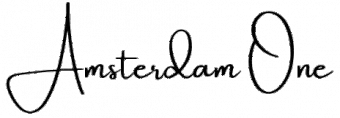
This rich tradition of typography is still important today. It can be used in many design projects, like rustic branding and themed events.
Characteristics of Western Fonts

Characteristics of Western Fonts

Western fonts have unique traits that give them a special look and tough feel. Knowing these traits helps designers pick the right Western font for their work.

The most clear feature of Western fonts is their bold, large serifs.

Unlike the smooth serifs in regular books, Western serifs are often thick and pointed. These strong serifs shape the western fonts’ look and add to their rugged style.

Weight balance is another important trait of Western fonts. They have heavy, bold letters that stand out on posters and signs in the American West. This boldness is still key today, making them great for headlines and display text.

Many Western fonts also have decorative parts, like spurs (small edges from letter lines), split serifs (forked ends), and fancy designs. These details give character and link to handmade signs from the frontier days.

Many Western fonts use narrower shapes, especially in capital letters. This narrow design helped printers fit more words on posters and ads while keeping them easy to read.

This practical choice became a key part of Western typography’s style.

20 Essential Western Fonts Available On Canva

Essential Western Fonts Available On Canva

Canva has a rich collection of Western-inspired typefaces. These range from bold and strong styles to detailed and handmade ones.

Let’s take a closer look at these specific fonts and how you can use them.

Alfa Slab One

Alfa Slab One

Alfa Slab One has a bold and strong look. Its thick slab serifs and weight give it power. This font shows the feel of the Wild West. It has a solid look but still feels modern. The clean lines make it great for new designs.

The heavy slab serif style is good for headlines. It grabs attention and makes titles stand out. You can find Alfa Slab One for free on Canva. It works very well for logos, posters, and more. This font adds a strong Western vibe with a fresh touch.

Silver Stone

Alfa Slab One

Silver Stone has a worn, rough look. It reminds people of the tough land in the American West. This special Canva font looks like letters cut from stone. The small flaws give it real charm. Its old-time style is great for designs that need a vintage western feel.

Silver Stone works well with projects about nature, adventure, or rustic brands. It links directly to the free spirit of the Wild West.

Chromium One

Chromium One

Chromium One has a design that looks shiny and feels industrial. It adds a unique twist to Western fonts. This font is bold, which is common in Western styles. It also has a smooth and precise look.

On Canva, Chromium One gives a fresh take on Western letters. It is great for modern brands. These brands want to show their Western roots but do not want to seem too old-fashioned. The special shine of this font works well for projects that need a fancy or high-end Western look.

Silverfake

Silverfake

Silverfake gives a classic Western look. It has thick letters and strong shapes. You can find it for free on Canva.

This font shows the style of old Western signs. It looks solid and reliable. Silverfake’s bold letters are easy to read, even when small.

This makes it good for many uses. The font is great for event flyers, product tags, and any design needing a simple Western style.

Asset

Asset

Asset is a font that only uses uppercase letters.

It has a sharp look similar to metal carvings. This free font on Canva gives a strong and bold feel. It quickly shows the rough spirit of the frontier.

Its narrow shape helps designers make strong headlines without taking up too much space. Asset is great for designs aimed at men, outdoor brands, and projects needing a tough western vibe.

Rye

Rye

Rye is a special font that has medium contrast. It is inspired by old wood type from the American West. The font has unique pointed ends and small flaws. These features show the true feel of hand-made print from the frontier time. You can use Rye for free on Canva.

It is one of the best western fonts for making a real Wild West vibe. This font works great for themed menus, event posters, and branding. It is perfect for places that want to show off their western roots.

Bevan

Bevan

Bevan changes the old slab serif style to a bold and narrow look. This free font on Canva has a strong weight and a modern feel.

It is ideal for designs that need a bit of western style. Its thick and even lines make strong headlines and titles that grab attention. Bevan is great for social media posts, book covers, and branded content. It ensures that both clarity and strength match well with western charm.

Chunk Five

Chunk Five

Chunk Five delivers exactly what its name promises-chunky, ultra-bold letterforms with substantial slab serifs. This free font on Canva commands attention through its sheer weight and presence.

The font’s bold, no-nonsense approach makes it perfect for headlines where maximum impact is required. Chunk Five creates an immediate western feel while maintaining clean lines that function well in contemporary contexts, from posters to social media graphics.

Brim Narrow

Brim Narrow

Brim Narrow Combined is a font that brings old western style to Canva. It has a unique narrow shape and big, rounded ends.

This special font looks like hand-painted signs from old towns. Its slim design uses space well and keeps the western look that makes it stand out.

Brim Narrow is great for making real western vibes. It works well for event invites, themed diners, and retro branding projects.

Vast Shadow

Vast Shadow

Vast Shadow has a shadow effect that adds depth and shape to western-style text. You can find it for free on Canva.

This unique font makes letters seem to jump off the page. The shadow effect reminds us of old sign painting from the American West.

In those designs, shadows made things look more interesting and easier to see. Vast Shadow is great for eye-catching headers, posters, and social media images that need more flair.

Sancreek

Sancreek

Sancreek is a tall and narrow font that has a unique western look. This free font on Canva shows special shapes that remind us of old wooden buildings. It has tall lines and nice details that reflect the frontier style.

Its unique look makes it great for titles and headers. Sancreek works best in places where height is more important than width.

This includes book covers, posters, and tall signs with western themes.

Weston

Weston

Weston is a stylish font with clean lines. It has a modern look that fits Western styles. You can find it in regular and bold on Canva. This gives designers many choices while keeping the Western feel.

Weston’s subtle style is great for brands that want to show their roots. They can do this without going overboard on the theme. This font is perfect for classy projects that need a touch of a Western vibe. It avoids the full cowboy look while still being effective.

Carlsons Slab

Carlsons Slab

Carlson’s Slab delivers a robust, solid presence with its substantial slab serifs and strong horizontal emphasis.

This premium Canva font creates an immediate impression of stability and reliability-qualities associated with frontier craftsmanship.

Its clean lines and consistent weight make it highly versatile for various applications. Carlson’s Slab works particularly well for logo design, product packaging, and branded materials for businesses wanting to convey trustworthiness with Western character.

Riotic

Riotic

Riotic has a worn and old look that fits western style. It brings to mind the tough life of the frontier. This special font on Canva feels strong and rough. Its uneven edges show it has been through tough weather. The unique texture is great for making a real western feel.

Riotic is perfect for designs about the outdoors, adventure brands, and any project needing strength.

Using this font helps make the message stand out with its tough look.

Ultra

Ultra

Ultra is one of the boldest Western fonts available on Canva. It has a strong weight and presence. This font is inspired by neon signs.

However, it keeps its Western serif style. Ultra makes a big impact in any use. Its thick letters grab attention easily.

Yet, it still holds the Western style due to its serif design. Ultra is great for headlines and short phrases. It works best where visibility is key. You can use it for posters, social media graphics, and eye-catching signs.

Canter 3d

Canter 3d

Canter 3D gives a three-dimensional look to western text. It has a special 3D effect built in. This font on Canva makes letters seem real and full. The 3D effect takes ideas from old signs but feels fresh and new.

Canter 3D is great for ads, event posters, and social media posts. It helps western style stand out from regular fonts.

Shining Bright

Shining Bright

Shining Bright adds a fun, joyful touch to western fonts.

This top font on Canva has a light and playful style. It still keeps the feel of the old west. Its unique look is great for happy projects. Shining Bright is perfect for event invites and ads. It also works well for social media posts.

Here, western style needs to show excitement instead of toughness.

TS Country NP

TS Country NP

TS Country NP delivers authentic cowboy style with its strong, distinctive character.

Available for free on Canva, this font captures the spirit of hand-painted signage from country stores and rural establishments across the American West.

Its slightly irregular letterforms add genuine character that references handcrafted typography.

TS Country NP excels in creating authentic western atmosphere for themed events, rustic branding, and projects requiring genuine frontier feel.

Elders

Elders

Elders combines rugged character with modern design sensibilities. This premium Canva font features letterforms that appear carved or chiseled, creating a distinctive texture that references frontier craftsmanship.

Its bold presence conveys strength and reliability-qualities associated with the pioneering spirit. Elders works particularly well for masculine-themed designs, outdoor brands, and projects where conveying resilience and solidity enhances the message.

Space Cowboy

Space Cowboy

Space Cowboy offers a unique fusion of futuristic elements with traditional western character.

This premium Canva font creates an unexpected twist on western typography by blending sci-fi influences with frontier style.

Its distinctive approach makes it perfect for contemporary projects that reference western heritage while looking forward.

Space Cowboy excels in creative applications where traditional western fonts might feel too conventional, opening new possibilities for western-inspired design.

Top Western Fonts for Different Projects

Top Western Fonts for Different Projects

Western Fonts For Logos

When picking western fonts for logo design, focus on impact and use. Alfa Slab One has a bold look with clean lines. It is great for branding across many uses. Carlsons Slab gives a classy choice. It shows professionalism while keeping western style without being too themed.

For unique logos, Silver Stone brings texture and charm. Weston gives a fresh spin on western style. It works well for brands wanting subtle hints of the frontier instead of obvious cowboy themes. In the end, the best font for your logo shows your brand’s character.

Think about the rugged feel of Riotic, the classic touch of Brim Narrow, or the modern style of Bevan.

Western Fonts For Posters and Invitations

Posters and invites look great with western fonts. Vast Shadow is eye-catching because of its 3D effect. It is perfect for event signs. Rye gives a true western vibe, inspired by wood type. This links back to the American West.

For wedding invites, use bold fonts like Chunk Five for titles. Pair it with smooth fonts like Weston for the text. Event posters shine with standout choices like Ultra or Canter 3D. These fonts are easy to spot from afar. The size of posters shows unique details like serifs and texture.

This creates feelings that range from rustic charm to a bold frontier spirit.

Western Fonts For Social Media

Social media graphics need clear Western fonts. These fonts should create a strong visual impact right away.

Bevan is great for titles. Its bold style and clean lines make it easy to read on any device. Alfa Slab One helps create a strong look for ads. Sancreek gives a unique Western feel to quotes and the main text.

For Instagram stories and posts, think about how Western fonts go with images. Silverfake looks good with nature scenes. Space Cowboy offers an interesting mix with modern pictures.

Remember that social media thumbnails are small. So, avoid fonts that are too detailed. They can be hard to read when made smaller.

How to Use Western Fonts Effectively?

How to Use Western Fonts Effectively?

To use Western fonts well, think about pairing them with matching typefaces to make reading easier.

Pairing Western Fonts With Other Typefaces

Western fonts make strong points as display fonts. They often need other fonts for body text. When you mix fonts, make sure there is a clear difference between the Western headline font and the other typefaces.

For example, if you use a thick serif like Chunk Five, pair it with a simple sans-serif for body text. This helps make things look more separate and clear. Avoid using fancy Western fonts in long texts. Instead, use them for headlines and normal serif or sans-serif fonts for easier reading in paragraphs. Think about history too: classic Western fonts like Rye or Sancreek work well with old-style serifs.

Meanwhile, newer styles like Weston go great with modern sans-serifs. This blends Western style with today’s design trends.

Color Combinations For Western-Style Designs

Color plays a big role in how western fonts are seen. Old color choices come from the American frontier. These colors include earth tones like brown and tan for realness. Deep blue and rich red remind us of old printed items.

To make a strong impression, use colors that stand out. Dark letters on light backgrounds show off their unique shapes. Light letters on dark backgrounds make them look bolder. Metallic touches work well with fonts like Chromium One or Silver Stone. They add a shiny look to these fonts. Distressed fonts like Riotic can look better with slight color changes. This can give them a worn feel and add depth to your designs.

Popular Western Font Combinations

Popular Western Font Combinations

Classic Cowboy Combinations

For a real western feel, good font pairings are key. Brim Narrow works well as a headline font. It pairs nicely with TS Country NP for subheadings. This creates a unified look.

For cowboy-themed designs, use Buffalo Gal with a clean serif font.

This mix gives great style and is easy to read. Event materials do well with Vast Shadow for titles. Pair it with Rye for supporting text.

Both of these fonts have western roots but differ in style and flair. These pairs keep the theme strong and help show importance using different weights and styles.

Modern Western Pairings

Modern designs can use Western styles and still look fresh. Pairing Alfa Slab One with a clean sans-serif gives a nice mix.

It keeps the Western feel with its slab serif shape. Space Cowboy with a neat sans-serif links old frontier style and today’s look.

For elegant choices, Weston with a light sans-serif makes an interesting contrast. It hints at Western fonts but stays modern.

These pairings work well by focusing on key parts of Western fonts, like thickness and size. They do not try to copy all old cowboy styles.

FAQ’s:

How Do I Find Western Fonts In Canva?

To locate Western fonts in Canva, start by selecting the text tool and clicking on the font dropdown menu. Type keywords like “western,” “cowboy,” “slab,” or specific font names like “Rye” or “Vast Shadow” into the search bar.

Canva will display all available fonts matching your search terms. You can also browse through the “Slab Serif” category, where many western-style fonts are categorized. Remember that some Western fonts may be premium options requiring a Canva Pro subscription.

Can I Upload Custom Western Fonts To Canva?

Yes, you can upload custom western fonts to Canva if you have a Canva Pro subscription.

First, acquire your western font file in a compatible format (TTF, OTF, or WOFF). Next, go to the Brand Kit section in your Canva account. Click on “Upload a font” and select your western font file from your computer.

Once uploaded, the font will appear in your Brand Kit fonts and be available for use in all your designs, allowing you to expand your western typography options beyond Canva’s built-in library.

What Makes A Font Look “Western”?

A font looks “western” through several key characteristics: prominent slab serifs (thick, block-like serifs), exaggerated weight contrasts, decorative elements like spurs or bifurcated serifs, and proportions typical of 19th-century advertising typography.

Many western fonts feature condensed uppercase letters, weathered or distressed textures, and stylistic references to hand-painted signage or wood type printing common in the American West. These elements combine to create typography that evokes the spirit of the Wild West through visual associations with historical frontier documents and signage.

Are Western Fonts Only Suitable For Cowboy-Themed Designs?

Western fonts are not just about cowboy themes. They work well in projects about frontier history. Their strong look fits many uses. This includes restaurants that focus on traditional ways. It also suits outdoor brands that show toughness.

Craft businesses can use them to highlight the handmade quality. Some places want to express American heritage, and these fonts help with that. Modern Western fonts like Weston and Bevan offer light hints of the frontier. They fit well in today’s designs without being too loud.

Which Western Fonts Are Best For Readability?

For maximum readability, certain Western fonts perform better than others, particularly at smaller sizes.

Alfa Slab One maintains excellent legibility thanks to its clean lines and consistent weight.

Bevan offers good readability while maintaining Western character through its slab serifs. Weston, with its more refined approach to Western style, provides better readability for longer text blocks compared to more decorative options.

For body text, avoid highly decorative western fonts like Sancreek or those with extreme textures like Riotic, instead reserving these for headlines where their distinctive details can shine without compromising legibility.

Conclusion

Canva has Western fonts that mix old style with new design. These fonts range from the bold Chunk Five to the worn Silver Stone.

They capture the spirit of the Wild West while still being useful today. To use Western fonts well, you need to know their special traits.

You should think about where to use them, like in logos or social media posts. Smart choices in colors and layouts can make designs stand out more. These fonts show strong values of boldness and skill that work in many areas.

At Designers Choice, I use my years of work in typography for branding, print, and digital media. I want to highlight these special letter styles that tell unique stories for today’s designers.

Categories
Canva

Canva Mail Merge: Step-by-Step Guide For Beginners (Bulk Create Personalized Designs)

As a designer, you know the power of personalization. Whether you’re creating certificates, name tags, or custom social media graphics, the ability to produce tailored designs at scale is a game-changer.

At Designers Choice, I’ve spent years refining workflows to help fellow professionals turn creative ideas into reality-without sacrificing quality or efficiency. Canva’s mail merge, powered by the bulk create feature, is one of the most effective tools for automating design personalization.

This guide will walk you through every step, from preparing your spreadsheet to generating bulk certificates and beyond, using keywords like csv file, upload data, dynamic fields, and more.

What is Canva Mail Merge?

What is Canva Mail Merge?

Canva mail merge is a process that lets you automatically fill in personalized details-like recipient’s name, email address, or job title-across multiple designs using a single template and a data source such as an excel spreadsheet or csv file. This approach is ideal for professionals who need to create bulk certificates, business cards, invitations, or any design where each copy needs unique information.

Understanding the Bulk Create Feature

The bulk create app in Canva Pro and Canva Teams enables you to upload data from a csv file, google sheets, or manually entered spreadsheet, and then connect each data field to text boxes or image frames in your canva template.

This means you can generate dozens or even hundreds of personalized designs in just a few clicks.

Benefits of Using Mail Merge in Canva

  • Save time by automating repetitive design tasks.
  • Ensure accuracy by pulling the recipient’s name, last name, email address, and more directly from your spreadsheet.
  • Produce professional, consistent results across all your templates.
  • Easily download your bulk designs as PDF files or images for email, print, or sms distribution.

Getting Started With Canva Mail Merge

Starting with Canva Mail Merge is easier than you think.

Prerequisites For Using Canva Mail Merge

  • Access to Canva Pro, Canva Teams, Canva for Education, or Canva for Nonprofits.
  • Your data is organized in a spreadsheet, with separate columns for each data field (e.g., first name, last name, email address).
  • A Canva template ready for dynamic fields.

Accessing the Bulk Create Tool in Canva

  • Open your design in Canva on desktop.
  • Go to the editor side panel, select Apps, then find the Bulk Create app under More from Canva.
  • For Canva Sheets users, you can start bulk create directly from your selected data range.

Preparing Your Data for Mail Merge

Creating A Spreadsheet With Your Data

Start with a spreadsheet in excel or google sheets. Each row should represent an individual recipient, and each column should represent a dynamic field such as first name, last name, email, or course name. Save or export your spreadsheet as a csv file for easy upload.

Formatting Requirements For CSV Files

  • Use clear headers for each column (e.g., first name, last name, email address, certificate title).
  • Avoid special characters that might interfere with mail merge.
  • Ensure there are no blank rows or columns in your csv file.

Manually Entering Data in Canva

If you have a small list, you can manually enter data within the bulk create app. Click on the table, add your dynamic fields, and input recipient details directly- ideal for quick projects like name tags or small batches of certificates.

Designing Your Template

Adding Placeholders To Your Design

In your Canva template, add text boxes or image frames where you want personalized information to appear. Label each placeholder clearly so you can easily connect it to the correct data field during the mail merge process.

Best Practices For Template Creation

  • Use separate text boxes for each dynamic field (e.g., one for first name, one for last name).
  • Leave enough space for longer names or data entries.
  • Test your template with sample data to ensure proper alignment and formatting.

Testing Your Template Design

Before running your full mail merge, preview your design with sample data. This helps catch issues with text overflow, image alignment, or formatting errors-saving time and ensuring your bulk certificates or business cards look professional.

Step-By-Step Guide To Canva Mail Merge

Step-By-Step Guide To Canva Mail Merge

Setting Up Your Template

Start by opening your Canva template and adding text boxes or image frames where personalized details like first name, last name, or email address will go. Label each placeholder clearly (e.g., “Name,” “Course Title”) to match the data fields in your spreadsheet.

For certificates or name tags, ensure your design has enough space for longer names and aligns elements like logos or borders properly.

Uploading Your Data

Prepare your csv file or google sheets with separate columns for each dynamic field (e.g., “First Name,” “Email”). Save the file as a .csv or .xlsx format, then go to Canva’s bulk create app and click Upload Data. Select your file-Canva supports up to 300 rows and 60 columns per upload. For smaller projects, manually enter data directly into the app’s table.

Connecting Data to Design Elements

Click on each placeholder in your template (e.g., a text box for “Recipient’s Name”), then select Connect Data from the menu. Map it to the corresponding column in your spreadsheet, like linking the “First Name” column to the name field. Repeat for images by connecting image URLs from your CSV to frames in your design. Ensure headers in your spreadsheet match placeholder labels exactly to avoid errors.

Previewing and Editing Your Designs

Use Canva’s preview feature to check each design for issues like text overflow or image alignment.

Scroll through generated pages to spot mistakes-for example, a last name spilling outside a certificate’s text box. Adjust font sizes, frame dimensions, or spacing directly in the template, then re-preview until all elements look polished.

Generating Your Bulk Designs

Once satisfied, click Generate to create all designs at once. Canva will produce individual pages for each row in your spreadsheet.

Download them as PDF files for printing certificates or PNG images for social media posts.

For events, use Activity Messenger to send designs via email or SMS directly from the app.

Common Use Cases For Canva Mail Merge

Common Use Cases For Canva Mail Merge
  1. Creating Personalized Certificates: Mail merge is perfect for generating bulk certificates. It allows you to insert each recipient’s name, course title, and date automatically—ideal for workshops, events, or online courses.
  2. Designing Custom Business Cards: Upload data with separate columns for first name, last name, job title, and email address to quickly create professional business cards for your team or clients.
  3. Making Customized Invitations and Postcards: Personalize invitations or postcards with the recipient’s name, address, and event details-saving hours compared to manual editing.
  4. Producing Name Tags and Place Cards: Bulk create name tags or place cards for conferences, weddings, or events, with each guest’s name and table number dynamically inserted from your spreadsheet.
  5. Generating Customized Social Media Graphics: Use mail merge to create social media posts with personalized messages, names, or dynamic fields for marketing campaigns or client outreach.

Advanced Techniques

  1. Merging Images with Frames: Include image links in your CSV file to automatically populate frames in your Canva template with recipient photos, logos, or QR codes- ideal for certificates, badges, or branded graphics.
  2. Adding Links to Your Designs: Insert personalized URLs or email addresses into text boxes or buttons within your design. This is useful for email templates, certificates with verification links, or event invitations.
  3. Working with Large Data Sets: Canva’s bulk create supports up to 300 rows and 60 columns per upload. For larger projects, split your data into multiple spreadsheets and repeat the mail merge process.

Troubleshooting Canva Mail Merge

Troubleshooting Canva Mail Merge

Common Issues and Solutions

Issue: Data doesn’t appear in your design after uploading a CSV file or Google Sheets.

Solution: Check if your dynamic fields (e.g., first name, last name) in Canva exactly match the column headers in your spreadsheet. For example, if your CSV uses “First_Name” but your template uses “First Name,” Canva won’t connect them. Rename headers or template placeholders to align.

Issue: The bulk create app shows errors like “Your designs didn’t get built.”

Solution: Reduce your data size. Start with 5-10 rows to test, then scale up. Remove extra columns or special characters (like commas in names) that confuse the system.

Data Formatting Problems

Problem: Canva ignores parts of your uploaded data.

Fix: Ensure your CSV file uses separate columns for each field (e.g., “First Name” and “Last Name” in two columns, not combined). Avoid blank rows or merged cells, as these disrupt the mail merge. Save files as .CSV or . XLSX-other formats like .ODS may fail.

Problem: Numbers or dates appear incorrectly.

Fix: Format all cells in your spreadsheet as “Text” to preserve leading zeros (e.g., “001”) or special date formats. Canva reads raw data, so mismatched formatting (like mixing text and numbers) causes errors.

Image Alignment Fixes

Problem: Images from your CSV file crop poorly or overflow frames.

Fix: Resize image frames in your Canva template to match the aspect ratio of your photos. For example, if your CSV links square profile pictures, use square frames-not rectangles. Adjust frames under the “Elements” tab before connecting data.

Problem: Text overlaps images after merging.

Fix: Use Canva’s alignment tools (Position > Align) to center text boxes or images. For complex layouts, add manual line breaks in your template to create space around dynamic fields.

By addressing these issues, you’ll streamline your bulk certificates, name tags, or social media graphics workflows, ensuring smooth merges every time.

Alternative Methods

Exploring other methods can make your design work more flexible.

Using Canva With Other Mail Merge Tools

For those needing to send bulk certificates, name tags, or invitations beyond Canva’s built-in features, tools like Activity Messenger bridge the gap between design and delivery.

After creating personalized templates in Canva Pro or Teams using dynamic fields and uploading data from a CSV file or Google Sheets, Activity Messenger lets you automate distribution via email or SMS while retaining your brand’s polish.

This integration ensures each recipient gets their customized design-like certificates with their first name and last name-directly to their inbox or phone, complete with tracking for opens and clicks.

It’s ideal for schools, events, or businesses wanting seamless workflows from Canva templates to real-world impact.

Comparing Canva Mail Merge to Microsoft Mail Merge

FeatureCanva Mail MergeMicrosoft Mail Merge
PlatformOnline (Canva Pro/Teams)Desktop (Word/Outlook)
Design FlexibilityHigh (graphics, images)Moderate (text-focused)
Data SourcesCSV, Google SheetsExcel, Access, CSV
Output FormatsPDF, PNG, JPGDOCX, PDF, Email
Best ForVisual designs, graphicsLetters, documents

FAQ’s:

Can I Use Mail Merge in Canva For Free?

No, Canva’s mail merge (bulk create) is only available for Canva Pro, Canva Teams, Canva for Education, or Canva for Nonprofits users. Free accounts can’t access this feature, but you can start a free 30-day Pro trial to test it.

What Types of Documents Can I Create With Canva Mail Merge?

You can create personalized certificates, business cards, invitations, name tags, social media graphics, and more. Any design requiring unique details like first name, last name, or email address can be automated using a CSV file or Google Sheets.

How Do I Ensure My Data is Correctly Formatted For A Canva Mail Merge?

Use a spreadsheet with separate columns for each field (e.g., “First Name,” “Email”) and save it as a CSV file. Avoid blank rows, special characters, or merged cells. Headers should match placeholders in your Canva template exactly.

How to Send Certificates Through Email, Outlook, and Mail Merge?

After generating bulk certificates in Canva, download them as PDFs. Use Activity Messenger or Outlook’s mail merge to send them via email by linking your recipient list. Outlook requires attaching files manually, while Activity Messenger automates delivery.

Could I Use Canvas Messages Just Like Email?

No, Canva isn’t an email client. You can design email templates or certificates, then download and send them via Outlook, Gmail, or tools like Activity Messenger. For SMS, use third-party apps to distribute designs.

Conclusion

Canva Mail Merge, powered by the bulk create app, empowers designers to efficiently produce personalized, professional designs at scale.

From uploading your CSV file or Google Sheets, mapping dynamic fields, to downloading bulk certificates, business cards, and social media graphics, every step is streamlined for creativity and excellence.

Whether you’re working solo or as part of canva teams, this workflow saves time, reduces errors, and ensures your recipients receive designs tailored just for them. At Designers Choice, I’m passionate about helping you turn your boldest visions into reality-one bulk create at a time.

Categories
Canva

Does Canva Have Spell Check? [Easy Ways To Find Out]

Creating professional designs isn’t just about choosing the right fonts or layouts-it’s also about making sure your text is clear and error-free.

Spelling errors and grammar mistakes can make even the best Canva design look unprofessional and hurt your brand’s credibility.

That’s why having a reliable spell check and grammar checker is so important for every designer.

While Canva offers a user-friendly platform with plenty of templates, many users still wonder: does Canva have spell check built in?

The answer isn’t straightforward, but there are several ways to catch spelling and punctuation errors in your Canva projects.

You can use your web browser’s spell checker, like the one in Google Chrome, or add the Grammarly extension for a more powerful grammar and punctuation checker.

Some designers prefer copying their text into Google Docs or Microsoft Word to use their spell check features before pasting it back into Canva.

No matter which method you choose, using a spell checker helps keep your blog post, social media graphic, or business presentation polished and professional. With these tools, you can focus on creativity while letting technology handle spelling, commas, and other common mistakes.

Does Canva Have Spell Check?

Does Canva Have Spell Check?

The answer to “Does Canva have spell check” has evolved.

Historically, Canva lacked a built-in spell checker, requiring users to rely on workarounds. However, Canva now offers Magic Write, an AI-powered feature that includes grammar checker and spell checker functionality.

This powerful grammar checker instantly identifies and fixes spelling, grammar, or punctuation errors while working in Canva Docs.

The spell check capability helps users create error-free content for various applications, including school essays, research articles, business reports, and blog posts.

That said,

The full spell checker functionality is primarily integrated into Canva Docs rather than the main design interface. For standard design projects, users may still need additional methods to ensure text accuracy.

For instance, knowing how to highlight text in Canva is a useful skill for manual proofreading within a design.

Let’s explore all available options for spell checking in Canva.

How to Spell Check in Canva?

How to Spell Check in Canva?

Canva does not have a built-in spell-check tool. However, there are easy ways to check your spelling.

Method 1: Using Canva’s Magic Write Feature

Canva’s Magic Write feature provides AI-powered spell check and grammar checking capabilities within Canva Docs.

This powerful grammar checker automatically detects spelling errors, grammar issues, and punctuation errors as you type.

While you’re working with text, you might also find it helpful to learn how to indent in Canva for better formatting.

To access this spell checker:

  • Open Canva Docs
  • Type or paste your text
  • Highlight the text requiring spell check
  • Select “Magic Write
  • Choose “Fix spelling” to scan and correct errors

This spell check option saves time by instantly identifying problems while maintaining your writing flow. The grammar checker component also helps improve overall sentence structure and clarity.

Method 2: Using Browser’s Built-in Spell Checker

Most web browsers include basic spell check functionality that works within Canva’s text fields. This browser-based spell checker can identify common spelling errors while working directly in the Canva design interface.

For Google Chrome users:

  • Open Chrome settings via the three-dot menu
  • Search for “spell
  • Enable spell check functionality

Once activated, the browser spell checker will highlight spelling errors with a red underline while typing text in Canva. Right-clicking the underlined word provides correction suggestions. This method provides real-time feedback without switching between applications.

Method 3: Using Grammarly Extension

The Grammarly extension offers robust spell check and grammar checking capabilities that work directly within the Canva interface. This popular browser extension functions as both a spelling checker and a punctuation checker.

To use Grammarly with Canva:

  • Install the Grammarly extension for Chrome, Firefox, or Safari
  • The extension will automatically check text as you type in Canva
  • Spelling errors and grammar issues appear with underlines
  • Hover over underlined text to see correction suggestions

The Grammarly extension provides more comprehensive checking than basic browser tools, identifying complex grammar issues, punctuation errors, and stylistic improvements in addition to spelling.

Method 4: Copy and Paste to External Tools

For thorough spell checking, copying text from Canva to dedicated writing tools offers comprehensive error detection.

This method works well for text-heavy designs or critical projects.

While you’re perfecting your text, you might also explore creative text effects, like learning how to curve text in Canva.

Process:

  • Select and copy text from your Canva design (Ctrl+C on Windows, Cmd+C on Mac)
  • Paste into Google Docs, Microsoft Word, or the Grammarly web app
  • Use these platforms’ spell check and grammar tools
  • Make necessary corrections
  • Copy the corrected text and paste it back into Canva (Ctrl+V on Windows, Cmd+V on Mac)

This approach uses specialized writing tools’ advanced capabilities. Similarly, for advanced text styling, you might want to know how to wrap text in Canva or even how to flip text in Canva for unique design effects.

Method 5: Manual Proofreading Techniques

Manual proofreading remains valuable even with technological assistance. Beyond text, the visual elements are just as important.

For example, knowing how to replace an image in Canva or how to flip an image in Canva can be important for design consistency.

Effective techniques include:

  • Reading text backward to focus on individual words rather than the content
  • Printing designs for physical proofreading
  • Having another person review your work
  • Reading text aloud to catch awkward phrasing and errors
  • Taking a break before the final review to approach with fresh eyes

Manual proofreading catches context-specific errors that automated tools might miss. This is also a good time to check your image edits, such as whether you know how to cut out an image in Canva correctly or how to slice in Canva for creative effects.

Step-By-Step Guide To Spell Checking With Magic Write

Step-By-Step Guide To Spell Checking With Magic Write

Opening Your Design

To begin spell checking with Canva’s Magic Write:

  • Log into your Canva account.
  • Open Canva Docs by selecting it from the homepage menu.
  • Create a new document or open an existing one. You may want to set your orientation first, so learning how to landscape in Canva can be a useful first step.
  • For text from a design project, copy it first and paste into Docs for checking.

The Magic Write spell checker functions primarily within Canva Docs rather than directly in design projects, making this intermediary step necessary for accessing the full spell check capabilities.

Selecting Text

Once your text appears in Canva Docs:

  • Click and drag to highlight the text requiring spell check
  • Ensure all relevant content is selected
  • For long documents, consider checking in manageable sections

Text selection activates the Magic Write menu, providing access to the spell checker and other text enhancement functions.

Using Magic Write To Fix Spelling

With text selected:

  • Click the “Magic Write” option that appears
  • Choose “Fix spelling” from the menu options
  • Wait briefly while the powerful grammar checker scans your text
  • The spell checker automatically identifies and suggests corrections for spelling errors, punctuation errors, and grammar issues

The Magic Write spell checker leverages AI technology to detect a wide range of text issues beyond simple spelling, including grammar problems and punctuation inconsistencies.

Reviewing Corrections

After Magic Write processes your text:

  • Review each suggested correction carefully
  • Accept appropriate changes
  • Consider context for specialized terms or brand names that might be falsely flagged
  • Check that formatting remains consistent after corrections

This review step remains essential, as even advanced spell checkers occasionally suggest inappropriate corrections for specialized terminology or creative language choices.

Using Third-Party Tools For Spell Checking

For additional verification:

  • Copy your corrected text (Ctrl+C/Cmd+C)
  • Paste into another checking tool like Grammarly or Word
  • Address any issues missed by Magic Write
  • Return the finalized text to your Canva design

This multi-tool approach provides comprehensive error detection for critical projects.

Using Third-Party Tools For Spell Checking

Using Third-Party Tools For Spell Checking

Setting Up Grammarly For Canva

Setting Up Grammarly For Canva

Grammarly offers powerful spell check capabilities directly within your browser:

  • Visit the Grammarly website or browser extension store
  • Download and install the extension for your web browser
  • Create a Grammarly account or log in
  • The extension automatically activates when working in Canva
  • Spelling errors appear with red underlines
  • Grammar issues show with other colored underlines
  • Click the underlined text to view correction suggestions

The Grammarly extension works seamlessly across Canva’s interface, providing real-time feedback on spelling errors, punctuation errors, and grammar issues.

Using Google Docs For Spell Checking

Using Google Docs For Spell Checking

Google Docs offers robust spell check functionality:

  • Open Google Docs in a separate browser tab
  • Create a new document
  • Copy text from your Canva design
  • Paste into Google Docs
  • Spelling errors automatically appear with red underlines
  • Right-click underlined words for correction options
  • Use Tools > Spelling and grammar for comprehensive checking
  • Copy corrected text back to Canva

Google Docs’ spell checker catches many common errors and works well for checking longer text passages before finalizing them in Canva.

Using Microsoft Word For Spell Checking

Using Microsoft Word For Spell Checking

Microsoft Word provides industry-standard spell checking:

  • Open Microsoft Word
  • Create a new document
  • Copy text from Canva
  • Paste into Word
  • Use the Review tab > Spelling & Grammar
  • Address flagged issues
  • Copy corrected text back to Canva

Spell Checking On Mobile Devices

Spell Checking On Mobile Devices

Options For The Canva Mobile App

The Canva mobile app presents challenges for spell checking:

  • The Magic Write feature may be accessible in the mobile Docs interface
  • Mobile keyboard spell checkers provide basic functionality
  • Red underlines typically indicate spelling errors detected by your device
  • Tap underlined words to view correction options

Mobile spell checking tends to be more limited than desktop options, but it provides basic error detection for on-the-go design work.

Workarounds For Mobile Spell Checking

For more thorough mobile spell checking:

  • Copy text from your Canva mobile design
  • Paste into a mobile word processor or email app
  • Use that app’s spell check functionality
  • Copy corrected text back to Canva
  • Alternatively, send yourself the text to check on a desktop device

These workarounds help overcome the limitations of mobile spell checking for important projects.

Tips For Error-Free Canva Designs

Tips For Error-Free Canva Designs

Pre-Writing Best Practices

Prevent spelling errors before they occur:

  • Draft important text in a dedicated word processor with spell check before adding to Canva
  • Create a style guide with commonly used terms and brand-specific spellings
  • Maintain a list of frequently misspelled words relevant to your industry
  • Use simple, clear language when possible
  • Be consistent with spelling conventions (American vs. British English)

Preparation minimizes errors and streamlines the design process, reducing time spent on corrections later.

Final Proofreading Checklist

Before finalizing any Canva design:

  • Check all headlines and prominent text first – these errors are most noticeable
  • Verify proper names, brand terms, and technical terminology
  • Review punctuation, especially commas and apostrophes
  • Confirm consistent capitalization in headings
  • Check for proper spacing after punctuation
  • Verify numbers and dates
  • Review fonts for consistency and legibility
  • Print complex designs for final review when possible

This systematic approach catches errors that might slip through automated spell checkers.

FAQ’s:

Does Canva Have A Built-In Spell Checker?

Yes, Canva now offers spell check functionality through its Magic Write feature in Canva Docs. This powerful grammar checker can fix spelling, grammar, and punctuation errors. However, the spell checker isn’t directly integrated into the main design interface.

Is Magic Write Available On The Free Version Of Canva?

Magic Write has limited functionality in Canva’s free version. Full access to the spell checker and grammar features may require a Canva Pro subscription.

Magic Write has limited functionality in Canva’s free version. Full access may require a Canva Pro subscription.

If you’re wondering how much Canva Pro costs, it’s best to check their site for current pricing. You can also research how to get Canva Pro for free through special offers.

Ultimately, deciding if Canva Pro is worth it depends on your needs.

Does Canva Support Spell Check In Multiple Languages?

Canva’s Magic Write feature supports spell checking in multiple languages, though English has the most comprehensive support. Browser-based spell checkers and tools like Grammarly also offer multi-language functionality depending on your settings.

Which Browser Extensions Work Best For spell checking in Canva?

Grammarly consistently ranks as the most effective browser extension for spell checking in Canva, providing comprehensive error detection. LanguageTool offers a free alternative with solid functionality.

Can I Spell Check Canva Designs On Mobile?

The Canva mobile app has limited native spell check capabilities. Users can use device keyboard spell checkers or copy text to other mobile apps for checking, then paste corrected text back into Canva.

Is Canva’s Spell Check Reliable For Long Documents?

For extensive text, it’s advisable to use dedicated word processing software like Google Docs or Microsoft Word in conjunction with Canva’s Magic Write. This combined approach ensures thorough error detection.

Is Canva’s Grammar Checker Free To Use?

Basic grammar checking via Magic Write is available in Canva Docs, but may have usage limits on free accounts. Premium features of the spelling and grammar checker may require a Canva Pro subscription.

Conclusion

The question “Does Canva have spell check?” has a nuanced answer. While Canva now offers spell checking through Magic Write in Canva Docs, designers still benefit from supplementing this with additional methods for comprehensive error detection. Whether you’re creating a presentation where you need to know how to put a timer in Canva or designing templates for sale, error-free text is important.

Whether using Canva’s built-in capabilities, browser-based spell checkers, specialized extensions like Grammarly, or external tools like Google Docs and Microsoft Word, maintaining error-free text remains essential for professional designs.

The methods outlined in this guide provide multiple layers of protection against spelling errors, punctuation mistakes, and grammar issues.

Keep in mind that no matter how advanced a grammar checker may be, a final human review is essential; the synergy of technological help and meticulous proofreading yields well-refined outcomes that boost your brand’s credibility and influence.